

We all know what ruins any gaming session: sluggish controls, a stuttering screen, and frames dropping right at a critical moment. I have been there when my FPS tanked mid-fight in Valorant because Chrome suddenly wanted 2GB of RAM in the background.
How to improve FPS in games to boost gaming experience? I have discovered that low FPS is not always a hardware-related issue. Most of the time, with the right PC optimizations, you can easily tackle this issue.
I am giving you 10 tested ways to improve FPS in games that work very well for me and will also make your gaming experience a hundred times smoother.
In this article
Part 1: What Affects FPS in Games?
The number of images rendered per second by a PC is called its FPS, or frames per second. So a higher FPS number means smoother gameplay. Many things determine how high that number can actually go in your PC:
- The graphics card is the biggest FPS driver; it handles all visual rendering. If your GPU is running hot or underpowered, you can expect your FPS to suffer first.
- If the CPU is slow, frames can drop because it doesn't send enough info to the GPU. Your CPU is in charge of AI, game reasoning, and physics.
- Background apps are literally competing for CPU and RAM. It means more background processes = fewer resources for your gaming sessions.
- Slow hard drives cause long load times and stuttering in the middle of games. If you use an SSD or defragment the HDD, you can fix this storage problem.
- As your game's quality and graphics settings improve, your GPU has to do more work.
- Virtual memory will work more slowly if you don't have enough RAM. Heavy scenes cause the FPS to drop and slow down.
- Driver manufacturers often release changes that make things run better. Many times, these changes make the FPS 10-20% better. Old GPU drivers may not see these.
Part 2: How to Improve FPS in Games With 10 Tested Ways
Way 1. Turn Off Background Apps with WMaster Cleanup Game Booster
The biggest silent FPS killer award goes to: Background Apps. The CPU and RAM that your game needs, all of the background apps like Discord, Drive, Chrome, etc., are fighting for them too.
After trying many things, the best solution I have discovered to handle this issue is using WMaster Cleanup's Game Booster feature. It does way more than just close some apps on your PC. It also clears game cache, disables OS interruptions, reallocates system resources, and pushes your hardware into an esports-ready mode.
WMaster Cleanup Game Booster Features
- ·Offer multiple game modes, which is perfect for daily gameplay as well as Esports.
- ·Find memory hogs to free up space on your RAM for a better gaming experience.
- ·Adjusts the system time and improves the responsiveness of time-sensitive apps & games.
- ·Disable Windows service to let you improve FPS by reducing resource usage.
- ·With cross-generational FPS upgrade, safely max out your lower-end or higher-end PCs.

How to Improve FPS on PC With WMaster Cleanup's Game Booster:
Step 1: Download, install, and open WMaster Cleanup on your PC. The main dashboard will show you the Game Booster feature; click on it.
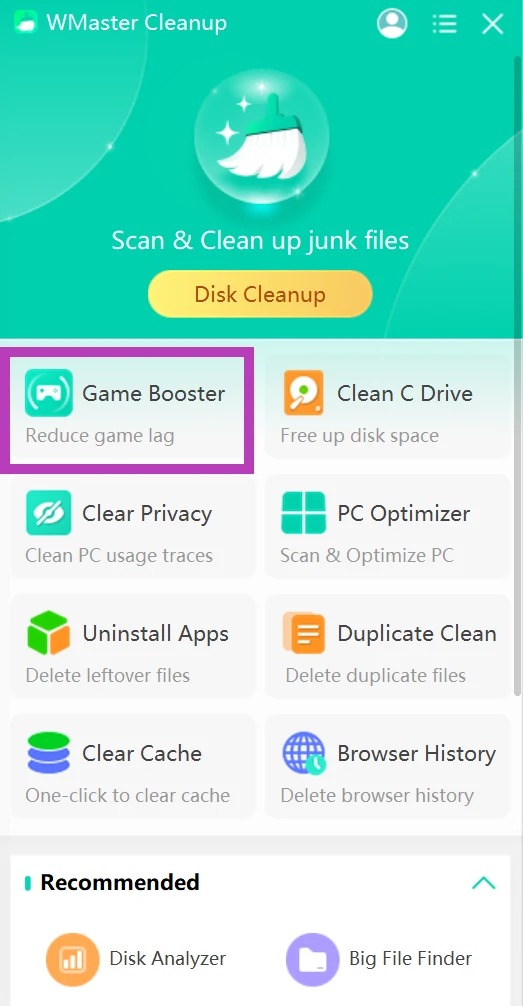
Step 2: The Game Booster tool will open up with many options on the left side of your screen. Click on the Optimizations tab.
💡Tips:There you can select Lite, Advanced, or Esport mode. Tap on Esport mode to keep no latency.
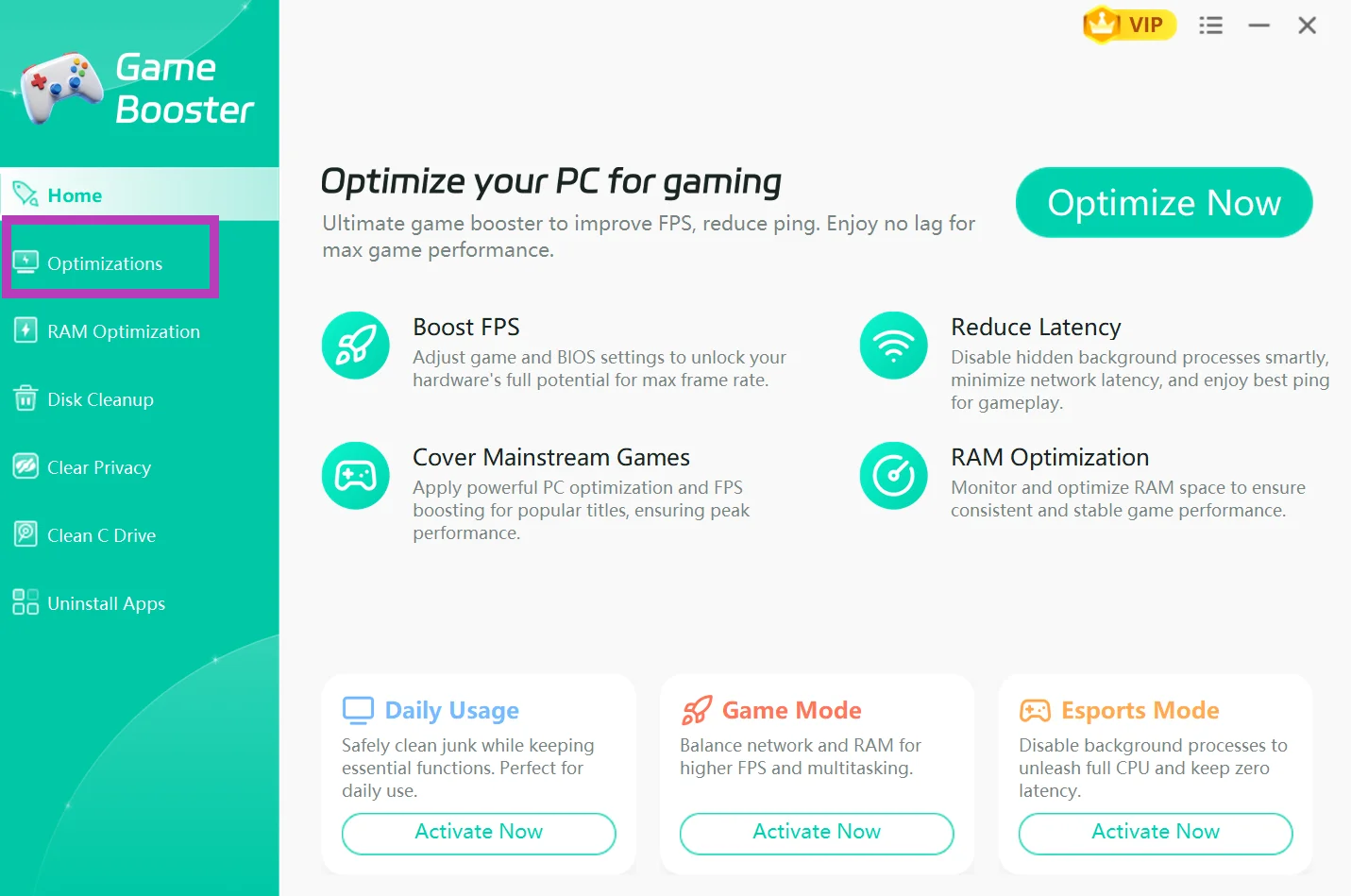
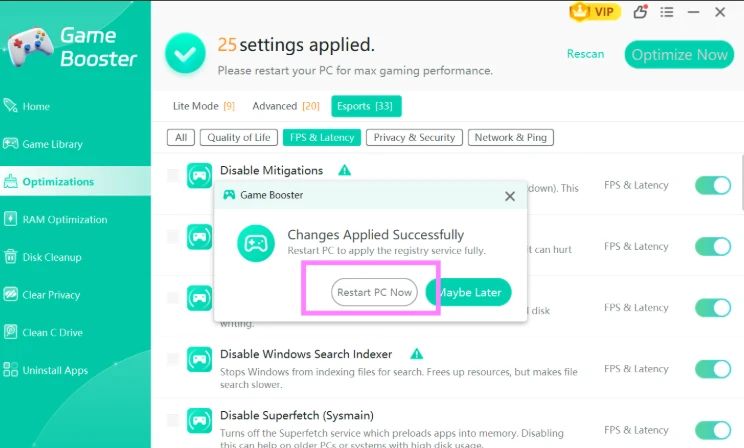
Step 3: Now tap on the FPS & Latencytab and select the desired configurations. Once done, hit "Optimize Now."
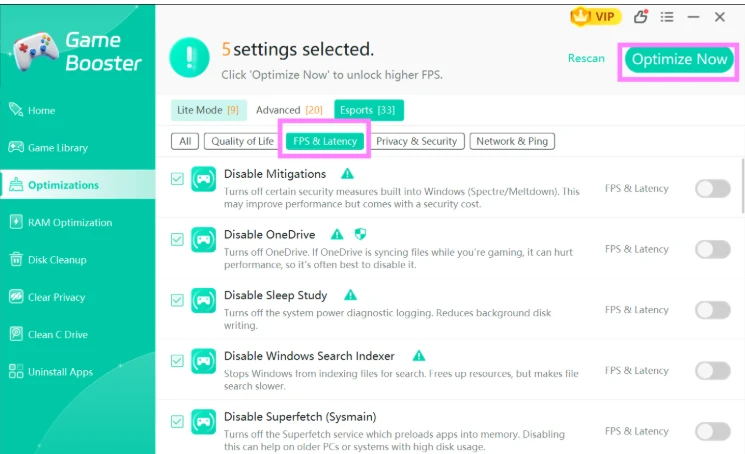
Step 4: Restart your PC: Now restart your Windows PC to fully apply the registry service and to maximize your gaming experience.
💡Tips:Next time you start your games, you will feel a major upgrade in performance & higher frame rates, less stutter, and more responsive gaming. According to our internal testing, most online and PC games can expect a 30-40% FPS boost!
WMaster Cleanup is one of the best PC cleaners out there, and you can discover so many useful Windows cleanup features to optimize your PC performance.
Way 2. Update Your GPU Drivers
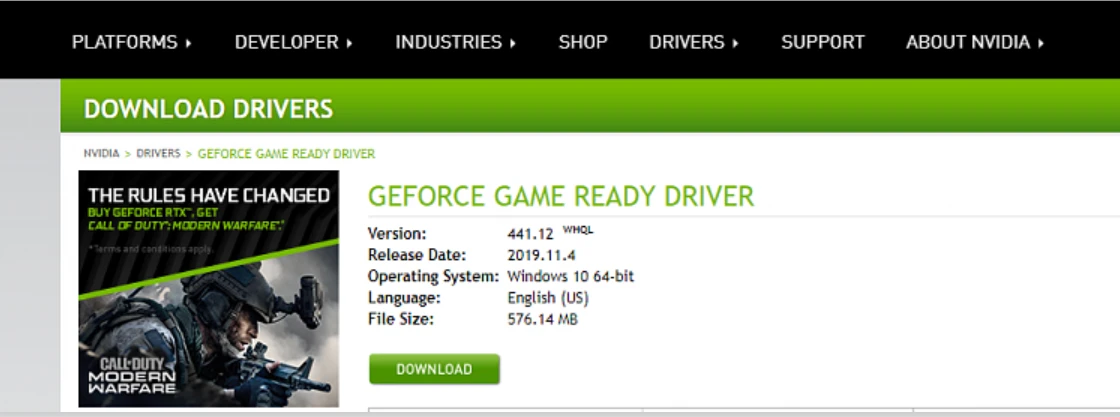
Outdated GPU drivers are a very common FPS bottleneck. Driver updates give up to 23% better gaming performance on the same hardware (report by Nvidia). Thus, upgrading drivers directly raises my FPS by including game-specific fixes to eliminate micro-stutters and sudden frame drops during heavy scenes. Similarly, it optimizes my rendering pipeline so my GPU can present frames to the screen more efficiently-it completely stops FPS drops.
Trying out this method will cost you nothing and take only a few minutes, letting you use your gear at its full speed.
How to Improve FPS in Games by Updating GPU Drivers:
Simply go to your manufacturer's site and download the latest driver:
Nvidia-nvidia.com/drivers, AMD - amd.com/support, Intel-intel.com/content/www/us/en/support.
Way 3. Enable Windows Game Mode
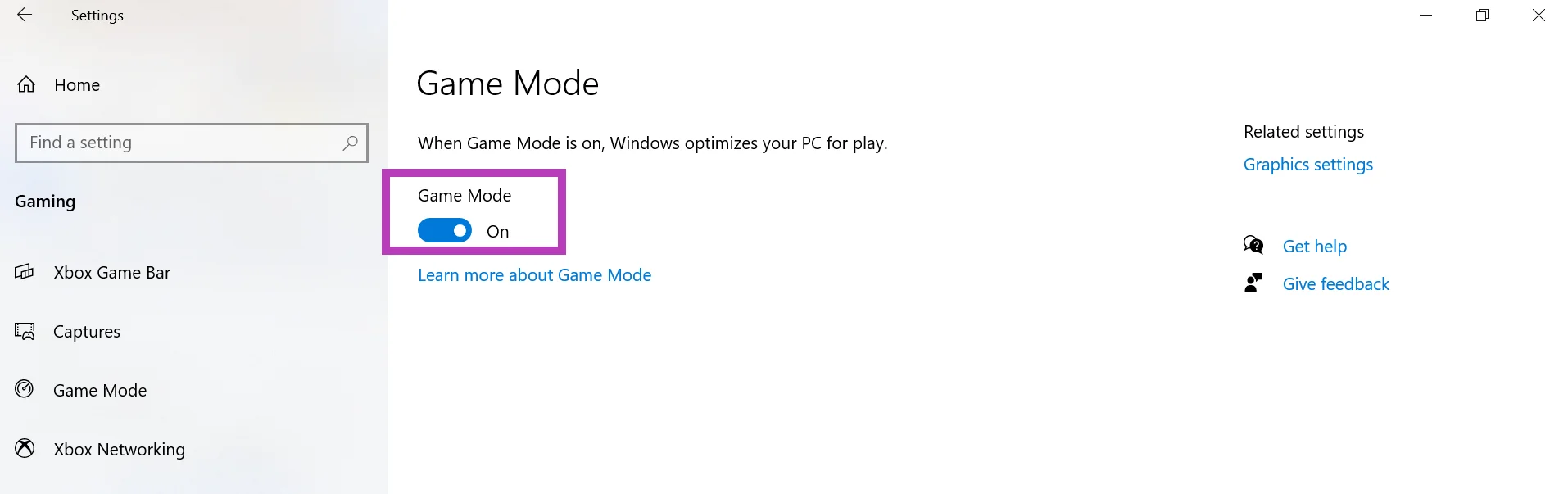
I used to get frustrated at random freezes in fights until I figured out Windows was letting background stuff hog my system's power. Here, I took less than a minute to turn on Windows Game Mode.
The difference was huge: it was fast at stopping background apps from spiking my CPU, and that took out the sudden stutters that used to ruin my matches. Instead of being all over the place, I've been able to freeze my frame rate by dedicating all of my system's CPU and RAM to my game, keeping my FPS smooth.
How to improve in FPS games by enabling Windows Game Mode:
Head over to your system Settings, click Gaming, and then tap on Game Mode and toggle it On.
Way 4. Lower In-Game Graphics Settings
Your GPU simply renders each pixel at the settings you choose. So what you can do here is give your GPU less work.
Reducing shadow quality, disabling motion blur, turning down anti-aliasing, and lowering texture resolution are some of the easiest settings to use to boost FPS quickly.
How to improve pc FPS
:You can find all the settings in your game's Video or Graphics settings menu.
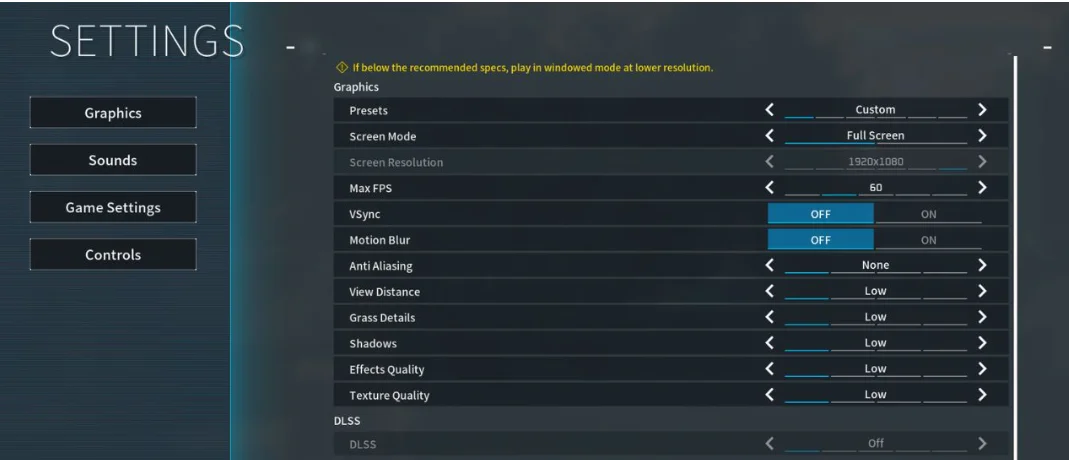
💡Tips:VSync caps your FPS to your monitor's refresh rate, which often feels worse than a naturally higher uncapped framerate, so try to disable VSync first for a better experience.
Way 5. Set Power Plan to High Performance
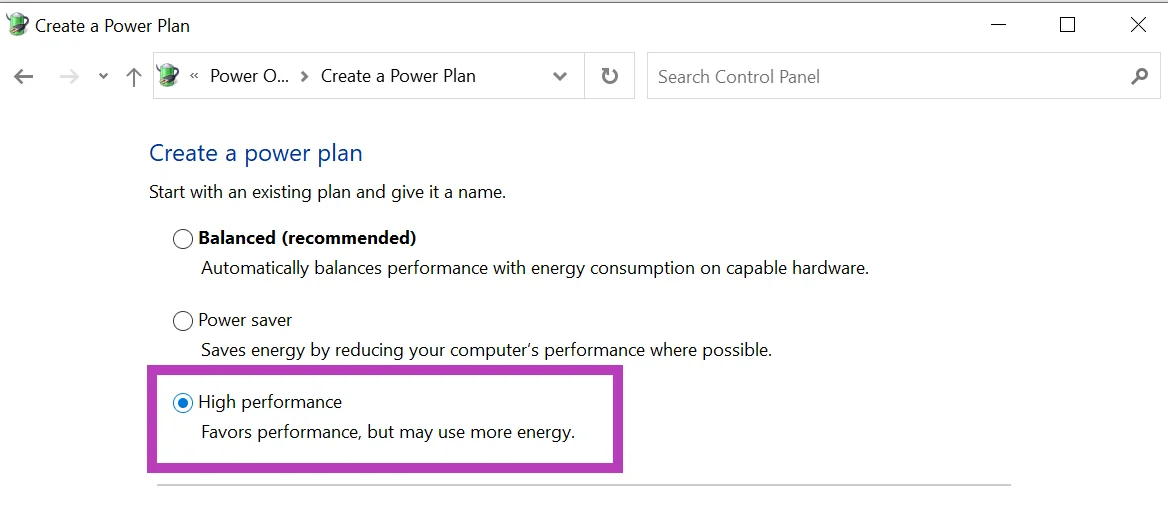
There's a balanced power plan that your Windows defaults to without you noticing. It basically throttles CPU speed to save energy. All you have to do is switch to High Performance to remove this cap. Because when I switched to the High Performance plan, in CPU-heavy games specifically, my average FPS skyrocketed instantly.
On the other side, this power limit removal also helped me to stop my CPU from falling asleep mid-game, eliminating those sudden, unsettling frame drops when there are intense actions.
How to Set Power Plan to Improve FPS in Games
Go to the Control Panel of your Windows system, tap on Power Option, Create a power plan, and hit High Performance.
Way 6. Adjust Your Monitor's Refresh Rate
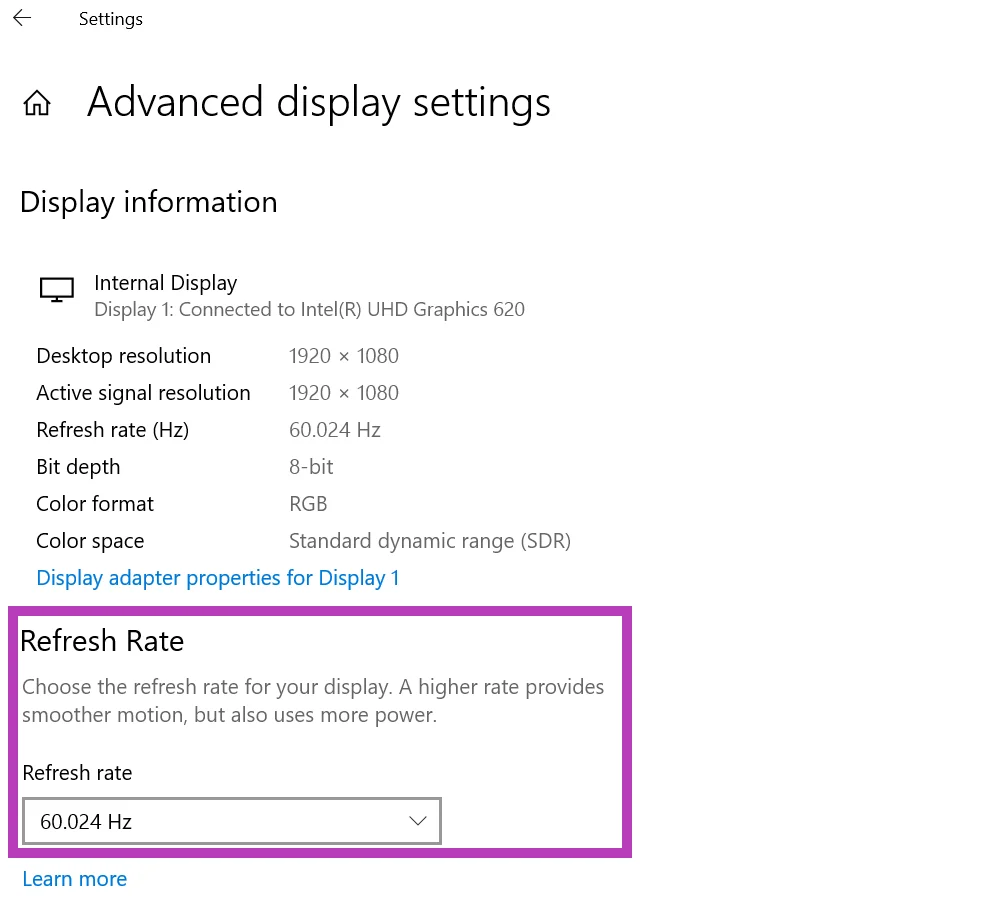
There is a chance that by default your monitor is not running at its maximum refresh rate. For smoother gameplay that matches your FPS output, you must set it correctly.
How to Adjust Monitor's Refresh Rate to Improve Game FPS:
Go to Settings & System & Display & Advanced Displayand set the highest available refresh rate under Choose a refresh rate.
Way 7. Defrag Your Drive with WMaster Cleanup Disk Defrag (HDDs Only)
I'm sure that your broken files are making the game start more slowly and causing stutters in the middle of the game. What do I do with that? Because you have an HDD, I understand what you're experiencing.
Defragging my drive with WMaster Cleanup cleaned up all of my spread files so they load quickly-making my computer run faster. My hard drive stopped lagging when searching for data, so I didn't get any more lagging or heavy frame drops in the middle of games. This easy way to get to the files fixed my texture pop-in and gave me a much more stable, smoother framerate.
💡Tips:Never defrag an SSD; it causes unnecessary wear. This applies to HDDs only.
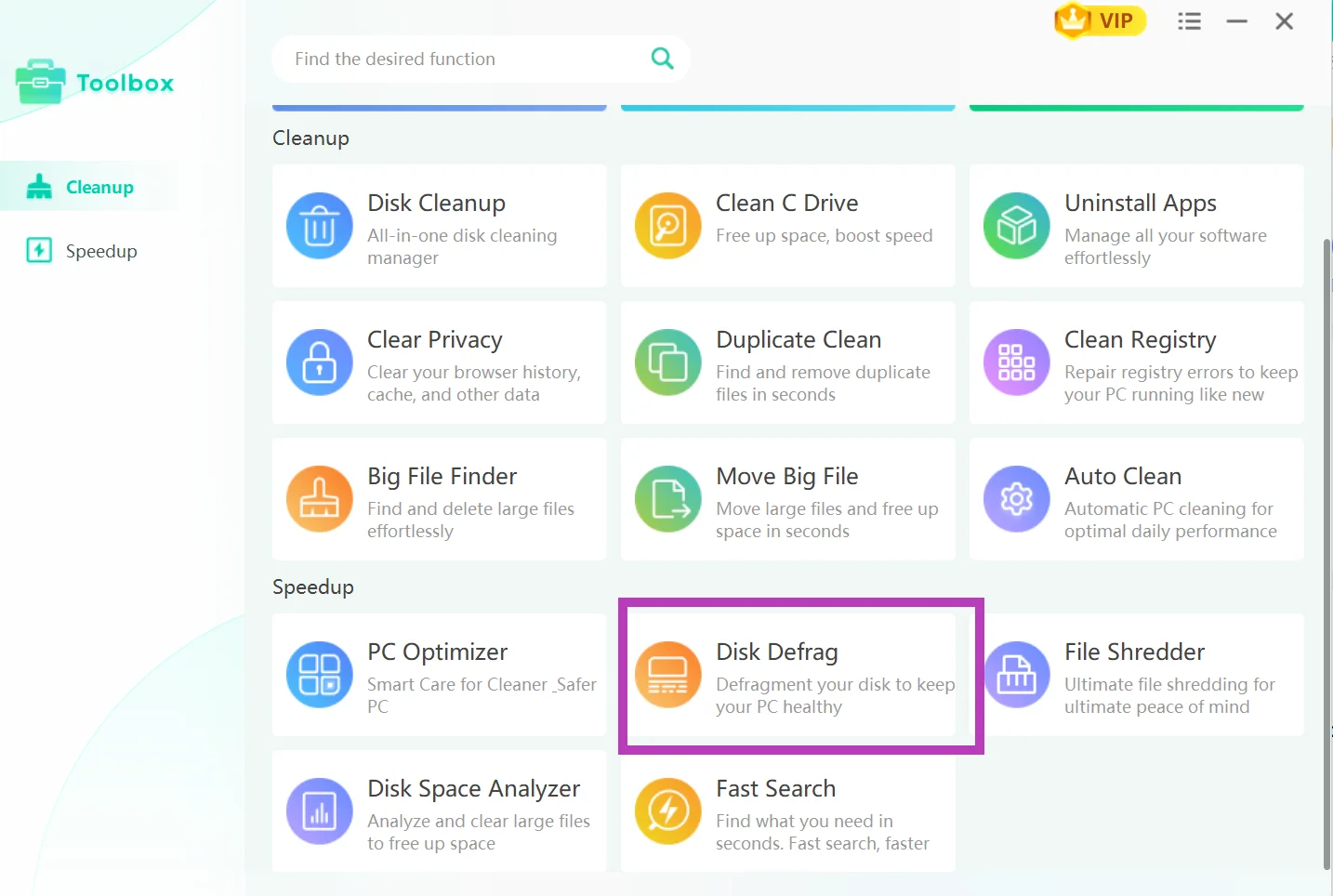
How to Defrag Your Drive With Wmaster Cleanup
Step 1: Open WMaster Cleanup and scroll all the way down on the main dashboard, where you will see the Toolbox option. Click on it, and then your screen will show several useful features, click on Disk Defrag.
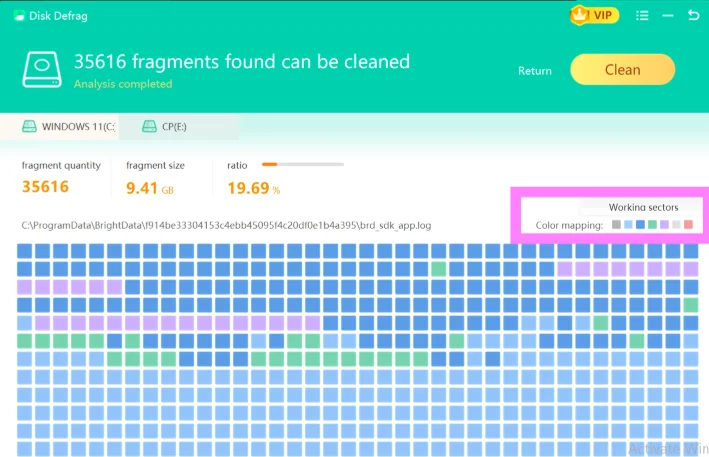
Step 2: Click on the Clean Now button, and the tool will start analyzing your PC. It will show you detailed results, and you can see fragment quantity, fragment size, and ratio. Hit Clean to defrag HDD.
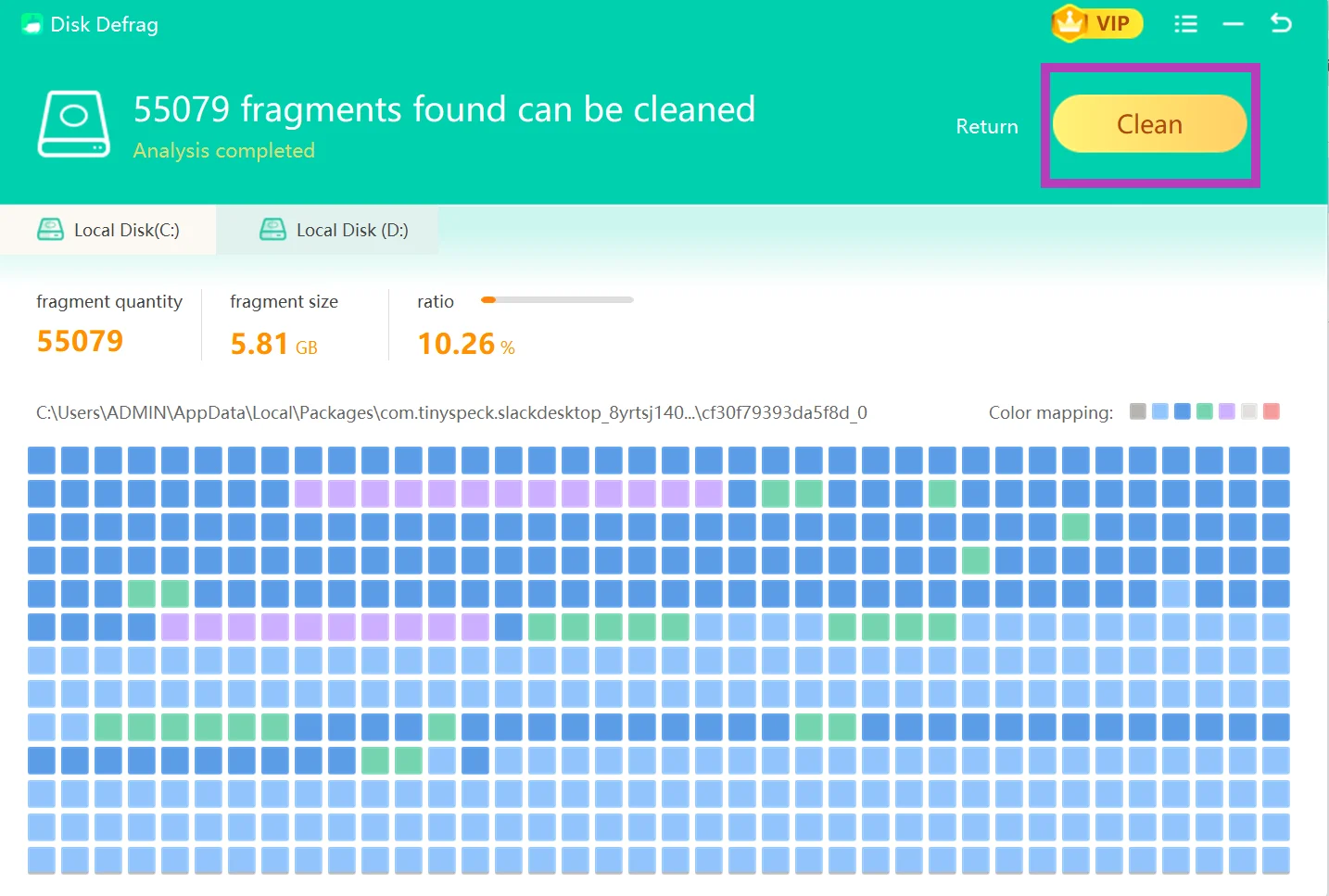
💡Tips: To know about the meaning of each color, just move your cursor to the desired color box.
Way 8. Clean Up Your Disk with WMaster Cleanup Disk Cleanup
The gifts of a slow or cluttered disk you will hate: slow game load times, reduced available virtual memory, and texture pop-ins. If you are not enjoying these gifts, which I know you aren't, I suggest using WMaster Cleanup's feature called Disk Cleanup.
How does cleaning up this junk with WMaster Cleanup directly improve FPS in my games? When my drive was clogged with junk, my game violently stuttered every time I entered a new zone. By deleting junk, my drive now loads textures instantly, which allows me micro-freezes-free gameplay.
How to Clean Your Disk With WMaster Cleanup:
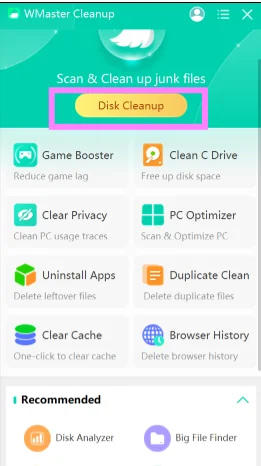
Step 1: Download WMaster Cleanup from the official website, open the software on your desktop, click Disk Cleanup, and hit Scan Now.
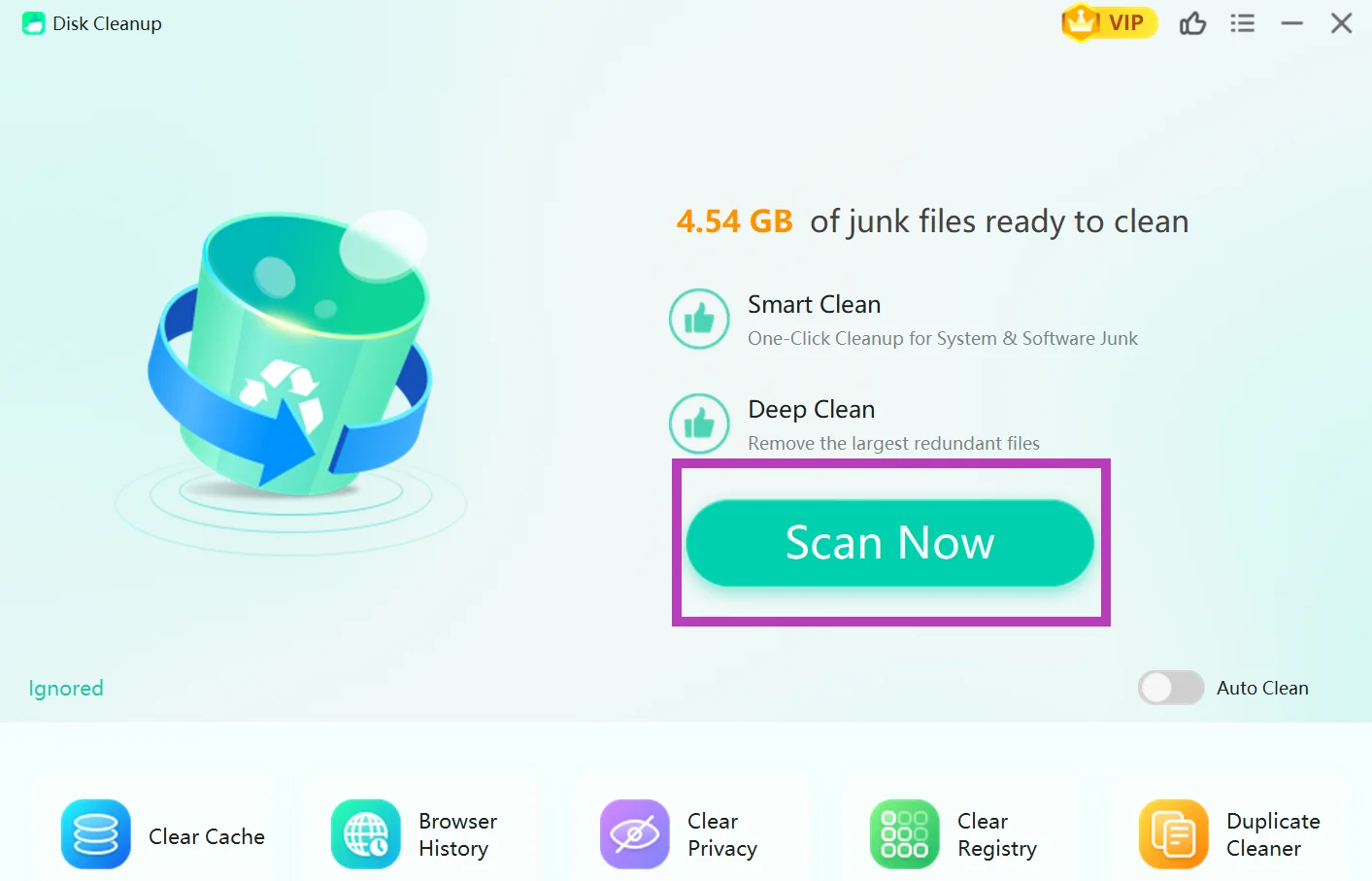
Step 2: Review the results by category and select your desired options. Now, click Clean, and you're done. Now your disk has more breathing room for your gaming sessions.
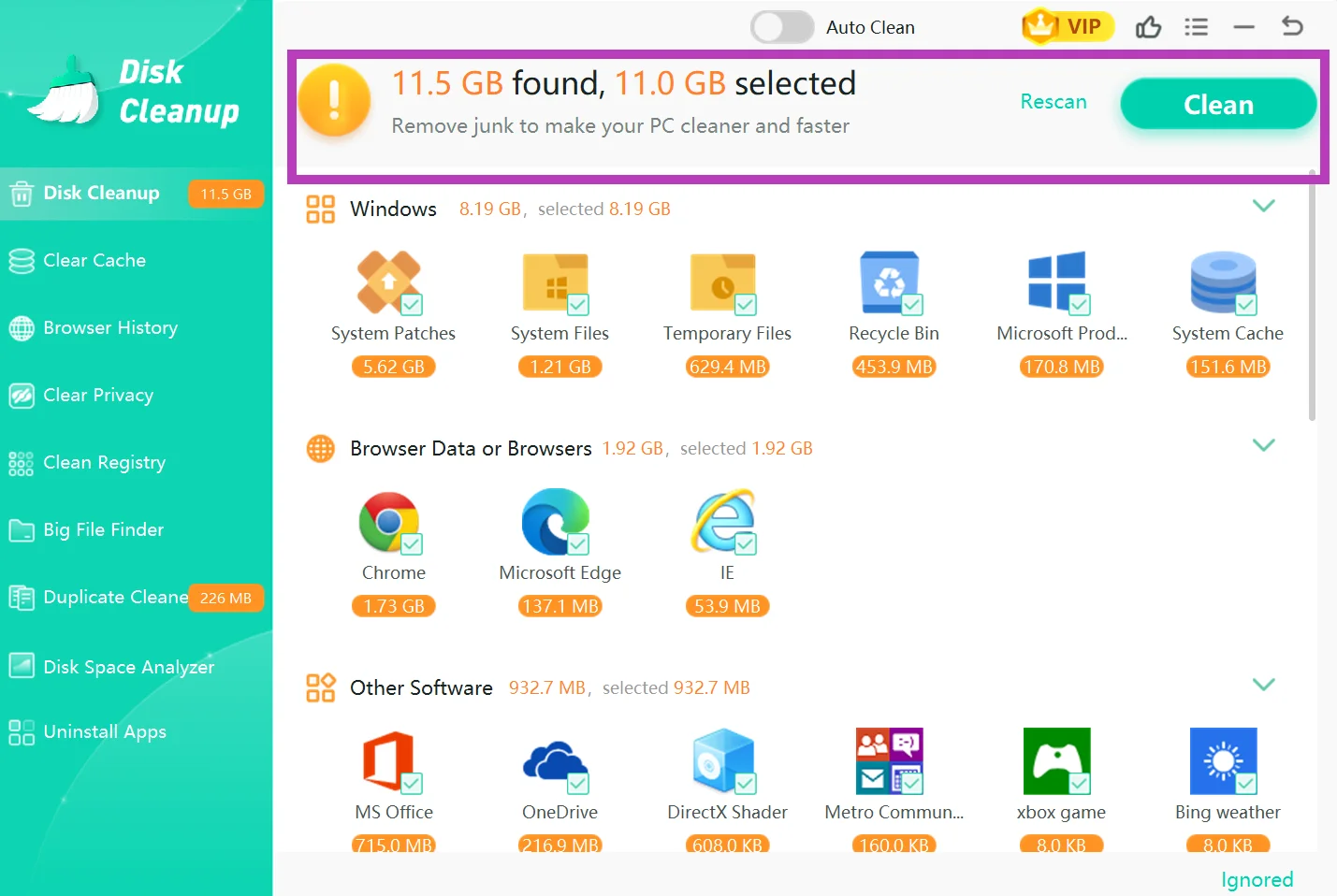
A full C drive can slow down your PC, so if you want to clean up your C drive to boost your Windows PC performance within a few clicks, check out our hands-on writeup for Windows users on how to free up space on the C drive automatetically with WMaster Cleanup..
Way 9. Use Hardware-Accelerated GPU Scheduling (HAGS)
HAGS transfers graphics-intensive tasks from the central processing unit to the graphics processing unit. This makes certain both your CPU and GPU are running efficiently. On supported systems, it optimizes FPS in GPU-bound games and reduces latency.
How to Use Hardware-Accelerated GPU Scheduling (HAGS) to Improve FPS in Games
Step 1: Go to your system's Settings, select System & Display & Graphics, and thenChange default graphics settings. Now, toggle hardware-accelerated GPU scheduling to On.
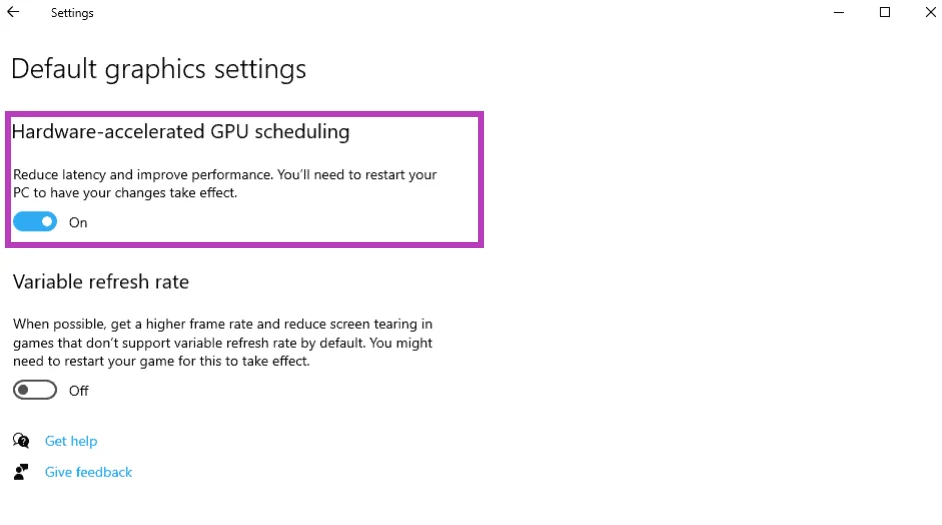
💡Tips:HAGS works best with either Nvidia RTX 20-series or newer and AMD RX 5000-series or newer. Older GPUs may see no gains or a small performance loss.
Way 10. Lower Your In-Game Resolution
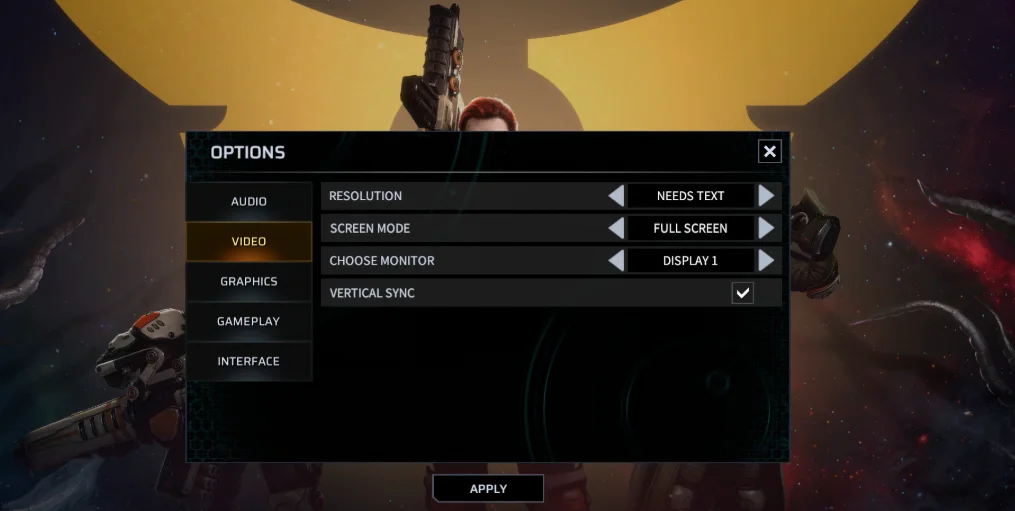
I know the frustration when you have already tried all the tricks, and the FPS is still low. In such cases, the best thing to do is to drop your game resolution. Fewer pixels mean less GPU work and instant FPS gain.
This hack is the reason why you will see many players run 1080p on 1440p monitors during competitive play.
How to Lower Your In-Game Resolution Improve FPS in Games
You can simply find this option in your game's Display or Video settings.
Part 3: When Hardware Limits FPS: How to Fix
Software tweaks can make a huge difference in terms of FPS, but there's a limit. Even if you change all the settings, if your GPU, RAM, or drive can't handle it, you won't be able to make up for it.
How to tell and what to do:
- Use MSI Afterburner to monitor GPU temperature while playing. If it's always over 85 C, it's because your FPS are being throttled down. Dust your PC case and GPU heatsink.
- Use Task Manager to track GPU and CPU usage while playing a game. If your GPU usage is less than 80% and your FPS is low, then your CPU is the limiting factor, not your GPU.
- For gamers who are using 8 GB RAM and are playing modern AAA games, the upgrade to 16 GB RAM will result in a significant boost in FPS. Many games for 2025 require at least 16 GB of memory.
- The biggest difference in hardware that can be made for load times and game stability is switching to an SSD if you are currently on an HDD. Even the budget NVMe SSD makes the gaming experience more enjoyable.
- Software tweaks can only do so much for older (4+ generations) GPUs. Reducing the resolution and settings helps, but at this point, it's time to upgrade the GPU.
Verify Your Results With an in-game FPS Counter
Want to know how well you've optimized your computer for gaming? There is an FPS counter in the game, so you can see if a specific way improves FPS or not. Many games have FPS counters, and on Steam you can bring it up with the overlay (Alt + Tab).
You can also install third-party tools, like MSI Afterburner and RivaTuner to get an FPS counter that works with any game.
Part 4: FAQs Related to Improve FPS in Games
Q1. Are background apps really a cause of poor FPS?
On mid-range or lower-spec PCs, background apps such as Chrome, Discord, and cloud sync apps use RAM and CPU that your game requires.
Try WMaster Cleanup's Game Booster feature to optimize your RAM and automatically remove all of this in one click.
Q2. Why does my FPS drop only in online multiplayer and not when I play in single-player mode?
Playing online multiplayer can really strain your CPU. Since your system is constantly attempting to manage background tasks and real-time data from the server simultaneously. Before you play, open WMaster Cleanup and run the Game Booster feature. It has a one-click real-time acceleration dashboard. It automatically detects background processes with a high impact (like Chrome or Discord) and frees up physical RAM.
This way your CPU can focus entirely on the server packet data and you get smooth lag free gameplay.
Q3. What is the optimal FPS for competitive games?
The minimum 60 FPS is recommended for comfortable playing sessions. Most esports games are played at 144 FPS. If your monitor can reach 144 Hz or more, then you can get a significant reduction in reaction time by optimizing.
Q4. Will reinstalling Windows make FPS better?
Yes! Reinstalling Windows makes FPS better, especially on older PCs with registry bloat and background services.
I highly recommend using the full set of WMaster Cleanup once before you reinstall your Windows: Disk Cleanup, Game Booster, and Disk Defrag.
The above-mentioned features will take care of most of the same problems you're facing while gaming without needing a full Windows re-install.
Q5. Why does my game still feel choppy even when the FPS is fine?
That's due to frame time inconsistency. Even though the average count appears to be correct, your frames are not being sent at regular intervals. If your monitor supports VSync or G-Sync/FreeSync, enabling it or using it will typically smooth it out.
Final Words
Low FPS does not have a single root cause. It can be a result of multiple factors like background bloat, outdated drivers, improper settings, and a drive in need of attention. I have covered all these factors and the ten best ways I use to improve FPS in games in this guide.
If you're looking for the quickest and most comprehensive solution in one place, WMaster Cleanup can clean up three of the biggest FPS drains: background apps with Game Booster, disk performance via Disk Defrag, and storage clutter with Disk Cleanup.


