
Why is my Facebook app suddenly becoming so slow? If your FB is not running smoothly, it might be because of an overloaded cache.
Stick around if you're looking for how to clear Facebook cache. Facebook caches are the temporary files that build up over time and slow down your app. Or it takes eternity to load a video if there's junk in the background.
In this guide, I'll share a few simple steps to get rid of the Facebook cache manually on any device you're using your app. Also, I'll share a one-click quick method, specifically for Windows users, to clear Facebook cache so you can enjoy scrolling without any trouble.
In this article
- Why Clearing Facebook Cache Matters
- Before You Start Clearing Facebook Cache
- How to Clear Facebook Cache on Android
- How to clear facebook cache on iphone/iPad
- How to Clear Facebook In‑App Browser Cache on Mobile
- How to Clear Facebook Cache in Desktop Browser
- [Bonus] One-Click Method—Automatically Clear Facebook Cache on Windows 10 & 11
- Manual Methods vs One‑Click Facebook Cache Cleanup: Which Should You Use?
- FAQs Related to Clear Facebook Cache
Part 1: Why Clearing Facebook Cache Matters
What Facebook Cache Actually Is
Cache is a temporary storage area on your device. So, Facebook cache is like a digital folder that stores pieces of Facebook content you already viewed, like profile pictures, images, videos, and website previews. But, over time, this folder continuously grows and can make it hard to use Facebook smoothly.
When you open Facebook, your device loads these saved files straight from your local memory instead of downloading them again from the internet, speeding up feed loading and saving internet usage.
Common Problems Caused by Old Facebook Cache
Every time I open a Facebook app, my screen gets stuck and the app is not running smoothly. So, after digging into the Internet, I realized that Facebook cache might be the culprit. While cache helps the app run faster at first, outdated cache causes noticeable performance issues over time:
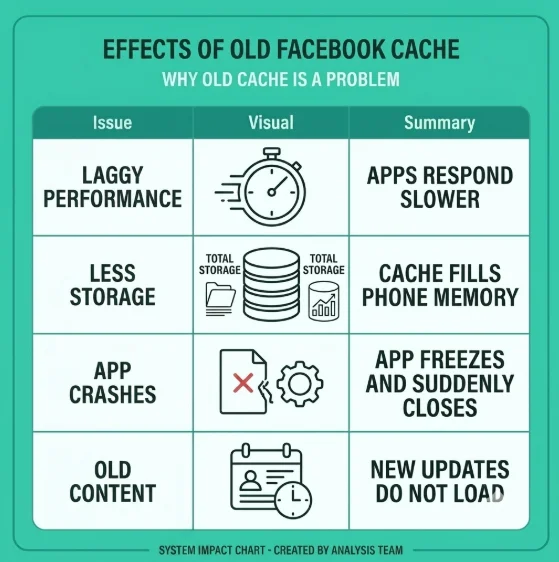
- A large cache folder forces your phone to search through gigabytes of temporary files and therefore slows down the app response.
- Facebook can quietly take up a large space on your device, especially your phone, leaving little to no room for other apps.
- Corrupted FB cache files can lead to app freeze, images failing to load, or the app shutting down unexpectedly.
- You might see outdated FB profile photos, old page layouts, or cached web link previews instead of live updates.
Manual clearing cache Facbook only fixes app-level data. If you're a Windows user and your entire system is running slow, check out our guide on how to free up space on PC in 2026.

Is It Safe to Clear Facebook Cache?
Clearing your Facebook cache is 100% safe. It will not delete any of your personal data, like profile pictures, posts, friend list, etc. You only wipe temporary local files that Facebook can re-download whenever necessary. You might just need to log back in afterward depending on your device settings.
But is it really worth it? Well, clearing the Facebook cache is the best troubleshooting step I took, as it freed up storage space and improved my app's performance. Other than that, it was a quick fix for my app glitches.
Part 2: Before You Start Clearing Facebook Cache
What Happens When You Clear Facebook Cache?
When you clear the Facebook app cache, your important account data remains safe, like:
- Account settings, including privacy settings, passwords, and notification preferences.
- Posts and media, like videos, stories, and reels.
- Friends, followers, groups, specific page's admin access, and saved pages.
- Messenger chats, voice notes, and shared media.
However, when you remove the FB cache, these things get removed:
- Downloaded previews, video thumbnails, and temporary media files.
- Temp browsing data and active sessions (depending on whether you are just clearing the cache or the full app data, you might need to log in again).
When Should You Clear Facebook Cache?
Well, there's no need to clear the Facebook cache regularly. It's most helpful when the app starts showing performance problems. I usually clear the Facebook cache on my Android phone if:
- Cached files grow to hundreds of MB or even several GB over time.
- The app feels slow and sluggish.
- Photos or videos won't load.
- The app keeps crashing or freezing.
Part 3: How to Clear Facebook Cache on Android
Below I will show how to clear fb cache on Android through Settings.
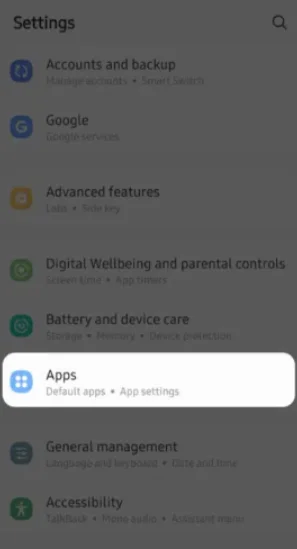
Step 1: Open your Android Settings, scroll down and click on the App Management or Apps.
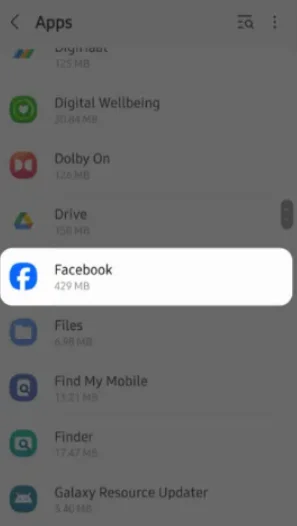
Step 2: Now from the apps list, scroll down to find the Facebook app. Click to open it.
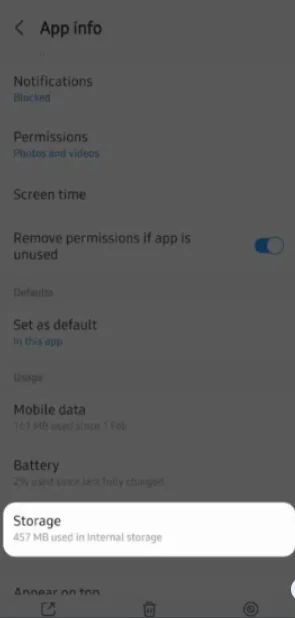
Step 3: Here, you need to click on the Storage button. You'll see how much cache is compiled.
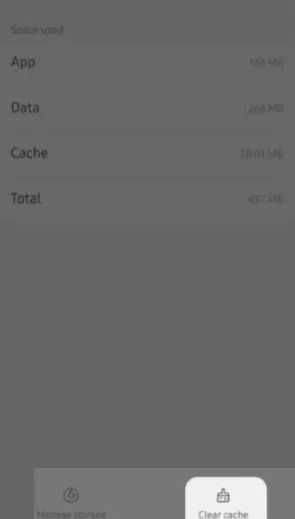
Step 4: On the bottom, click on Clear Cache, and it's done.
Part 4: How to Clear Facebook Cache on iphone/iPad
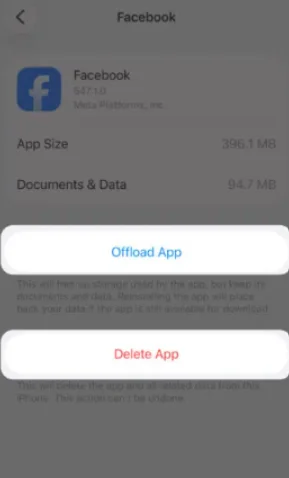
Apple devices do not offer a Clear Cache button for apps. So, you have to offload the app or delete it to clear the cache. Follow along to know how to clear Facebook cache on iPad or iPhone.
1.Offload App
By offloading the app, you delete Facebook from your device but keep your personal data intact. Here's how to do it quickly:
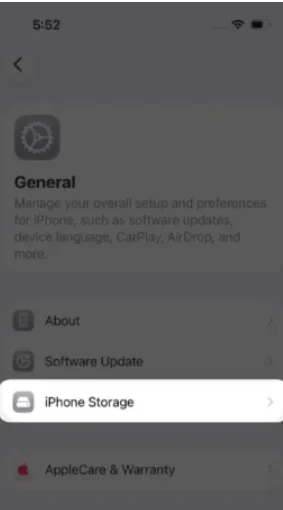
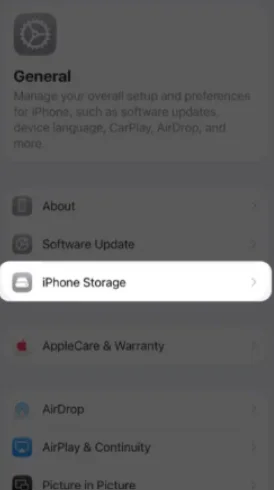
Step 1: Go to Settings - General - iPhone Storage.
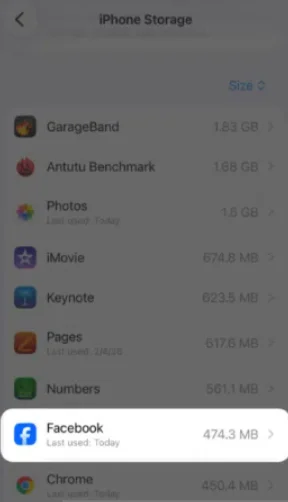
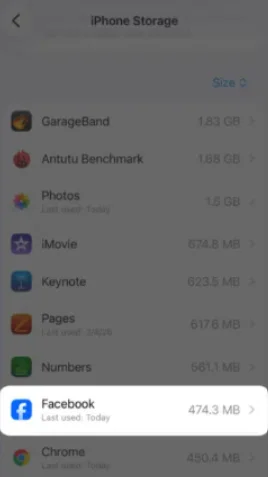
Step 2: Scroll down to find and click the Facebook app. Now, click on Offload App.
2. Delete Facebook App
Step 1: Open the Settings app and tap on General. Now tap on iPhone or iPad storage and wait for it to load.
Step 2: Scroll down to find Facebook from the app list. Click to open it.
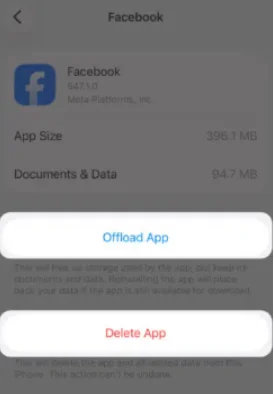
Step 3: Tap Delete App to remove everything. Now, restart your iPhone/iPad, reinstall the Facebook app, and log in to your app.
💡Tips:This step does not affect your Facebook personal data. You'll see all the same things, but this time all the cache has been removed, giving you an improved FB app experience. .
Part 5: How to Clear Facebook In‑App Browser Cache on Mobile
Every time you open a link through Facebook, it opens in an in-app browser instead of opening in your default browser. Therefore, over time caches are compiled that slow down your app. Whether you use Android or iPhone, you need to clear the Facebook in-app browser cache on your device.
How to Clear Facebook In-App Browser Cache on Android
Here's how to remove in-app browser cache on Android:
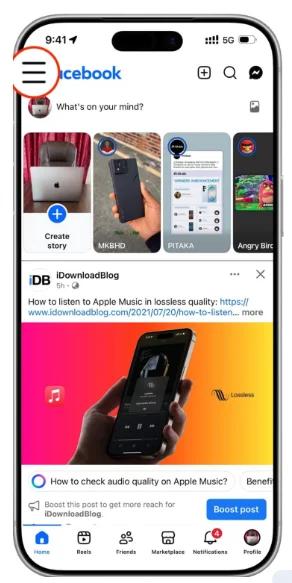
Step 1: Go to the Facebook app in your mobile and click on three lines on the top left corner.

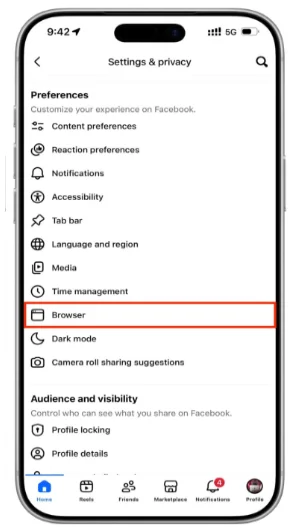
Step 2: Now select Privacy and Settings, tap Settings, and then go to the Browser.
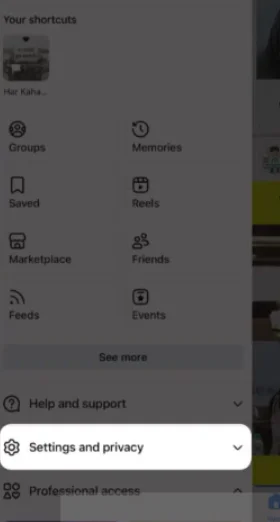
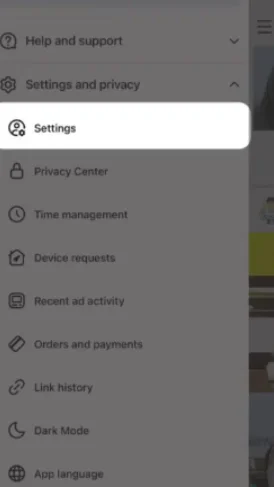
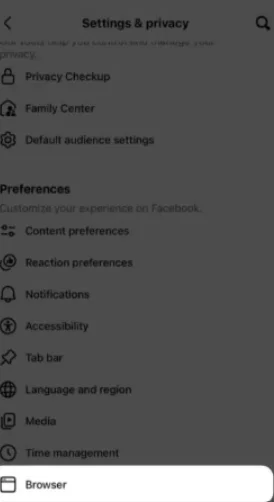
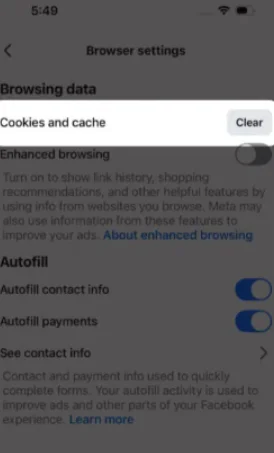
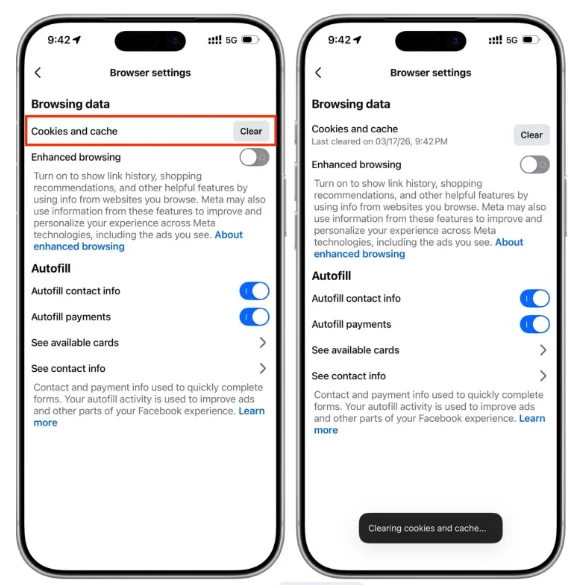
Step 3: You have to click on Clear next to Cookies and Cache. Once you confirm it, all the FB cache will be deleted.
💡Tips:If the Facebook app is still stuttering after clearing cache, you may switch to Facebook Lite. It uses way less storage and data.
How to Clear Facebook In‑App Browser Cache on iPhone and iPad
To clear the Facebook in-app browser cache on iPhone and iPad, you have to follow the exact same steps as on Android.
How to clear facebook cache on iphone or iPad:
Step 1: Open the Facebook app and click on the three lines in the top left corner followed by Settings. Tap Settings & privacy.
Step 2: Click on Browser under the Preferences heading.
Step 3: Here, you'll find the Cookies and cache. Click on Clear and confirm.
Part 6: How to Clear Facebook Cache in Desktop Browser
I use Facebook mostly on desktop, and after a few days it often feels slow. If you're in the same shoes, scroll down, and you'll find how to clear Facebook cache in different desktop browsers.
How to Clear Facebook Cache on Google Chrome
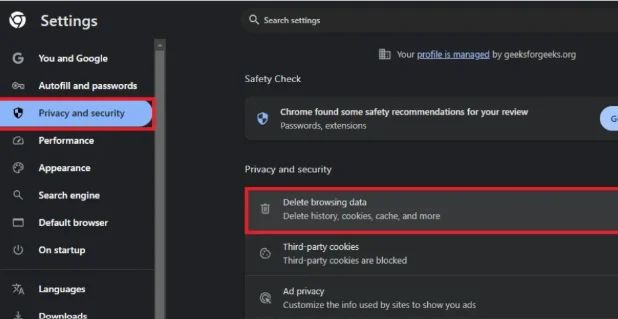
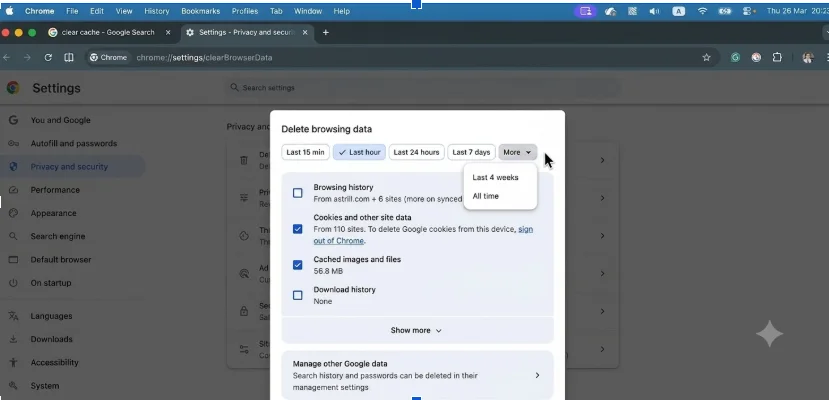
Step 1: Click on the three dots in the top right corner of your browser, and tap History -Open history page. Select Delete browsing data from the left panel to open Settings.
Step 2: You have to select the time duration and check the Cached images and files box. Now tap on Delete Data, and you're done.
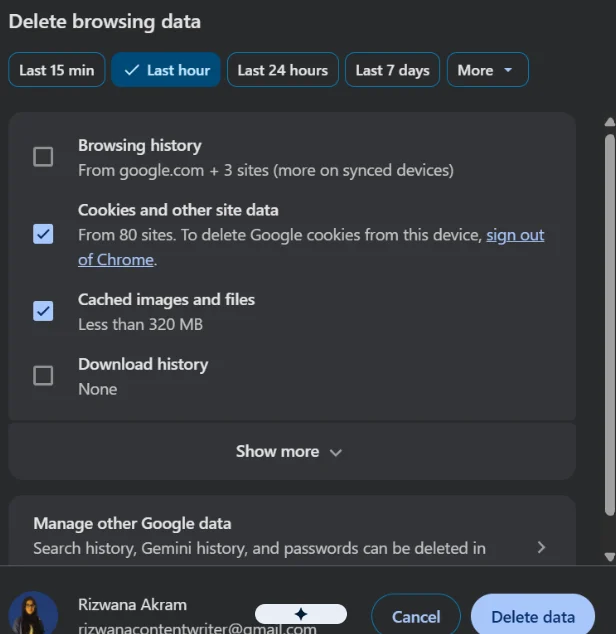
💡Tips:For Mac users looking for how to clear FB cache on Google Chrome, can follow the exact same steps mentioned above.
How to Clear Facebook Cache in Edge, Firefox, and Other Browsers
But, if you're using any other browser like Firefox or Edge, follow these steps to clear the Facebook cache.
Clear Facebook Cache on Edge
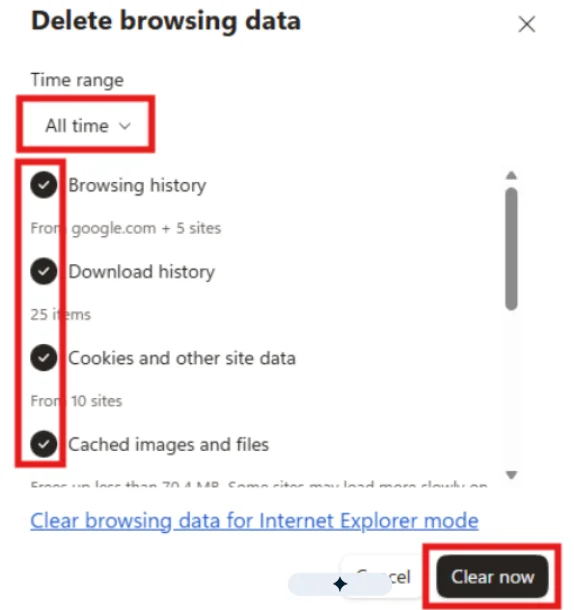
Press Ctrl + Shift + Delete to open the Delete Browsing Data dialog box. Select the time range, and then check browsing history, cookies, cached images and files.
Once done, now tap on Clear Now to clear all the cache on Microsoft Edge.
Clear Facebook Cache in Safari (for MacOS)
How to Delete Cache on Facebook in Safari:
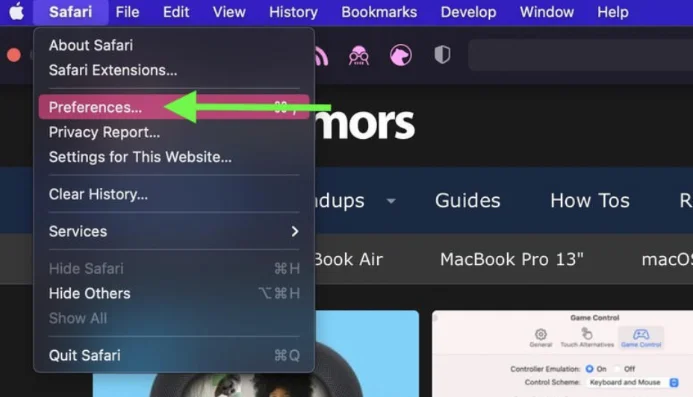
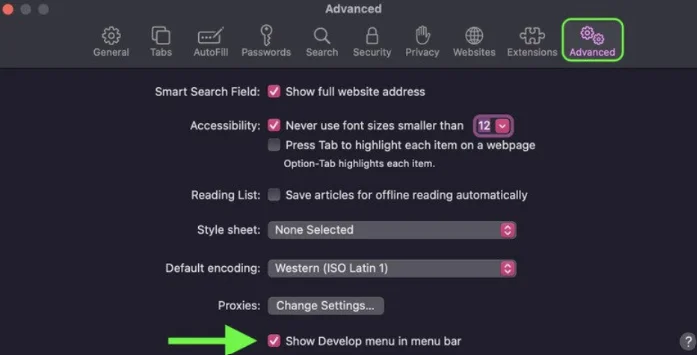
Step 1: To begin with, you have to click on the Safari tab in the top left corner and select the Preferences from the drop-down list.
Step 2: Now, click on the Advanced tab to see a box called Show Develop menu in menu bar. Check the box and close the window.
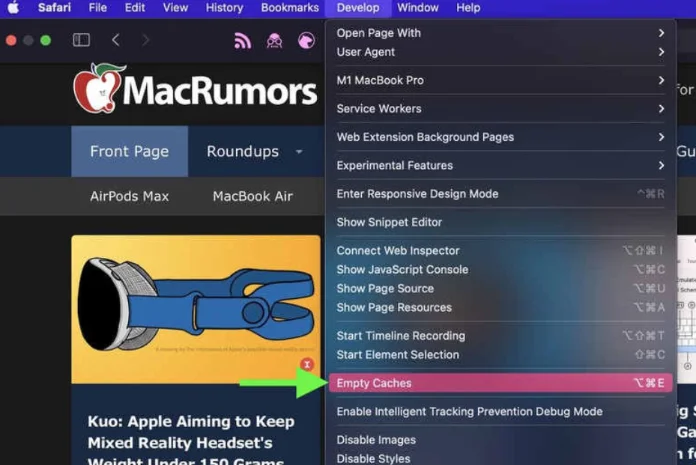
Step 3: Now there is a new tab called Develop in the menu bar. Click it. In the drop-down list, just click the Empty Caches option.
Clear Facebook Cache on Firefox
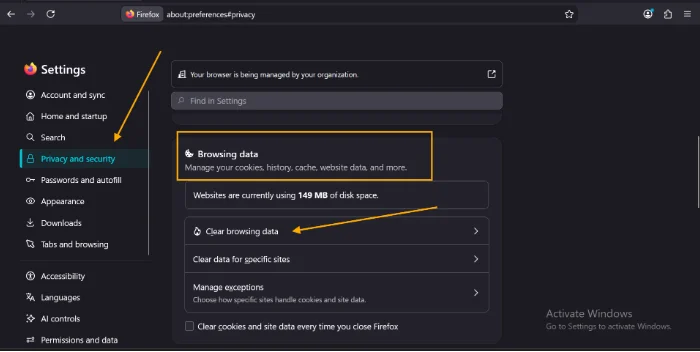
Step 1: Tap on the menu button and select Settings - Privacy and Security Panel. From the Browsing Data section, select the Clear Browsing Data.
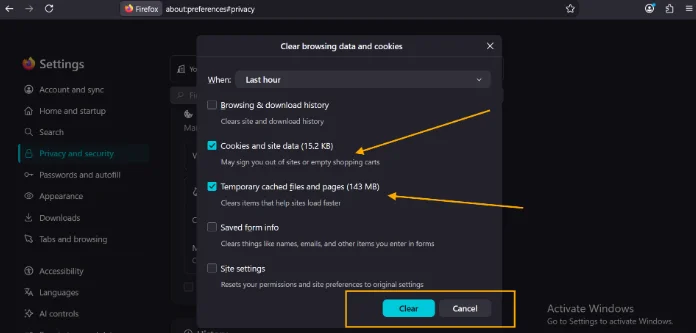
Step 2: A dialogue box will open. Select your desired time range from the "When:" menu. Check the Cookies and Site Data box and Temporary Cached Files and Page box. Hit Clear.
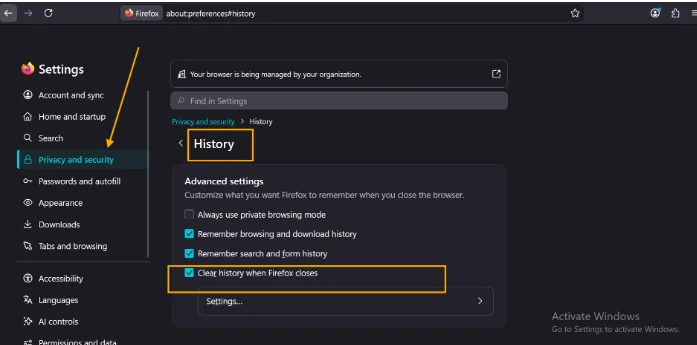
You can also set Firefox to clear cache automatically by following these steps:
Step 1: Open Firefoxand click the menu (☰)in the top-right corner. Select Settings- Privacy & Security- History section.
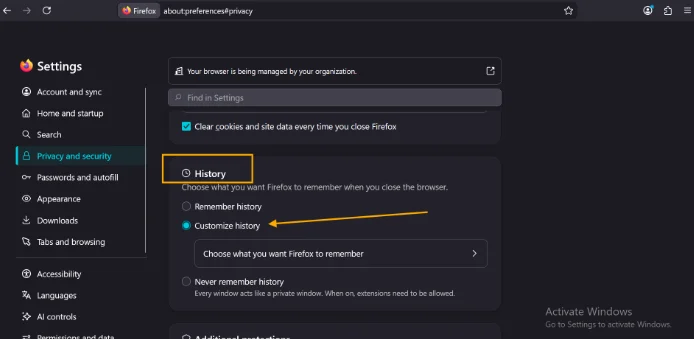
Step 2: Choose Use custom settings for history, then select the options to clear the cache when Firefox closes.
Part 7: [Bonus] One-Click Method—Automatically Clear Facebook Cache on Windows 10 & 11
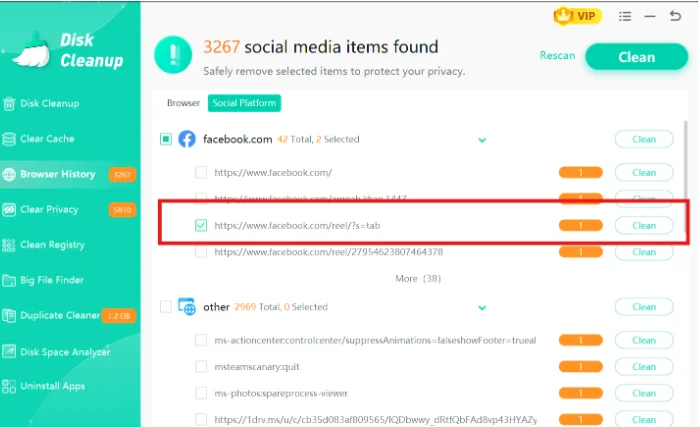
Although manual methods can clear the Facebook cache, it takes a lot of time. With WMaster Cleanup's Clear Browser History feature, you can clear the Facebook cache on browsers with just one click. The visible categorization of all the items allows users to select data based on their preferences.
WMaster Cleanup also performs a deep scan into your browser's database to find out hidden Facebook cache, temp site data & cookies, leaving no residual files behind. What's more? You can effortlessly clean this cached Facebook content in batches alongside other temp files, giving your Windows PC a deep, thorough cleanup in seconds.

WMaster Cleanup
Clear Facebook Cache in One Click
- ·Protect Facebook privacy over 58 types of browsers, like Chrome, Firefox, and Edge.
- ·Simple and clean interface offers quick Facebook cache cleanup within 3 seconds.
- ·Scans and cleans over 20 types of hidden Facebook, system, and application caches.
- ·Classification of Facebook browser history, cache, & cookies to wipe out with one click.
- ·With an intuitive interface, it supports batch and custom Facebook cache cleaning.
Guide to Delete Facebook Cache by WMaster Cleanup
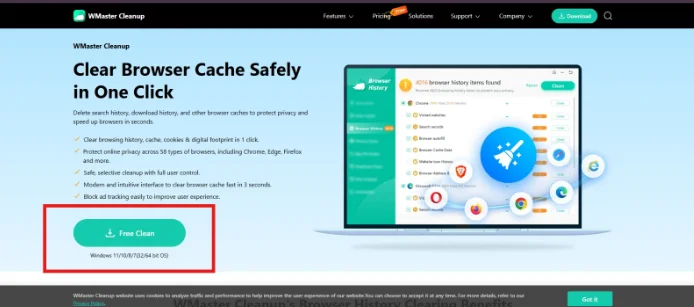
Step 1: Go to the official website of WMaster Cleanup. From the Features tab, click Browser History to open the feature page. Hit Download Now.
Follow the steps to complete the download and installation on your system.
Step 2: First tap on the Social Platform tab, then check Facebook to select all the related entries. Hit Clean next to Facebook.
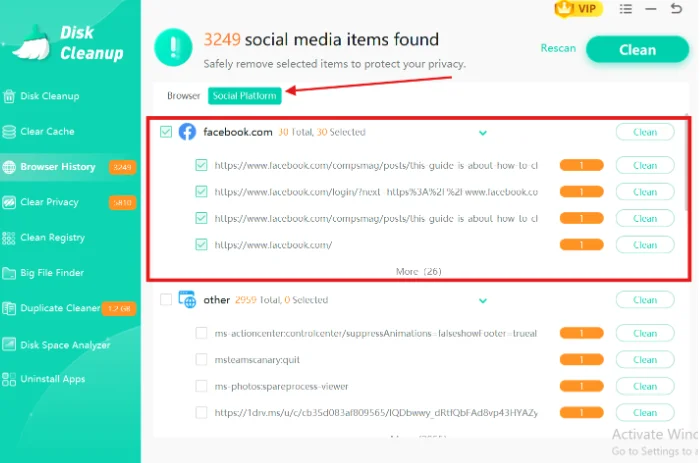
💡Tips:To delete a specific entry, uncheck Facebook, check only the desired entry, and then hit Clean next to it. And that's it.
If you're looking to perform a full system cleanup beyond app caches, check out our step-by-step guide on how to clear temporary files with a few clicks on PC and mobile.
Part 8: Manual Methods vs. One‑Click Facebook Cache Cleanup: Which Should You Use?
When Manual Facebook Cache Clearing Is Enough?
If you're facing Facebook issues occasionally, you can opt for a manual method to clear Facebook cache on your system. Manual cleaning is enough when:
- You face minor FB app glitches.
- You're comfortable with multi-step cleaning.
- You rarely need to clean storage.
Read also whether it is safe to delete local temp and appdata temp files.
When to Prefer One‑Click SNS Cache Cleanup with WMaster Cleanup
If you need results quickly for your Facebook app without going through multiple-step procedures, you must opt for an all-in-one cleaning-up tool, like WMaster Cleanup. It automates your Windows PC cleanup and is ideal if you:
- Want to save time & prefer a hassle-free experience.
- Need a comprehensive PC optimization.
- Want to ensure strong privacy & data protection.
- Want to safely clear cache to get storage capacity.
Quick Comparison Table:Manual Facebook cache cleaning vs. One-click Facebook cache cleaning by WMaster Cleanup
| Feature | Manual Methods | One-Click Cleanup Tool-WMaster Cleanup |
|---|---|---|
| Ease of Use | Complex, especially for non-techies | Beginner-friendly, zero technical knowledge needed |
| Cleaning Speed | Slow | Instantly clears the cache in a single click |
| Hidden data removal | Surface-level | Deep-level |
| Multi-Browser Support | Must be done one by one for each browser | Clears cache in one go across 58 browsers |
| Best For | Occasional Facebook troubleshooting | Quick, regular device cleanup |
Part 9: FAQs Related to Clear Facebook Cache
Q1. Is it good to clear the cache on Facebook?
Yes, it's necessary to clear Facebook cache every now and then. If you left it unchecked, your app might slow down and stutter if you have been using it for a long time. So, by clearing FB cache, your app will run more smoothly.
For Windows users, WMaster Cleanup is the ultimate solution to clear cache with a single click.
Q2. Will Facebook load slower immediately after I clear the cache?
Slightly! but it will happen for a few seconds only. As you remove the cached images and videos, Facebook will re-download media as soon as you start scrolling. And this time, once the initial files are loaded, you will experience the much faster & smoother Facebook app overall.
Q3. Will clearing Facebook cache log me out of my account?
Absolutely... NOT! If you are removing your FB app cache, it will only delete temp files (images and videos) to free up storage and to fix glitches, but it will keep you logged in. On the other hand, you are clearing up the entire FB app data; it will definitely log you out.
Q4. How much storage space can I free up by clearing Facebook cache?
It depends totally on the usage of the Facebook app. Users who are frequently watching videos or scrolling through high-res photos can experience cache sizes going up from 500 MB to 2+ GB. To recover your storage significantly, keep clearing your Facebook cache periodically.
Q5. Can clearing Facebook cache fix app crashes, lag, and loading issues?
Yes! Clearing FB cache fixes the app crashes, lag, and loading issues. However, if you still face a similar issue, try to update the app or reinstall Facebook. For Windows users, I recommend running WMaster Cleaning to clear your cache before deleting and reinstalling the app on your PC.
Conclusion
That's all you need to know about how to clear Facebook cache on Android, iPhone, and PC. Over time, the cache compiles in the background and slows down our Facebook app. And therefore we experience long loading times, stutters, and lag.
With a few steps, you can clear Facebook in-app caches and the browser cache for a smoother experience on any device.
For Windows, with WMaster Cleanup, you can clear Facebook cache in bulk with just one click. Besides this, the tool offers you the ability to clear the cache on 58 different types of browsers to have a lag-free experience. It's safe, quick, and easy-to-use.