

Searching for something personal on Google or maybe clicking something fishy that is making you realize, "How to delete Google Search history like it never existed?
Worry no more! Google lets you delete your entire search history, a single search term, or even searches of a selected time duration. Besides this, it allows you to automatically delete older searches.
In this guide, I'll walk you through how to delete Google search history no matter what device you're using: Android, iPhone, iPad, and PC. Cherry on top? I'll also share my one-click solution to clear Google search history, especially for Windows users.
In this article
- Why Need to Delete Google Search History
- Before Deleting Google Search History
- How to Delete Google Search History on Android
- How to Delete Google Search History on Iphone/iPad
- How to Delete Google Search History on Computer
- If Deleting Google Search History Is Not Enough—Delete Google Browser History
- One-Click Solution to Delete Google Search History/Browser History🔥
- FAQs Related to Google Search History
Part 1: Why Need to Delete Google Search History
If you're concerned about your privacy and don't want to leave any traces of your digital activity behind, you need to delete Google search history.
Learn About What Google Search History Stores
Well, Google Search History saves your every activity that is linked to your Google Account. It stores:
- Your search history.
- All the results you clicked on, like links, images, videos, etc.
- Your activity details, including time, date, location, and the device.
Common Reasons Why People Delete Google Search History
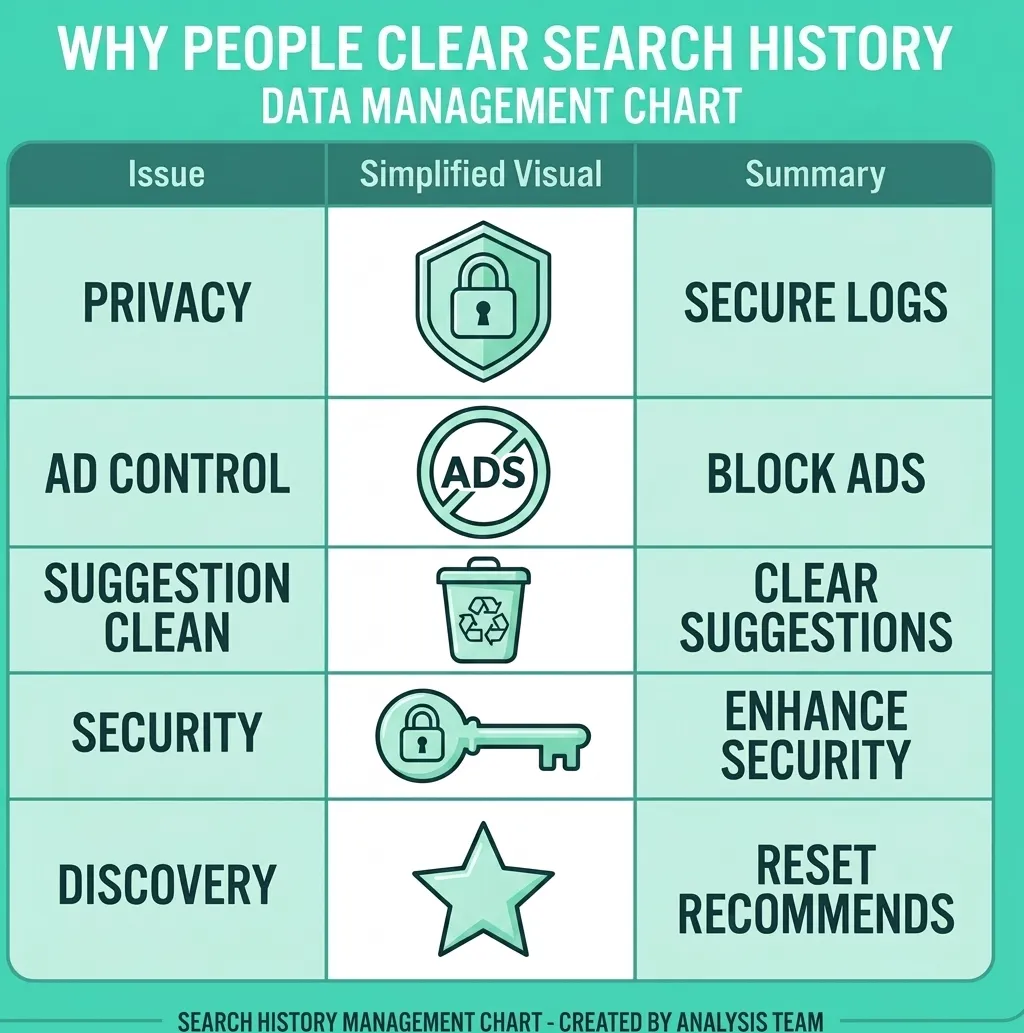
And after learning that Google stores this much data, you probably don't want to leave any trace behind. Here are the reasons why you want to wipe your search logs:
- Protect your personal privacy.
- Prevent Google from showing personalized advertisements.
- Clean up search suggestions.
- Maintain your account security.
- Reset your recommendations to discover new content.
Google Search History VS Chrome Browsing History
Do you know that Google Search History and Chrome Browsing History are not the same thing? I mistook these two as one thing too, as they seem identical at first glance, but they store different data in completely different places.
Here's the difference between Google's search history and Chrome browsing history:
| Feature | Google Search History | Chrome Browsing History |
|---|---|---|
| Stored in | Your Google Account | Your browser |
| Tracks | Google searches and search clicks | Websites you visit |
| Available on | Any signed-in device | Current browser (or synced devices) |
| Delete from | Google My Activity | Chrome History (Ctrl/Cmd + H) |
Is It Safe to Delete Google Search History?
Yes, it is 100% safe to delete your Google Search History.
If you delete all your Google search history, it won't impact your browser at all. Also, you'll not log out of websites, and your device will not be hurt. Google simply removes the stored log of your past searches.
The only drawback of deleting search history is that you'll not receive personalized recommendations until or unless you start searching and teach the Google algorithm to take notes. That's a good trade-off, though.
Part 2: Before Deleting Google Search History
Know What You Will Lose and What You Will Keep
Simply put, when you sign up to delete your Google search history, you'll remove:
- All saved searches.
- Personalized search suggestions.
- Personalized recommendations based on your search history.
And here's the thing: once the history is deleted, you can't restore it.
If you're worried about your data, hear me out that Google won't remove your:
- Gmail emails.
- Google Photos.
- Drive files.
- Contacts and other Google account data.
When You Should Use Auto-Delete Instead
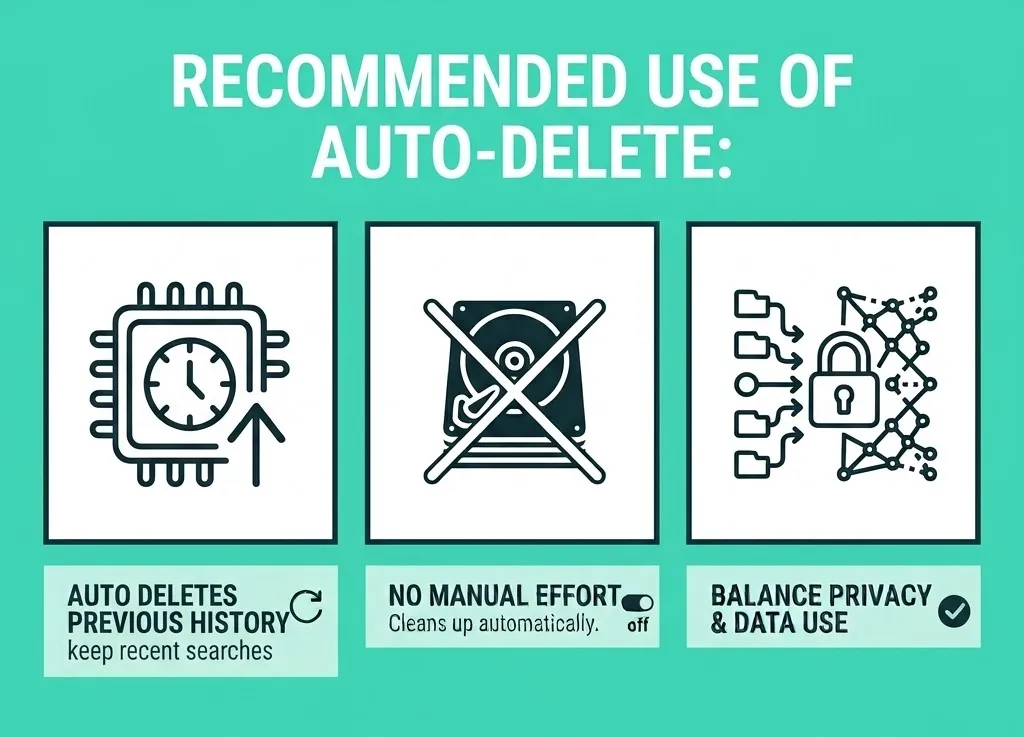
If you're lazy like me, Google gives an option to auto-delete your searches too. It auto-removes older activities, like what you searched 5 years back. Concerned about the recent ones? Fret not, all you recent searches will remain available.
Opt for auto-delete if you:
- Want to keep only recent searches for convenience.
- Don't want to manually delete your search history every time.
- Want a balance between privacy and personalized search results.
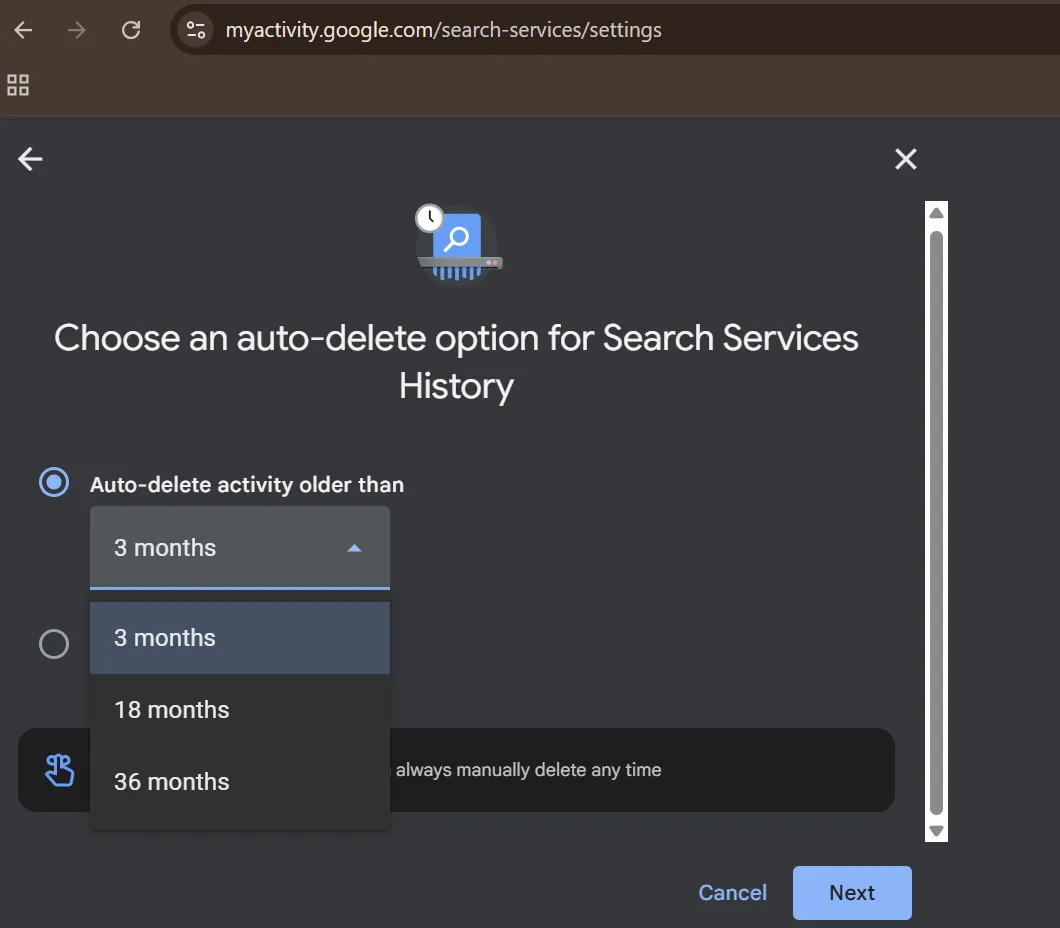
💡Tips:You can choose to auto-delete activity that's older than 3 months, 18 months, or 36 months, and Google will handle the rest in the background.
Part 3: How to Delete Google Search History on Android
Managing your Google search history on Android is straightforward, not matter you need to do a minor cleanup or complete reset.
Delete All Search History From Google Search App
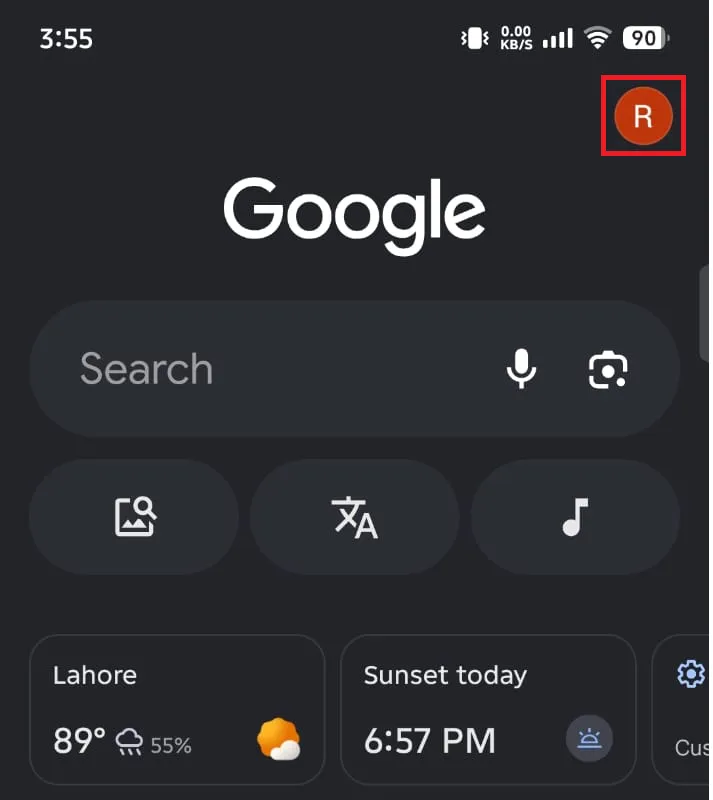
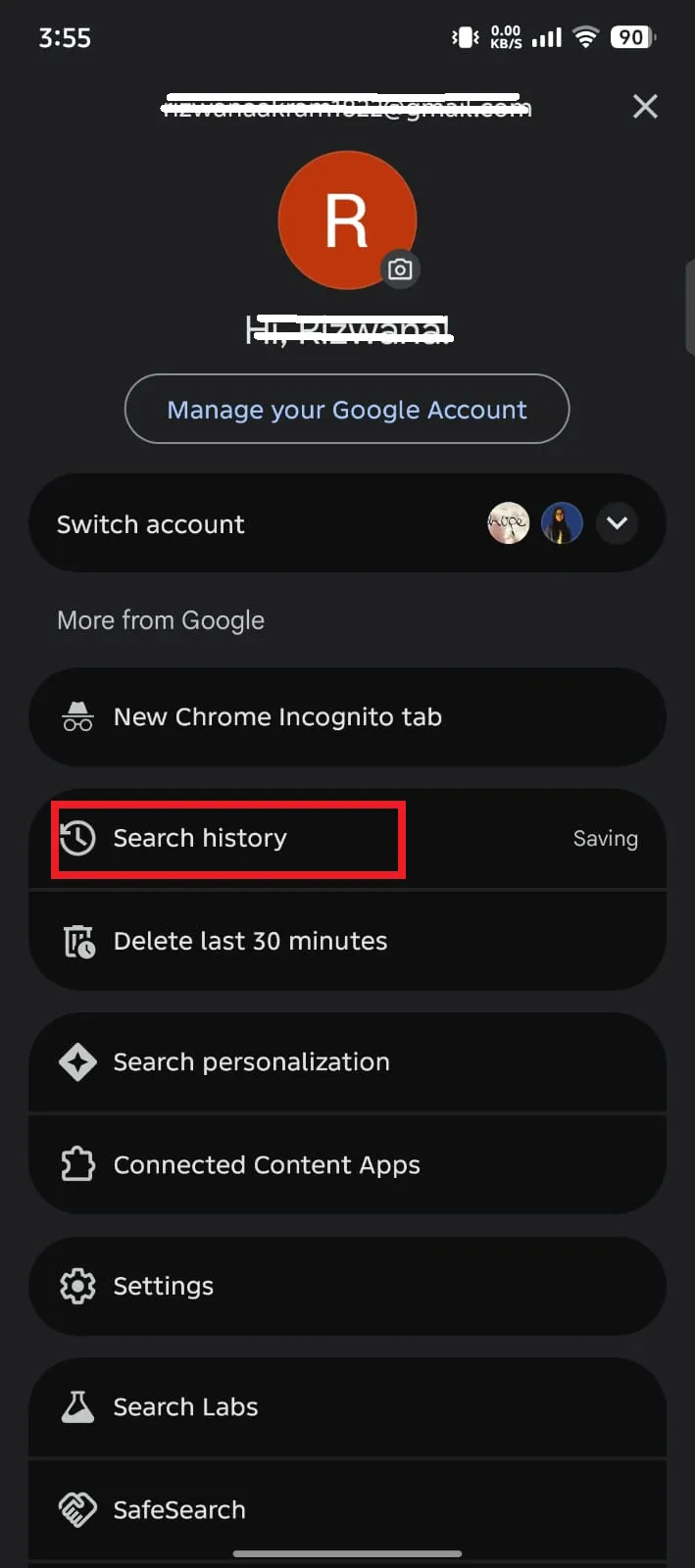
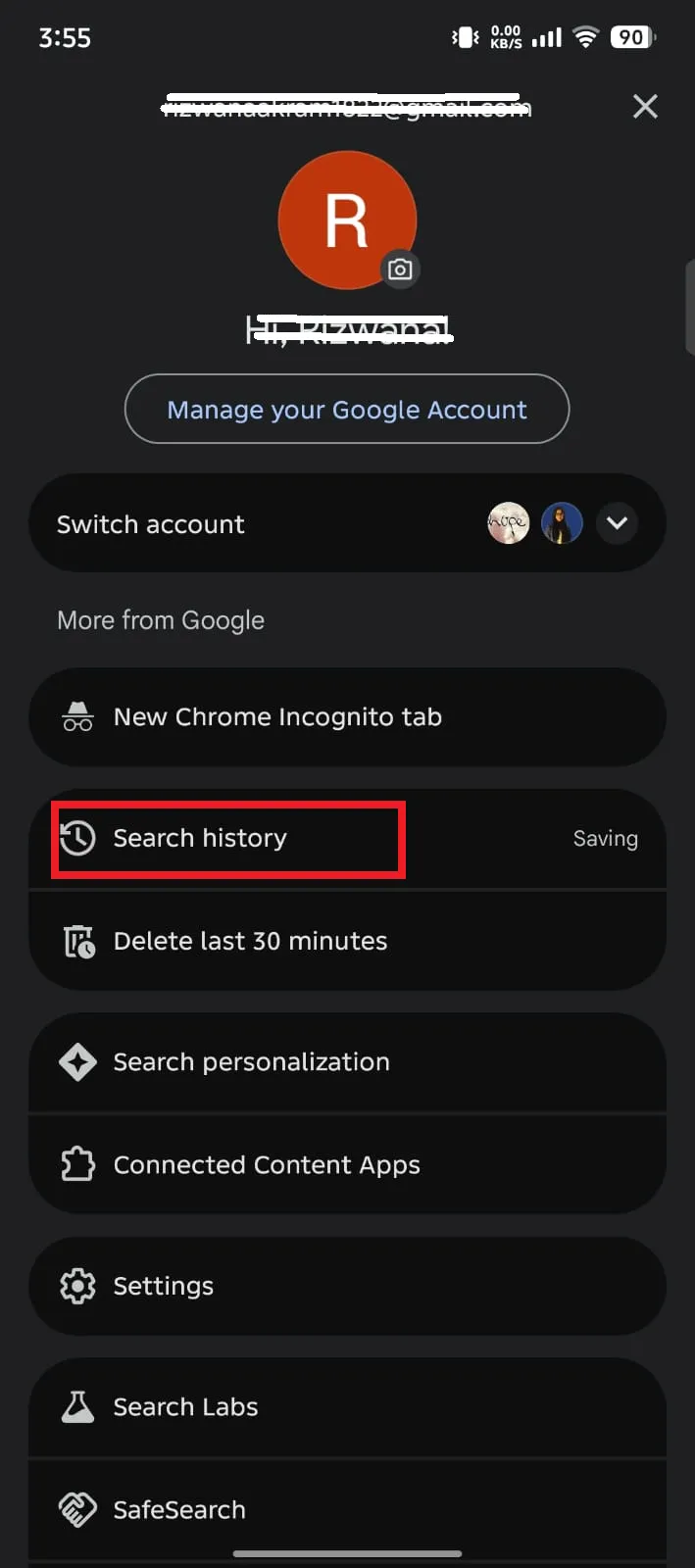
Step 1: Open the Google App on your Android and tap on your profile icon/ initials in the top right corner. Tap on the Search history.
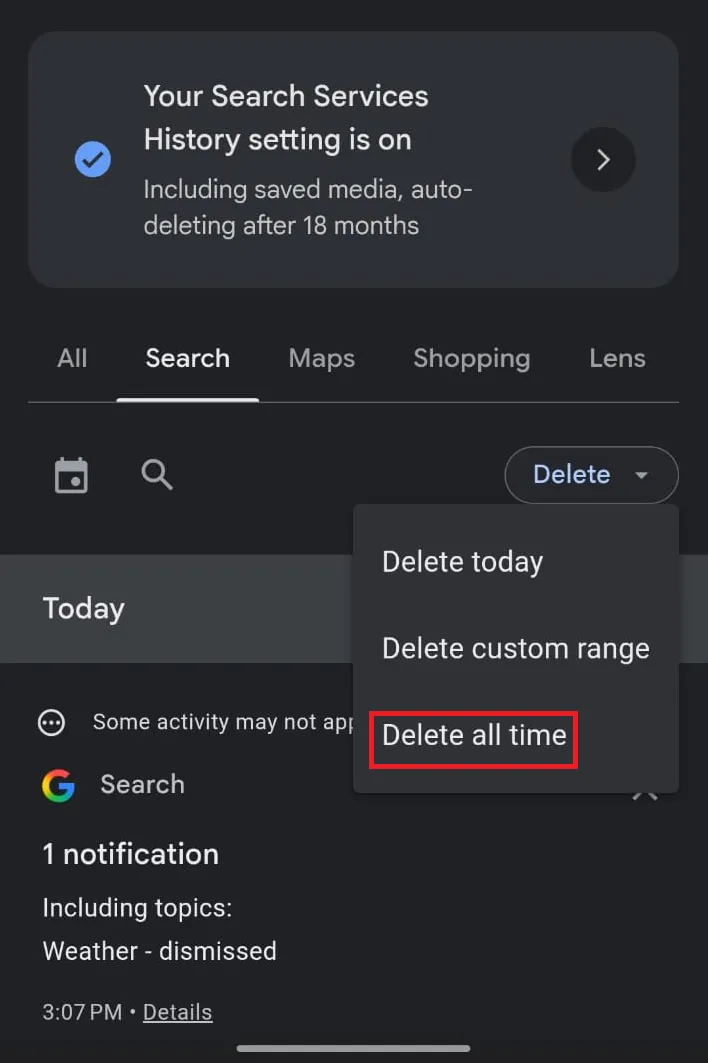
Step 2: Now click on the Delete button. Hit the Delete all time option from the dropdown menu.
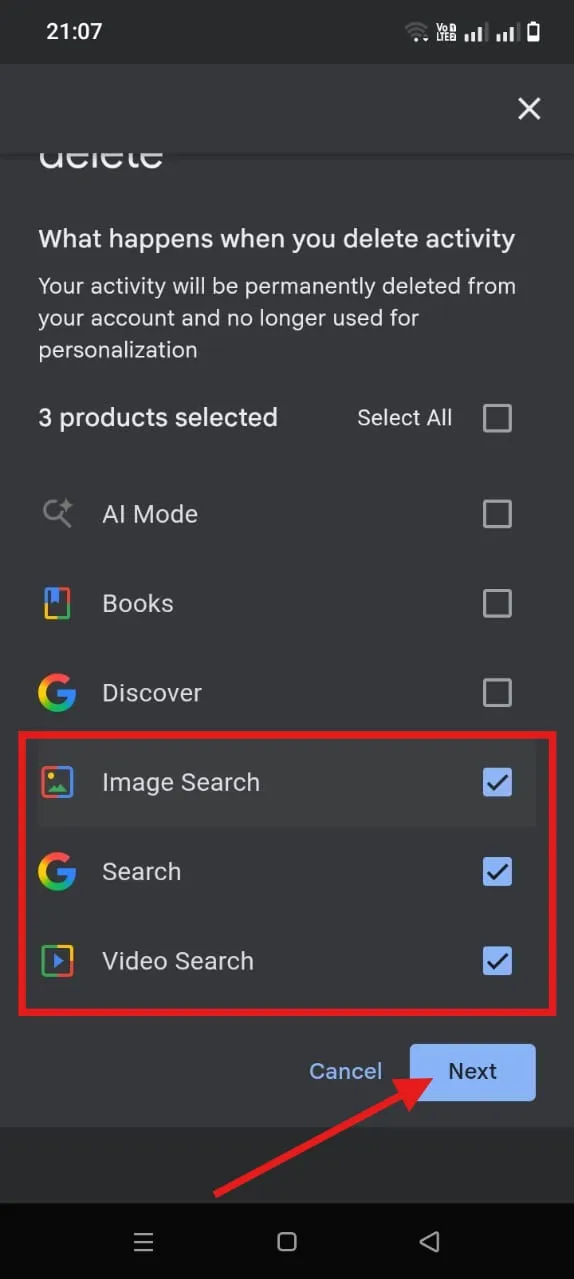
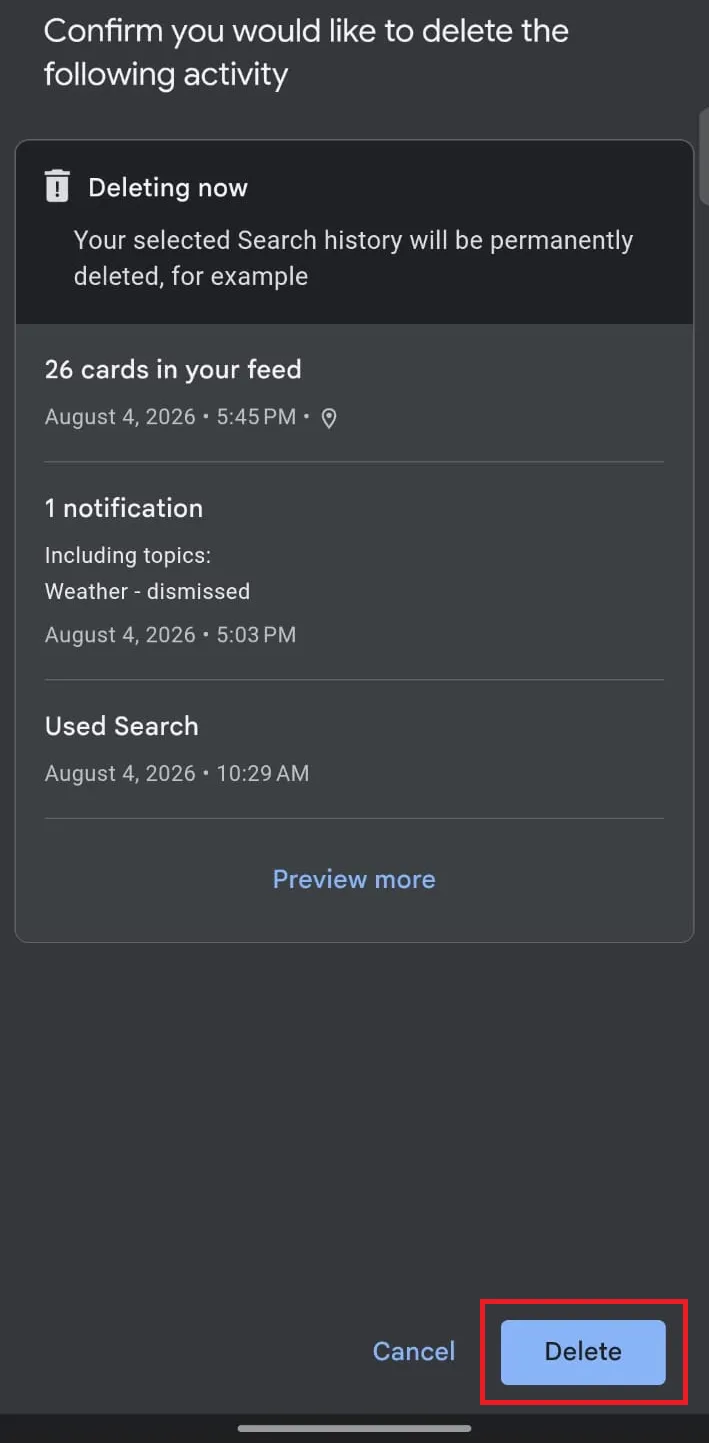
Step 3: Once done, you now have to choose the activities you don't want to keep in search history. Tap Next and then hit Delete.
How to Delete Google Search History on Phone by Range
Step 1: For this, you have to select Search history and tap on the Delete button right above your history list.
Step 2: Here, you need to select theDelete custom range option.
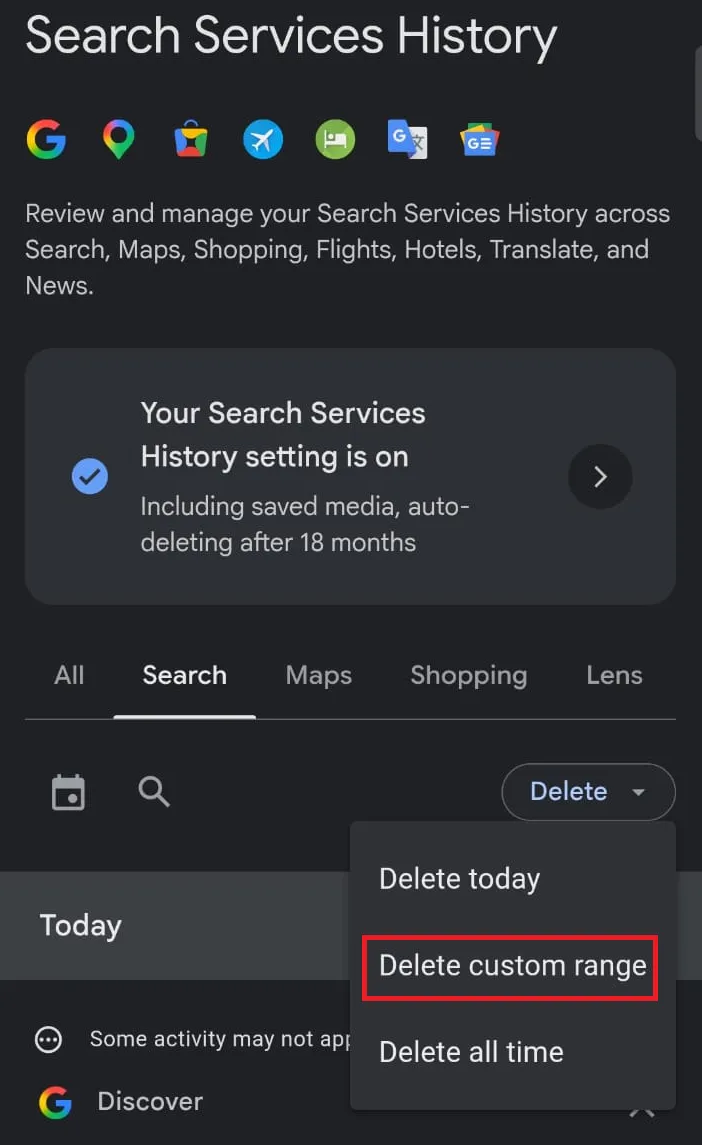
Step 3: Now, just enter the after and before dates and tap Next to confirm the deletion.

Delete a Specific Search From the Google App
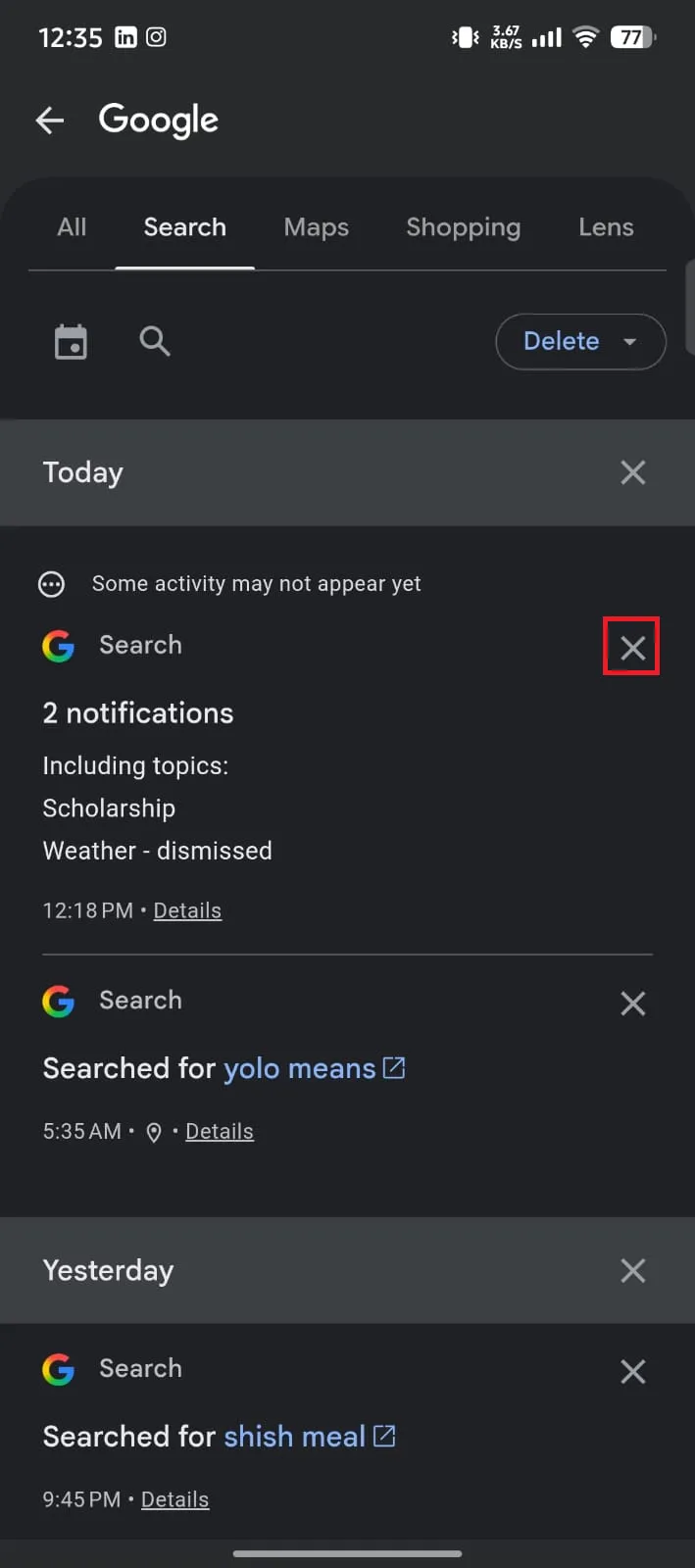
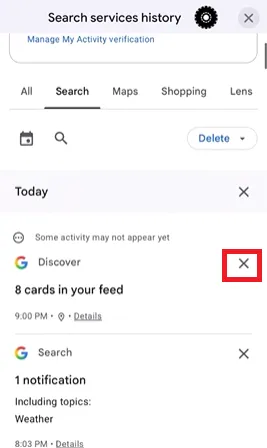
Go to the Search History. Scroll down to find the specific search term you want to delete, tap the X right next to it.
Turn On Auto-Delete
Want to save yourself from the hassle of manually deleting search history on Google? Here's how to delete Google search history from Android by enabling auto-delete:
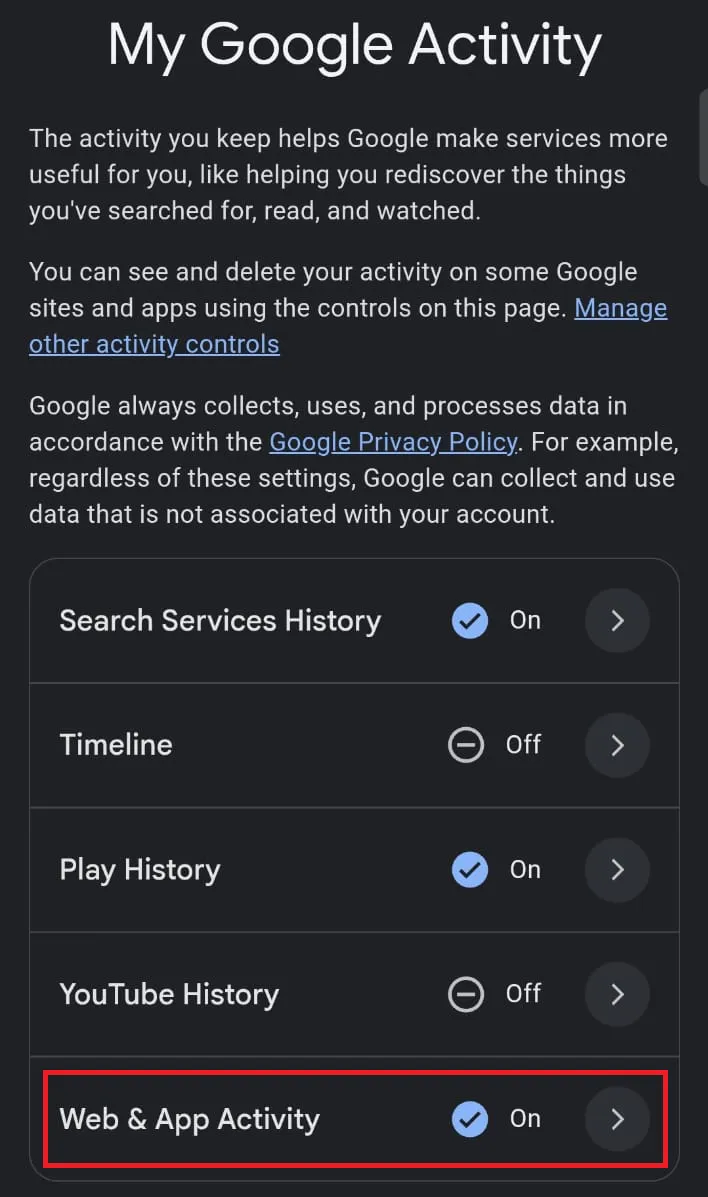
Step 1: Open My Google Activity and select web and app activity.
Step 2: Select Auto-Delete and choose how long to keep activity.
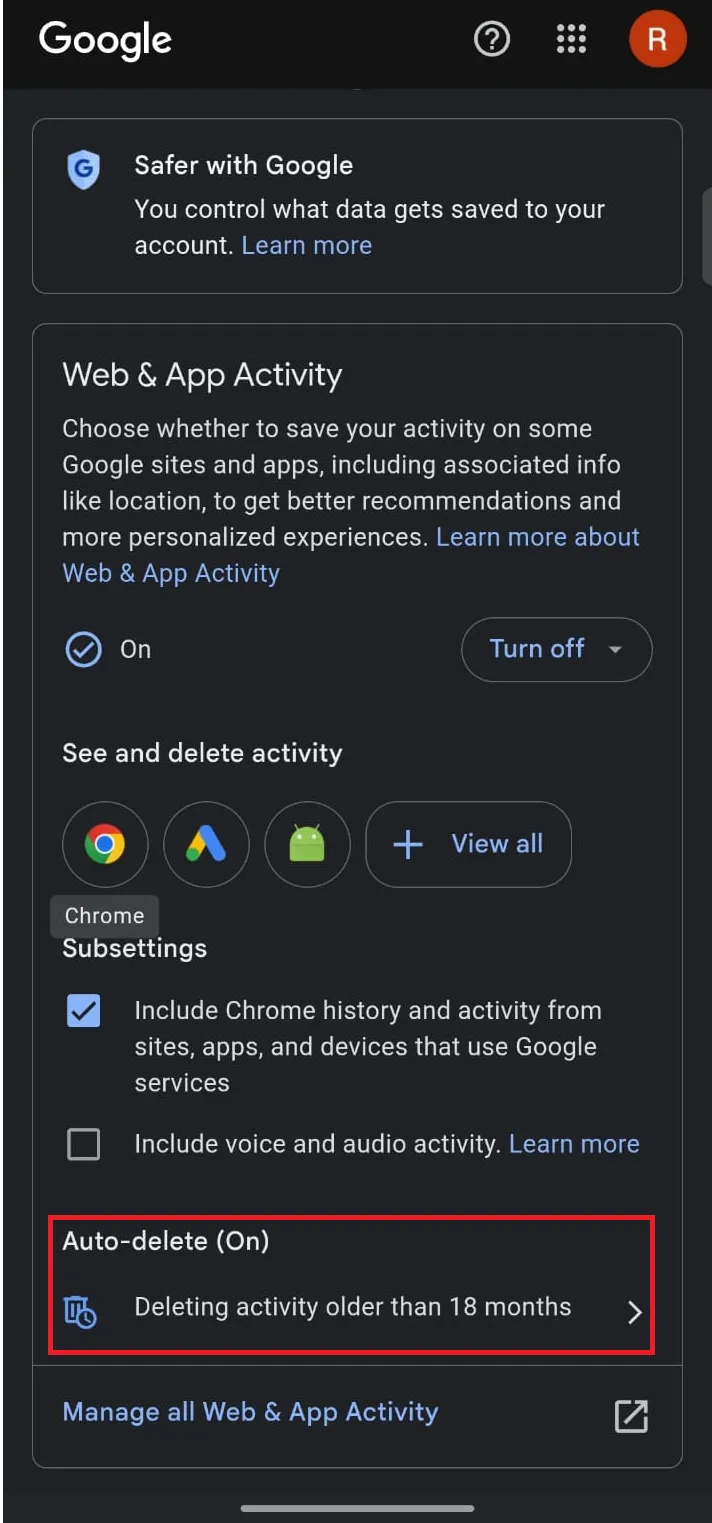
Step 3: Now, tap Next to confirm turn on auto-deletion.

Part 4: How to Delete Google Search History on Iphone/iPad
If you're an iPhone user and using Google as your main searching tool, then you must know how to delete iPhone Google search history.
Using the Google Search App
If you use the official Google app, you can wipe your search logs directly within your account settings.
How to delete Google search history from iPad or iPhone:
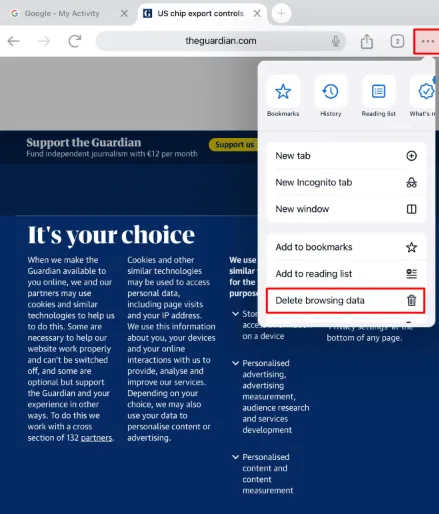
Step 1: Open the Google App on your iPhone/iPad and go to tap on three dots. Scroll down and hit Delete Browsing Data from the dropdown menu.
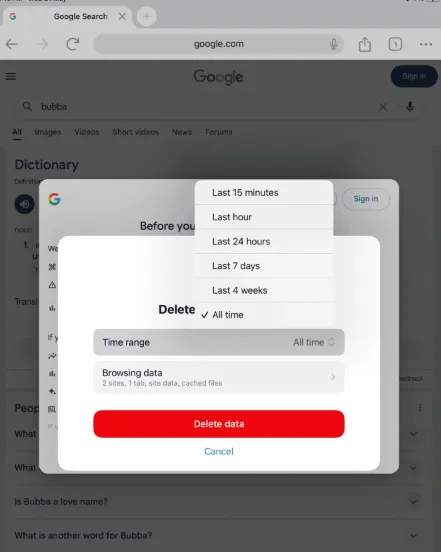
Step 2: You need to choose your time range to delete your desired Google search history.
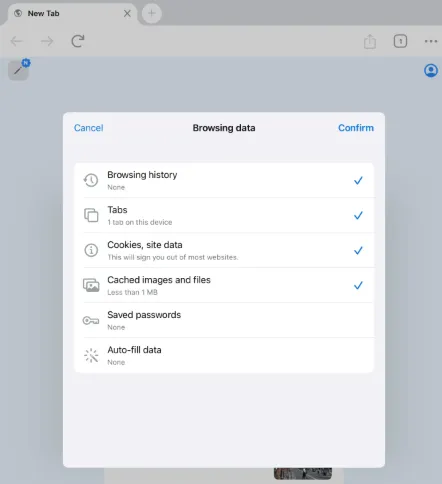
Step 3: Choose the items you want to delete. Now, just confirm the deletion and you're done.
Delete Single Search History
But if you don't want to delete all of your Google search history and need deletion for one single search history, you must know how to delete Google search history from iPhone:
Way 1
Step 1: Open the Google app on your iPhone and click on your profile picture/initial at the top right corner.

Step 2: From the options, you have to select the Search History.
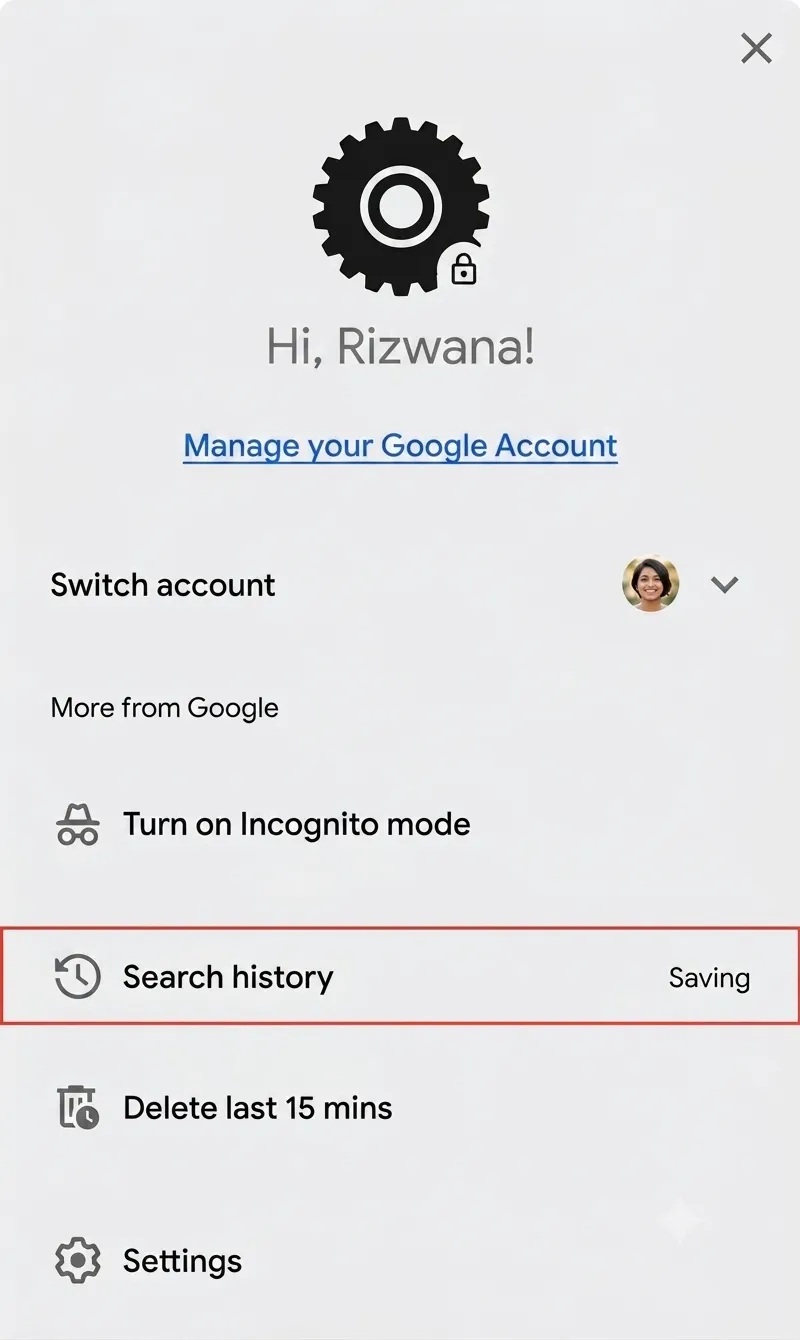
Step 3: Now scroll down to find a particular search you want to remove and tap X next to that individual search.
Way 2
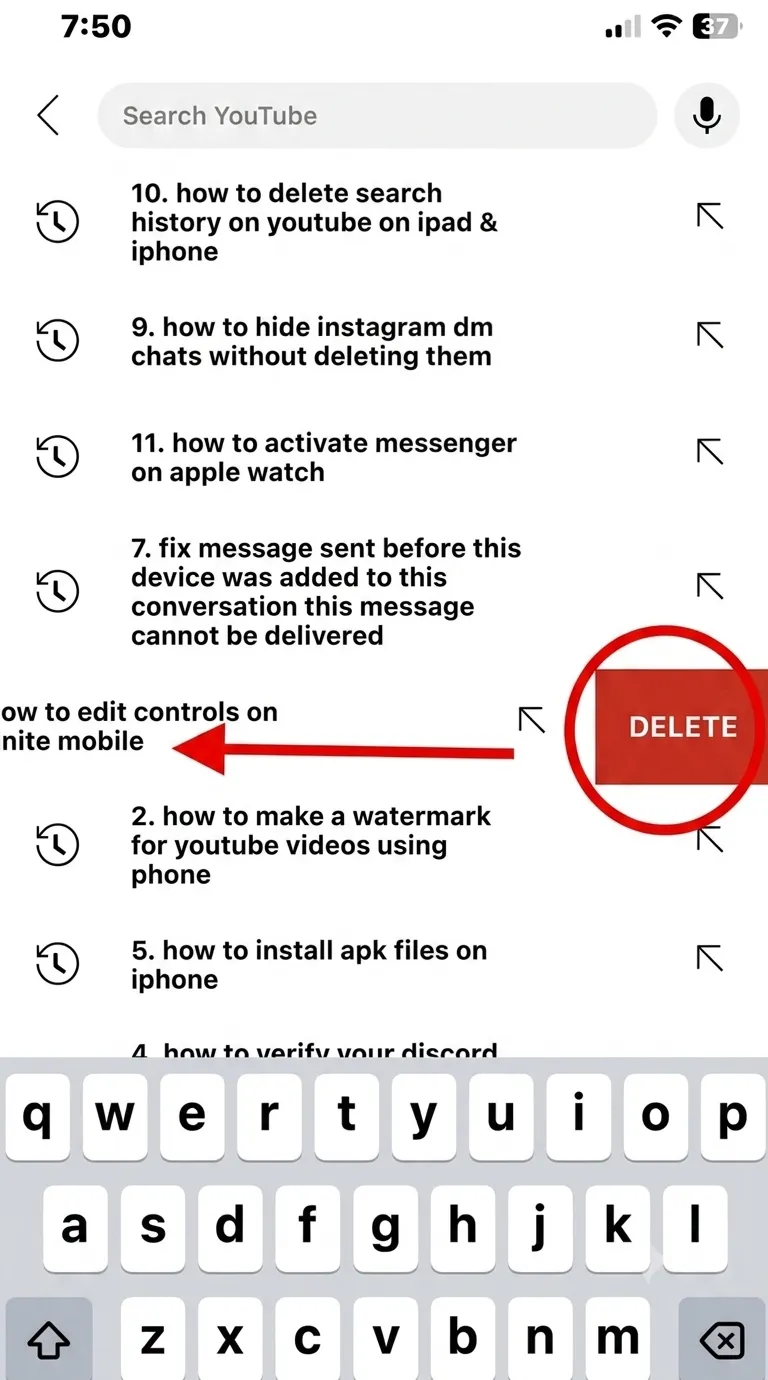
Open the Google app on your iPhone and just tap the Google Search bar widget. Now swipe left on a specific search term you want to delete and tap Delete when the red button appears.
Stop Saving Your Search History
There is another method to stop saving your search history on iPhone/iPad. Here is how you can do that:
Step 1: On your iPhone or iPad, open the Google app and visit myactivity.google.com.
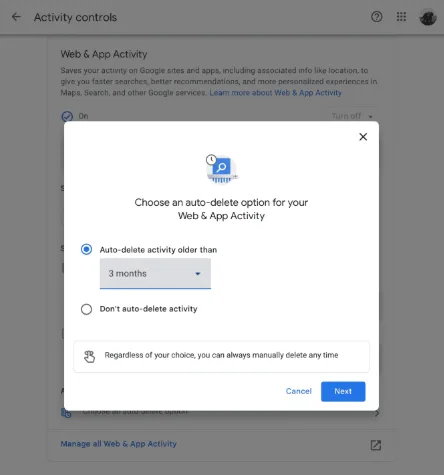
Under Web & App Activity, click on Manage all Web & App Activity and tap on the Delete button to select the time range and click Next to confirm.
Erase Your Search History Automatically
But if you don't want to go through this hassle every few days, there's another option to erase your Google search history automatically on iPhone/iPad. Scroll down to find how to delete search history on Google:
Step 1: From the Google app on your iPhone/iPad, click on your profile picture & Search history. Now, under the Search tab, click Delete, and then tap Auto-delete to activate auto deletion.
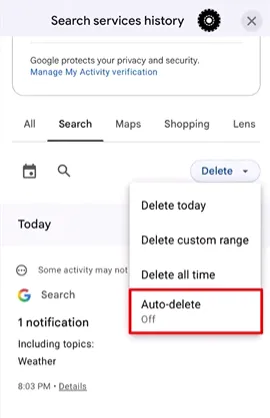
Step 2: Now you have to choose the desired time range:
- 3 months
- 18 months
- 36 months
Now, click Next and your older search history will be deleted automatically from your iPhone or iPad.
Part 5: How to Delete Google Search History on Computer
Google search history is linked to your Google Account and is saved in the cloud, allowing you to review, delete, or pause your activity using the Google My Activity dashboard on PC-Windows or Mac.
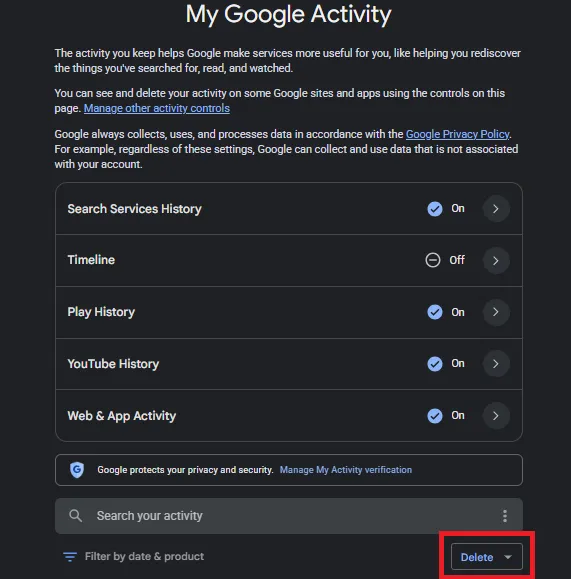
How to Delete the History of Google Search on PC:
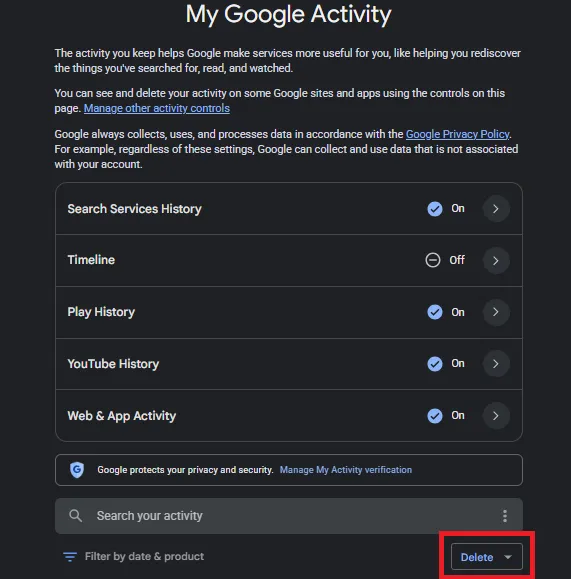
Step 1: Head straight to My Google Activity page on your browser. First click the Delete button, which is under the Search your activity bar. Then select All time from the pop-up menu.
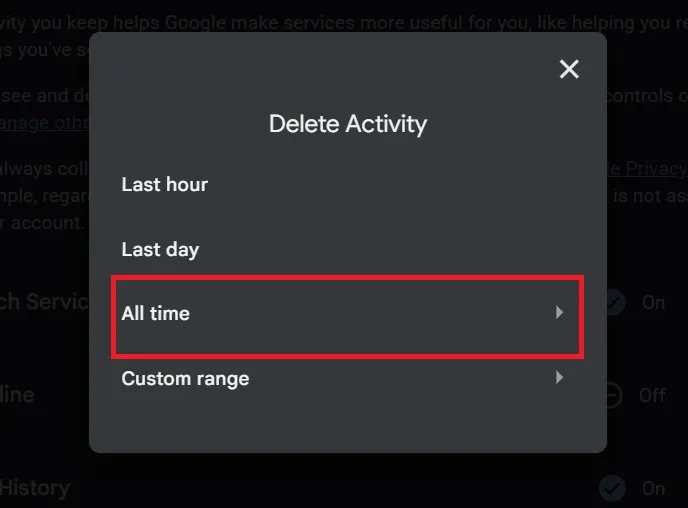
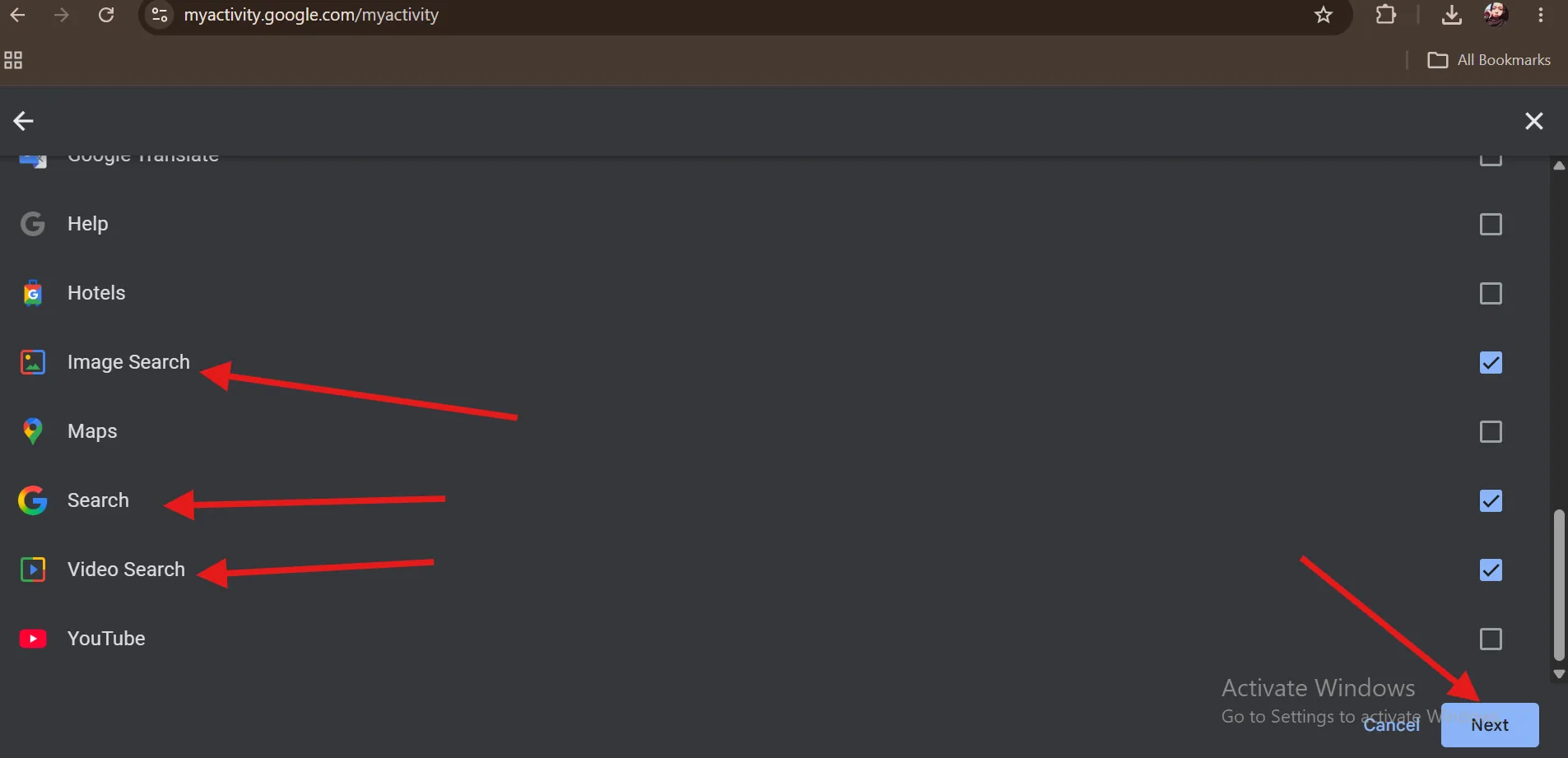
Step 2: Choose the activities you no longer want to have and click Next. Now, simply hit Delete to permanently wipe everything.
Are you a non-techie looking for easy ways to clean your PC, either Windows or Mac? Head to the writeup about 15 simple ways to free up space on a PC, which can help you clean temp files, junk, duplicates, and cache to boost PC performance.

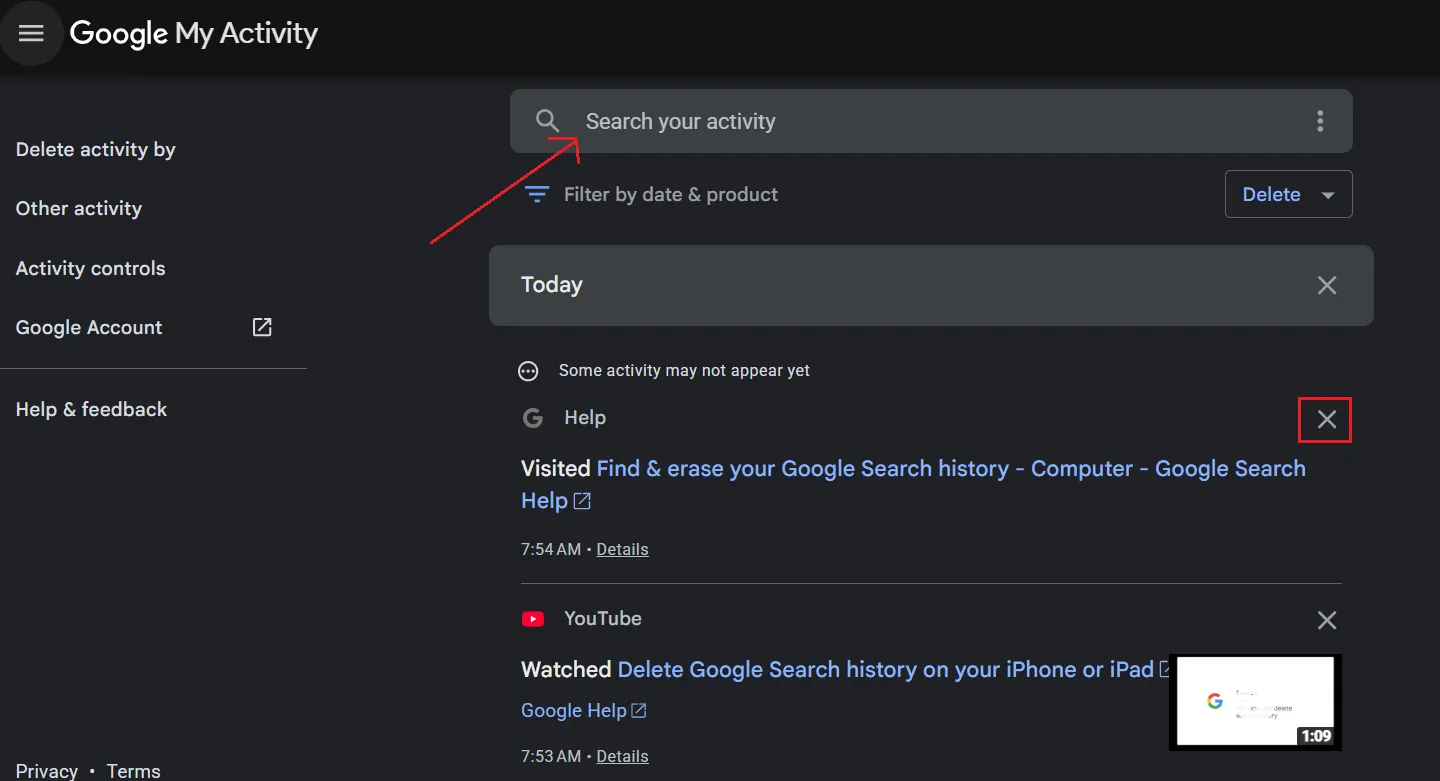
How to Delete One Specific Search
On Google My Activity page, type the keyword in the Search your activity bar. Once you found your desired entry, tap on X next to that specific entry.
How to Delete History Searches on Google by Custom Range
Step 1: Go to My Google Activity - Delete-Delete custom range.
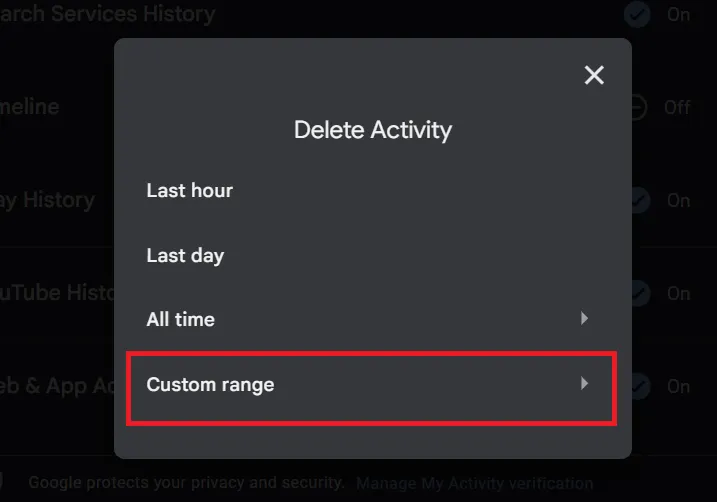
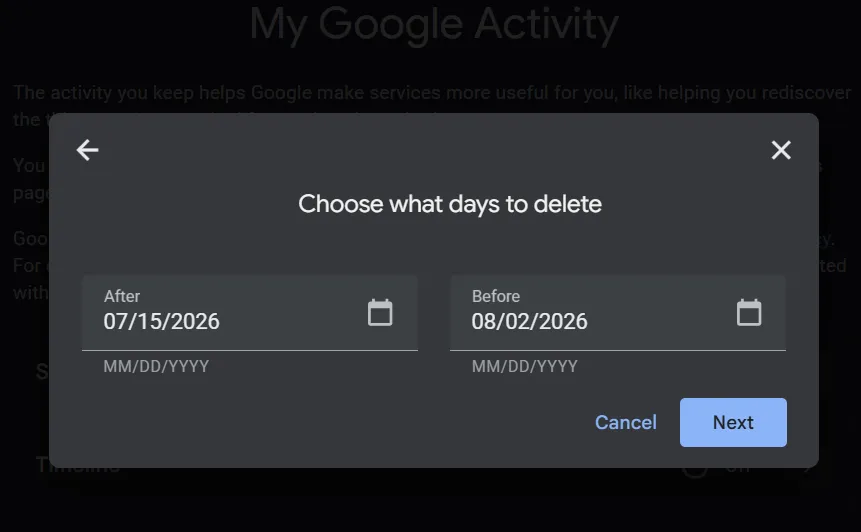
Step 2: Now simply set your start date under After and your end date under Before and click Next. Now, click Delete to confirm.
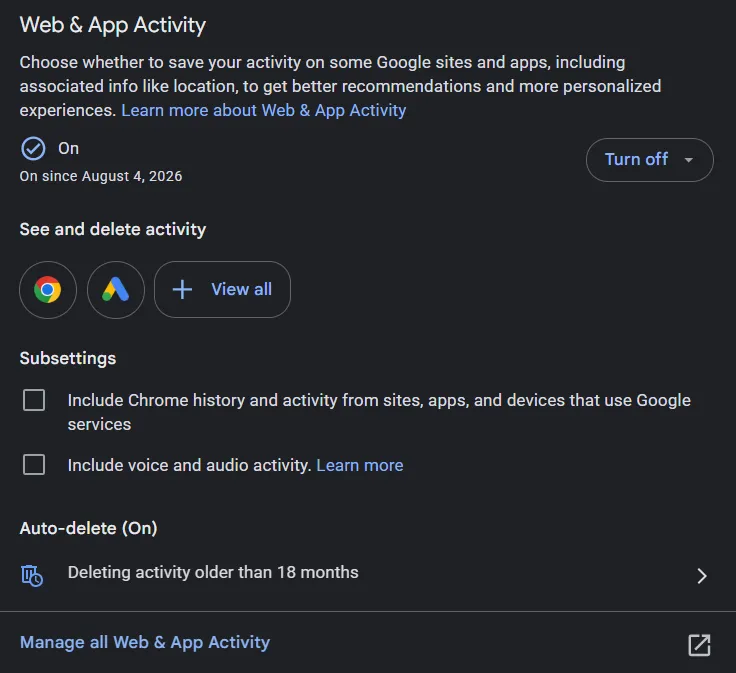
Turn Off or Pause Web & App Activity
Go directly to the Personalization setting and under the section Web & App Activity, click Turn off. Likewise, choose Turn off and delete activity to pause future logging and erase past history in one go.
💡Tips:You can also decide whether you need to delete all the search history along with the voice activity.
Part 6: If Deleting Google Search History Is Not Enough—Delete Google Browser History
Although deleting Google search history removes searches from your cloud account, it doesn't clear your local browser history. So, anyone using the same PC can still see the specific webpages, URLs, & cached sites that you've visited. To delete Google search history completely, you need to clear out Google Chrome browser history as well.
Delete Google Search History from Google Chrome Browser (Windows & Mac)
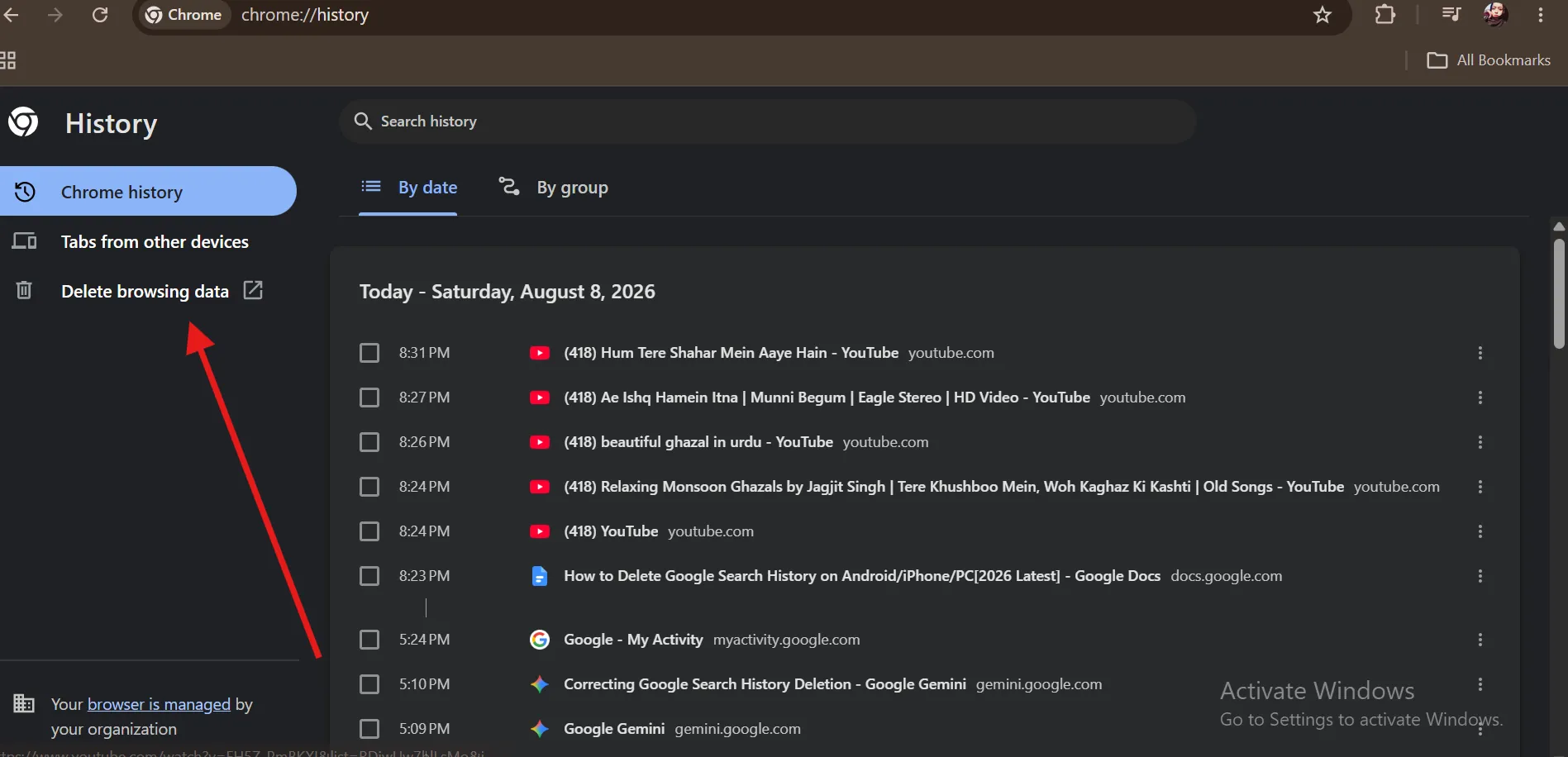
Step 1: Open Google Chrome, click the three vertical dots in the top-right corner, and then tap on History. From the left panel, click Clear browsing data.
💡Tips: To use shortcuts, press Ctrl + Hon Windows and Cmd + Y on Mac.
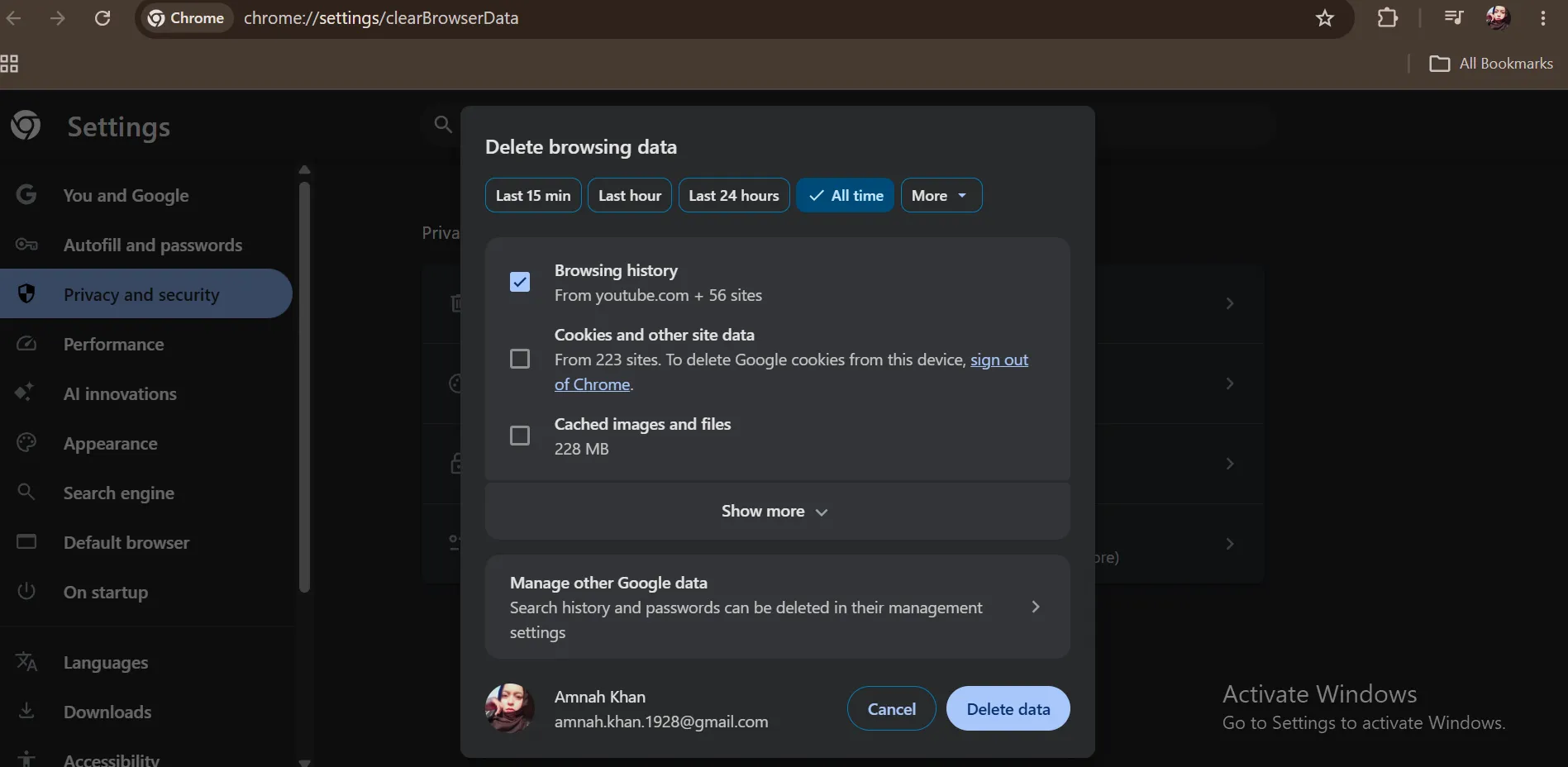
Step 2: The new windows will open where you need to select your desired time range, such as All time. Make sure you check Browsing History before hitting the Delete data button.
💡Tips:You can also check Coockies and other site data and Cached images and file for more comprehensive cleanup.
If your Windows PC is slowing down due to temp data, junk files, and unnecessary apps, read my easy-to-follow write-up about how you can clean up your Windows PC to free up space in 2026.
Part 7: One-Click Solution to Delete Google Search History/Browser History🔥
Manual clearing of your Google Search History is quite a hassle. WMaster Cleanup is an all-in-one cleanup tool that can safely auto-delete Google search history, cache, and cookies on 58+ different browsers, including Google Chrome, in one click.
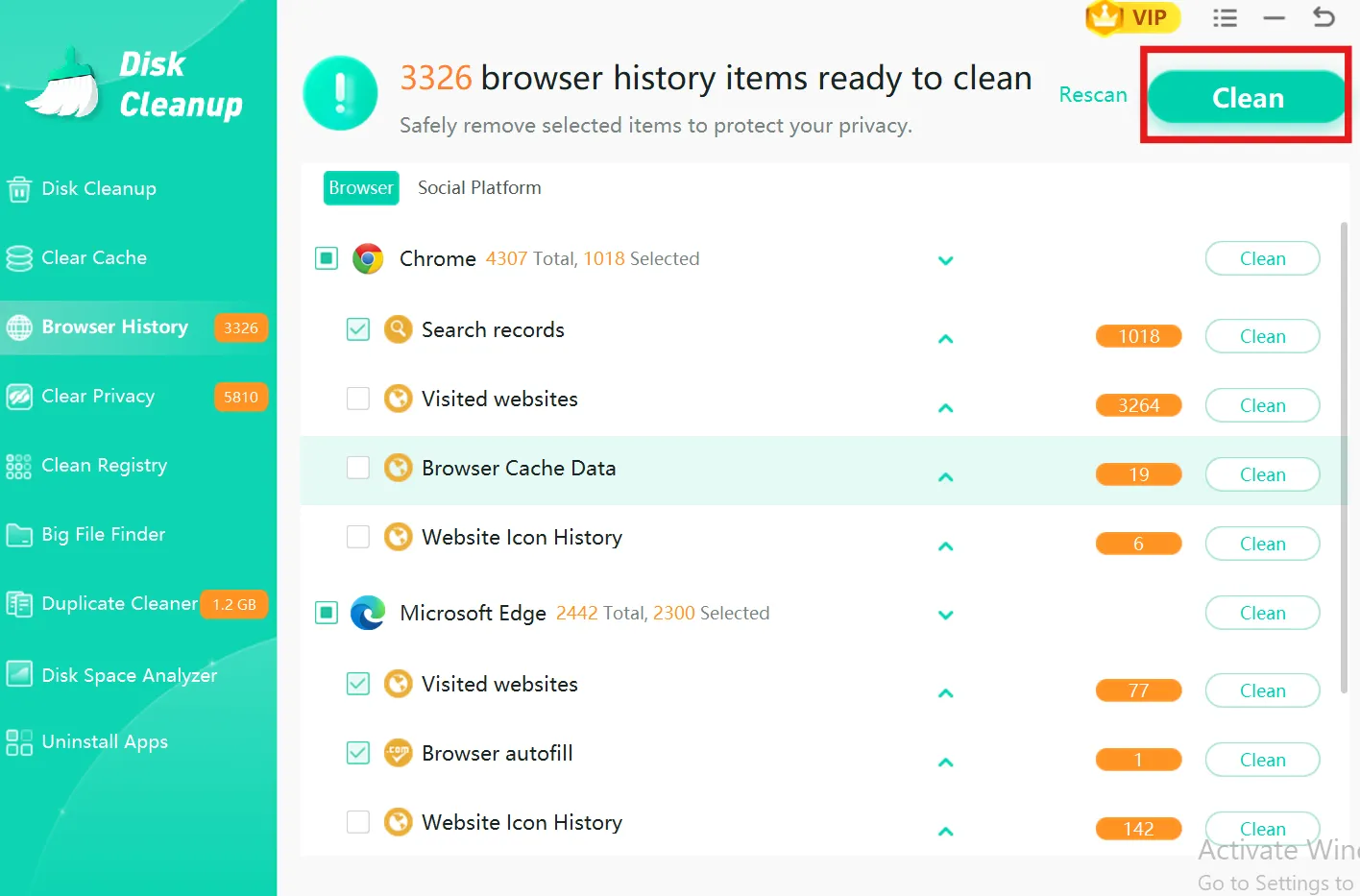
Along with protecting privacy and speeding up your browsers in seconds, WMaster Cleanup offers safe selective cleanup with full user control. Not only that, but its interface with modern flat design lets you see browser caches and search history in an intuitive way, helping you to decide which item you want to delete.

WMaster Cleanup
Delete Google Search History Automatically in One Click
- ·Clear Google search history across 58 different browsers, including Chrome, Firefox, Edge.
- ·Provide a visual breakdown of search history across all the web browsers you use.
- ·Performs database reset to dig hidden web data and search history for 100% cleanup.
- ·Sorts cache into discrete types -visited websites, search records, browser cache & more.
- ·A simple and beginner-friendly interface gives safe-to-remove browser data selection.
How to Remove Google Search History/Browser History with WMaster Cleanup
Step 1: Go to the official website of WMaster Cleanup, and from the features tab, click on Clear Browser History. Tap on the Free Clean option to start the download.

Step 2: You'll directly land on the main interface of the Browser History feature . Click on the Scan button in the top right corner.
💡Insider Tip: The tool will ask you to close it before cleaning the browser history thoroughly. So, make sure you save all your data before hitting the Clean button.
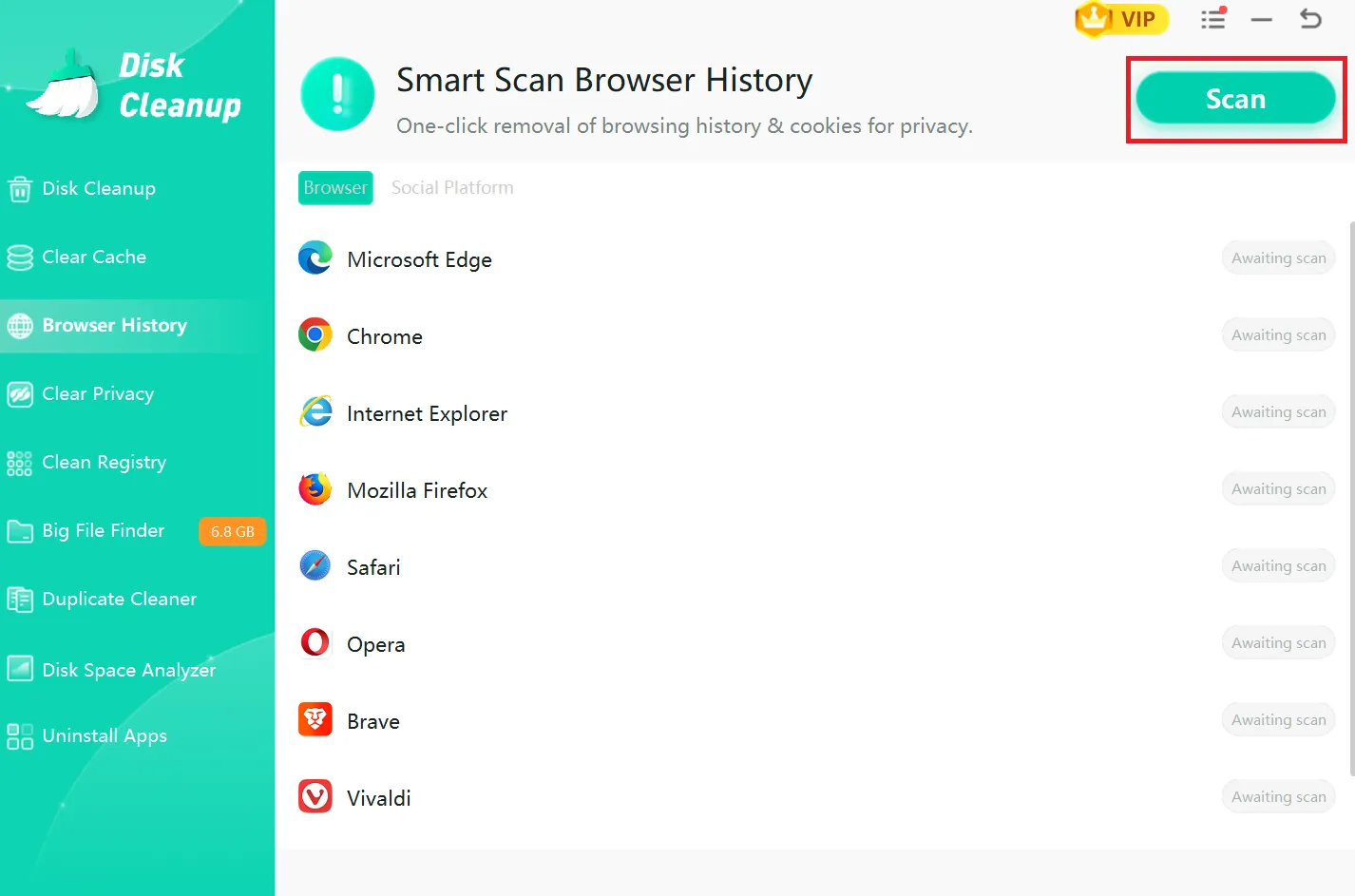
Step 3: Tap on the Clean button in the top right corner to clear all the browser history at once.
Tip: You can clean the desired item individually by using the Clean button next to it.
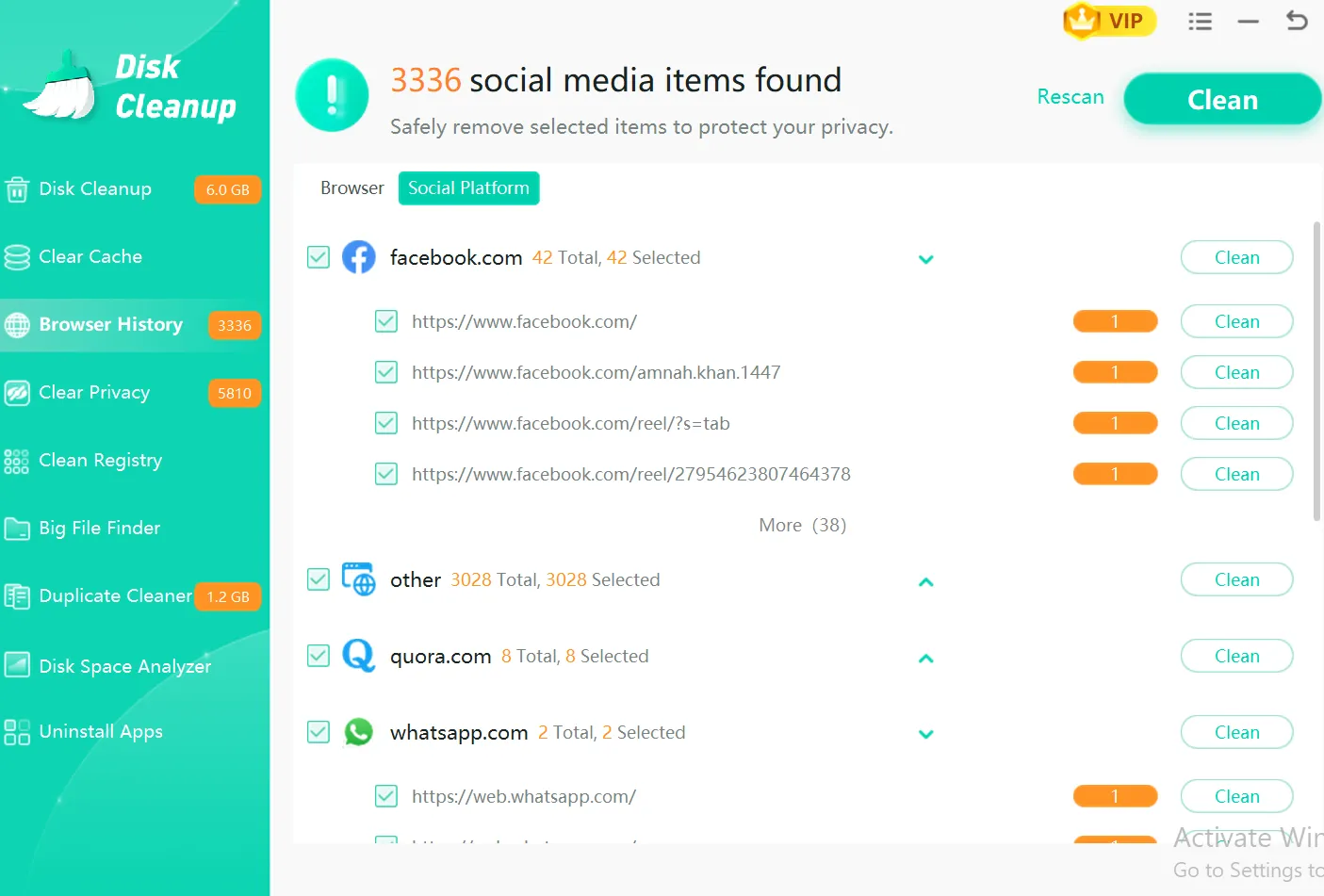
💡Tip: If you want to delete items from the specific social media platform, WMaster Cleanup also offers cleaning for social media items that are found in different browsers.
Part 8: FAQs Related to Google Search History
Q1. How can I delete Google Search History without logging in?
If you're not signed in to your Google account, your search history would not be saved in your account profile. As a consequence, your searches will be saved locally in your web browser or app. And to delete these searches, you have to:
Step 1: Open your browser or the Google app.
Step 2: Go to History or Recent Searches, and clear it.
If you want to erase your Google account's search history, you'll need to sign in first.
Q2. How do I 100% clear search history?
To clear your search history for good, you just need to do two quick things:
Step 1: Wipe your search history in Google My Activity.
Step 2: Clear your browser's history, cookies, and cache.
Tip: To 100% clear search history, don't forget to clear history from all the synced devices if your sync button is on.
With WMaster Cleanup, you can 100% auto-clear all your Google search history across multiple browsers on Windows PC with just a single click.
Q3. How do I delete Google Search history on an updated iPhone?
It's pretty simple:
Step 1: Open the Google app on your iPhone and tap your profile picture.
Step 2: Select Search history. Now, choose a custom date range or Delete All Time.
If you also use Safari or Chrome, make sure to clear their browsing history separately.
Q4. Does deleting Google Search history improve privacy?
Yes, it definitely helps! When you clean your Google search history, it means Google deletes all your past activity. Plus, it won’t use your old searches to guess what you're looking for or show you personalized suggestions.
Q5. Will deleting my Google Search history sign me out of my account?
No. Clearing your search history just gets rid of your past searches. It won't log you out, and all your emails, photos, and files will stay right where they are. Everything will keep working normally!
Conclusion
Knowing how to delete Google search history lets you take back control over your privacy & clear out unwanted digital mess. As Google uses your past searches and browsing habits to show relevant content, clearing this data will make sure that your online privacy remains private while also making your browser run smoothly.
If you are on Windows, I suggest you download WMaster Cleanup that not only offers a one-click solution- batch processing, but it can also quickly clear out your Google search history, cached data, & tracking cookiesacross Chrome, IE, Firefox, & dozens of other browsers.
What's even better? The custom cleanuplets you select the exact search history you want to delete, keeping your browser private, fast, and cutter-free.