


If you see the "Storage almost full" notification every time you open your Google Photos, and you aren't a big fan of capturing photos either, duplicates are likely the culprit.
These duplicate photos are generally the result of multiple phone syncs, uploads from different devices, screenshots saved twice, and edited images saved alongside their originals. All these images can add up faster, filling up your Google Photos space.
If this is your first time trying to delete duplicate pictures in Google photos, you have come to the right place. In this guide, we will provide multiple methods for removing images from Google Photos without losing anything you want to keep.
In this article
- Why Does Google Photos Fill Up Easily?
- Delete Duplicate Pictures in Google Photos Manually
- Delete Duplicates in Google Photos by Bulk Selection
- How to Delete Duplicates in Google Photos Using Duplicate Photo Cleaner?
- 4 More Google Photos Duplicate Finder and Deleter Recommendations
- Bonus Tips: Clean Your Windows PC Google Photos Backups
- Useful Tips to Prevent Duplicate Photos in Google Photos
- FAQs About Deleting Duplicate Pictures in Google Photos
Part 1: Why Does Google Photos Fill Up Easily?
Backups from multiple devices, edited copies of the same images, and your WhatsApp and social media saves quickly fill up Google Photos. Since Google Photos doesn't have an in-built duplicate finder, it's hard to delete duplicate files.
Here's what's usually behind it:
- Multi-device syncing
If you use multiple devices that have the same Google account and all have Google Photos backup turned on, you will likely find one image multiple times on your Google Photos.
- Edited copies
Editing images in Google Photos or using a third-party app often results in two copies of the same image being saved in your Google Photos: the edited version and the original.
- WhatsApp and social media saves
Images shared via WhatsApp and other such apps are automatically saved in Google Photos if you have enabled it in Settings.
- Manual uploads on top of auto-backup:
Backing up your phone and then downloading the same images manually can also fill up Google Photos quickly.
- Screenshot backup
All screenshots you take on your mobile phone are backed up in Google Photos.
- Restored or migrated libraries
Shifting photos between devices and restoring old photos can also fill up Google Photos with duplicates.
Part 2: Delete Duplicate Pictures in Google Photos Manually
The simplest way to delete duplicate photos in Google Photos is by removing them manually. Here we have explained two methods for "how to find duplicate photos in Google photos",you can use for this purpose.
Method 1: Search by Date and People
In Google Photos, everything is saved and organized by date and face. This makes it relatively easier to find duplicates in Google Photos, especially if you know where to look.
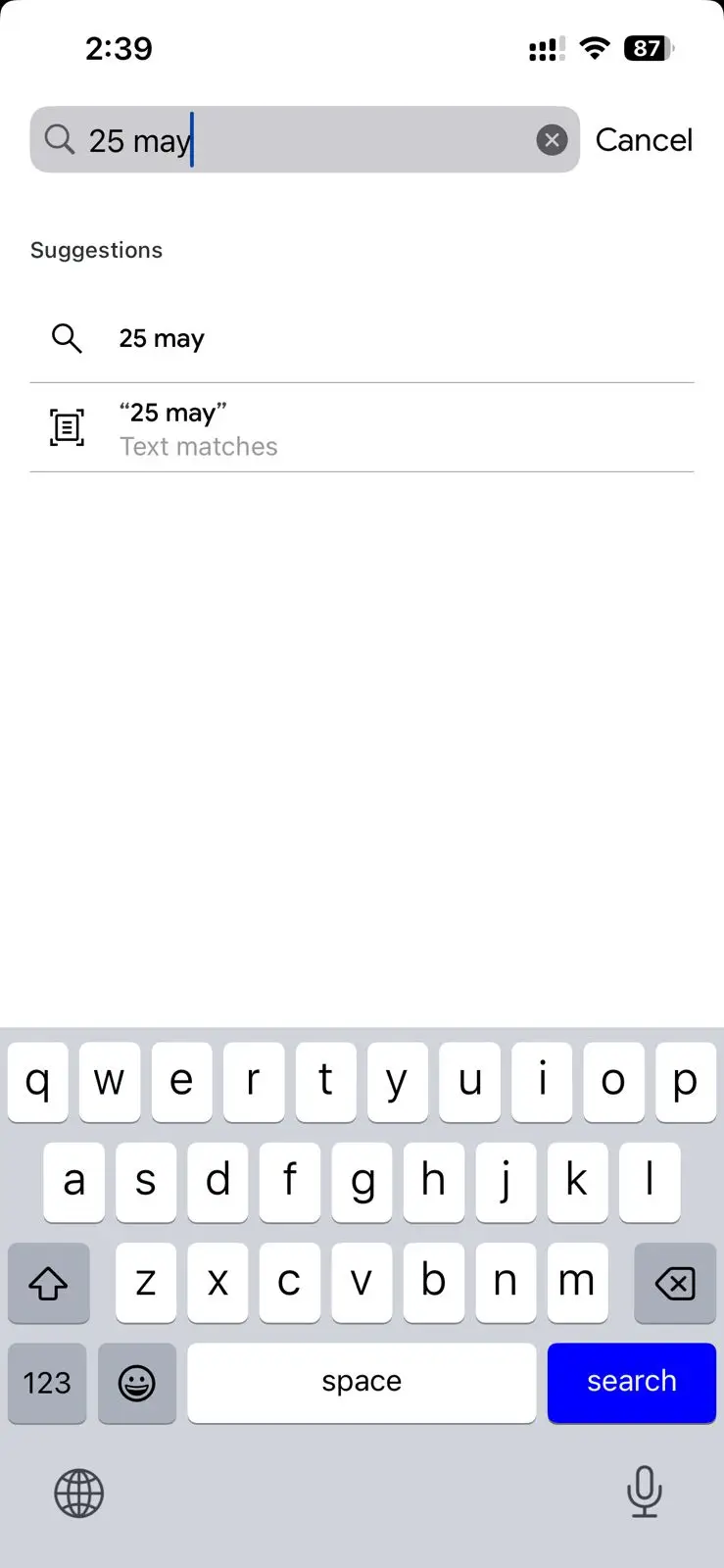
Step 1: Go to Google Photos and Search by a Specific Date: Head over to Google Photos and type a specific date in the search bar. All photos from the specified date will load together, making it easier for you to find and delete duplicate photos.
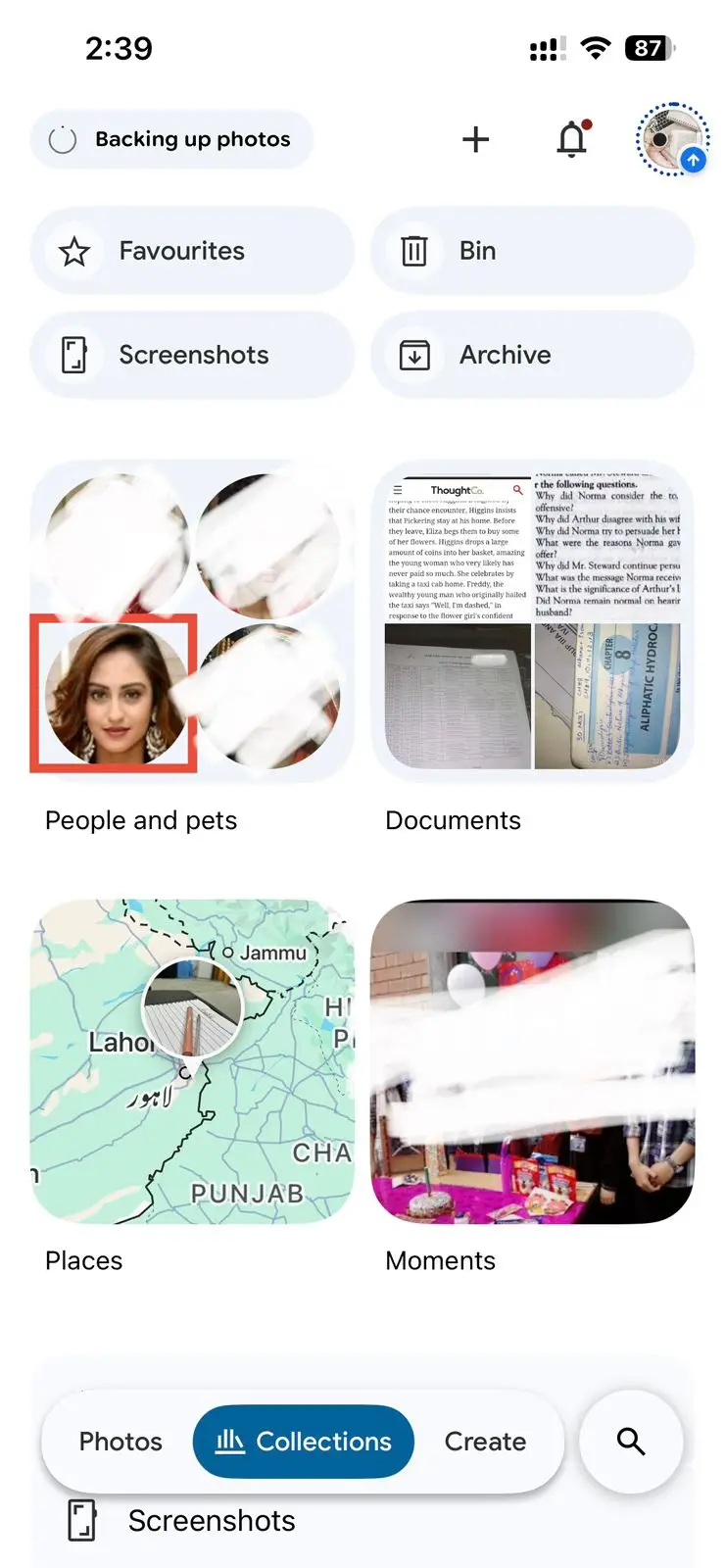
Step 2: Search by People: Go to the People section and choose a face. Scroll through all the images to find duplicates in Google Photos.
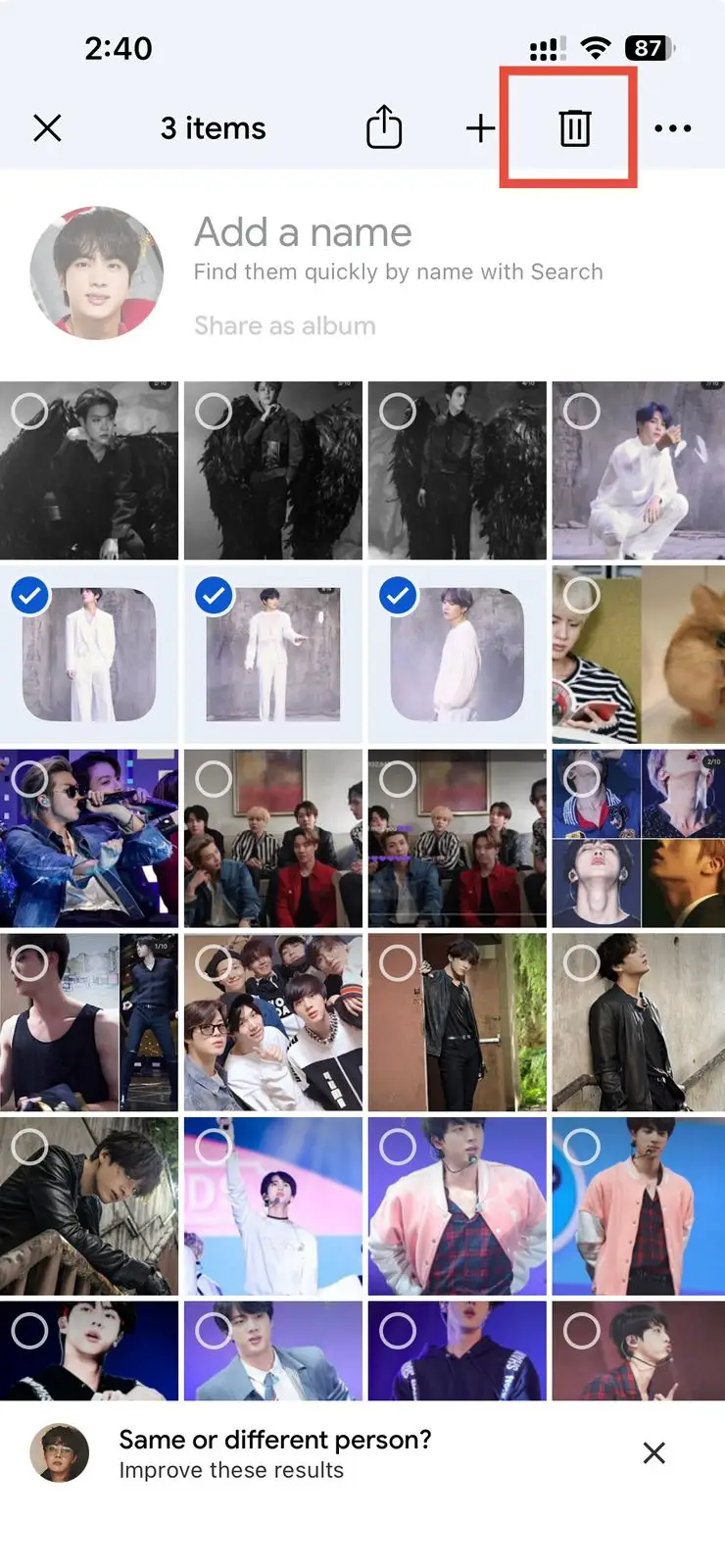
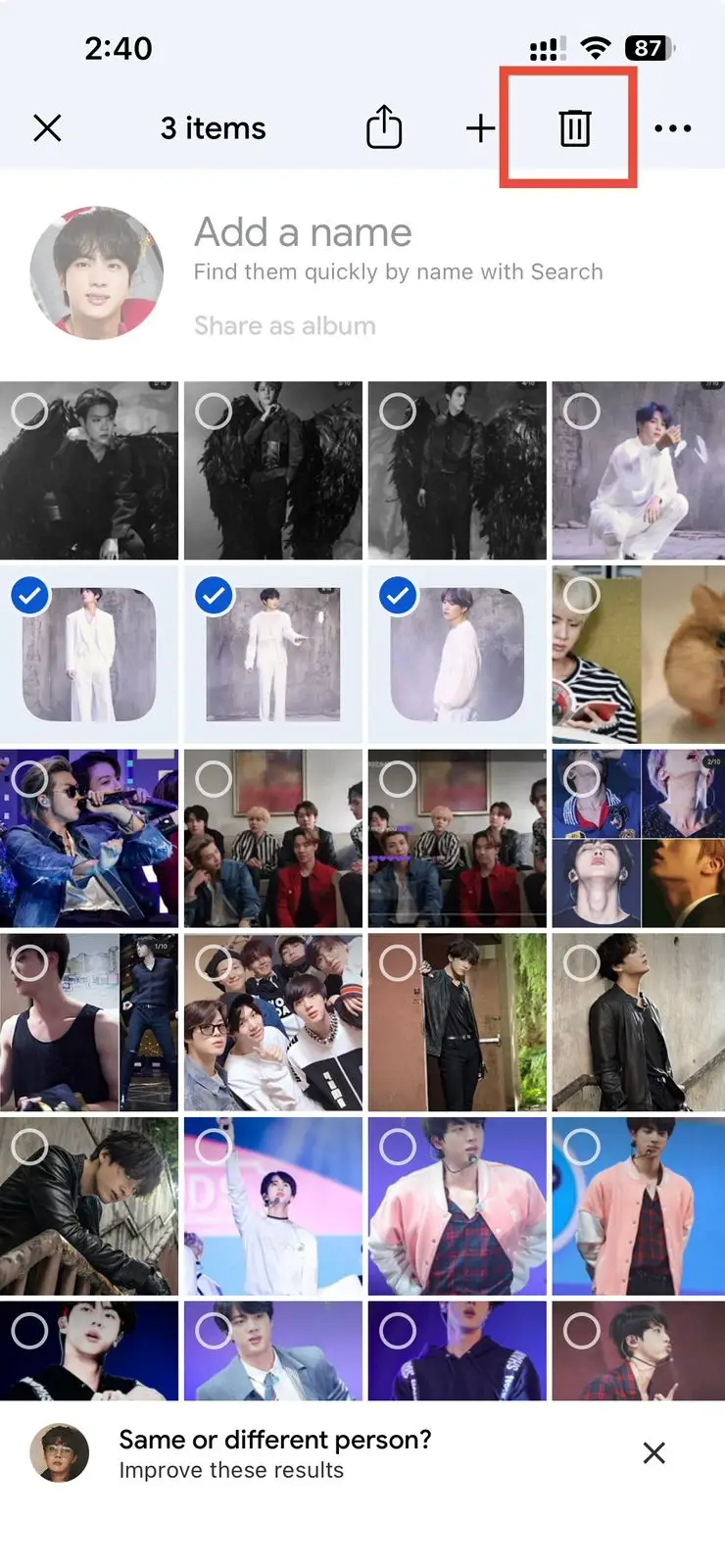
Step 3: Delete and Empty the Bin: Once you have located the duplicate photos, tap the Trash icon and confirm.
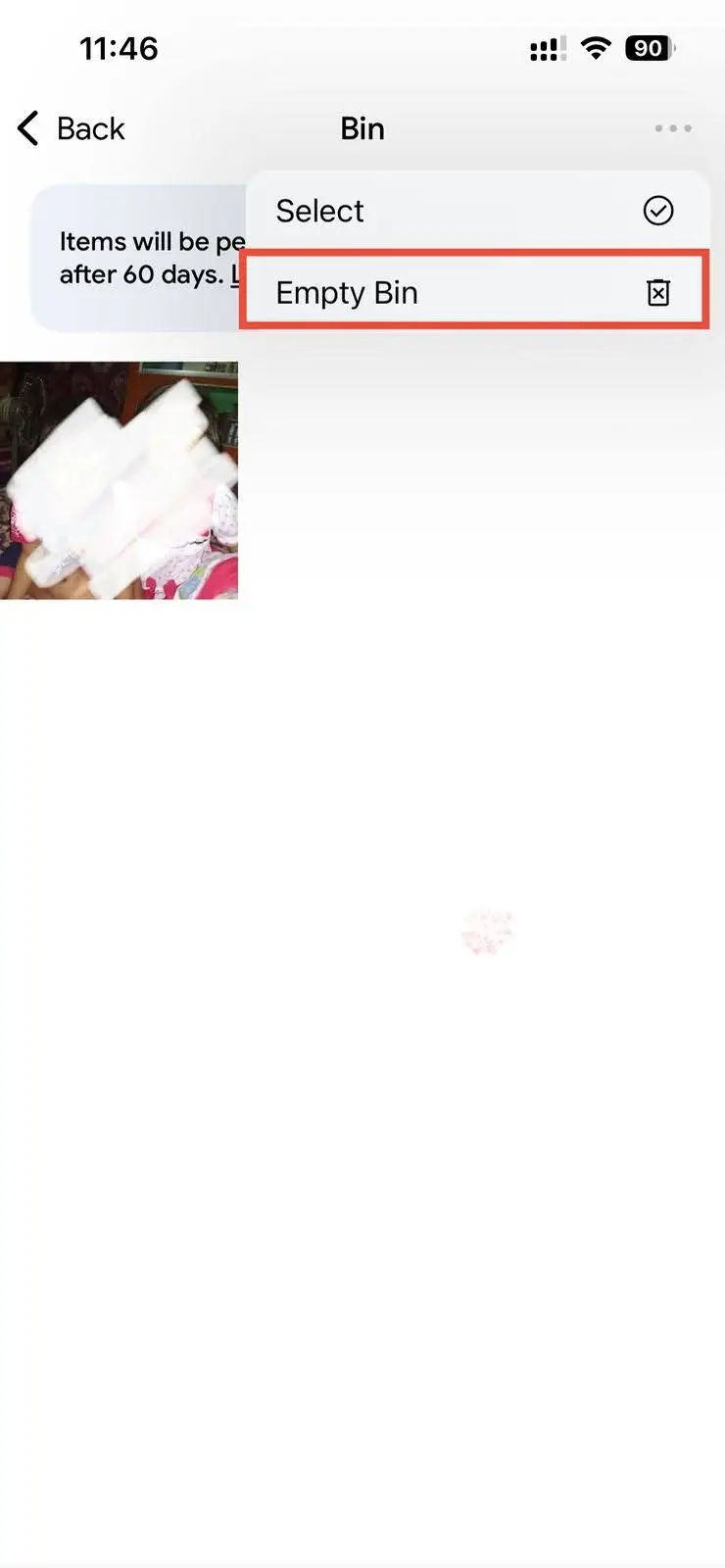
💡Tips:Now, go to Bin and select Empty Bin to permanently remove these duplicate Google photos..
Method 2: Search by File Name
Another method to delete duplicate images in Google Photos is to use the file name. Here is all you need to do for this:
Step 1: Open the Search Bar: Select the Search bar in Google Photos and type in the file name. You can even type a partial filename, such as IMG_1234. All the photos with matching or near-matching names will start loading.
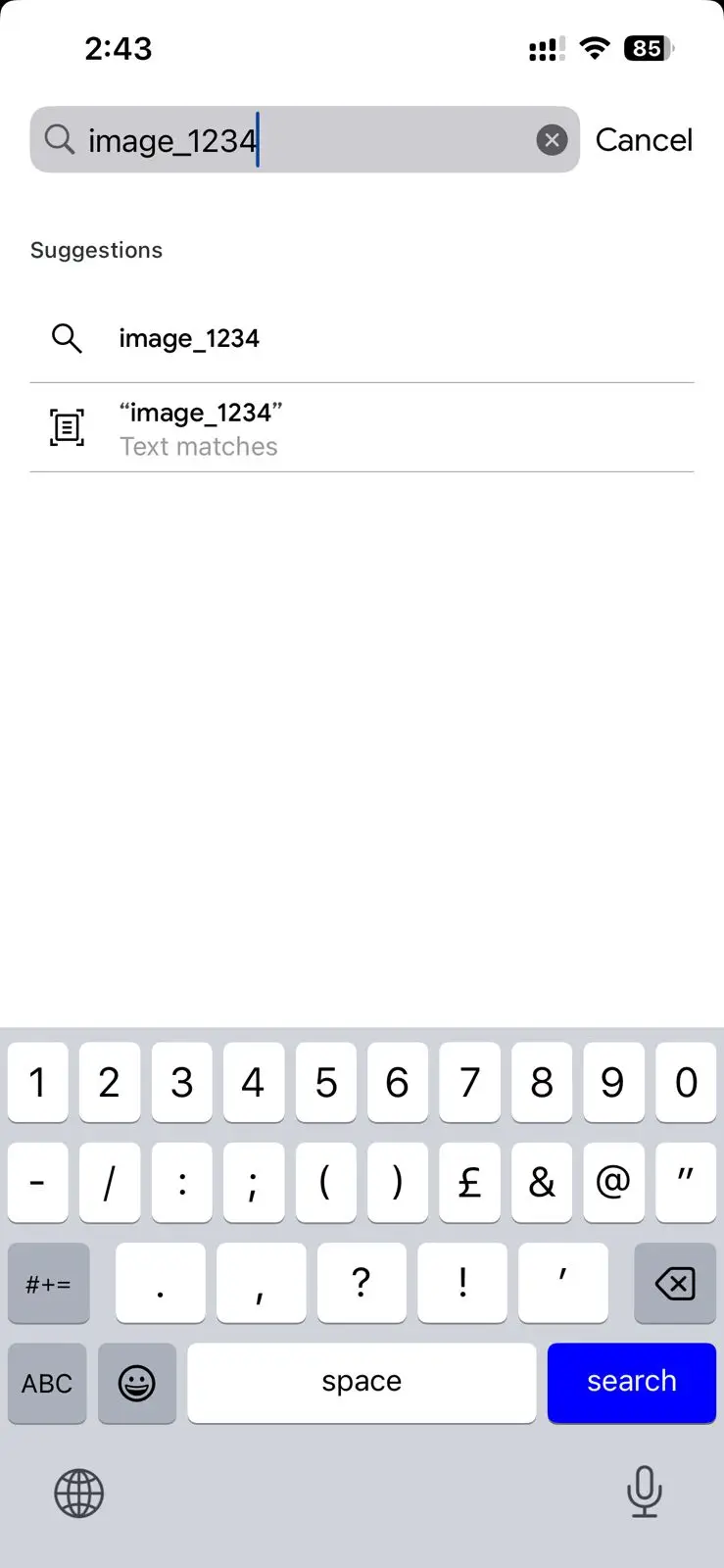
Step 2: Spot, Select, and Delete the Duplicates: Find photos with the same filename or thumbnail, such as IMG_4324 and IMG_43241(1). If they are identical, one of them should be removed. Now, tap and hold the image you want to delete, then tap the trash can icon to delete it.
💡Tips:Now go to Bin and then select Empty Bin to permanently remove the image.
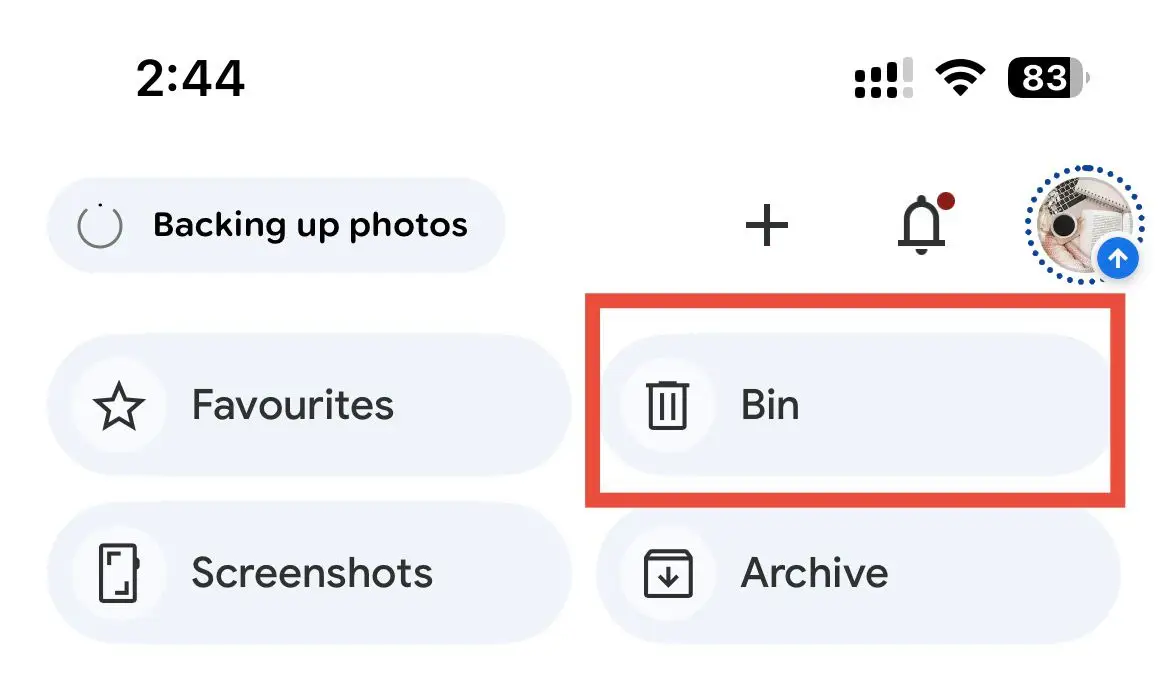
Part 3: Delete Duplicates in Google Photos by Bulk Selection
Although if you are searching and deleting images from Google Photos manually, it is one of the most effective methods to remove duplicate files . But it can get challenging for you if you have thousands of photos on your device. In this case, bulk selection saves you a lot of time and effort. Here's how you can use bulk selection to delete duplicate pictures in Google photos:
Select All from Specific Time Periods
Firstly, you can select all images from specific times, find duplicate photos in Google Photos, and then delete them. The steps you need to follow for "how to delete duplicates in Google photos" are:
Step 1: Head to the Photos View in Google Photos: Open the Photos tab in Google Photos Tap and hold to begin selecting. Scroll through the images to locate a particular month or period.

Step 2: Tap and Hold to Start Choosing: Scroll through the images to go to a specific month or timeframe. Now, tap and hold the first image you want to delete from a specific time.

Step 3: Drag to Select Multiple Images: Drag down on the images to select all photos from the selected period. On a desktop, simply click the first image and keep pressing Shift until you have selected the last photo.
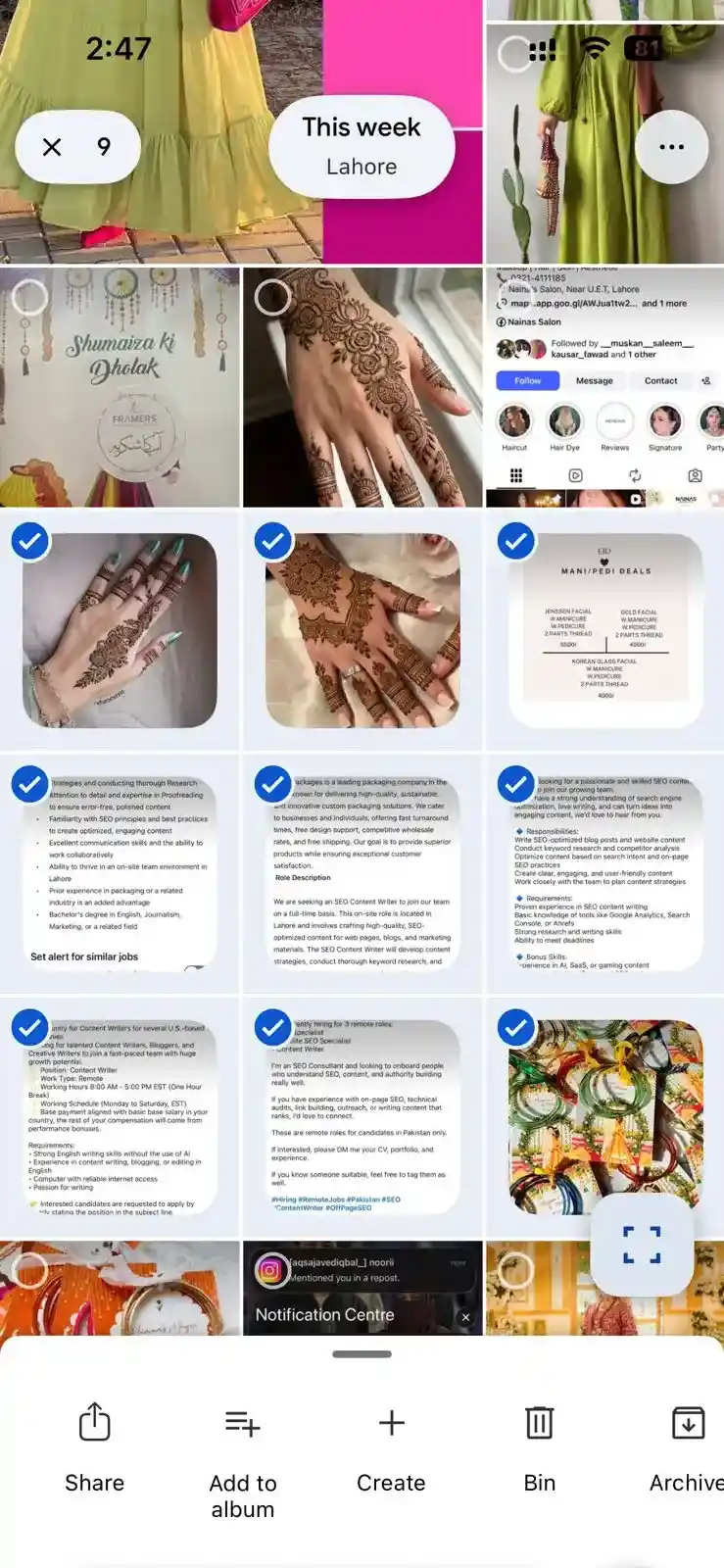
Step 4: Delete the Selected Photos: Once you've selected all the photos you wish to remove, select the trash icon and confirm.
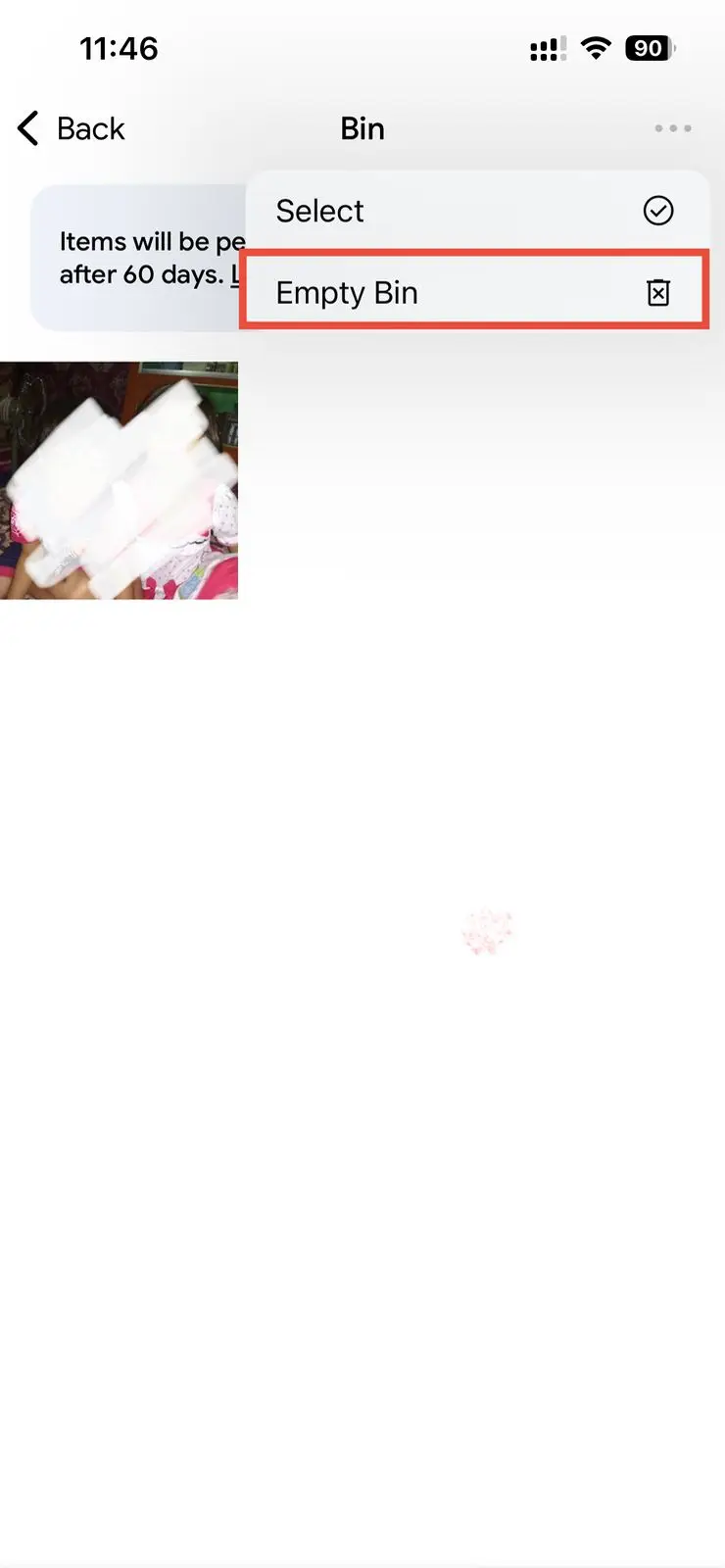
Step 5: Empty the Bin: Next, go to Collections and tap Bin. Tap the three dots at the top, then tap Empty Bin to permanently delete all the duplicate images you have just removed.
Album-Based Cleanup-Find Duplicates in Google Photos
Here is what you need to do to perform album-based cleanup in your Google Photos.
Step 1: Go to Your Albums: In Google Photos, select Collection at the bottom, then go to Albums.
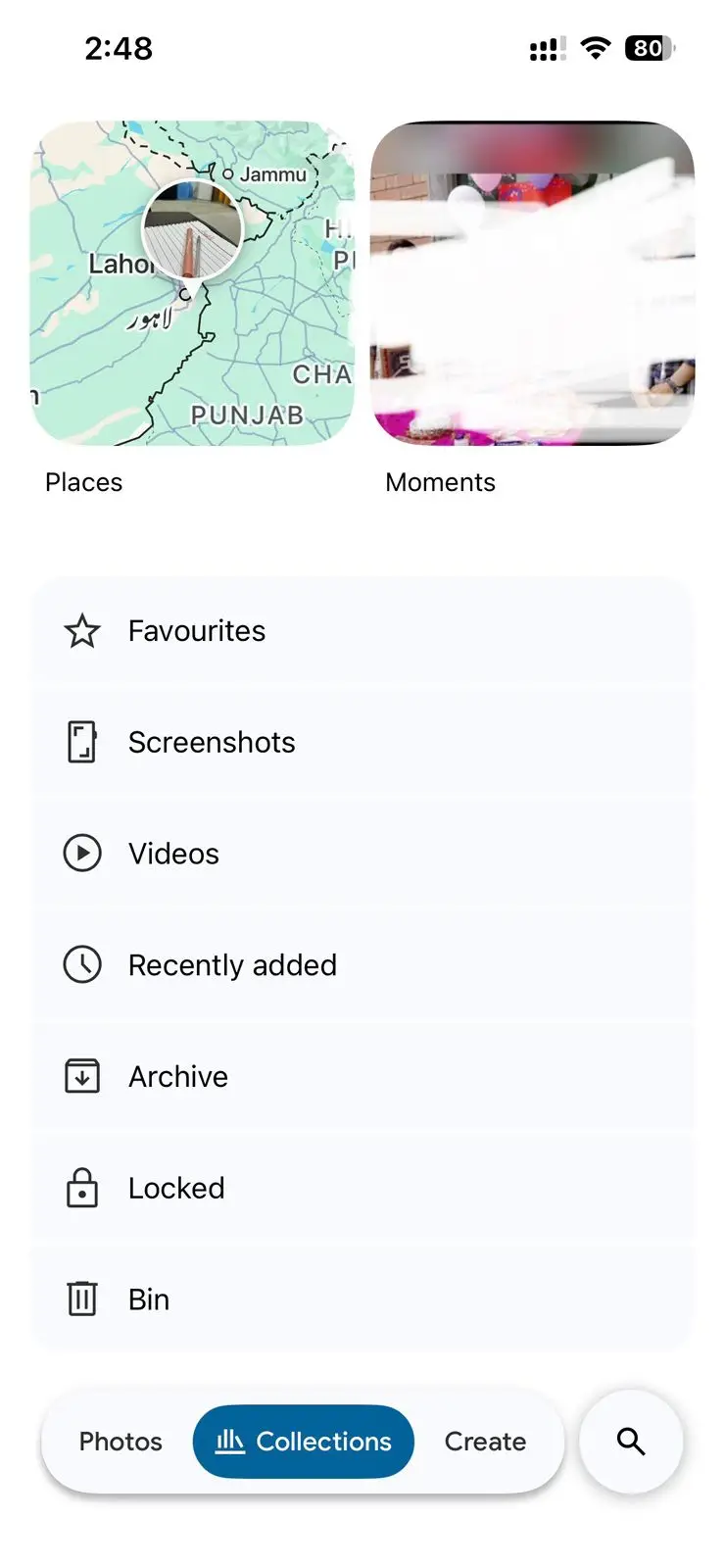
Step 2: Open a Specific Album and Select Duplicates: Open your desired album and start scrolling through the images. Now tap and hold any image, and once you are in selection mode, tap other images to select for deletion.
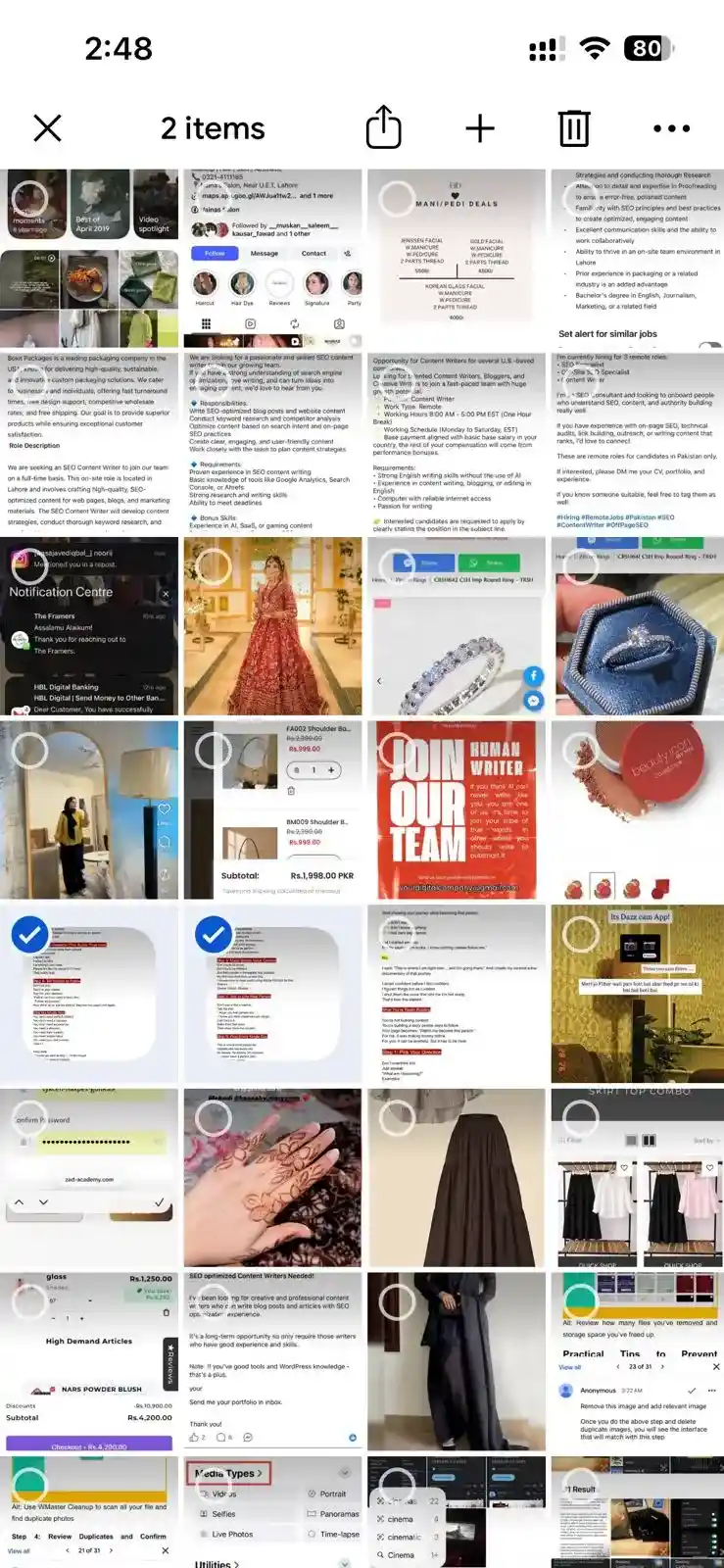
Step 3: Delete and Empty the Bin: Select the trash icon and confirm.
💡Tips:Once done, if you wish to delete these photos permanently, go to Collection, tap Bin, and then select Empty Bin.
Part 4: How to Delete Duplicates in Google Photos Using Duplicate Photo Cleaner?
If you hate spending too much manual effort deleting duplicate images from your Google Photos and are looking for an app that can help you do the job, we've got you covered. Duplicate Photos Cleaner is an incredible app for this purpose. Not only does it connect directly to your Google Photos, but it also find duplicates in google photos and lets you review images before deleting them.
Here's how to delete duplicate photos in google photos using Duplicate Photos Cleaner:
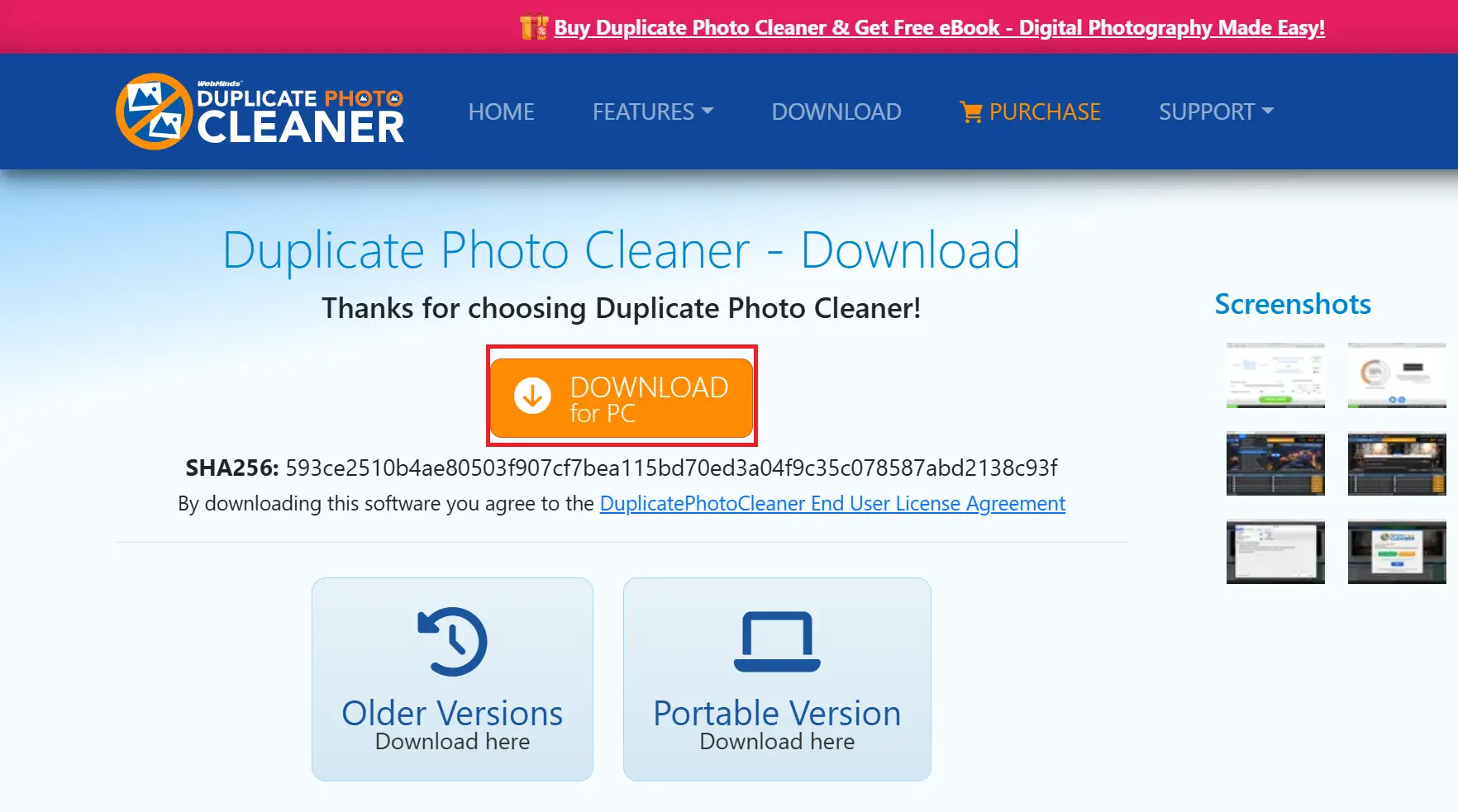
Step 1: Download and Install Duplicate Photo Cleaner: On your PC, head to the official website at duplicatephotocleaner.com and download the app on your device.
Step 2: Connect to Google Photos: Open the app and select the Drag and Drop folders here"option. Make sure you have downloaded your Google Photos file on your PC. Select your Google Photosfile from the available files.
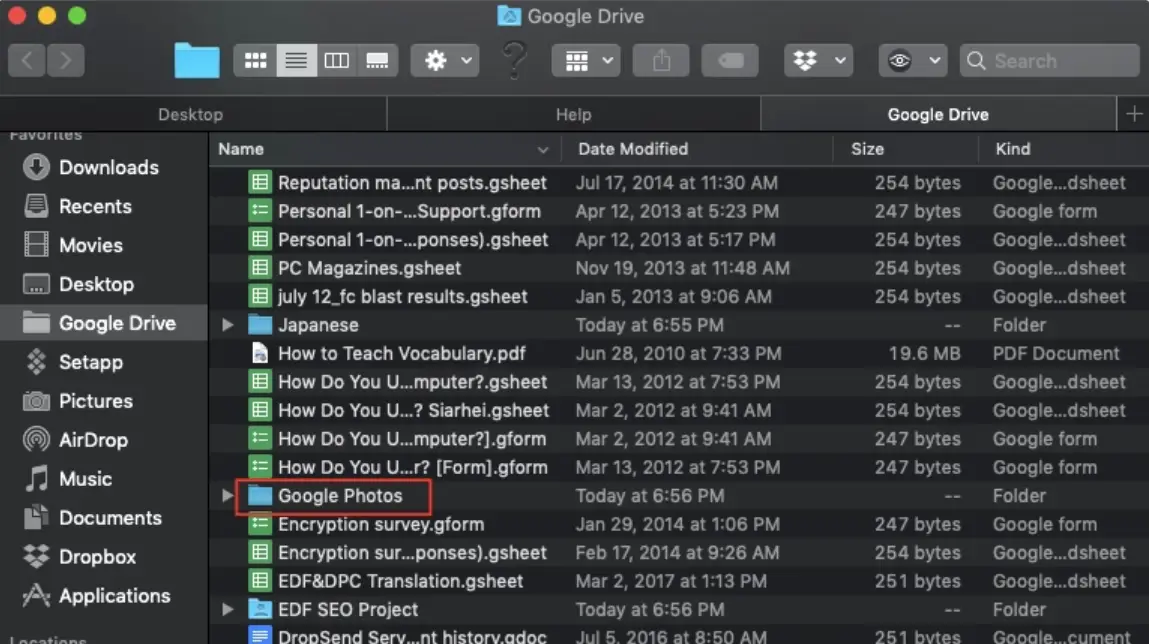
Step 3: Run the Scan: Hit Start Scan and let the app do its job.
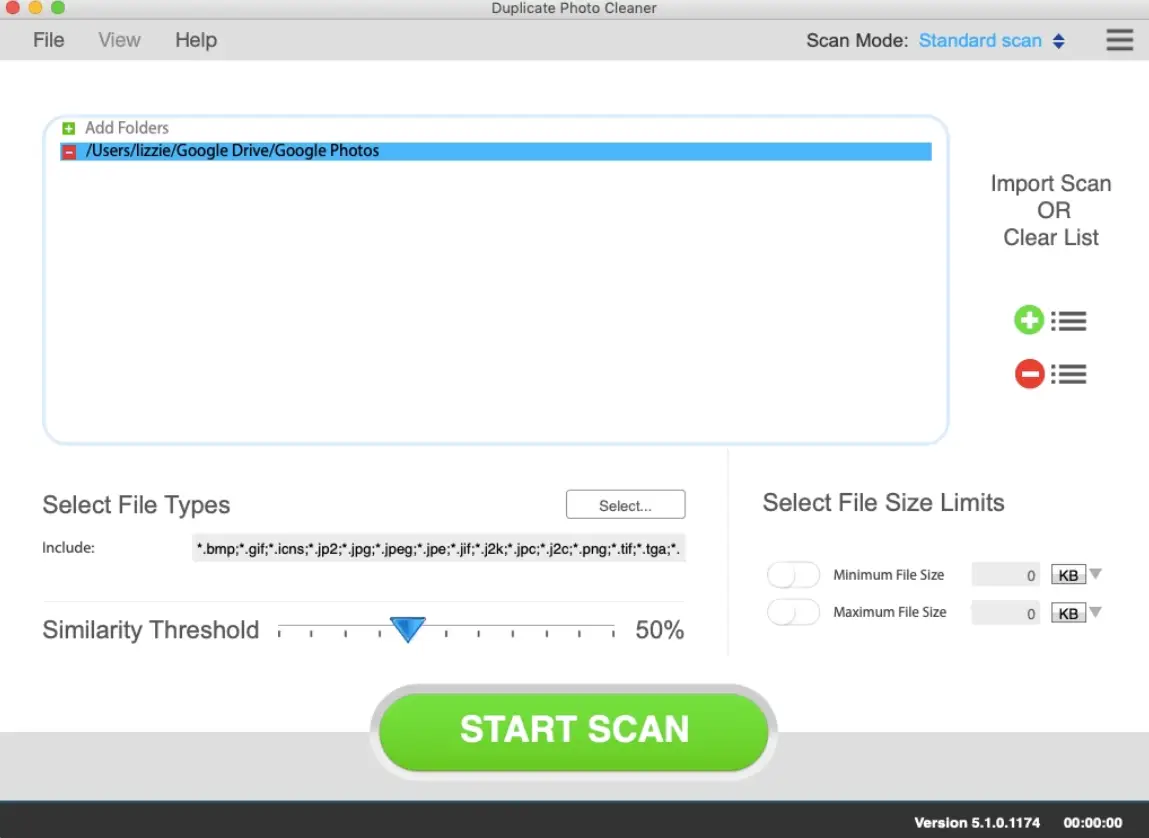
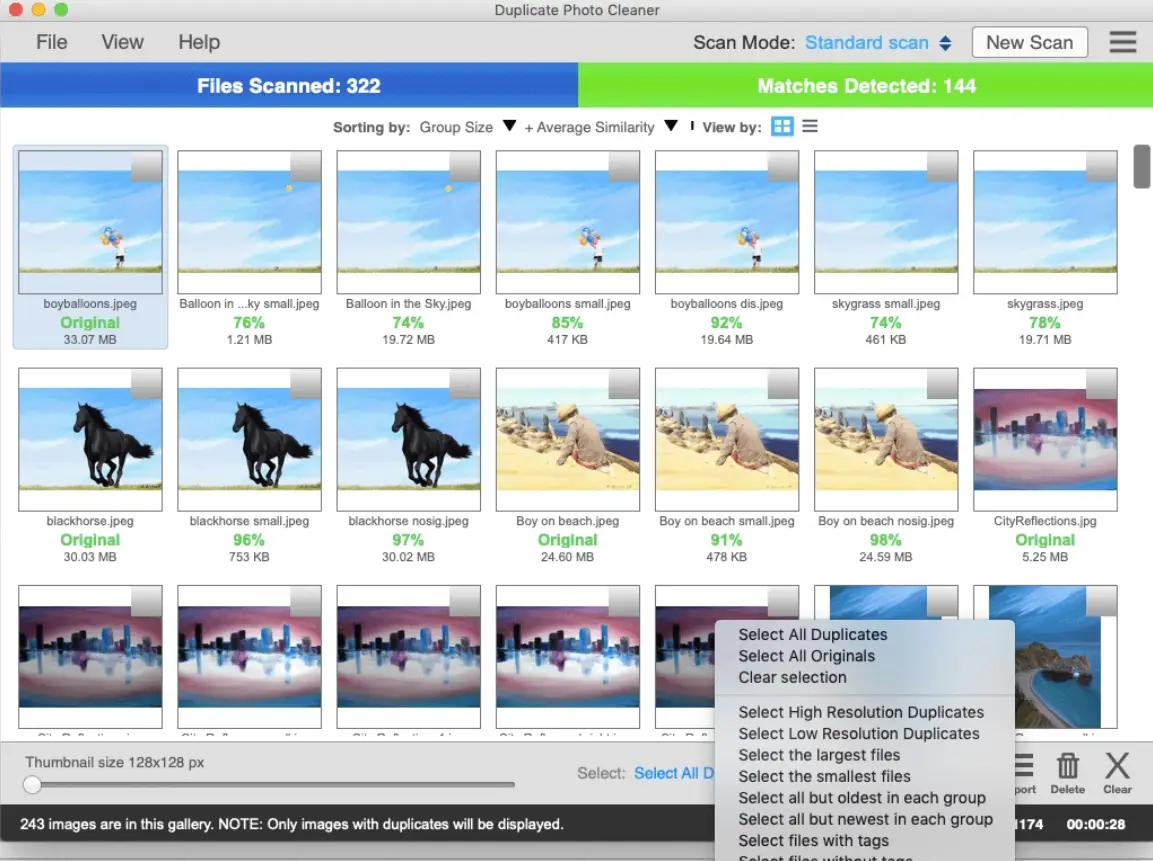
Step 4: Review and Delete: Once the app has grouped duplicates together, go through all the images, select the ones you want to remove, and hit "Delete" to confirm.
💡Tips:Don't forget to navigate to the Google Photos Bin -Empty Bin to permanently delete these photos and free up the storage.
Duplicate images are everywhere! So, stop letting these duplicates waste your device storage anymore. No matter what device you use-Windows, Mac, Android, or iPhone-this write-up about 12 top-rated tools to find and delete exact and similar images will help you reclaim your space.
Part 5: 4 More Google Photos Duplicate Finder and Deleter Recommendations
If you're not fond of a manual cleanup hassle, here are 4 more Google photo duplicate finder and deleter recommendations that you can use to get rid of duplicate images from your Google Photos.
1.Duplicate File Fixer (App)
Duplicate File Fixer is one such app that works across the entire Google Photos library. From photos to videos and even documents, it scans everything and helps you identify duplicates, review them, and delete them.
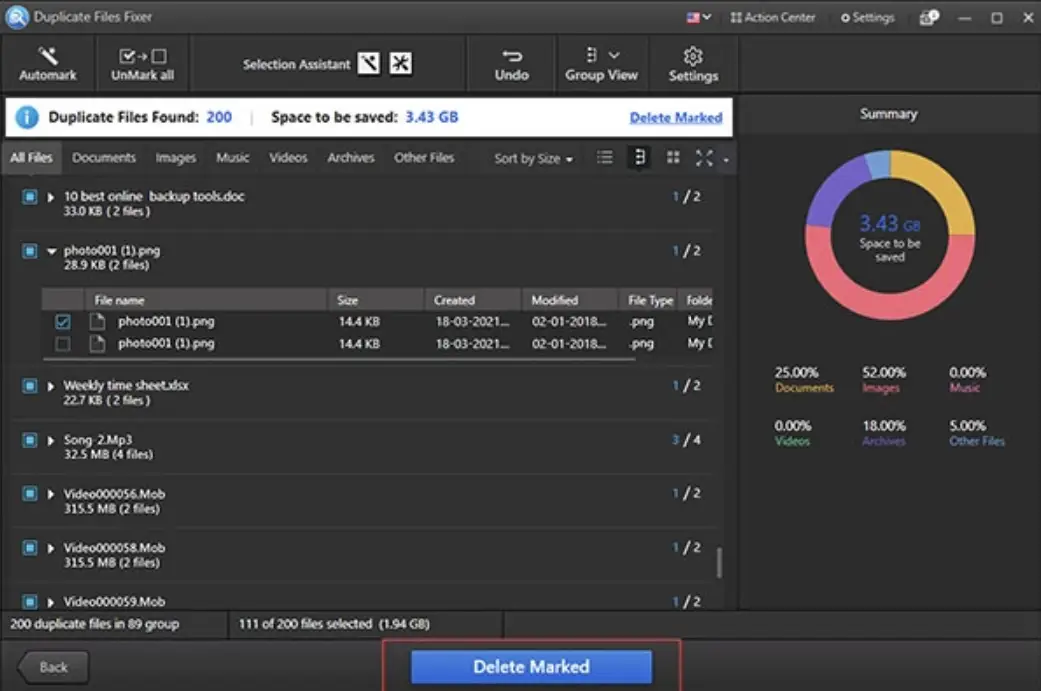
Key Features:
- Scans Google Photos for both identical and similar images
- No file type restrictions
- It auto-marks lower-quality images for easy deletion
2.Remo Duplicate Photos Remover (App)
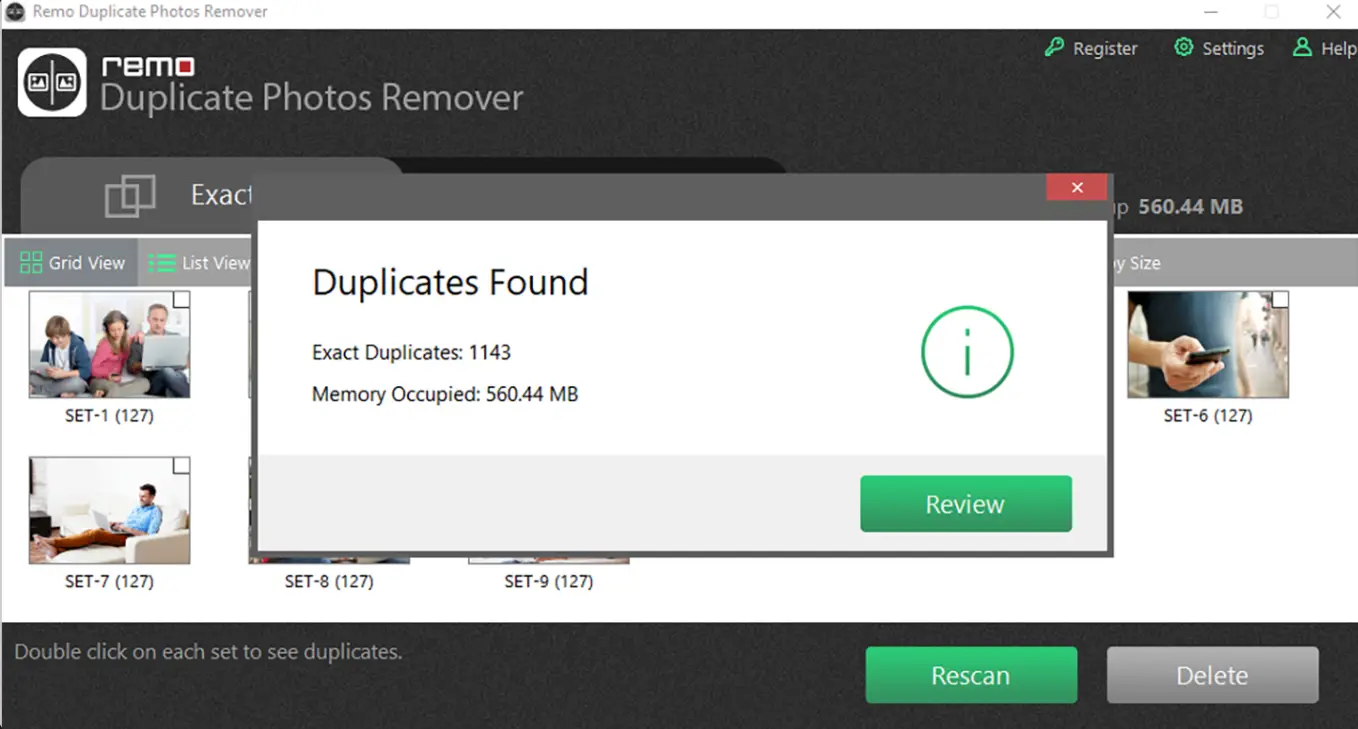
Remo Duplicate Photos Remover is known for removing duplicate photos, and it works especially well with Google Photos. If your Google Photos contains both exact and near-identical images, this app can easily identify both, even if the metadata or file names differ.
Key Features:
- Identifies duplicate photos even beyond their filenames
- Helps you compare duplicates side-by-side
- Handle multiple image formats, including HEIC, JPG, and PNG
3. Google Photos Duplicate Remover (Browser Add-on)
- URL: google.com/webstore
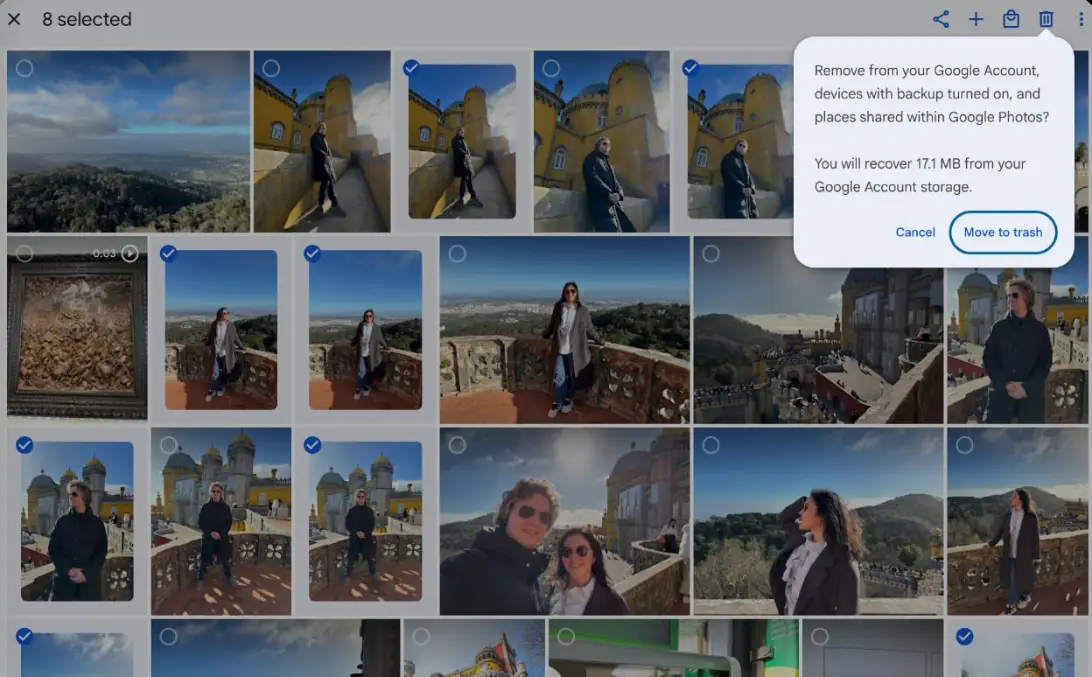
Google Photos Duplicate Remover is a Chrome extension that runs directly inside your Google Photos web interface. You don't need a separate app for this task. Simply add it to your Chrome as an extension and use it to scan your Google Photos library to find and delete duplicate images.
Key Features:
- No app needed, and it's free to use
- Easily and quickly finds and highlights duplicate images
- No sign-in required
4.CloudDuplicateFinder (Web)
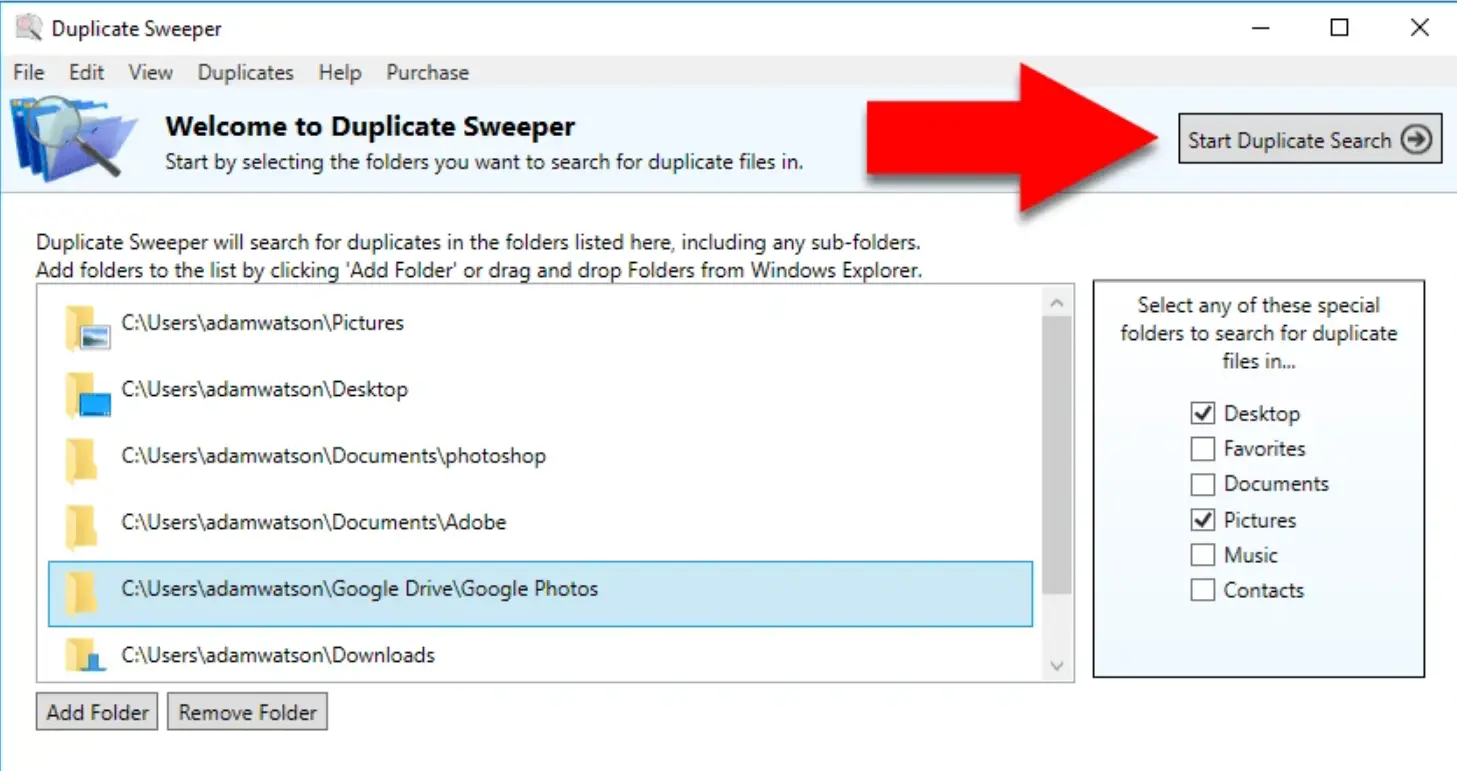
Cloud Duplicate Finder is a web-based service that works on both Mac and Windows PCs. This online service easily integrates with your Google Photos library to scan and delete all your duplicate files, including duplicate images. It organizes your duplicate photos in separate groups for easy deletion.
Key Features:
- Provides a side-by-side visual comparison of duplicate photos
- Suggests which duplicate to keep based on file size and quality
- Directly works with your online storage
Part 6: Bonus Tips: Clean Your Windows PC Google Photos Backups
If you like backing up your Google Photos to your Windows PC for extra safety, you might run into duplicate photos. Removing them from your Windows PC is also crucial, and we have the right tool to help you do that.
Why Do Local Backups Need Cleanup?
If your Google Photos library is synced with your Windows PC, you need to remove duplicates from your Windows PC, too. Here are all the reasons why your local backup needs cleanup:
- Multiple takeout exports create duplicate folders:Backups from different devices and re-downloades sometimes cause duplicate photos to start piling up in your Windows PC.
- Manual saves stack on top of auto-downloads:If you save your images from Google Photos manually for offline viewing, this adds another layer of clutter on top of Google backups.
- Large and high-quality image files: Large and high-quality images you save on your Windows PC from Google Photos anyway take up too much space, especially if they have duplicates.
Use WMaster Cleanup for Windows Google Photos Backups
WMaster Cleanup is an all-in-one Windows PC cleaner designed to handle exactly this kind of clutter. It scans your Google Photos backup folder on your Windows PC for junk files, such as duplicate photos and videos.
Additionally, this tool supports multiple file formats, including HEIC, JPG, PNG, and MP4, so nothing slips through. You can even use its duplicate file remover to get rid of duplicate files. To learn more about WMaster Cleanup's Duplicate Clean feature, read our hands-on review on Duplicate Cleaner Pro VS. WMaster .
WMaster Cleanup
Use WMaster Cleanup for Windows Google Photos Backups
- ·Scans local Google Photos backup folders and quickly flags duplicate photos.
- ·Smartly scan similar photos so you can easily get rid of near-identical photos too.
- ·Supports around 40 duplicate file types,including HEIC, JPG, PNG, MP4, and more.
- ·Before final removal, reviewdetected duplicate images and decide which to keep.
- ·Scans drives (local and external) to find & delete duplicate and near-identical images.

Remove Local Google Photos Duplicates with WMaster Cleanup
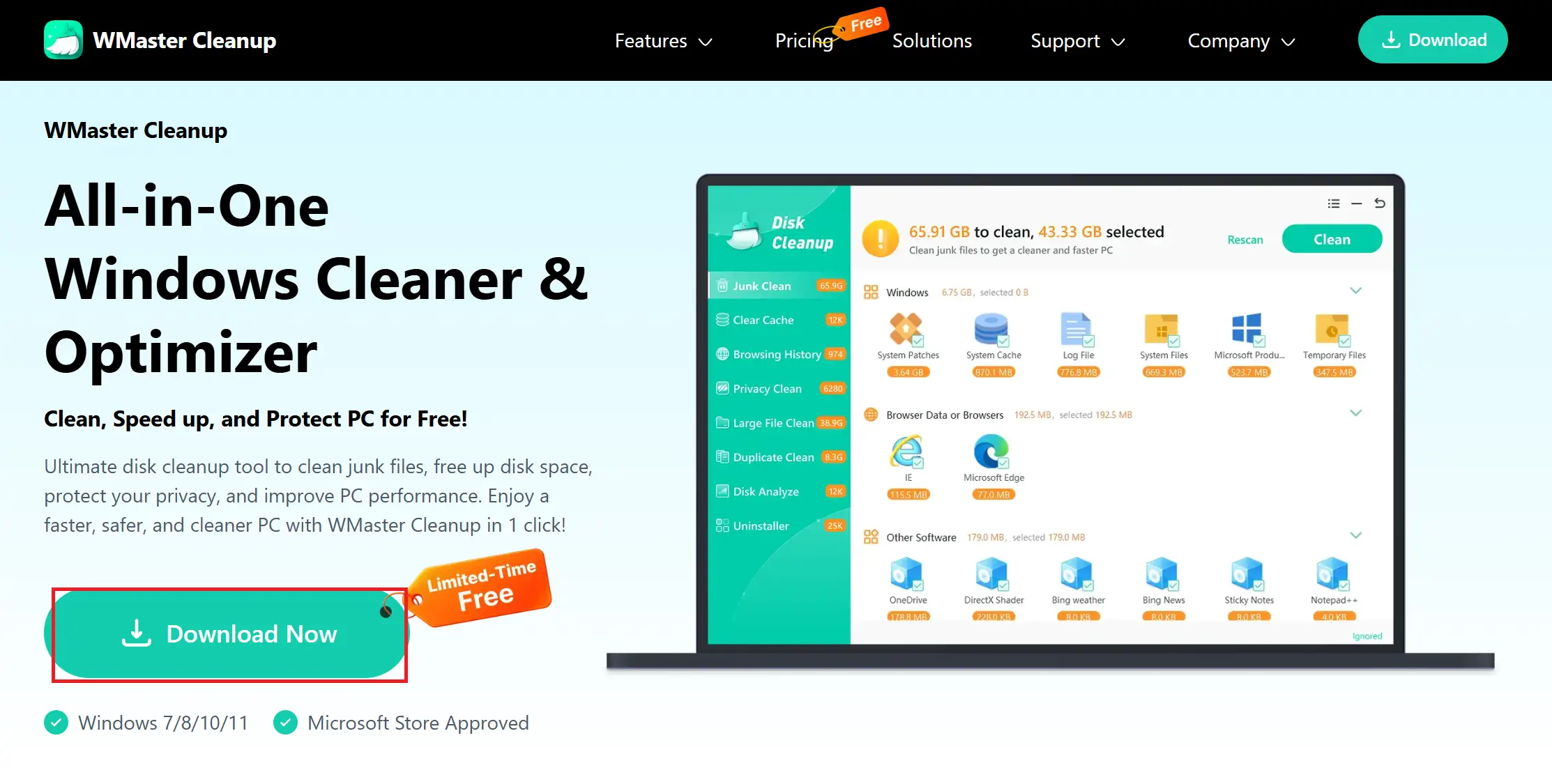
Step 1: Download and Install WMaster CleanupTo delete local Google Photos duplicates, first go to the official WMaster Cleanup website to download and install this all-in-one cleanup tool on your Windows PC.
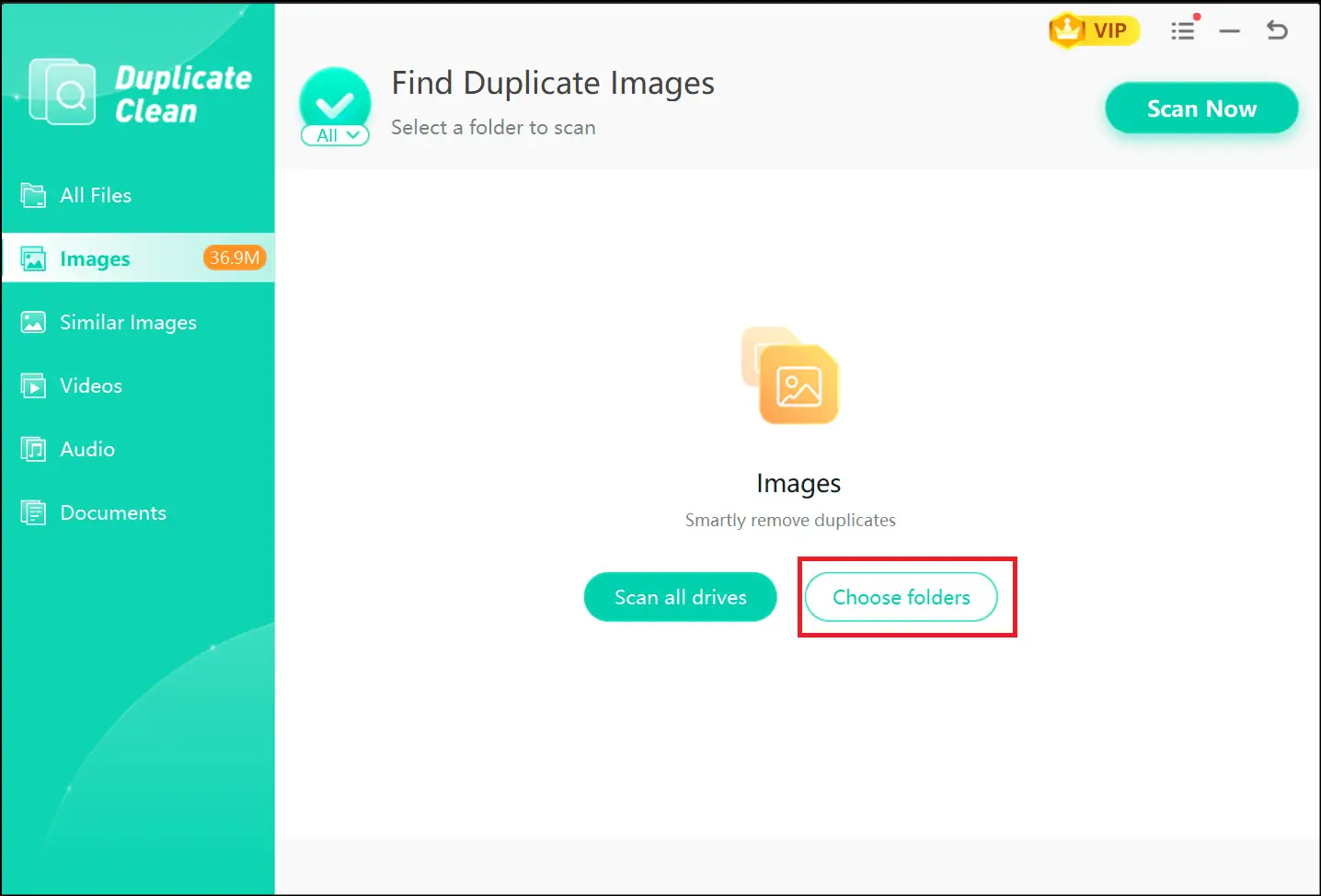
Now open the main interface of WMaster Cleanup on your desktop and select the Duplicate Clean feature. Click Choose Folders and head to the folder where you have your Google Photos backup.
💡 Pro Tip:To scan exact duplicate images, select the "Images" tab, and to scan near-identical images, select "Similar Images" from the left pane.
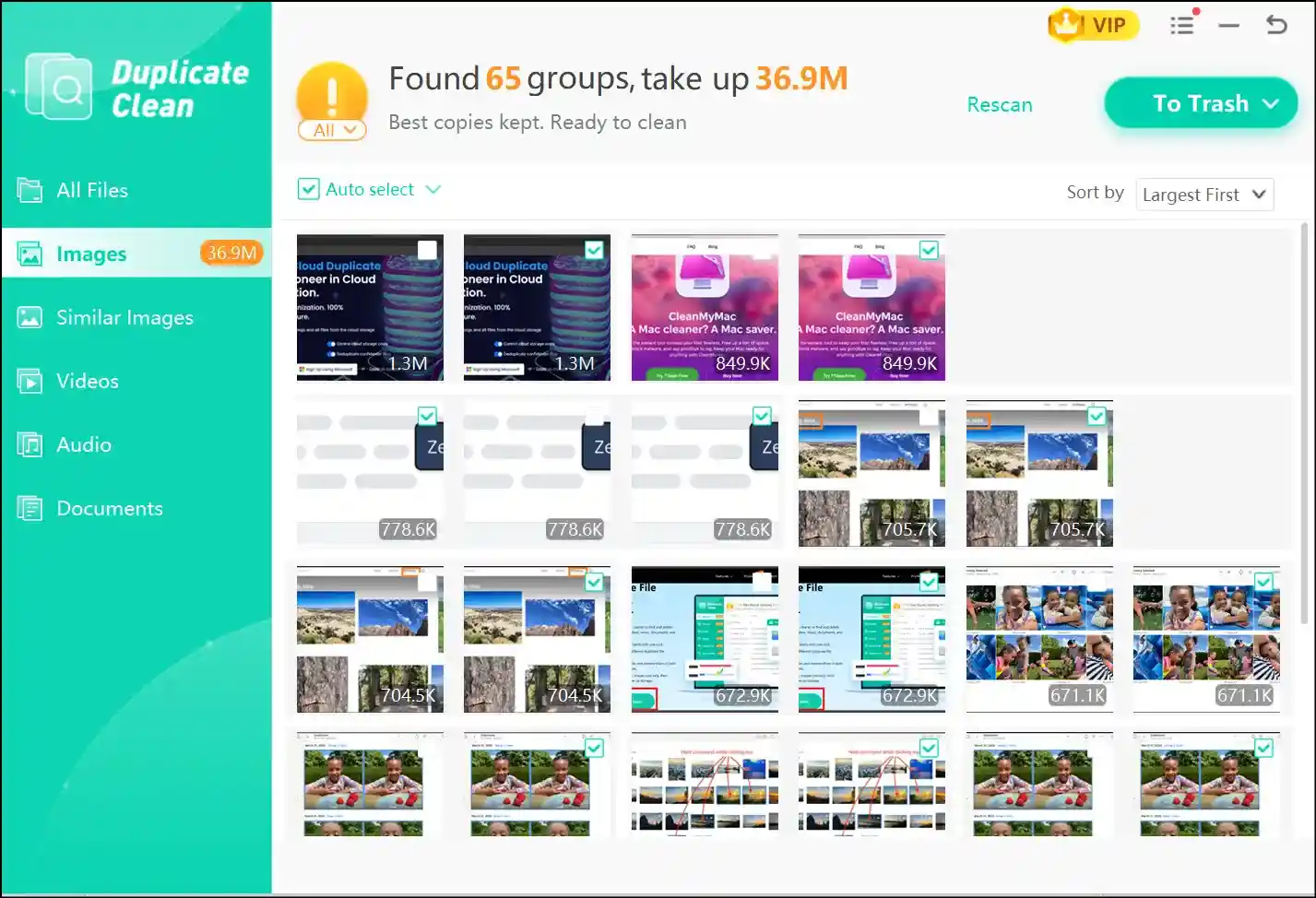
Once you select your desired folder, the tool will start the scanning process instantly. Go through the results, deselect anything you want to keep, and confirm your selections.
💡 Pro Tip:Place your cursor on any detected image to locate its path or to open the image itself.
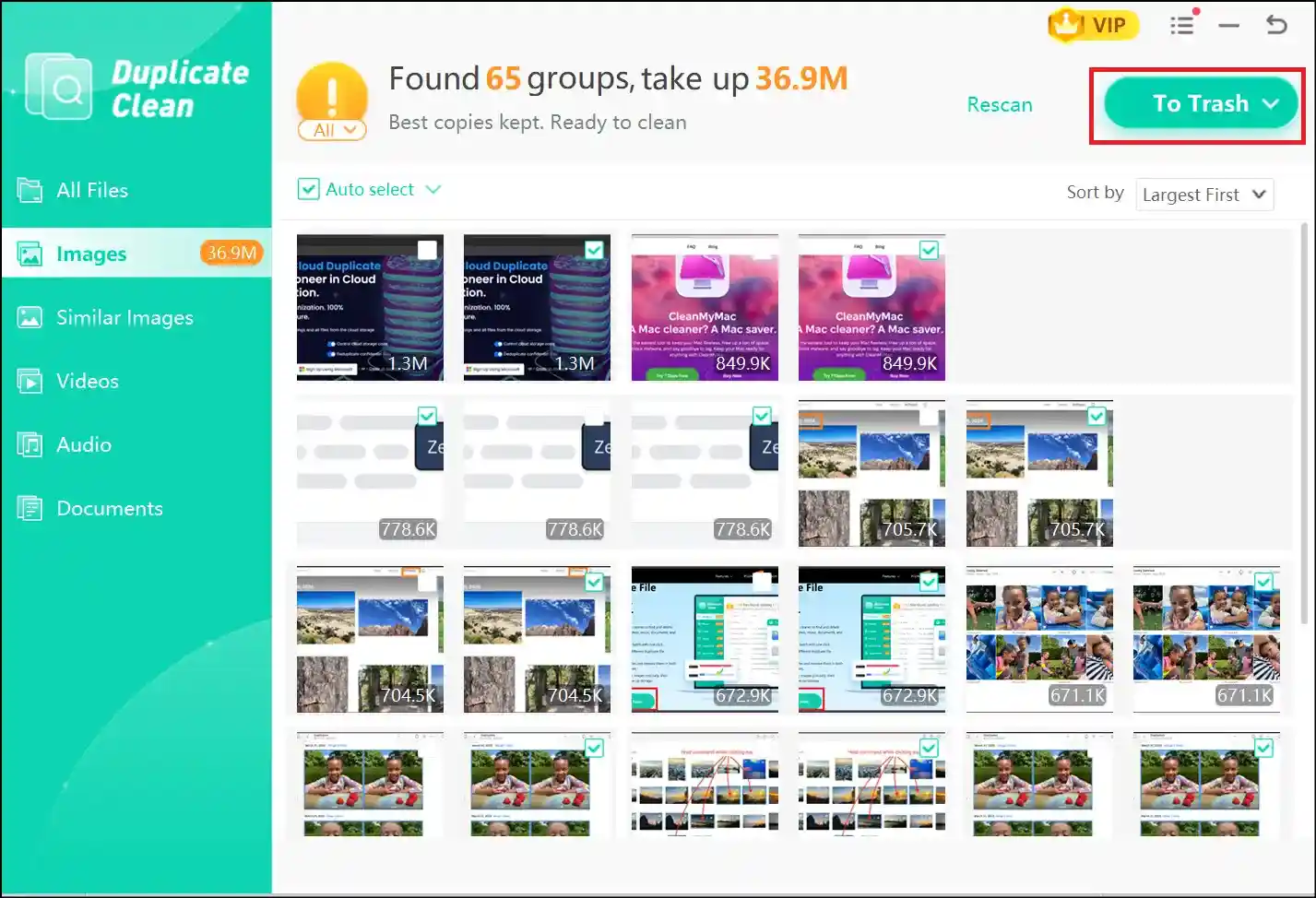
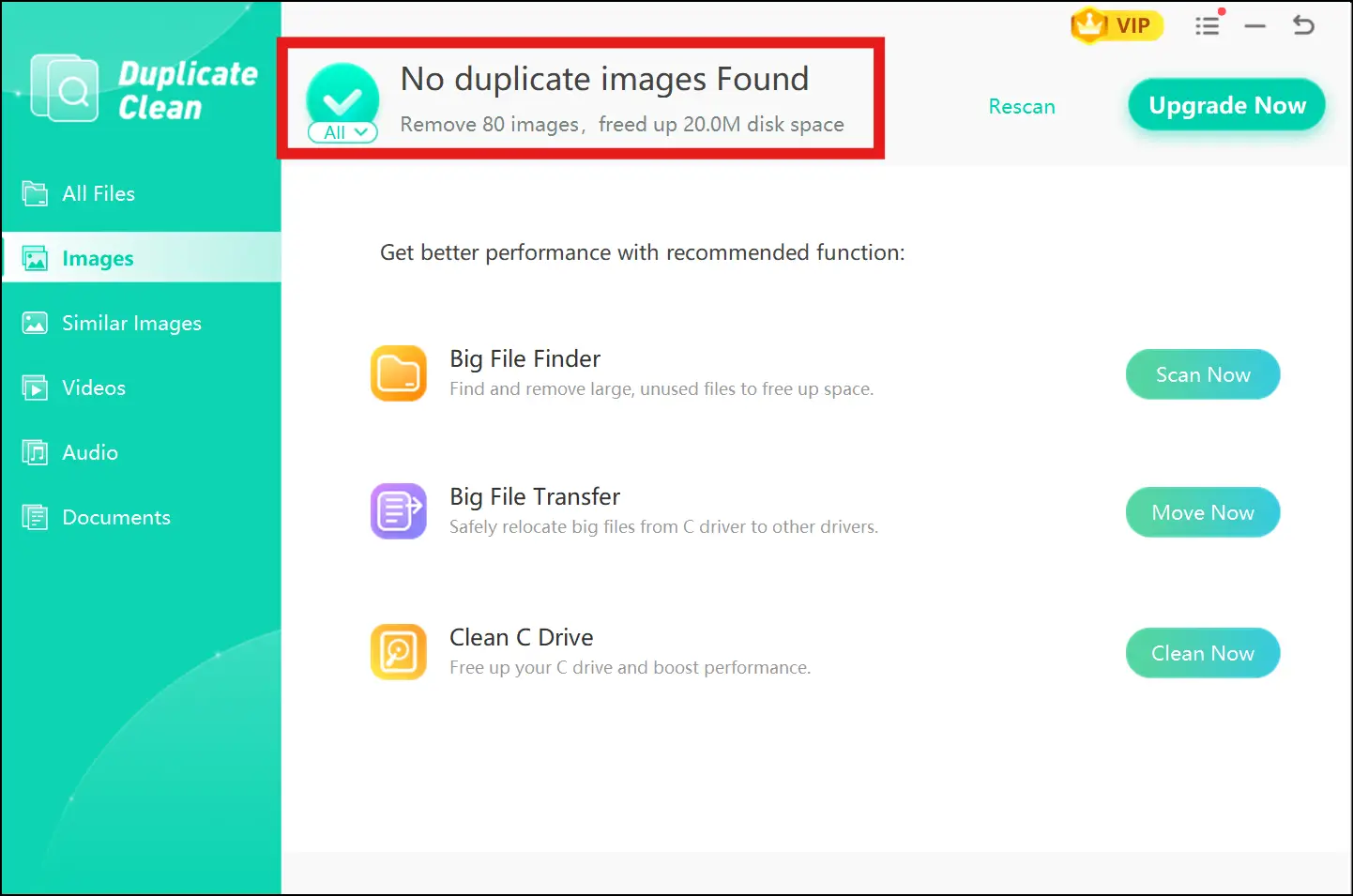
Once reviewed, hit To Trash and confirm. Within a few seconds, your backup folder will be clean and the tool will show you how many files you have deleted and how much device space you reclaimed.
Part 7: Useful Tips to Prevent Duplicate Photos in Google Photos
Some useful tips to keep your Google Photos organized include turning off your backup on all devices except your main one, disabling auto-save for WhatsApp chats, and running duplicate checks on a regular basis.
Here are some other tips to help you prevent duplicate photos in Google Photos:
- When switching devices, be sure to pause Google Photos backup on your old device first.
- Avoid saving photos manually to your devices.
- Don't edit and save photos as duplicates.
- Review your images regularly and delete duplicate and similar images after taking burst shots or each backup.
Part 8: FAQs About Deleting Duplicate Pictures in Google Photos
Q1. Can Google Photos have the ability to find duplicate images on its own for easy deletion?
No, Google Photos doesn't have a built-in feature to auto-detect and remove duplicate images. However, it offers the prevention feature of exact duplicate photos from being uploaded multiple times.
Q2. Why are there so many duplicates in Google Photos, even though I only use one phone?
This often occurs when backups are enabled across various sources or accounts, when you've allowed apps like WhatsApp and Instagram to auto-save, and when your Google Photos library isn't regularly tidied up.
Q3. If I delete duplicates in google photos, will they vanish from my phone too?
Yes, if you've activated Google Photos backup on your phone, removing duplicate images from Google Photos will also eliminate them from your mobile device. However, if you are sure that they're gone for good, you will need to empty the Bin as well.
Q4. How can I access duplicate photos in Google Photos on my PC desktop?
If you want to locate duplicate photos in Google Photos on your PC desktop, open Google Photos in Chrome and click on the search bar. From there, you can sort images by date, album, or filename for easy identification. Similarly, for a faster method, consider using a Chrome extension like Google Photos Duplicate Remover.
Q5. Does Google Photos compress photos during backup, and does that lead to duplicates?
Yes, this can occur when you toggle between the Storage Saver and Original Quality settings. In these situations, Google Photos will retain two copies of the same photo: one compressed and another in its original form. To avoid this issue, stick to one of these settings.
Final Thoughts
If you are fed up of duplicate photos, you don't need to worry anymore! The methods in this guide cover every scenario, whether you prefer to go manual, use bulk selection, or let Duplicate Photo Cleaner handle the work for you.
Even after spending a lot of time cleaning duplicate images from your Google Photos, you can end up in the middle of clutter if you don't remove them from your Windows PC. That's where WMaster Cleanup comes in.
Add it to your Windows system, let it scan your Google Photos backup folder, and see the magic unfolding. This all-in-one tool offers various features, like exact and similar image detection, review option, bulk deletion, and more. The best thing? WMaster Cleanup is currently free for a limited time. So, enjoy clean space without paying a single penny!


