WMaster Cleanup

Deeply Clear All Caches to Improve PC Performance

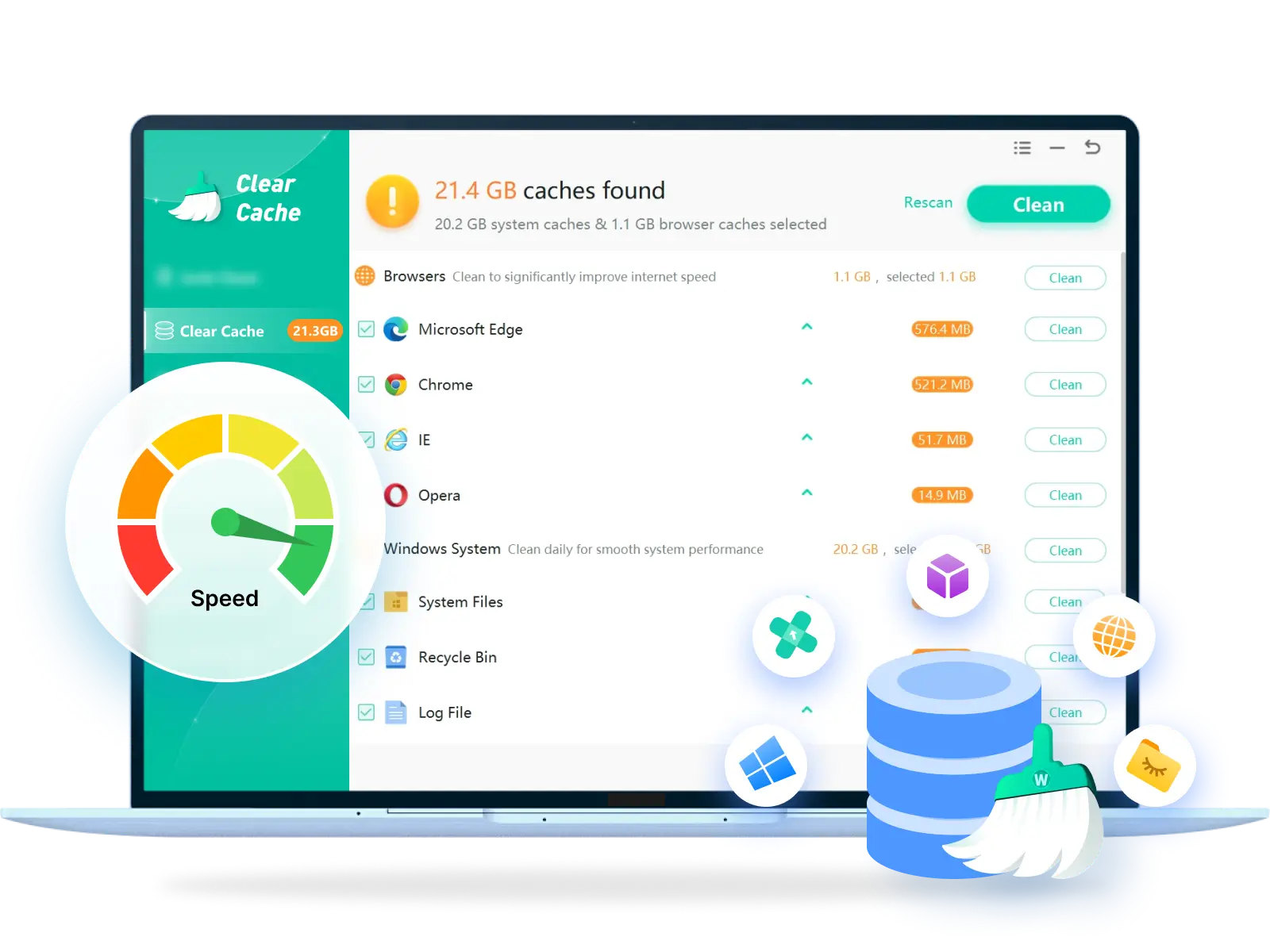
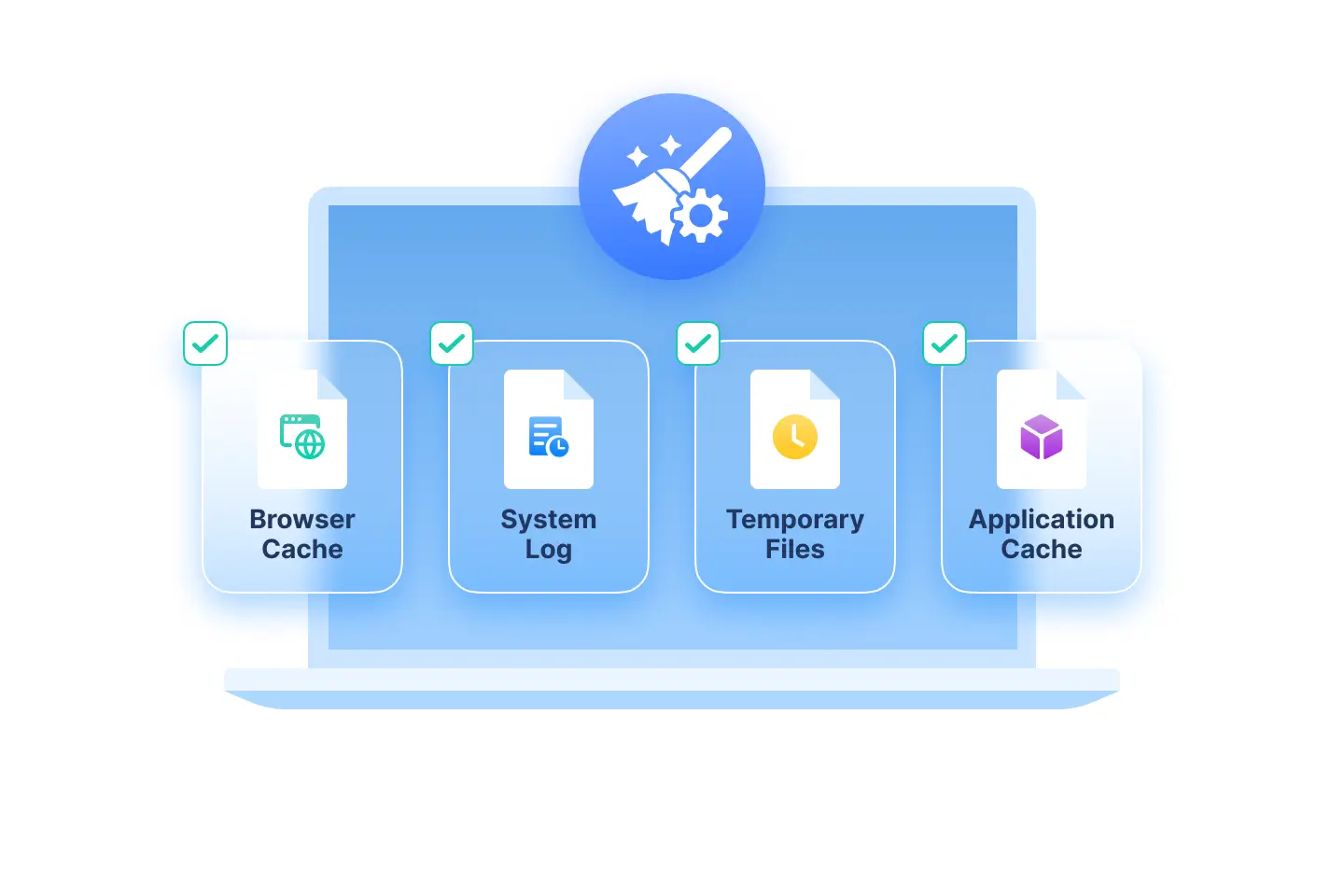
WMaster Cleanup is available to clear browser cache, system cache, and application cache with one click, supporting cleaning over 10 different types of cache junk rooted in the system.

Check IconBulk clear caches & log files for major browsers like Chrome, Edge, IE, and Firefox.

Check IconSmartly scan and visualize the disk space usage based on the cache files' size and location.

Check IconSpecial Microsoft application cache cleaning to speed up computer.

Check IconSupport batch and custom cache cleaning.

Check IconIntuitive interface to safely delete useless caches without affecting system operation.

Download IconFree Download

Windows 11/10/8/7(32/64 bit OS)

Clear Cache Creative Image

What's the Strength of WMaster Cleanup's Clear Cache Feature?

Deep & Comprehensive Scan for Hidden Caches

Deep & Comprehensive Scan for Hidden Caches

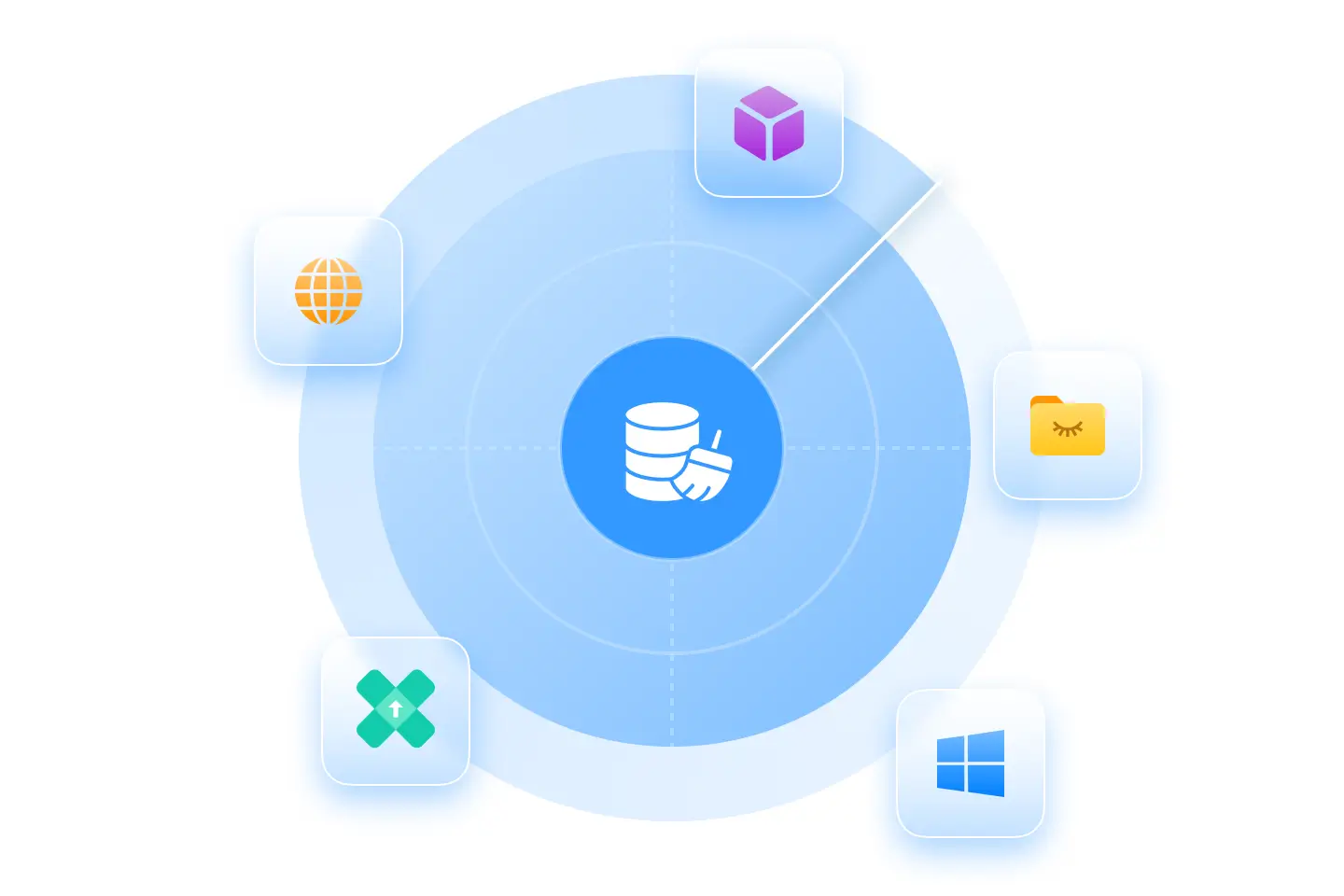
WMaster Cleanup's "Clear Cache" feature, unlike most versions of Windows' "Disk Cleanup" tool, digs into the deep-level caches buried in AppData and ProgramData. We scan and clear over 20 types of hidden system and application caches, including: Windows update cache, temporary files, and delivery optimization cache. NET Framework runtime caches. CryptoAPI certificate cache. (a hidden cache that is rarely cleaned) IIS temporary site caches.

Automate One-Click & Batch Cache Clean

Automate One-Click & Batch Cache Clean

WMaster Cleanup provides a streamlined interface to batch clear browser cache, application cache, and system temporary files automatically in one click, greatly reducing manual work, freeing up storage, and preventing performance lag effortlessly. Within seconds, you can get a smoother, cleaner, and faster Windows experience for everyday work and website browsing.

Visible Cache Clean Interface—100% Avoid Wrong Deletion

Visible Cache Clean Interface—100% Avoid Wrong Deletion

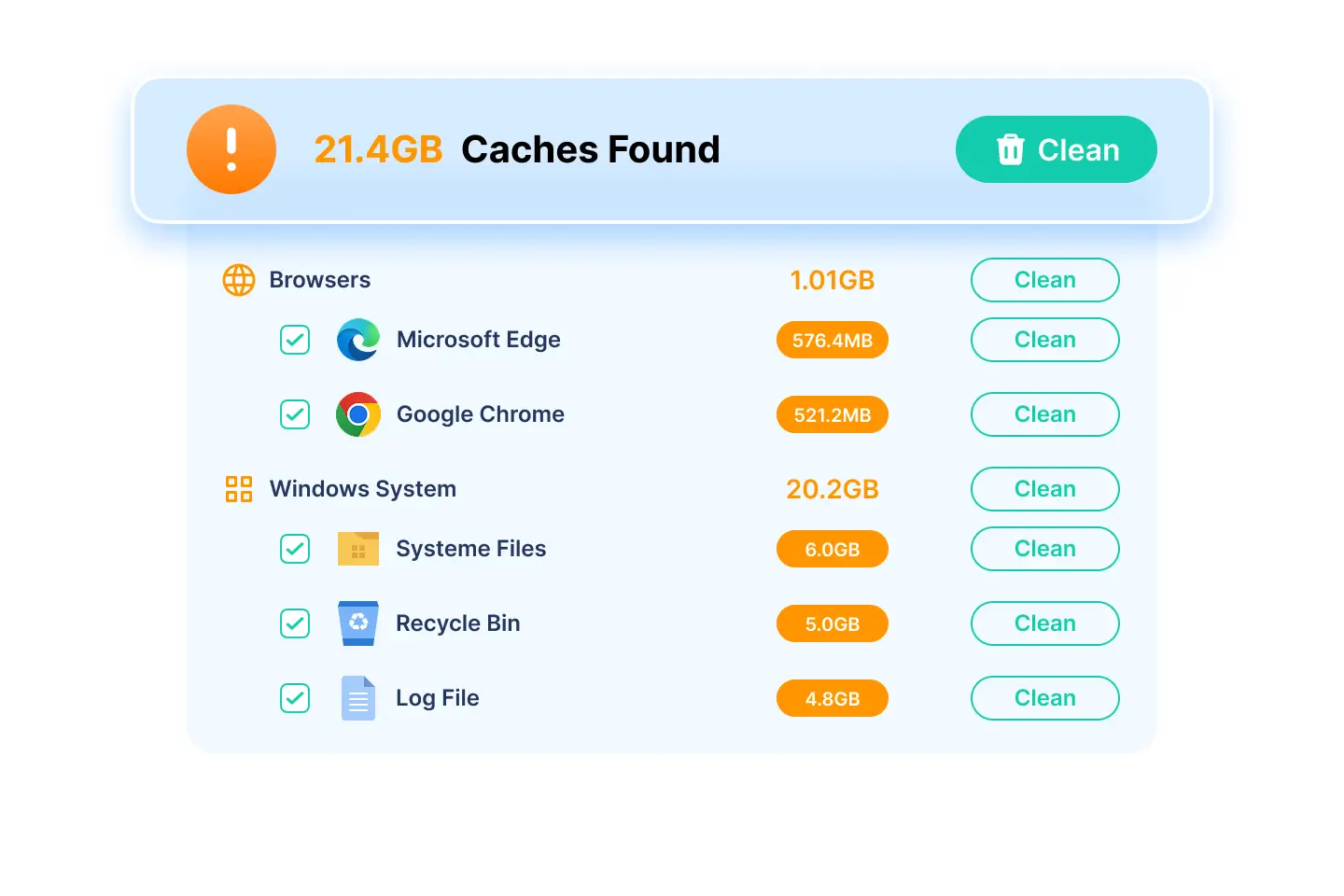
Our Clear Cache feature provides an intuitive and visible interface to categorize all items, displaying the cache types, source, and size, allowing you to select or deselect them as needed. And we only target the system and Microsoft app-generated caches, logs, and temps. Giving you zero risk for personal data.

Use Case for WMaster Cleanup's Clear Cache Feature

Fix Slow Web Browser Problems

Clean Massive Crash Dump Files

C Drive Full for Windows Update

Fix Slow Web Browser Problems

Fix Slow Web Browser Problems

Why is my web browser so slow?

In our daily life, it's easy to experience slow web browsing, constant page freezes, or suffer delays while streaming online videos. WMaster Cleanup supports clearing caches for mainstream web browsers like Google Chrome, Microsoft Edge, Internet Explorer, and others in a bulk option with just one click—refreshing your web browser experience with quick and smooth operation.

Clean Massive Crash Dump Files

Clean Massive Crash Dump Files

Why do my games keep freezing randomly?

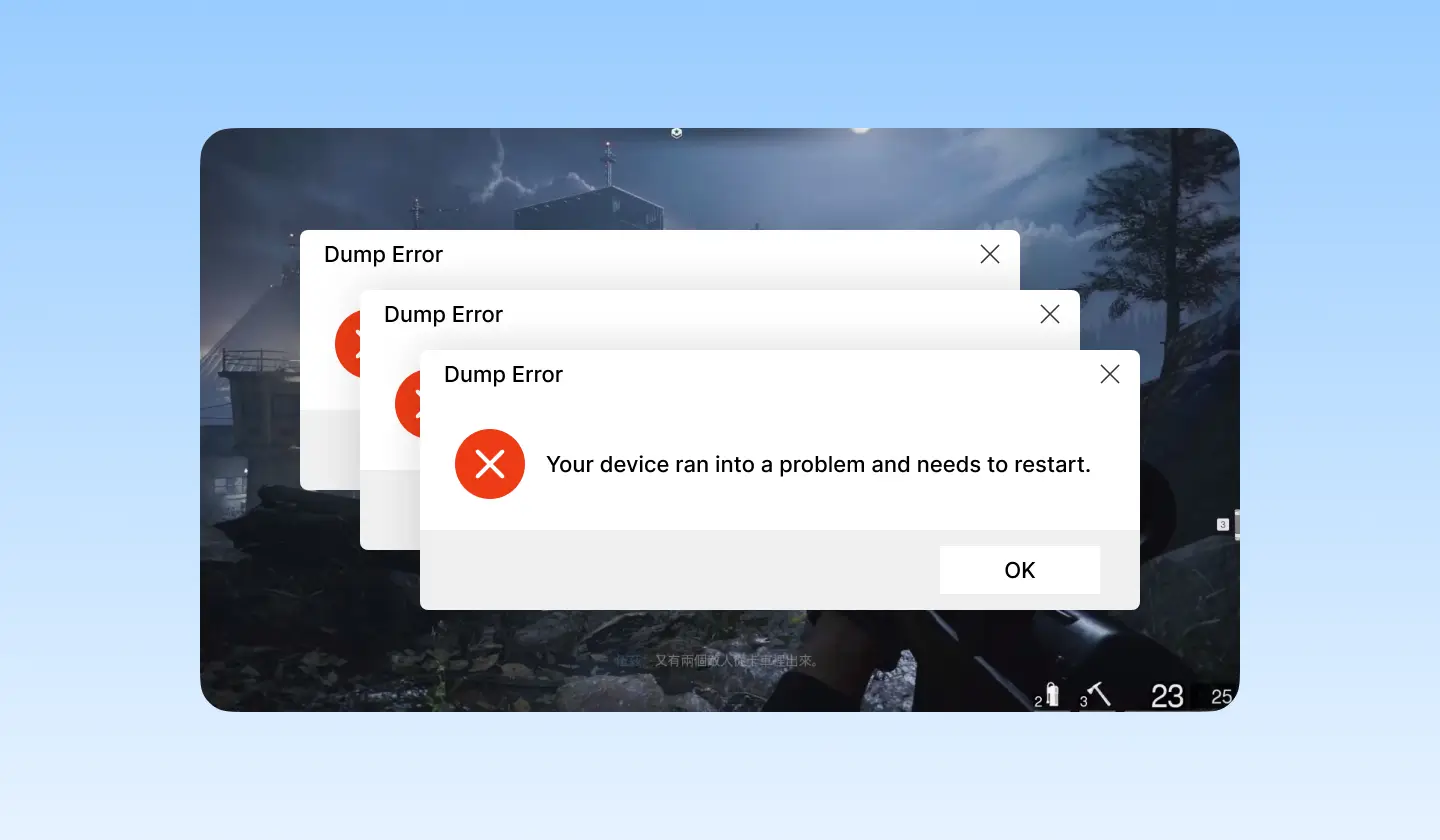
Some programs, especially big games, crash often for massive dump files. These dump files piled up silently in your system, taking up tens of gigabytes without your notice. Our "Clear Cache" feature can safely scan and remove those crash dump files and memory dump files to free up the massive amount of space with ease in one click.

C Drive Full for Windows Update

C Drive Full for Windows Update

Why is my C drive full after updating?

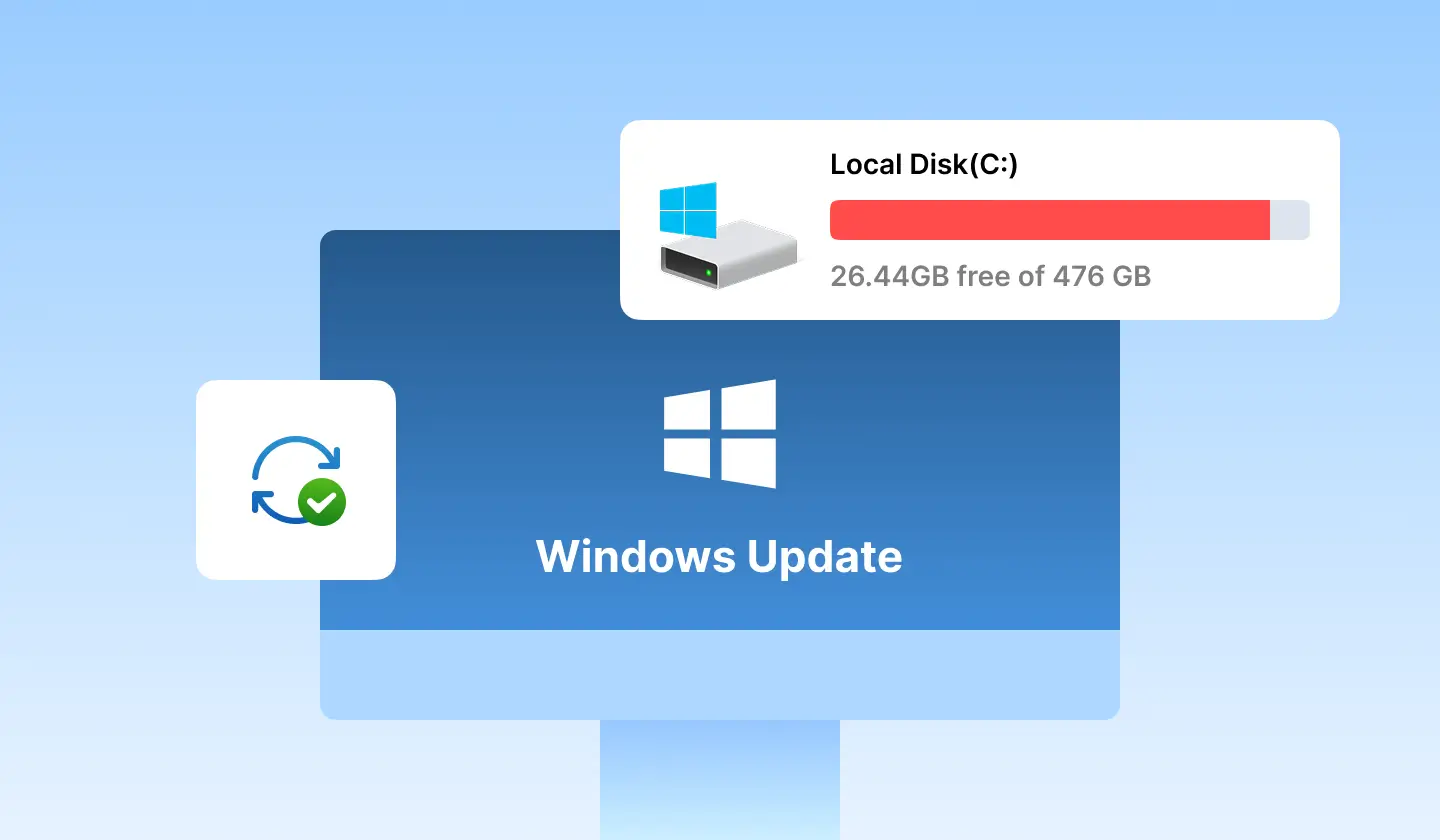
Even if you rarely install new programs on your PC, Windows updates can still leave behind massive temporary files and log files. To thoroughly remove these hidden "Windows update caches". Try our Clear Cache feature; WMaster Cleanup can safely clear Windows update caches in seconds to reclaim space on the C drive intensively.

Unlock the Capabilities of WMaster Cleanup's Clear Cache Feature

Custom Cache Cleaning Gives Full Flexibility

Custom Cache Cleaning Gives Full Flexibility

Unlike Windows' default delete temporary files and caches, our "Clear Cache" feature can give you full flexibility to choose exactly which browser cache, system log, temporary files, and application caches you want to remove, totally guaranteeing each cleanup fits personal preference and device needs.

Besides, you have the custom choice to delete caches in batches or singly. Significantly reduces your scanning wait time and helps prevent accidental cache deletions. Letting you improve performance confidently and efficiently.

Download IconFree Download

Automate One-Click Operation, Say Goodbye to Manual Cache Finding

Instead of searching through hidden folders or browser settings, you can delete different types of caches in one seamless "Clean" action. Our auto-detection system can scan browser cache, system cache, system patch, application cache, and other hidden clutter in seconds and then smartly delete them in one click. The automation saves time, frees up disk space, and improves application response easily.

Download IconFree Download
Automate-One-Click-Operation
Intuitive Interface for Visible Cache Clean

Intuitive Interface for Visible Cache Clean

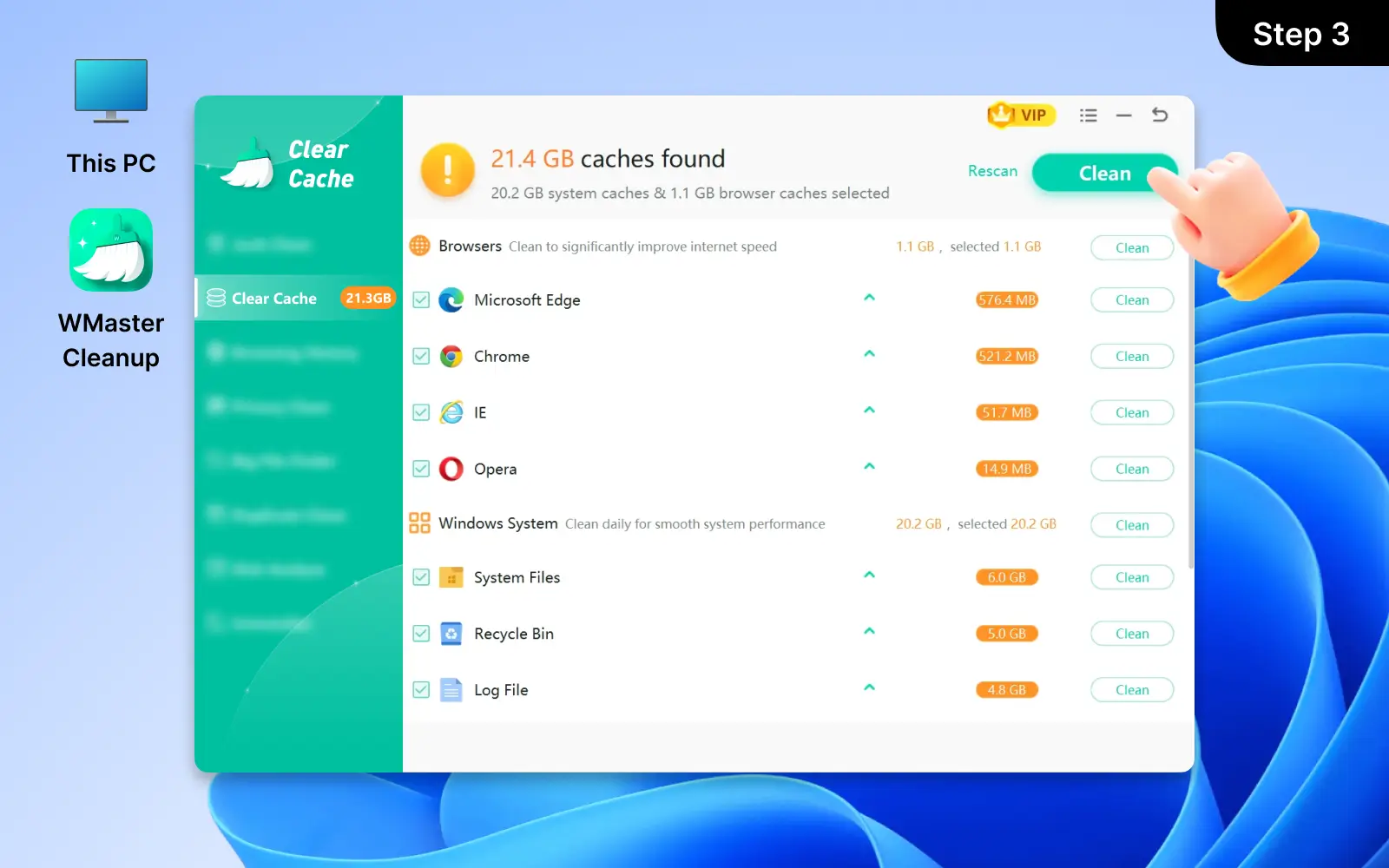
WMaster Cleanup's "Clear Cache" feature provides an easy-to-use interface to show how many system caches and browser caches were found and how much can be cleaned up. Furthermore, it allows you to view the cache path, cache size, and customize the cache cleaning options. Making cache cleaning process simple even for beginners with clear categories, guided action, and transparent results. The visual interface also enables safer deletions and more efficient storage savings.

Download IconFree Download

How to Clear Cache on Windows 10/11?

Use WMaster Cleanup to clear computer cache with ease.

1

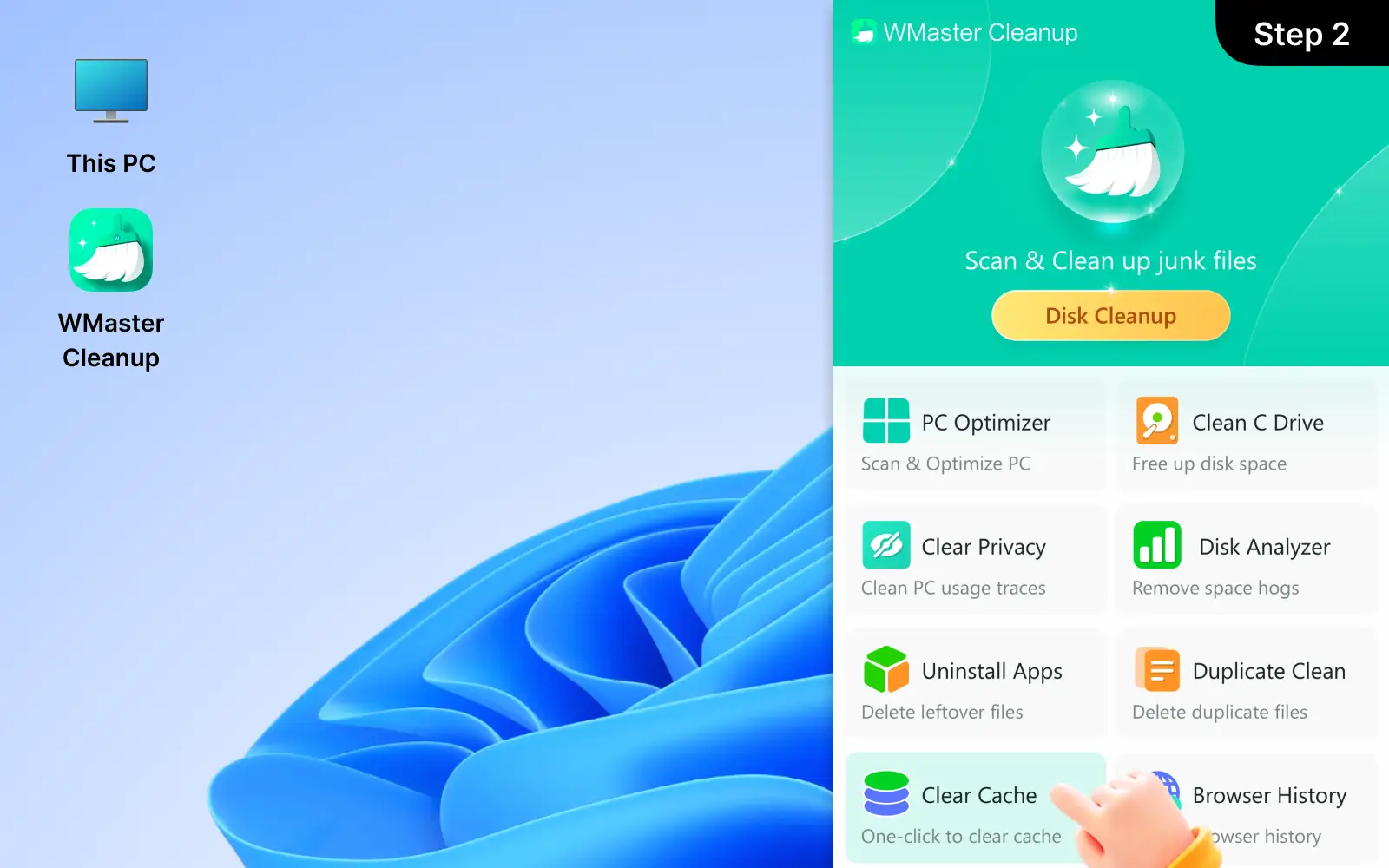
Open WMaster Cleanup and Find "Clear Cache" Feature

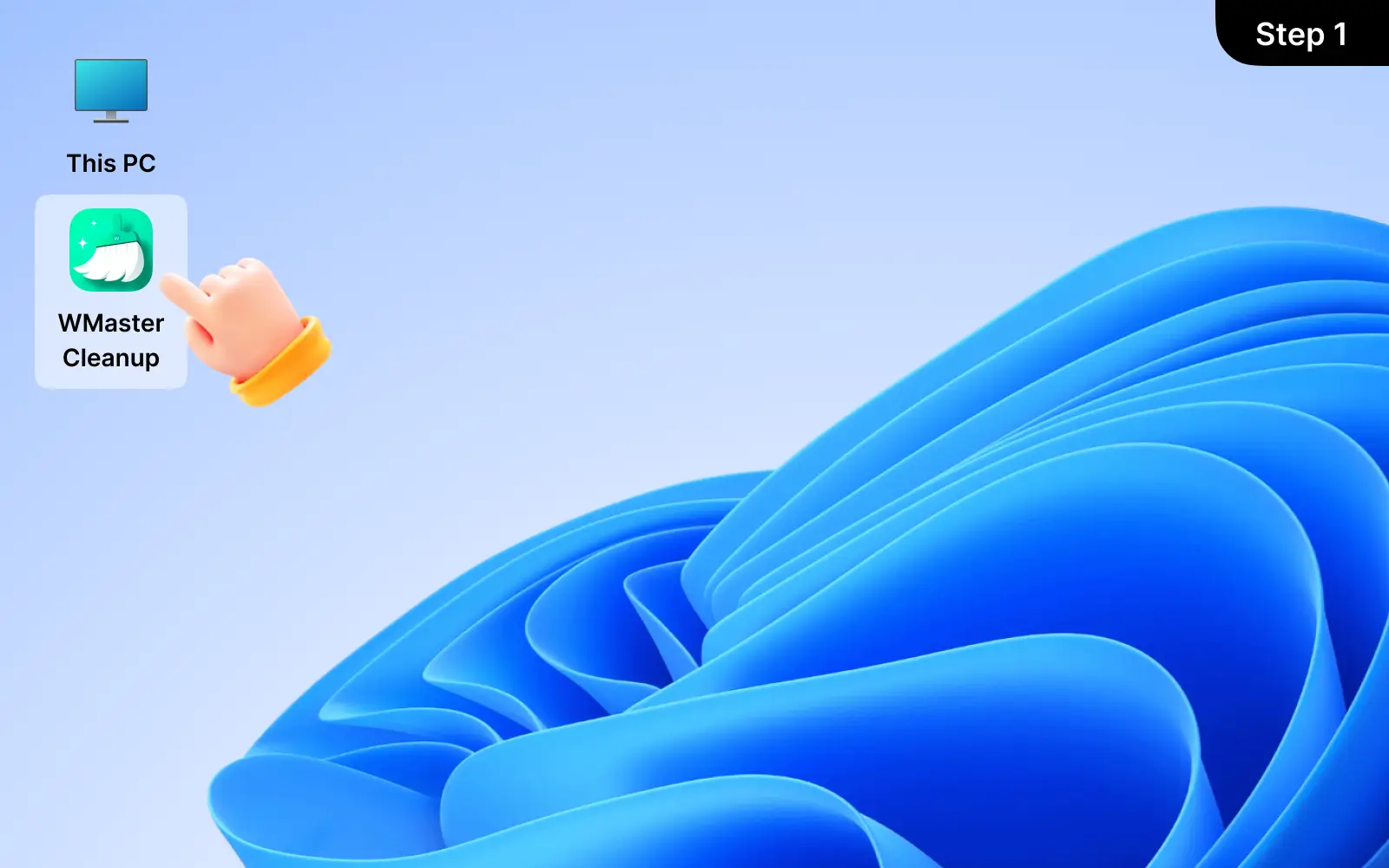
Firstly, download WMaster Cleanup on your PC and double-click to open it, then find the "Clear Cache" feature and click it to enter the scan interface.

2

Click "Scan" to Find and Identify Caches

Once the scan completes, this interface will display the types of cached files, including browser caches, system caches, and application caches.

3

Click "Clean" to Remove Caches in One Click

WMaster Cleanup will select different types of cache files and log files by default; you can clean them up in batch with one click or view the details to select some of them to have the custom cache cleanup.

Open WMaster Cleanup and Find 'Clear Cache' Feature
Click 'Scan' to Find and Identify Caches
Click 'Clean' to Remove Caches in One Click

Hot FAQs About Duplicate File Remover

1. What does clear cache mean?

Look Up The Answer

Clearing cache means removing temporary files generated by your browser, applications, and operating system. Those cache and log files take up your storage space and slow down your web browsers and application performance.

WMaster Cleanup simplifies the manual cache cleaning process into a one-click operation to scan and clear cache and log files automatically, helping you to free up storage and make applications run smoothly.

2. Why is it important to clear cache?

Look Up The Answer

It's vital to clear cache because cache files pile up silently and take away valuable storage space and further slow down your browsing experience and application response time. Clearing cache can improve browser and application performance.

WMaster Cleanup can safely remove system cache and browser cache with a visible interface in seconds. Keeping your system fast, responsive, and highly efficient.

3. How often should you clear cache?

Look Up The Answer

It depends on your computer usage and special requirements. For general computer maintenance, you can clear cache once or twice a month. If your computer is old or you have a high demand for computer response, you may need to clear cache every day to maintain its normal operation.

If you think clearing cache manually at a regular time is hard to execute, try WMaster Cleanup. Our tool can clear cache automatically in one click. Saving time and energy. You can enjoy freeing up space at any time once you start WMaster Cleanup.

4. How do I clear my cache?

Look Up The Answer

To clear your cache, you need to locate the settings for each browser or application, check the system temporary files, and then identify the available cleanup options. Manual cleaning can often be slow and may not be thorough.

A simple way is to use WMaster Cleanup, which can scan, identify, and clear browser cache, system cache, and application cache safely and thoroughly with a single click.

5. How to clear cache in Google Chrome?

Look Up The Answer

To clear cache in Google Chrome, you need to find the settings in Chrome browser, navigate to privacy and security, click delete browsing data, choose cached images and files, and finally click Delete Data.

If you don't want to clear Google browser cache manually, WMaster Cleanup can help you clear cache in Google Chrome in one click. Just open the tool, navigate to Clear Cache, click Scan, and then you will see the interface showing the Google browser cache; finally, click Clean. Everything is done!

Unlock More Features of WMaster Cleanup

Bottom Background Image

WMaster Cleanup

Best Windows Cleaner & Optimizer to Speed up Your PC