
Purchasing newer hardware is not the only way to enhance your PC's gaming capabilities. Game mode, graphics driver updates, and the regular removal of junk files can increase FPS and reduce lag and loading times. WMaster Cleanups Game Booster feature allows one-click PC optimization on Windows 10/11.
Are you in the middle of a match, and your game lags? There's nothing worse than getting a poor performance and dealing with a situation that you don't want. Fortunately, learning how to optimize games for PC can help you fix poor performance.
There are multiple reasons for poor optimization, but 90% of the time, it's because of optimization on settings. A few simple adjustments can reduce load times and input lag, and increase FPS and overall performance. In the end, you can squeeze out more performance on the hardware you currently have.
In this guide, I'll give you tips to reduce the stutters on your PC and increase the overall gaming responsiveness, along with the experience.
In this article
Part 1: Why PC Games Run Slowly
Are you inquiring why your PC gets super slow after a few hours of gaming? If your PC turns into a slug after a few minutes, it's probably because there's some memory leak or your hardware has gotten too hot. Here are some common reasons why games on your PC run slowly:
- Excessive Heating Up of CPU & GPU
Your CPU and GPU work at their maximum capacity, and they often release heat. And if your cooling fan or thermal paste is not working properly, your computer will slow down to prevent permanent hardware damage.
- Memory Leak Issue
The memory leak happens when a game is poorly optimized and forgets to clear temporary files from your RAM. As time passes, your game hogs more and more memory until your PC stutters, which leads to frame drops.
- Outdated Graphic Cards
If your graphics card is outdated, that also slows down your PC, and running on it means your graphics card lacks the critical optimization patches required to run modern titles efficiently.
- Background Apps
Other programs running in the background, such as web browsers with dozens of open tabs, antivirus scans, or multiple game launchers, compete with your game for CPU cycles and system RAM.
- Old Hard Disk Drive
Running modern, asset-heavy games from an old mechanical Hard Disk Drive (HDD) instead of a Solid-State Drive (SSD) causes severe texture pop-ins and long loading screens.
If the Windows Game Mode is turned off, it also reduces your performance.
Part 2: How to Optimize Games for PC
There are multiple ways to optimize your PC for games and create a smooth gaming experience. By turning on Game Mode on your device, updating your graphics drivers, and lowering visual settings, you can reduce lag and increase FPS.
The Best Game Optimizer for PC (Windows 11/10)-WMaster Cleanup
WMaster Cleanup is an all-in-one tool for Windows to optimize your system for gaming and improve its performance. The dedicated Game Booster feature reduces the latency and enhances FPS. Besides this, it offers deep cleanup of your Windows device with a click. You can remove junk, clear the cache, and clean the C drive to free up space to run a game without stuttering.
The simple and easy interface allows you to access every option easily, therefore making it easy for both novice and pro users.
WMaster Cleanup
Using WMaster Cleanup to Optimize Games for PC (Windows 11/10)
- ·Offers a deep game cache cleanup to streamline your system and boost FPS in one click.
- ·Pro-level optimization for input delay and frame rates of different games.
- ·Optimize your system's RAM to reduce lag during your gaming sessions.
- ·Optimize device affinities for better system responsiveness and minimize stutter.
- ·Powerful PC optimization & FPS boosting for 5000+ game titles for peak performance.

How to Optimize Games for PC in One Click by WMaster Cleanup
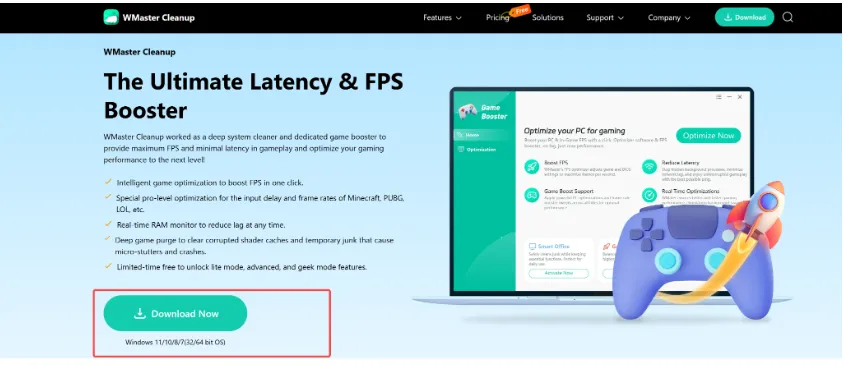
Step 1: Go to WMaster Cleanup's official website, and from the Features section, select Game Booster and then click on the Download Now option.
Step 2: Once you install the software on your PC, you'll directly land on the Game Booster's interface. Here, you'll find different options to enhance your gaming experience on Windows 10/11.
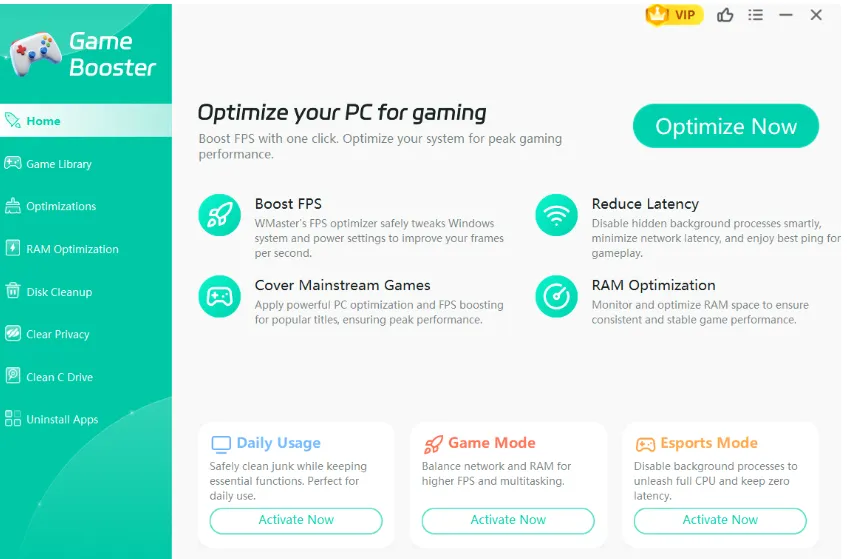
Step 3: Now from the side bar, select the optimization option. You have to click on the Allto find the items that optimize games for your PC.
Select all the items to optimize your PC for gaming and then click on the Optimize Nowbutton.
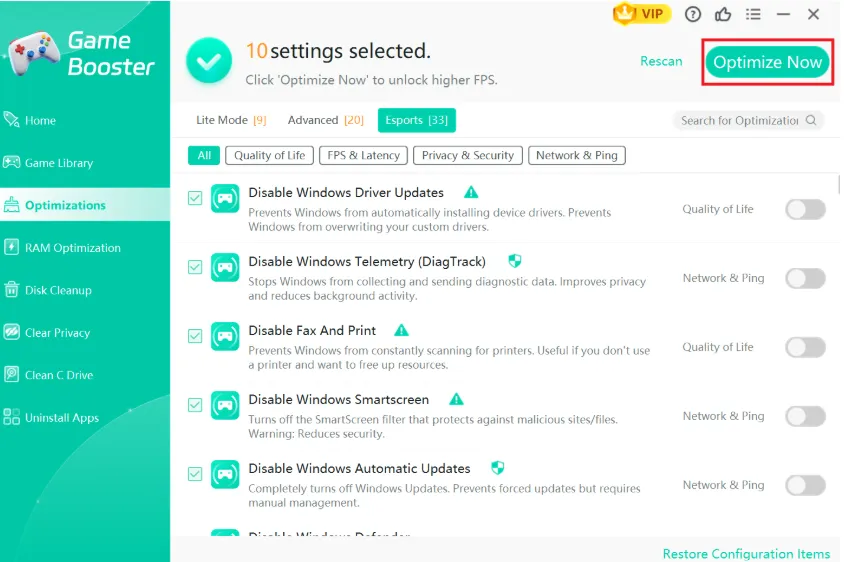
Step 4: After the optimization completes, a window will pop up to restart your PC to let all the changes take effect.
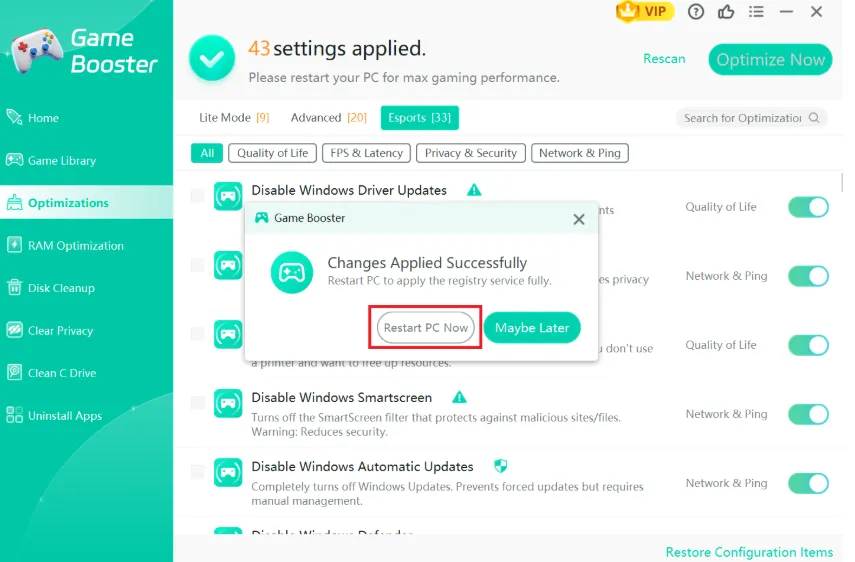
Other 8 Helpful Ways to Optimize Games for PC
Besides this, Windows offers some built-in features to optimize the PC gaming experience. Making some adjustments to your system's settings also enhances the PC performance and allows you to play smoothly. Here are some ways to optimize games for PC.
1.Enable Windows Game Mode
Windows includes a built-in feature that works as a free game optimizer for pc. It prioritizes game performance over background processes so you can play games without any interruption. Here is how you can do that:
Step 1: To begin with, you need to go to Settings from the start button. In the left pane, you'll see Gaming, click on it and then select the Game Mode.
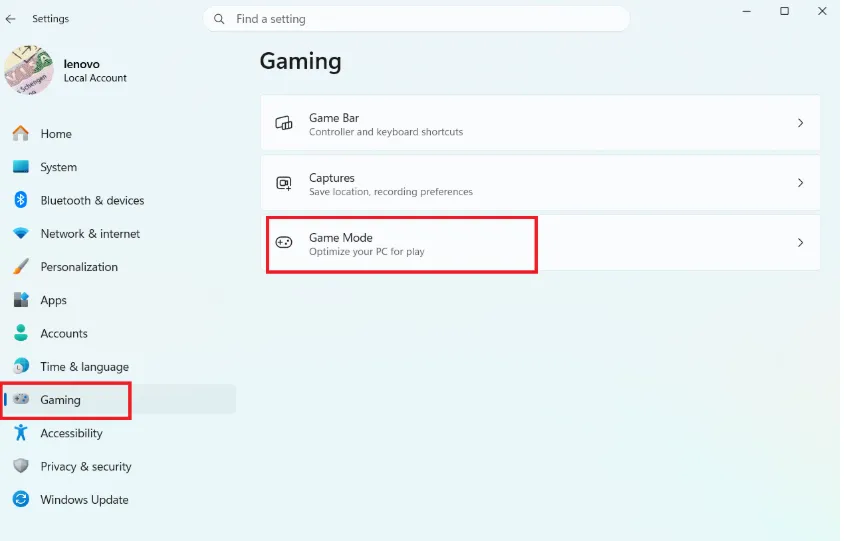
Step 2: This option will be OFF. Press it to turn On and optimize your system for gaming.
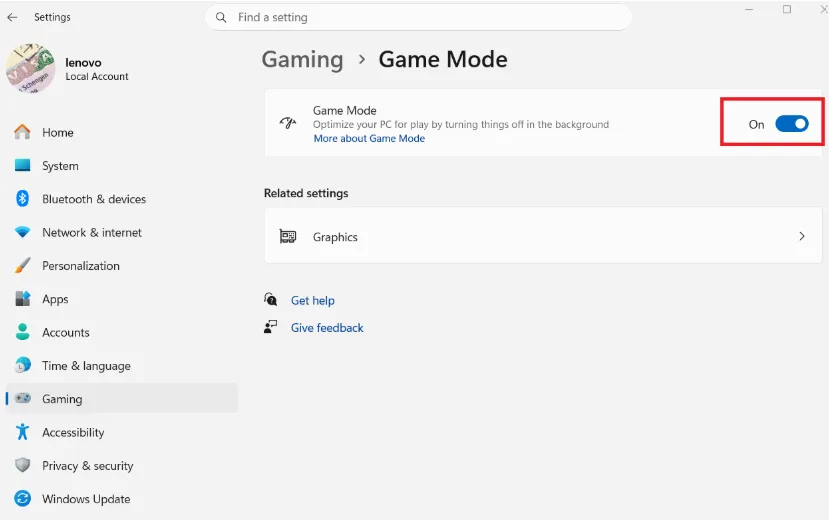
💡Tip: WMaster Cleanup's dedicated Game Booster tool can directly close all background apps so your system runs smoothly while you're playing games.
2.Turn On Hardware-Accelerated GPU Scheduling (HAGS)
Another way to prepare your PC for a better gaming experience is to turn ON the HAGS. By doing this, you allow your graphics card to manage its own memory by taking off the load your processor. Here's how you can do that:
Step 1: Open Settings from the start menu and then go to System and Display.
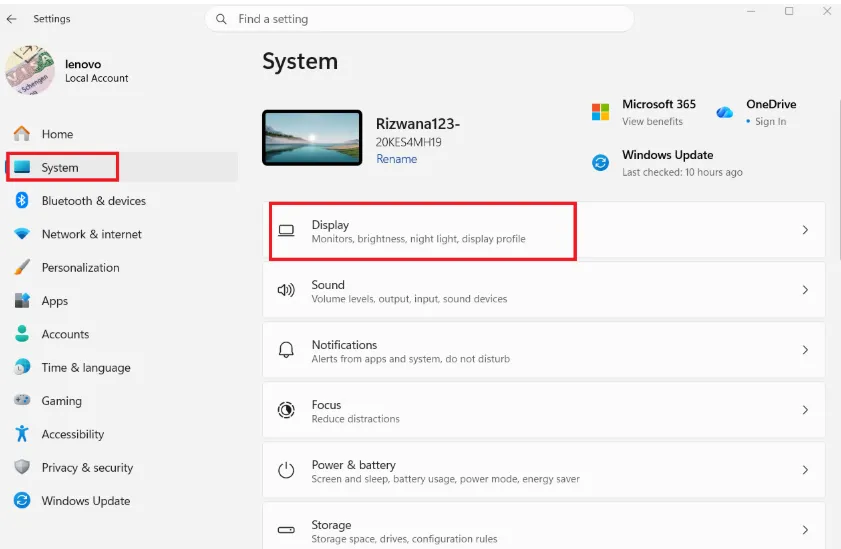
Step 2: Now, you need to click on Graphics. Here you'll see the option for optimization for Windows games. Toggle it to ON to reduce latency and use advanced features in-game.
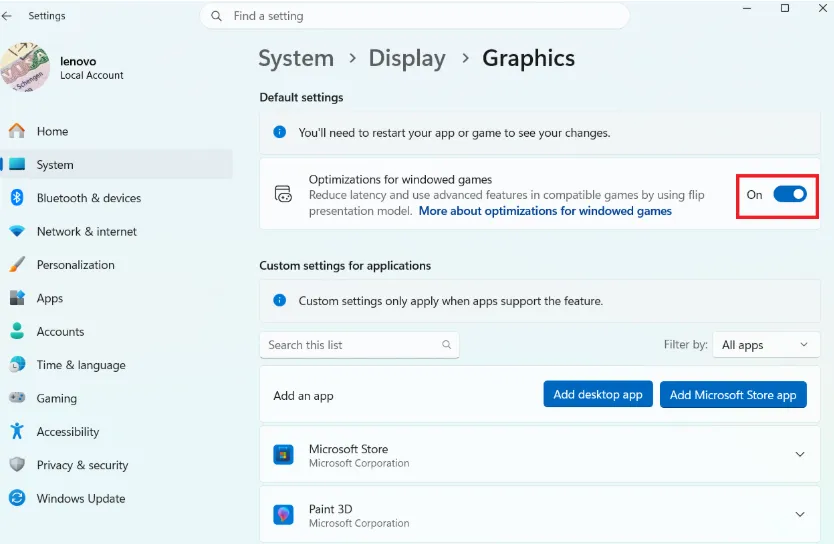
Note: You need to close and reopen the app for the aforementioned changes to take effect.
3. High-Performance Power Plan
To optimize your PC for gaming, you can turn on high-performance power plans. By default, our Windows settings are in a balanced mode, which saves power and ultimately the performance of the CPU and GPU. To change this setting in favor of improving your gaming feel, you need to follow these steps:
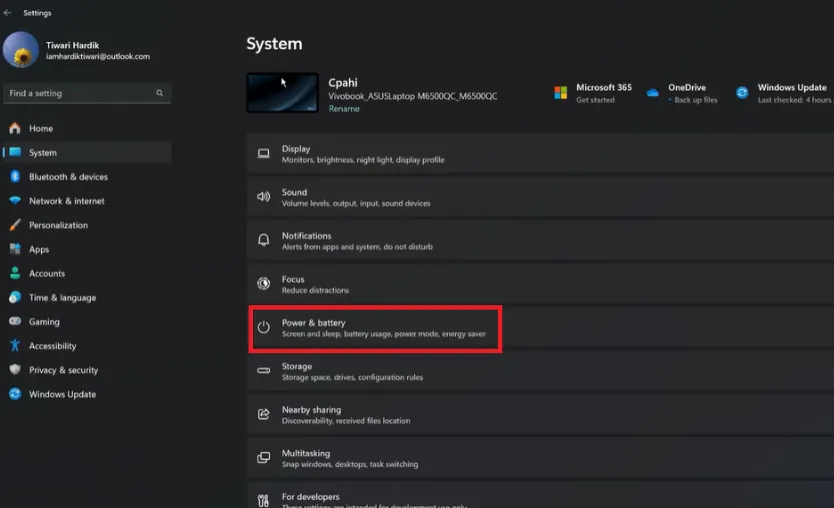
Step 1: Right-click on the Start menu and select Settings. Select the Power & battery. Now, from here, select the Power Mode settings.
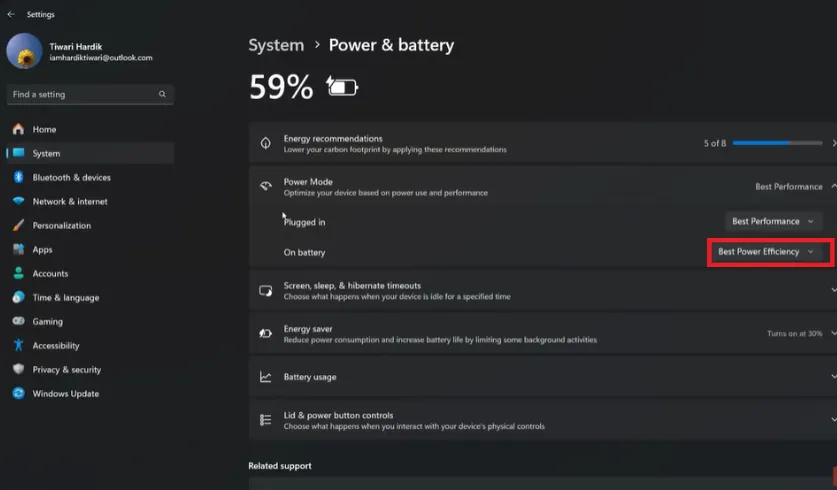
Step 2: To reduce the latency and input lag during gaming, make sure you adjust the drop menu to Best Power Efficiency.
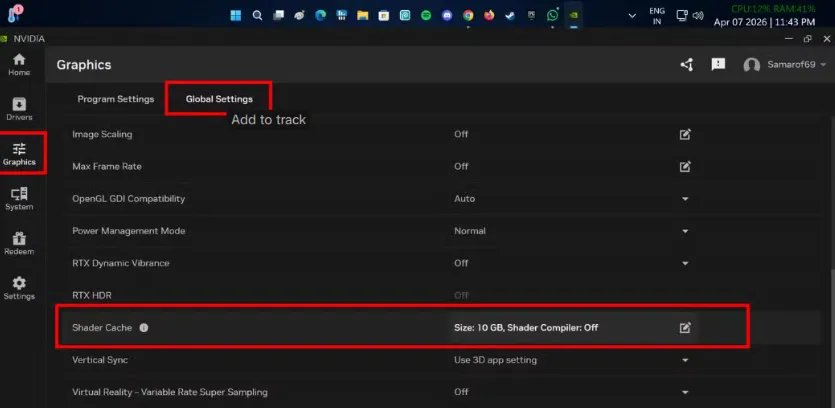
4. Increase NVIDIA Shader Cache Limits
By default, NVIDIA sets the cache limit to a modest driver default size. When you play multiple games, the system constantly overwrites older compiled shaders. This forces your PC to recompile them mid-game, causing unexpected frame drops and micro-stutters.
By lifting this limit, your system keeps shaders saved on your drive, leading to a much smoother gameplay experience when revisiting areas.
Step 1: Open the NVIDIA App on your PC and click on Graphics Global Settings Shader Cache Size option.
From the dropdown menu, change it from Driver Defaultto Unlimited or your desired size.
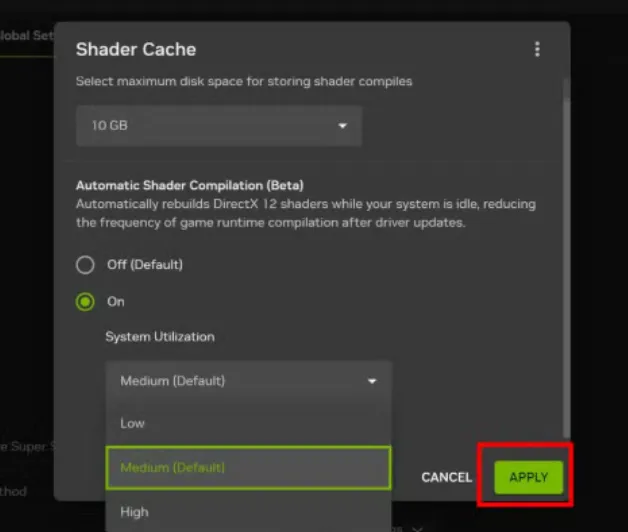
You can turn on the shader compilation to reduce the frequency of game runtime compilation after the driver updates.
5. Move Games to a Solid-State Drive (SSD)
Mechanical hard drives (HDDs) are too slow for modern games that dynamically stream data into memory. Windows handles Xbox Game Pass titles via built-in system settings:
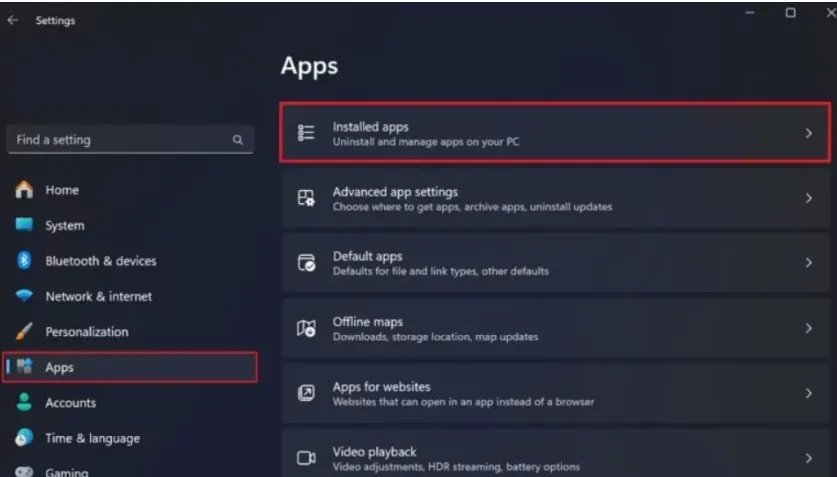
Step 1: Open your Windows Settings app (or press Windows Key + I). From here, you have to select Apps, and then click on Installed apps.
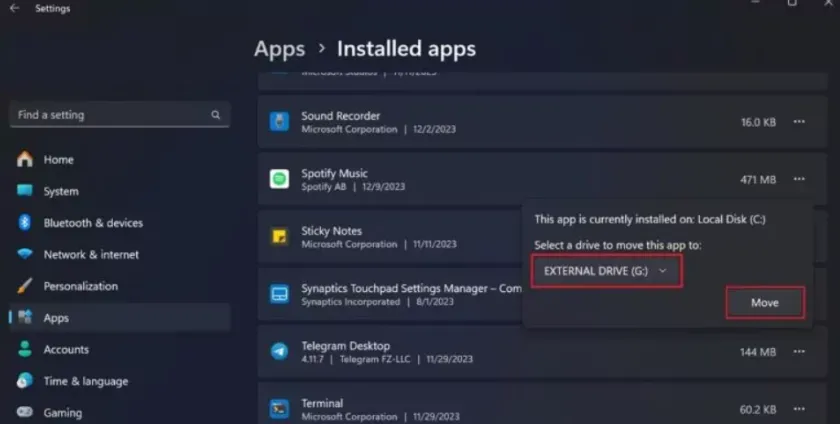
Step 2: Scroll down until you find the Xbox game you want to transfer.
Now, click the three dots on the right side of the game listing and select Move to move the game to your desired SSD.
If you want to deep clean your system, check out our guide on how to free up space on PC and Mac with easy steps.
6.Bring to Light your Ultimate Power Plan (a secret way to optimize games for PC)
Although the "High Performance" power plan helps to reduce frame drops during intense gaming, Windows also has a secret: the Ultimate Performance power plan, designed for heavy PC users. Enable it to completely remove any small delays in CPU frequency spikes.
Steps to force this power plan to appear on your PC:
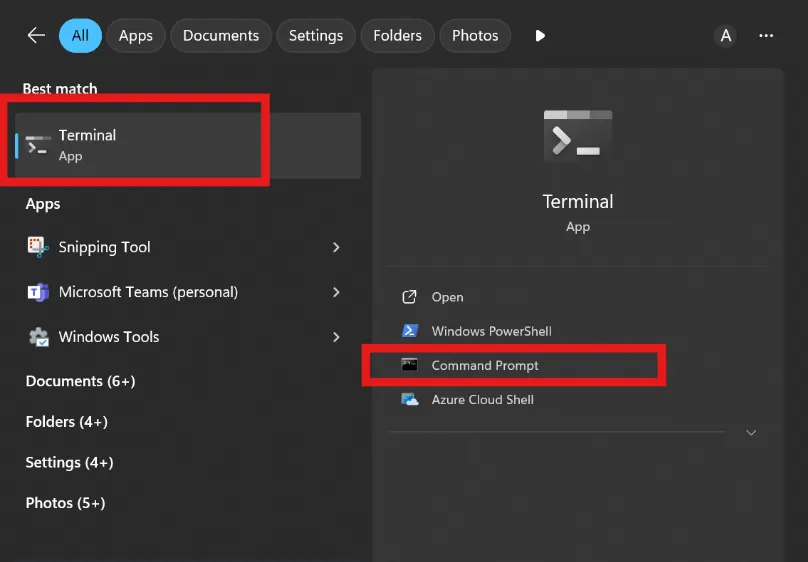
Step 1: Head over to your Start menu and search for Terminal. Now, open the Terminal app or Command Prompt.
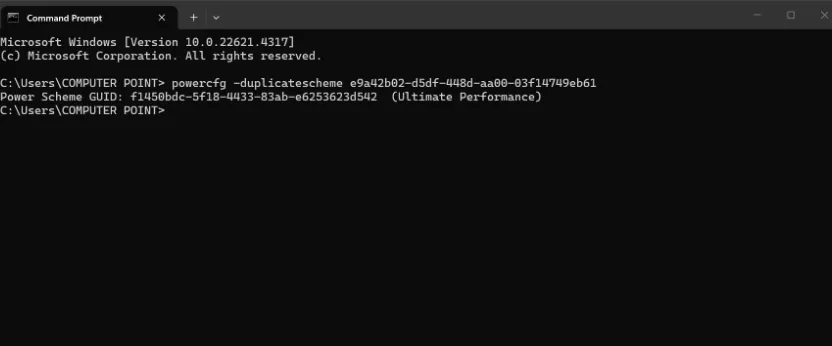
Step 2: Now copy powercfg -duplicatescheme e9a42b02-d5df-448d-aa00-03f14749eb61 and paste it into the popped-up window, then hit Enter.
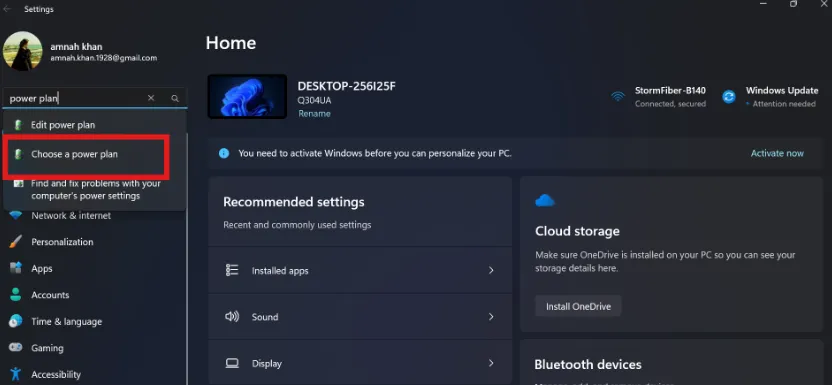
Step 3: Close the popped-up window and navigate to the system settings. Type Power Plan in the search bar, then select "Choose a power plan".
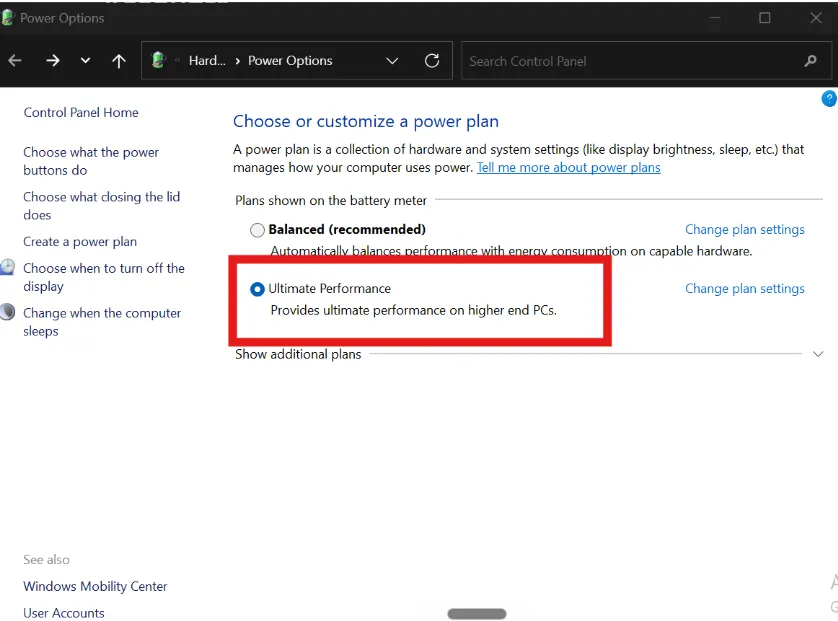
Step 4: Now, select Ultimate Performance to enhance your playability, especially if you are a pro gamer and using a high-end PC.
Tip: This setting is favorable for those gamers who play fast-paced or CPU-bound multiplayer games, like CS 2, Valorant, Warzone, or Apex Legends. If you are on a gaming laptop, skip this method.
7.Optimize Windows Visual Effects
Windows uses processing power to render animations, shadows, and translucent window borders that waste resources during gameplay.
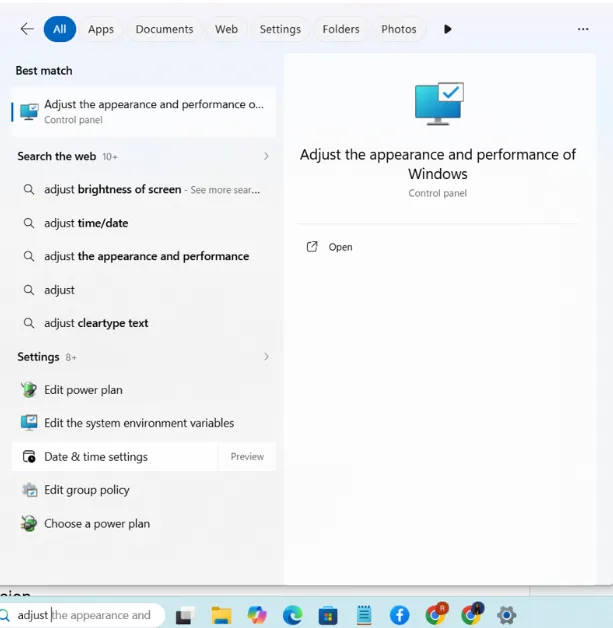
Step 1: Press the Windows key, type "Adjust the appearance and performance of Windows," and press Enter.
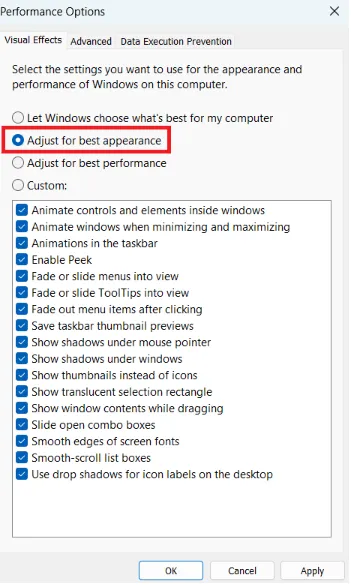
Step 2:Here, you have to select the option for Adjust for best performance. Once done, click Apply and then confirm OK to free up system resources.
8.Remove Non-Essential Windows Applications
Removing planned obsolescence apps and other non-essential apps from Windows requires cleaning some space. For this:
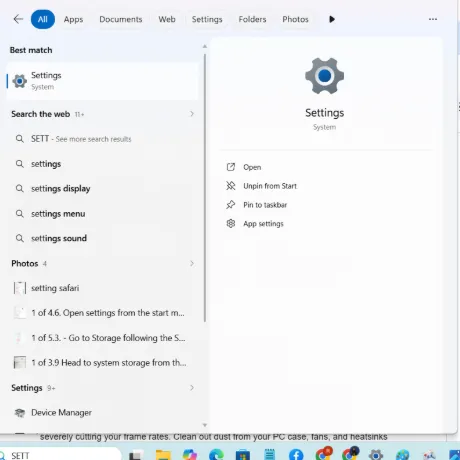
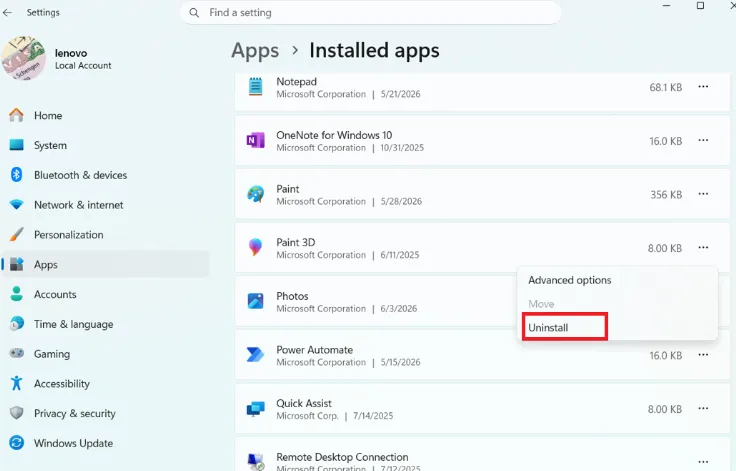
Step 1: You must open Settings by pressing the Windows key and I simultaneously or by clicking the Start menu and selecting Settings.
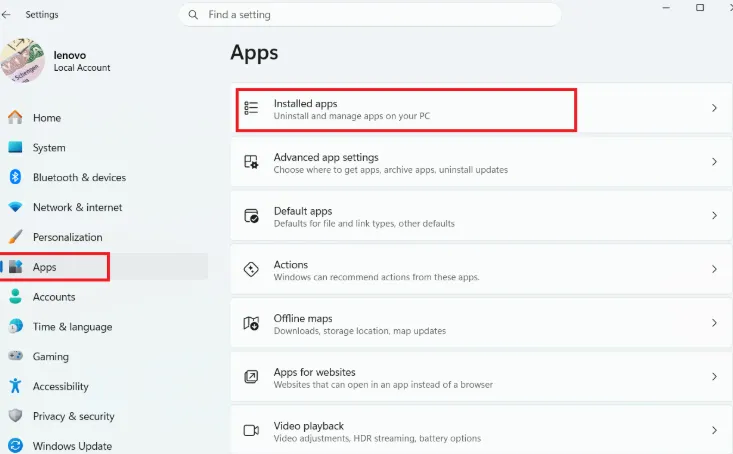
Step 2: Select Apps in the left menu, then choose Installed apps from the options that follow.
Step 3:Now, you'll find three dots in front of each installed application. Click on it and select Uninstall from the dropdown menu.
💡Tip:You should examine each app individually to determine which one you consider the most expendable and non-essential.
Automate the process with WMaster Cleanup's uninstall application feature that optimizes your PC with forceful uninstallation & removes difficult programs and their leftovers. Moreover, it supports custom batch uninstallation with one click, making it easier to remove multiple unnecessary apps at once.
Part 3: Best Practices for Long-Term Gaming Performance
To ensure that your PC is optimized for gaming, make sure your system is clean and ready. With a few adjustments in your system, like removing clutter and turning on the gaming mode, you can make your device ready to play games without any interruption.
Here are some best practices to optimize your PC for excellent performance in the long run:
- Firstly, you need to ensure that your graphics driver like NVIDIA, AMD, or Intel GPU is updated for new titles and patches so you play games smoothly.
- When you're playing games on your system, the hardware often gets hot, which cuts your frame rates. So make sure you every now and then remove dust from the case, fan, and heatsinks so that airflow remains optimal.
- The startup and background apps take up a lot of RAM. Therefore, close background apps so that your RAM and CPU cycles are dedicated to your games only.
- Don't fill your SSD to its maximum. Always leave 10% to 15%of your drive space free to ensure that the SSD can maintain peak read/write speeds and handle game updates efficiently.
- Make sure your operating system is updated as Microsoft rolls out security patches and storage optimization that impact gaming.
Part 4: FAQs Related to Optimizing Games for PC
Q1. How do I get my game to run better?
To get your game run faster and smoother, you have to free up system resources and optimize your software settings. Besides this, you can adjust your in-game graphics to reduce the input load.
Q2. Can changing PC settings for better game performance damage my PC?
The optimization techniques like software settings and games settings are intended to enhance your PC's performance and do not cause any harm to your system. So, it's safe to make changes to optimize games for PC.
Q3. Does Game Mode actually improve gaming performance?
Yes, turning ON Game Mode significantly improves the gaming experience. The sole purpose of this feature is to channelize all your system resources for your game and reduce interruptions. This leads to smoother gameplay.
Q4. Why do games stutter even when the FPS is high?
If your system's FPS is high, it does not guarantee smooth gameplay. Because sometimes there are other culprits, like heavy background apps or outdated drivers. Other than that, frame-time instability and input latency also cause stuttering.
Q5. Do SSDs make games run faster?
SSDs are not used to increase FPS. Instead, they reduce loading times and improve overall game responsiveness compared to traditional hard drives.
Conclusion
That's all you need to know about how to optimize games for pc. With a few tweaks in your system's settings, you can achieve a higher optimization environment that allows you to play seamlessly. Besides this, you can also move games to an SSD for a smooth gaming experience.
Alternatively, you can download WMaster Cleanup. Use its Game Booster feature, which is the best game optimization software for pc, to boost FPS, reduce system latency, and play your games without interruptions.