

Weird recommendations from YouTube, as you clicked on an odd video two weeks ago, or is your feed full of Cocomelon or nursery rhymes thanks to your kid? Or worse, you need to hand over your phone to someone else, making you concerned about how to delete YouTube history that is showing up your personal stuff.
If your YouTube feed is cluttering with unwanted content or you're worrying about who might see your personal searches, I'll help you keep your slate clean. In this write-up, I will suggest to you how to take back control of your privacy and how to delete YouTube history, no matter what device you are using, mobile or PC, personalizing the experience every time you log in.
In this article
- What is YouTube History?
- Why Need to Clear YouTube History?
- Before You Start Deleting YouTube History [Important Considerations]
- How to Delete YouTube Watch History and Search History on Android
- How to Delete YouTube Watch History and Search History on iPhone/iPad
- How to Delete YouTube Browsing History on PC
- How to Delete Browser History Related to YouTube
- All-in-One Solution to Delete YouTube Watch History & Browser History[Recommend]🔥
- Hot FAQs Related to Deleting YouTube Browsing History
Part 1: What is YouTube History?
Your YouTube history is an all-embracing digital log of your online behavior rather than just a simple list of clips you have played. It includes
- Your watch history is every video you have watched and how long you have tuned in
- Your YouTube search history is every phrase or keyword you typed in the search bar
- Your broader browser history YouTube that interacts across web sessions
The recommendation engine of YouTube combines the above data as a precise blueprint to guess what you might want to see next. So, every time when you play a video, click a thumbs-up button, or look up a topic, the YouTube algorithm takes notes so that it can serve you with the similar content.
Part 2: Why Need to Clear YouTube History?
Clearing history in YouTube not only gives you full control over your privacy, but it also keeps your feed fresh and relevant. Resetting your account activity will wipe out accidental clicks, keep private searches hidden, and stop YouTube from showing the same old stuff. What's more? You will also free up a valuable space on your device.
Common Reasons Why Need to Clear YouTube History?

- If your YouTube Feed is stuck on random late-night clicks you watched once, clearing a history resets the YouTube recommendation engine, allowing you to rebuild a clean home page.
- Clearing YouTube history lets you hide your private search queries recently viewed videos on YouTube from your other people who share your phone or PC.
- Knowing how to clear watch history helps you stop the YouTube algorithm that is showing you endless loops of repetitive videos or single-perspective content.
- Clearing out the local history cache & stored media footprints also lets you free up storage space on your mobile apps & web browsers.
Is It Safe to Delete YouTube History?
100%! It is totally safe to delete your YouTube history. If you wipe out your YouTube search or watch history, it will not
- Harm your YouTube account.
- Effect your saved playlists.
- Unsubscribe from your favorite channels.
Part 3: Before You Start Deleting YouTube History [Important Considerations]
Before teaching how to delete stuff from YouTube history, let me tell you what changes you will experience and what your stuff stays completely intact:
| What will you lose? | What you will keep? |
|---|---|
| Clearing history on YouTube will let you remove: Traces of the red watch-progess bars on unfinished videos. Your personalized homepage. Ability to find niche-specific videos you last watched on YouTube. |
Even after clearing YouTube history, you will not lose: Your subscriptions to your favorite channels. Created playlists. Watched Later playlists. Like on videos. Published comments under any video. |
What Happens After You Delete History
After deleting the YouTube-related history, the YouTube algorithm will forget your viewing habits, and you will experience a home feed with more generalized content. Don't worry! Once you will watch new videos, the YouTube algorithm will learn and show the kind of content you want to see in the future.
When You Should Delete or Pause YouTube History
I always clear up my YouTube history when I feel my feed is getting messy or I want to flush out sensitive searches. Similarly, you can also learn how to delete or how to turn off watch history on YouTube (pause history) first before handing over your device to another person or exploring random temporary stuff.
This super helpful way lets you keep your primary YouTube feed the way you like.
Part 4: How to Delete YouTube Watch History and Search History on Android
If you're on an Android device and looking for how to delete YouTube watch history and search history, worry no more. Follow the below few taps inside your official YouTube app:
Situation 1: Delete Individual Videos from Watch History
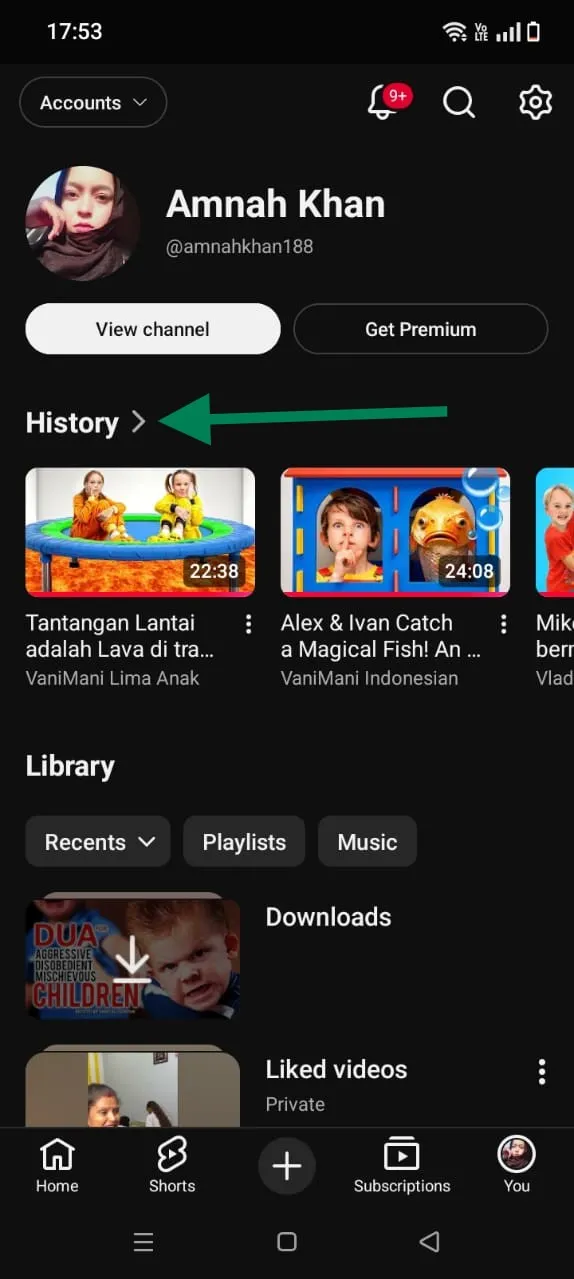
Step 1: Open your YouTube app on your Android device, and tap on You in the bottom right corner. Now click on the > next to History to expand your Watch History list.
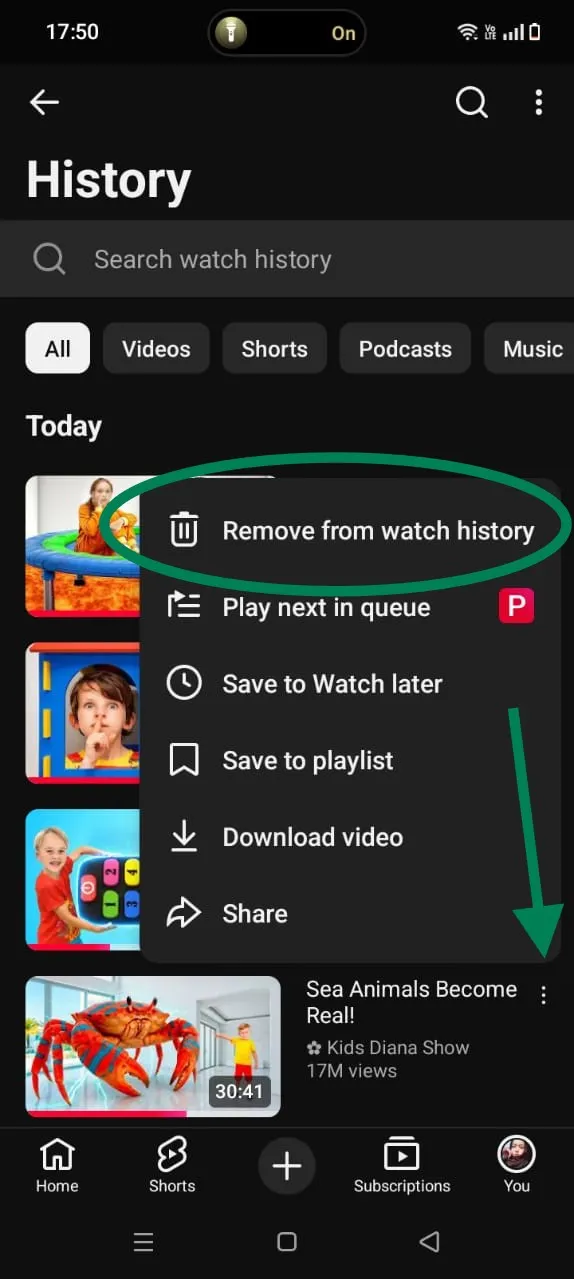
Step 2: Now click on the three vertical dots next to the desired watched video that you want to delete. Hit Remove from your watch history.
Situation 2: Clear All Watch History on Android
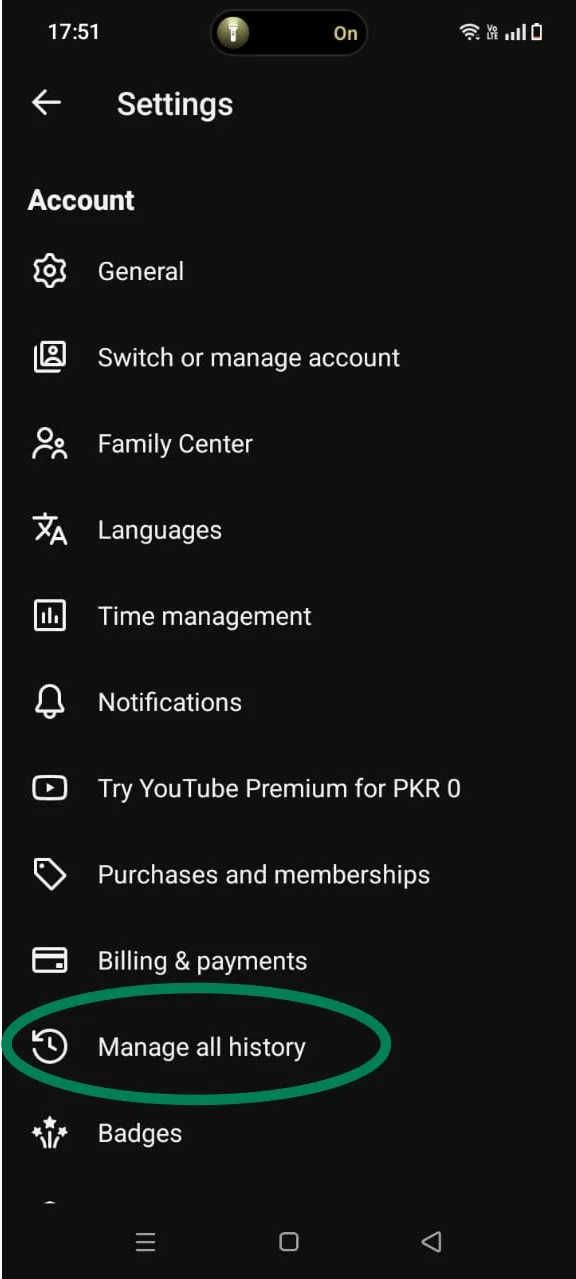
Step 1: Open your YouTube app, and head over and click your profile icon. Click on the Settings gear icon, then scroll down to locate and tap Manage all history.
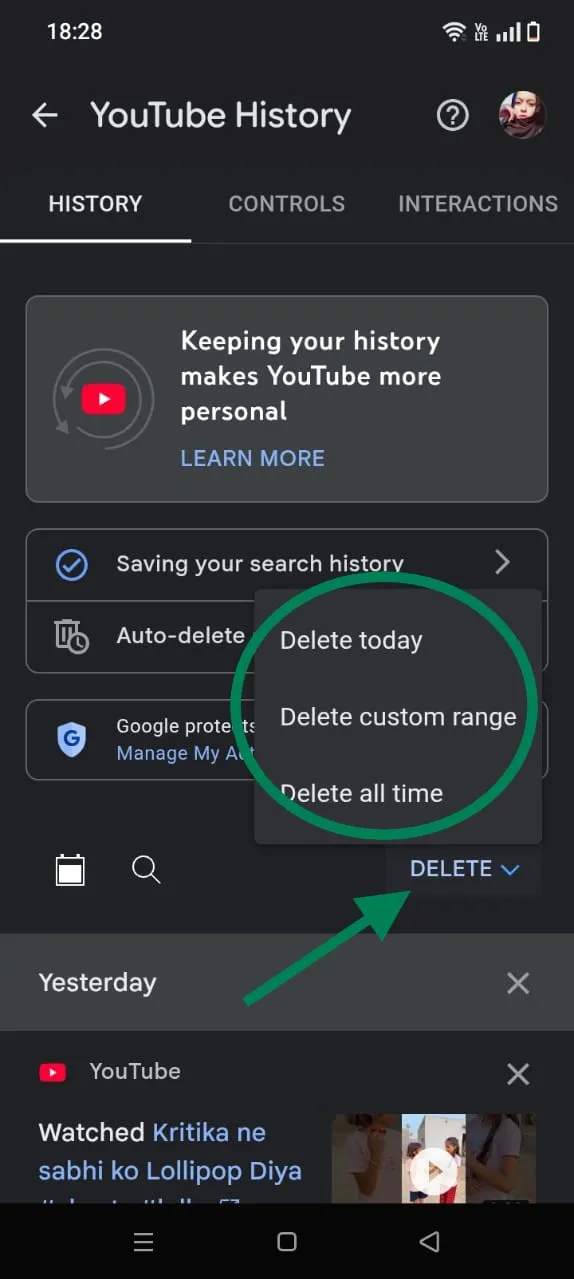
Step 2: To permanently delete YouTube video watch history, click on the Delete button to open the drop-down menu. Hit Delete all time.
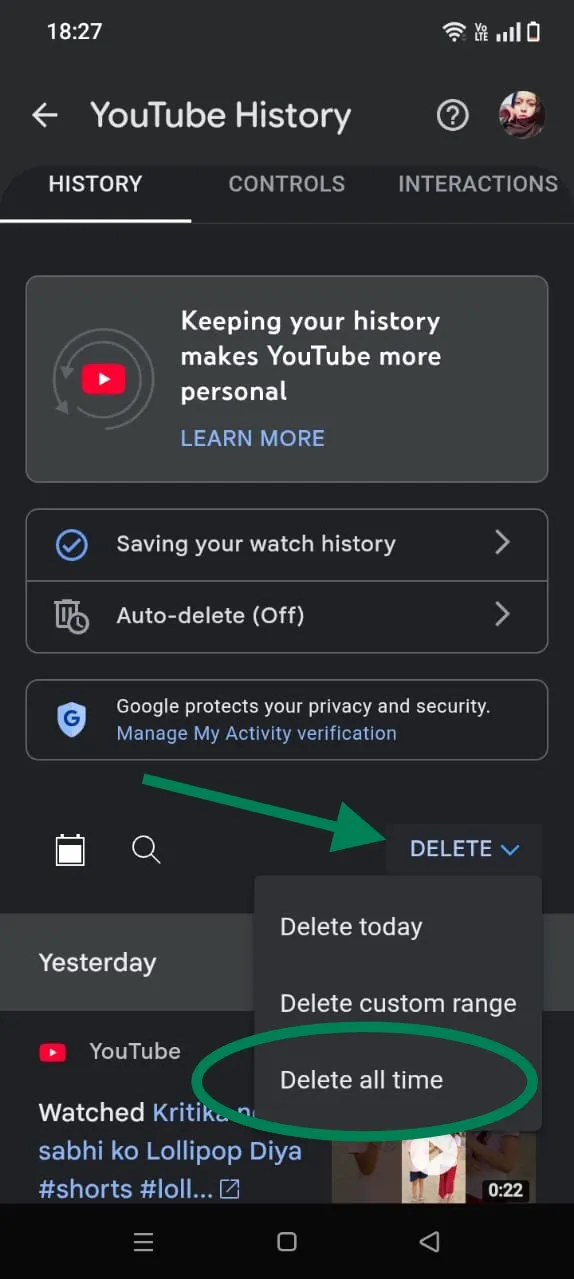
💡Tips:If you don't want to delete the entire watch history and are only looking to delete recently viewed videos on YouTube, select Delete today or select a Delete custom range.
Situation 3: Delete YouTube Search History on Android
Step 1: To delete YouTube search history, head over to Settings> Manage all history inside your YouTube app. After unchecking Include the YouTube videos you watch,"go back to the History tab.
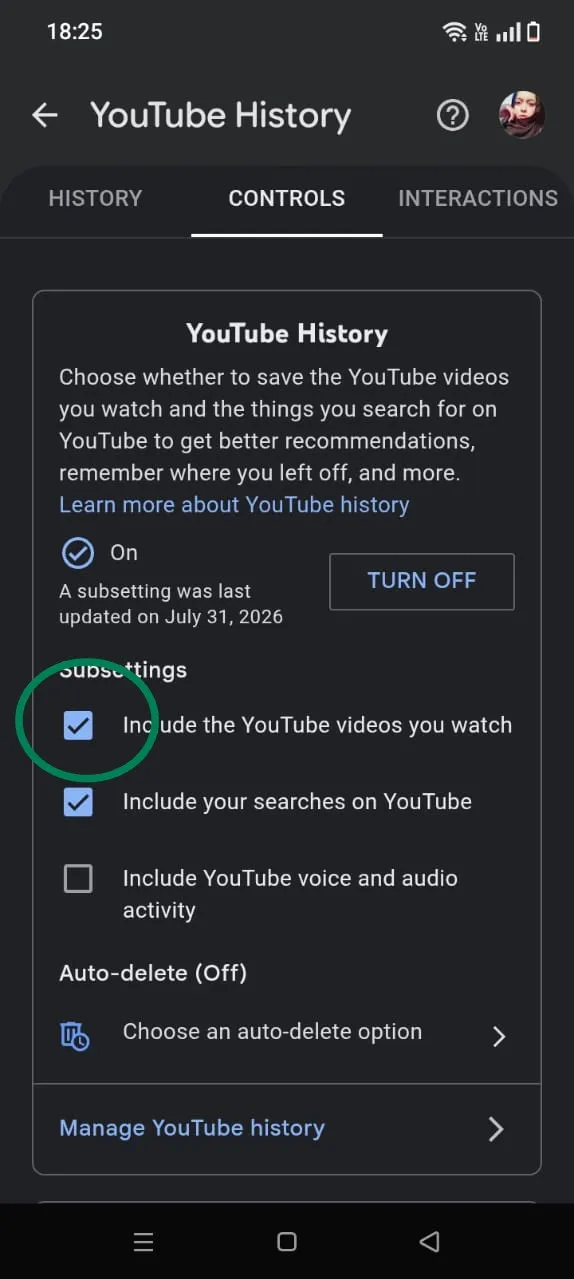
Step 2: Now, tap the DELETE button and select the desired option.
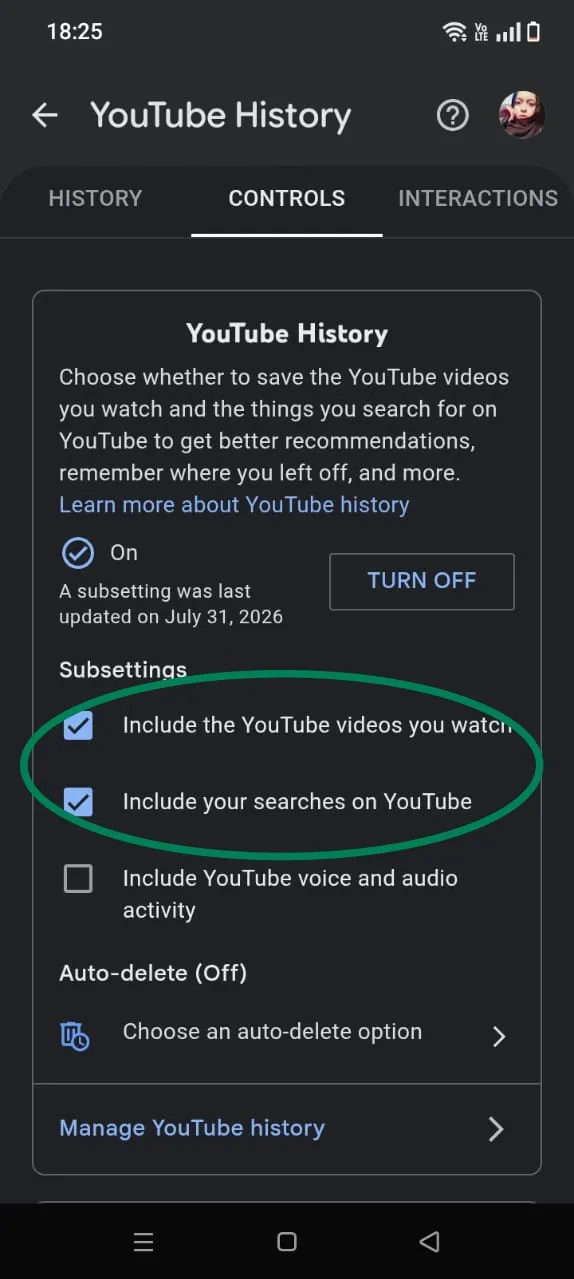
💡Tips:Make sure you check both options on the CONTROLS tab to delete YouTube search history & YouTube video watch history all at once.
Part 5: How to Delete YouTube Watch History and Search History on iPhone/iPad
For iPhone/iPad users, you can easily manage your history on iOS, as it is smooth and follows a pretty similar path inside the YouTube app.
Open YouTube History on iPhone/iPad
Open the YouTube app, click on You (profile), and tap View All (next to the History). Now
To Delete a Single Watch History Item on iPhone/iPad
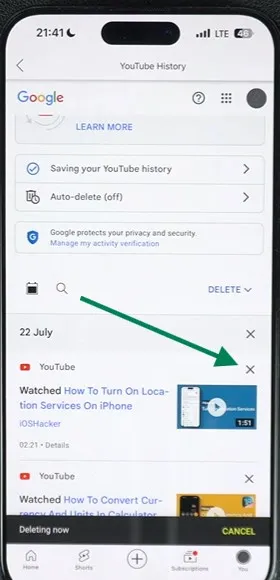
From the complete history list, find the video you wish to remove, and tap X available next to it.
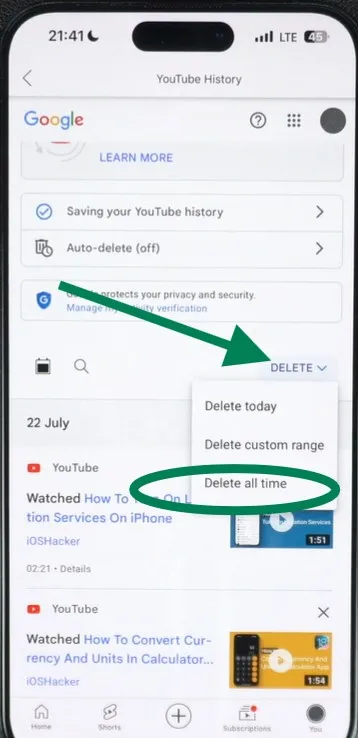
To Clear All Watch History on iPhone/iPad
Click on the DELETE button and hit Delete all time to permanently clear all your YouTube watch history
Clear Search History on iPhone/iPad
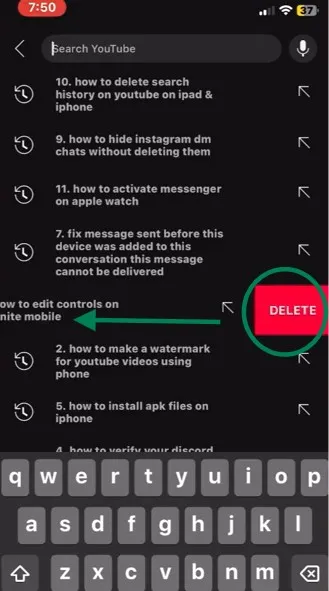
Open the YouTube app on iPhone/iPad, and click on the magnifying glass icon to see the recent searches. Now, swipe left the search term you want to remove. Hit Delete.
Part 6: How to Delete YouTube Browsing History on PC
Running YouTube videos on your PC browser? In this section, you'll learn how to delete YouTube history, either specific search terms or complete watch history, along with setting up auto cleanups using Google's built-in tools to manage YouTube data.
💡Note:The images below show a Windows PC interface; Mac users can also follow the same steps to delete their YouTube search and watch history.
How to Delete YouTube Search History on desktop
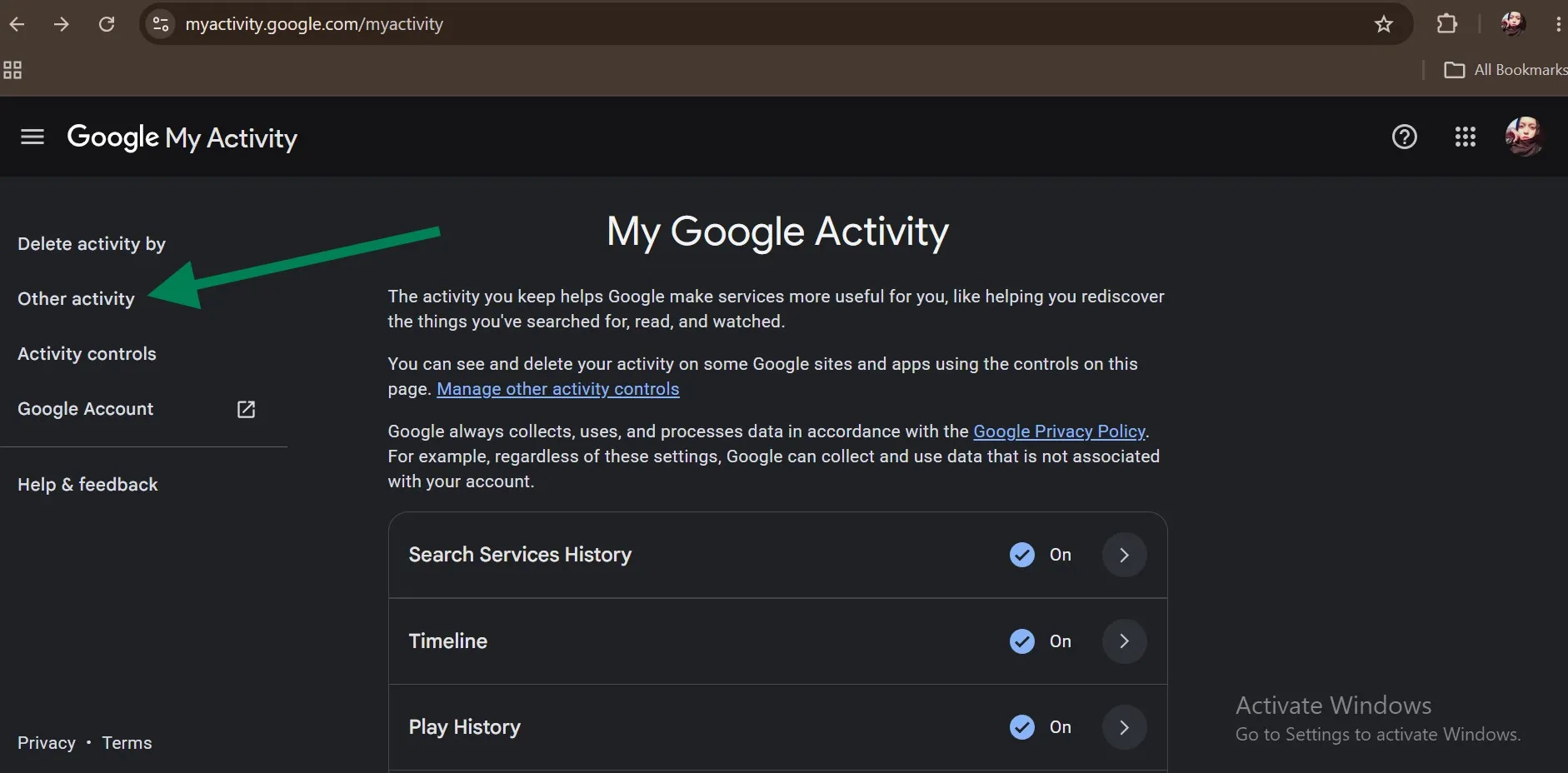
Step 1: Open your browser (Chrome), head to Google My Activity, and tap on Other Activity.
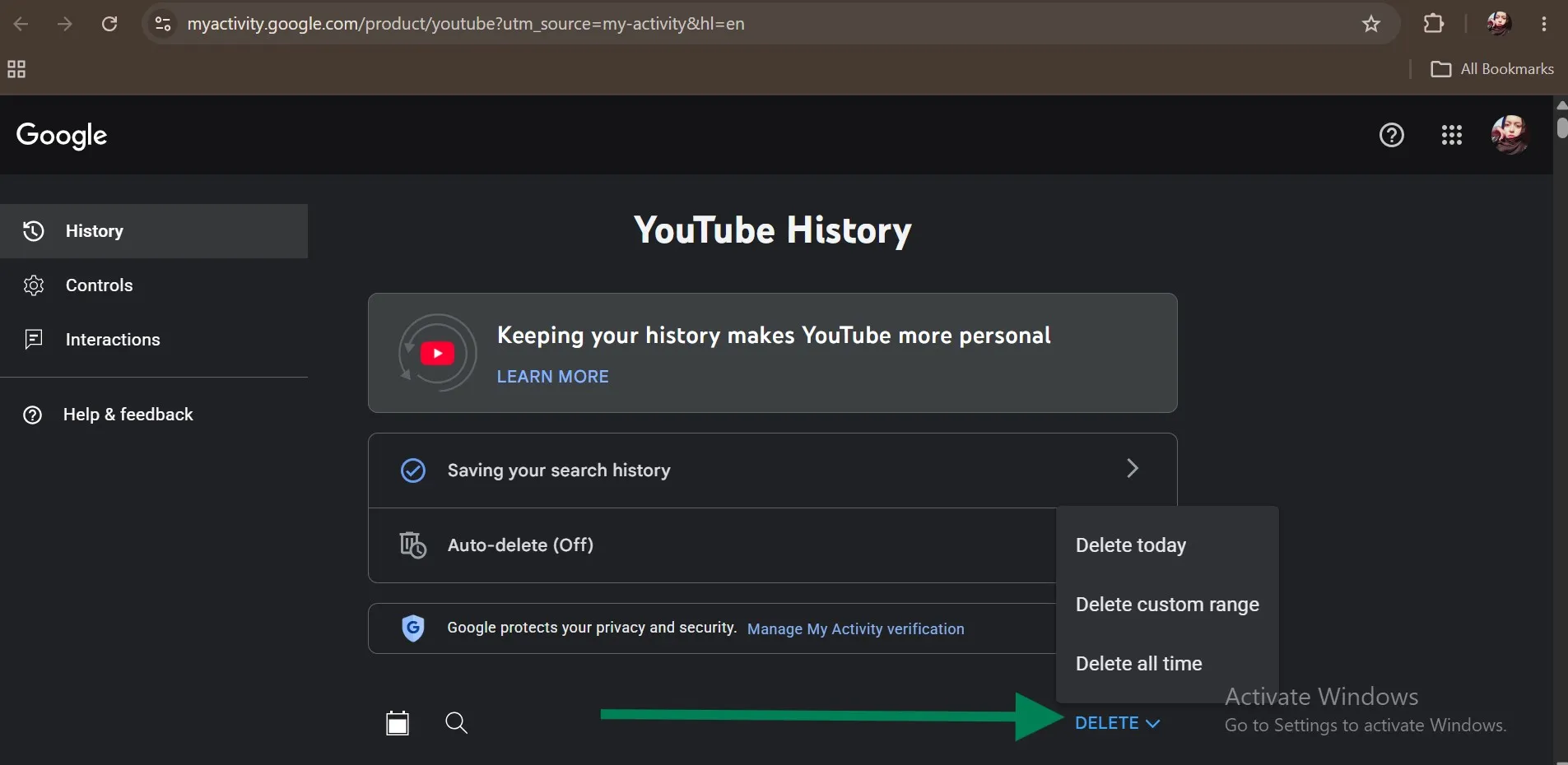
Step 2: Scroll down and look for YouTube History. Now, under this category, tap Manage Activity to open up a YouTube History page. Click DELETE to select the desired option.
Tip: Thinking about "How do I delete YouTube searches specifically? " Just scroll down a little further and hit the X next to any specific search you want to delete permanently.
How to Delete YouTube Watch History on Desktop
Step 1: Head over to the official YouTube website and, from the upper left corner, tap the dashes to open the panel. Select History.
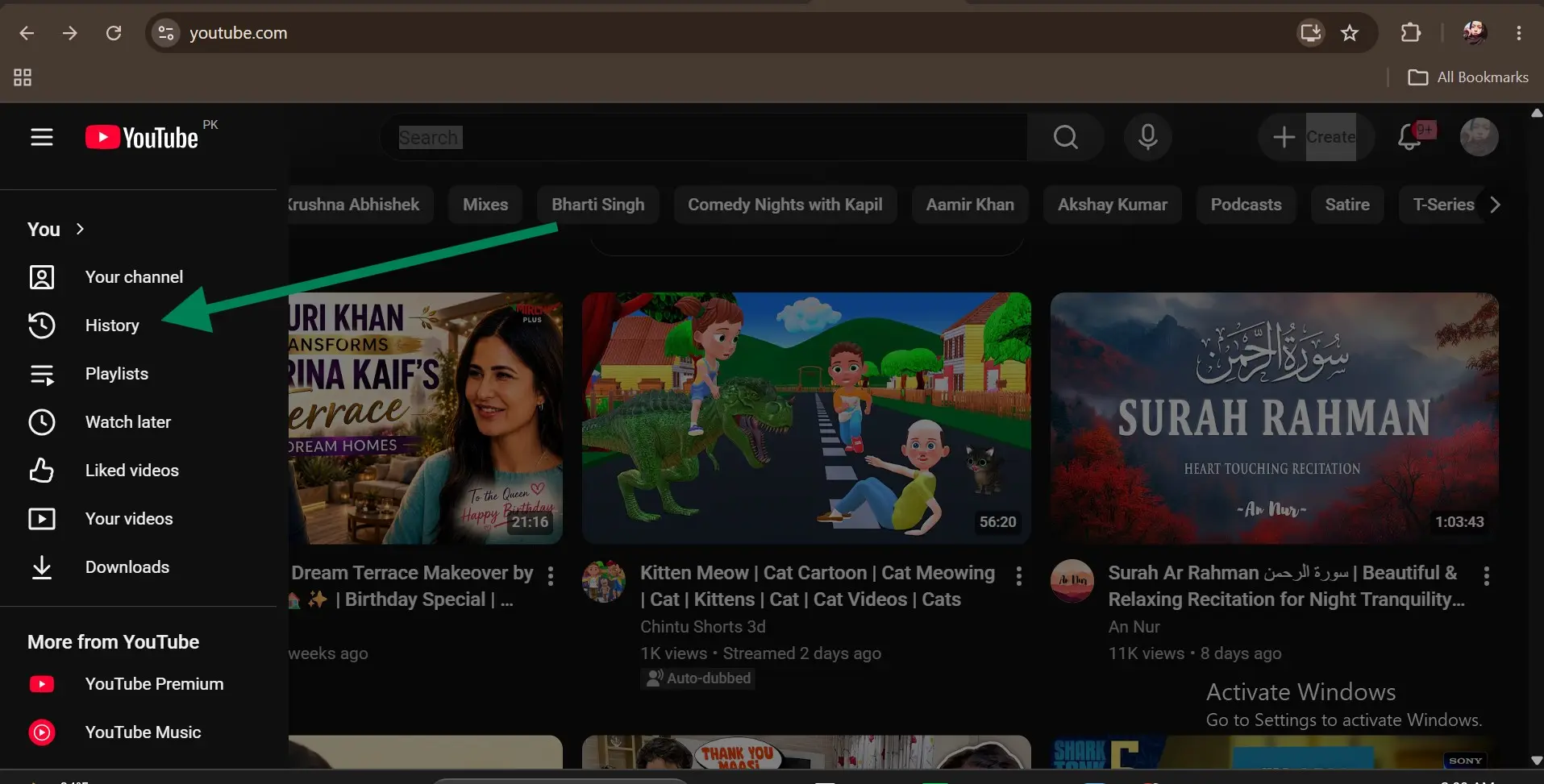
Step 2: To delete specific YouTube video watch history, click the three vertical dots next to the desired video, and then hit Remove from watch history.
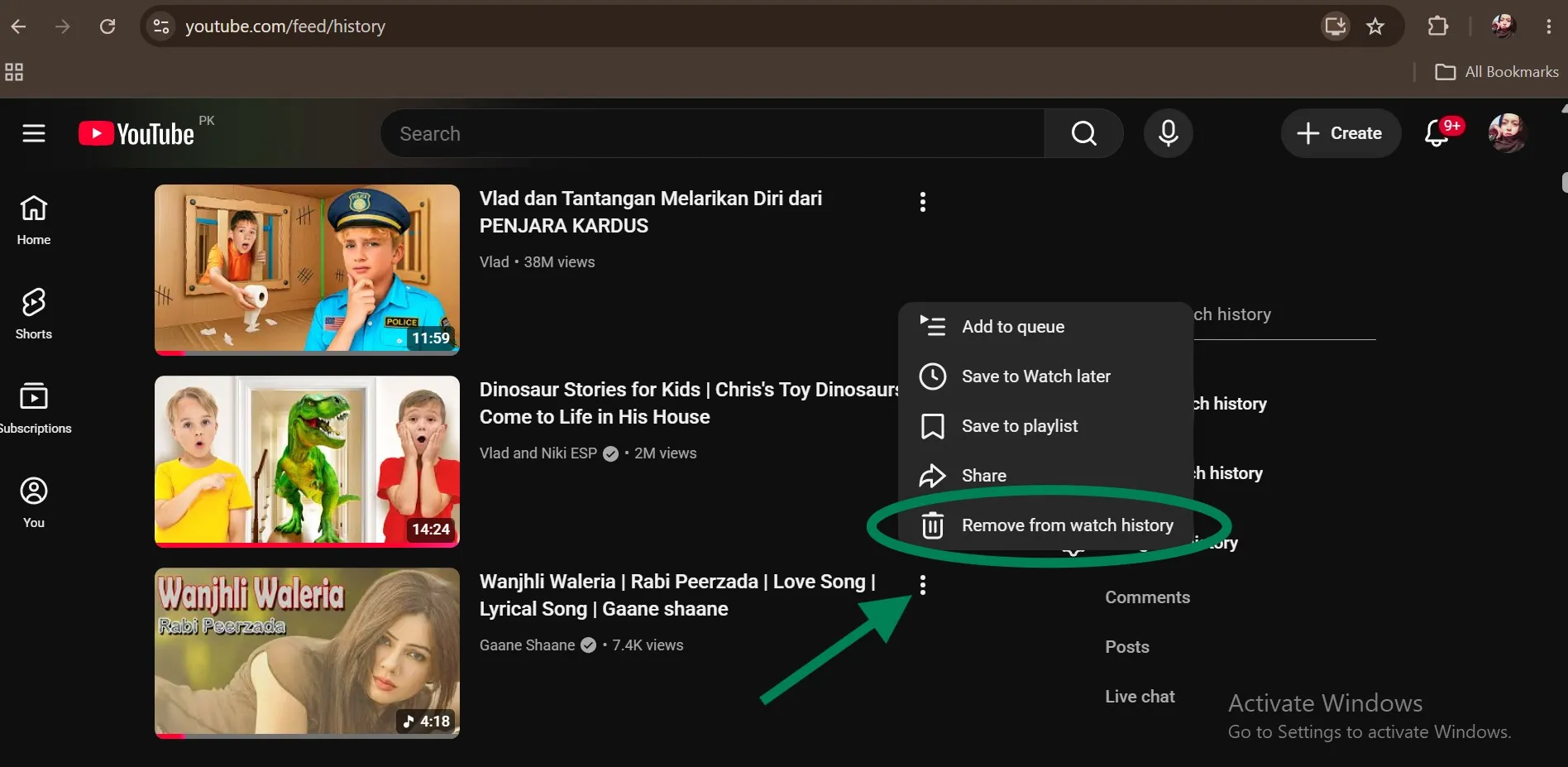
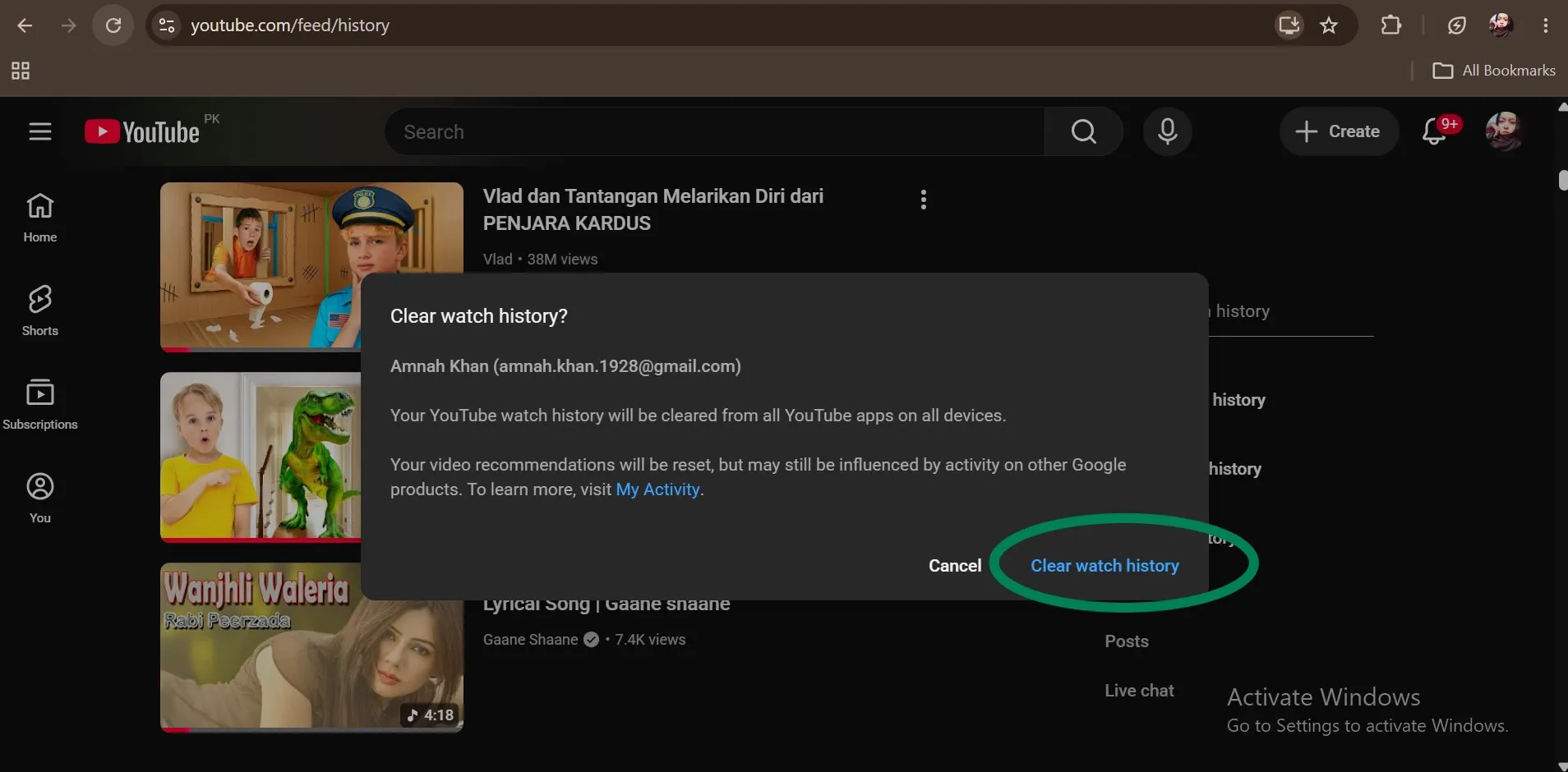
💡Tips:How to clear watch history on YouTube completely? Click Clear all watch history available on the right panel. If you are sure about your decision, hit Clear watch history on the pop up window.
Pause or Auto-Delete YouTube History on Desktop
Step 1: Open your YouTube Historypage on your browser and select the Controls tab. Check your desired options and hit TURN OFF.
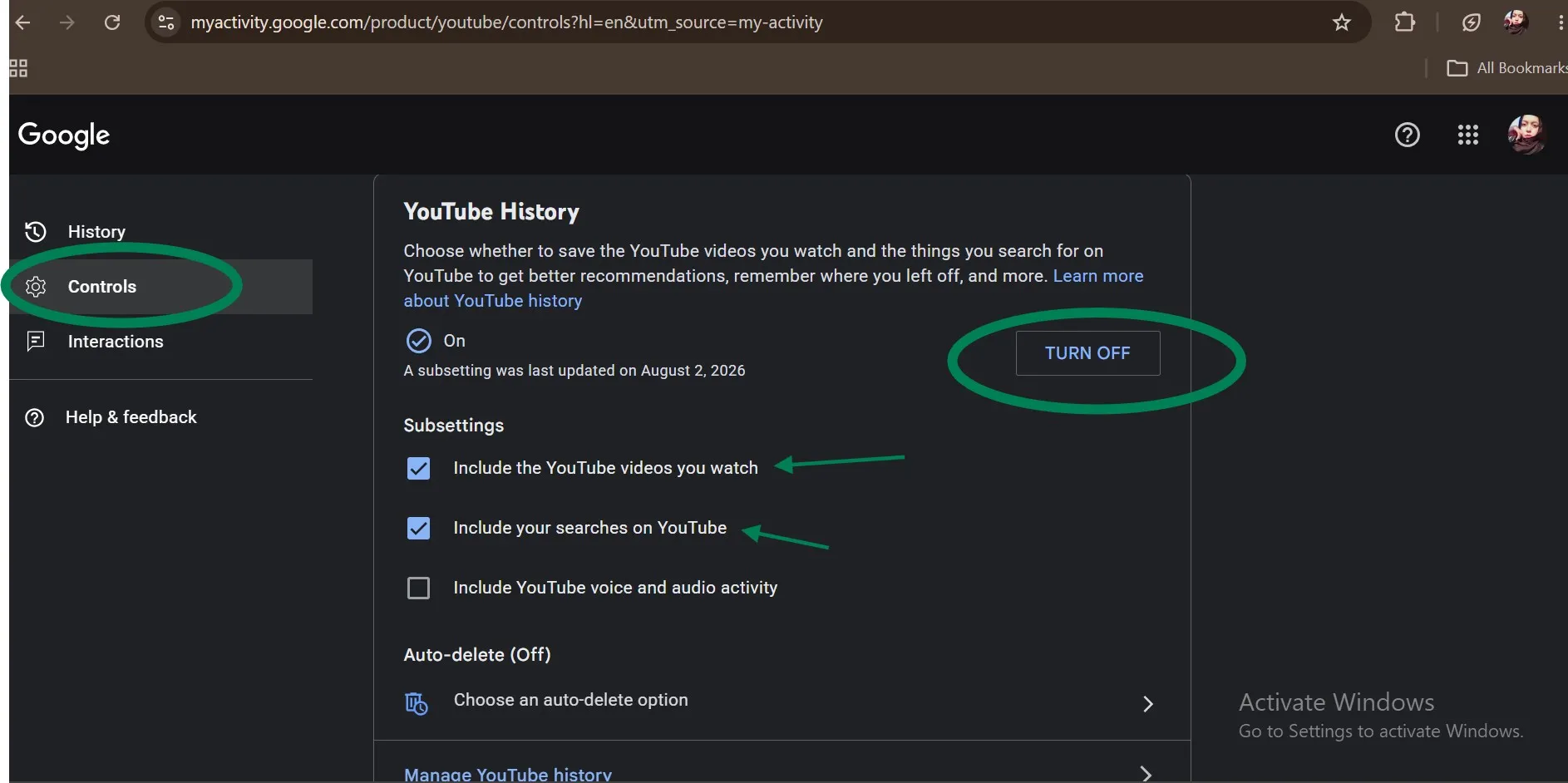
Step 2: From the pop up window, read the effects you'll experience after pausing. If sure, click Pause.
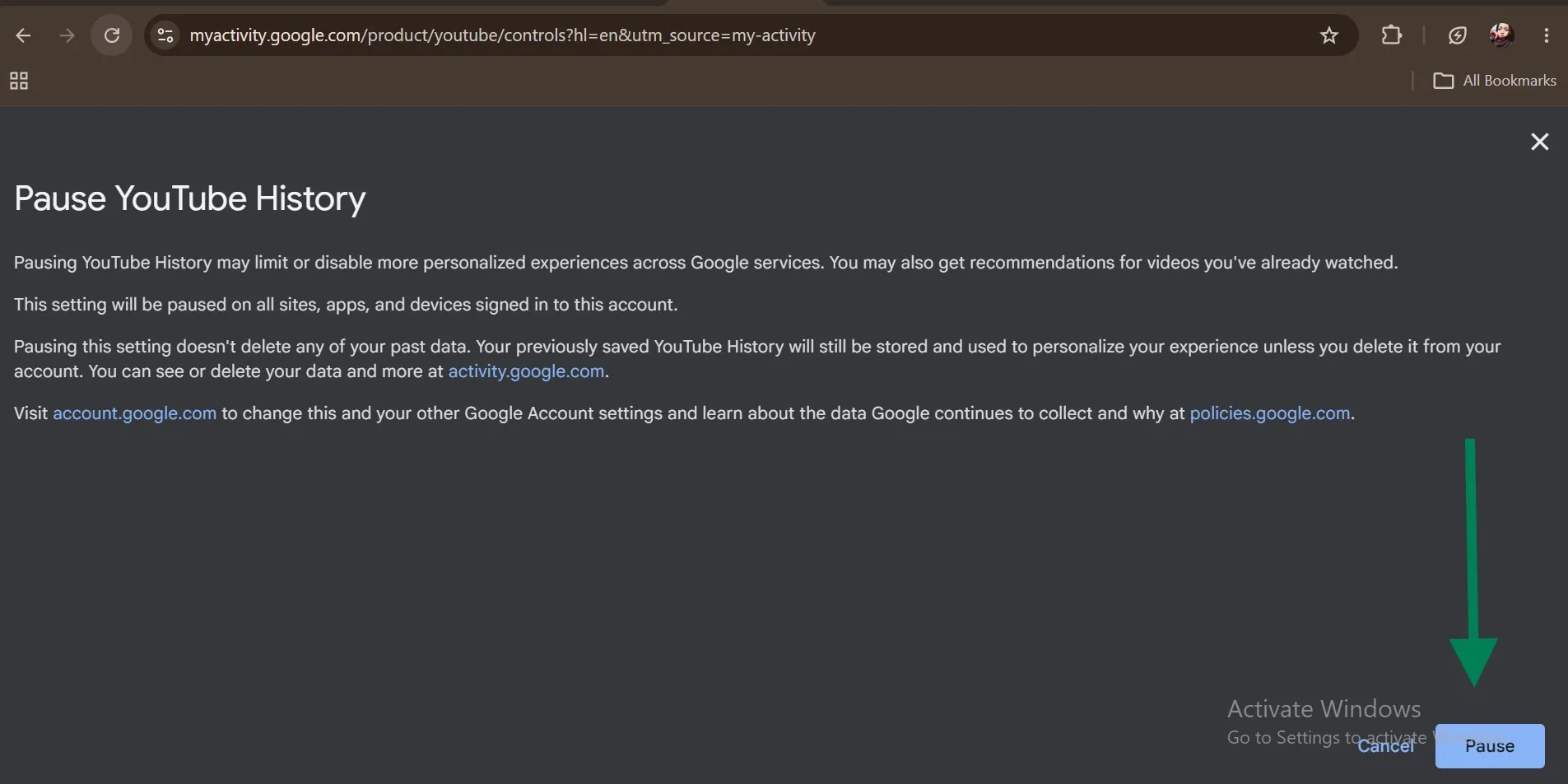
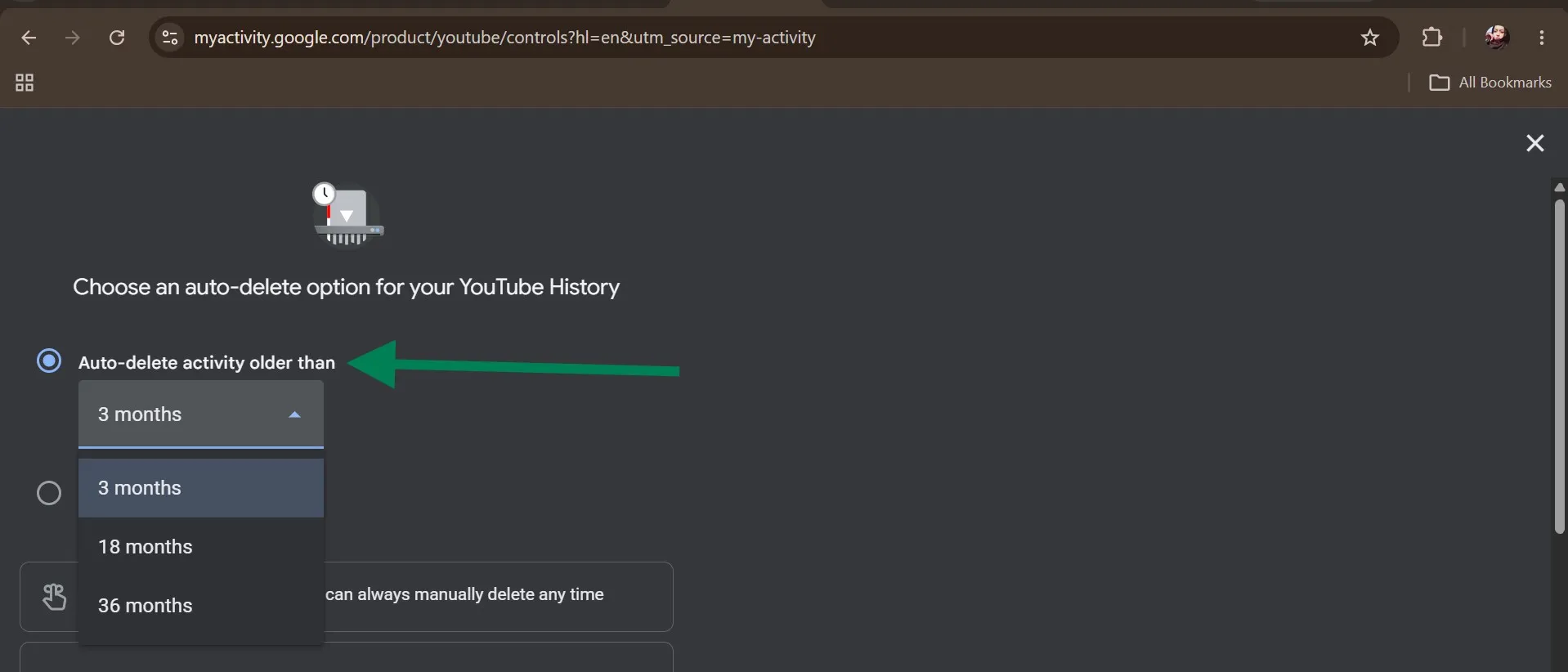
Step 3 (Optional): For long-term privacy, click Choose an auto-delete optionon the YouTube History page, tap Auto-delete activity older than, and then select the desired cleanup schedule to activate auto-clean.

Part 7: How to Delete Browser History Related to YouTube
Deleting history within your YouTube app only cleans account servers. Follow the below easy steps to clear up your web browser history that stores local site logs, cached thumbnail files & temporary tracking cookies.
Delete Chrome History for YouTube Visits
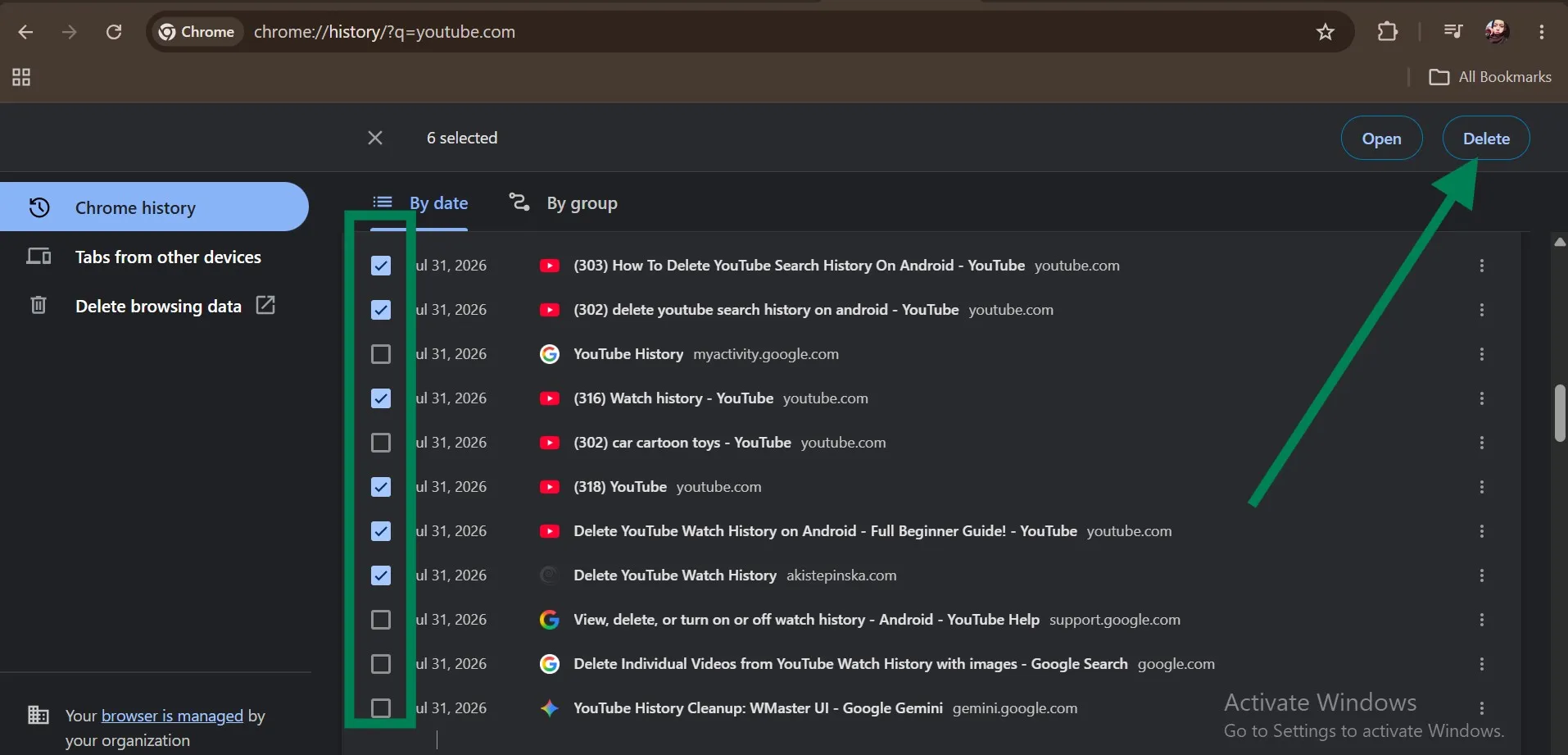
Step 1: Open Google Chrome on your PC. Press Ctrl + H on Windows or Cmd + Y on Mac. Filter the history by typing YouTube.com into the search bar.
- For Windows, tap on the By date tab, check desired entries, and then hit Delete. You can also delete YouTube-related entries in groups by selecting By group.
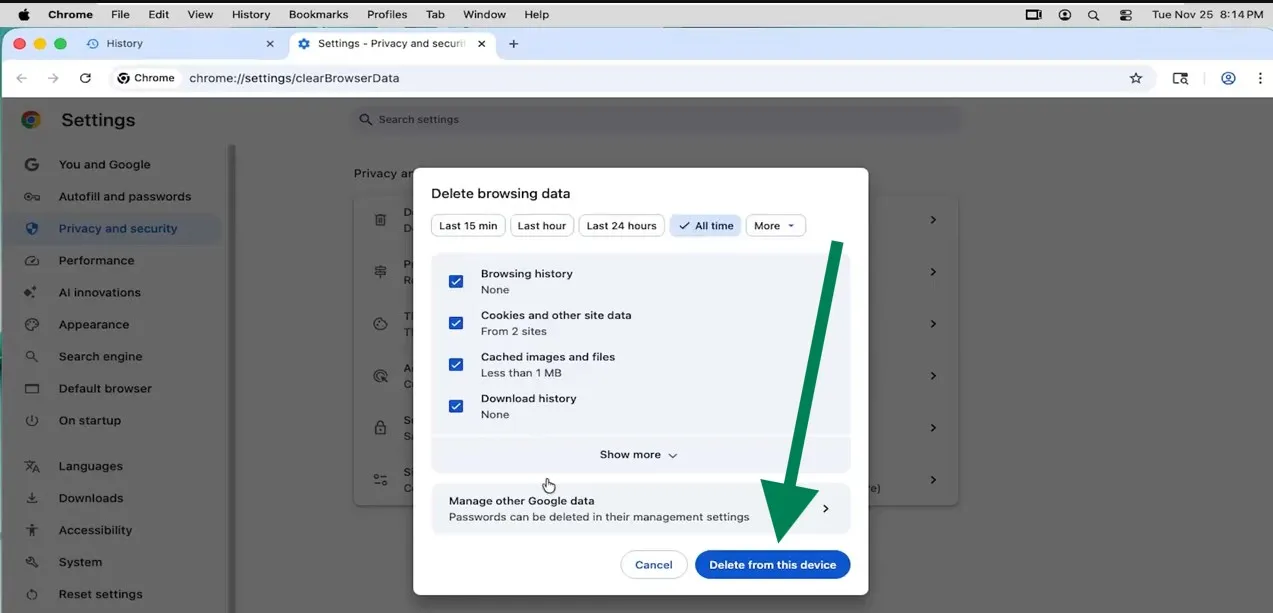
- For Mac, open History, tap Privacy and Security, and type YouTube in the search bar to delete Chrome history for YouTube visits. Hit Delete from this device to finish the process.
Delete Safari, Edge, or Firefox Browser History
- Safari (Mac)
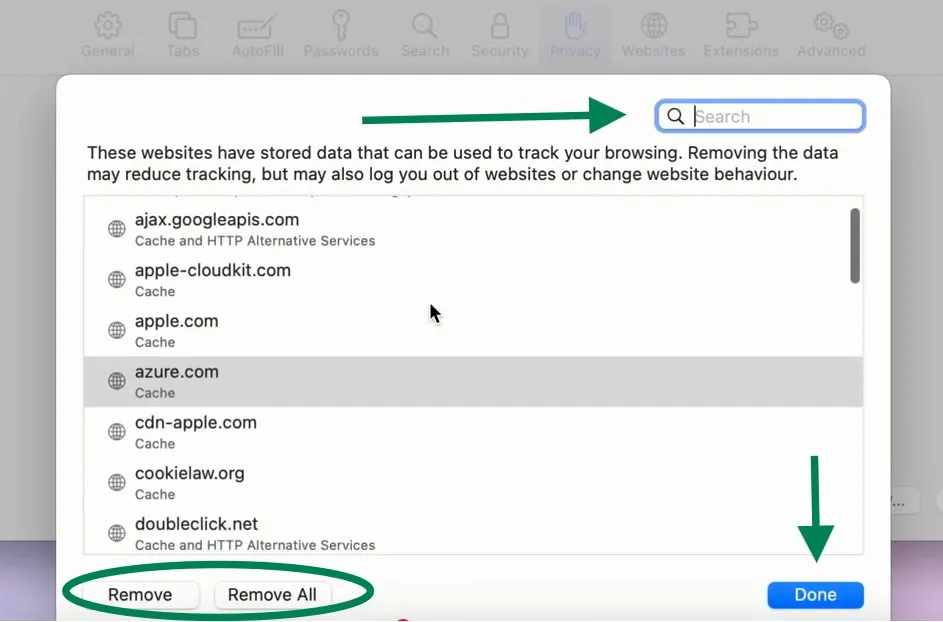
Open Safari, and head to settings. First tap the Privacy tab and then select Manage website data. Type "YouTube" in the search bar, select the desired entry, and hit Remove.
💡Tips:If you want to delete all the browser history YouTube in one go, hit Remove All.
- Microsoft Edge
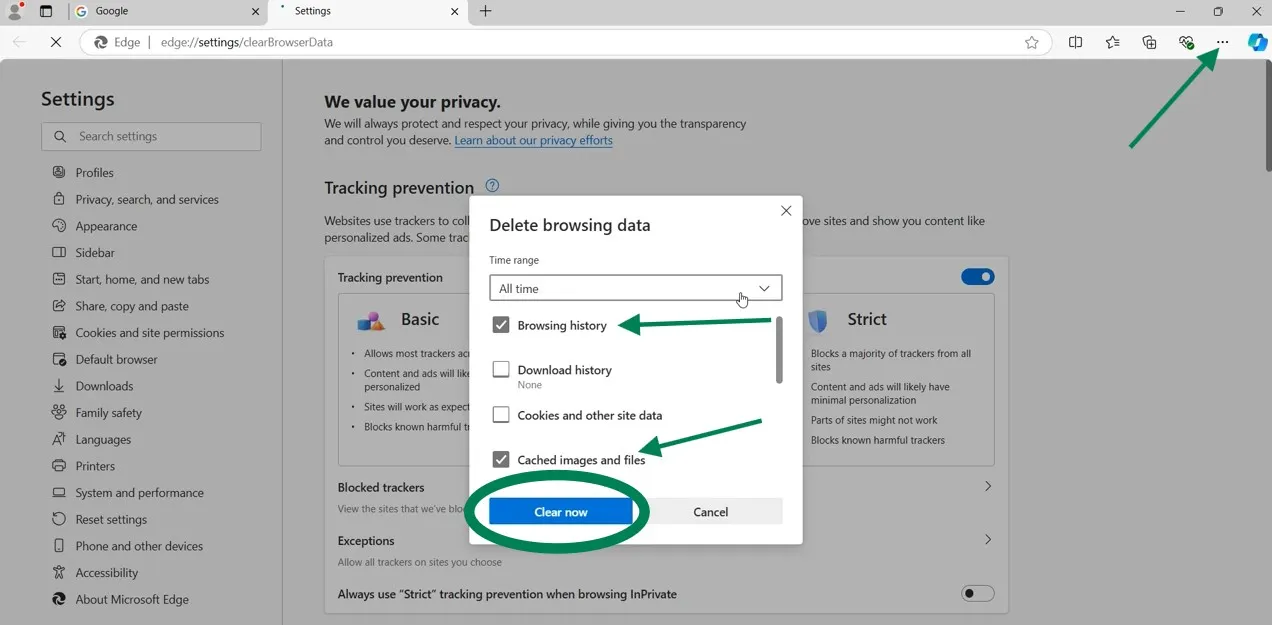
Open the browser, navigate and click the three dots. Select History, and tap on the Trash icon to open up the Settings tab with the Delete browsing data window. Check Browsing history &cached images and files. Hit Clear Now.
- Mozilla Firefox
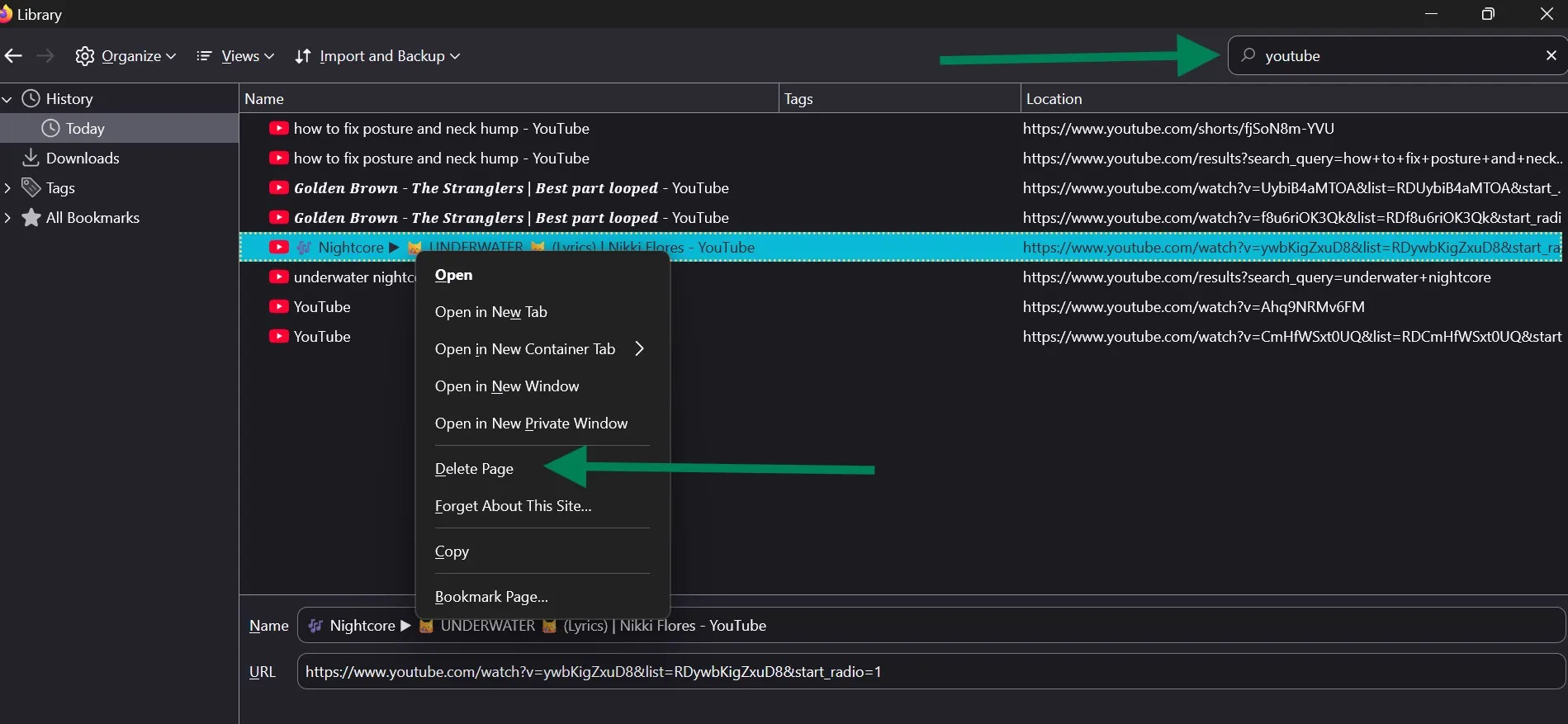
Open the browser and press Ctrl + Shift + H to manage history. Now type "YouTube" in the search bar to see all the YouTube-related entries. Right-click the desired entry and click Delete Page.
💡Tips:To delete all the browser history related to YouTube in one go, first press Ctrl + Aand then press the delete button.
Part 8: All-in-One Solution to Delete YouTube Watch History & Browser History[Recommend]
Manual methods waste way too much time. So, if you are one of those, like me, PC users who never want to dig through separate account menus, clear search strings on their phones, or jump over different browsers to flush out YouTube cache, WMaster Cleanup is the ultimate shortcut. It is quick, hassle-free, and satisfactory.
WMaster Cleanup's deep-scan engine not only erases personal YouTube app history in seconds but also removes download history, or other browser caches with its Clear Browser History feature, protecting privacy & speeding up PC within a few seconds.
What's even better? It automates the entire cleanup without even touching the system's critical files, saved passwords, or vital apps.

WMaster Cleanup
Delete Youtube History in One Click
- ·Modern, intuitive UI makes it easy for all-skilled-level users to clean YouTube history.
- ·It removes personal view history and to give full control over media footprints.
- ·Safely targets digital traces & app history without affecting the system's stability.
- ·Protect online privacy over 58 browser types, like Chrome, Edge, Firefox, and Opera.
- ·Beyond YouTube, it also deletes search, cache, & cookies across other social platforms.
How to Clean YouTube Search History & Browser History with WMaster Cleanup
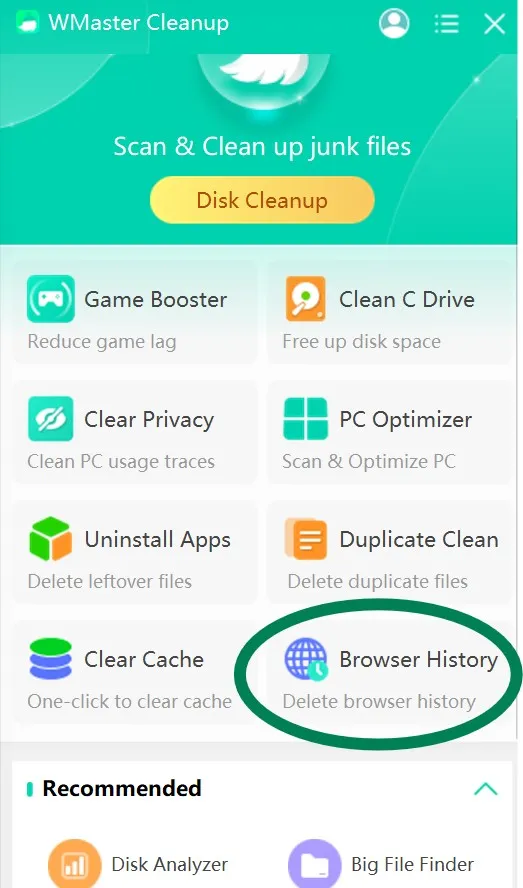
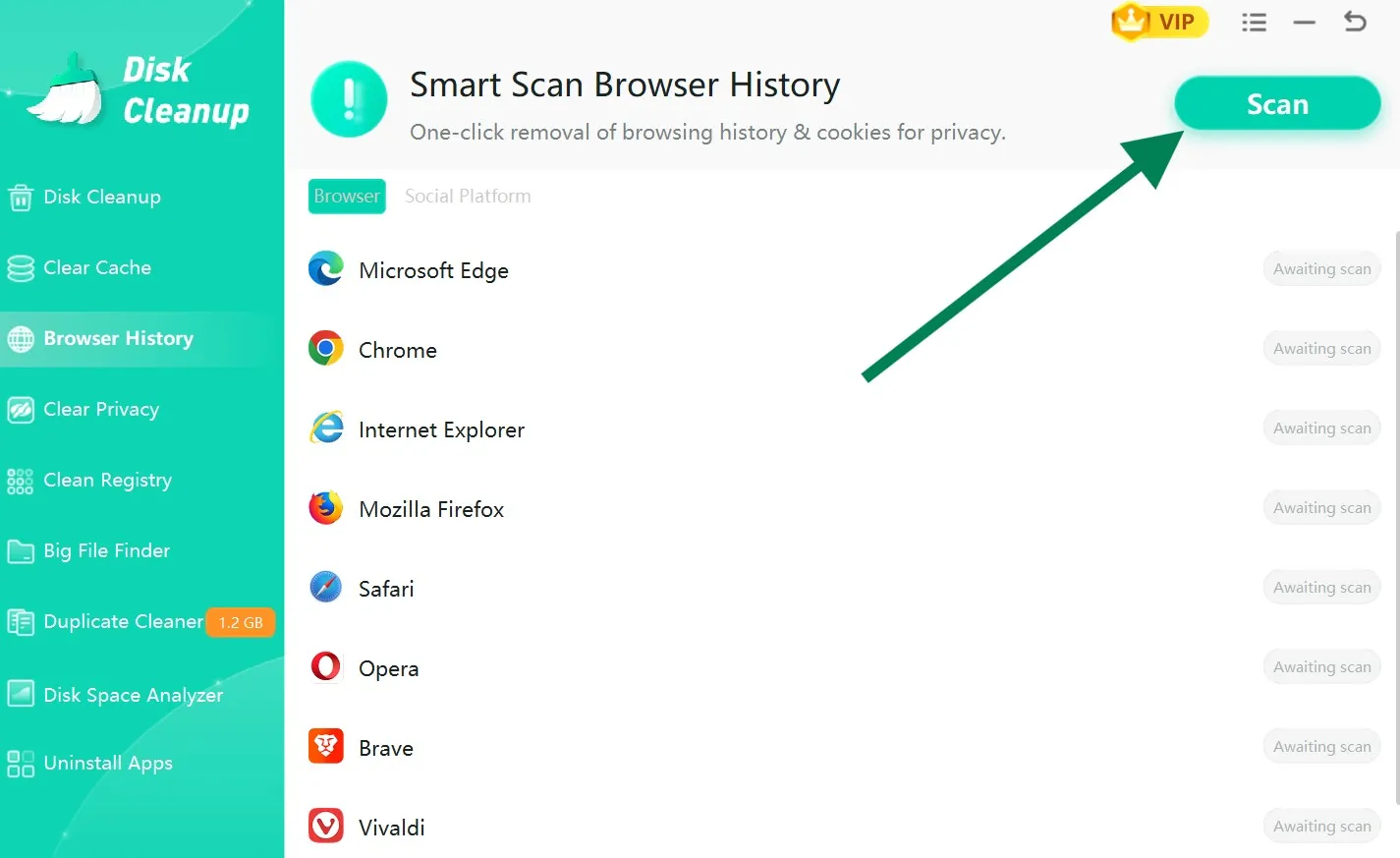
Step 1:Download & install the WMaster Cleanup from the official website. After launching the software on you Windows PC, selectClear Browser History feature from the main interface.
Step 2: Click on the Scan button to initiate the processing. Once done, you can see all your system's browser history items.
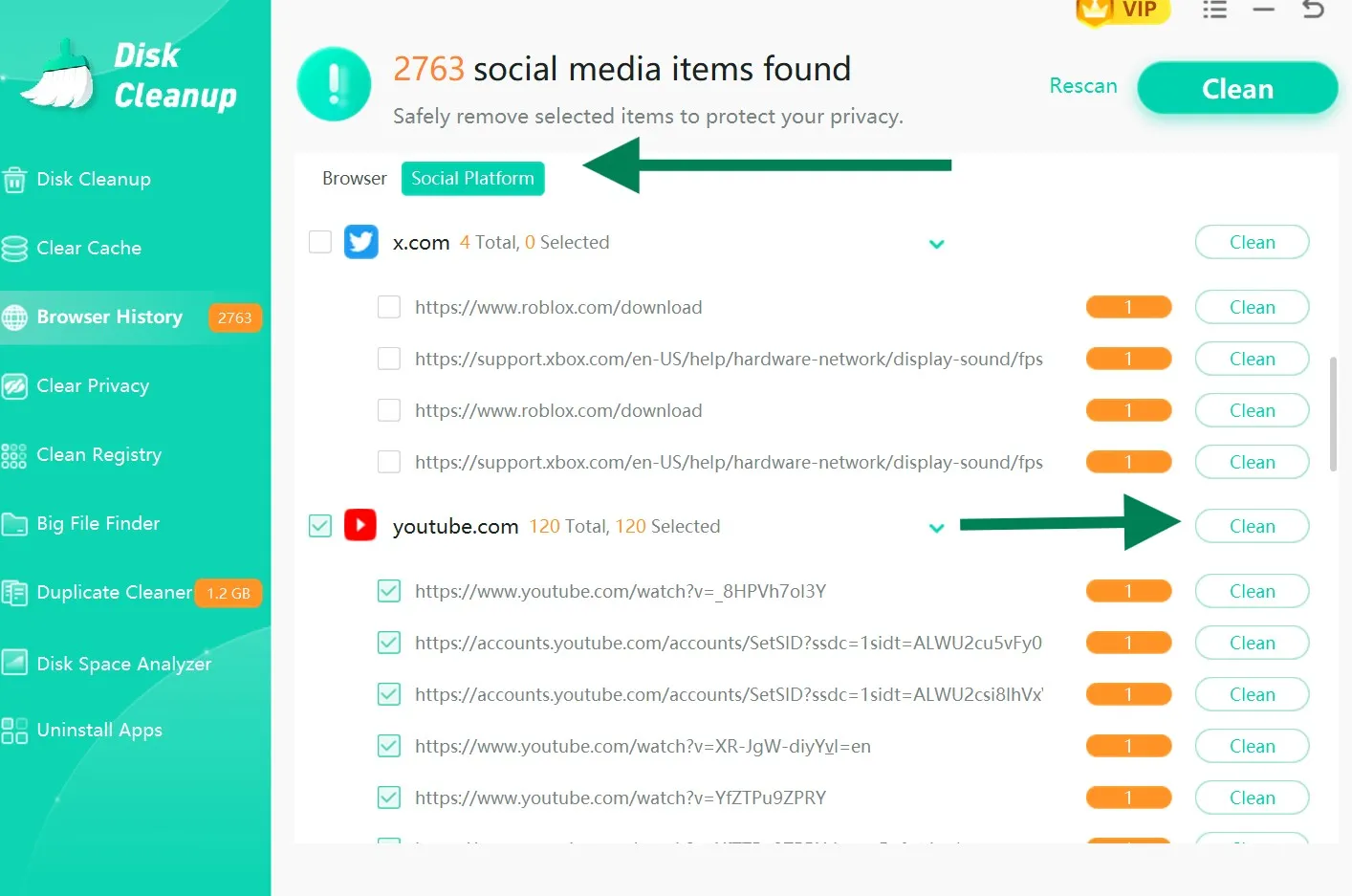
Step 3: To remove YouTube-specific history only, tap the Social Platform. Scroll down, check YouTube.com to select all the entries, and hit Clean.
Just want to delete the last watched on YouTube? Uncheck the specified category, check the desired entry, and hit Clean.
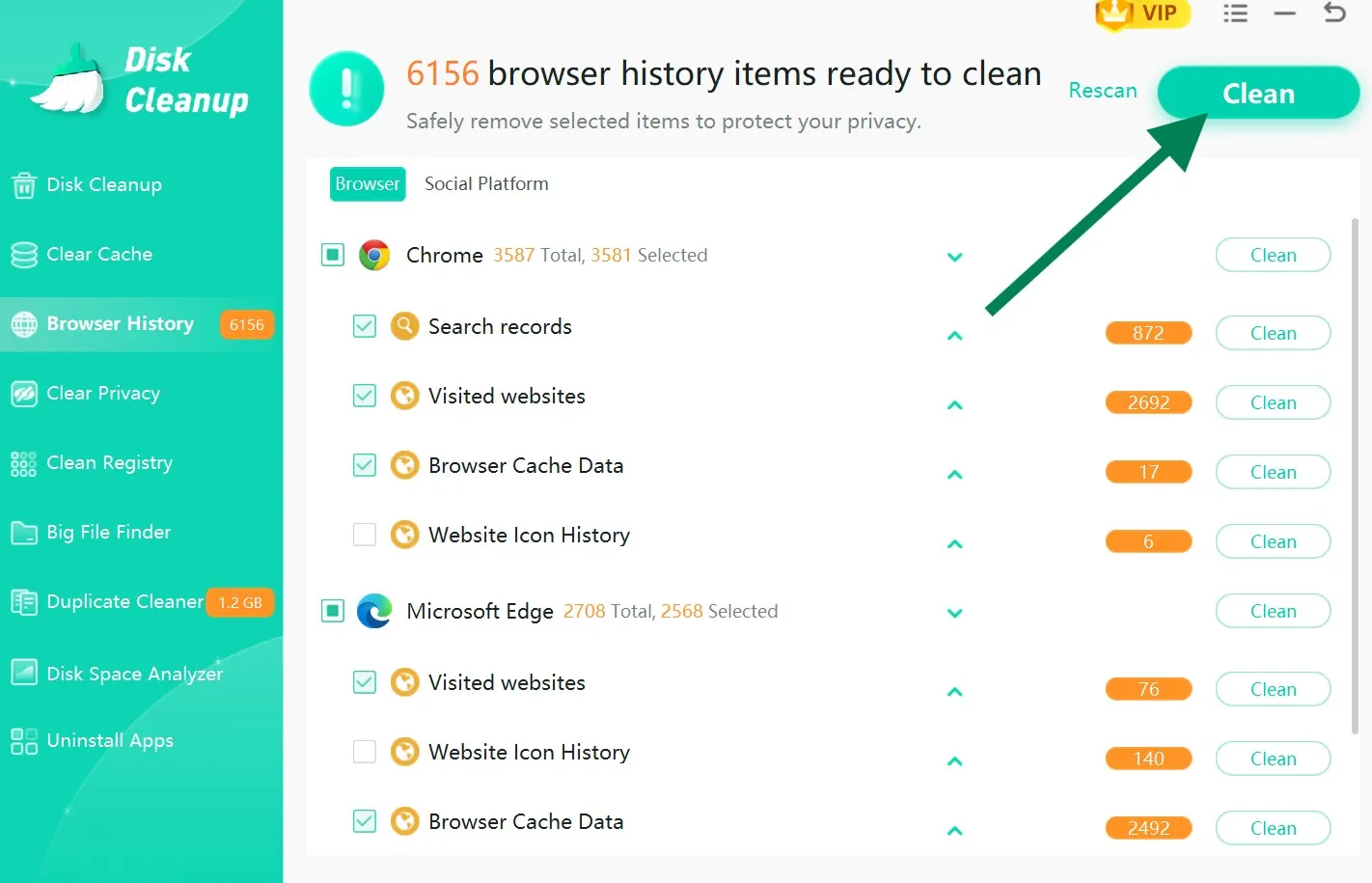
💡Tips:Under the Browser tab to permanently remove all the browsing footprints, search logs, and temp web cache with a single click.
If your Windows 11 PC is slowing down because of temp data, system cache, and unwanted apps, read my comprehensive write-up about how to clean Windows 11 in 2026 and free up space for better PC performance.
Part 9: Hot FAQs Related to Deleting YouTube Browsing History
Q1. Does clearing my YouTube watch history delete my liked videos or playlists?
Nope! Clearing history on YouTube, whether search history or watch history, only removes your unfinished viewing logs and refreshes your YouTube feed with general recommendations. It means your saved playlist, watch-later playlist, subscribed channels, and liked videos will remain untouched.
Q2. How can i see YouTube history if I paused it earlier?
To see your record or YouTube history, log into your account and open the History tab on your mobile or PC, then review your timeline. Here you will find only those videos that you watched before pausing your YouTube history.
Q3. How often should you clear your YouTube browser history?
Totally depends! Although it's up to your browsing habits, clearing your YouTube history once a monthor every few weeksis recommended. If you clean your YouTube browser history regularly, it will let you keep your homepage recommendations fresh while preventing unwanted topics from cluttering your feed. Besides, it also frees up your system's cached local storage.
To keep your privacy intact, not to mention here that if you share your device with others, you must clean your YouTube history right after searching for and watching private stuff.
Q4. What is the difference between pausing YouTube history and deleting it?
Deleting history from YouTube means you will lose your past watch and search logs permanently. On the other side, if you turn off "Web & App Activity" or toggle off watch history from your YouTube app's setting (pausing history), it'll prevent the YouTube algorithm from taking notes of new videos you search or watch.
Until this setting is active, YouTube will keep your recommendation feed unchanged.
Q5. How can I restore my YouTube history that is deleted?
Once you delete your YouTube history from your Google account, you will not be able to restore it through YouTube settings. Still, you can take a chance by following the below ways to find what you watched:
Way 1: Press Ctrl + H to open your browser's local history menu. In the search bar, type "YouTube.com"and find YouTube URLs that you previously visited.
Way 2: As saved videos remain intact even after clearing history on YouTube, you can head to your saved playlists, such as Liked Videos, Watch Later, or Custom Playlists.
Way 3: If you've previously downloaded an archive using Google Takeout before deleting YouTube history, check Google Activity Backup. This saves your past history data in an offline folder.
Conclusion
Knowing how to delete YouTube history becomes non-negotiable when you use a shared device. So, whether you're on mobile or PC, if you want to manage your last watched on YouTube or delete YouTube search history, spending a few minutes to clear out your YouTube history gives you full control over your media experience.
For Windows users, WMaster Cleanup is an all-in-one tool designed to auto-clean your digital footprints without affecting your system's stability in one click. What's more? With batch processing, it not only wipes out your browser history and YouTube searches, but it also comes with a simple, user-friendly UI that accommodates PC users of all skill levels.