
You are in the middle of an intense Roblox match, and your character teleports backward and freezes. Or you're trying to move, but actions are taking seconds to register, making you scream, How to lower ping in Roblox?!
Roblox players know that high ping is the ultimate party pooper that can turn animation into a choppy and unplayable mess. Ping is the travel time (in milliseconds) of the network, taking data from your device to Roblox servers and back. Longer travel time means more in-game lag.
Frustrating, right?! Whether you play Roblox on Windows or mobile, in this writeup, I will show you some manual system tweaks as well as the all-in-one optimizer tool- WMaster Cleanup, helping you to get the lowest ping possible in Roblox gaming sessions.
In this article
Part 1: Why Roblox Ping Gets High?
Before you fix your connection, you must know what is breaking it. When I was facing stuttering in Roblox, I dug into my system and network metrics. What I figured out is that high network delay has more than one cause.
Here are the several factors that are choking your connection and driving your latency up:
- If you're using a wireless network, your connection drops packets due to thick walls, household appliances, and devices that are causing interference in signals.
- PC is downloading hidden software or someone using the same network is streaming 4K videos, dropping your upload & download bandwidth during mid-match
- CPU & graphics card are overloaded due to graphical clutter and the unoptimized system's cache, delaying the process of your keyboard inputs & network packets.
- Sometimes, Roblox leaves your nearby server & puts you into a server region across the world, pushing your data to take a longer physical path.
- Network card is storing outdated internet routing logs(DNS caches), causing your device to take an inefficient path to communicate with the Roblox servers.
Along with high ping, low FPS also affects your Roblox playability. In this writeup, you can learn how to improve FPS in 2026 with 10 easy waysusing the simplest manual methods & quickest auto method.
Part 2: How to Check Ping in Roblox?
Before learning how to lower ping on Roblox, you first need to track performance improvements. And to do so, Roblox offers built-in tracking diagnostics for Windows as well as for mobile.
Method 1: The Standard In-Game Performance Shortcut for PC
The quickest way! Just press Shift + F3 while you are inside any Roblox game. This will open up an analytical panel in the top-left corner of your screen, displaying your live network latency in real-time.
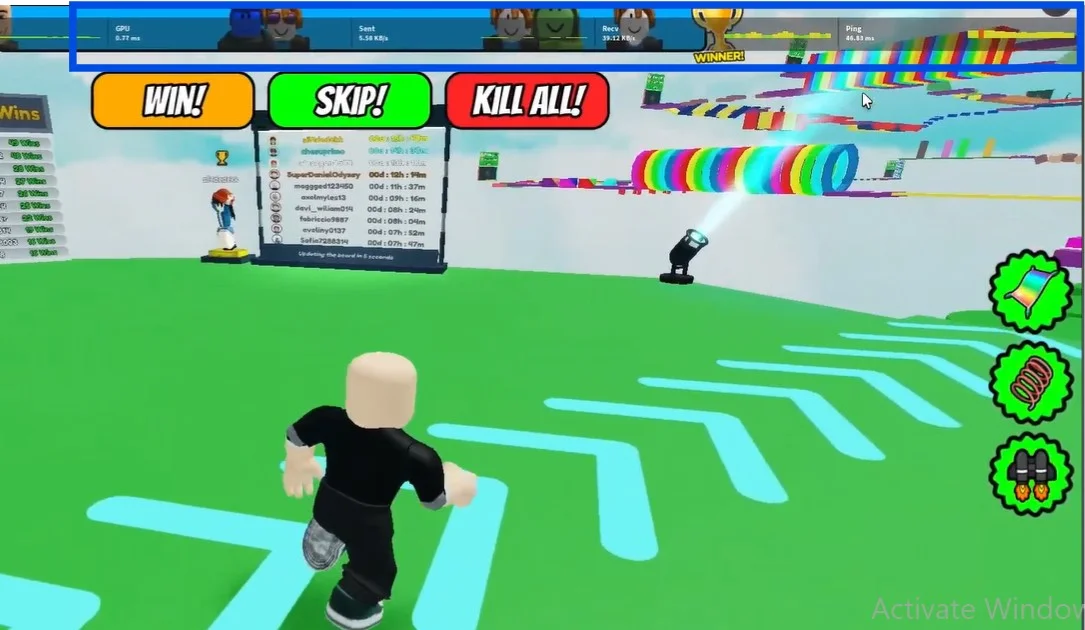
Method 2: The Detailed Diagnostic Matrix for PC
Need deeper insights? Press Shift + F5. This shortcut will open up a highly detailed performance matrix, displaying network delay, exact FPS, and memory usage. This method will give a clear picture of whether low ping is due to a bad internet connection or a slow PC.
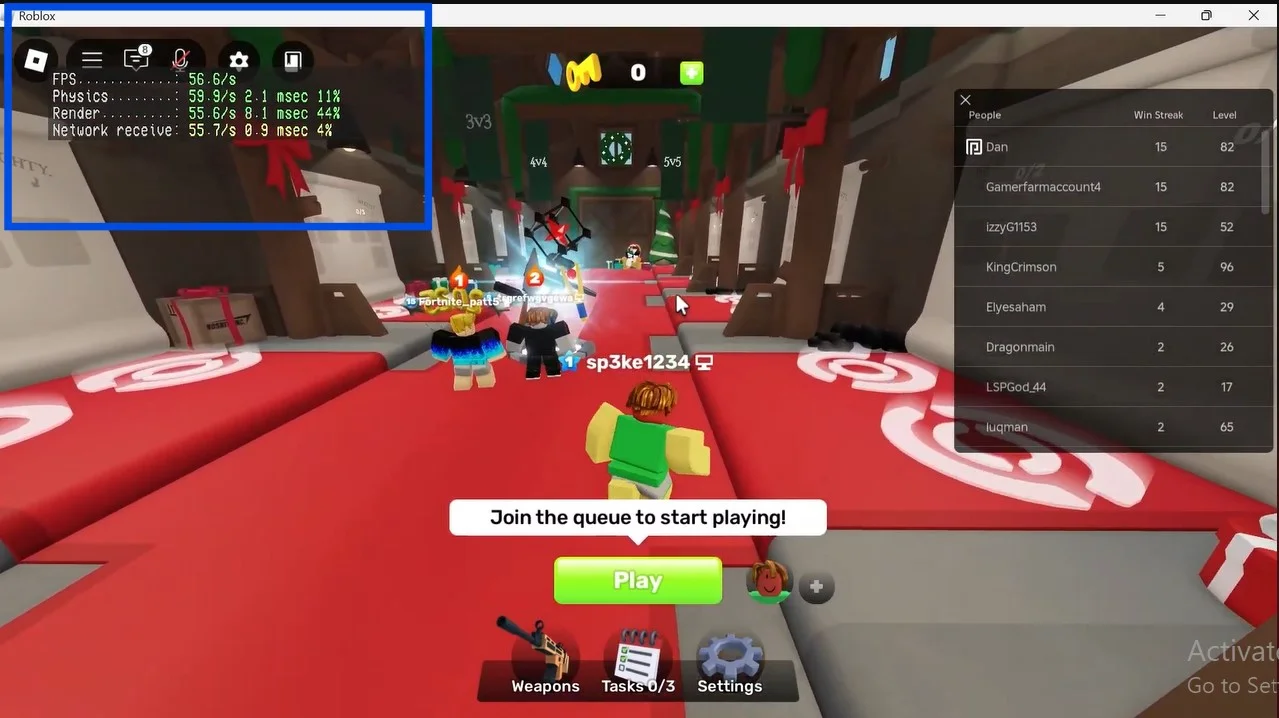
Method 3: The Built-In Roblox Escape Menu for PC
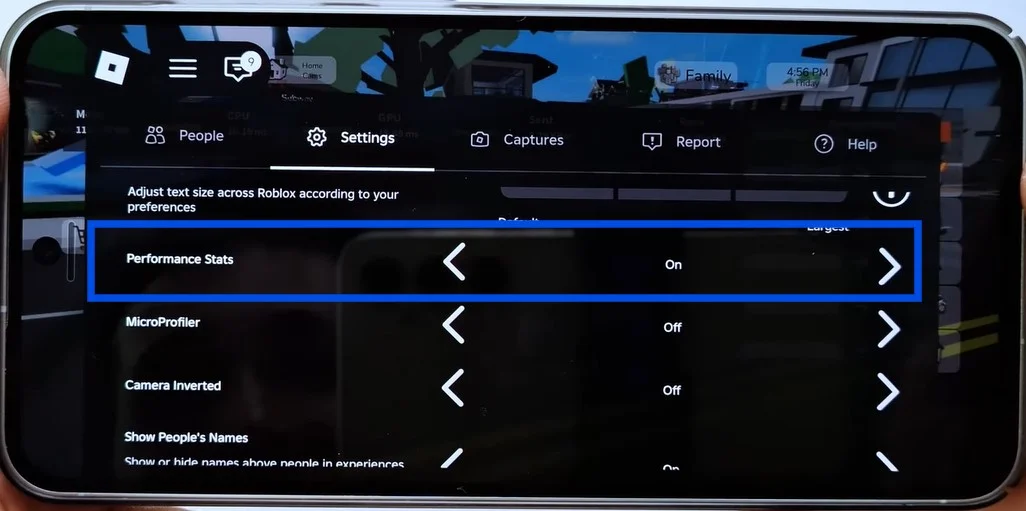
If you want to display a clean and permanent tracking bar at the top of your game window, follow this method. During your match, hit the Esc key or click the Roblox icon in the upper-left corner. Head over to the Settings tab, and then click Performance Stats. Toggle this option to On.
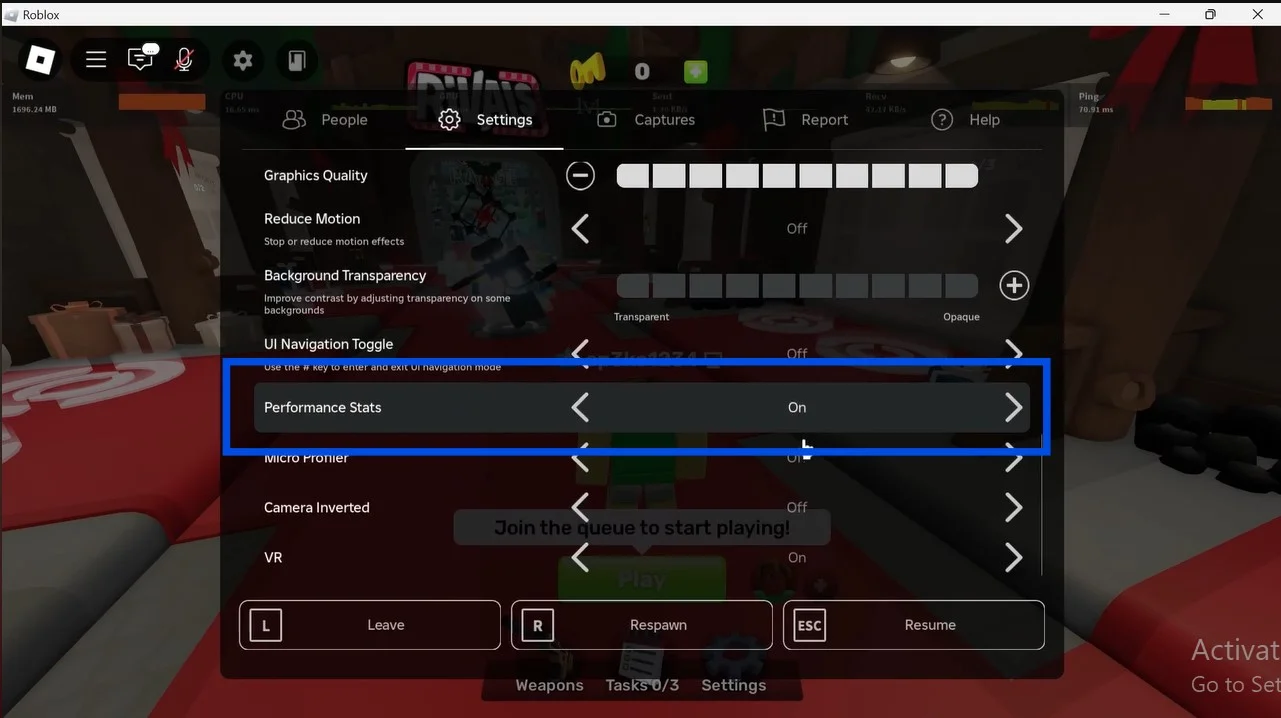
Method 4: Checking Performance Metrics on Mobile
If you are playing Roblox on your tablet or mobile, you can tap three dots(...) or open Roblox Settings from the upper-left corner while playing. From the options menu, select Performance Stats to display your live network performance on your device screen.
Part 3: How to Lower Ping in Roblox on PC (Windows 11/10)
The Easiest Way to Lower Ping in Roblox on Windows 11/10-WMaster Cleanup
High ping in Roblox is the ultimate mood spoiler! If you're on Windows 11 or 10, your distance from the game server isn't the only thing causing network latency. Resource-heavy background apps and Windows junk are the equal culprits, hogging your network bandwidth and system's memory bottlenecks.
With an intuitive interface, the dedicated WMaster Cleanup Game Booster can detect and offer exclusive optimization to over 5000+ games, including Roblox. So, if you're looking for how to get lower ping in Roblox, download this all-in-one optimization tool to optimize your PC for Roblox and cut down connection delays with a single click.
WMaster Cleanup
Lower Ping in Roblox in One Click
- ·Game Library offers 32 exclusive optimizations for local games, like Roblox, in its Esport mode.
- ·Blocks interference by resource-heavy background apps, lowering ping in Roblox.
- ·Disables auto-updates for Windows, leading to deliver peak in-game performance.
- ·Disables browser hardware acceleration, freeing up GPU resources for your game.
- ·Fine-tunes network setting to streamline data transmission & minimizing packet latency.

How to Lower Ping in Roblox by WMaster Cleanup
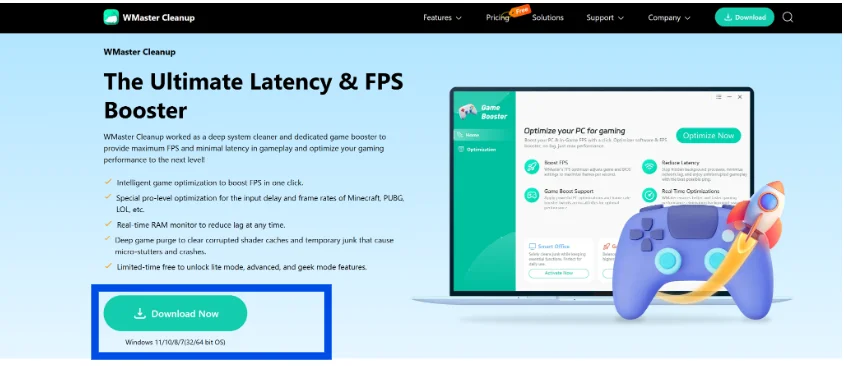
Step 1: Head over to WMaster Cleanup from the official website, navigate your cursor to the Features tab, and select Game Booster to open up the feature page.
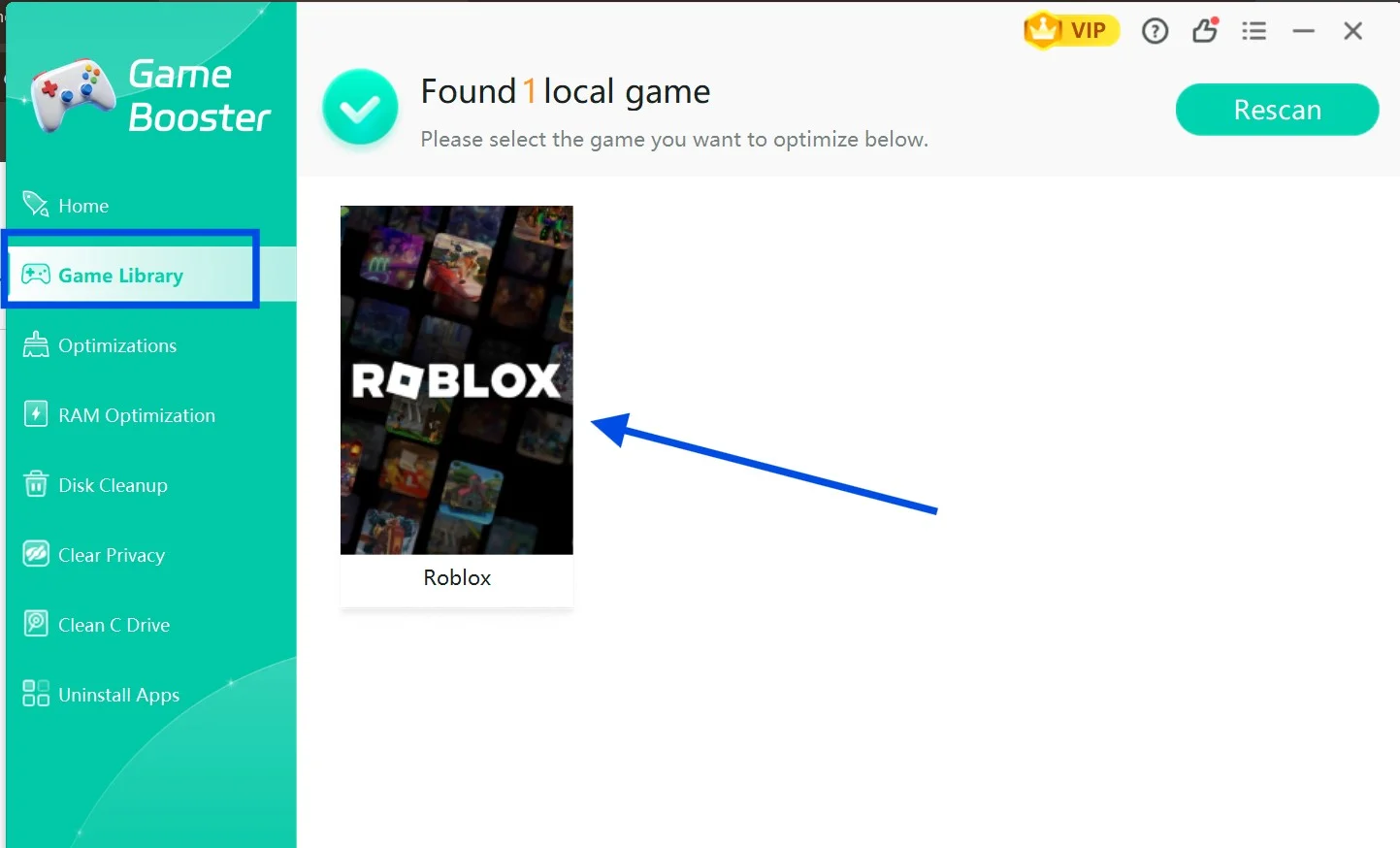
Step 2: From the main interface of the Game Booster feature, select Game Library from the left side panel. Select Roblox for exclusive optimization.
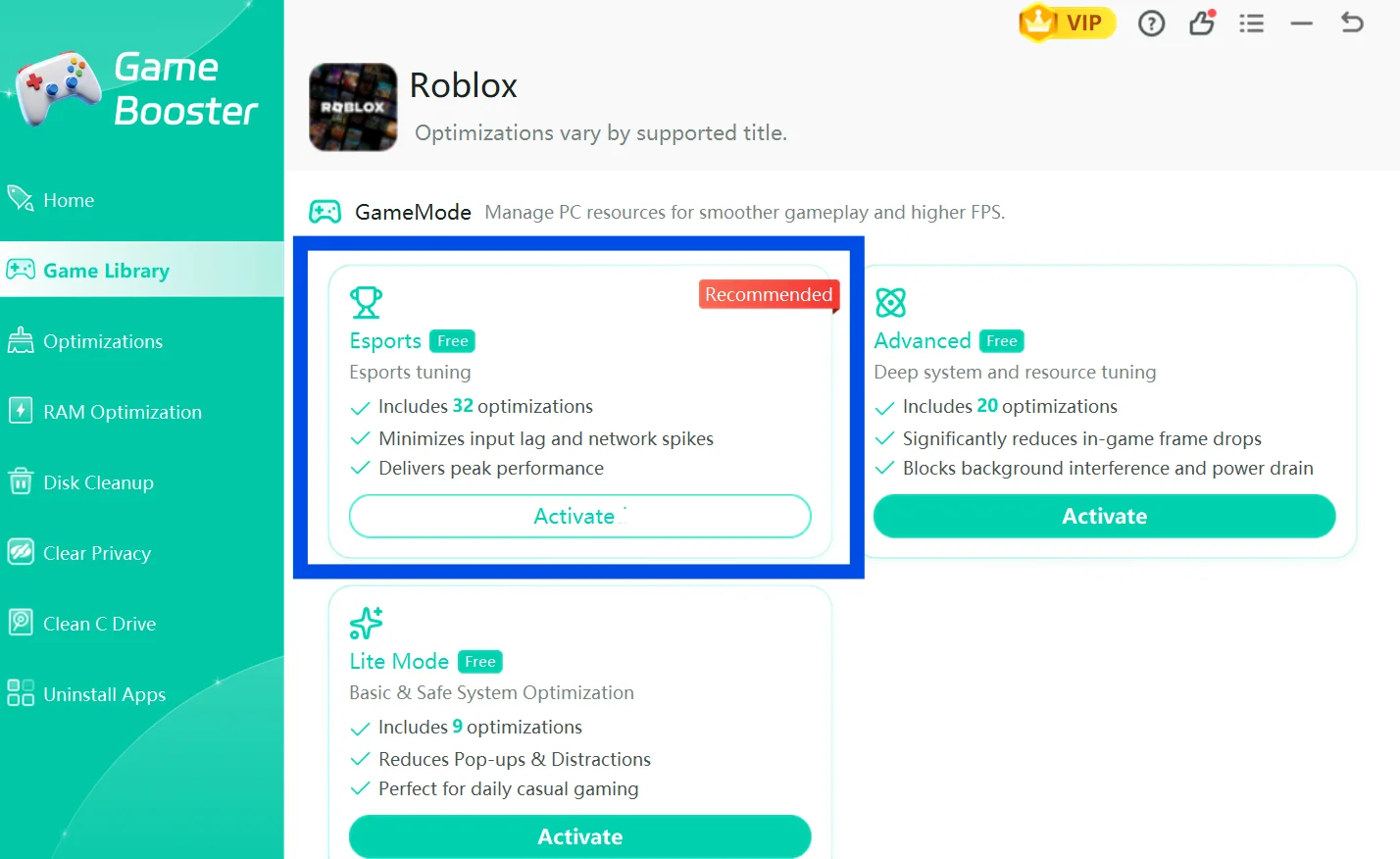
Step 3: Among the three game modes for optimization, select Eports mode and click on the Activate button.
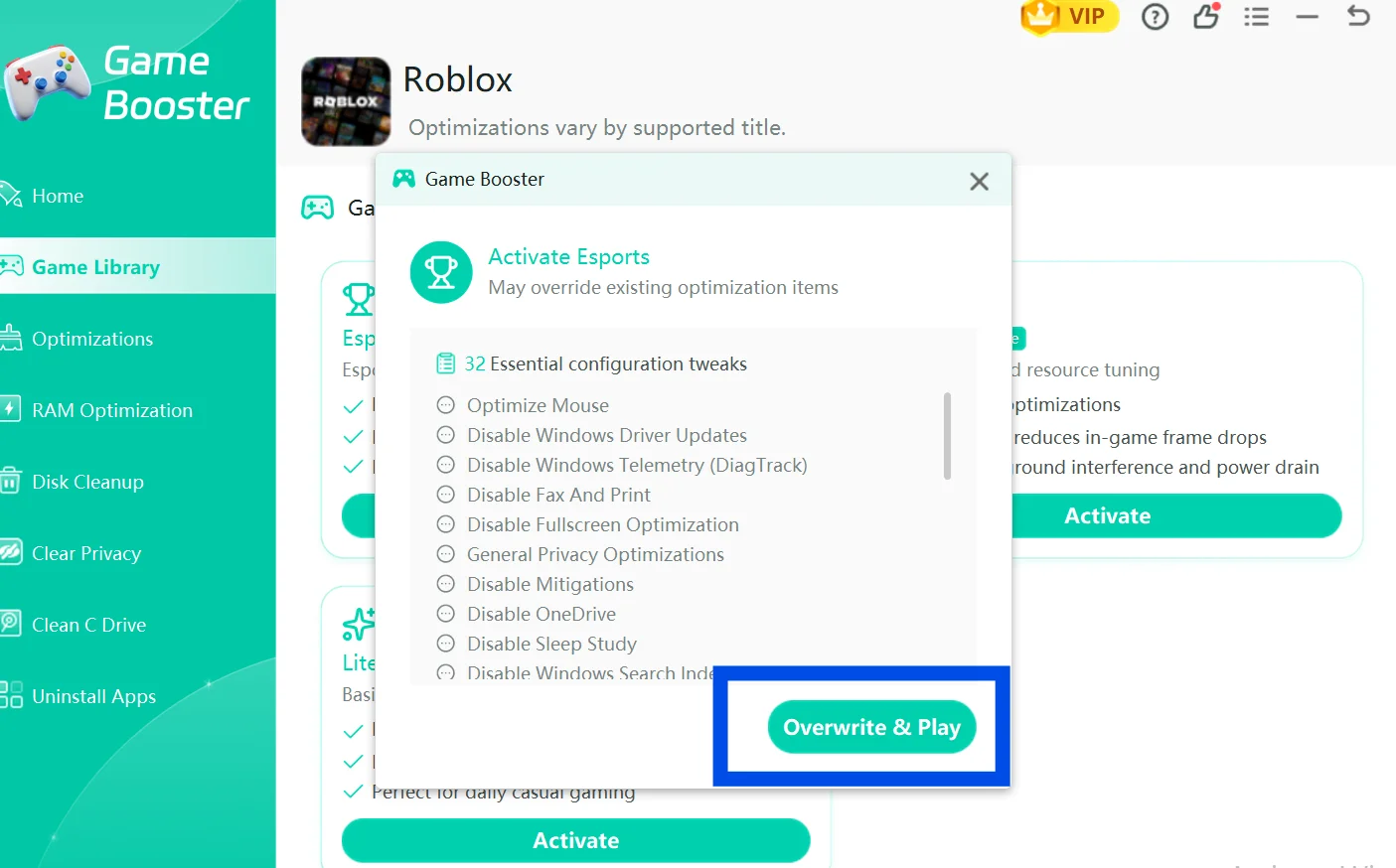
Step 4: Now, from the popped-up window, hit Overwrite and Play to initiate the optimization process.
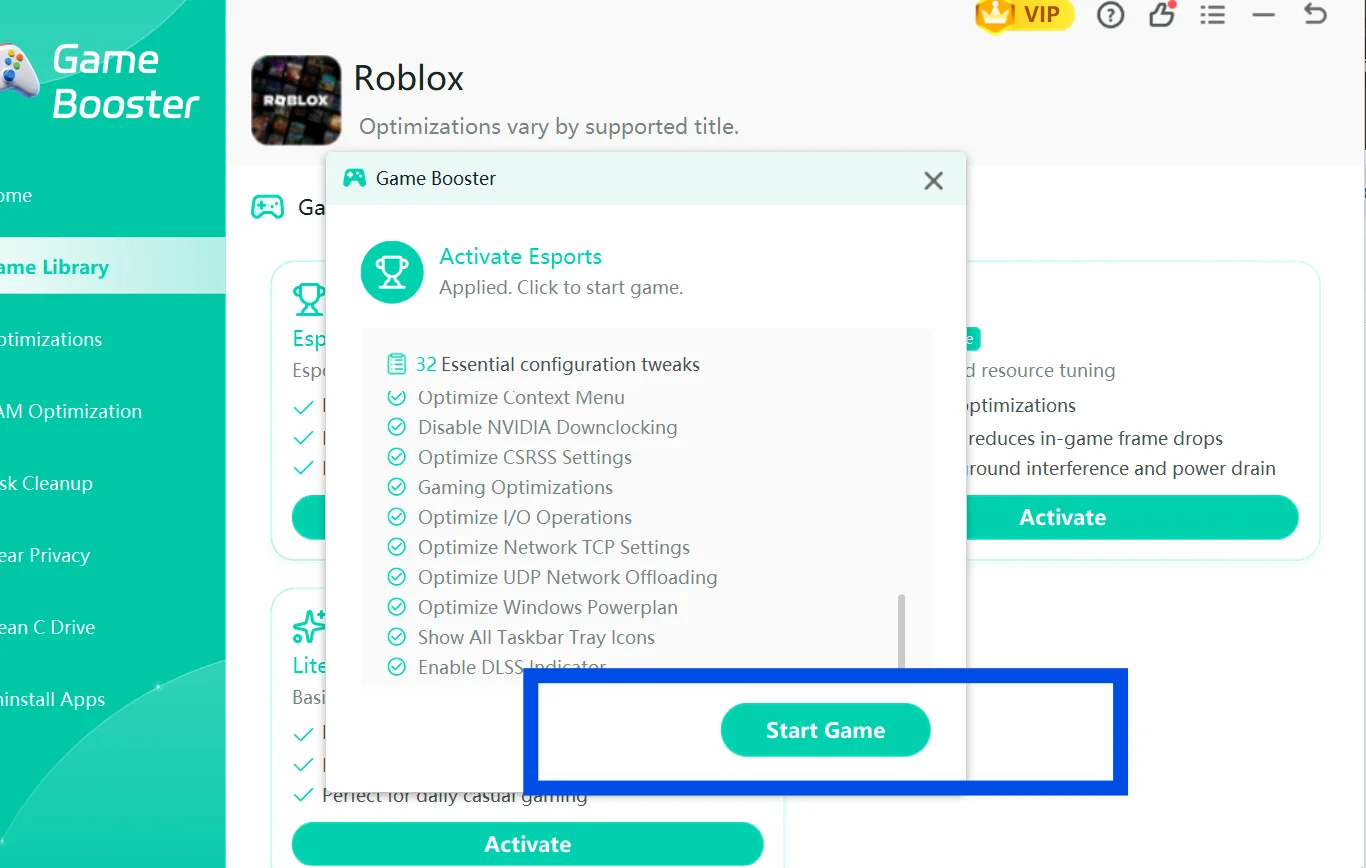
Step 5: Once the optimization is done, press Start Gameto launch your game, Roblox, directly from the Game Booster tool.
Want to increase in-game FPS and reduce input lag & load times? Read our writeup on how to optimize games for PC with a dedicated Game Booster and some system-level tweaks.
Other 5 Tested Ways to Lower Ping in Roblox
Way 1: Get Rid of Wireless connection (Wi-Fi)
Dump your wireless connection. Plug in a physical Cat6 Ethernet cable directly from your router into your PC's network port. It will create a shielded and direct highway for your data, reducing packet loss to 0%, making sure that every jump and shot fired registers instantly.
| Feature | Wireless Connection(WiFi) | Wired Connection(Cat6 Ethernet) |
|---|---|---|
| Ping and Latency | Higher Prone to sudden in-game spikes |
Lowest Completely stable |
| Packet loss | Frequently due to thick walls, distance and interference | 0% as it offers shielded and direct hardware highway |
| Connection Type | Half-Duplex It cannot send & receive data at once |
Full-Duplex Simultaneously send and receive data without stopping |
| In-game Feel | Input lag Longer load times Stutter |
Responsive SmoothInstant Registry |
Way 2: Turn Off Active Background VPNs
Turn off any active VPN. It is because, if you're routing your Roblox data through it, it will add a massive travel distance to your connection packets, causing high ping on both mobile apps and computers.
Way 3: Stop Network-hogging Background Program
Stop all the unwanted background apps while you play. Press Ctrl + Shift + Esc to open Task Manager. Now, select all the resource-heavy background apps one by one and hit End Task.
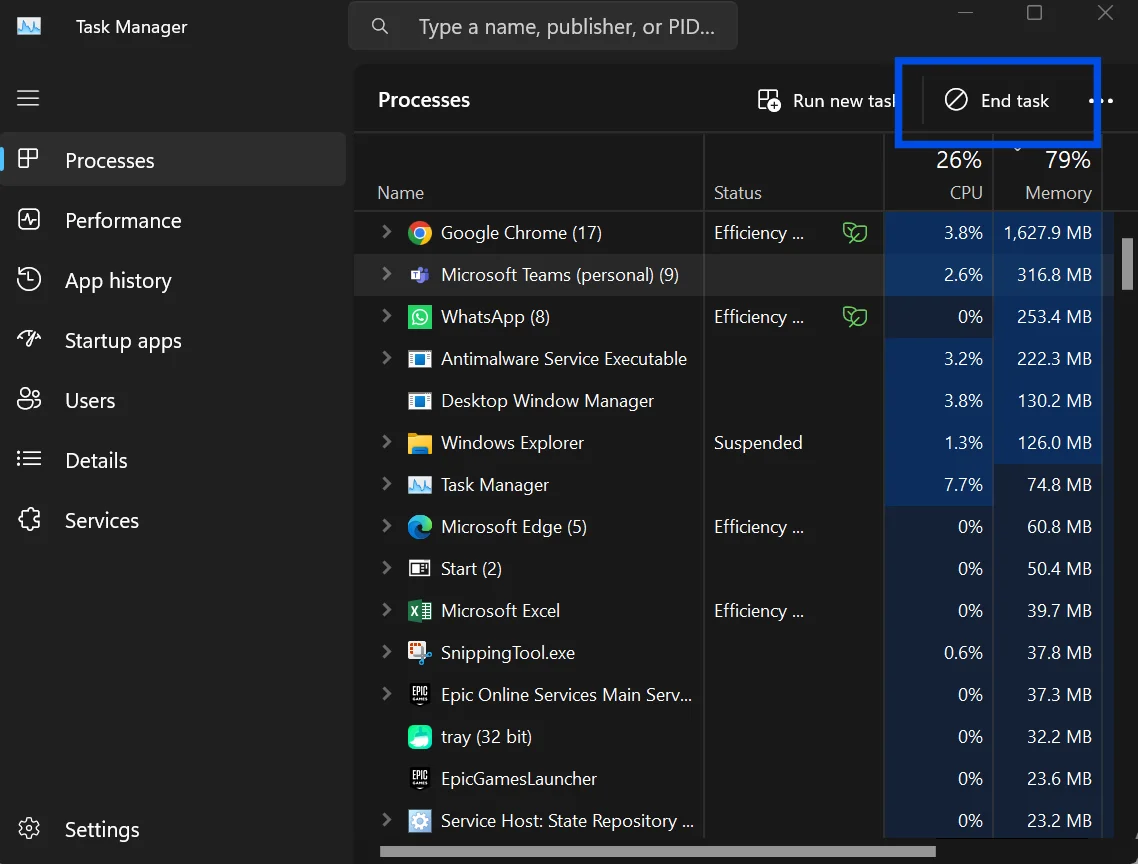
💡Tips:WMaster Cleanup automates this process and removes resource-consuming background apps with a single click.
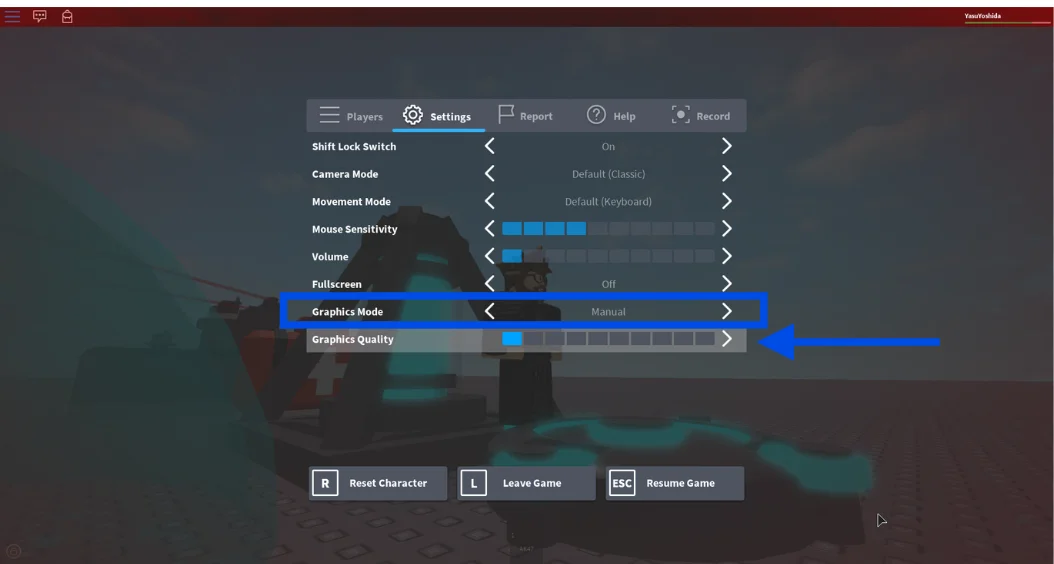
Way 4: Shift Roblox Graphics to Manual Mode
Striping away heavy visual clutter can help you in reducing the workload on an overloaded CPU so that it can process your network data faster. To do so, hit Esc when you are in the game, head over to the settings,and then change Graphic Mode from Automatic to Manual.
💡Tips:Lower the slider of graphics quality as well. Because it forces Roblox to stream heavy asset data from the game server to your screen.
Way 5: Modification in your Network Card's DNS Settings
Switch your default DNS to Google DNS, providing a direct and high-speed directory that instantly connects your device server to the Roblox server.
Here are the steps for how to get lower ping on Roblox:
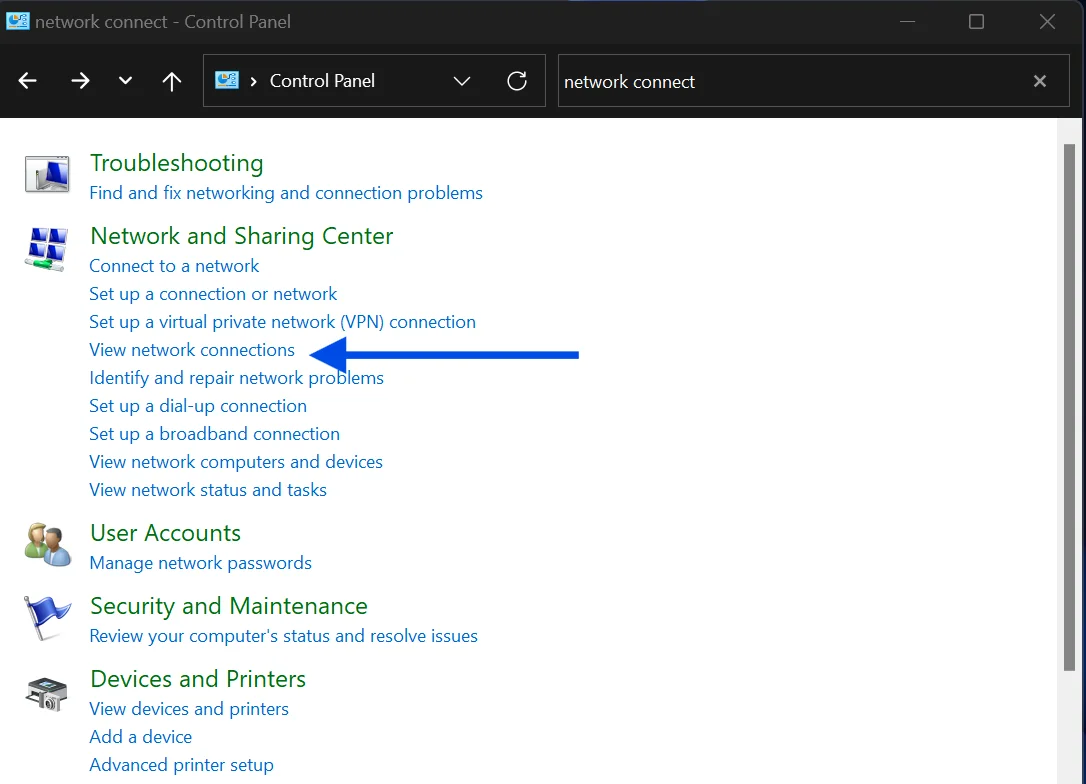
Step 1: Open your system's Control Panel and search for "Network Connections." Doubleclick to open it.
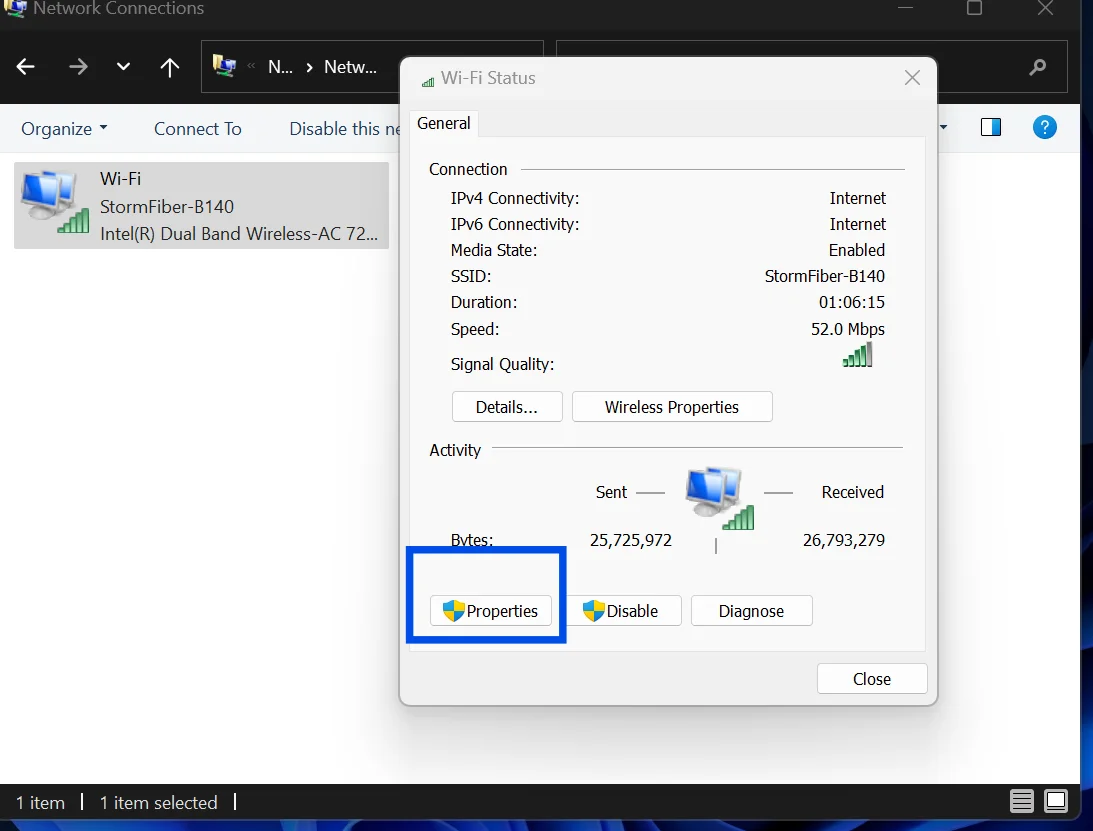
Step 2: Double-click on your network card, and then open its Properties.
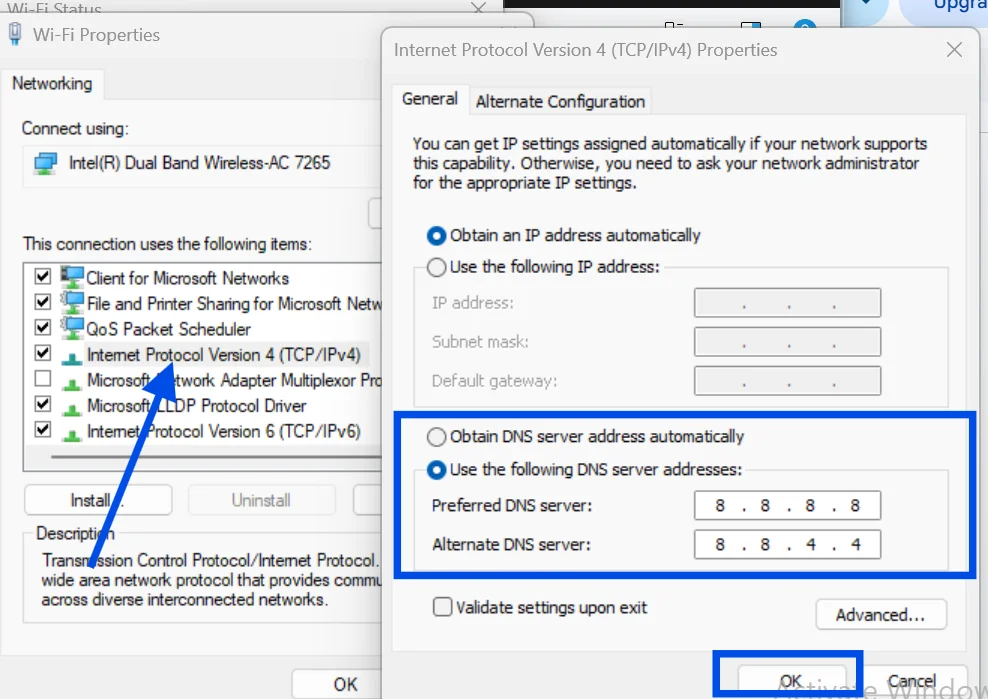
Step 3: Now double-tap Internet Protocol Version 4 (TCP/IPv4), select Use the following DNS server addresses, and type 8.8.8.8 in the Preferred DNS server. In Alternate DNS server, type 8.8.4.4, and then hit OK.
For more manual tweakings and tips to lower ping in games, read our hands-on writeup and learn 7 ways to reduce network delay.
Part 4: How to Lower Ping in Roblox on Mobile
Whenever I want to play Roblox on my mobile, first of all, I clean up my device clutter, disable my background apps, and sit closer to my network connection. Here are my four practical suggestions to optimize your mobile and lower ping in Roblox:
Method 1: Turn Off Background App Refresh or Data Usage
Prevent background apps, like Instagram and TikTok from stealing your network bandwidth during your Roblox session. By disabling these background apps, you can lower your ping and play lag-free games.
For iPhone Users-How to Lower Ping in Roblox
Step 1: Head over to the iPhone's settings, find your App management section, and click on it.
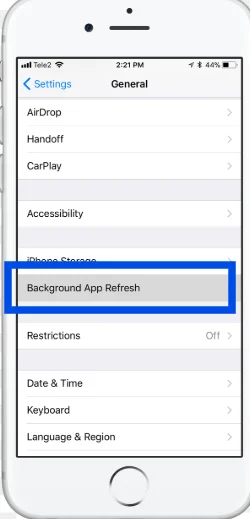
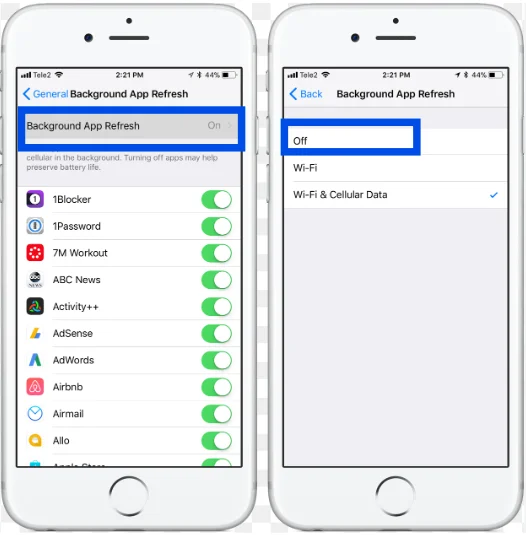
Step 2: Tap on Background App Refresh. Select "Off" among three options.
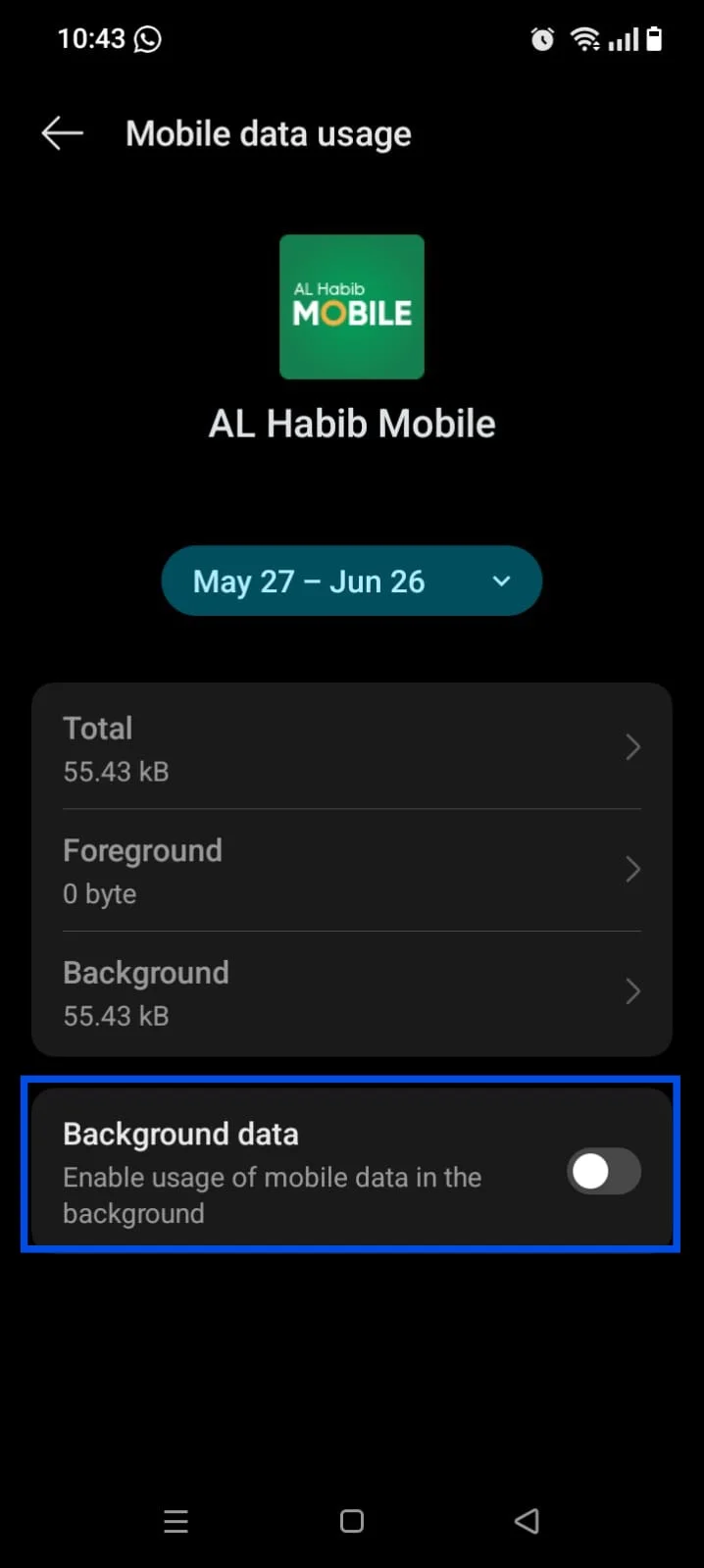
For Android Users-How to Lower Ping in Roblox
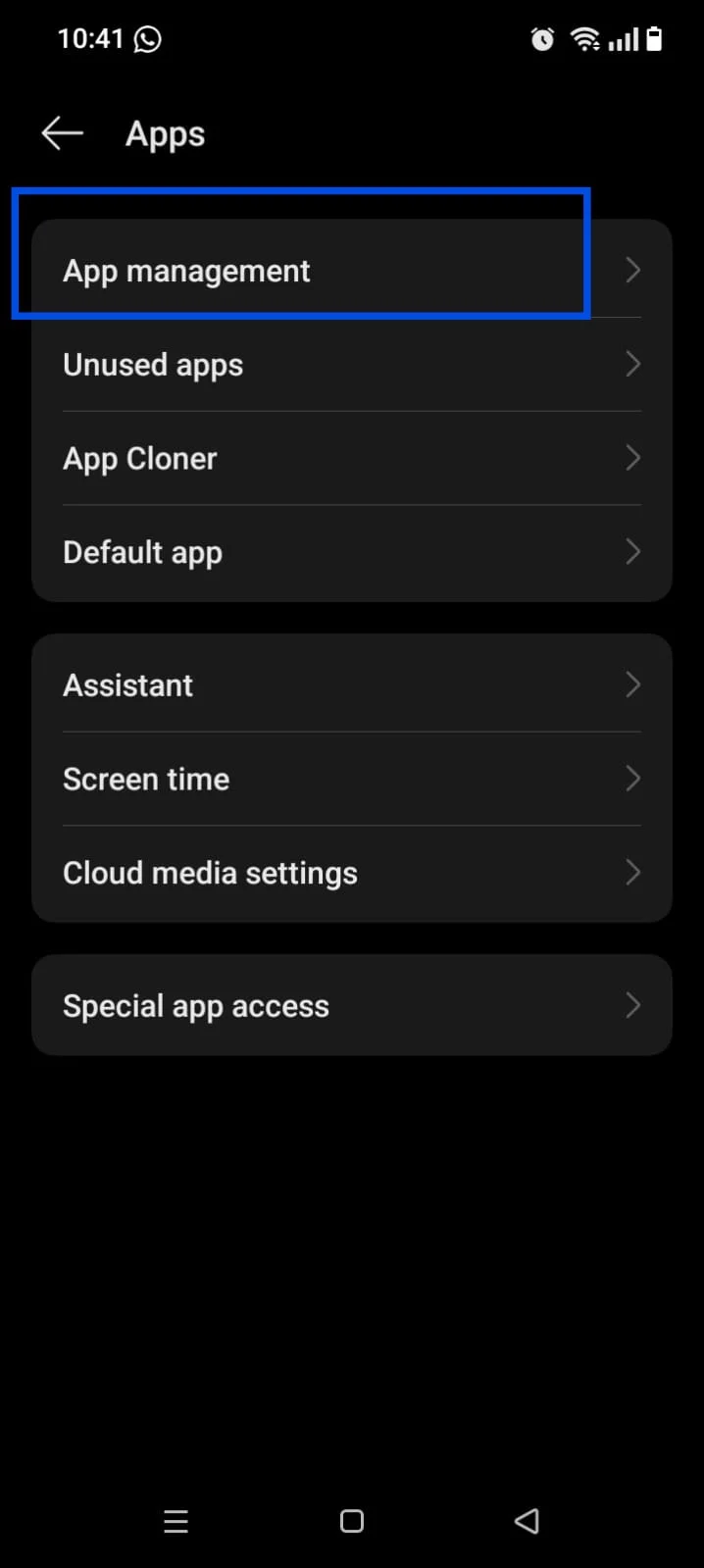
Step 1: Head over to Android's settings, scroll down to click Apps, and then App management.
Step 2: Now tap on your desired app to open its details and hit Data usage.
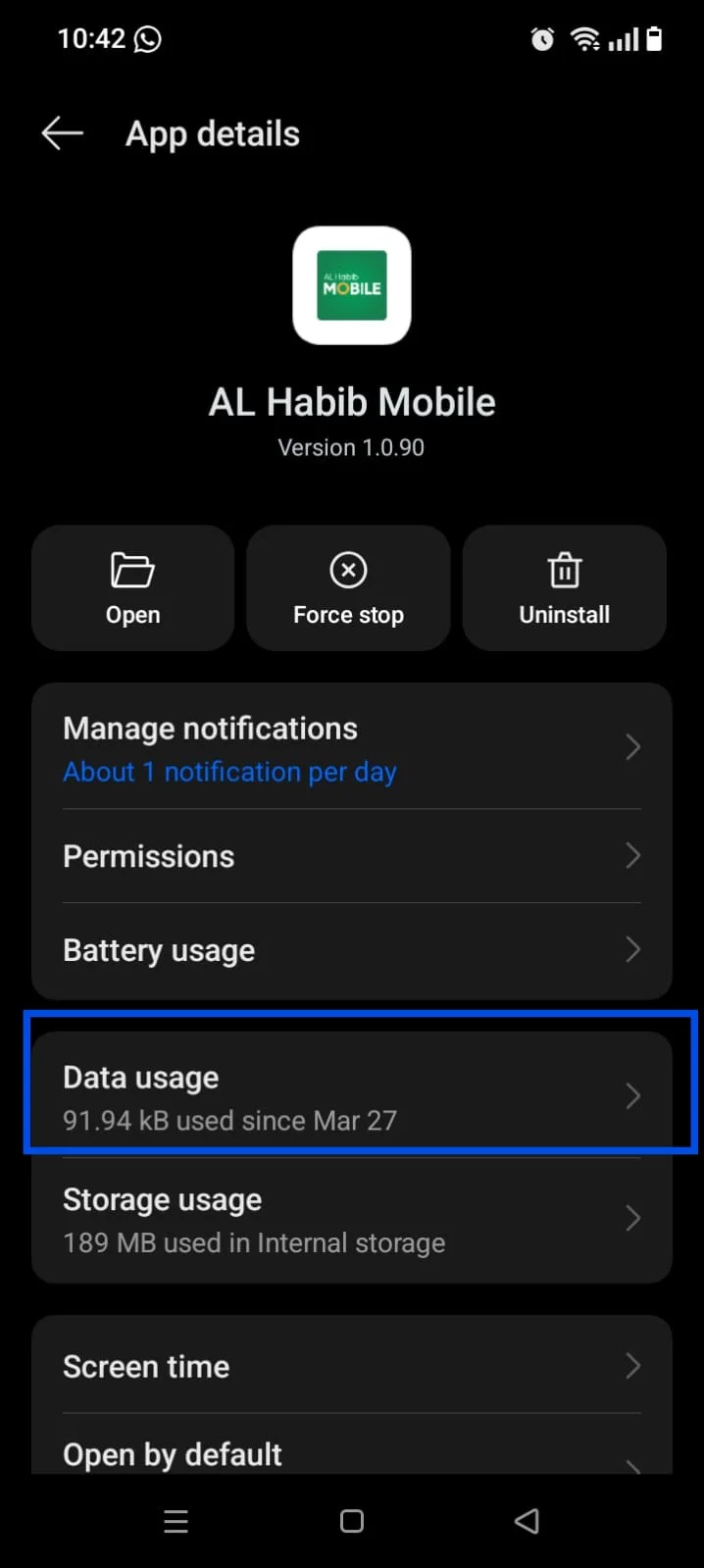
Step 3: Now disable it to stop running in the background by restricting its data usage.
Method 2: Adjust your In-game Graphics Settings
Whether you're a PC or mobile player, reducing in-game visual quality can significantly reduce your CPU bottlenecks. Navigate to the Roblox settings, and scroll down to:
1. Graphics mode: Change it from Automatic to Manual.
2. Graphics quality: Use the slider and keep it to the lowest.
Method 3: Sit Closer to your Wi-Fi Router
Whenever I play on my mobile, I sit as close as possible to my internet router. It is because physical proximity matters most on mobile wireless chips. Moreover, it will also help me in preventing data packets from dropping mid-air, making sure my hand moves register quickly.
Method 4: Clean Up Your Storage Space
You leave 15% at least of your device's total storage, making sure your mobile has enough room for processing game data instantly. Navigate to the device storage management dashboard and clear out cached media files, unused apps & temp downloads.
No matter what device you are on, head over to our detailed write-up on 6 ways to delete duplicate files in 2026. Other than that, you can also learn how you can delete temporary files on your mobile and improve device performance.
Part 5: FAQs Related to Lower Ping in Roblox
Q1. How to fix high ping in Roblox on PC?
The top three ways you must try are stopping resource-heavy background apps, using a wired Ethernet cable instead of a wireless connection, and using a dedicated optimization tool, like WMaster Cleanup, to clear up your system's junk & memory bottlenecks, slowing down your network card.
Q2. Can using a VPN actually lower my ping in Roblox?
In most cases, a VPN can only increase your Roblox ping. It is because it is just adding an extra hop for your network data to travel through. Whereas, in rare cases, it can lower latency where your ISP has terrible routing or actively slowing your connection down.
What I suggest to you is to use Ethernet cable and run WMaster Cleanup to get exclusive optimization for Roblox
Q3. Why do I get sudden lag spikes for no reason only on Roblox?
If your internet is working properly on other platforms but lagging on Roblox, maybe your game is struggling to process heavy visual assets, like physical environments, character details, beams, etc. Severe visual clutter not only chokes your CPU but also creates a processing backup, delaying your incoming & outgoing network packets.
To fix visuals in your game, go the Roblox settings, and then
- Head over to the Graphic Mode and switch from Automatic to Manual
- Lower your Graphics Quality
- from the below slidebar
Q4. Does Roblox voice chat (Spatial Voice) increase my ping?
Yes! This spatialized chat runs in real-time, requiring constant upload & download streams, which works alongside Roblox's physical data. So, if you're using a bandwidth connection with limitations, like a mobile hotspot or shared home WiFi, turning off voice chat from your Roblox settings can free up bandwidth, stabilizing your in-game ping.
Q5.Why am I getting high ping in my own region?
Physical distancing is just one part of your networking equation. Here are some common factors why your regional ping is spiking:
- Someone is doing heavy downloads or streaming HD videos on the same network.
- Your ISP has poor routing configuration or is choosing an outdated data path to reach the Roblox server.
- Running background apps and security software that hog your network bandwidth.
- The regional game server itself is experiencing high player capacity or script lag.
Final Thoughts on Roblox Latency
Now you know how to lower ping on Roblox: by optimizations and reducing distance!
While it is not feasible to move your home to Roblox data centers physically, you can get your hands on your local network and PC hardware performance. For example, you can switch to a wired connection, modify your network card's DNS settings, and adjust visual quality, removing snags that are standing between your input and the game server.
What's more? To unfasten your PC's full potential, download WMaster Cleanup. With its intuitive interface, this all-in-one optimization tool helps in auto-scanning your system's bottlenecks, clearing resource-consuming background apps, and optimizing your system environment. So, get an exclusive optimization for Roblox to enjoy smooth, and lag-free gaming sessions.