

Why does your PC use so much RAM, and why do games start to have massive FPS drops? There are different apps running in the background and browsers eating up your memory even if you're not using them actively. This constant activity uses your system's memory and influences its performance.
A RAM optimizer helps you in understanding where your memory is going and how you can use it more efficiently for better gaming performance.
In this writeup, I will share the best RAM optimizer software of 2026 and how you can combine them with Windows tweaks to free up system memory and enjoy smoother gameplay on Windows 11.
In this article
Part 1: What is A RAM Optimizer?
A RAM optimizer is a software application that is meant to clean up your PC's temporary short-term memory. Its primary function is to scan your system for background apps and closed programs that are eating up memory but aren't even actively running. Once scanned, the optimizer forces them to release their grip, which creates an instant fresh block of open memory for your primary programs.
When your system's memory gets around almost full, your PC slows down, causing your game to hitch. Running a RAM optimizer first (1 GB to 4 GB typically) can help you drop your RAM usage below 65% to 70%. This cleanup quickly stops resource-heavy background-running apps, leaving plenty of open space for smoother game feel.
Part 2: When A RAM Optimizer Helps Most
Why your RAM usage so high? I believed for a long time that RAM issues were only for budget PCs. But even though I have a 32GB RAM system, the game still stutters during the intense gameplay. So, here's how the RAM optimizer helped me the most in keeping my gameplay smooth:
- Taming Greedy Background Apps: Background apps will impact your game even if you have a high-end PC.The RAM optimizer forcefully closes those background processes so they don't use memory.
- Crushing Memory Leaks: There are severalunoptimized games that don't free up memory properly & hog over 20GB of RAM, causing a reduction in FPS. A RAM optimizer software can clear that dead data instantly.
- Clearing the Windows Standby List: Windows preloadsfiles into standby memory and doesn't clear them. An optimizer removes this hidden cache and instantly gives heavy games access to clean, open space.
Along with RAM optimization, if low FPS is affecting your game wins, read our writeup on how to improve FPS in 2026 by 10 simple ways.
Part 3: 5 Best RAM Optimizer Software for Windows 11
1: WMaster Cleanup-The Easiest RAM optimizer to Optimize RAM for Gaming
- Price: Free for a limited time.
- Best For: Maximum FPS boost, minimal latency in gameplay, and optimization for RAM
WMaster Cleanup is an all-in-one Windows optimization tool that is designed to lift heavy digital weight off your operating system. It deeply cleans the disk and removes junk from your system. Besides this, its dedicated Game Booster feature makes sure your system is optimized for seamless gameplay.
If your Windows system is hogging memory or suffering sudden frame drops during intense gameplay, a dedicated RAM optimization feature by Game Booster can fix that. With just a single click, it can clear out standby list and background apps to give clean space to your game engine.
WMaster Cleanup
Optimize RAM for Over 5000 Game Titles in One Click
- ·Automatically detects over 5,000 installed game titles for title-specific performance adjustments.
- ·Remove outdated logs and old cache files to prevent crash risk during gameplay.
- ·Shutdown background apps to maximize physical RAM to boost gaming performance.
- ·Thoroughly scans & deletes large files and temp game junk data, reducing input lag.
- ·Flushes standby memory, freeing physical RAM required to remove system bottlenecks.

How to Optimize Your RAM for Gaming with WMaster Cleanup
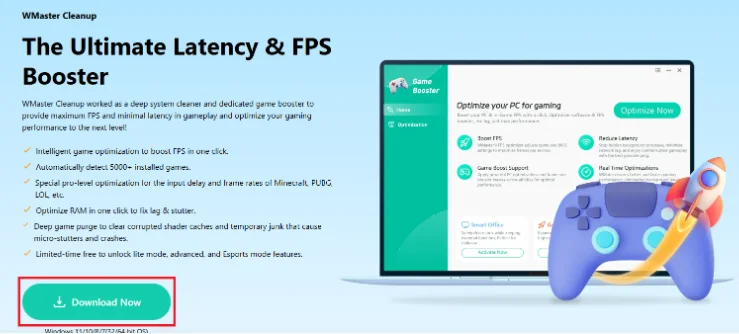
Step 1: Visit WMaster Cleanup. From the Features tab, select Game Booster to open its feature page. Hit Download Now.
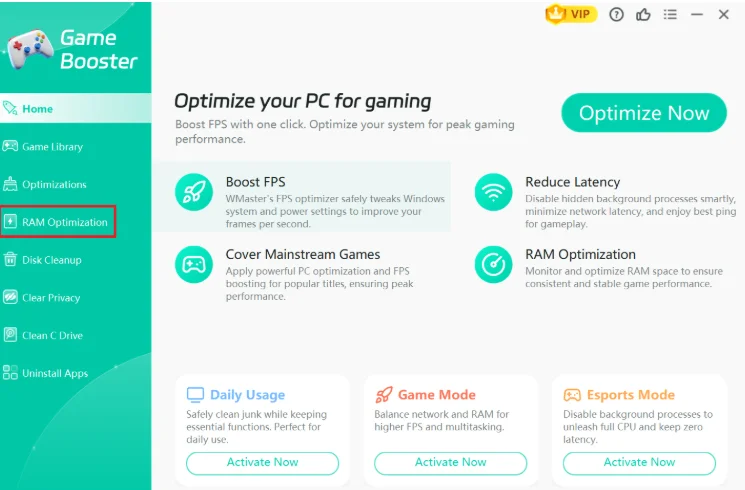
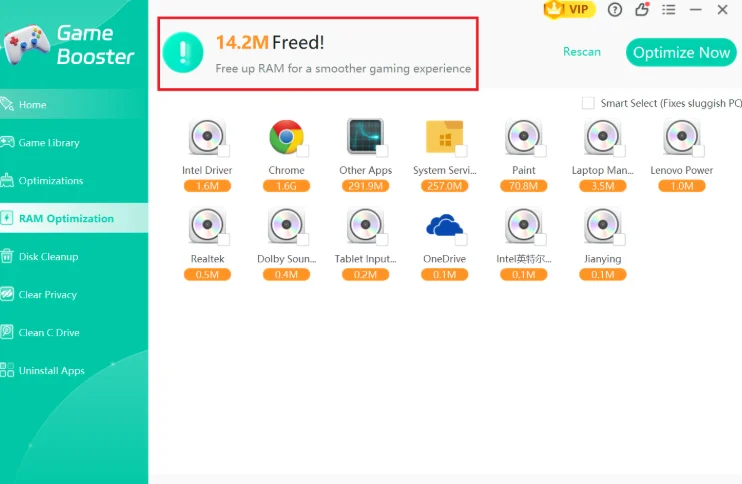
Step 2: From the main interface of Game Booster, you need to click on the RAM optimization tab.
Step 3: Review and select the items to tailor the boost to your system's needs. Click the Optimize Now button.
This will instantly flush your idle memory, put background apps to sleep, and lock your system into a high-performance state.
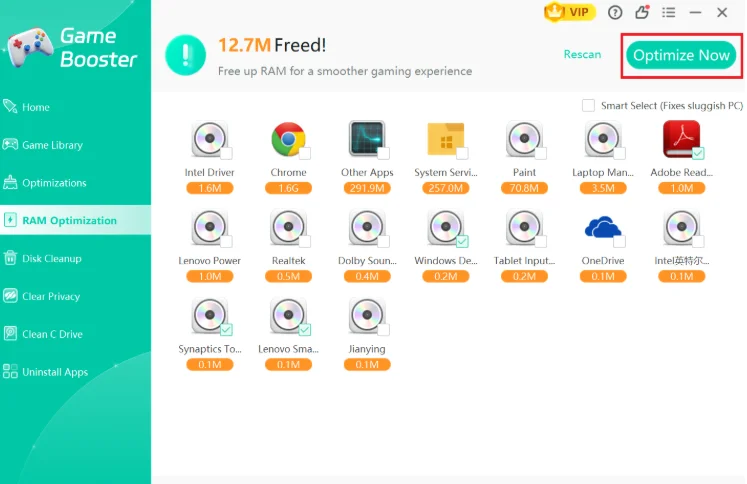
On the top, you can see how much space has been freed up by optimizing RAM.
💡Insider Tip:RAM isn't the only component that impacts your gaming. If your disk is nearly full, Windows struggles to manage in-game stuttering. With WMaster Cleanup's Disk Cleanup feature, you can wipe away gigabytes of junk files and free up space.
2. Wise Memory Optimizer
- Price:Free
- Best For:Dedicated, lightweight RAM flushing without system bloat.
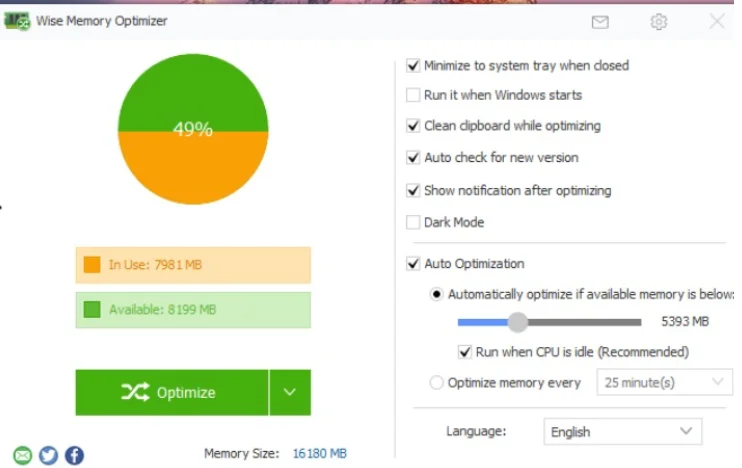
With Wise Memory Optimizer, you can stop your apps that are running in the background and flush your Windows standby list before launching your game. It helps in preventing sudden frametime spikes & mid-game stutters.
Pros:
- Wise memory optimizer deep cleans and removes the Windows standby memory.
- It offers a portable version so you can use it via USB drive without installation.
- It auto-cleans the memory in the background when it drops below the threshold.
Cons:
- The RAM optimizerhas a complex and outdated interface.
- It does not offer automatic management of startup apps, increasing the manual work.
- It offers deep cleaning which often cause active apps to lag or stutter.
3. Hone
- Price: Free
- Best For: Clean Windows 10 and 11 integration and quick system tray access.
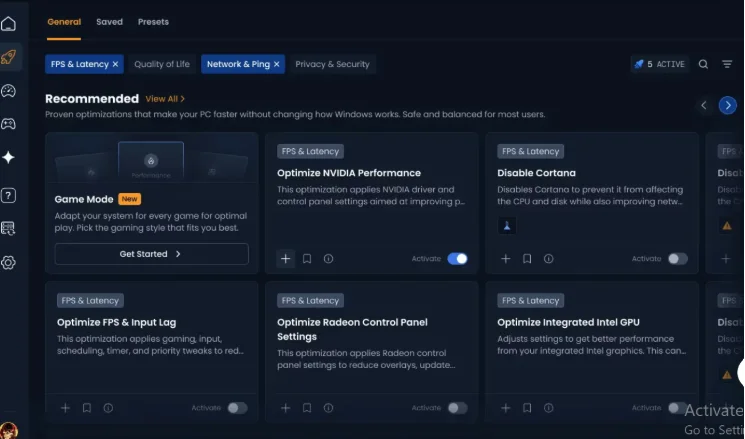
This RAM Cleaner software trims the bloated memory footprints of idle background apps and software launchers. This tool also makes sure you never hit the 90% or more saturation point by flushing out dead system cache and trapped standby lists, keeping away severe game stuttering.
Pros:
- Graphs and real-time metrics let you see which app is consuming more RAM.
- You can easily optimize your RAM with single click.
- No need to restart your PC to apply the changes.
Cons:
- Not much positive feedback available about the overall performance.
- It lacks broader system cleanup features like disk or registry scrubbing.
- The interface is slightly complex for beginners.
4. CCleaner
- Price: Free version available; pro version costs $39.95 per year
- Best For: Putting resource-heavy background apps to sleep safely
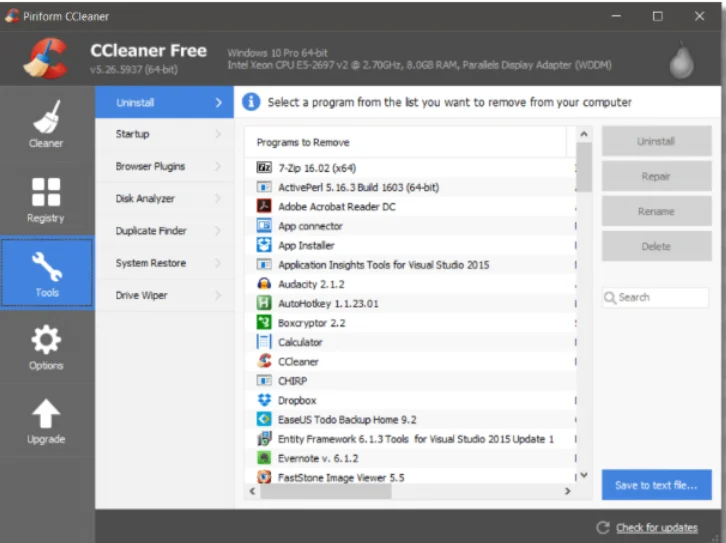
CCleaner is one best rated program to optimize RAM. Instead of just violently wiping data out of your RAM, its new Performance Optimizer feature takes a smarter route. It pauses background software entirely so that you can have boosted gaming performance.
Pros:
- Pro version can help you put background & startup apps to sleep mode.
- Combines RAM optimizationwith registry cleaning, freeing up space for gaming.
- It has built-in software and driver updaters, keeping your gaming components updated.
Cons:
- Due to past malware incident, people do not trust this tool anymore.
- CCleaner takes a lot more background resources than other RAM flushers.
- Displays ads frequently to buy the paid plan, making users frustrated.
5. IObit Advanced SystemCare Free
- Price: Free basic version; Pro version costs around $19.99 per year
- Best For: All-in-one system optimization and quick desktop monitoring
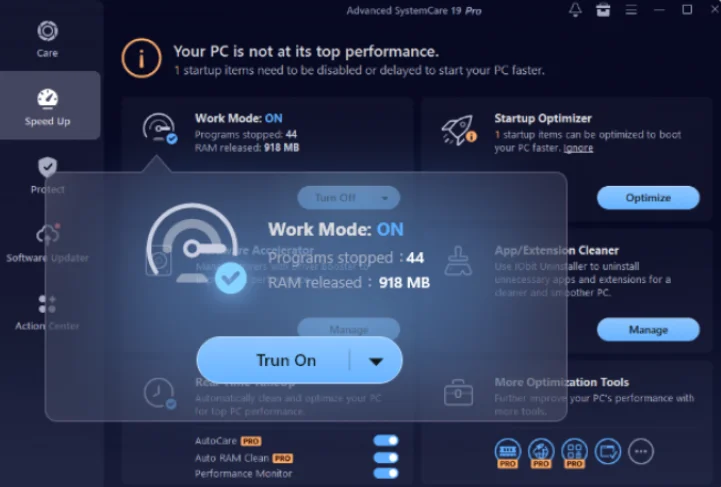
IObit Advanced SystemCare is a massive RAM memory optimizer built to handle overall PC sluggishness. It includes a floating desktop widget that displays your RAM and CPU usage in real time. If you notice your game dropping frames, you can click the widget's rocket icon to purge memory instantly without closing your game.
Pros:
- The user interface is beginner-friendly, helping user to navigate easily.
- It has an AI-driven system to deep scan & clean your RAM to optimize PC for gaming.
- The tool auto-disables unnecessary background apps during resource-heavy tasks.
Cons:
- Offers multiple suggestions to install unnecessary software, forcing users to leave the tool.
- There are some negative feedback regarding registry cleaning feature.
- Free version has lots of ads, which forces users to buy pro version or leave the tool.
Although the automated RAM optimizer tools offer a performance boost, to keep your Windows 11 running effectively, you have to regularly check your system for maintenance. Check out our complete guide on how to clean Windows 11 and free up space manually.
Part 4: How to Optimize RAM Manually on Windows 11
Automated software tools are fantastic for quick fixes, but Windows 11 actually hides some incredible built-in tricks that let you clean your memory completely manually. If you want to fix the digital bloat using Windows power, try these steps right now.
1. Kill Memory Thieves via Task Manager
When your frame rates suddenly drop mid-game, there's probably some background app that is using the memory. Task Manager lets you hunt down and destroy these thieves instantly.
Step 1: Press Ctrl + Shift + Esc on your keyboard to open up the Task Manager.
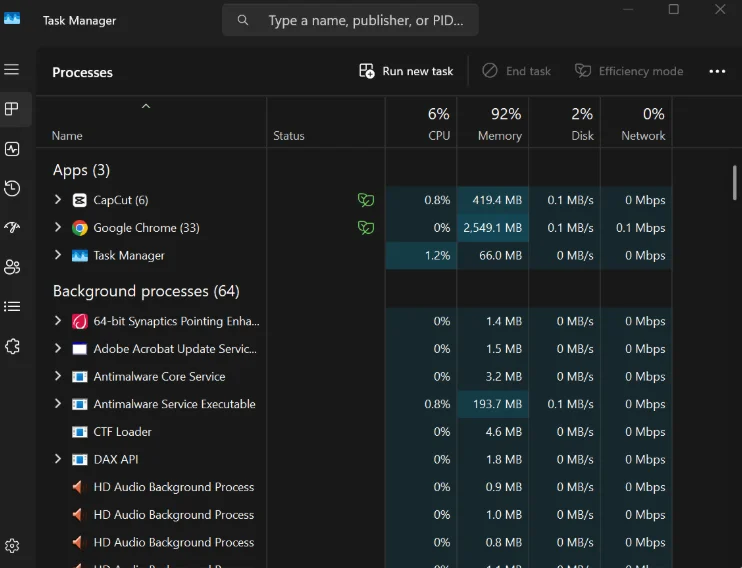
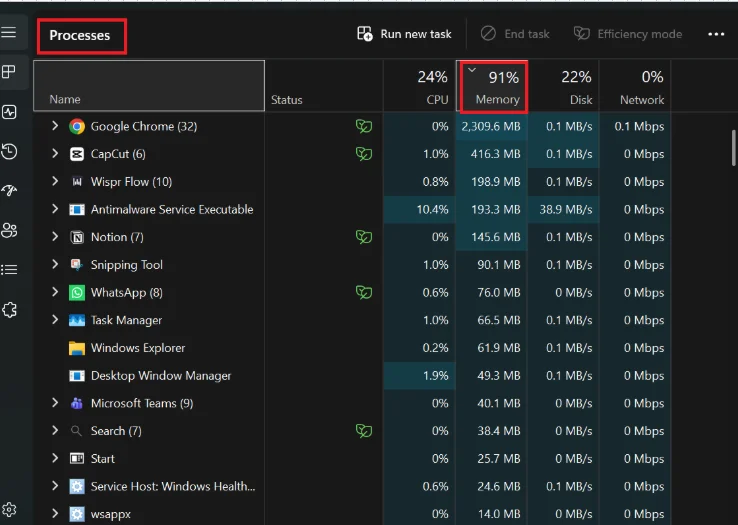
Step 2: Click the Processestab on the left sidebar, then click the Memory column header. This instantly sorts your apps from the biggest RAM hog to the smallest.
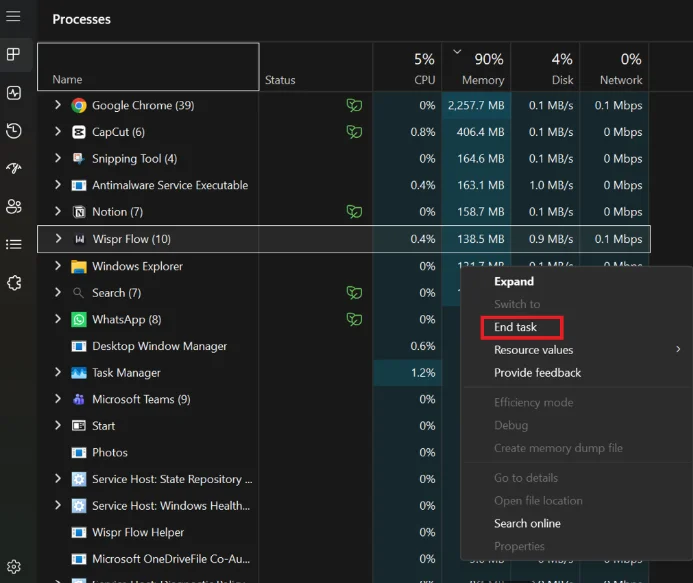
Step 3: Now, spot the apps that are not needed, right-click on them to open dropdown menu, and hit Endtask.
Whether you're a Windows or a Mac user, if you're struggling to free up space on your system, you can check out our write-up on tried and tested methods to reclaim space in Windows and Mac instantly.
2. Block Greedy Startup Apps
Do you know there are many programs that quietly force their way into your PC's boot sequence? Believe it or not, they start running in the background from the second you turn on your system, eating up gigabytes before you even launch your game.
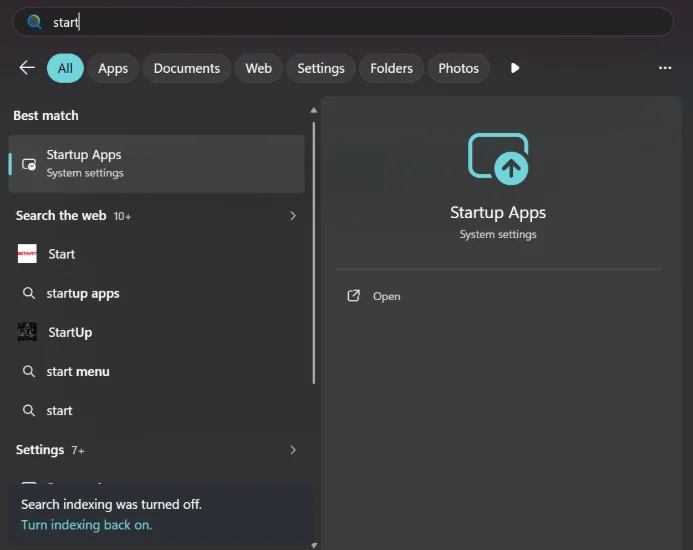
Step 1: Head over to the Start menu and search for Startup apps. Now click to open it.
Step 2: Now select your desired apps or programs and turn off their buttons. Now, they only open when you intentionally open them.
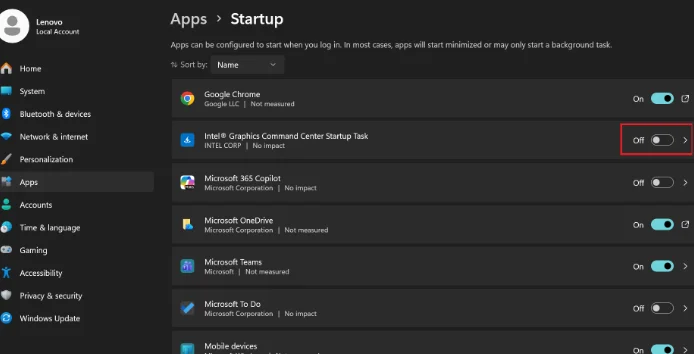
💡Tips:Look for apps with a "High" startup impact that you simply don't need 24/7 like game launchers, chat apps, or cloud storage.
3. Strip Away Windows Visual Fluff
Windows 11 loves to look pretty! And for this, it is using smooth animations, transparent windows, and soft drop shadows. At what cost? All that fancy flair impacts your system's performance. But don't worry! You can free up a lot of space by trading those looks for pure speed.
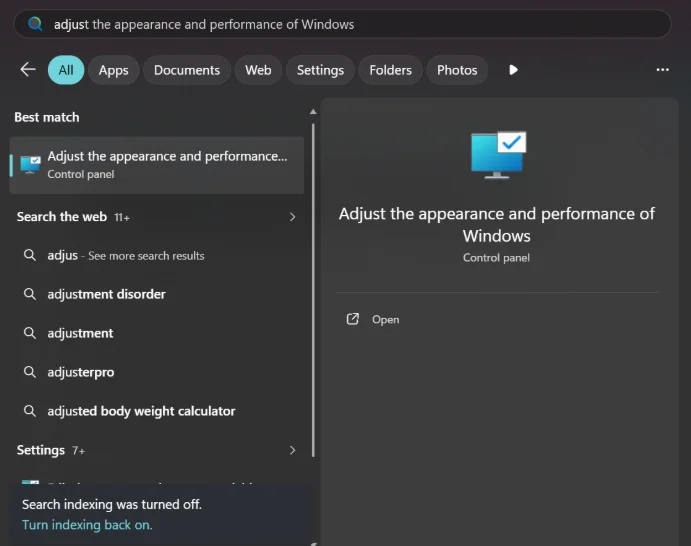
Step 1: Tap the Windows Key and type: Adjust the appearance and performance of Windows in the popped-up window. Hit Enter.
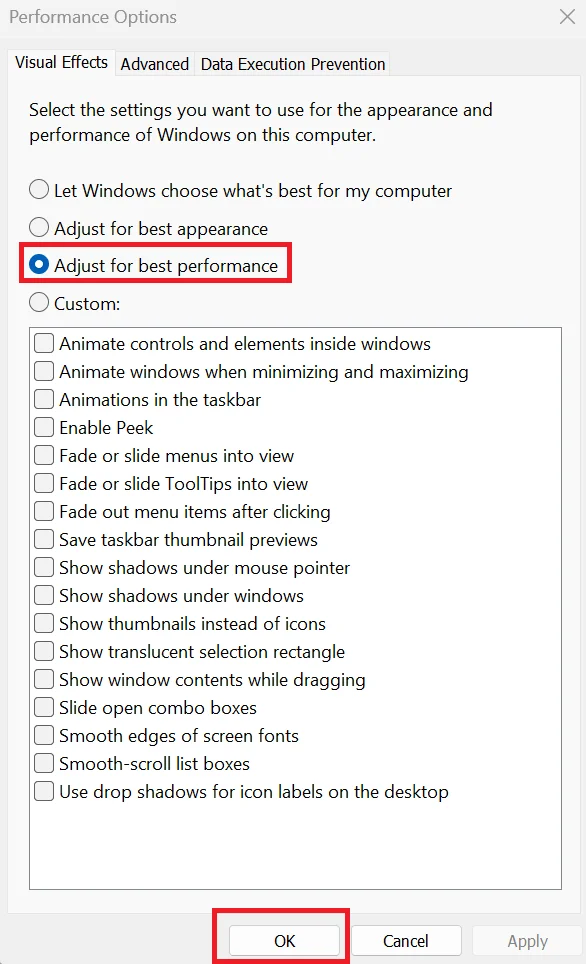
Step 2: In a popped-up window, select an option, Adjust for best performance. Now hit OK.
Your desktop might look a little more basic, but you will definitely run a system that is faster and smoother.
4. Get Rid of Unwanted Apps and Their Space-taking Leftover Data
Over time, your system starts gathering many unused apps that takes up a lot of your device space. Uninstalling these apps will free up space on your PC and leave your RAM available for gaming.
Step 1: Press Windows Key + I to open your Settings menu. Now, from apps, click on Installed apps.
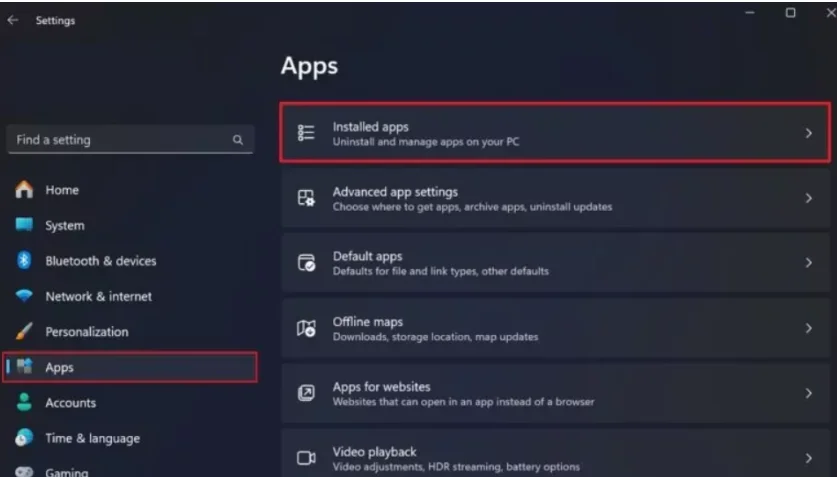
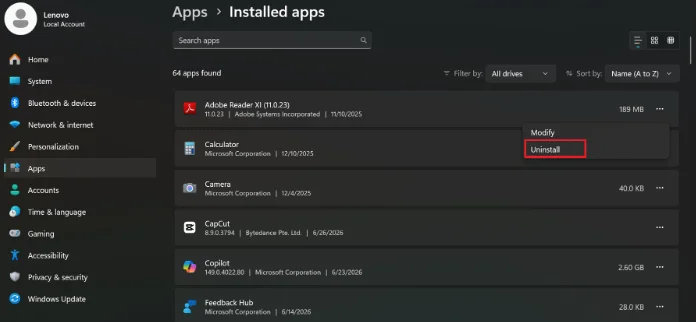
Step 2: You can scroll down to apps you don't use. For this, click on three dots on the right side of each app and hit Uninstall.
You can automate the above process by using WMaster Cleanup that easily finds and uninstalls applicationsin batches. It not only deletes stubborn and corrupted apps, but also deletes residual files, hidden folders, and registry traces in a single click.
5. Adjust Your Virtual Memory (Paging File)
If your physical RAM is full, Windows moves your data to a storage drive called a paging file. Windows constantly resizes this file which often leads to micro-stutters and ultimately leads to input lag in gaming. You can adjust this virtual memory by following these steps:
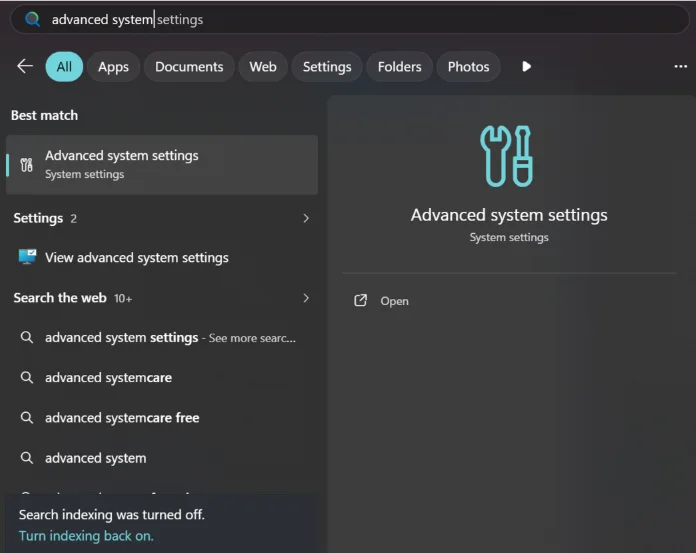
Step 1: Firstly, you have to search for "Advanced system settings" in the Start menu.
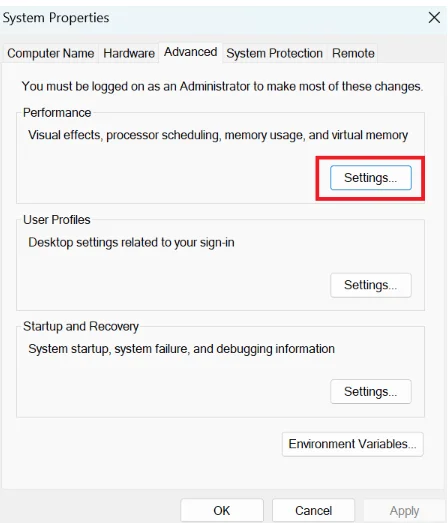
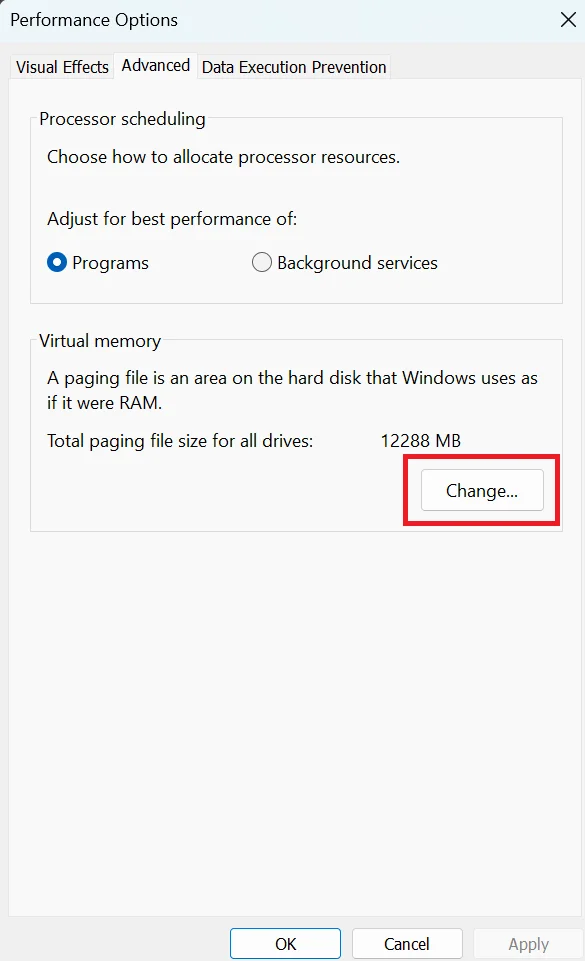
Step 2: Under the Advancedtab, click Settingsunder Performance and then go to the Advancedtab again.
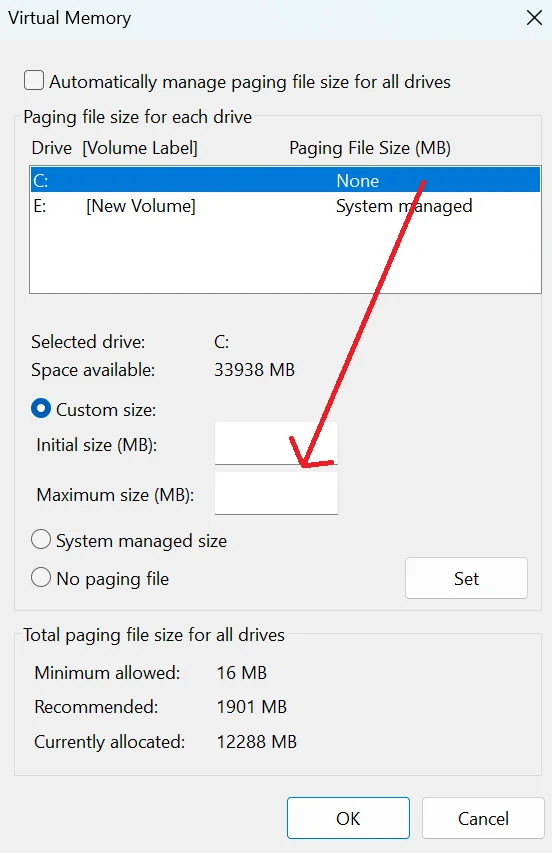
Step 3: Now, click Changeunder Virtual Memory and uncheck "Automatically manage paging file size," select your fastest NVMe SSD drive.
You have to click Custom size, and set both the Initial and Maximum size to 1.5 times your total physical RAM.
Part 5: Related FAQs About RAM optimization
Q1. How to reduce Windows 11 RAM usage for gaming?
You can reduce RAM usage of Windows 11 with a few manual tweaks like closing the background apps before gaming and turning off the startup programs. Tools like WMaster Cleanup can significantly free up memory to optimize RAM and make your games run smoothly within seconds.
Q2. Can optimizing RAM increase FPS in games on Windows 11?
Yes, RAM optimization significantly improves the FPS in games. By freeing space on your PC, removing background apps and heavy files, you give enough room to play games and avoid micro-stutters and frame drops. WMaster Cleanup's Game Booster feature allows you to optimize RAM with just a few clicks and reduce the manual labor.
Q3. Will installing more RAM make games run faster?
Installing more RAM provides room to play games without bottlenecks like frame drop and long loading time. More space in your system will make sure your system is never running out of space to process the game.
Q4. How much RAM does the average gamer need in 2026?
An average gamer needs 32 GB of RAM to play games on PC, as it handles all modern titles and prevents bottlenecks. However, for the heavy simulation games, you might need 64GB RAM.
Q5. Does Windows 11 use more RAM than Windows 10?
Yes, Windows 11 uses more RAM compared to Windows 10 because there are more background features included. Besides this, there are visual effects and system services. But, it also manages memory more efficiently in many cases. Most modern PCs can handle this difference without issues, especially if they have 8GB RAM or more.
Conclusion
RAM optimization on Windows 11 can enhance your gaming experience. By removing the background apps and freeing up space, you can reclaim memory back. When combining it with dedicated RAM optimization software, you can optimize RAM for gaming without any risk and enjoy smoother, lag-free gaming.
If you want quick yet effective results, get your hands on WMaster Cleanup's Game Booster feature. This all-in-one tool safely clears cache, removes junk files and temporary files, and cleans background clutter so your PC can channel its full power into your favorite games.