

Ever handed your phone to a friend to show them a quick post on X, only to panic when they tap the search bar? We've all been there! Every time you look up a profile, hashtag, or hit viral drama, X automatically saves that information right under your search bar and starts flooding your feed with related threads.
If you are trying to figure out how to clear search history on X, you are in the right place. In this blog, I'll show you how you can clear search on X on Android, iPhone, and desktop. I'll also share a one-click solution to clear search history on X across multiple browsers using WMaster Cleanup.
In this article
Part 1: Why Need to Clear Search History on X
Learn What X Search History Actually Stores
Everytime you open X, the app keeps a running record of your visual and text queries. Here is what the platform is secretly keeping track of:
- All your recent searches, like the list of the last 25 accounts, keywords, topics, and hashtags you type in the search bar.
- A few specific search terms or custom query filters that you manually pinned so you could quickly monitor topics across all your logged-in devices.
The reason why X records your search queries is because the social platform wants to build a profile of your interest. This data impacts your For You timeline. And also assist X in determining which ad to show you.
Apart from that, your search history on the X trains platform features things like the Grok AI model.
Why Users Want to Delete Search History
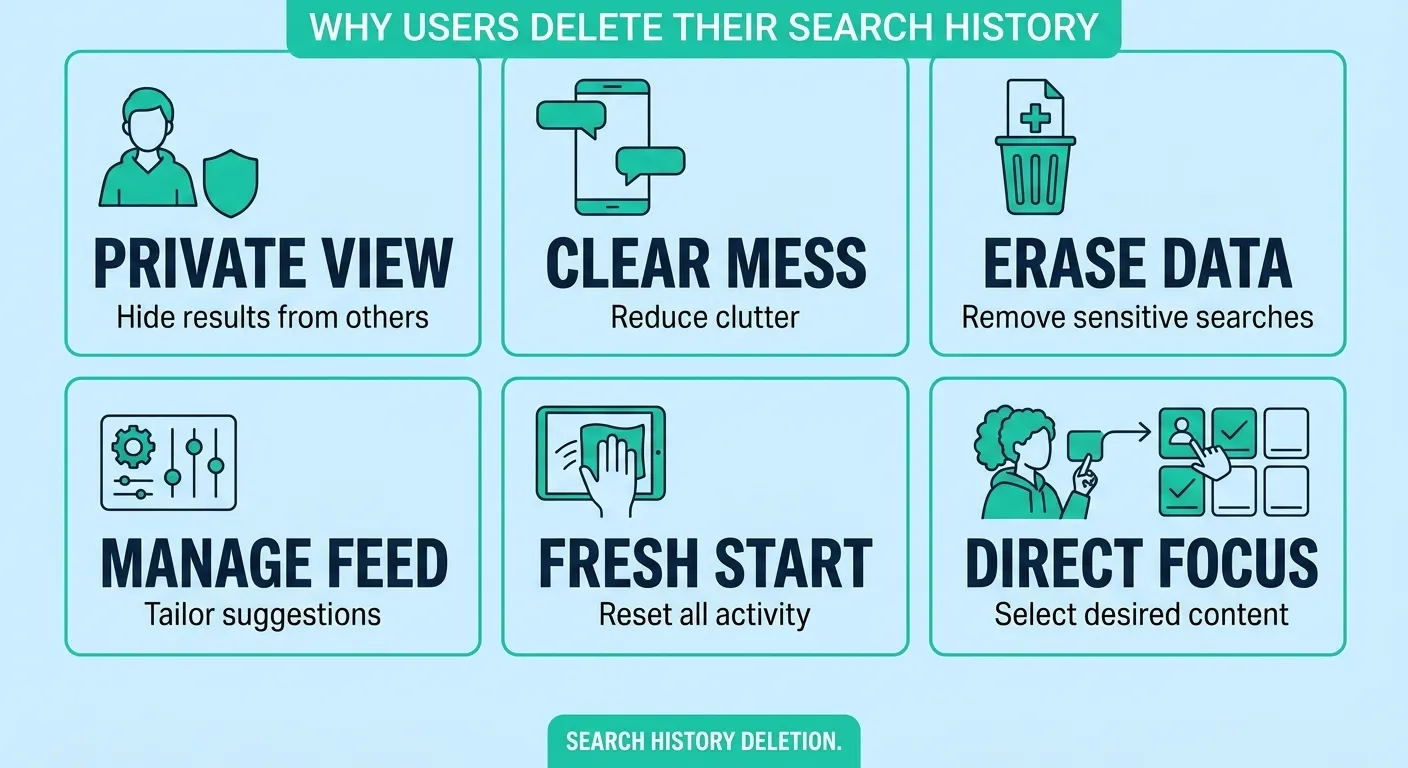
If you're someone who is concerned about privacy way more than anything else, X search history might bother you a lot. So, here are some reasons why users tend to delete it:
- You may not want someone else using your phone to see what you have searched for.
- Old or personal searches can keep appearing when you start typing in the search bar.
- You may want to remove searches about sensitive or private topics.
- Clearing old searches can make the search bar feel less cluttered.
- You may want to stop seeing accounts or terms that you no longer care about.
- Some users simply want a fresh start and prefer not to keep old searches around.
- You may also want more control over personalized results and recommendations.
Is it Safe to Clear X Search History?
Yes, you can safely delete all your X search history. Wiping your search history will never:
- Delete your posts, media, or direct messages.
- Unfollow any accounts or remove your bookmarks.
- Log out or change your account settings.
If you are looking to safely clean system junk beyond just browser data, check out our guide on the 12 Best PC Cleaners for Windows 10 & 11 in 2026 [Free & Paid] to optimize your PC without deleting critical files.

Part 2: Before You Clear Search History on X
Before you delete your X search history, you must know which things will remain and what will be deleted.
Learn What You Will Lose or What You Will Keep After Deleting Search History on X
| Feature | Google Search History |
|---|---|
| Posts, likes, bookmarks, and followers | Recent searches |
| Saved searches | Search terms from your recent history |
| Your account and profile | Recent search suggestions |
X confirms that saved searches are managed separately, so they should remain unless you remove them yourself. Moreover, you must clear your interests and uncheck any topics you don't want X using to target your search bar.
When You Should Clear Search History on X
You don't have to clear your X search history every five minutes. But clearing it in the following moments will save you from a lot of awkwardness and frustration:
- Before you pass your phone to another person to show them a video or photo, wipe your history really quick so they don't spot your private searches.
- Right after you spend two hours searching for a celebrity scandal, stalking your fellows, or chasing a random question. Delete all your search history before the X decides it's your new favorite topic.
- If your feed keeps spamming you with posts about stuff you couldn't care less about, a quick search wipe helps tell the algorithm that you are no longer interested.
I'd suggest making it your habit to wipe your history weekly to keep your search bar clean, snappy, and clutter-free.
Part 3: How to Clear Search History on X on Android
Clearing your X search history on Android is quite easy and quick. With a few taps you can delete search queries and hashtags to start a fresh search again. Here's how you can do that:
How to Clear Search History on X Entirely on Android Phone
Step 1: Open the X app on your Android phone. Tap on the search icon and then click inside the search. All your previous searches will appear in the drop-down list.

Step 2: Just tap the x icon in the top right to delete all your searches. You need to confirm, and that's all.

💡Tip:Make sure you review all your search items carefully because you won't get auto-suggestions in the future.

How to Delete X History on Android Phone Individually
Tap the search bar on your X app and find the search term you want to delete. Now long-tap the desired search term, and a dialogue box will appear. Simply press Clear, and it's done.

💡Bonus Tip:Rather than wiping your activity profile, if you opt for clearing search history, it will only clear out your recent queries from the search bar. So, to prevent X from using web browsing to personalize content,Head to Settings & privacy, click Privacy & safety, select Data sharing and personalization. Now, disable Inferred identity
Part 4: How to Clear Search History on X on iPhone
Clearing search history on X on iPhone is similar to that of Android. You must log in to your X account to delete the search items. These are the instructions for how to delete X history on your iPhone:
Step 1: Log in to your X account on your iPhone and click on the search icon in the bottom.

Step 2: A search bar will open at the top. Click on it and all your recent searches will appear.
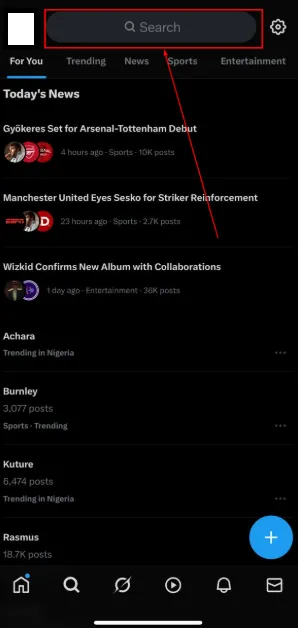
Step 3: Here, click on the x icon next to Recent searches to delete all your recent searches on X.
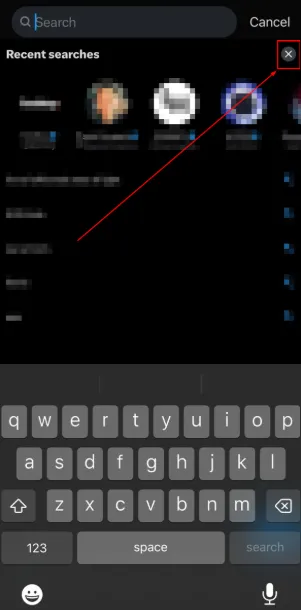
Step 4: Tap Clear to confirm the deletion. And you're done.

Every time I clear my X search history on my mobile phone, I visit the Latest tab instead of the Top tab to get posts in chronological order. Not what X thinks I am interested in.
Part 5: How to Clear Search History on X on Desktop
Clearing search history on X on desktop is very simple. Here are the steps you need to follow:
How to Clear Search History on X Completely:
Step 1: Search X.com on your browser and log in with your credentials. Click on the search bar to see all your searches. Click on Clear all to erase all your search history.
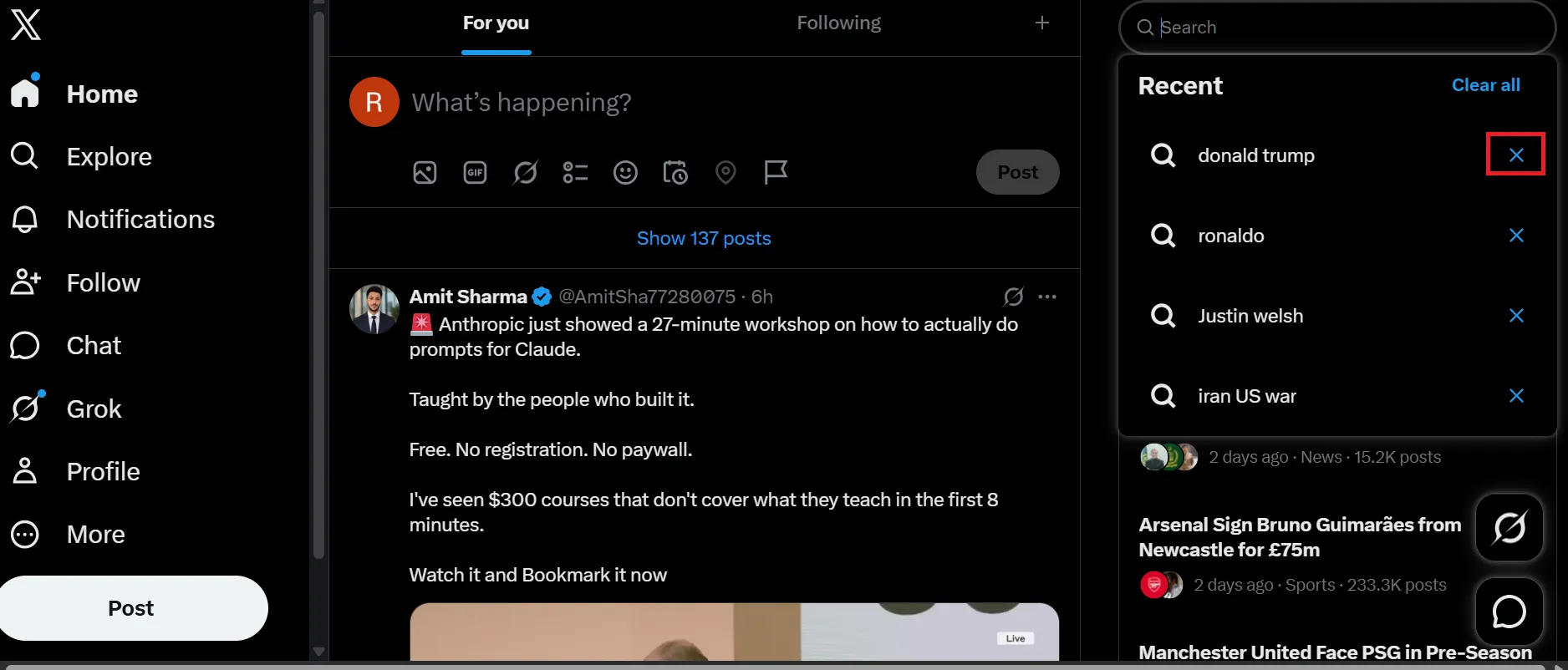
💡Tip:All your keywords and hashtags will be erased as well, and you can't undo it.
How to Delete Search History on X Individually:
If you don't want to clear all your search history and target a single search, you can do it on X.
Open the search results and click on the individual search you want to remove and tap the x icon.
Learn How to Clear Temporary Files in Windows 11/10, Mac, Mobile to regain disk space across all your operating systems.
Part 6: One-Click Cleanup for X Search History and X Browser Data
If you are deleting all your search history on X manually, it is definitely a time-consuming task. WMaster Cleanup allows you to clear your search history on all social media platforms, including X. The tool offers a digital breakdown of all your search history so you can clearly see the specific items.
WMaster Cleanup's Clear Browser History feature gathers all your social media (including X) digital footprints into an organized interface, saving time and working efficiency. Its one-view integration interface gives you access to all your searches across different browsers to wipe out all your searches in one click.

WMaster Cleanup
Clear Search Hisory on X in One Click
- ·Clear X search history and X browser data over 58+ installed browsers in a single click.
- ·Offers selective cleanup of your X search history to delete digital footprints in 3 seconds.
- ·Provides a dedicated dashboard to identify and manage social platforms' search history.
- ·With custom cleanup, its simple UI offers safe-to-remove browser search history & cache.
- ·Allows 100% safe search by blocking ad trackers on your web browsers.
Guide for How to Clear X History Using WMaster Cleanup
Here's a step-by-step guide on how to clear search history on X on your Windows PC:
Step 1: Go to the official website of WMaster Cleanup. From the Features tab, select Clear Browser History and hit the Free Clean button to start downloading.
Follow the steps to complete the installation and launch.

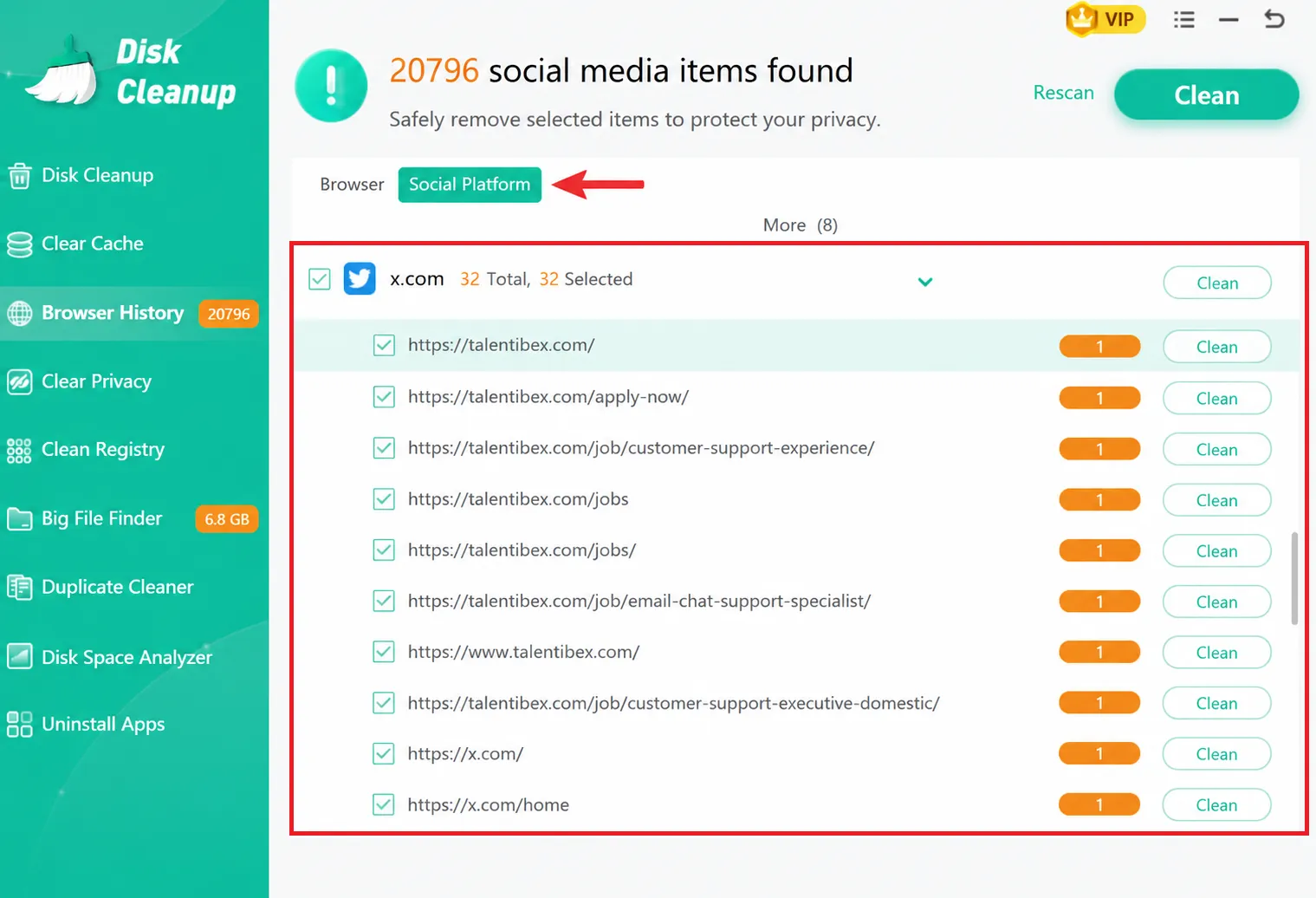
Step 2: From the main interface, click on social platforms and select X to select all the search history. Now, hit Clean next to x.com.
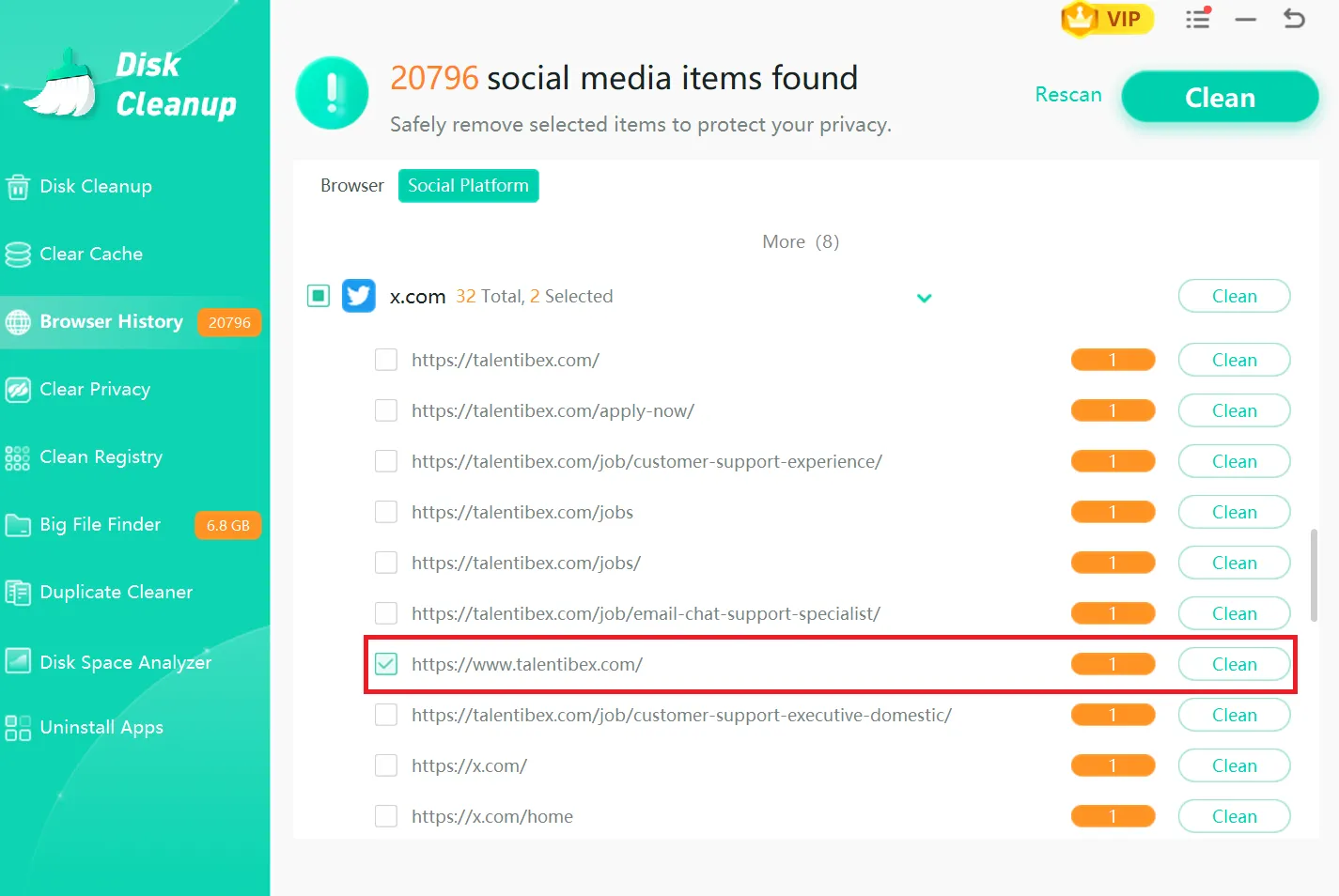
💡Tip:If you want to clear a specific history, first uncheck x.com and then simply check that intendet search term and click the Clean button next to it.
If you're worrying about YouTube history being seen by another person, check out our write-up about how to clear YouTube search history to take back control over your privacy, no matter what device you use Android, iPhone, Mac, or Windows.
Part 7: FAQs About How to Clear X History
Q1. Does clearing search history on X delete my saved searches too?
No, X treats your saved searches as a separate entity. Therefore, clearing your recent search history does not delete your saved searches. So, if you want to remove saved searches, open the search box, find your search under Saved, and tap the x next to it.
Q2. Can I delete my X search history from all devices at once?
Yes, absolutely! When you delete recent searches while logged into your account, X updates those changes across all your devices automatically.
Just keep one detail in mind: Recent Searches and Saved Searches are two different things. Clearing your recent search history on X only wipes temporary search suggestions on every device you use. Whereas your saved searches that are explicitly pinned will remain untouched.
Q3. Why does X keep suggesting the same accounts or search terms after I clear my history?
Because X doesn't just look at your search history to suggest accounts. It uses your overall activity to guess what you want to see.
X still shows suggestions based on:
- Accounts you follow, posts you like, and profiles you visit often.
- Location and trends.
- Saved searches you manually pinned in the past.
If an account keeps popping up that you want to hide, clearing your history won't fix it. You have to mute or block them instead.
Q4.Does clearing X search history remove my searches from my account permanently?
No. Wiping your search history removes recent search terms and shortcuts from your search bar on all the devices you've logged in. But be informed that your data is stored in the backend servers. The platform keeps using that past search data to power your For You feed, train its algorithm, and serve targeted ads.
Q5.How can I stop X from showing personalized search suggestions?
You can't turn off search suggestions completely, but you can tone down how personal they get with a few quick tweaks:
- Turn Off Data Tracking.
- Switch Your Search View.
- Clean Up Your Interests.
Conclusion
Knowing how to delete search history on X is the quickest way to keep your searches private, fix a cluttered feed, and avoid awkward moments when someone looks at your screen. No matter if you're an Android user or you use an iPhone or a desktop, wiping your recent searches takes just a few clicks.
However, manual cleanup still leaves behind hidden browser caches and tracking cookies. For a complete digital refresh, WMaster Cleanup makes the process effortless. It bulk clears your X search logs, browser history, cookies, and cache across all your browsers in a single click.