WMaster Cleanup

Fast Windows Disk Space Analyzer

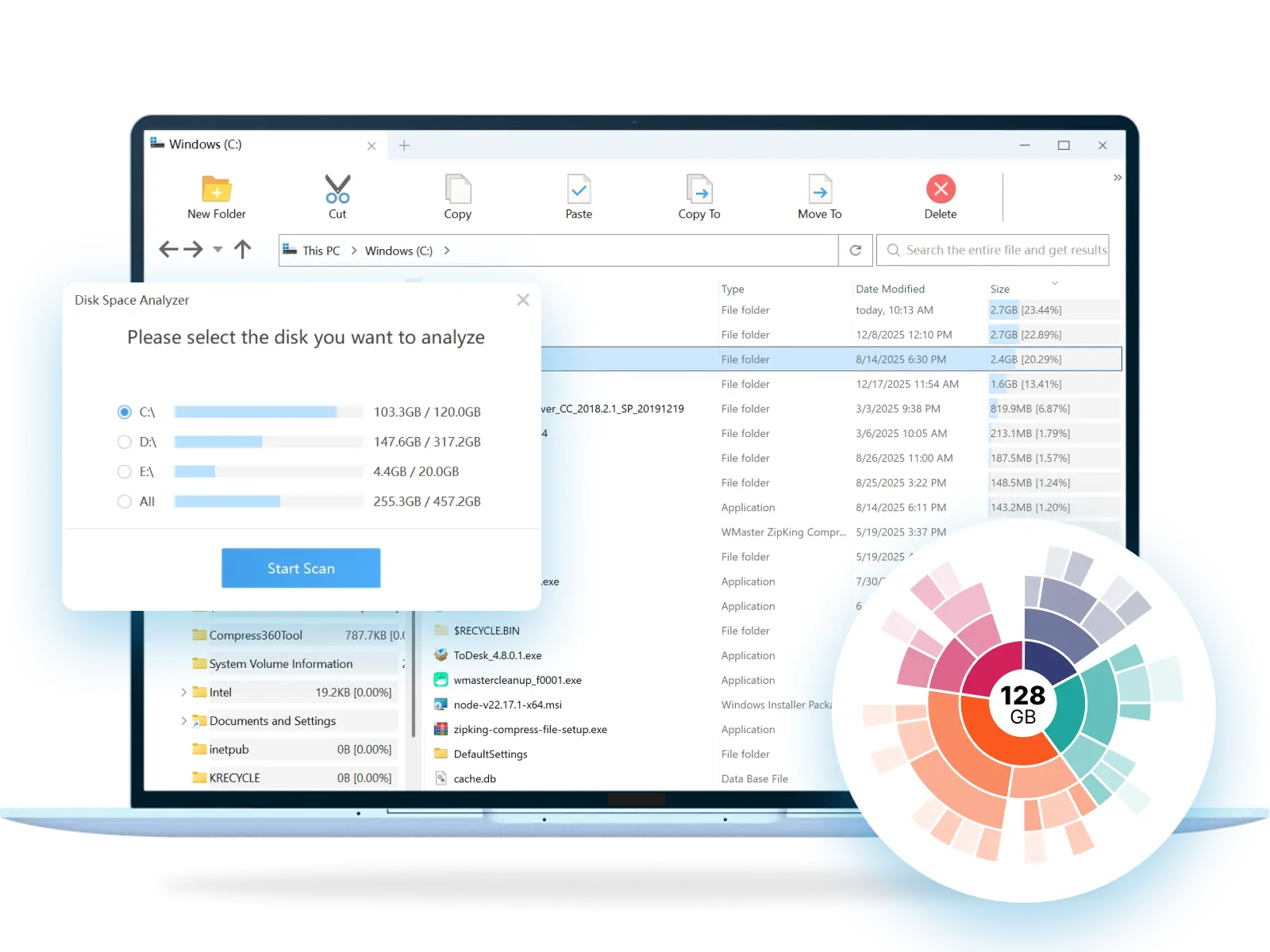
Visualize, analyze, check, and manage your disk usage to free up space and optimize performance—faster, easier, and safer.

Check IconInstantly analyze the full drive and reveal space hogs in just seconds.

Check IconVisible interface to display space usage and locate large files for better cleanup decisions.

Check IconView and remove clutter confidently with smart notices to protect important system files.

Check IconClean up space hogs to recycle bins safely, and recover files easily, avoiding risky deletions.

Download IconFree Scan

Windows 11/10/8/7(32/64 bit OS)

Fast Windows Disk Space Analyzer Creative Image

WMaster Cleanup Disk Space Analyzer VS Other Windows Space Analyzers

Intuitive Linear Visualization for Space Usage Display

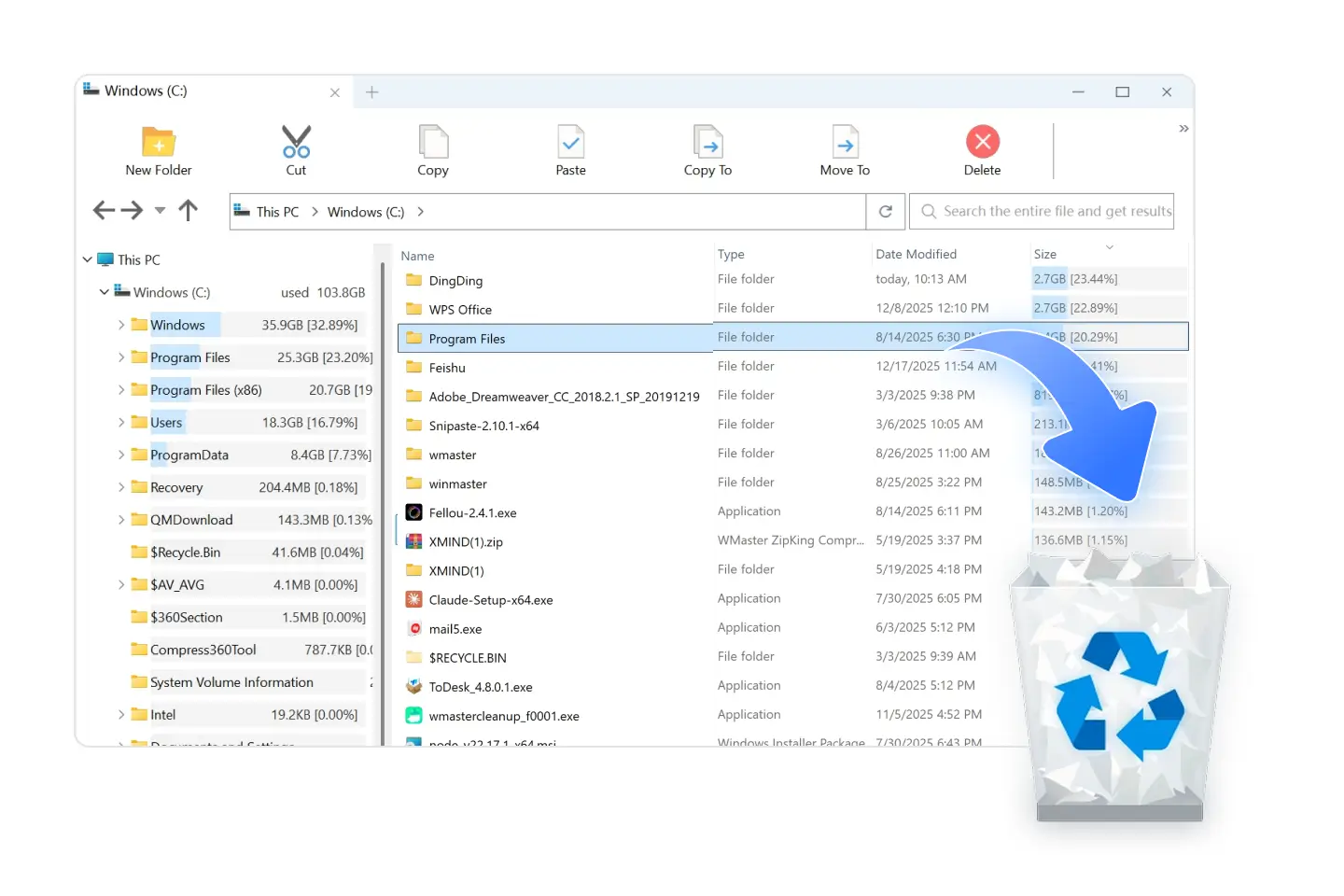
Unlike other Windows space analyzers that rely on treemaps or dense colored blocks, WMaster Cleanup uses a straightforward list view with a blue usage bar to clearly show disk usage. You don't need to learn how to read complex chart logic. With WMaster Cleanup disk space analyzer, you can spot the space hogs instantly and easily.

Intuitive Linear Visualization for Space Usage Display

Dedicated Folder Breakdown to Display Folder Size

Unlike Windows Storage Management, which only shows the file size, our disk space analyzer feature provides a dedicated folder breakdown that can clearly show folder size across your disk. So that you can quickly find out which folders consume the most storage and locate space-hogging directories with a fast response, reclaim valuable disk space without manual searching.

Dedicated Folder Breakdown to Display Folder Size

Multimedia Thumbnail View for Clear Content Inspection

WMaster Cleanup disk analyzer takes advanced multimedia thumbnail previews for your photos and videos. This feature allows you to clearly inspect the content within large folders and files. Giving you a confident decision on whether to keep or delete large folders/files. Saving time to open the separate application or worry about accidental data loss.

Multimedia Thumbnail View for Clear Content Inspection

Use Case for WMaster Cleanup Disk Analyzer Feature

Local Disk C is Full but Can't Find Files

How to See Folder Size Clearly

How to Manage Storage Space

Local Disk C is Full but Can't Find Files

Local Disk C is Full but Can't Find Files

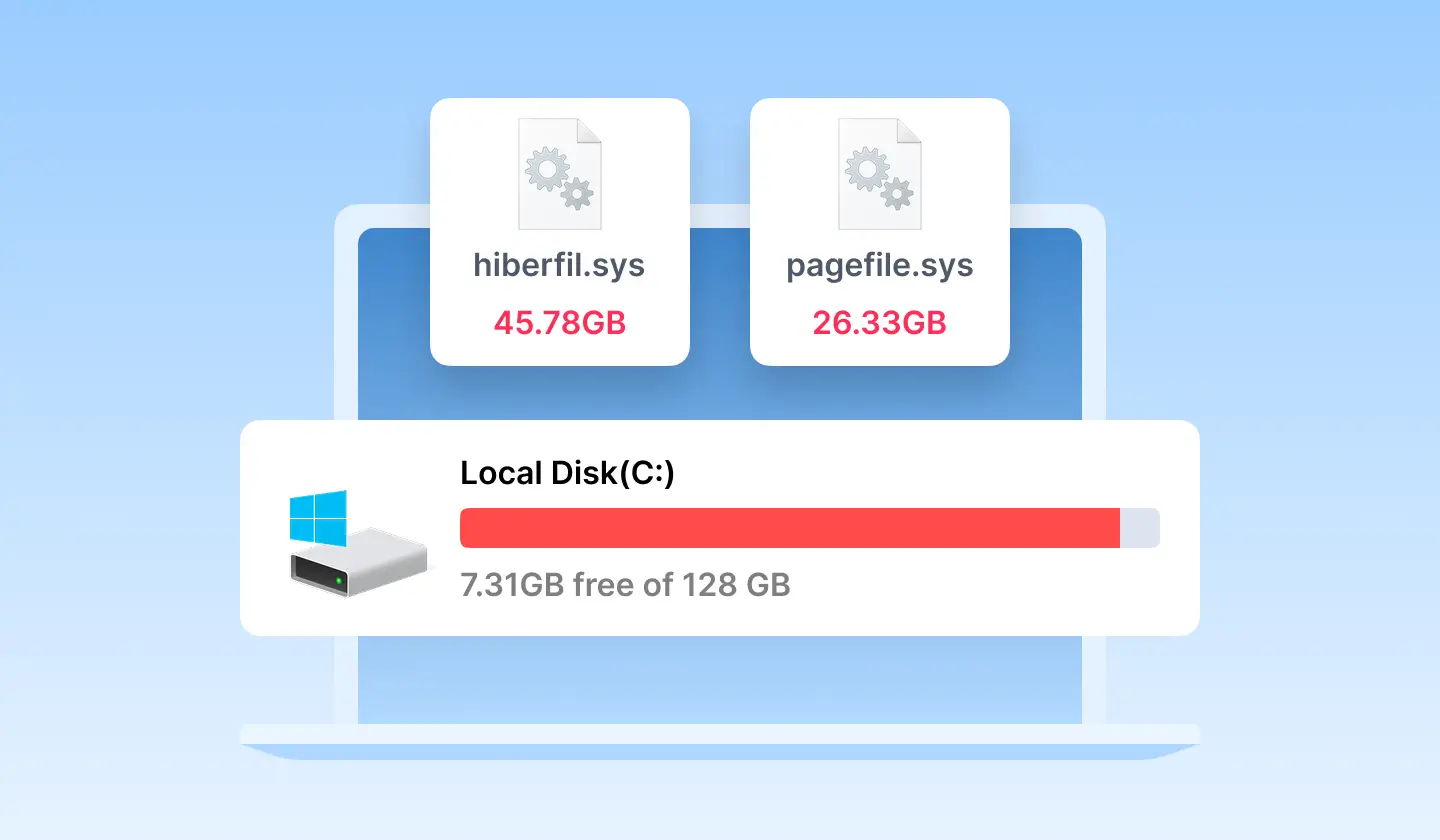
Why is my C drive full, but there is nothing on it?

When your C drive is full, it may be difficult to identify what is consuming so much storage. This is due to hidden system files, such as hiberfil.sys and pagefile.sys, accumulating without your knowledge. WMaster Cleanup Disk Analyzer can bypass those hidden attributes and uncover the "Invisible Monsters" that are eating your space. Helping you get a clear idea of your C drive usage.

See Folder Size Clearly

See Folder Size Clearly

How do I know what is taking up my disk space?

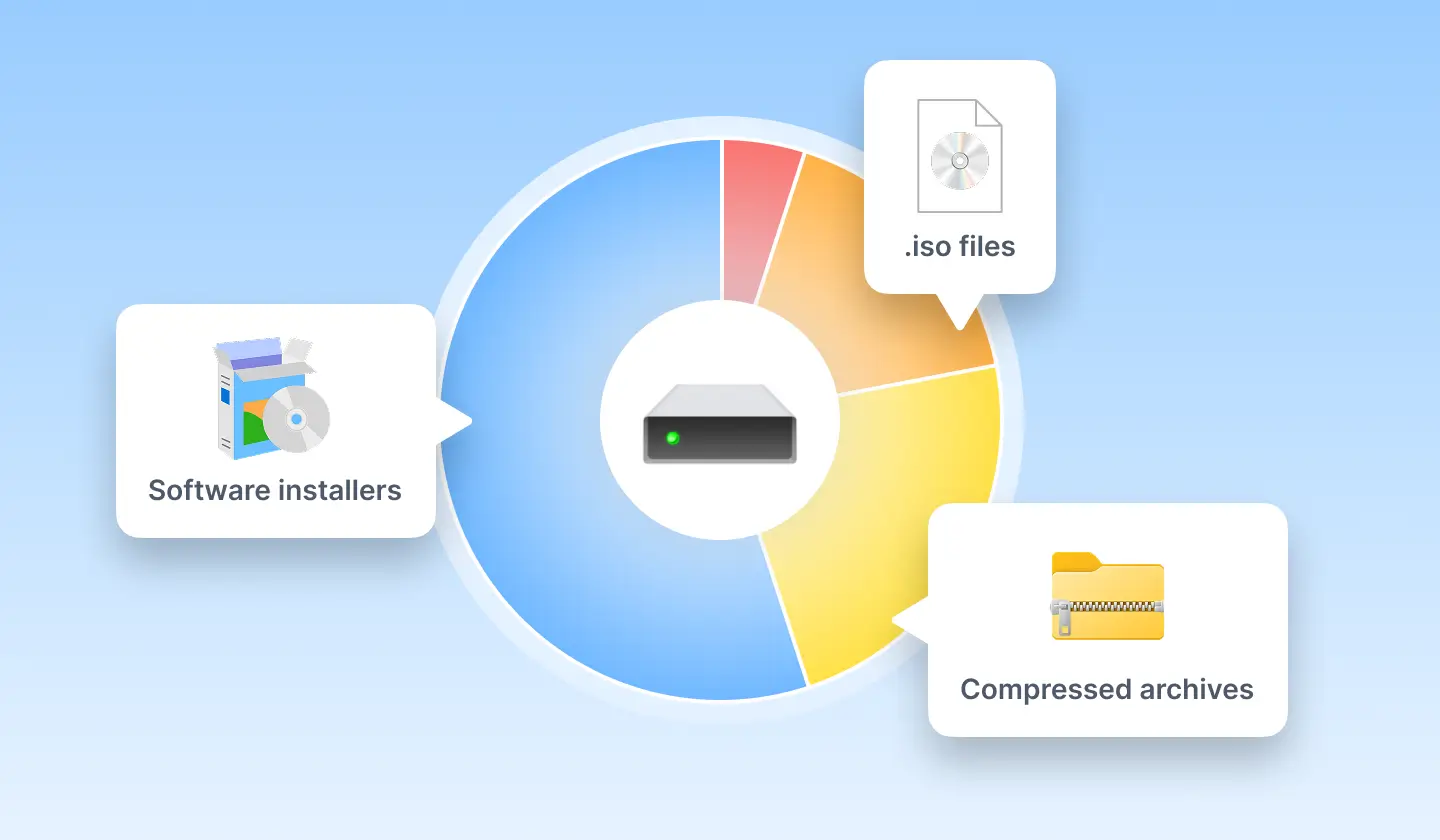
For computer users, software installers, compressed archives, and .iso files are significant contributors to disk space consumption. These files are large in size and often have confusing names. The WMaster Cleanup disk analyzer is based on the file size and modified date to organize and display file histories. This feature enables you to identify and delete large, outdated files in bulk without having to preview each one, thereby saving time and energy while also simplifying your file management and keeping your system clutter-free.

Confidently Manage Storage Space

Confidently Manage Storage Space

How do I check what is eating my disk space?

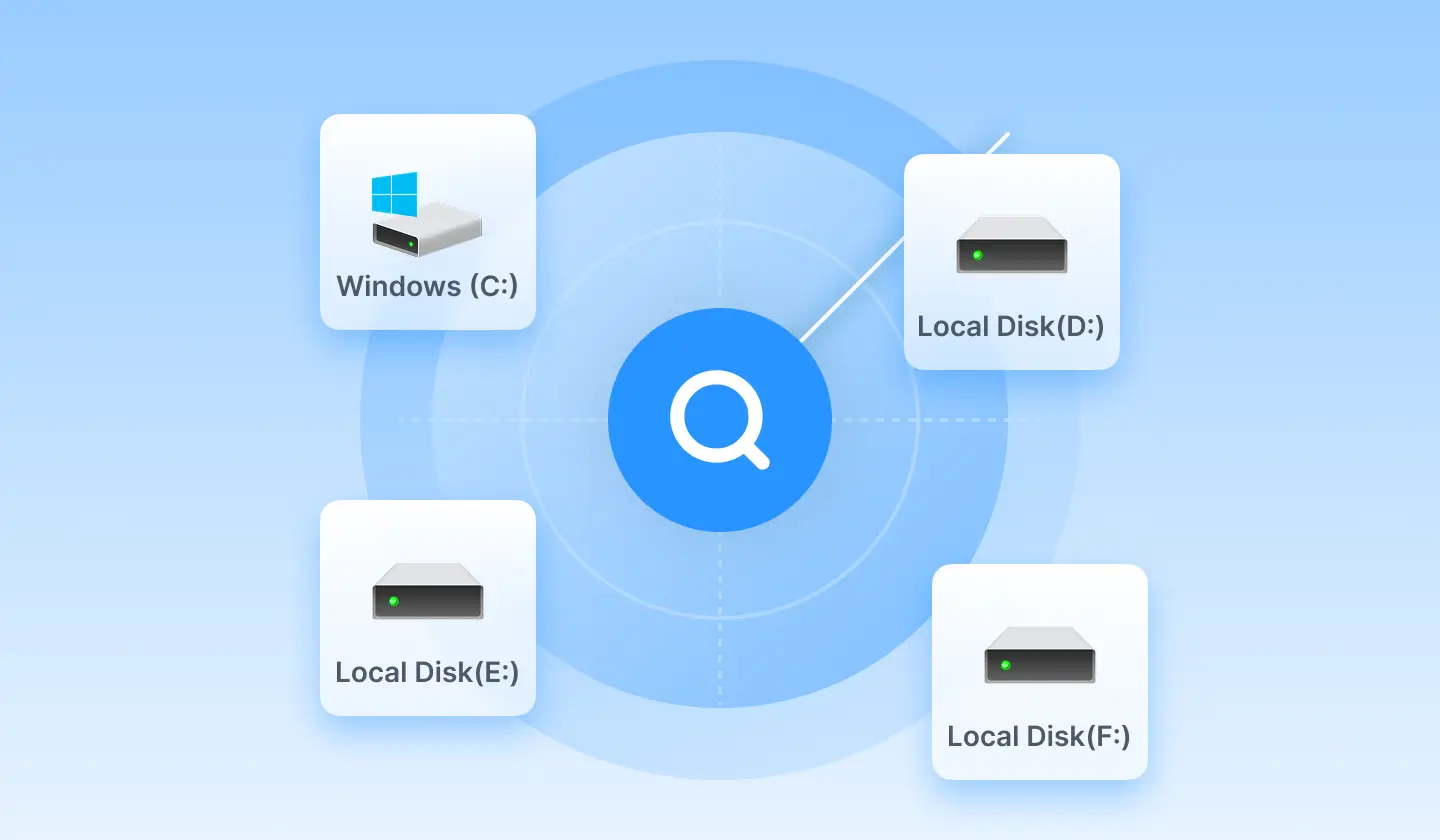
WMaster Cleanup offers a full disk scan option to thoroughly analyze your disk and examine every hidden layer of your file system, providing a clear and transparent report that empowers you to better manage your storage space by quickly identifying and removing the massive, forgotten files that have been silently slowing down your computer's performance for years.

What Our Disk Space Analyzer Can Bring You

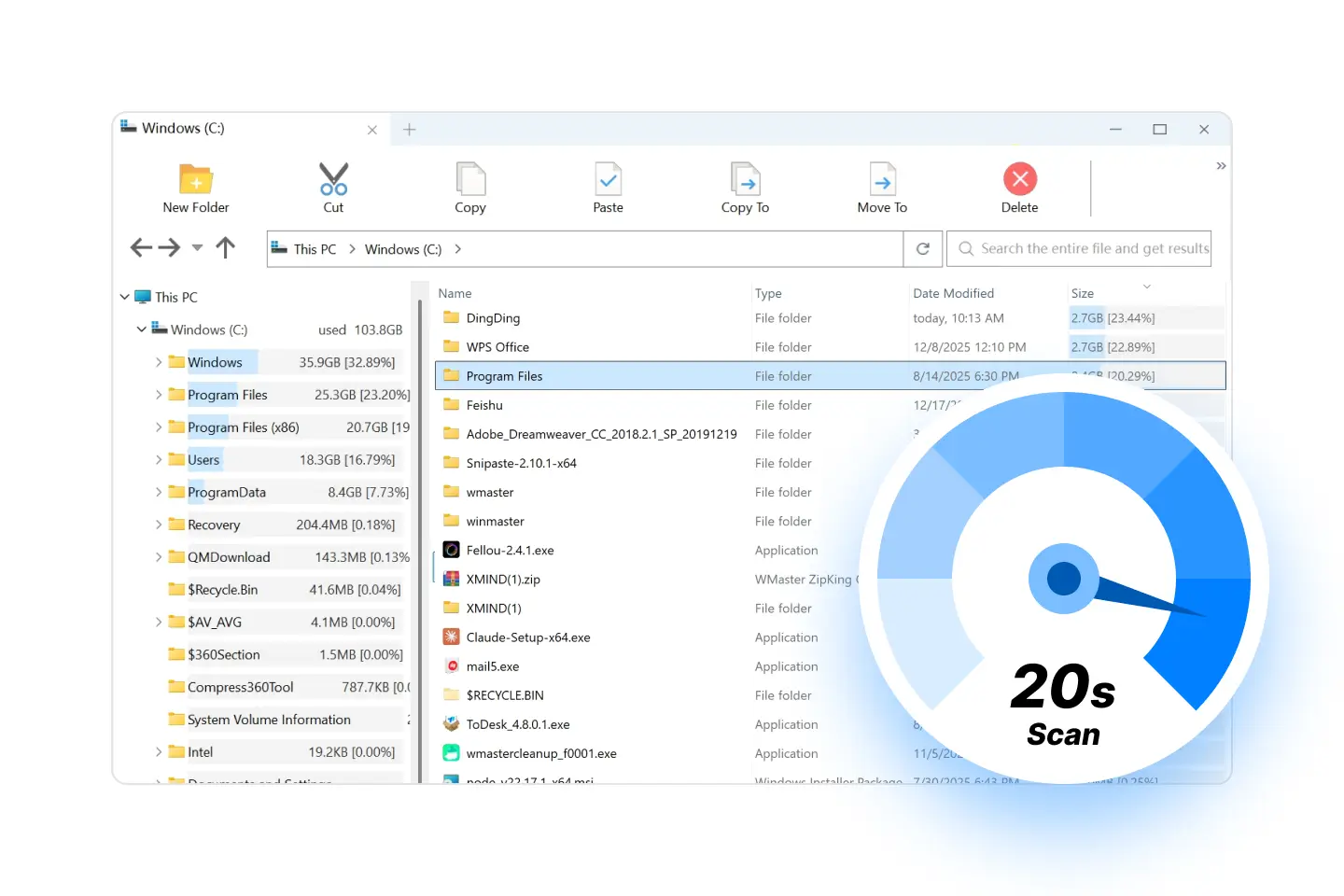
20-Second Scan Speed—Faster Response Than Eve

20-Second Scan Speed—Faster Response Than Eve

Unlike traditional disk analyzers that take 5-10 minutes to view and scan your disk, our optimized indexing engine just takes 20 seconds on average to complete the analysis of your C drive and then provide you with an accurate report on disk space usage. The whole process is quick and modern. Greatly saves your waiting time and gives you an instant idea of where your disk space has gone.

Download IconFree Scan

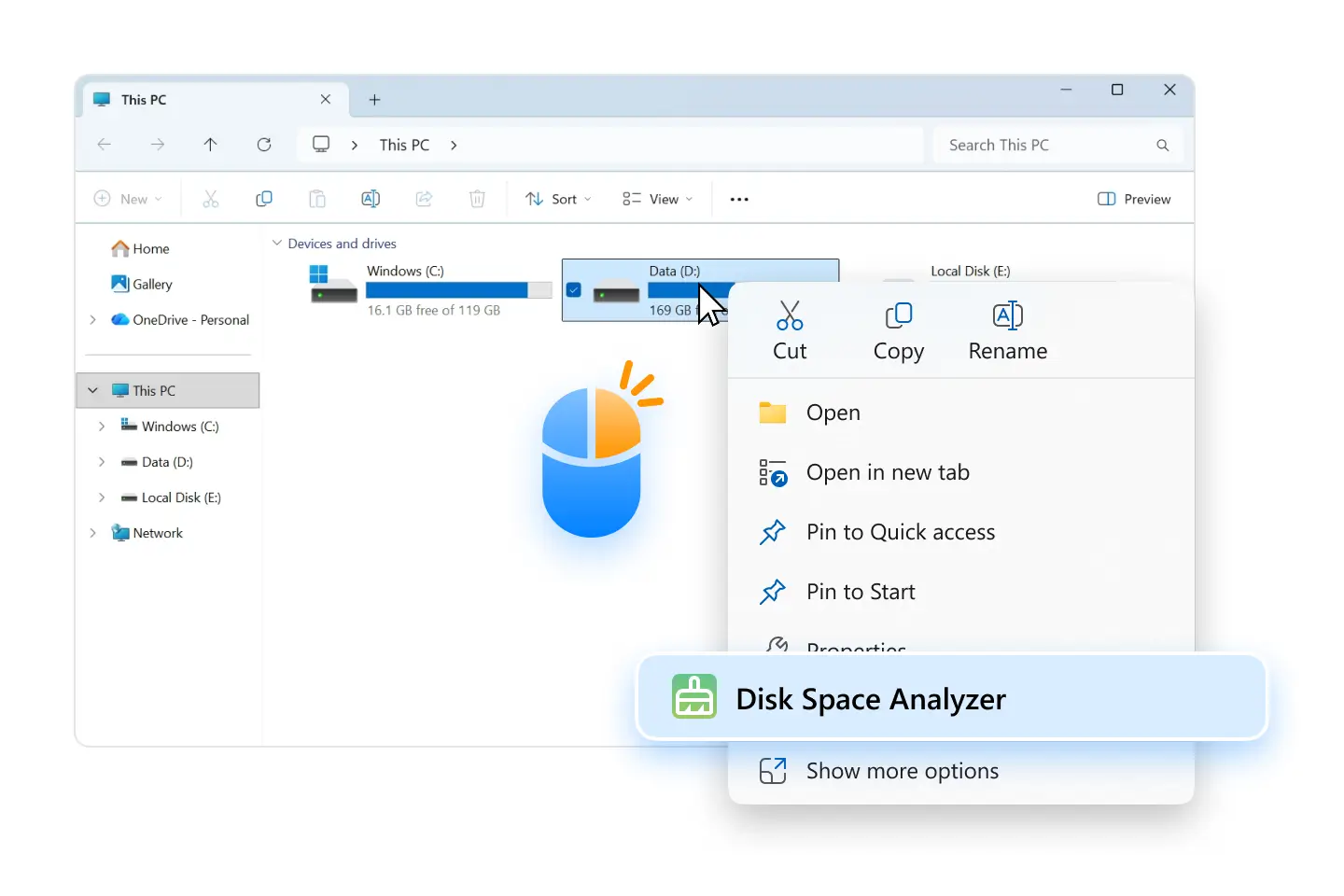
Native Right-Click Menu Integration—No Learning Curve

After our visible interface displays the size of your files/folders in disk space, you don't need to hunt for the "Delete" button or memorize new shortcuts. WMaster Cleanup follows the logic of Windows muscle memory. You just need to select the folder/file and right-click to open, copy, cut, delete, or check the property as you want. Giving you familiar operating experience for both professionals and newbies.

Download IconFree Scan
Native Right-Click Menu Integration—No Learning Curve
Seamless Recycle Bin Integration-Avoid Wrong Deletion

Seamless Recycle Bin Integration-Avoid Wrong Deletion

Instead of aggressively shredding files after you choose to delete large space hogs, we avoid strategies that leave no room for error. WMaster Cleanup provides Windows Recycle Bin Integration service to make sure each file you delete will be safely moved to the recycle bin first. Ensuring the accidental deletions can be instantly restored as long as your Windows Recycle Bin hasn't been emptied. Giving you absolute peace of mind while freeing up disk space.

Download IconFree Scan

How to Check Disk Space on Windows 10/11 by WMaster Cleanup?

Use WMaster Cleanup to check disk easily.

1

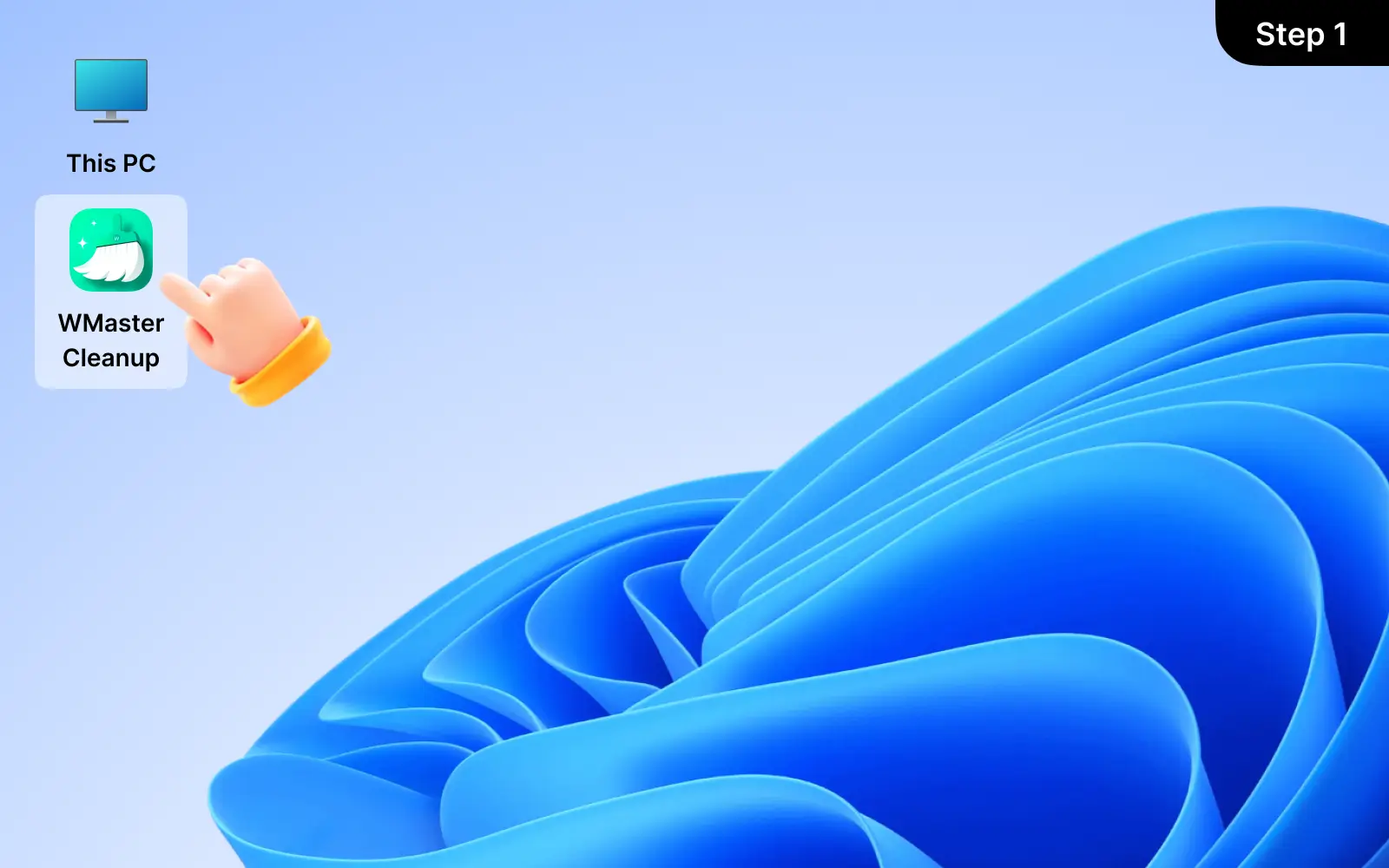
Download WMaster Cleanup and Open It

Go to the official site of WMaster Cleanup to download it on your computer, and double-click to open it.

2

Click "Disk Analyzer" to Select the Disk to Analyze

Next, navigate to "Disk Analyzer," and then there will be a pop-up notice asking you to select one of your disks to begin analyzing the disk. Select the disk you wish to scan and begin to analyze.

3

View the Disk Analyzer Results to Find Space Hogs

After a few seconds, our interface will display the detailed results from the disk analyzer. You can click the "Details" button to further check the space usage situation and make your decision to keep or remove clutter.

Download WMaster Cleanup and Open It
Click 'Disk Analyzer' to Select the Disk to Analyze
View the Disk Analyzer Results to Find Space Hogs

Hot FAQs About WMaster Cleanup Disk Space Analyzer

1. Is WMaster Cleanup Disk Analyzer Safe?

Look Up The Answer

Yes, WMaster Cleanup Disk Analyzer feature is totally safe to use. It performs read-only analysis to scan your disk. All results are clearly presented so that you can review them before taking action.

Additionally, we provide the Recycle Bin restore service to prevent the accidental deletion of important files.

2. How do I check my GB storage?

Look Up The Answer

You can check your GB storage by using WMaster Cleanup Disk Space Analyzer feature. Simply launch the tool, navigate to the Disk Analyzer, choose a drive, and click Start Scan. Within seconds, our disk analyzer will demonstrate a clear breakdown of the size of large files, medium-sized files, and normal-sized files. You can click Details to learn more to make your decisions to delete or manage your disk space.

The second way is to open This PC, right-click a drive, and select Properties. However, WMaster Cleanup provides more convenient and visual insights to help you check your GB storage.

3. Is WMaster Cleanup Disk Space Analyzer for beginners or IT professionals?

Look Up The Answer

WMaster Cleanup Disk Space Analyzer feature is suitable for both beginners and IT professionals. You can feel free to unlock its magic.

4. How do I know what is taking up my disk space?

Look Up The Answer

The quickest and most direct way is to try WMaster Cleanup Disk Analyzer feature. It can scan your full drive and display a detailed, user-friendly breakdown of disk usage, showing which folders or files consume the most space. Large files, hidden folders, and space-hogging file types are clearly highlighted by size.

5. What is a good disk space analyzer?

Look Up The Answer

A good disk space analyzer is a tool that helps you understand how your storage is being used, allowing you to free up disk space and maintain your system's efficiency. The key features of a good space analyzer should include:

Rapid scanning of full drives and folders.

Visual breakdown of disk space usage.

Clear identification of large files and space hogs.

Multiple cleanup options to manage your disk space.

Safe recycle bin restore option avoids wrong deletions.

WMaster Cleanup Disk Space Analyzer fits those criteria by offering rapid scans, intuitive visual reports, and clear operation selection—making it a great choice for both beginners and advanced users.

Unlock More Features of WMaster Cleanup

Bottom Background Image

WMaster Cleanup

Best Windows Cleaner & Optimizer to Speed up Your PC