


You can lower ping in games and reduce network delay for smoother gameplay by changing the network and suspending updates. With WMaster Cleanup, you can effectively optimize your system's performance and eliminate lag during your game.
How to lower ping in games even though you've an Ethernet connection? Well, a high ping rate is quite frustrating because a delay of just a few milliseconds could be a deal breaker for gamers.
Game players want fast responses to have smooth gameplay, and therefore they try everything from changing the internet to using a VPN. To truly optimize your gaming setup, you need to streamline how data packets travel from your PC to the match server.
In this blog, I'm going to share 7 easy ways to reduce network delay. Besides this, I'll share a game booster that will lower ping in games instantly. So, let's get into the topic.
In this article
Part 1: What Is Ping in Online Games?
Ping is not like the usual term we use for messaging each other. In the gaming world, ping is the round-trip time in milliseconds. Basically, it's the time data takes to go from your computer to a game server and back again.
Lower Ping = faster response and better gameplay
For gamers, it's the time between their intention and the game's reaction. And that impacts their game a lot.
The lower ping means the game feels like a direct extension of your hand. But if the ping is high (100 milliseconds or above), it'll delay the actions, leading to a delayed response and ultimately frustration.
Here are some of the reasons why low ping is better for gameplay:
- Your actions happen when you intend them.
- Action and the server's reaction are synchronized.
- Eliminate the lag compensation problem.
- Faster reaction to in-game events.
- Smooth and predictable movement of other players.
Before knowing how to reduce ping in online games, lets know why it gets high.
Part 2: Why Is My Ping So High?
High ping can be caused by high bandwidth, poor connection, or faulty equipment. A high ping causes a delay in response, and everything breaks down. So, a quick fix can save you from frustration afterward.
However, to fix your network latency, you first know where your connection stands. Following is a breakdown of what does a good ping actually means:
- 20ms or less is an excellent ping rate to have.
- 20ms-50ms is considered great because it offers responsive gameplay.
- 50ms-100ms is also a good ping rate but you might observe minor delays in your game.
- Over 100ms is a danger zone where you might observe lag and stuttering.
The Main Causes Why Your Ping is So High
1.Weak Wi-Fi or unstable connection
Wi-Fi is a death sentence for competitive gaming. Thick walls, distance, and signal interference cause packet loss. Every time your connection drops a packet, your device has to resend it. As a result, you're suddenly rubberbanding across the map.
2. Distance from the game server
Although data can move fast, it can't achieve the highest speed due to physical restraints. And that's why when data moves long distances, it has high base latency. For example, if you're based in the US and your gaming server is in the EU West lobby, your data has to travel thousands of miles through undersea fiber cables.
3. Network congestion from other devices
Another reason why your ping rate is so high is because there are too many devices connected to the same server. For instance, if you're playing and someone else in home is streaming 4K video or downloading a 100GB patch, your connection gridlocks.
4. Background apps using bandwidth
Sometimes your own system deceives you. Yes, I'm talking about the background processes like Steam auto-updates, cloud syncing, Discord streams, or heavy browser tabs that quietly drain your upload bandwidth.
5. Outdated drivers or overloaded system resources
Another reason why ping is so high is that your hardware is choking. Outdated network adapter drivers or an overloaded CPU can delay how fast your system processes incoming ticks. If your frame rate drops and your system resources hit 100%, your ping spikes right along with it.
6. Inefficient ISP routing
The fault lies entirely with your internet provider. Instead of routing your connection directly to the game's server center, your ISP might bounce your data through random, inefficient nodes across the country.
Part 3: How to Lower Ping in Games-7 Proven Ways
You can fix the high ping issue by optimizing your PC and router. With quick physical setup, software tweaks, and cleaning up your disk, you can permanently remove sudden lag spikes. Here are solutions to your permanent headache of how to reduce ping in games:
1. Using WMaster Cleanup-The Easiest Way to Lower Ping in Seconds
WMaster Cleanup is an all-in-one PC cleanup tool that can fix your high-ping issue in seconds. Its Game Booster feature can optimize the network and ping directly, tuning low-end hardware perfectly for gaming sessions. Besides this, it cleans the hidden junk, large files, and temp files that take up a lot of space in your system. Within a few seconds, it significantly improves your PC speed.

The Easiest Game Ping Reducer-WMaster Cleanup
- ·Optimize network setups to reduce connection lag and keep ping stable during online matches.
- ·Spot a sudden spike and fix background network issues without Alt-Tabbing out of your game.
- ·Its Esports mode allows you to forcefully stop background data hogs to preserve game bandwidth.
- ·Closes resource-hogging background apps to free up resources for game data transfer.
- ·Disable Windows telemetry to reduce background activity, giving lower-ping gameplay.

How to Lower Ping in Games Intantly on Windows
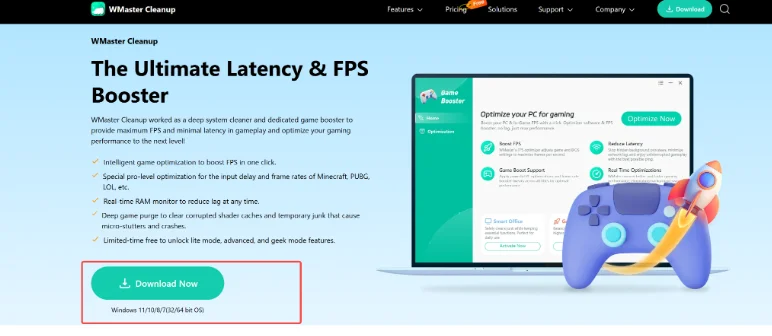
Step 1: To begin with, go to the official website of WMaster Cleanup, open the features tab, and select Game Booster. Now download the app on your PC.
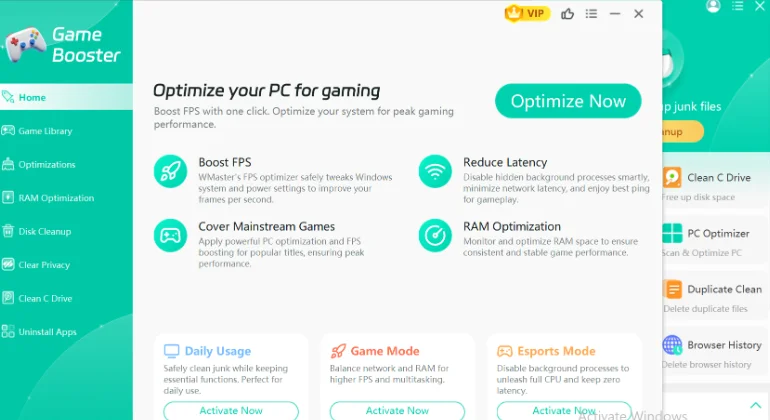
Step 2: Now, when you start the tool, it will directly navigate you to the Game Booster interface.
💡Tips:To use this feature again, open the main interface; you need to click on the Game Booster feature to open up its interface and reduce game ping on your Windows PC.
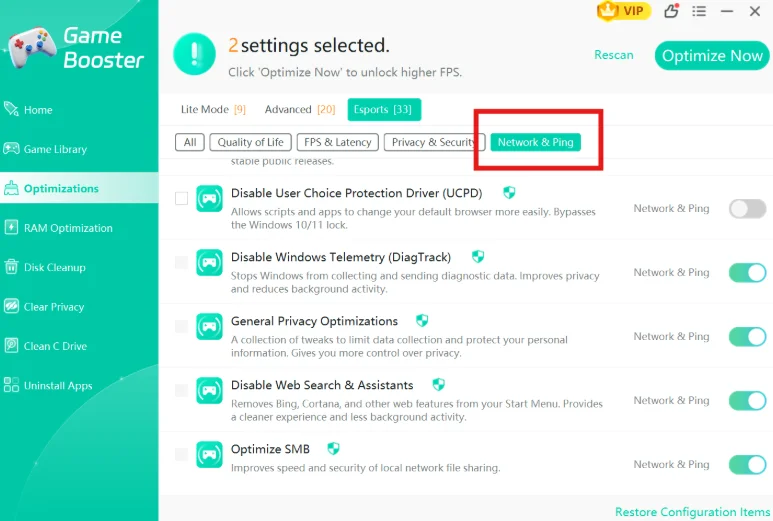
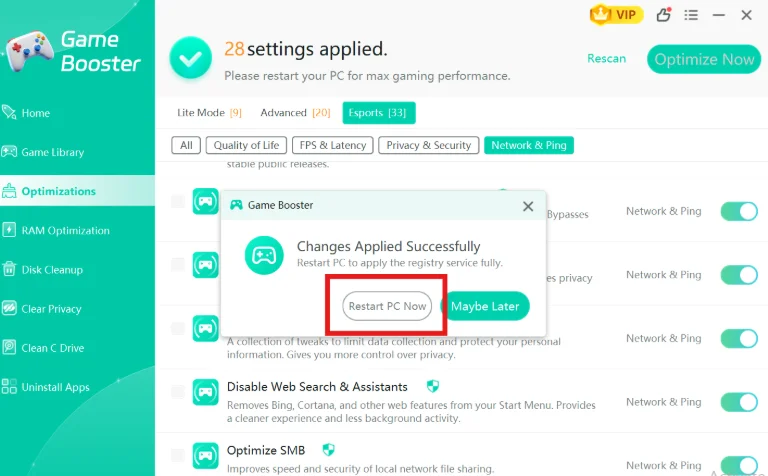
Step 3: From the left side, click on the Optimization button and then select Network & Ping to lower ping in games.
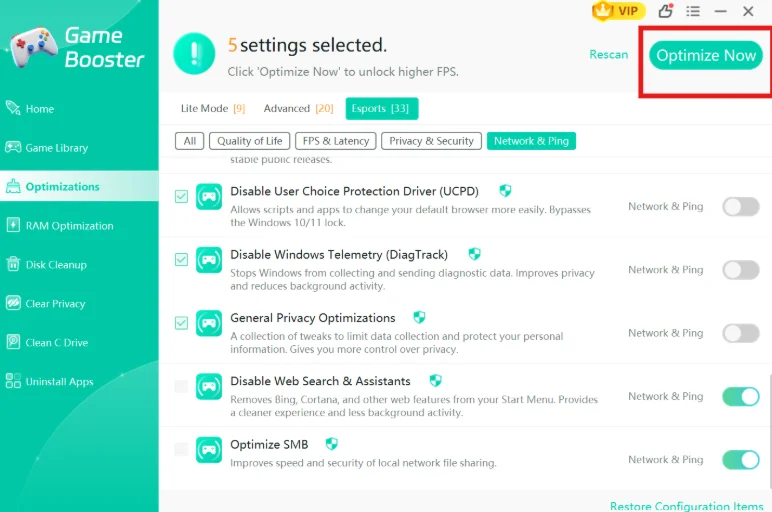
Step 4: From the Network and Ping section, select the items you want to optimize and then click on Optimize Now to lower ping.
Insider Tip: To react with zero delay, select Esports mode to maximize your gaming performance by minimizing input lag, boosting refresh rates, and optimizing visual clarity.
Step 5: Restart your PC to fully apply configuration settings and maximize your gaming experience.
Besides using this best game ping reducer, cleaning up your PC can also contribute to lower ping in games. By removing caches, temporary files, and large files, you can save up a lot of space that will improve the processing speed of your system. Check out our complete guide on how to find and remove large files from your PC to optimize system speed.
2. Check Your Router
The first step to fixing high ping is making sure your router is running at peak performance.
Step 1: Keep your system close to the Internet router so there're little to no objects to block the signals. Now, check your router's settings to turn on any built-in Gaming Mode or low-latency features.
💡Tips: Make sure your router's system software (firmware) is completely up to date.
Step 2:Now, give your router a restart by unplugging it for 30 seconds to clear out temporary digital junk which leads to lag spikes.
However, if the issue remains the same, you have to remove all the electronic devices nearby because this causes signal interference.
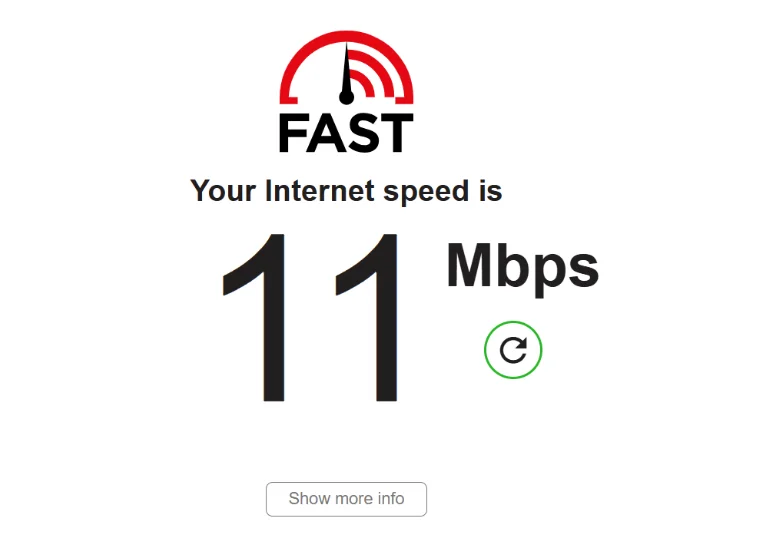
Check your Internet speed after finishing all these steps and see if there's any improvement in speed. Here is how you can do it.
The best way to check your Internet's speed is by searching "internet speed test" in the search engine.
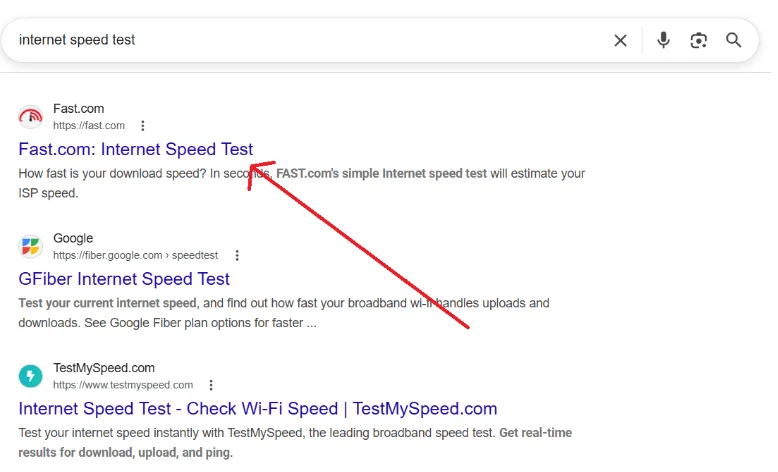
You can choose any site that offers this service. If the speed is under 25Mbps, it'll lead to a high ping.
3. Use a wired Internet Connection
If your Wi-Fi is not meeting the ping requirements, you can consider this option of using Ethernet. Once you connect to a high-speed wired internet connection, it instantly improves and stabilizes the internet speed.
The main reason that Ethernet works well for gaming is
- Wired cables are not prone to data loss when passing through walls.
On the contrary,
- Wi-Fi signals are wireless and they encounter interference, causing sudden lag spikes mid-game.
A wired cable eliminates those issues entirely by sending data directly to your rig. If you're switching to wired Internet, make sure you're using Cat6 or Cat7 to handle high-speed internet.
4.Configure Network Adapter Settings
By tweaking your Network Settings, you can lower ping in games considerably. For this, you have to follow these steps:
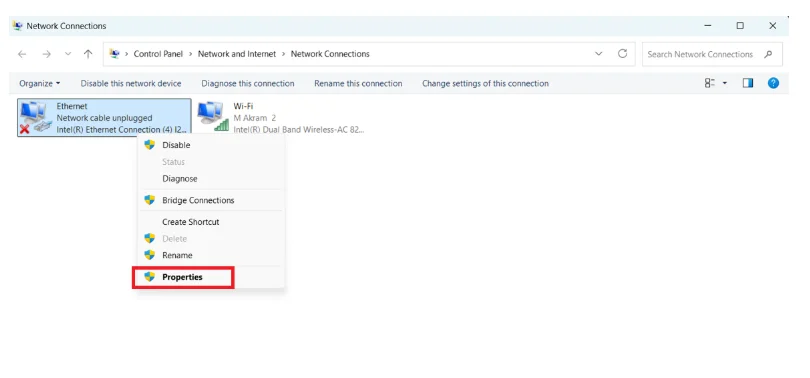
Step 1: Go to Network Connections from the search bar to have a broad view of your network.
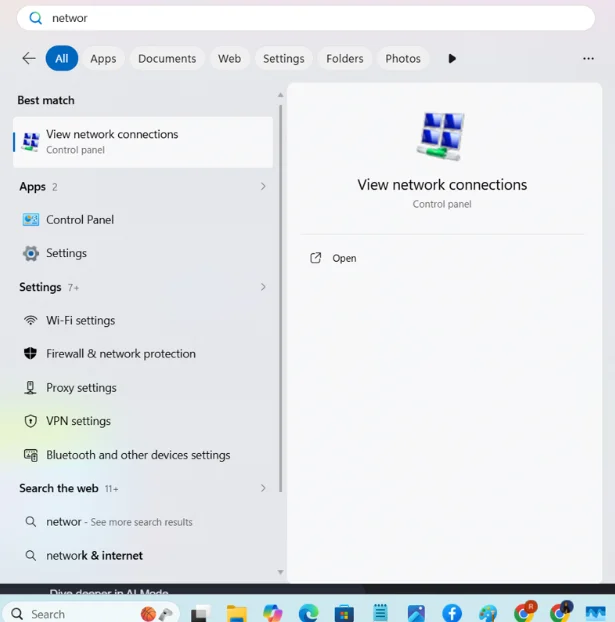
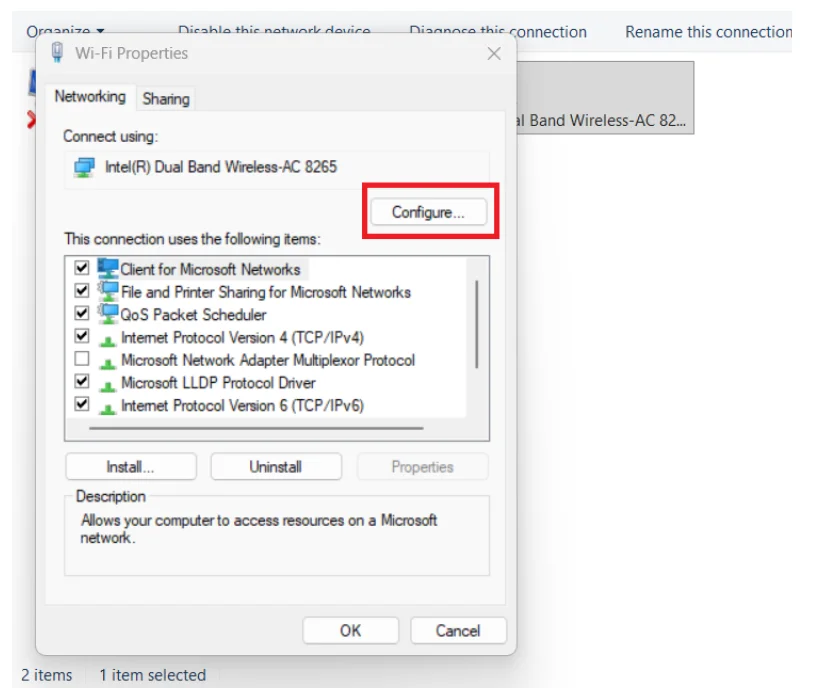
Step 2: Now, right-click on Ethernet and click on Properties -Configure -Advanced.
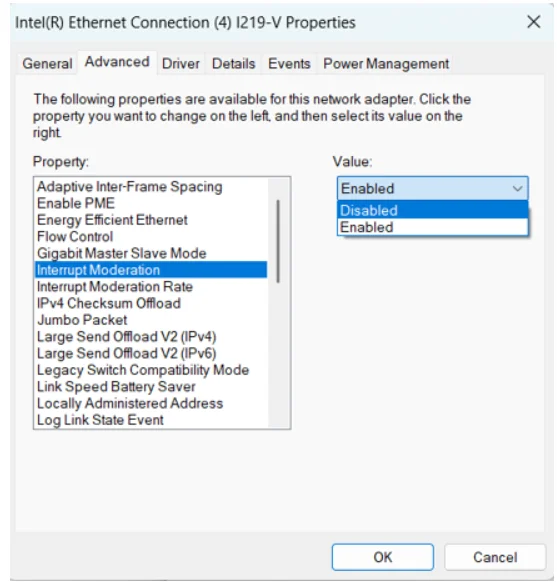
Step 3: From the options available, you have to click and disable the Interrupt Moderation option.
Once done, your CPU will process the incoming gaming data instantly or else your CPU saves them in batches to save power.
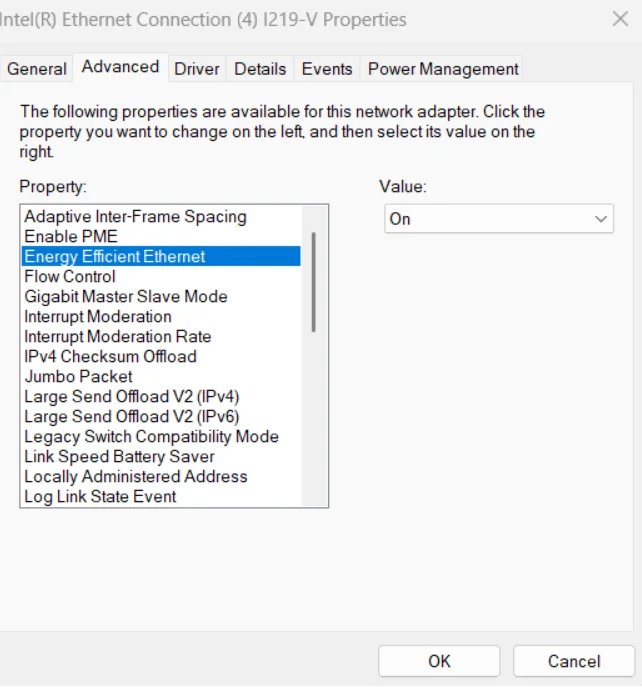
Step 4: Besides this, you have to turn off the Energy Efficient Ethernetand Power Saving Mode. This will allow your adapter to operate in its full capacity.
5. Disable Background Programs
The background programs that use your data might affect your game performance. You can disable them by following these steps:
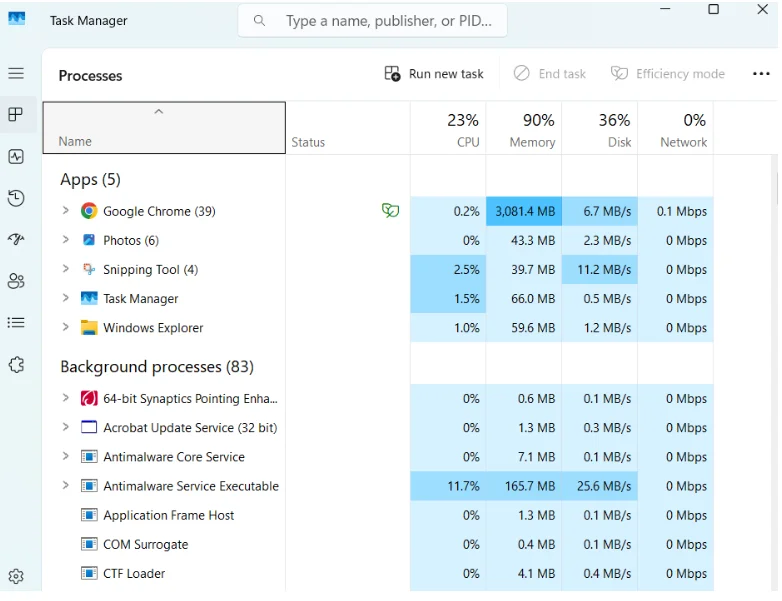
Step 1: To begin with, you must press Ctrl + Shift + Esc to open the Task Manager. Now, navigate and close all the apps that are using the Internet, such as Discord stream and web browsers.
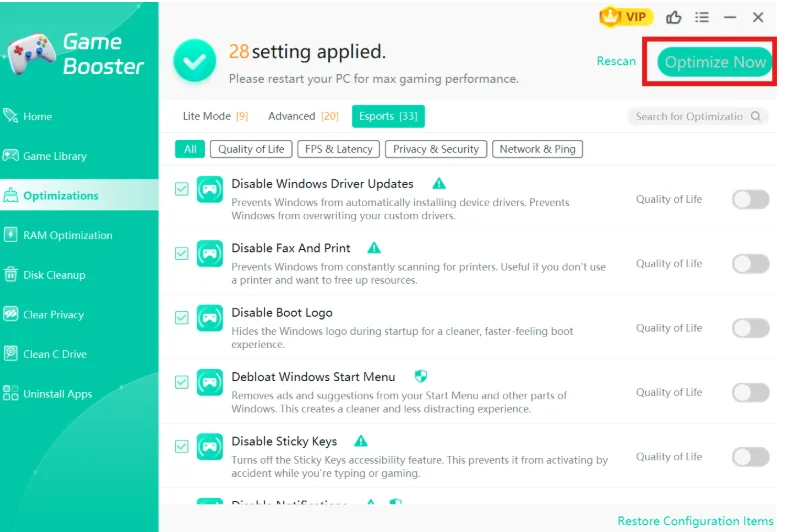
💡Pro Tip: You can automate this process with one click by using WMaster Cleanup's Game Booster feature to disable background apps.
6. Pause Windows Updates
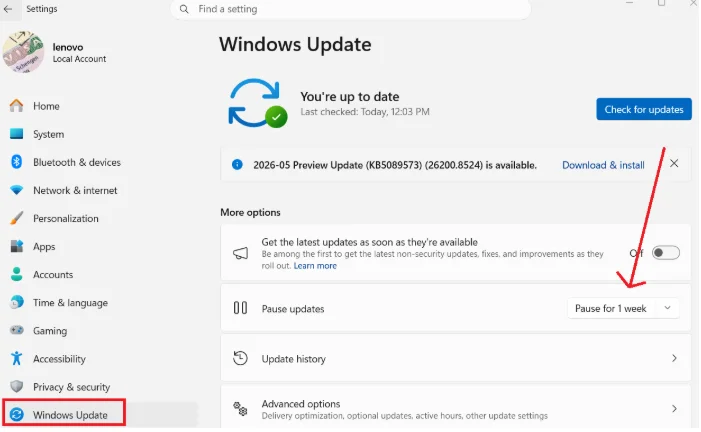
Windows updates use quite a lot of data, which increases the ping. With a few steps, you can turn off the updates for a seamless gaming experience.
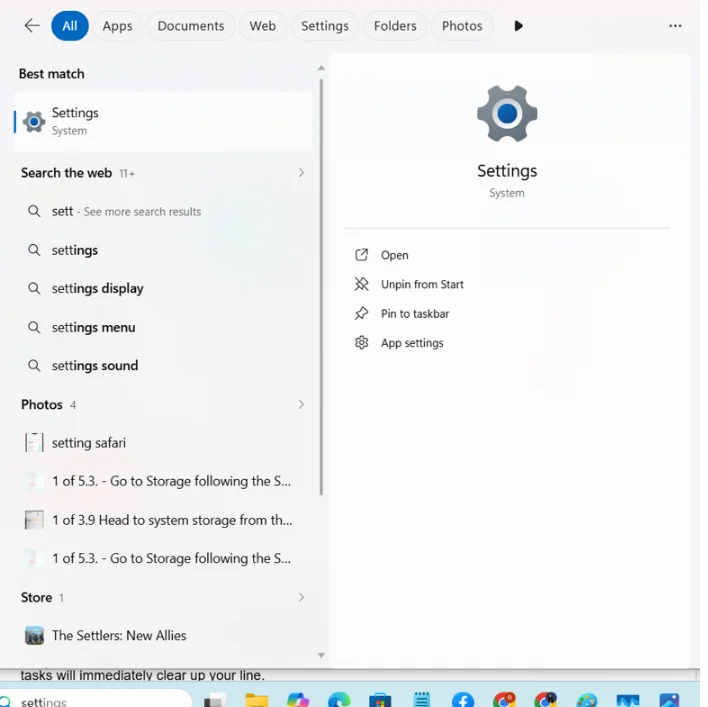
Step 1: Go to Windows Settings from the start button and scroll down to find Windows Updates.
Step 2: Here, you need to click on Pause Updates, and you can pause them for a week or two or so on.
7. Remove Other Devices From Your Network
If you want the absolute best connection performance, you need to make sure other devices aren't secretly hogging your bandwidth. When your ping suddenly spikes, it's usually because someone else in the house is downloading huge files or running background system updates.
You can temporarily disconnect devices like Smart TV, smartphones, and laptops. Once you temporarily disconnect those devices, their heavy tasks will immediately clear up your line.
Part 4: Bonus Tips: Settings for How to Reduce Ping in Games
A few hidden settings on your PC and router can make a significant improvement in latency. Here are some quick optimization ways to get the lowest ping:
- Turn on your Router's QoS Settings to prioritize your gaming PC or console over every other device in the house.
- Make sure you turn off Windows Delivery Optimization to save the data points.
- Swap your default Internet Provider's DNS for a faster, free public DNS like Google (8.8.8) or Cloudflare (1.1.1.1).
- From the Device Manager, you can uncheck Allow the computer to turn off this device to save powerso your network hardware runs at maximum performance.
- Use a PC optimization tool like WMaster Cleanup to clear out background junk files, flush your DNS cache, and close hidden RAM-hogging apps before you launch your game.
By keeping your system highly responsive, you can internally prevent hardware delays from driving up your in-game ping.
Part 5: Hot FAQs About Lower Ping in Games
1. What is considered a good ping rate for gaming?
The higher your ping rate is, the more will be the lag and ultimately you'll lose control of your game. A ping rate of 20ms or less is considered excellent. Whereas, 100ms or greater is not favorable because it leads to lag spikes.
2. Why is my ping so high when my internet speed is fast?
Internet speed is not a parameter to check your ping rate. If your server is located on the other side of the world or the Wi-Fi signal is experiencing any interference, the ping rate will be high. In that case, you can remove the physical obstacles between your device and router.
3. Can switching from Wi-Fi to an Ethernet cable lower ping?
Switching from Wi-Fi to an Ethernet cable significantly improves your ping. This is because Wi-Fi signals are wireless and the data packets lose more than in Ethernet cable which is enclosed. This provides a smooth gaming experience.
4. Do background apps affect my PC game performance?
Background apps and updates affect the game performance. The main reason is that these background apps use data silently which ultimately affect latency and your gaming experience.
If you want to free up space to transfer game data, make sure you try WMaster Cleanup. With just a few clicks, you can get rid of resource-heavy background tasks, like Google Chrome tabs or Discord processes.
5. Should I use a VPN to lower my ping?
Traditional VPN addresses add an extra routing stop for your data before it passes through the game server, which increases the latency. But if your ISP is affecting your game speed, a gaming-optimized VPN can establish a direct path.
Conclusion
You probably have searched for ways to lower ping in games every time your action gets delayed. Now, you know how to lower ping in games or how to reduce the network delay with a few adjustments to your PC and Internet device. Besides this, cleaning up your PC is necessary to remove cache and junk to lower ping in games.
If you want to avoid manual hassles and thinking about, how to reduce my ping in online games within a few clicks? Enhance your gaming experience with WMaster Cleanup's Game Booster, the best game ping reducer, which helps reduce ping and provides smoother, lag-free gameplay in one click.


