
Definitely a Fortnite player, right? And we both know the absolute heartbreak of network lag. I know the feeling, when you're lining up a match-winning shot in the final moving circle, but your character teleports backwards and your clean shotgun shot completely blank.
You can do nothing but stare at a loading screen, throwing you back to the lobby. High ping, for sure, ruins your game and your playability! But how to get lower ping in fortnite?
I spent months losing competitive box fights to players who had flawless fiber connections. So, instead of giving up, I researched network protocols, tested Windows configurations, & fine-tuned my PC. In this writeup, I'll share everything that actually pulled my setup out of lag trenches.
In this article
Part 1: What is Ping in Fortnite?
Downloading a big update file fast does not mean you are going to have lower ping. Instead, you can consider that a ping as the "time" it takes for your"actions" to travel from your hand into the game.
Similarly, a ping in Fortnite means when you are trying to build a ramp and press a key, that action is over turns into a tiny info packet, over leaving your PC, over passing through your router, over traveling down miles of internet cables, and then over hitting Epic Game's servers.
Now, to see the action on your monitor, this Epic's server is over notes your ramp, over updates the match, and then over sends the confirmation message all the way back to your monitor.
Part 2: Why Need to Lower Ping in Fortnite?
I have already realized that high ping is setting a hard ceiling on my Fortnite playability. Now I know it does not matter how much time I am spending on practicing my triple edits in a private creative map; high ping will definitely ruin my muscle memory in real matches.
It happens due to Fortnite asking its servers to verify which player is placing a wall or hitting a shot first. Here is bad news! If your connection is behindhand, Fortnite's server will simply ignore your moves. Below is a breakdown.
How is Ping Affecting Your Fortnite Matches?
| Fortnite Ping | Tier for playability | Effect on Gaming experience |
|---|---|---|
| 0 — 30 ms | Pro Tier(Completely instant Game feel) | ●Builds stick exactly where you look ●Edits release without delaying Easily steal walls from other players |
| 31 — 60 ms | Casual Tier (Fine for your standard Fortnite matches) |
●You’ll be noticing small delays during fast build fights ● Taking someone's wall feels like a coin flip |
| 61 — 100 ms | Lag Tier (Obvious delay between physical & resulting actions) |
●Shotguns fire late ●Walls attaches slowly ●Fast editing sequences stick or may fail completely |
| 100+ ms | Cooked Tier (Your enemies will be literally walking through your walls) |
●Get "blank" hits where the gun fires but does no damage to enemies ●Players teleport across your screen. |
Along with a low ping, knowing how to improve in-game FPS will definitely help you win the Fortnite matches. It not only cuts down your input lag but also lets your PC register your building & shooting commands milliseconds faster. Likewise, you will also experience a great tracking advantage during intense fights.
Part 3: How to Check Ping in Fortnite
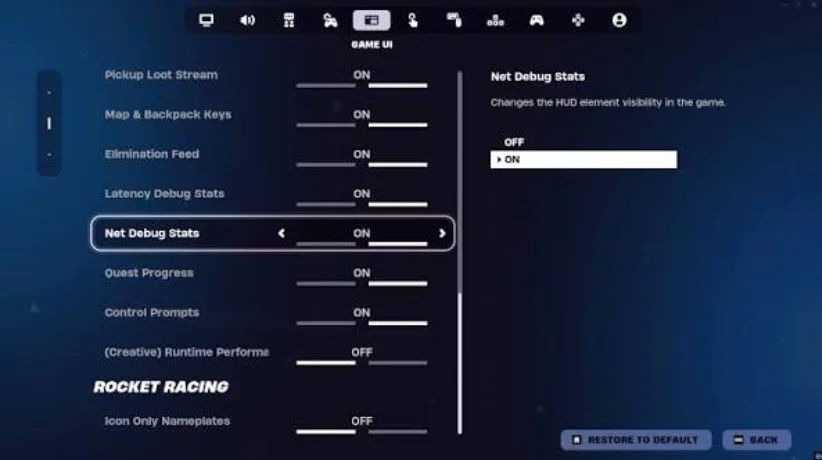
I don't need to play blindly anymore! Fortnite offers a utility, Net Debug Stats, which displays my exact latency, packet loss %, and stream health in real-time directly on my active HUD. Here is how you can also do it:
How I Enable Net Debug Stats in My Game
When you're on the main lobby screen, navigate to the top-left corner and open the menu. Now, Select Settings, tap on the Game UI tab, and enable the Net Debug Stats Once done, click Apply to display network details.
Here is My Daily Connection Checklist
- Is my packet loss strictly at 0%? If not, it means that my game data is losing chunks, causing severe gameplay skips.
- Are there any erratic yellow/red lines on my graph? It shows a visual warning that my connection is suffering actively from latency spikes.
- Is my numerical ping value stable? A stable 50 ms stream is better than an unstable connection that is fluctuating between 20 ms & 90 ms mid-fight.
Part 4: What Causes High Ping in Fortnite?
When I was optimizing my setup for Fortnite, I learned that a high ping is not caused by a single issue. Instead, it is happening due to some combinations, like localized hardware bottlenecks, poor routing choices by my service provider, and unfavorable background Windows settings.
Main reasons for high ping that I spotted during resolving my own connection problems:
- WiFi's wireless signals drop quickly due to walls and furniture and intangible things, like radio frequency interference from household appliances.
- If you leave auto-selection for your server, the game engine may drop you into an overseas data center to fill up a lobby faster.
- Background apps, like cloud sync clients, web browsers with open tabs, and silent Windows updates, steal upload bandwidth.
- Artificial input delays will occur if the motherboard network driver bottlenecks data processing.
- Running smart devices and streaming of HD videos on the same network may exhaust your available connection pipe.
- A system overloaded with storage cache, like temp files and system logs, generates system stutters that are exactly like network lag.
Part 5: How to Get Lower Ping in Fortnite-10 Ways
Method 1. The Easiest Ping Reducer I Use-WMaster Cleanup Game Booster
WMaster Cleanup's Game Booster is my go-to optimization tool for my daily gaming sessions because it clears system lag and network routing without any manual efforts.
Game Booster is an automated tool that scans my storage drives and pinpoints my Fortnite installation directory. This amazing tool implements exclusive and tailored network optimization specifically designed for Epic Games' server endpoints. Similarly, it stops hidden background apps, minimizes network lag, and provides uninterrupted gameplay with the best possible ping.
WMaster Cleanup
Lower Ping in Fortnite by WMaster Cleanup
- ·Offers one-click exclusive optimization for 5000+ game titles, including Fortnite.
- ·Optimize network congestion providers, which improves speeds on busy networks.
- ·Disables auto updates for Windows, decreasing network and ping during gameplay.
- ·Reduces background activities, lowering in-game ping while improving network stability.
- ·Clears Fortnite cache files & broken system logs, eliminating lag-like performance drop.

Guide to Use WMaster Cleanup to Lower Ping in Fortnite
Step 1: Download the tool from Game Booster's feature page and launch it on your Windows PC.
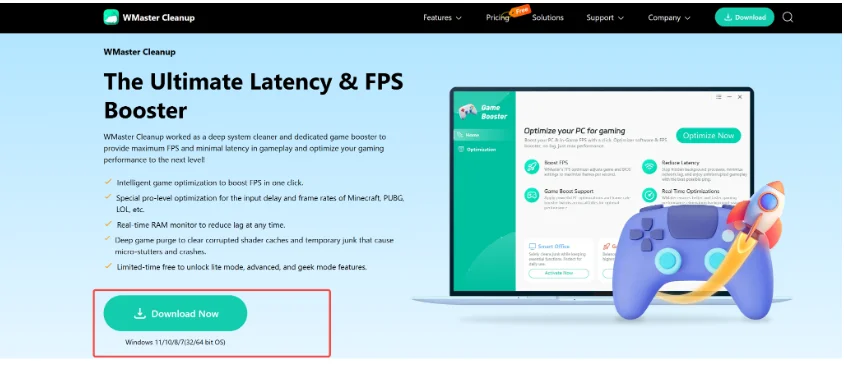
Step 2: From the feature's main interface, click on the Game Library. Now select Fortnite to get exclusive optimization for this game.
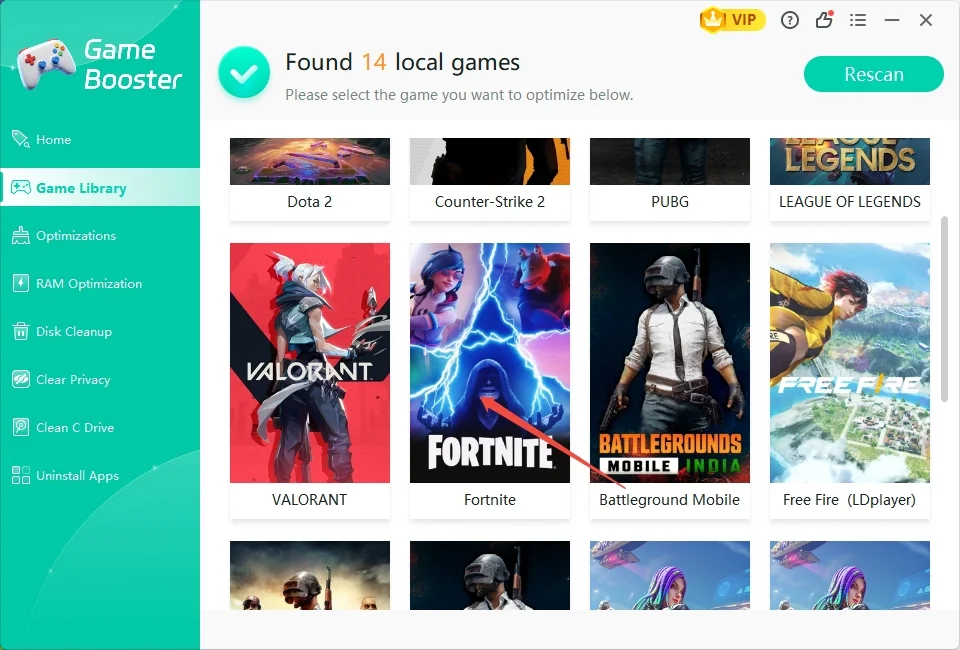
Step 3: Select an optimization tier among three game modes, Lite, Advanced, or Esport. Now tap on Activate for smoother gameplay.
💡Tips:Select Esport mode if you're a competitive Fortnite player and want the highest possible frame rates and the lowest input delay in your next gameplay.
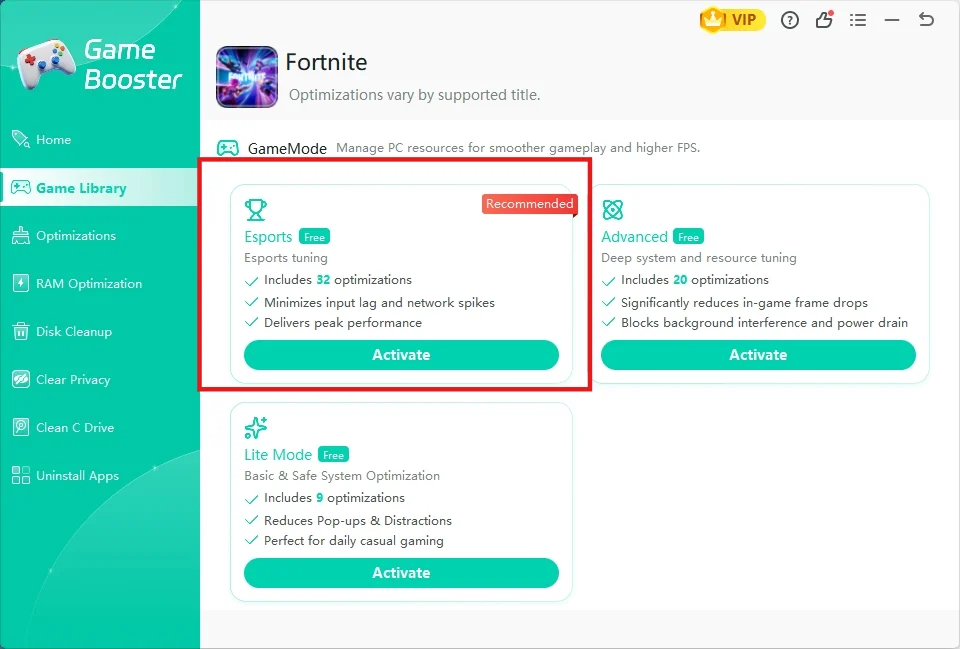
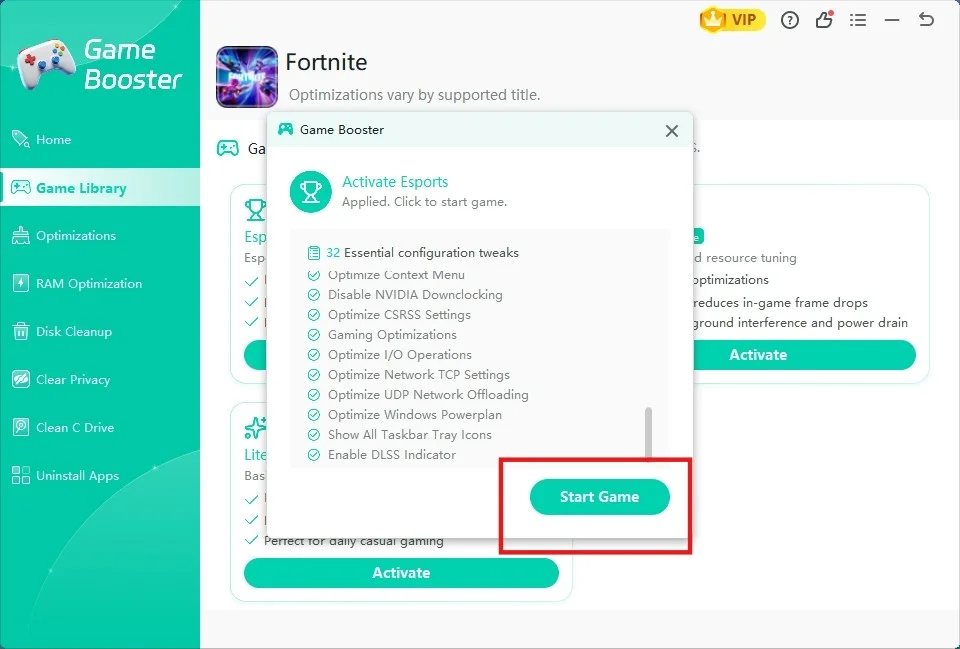
Step 4: All the configuration is applied now. Hit Start Game and launch Fortnite to play with better gaming feel and improved performance.
Now you know how to get low ping in Fortnite, if you also want to improve aim in your Fortnite matches, read our hands-on writeup about how you can improve in-game aim by combining manual tweaks with the Game Booster feature so that your every flick, shot & track appears flawlessly on your screen.
Other 9 Proven Ways I Fixed My Fortnite Ping
Although an auto solution works best, you also need some manual tweaks to lower your in-game ping further. These are the exact 9 manual steps I put into action to lower my personal in-game latency numbers. They range from physical hardware swaps to deep, advanced operating system tweaks.
Method 2: Instead of Wi-Fi, go for a Hardwired Cat6 Ethernet Cable
The best thing I ever did was stop using Wi-Fi completely and plug a high-quality Cat6 Ethernet cable directly from my router into my PC. This physical connection instantly stopped my game from stuttering and lowered my ping by 15 to 25 milliseconds, making everything feel much faster.
Here is a quick comparison:
| Feature | Ethernet Cable Direct Connection |
WiFi Connection Through Air |
Which is best |
|---|---|---|---|
| Average Ping & Latency | Lower and stable 0ms - 1ms |
Higher (often spikes) 10ms - 30ms |
Ethernet |
| Packet Loss | 0% (perfect data stream) | Common (causes skips) | Ethernet |
| Interference | None (shielded wire) |
High (walls, doors, & microwaves) |
Ethernet |
| Stability of the Connection | A perfectly flat line means no interruption | Bounces up and down; that means fluctuation | Ethernet |
| Setup Effort | Needs a physical wire | Easy as pie (wireless) | WiFi |
Method 3: Set up your In-Game Matchmaking Region
The game engine used to drop me into entirely different continental servers. The cause? It wanted to fill up empty game lobbies, especially when I played at nighttime. To solve this, I open the Fortnite settings and select Matchmaking Region to manually lock the exact geographical hub, like NA-East.
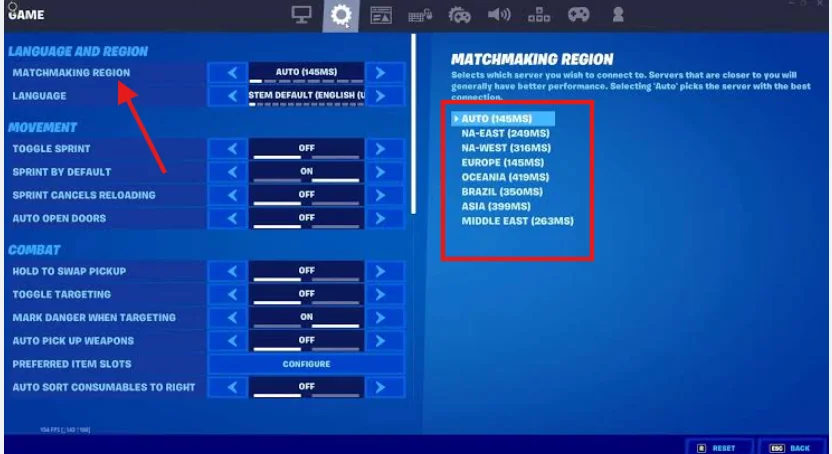
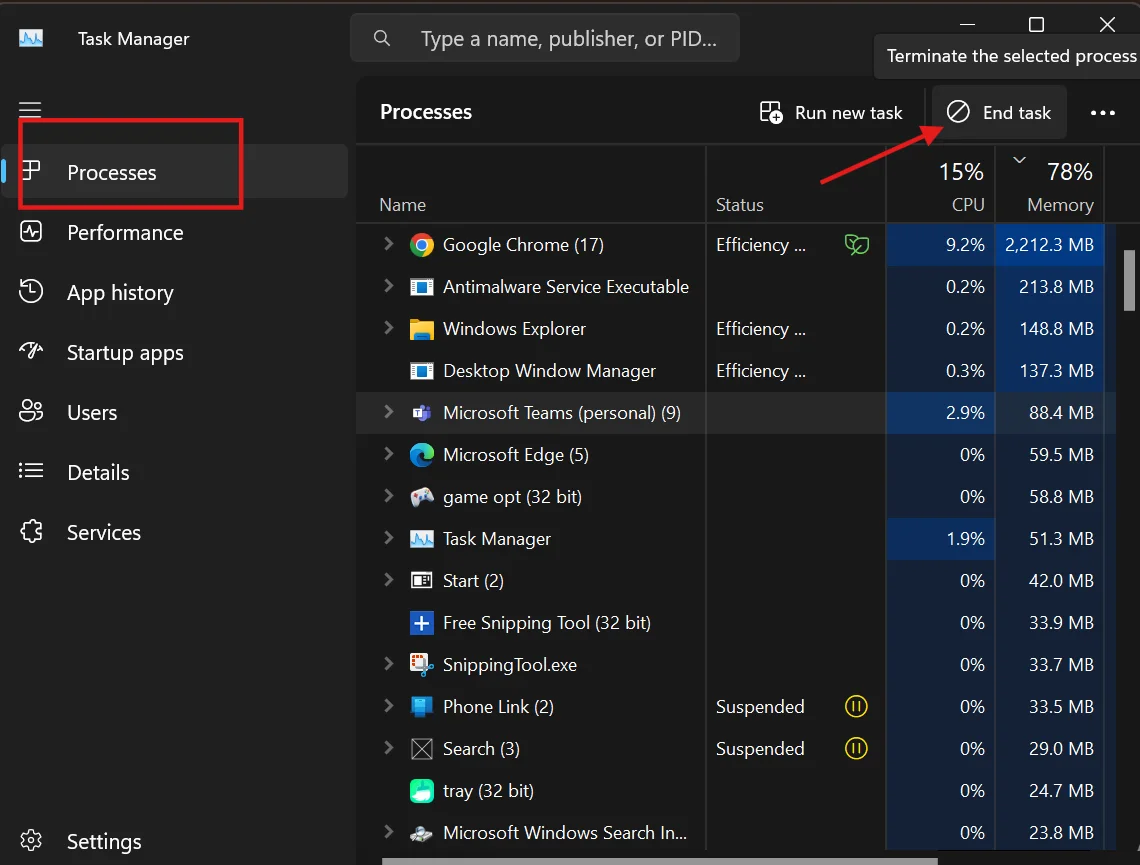
Method 4: Terminate Background Traffic via Task Manager
Background system activities are resource-heavy culprits that affect gaming performance. Before I knew Game Booster could do it with a single click, I used to manually close down these background-running apps. Here is how you can do it manually:
Press Ctrl + Shift + Escto open up the Windows Task Manager. In the Processes tab, tap on the programs that you want to stop and hit End Task.
Method 5: Turn Off All In-Game Replays
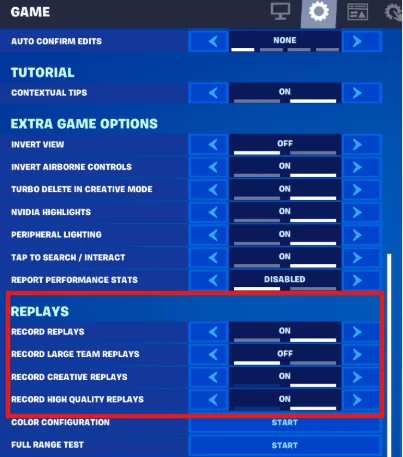
When you turn the Replays option ON, Fortnite starts writing immense gameplay data streams to your system's hard drive. Besides this, the game also exchanges syncing metrics in real-time with the server during your gameplay.
To get instant freed-up processing overhead and lowered input lag during your gaming sessions, just turn off
- Record Replays
- Record Large Team Replays
- Record Creative Replays
- Record High-Quality Replays
Method 6: Disable your Windows Network Throttling Index
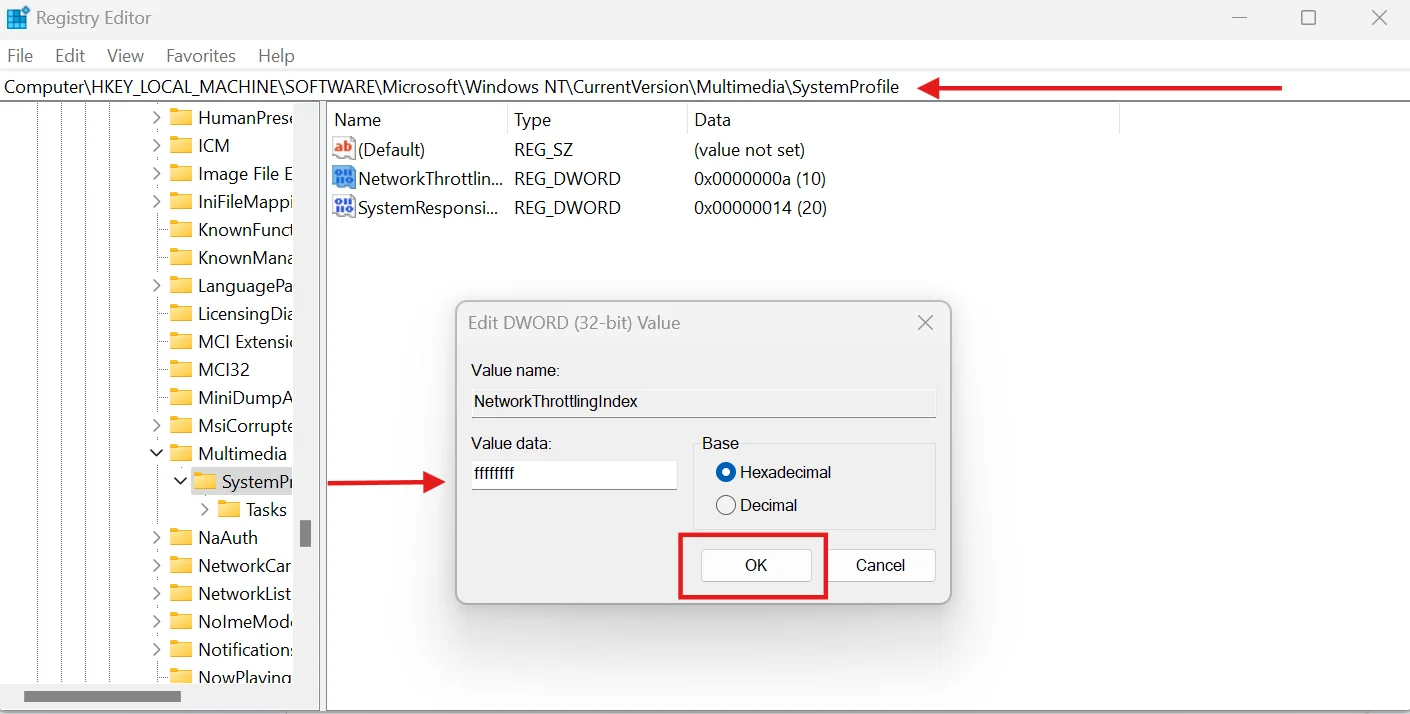
It's a no-cap secret that Windows has a built-in feature that is slowing down your game data to prioritize things like video streaming. It means it might also be holding Fortnite back without you even knowing it. Stop it by completely turning off this speed limitation:
Step 1: Head over to the Start menu, search for, and open the Registry Editor app. Now follow the below path
HKEY_LOCAL_MACHINE\SOFTWARE\Microsoft\WindowsNT\CurrentVersion\Multimedia\SystemProfile
Step 2: Now double-click on the string NetworkThrottlingIndex, and when the window pops up, type ffffffff into the field in hexadecimal mode. Hit OK to unlock your network adapter's utmost speed.
Method 7: Reconfigure the Windows QoS Packet Scheduler Policy
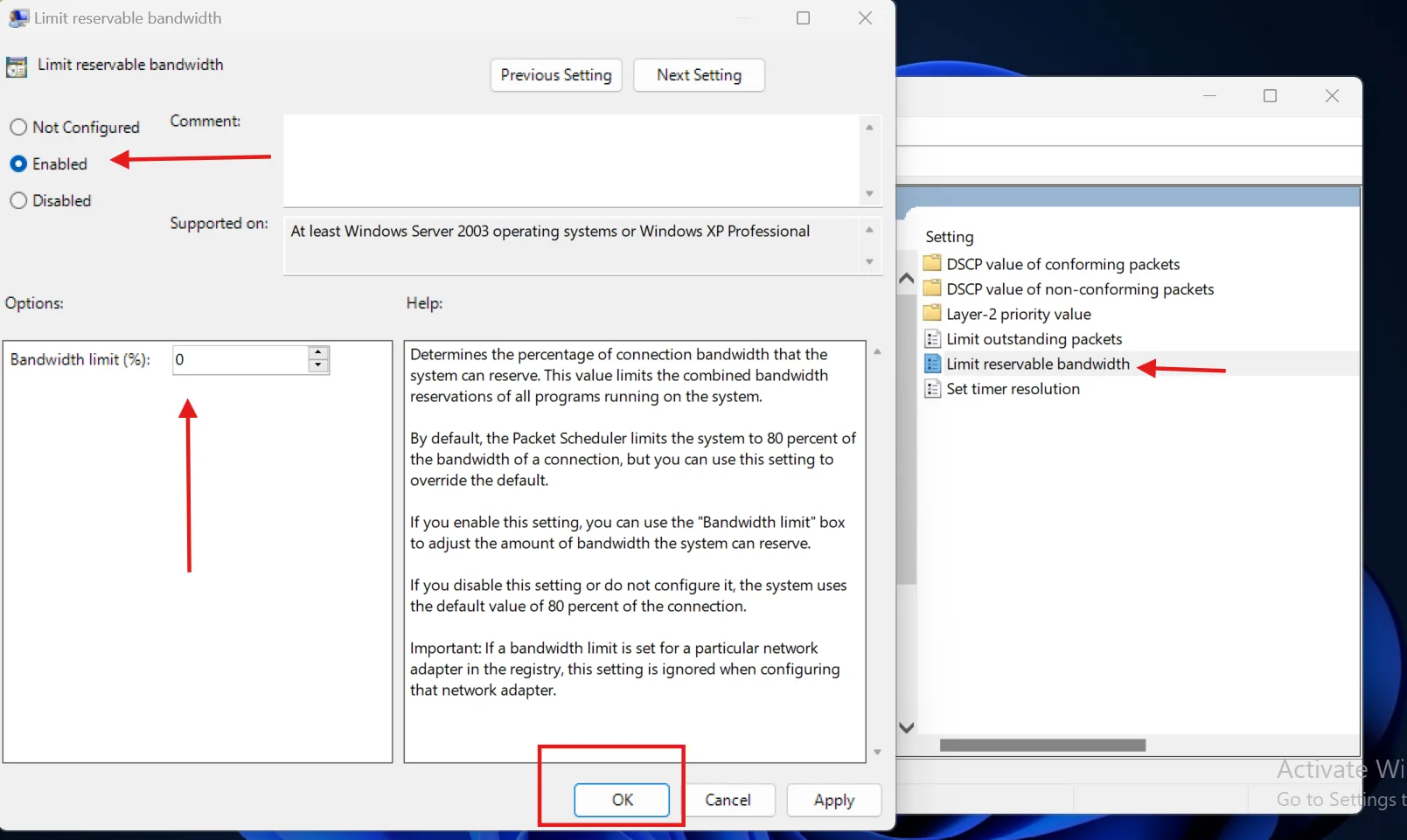
When I was optimizing, I learned that there is a default system in Windows that keeps 20% of overall internet connection bandwidth to run background activities, diagnostic syncs, and Windows updates, leaving only 80% of my pipe during gameplay. Modifying this setting shifts my full connection toward my game.
Step 1: First, press Win + R, type "gpedit.msc" in a popped-up window, and hit OK. Now follow the below path in Local Group Policy Editor:
Click on Computer Configuration, tap Administrative Templates, tap Network, and then select QoS Packet Scheduler.
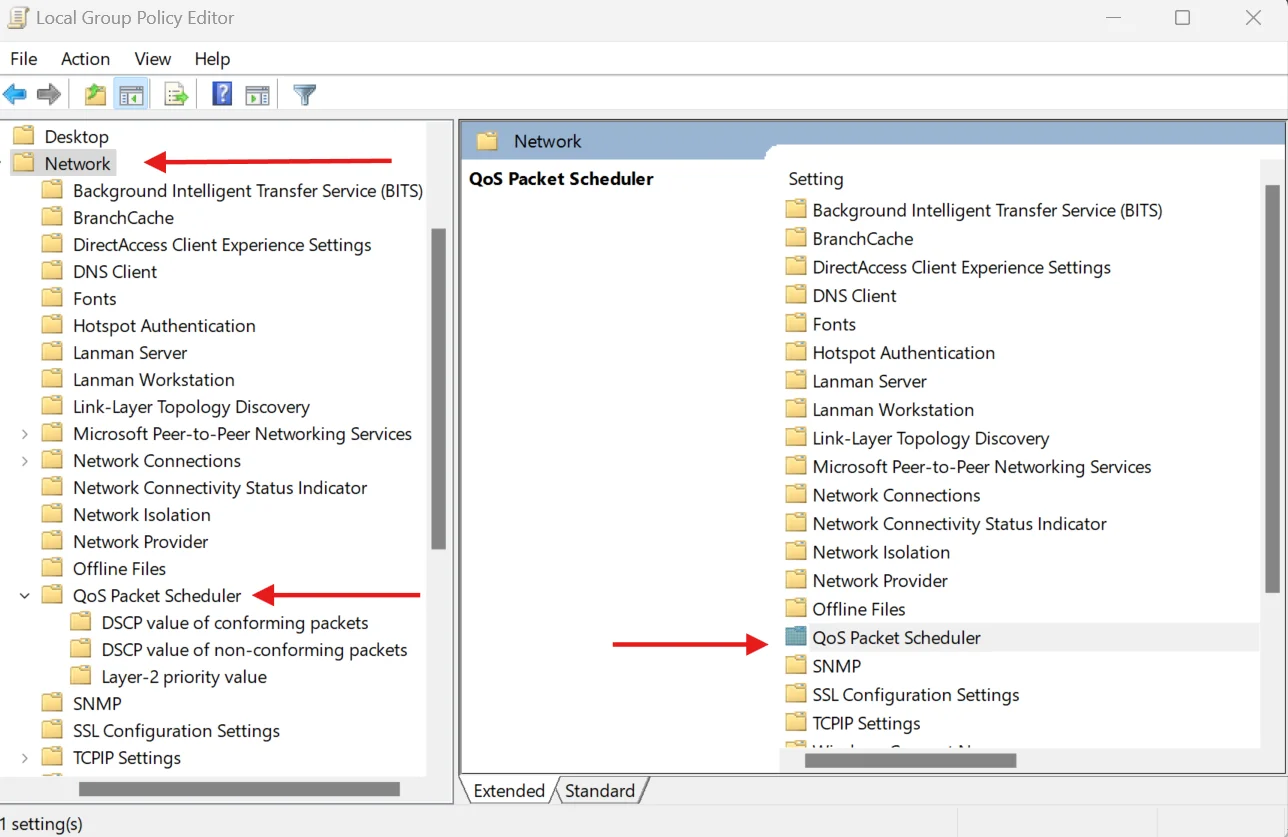
Step 2: Double-click the policy Limit reservable bandwidth." Now set its state toggle to Enabled. Head over to the "Bandwidth limit (%)" input box and modify it from 80% down to a clean 0. Hit OK to apply.
Method 8. Switch Off Large Send Offload (LSO)
Our network adapter settings have an automated feature, LSO. Its purpose is to save CPU power by letting the network card manage data segmenting. However, in my testing, this feature can definitely interfere with gaming packets, due to which a sudden latency spike happens during heavy build fights.
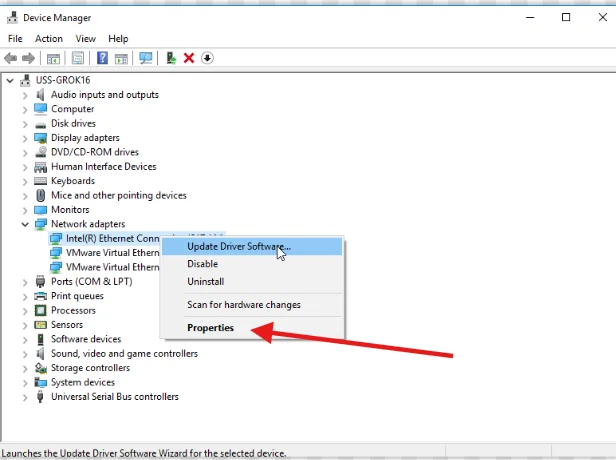
Step 1: Open Device Manager through the Start menu. Click "Network Adapters." From the expanded list, right-click your Ethernet controller card to open its properties.
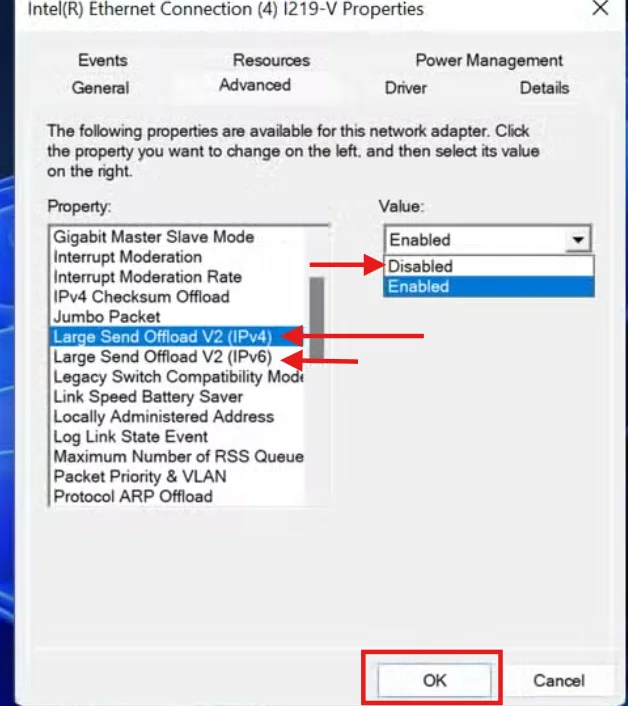
Step 2: Open the Advanced settings tab. Scroll down the options list and tap Large Send Offload v2 (IPv4), then switch it to Disabled.
💡Tips: Repeat the same process for the IPv6 variant if it is present.
Method 9: Use a dedicated Gaming VPN
You ISP taking a bad, zigzag routing path to your game servers?
The gaming VPN, like Urban VPN or Surfshark, intercepts your packet and forces it onto a dedicated and straight path to Epic Game's data centers. It will help you in cutting down the physical travel distance and dropping your latency instantly.
| Feature | Game-specific VPN | Standard VPN |
|---|---|---|
| Main Goal | Finds the direct or shortest route to the Fortnite servers. | The main purpose is to hide data or IP addresses. |
| Impact on Ping | It lowers or stabilizes your ping. | Usually increases your ping. |
| Server Network | Optimized GPN(Gamers Private Network) | General-purpose servers |
| Level of Encryption | Lightweight as it prioritizes speed | Heavy as it slows down speeds |
Method 10: Flush Your Domain Name System Cache
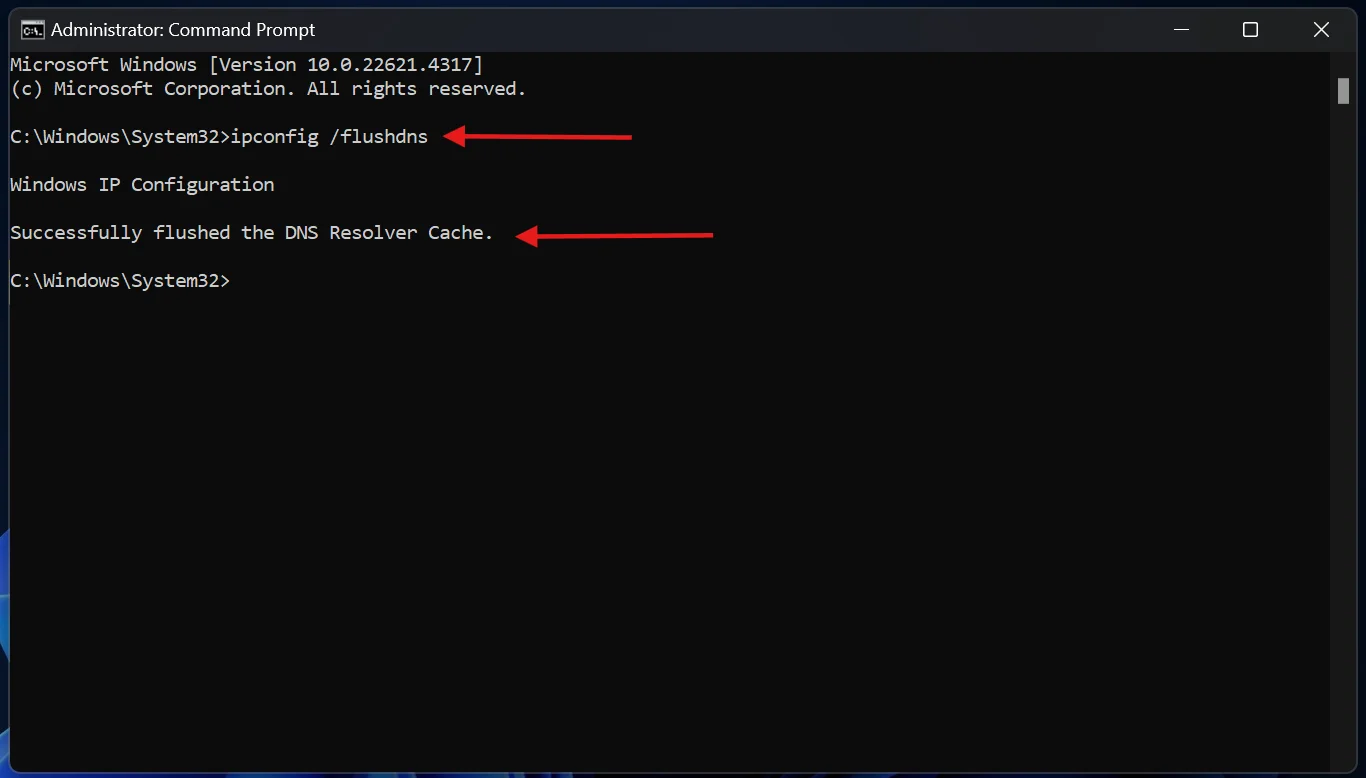
As time passes, our PC's DNS cache fills up with the old links to servers. If you clear this cache, your PC will use a highly optimized and direct path to Epic Game's nearest data center. This will not only reduce the digital barrier and stabilize your connection but also lower your Fortnite ping.
Search for Command Promptin your Start menu, select Run as Administrator, and type ipconfig /flushdns. Now hit Enter.
Part 6: [Bonus] Best Fortnite Settings for Lower Ping
System-level input delay and network bottlenecks can be fixed by optimizing Fortnite in-game settings. Although no setting lets you move physically closure to the Epic Game's server, the below tweaks can help you achieve the lowest ping possible and maximum responsiveness.
Configurations to lower ping and maximize processing speed in Fortnite:
- In the matchmaking region, stop using the Auto selection. Instead, lock your nearest local server. It will keep your data packets always taking the most direct and shortest physical path.
- In Rendering mode, switch to Lower Graphical Fidelity. This way, the heavy visual clutter & lightning (choking your CPU) strip away, helping you to free up your CPU to process without lagging.
- To give priority to raw input delivery, NVIDIA Reflex (On + Boost) bypasses frame queues. It helps in cutting communication lag among your network card and overloaded hardware
- Disable all the in-game replay recordings. It will help you stop the game from wasting your upload bandwidth on heavy background server syncing.
- With Net Debug Stats, enabling a real-time graph on your HUD helps you monitor packet loss & track your latency.
Check out our latest write-up on how can you reduce input lag in gaming with 8 proven methods
Part 7: FAQs Related to Lower Ping in Fortnite
Q1. Why does my game feel like it's lagging when my ping reads low?
Recently, I ran into that issue. My HUD read a flawless 20 ms, but my character was still hitching. It usually happens due to hidden packet loss or massive FPS drops. To solve these hardware hiccups that mimic internet lag, I quickly opened WMaster Cleanup's Game Booster and optimized my PC for a smoother and better gaming experience.
Q2. What ping is considered "too high" in Fortnite?
For Fortnite, anything above 90 ms is considered too high!
And once you cross triple digits, like 100 ms or more, you will experience terrible lag. Moreover, your wall will be placed late, opponents will walk through your ramps, and your shots will go blank. It means you will notice that your gun is firing on your screen, but it will do no damage to the enemy.
Q3. How to get 0 ping in Fortnite?
Technically, it is impossible to get 0 ping in Fortnite because data cannot travel instantly. Still, if your in-game network stats are showing you a 0 ping, it means you're having a connection latency less than 1 millisecond, and the game engine is rounding it down to zero.
To get as close to 0 as possible in Fortnite,
- Live in a city that is hosting Epic Games' matchmaking data center, like Frankfurt or Virginia
- Set up a high-speed fiber-optic connection & use wired Ethernet cable
- Run a dedicated tool, like WMaster Cleanup to optimize Windows network configurations
Q4. What causes my ping numbers to spike wildly mid-match?
According to what I discovered on my own home setup, these sudden spikes happens when other devices connected to your home network trigger:
- Running an HD video stream
- Download a large file
- Perform a silent background OS update
- ISP experiencing routing congestion
Shifting from a wireless WiFi connection to a hardwired Ethernet cable and running WMaster Cleanup's Game Booster before each gaming session can stop these fluctuations.
Q5. Do you think Fortnite is a "ping to win" type of game?
Yes! Fortnite is known for being a ping to win or ping-heavy game. This is especially true in its competitive and building-focused modes. Although raw skills, aiming, and gaming sense are crucial, a player having a 0 or comparatively lower ping connection holds distinct mechanical advantages over someone who is playing on 30+ ms.
Conclusion
If you are dealing with a high ping in Fortnite, I know it's an absolute mood killer. But through the above-mentioned methods, now you know how to get lower ping in Fortnite. Simply take some matters into your own hands, such as using a direct Ethernet line, locking down your closest server region, and utilizing an all-in-one optimizer, like WMaster Cleanup.
The Game Booster feature by WMaster Cleanup not only sweeps away your hidden background activities but also deep cleans your system so that you get lower ping in gaming. So, download WMaster Cleanup Game Booster right away for reducing input delay and boosting performance in your gameplay and optimizing gaming performance in your next Fortnite match.