WMaster Cleanup

The Ultimate Latency & FPS Booster

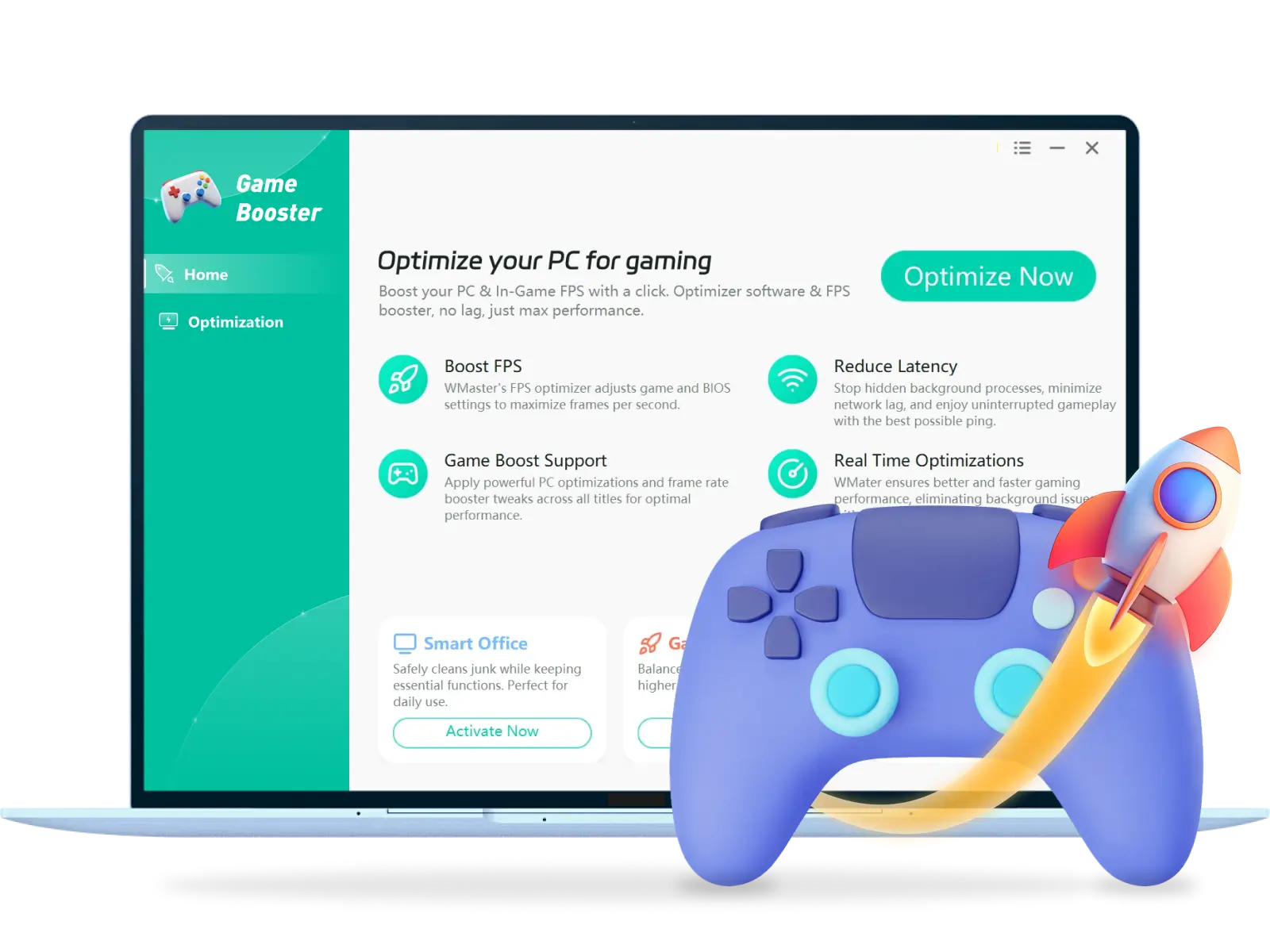
WMaster Cleanup worked as a deep system cleaner and dedicated game booster to provide maximum FPS and minimal latency in gameplay and optimize your gaming performance to the next level!

Check IconIntelligent game optimization to boost FPS in one click.

Check IconSpecial pro-level optimization for the input delay and frame rates of Minecraft, PUBG, LOL, etc.

Check IconReal-time RAM monitor to reduce lag at any time.

Check IconDeep game purge to clear corrupted shader caches and temporary junk that cause micro-stutters and crashes.

Check IconLimited-time free to unlock lite mode, advanced, and geek mode features.

Download IconDownload Now

Windows 11/10/8/7(32/64 bit OS)
Game Booster Creative Image

What Makes WMaster Cleanup Game Booster Different?

One Click to Boost Game Experience

Being both a deep PC cleaner and a game booster, WMaster Cleanup performs a deep game cache clean to streamline your system without manual tweaking. Meanwhile, we can unlock higher frame rates by handling the complex backend configurations in one click, ensuring your hardware is prepared well for peak game performance.

One Click to Boost Game Experience

Maximum FPS and Minimum Network Latency

WMaster Cleanup takes the "Detecting FPS Bottlenecks" program to optimize CPU & GPU, decrease tearing, and lower system latency. Besides, we can also optimize "Network & Ping" and "Privacy & Security" to ensure your low-end hardware is perfectly tuned for game competition, where every millisecond counts.

Maximum FPS and Minimum Network Latency

Perfect for Both Daily Gameplay and Geek Esports

Unlike other game boosters' one-click guesswork, WMaster Cleanup delivers precise game performance control in 3 types: lite mode, advanced mode, and gaming max. Whether you are a casual game player or a professional game geek, you can flexibly choose how much system space to release, greatly balancing the system stability with the extreme game environment.

Perfect for Both Daily Gameplay and Geek Esports

Use Case of WMaster Cleanup Game Booster Feature

Facing the Ghost Delay

Suffer From "Sticky Key" Pop-ups & OS Noise

Random FPS Drops Due to Game Memory Sluttery

Facing the Ghost Delay

Facing the Ghost Delay

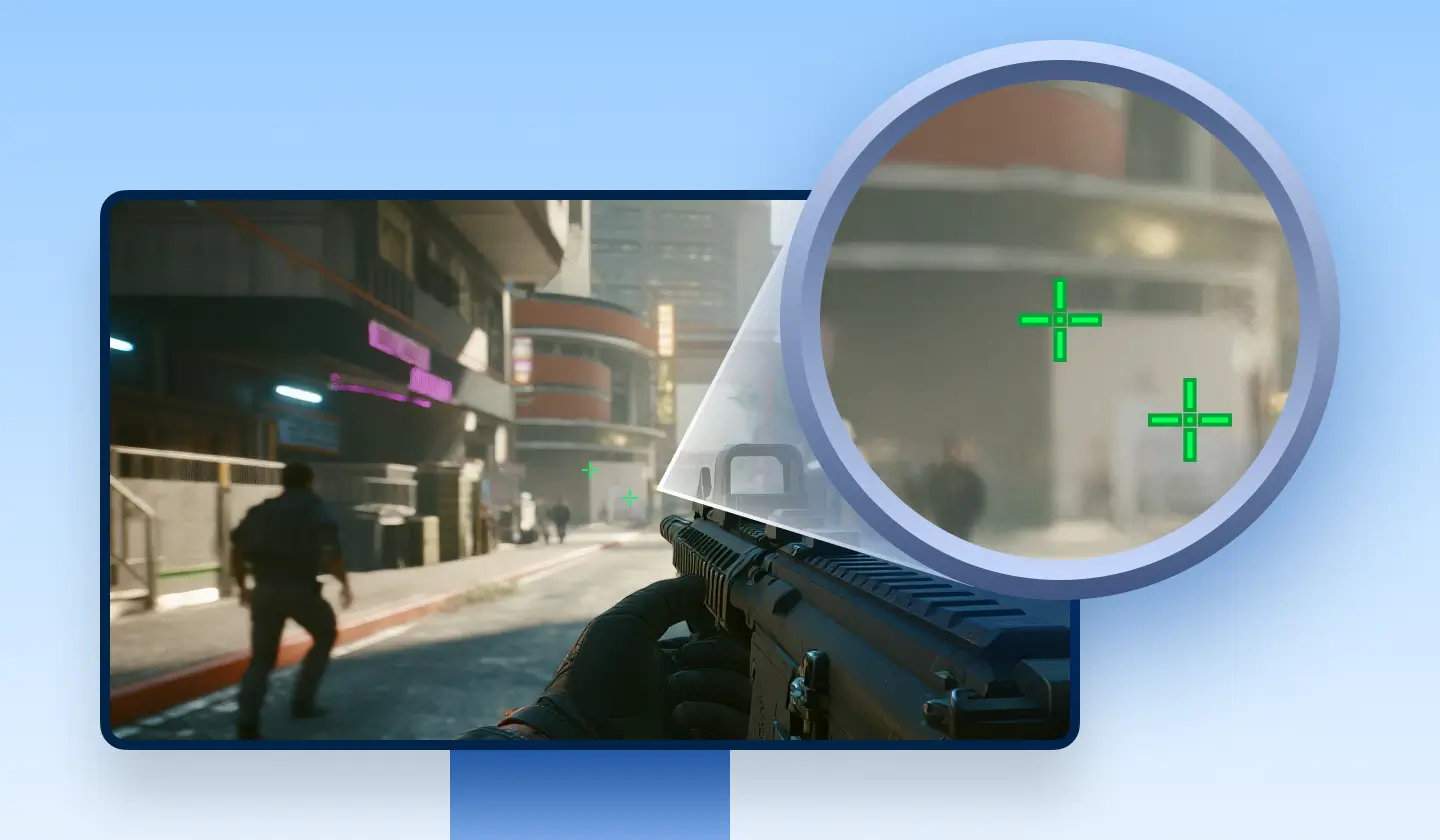
How do I fix input lag in games?

Sometimes you may suffer a micro-delay in crosshair movement in CS2 or Valorant, which feels "heavy" or "mushy." This is because of the unnecessary background process competing for CPU cycles.

WMaster Cleanup can stop hidden background processes in one click and let your CPU enter a sustained high-frequency state, stripping away the software layers between your mouse and the game, thus delivering crisp and instantaneous responses like esports pros.

Suffer From 'Sticky Key' Pop-ups & OS Noise

Suffer From "Sticky Key" Pop-ups & OS Noise

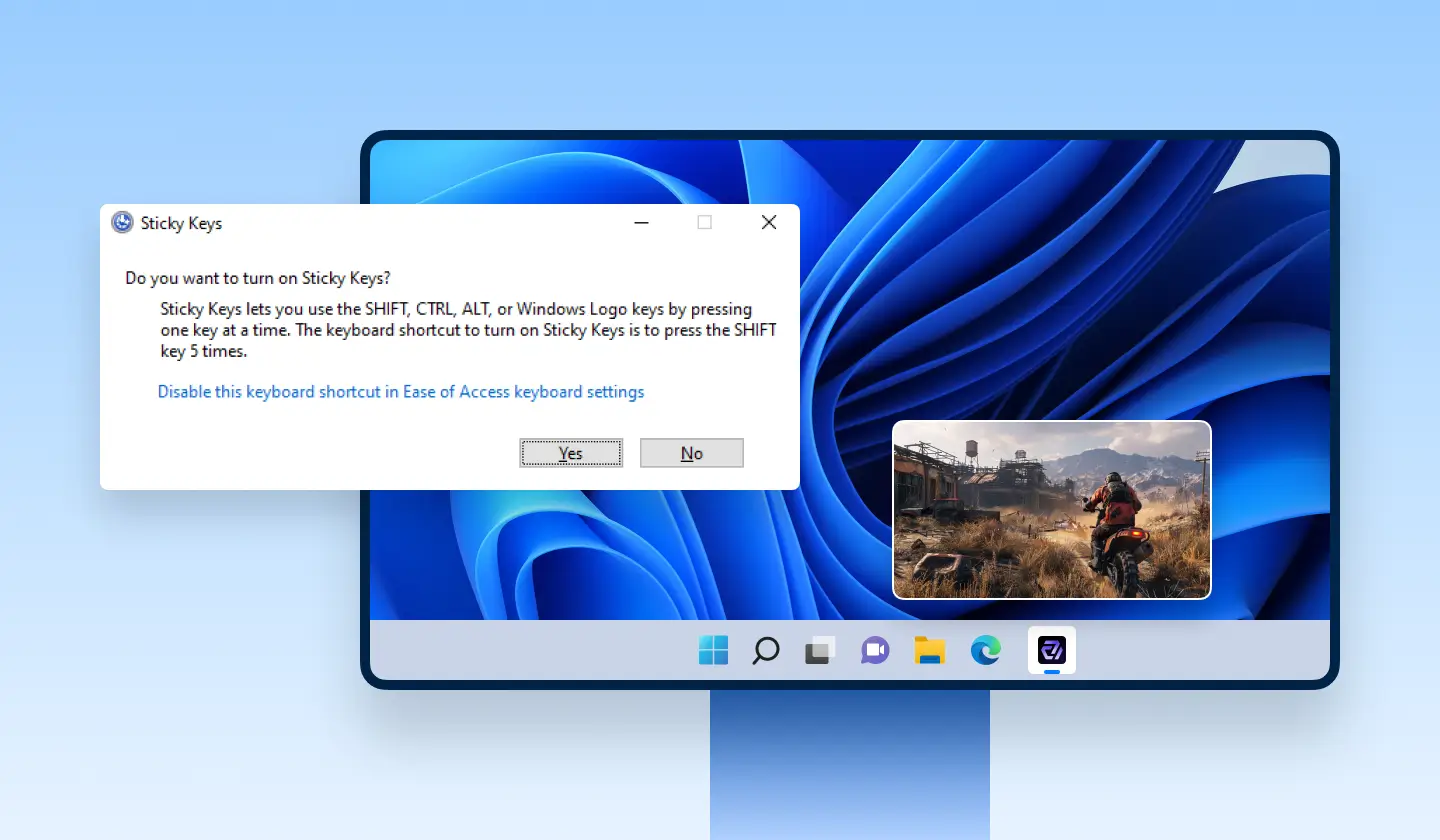
How to get rid of "Sticky Keys" popping up?

If you are in a high-stakes 1v1 clutch, tapping Shift to creep silently, suddenly, the Windows "Sticky Keys" prompt explodes onto your screen and causes your game to minimize and break your gameplay rhythm. What a terrible feeling !

WMaster Cleanup can perform the deep registry modification to permanently disable "Sticky Keys" and give you a complete pure input environment—say goodbye to the annoying Windows notification.

Random FPS Drops Due to Game Memory Sluttery

Random FPS Drops Due to Game Memory Sluttery

How Do I Fix Google Chrome Lag or Slowdowns on My Gaming PC?

If you forget to close Chrome, Discord, etc., memory assassins in modern AAA titles, you may suffer instant random FPS drops, stutters, and total crashes during intense team fights.

WMaster Cleanup offers a real-time acceleration dashboard to scan and identify high-impact background processes and free up gigabytes of physical memory in one click. Giving enough access to your RAM and making your game experience high-FPS and silky-smooth.

Unlock the Magic of WMaster Cleanup Game Booster Feature

Next-Gen FPS Booster for Max Game Performance

Next-Gen FPS Booster for Max Game Performance

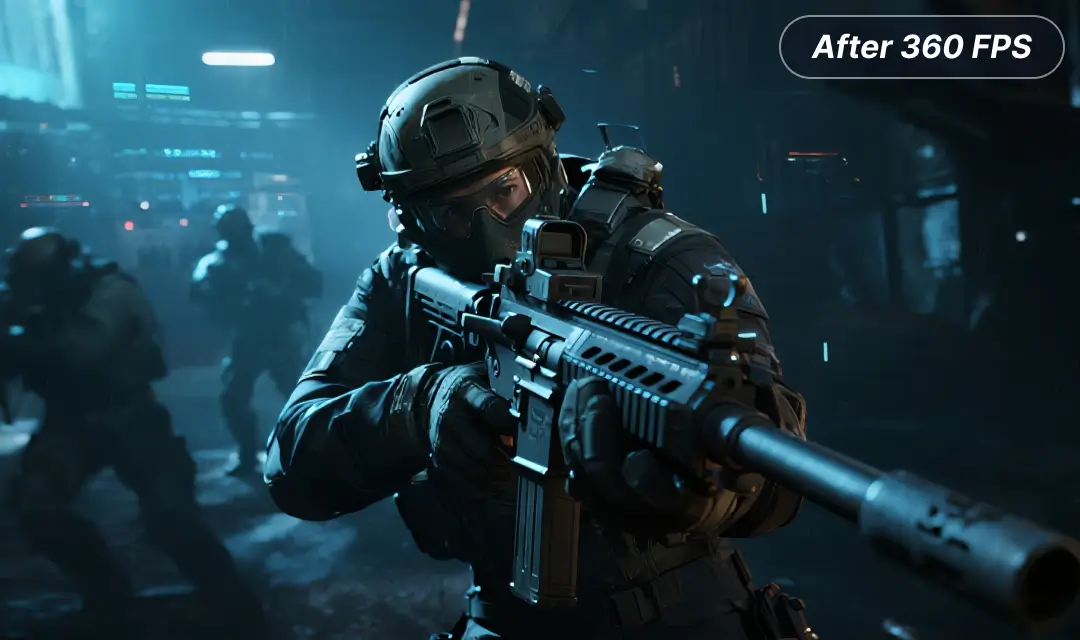
Stop investing in a high-end GPU from now on. WMaster Cleanup game booster safely pushes your hardware to its optimal limits. We unlock hidden CPU & GPU power to ensure your frame rate remains high and consistent. In Delta Force benchmarks, the average frames skyrocketed from 220.2 to 372.2 FPS on the same rig. Whether you are on a low-end PC or a high-end beast, feel free to enjoy a cross-generational FPS upgrade!

Download IconDownload Now

Specific Deep Game Junk Cleanup

From disabling the boot logo to debloating the Windows start menu, WMaster Cleanup can clear temporary game data and obsolete registry entries that cause crashes and "Out of Memory" errors in AAA games. Automatically improve your game experience with a stable, clean, and fast PC system. And you will get more disk space for gameplay.

Download IconDownload Now
Specific Deep Game Junk Cleanup
Transparent & Risk-free Performance Surge

Transparent & Risk-free Performance Surge

Backed by thousands of compatibility tests, WMaster Cleanup game booster turns high-risk manual tweaks into rigorously tested safety toggles. Make sure every action is within secure operational boundaries. Our "safety net" can push your hardware to esports-level speeds without the worry of system crashes.

Download IconDownload Now

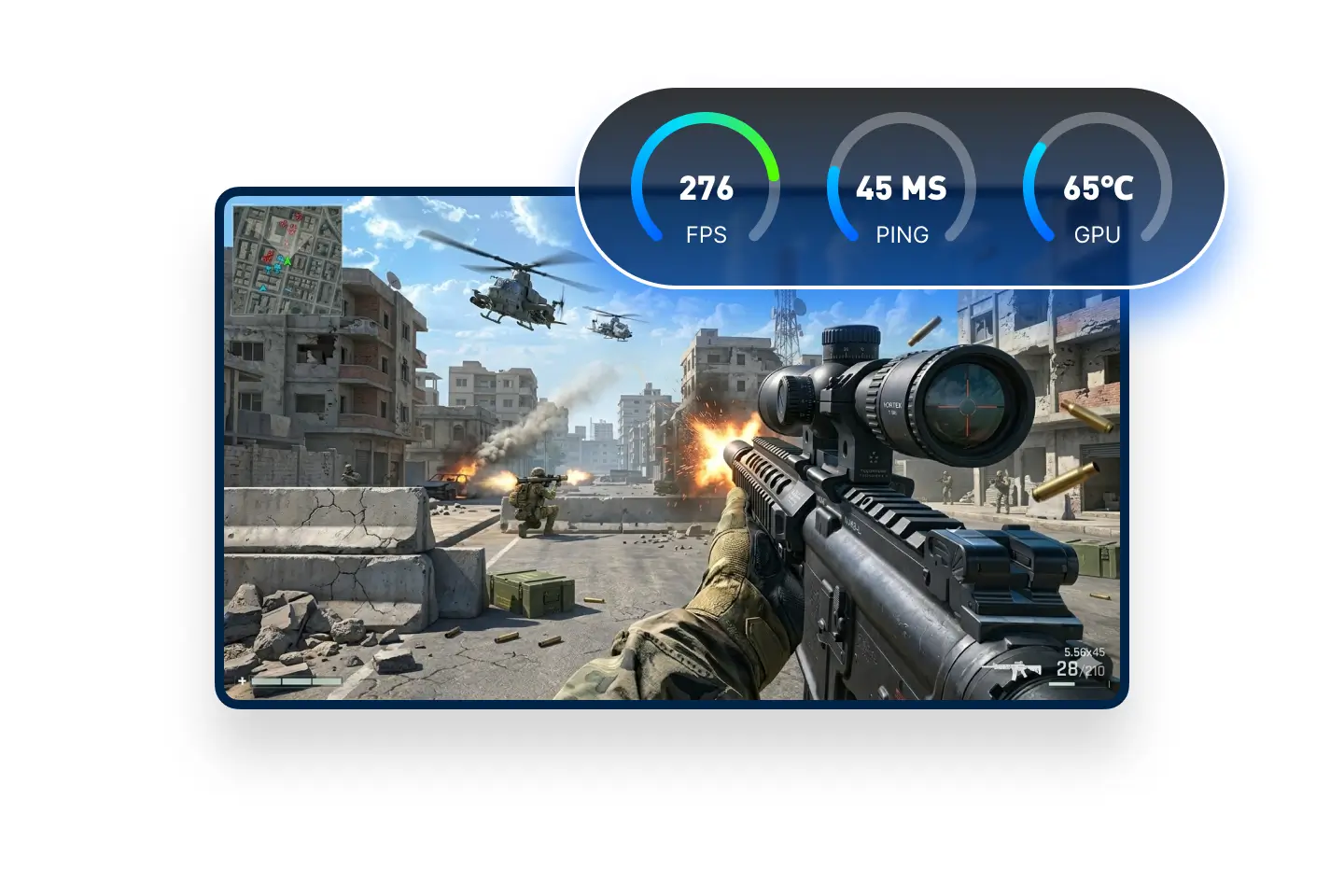
Real-Time Optimization Dashboard

WMaster Cleanup provides a lightweight and powerful real-time monitor to track your FPS, ping, and hardware temps. Without typing Alt-Tab, you will know exactly how your system performed when you are in the heat of gameplay and then optimize the background issues in one click. Giving you full control of game lag.

Download IconDownload Now
Real-Time Optimization Dashboard

How to Optimize Games for PC by WMaster Cleanup?

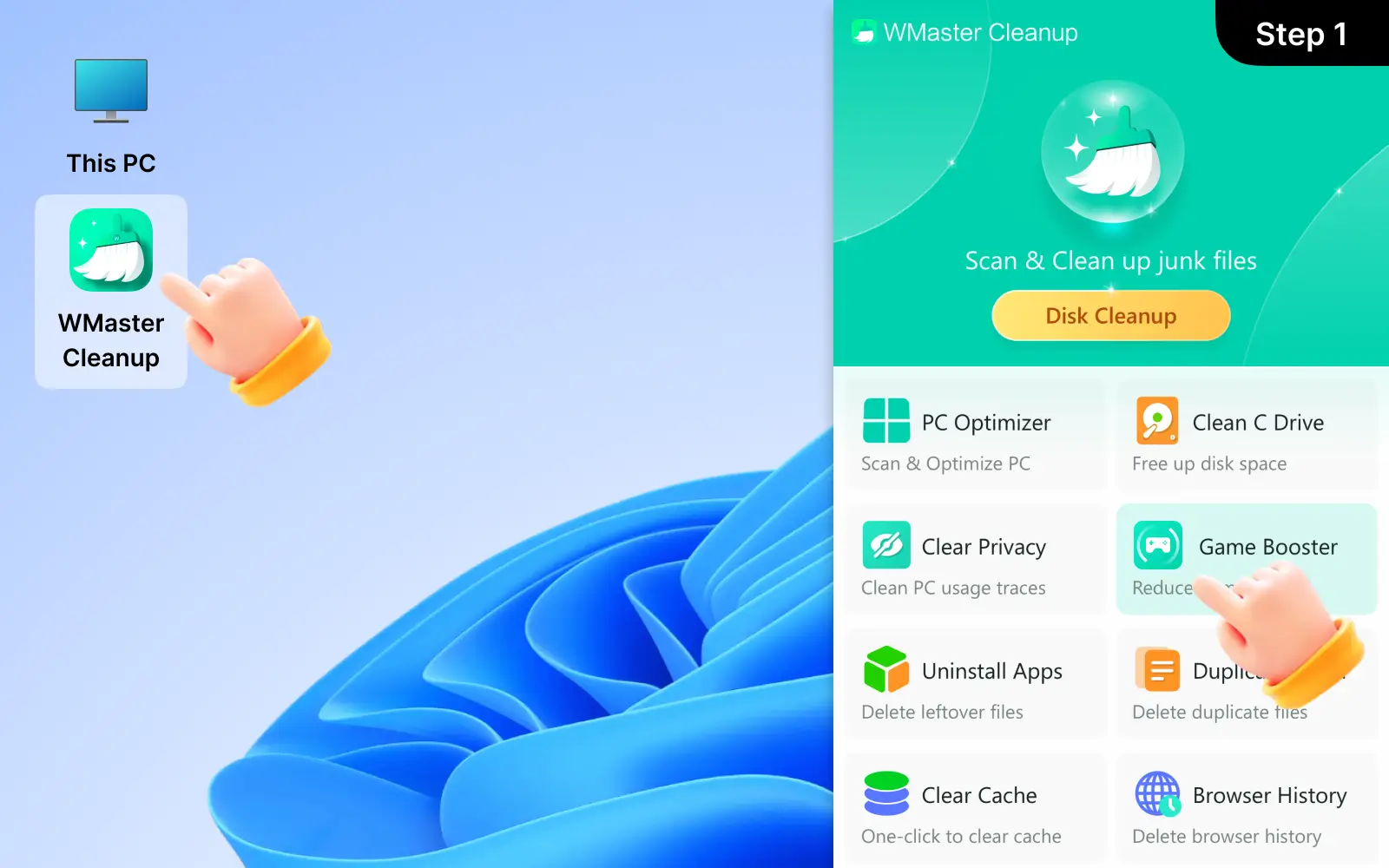
1

Launch WMaster Cleanup Game Booster Feature

Install WMaster Cleanup on your computer and open it; find the "Game Booster" feature.

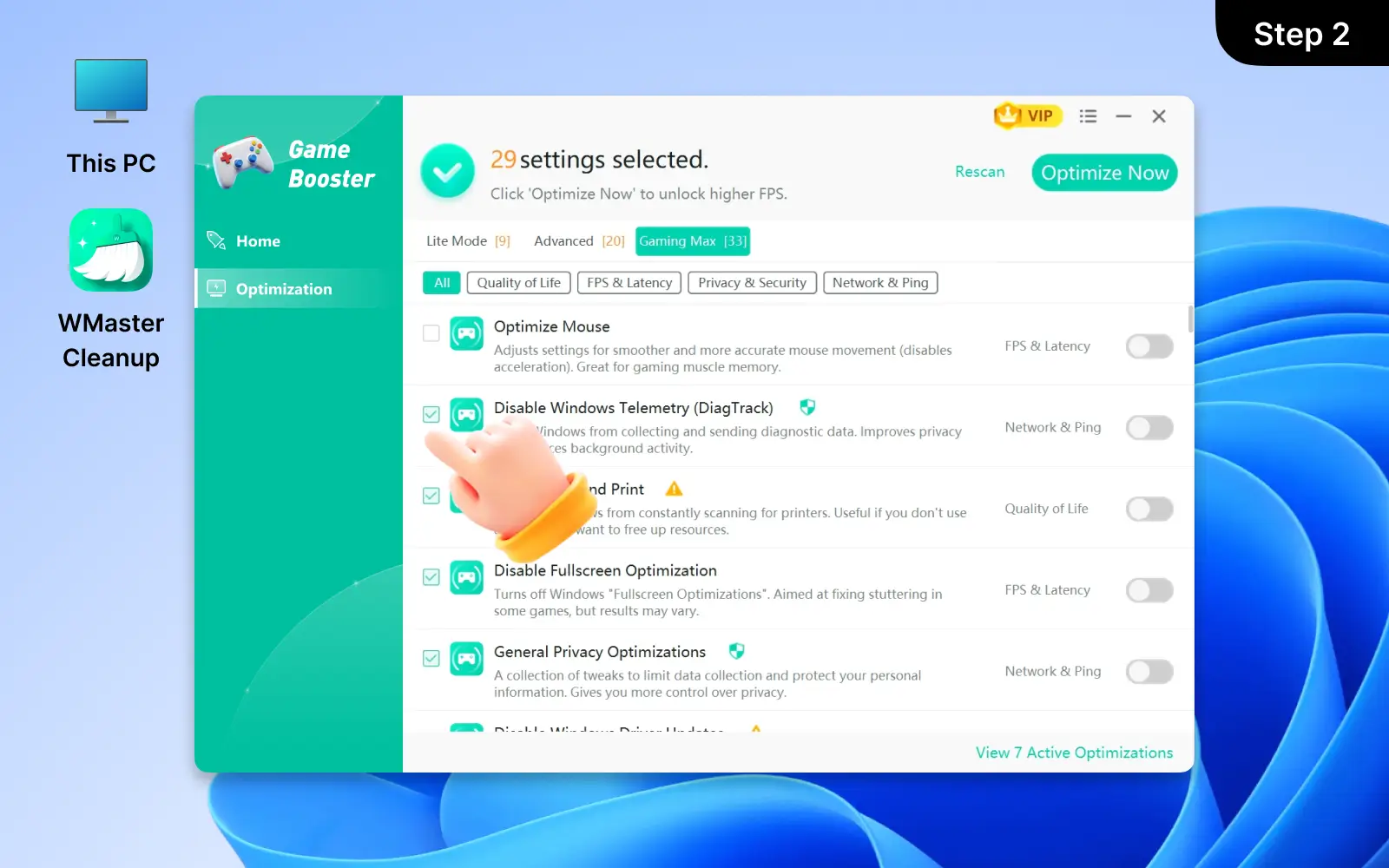
2

Choose Your Game Optimization Items

You can have an overview of the Game Booster feature; there are 3 performance modes to choose from. Now go to tick the optimization items that you want to boost FPS and reduce latency.

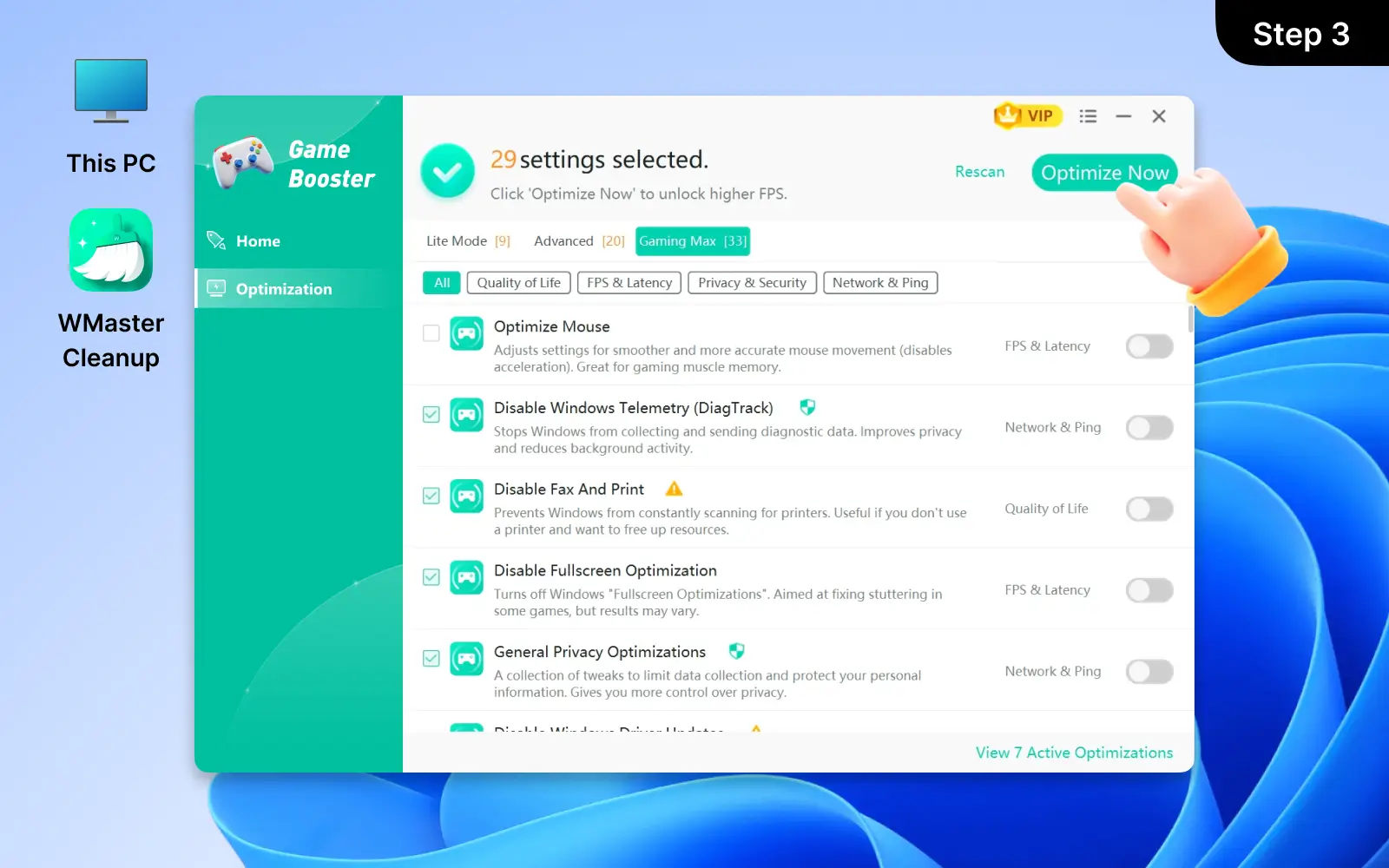
3

Click "Optimize Now"

Once you finish setting the optimization items, click "Optimize Now." WMaster Cleanup will begin to boost PCs for a better game experience in one click.

Launch WMaster Cleanup Game Booster Feature
Choose Your Game Optimization Items
Click 'Optimize Now'

Hot FAQs About WMaster Cleanup Game Booster

1. Is WMaster Cleanup Game Booster feature safe?

Look Up The Answer

Absolutely safe. WMaster Cleanup does not modify game files. We only optimize your Windows settings and system resources, completely safe and reliable.

2. Does WMaster Cleanup Game Booster actually work for low-end PCs?

Look Up The Answer

Yes! In fact, low-end PCs can see the biggest benefit because they have the least amount of "extra" RAM and CPU power to spare. Our feature is designed for both low-end PCs and high-performance beasts.

3. Do I need to keep the WMaster Cleanup open while I play?

Look Up The Answer

No, you can run WMaster Cleanup Game Booster feature each time before you start the game; we can help you reduce latency and boost game performance in one click.

4. How is WMaster Cleanup's Game Booster feature better than Windows Game Mode?

Look Up The Answer

Windows Game Mode is a basic "Do Not Disturb" feature. While our Game Booster feature goes deeper by actually reallocating hardware resources and deep cleaning game cache or lags that Windows ignored.

5. What games does WMaster Cleanup Game Booster support?

Look Up The Answer

We support over 2,000+ titles, including everything from Fortnite and Minecraft to Counter-Strike 2 and League of Legends. For more game support, we are under development.

Unlock More Features of WMaster Cleanup

Bottom Background Image

WMaster Cleanup

Best Windows Cleaner & Optimizer to Speed up Your PC