

If you are one of those gamers who practice for months without any rank gains, I feel your pain. This is happening to you because you are focusing on training the wrong things on a setup that is essentially working against you.
Up till a few weeks ago, I was in the same situation as you! My aim would feel perfect in aim trainers, but it would fall apart in actual games. But then I discovered that how to improve aim in FPS is not about practicing more; it is actually finding the real problem first.
Now I am going to teach you all the things about core mechanics, PC performance, optimal hardware, and training routines that will help you improve aim in FPS games in 2026.
In this article
- What Affects Aim in FPS Games? Diagnose Your Aim Problems
- How to Improve Aim in FPS Games
- Boost Your System Performance With PC Optimization: FPS & Aim Stability
- Master How to Improve your Aim in FPS Games: Core Mechanics
- Effective Aim Training Routine: That Actually Works
- One More Thing: Warm Up Before Every Session
- Hot FAQs: Improve Your Aim in FPS Games
Part 1: What Affects Aim in FPS Games? Diagnose Your Aim Problems
Just like most players, I used to skip this step and then wondered why nothing was improving. Let me tell you what I have discovered: common aim problems can be put in five categories.
- Plateaus: When you practice daily with no improvements, it means you are using an unoptimized sensitivity and drilling wrong scenarios.
- Physical Tension: Fine motor control is negatively affected by hunching over, gripping your mouse too hard, and wrist pain.
- Aim Doesn't Transfer: A highscore in Aim Lab but not in the game means that your sensitivity settings don't match your game or you may lack proper crosshair placement.
- Day-to-Day Inconsistency: Tension,sleep, setup variables, etc., determine if you feel clean or terrible each day.
- Hardware and Setup Flaws: The most common ones are low polling rate, wrong sensitivity, bad mousepad, monitor running below refresh rate, etc.
Want to do a quick self-diagnosis? Here is the checklist:
- Do I have the same in-game and aim trainer sensitivity?
- Am I placing my crosshair at head height before enemies appear?
- Is my mouse arm relaxed?
- Does my PC hit a stable FPS, or does it drop during fights?
- Does my monitor run at the maximum refresh rate?
If you answer "no" to any of these questions, that is your problem area; you should begin working on it.
This quick checklist is tried and tested because when I answered these questions, I was shocked to discover I said "No" to almost all of them! The biggest takeaway for me was the fact that my PC wasn't holding stable FPS. That was the reason why mid-game frames would drop, and I would miss all my shots. Finding out my actual reasons helped me choose the right direction to improve my aim in FPS games.
Diagnosing Your Aim Problem First Will Save You Weeks of Wasted Practice:
The truth most players don't bother with is that without knowing the actual problem, they jump straight into aim training.
For example, no amount of flick-shot training is going to help you if your crosshair placement is incorrect. Similarly, even if you put hours into practice, you will never be able to build muscle memory when your PC keeps dropping frames mid-fight.
Part 2: How to Improve Aim in FPS Games
Optimize Your Hardware & Setup: The Foundation Most Ignore
Getting your aim right comes before you even start a game. How effectively your physical movements translate into the game directly depends on your hardware and setup.
Mouse: Shape, Weight, Sensor, Grip Style
The right shape of mouse depends on how a gamer holds it.
- Palm grip players need a bigger, curved mouse.
- Claw grip users will be better off with mid-sized mouse that have a higher rear hump.
- For a fingertip grip, you need a lightweight, flat mouse that you can flick freely.
Most people don't realize how important weight is. Anything over 90g can cause arm fatigue during long sessions. If you're a true gamer, I recommend you choose a computer mice in the 50g to 80g range.
💡Tips:A reliable optical sensor (not a laser one) will give you consistent 1:1 tracking with no acceleration.
Sensitivity & DPI: Finding Your Ideal eDPI
This number is what actually matters, not the two settings individually:
eDPI (effective DPI) = your DPI x your in-game sensitivity
You will see most pro players sit somewhere between 200 and 800 eDPI. Although, no doubt, high eDPI is faster, it destroys precision on microadjustments. Whereas lower eDPI translates into the following:
- better accuracy
- more arm movement
- more control
Recommended eDPI Ranges by Game:
- 200 to 800 eDPI for CS2:lower is better for holding angles.
- 200 to 600 eDPI for Valorant: Precision game, go lower.
- 800 to 1600 eDPI for Apex Legends: More movement, slightly higher works.
- 600 to 1400 eDPI for Overwatch 2: hero dependent.
- 300 to 900 eDPI for Rainbow Six Siege: slow peaks keep it lower.
Personally, in the past, I had spent many months tweaking my sensitivity, but still nothing stuck. Then I eventually settled at 400 eDPI for Valorant. But even after that, the moment I actually felt my aim improved was when my PC stopped stuttering at it.
Pro Tip: Lock Your Sensitivity For 30 Days
I can tell you that changing sensitivity all the time is one of the worst habits you can build as a player. This is what I tried myself, and yes, I felt it was brutal, but that feeling lasted for only the first week.
Fix your Monitor, Polling Rate, Mousepad, Posture:
For peak performance, you can fix your hardware settings and physical posture to reduce lag and improve your aim in FPS gaming.
- Monitor
You can eliminates lag and make your screen much faster by always running the max refresh rate, and for this,
Go to Settings, click on Display, and then Advanced Display. Here, you have to select the highest Hz available.
- Polling rate
You should not set it less than 1,000 Hz because it will make sure that your mouse updates 1000 times/second for immediate tracking. If you pick lower rates, it will create micro-delays and stuttering between the cursor on your PC and your hand's movement.
- Mousepad
If you use a mousepad that is large and flat, you can easily slide your mouse. It will also aid you in keeping your cursor movement effortless and staying perfectly accurate. On the other side, if it is rough or uneven, it will cause your cursor to jump and lag during your gaming sessions.
- Posture
Keep your elbow at around 90 degrees, with your forearm close to the desk. Wrist aiming is good for micro adjustments, but use your whole arm for better control over bigger movements. This setup will help you get more control over your movements while also preventing pressure on your hand while you are playing.
Recommended Settings for Valorant, CS2, Apex, Overwatch & More:
| Game & Notes | Recommended eDPI | Mouse Sensitivity | DPI |
|---|---|---|---|
| CS2-Lower is better for holding angles; raw input on | 200–800 | 0.5–2.0 | 400–800 |
| Valorant-Precision-based game; go lower than you think | 200–600 | 0.3–0.8 | 400–800 |
| Apex Legends-More movement involved; slightly higher works | 800–1600 | 1.0–3.0 | 400–1600 |
| Overwatch 2-Hero-dependent; tanks can go higher than DPS | 600–1400 | 2.0–6.0 | 400–800 |
| Rainbow Six Siege-Slow peeks and tight angles; keep it controlled | 300–900 | 7–45 (in-game) | 400–800 |
| Fortnite-Building mechanics need a slightly faster response | 600–1200 | 0.08–0.15 (X/Y) | 400–1600 |
Part 3: Boost Your System Performance with PC Optimization: FPS & Aim Stability
Your PC's performance has a direct impact on how consistent your aim feels. Muscle memory becomes unreliable with unstable FPS. You will notice your aim feels different at 144 FPS than at 60 FPS.
If your frames fluctuate between these numbers mid-fight, of course, nothing you practiced will feel consistent. Here, I will highly recommend using WMaster Cleanup's Game Booster feature.
This feature stabilizes your FPS by freeing RAM, killing background processes, cleaning the game cache, and optimizing network latency. With stable frames, your aim training actually transfers into matches reliably.

WMaster Cleanup Features for FPS Aim Stability:
- ·Stops system tasks that removes mouse input lag, making aim feel more responsive.
- ·Adjust settings for more accurate mouse movement, while disabling acceleration.
- ·Clears temporary junk and shader caches to reduce micro-stutters.
- ·The game library feature detects 5000+ game titles with exclusive optimization.
- ·Handles your system's RAM that boost aim performance and its stability.

Something that seems pretty obvious but players like me often overlook is that practicing aim on an unstable system is equivalent to training on a crooked floor. Even if your form is absolutely perfect, your environment is working against you, and that means your practice is not going to translate into real games.
When I started using WMaster Cleanup Game Booster, my aim practice actually started translating pretty well in actual matches, even in the first 3 weeks of using the tool. It is one of the biggest reasons behind my successful aim improvement.
How to Use WMaster Cleanup to Improve FPS Aim and Maintain its Stability
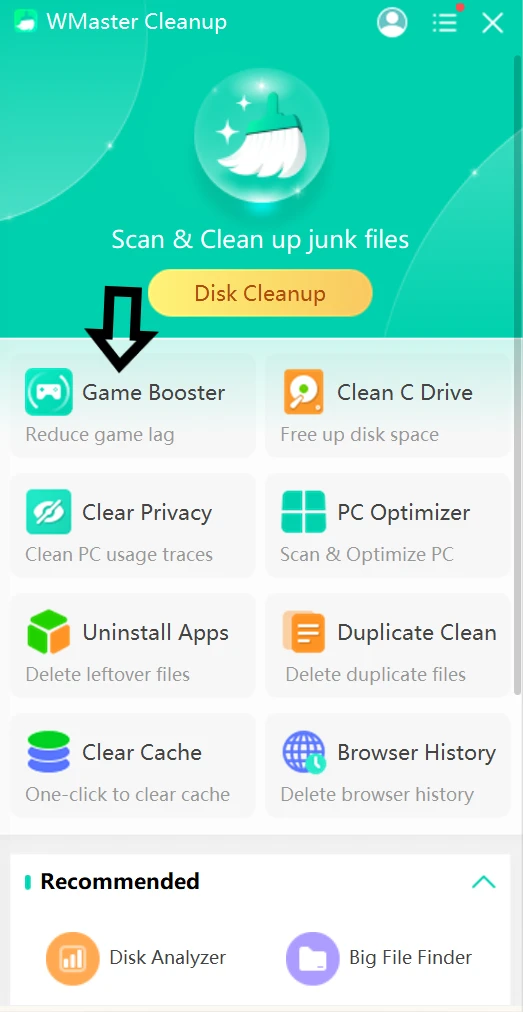
Step 1: Download WMaster Cleanup on your PC. Open the main dashboard, navigate, and click the feature named "Game Booster".
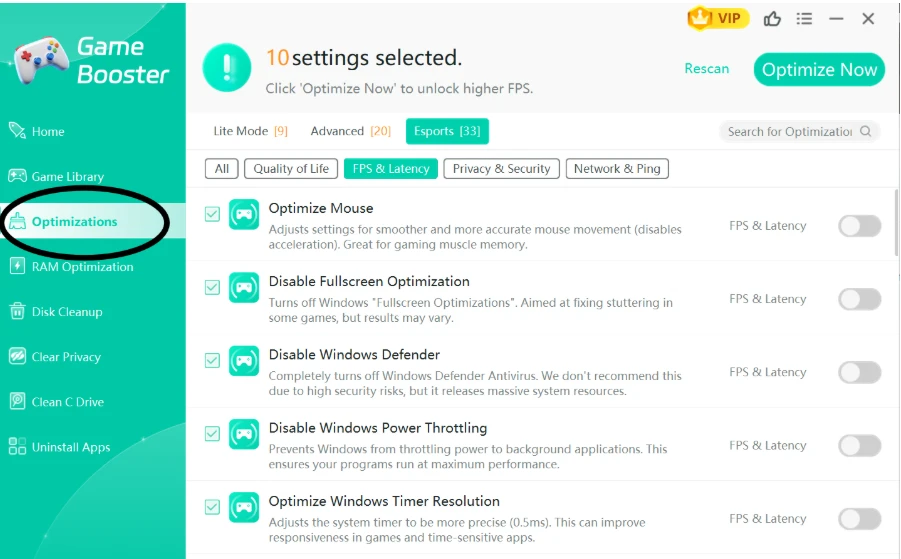
Step 2: By clicking on the Optimizations tab, you can select your performance mode. Now, tap on FPS & Latency. From the optimization checklist, find and tick what applies to improve aim in FPS games.
💡Tips:The Esports mode is suggested for the complete checklist and competitive gameplay.
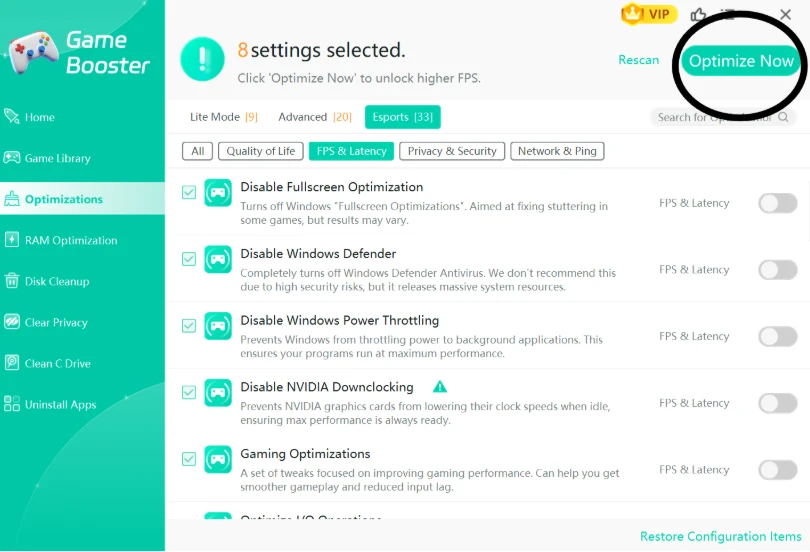
Step 3: Click on the Optimize Now button. WMaster Cleanup will ask you to restart your PC, and when you play any game after restarting your PC, you will genuinely feel an improved gaming experience.
Part 4: Master How to Improve your Aim in FPS Games:Core Mechanics
1. Crosshair placement & pre-aiming
You should stop aiming at the floor! Instead, keep your crosshair at head height, where your enemies are most likely to appear. If you aim at the corner before you turn, you won't scramble when someone appears.
This must be followed for tactical, low-time-to-kill shooters like Valorant and Counter-Strike 2, where the first headshot wins the fight.
2. Flicking, tracking, micro-adjustments, target switching
Here are the building blocks that I would suggest for every gunfight:
- Flicking: Snap your mouse onto your target instantly.
- Tracking: Smoothly gluing your crosshair to a moving enemy.
- Micro-adjustments: Make tiny corrections when your target shifts slightly.
- Target switching: Jump rapidly from your dead enemy to your next threat.
Games with a lot of tracking, like Apex Legends and Overwatch 2, or games with a lot of target switching, like Call of Duty.
3. Movement-aim synergy
This means your hands and feet must work together. If you want to shoot straight, you have to stop moving first. Instead, you should tap the opposite directional key (counter-strafing). This trick will help you halt instantly so your shots actually hit where you are aiming.
Best Games for This: It's very important in games, like Counter-Strike 2 and Valorant, where hitting while running makes your bullets fly all over the place.
4. Recoil control (game-specific notes)
When guns are fired, they kick up. When you play strategy games, you have to learn and pull against a fixed spray pattern. In most arcade shooters, you just need to slowly pull down to hold your beam straight.
Best Games for This: Games that use patterns, like Counter-Strike 2, need raw memory, while games that use tracking, like Apex Legends or PUBG, need steady downward smoothing.
5. Tension management & relaxed aiming techniques
Are you squeezing your mouse like a stress ball? A death grip will only make your aim shaky and stiff. So, if you keep a loose, relaxed grip, it will give you much smoother control and stop your hand from panicking during your intense gunfights.
Best Games for This: Universal tip! Crucial for long-tracking fights, like in Apex Legends, and high-stress clutch moments, like in Rainbow Six Siege.
💡Tips:You can run WMaster Cleanup just before each of your gaming sessions to reduce lag, leading you to have room to relax and hit better shots .
Part 5: Effective Aim Training Routine: That Actually Works
- Aim Lab is the ideal place to begin and includes built-in stats tracking and scenario-based training.
- High-level competitive players prefer Kovaak's ($10 on Steam) because it has a deeper scenario library.
- In-game range/deathmatch allows you to finish sessions with actual game time, so training can actually be reliable.
- Practice every day! Do 5 min of flicking, 5 min of tracking, 5 min of micro-adjustment, and 5 min of deathmatch. Do2-3 sessions in the AIM trainer and have rest days in actual ranked matches every week.
- Start with easy bot scenarios and then gradually increase the speed or target size each week. Don't directly jump to challenging scenarios.
- Utilize Voltaic's free benchmarking system, available on their Discord, as it assigns ranks to your aim trainer scores.
- Do not track your scores daily! Daily variance can be high and misleading; check weekly trends that actually show if you are improving.
Part 6: One More Thing: Warm Up Before Every Session
Never queue ranked cold. Before competitive play, always spend 10 to 15 minutes in a private deathmatch server or aim trainer. With cold muscle memory and cold hands, you will lose the fight in just the first two rounds.
One additional step that I added to my warm-up routine is running WMaster Cleanup before every gaming session. It only takes me about 30 seconds, but I enjoy huge benefits as a result of it, like freed RAM, cleared caches, and no more unnecessary background processes. So when I am in a deathmatch, my system is totally ready for competitive play.
Part 7: Hot FAQs: Improve Your Aim in FPS Games
Q1: Why do my shots seem to come out great in Aim Lab and go awry in games?
The reason you miss your shots in-game is because
- there is no real pressure in aim trainers, but in real matches you are getting overwhelmed with stress from being shot at, positioning and map awareness.
- Muscle memory, which you built up against predictable training bots messes up by real players who do things like dodging and crouching.
- Aim trainers let you stand still, so you lose accuracy in your real game if you shoot before you have come to a complete stop in your movement.
Q2: How long will it take to noticeably improve aim?
For beginners, it takes consistent practice for 2-4 weeks to notice a difference. Intermediate players typically plateau at around 4-8 weeks.
Q3: Does a higher DPI really make you shoot better?
Not directly! Higher DPI just translates your cursor further for every inch of movement. The important thing is your eDPI, which is the DPI and sensitivity of the game. To achieve the desired eDPI, most competitive players prefer to use 400-800 DPI and adjust their in-game sensitivity.
Q4: Should I use raw input or standard mouse input in first-person shooter games?
In games that let you (CS2, Valorant), you should definitely use raw input. It stops Windows from accelerating and smoothing the mouse, letting you move the crosshair at the same speed as the mouse.
Q5: Is there any way I can get a better PC that will help my aim in-game?
When the frame rate stays high, you can get more consistent visual input. If you lose frames at random, the muscle memory you built up at a steady FPS won't work right during a match. The Game Booster in WMaster Cleanup is a tool that directly stabilizes FPS so that game performance is more stable.
Final Thoughts
Figuring out how to improve aim in FPS games is more about getting your settings and hardware right, finding your actual weak points, training with intention, and, most importantly, keeping your PC running clean and stable. Moreover, don't forget to start building a consistent training routine and focus on crosshair placement above everything else.
As an all-in-one system cleaner and a dedicated Game Booster, WMaster Cleanup offers maximum FPS that leads to minimal latency in your gaming and optimize your performance to the next level
Follow all these tips, and you will see a major upgrade in your gameplay within a few weeks.


