
.jpg)
If you have ever been in a situation where the download error - 0x80246019 killed your Windows 11 version 23h2 update mid-download, with no explanations, I feel you. I have been there too, and many other users have shared similar experiences on Microsoft's community forums. Everyone says the same thing: the download starts, dies two minutes later, and nothing they try actually fixes the problem. But what if I told you there is a fix to this solution? In fact, there are several fixes you can try.
After facing this problem for too long, I have finally found some useful ways to fix the Windows 11 version 23h2 download error - 0x80246019. In this article, I will share all these fixes, so you should jump right in!
In this article
Part 1: Why Does Download error - 0x80246019 Occur?
The download error - 0x80246019 is a result of Windows Update's failure to complete a download, and in my experience, it is because of storage issues or system-level conflicts. But it is not limited to only these; you might be seeing it because of the following factors:
- Corrupted system files
Damaged Windows system files will break the update pipeline and stop the download from completing.
- Insufficient disk space
To download and update files in Windows, you must have enough space. The process fails because of a full or near-full drive.
- Windows update service glitch
The update service often gets stuck or loses connection with Microsoft's service mid-download.
- Leftover files from a previous failed update
From an earlier attempt, there might be residual files in the $WINDOWS BT Folder that interfere with new downloads.
- Antivirus or firewall interface:
Windows update processes may get blocked by overprotective security software that mistakes them for threats.
- Connected peripheral devices
The update process can unexpectedly get disrupted because of external USB devices like hard drives or printers.
Part 2: 6 Ways to Fix Windows 11 version 23h2 Download error - 0x80246019
Fix 1. Run Windows Update Troubleshooter
When I face a Windows update issue, this is the very first thing that I try. I use this built-in tool in Windows 11 that is specifically designed to automatically detect and fix update errors.
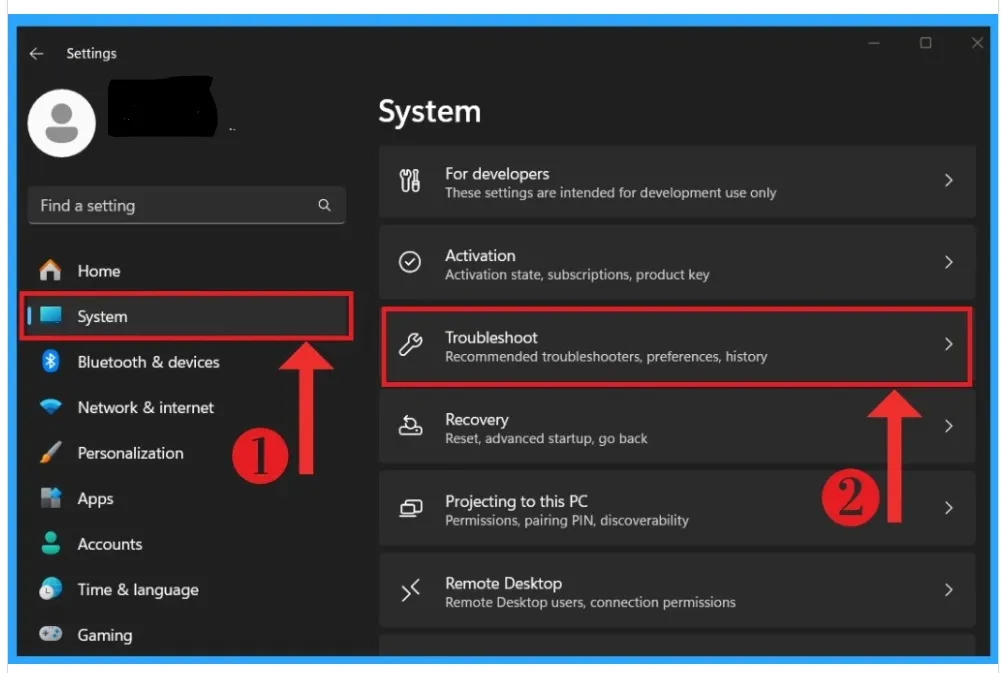
Step 1: Open Settings by pressing Win + I. Go to System & Troubleshoot.
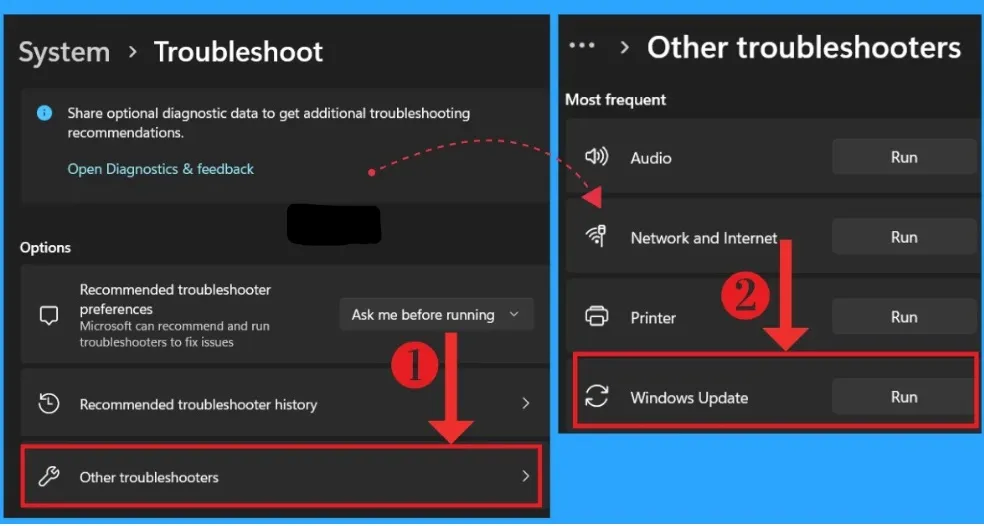
Step 2: Click Other Troubleshooters. In the list, you must find the option Windows Update and click Run.
Step 3: Now follow the prompts you see on screen. You will see the troubleshooter start scanning for issues, and it will attempt fixes automatically.
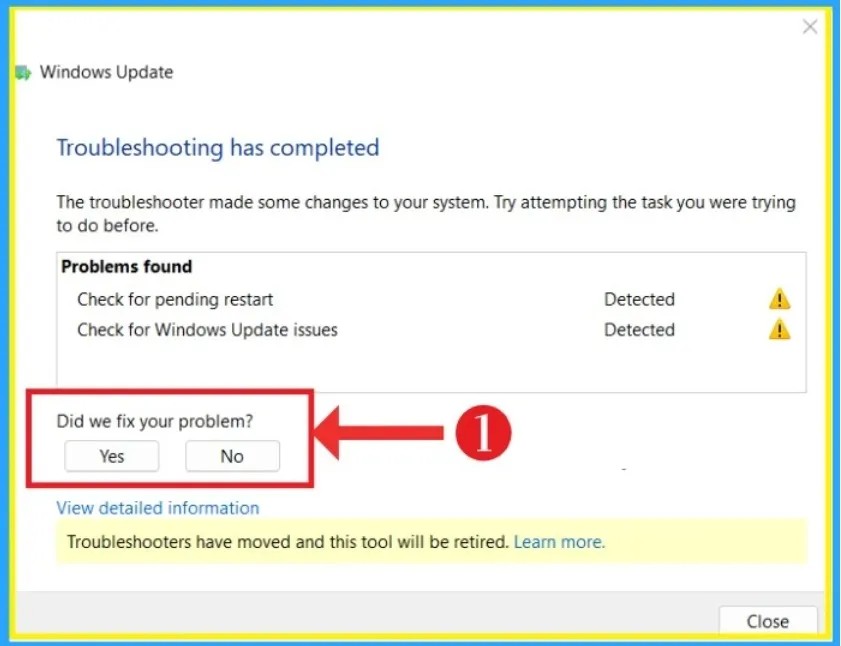
Step 4: Once the process is completed, restart your PC and try the update again. In the majority of cases, this process will solve the issue you are facing.
Fix 2. Run the SFC /Scannow Command
One of the major causes of error - 0x80246019 is corrupted system files. And if the troubleshooter did not solve your problem, then corrupted system files are likely the culprit. The SFC, or System File Checker, is used to scan and repair such files.
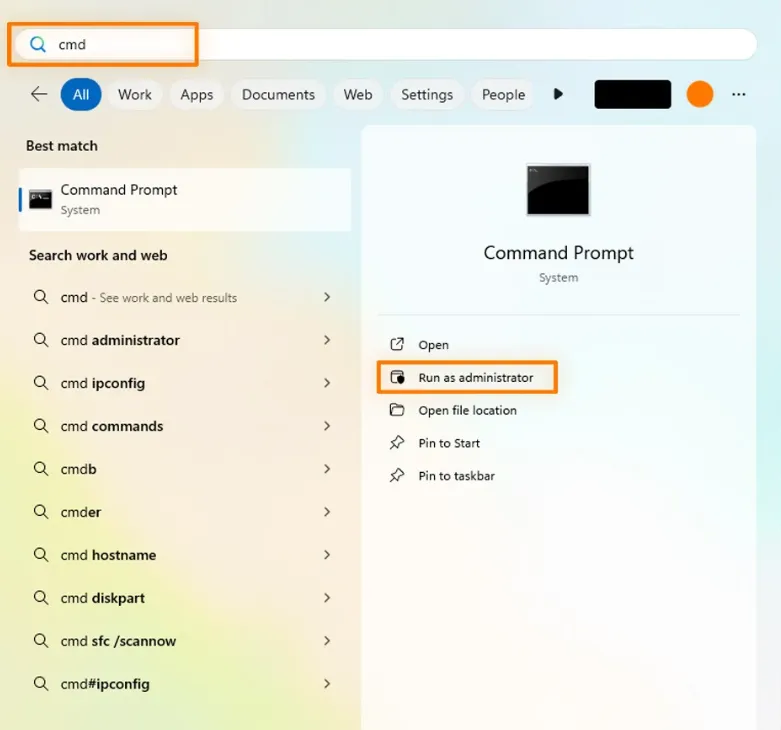
Step 1: Press Win, or in the taskbar search, type "cmd," tap on Command Prompt, and select "Run as administrator."
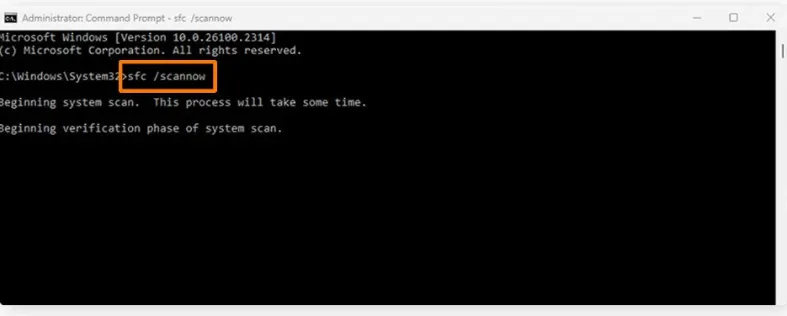
Step 2: Type the command "sfc/scannow" and press Enter.
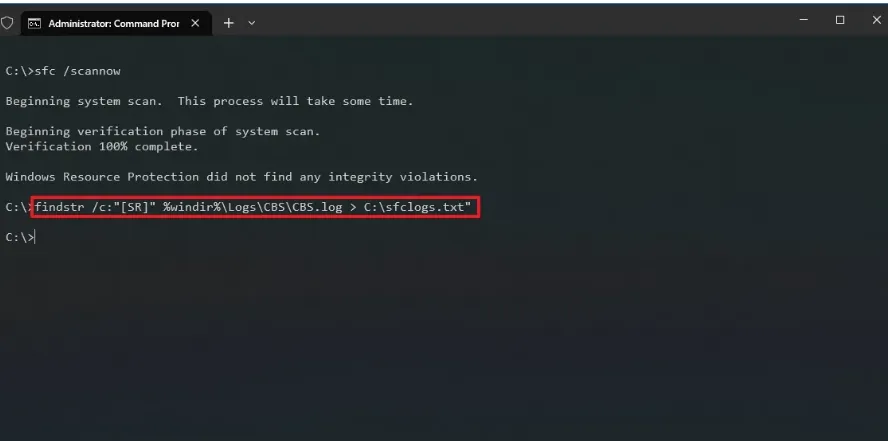
Step 3: Wait for the scan to hit 100%. If there are any issues, SFC will find and repair them automatically, and you won't have to do anything extra.
Step 4: Now you can restart your PC and try the Windows 11 version 23h2 update again.
Fix 3. Run the DISM RestoreHealth Command
Here's a thing that I learned the hard way: if the Windows image itself is corrupted, then the SC won't be enough to fix our problem. So, in case the SFC does not fully resolve the issue, it is best to follow up with the DISM tool. DISM repairs the image, and it is best for you to run this right after SFC to get the best results.
Step 1: Open Command Prompt as administrator, using the same steps as mentioned in Fix 2.
Step 2: Run the following commands one by one and press Enter after each
DISM /Online /Cleanup-Image /CheckHealth
DISM /Online /Cleanup-Image /ScanHealth
DISM /Online /Cleanup-Image /RestoreHealth
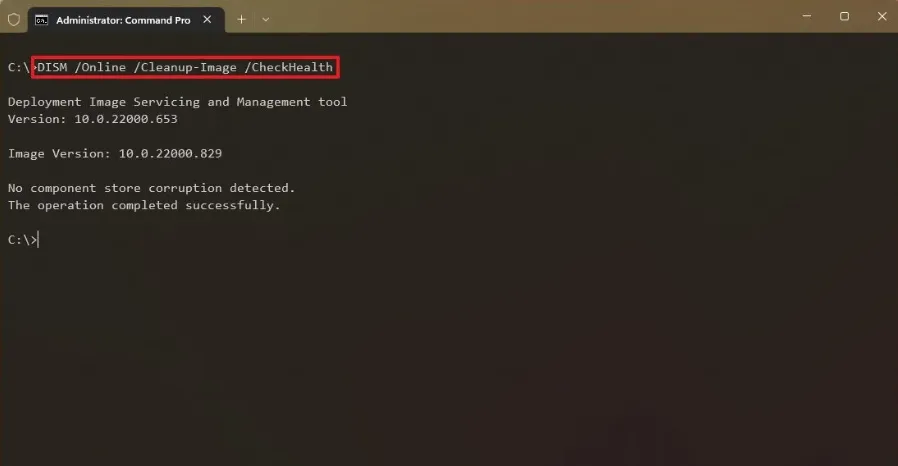
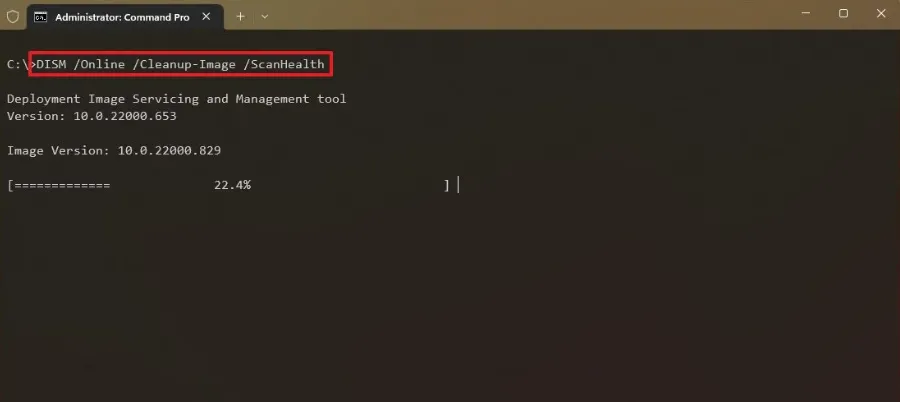
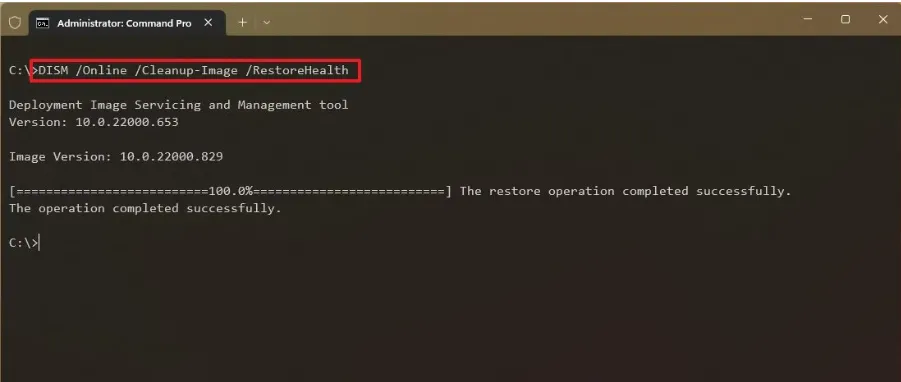
Step 3: Once it's done, restart your PC and try the update again.
Fix 4. Reset Windows Update Components
What if you are still facing the download error - 0x80246019 even after trying SFC and DISM? Chances are, this download error - 0x80246019 on Windows 11 version 23h2 can be a direct result of a stuck or misconfigured Windows update service. I resolved this issue by resetting its components, and you can do the same.
Step 1: Open Command Prompt as administrator
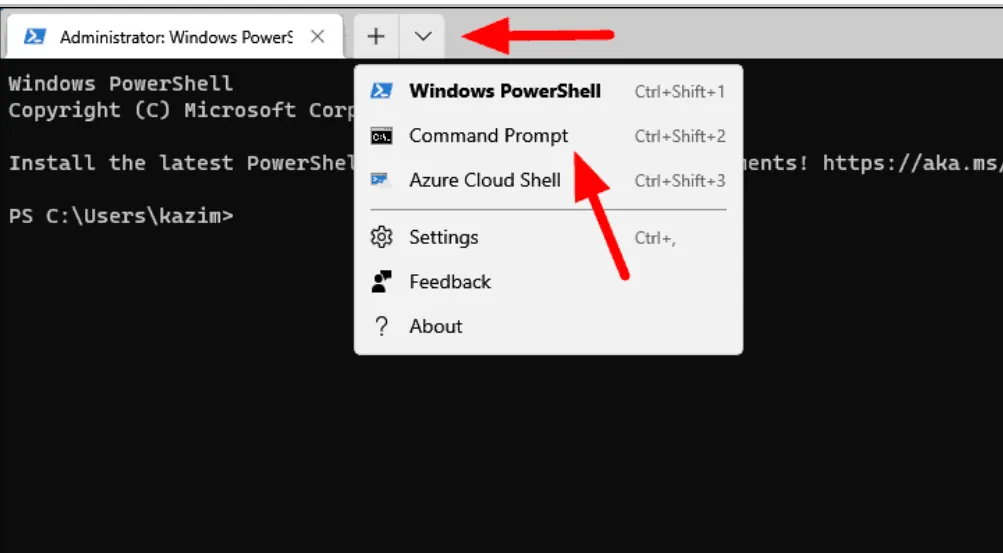
Step 2: Make sure you run the commands given below (mentioned with their purposes) in the specific order and press Enter after each one:
- net stop wuauserv(manages the download and installation of updates)
- net stop cryptSvc(handles security and encryption functions)
- net stop bits(support background downloads, including Windows updates)
- ren C:\Windows\SoftwareDistribution SoftwareDistribution.old(Renames the SoftwareDistribution folder that forces Windows to create a new, clean folder)
- ren C:\Windows\System32\catroot2 Catroot2.old (Renames the Catroot2 folder)
- net start wuauserv(Restarts the Windows Update service)
- net start cryptSvc(Restarts the Cryptographic Service)
- net start bits(Restarts the Background Intelligent Transfer Service)
- netsh winsock reset(resolve network connectivity issues affecting updates)
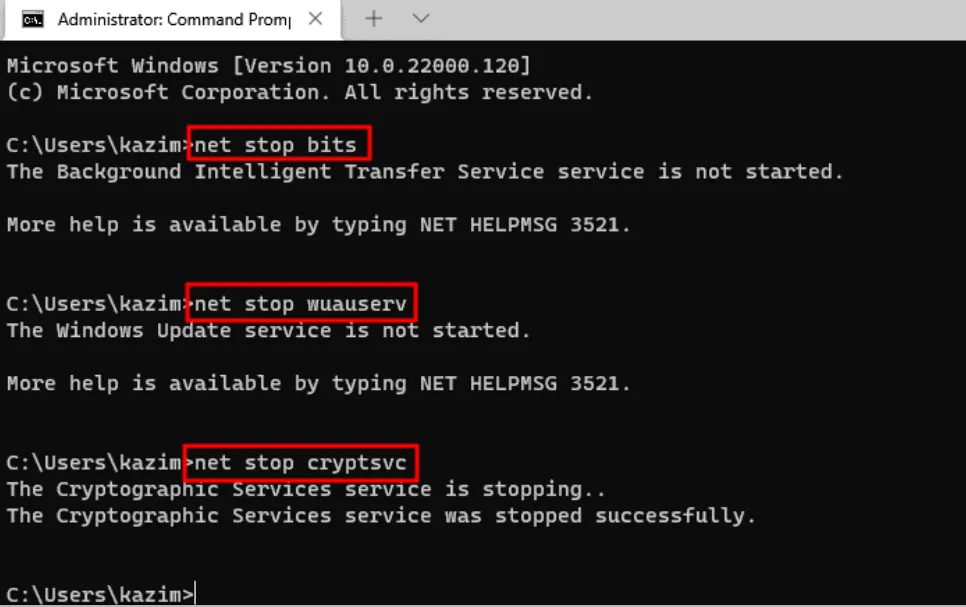
Step 3: After completing the whole process, it is recommended to restart your PC. After restarting, go to Windows Update and retry downloading.
Fix 5. Delete the $WINDOWS.~BT Folder
In case a previous update attempt failed on your system, you should be aware of a hidden folder called $WINDOWS.~BT because the leftover files from previous failed updates are stored in THIS folder. These leftover files block new downloads and trigger download error - 0x80246019. Follow these steps to quickly and safely clear it up and resolve the recurring error.
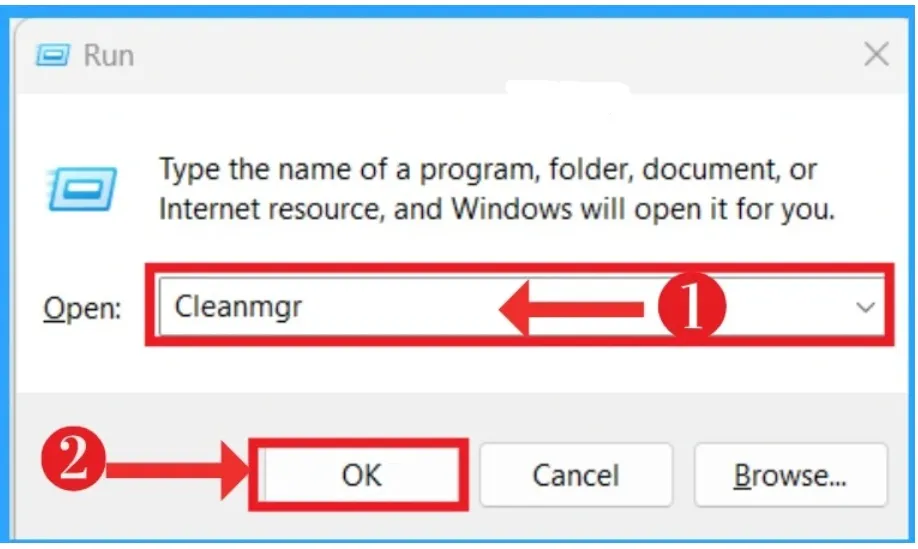
Step 1: Press Win + R, type cleanmgr.exe, and press OK.
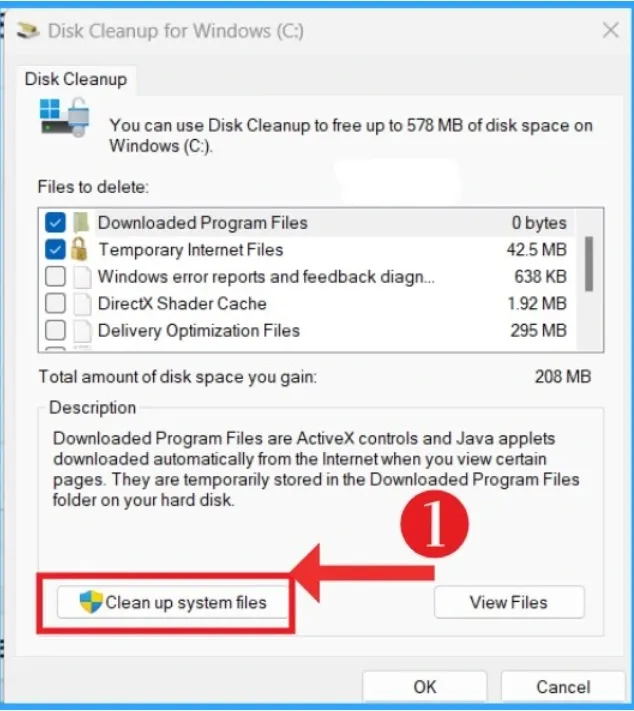
Step 2: Select your system drive (it is usually C:) and click OK. You will see a Disk Cleanup window; click the Clean up system filesoption there.
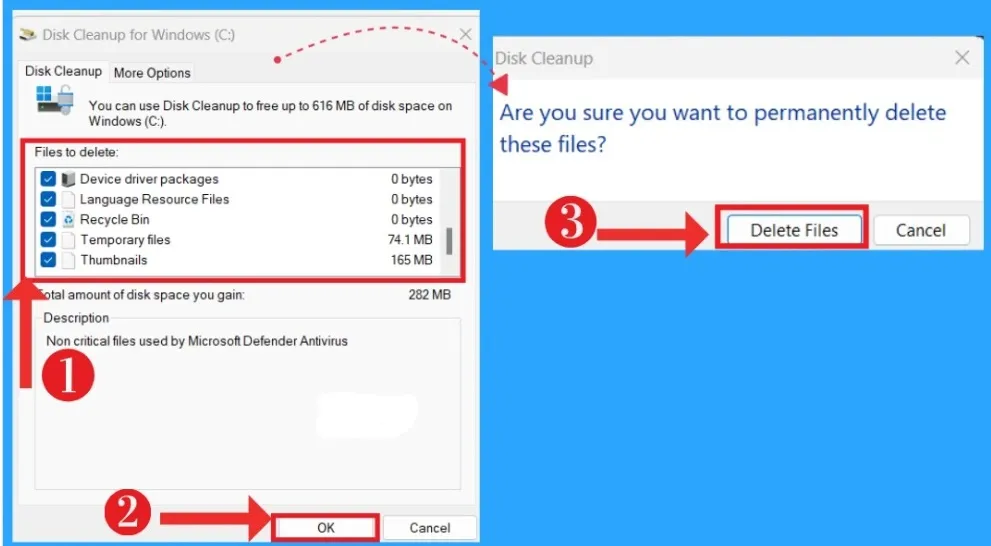
Step 3: Now you will see a list of categories. Check the Temporary Windows installation files, click OK, and confirm by clicking Delete Files.
Step 4: Now restart your PC and try updating again.
Fix 6. Install the Update Manually via Microsoft Update Catalog
If even after trying all the above fixes, you are still dealing with the same error, then I would recommend bypassing Windows Update entirely. You can download and install the Windows 11 version 23h2 update package from Microsoft yourself.
Step 1: Go to https://www.catalog.update.microsoft.com/
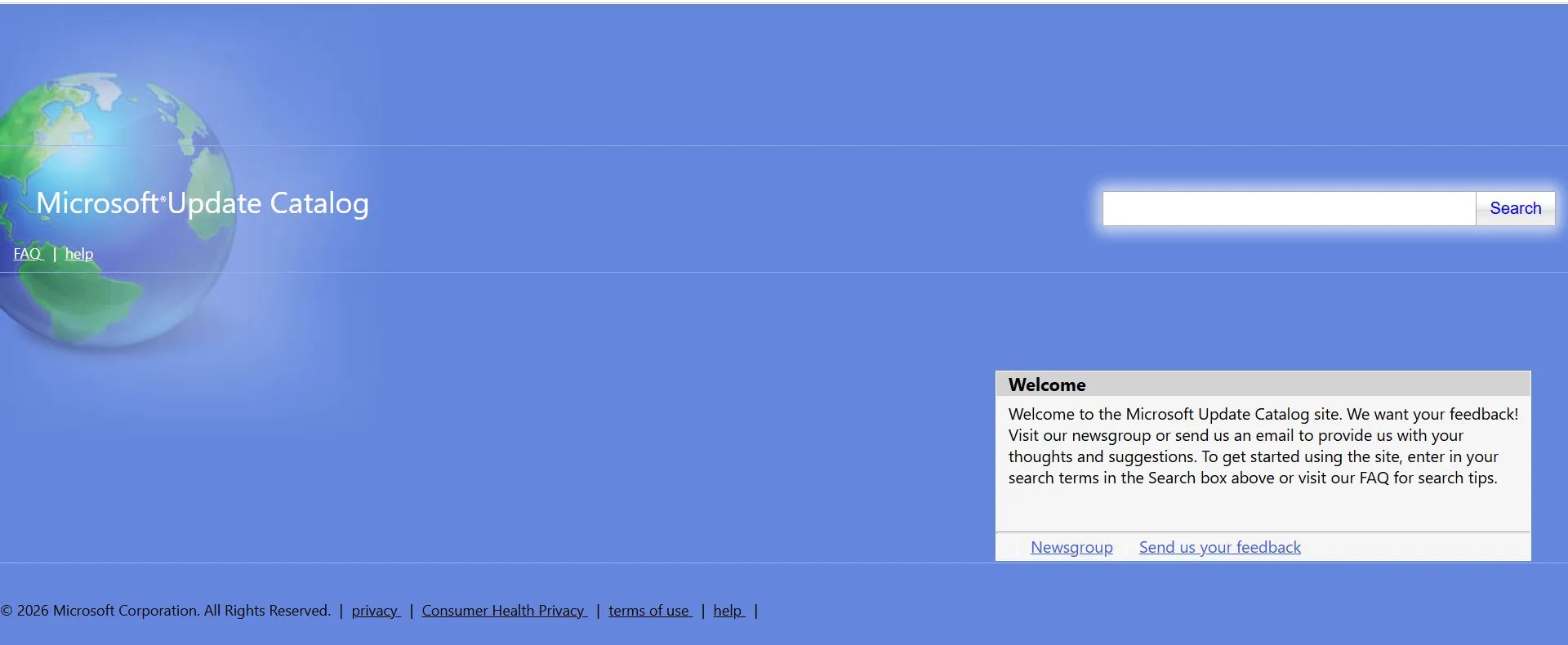
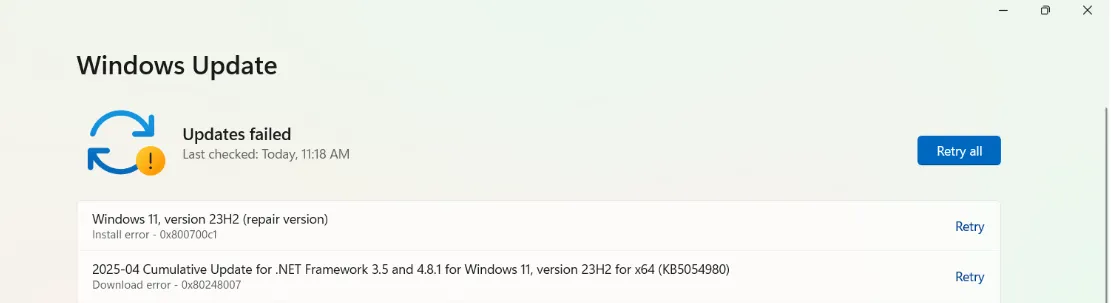
Step 2: In Settings & Windows Update & Update History, find the KB number of the failed update.
Step 3: In the search catalog box, type the KB number and click Search.
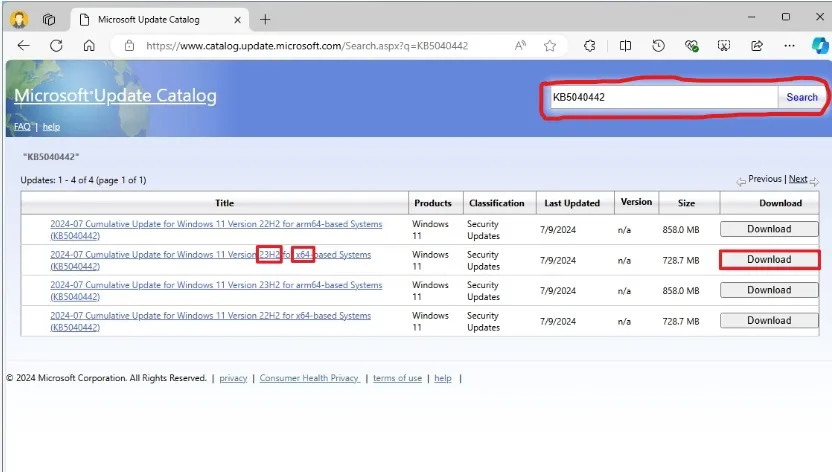
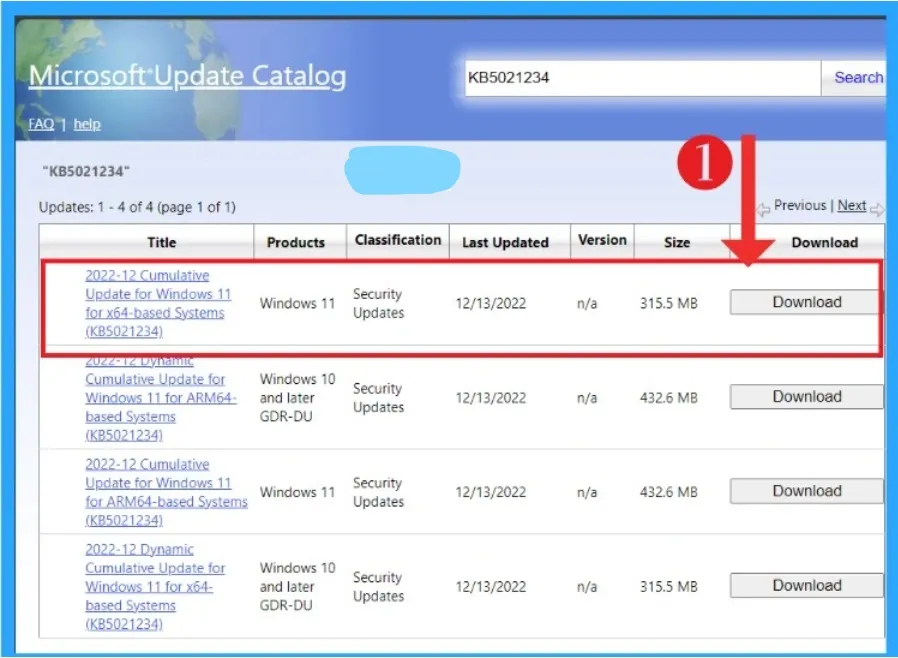
Step 4: Find the version that is suitable for your system. For most PCs, x64 is the correct version. Click Download, run the downloaded file, and follow the prompts to install it.
Part 3: Tips to Avoid Download error - 0x80246019
Tip 1. Clean Your Disk Regularly with WMaster Cleanup
What I have concluded after facing the download error - 0x80246019 so many times is that most Windows update errors are a result of a cluttered, full disk. When I made it a habit of cleaning it regularly, I usually avoided such issues.
That is why I am here to suggest to you my favorite tool for cleaning your disk, and it is WMaster Cleanup. This all-in-one cleanup tool checks all the boxes; it is free for a limited time, it operates quickly, and with just one click, it will clean out everything that is slowing down your PC.
Alt text: WMaster Cleanup main interface showing all PC cleaning features
URL: https://www.wmastercleanup.com
Price: Free (for a limited time)
Here are the 5 core features of WMaster Cleanup that I think make it stand out:

WMaster Cleanup
Best Duplicat File Remover for Windows 11/10
- ·Disk Cleanup: It deep-scans your PC and removes more than 22 types of junk.
- ·Clear Cache: Clear out system cache and browser cache across all major browsers.
- ·Duplicate Removal:MD5 algorithm deeply scans and deletes duplicate and similar files.
- ·Uninstall Apps: Removes unwanted apps with all their leftover files, plugins, and registry entries.
- ·User Experience: The interface is simple, which is ideal for both casual and expert users.

How to Clean Your Disk with WMaster Cleanup
Step 1: First of all, visit WMaster Cleanup's homepage to download WMaster Cleanup on your PC. Follow the prompts to install the software, which is very easy and merely takes a minute.
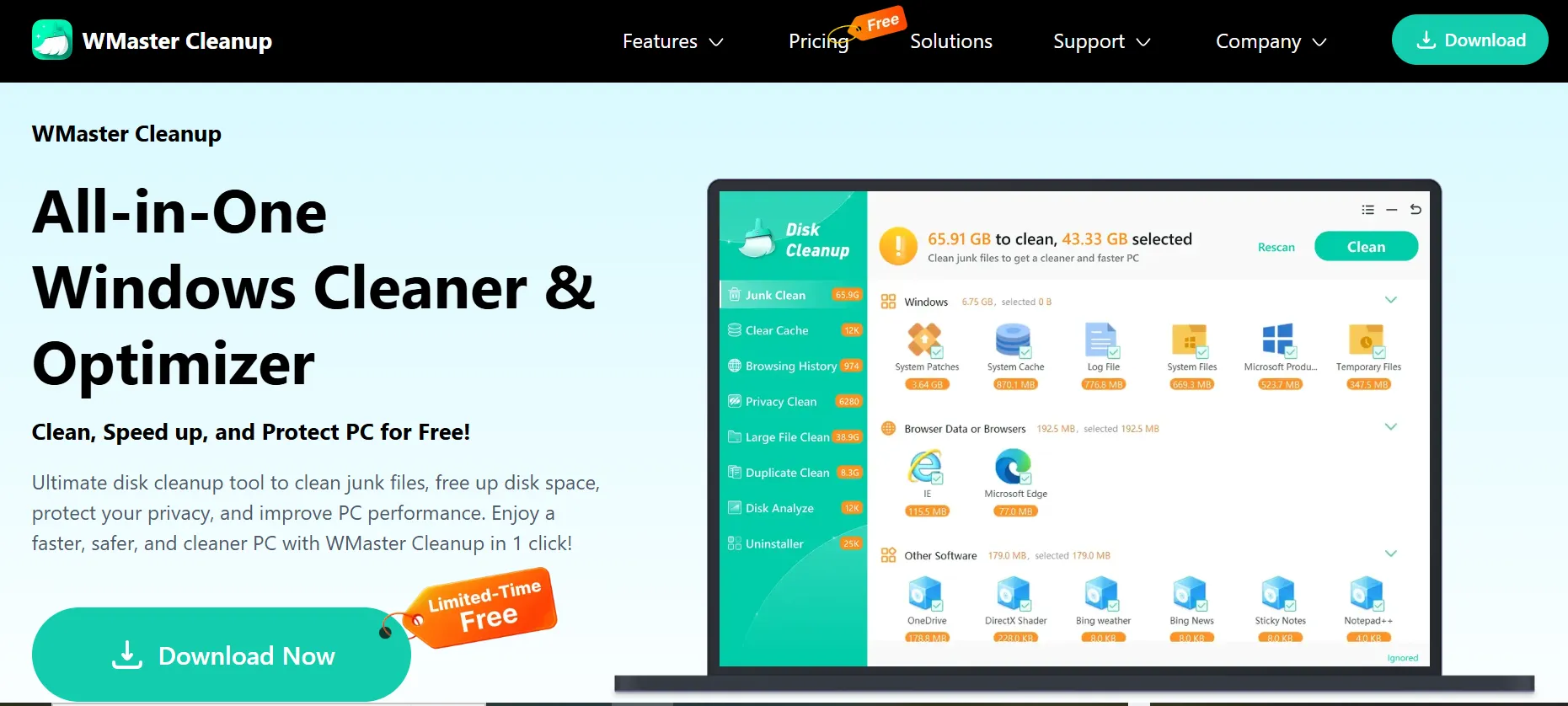
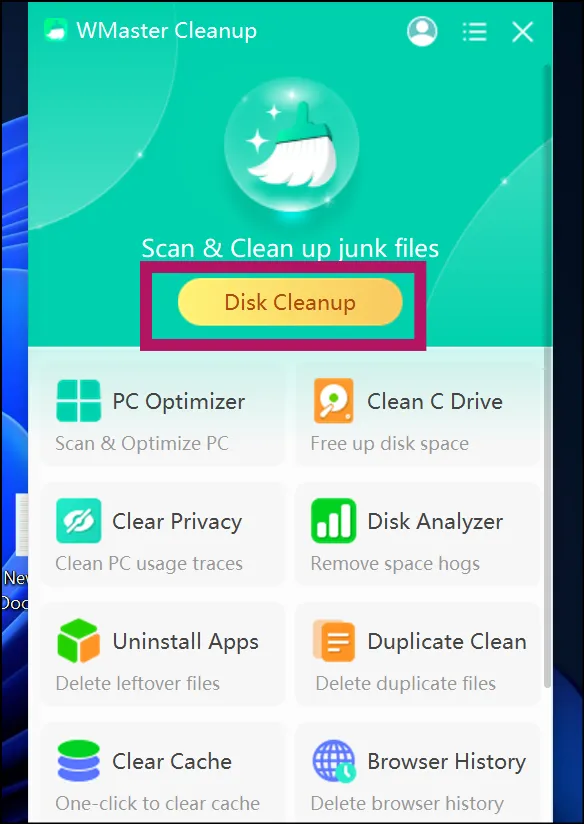
Step 2: When it's installed, open WMaster Cleanup. You will see a main dashboard that clearly lists all the brilliant features laid out. Click Disk Cleanup to get started.
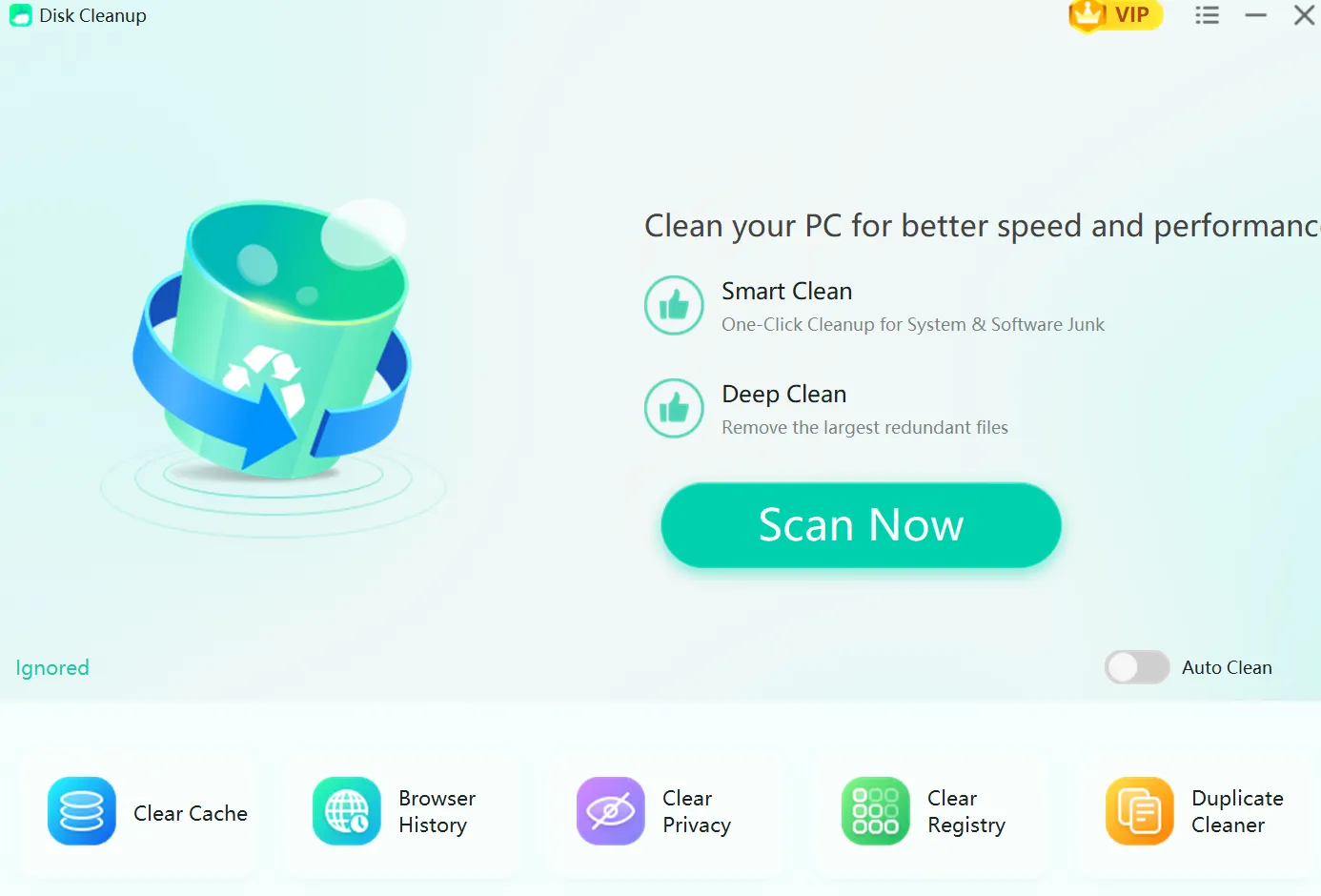
Step 3: Click Scan Now, and WMaster Cleanup will start to scan every corner of your PC for junk files. The scan only takes a few seconds to complete.
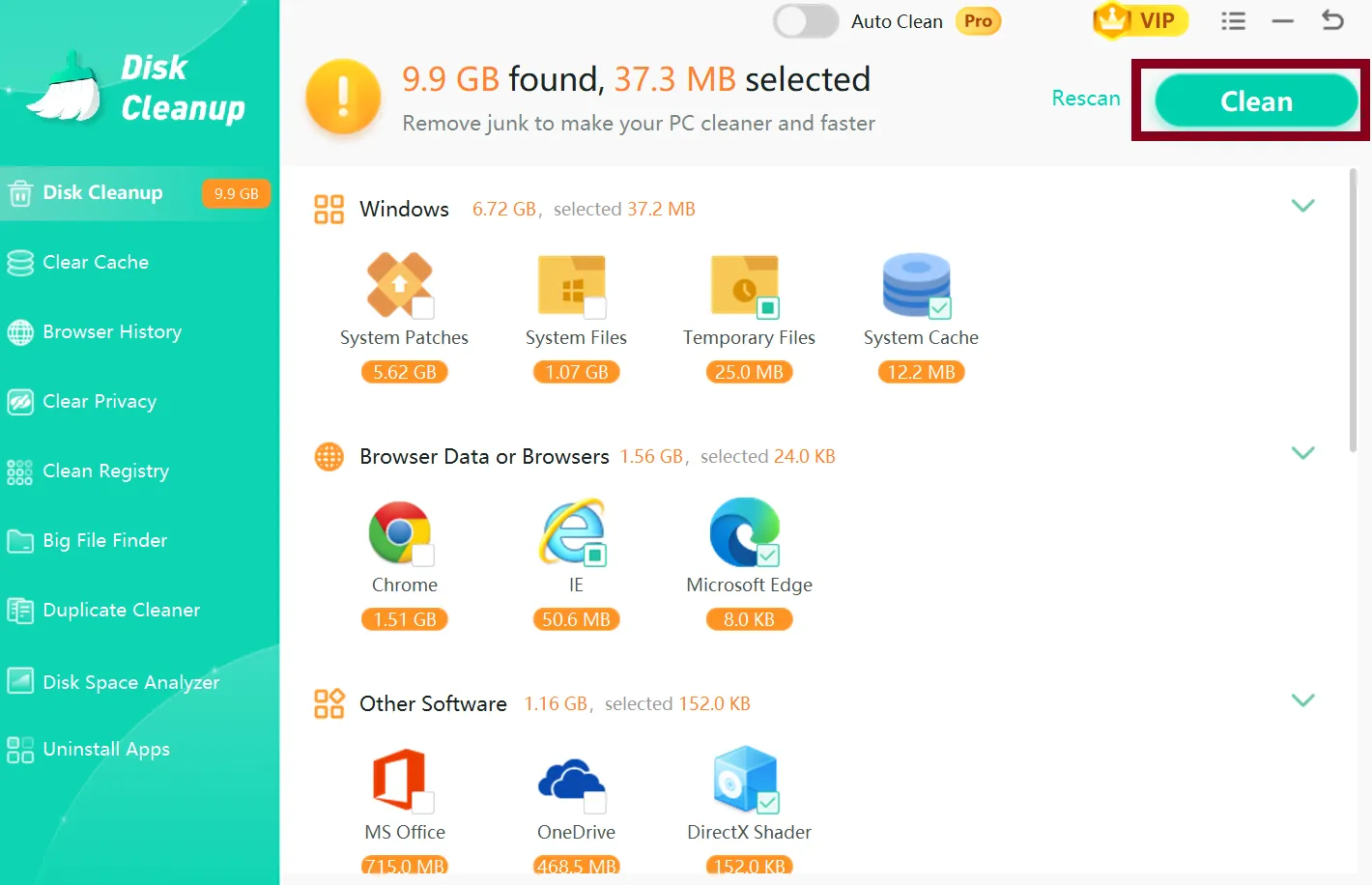
Step 4: After the scan is completed, you will get a clear breakdown of what it found, like junk categories, sizes, and details. Select the desired files and programs, click Clean and let WMaster Cleanup do its job.
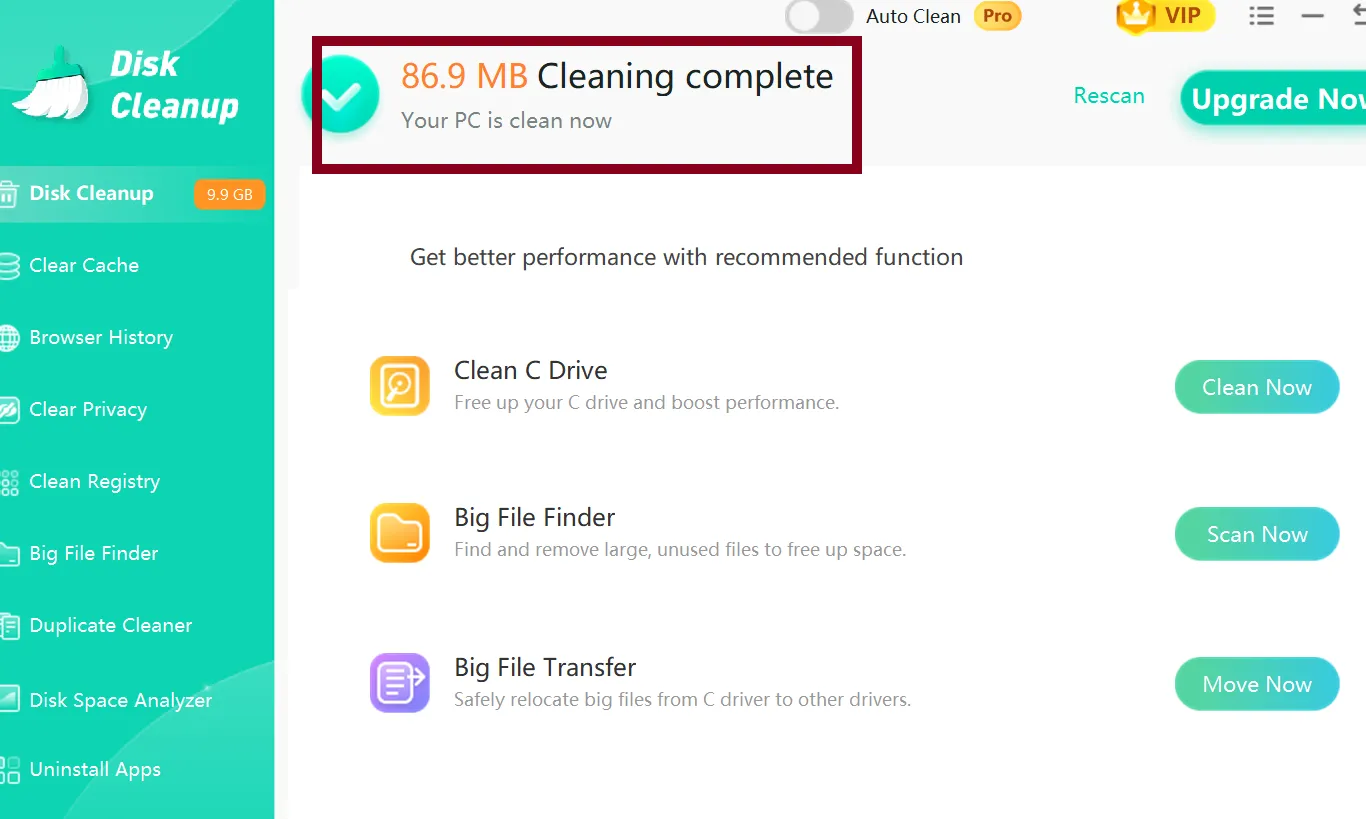
Step 5: We are done! You can clearly see how much space was freed up after you complete the deletion process. Now your disk is clean, the storage will not get in the way, and your system is fully ready to install Windows updates.
Tip 2. Keep Your Antivirus Up to Date
If your antivirus is outdated, chances are it will misidentify Windows update files as threats and block the downloads quietly without even telling you. So just make sure your security software is up-to-date and set it to allow Windows Update traffic. Alternatively, you can temporarily disable it before running an update if you suspect it is interfering with the process and then turn it back on afterward.
Tip 3. Ensure Enough Free Disk Space Before Updating
In Windows, there must be 20GB of free space to properly download and install updates. So, before you start any major update, it is best to check out how much free space you have in File Explorer > This PC. If you are running low on space, clear out unused or large files, or use WMaster Cleanup, which can do it in just one click.
Tip 4. Make Sure the Windows Update Service Is Running
This is easy to overlook. When the Windows update service stops running, every download will fail. Press Win + R, type services.msc, scroll down to Windows Update, and check its status. If you see it's not running, right-click it and hit Start, and that's it.
Tip 5. Don't Interrupt the Update Process
When an update starts downloading, simply let it finish. When things like losing internet connection, shutting down your PC, or unplugging external devices mid-update can all corrupt the download and cause the download error - 0x80246019 to come back on the next attempt. So always make sure you have a stable connection before you start, and just let it run.
Part 4: Hot FAQs Related to Download error - 0x80246019
Q1. Is it safe to delete the $WINDOWS.~BT folder?
Yes, it is absolutely safe to do so. This folder only contains temporary files from a failed update attempt. Since the update has already failed, these files are just useless. Deleting these through disk cleanup will not affect your current Windows installation at all.
Q2. Can I keep using Windows 11 normally while the 23H2 update keeps failing?
Yes, your PC will continue to work fine. A failed update does not mean anything is broken in your current installation. However, we would suggest fixing it sooner rather than later. When you stay on an outdated version, you miss security patches and important bug fixes.
Q3. Why does the download error - 0x80246019 keep coming back even though I fixed it the last time?
It is usually due to a persistently full disk. Every time you retry Windows, it redownloads the update files, and if there is never enough space, the error will just keep returning. Run a full disk cleanup with W Master Cleanup before each update to break this cycle.
Q4. What should I do if my DISM command is frozen at 23% or 60%?
This is actually a known behavior, so don't panic, and definitely don't cancel it in this case. At certain percentages, the DISM scan can often appear to be completely frozen, and it can stay like that for almost 20 to 30 minutes. But the scan is still working fine in the background. In case it has been more than an hour now and there is zero disk activity too, then you should restart
Conclusion
I know the download error - 0x80246019 on Windows 11 version 23h2 can be so annoying, but the good news is its causes have a direct fix. Begin with the Windows Update troubleshooter; if needed, move on to SFC and DISM, reset update components, clear the $WINDOWS.~BT folder, or, as a last resort, you can go for the manual install route. I must mention that you must work through these fixes to get there. But what's even more important is that I want you to realize that preventing this error from happening is way easier than fixing it.
For Windows updates to keep running smoothly, all you need is a clean, clutter-free disk. WMaster Cleanup is the simplest way to stay on top of this. It is totally free (for a limited time); all it takes is a single click, and it handles everything from stubborn apps to duplicate data to junk files. With WMaster Cleanup, you can keep your PC in perfect shape for every update that comes your way.


