

Your next-gen consoles shouldn't lose gunfights due to hidden system latency and factory settings.
Although Xbox Series X packs unmatched raw power, its factory settings prioritize flashy visual quality over performance. So, if you bought a premium console to experience a next-level gaming feel, learning how to optimize Xbox Series X for fps games is non-negotiable.
When your in-game frames drop and you experience heavy input delay or slow responsiveness, costing you fights you should've won, it's time to take control. Worry no more!
In this writeup, I will tell you the best fixes to fully optimize Xbox Series X for FPS games to boost in-game performance.
In this article
Part 1: Why FPS Performance Matters on Xbox Series X
Having high FPS on your Xbox Series X can directly reduce your input lag and on-screen stuttering. Boosting your frame rate will definitely be cutting visual delay, meaning you can see and react to your enemy's moves much faster. What's more? You're getting a competitive advantage as well.
Here's the math you should know before you touch a single setting:
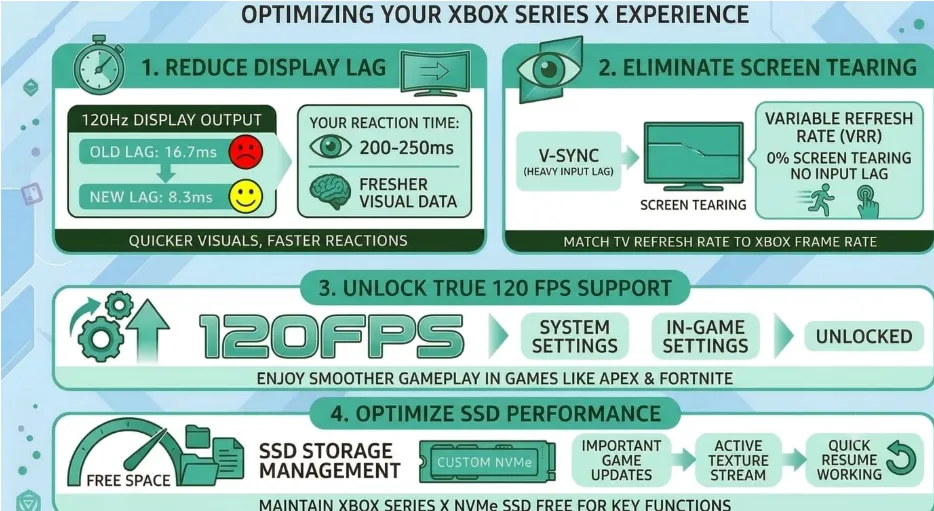
1. Xbox Series X display lag is reduced from 16.7 ms to 8.3 ms with 120Hz display output, giving you fresher visual data for your 200 to 250 ms natural reaction time.
2. Unlike V-Sync, Variable Refresh Rate (VRR) lets you match your TV/monitor's refresh rate to the Xbox Series X frame rate, giving you experience with 0% screen tearing and no heavy input lag.
3. Many games, like Apex Legends & Fortnite, cannot output 120fps by default. Manual settings calibration (both system & in-game level)gives true 120fps support for these games, leaving 60fps behind.
4. SSD Storage Management maintains the Xbox Series X custom NVMe SSD free for important game updates and cache, making sure your texture stream is always active and Quick Resume is working without causing system bottlenecks.
Part 2: How to Optimize Xbox Series X for FPS Games-6 Proven Ways
Not a techie, but want to squeeze out the full capacity of your console? Just a few adjustments in your settings, like optimizing your network, display, and hardware allocation, can help you instantly remove the bottlenecks that are holding your gameplay back.
Here are 6 proven ways to optimize your Xbox Series X for FPS games in under 15 minutes.
1.Get Rid of Your Wireless Connection and Change NAT Type
There is no way to fix the wireless interface on the Xbox Series X.
My roommate's phone updates apps in the background at the worst possible time, making my "bad internet" even worse. Giving up my wireless connection and switching to an Ethernet cable (Cat 6) to cut down on input lag on Xbox Series X was the best thing I've ever done.
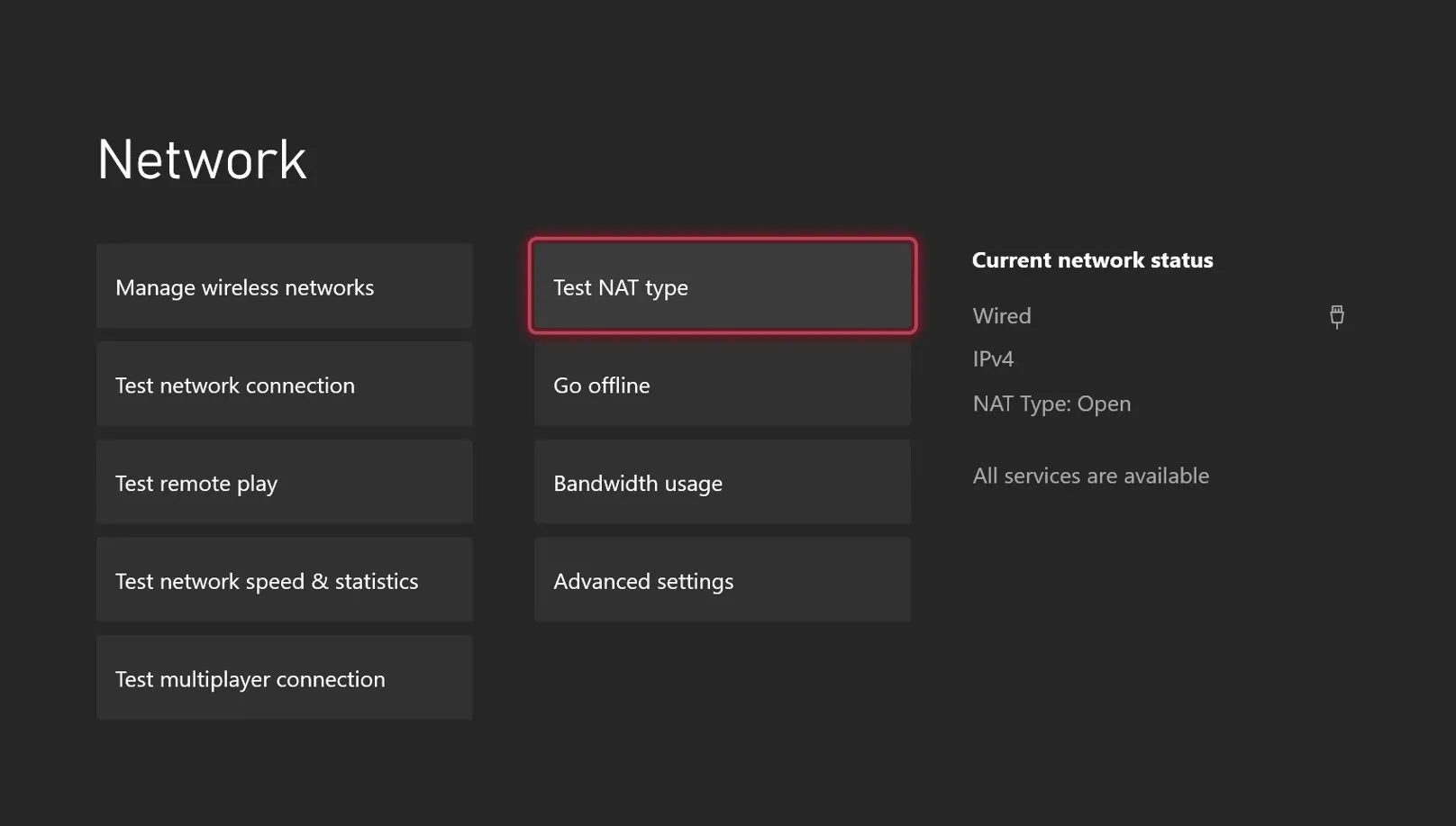
What did I do next? After wiring, I checked that NAT type is set to Open in Settings - Network- Network Settings
If your NAT is Strict or Moderate, it will slow down matching, limit who you can even match with, and stop you from moving during fast-paced gunfights. It's usually as simple as turning on UPnP or opening a few Xbox ports.
2. Turn On 120Hz and VRR
Two taps on the menu, no charge!
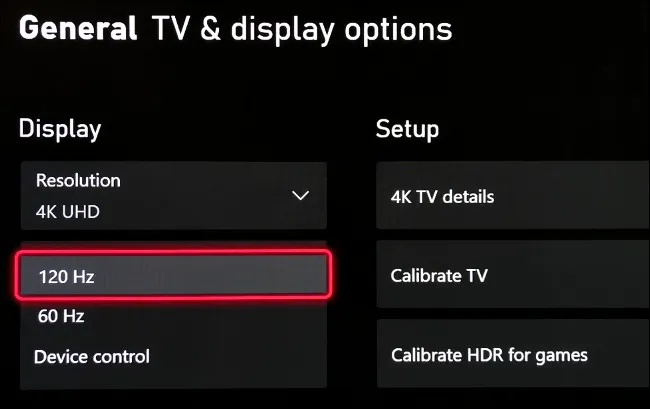
The best settings for FPS games on your Xbox Series X can be found by going to Settings, clicking on General, then TV & Display Options, and finally selecting Refresh Rate. Change the frequency from 60Hz to 120Hz
Next to HDMI 2.1, turn on Variable Refresh Rate. Starting in 2021, most gaming monitors and newer TVs will have this feature.
VRR then changes the Xbox Series X's output to match the FPS output at that moment, rather than trying to push out a fixed number that it can't handle. This is great for competitive first-person shooter games because it gets rid of screen tearing and doesn't charge the input-delay tax that normal V-Sync does.
Need a troubleshooting tip? If your Xbox greyed out the option, it's probably because your older HDMI 2.0 cable can't send 120Hz at 4K. Not getting a new TV, just switching cables for five dollars.
3. Go for the Performance, not visual quality
A steady 100+ FPS is better than a pretty 60 FPS in a real shoot-out.
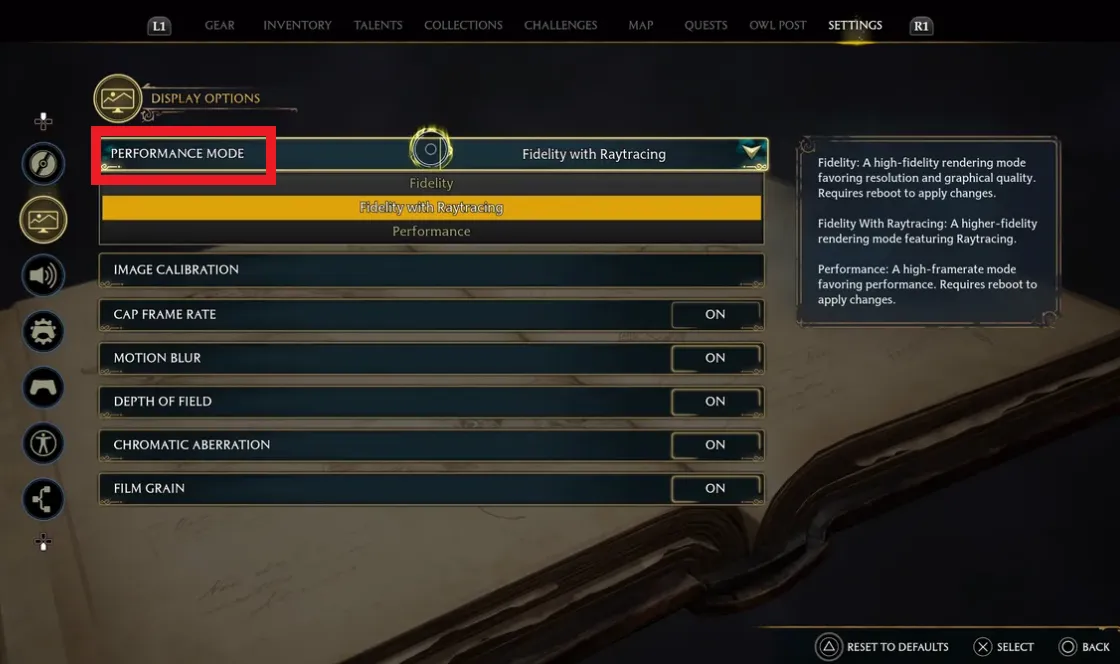
Most players set Quality Modein their display options, producing a sharper image but limiting their frame rate. Whereas, if you select the Performance Mode to play on your Xbox Series X, it will allow you to shoot faster with a slightly blurry image.
Some games have a "Graphics" or "Video" tab instead of the main display menu, so if you don't see it right away, dig a little deeper before assuming your game doesn't have it.
💡Tips:If your Xbox Series X game supports dropping from native 4K to 1080p or 1440p, then apply it.
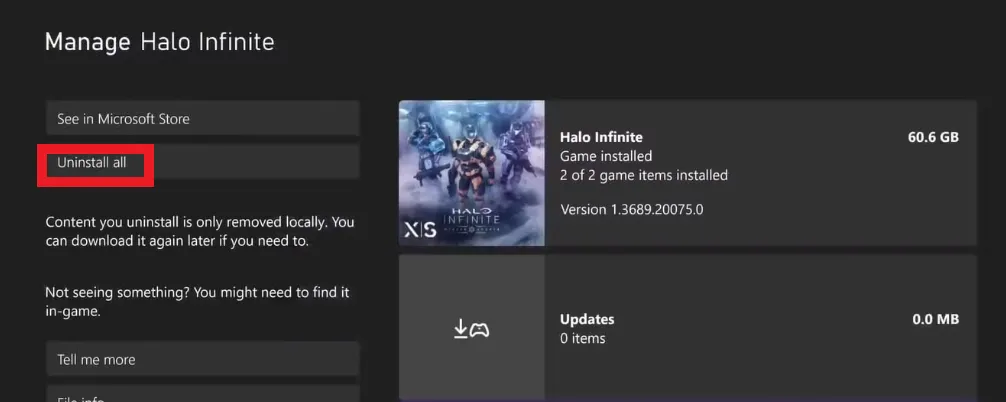
4. Remove Storage Junk and Background Downloads
Your high-speed Xbox Series X SSD should have breathing room to stream textures quickly. If it's 90% or more full with old games and leftover cached data, you'll experience game stutter and texture pop-in. But how to optimize Xbox Series X for FPS games?
Head to Settings - System - Storage and look at what is actually on there.
Remove any FPS titles or games that you haven't played for months. Additionally, make sure to pause background downloads or system updates before a competitive match; your Xbox Series X will happily consume your bandwidth while you're holding an angle.
Clearing out unused games = No load-in stutter + Boost FPS + Smooth frame rates.
5. Adjustments with your Controller and Input Settings
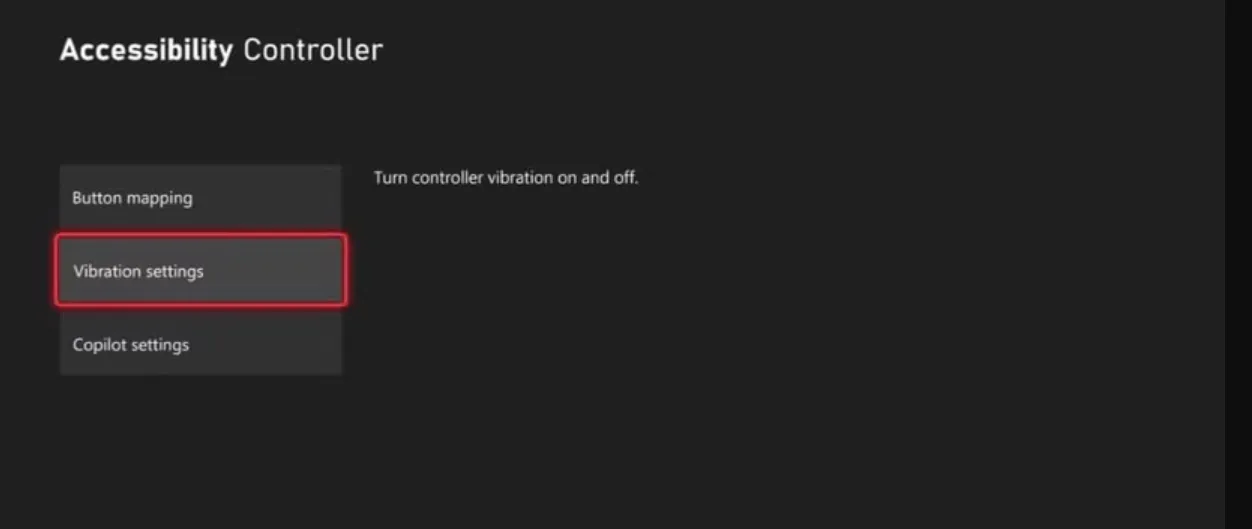
To optimize Xbox Series X, navigate to Settings, click Devices & Connections, and then tap on Accessories. Select your controller & adjust the dead zone and vibration settings.
Vibration off is a little bit of overhead, making it one more distraction when a player is lining up a shot. Your stick will move more quickly in smaller dead zones, giving you Xbox Series X FPS boost.
Similarly, enabling Auto Low Latency Mode (ALLM) for your display auto-switches your TV/monitor to its lowest-lag game mode the moment your Xbox launches a game, eliminating the need to manually switch it every time.
6. Check Game Optimization and FPS Boost Support
If you're a hybrid gamer and playing games on PC as well, I will let you know the exact same level of optimization that your Xbox gets. Where a console has streamlined and built-in settings, your PC requires managing resource-heavy background processes and junk files.
This is where WMaster Cleanup Game Booster comes in. You can easily stop background running apps and remove digital clutter from your Windows PC with a single click. With a beginner-friendly UI, it can boost FPS & reduce latency.

WMaster Cleanup
All-in-one Game Optimizer in 2026
- ·Safely apply Windows tweaks & power settings to improve frames persecond.
- ·Stops resource-heavy background apps and optimizes RAM with a single click.
- ·Sets visual effects that improve in-game FPS while reducing input lag.
- ·Provides 3 performance modes: lite mode, advanced mode, and Esports mode.
- ·Cleans corrupted shader caches and leftover temp junk with a deep game cache clean.

How to Use WMaster Cleanup Game Booster on your Gaming PC:
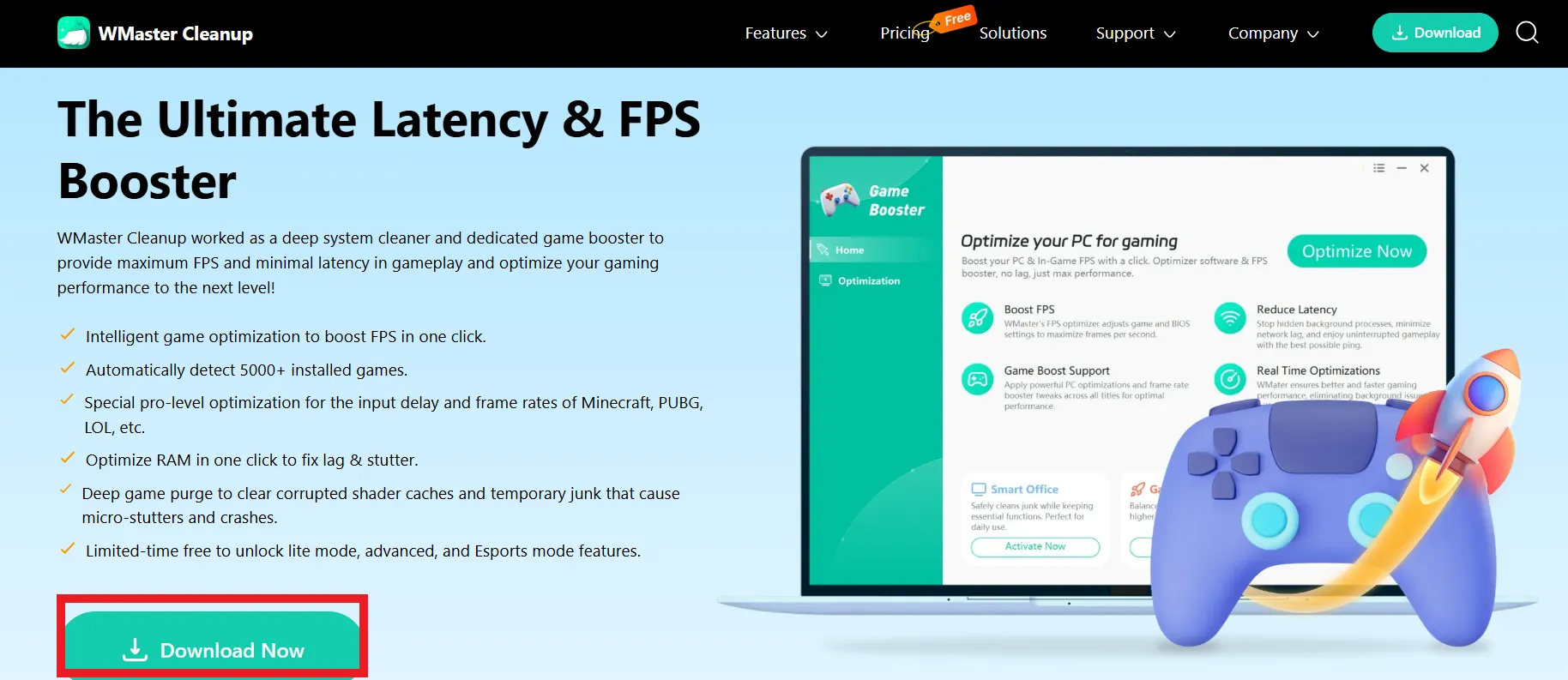
Step 1: Download and install WMaster Cleanup from the Game Booster feature page. Launch it on your PC.
Step 2: Click on the Optimization tab; you will see an interface with performance modes. Select one that suits you.
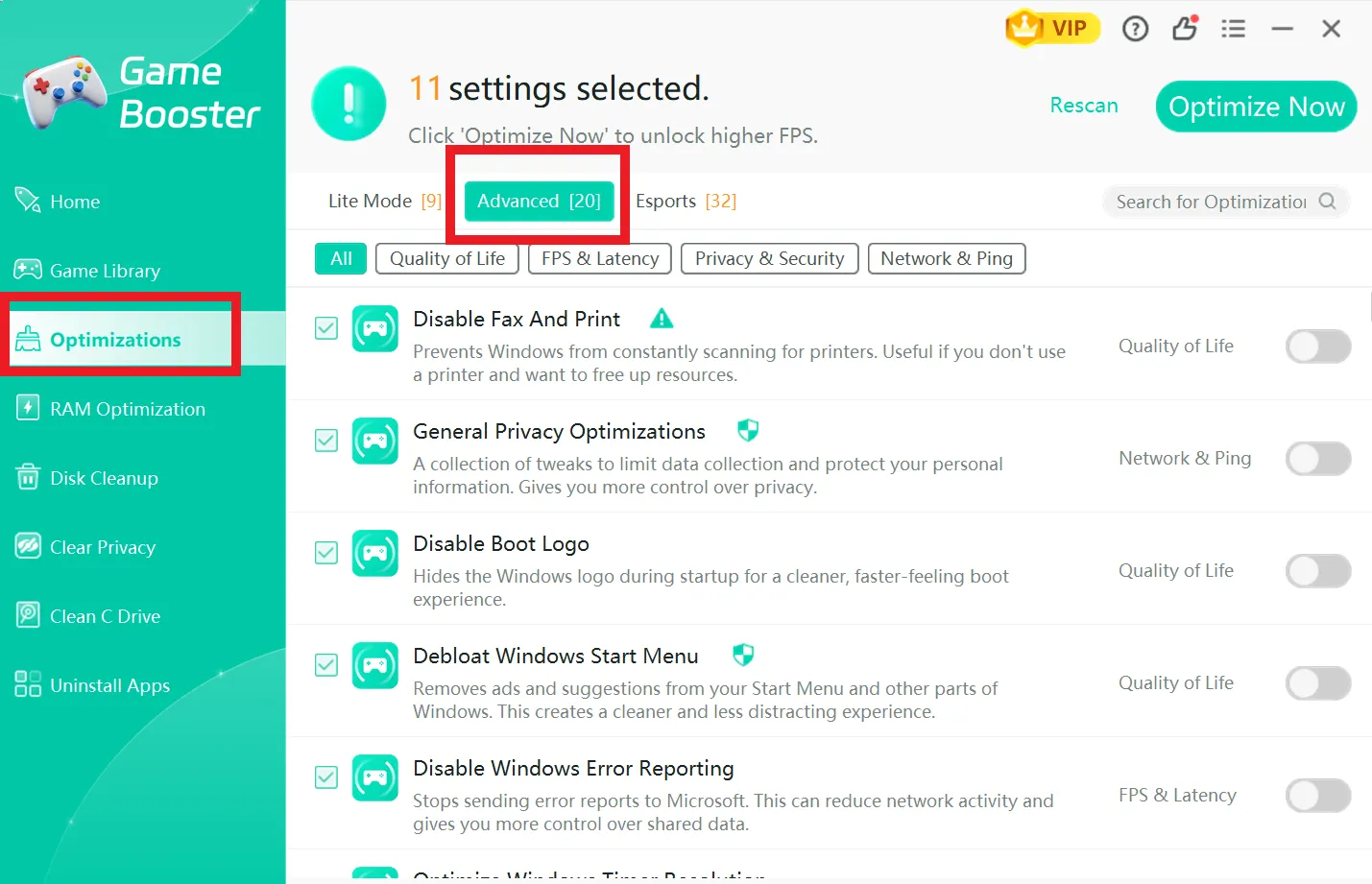
💡Tips:If you're not sure which mode to choose, begin in advanced mode; it gives a balance between real FPS gains and stability and doesn't go fully esports-aggressive from the get-go.
Step 3: View and select the optimization options for FPS & latency that you really want to use.
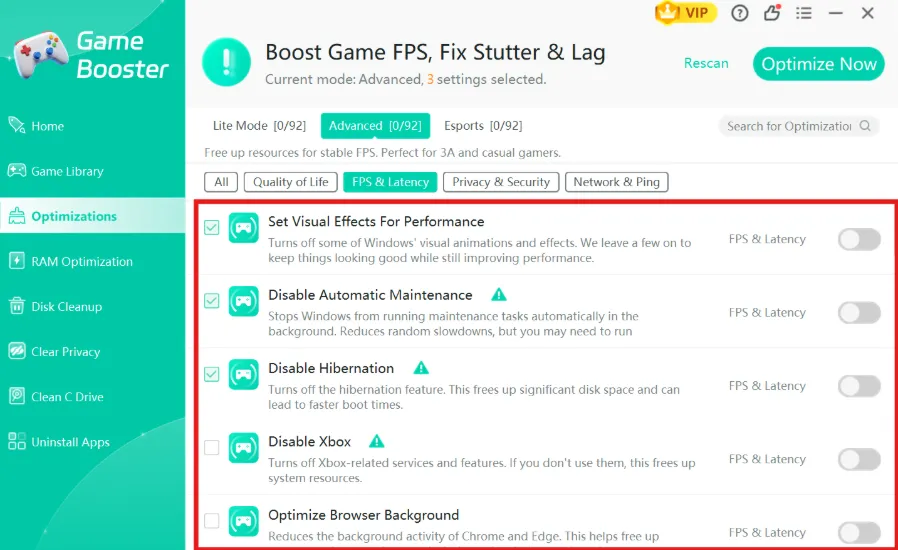
Step 4: Click "Optimize Now.Once the process completes, restart your PC.
WMaster Cleanup takes care of the rest in one click, so you're set before you even queue into your next match.
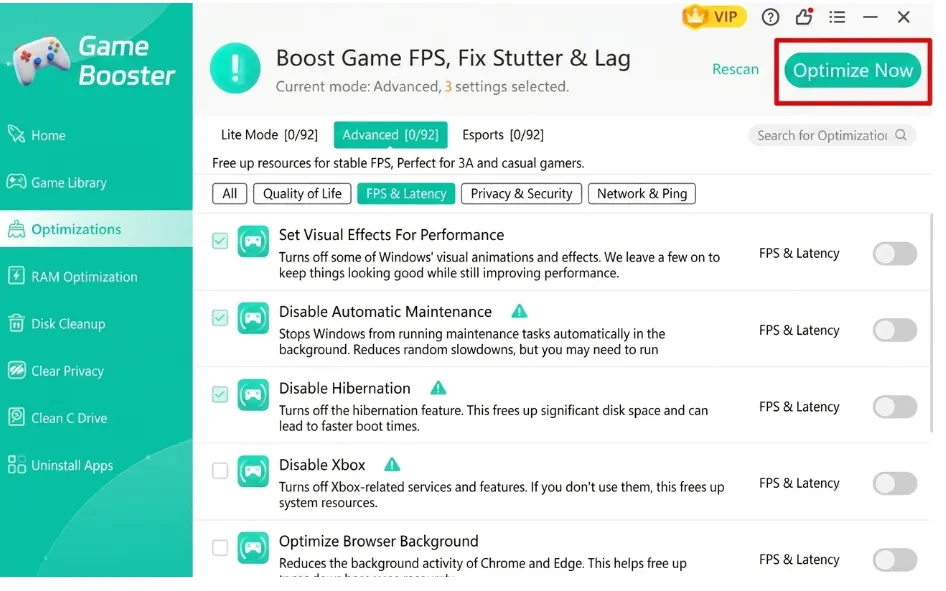
Looking for an all-in-one solution to optimize your PC for gaming? Check out our detailed Game Booster review. This amazing tool not only clears out digital clutter from your Windows PC, but also kills background activities and optimizes RAM, letting you enjoy improved FPS and reduced input lag.
Part 3: FAQs About Optimizing Xbox Series X for FPS Games
Q1. What are the minimum specs I need to get to 120fps on Xbox Series X?
A 120Hz over HDMI 2.1, Variable Refresh Rate enabled on console and display, and a game with a dedicated 120fps mode in its settings. That's a well-tuned 120Hz Xbox Series X, and it's one of the best settings for FPS games you can pursue.
Q2. How do I get better performance on Xbox series X?
If you want to get the absolute best performance on your Xbox Series X, adjust your device's configuration & in-game settings: Here are 3 quick tips:
- Head over to the Xbox settings and enable 120Hz, VRR, and ALLM.
- Turning your monitor's/TV's Game Mode on can also drastically reduce input lag in Xbox.
- Always go for Performance Mode instead of Quality Mode to remove visual clutter.
Q3. Is there VRR support in all games on Series X?
No. VRR is a console-wide setting that you have to enable once, but each game still has to actually display a variable frame rate for it to have any effect. It has been supported by most competitive shooters since 2021, and many older or casual games are not, so don't be surprised if you see tearing in an older game even with a VRR-enabled system-wide.
Should I turn off HDR for competitive FPS games?
Many competitive players do, as HDR can introduce additional lag and can sometimes overpower the shadow detail, allowing for enemies to hide in dark corners. If you're playing casually and you enjoy the added visual flair, then it's okay to leave it on; it's not a rule you're breaking by ignoring it. If you're not sure, give it a try with it off first, as some people simply cannot tell the difference, and others can tell right away.
Q4. Is Ethernet really faster than Wi-Fi on Xbox Series X?
Definitely! A wired connection avoids the interference and latency issues that Wi-Fi can cause, particularly in a home with multiple networks vying for the same signal. It will be mostly noticeable as fewer random lag spikes, but in a tight shootout, spikes will be what kills you.
Final Words
That's really the whole game plan for how to optimize Xbox Series X for fps games: 6 changes, no money. 120Hz, Performance Mode, controller settings to minimize input lag on Xbox, wired connection, and a clean-out of your storage.
For hybrid players playing on Windows, try out our WMaster Cleanup Game Booster feature. This amazing optimizer tool not only removes digital clutter from your system but also removes resource-consuming background activities to optimize RAM to boost in-game FPS while giving you the best gaming feel.