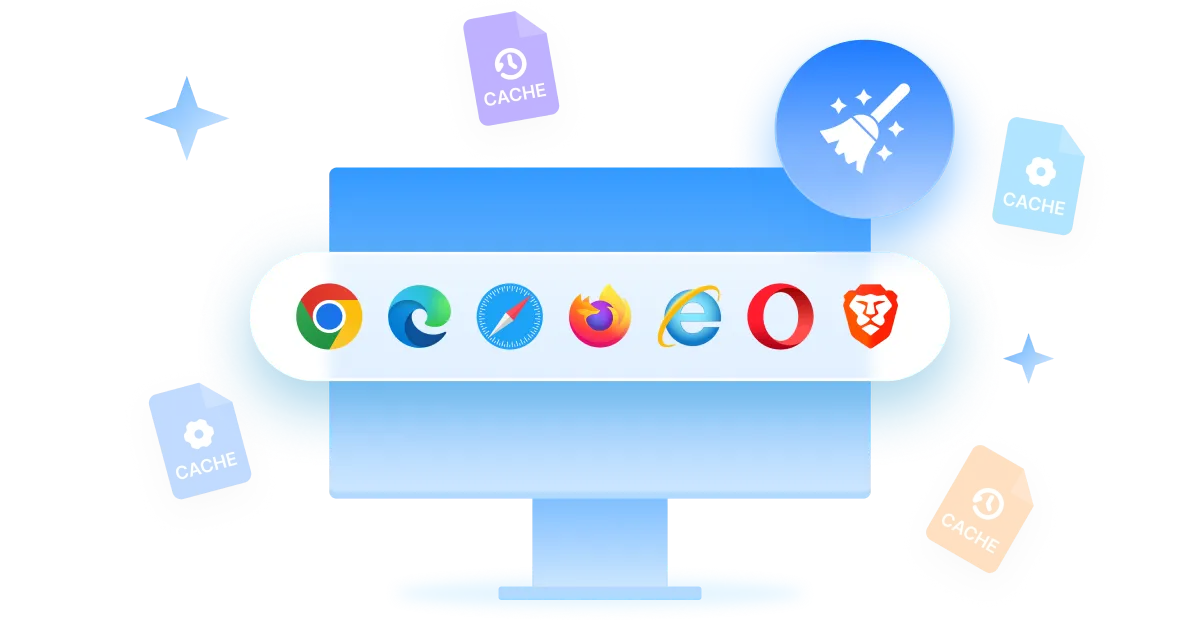

Last month, I searched for sport shoes once and then spent 2 weeks getting ads for different sport shoes and sport-related stuff on every platform I used.
That's where I wondered how much of my life is sitting out in the open online and how to protect privacy on social media. If you're feeling the same self-conscious situation, worry no more!
Actually what happens is the social apps we use on a daily basis track our scrolling habits, liking, and tagging and sell it to advertisers, and sometimes people with bad intentions find it too. In this writeup, I will walk you through what's at risk, why it matters, and 12 smart ways to shut most of that leakage down.
In this article
Part 1: Why Social Media Privacy Matters
Once you share your personal details publicly, you lose control over who can see it and how one can use it. Your location, personal event, photos, or a single overshared detail can be pieced together by advertisers, employers, or even scammers who are looking for an opportunity-sometimes enough to guess a password.
So basically, if you protect your privacy on social media,
It is not about hiding; it's about taking control over who can get access to your life and at what terms.
What Information Can Social Media Reveal?
I never thought about how much of my personal data is visible to strangers even if I never hit the "share" button on purpose. Below is some info that you need to keep an eye on to protect your privacy on social media as social platforms may let it on
- Social media platforms disclose your full name, birthday, and your hometown.
- It also tracks your current location if someone tags you in real time.
- If you are posting photos of everything, then photos of your home, workplace, family, and friends.
- If your profile is not limited, then your relationship status, family members, friends, & whom you interact most with.
- Similarly, unprotected profiles also show your interests, political views, and response to controversial mishaps.
- The same goes with an embedded tracker that also tracks your browsing history tied to your social accounts.
Who May Access Your Social Media Information?
- Advertisers or data brokers may access your social media profile to sell it to marketers.
- Your social media platform to target relevant ads and for the training app algorithm.
- Third-party apps connecting or logged in with your social media account.
- Employers or recruiters may also check your profile to check your background.
- Same way, strangers, scammers, or stalkers also have access if your profile is not protected.
- Hackers-if your social media account or device is ever compromised.
Why Need to Protect Social Media Privacy
Suppose your social media profile is your home, having widely opened curtains. Here anyone walking by can see what's exactly inside it.
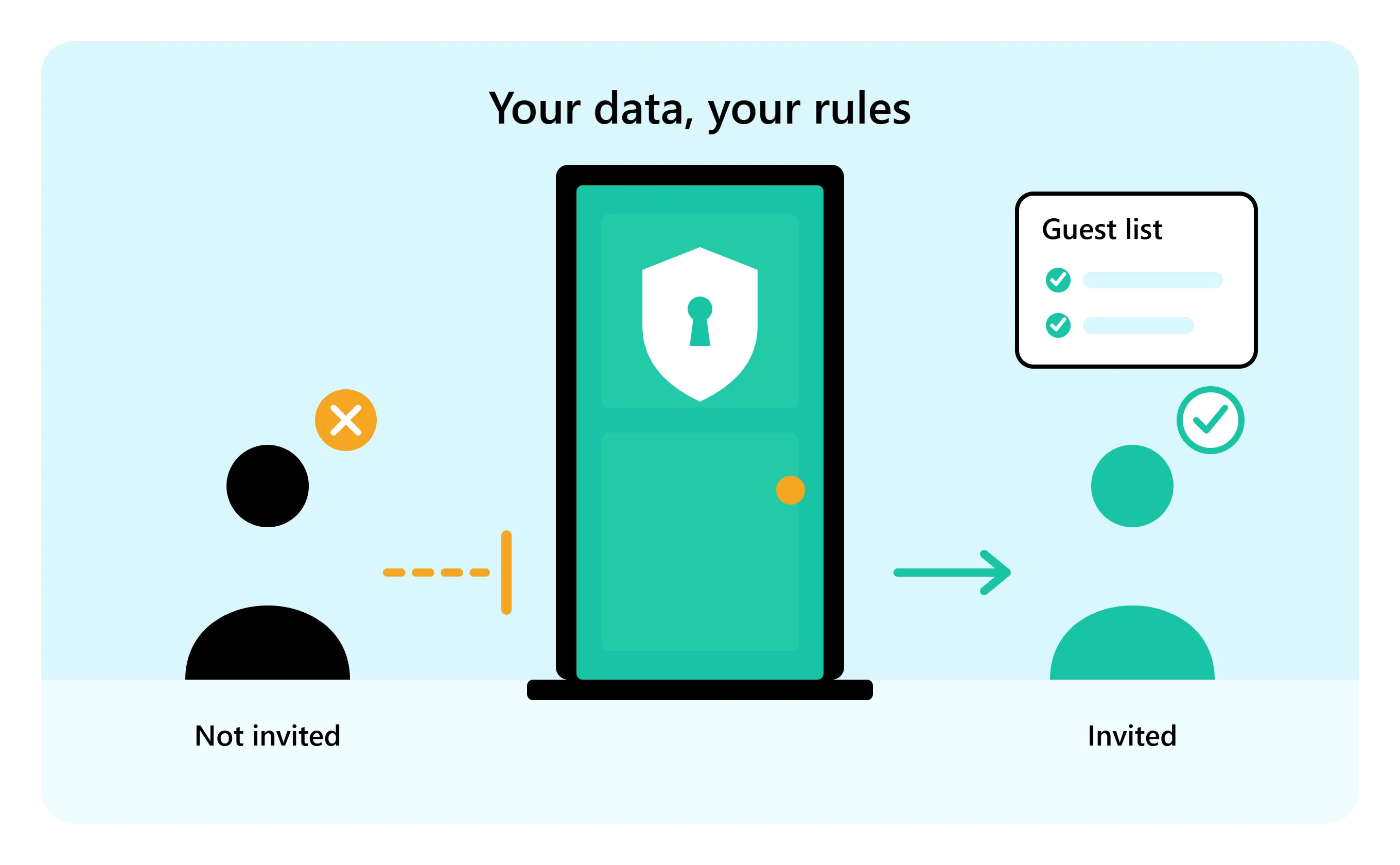
Similarly, if your social media account is not protected, every post, share, tag, and check-in gives more room to advertisers, scammers, or nosy strangers to peek through.
If you use Google Chrome to surf, learning how to delete Google search history specifically becomes negotiable, no matter what device, to protect your privacy.
Part 2: How to Protect Privacy on Social Media by WMaster Cleanup [Easiest and Quickest]
I wish someone told me sooner: most of our social media footprints are not stored on the platform.
The where is goes? Actually, it sits in our browser, in cookies, in cached logging, in autofill data, and in our saved history, rebuilding our online profile every time we log back in. This is exactly where WMaster Cleanup, an all-in-one Windows cleanup tool, comes in.
Its Clear Browser History feature specifically clears out the browser-side trail that social media platforms and trackers rely on. What's more? Its intuitive interface genuinely gives you a clean slate within a few clicks.
WMaster Cleanup
Protect Social Media Privacy by WMaster Cleanup in One Click
- ·It clears history, cookies, cache, autofill data, and digital footprints in 1 click.
- ·You can clean specific browser or social media platform history in 3 seconds.
- ·It supports protection for online privacy over 58 major browsers.
- ·You can visualize all your social platforms' records and cached data.
- ·The tool interface is modern and intuitive; use doesn't need to be a techie.

Steps to Clear Your Social Media Trail with WMaster Cleanup:
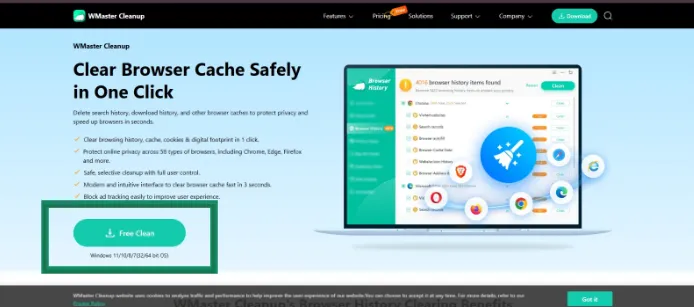
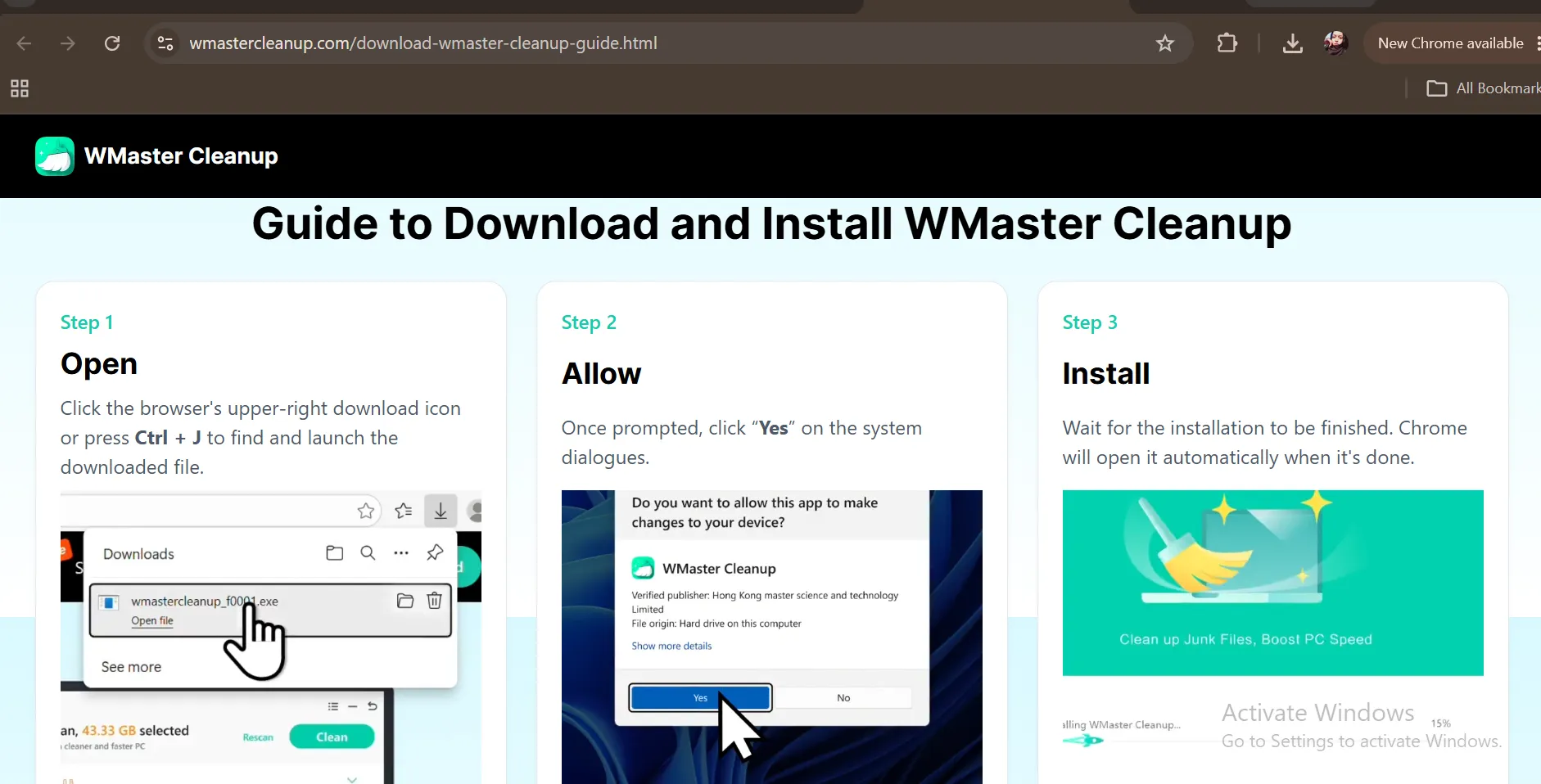
Step 1: Head to the Clear Browser History page from the official website of WMaster Cleanup. Hit Free Download to protect your privacy on social media.
Complete the installation to launch WMaster Cleanup to directly land on the feature's interface on your Windows desktop.
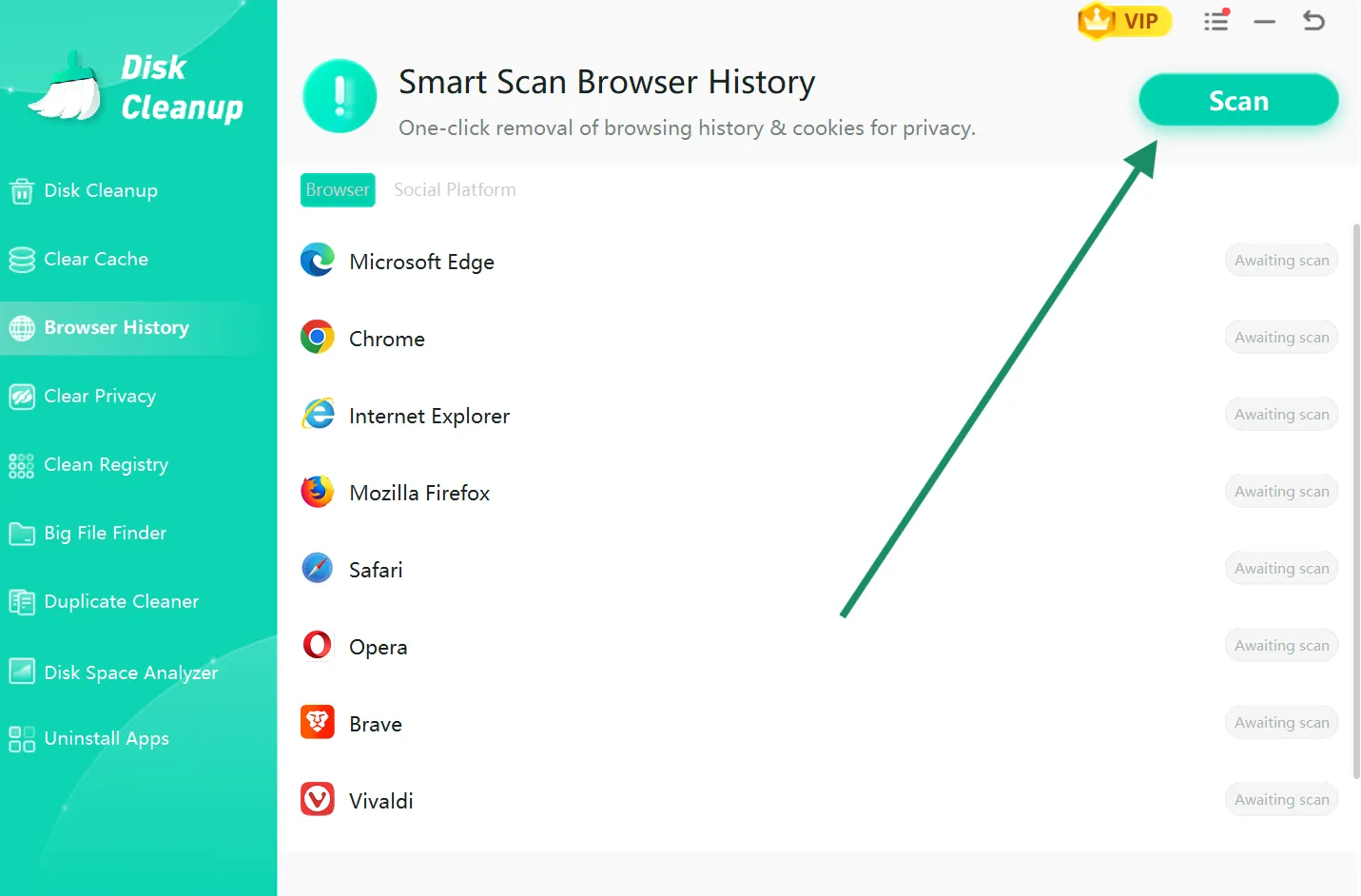
Step 2: Click on the Scan button to initiate the scanning process.
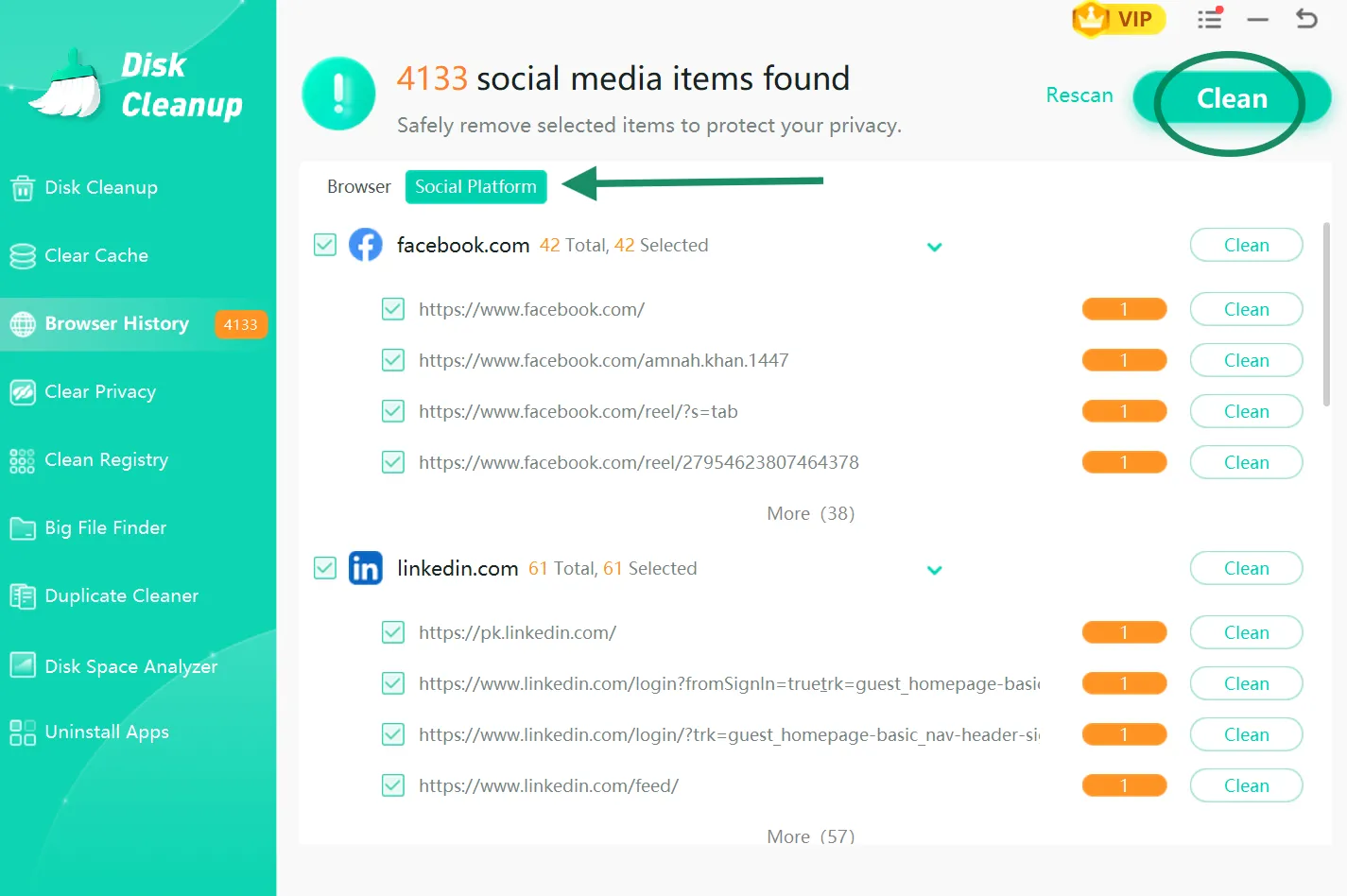
Step 3: Once complete, click on Social Platform. Now hit Clean to safely remove social platform-related cache and history to protect your online privacy.
💡Tip:If you want to delete any specific social platform cache and history, keep it checked and uncheck all the other platforms' main boxes.
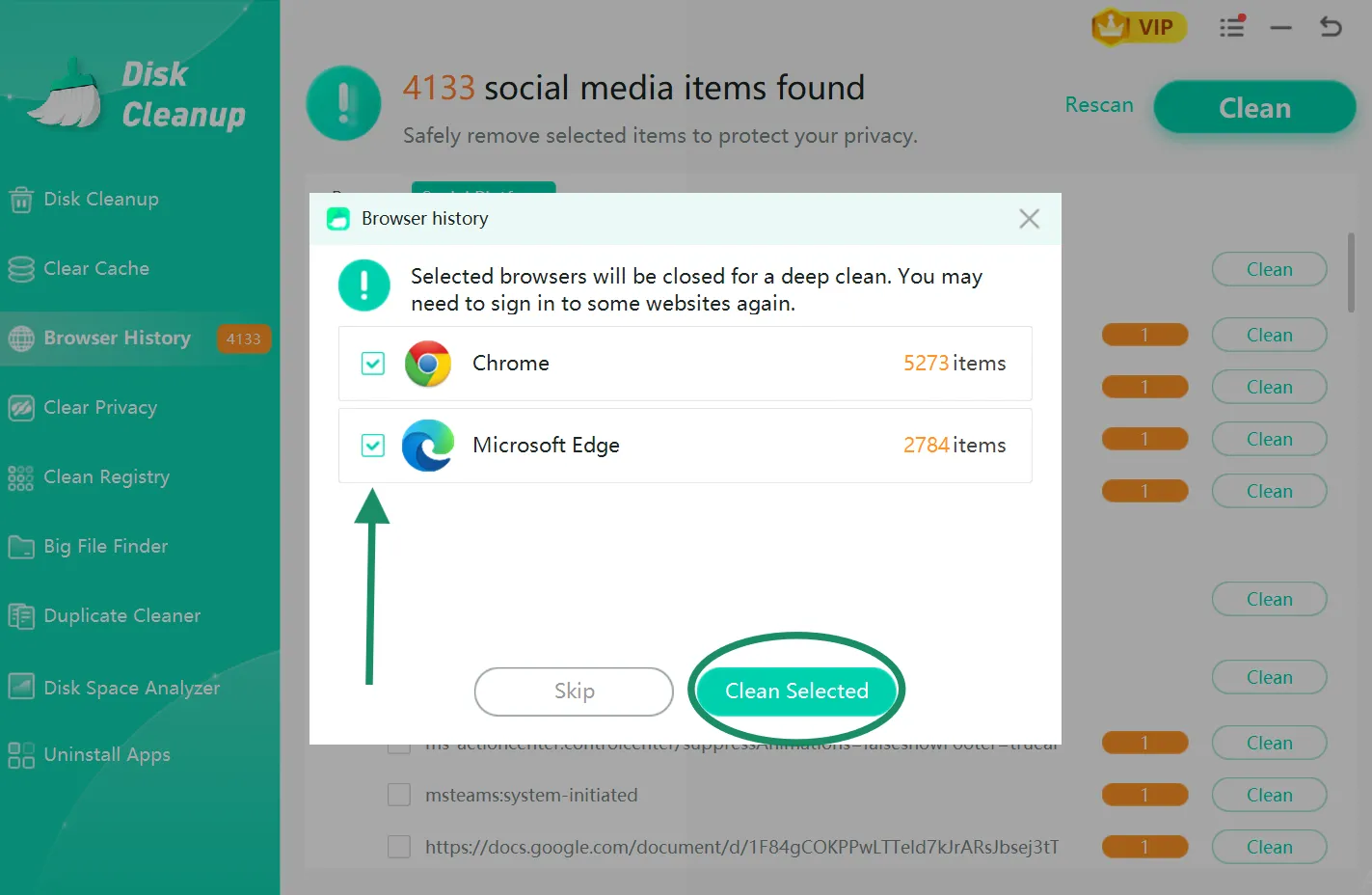
Step 4: Select the desired browsers on which you want to run the deep cleaning process. Hit Clean Selected.
💡Tip:Before initiating the cleaning process, remember to save the important stuff from the selected browsers, as the tool will shut down the browsers and all their tabs.
The YouTube slate should always be clean! Check out my article on how to delete YouTube history, prevent it from leaking your private searches, and take back all the control over your privacy.
Part 3: How to Protect Privacy on Social Media by 11 Other Ways
- Lock down your account privacy settings
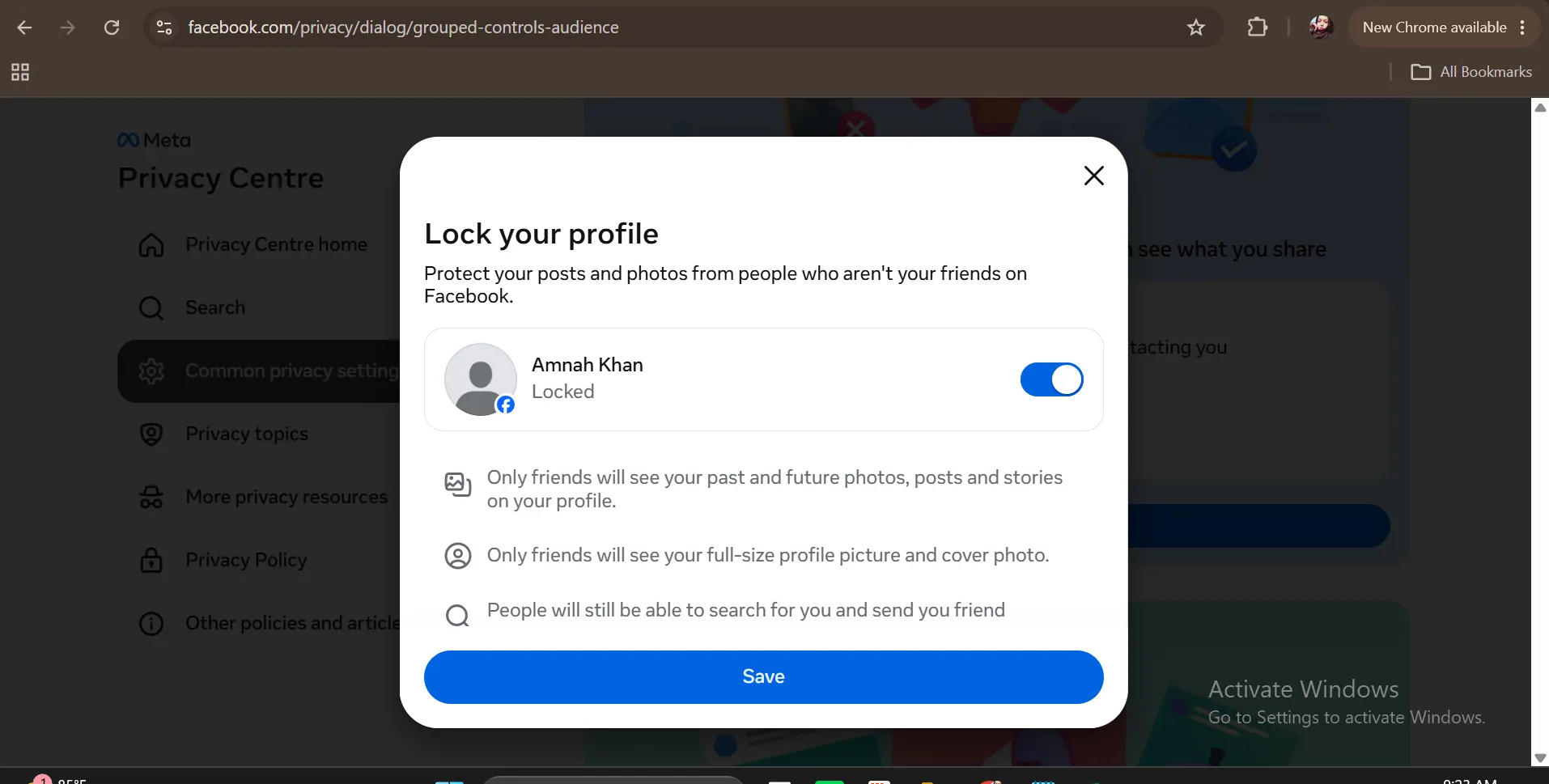
If you're just using your social platform as it is, switch your profile to private. To protect your privacy on social media, start by applying a few settings, like who can see your past activity, friend list, what you share, or how people can find you.
For example, on Facebook you can simply visit Privacy center, click Common Privacy Settings, and then select Lock your profile. Now toggle on the button to lock your account.
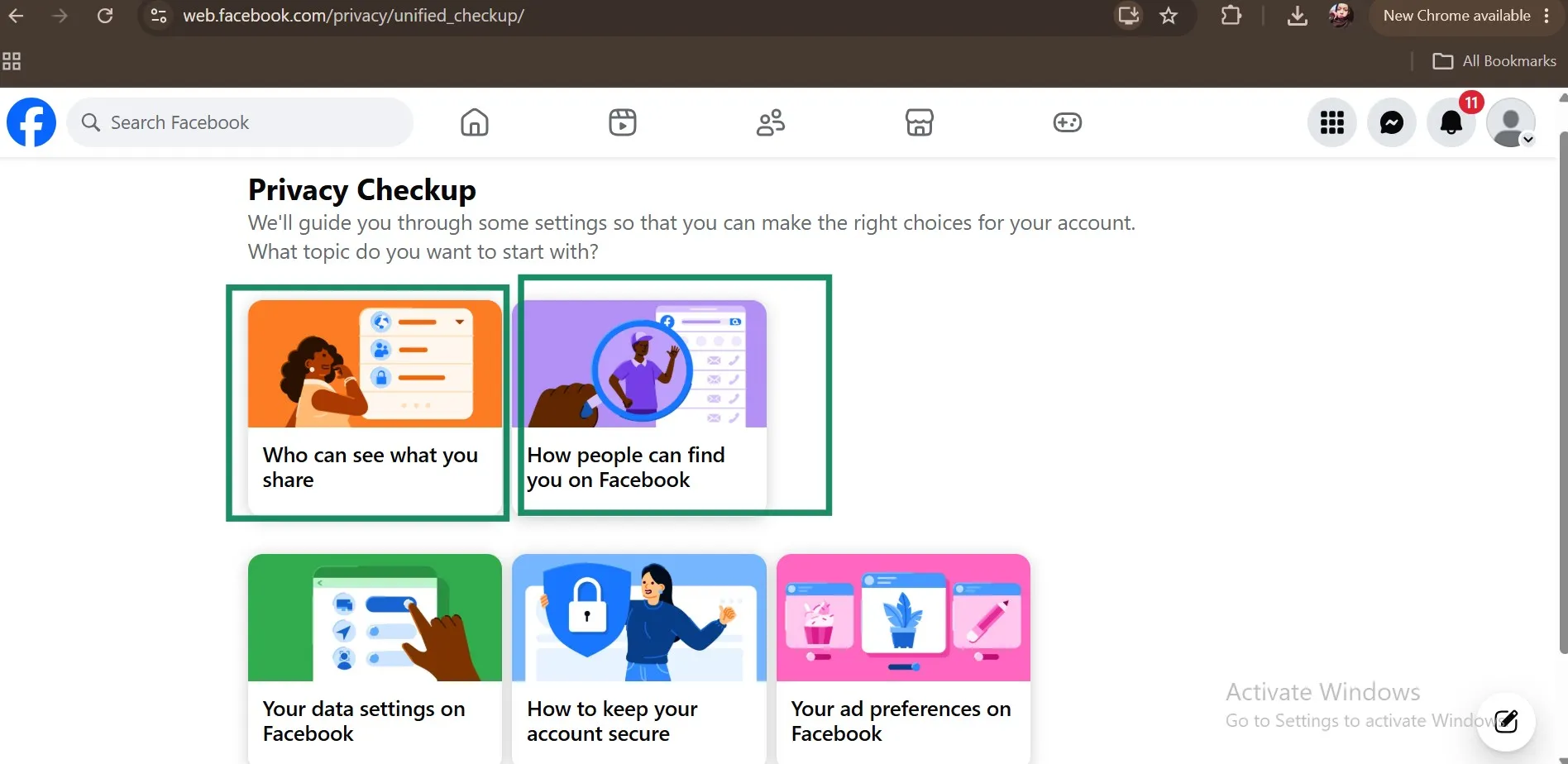
Similarly, you can also click Settings & Privacy and then Privacy Checkup to limit who can see your posts and how people can find you and contact you online.
2. Turn off your location tagging
Disabling GeoTags or location services from your posts or photos prevents handing out your address book in real time. Below are the steps for iPhone and Android so that you can strip location data before uploading your photos.
Below are the steps for mobile for how to stay safe and protect your privacy on social media
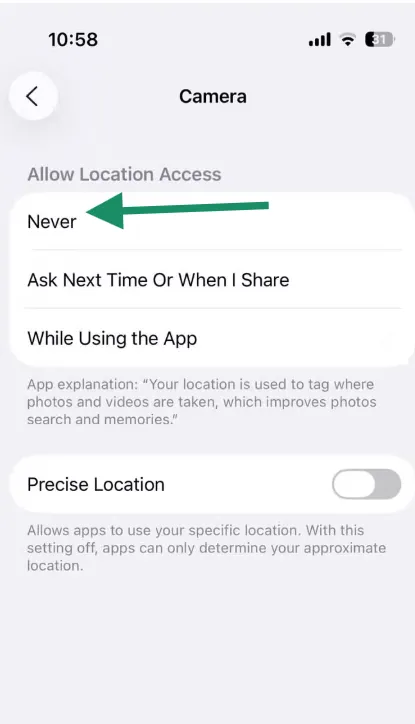
- For iPhone:
Head to iPhone's Settings, click Privacy & Security, and then select Location Services. Click on Camera, and hit Never.
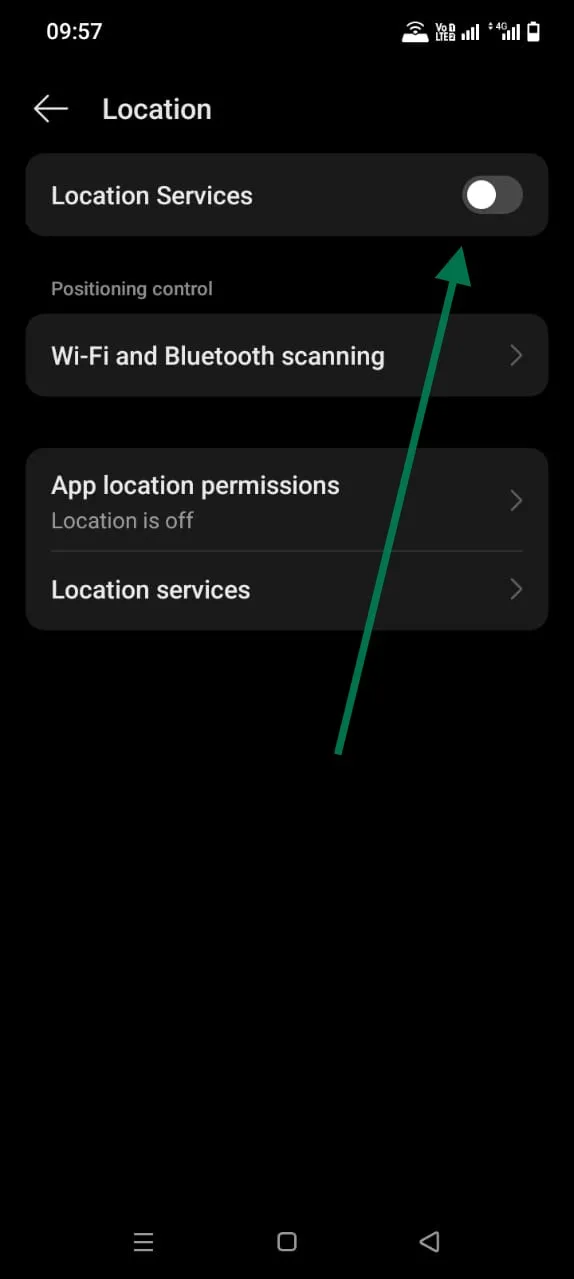
- For Android:
Open Settings, head toLocation, and toggle off Location Services.
Head to my write-up about clearing cache for a specific website from major browsers, like Chrome, Firefox, and more, to get back the buggy website on track, or you are concerned about your private searches.
3. Keep an eye on your friend and follower list
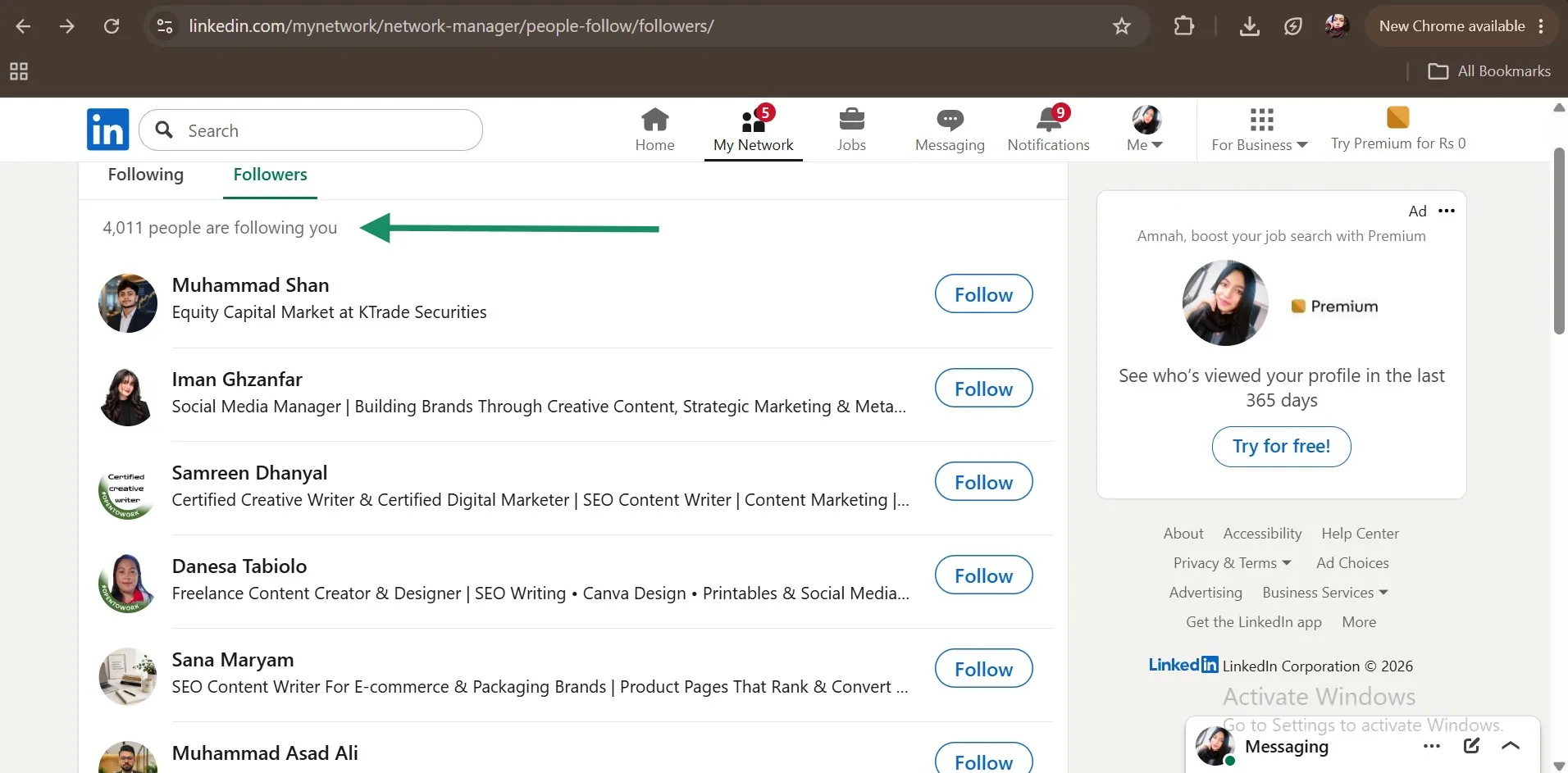
If you are a privacy-concerned person, you must check and sort your friend and followers list every few months. Remove accounts of people who are no longer your friends, suspicious, or inactive bots.
In social platforms like LinkedIn, we mostly add unknown people to grow connections. Check the profile and background first and be mindful of who are adding as your connection.
4. Pay attention to what you click
Clicking unverified or suspicious links, even from someone you know, can lead your device to malware and leak your IP address or personal data to the sender.
For example, a few days back I received the below message from my colleague that offers a job opportunity. As we both are working in the same workplace, I asked about the message that she denied sending and was told that her account was hacked.
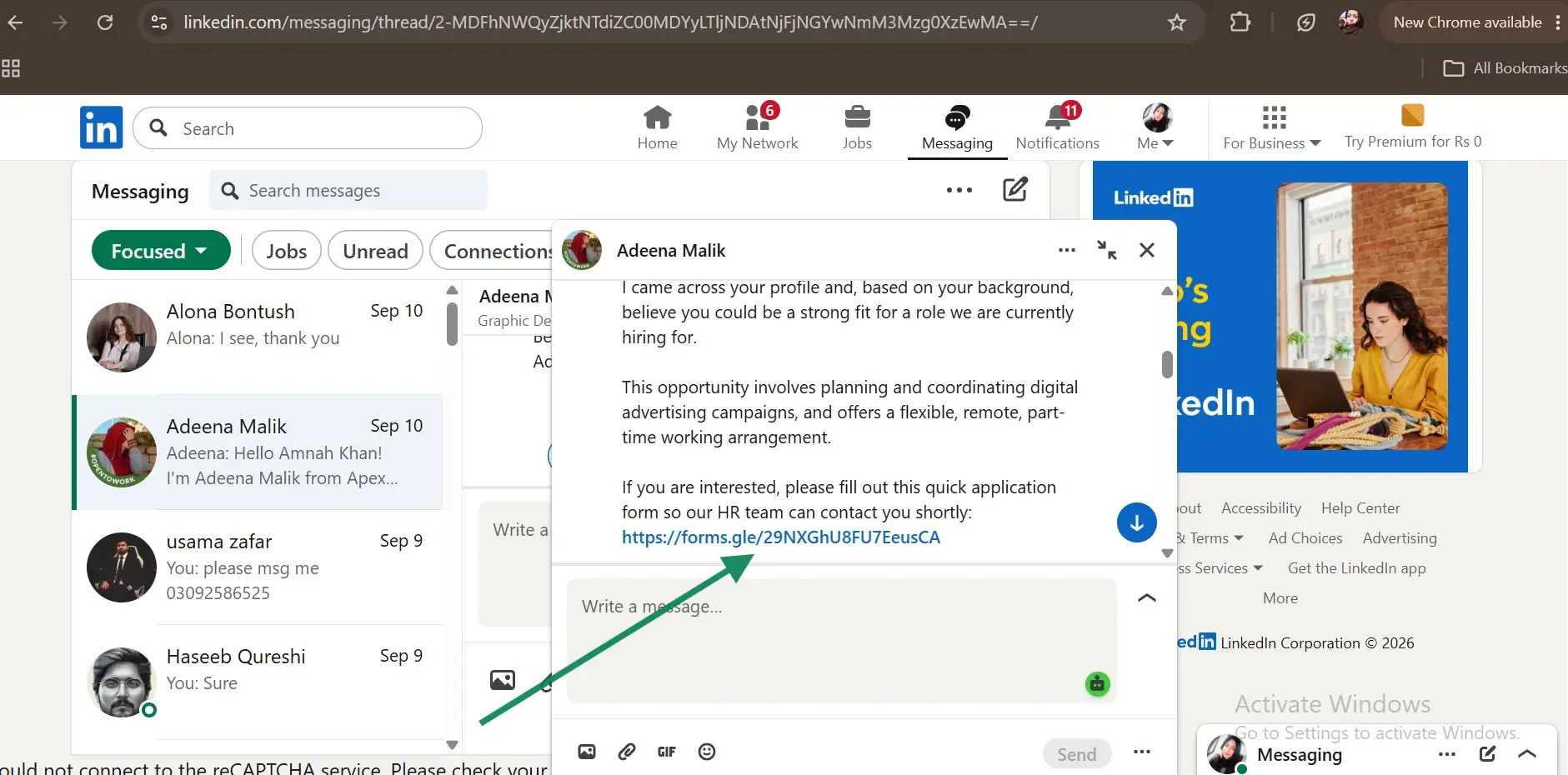
💡Tip:Before clicking on any unexpected link on social media, always verify with the sender through another channel, like a call or in person. Avoid replying to the suspicious message itself.
5. Enable two-factor authentication (2FA)
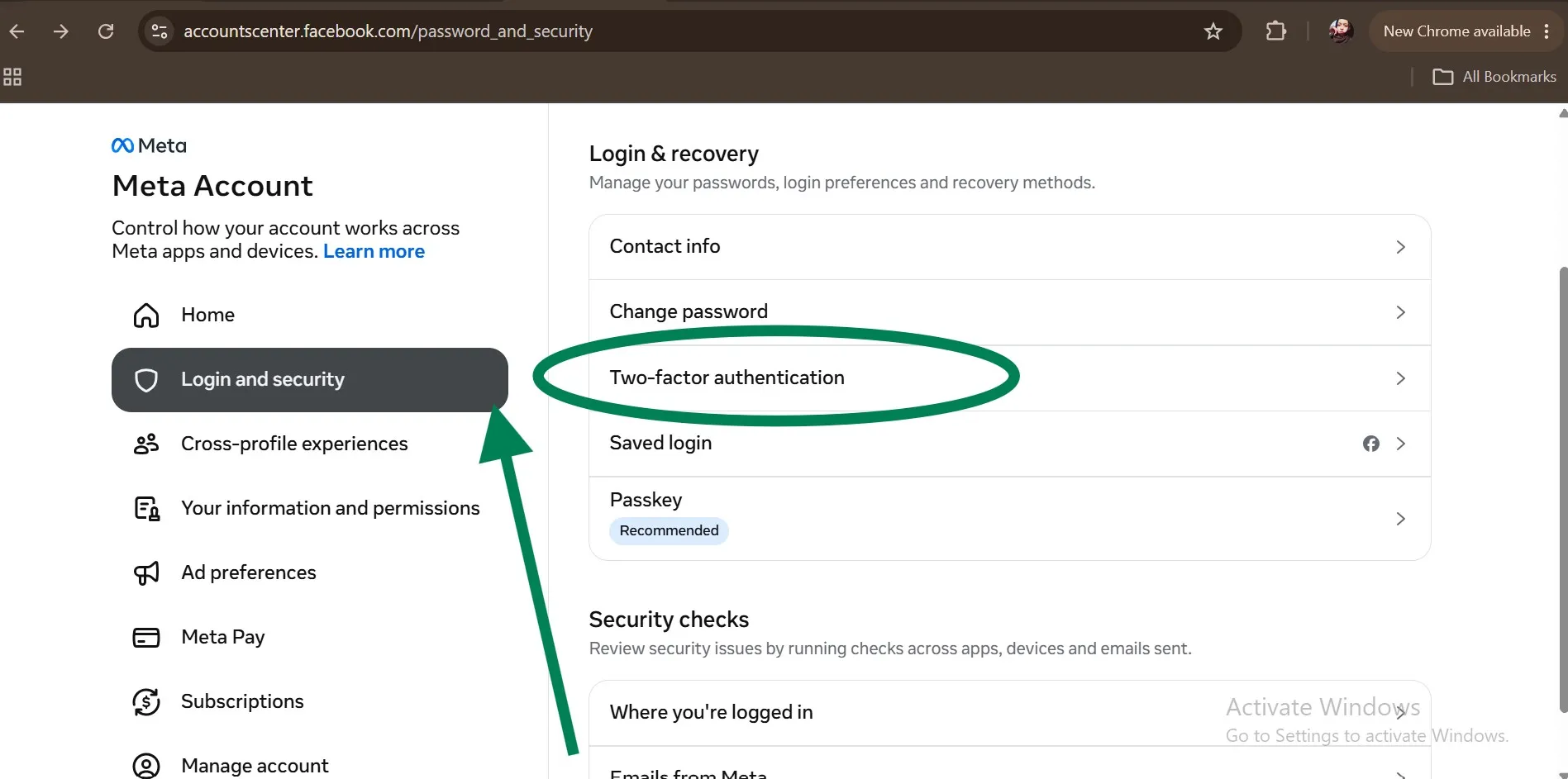
Two-factor authentication (code sent to your phone) adds a second layer of protection for your social media accounts.
You can set up 2FA on your social media account by heading over to the app Settings and then clicking on login settings.
Read our hands-on article; if you enjoy scrolling the Facebook reels for hours or use it for shopping purposes, you must learn how to clear the Facebook cache on mobile or PC to protect your privacy.
6. Limit third-party app permissions
Every quiz you're taking, game you play, or app you use that is connected with Google or your social media account will keep the access to your data.
To take back permissions, simply go through your connected app or website list from your social media app Settings and remove anything you no longer actively use.
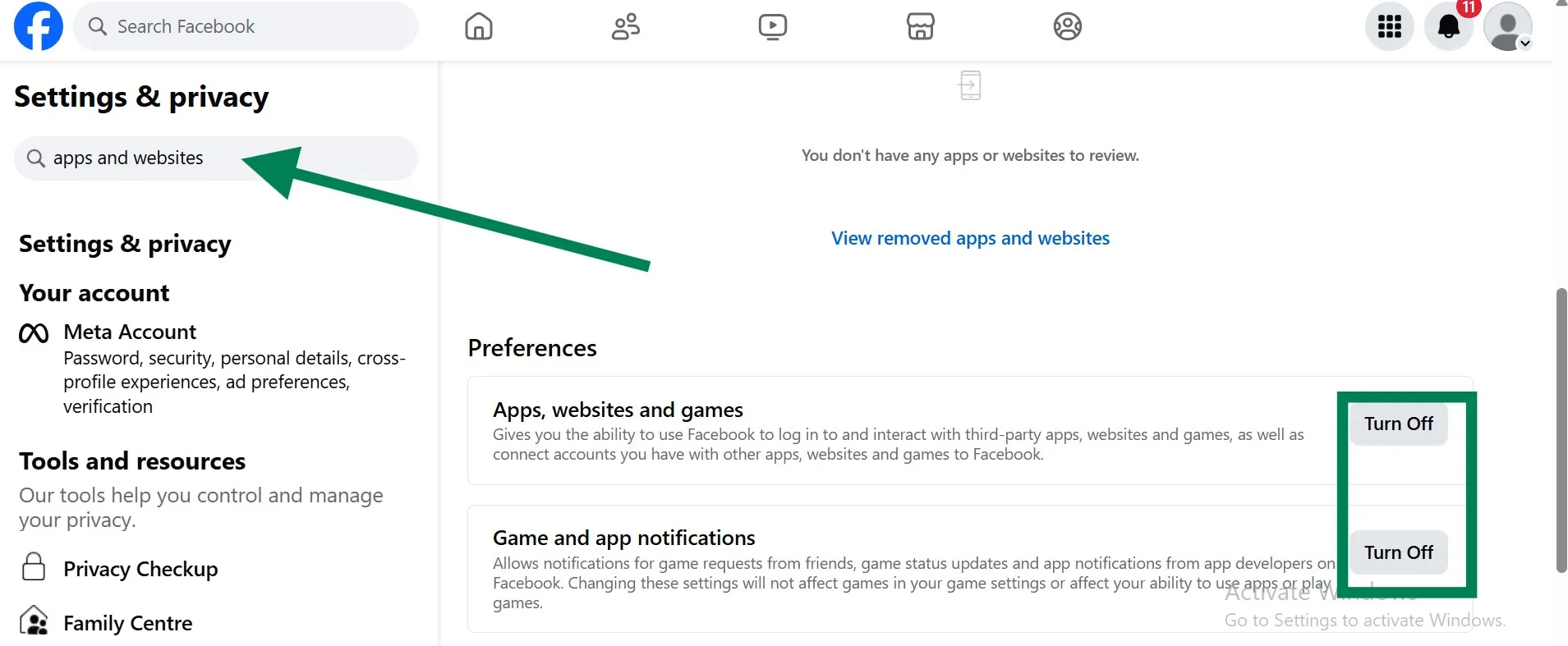
The below step is for Facebook:
Hit Settings and Privacy, search for "apps and websites", and then view and remove the desired connected apps or websites.
💡Tip:For more social media privacy, turn off the 2 options under Preferences, preventing connection with third-party apps by yourself, nor will another person or app developer send you any notifications.
7. Scroll back to your old posts
Open your desired social media platform and scroll through your older post that you posted years ago. Now start deleting or archiving everything that no longer needs to be public.
💡Tip:If you don't want to delete your older social media posts, change their privacy from Public to Friends or Only Me.
If you are a Twitter user, to protect privacy on X, head to my latest guide for 2026 to remove its history from the browser backend, no matter what device you are on.
8. STOP oversharing personal info
Sharing everything, like personal events, vacation dates, and new home or car announcements, feels harmless.
But, you know what? These details are exactly what scammers are looking for to crack your password or plan break-ins while you're away.
9. So who do you tag or share your location with?
If you're concerning about how to protect your privacy on social media, just be careful before you share your real-time location or tag someone's face on your posts.
Because once you do it, this data is out of your hand. It means the tagged person can reshare, save, or archive it.
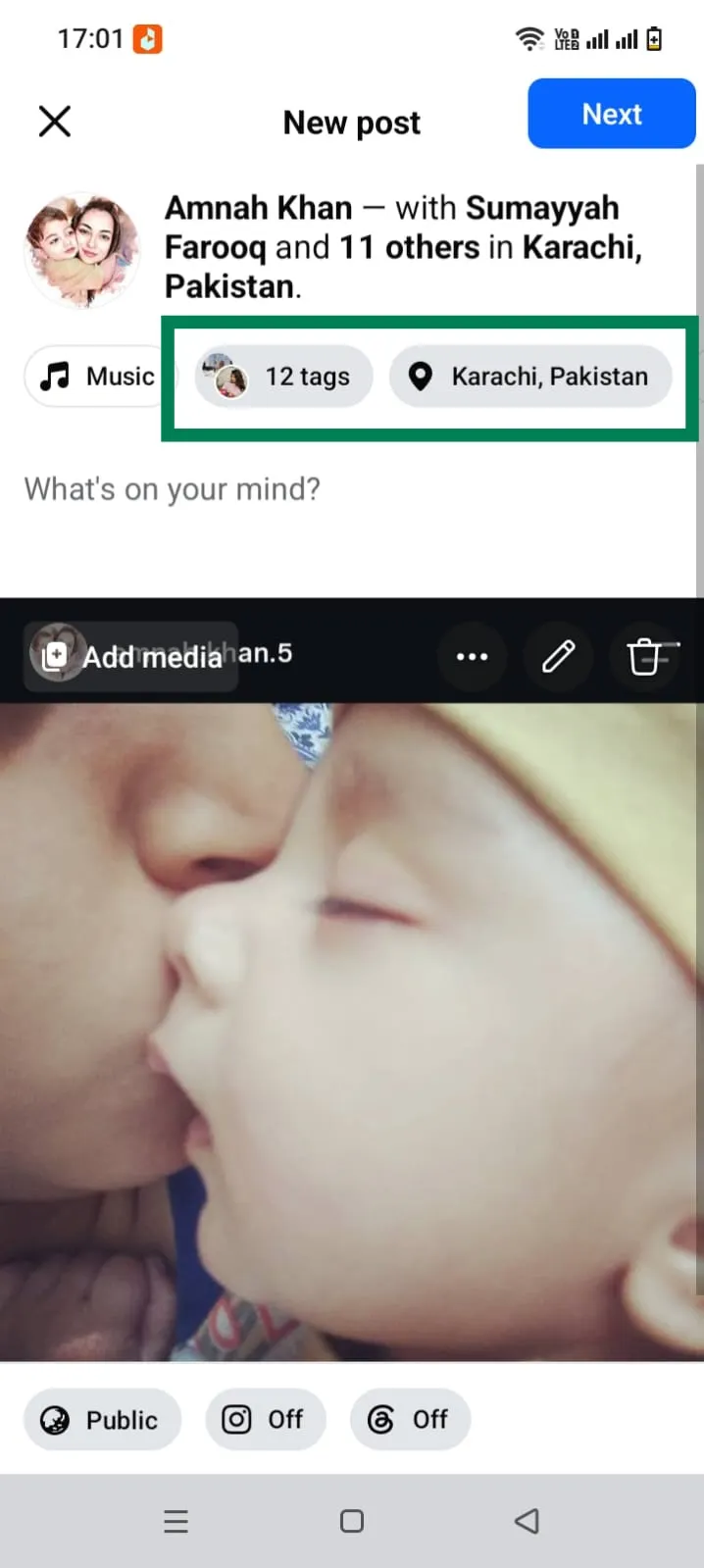
10. Switch off your facial recognition tagging
Turn off auto-tag suggestions. It will help you in preventing the social platform itself (and others) from auto-identifying you in photos.
11. Avoid public networks
Last but not least! Avoid using public WiFi to log in to your social media account. A reliable VPN, like Proton VPN, encrypts your connection, keeping your social media activities private even on networks you don't control.
Part 3: Related FAQs About How to Protect Privacy on Social Media
1.How safe is our personal data on social media?
You are totally at a loss if you think your personal data is safe on social media:
- Your social platform collects location data, device info, browsing habits, contacts, and scrolling patterns for ad targeting.
- Third-party apps you connected or quizzes you played on your account harvest data beyond what's needed.
- Even if you've deleted something, it might sit in backups and cache data.
- For AI training, facial recognition, or impersonation, your photos or posts might be scraped, even if you're on a private profile.
- Sometimes, data breaches also happen across major platforms, resulting in exposing emails, phone numbers, or sometimes passwords.
Controlling what you're sharing, applying security measures on your account, and using a strong password with 2F authentication are some main levers you can actually take in your hands.
2.Is it safer to keep my social media accounts private to avoid any misuse of my pictures?
Generally, yes! But here's why and what it's actually protecting and what it doesn't:
If you are using a private account
- It limits random strangers, bots, and scrapers trying to pull out your photos in bulk.
- It will be harder for strangers to take screenshots or repost your images or posts.
- Private accounts also limit who can tag, comment on, or message you.
- Likewise, private accounts also cut down on data scraping used for ad profiling.
Still, the private account does not resolve
- Approved friends or followers can still save your photos and reshare your posts.
- If your friends or followers share your post, you lose control over this spread.
- A private account can be misused by friends and unknown approved followers.
- Your social platform itself has access to your personal data as per their terms of service.
3.Is clearing my browser history enough to protect my social media privacy?
Think of it as a huge piece of a puzzle, as clearing your browser history removes cookies & the cached data on which the social platform tracker depends. But it would give the best protection if you pair it with a strong social media account security setting.
Windows users, looking for how to protect your privacy on social media,can try WMaster Cleanup to schedule as per your desire for your browser history cleanup.
4.How is it dangerous for Facebook to have our personal information?
Social media, like Facebook, can contain your personal data, like your name, date of birth, hometown, photos, and whom you interact with most, leading to leaks, sales, or sharing with third parties. As a consequence, you can face identity theft, targeted manipulation, and loss of privacy, which can be used by hackers or scammers to track, impersonate, or harass you.
5.Does making my account private really stop data collection?
Not completely! It means it will limit the access of unwanted people seeing or sharing your content. On the other hand, the social platform itself collects your data for ads and algorithm training. And to cut that down, you need to use a reliable cleanup tool, like WMaster Cleanup, to clear browser trackers.
Conclusion
If you're not throwing everything on social media, you are controlling the data that's rightfully yours. You can cut over exposure by tightening your account settings, being more mindful of what you share publicly & clearing browser data that is chasing you in the background all without giving up the platforms you enjoy.
I recommend using WMaster Cleanup, if you are on Windows PC, once if you're looking for the fastest way to handle your browser side of things. With its user-friendly interface, you can protect your privacy on social media as it clears out your social platforms' cache data & history at once with a single click.