

Are you stuck in an endless login loop, or are you experiencing slow loading or weird display errors on your favorite website? I know; it's frustrating. But worry no more!
If you don't want to delete your entire history, learning how to clear cache for a specific website is mandatory. Rather than deleting the entire browser history, there are quicker, better, and safer ways to deal with this problem, leaving every saved password and login on every other site untouched.
In this writeup, I'll let you know how to do it manually across different major web browsers on PC and mobile. What's more? I'll also suggest you try our one-click tool, WMaster Cleanup, to automate the process if you are using more than one browser with a single click.
In this article
- Before Clearing Cache for One Website
- How to Clear Cache for A Specific Website in Chrome
- How to Clear Cache for A Specific Website in Firefox
- How to Clear Cache for A Specific Website in Other Browsers
- How to Clear Cache for a Specific Website in Chrome/Edge/Firefox Seamlessly[One-Click Way]
- FAQs Related to Deleting Cache for A Specific Website
Part 1: Before Clearing Cache for One Website
What You Will Lose?
- It'll remove active sessions, like login credentials of that specific website
- Custom choices will revert to default, like dark theme or language selection
- Your saved data for auto-fill entries for that site
What You Will Keep?
- It'll not delete your saved passwords that are stored separately.
- Your bookmarks and overall browsing history.
- You'll keep your tabs and active sessions on every other website.
- Browser setup, such as extensions and global browser settings, will also stay.
Along with cache removal, if your system is hanging every 15 seconds, temporary files might be the reason behind it. These temp files can pile up silently and take over space on your device. Head to How to clear temp files, no matter what device you're on Windows, PC, or mobile.
When A Hard Fresh is Enough?
If you're experiencing a website giving you a hard time, like it not loading to the newest version properly or showing you the broken layout, go for a hard fresh. This hit will let you pull out the fresh files directly from the web server. On top of that, you can do it without even risking your saved data or active sessions.
- Ctrl + Shift + R for Windows
- Cmd + Shift + R for Mac
When You Need to Remove Site Data Completely?
Even after giving the corrupted website a hard refresh, if you are facing the same issues, knowing how to clear cache and cookies from a specific website becomes non-negotiable, especially when:
- You're dealing with a stubborn login loop or sessions.
- A checkout form on an e-commerce site is not submitting.
- Privacy concern, or if you are using a shared device.
Part 2: How to Clear Cache for A Specific Website in Chrome
There are two ways to clear the cache for a specific website in Chrome, taking less than a minute.
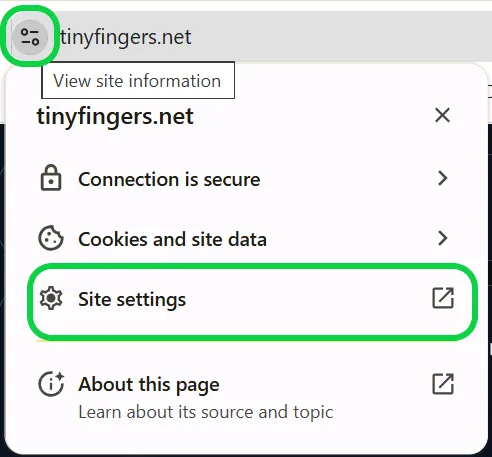
Way 1: Through the Site Info Icon
Step 1: On the website whose cache you're clearing, click the tune icon or padlock on the left of the address bar and click "Site settings."
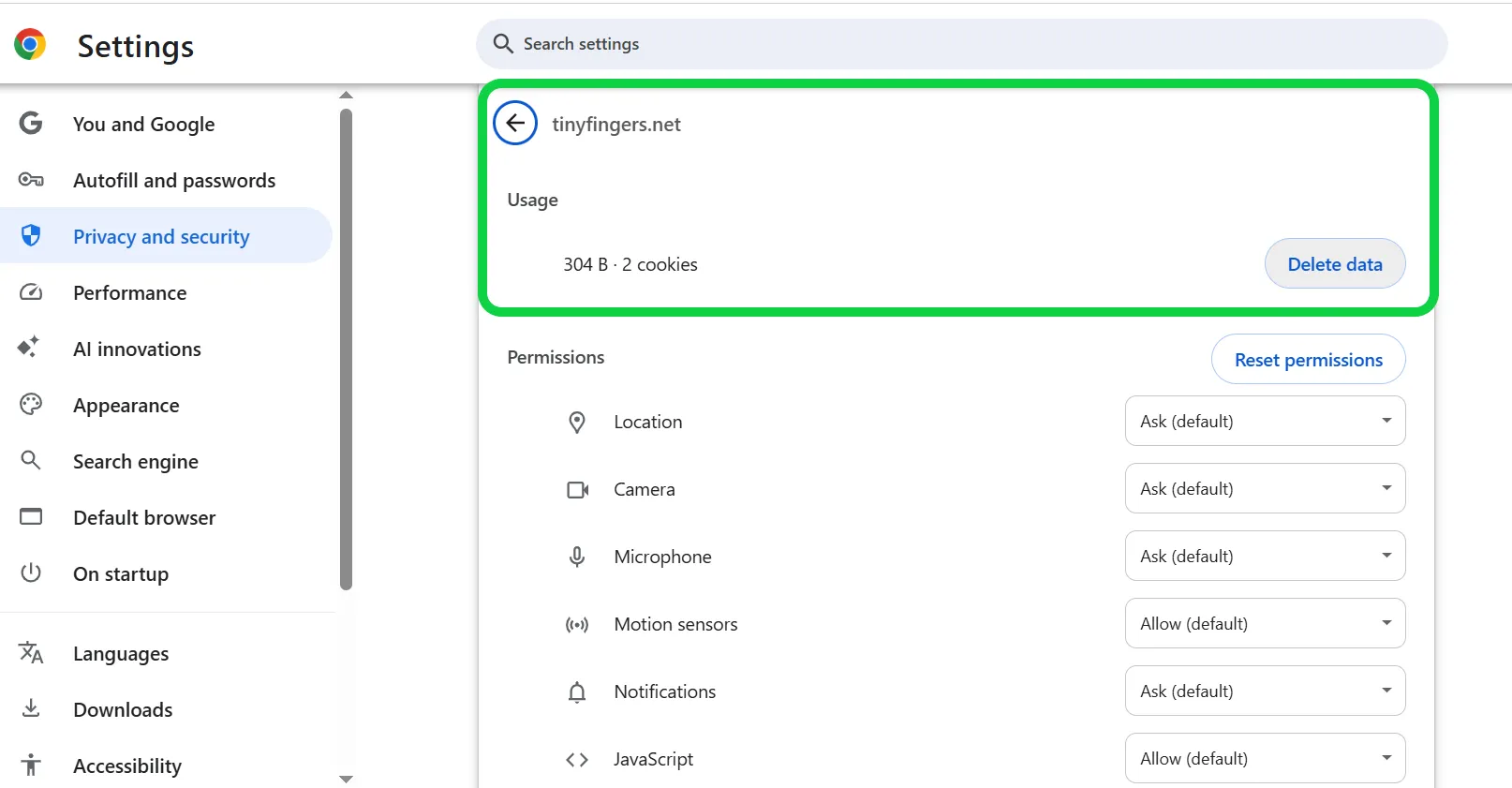
Step 2: A "Usage" section will open up on your screen where you can click "Delete data."
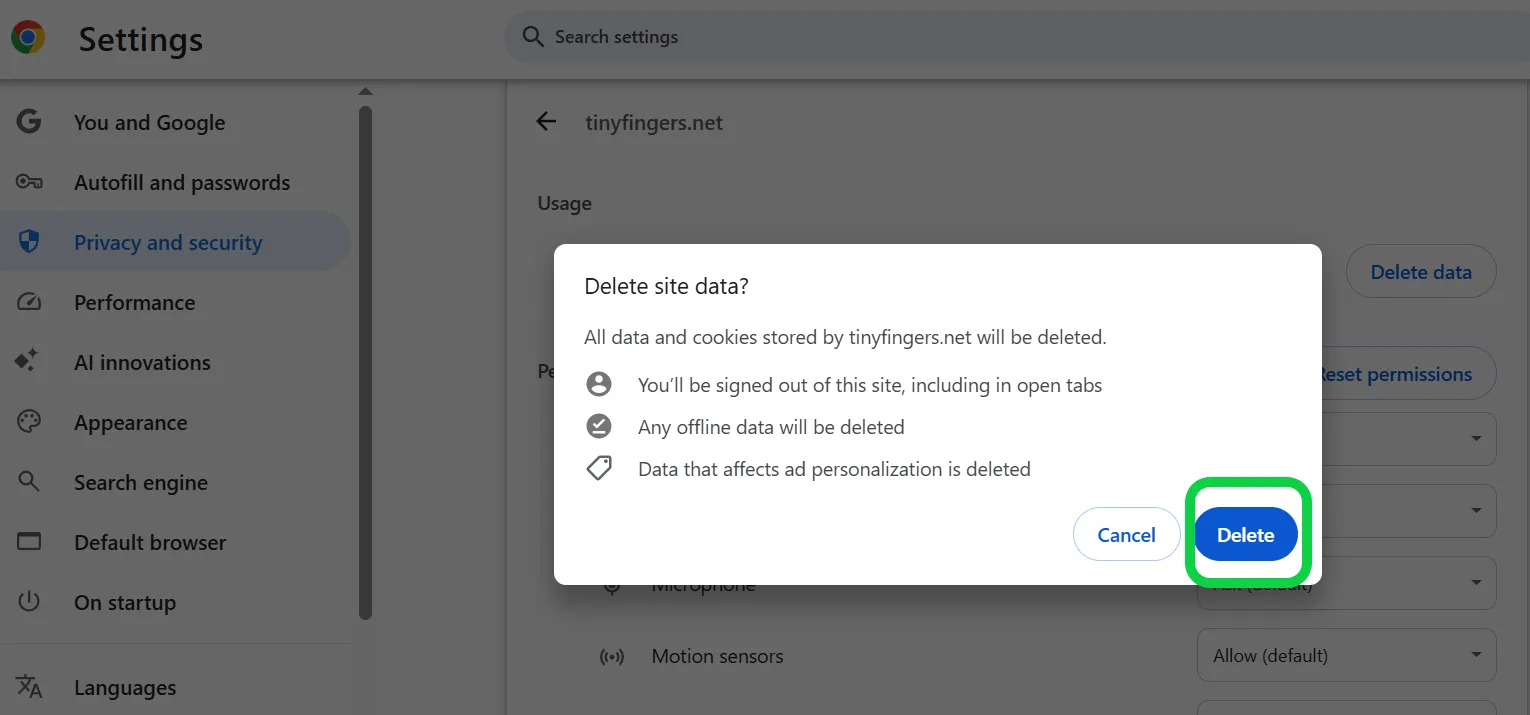
Step 3: Chrome confirms with you before it clears anything. Click Delete.
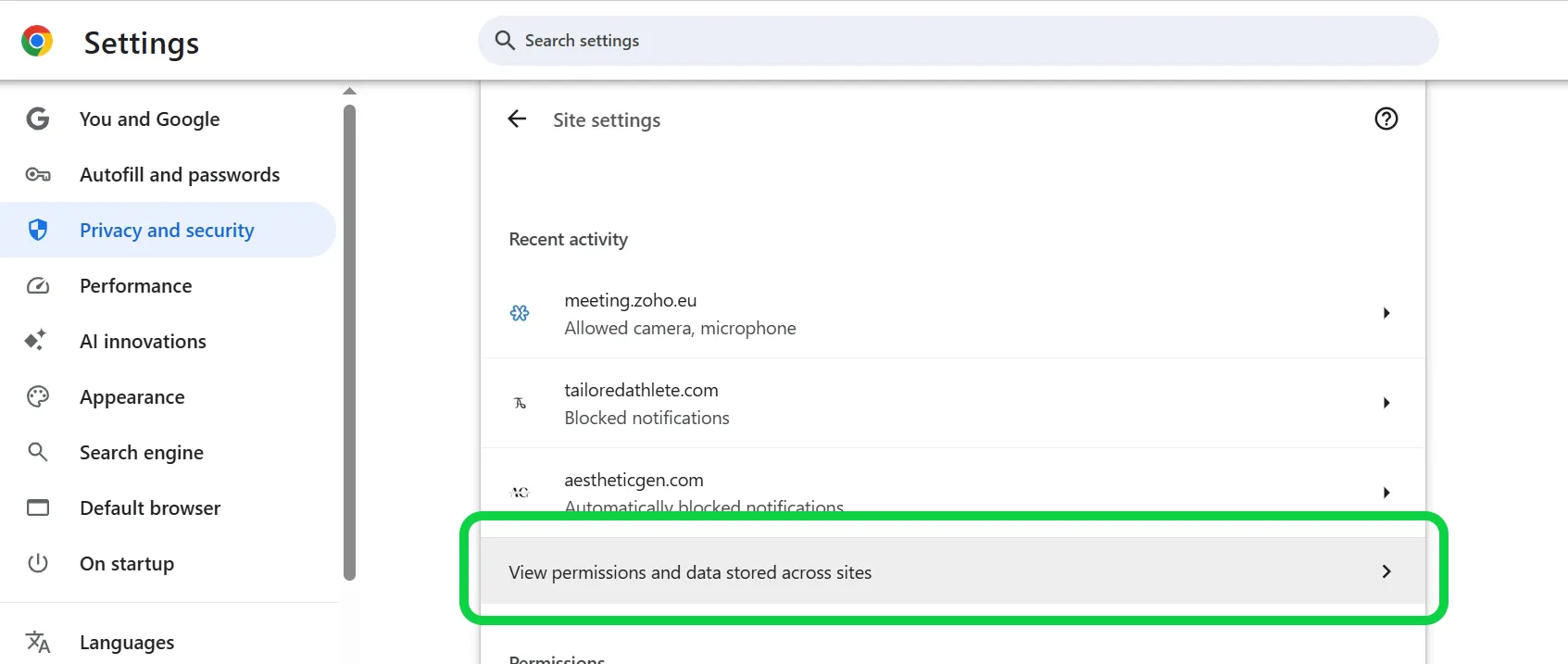
Way 2: Through Chrome's Settings Page
Step 1: Go to Settings, then Privacy and security. There, you need to go toSite settings, then "View permissions and data stored across sites."
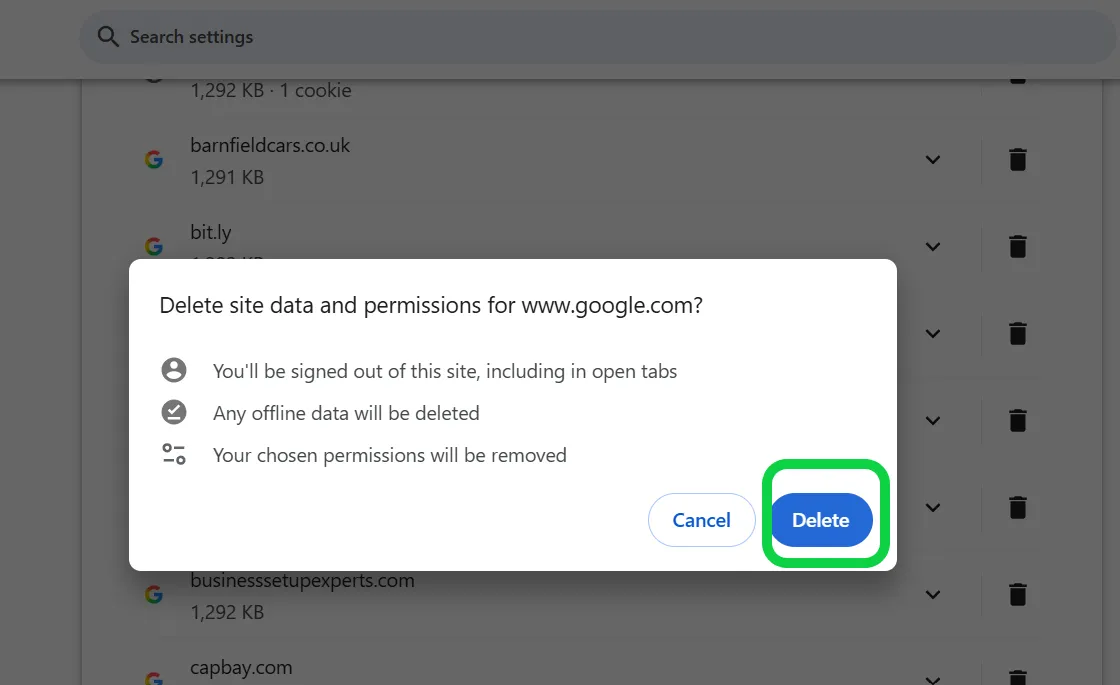
Step 2: Search for the domain you want, then click on the Trashcan icon in front of it.
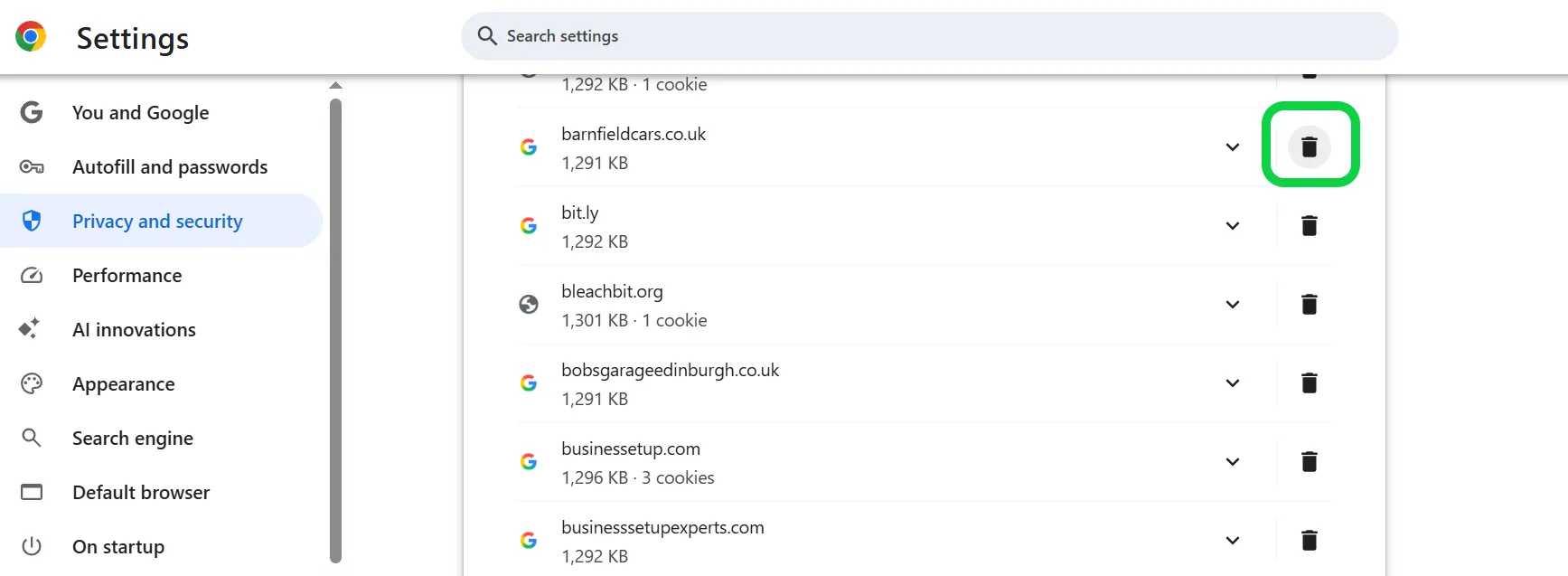
Step 3: A dialog box will pop up on your screen confirming if you want to delete site data. Click Delete.
If you are searching for a broader fix for your whole browser, here's a guide onhow to free up space on C drive that covers other files, which might be filling up your storage.

Part 3: How to Clear Cache for A Specific Website in Firefox
Firefox also gives its users two solutions for clearing cache for a specific website.
Way 1: Through the shield icon, while on the site
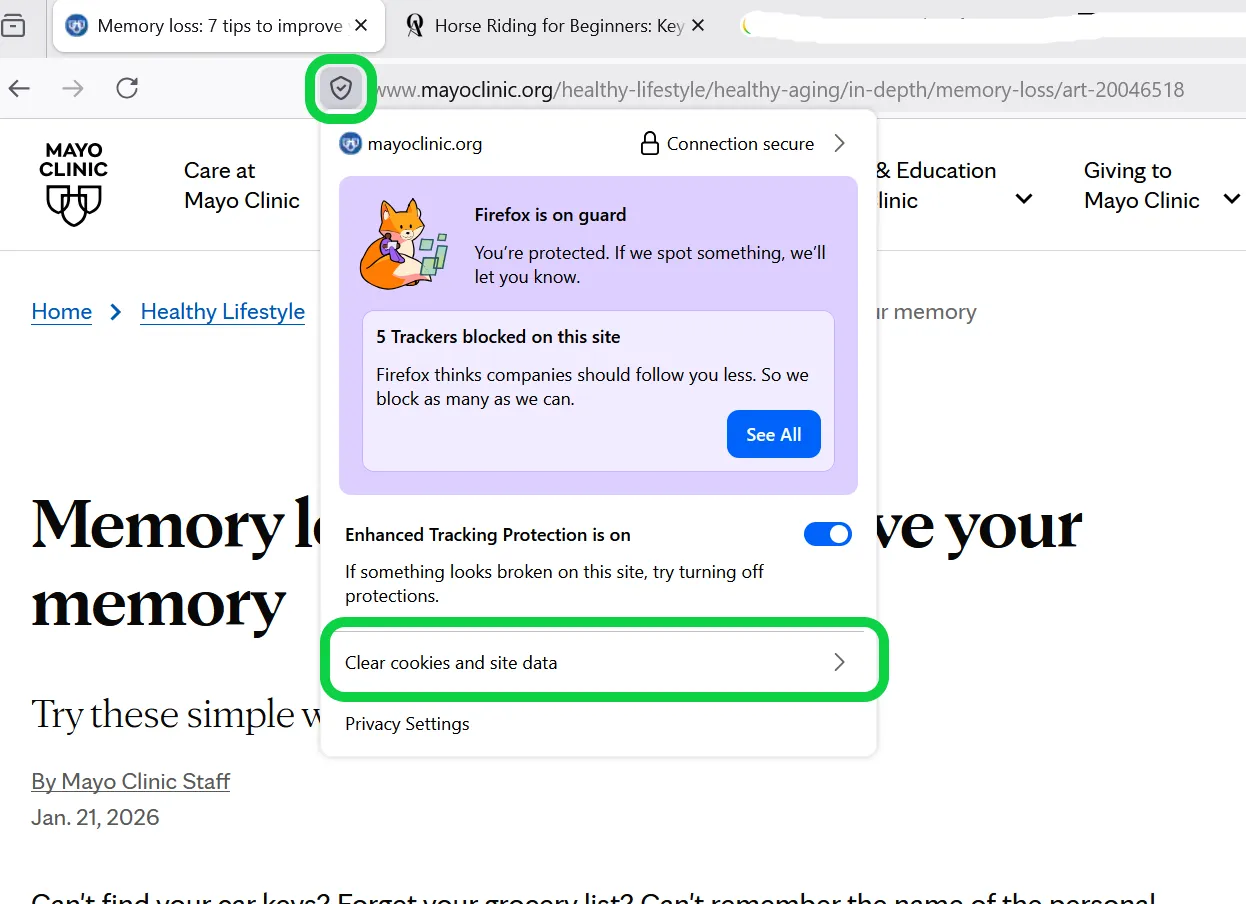
Step 1: Visit the website, tap on the Shield icon, and then select "Clear Cookies and Site Data" from the dropdown menu. And you rae done.
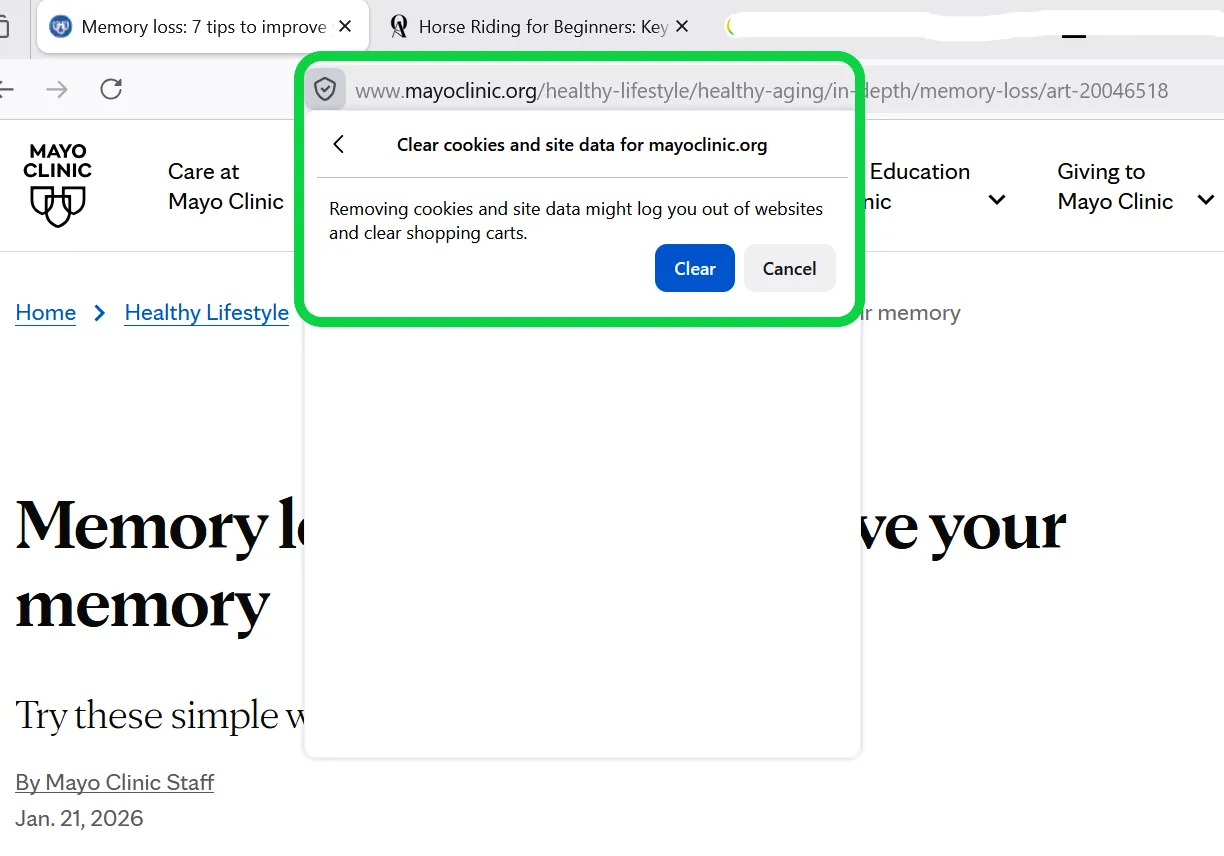
Step 2: A dialog box will appear. Confirm by clicking "Clear".
Way 2: Through Firefox Settings, for a Site You're not Currently on
Step 1: Go to Settings, Privacy & Security, Browsing Data, and finally click Clear data for specific sites. Then searchfor the site's name.
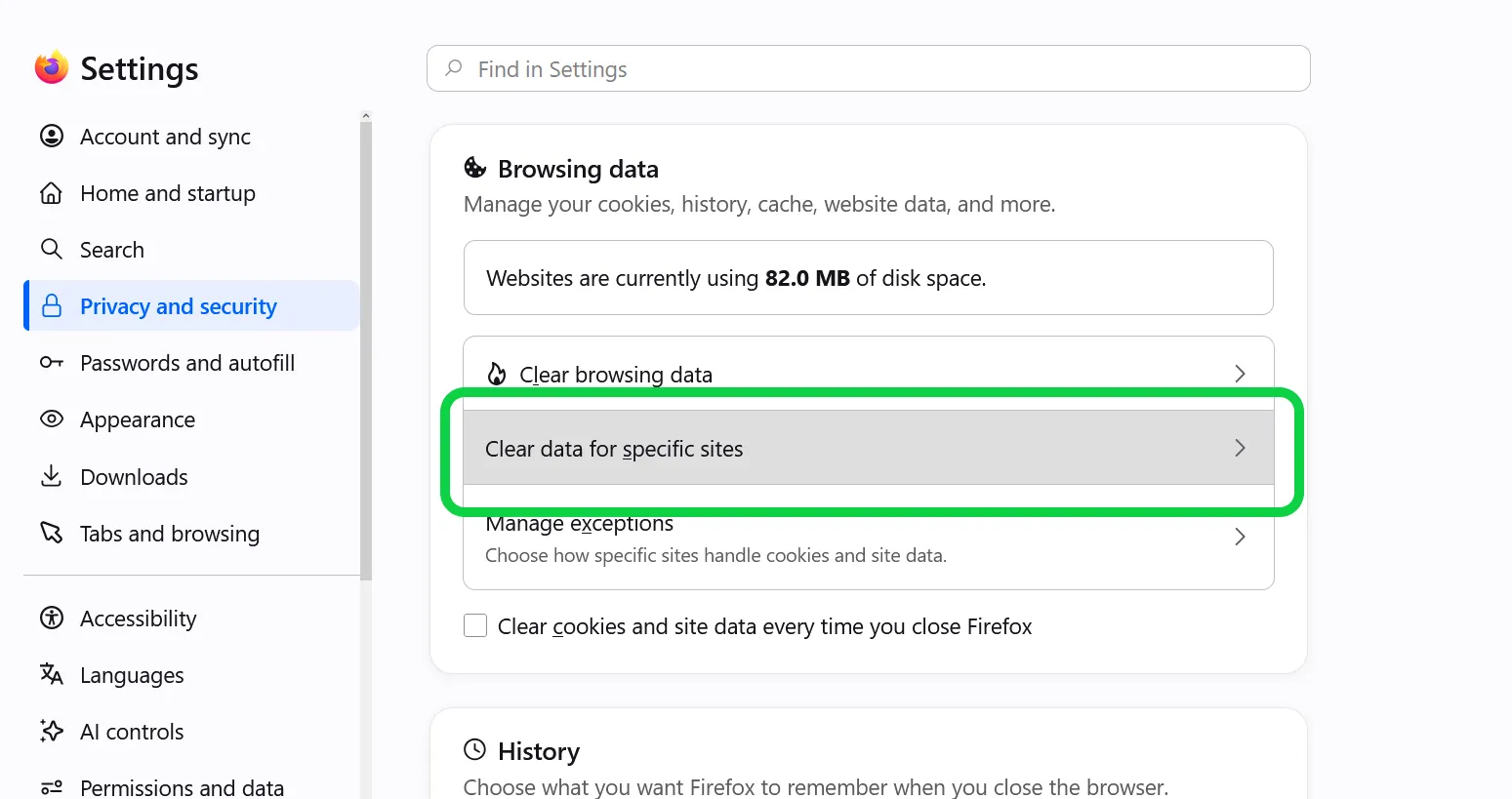
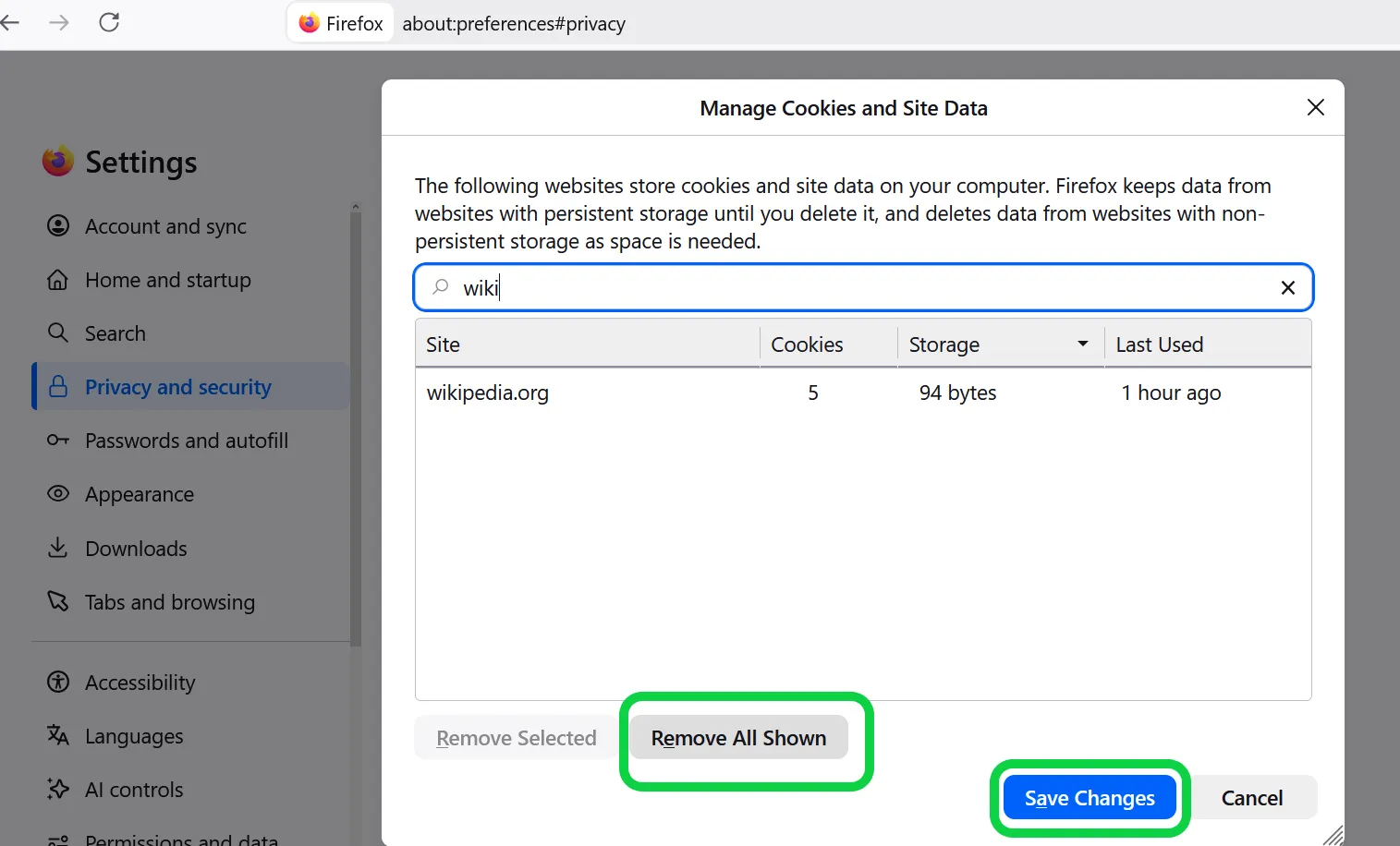
Step 2: Then you just select the entry and click "Remove Selected," or Remove All Shown, based on your selection. Then click "Save Changes."
Part 4: How to Clear Cache for A Specific Website in Other Browsers
If you're on Edge or Apple Safari for your daily browsing, you don't need to clear out your entire browsing history as well. Follow the below simple steps for easily targeting and clearing the cache for that one website that is making trouble for you.
So here's a fix for these browsers and their mobile versions as well!
Clear Site Data in Edge or Safari
Chrome and Edge are built on the same underlying engine, so Edge works exactly like Chrome.
How to Clear Cache and Cookies for a Specific Website
For Edge (Windows)
Way 1
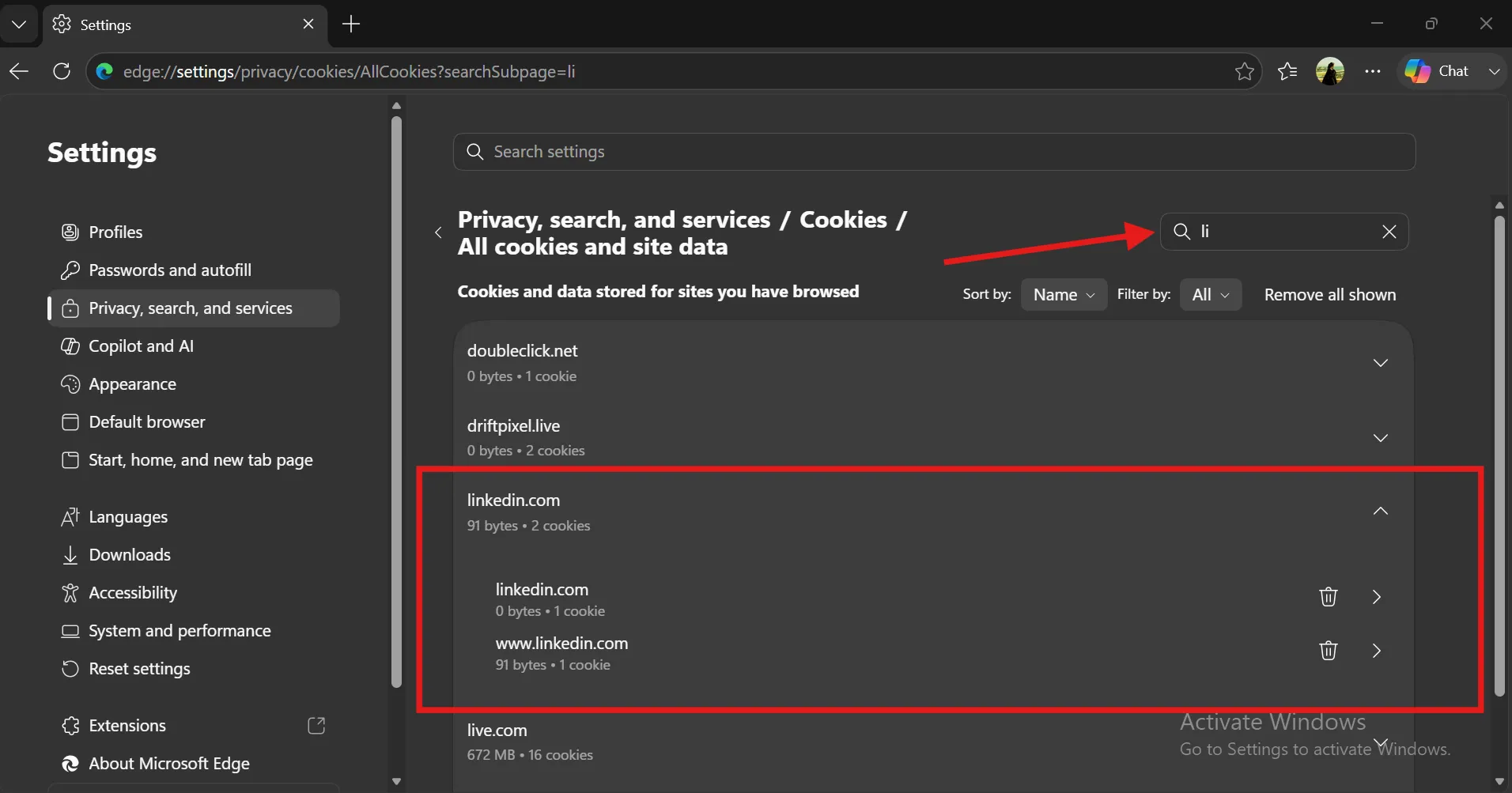
Open the browser, type edge://settings/siteData into the address bar, and click on Privacy, search, and services. Now search for that specific website and hit the delete icon to remove its data.
Way 2
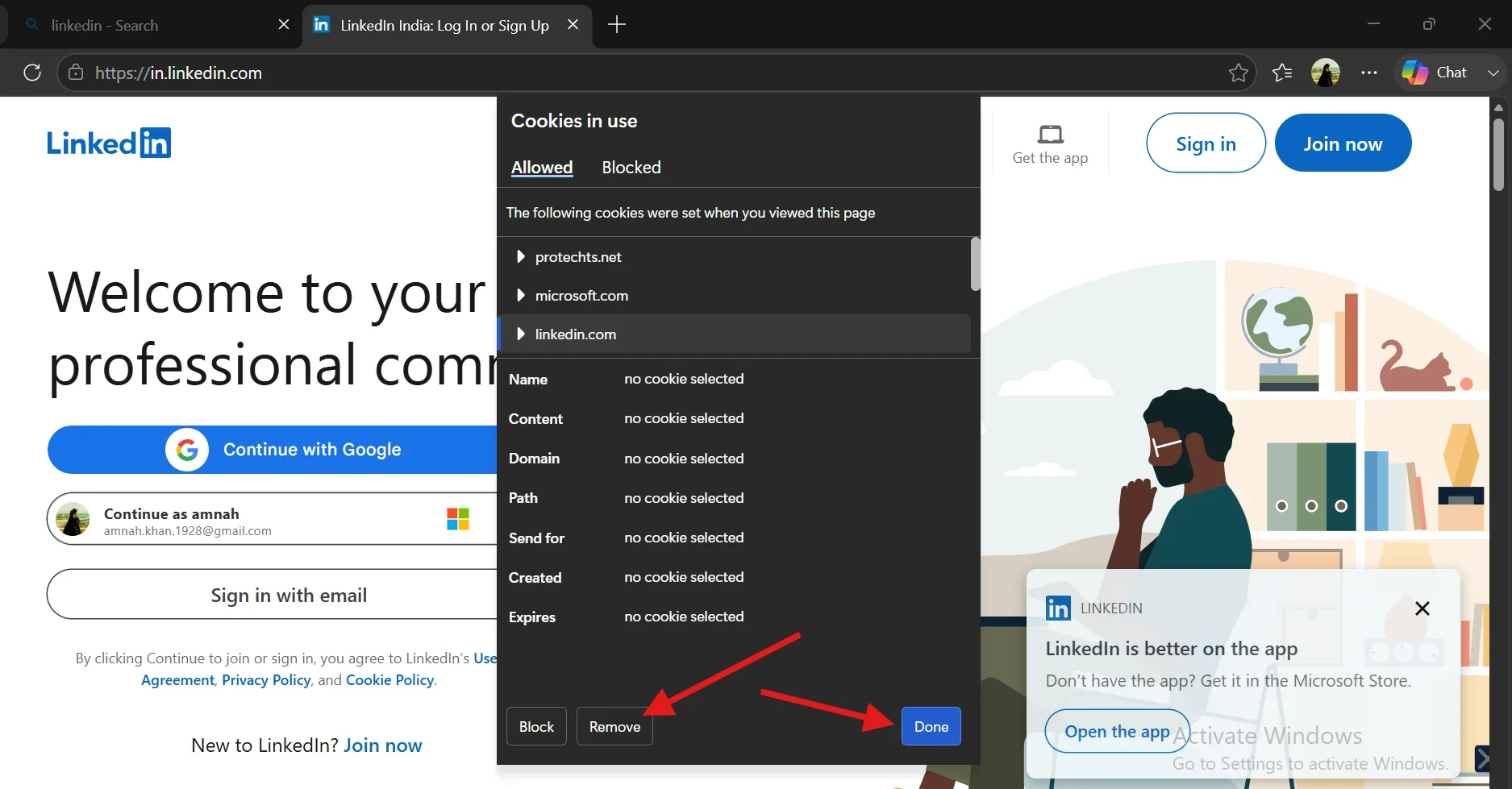
Step 1: Click the padlock or lock icon while you're on the site and select cookies and site data from the dropdown menu.
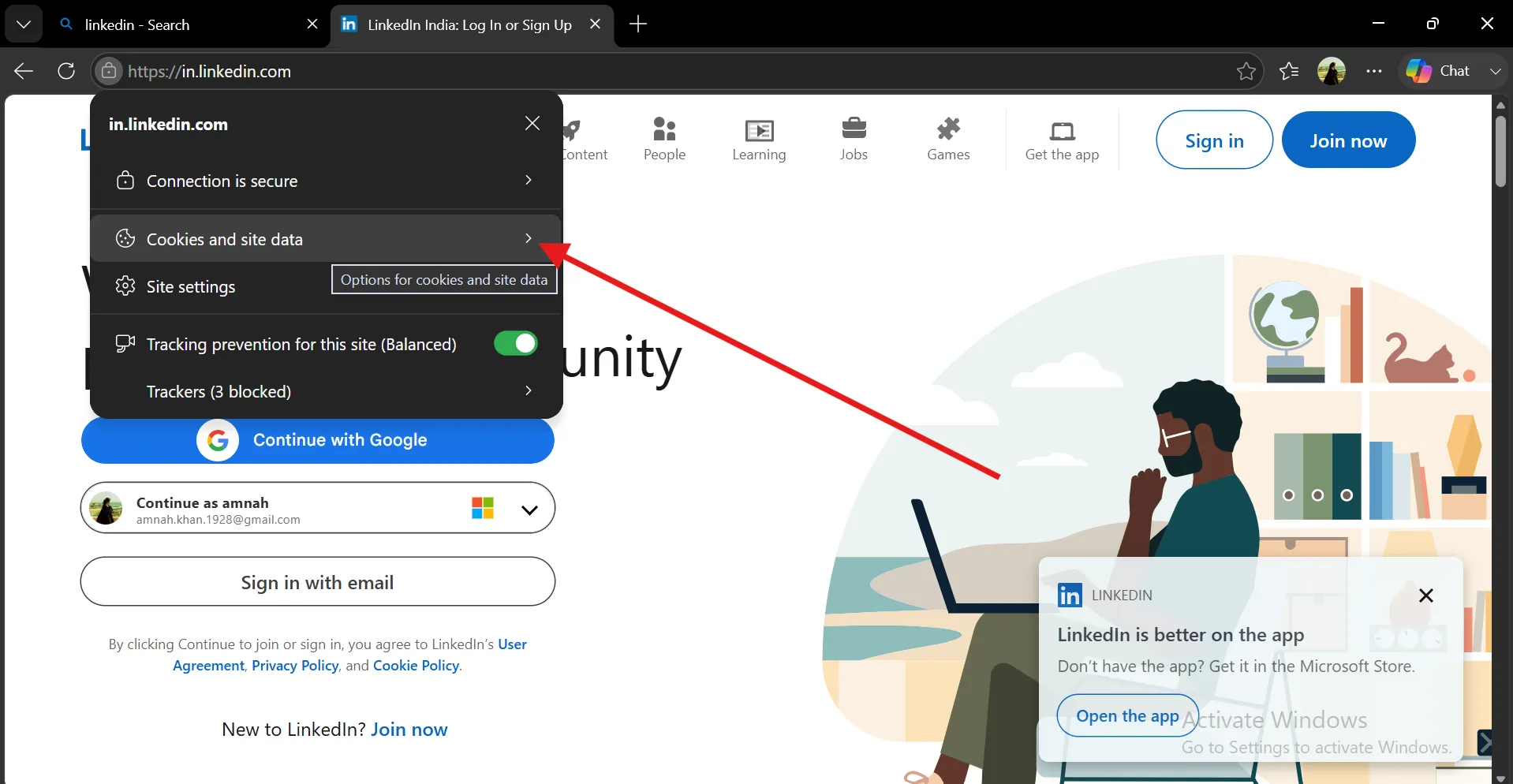
Step 2: Now, select Cookies, select the domain,and tap Remove. Now, hit Done.
For Safari (macOS)
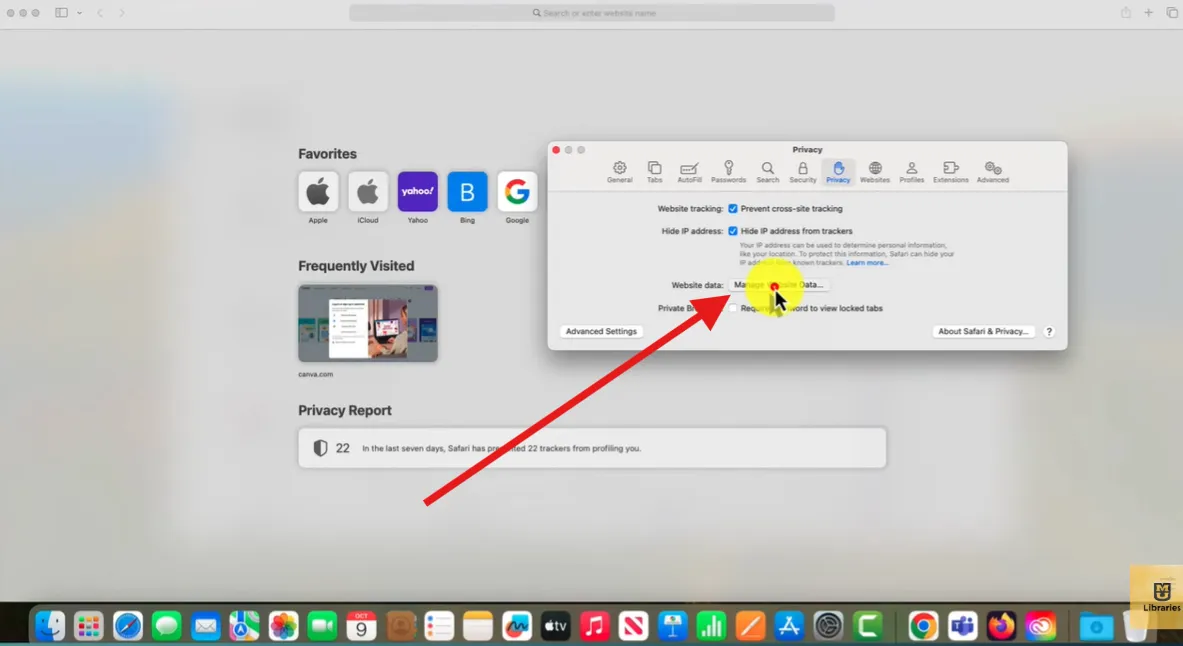
Step 1: Open Safari, go to Settings, select the Privacy tab, then tap "Manage Website Data."
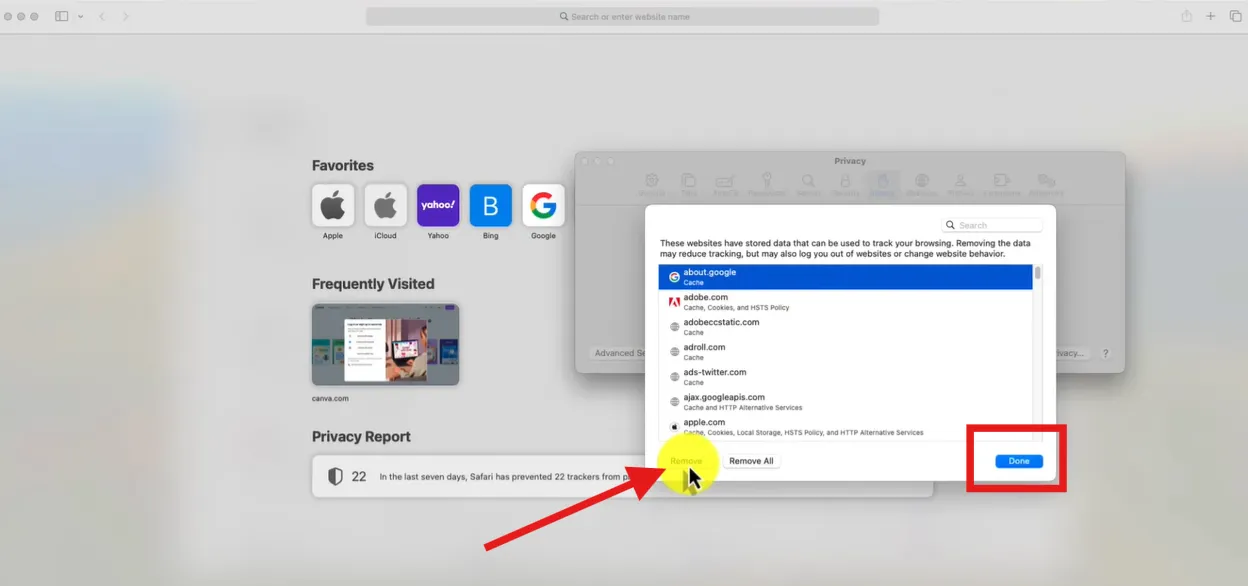
Step 2: Search for the site you're targeting, select it, and click "Remove." Safari confirms before anything actually gets deleted.
If you're a PC user, either Windows or Mac, read our detailed writeup about 15 ways to free up space on PC in 2026 using built-in tools combining with the best software to clear out junk, duplicate files, unnecessary apps, temp files, and cache.
Clear One Site on Mobile Browsers
Learning how to clear cache from a specific website on mobile browsers is especially helpful when you often browse on mobile or away from your computer entirely.
How to Clear Chrome Cache for a Specific Website on Android
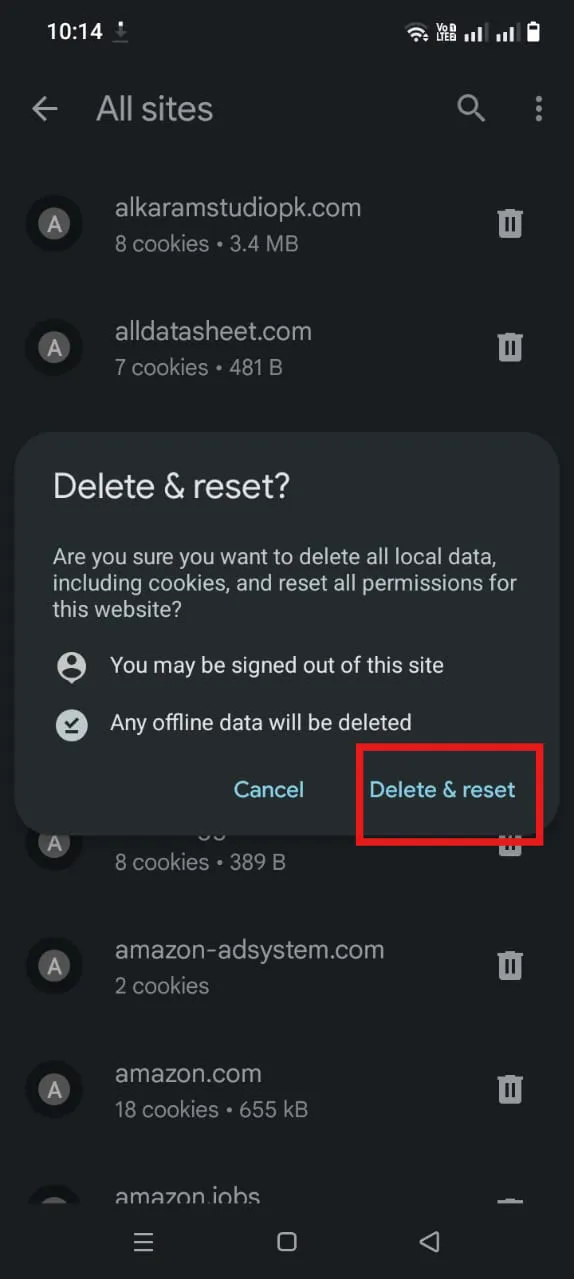
Open the Chrome app and head to Settings, click Site settings, and then select "All sites." Now, find the domain you want to remove its cache and tap the trash icon next to it. Hit "Delete & reset."
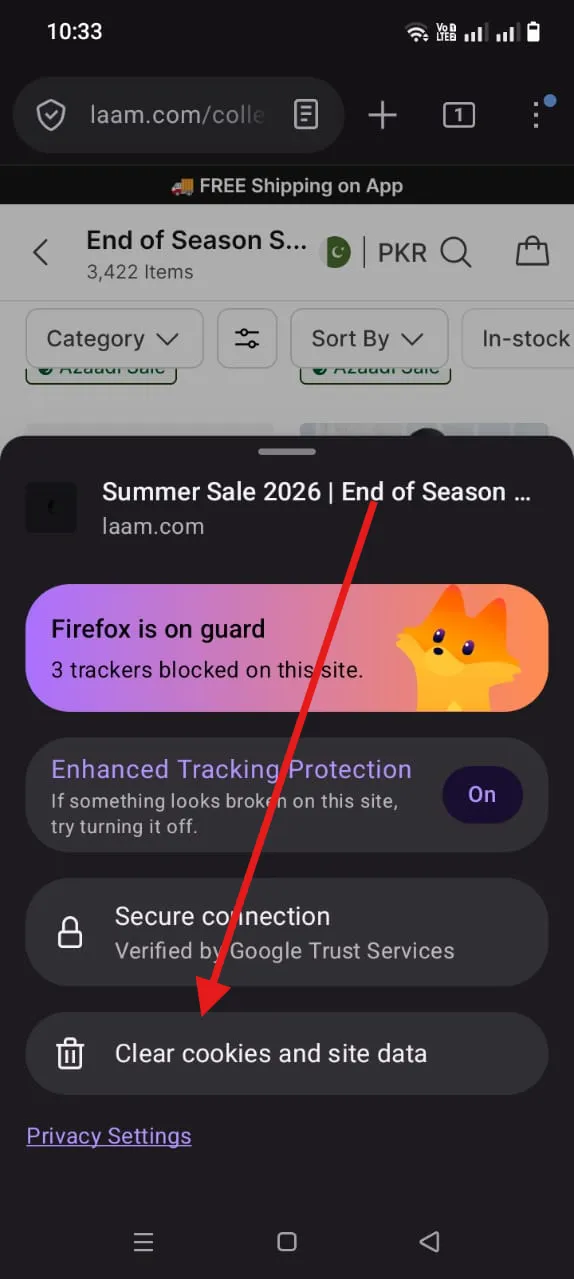
Firefox for Android
Open the browser, visit the website for which you want to clean its data, and then tap the shield or lock icon in the address bar. Hit "Clear cookies and site data."
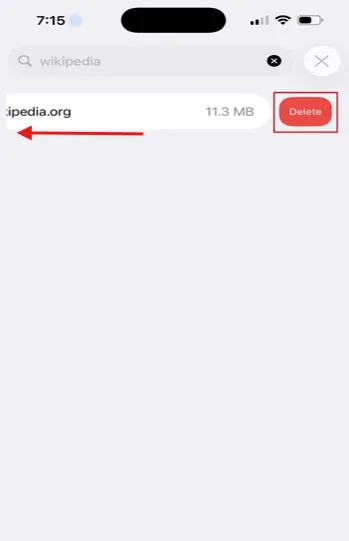
Safari for iOS
Open the Safari browser on your iPhone or iPad, and in the Settings, scroll to Safari, Advanced, and then Website Data. Search for the desired website and swipe it left to remove.
Part 5: How to Clear Cache for a Specific Website in Chrome/Edge/Firefox Seamlessly-[One-Click Way]
If you prefer manual digging to have more control over your cleanup, go for it, but be informed the process is tiring and time-consuming. And what's even worse? You are using different PCs (like I use Windows at home and Mac at the office) with different browsers, which forces to repeat the same steps again and again.
But after trying WMaster Cleanup, I can definitely say every Windows user should skip the manual hassle anymore! With intuitive UI, its Clear Browser History feature automates the scanning, targeting, and cleaning of website-specific cache and privacy traces across all major preinstalled browsers with one click, keeping all other websites' data untouched.

WMaster Cleanup
Clear Cache for Specific Website in One Click
- ·You can see every visited website with its own items, preventing guesswork.
- ·Along with batch processing, it removes 58+ (installed) browsers caches with one click.
- ·Runs deep-level database cleanup by closing the browsers first for a complete cleanup.
- ·Sorted data into visited sites, search records, cache, & autofill makes deletion easier.
- ·Blocks lingering tracking IDs tied to that site, on top of clearing its cache and cookies.
How to Clear Cache for a Specific website Using WMaster Cleanup:
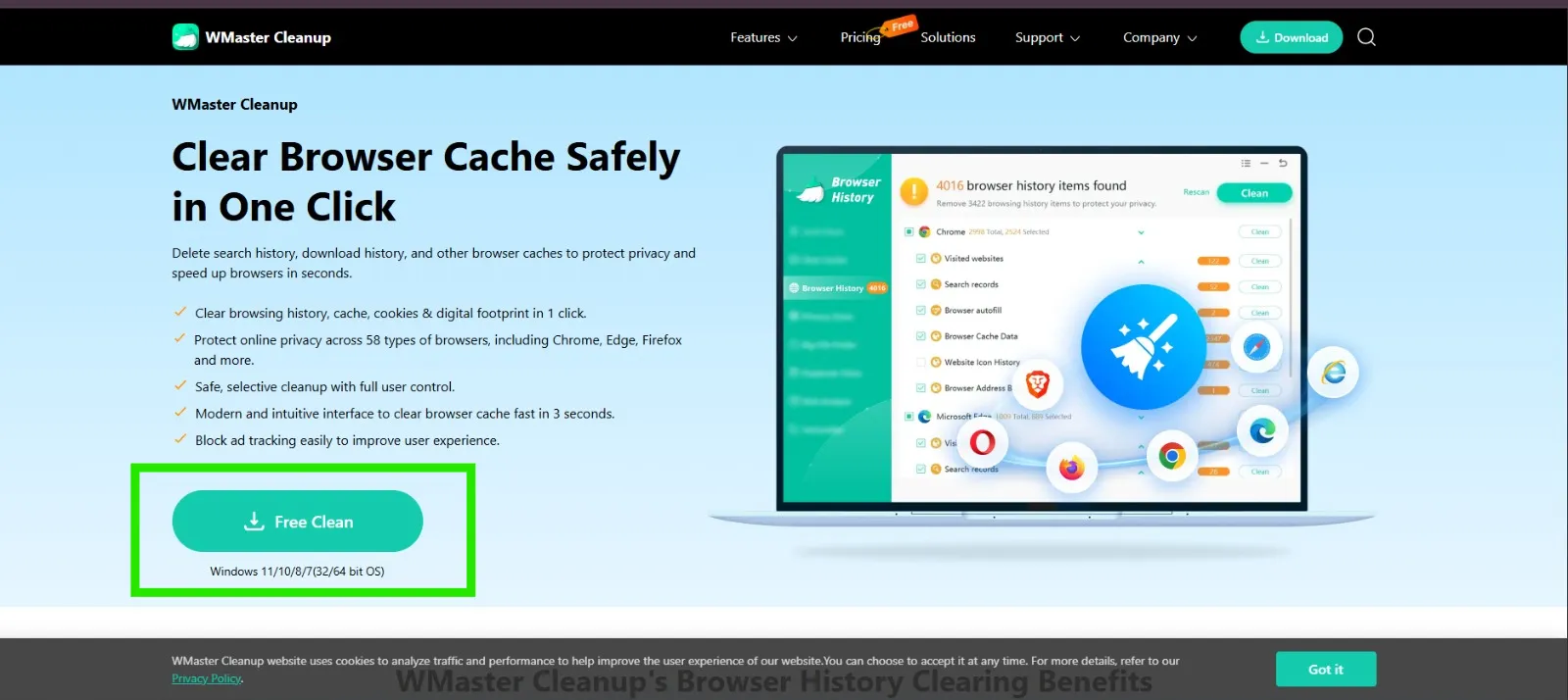
Step 1: Download WMaster Cleanup from the Clear Browser History page and launch it on your Windows PC.
Step 2: Once you land on the feature's interface, click the "Scan" button to pull in every site's data across all your installed browsers.
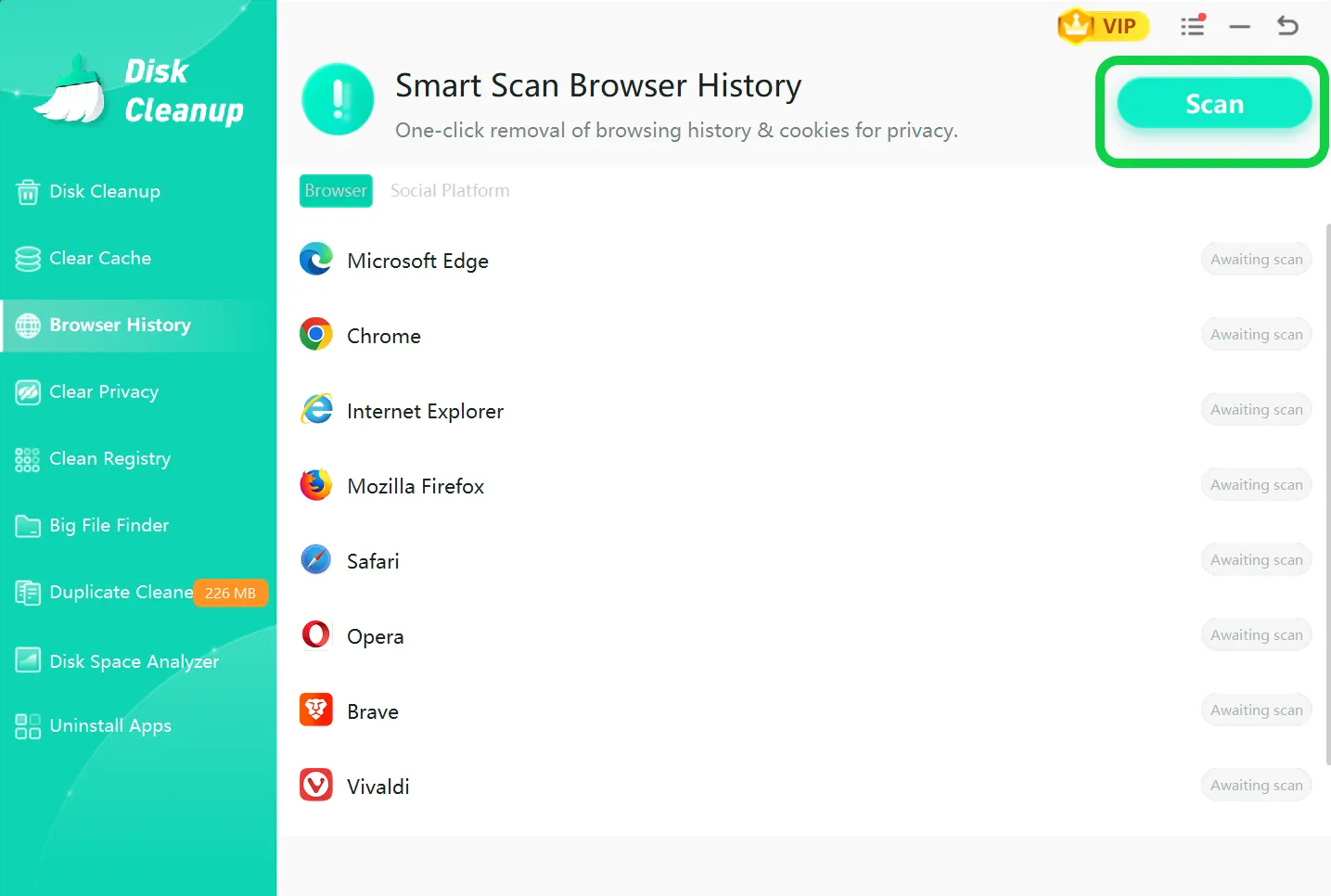
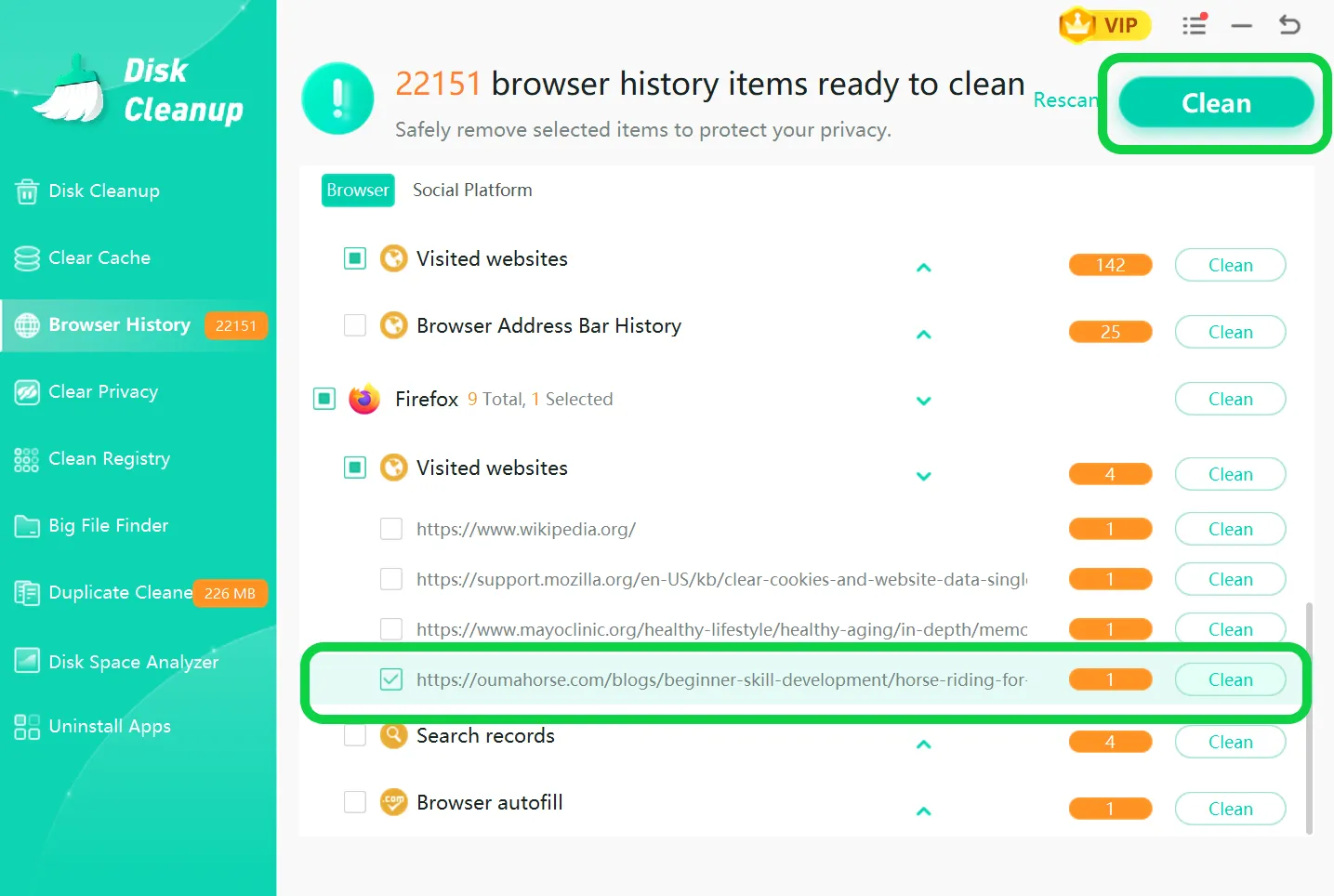
Step 3: Select your desired browser and tap the visited website. Check the entry you want to remove, and click "Clean" next to that entry.
💡Tips:You can select more than one site here too if you've got a few that need clearing at once.
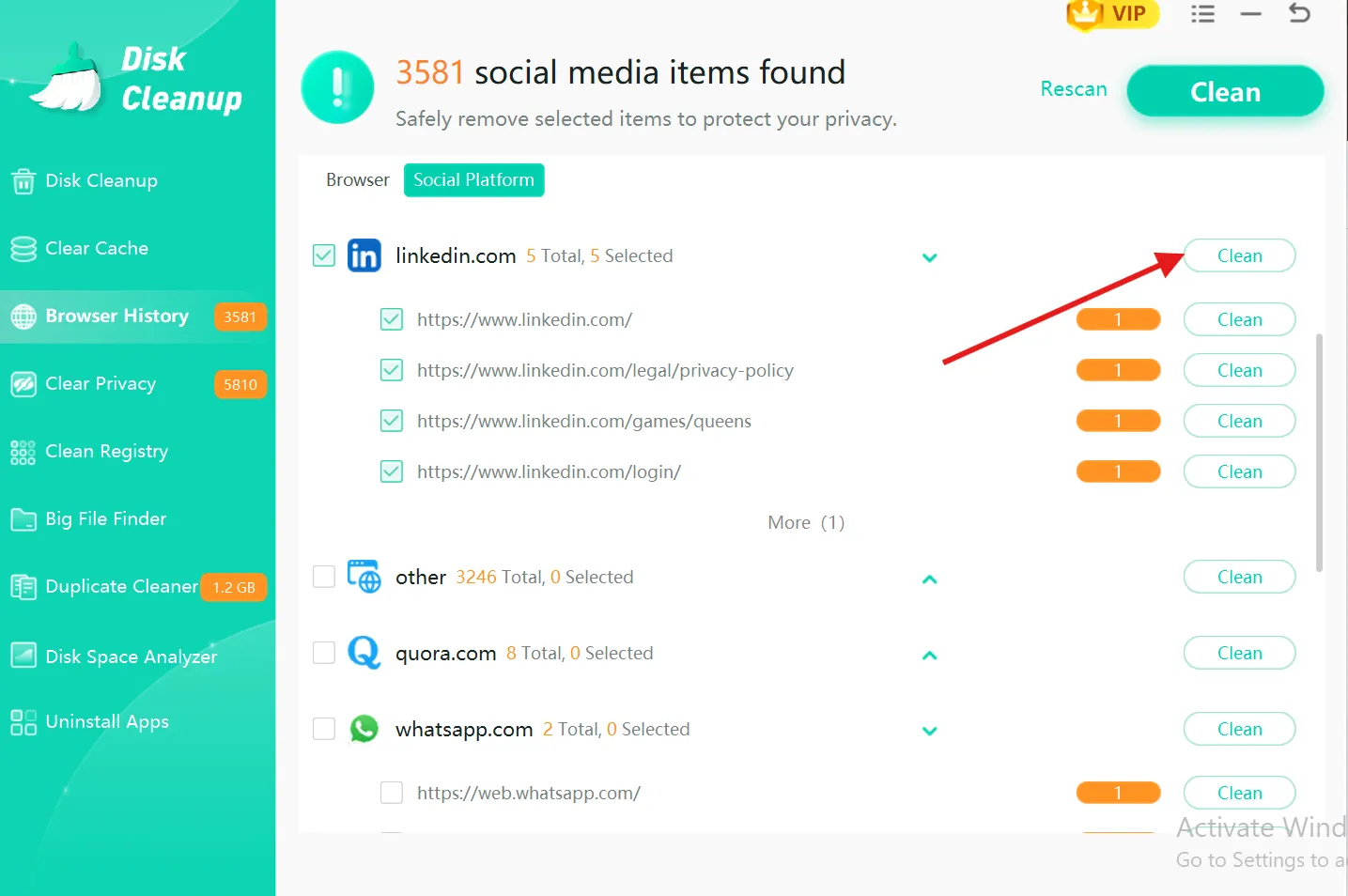
💡Tips:You can also opt for Social Platform tab, if you need to clear cache from a specific social media platform. Just check the desired platform and hit Clean next to it.
If you have privacy concerns and are looking for easy ways to clear your YouTube history, head to my recent write up on how to clear YouTube history in 2026 combining both manual and auto methods, no matter what device you are on.
Part 6: FAQs Related to Deleting Cache for A Specific Website
Q1. If I clear the cache for one site, will I be logged out of other sites?
Not at all. Clearing cache and cookies for one domain will only impact that specific site. In all other sites you are actively logging in, cookies, and saved passwords will remain the same; there is no need to sign or re-enter any saved data.
Q2. What is the difference between clearing cache and clearing cookies for a website?
Although both cache and cookies are stored in your device locally, they serve distinct purposes.
Cache:It usually serves for saving visual files, like page layouts, images, stylesheet scripts, and images, helping you to load website data faster
Cookies: It stores specific user data, such as active login status, site preferences, & shopping cart items.
Q3. How can a website appear broken even after clearing its cache?
Sometimes the issue may not be at your end. This may be the server's own cache or a content delivery network that is still serving an old version to all its visitors. After clearing out the cache, you can wait for a while and try to reload the website again.
If the above-mentioned method still doesn't work, leave it as it is; the server will catch up and fix it by itself.
Q4. How often do I need to clear the cache for a particular site?
You should clear the cache for a particular site
- Only when you need to troubleshoot broken layouts, outdated media, or login errors.
- If a website just released a major update or change in design that is not displaying on your screen correctly.
Avoid cache cleanup regularly for websites that are working properly, as it lets your web pages load faster on return visits.
Q5. If I clear the site-specific cache on my PC, will it clear it on my phone as well?
No, it will not. It is because your local cache files & cookies are directly saved on the specific device that you are using.
So, even if you are using the same account on multiple devices, clearing out your PC browser cache won't clear anything on your mobile or tablet.
Final Thoughts
When any specific site acts down, whether it is failing to load new updates, showing a broken layout, or glitching, knowing how to clear cache for a specific website is the fastest fix, saving you to delete your entire history at once.
For Windows, where manual methods take too much time and effort, WMaster Cleanup automates the process, and its Browser History feature clears the cache and cookies for any site across all browsers within a few seconds. Take action now and start downloading WMaster Cleanup to scan and select the site for which you want to delete its cache with one click.