

Suddenly FPS drops in CS2 from 200 to 60 after playing for a few minutes? Battling sudden lag spikes in the middle of your game is quite frustrating. This sudden drop-off often happens during long gaming sessions. And you might end up having low frame rate when you're pushing through intense firefights and smoke-filled areas.
Well, if you wonder how to improve FPS in CS2 fast, change your game's setting first. Other ways to avoid micro-stutters in CS2 include closing background apps, restarting your system, and changing Windows performance settings.
Follow along to know how to improve FPS in CS2 with WMaster Cleanup in seconds to enjoy consistently smooth gameplay.
In this article
Part 1: Basic Knowledge: How to Show FPS in CS2
Before I start tweaking the settings, I first see my actual frame rate on screen. Monitoring the FPS in real-time really helped me see if the changes I was making were working or not. Besides this, the FPS counter gives the exact point when my CS2 game starts lagging.
Counter Strike 2 offers quick built-in ways to show performance numbers without using any extra software. Here is how to see FPS in CS2:
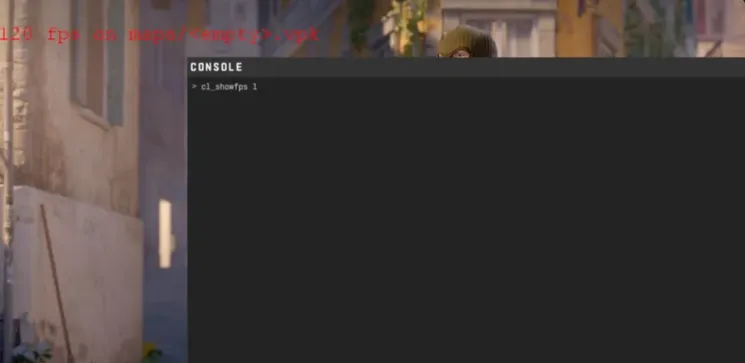
- The Developer Console: Firstly, you have to enable the console in your game settings first. Once done, press the tilde key (~) and type cl_showfps 1, and hit Enter. A small counter will appear on your screen. You can also turn it off later by typing cl_showfps 0.
- The Steam Overlay: Open your Steam settings by pressing Shift + Tab while in the game. Go to the Overlay tab, find the In-Game FPS Counter option, and choose where you want it to appear on your screen.
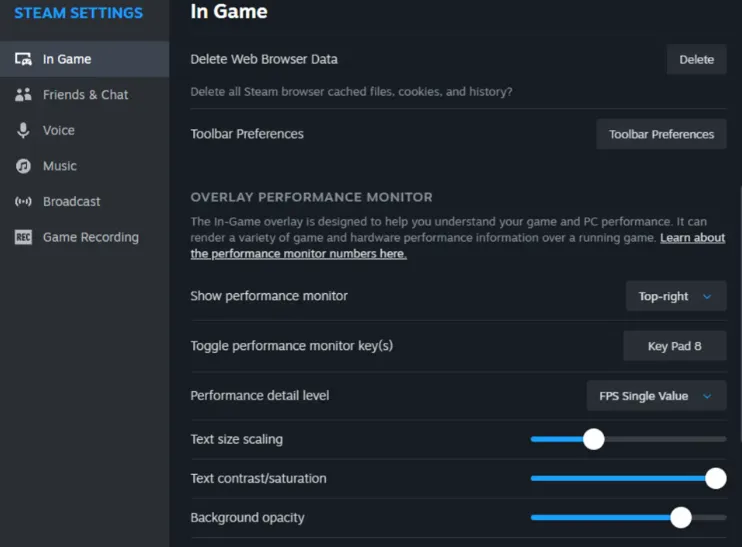
I turn the developer console option and get into the match. By learning how to show FPS on CS2 can directly let me see what kind of baseline numbers I am getting.
Part 2: Best CS2 launch Options for FPS
Configuring your Steam launch options is a quick and effective way to maximize your frames per second (FPS) and streamline game startup. Follow along to launch CS2 in your system:
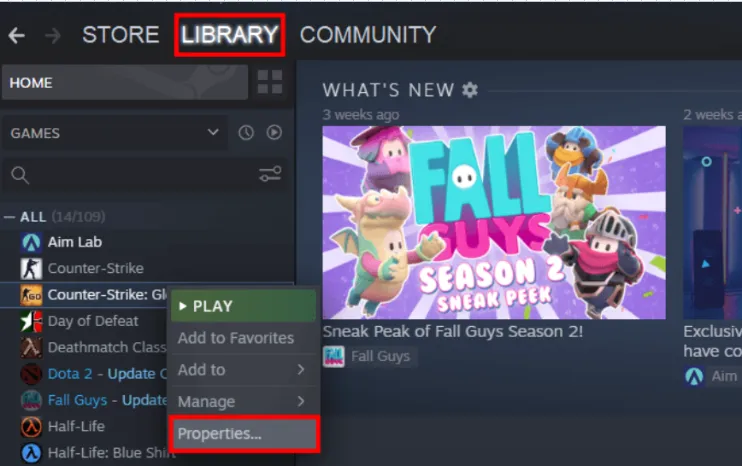
Step 1: From the Steam Library, right-click Counter-Strike 2and select Properties.
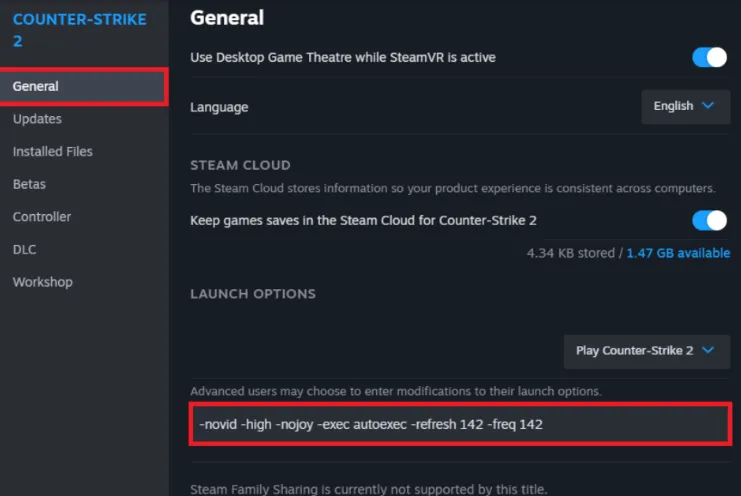
Step 2: Under the General tab, scroll down to the Launch Options text box. Now you need to copy and paste your desired commands into this box.
💡Tips:Make sure you separate the command by a single space and close the window to save changes automatically.
Most Useful FPS Commands
- +fps_max 0: This command removes the default frame rate cap from your CS2 game. Besides this, it allows your system to output the maximum number of frames your hardware can handle.
- -novid: This command skips all the unskippable Valve intro videos. It reduces loading times and gets you into the main menu instantly.
- -nojoy: As the name indicates, this command disables system support for joysticks and controllers and therefore frees up RAM for CS2.
- -high: With this command, you assign a high CPU priority status to your CS2 executable. This way your processor allocates maximum resources to your game rather than applications running in the background.
- -freq 240: Using this command, you can lock the CS2 refresh rate to match your hardware. If you have a 240Hz monitor, you need to choose this value to ensure that visual output stays perfectly fluid.
💡Tips:If you use a 144Hz or 360Hz screen, make sure you change the frequency that matches the refresh rate of your monitor.
To make your launch quick, you can copy and paste this line directly into your Steam Launch Options box:
+fps_max 0 -novid -nojoy -high -freq 240
Part 3: Best CS2 Settings for FPS
If your CS2 stuttering with high FPS, here are the best settings for Counter-Strike 2 to maximize raw frame settings. Besides this, it maintains a balance between high performance and clear visibility to hit the target in every situation, like smoke, fire, and shadows.
| Setting | Best CS2 Setting for FPS | Why Use It? |
|---|---|---|
| Aspect Ratio | 16:9 (Native) or 4:3 Stretched | Native looks sharper. 4:3 makes enemies look wider |
| Resolution | Native or 1280×960 (4:3) | Lower resolution can improve FPS on slower PCs |
| Display Mode | Fullscreen | Better FPS and lower input lag |
| Refresh Rate | Highest Available | Makes gameplay feel smoother |
| V-Sync | Off | Reduces input lag and removes FPS cap |
| Global Shadow Quality | Low | Better FPS while keeping useful shadows |
| Model/Texture Detail | Low | Frees up GPU resources |
| Particle Detail | Low | Helps prevent FPS drops during fights |
| Ambient Occlusion | Off | Increases FPS and improves visibility |
| NVIDIA Reflex | Enabled | Reduces latency for quicker reactions |
Part 4: What Caused Low FPS in CS2
At first when I downloaded CS2 on my PC, it was not running smoothly, and I blamed my network for this. However, after days and weeks of finding solutions, I figured out that the problem of low FPS in CS2 comes down to a few issues. And here is a list of those:
- My graphics settings were too high, which made my PC work harder. And ultimately the FPS dropped during the game.
- My CPU & GPU were struggling to keep up with the game; and that's why I felt noticeable frame drops and stuttering.
- While playing games, there were so many apps running in the background that took most of my valuable RAM.
- Old graphic drivers are often not optimized for the latest CS2 updates, which hurt performance.
- Since my system did not have enough RAM it caused my game to stutter.
- Another reason for the frame drop was overheating of my PC. That's why the CPU slowed down to prevent any damage.
- My display settings were wrong, which caused frame drops in CS2. I was using Windowed mode instead of Game mode; so my gameplay was not smooth.
💡Tips:CS2 is more demanding than CS:GO. The Source 2 engine uses better lighting, shadows, and effects, so it requires more powerful hardware to deliver high FPS.
Part 5: How to Improve FPS in CS2 If CS2 FPS Drops and Stuttering?
So, if you don't want all the above-mentioned problems while playing Counter-Strike 2, you need to optimize how your PC handles the game. CS2 is highly demanding. Use a dedicated game optimizer and apply some manual tweeks to improve CS2 in-game FPS.
1.WMaster Cleanup - The Quickest and Easiest Method To Fix Frame Drop in CS2
WMaster Cleanup is an all-in-one tool that works as a deep system cleaner. Its dedicated Game Booster feature offers exclusive optimization tweaks for CS2 gaming performance by improving FPS. It clears temporary game data that cause sudden crashes in game in just one click.
WMaster Cleanup pushes your system to its optimal limits to unlock the CPU and GPU power, maintaining a consistent and high-quality frame rate throughout your CS2 gaming sessions. What's more? It has three performance modes: Lite, Advanced, Esports to cater all types of players.

WMaster Cleanup
Improve FPS in CS2 With WMaster Cleanup
- ·Auto-detect 5000+ installed games in your system, including Counter-Strike 2.
- ·Optimize system RAM to fix lag and in-game stutters, preventing sudden drops in FPS.
- ·Instantly wipes temp files, shader cache, and hidden junk that renders frames smoothly.
- ·Optimize visual animations & effects to maximize in-game FPS and smoothness.
- ·Stops hidden background apps to keep a sustainable frequency & a crisp response rate.

How to Improve FPS in CS2 Using WMaster Cleanup
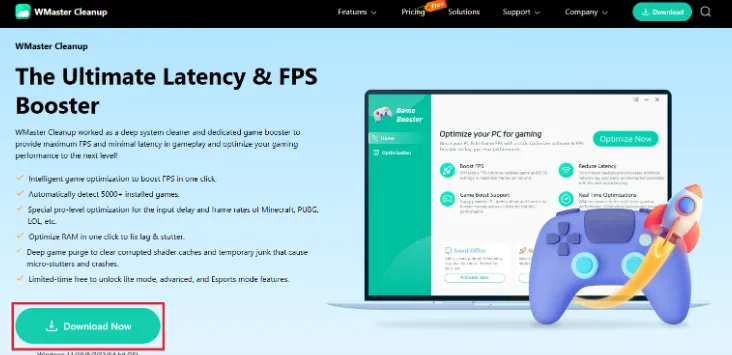
Step 1: Head to the official WMaster Cleanup website. From the Features tab, click on Game Booster and hit the Download Now button.
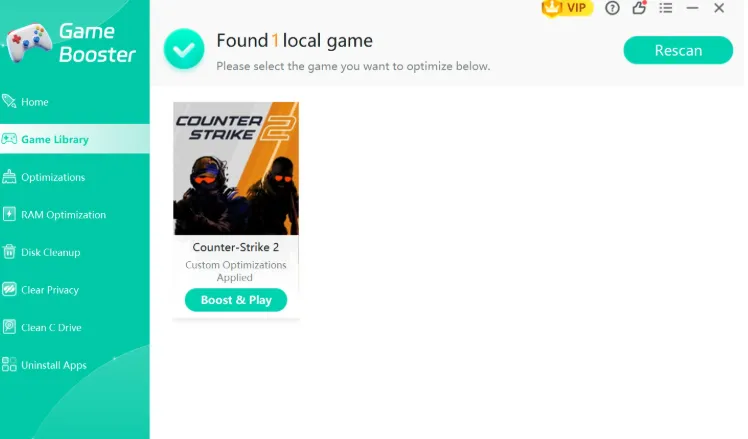
Step 2: From the main interface of Game Booster, click on the Game library and it will auto-detect your local games, including Counter Strike 2. You need to click on Boost and Play.
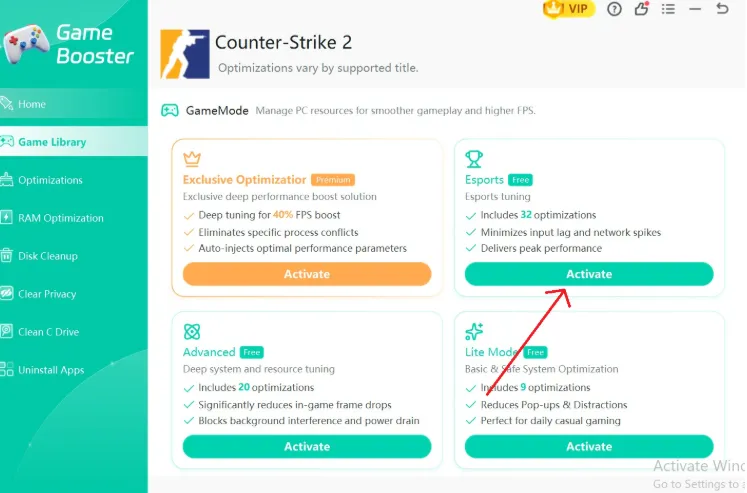
Step 3: Click on Esport mode to activate the CS2 best settings for FPS to enhance your game's performance.
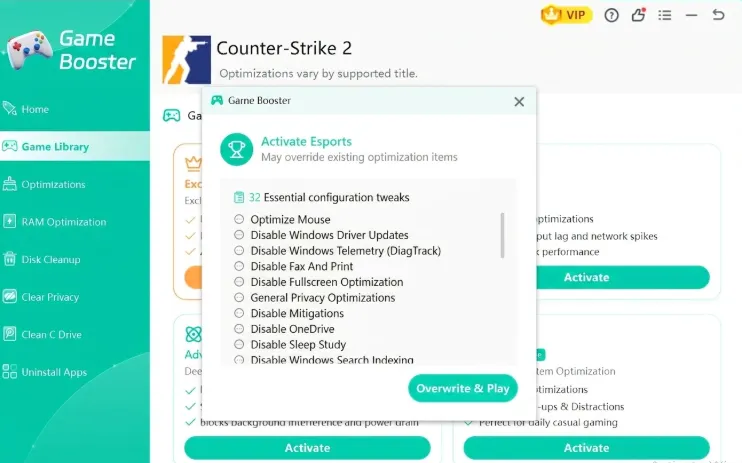
Step 4: A box will appear that includes 32 essential configuration tweaks. Now click on Overwrite and Play.
Step 5: Once all the optimization tweaks are applied, click on Start Game to launch Counter Strike 2 and play the game smoothly.
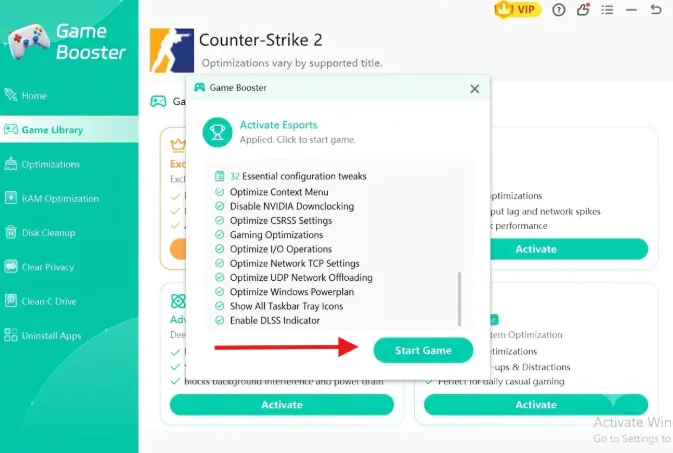
After running WMaster Cleanup's exclusive optimization for CS2 FPS boost, you will instantly feel that your game is holding much more frame rate. Jumping from 90 up to a consistent and smooth 120+ FPS during intense gunfights, experiencing zero frame drops right when you need to land a critical flick shot.
If you want to land more accurate shots during your FPS gameplay, check out our complete guide on how to improve Aim in FPS games in 2026.
Apply the Best In-game Video Setting
Apart from boosting your game to improve FPS, there are other ways to fix the frame drop issue in CS2. By applying the best in-game video settings, you give CS2 more CPU resources by showing its priority level to Windows. Here's what I do to maximize CS2 performance:
Step 1: Open the Counter Strike 2 game, and in the top left corner, click on the gear icon and go to the video tab.
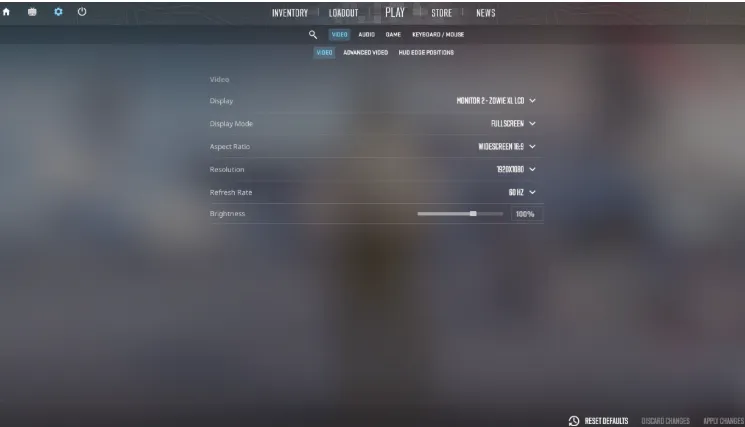
Step 2: You have to manually go through the video and advanced video submenus and apply the following settings:
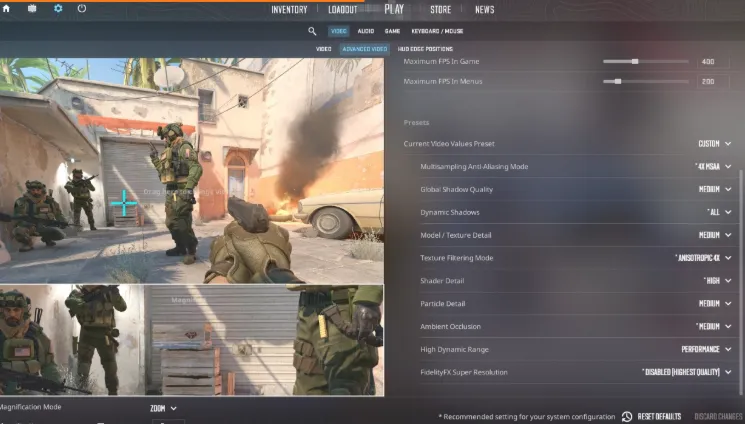
3. Disable Background Application
Too many applications running in the background impact the FPS while you're playing CS2. Therefore, it's best to close the apps by following these steps:
Step 1:Press Ctrl + Shift + Escto go to the Task Manager. And from the left menu, click on the Startup tab. Now, right click on the app and click on Disable to stop the app from running in the background.
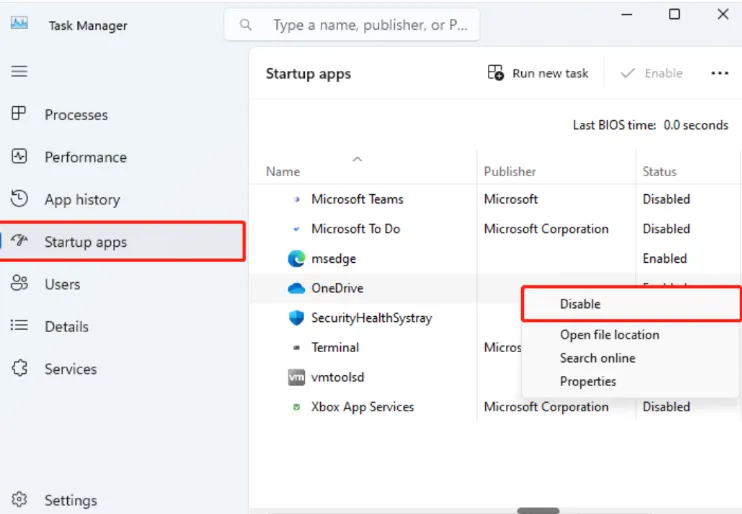
WMaster Cleanup can automate this process by stopping background and optimizing RAM with a single click.
4.Clear the DirectX/ Shader Cache
Step 1: From the start menu, search Disk Cleanup and open it.
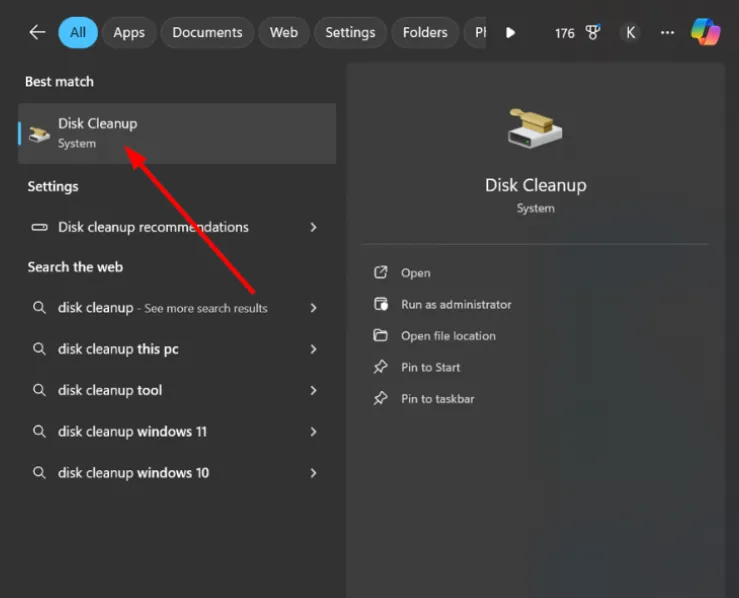
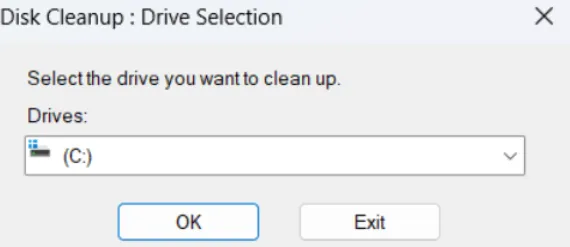
Step 2: Now choose your system drive i.e., C Drive and click OK.
Step 3: In the pop up window, select the DirectX Shader Cache and click OKto permanently remove them.
💡Tips:You can uncheck the other boxes if you only want to clear the shader cache.
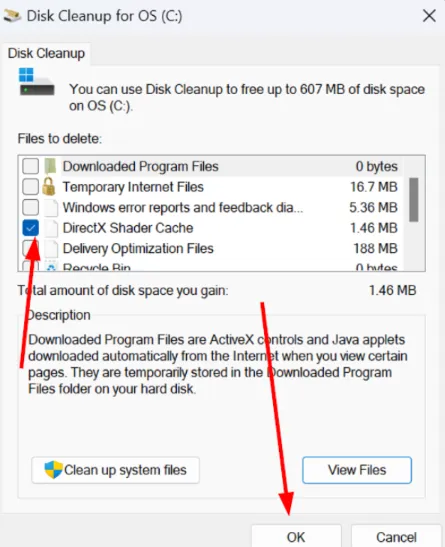
Make sure you restart your PC to rebuild the fresh cache.
5.Set Windows Power Mode
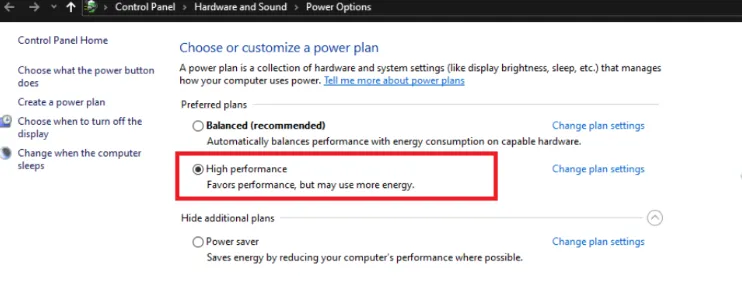
To squeeze out most of your gaming skills, you can change the Windows power mode from default balanced to High Performance. Follow these steps to improve FPS in your CS2 game:
Step 1: Search for the Control Panel from the start menu and open the app.
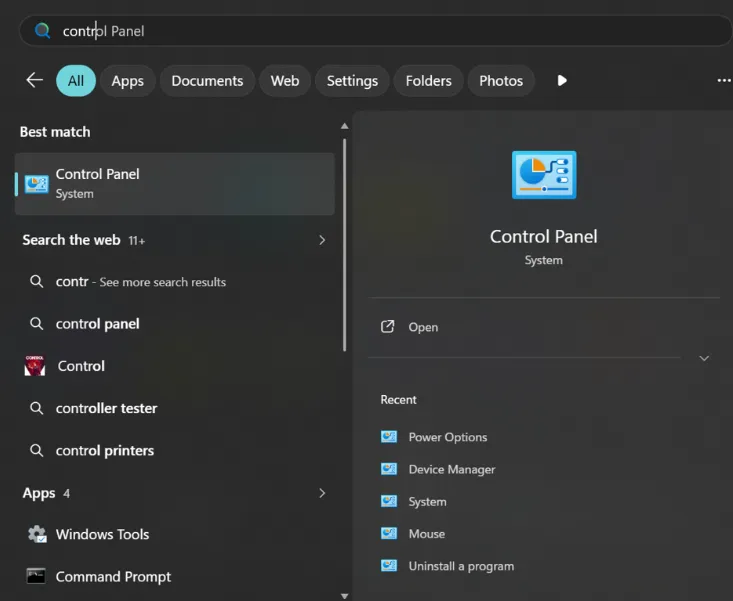
Step 2: From multiple options, click on Power Options and you'll land on the main interface.
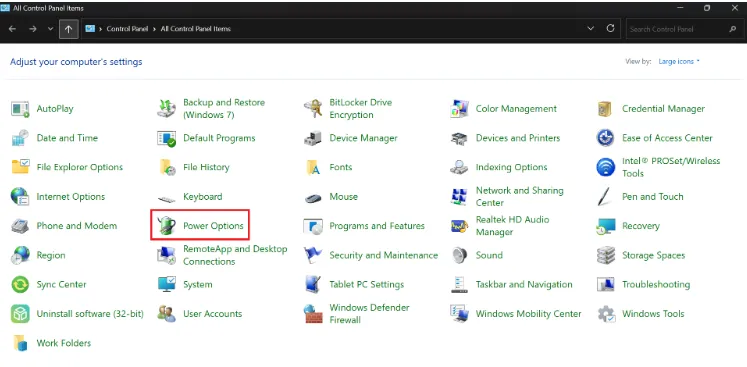
Step 3: By default, Windows Power plan is set to Balanced. Select the High Performance to improve FPS during your gameplay.
6. Verify Game File Integrity
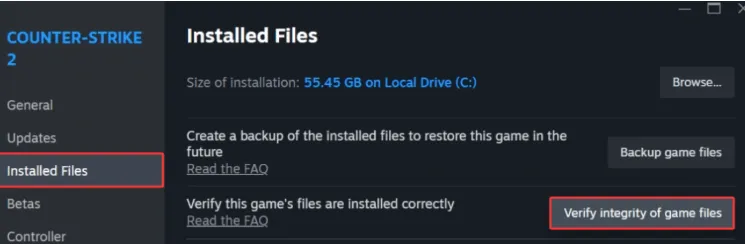
If you have downloaded a corrupted game file, it will cause stutters no matter if you have fixed every other thing. To verify your CS2 game file integrity:
Step 1: Launch Steam and head to the Library. Now, find Counter-Strike 2 & Properties. Here, you need to go to Installed Files and click Verify integrity of game files.
Part 6: FAQs Related to FPS in CS2
Q1. Why is my FPS so low in CS2 even with a good PC?
Even if you have a good PC, CS2 frame rate can drop because the game relies heavily on CPU and RAM. So, if there are apps running in the background or your drivers are outdated you won't get a good frame rate.
Besides this, if your in-game video settings are not favorable, it will also cause low frame rates and stutters.
Q2. How can I increase FPS in CS2 without upgrading my hardware?
Here's how you can get the most from your hardware for CS2 game without upgrading it,:
- Lower the resource-heavy in-game settings
- Tweak your system settings for high performance i.e., turn on the Game Mode, adjust visual effects, and update drivers etc.
- Optimize your Steam launch measures
Q3. What causes sudden FPS drops and stuttering in CS2?
In CS2, you often experience sudden frame drop due to high graphics settings. But this is not the only reason why FPS drops. Other causes are too many apps running in the background and shader cache.
So be mindful with all the apps running in the background. Besides this, cross check that all the drivers are updated and verify the game file before downloading to improve stability.
Q4. What are the best CS2 graphics settings for maximum FPS?
If you want to get the high FPS, all your graphics settings must be set at Low, like:
- Disable unnecessary effects like MSAA
- Play in Fullscreenmode
Other than that, if your hardware can support, make sure you set your monitor to its highest refresh rate and enable NVIDIA Reflex. By opting these settings, I am getting the best balance of performance and responsiveness in CS2.
Q5. Should I cap my FPS or leave it uncapped in CS2?
If your FPS remains stable while playing CS2, you can leave it uncapped to reduce input latency. However, if FPS constantly changes, you have to cap it slightly below your average FPS or your monitor's refresh rate to get few to no frame rate spikes.
Conclusion
That's all you need to know about how to improve FPS in CS2. Since it's a very demanding game, you must have enough space in your system to avoid stutters.
You can make a few tweaks, like changing Windows power plan and closing background apps, to enhance gameplay. Besides this, changing game settings can help as well.
A quick yet effective solution for how to get more FPS in CS2 is using the WMaster Cleanup Game Booster feature. It clears hidden junk and cache that cause crashes. And increase the average frame rate of Counter Strike 2 by 44%.