
Are apps like Hone actually useful on low-end PCs? What are the best free alternatives? Gamers everywhere are desperately trying to solve the same frustrating problems: random micro-stutters, high ping, and low frame rates that ruin clutch moments.
To fix these issues, many gamers, like me, wanted to use automated software rather than risking dangerous manual registry edits. So, in this writeup, I am comparing both game optimizers for you that I tried & tested: Hone.gg and its best alternative-WMaster Cleanup.
While both promise to squeeze your PC's hidden potential and clean up system clutter, they approach the problem from opposite angles. Let's break down exactly how they work so you can choose the right tool for your gaming sessions.
In this article
Part 1: What is Hone.gg?
URL: https://Hone.gg/
Pricing: Offers a free plan with only 10 one-click optimization options. The premium plan costs around 11 USD/year depending on your region.
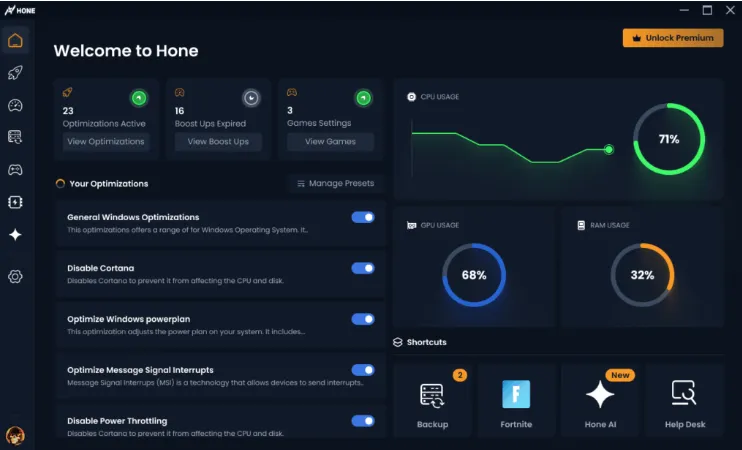
Hone is a Windows game optimization tool that can adjust your Windows, GPU, and in-game settings automatically, matching your game needs. The software automates the advanced and exclusive optimization options to improve FPS and lower input lag and ultimately offer a smooth gaming experience for over 100,000+ games.
You can directly access the tool from the official website, and it's also available on the Epic Games Store and Overwolf.

Core Features of Hone
The game optimizer-Hone changes the Windows environment variables rather than injecting code into game files. Here's what Hone offers for gamers:
- Its Game Mode clears up RAM and prioritizes games' CPU threads over all the background processes.
- Hone offers boost-up tools to clean the Windows to find hidden junk, GPU, and registry variables that cause high input latency during gaming.
- The tool optimizes TCP/IP stack configurations to stabilize ping and mitigate packet loss.
- Automatically adjusts in-game configuration and optimize network routing.
How Hone Works
Head to the official website to download and install the optimization tool. Now, authenticate it with Google or Discord. From the library, pick the game you want to optimize and click Best Performance. Once the optimization completes, you can play the game with enhanced FPS and a better frame rate.
💡Tip:You can view and apply the desired optimization settings for your competitive gameplay and get the best results.
Pros
- Hone allows users to optimize games with one-click without any manual tweaks.
- The game optimizerimproves FPS and reduces input lag that allows you to play without stutters.
- It allows you to remove unnecessary background processes to free system resources.
Cons
- It does not have advanced optimization features in the free plan.
- The free plans do not offer premium game presets.
- Customer support is not very top-notch, which annoys many users.
Best For
Competitive & Esports player having low- or mid-end PC. Casual gamers can find the interface overwhelmed.
High ping causes a noticeable delay between your action and output. To fix your connection, check out our easy write-up on 7 ways to lower ping and reduce network delay with a few clicks.
Part 2: What is WMaster Cleanup?
URL: https://www.wmastercleanup.com/
Pricing: Free for a limited time.
WMaster Cleanup is an all-in-one Windows optimization tool. Its dedicated Game Booster tool is designed to optimize your Windows gaming with 92 special configuration items in three performance modes: Lite, Advanced, and Esports, unlocking the hidden power of CPU and GPU to ensure a consistent frame rate.
WMaster Cleanup cleans temporary game data and junk that cause crashes in games and ultimately improves gaming experience. So, whether you are a casual player or a pro gamer, you can choose how much space you need to release for your next gameplay.
WMaster Cleanup
The Best Game Optimizer Alternative to Hone
- ·Offers deep-game purge to free up space and reduce in-game stuttering.
- ·Auto-detects 5000+ installed game titles and applies game-specific optimizations.
- ·It optimizes RAM in one click to fix lag in micro-stutters during gaming.
- ·An intelligent game optimizerallocates system resources and boosts in-game FPS.
- ·Optimizes Windows memory, I/O, and drive settings to boost system responsiveness.

How to Optimize Games With WMaster Cleanup
Here's a step-by-step guide on how you can optimize games with WMaster Cleanup:
Step 1: Go over to the WMaster Cleanup website, and from the features tab, click on Game Booster. Hit Download Now.
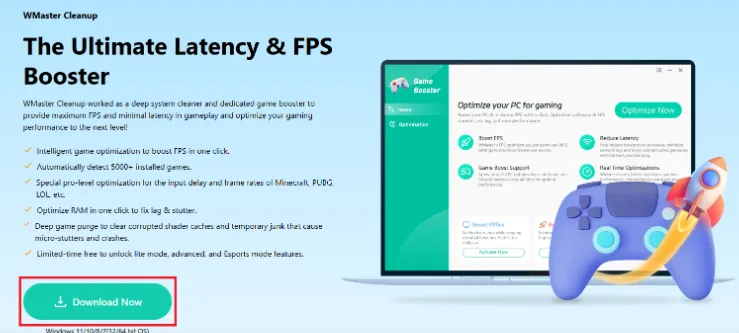
Once the installation completes, you'll land on the main interface of the Game Booster feature directly.
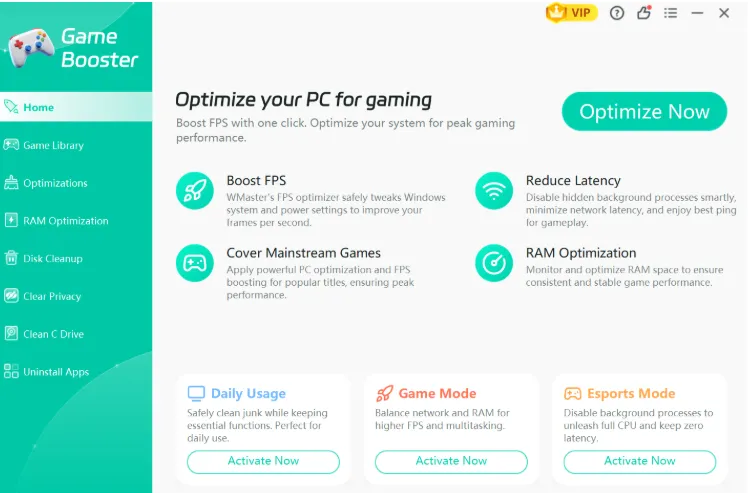
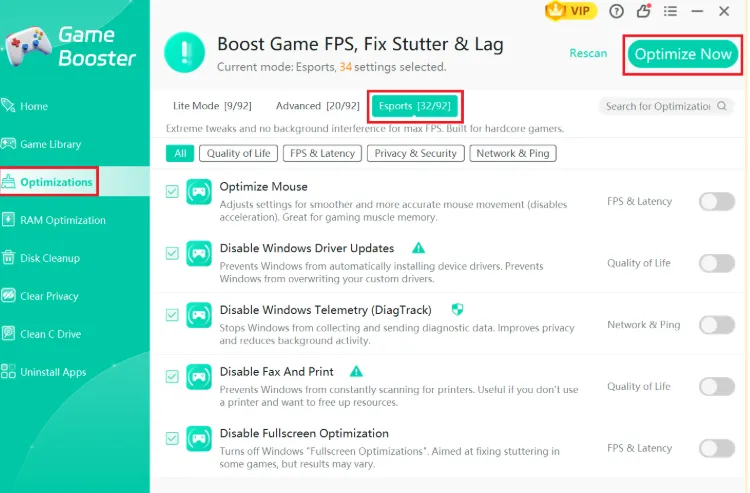
Step 2: Now from the left panel, click on the optimization tab and select the Esports mode. WMaster Cleanup will automatically select 32 configuration items for the best gaming performance.
💡Tips:You can also manually select the optimization options from the list of 92 configuration items. Once done, hit Optimize Now.
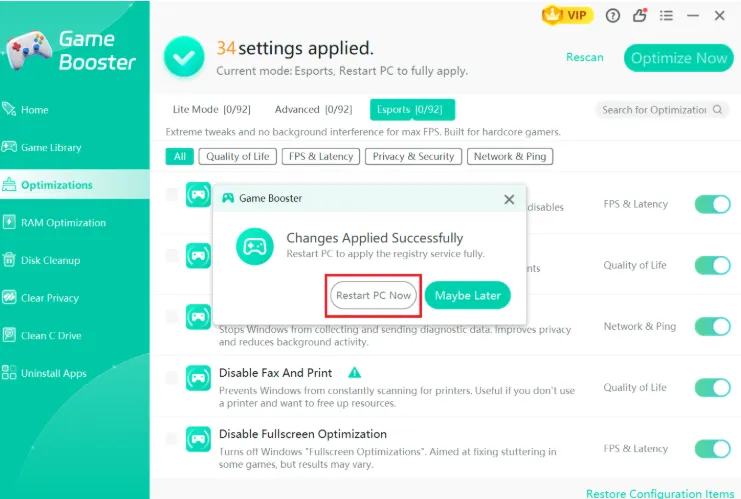
Step 3: Now click on Restart PC Now to apply all these changes successfully. WMaster Cleanup will optimize RAM and clean temporary game files to prepare your PC for gaming.
If your game doesn't feel responsive, read our complete guide on how to reduce input lagin gaming and make your game feel more smooth.
Pros
- Combines multiple PC optimization tools in one application.
- Game Booster designed specifically for gamers with three different gaming performance & modes (Lite, Advance, and Esport).
- The clean and user-friendly interface makes it easy to optimize games in one click.
- Along mid-end & high-end PCs, it also optimizes low-end PCs for gaming purpose.
- Streamlines deep game cache cleanup without needing manual efforts.
Cons
- The tool is dedicated to Windows users only.
- Deep cleaning of system with heavy junk data may take 2-3 minutes.
If you want to land more accurate shots during your FPS gameplay, check out our writeup on how to improve Aim in FPS games in 2026.
Best For
WMaster Cleanup is perfect for gamers who want to declutter their system before launching a game. Besides this, it's perfect for Windows users looking for an all-in-one solution to clean junk files, recover storage space, and uninstall unwanted apps without compromising their privacy.
Part 3: Hone.gg VS WMaster Cleanup-Detailed Comparison Table
| Comparison Item | Hone.gg | WMaster Cleanup Game Booster |
|---|---|---|
| Primary Focus | Game optimization FPS boosting |
Deep PC cleaning Boost FPS Reduce input lag Ram optimization |
| Ease of Use | One-click Beginner-friendly |
One-click Super easy & straightforward |
| Configuration Items | Windows, GPU, network, in-game tweaks | Performance mode selection CPU & GPU optimization RAM & processing management Network & ping optimization |
| Game Support | Support for 100,000+ games | Detect and offer exclusive optimization for over 5,000+ games |
| RAM Optimization | Yes | Yes |
| Performance Modes | Balanced Performance Custom |
Lite Advanced Esports |
| Disk Cleanup | Basic disk analyzer | Auto clean 11 types of junk files |
| Game Cache Clean | Yes | Yes |
| Clean C Drive | Not available | Dedicated clean C drive feature |
| Pricing | Trial version available | Free (Limited-time offer) |
| Platform | Windows 10/11 | Windows 7, 8, 10, 11 |
| Ads-Free | Premium only | Yes |
| Overall Rating | 4.8 | 3.8 As it's a new tool, the mass overall rating is not available |
Part 4: Real-World Performance & Benchmarks [2026 Tests]
Here's an overview of my testing with both game optimizers on my Intel i5 system having 32GB RAM and a 128MB graphics card to see which one works best for me:
Ping/Latency Tests
I tested Hone gg before launching my game, and the result was a significantly lower ping rate, cutting network latency by 20ms to 100ms. It improved the connection stability by optimizing network routing and reducing latency spikes.
On the same system (Intel i5, 32GB RAM, 128MB GPU), WMaster Cleanup optimized the browser background, drive, and storage and memory. This results in near0% lag spikes during my gameplay on my low-end PC.
FPS & Frame Time Stability
Running WMaster Cleanup's Game Booster on my low-end PC, an Intel i5 with 32GB RAM, gave me a direct performance jump. In my testing, the average FPS in Valorant increased from 40 to 53, which means 26%. Whereas for CS2, the FPS improved from 30 to 43, which means 43%. This amazing tool released the hidden power of CPU and GPU to maintain the higher frame rate consistently.
Hone.gg helped improve FPS by applying Windows optimizations, prioritizing game processes, and reducing background activity. It improved my in-game FPS in Valorant by 31% (from 42 to 55 FPS), whereas CS2 increased the FPS by 17% (30 to 35 FPS).
Low-End vs High-End PC Results
On my low-end PC, WMaster Cleanup cleared up the RAM and suspended non-essential background applications. This improved the frame rate from 12% to 15% and therefore eliminated micro-stutters.
Hone gg also provides a decent performance uplift from 8% to 10% FPS increase and reduced input lag. But the tool was quite resource-heavy on CPU as compared to WMaster Cleanup.
However, both tools showed 0% performance change on my friend's high-end PC. The reason? High-end PCs already have massive computer power & optimal RAM, making third-party app no bottleneck to fix.
You can learn how to optimize games for PC in Windows 10 and 11. With a dedicated optimization tool & few manual tweaks, you can make sure your budget PC is running at its peak performance.
Game Library Testing
I tested both game optimizers with my own game collection. Hone gg scanned and matched my game titles against its 100,000 game cloud and applied optimization in just one click.
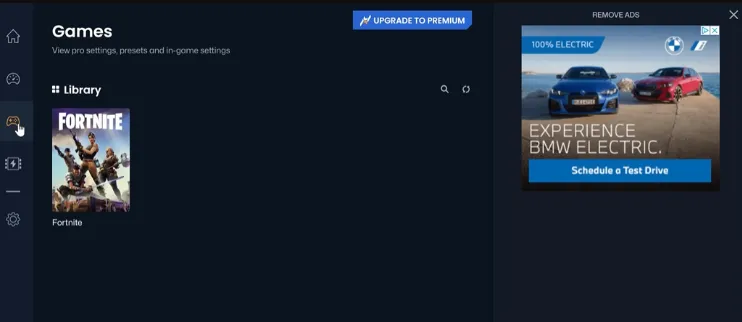
Whereas WMaster Cleanup can detect and offer exclusive optimization for over 5000+ titles. Moreover, it also offers three game performance modes to choose from: Lite, Advanced, and Esport.
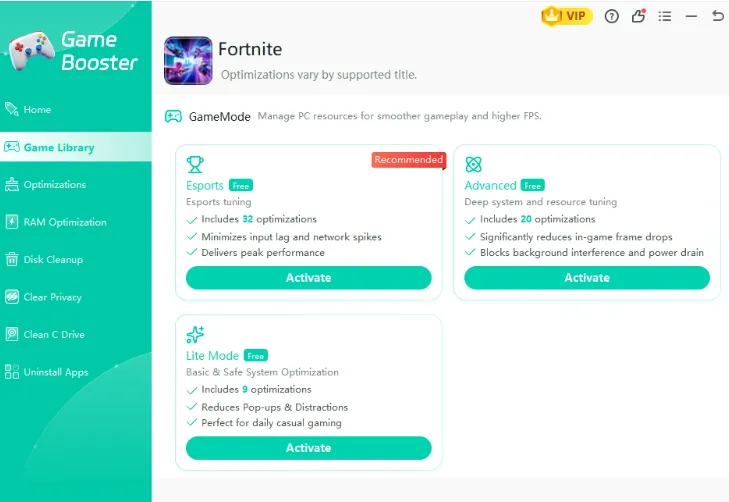
Whether you're a casual gamer or a competitive player, this tool can serve you the best.
Part 5: Which Game Booster to Choose?
Choosing between Hone.gg and WMaster Cleanup comes down to what is actually slowing your PC down. Here's my honest opinion on which game booster you must choose:
Use Hone.gg if:
- You have high ping or network spikes
The game booster has a dedicated network optimizer that optimizes Windows network stack to stabilize your PC.
- You deal with competitive games on a daily basis
Hone gg lowers the input lag by optimizing mouse pooling rate and stops background apps.
- Your PC suffers from micro-stutters
It eliminates micro-stutters by optimizing RAM allocation and disabling resource-heavy background apps.
Use WMaster Cleanup if:
- Your game chugs, stutters, or drops frames
The tool automatically deep cleans your system resources and forces the GPU and CPU to work at their optimal limits.
- You have a low-end device, playing open-world games
It will clear out temporary game data and deeply clean your disk to eliminate sudden micro-freezes.
- You want to avoid micro-stutters and improve input lag
WMaster Cleanup stops background processes, making your CPU work in a high-frequency state and enhancing response rates.
- You need a complicated PC cleaning tool
WMaster Cleanup will deeply optimize your system to remove duplicate files, clear browser cache, and uninstall unwanted apps in just one click.
Part 6: FAQs Related to Hone.gg and WMaster Cleanup Game Booster
Q1. Do game optimizers actually improve FPS, or just close background apps?
Game optimizers improve FPS by closing unnecessary background apps and reallocating system resources to your game. Game optimizers cannot directly increase your hardware's raw potential, but by freeing up your PC's RAM, they can increase minor raw FPS (around 5%).
Q2. Which game optimizer is best for low-end PCs with limited RAM?
There are multiple game optimizers such as WMaster Cleanup for low-end PCs that focus on memory management. So, whether you have a low-end or high-end PC, this dedicated game optimizer can help you get the most out of your hardware. It cleans up the background processes and targets startup optimization.
Make sure you don't choose tools packed with unnecessary features, as they use more resources, slowing down PC performance.
Q3. Can using two game optimizers at the same time improve performance?
No, using two game optimizers at once is not recommended at all. Using both tools at once may try to manage the same Windows setting, background apps, or files, which might affect your PC. Therefore, it's best to use one reliable optimizer, like Master Cleanup, that is safe and effective in optimizing games for PC.
Q4. Is WMaster Cleanup safe to use for game optimization?
WMaster Cleanup has a safe-first algorithm that avoids touching critical Windows system files and personal data. Before making any change or deletion, it gives a preview option of items that will be removed or optimized to customize your selection.
Q5. How do I choose the right game optimizer for my gaming needs?
Choosing the right game optimizer depends on what is causing your system to slow down. If it's lagging and stuttering because of background apps, then you must pick one that frees up your RAM. However, if your PC feels slow overall, look for one that also cleans junk files, manages startup apps, and improves system performance.
Conclusion
From the above one-on-one comparison, we can conclude that Hone.gg's ultimate goal focuses on reducing latency through Windows tweaks and improving FPS. The downside? You can do much of its gaming optimization manually, like lowering graphics settings. Additionally, you can use full features in the premium version only, although it is offering a limited free plan.
Whereas WMaster Cleanup's Game Booster can optimize your RAM thoroughly and clear up the background app to free up space for gaming. What's more? This intuitive and beginner-friendly tool offers exclusive optimization for over 5000+ titles with a single click.
Download WMaster Cleanup right away to experience maximum FPS and minimum latency while heading your game to the next level.