

Have your perfect, game-winning shot turned you straight back to the spectator screen because your character reacts a fraction of a second late? That maddening delay known as input lag is the ultimate silent killer of performance, transforming smooth, competitive gameplay into a heavy, unresponsive chore.
A slight delay in your action and screen's reaction can make or break your game. Fret not if you're wondering how to reduce input lag in gaming.
In this guide, I'll explain the main reasons for these annoying display delays and how you can fix them to improve the response time. Besides this, I'll share a Game Booster tool that you can use to improve the latency and FPS in seconds.
In this article
Part 1: What is Input Lag?
Simply put, an input lag is the delay between the moment you perform an action on a controller like keyboard or mouse and the moment it gets registered and displayed on screen. It’s measured in milliseconds and a small delay can feel like your control is heavy.
For example, if you press the forward button, input lag is the fraction of seconds it takes for your character to perform that action.
Here's an overview of what:
- Over 15ms excellent performance for professional gamers
- Over 40ms good for gaming enthusiast
- 50ms-70ms cause noticeable delays
- 70ms or above cause poor performance
People often confuses input lag with ping, but these are two entirely different things:
Input lag is the local hardware delay. It happens between your input, your computer, and your monitor. It happens in offline games as well as in single-player games.
On the other hand, ping is the time it takes for data to travel from your device to the game server and back. The higher a ping is, the more delayed action will be in online and multiplayer games.
Part 2: What Caused Reduced Input?
Input lag is the sum of multiple tiny delays in your entire setup. So, there are multiple reasons for it. But those are not connected with your gaming server or out of your control. It's best to know the main reasons and fix them to have a smooth overall gaming experience.
Here are the main causes of high input lag in gaming:
Peripheral Lag
Peripheral lag is the time it takes for your controller, mouse, or keyboard to register a physical action and send a signal to your PC.
Processing Lag
It is the time your system takes to process the incoming input command, calculate the in-game physics, and render the video frame.
Display Lag
It is the time it takes your monitor to receive the completed video signals from the computer and physically light up the pixels on the screen.
Display (Monitor/TV)
Using a normal monitor or TV adds HDR processing, image processing, and upscaling that cause an input lag.
Part 3: How to Reduce Input Lag in Gaming-8 Proven Methods
Ultimate Input Lag Optimizer-WMaster Cleanup
Are you looking for a fast way to eliminate annoying delay while gaming? WMaster Cleanup is your ultimate one-click solution to instantly reduce input lag. The powerful Game Booster feature clears out resource-heavy background apps, which immediately frees up your system's memory for maximum responsiveness.
It even handles your daily PC maintenance and optimization automatically before you ever launch a title. Besides this, the tool prepares your operating system for peak performance to ensure your game feels like it is in your control. The simple and clean interface makes it easy to use.

Reduce Input Lag in Gaming by WMaster Cleanup
- ·Provides 92 game configuration items to reduce input lag.
- ·Offers RAM optimization, making game feel smoother during intense actions.
- ·Reduce input lag by improving link between device & CPU (MSI mode).
- ·Adjusts CSRSS settings, which reduces input lag & improves reactiveness.
- ·Optimize Windows time resolution that improve response rate in games.

How to Reduce Input lag in Gaming by WMaster Cleanup
Here's a step-by-step guide to reduce the input lag in gaming using the WMaster Cleanup:
Step 1: Search for WMaster Cleanup in your browser, and from the features section, select the Game Booster. Now, click on the download option.
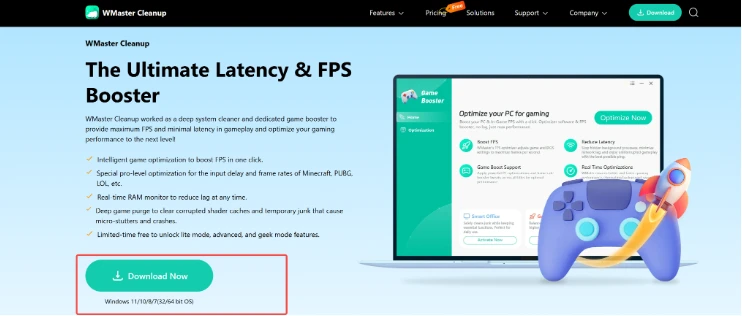
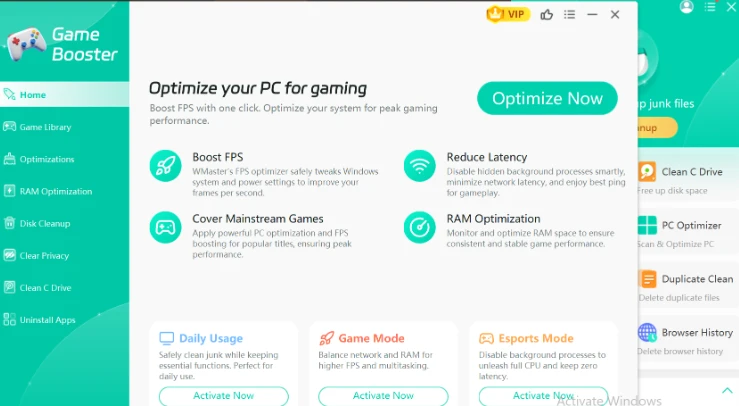
Step 2: Once the download completes, launch the app on your PC; you'll directly land on the Game Booster interface to tweak the Windows system and improve your frame per second.
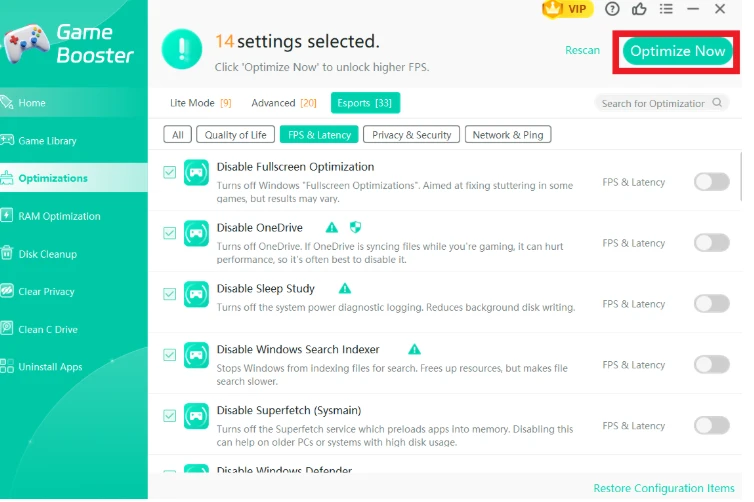
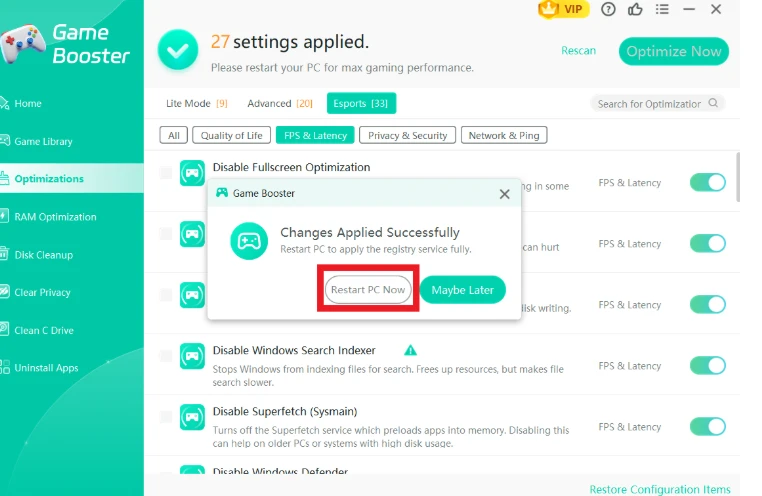
Step 3: From the left side, click on Optimization, tap on FPS and Latency, and then select the items to reduce input lag. Once done, click on the Optimize Now option.
💡Insider Tip: You can search for relevant configuration items in the search bar in the top right corner.
Step 4: After optimization, a window will pop up to restart your PC to unlock higher FPS and reduce input lag in gaming.
Looking to improve Frames Per Second in your gameplay? Read our hands-on writeup to find out 10 easy ways to boost FPS and level up your upcoming gaming sessions.
Other 7 Manual Methods to Reduce Input Lag in Gaming
Windows offer some manual indirect ways to reduce the input lag in gaming. These tweaks in settings improve the hardware performance, and that ultimately affects the input lag. Here are some ways to reduce input lag manually:
1. Use a Wired Peripheral Connection
First up, switching to a wired peripheral connection is an effective way to achieve consistent physical latency. Wired connections bypass the signal interference and battery throttling that causes sudden spikes in input lag.
2. Change Mouse Interrupt Priority (Registry)
By default, Windows treats all hardware interrupts similarly. You can manually force the operating system to prioritize your mouse's USB port over other devices.
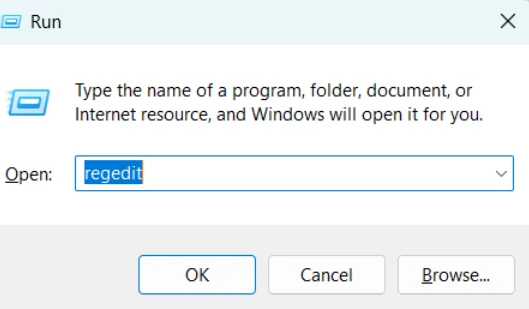
Step 1: To start with, you have to press Win + R and in the dialogue box type regedit.
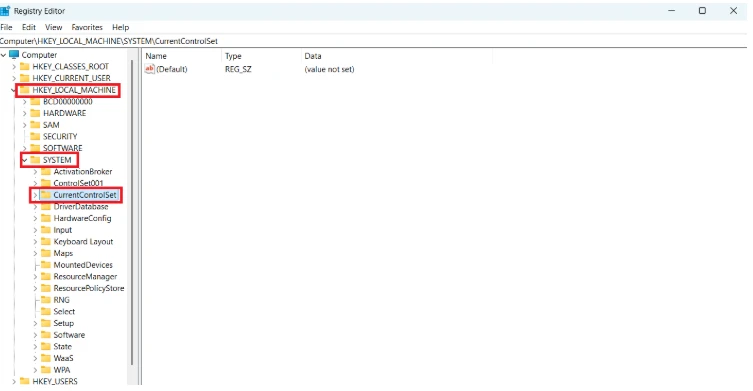
Step 2: A new window will appear and you need to follow these steps to reach to priority control: HKEY_LOCAL_MACHINE\SYSTEM\CurrentControlSet\Control\PriorityControl
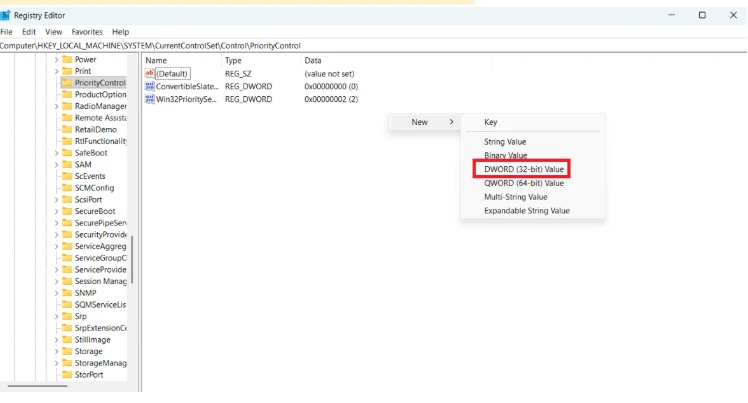
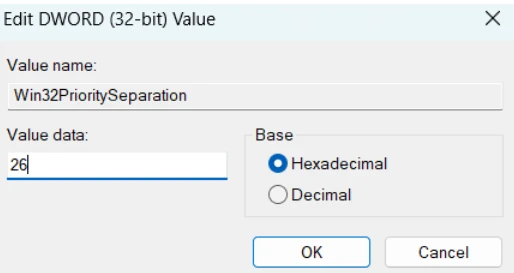
Step 3: Once the Window opens, now right-click an empty space and select New & DWORD (32-bit) Value. Change the name to Win32PrioritySeparation.
Step 4: Now,double-click this new DWORD and here you have to set the Base to Hexadecimal. Furthermore, change the value to 26. This optimizes quantum scheduling for foreground applications/games.
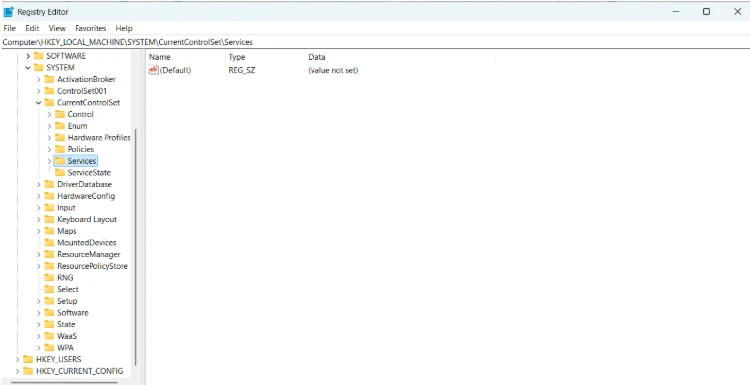
Step 5: As soon as you're done with it, you have to follow these steps to reach to parameters: HKEY_LOCAL_MACHINE\SYSTEM\CurrentControlSet\Services\Mouclass\Parameters
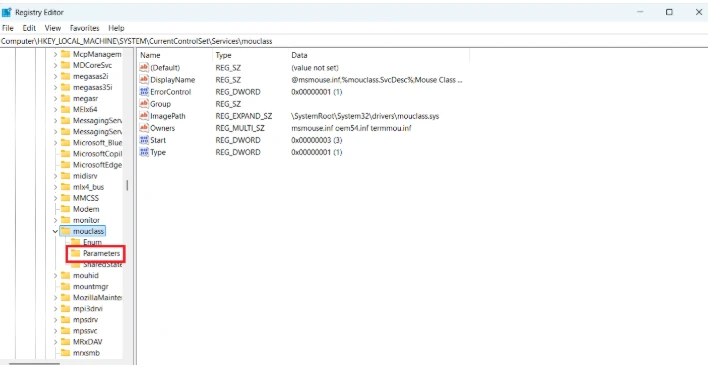
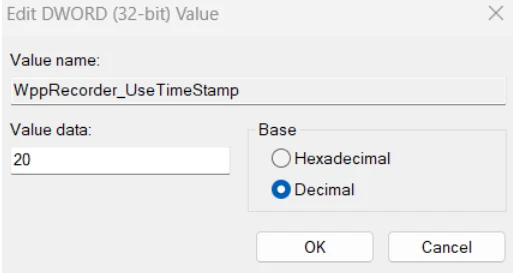
Here, you have to look for MouseDataQueueSize. Now, double-click it and set the Base to Decimal. Here, you must lower the value from 100 to 20 or 30. This will shrink the buffer size and allow the Windows to process mouse packets faster.
You also need to remove large files from your PC to optimize the Windows function and improve your PC's performance.
3. Switch to the Hidden "Ultimate Performance" Power Plan
The standard Windows High Performance plan still allows minor CPU core parking and clock-rate dips. The hidden Ultimate Performance plan completely eliminates hardware power-state transitions.
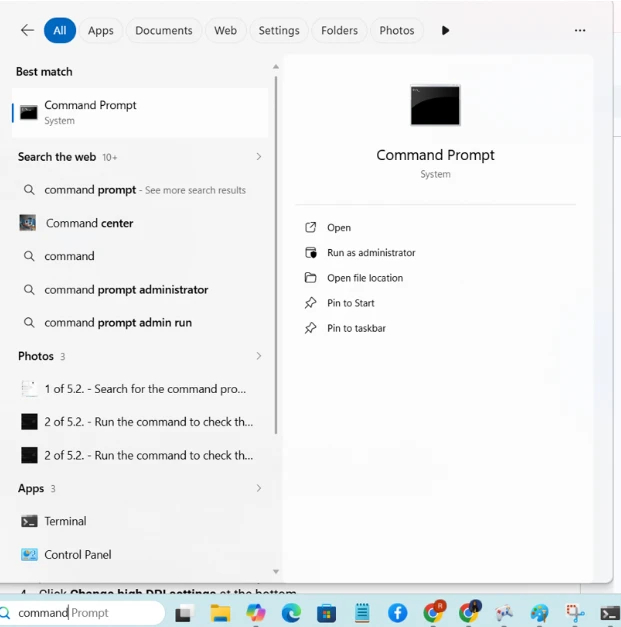
Step 1: Right-click the Start button and open Command Prompt (Admin).
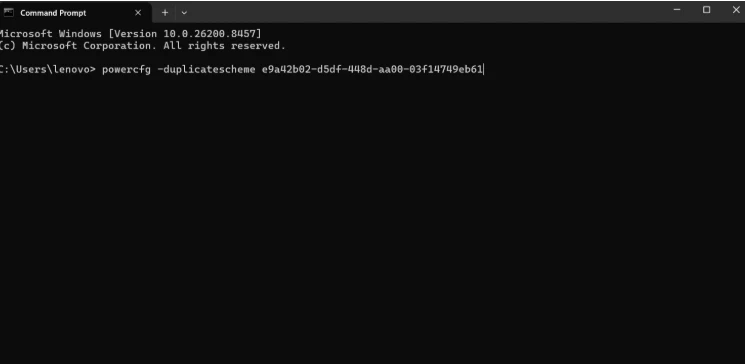
Step 2: Here, you need to paste the following command and hit Enter:
powercfg -duplicatescheme e9a42b02-d5df-448d-aa00-03f14749eb61
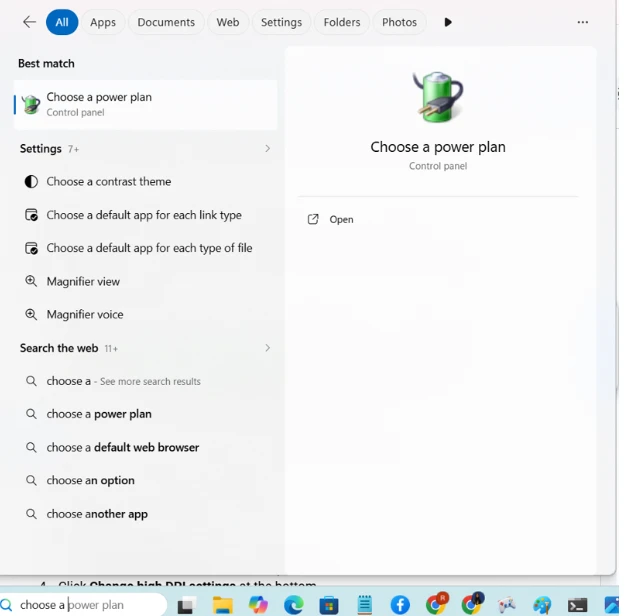
Step 3: Once this is done, now go to your Windows Search bar and type Choose a power plan, and open it.
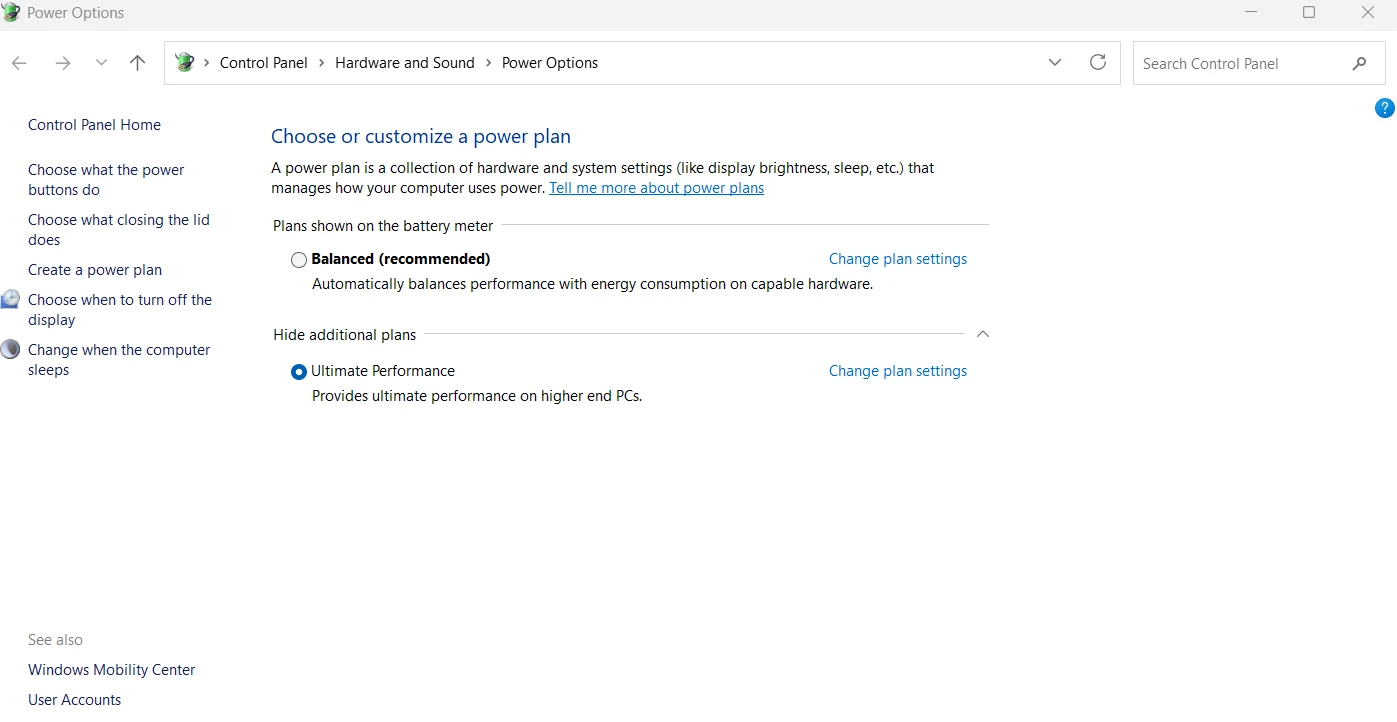
Step 4: You have to select the newly unlocked Ultimate Performance plan to remove all the power-state transitions and ultimately improve the lag in gaming.
Check out the best PC cleaners for Windows 10 and 11 for a smooth performance during your gameplay.
4.Disable the Windows Desktop Window Manager (DWM) Flickering Fix
Windows forces a hidden system-level frame queue mechanism called Flip Presentation Model on windowed applications to prevent screen tearing. While beneficial for office work, it introduces a 1-to-2 frame delay to games run in borderless or windowed states. You can use the Registry to forcefully minimize this background desktop composition buffer.
Step 1: To begin with, you have to press Win + R. Once the dialogue box appears, type regedit, and hit Enter.
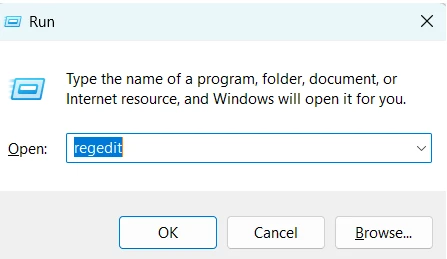
Now, you have to navigate to the following path:
HKEY_CURRENT_USER\Software\Microsoft\Windows\DWM
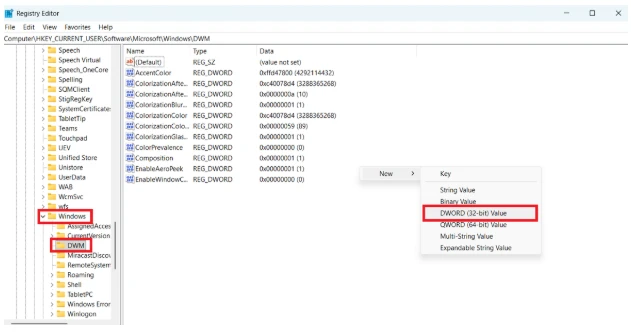
Step 2: Here, you have to right-click on an empty space and a sign of New will appear. Expand it and choose New & DWORD (32-bit) Value, and name it Composition.
Now, double-click Composition and change its value data to 1.
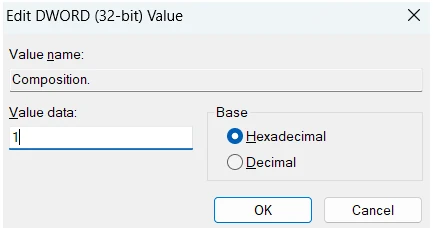
This forces the desktop compositor to minimize processing lag for applications.
Step 3: Now right-click again and this time choose New & DWORD (32-bit) Value, and name it MaxPreReadFrames.
You have to double-click it and set its value to 1.
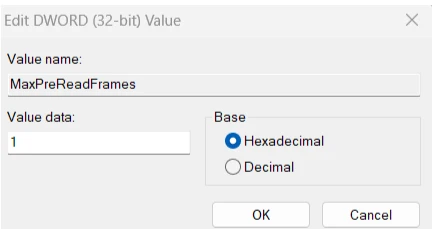
This will force Windows to stop pre-rendering desktop frames in advance, dropping input latency directly at the OS level.
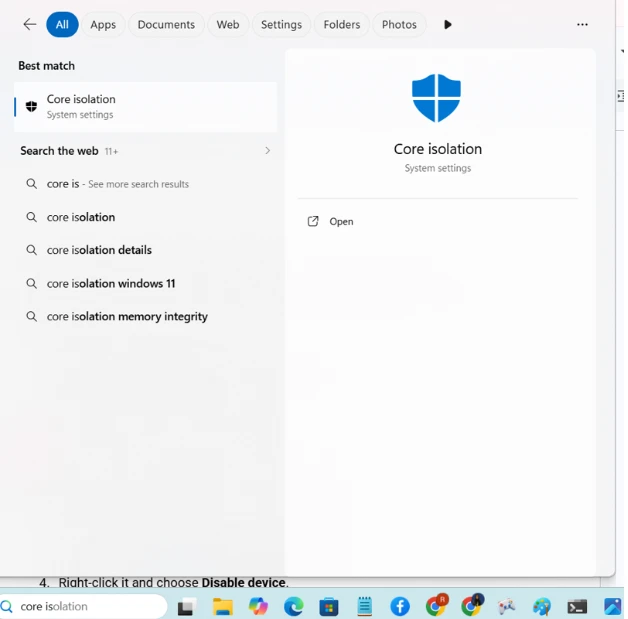
5. Disable Core Isolation & Virtualization-Based Security (VBS)
VBS runs a hypervisor layer beneath Windows to protect system memory. However, this virtualization layer adds measurable CPU overhead and input latency during heavy gaming. To disable core isolation and VBS, you need to follow these steps:
Step 1: First of all, search for the Core Isolation in the Windows Start menu.
Step 2: Turn Memory Integrity to Off and reboot your PC.
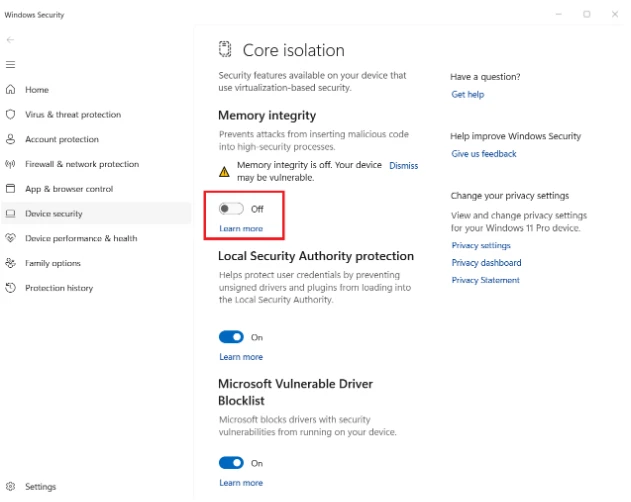
💡Tips:This lowers defense against highly advanced malware, but maximizes raw hardware responsiveness.
6.Terminate HPET (High Precision Event Timer)
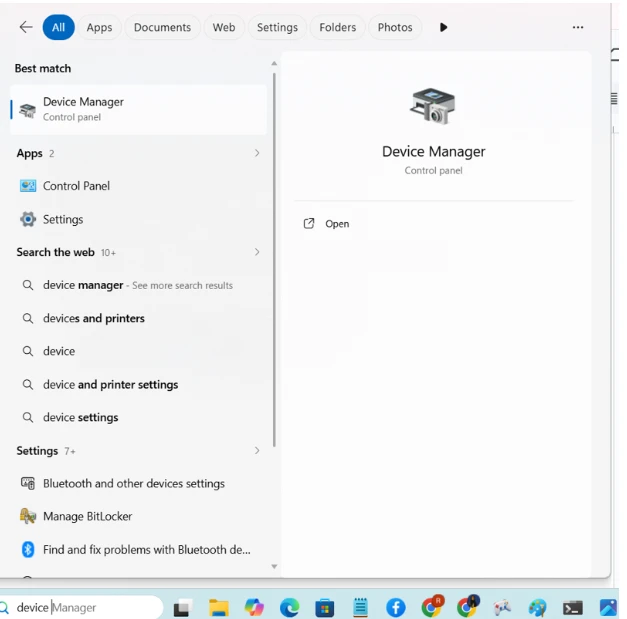
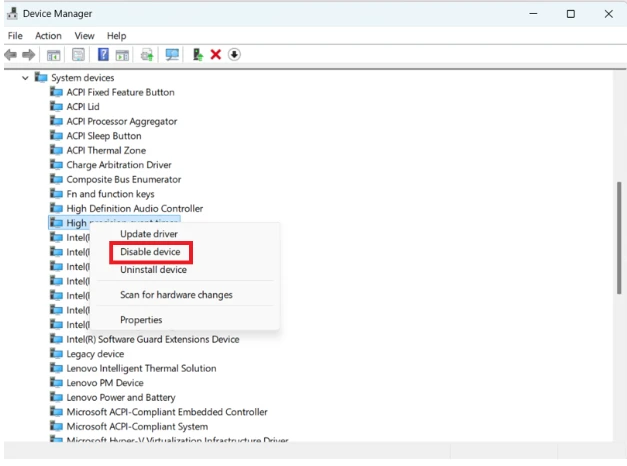
Your CPU spends cycles constantly checking the HPET. It's an older hardware timer that can cause micro-stutters and input delays. By following these steps, you can terminate HPET:
Step 1: Right-click the Start button and from the options you have to select the Device Manager.
Step 2:Here, expand the System devices category from different options, select the High precision event timer. Now, right-click it and choose Disable device to reduce input delays.
7. Disable Unnecessary Background Processes
Background applications like updates take up a lot of power and often interrupt gaming. So, it's best that you remove the background processes completely while gaming. Follow along to know how to reduce input lag by removing these:
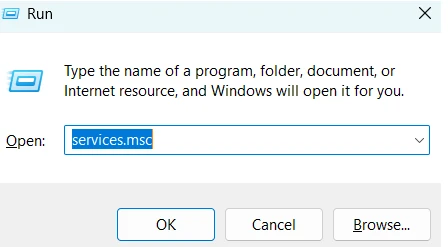
Step 1: Press Win + R and type services.msc in the dialogue box.
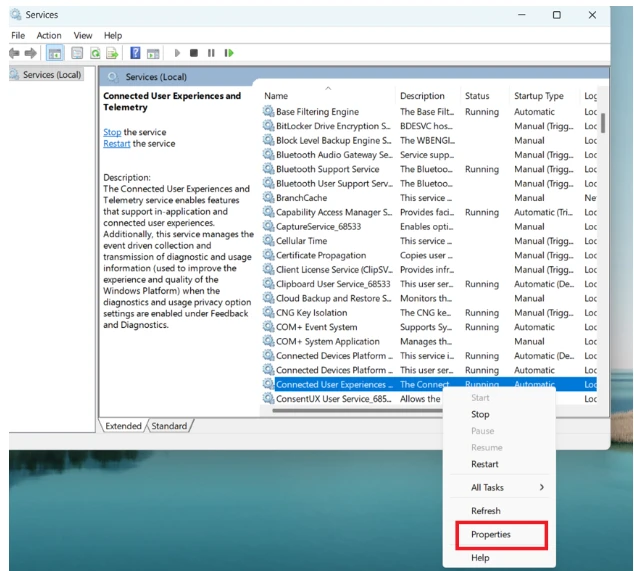
Step 2: Now, you have to scroll down to find Connected User Experiences and Telemetry. Once you locate it, right-click and select Properties to expand it.
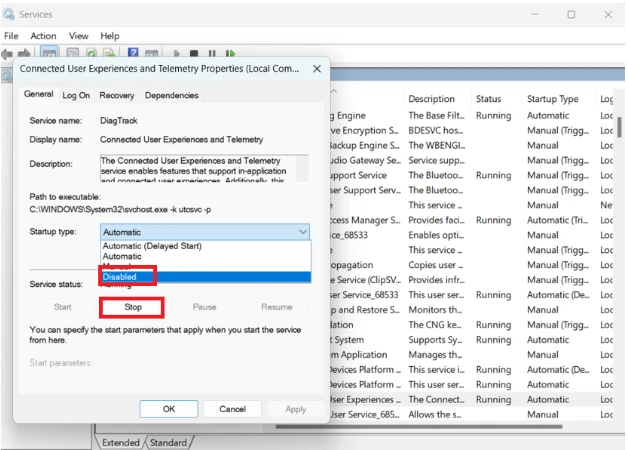
Step 3: Here, you have to change the Startup type to Disabled and click Stop.
With WMaster Cleanup, you can also automate the above process with a single click, along with clearing temporary files, removing the cache, and removing or moving large files that are taking up space and slowing down your PC.
Part 4: Tips: Best Settings for Low Latency Gaming
You need perfect settings to optimize your system and connection. This includes high-end internet connection, manual monitor settings, and disabling V-sync in your game options. Here are some tips about how to set up well for low latency gaming.
- By turning ON your display's game mode, you can cut out heavy image processing lag. Besides this, you can drop input latency down to the bare minimum.
- By disabling V-Sync in-game, you can eliminate artificial frame-rendering delays. Additionally, you can use hardware-level options like G-Sync or FreeSync.
- High demanding visuals often lead to input lag. So, make sure you drop the graphics quality like shadows and ambient occlusion to instantly boost your FPS and enjoy smooth gameplay.
- Make sure you enable specialized, low-latency GPU settings in your control panel, such as Nvidia Reflex or AMD Anti-Lag, to optimize frame queues.
- Lastly, set your system power plan to High Performance so that your CPU and graphics card run at maximum clocks without lagging.
Part 5: FAQs Related to Input Lag in Gaming
Q1. What's the fastest way to fix lag?
The fastest way to fix lag is to change your network. You can switch from Wi-Fi to Ethernet cable to avoid disturbance and data loss. Besides this, remove all the background apps and processes.
However, if there's an input lag, then you have to turn on Game Mode on your TV or monitor and instantly disable V-Sync in your game's video settings.
Q2.Is 40 latency good or 50?
Yes, both are considered very good for online gaming. A latency (ping) between $20\text{ ms}$ and $50\text{ ms}$ offers a smooth, competitive experience. You will generally not feel any noticeable delay until your latency goes above $100\text{ ms}$.
Q3. Does the highest refresh rate reduce input lag?
Yes, a higher refresh rate allows the display to update more frequently. That ultimately reduces the delay between your input and what appears on screen.
Q4. Does 120Hz reduce lag?
Yes, a 120Hz monitor refreshes the image on your screen twice as fast as a standard 60Hz screen. This cuts the display delay in half and makes your mouse movements and gameplay feel significantly more responsive.
Q5. How to get 0 delay on your PC?
You can't achieve zero delay on your PC because the hardware processing has its own limitations. However, you can achieve a near zero delay in your game with these:
- Using a high-refresh-rate gaming monitor (144Hz or higher).
- Enabling low-latency technologies like Nvidia Reflexor AMD Anti-Lag.
- Using wired keyboards and mice with high polling rates ($1000\text{ Hz}$ or more).
- Keeping your frame rate high by lowering demanding in-game graphics settings.
Final Words
That's all you need to know about how to reduce input lag in gaming. With these 8 proven methods, you can significantly reduce your input lag and feel that your game is in your control. Besides these hardware tweaks, make sure your internet connection is good and your system is cleaned of all junk.
With WMaster Cleanup Game Booster tool, optimize your CPU and GPU to lower system latency and input lag within seconds. Get precise game performance control in three different modes and enjoy a smooth gaming feel.


