

As time passes, temporary data, junk files, and unwanted apps pile up that slow down your PC. Many Windows users face these issues and wonder how to clean windows 11 efficiently. Luckily, built-in cleanup tools that come with Windows 11, like Disk Cleanup and Storage Sense, make your system cleaner and faster without needing any third-party software.
In this write-up, I will share tips to back up your data before guiding you on how to clean your Windows 11 using its built-in tools. Likewise, I will also recommend an exceptional Windows cleanup tool that works as a magic wand to clean up your PC within seconds and is designed for both experts and beginners, which can help you remove clutter.
In this article
- Before Cleaning Windows 11—Back Up and Check Your PC
- Clean Junk Files and Temporary Files in Windows 11
- Remove Unwanted Apps in Windows 11
- Clean up C Drive in Windows 11
- Optimize Startup and Background Processes in Windows 11
- Free up Storage and Organize Files in Windows 11
- [Optional Bonus] Use a Trusted PC Cleaner Tool to Clean up Windows 11 Automatically
- Helpful Windows 11 Maintenance Tips: PC W11 Cleanup
- Hot FAQs About Windows 11 Cleanup
Part 1: Before Cleaning Windows 11—Back Up and Check Your PC
It is fundamental to safeguard your data before you start the cleanup process for your PC. It is a smart move to create a restoring point or back up your important files, especially when you are going to delete files and uninstall some apps. As Windows 11 offers instant access to the below insights, you should perform some basic checks that help you identify problem areas before cleaning:
- Get an overview of your system health
- Check your device storage capacity
- Review recent issues, like crashes or errors
Before you dive into cleanup mode, it will be a smart move to make sure your PC's in a good place, especially after facing a weird glitch or a major update that may have gone wrong. Trust me, if you backed up your important stuff and checked for hidden issues, it will give you peace of mind during cleanup while keeping your data safe and potential problems sorted.
Part 2: Clean Junk Files and Temporary Files in Windows 11
As time passes, any device you use, including Windows 11, accumulates lots of junk, like temporary files, cached data, leftover files from apps, or duplicate files. If you clear out this junk from your system, you can free up a surprising amount of storage space and boost its performance. In this section, I will guide you on how you can use Windows 11's in-built tools, like Storage Sense and Cleanup Recommendations, to clean your PC.
Steps to Clean Junk Files and Temporary Files-System cleaner windows 11
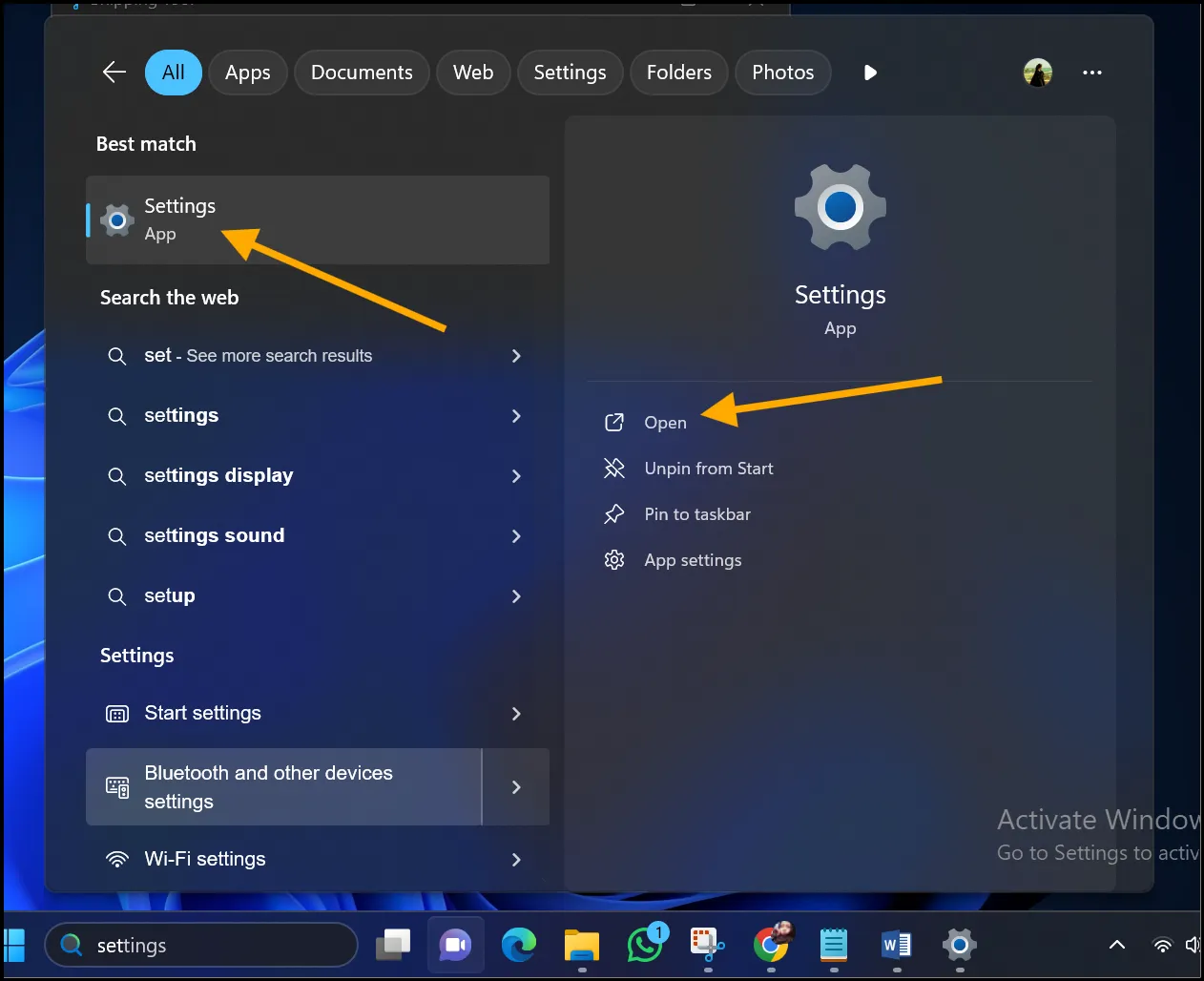
Step 1.Navigate to the taskbar, search for "Settings", and open it. Once you open the settings interface, first click "System", and then hit "Storage" to clean junk and temporary files.
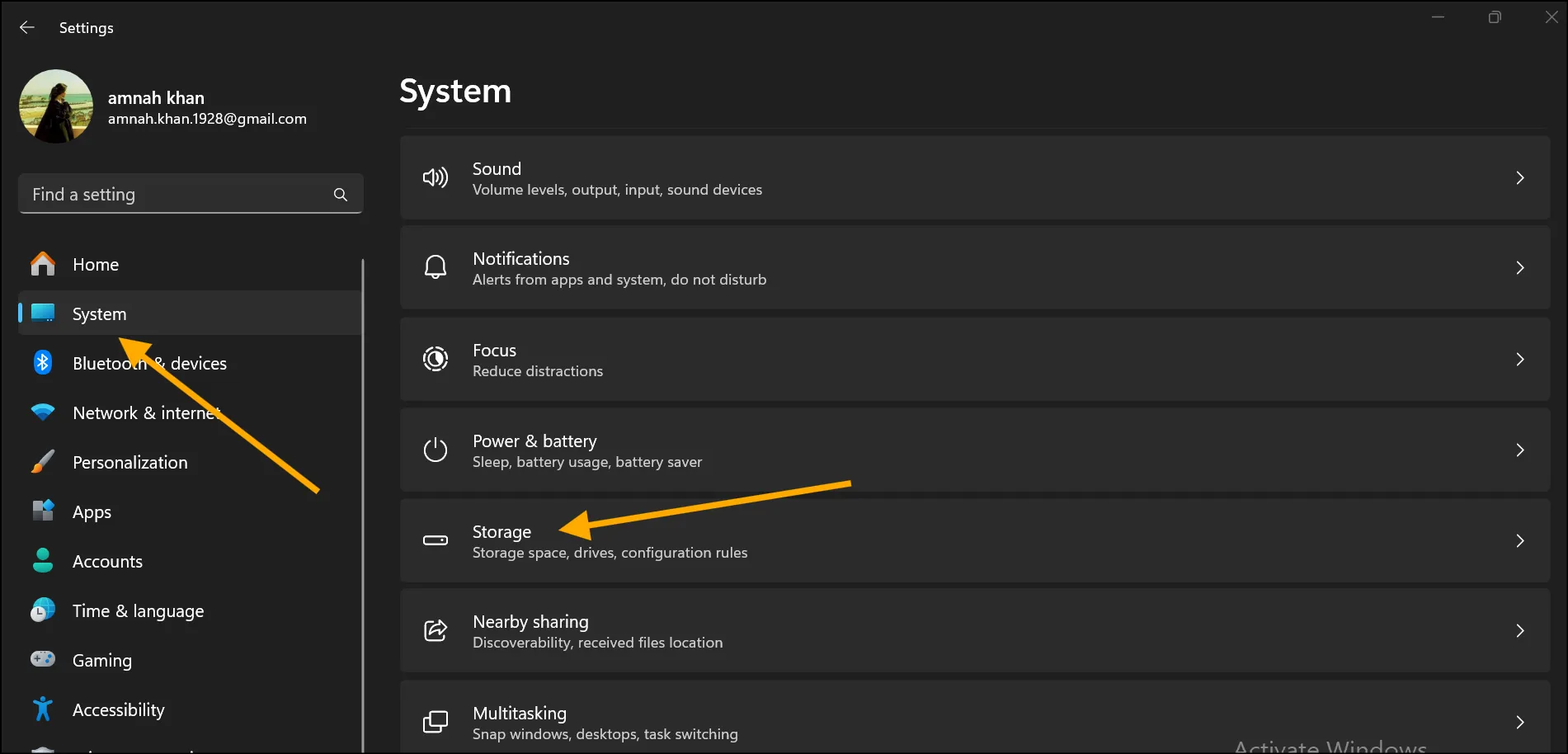
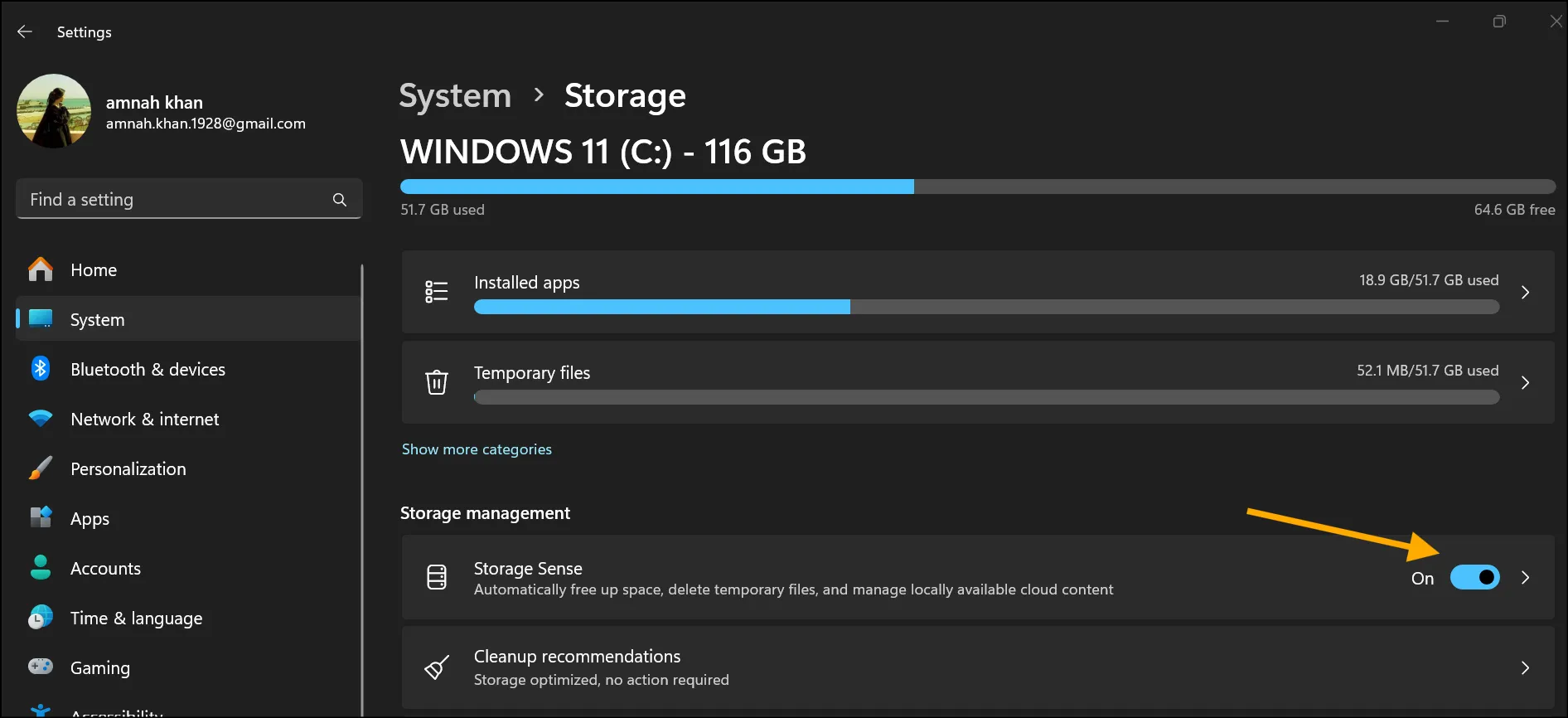
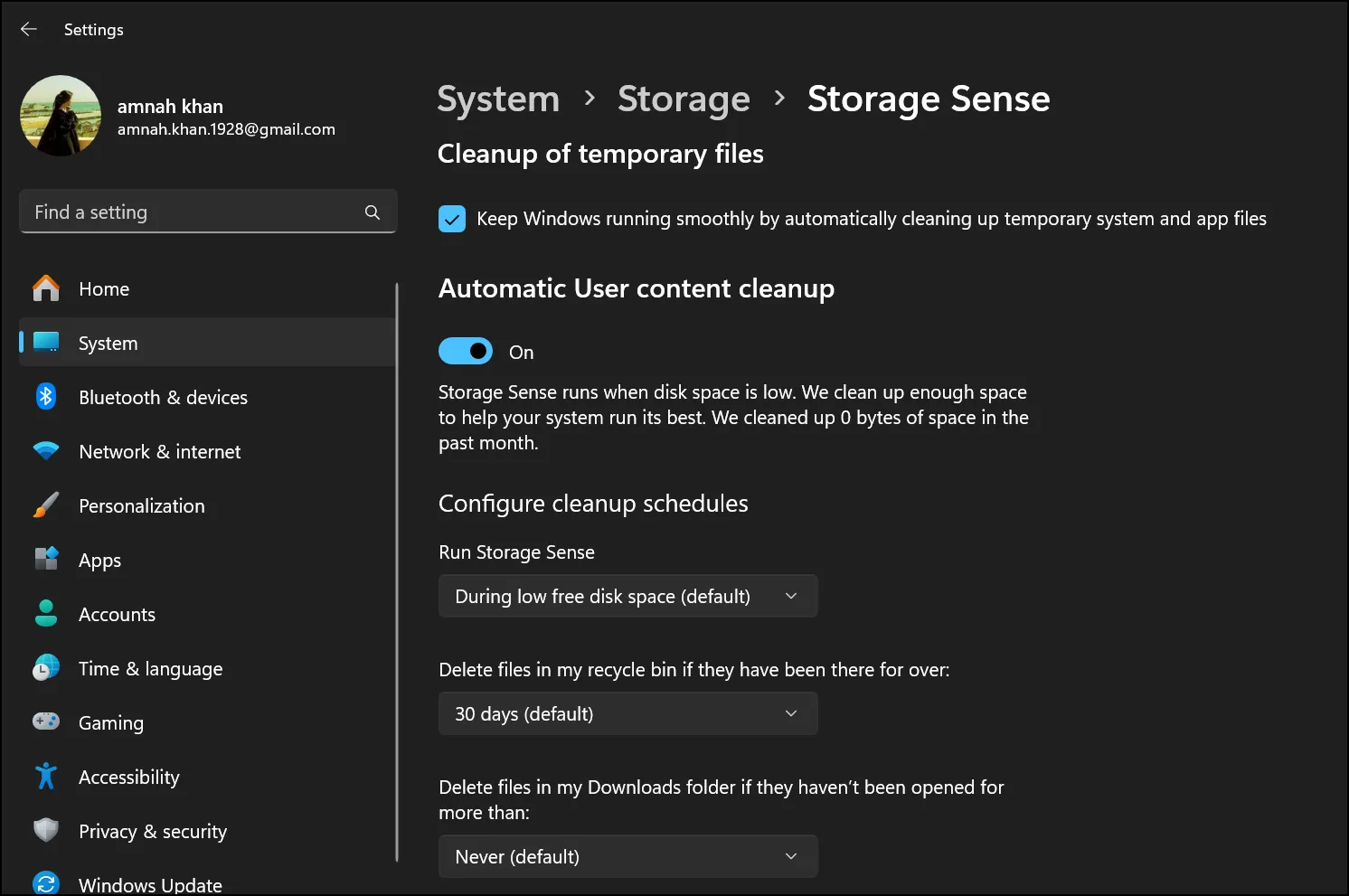
Step 2. Now "Turn on" the Storage Sense to auto-clean temporary files and manage storage on your Windows 11 effortlessly. Press the ">" button and custom select the preferred time to auto-clean your storage by configuring cleanup schedules.
💡Tips:If you want to make your system cleaner and faster, enable Storage Sense and make your routine cleanup effortless-all without manual digging.
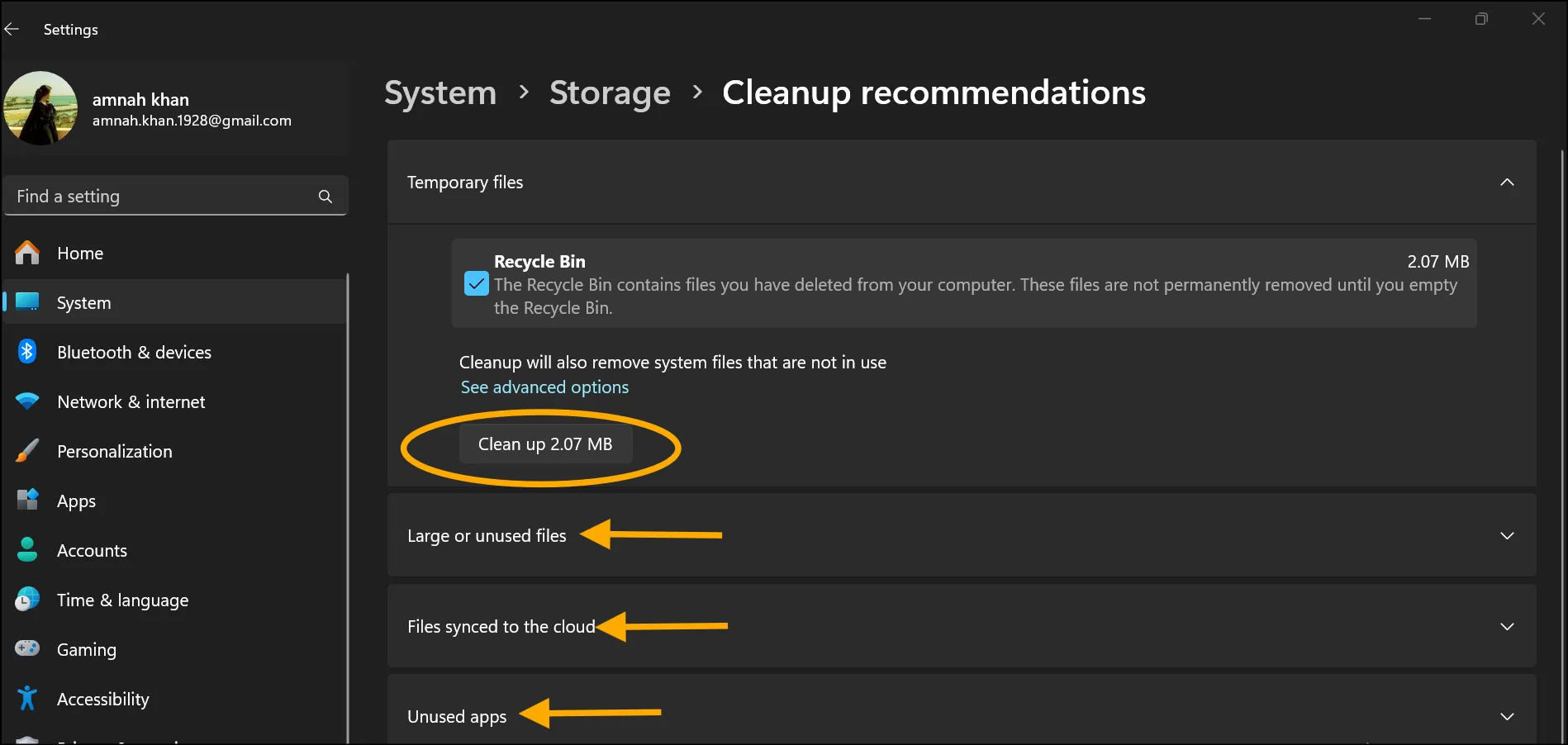
Step 3. Click "Cleanup Recommendations" on the Storage interface and see what your Windows 11 suggests removing, like large or unused files, unused apps, or files synced to the cloud. Select files that you want to remove and then hit "Clean" to instantly delete unwanted files.
💡Tips:You can permanently delete your Recycle Bin files in one go if you check the blue box and click "Clean up".
Part 3: Remove Unwanted Apps in Windows 11
Clutter is not only files; it is also those apps that you have downloaded on your Windows 11 but never use. Maybe they are trial software that expired ages ago, leftover downloads, or just plain clutter that you no longer need. Whatever your reason is, it is time to kick out unwanted apps and clear up some device storage. Removing unnecessary apps with built in clean up tool that comes with Windows 11 is straightforward:
Steps to clean unused files windows 11
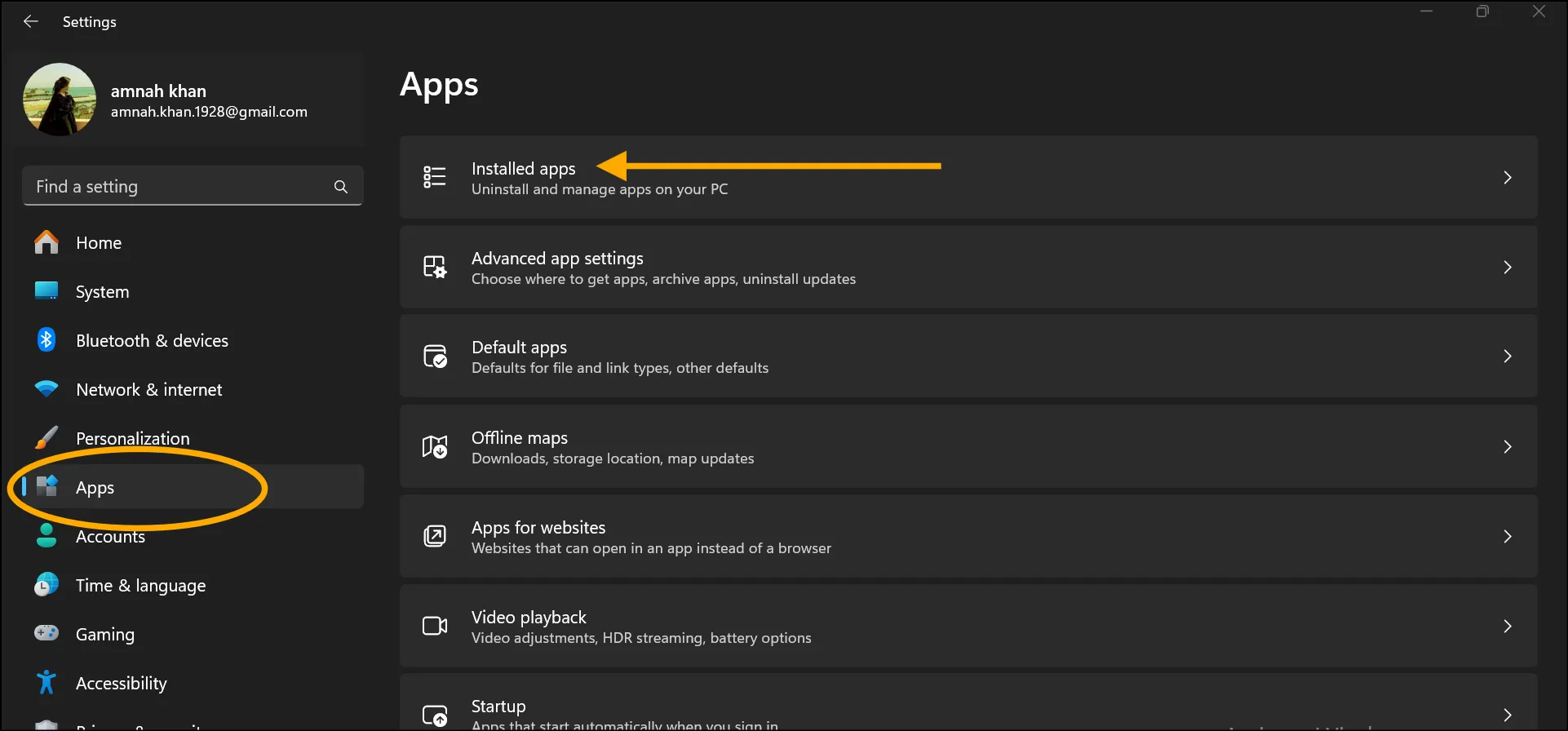
Step 1. Open your system's settings, click "Apps," and then select "Installed Apps" to uninstall and manage apps on your Windows 11.
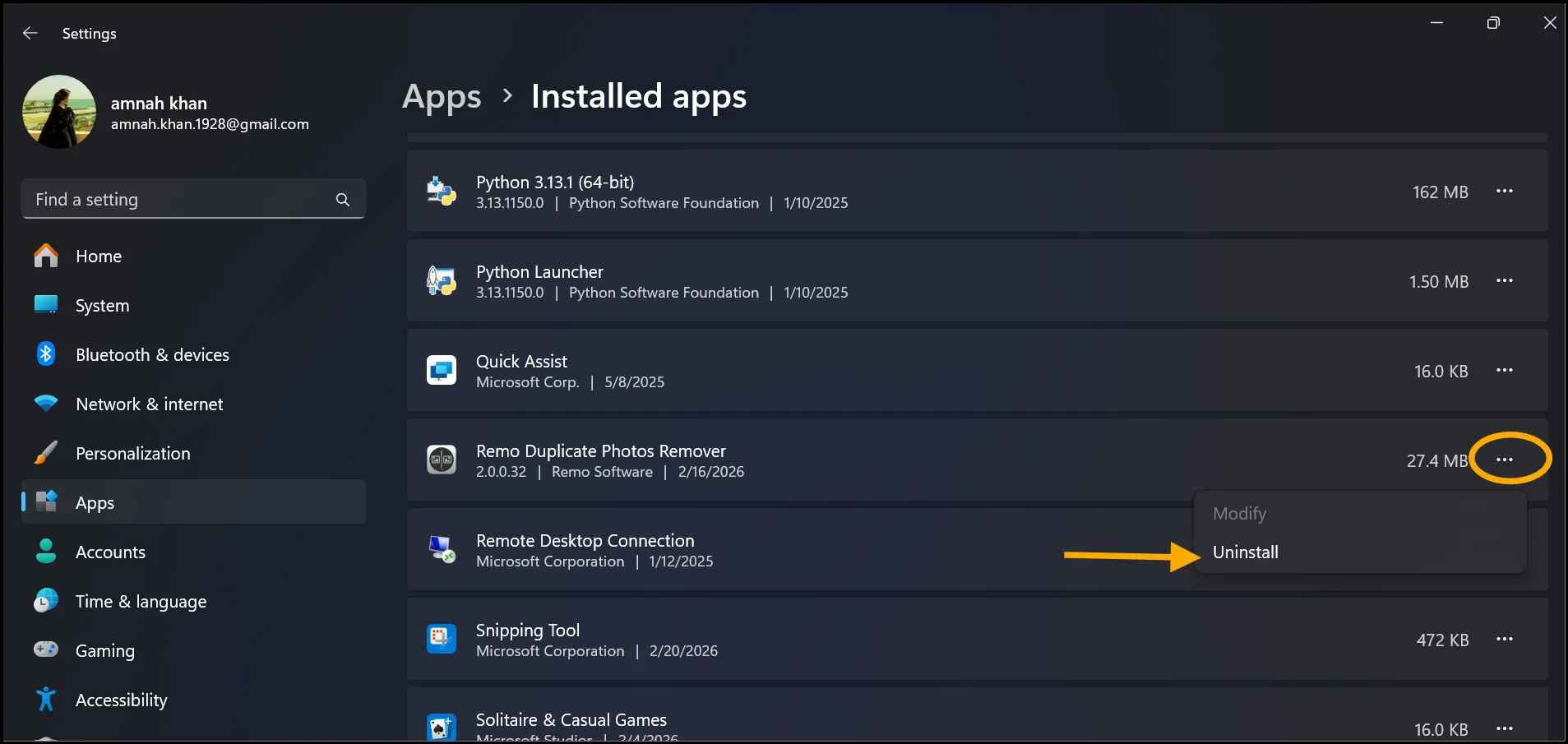
Step 2. Now scroll through the apps and identify which app you don't need. Tap on 3 dots and hit "Uninstall" to remove that specific app from your system.
💡Tips:If you remove unused apps, like old games or trial software, you will free up space and make a noticeable difference in your Windows 11 performance.
Part 4: Clean up C Drive in Windows 11
Has your primary drive, usually C:, become a dumping ground for files? Let's tackle this by learning where is Disk Cleanup in Windows 11 and how you can quickly reclaim storage space and give your Windows 11 a breath of fresh air!
Steps to clean up C drive windows 11
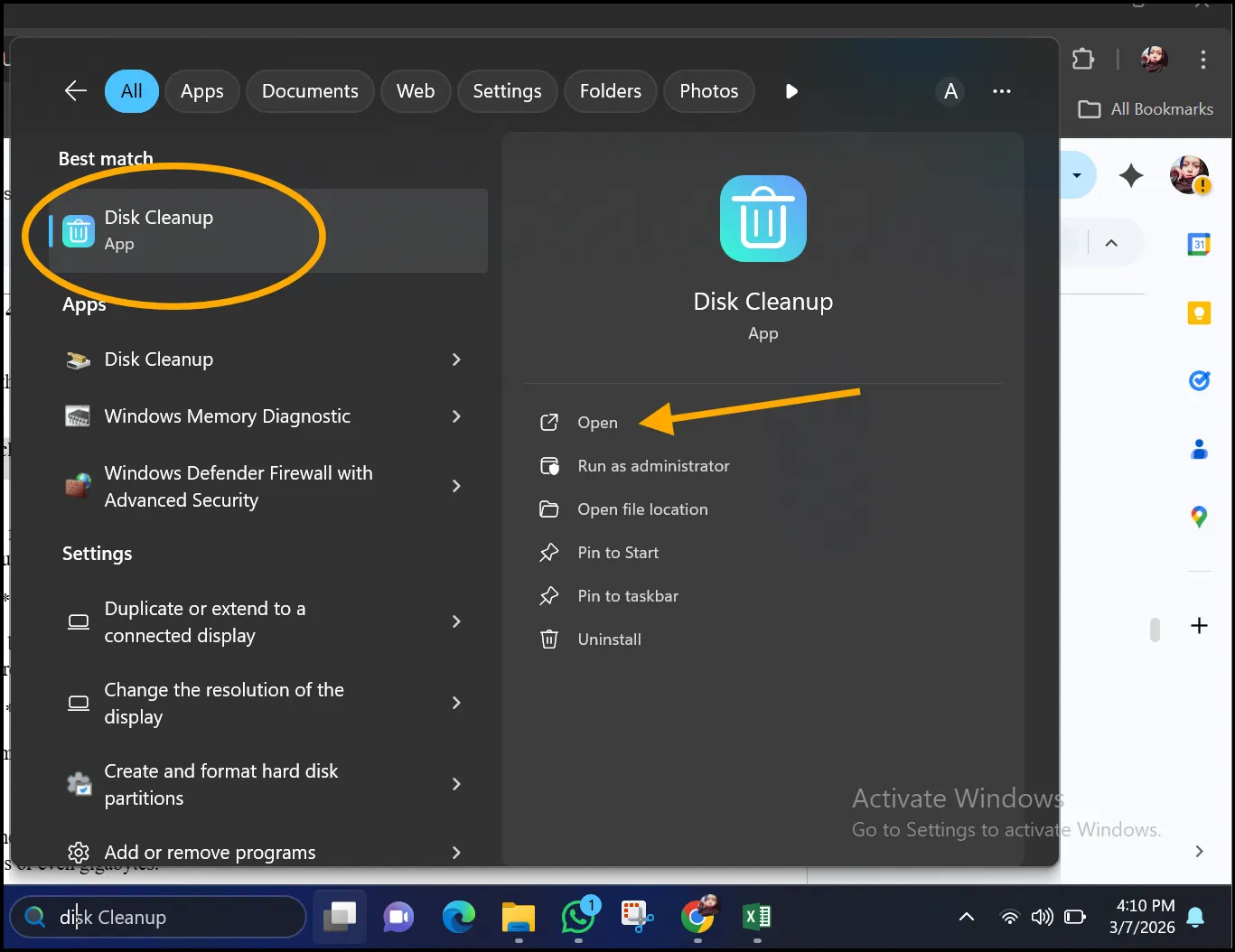
Step 1. Go to the Start menu, search for the "Disk Cleanup" app, and click "Open" to clean up the C drive in Windows 11.
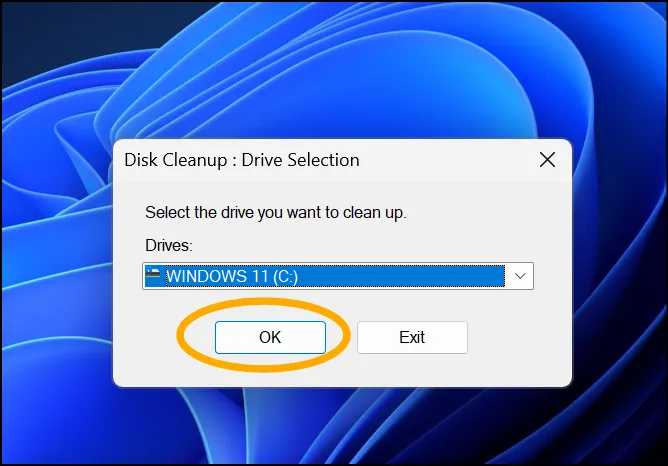
Step 2.Now select your C drive "Windows 11 (C:) " and click "OK" to remove unwanted files from your sytem.
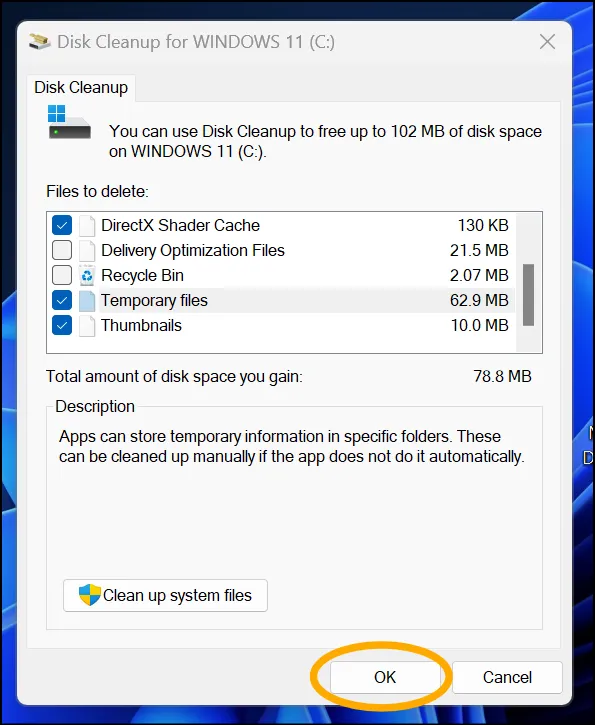
Step 3. To delete unwanted files, like temporary files, Thumbnails, Recycle Bin, or previous Windows installations, tap and check desired boxes.
💡Tips:To deep clean your system, hit "Clean Up System Files" and get more efficient and smoother PC.
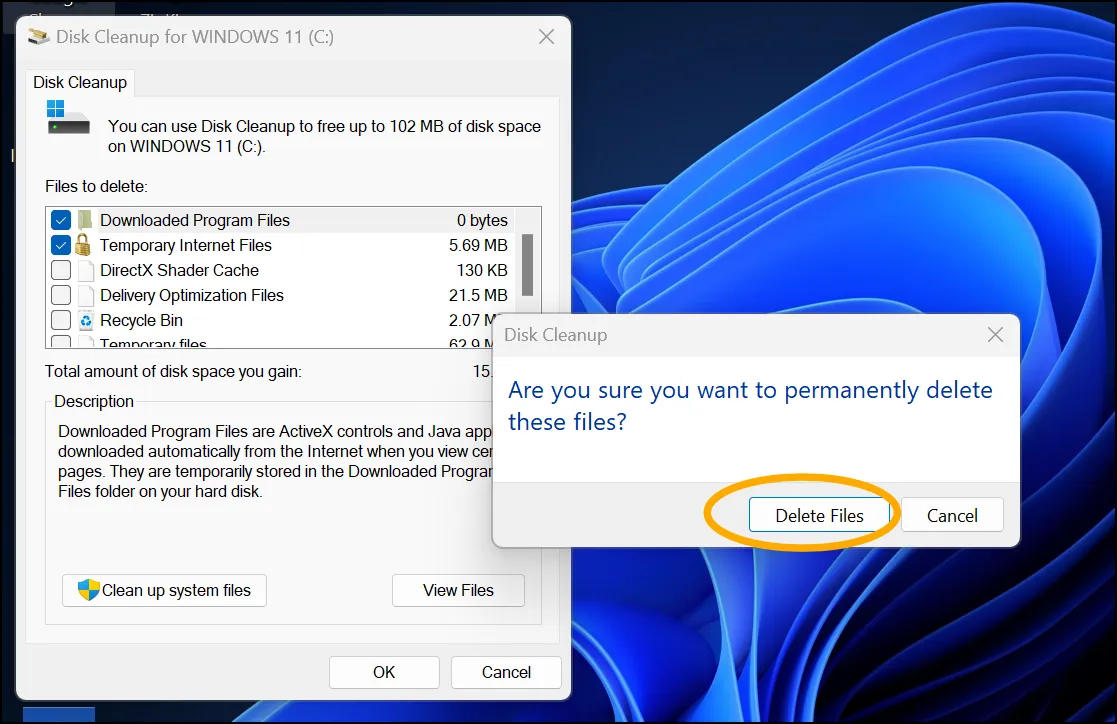
Step 4. Now confirm your deletion by tapping "Delete Files" and wait for the process to complete.
💡Tips:If you are looking for "how to free up space on windows 11", use this effective and straightforward method to free up hundreds of megabytes or even gigabytes.
Part 5: Optimize Startup and Background Processes in Windows 11
Is your Windows 11 taking forever to start up? Or, are you frustrated due to a slow boot or hindered productivity? The good news is, many delays happened only because of unnecessary startup apps and processes that are running silently in the background, which can consume system resources and significantly slow down your system. If you remove or disable them, you can surprisingly boost your system's overall performance.
Steps to Optimize Startup and Background Processes in Windows 11
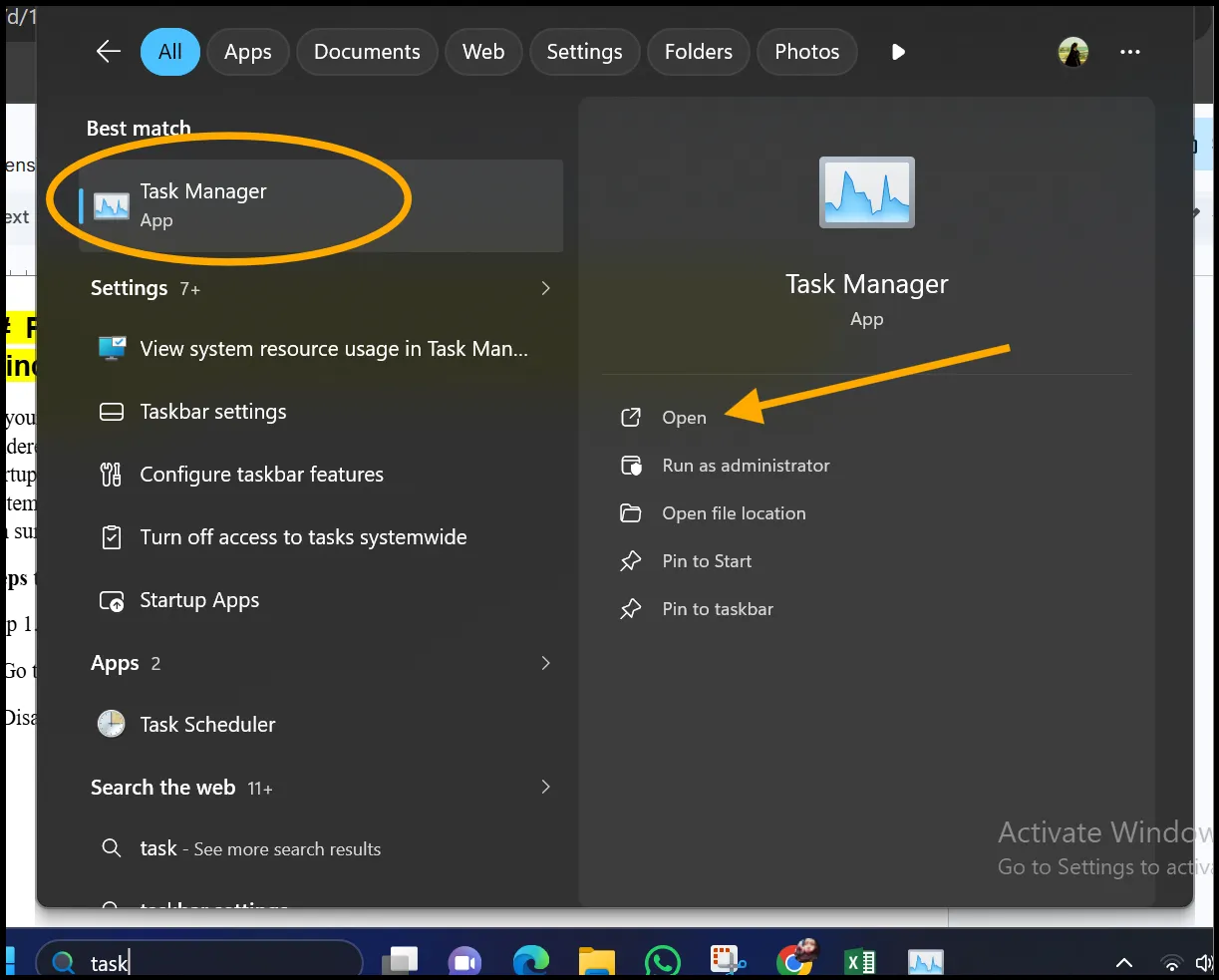
Step 1. Search for the "Task Manager" app on the startup menu. Click "Open" to open its interface on your desktop.
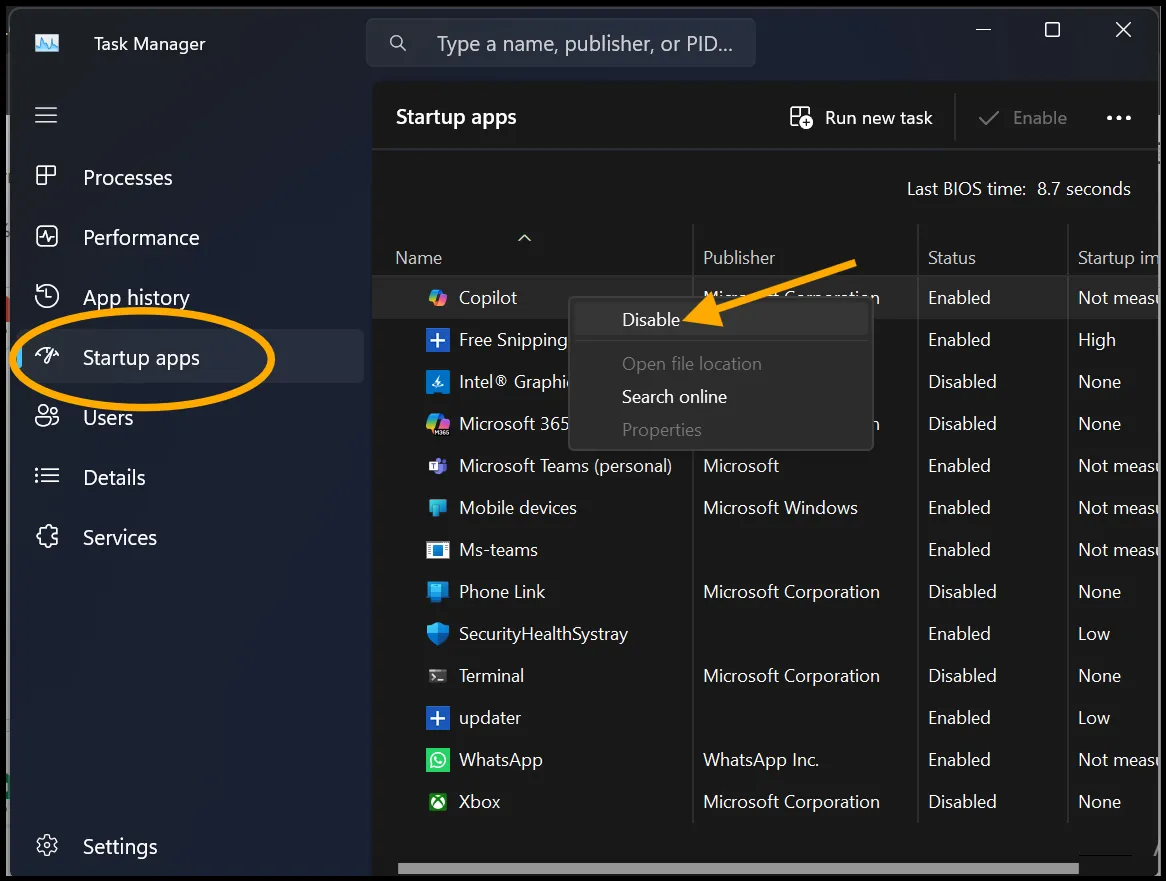
Step 2. First click "Startup apps", then right-click on the unnecessary app and tap "Disabled" if they are "Enabled".
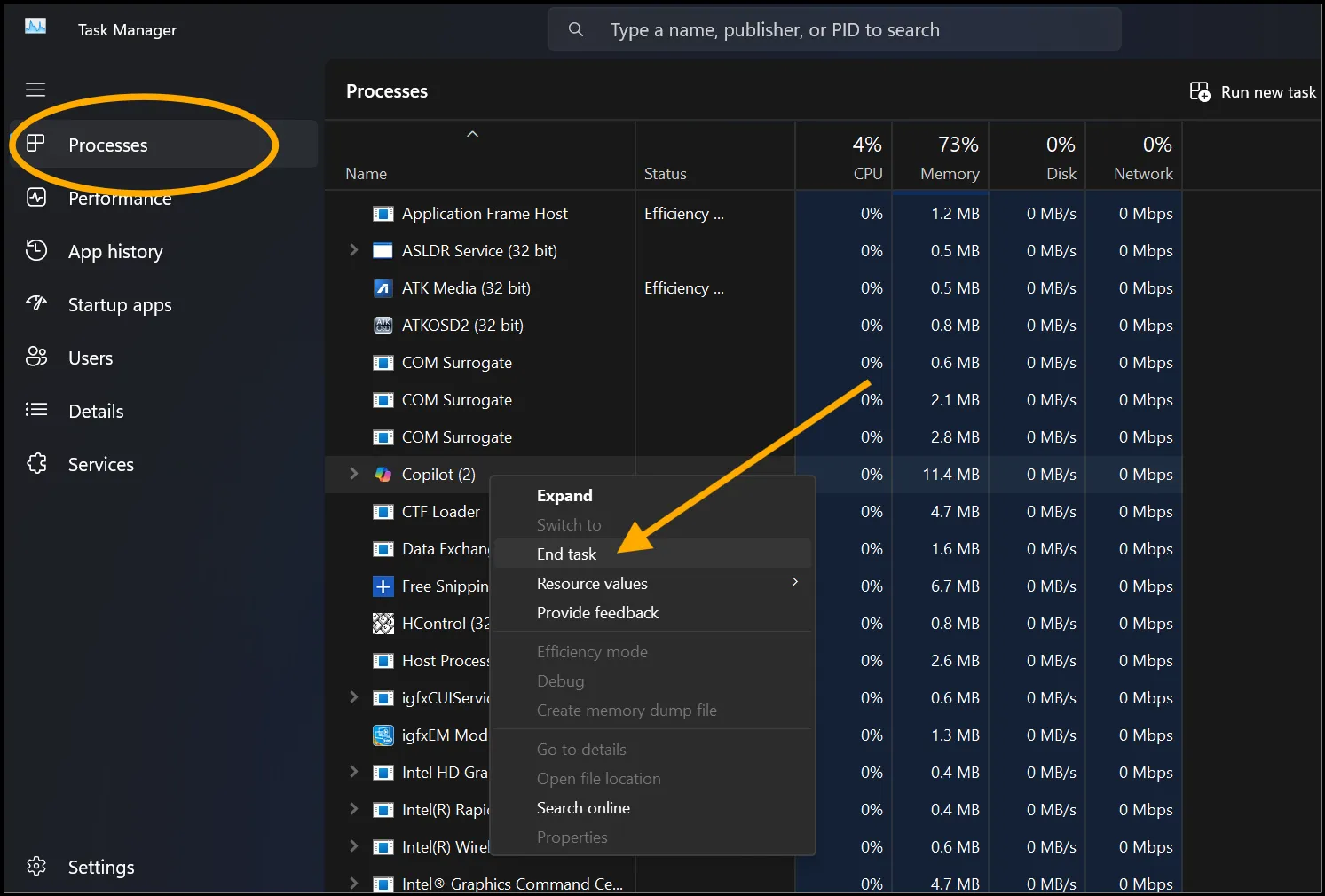
Step 3. Now navigate and click the "Processes" tab. Identify resource-heavy apps, and if they are not needed, right-click and hit "End Task".
Part 6: Free up Storage and Organize Files in Windows 11
Even after cleaning junk files and uninstalling apps using the above methods, do you still feel like your Windows 11 is a mess? Don't worry! It is a common issue that files often scatter all over, making it harder to find what you actually need. Follow these few simple steps to know how to speed up windows 11 and make it run smoother and more efficiently.
Step 1. Search for "File Explorer" using the taskbar or press Windows + E to open it.
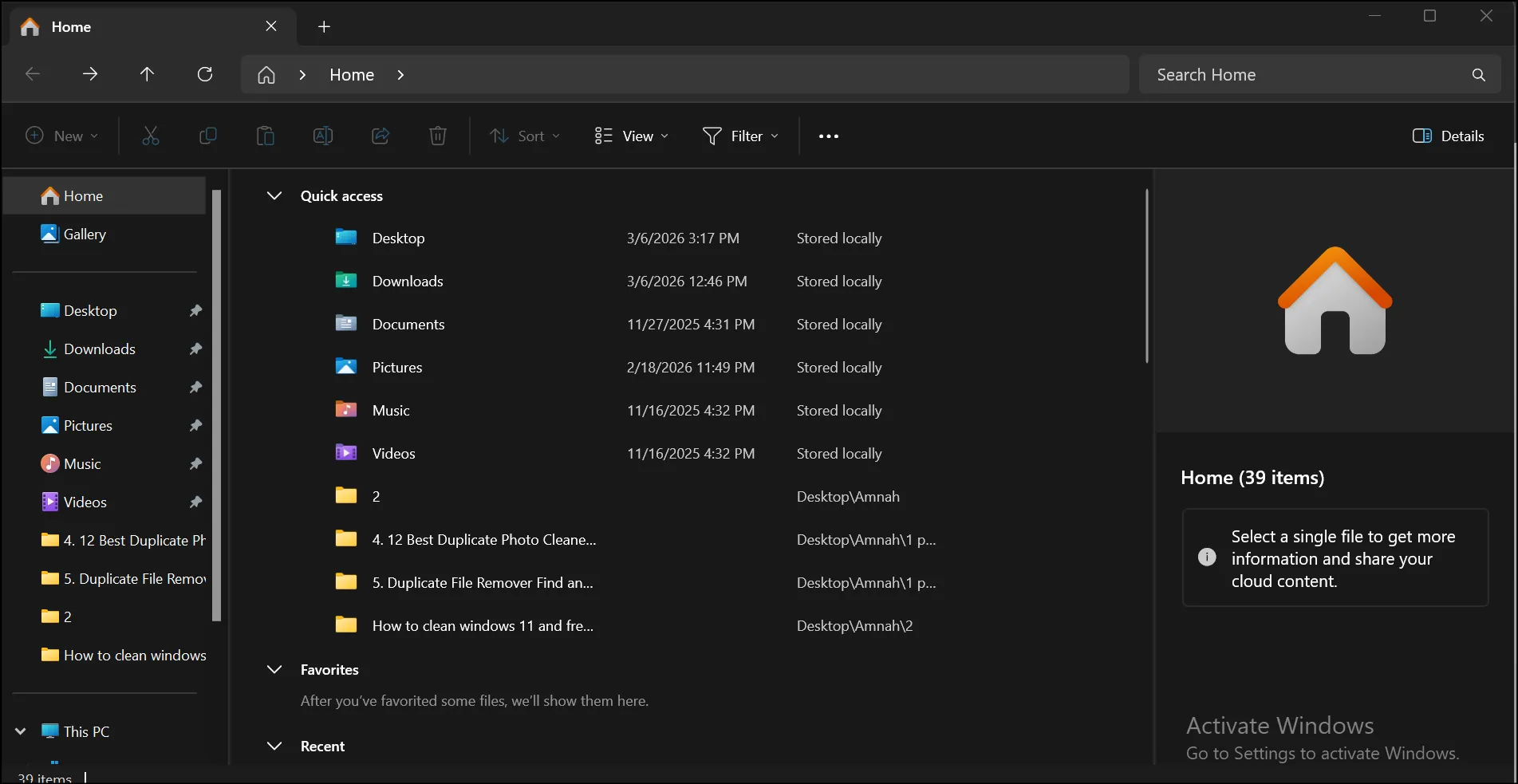
Step 2. Now navigate to the desired folder, like Documents, Downloads, or Pictures, to manually free up some space and organize your folder. In this sample, I am clearing out unnecessary files in the "Downloads" folder.
💡Tips:You can also sort your desired folder by date, name, or size for easy removal of unwanted files.
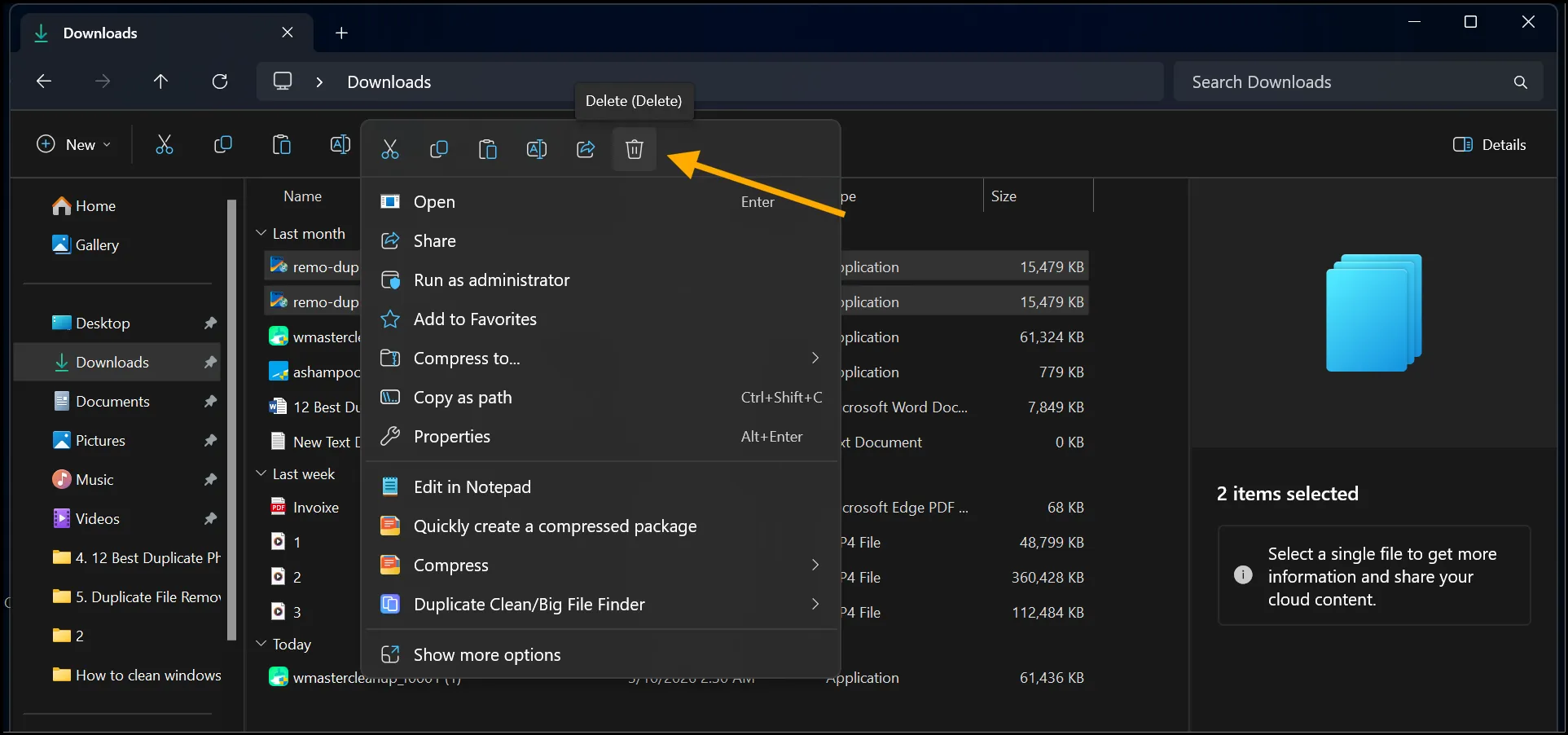
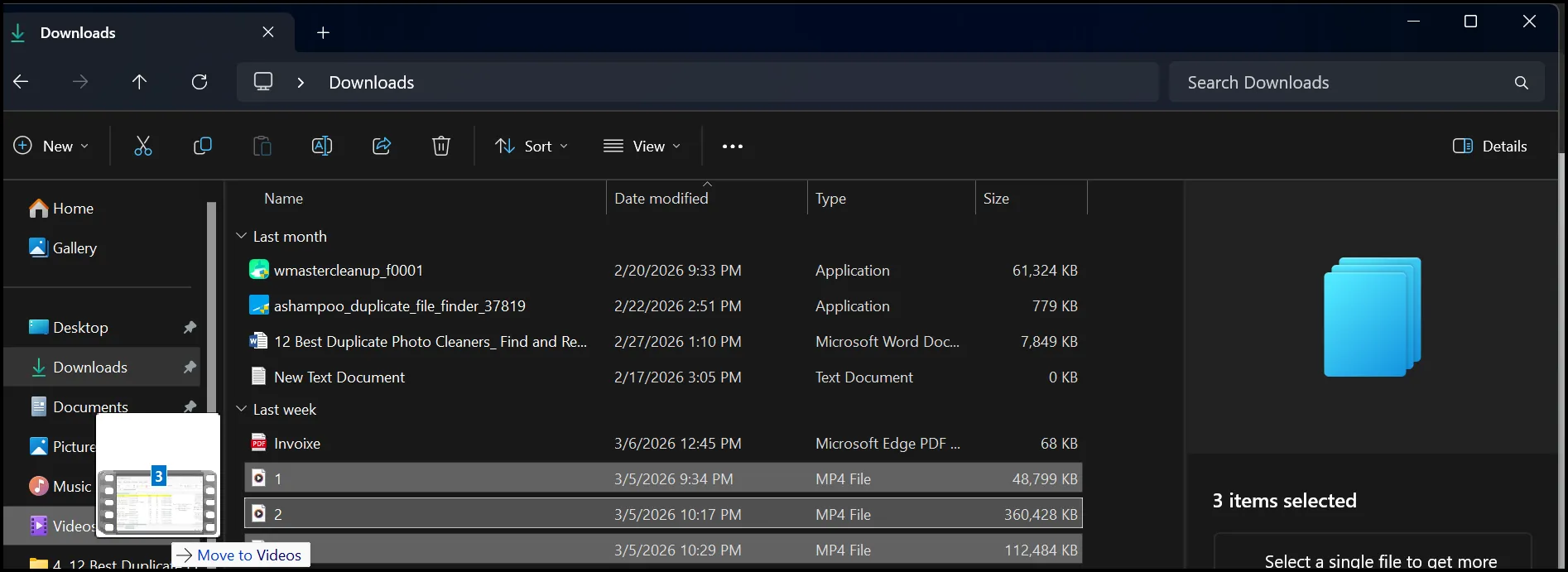
Step 3. Once you delete all the unwanted files, you can move important files to their relevant folders to make the folder more organized and well-kept.
While Windows 11 can help you optimize your storage, it does not offer you the option to clean duplicate files. These unnecessary dupes take up significant storage space on your system, resulting in slow running speed and reduced performance. You can remove these duplicates manually or by using a dedicated duplicate cleaner.
Read our hands-on article to know which is the best duplicate file cleaner for Windowsin 2026.
Part 7: [Optional Bonus] Use a Trusted PC Cleaner Tool to Clean up Windows 11 Automatically
Although manual cleanup is effective, it takes lots of time and is prone to oversight, especially when you deal with large data. These are some drawbacks of manual PC cleanup:
- The process is time-consuming-especially when files scattered across multiple folders
- Risk of deleting critical files-which leads to data loss and system instability
- Inconsistent Cleanup-user's diligence and knowledge may lead to incomplete cleanup
- Requires technical knowledge-the manual PC cleanup is challenging for non-techies
- Limited automation-Regular manual cleanup is less efficient in the long run
- Repetitive efforts-manual cleanup is tiring, leading to overlook with time
For this reason, I recommend you try a dedicated tool, like WMaster Cleanup. This all-in-one cleanup tool is a powerhouse that automates the entire process-it's like a personal cleaning service for your PC. The cherry on top? This wonderful tool is currently free for a limited time with all its features available for its users.
Key Features to Do Disc Cleanup in Windows 11
WMaster Cleanup
Clean up Windows 11 by WMaster Cleanup in 1 Click
- ·It has the auto-clean mode to remove junk fils, temporary files and privacy traces.
- ·Deeply scan hidden clutter and removes it, which Windows Disk Cleanup usually misses.
- ·Detects and removes potential bloatware, malicious software, and bundled software to enhance security.
- ·Using smart algorithms (MD5 Message Digest) to clear out over 22 types of junk files.
- ·The interface is sleek, extremely simple and compatible for both casual and pro users.

Steps to Clean up Windows 11 with WMaster Cleanup:
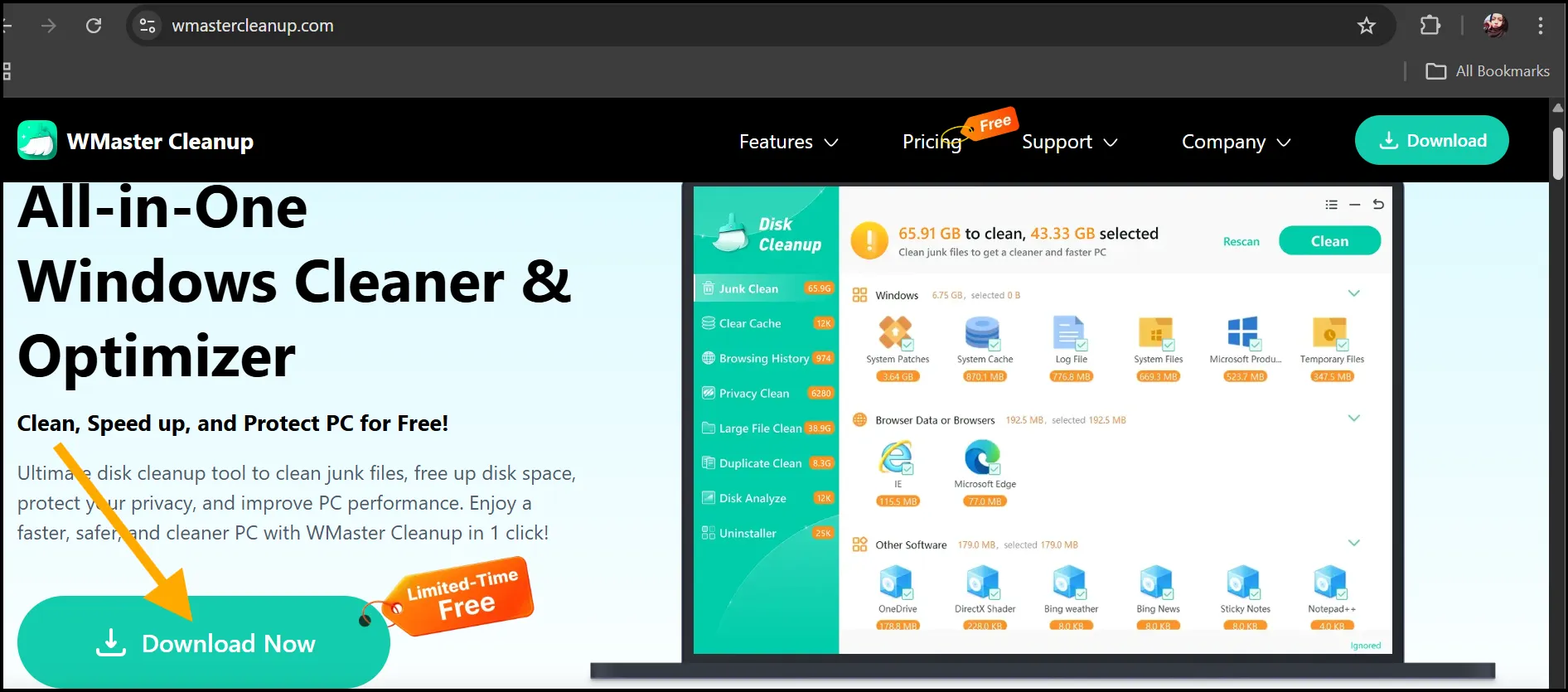
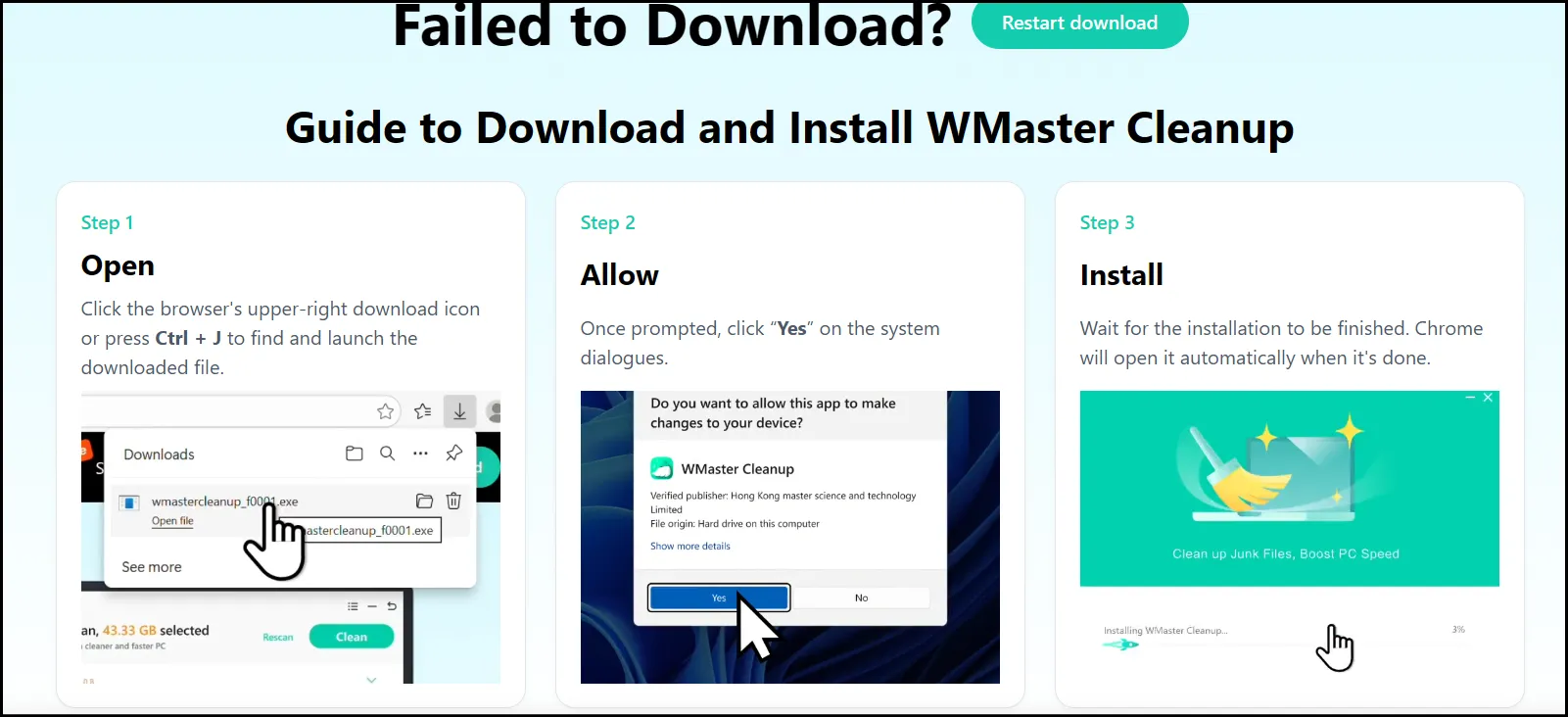
Step 1. Visit WMaster Cleanup's official website, navigate on the home page, and click "Download Now". After the download completes, follow the prompts to install the software on your device.
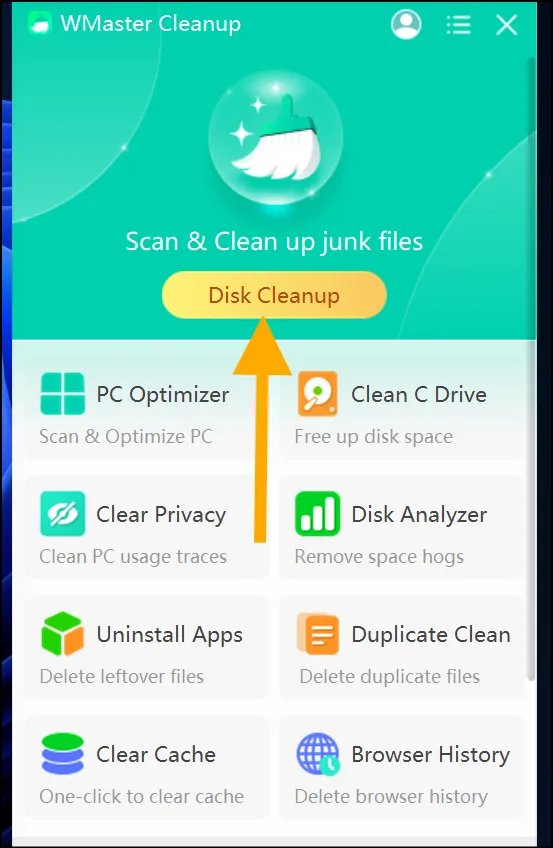
Step 2. Once the installation is completed, locate the software to open its main interface, and select "Disk Cleanup".
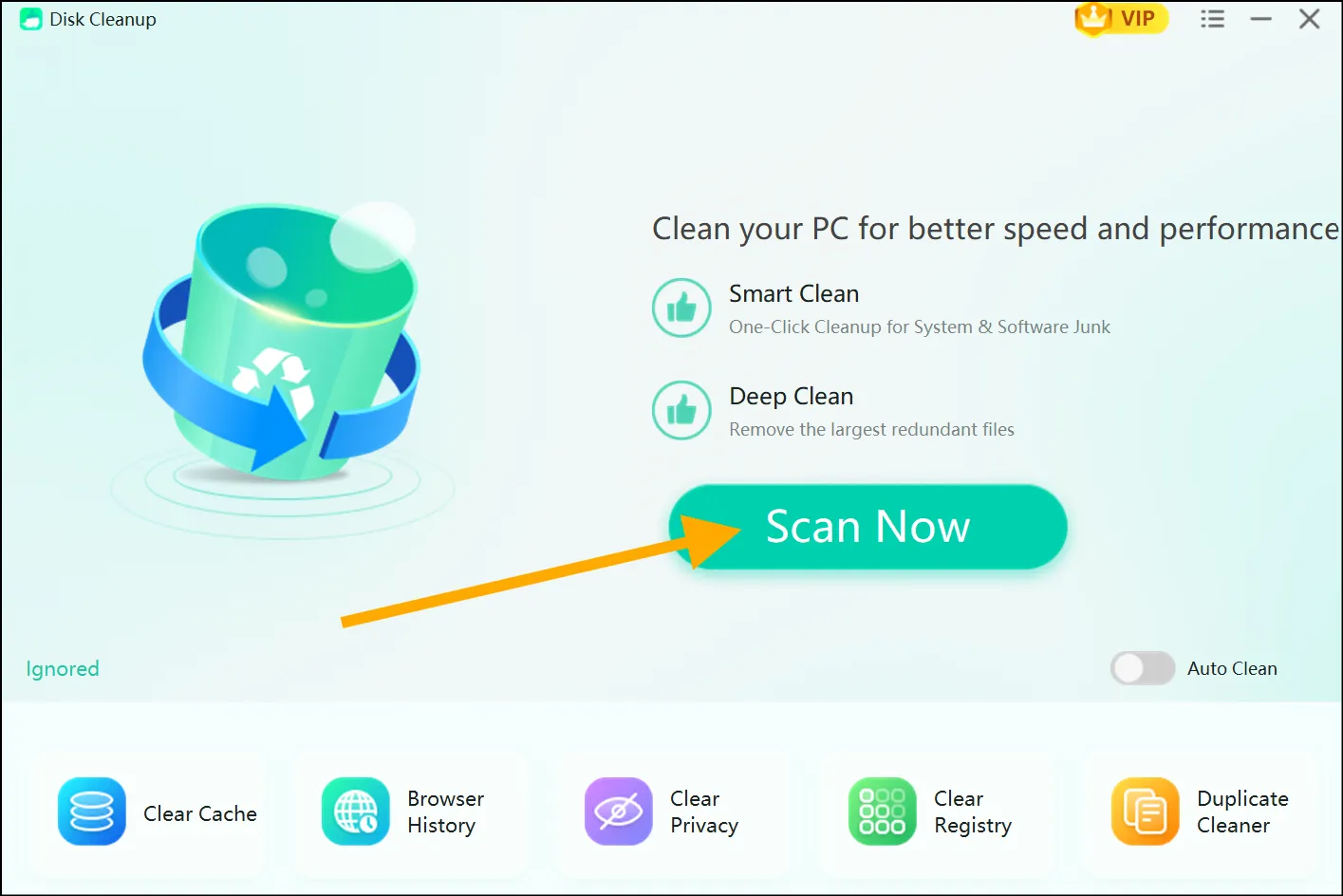
Step 3. Hit the "Scan Now" button to initiate the finding process of junk files on your Windows 11 PC.
💡Tips:At this stage, you can also turn on the "Auto-Clean" button. Go to the upper-right corner, open up the menu, and then select "Settings" to schedule auto cleaning.
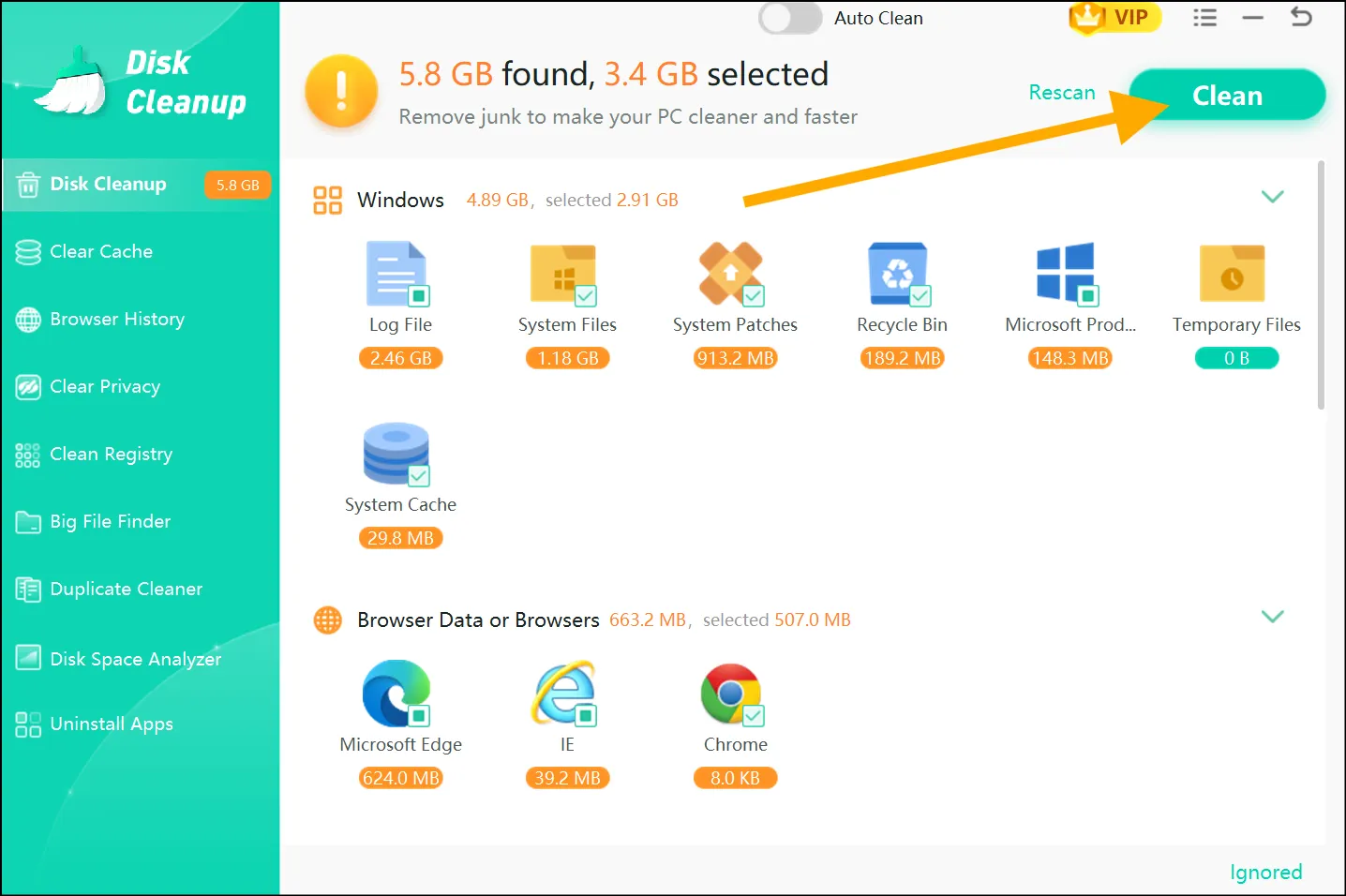
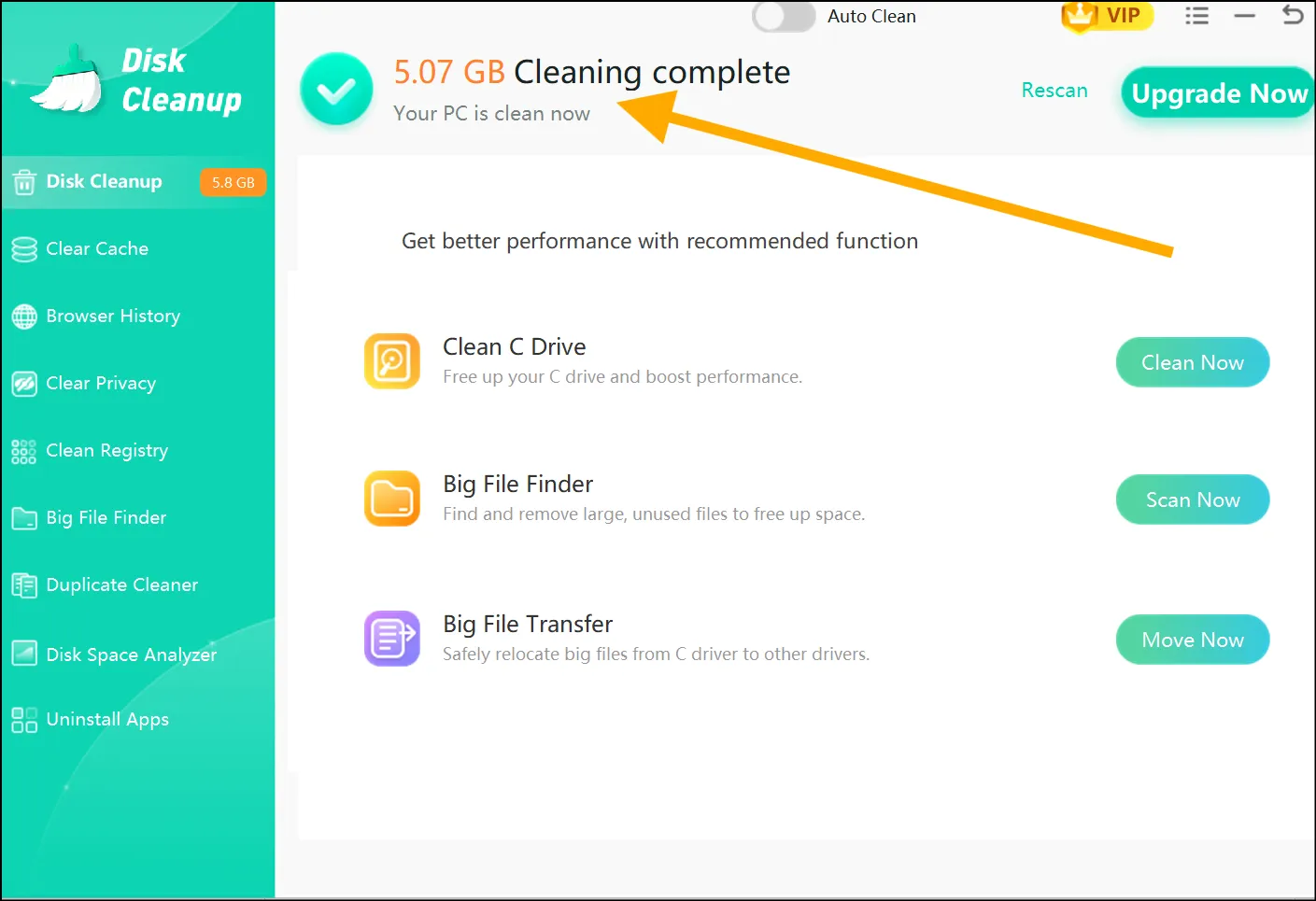
Step 4. As the scan completes, select your desired programs, and hit the "Clean" button to clean their junk. Once the cleaning process is done, you can determine the amount of space you have freed up.
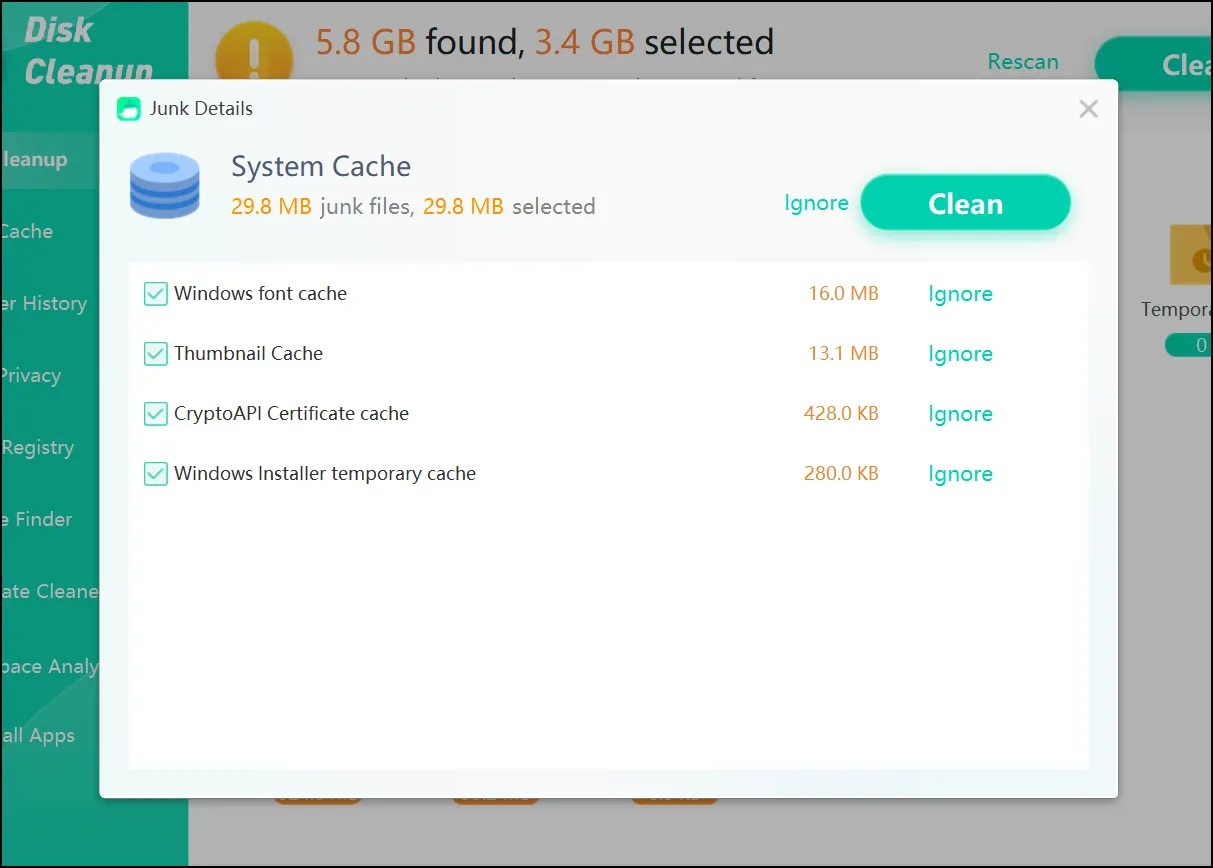
💡Tips:ap on any program logo to open up the details about its junk files. Click "Ignore" if you don't want to remove a specific junk file.
Part 8: Helpful Windows 11 Maintenance Tips
If you want a better and smoother user experience, cleaning and optimizing your Windows 11 PC regularly is necessary. It will also help you in freeing up storage, improving speed, and preventing potential clutter. Follow these cleaning habits and some practical tips, which will keep your Windows 11 system cleaner and running faster:
- Storage Sense Utilization
You can delete system's temporary files, Recycle Bin contents, and system cache automatically by enabling your Storage Sense
- Use in-built Disk Cleanup Tool
Running the built-in Windows 11 Disk Cleanup utility will help you remove unwanted system files, thumbnails, and old update files.
- Uninstall Unused Apps
You can permanently remove unwanted apps in Windows 11by navigating to Settings > Apps > Installed apps without even needing any third-party app.
- Clear out Temporary Files
If you head over to Settings System > Storage > Temporary Files in Windows 11, you can delete unnecessary data to free up storage space.
- Manage your Large Files
If large files are taking up most of the space in your storage, you can go to the Windows 11 File Explorer to identify and remove unnecessary large files or move them to an external drive.
- Utilize Cloud Services
You can use cloud services, like OneDrive, to offload files to free up your system's local storage space.
- Update your System Regularly
By keeping your Windows and drivers up to date, you can keep your Windows 11 performance optimal and secure.
- Remove Duplicate Files
You can remove pesky dupes manually or use a third-party tool, like WMaster Cleanup, to clean clutter from your system and optimize storage.
- Use a Dedicated Cleanup Tool
Try WMaster Cleanup once to clear out all kinds of junk and duplicates from your system within a few clicks-no manual hassle needed to clean your Windows system.
Part 9: Hot FAQs About Windows 11 Cleanup
Q1: Is it safe to delete temporary files in Windows 11?
For sure, these files are meant to be temporary, and if you delete them, it does not usually affect your system.
Q2: How often should I clean Windows 11?
Although it depends on your system usage, a good rule of thumb, particularly for a casual user, is once a month. You can also clean your Windows 11 if you notice your system is slowing down, has low storage, or is going to download or update extensive data.
Q3: Will cleaning my PC delete important files or apps?
No! In manual cleaning, just stick to the removal of junk files, temporary files, and unused apps. On the other hand, if you are using a dedicated cleanup tool, like WMaster Cleanup, rest assured that it is designed in a way that it won't touch any critical system files and apps during the cleanup process.
Q4: Do I need third-party cleaners, or are built-in tools enough?
Although built-in tools do a solid cleanup job, third-party tools like WMaster Cleanup offer more cleanup features, better automation, and deeper cleaning.
Q5: How can I keep my Windows 11 fast and clutter-free?
Use in-built tools regularly, like Disk Cleanup and Storage Sense, to remove unnecessary system data. Similarly, uninstalling unwanted apps, deleting large or duplicate files, and offloading data to cloud services also help you get a faster and cleaner PC. If you are not a fan of manual cleanup, you can also use our comprehensive cleanup tool, WMaster Cleanup, to clean your system thoroughly and optimize it for better performance and less clutter.
Final Thoughts
Manual cleanup is effective for cleaning Windows 11 and freeing up space, but it is also tiring and time-consuming. To keep your system running smoothly, it requires regular effort that is daunting and discouraging with the time. So, whether you choose manual cleanup or a trusted cleanup tool, or combine both, by following a few simple steps that are mentioned above, you can revive your PC's speed and storage.
For Windows 11 users who are looking for a hassle-free way to keep their PC in tip-top shape, I would highly recommend trying WMaster Cleanup. It is an all-in-one cleanup tool that gives you many cleanup features to clean your Windows, along with a beginner-friendly interface and batch processing. So, download this free (for a limited time) cleanup tool right away and give your PC the care it deserves!


