

I used to think, "Why is my ram usage so high that my screen freezes in the middle of a task?" Similarly, my applications also responded slowly. But you are in luck because I have found a fix for that.
So, why does a high memory usage issue occur? It is usually caused by startup bloat, browser tabs, memory leaks, or not having enough installed RAM. In this article, I'll tell you everything about high memory usage and how to fix it. And as an added bonus? I'll also provide you with a quick and all-in-one solution to managing your RAM efficiently.
In this article
Part 1: What High RAM Usage Means
RAM is the memory used by your PC to execute applications and processes and remain responsive. It is not storage; it empties each time you reboot.
A greater amount of free RAM = Smoother and faster things run
How does RAM Affect Your System Performance?
Each open application, tab, and background process takes a slice of your RAM. When those slices come in at a rate that your system cannot keep up with, you will experience:
- Stutters
- Freezes, and
- Slow app launches
Windows 10 high memory usage and Windows 11 high memory usage are the same thing, except that there are too many demands and not enough memory to satisfy.
Do you know what counts as high memory usage?
I use this quick reference to compare with the task manager:
- Less than 60% = healthy: Lots of headroom
- 60%-80% = moderate: Worth watching
- Over 80% = high: Performance begins to decline
- 90% plus = critical: Your PC is really struggling
If I get above 80% with just browsing or using Microsoft Office, I immediately know that it is something I need to fix.
Signs That Your PC is Under Memory Pressure
I know my PC is struggling when my system's applications run slowly, the PC freezes, and over 80% of the RAM is already used. These are a few common indicators:
- Applications are taking more time to open than in the past.
- The browser tabs are reloading every time you change tabs.
- Stuttering or freezing happens even when you are performing simple tasks.
- Your hard drive is like it is working all the time (virtual memory kicking in).
- Your Task Manager is indicating that RAM is always over 80%.
Facing a high memory usage Windows 11? You can instantly clear out a great space if you delete duplicate files and uninstall apps that you no longer use from your Windows PC.
Part 2: Why RAM Usage Gets So High
I can tell you that high memory usage in windows 10 and 11 is never a result of a single thing. In my case, memory leaks, excessive background programs, and malware are the main reasons.
Common reasons for high memory usage in windows 10 and 11:
- Even if you are not actively using chat programs, update managers, and cloud sync apps, they will quietly consume your RAM.
- All the programs that you configured to start at boot will fill up the RAM before you even open anything yourself.
- Each tab is a mini process; twenty tabs and some extensions can reach 23 GB by themselves.
- Some apps in your system consume RAM and never release it. Even when idle. A single memory-leaking app can silently take up GBs over hours.
- The malicious background software is a drain on your RAM that does not appear in your list of applications.
- Antimalware Service Executables and Windows Update can lead to your RAM spikes during active scannings or downloads.
- Windows loads your favorite programs into memory so that they open faster. This is helpful in theory but aggressive on low-memory PCs.
- Sometimes, if you are running Windows 11 and Chrome on just 4GB of RAM, you don't need an optimizer app but a hardware upgrade.
Part 3: When Your PC Needs More RAM?
Before you waste hours troubleshooting software, here's one critical thing I would like to point out: consider the possibility that your PC is just not powerful enough to do what you are asking it to.
I have witnessed individuals spending days adjusting their system's settings on a 4 GB computer when the actual solution was only to upgrade their RAM.
Need to find what is consuming your RAM space? Analyze your full drive and reveal space hogs in just seconds with WMaster Cleanup.
How To Tell If You Are Underpowered
If you notice your RAM usage is above 80% just after a fresh restart with no apps open, then you are not using enough RAM to do the work you need. And honestly, no software configuration alters that.
Minimum RAM for Real-World Windows 10 and 11 Use
Although the official demand is 4GB. But, in reality? If you are trying to run Windows 11 on 4GB RAM, it is like trying to finish the marathon race in flip-flops. Technically it is possible, but it's definitely painful.
- For simple use, like browsing, Office, email, 8GBis minimum, but 16GB is comfortable.
- For multitasking with several applications, 16GBis better.
- For creative work or gaming, 16-32 GBis recommended
💡Tips:If your Windows 10 or 11 is freezing constantly, it may be because your RAM power is "maxed out" and your system is forced to use your slow hard drive. The only way to solve this issue is to upgrade your hardware, as no PC cleaner can fix that.
When To Upgrade Instead Of Troubleshoot:
Once you have completed all the fixes in this list and your RAM is still regularly hitting its limit with 4-8 GB of installed memory, purchase additional RAM. It is less expensive than the time you will lose in software workarounds, and the difference is instant.
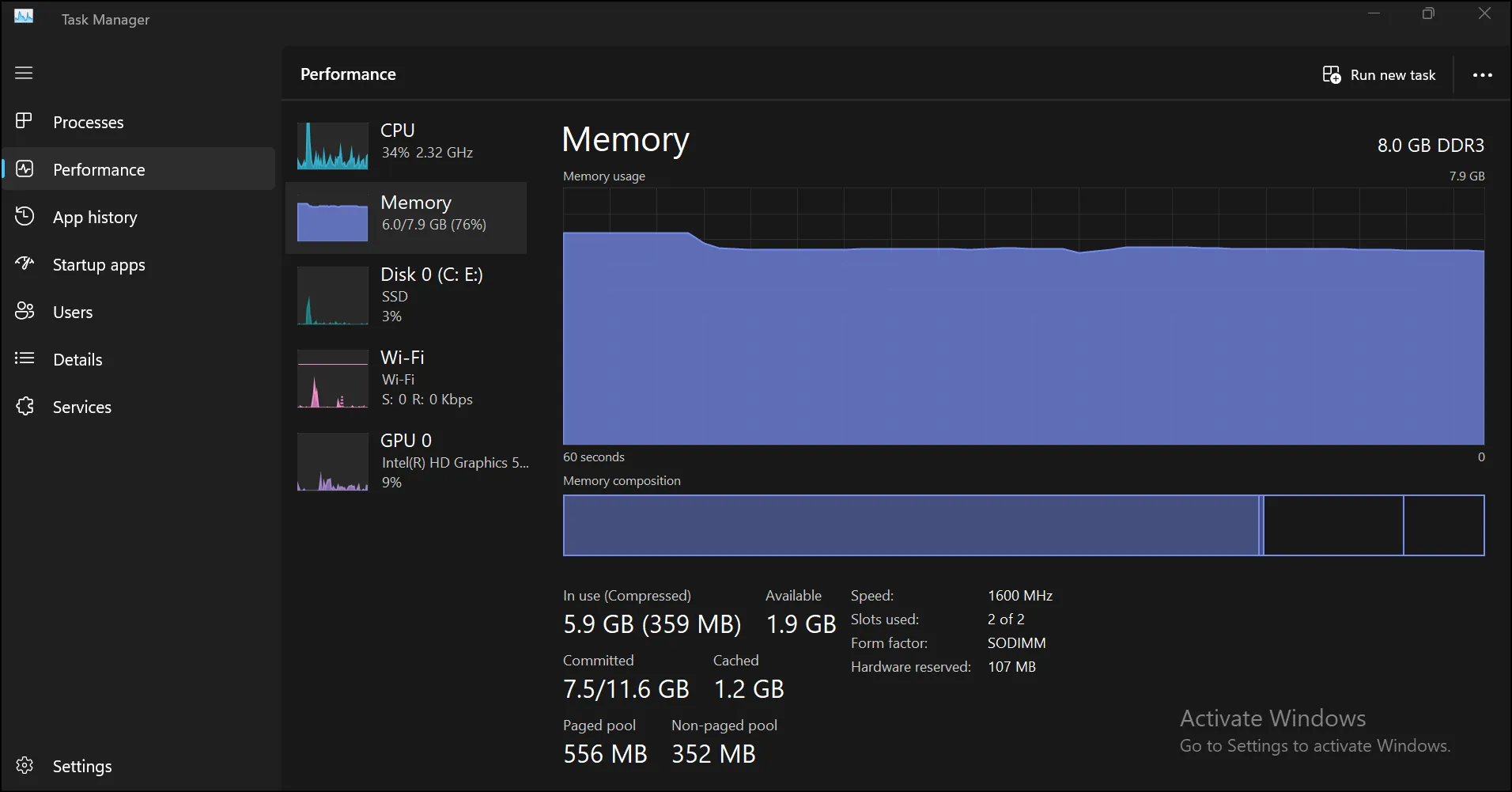
💡Tips:Before you buy, check Task Manager & Performance & Memory, which will display your slots occupied, speed, and form factor.
Part 4: Before You Fix High RAM Usage
Get to know what is actually consuming your memory before touching any settings. I will show you how:
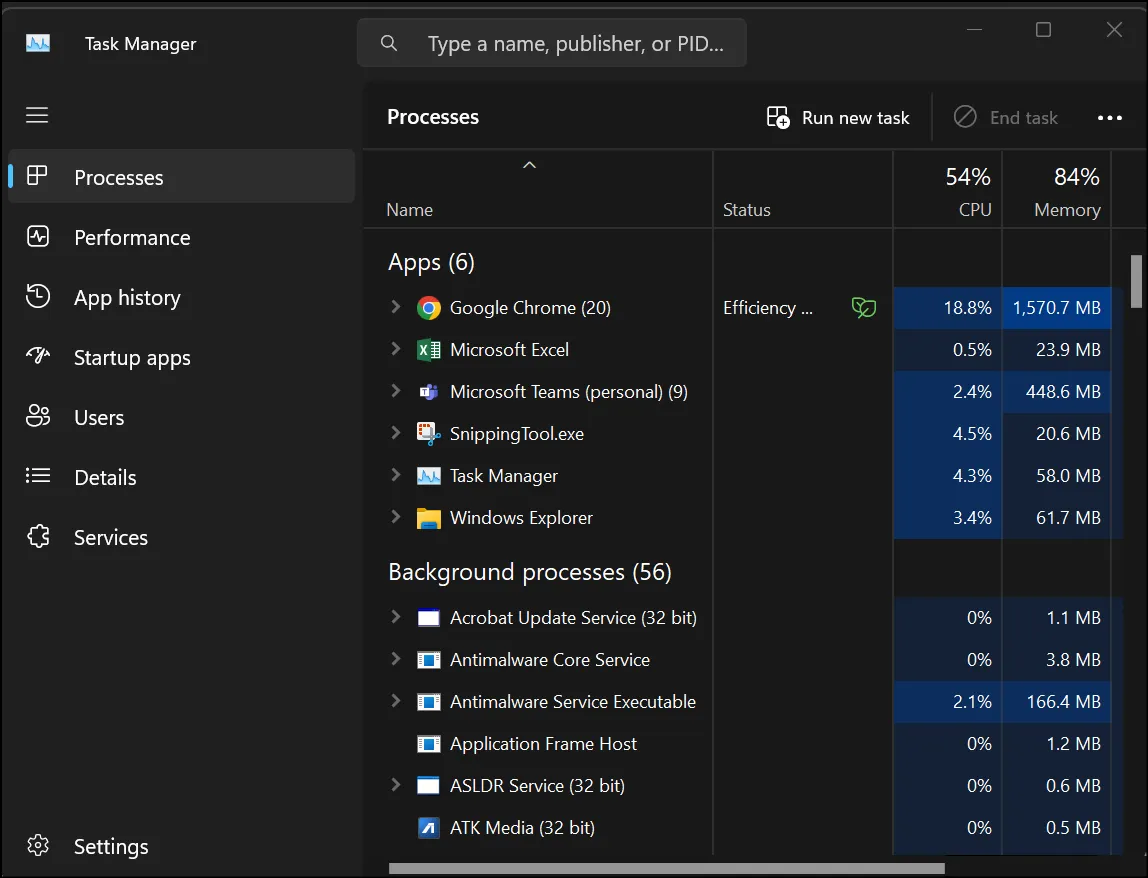
Step 1:To access Task Manager, press Ctrl + Shift + Esc. When you are viewing the compact version, click More details.
Step 2:Click on the Performance tab, and then on the left panel, choose Memory. You will see all the information about total RAM, current usage, speed, and slot in a single place.
step 3:Select the Processestab. Click the Memory column. I would suggest you sort it by RAM usage; the largest consumers are at the top.
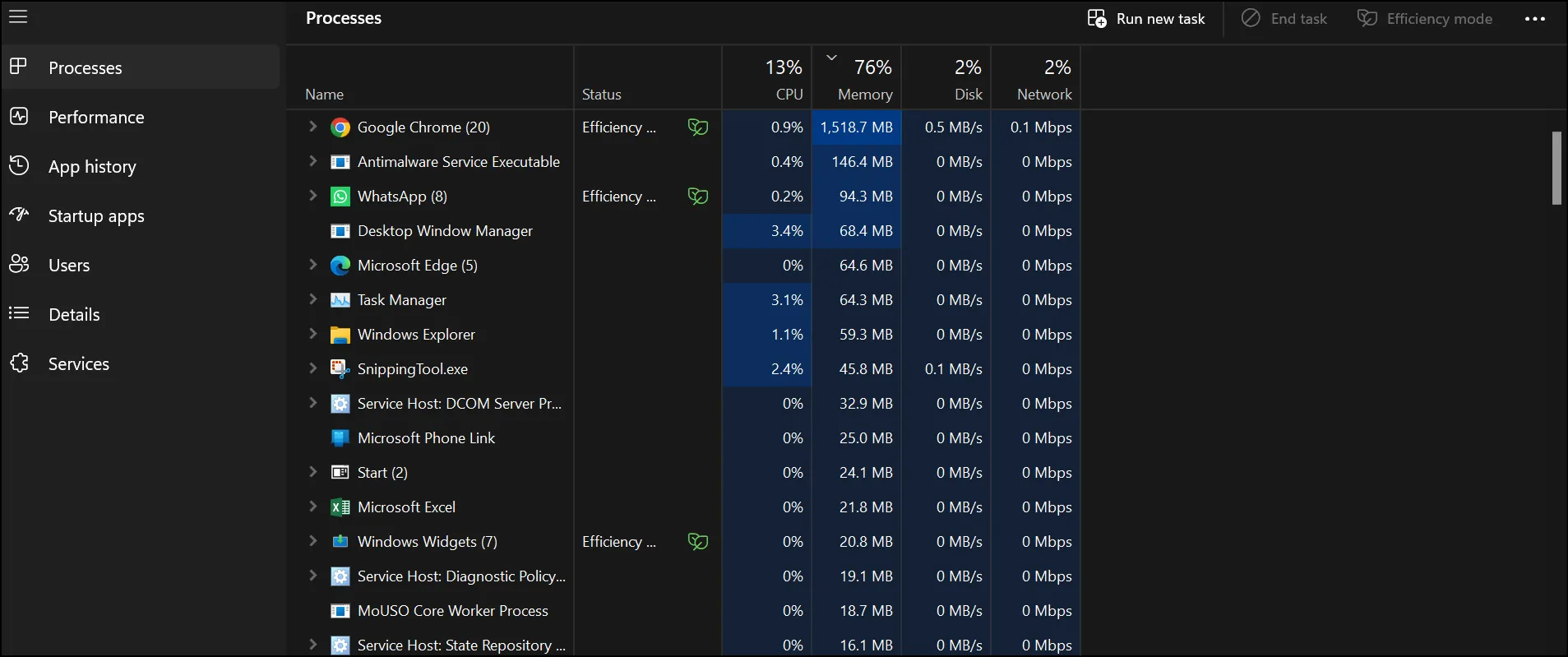
Step 4:List the best offenders. Your fixed target is that list.
💡Tips:Antimalware Service Executable is at the top? That is Windows Defender scanning. Allow it 10-15 minutes; it normally falls on its own after the scan is completed.
Part 5: How to Fix High RAM Usage
Situation 1: Quick Fixes to Lower RAM Usage
When I try these fixes, it takes me less than five minutes. You can try these as well, and believe me, you will see them work instantly.
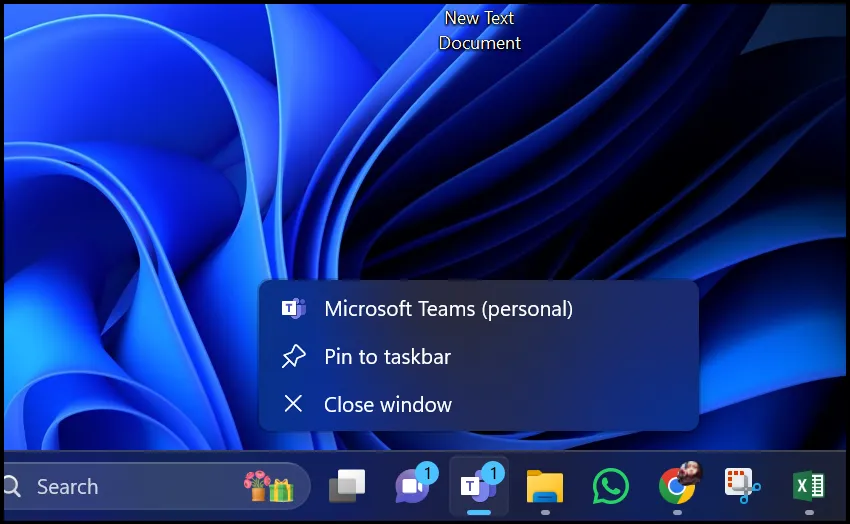
- Close unused applications
Check your system tray and taskbar. Close anything you are not using by right-clicking. You will immediately recover several hundred MB.
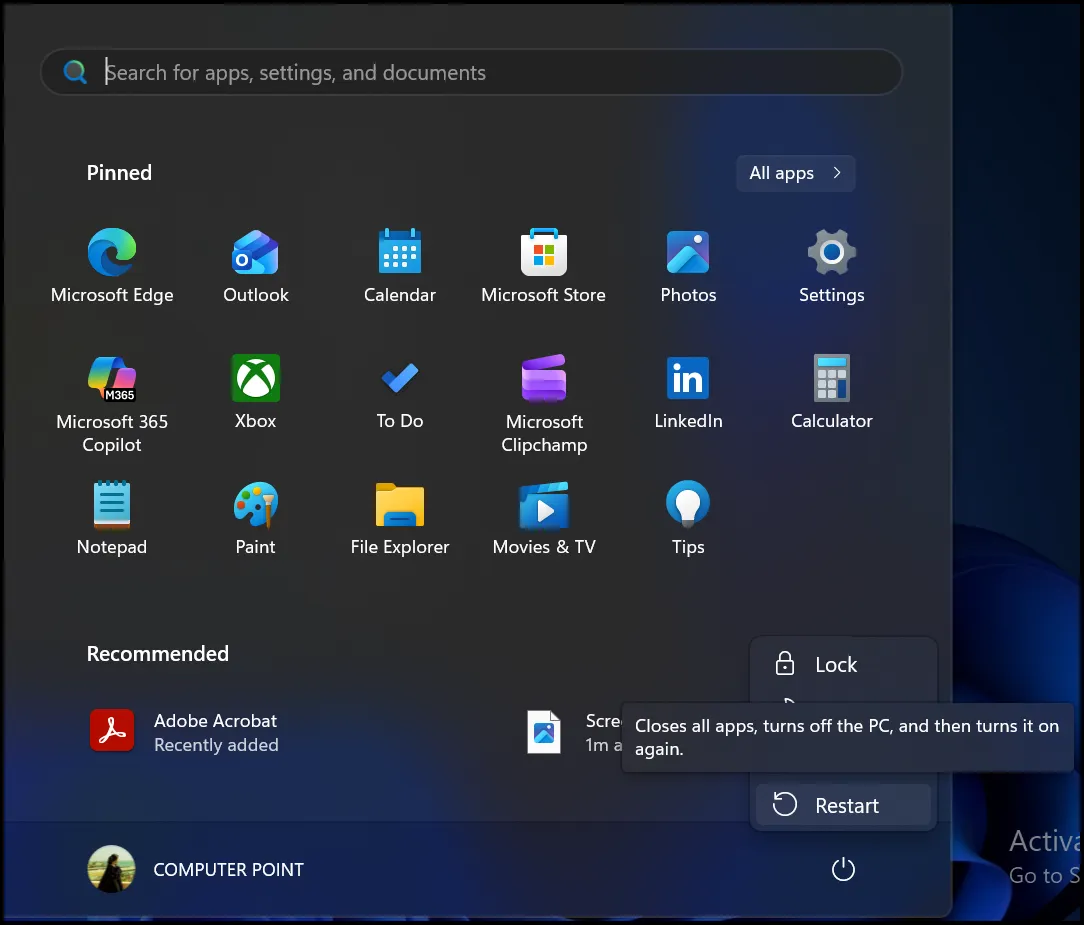
- Reboot your PC
Sleep mode does not clear RAM. A complete restart is. Unless you have restarted recently (within a few days), restart it now, as your baseline memory consumption will probably decrease significantly.
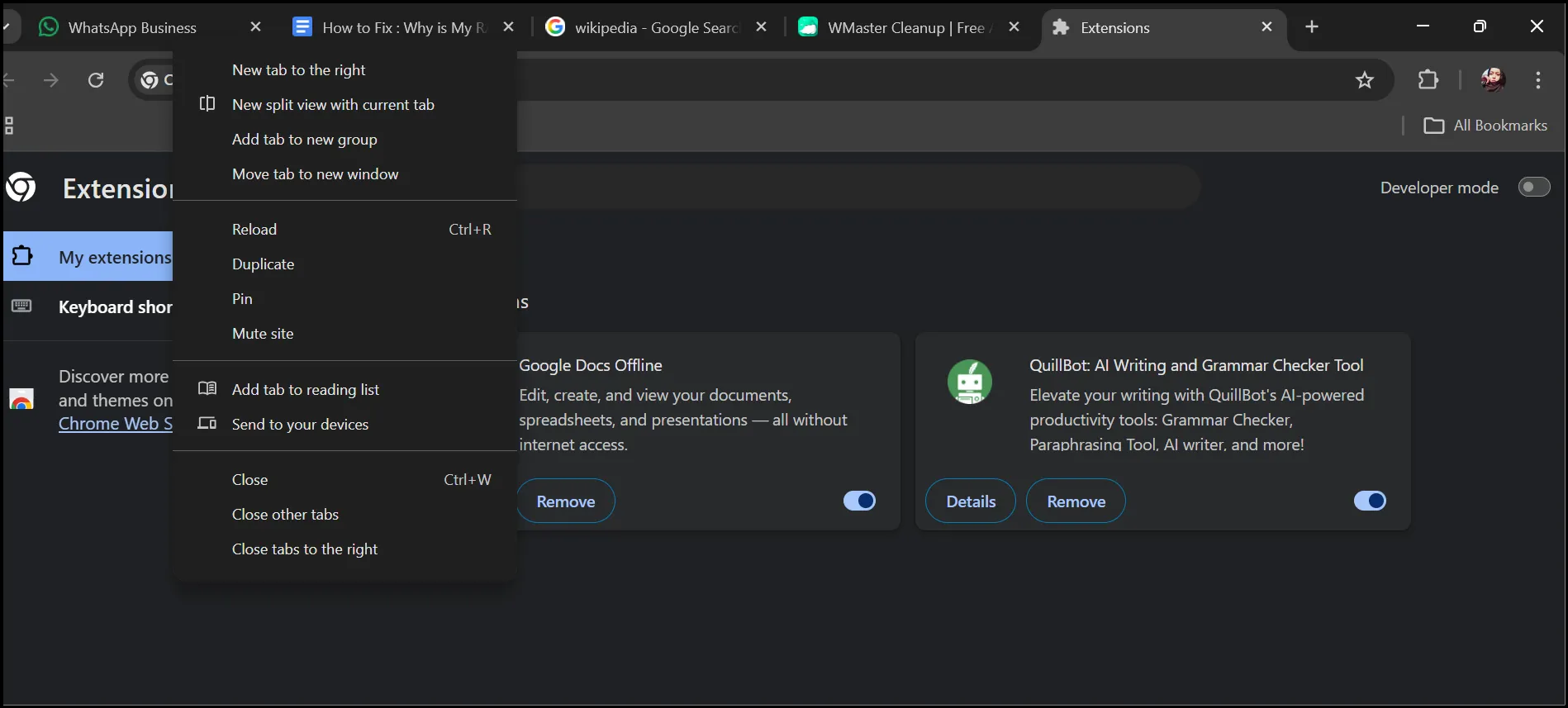
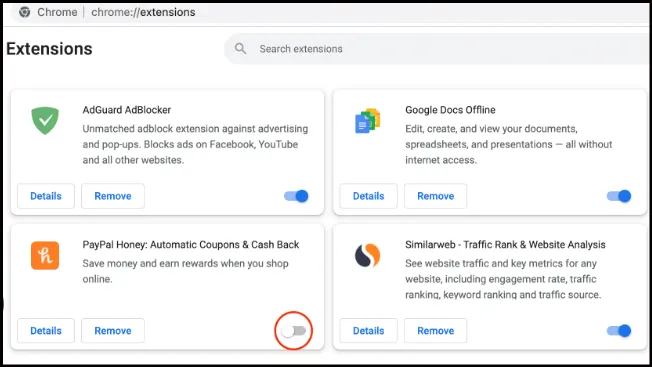
- Close all tabs and extensions
Close all tabs that you are not reading. Then go to the extension manager of your browser and turn off what you do not use every day.
In Chrome: Menu -More tools -Extensions. In Edge: Menu -Extensions.
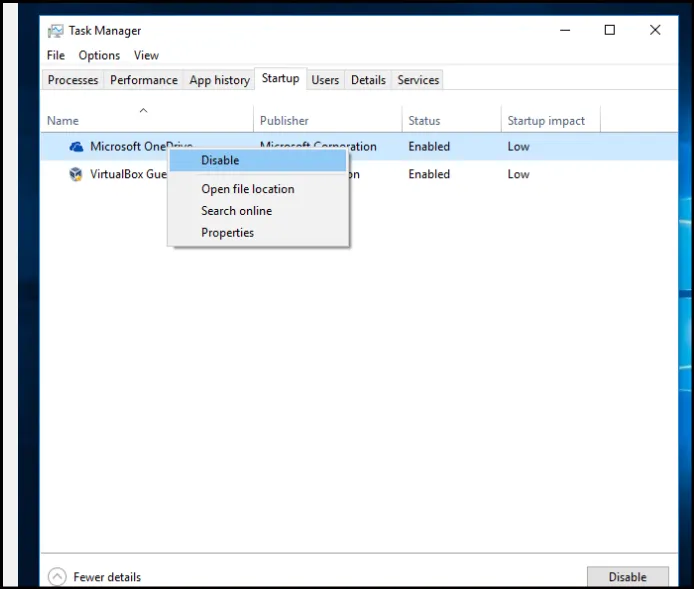
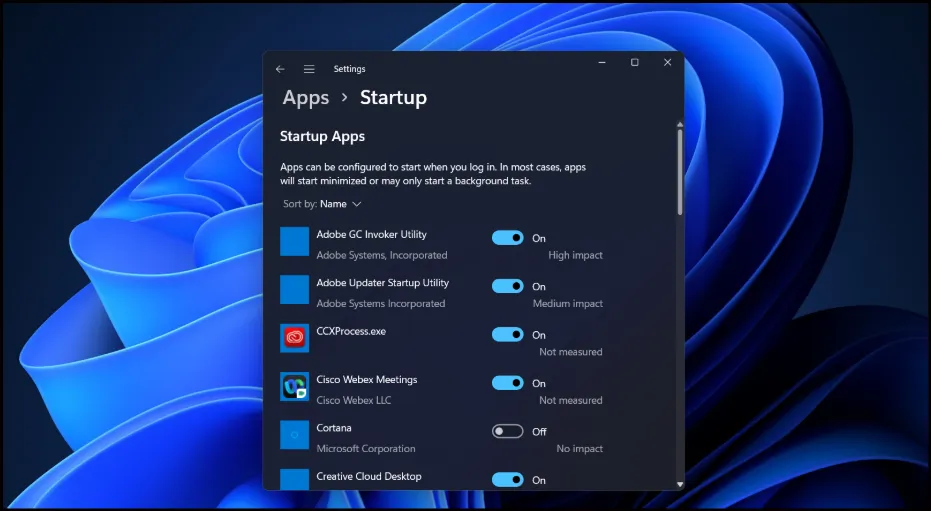
- Disable startup programs
Click Ctrl + Shift + Esc -Startup apps. Click on anything that is not necessary and Disable. Your baseline RAM will be reduced after your next restart.
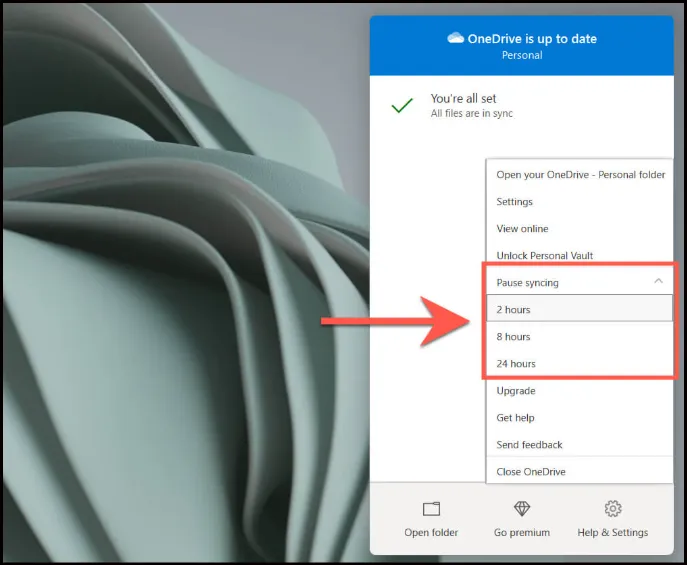
- Pause background sync tools
On OneDrive, Dropbox, or Google Drive, right-click their tray icons and turn off syncing until you finish working. All of them have background processes that silently consume RAM.
Situation 2. Memory-Heavy Windows Settings
These penetrate deeper into Windows settings that directly contribute to high memory usage windows 10 and 11.
- Adjust your PC Visual Effects
PressWin on your keyboard, search for "Adjust the appearance and performance of Windows," and open it. Now, select Adjust for best performance.
💡Insider Tip: This step will help you disable your animations and visual effects and set free your valuable RAM, particularly on older computers.
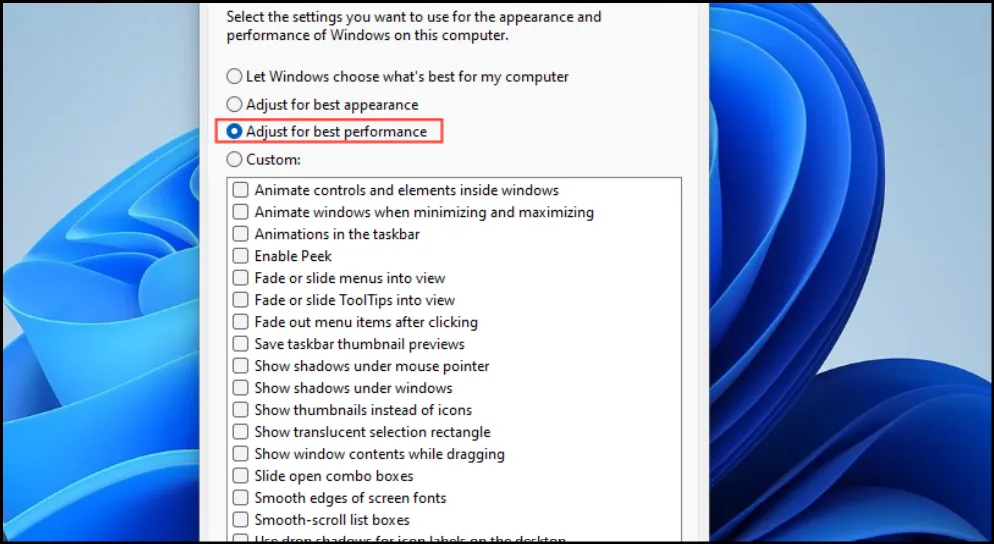
Pro Move: Too bare? Re-check only "Smooth edges of screen fonts" and "Show thumbnails instead of icons." This will give you a decent visual compromise without the RAM penalty.
2. Check your Virtual Memory Settings
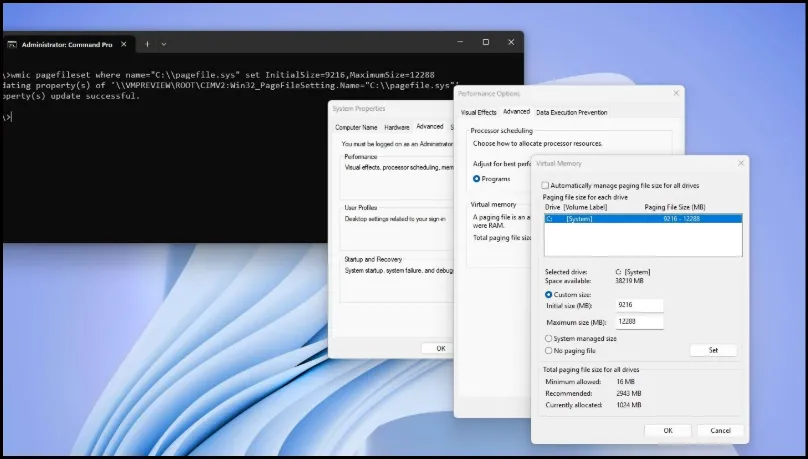
When your system's RAM is full, virtual memory uses your drive as overflow. When it is too low, your PC is in a bad state.
Press Win + R on your keyboard, enter sysdm.cpl in a Run dialog box, and then tap on the Advancedtab. Now open performance "Settings," click on the Advancedtab, and then click "Change" available in the Virtual Memory box.
💡Note: Be sure you checkmark "Automatically manage paging file size for all drives."
3. Time to Update your Windows
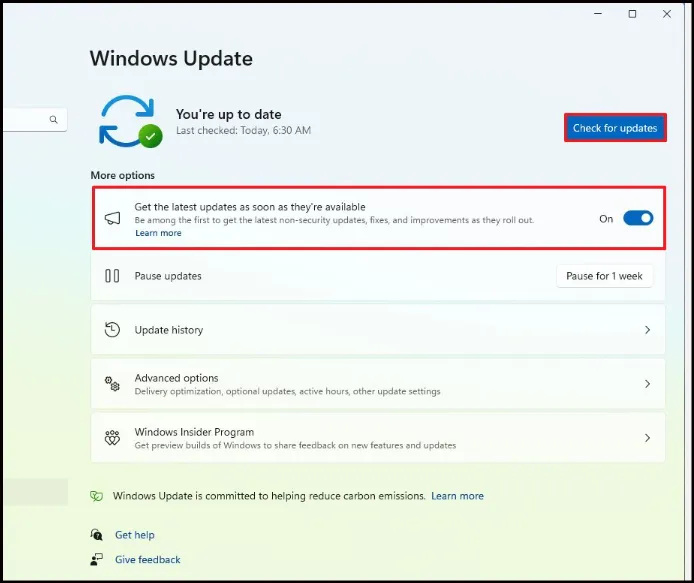
The old Windows releases have memory management bugs that will leave you with high memory usage windows 10 and Windows 11. Updating your Windows is like having "bug spray to keep memory usage in check and the system's performance boosted.
Head over to the Settings, select Windows Update, and then hitCheck for updates to install all pending updates.
💡Pro Tip: Don't forget to turn on the button to get the latest updates as soon as they are available.
4. Scan for Malware
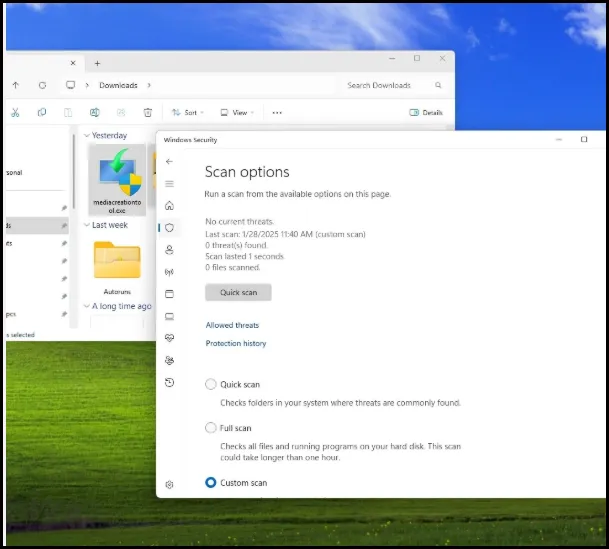
Ever noticed your system's RAM is working overtime even when you're not doing anything? It's like some uninvited guest throwing a party in the background. To kick them out,
Open Windows Security, select Virus & Threat Protection, and then initiate a Quick Scan. When something does not feel right, do a full scan instead.
Situation 3. App-Specific RAM Problems
Have you ever thought about why your computer speed is like walking through mud? Even after you fix all your settings, sometimes, the problem isn't Windows! It's a "bully" app acting like a resource hog and the real troublemaker. Here are the things I look for to resolve the problem.
1.Your Browser Memory Leaks
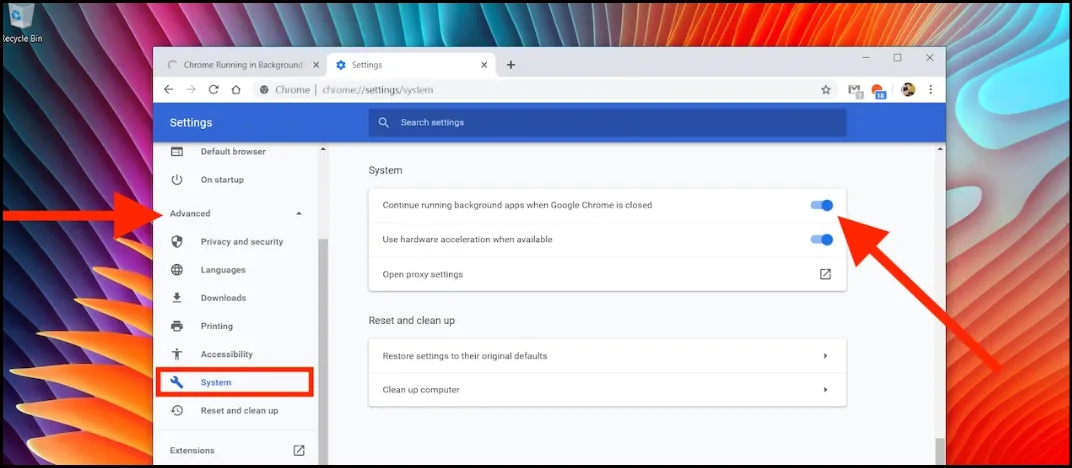
A memory leak occurs when the RAM usage of your browser steadily increases over hours without even you opening new tabs. Close it and reopen it.
In the case of Chrome, navigate to Settings, tap on System and then switch off "Continue running background apps when Chrome is closed." This single setting will save hundreds of MB for many.
2.Game Or Creative App-Heavy-lifting Mode
Photoshop, Premiere, and modern games are meant to consume as much RAM as you throw at them. Don't worry! They just have a big appetite.
Looking for a smart move? Shut down everything you are currently not using, like browser tabs and background apps. If you do this before starting a big session, you will get a much smoother user experience.
Check out WMaster Cleanup's dedicated game booster feature that can provide you with maximum FPS and optimize your gaming performance.
3. Antimalware Service Executable High memory usage windows 10:
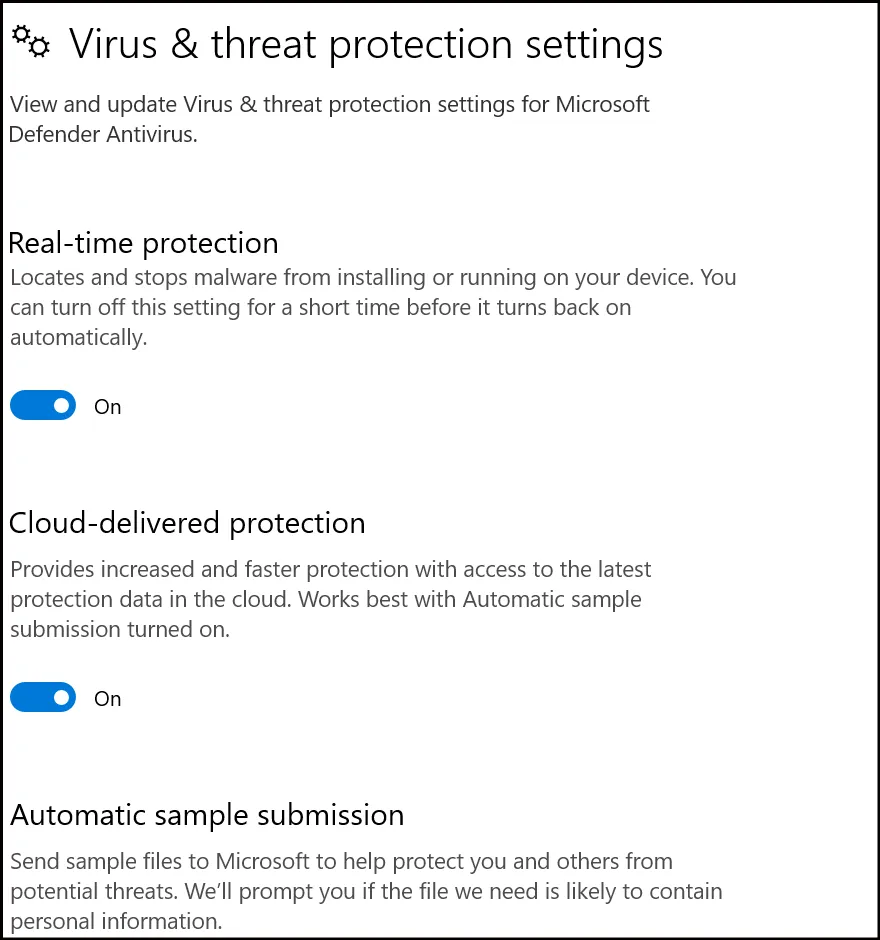
This is one of the most searched RAM complaints! It is typically merely a Defender performing a background scan. To minimize the effect, I suggest you scan the computer during the periods when you are not using it.
Go to Windows Security, select Virus and threat protection, and then manage settings and find the desired scheduling option.
4. Faulty Background Tools
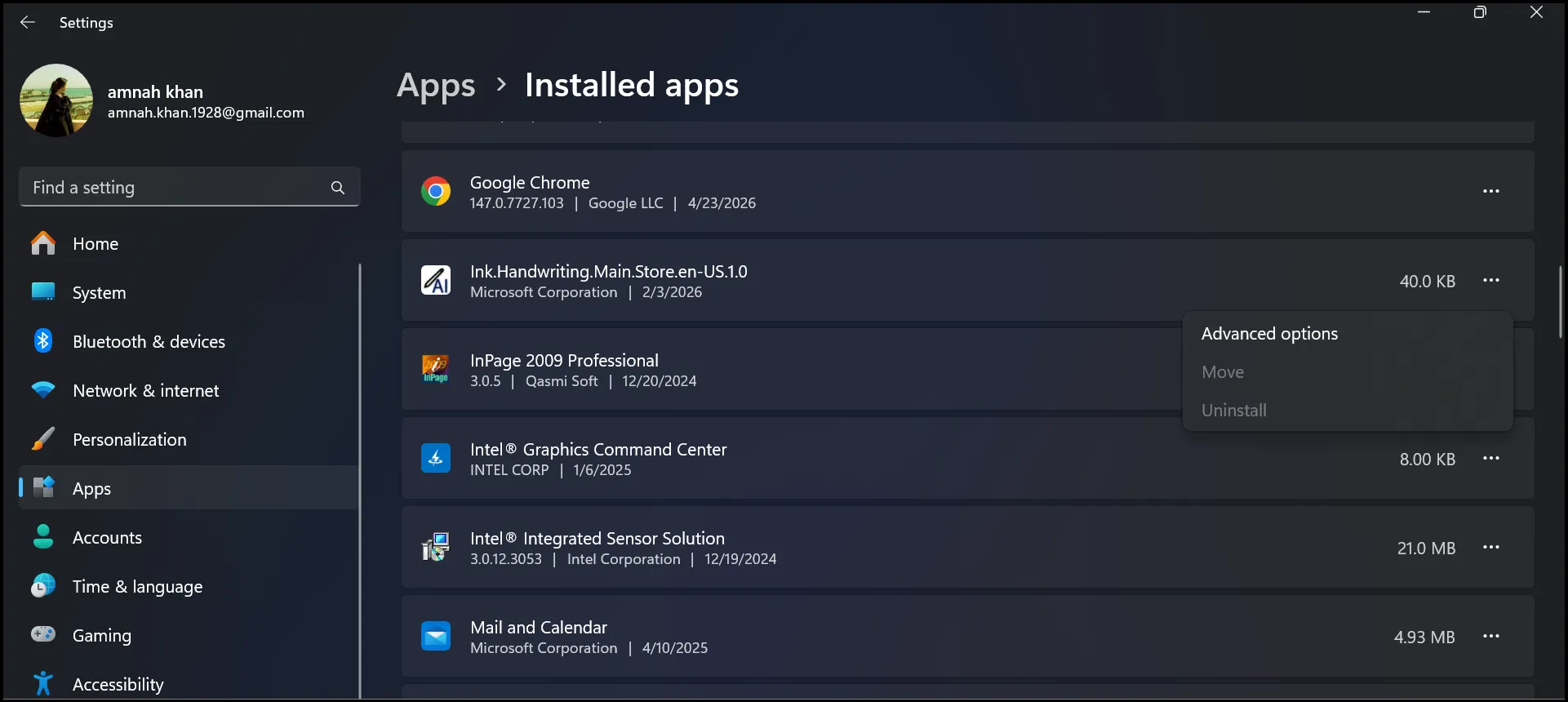
When an application is always at the top of your Task Manager memory list, and you hardly use it, delete it.
Go to Open Settings - Apps - Installed appsand uninstall it.
Part 6: [Bonus] WMaster Cleanup for Routine PC Maintenance
It is one thing to fix high RAM once; the task of keeping it under control week after week is another issue. That is where WMaster Cleanup comes to save you. I highly recommend this Windows maintenance program, an all-in-one cleanup tool that removes the junk, cache, and background clutter that gradually eat up the available memory of your system.
It is not a RAM booster in the sense of the fake one-click optimizer; it is a real cleaner that gets rid of what is consuming your resources so that Windows can breathe. Since I started using this tool, it has become a go-to solution and super easy for me to manage my RAM usage.
URL: https://www.wmastercleanup.com/
Price: Free for a limited time.
WMaster Cleanup
Free RAM Automatically by WMaster Cleanup
- ·It's Disk Cleanup featuresdelete over 11 types of junk to free up storage space.
- ·It canperform a deep C-drive cleanup to reclaim great storage space.
- ·Force app uninstallation featurecompletely remove corrupted and stubborn apps.
- ·It can remove caches and log files for browsers like Chrome, IE, and Firefox.
- ·RAM optimization instantly clears background tasks for a smooth gaming experience.

Tutorial: Using WMaster Cleanup for Daily PC Maintenance
Head over to the WMaster Cleanup homepage to download WMaster Cleanup for your Windows PC. Follow the prompts to install the software.
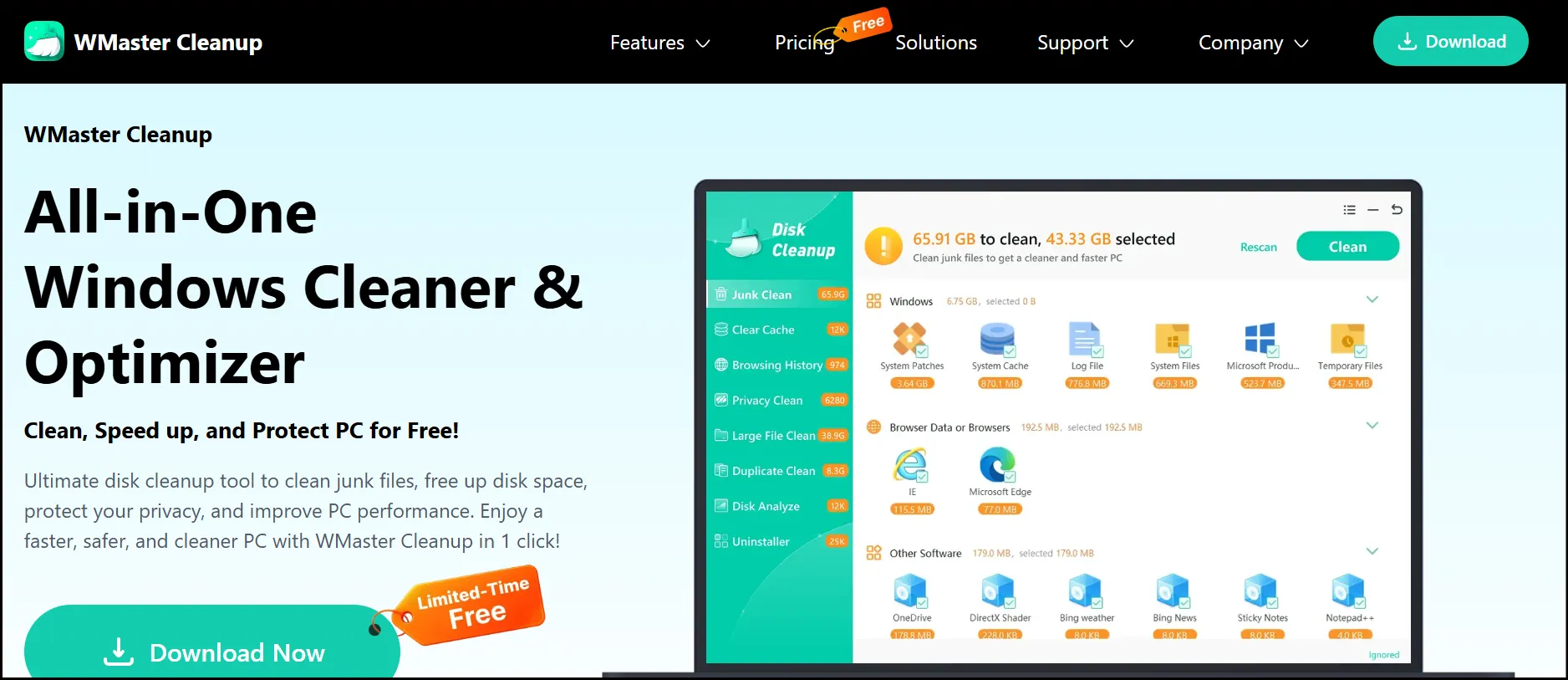
Once the installation completes, launch the software on your desktop. Now, from the main dashboard, use the different features one by one to optimize your PC to its fullest and maximize its performance.
- PC Optimizer-for Cleaner & Faster PC
Step 1: Click PC Optimizer on the main dashboard to optimize your Windows system.
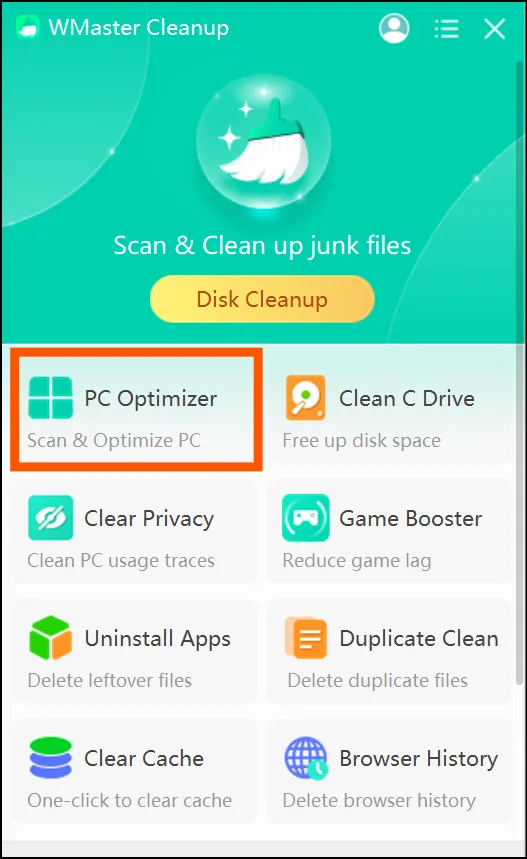
Step 2: Hit PC Optimizer to initiate the scanning process instantly. Now review the results carefully and click Fix Now.
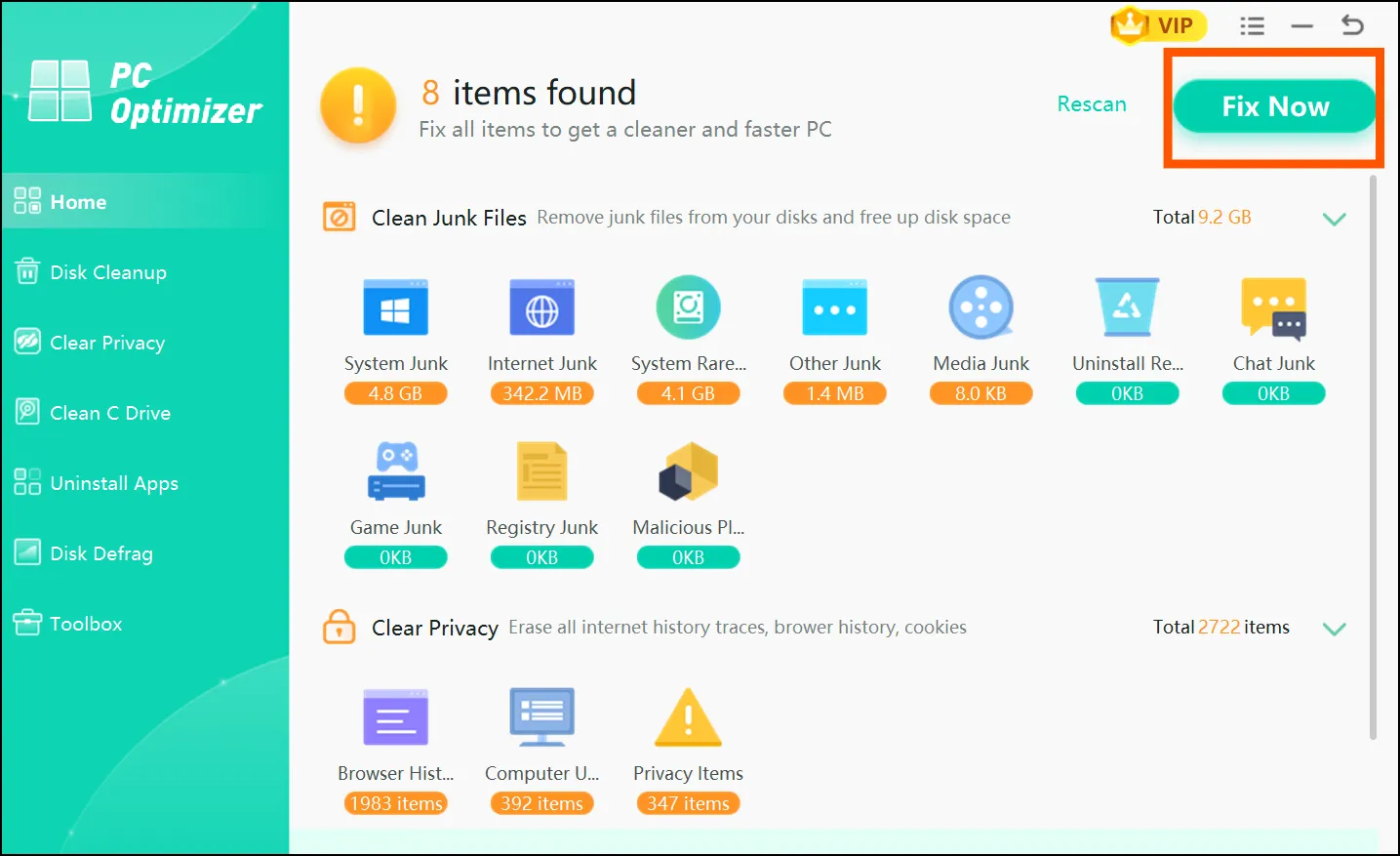
Once you complete the PC optimization process, you can move to the next feature, Disk Cleanup, to achieve an efficient and faster Windows PC.
2. Disk Cleanup-for Better Speed & Performance
Step 1: Now tap on Disk Cleanup from the left pane, click Scan Now to initiate the scan, and then hit Clean to start the junk cleaning process.
💡Tips:Once you are on the scan result's interface, don't forget to review files and folders to prevent accidental deletion.
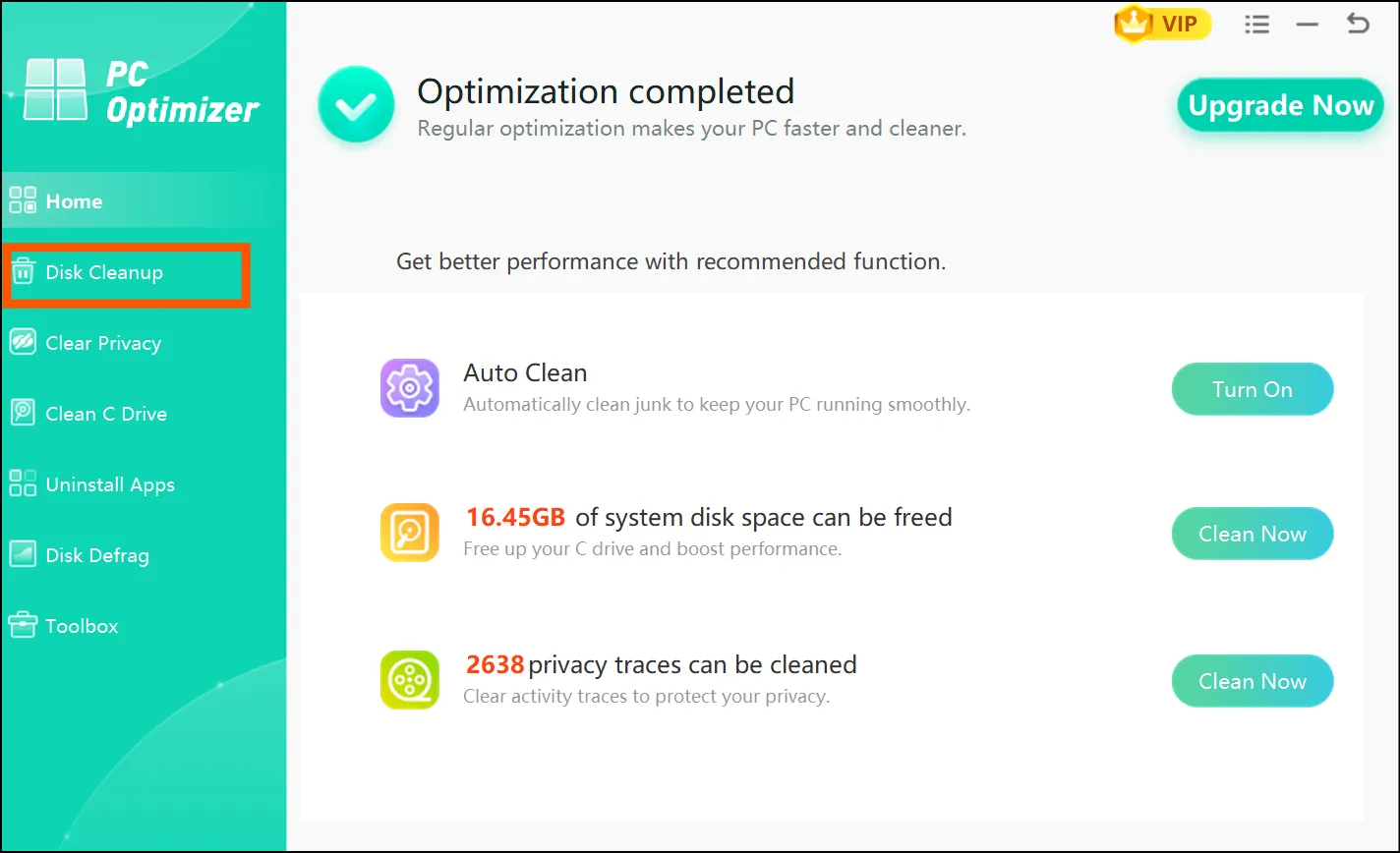
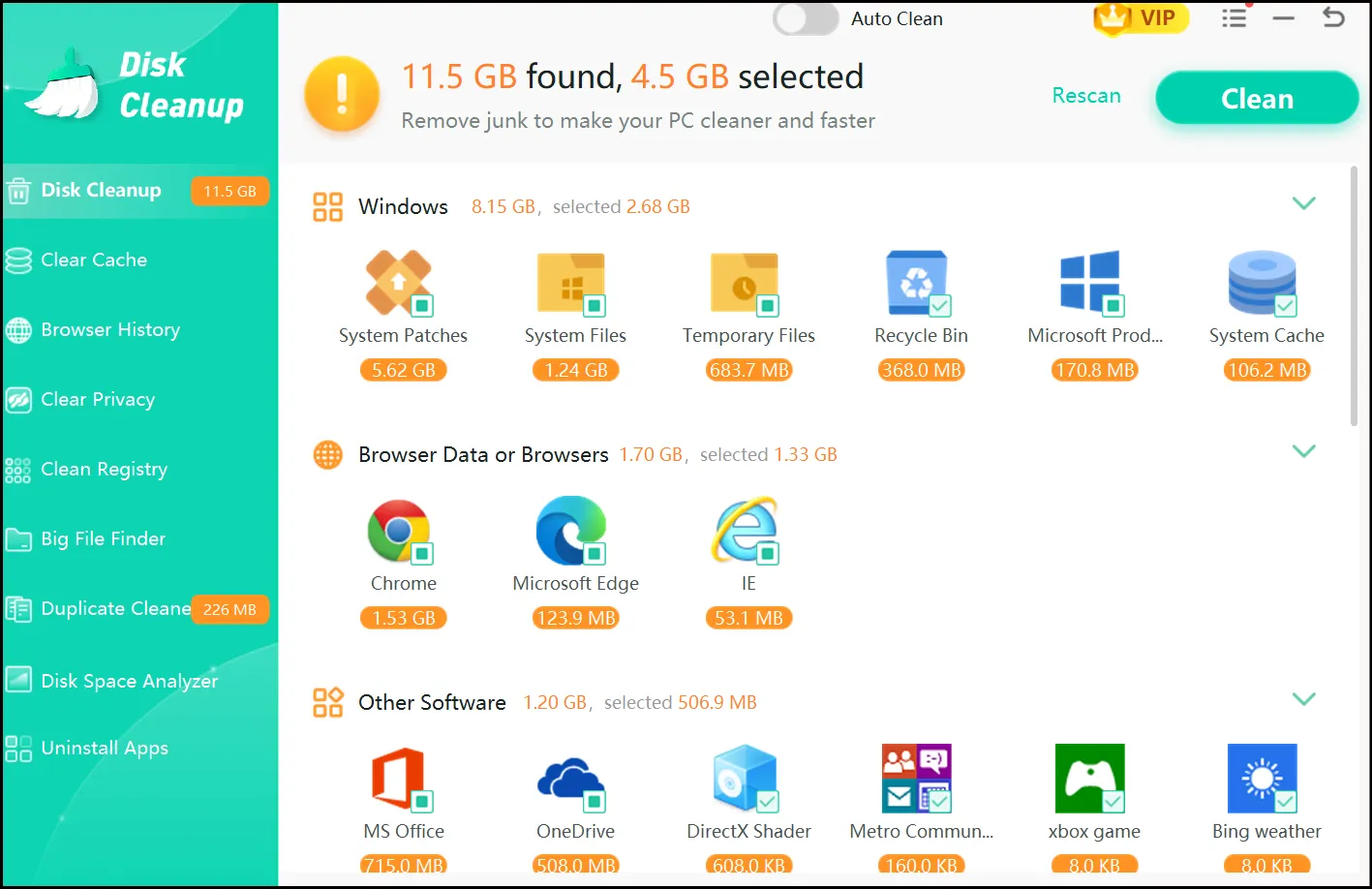
Just one final step for you to get a faster and cleaner PC! Get ready for better RAM management and a smoother user experience with the Clean C Drive feature.
3. Clean C Drive-to Speed Up your Computer
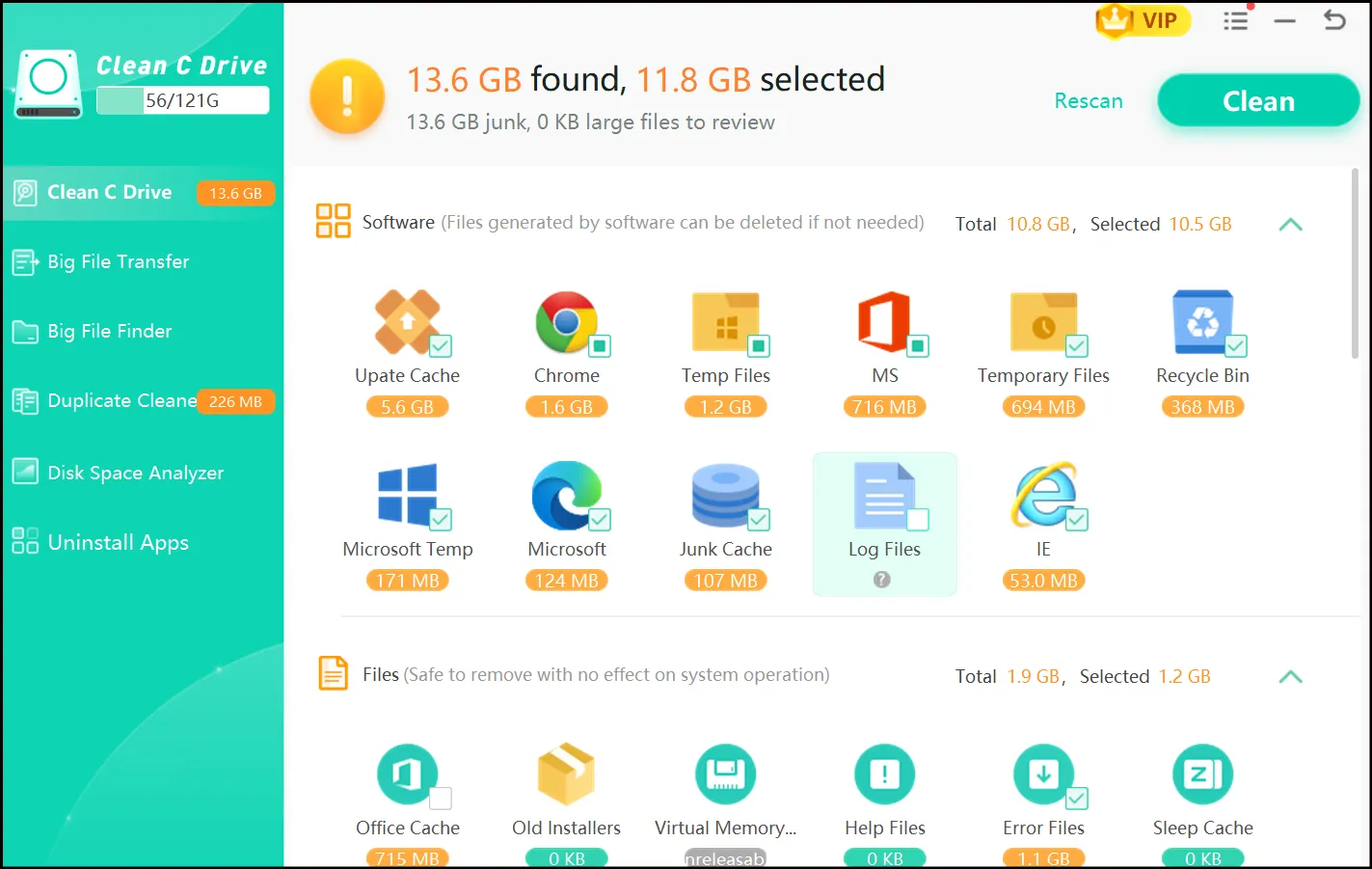
Step 1: Open the Clean C Drive feature and hit the Scan Now button from a pop-up window to initiate a deep cleaning of your system.
💡Tips:Cleaning your C drive reduces the load on your physical RAM as it optimizes Virtual Memory, ensuring faster and smoother system performance.
Still looking for more space while taking full control over what you are removing? Read our detailed hands-on writeup about how you can clean your Windows 11 (manually) and free up space effectively in 2026.
4. Game Booster-Optimize your RAM for Gaming
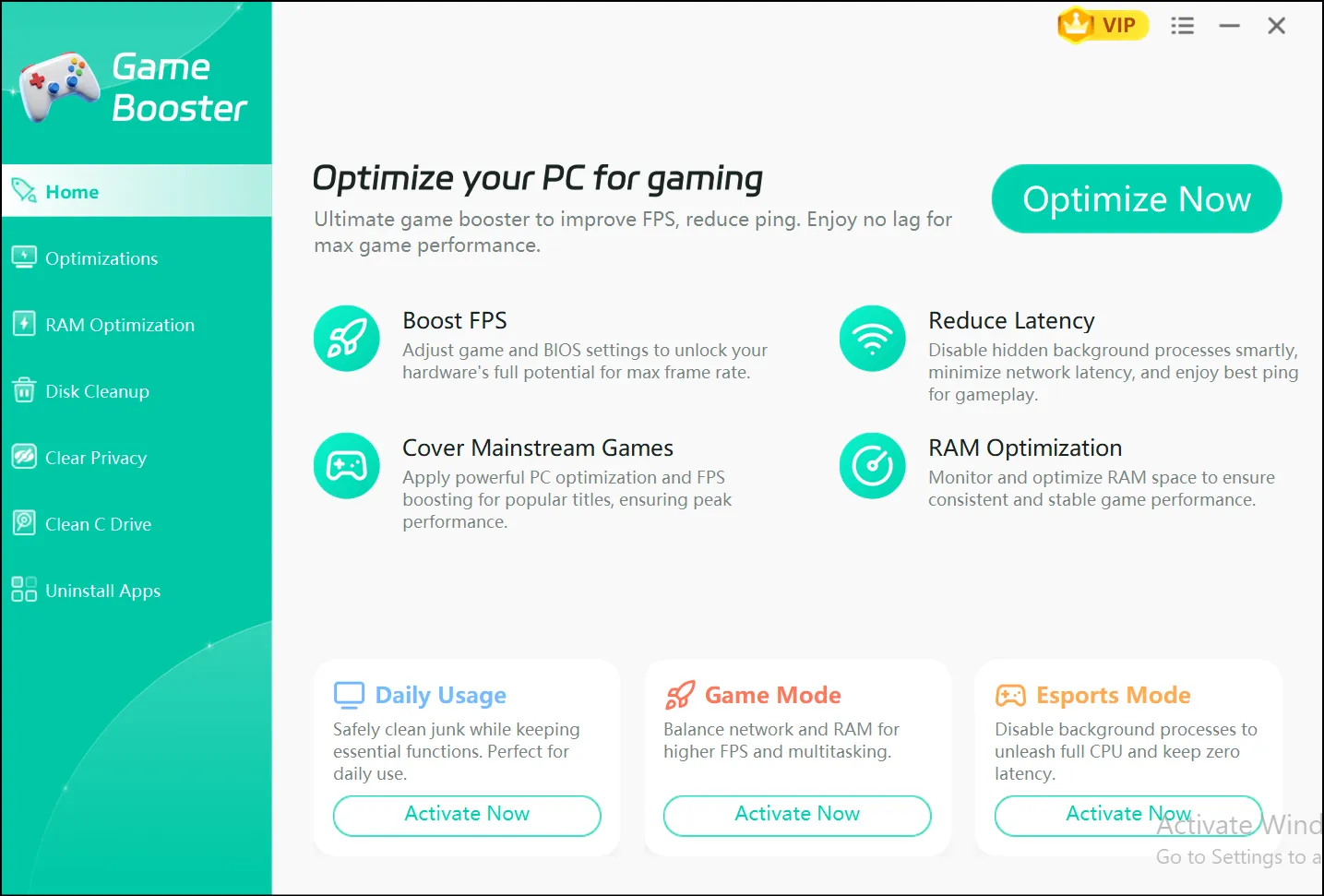
This feature is intended specifically for gamers who want to optimize their PCs for gaming purposes. Game Booster has a RAM optimization feature that offers monitoring and optimization of RAM to provide space for a consistent and stable gaming experience.
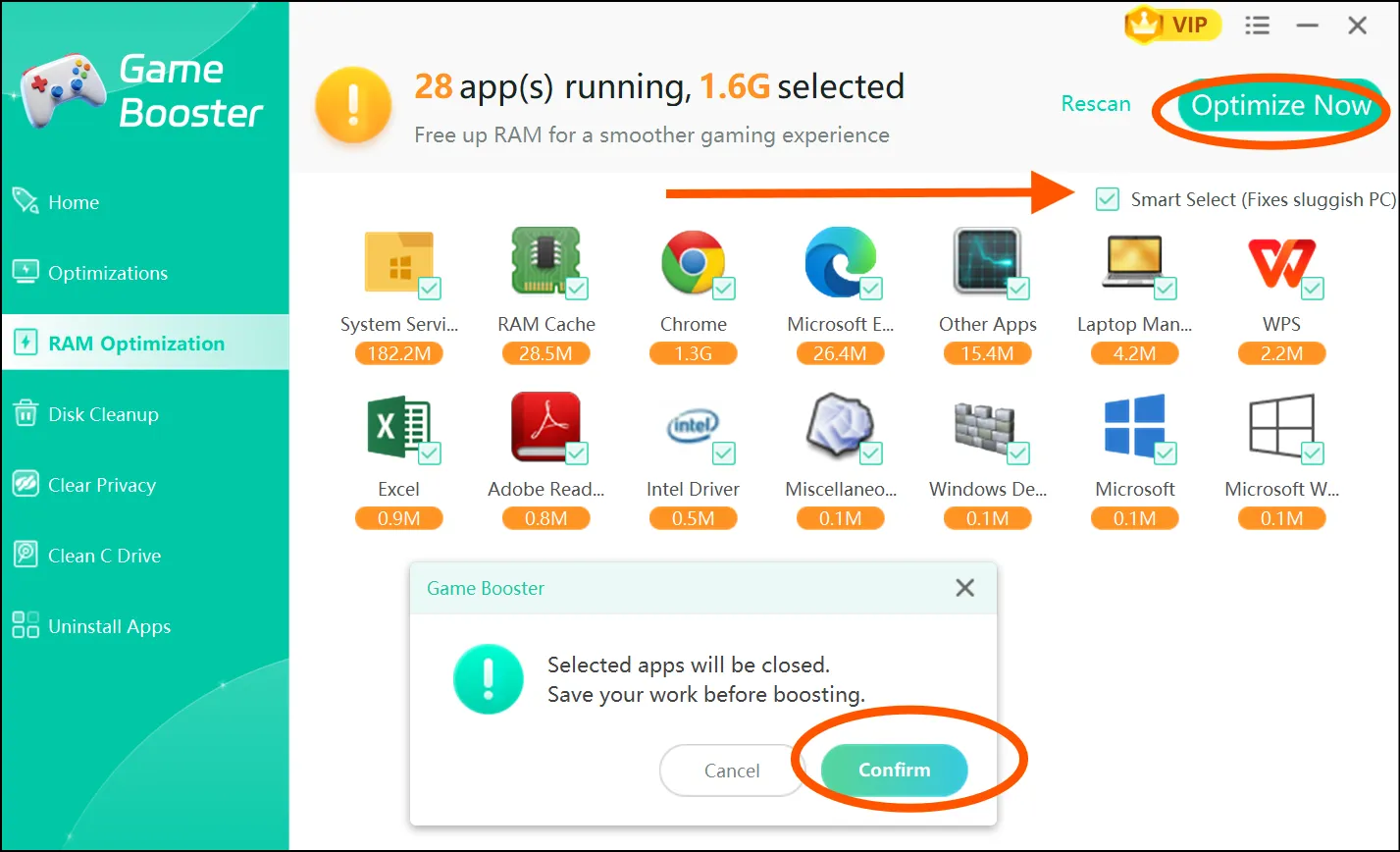
Step 1: Navigate to the main interface and select Game Booster. Now hit RAM Optimization to run the scanning process.
Step 2: Tick Smart Select, click Confirm, and then hit Optimize Now to free up RAM space to boost your gaming experience.
Part 7: How to Prevent Memory High Usage Windows 10/11
- Reboot at least once a week: Sleep mode does not empty RAM, as a full boot does, and memory leaks and long-running processes continue to accumulate.
- Uncheck startup programs: Software likes to add itself to the startup automatically; always check after any new install.
- Use a single browser and close tabs you no longer need: Multiple browsers open simultaneously, or 20 or more tabs open, is one of the quickest ways to fill up memory.
- Perform a malware scan every month: Silent malware is an insidious, unnoticeable resource drain on both RAM and CPU.
- Perform routine maintenance: Cleaning up temp files , cache, and junk files once a month keeps the background overhead low.
Part 8: FAQs About RAM Usage
1. Why is my RAM usage looking high if I am not opening anything?
High RAM consumption occurs due to all your running programs, such as Windows background services, Defender scans, memory leaks, and Superfetch caching, even when you don't have anything open. There are several things that can use your RAM, even if your system looks idle.
To fix the issue, close all your unnecessary background programs, restart your system, and then check for malware or software updates. Apart from this, you can also go for an upgrade of your RAM if required.
2. Will using lots of RAM negatively impact my PC?
No permanent harm, but your constant heavy use causes Windows to go to virtual memory, filling up your drive and being much slower. Such usage can put noticeable long-term strain on HDDs, especially.
3. Will 8GB RAM Be Enough for My Windows 11 in 2026?
Yes. 8GB is more than enough for Windows 11 in 2026. But it can get pretty full, so be warned. So if you find yourself constantly hovering around 80%+ on your RAM, then going to 16 GB is sure to make a difference in system performance that you can notice.
4. Why is the Anti-malware Service Executable consuming a lot of my RAM on Windows 10?
The Windows Defender's Antimalware Service Executable runs background scans so that it can protect your system. If it constantly uses up a lot of your RAM, you can schedule a scan during off-hours in Windows Security. Here, you need to avoid repeated scans of the same location and reduce resource usage of the system; exclude certain folders.
5. Will upgrading my RAM fix the high memory usage?
Yes, it is the most obvious solution when you are really underpowered for your workload. But if the problem is really due to memory leaks, malware, or startup bloat, then more RAM will only postpone the problem.
Remember: First fix the above problems, and then see if the hardware is still needs an upgrade
Final Verdict
I must say, with Windows 11 and Windows 10, high memory usage is almost never a single issue! There is a chain of problems that gradually pile up over time. The fixes I include here in the above writeup cover a wide range, from shutting down idle apps and cutting down startup bloat to the more serious tweaks such as virtual memory and in-place repairs. And I actually think regular maintenance = long-term solution!
WMaster Cleanup automatically handles cleanup, keeping your PC in excellent condition between fixes, not just after. So wait no more! Download this all-in-one Windows optimizer and cleaner right away!


