


Do you want to free up space on Windows PC or Mac computer? Read the 15 best ways to clean junk, duplicates, temp files, and cache. Use built-in tools, auto-cleanup, or cloud storage options: First find space hogs, then clean up efficiently. To speed up the process, you can use tools like WMaster Cleanup to automate and optimize it.
Are you working on your system, and it's taking ages to do a task that you usually do instantly? A disk full alert is a performance killer that slows down boot times, freezes Windows, and often crashes applications. In this situation, you might be wondering how to free up space on a pc or Mac without deleting essential items.
In this blog, I will share 15 strategic ways to free up space on your PC and Mac to reclaim gigabytes. Besides this, I will share an efficient tool named WMaster Cleanup to declutter Windows junk within seconds.
In this article
Part 1: Before Free Up Space on PC-Check What is Taking up Space on Computer
Before you start deleting your files, it's important to know where your storage is going. This way, you can target the right place, making your cleanup much faster and more effective.
Here is what you must check:
- Check storage settings to get a breakdown of how much space is used by documents, apps, and temp files.
- Sort the installed apps by size to find the large files.
- Use File Explorer to find the large media files.
- See the Disk Cleanup tool to find space that is being held by old Windows update data.
For Mac, you need to find the hidden clutter by checking the following:
- View the storage overview to see which category is taking up space.
- Use the "i" icon next to categories to see the largest files stored in Mac.
- Look at the size of the system data. The larger size shows you that Mac is holding onto old cache.
- Find the old iOS backups stored in your system by looking at the iOS section under storage.
Part 2: How to Free Up Space on PC and Mac-15 Ways
Well, the quick ways to free up your system are the most reliable ones too. Because you might get rid of large space hogs with the least effort. Here is how you can improve your storage:
1. Empty the Recycle Bin
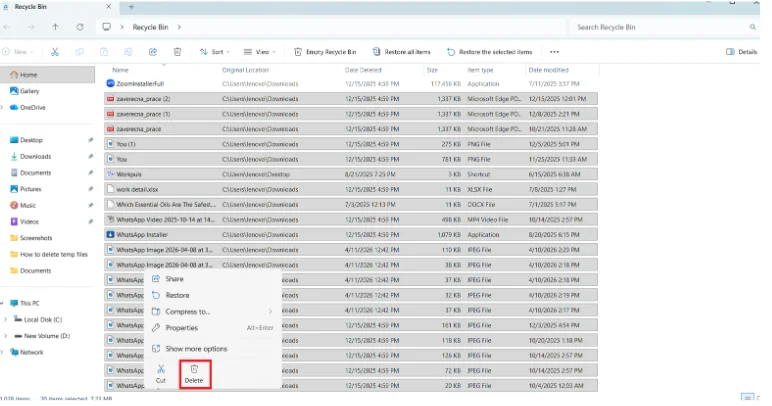
The recycle bin often takes up a lot of space, as all of your deleted files sit there. To permanently delete your files from your system, follow these steps:
For Windows PC:
Step 1: Go to the Recycle Bin folder and sort the files in descending order to bring the larger files at the top. You can select the files you want to delete or press Ctrl+A to select all the files to delete them at once.
For Mac, follow these steps:
Step 1:Locate the Trash icon on your Dock and right-click on it. Now select the empty bin from the menu and confirm it to finalize the process.

2: Delete temporary files
Temporary files, often seen as .temp files or .tmp, are data files that are created by our OS or specific programs to hold information. These files are just "leftover" data of finished tasks, so if you delete them, you can reclaim some device space.
For Windows-How to Free Up Space on PC
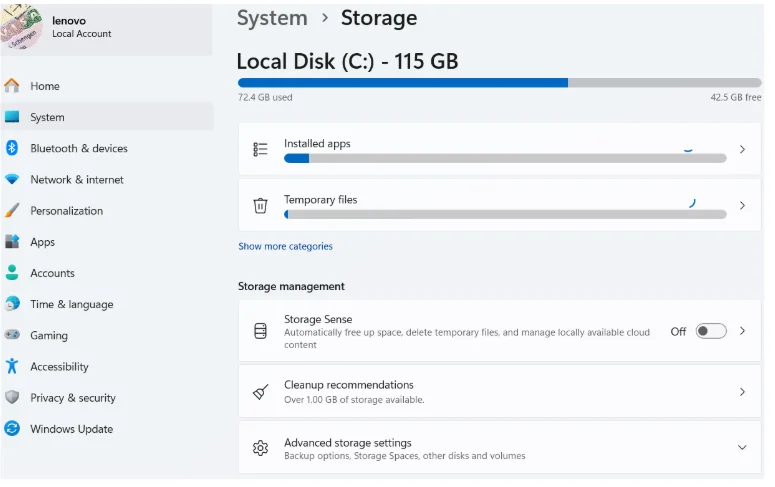
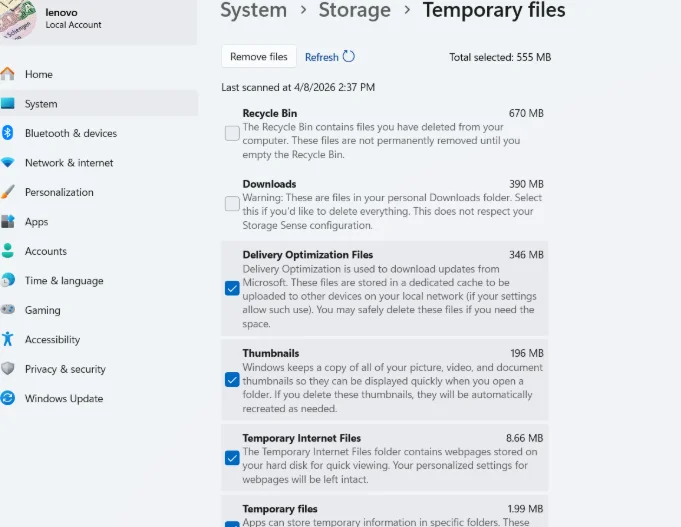
Step 1: Go to Settings from the search menu and click on System. Here, you have to select Storage. Now, open the Temporary Files to see the full breakdown of temp files.
Step 2: Now, select the files you want to delete and click Remove files.
You can also remove temp files from Windows 10/11 without facing manual hassle by using Disk Cleanup feature by WMaster Cleanup.
For Mac- How You Can Delete TEMP Files on Mac:
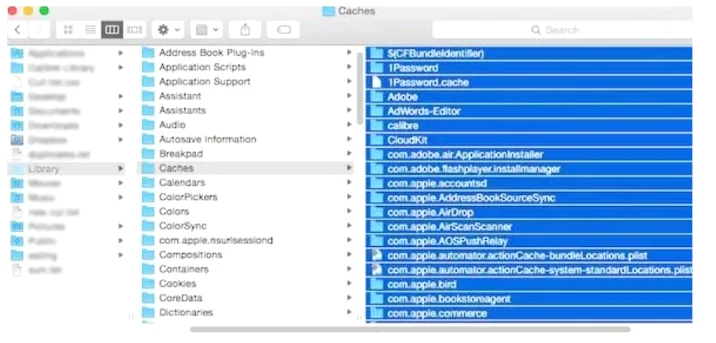
Step 1:Navigate to the Finder- Go --Go To Folder. Now type ~/Library/Caches/ in a pop-up window and click on Go. Now, open each folder and select the items you want to delete.
Check out our complete guide: Is it safe to delete local temp files and AppData temp files ?
3: Uninstall apps you no longer use
Next up, you can clear up space by removing the apps that you're no longer using.
For Windows-How to Quickly Free Up Space on PC
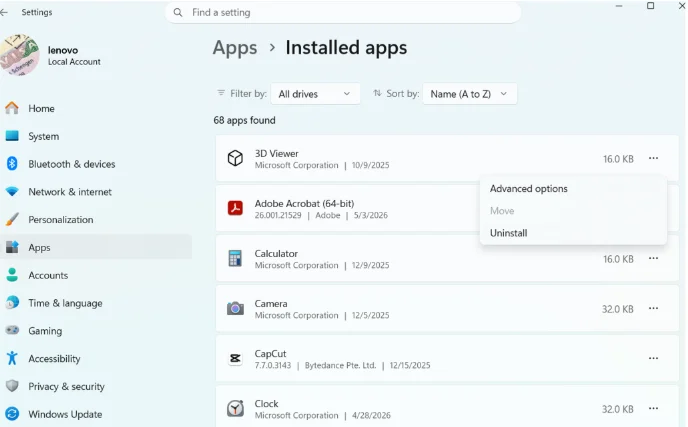
Step 1: Go to the system's Settings, click Apps, and then click on the Installed apps. Tap on the three dots you'll find on the right side of each app, and click on Uninstall.
For Mac-How You Can Do This on Mac:
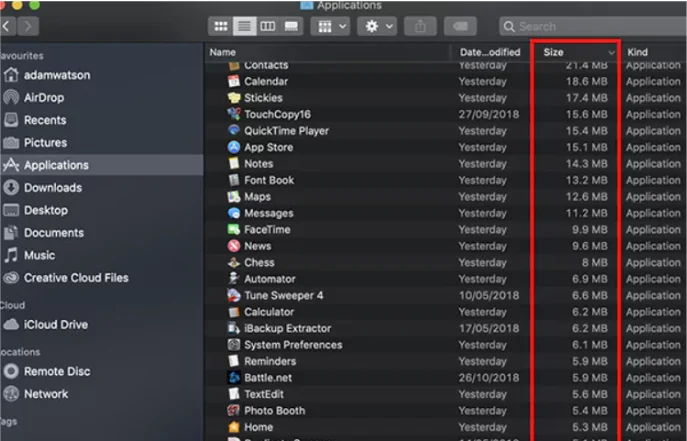
Step 1: Open the Finder and click on the Applications folder. Now, drag all the apps you don't use to the Trash.
4: Clear browser cache
Every time you visit a website, the browser stores a small piece of information to load faster. But these caches slow down your system if you don't clear them every now and then. Here's how to free up disk space on my pc:
For Windows:
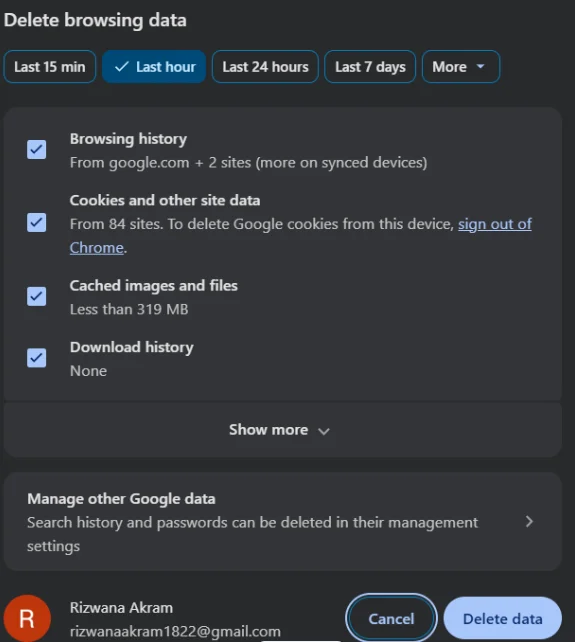
Step 1: Open your browser and press Ctrl+Shift+Delete to jump straight to the Clear Browsing Data menu. Select the time range and click on the Delete Data button to remove caches from your PC.
5: Remove large downloads
The downloads folder is the cluttered space of your system, as everything from PDFs to zip files ends up there. You need to sort it with the following steps:
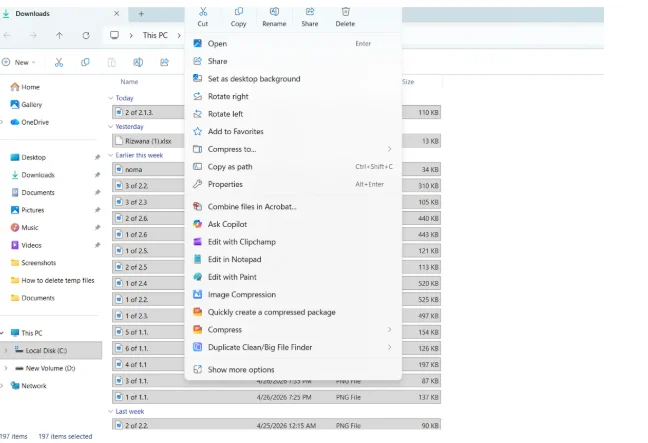
Step 1: Open Downloads folder and now arrange files in descending order. Select your desired large downloads that you want to delete from your system. Now, right-click on the selected file and hit the delete.
💡Pro Tips:You can also press Ctrl + A to select all the files in your Downloads folder to delete them at one go.
How to Free up Disk Space on a PC/ Mac With 4 Built-in Tools
There are built-in tools to clean up your system; for example, Disk Cleanup and turning ON Storage Sense in Windows, as well as optimizing storage in Mac.
6: Run Disk Cleanup (Windows)
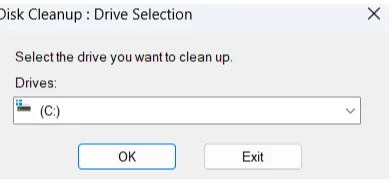
Disk Cleanup is Windows built-in feature that allows you to scan your hard drive and delete large files safely.
Step 1: To start with, search for Disk Cleanup, and a dialogue box will open on your screen.
Step 2: Now, you have to select the drive you want to clean and press the OK button.
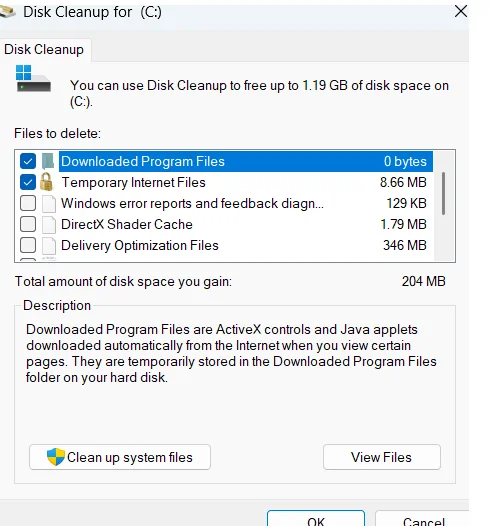
Step 3: Once the scanning finishes, you need to select the items you want to delete and press OK to finish the process.
7: Turn on Storage Sense (Windows)
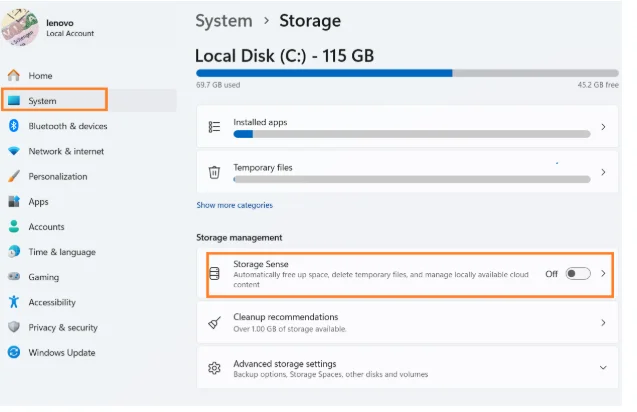
Windows offer a digital cleaner of your system that automatically deletes things you no longer need. Here's how you can turn on the storage sense and free up space on your PC:
Step 1: Go to System Settings & Storage - Storage Sense. Toggle the bar to turn it ON.
8: Storage Recommendations (Mac)
Apple offers personalized suggestions to remove the large files and clutter from your system with a few taps only. You can do this by following these steps:
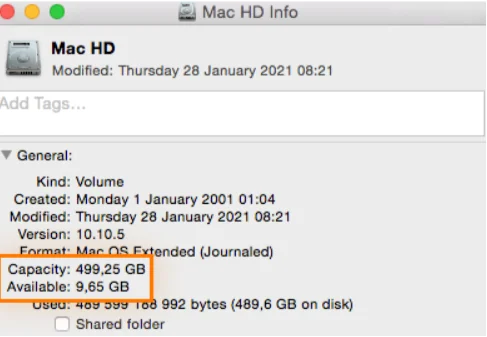
Step 1: First, you need to open the Finder app on your macOS dock. On the left side of the window, you'll see the drive option right under Devices, right-click on it, and then from the menu, click Get Info.
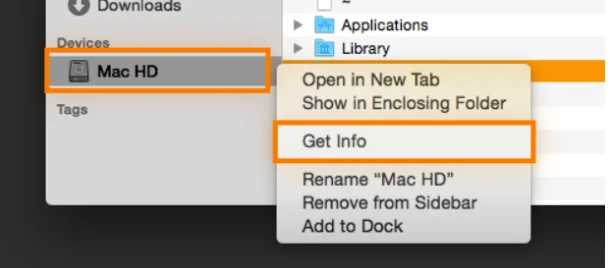
Step 2: As soon as you click on it, a pop-up window will appear with all the storage information and useful insights about your drive.
9: Optimize Storage (Mac)
Another way to remove large files from Mac is to optimize your storage by replicating these steps:
Step 1: From the Apple menu, you have to select System Settings. Now, navigate the options to find General from the sidebar and then you need to select Storage.
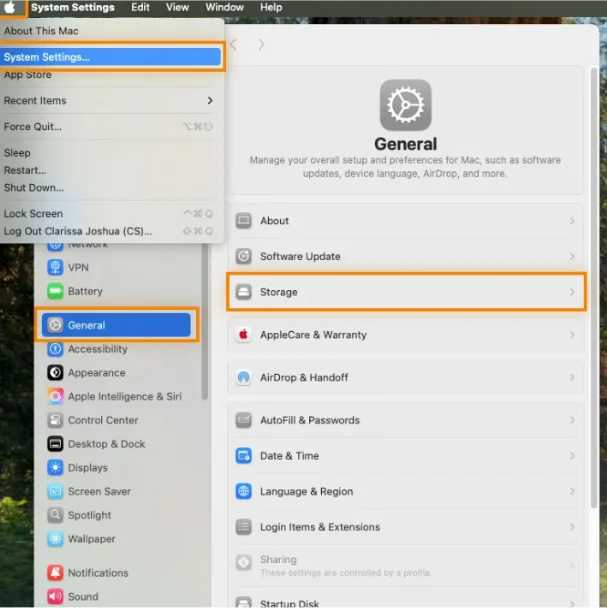
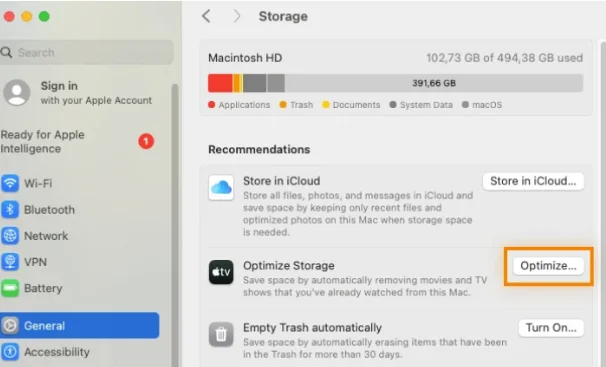
Step 2: Once you land on the Storage settings screen, you have to turn on Optimize Storage and your system will automatically remove Apple TV movies and shows.
Free up More Space Manually - 5 Ways
Although the automatic decluttering is effective, sometimes you need to do a manual sweep that the software might miss or if you want more control over your file management. Here are some effective ways to free up more space on your PC.
10: Delete duplicate files
Duplicate files are the storage drain without you even realizing it. So, you need to remove them using the following method:
For Windows - How to Free Up Space on a PC
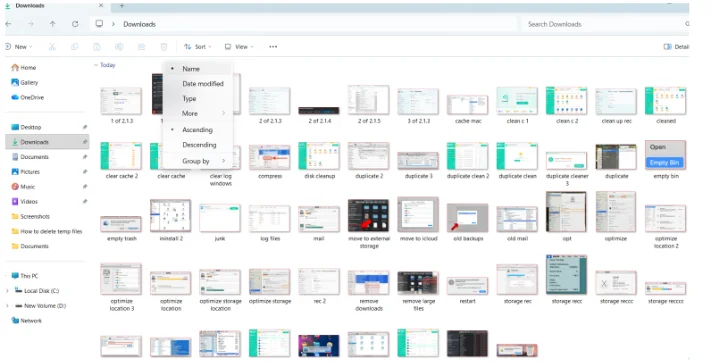
Step 1: Open a folder that you want to clean up, right-click in an empty space, and choose Sort byName.
If you see two or more files with the same name and the exact same file size, one is likely a duplicate. Keep the recent one and delete other duplicates.
For Mac-How to Free Up Space on My Mac :
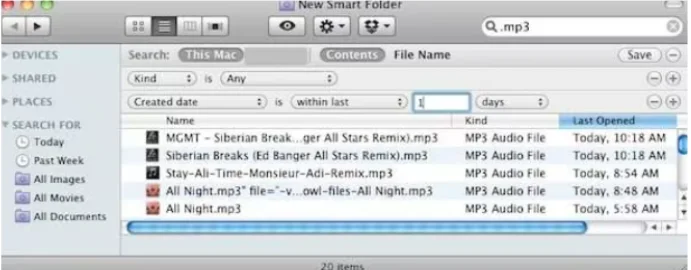
Step 1: Navigate to Finder and press the File tab. From here, tap New Smart Folder and click the "+" button to expand the options.
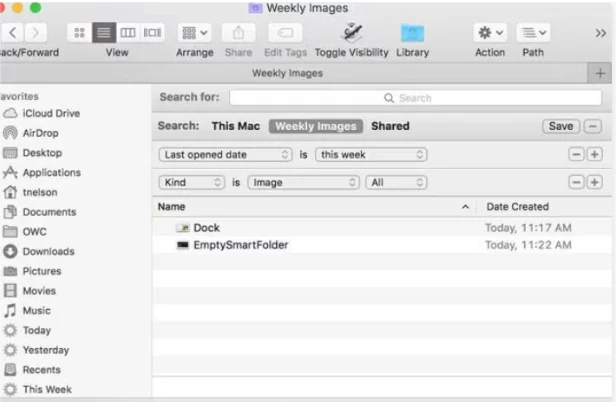
Step 2: Select filters and parameters to search for duplicate files. Now review carefully and click on Delete to remove them.
11: Move photos and videos to cloud storage
Media files are the major space hogs because of their high quality and large file size. You can move them to cloud storage to free up the space.
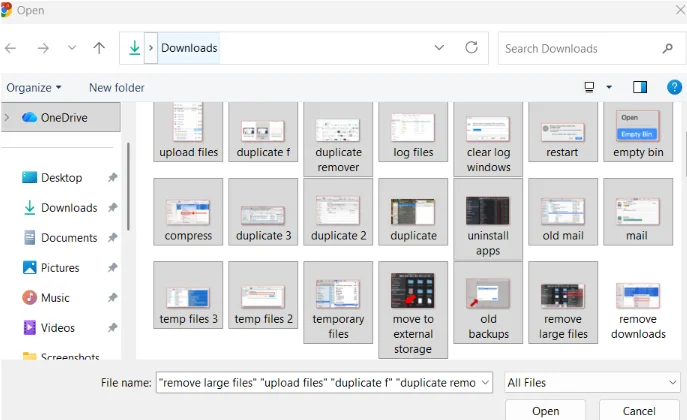
Step 1: Firstly, pick a storage cloud like Google Drive, OneDrive, or Dropbox. Drag or upload your media files to move them.
💡Tips:Before deleting from the local drive, verify if you have correctly.
How to free up space on mac: you can store your files in iCloud to reclaim your space.
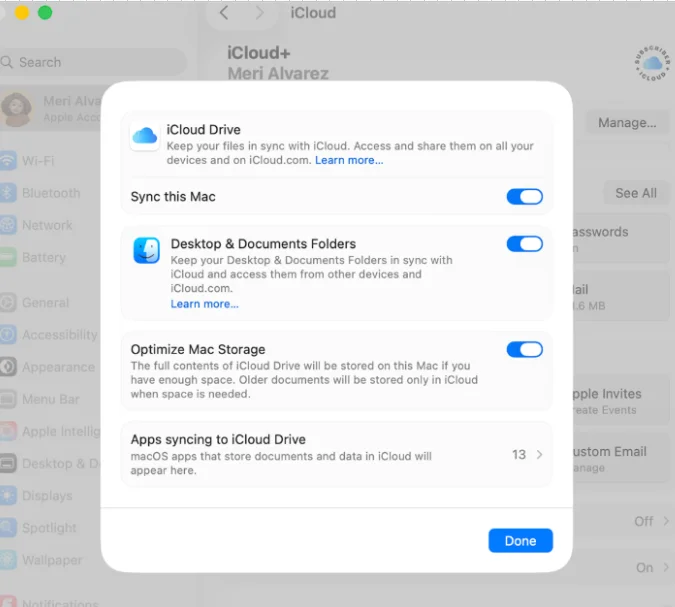
Step 1: Go to the storage menu: Apple menu - System Settings. Now, click on your name and then click iCloud.
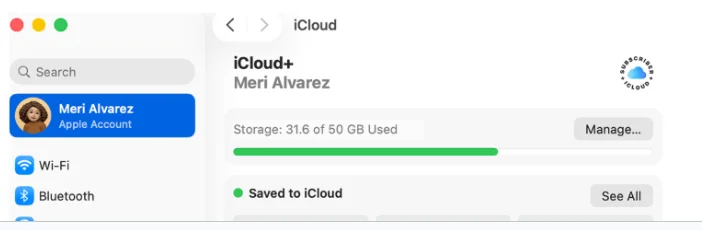
Here, you have to click Drive and turn on Sync This Mac.
Step 2: Choose to sync your Desktop & Documents folders. Your Mac will keep recently opened files on your drive and move older ones to iCloud.
12: Move files to an external drive
If you are after how to free up space on pc without deleting anything, moving files to an external drive is the best option. Here is how you can do that:
For Windows users:
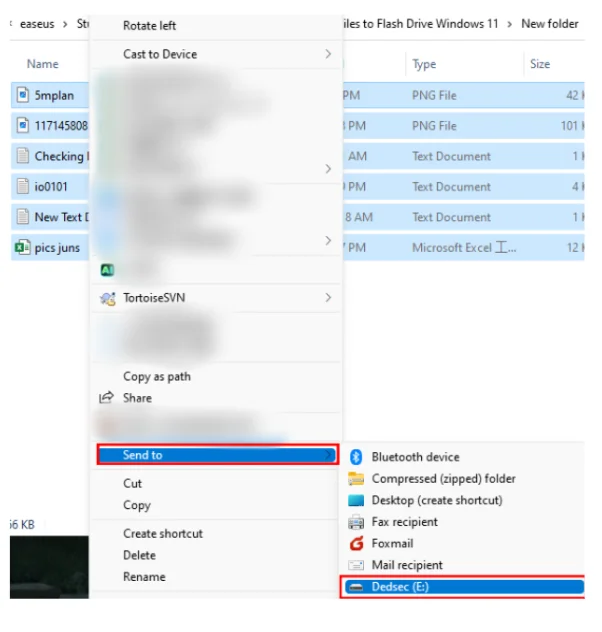
Step 1: Connect your external device to the USB port. Now, select the files you want to move, right-click and tap on Send to, and then hit the external drive to send all the files.
💡Tips:Make sure you right-click the icon to eject the external drive to prevent file corruption.
13: Remove old archives and disk images
Old archives often remain in your system after installing a program. And since they are the compressed versions of files, they probably take up a large space. Follow along to find how to remove old archives:
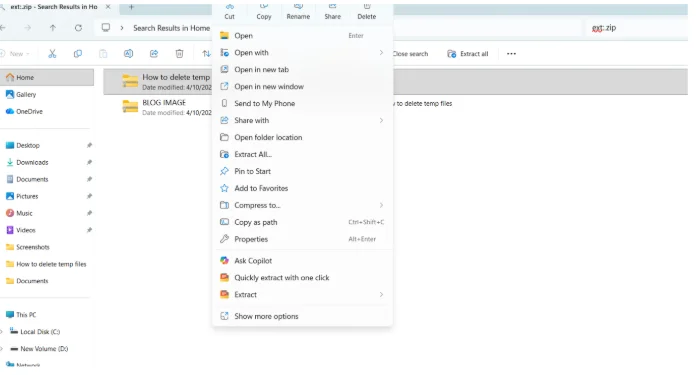
Step 1: Open File Explorer on your PC and search for ext:.zip, ext:.rar, or ext:.iso in the search bar.
Now, right-click and press Delete to remove the zip files you don't want.
For Mac Users:
Step 1: Open Finder and locate your archive files, like .zip, .rar, or .dmg files. Now you can either drag them to the Trash or use the right-click option to delete them.
💡Tips:You need to empty the Recycle Bin (Windows) or empty the Trash (Mac) to permanently delete your files from your system.
14: Delete Log Files
Windows and many apps create log files, and if you've never touched them, there are probably several gigabytes slowing down your PC. Here's how you can delete log files:
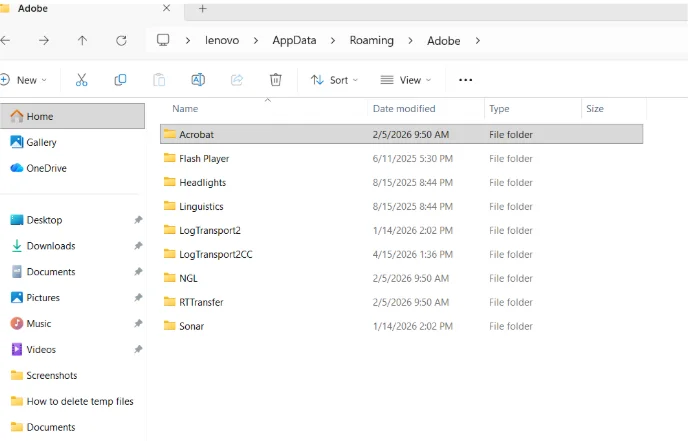
Step 1: Press the Windows key + R, and type %appdata% in the Run dialog box.
Look for Logs folders within the folders of apps you use frequently. You can delete them by right-clicking.
App Methods for Windows and Mac
15: For Windows-Use WMaster Cleanup-Ultimate Complete Way
If you're tired of digging through hidden folders to clear up space in your Windows PC, there's a much faster way to do this automatically. WMaster Cleanup is an all-in-one cleanup tool that can optimize your system performance.
It can dig in and clean the C drive , remove temp files, and remove duplicates to free up your storage. It's efficient and automatically cleans your system to reclaim space.
WMaster Cleanup
Ultimate Tool to Free Up Space on PC in One Click
- ·Auto identify and remove system junk and temp junk files within seconds.
- ·Use advanced algorithms to identify duplicate files and media.
- ·Provide a detailed overview of large files, along with the space they consume.
- ·Safely identify and remove outdated drivers and cache.
- ·A clean interface makes it easy to use for both beginners and experts.

WMaster Cleanup offers more than one way to clean up your PC. Here's how to quickly free up space on pc:
Disk Cleanup
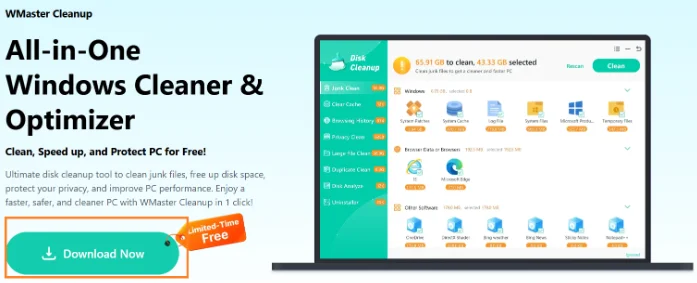
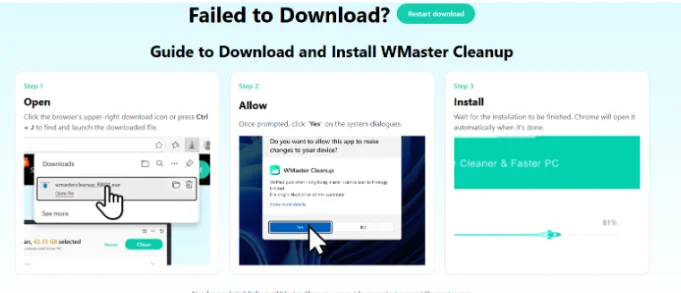
Step 1: Click on the Download Now button, available on the WMaster Cleanup's homepage. Once done, follow the on-screen guidance and complete the installation.
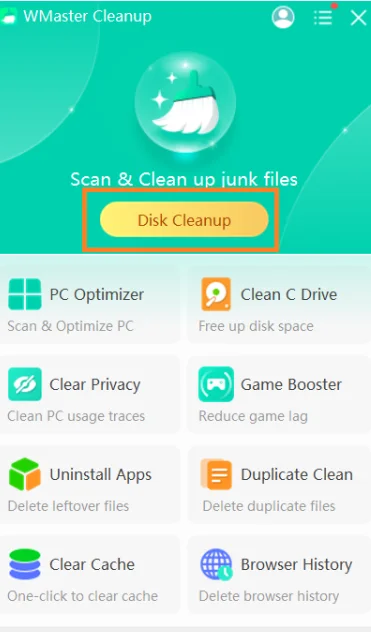
Step 2: On the main interface, click on the Disk Cleanup option. Click on Scan Now on the pop up window to let the tool thoroughly scan your files.
Step 3: Select the files you want to clean and click on the Clean button in the top right corner.
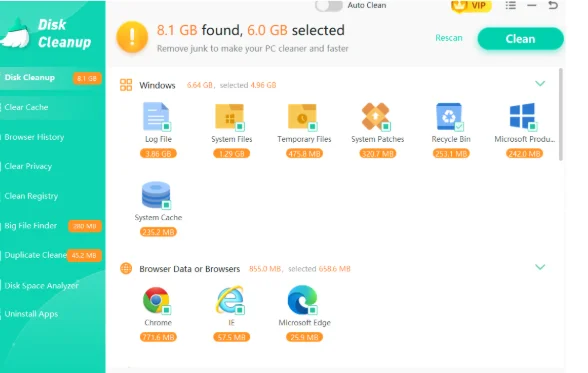
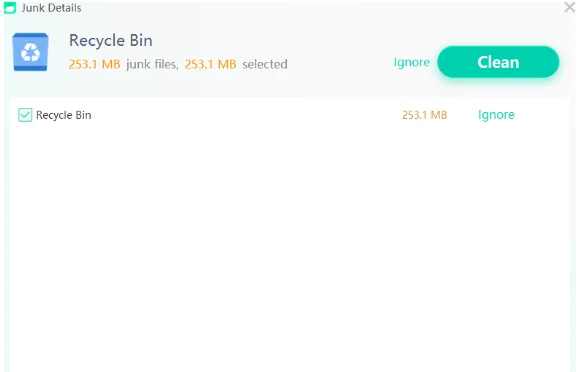
💡Tips:You can also view the junk details of specific folders or programs by tapping on it.
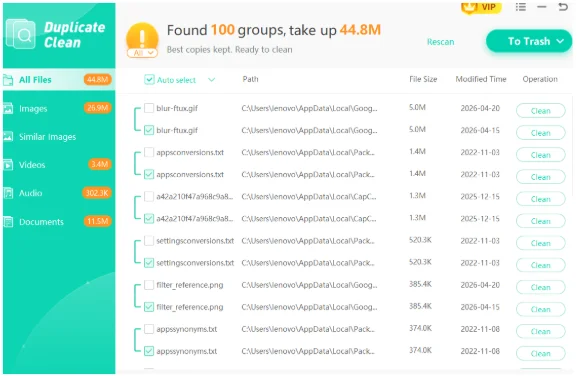
Remove Duplicate Files
Step 1: Go to the main interface and select Duplicate Clean. Select drive to begin the process. Once the scan is finished, tap "Auto-select" and hit To Trash to delete them.
Clear Browser Cache
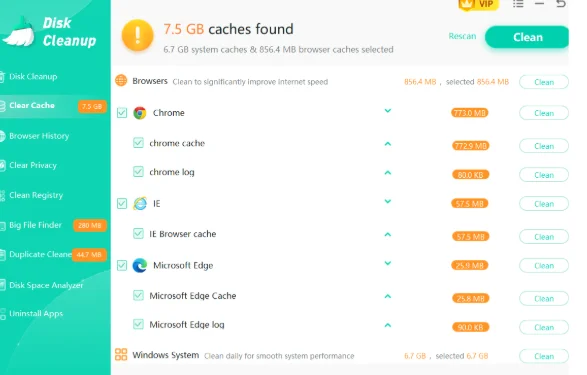
Step 1: Click on Clear Cache from the left pane or from the tool's main interface. Now, tap on the Scan option to start scanning.
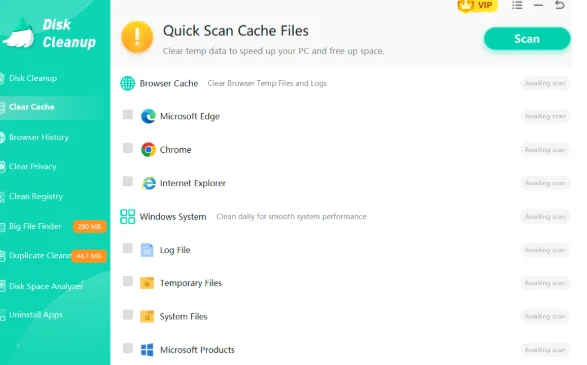
Step 2: Now, you can see all the browsers and the space they consumed. Select the desired ones and click on the "Clean" button to clear out their caches.
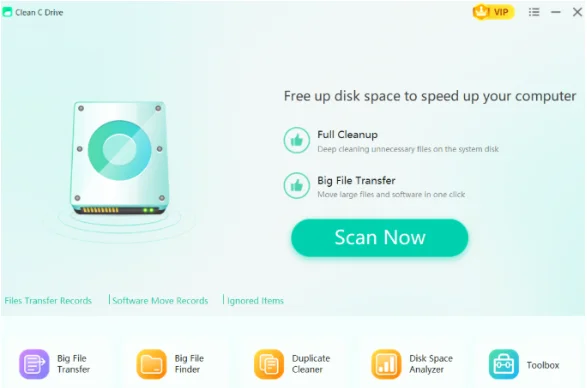
Clean (C:) Drive
Step 1: Click on the Clean C drive from the main interface and then hit the Scan Now option to initiate the deep scanning.
Step 2: Now, select the files you want to delete and click on the Clean option to release the files
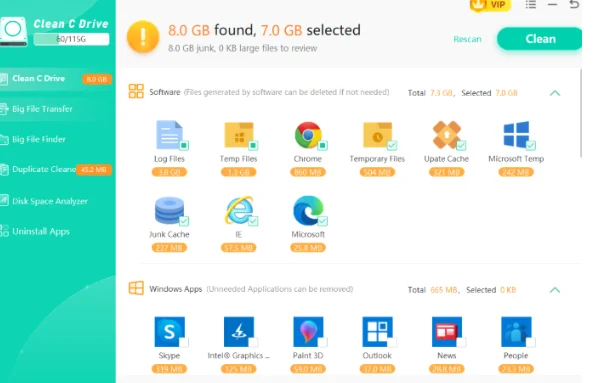
💡Tips:Navigate to the upper-right corner and find out how much space is left in the C drive.
Pro Tip for How to Free Up Disk Space on PC Windows 11/10
Uninstall Apps with Wmaster Cleanup
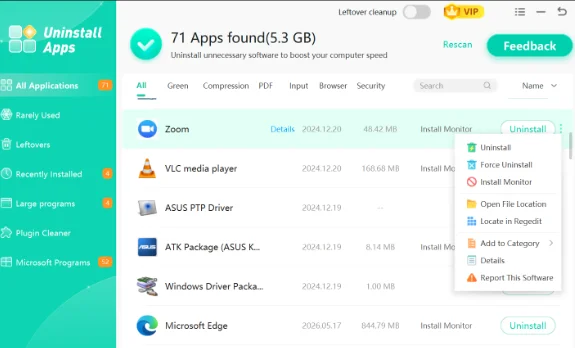
Large unused apps are an equal contributor to disk space shortages. The Uninstall Applications feature by WMaster Cleanup scans your system and lists apps you haven't used in a while so you can remove them.
Pro Tip for How to Free up Space on Mac Using Software
Mac users can try a widely regarded & one of the best cleanup tools CleanMyMac by MacPaw. With a full deck of cleanup tools, you can free up your RAM, run maintenance scripts, and manage background apps and login items.
Part 3: Tips: How to Free up Disk Space on PC/Mac Safely
The safest method for how to clean up disc space on PC and a Mac is to use the built-in system tools, as your personal data will remain untouched. Here are some tips to free up disk space safely:
- Start from the built-in tools to free up disk space. They only suggest files that are safe to remove, so you can safely remove junk without deleting any critical system files.
- Downloads are the safest zone to clean disk space. Most files here are installers or copies that won't affect the operating system.
- Do not delete your media files; just offload them to your external storage so you can get back to them whenever you want.
- Clearing browser cache is also a safe method to get rid of junk, and can free up hundreds of megabytes without affecting your actual files.
Part 4: FAQs How to Free up Disk Space on PC & Mac
1. Is it safe to delete my System Data or my Other folder on a Mac?
No! It's best not to delete the whole folder, as it contains your vital OS files. But you can safely delete subfolders like caches or logs.
2. If I delete a file from my PC, will it also delete from my Cloud storage?
Yes, typically! If your folders are synced (e.g., OneDrive or iCloud), deleting a local file will initiate a sync that also deletes the cloud copy. To free up space without losing data, use the File On-Demand feature to offload data safely.
3. How much free space should I always keep available on my PC?
You should keep at least 10% to 15% of your total disk space capacity always free. Actually, your PC's operating system needs this breathing room for virtual memory, background updates, and file swapping.
4. Why am I getting my storage full notification even after I have deleted files?
Deleted files often stay in the Recycle Bin, which takes space, until you empty this folder. Moreover, hidden system shadows, browser caches, and temporary update files also take up space.
For Windows users, I highly recommend you to use WMaster Cleanup, as it offers a deep scan to find and remove your system's invisible junk that standard deletion misses.
5. How often should I clean up my disk space?
A quick weekly cleanup of your Downloads and Trash folders is ideal. Whereas you can go with a deeper system scrub once a month.
If you're a heavy Windows user, WMaster Cleanup makes this effortless by monitoring your storage in real-time and automating the cleanup process so your PC stays optimized and works smoother.
Final Words
That's all you need to know about how to free up space on a pc & and Mac in a simple and easy way. You can choose one or all of the above-mentioned methods to clean up your system.
However, if the issue persists or to avoid manual hassle on Windows, you can use WMaster Cleanup . This all-in-one cleanup tool offers an intuitive interface, batch deletion, and a preview option to get rid of all the junk safely in just seconds.


