

Your name, number, address, and old social profiles are more visible to everyone than you think. Although there is no single way to clean out everything, you can learn how to remove your information from the internet and take back control of your online privacy.
Start by taking down old profiles and opting out of data brokers. Besides this, you can request Google to remove the searches where your information appears and clear your local browser traces to cut down your digital footprint.
In this blog, I'll share 10 practical steps for how to get your information removed from the internet and lock down your online privacy.
In this article
- Why You Should Remove Your Information From the Internet
- How to Remove Your Information From the Internet
- Remove Your Personal Information From Google
- Opt Out of Data Broker and People-Search Websites
- Delete or Lock Down Social Media Accounts
- Delete Old Accounts and Unused Apps
- Remove Private Information From Websites
- Remove Public Information and Public Records
- Secure Your Accounts to Prevent New Exposure
- Monitor Your Information After Removal
- Use a Dedicated Data Removal Service
- Frequently Asked Questions
Part 1. Why You Should Remove Your Information From the Internet
Your online information may seem harmless when you view each piece separately. But once you combine all those pieces, you'll realize that your complete profile is available on the Internet.
Here are the main reasons why you need to know how to have your personal information removed from the internet:
- People-search sites can easily link your full name to your past and present home addresses.
- Publicly listed phone numbers can be easily tracked by unwanted telemarketers and scammers.
- Forgotten uploaded photos, old comments or posts, and left-out social media profiles stay viewable online forever.
- Government and official records continuously feed data straight to broker profiles.
- Information can pop right back up on search sites whenever underlying public records get updated.
Is It Possible to Delete All Sensitive Information From the Internet?
No! Once your personal information is publicly available, you can't completely delete it from the Internet. Especially data that is in public records, news articles, or shared by other people is very difficult to remove.
On the other hand, you can try removing some of the information, like deleting old social media accounts that you are not currently using and requesting certain Google Search results to be removed. Besides that, do not overshare your personal data ever again.
Part 2. How to Remove Your Information From the Internet
Removing your info from the internet will include different layers where your data lives: data with brokers, long-lost social media accounts, search engine cache, etc.
But which is the closest layer? Your own PC.
Your PC stores information locally. Your browsers can retain browsing history, search history, downloads, cookies, cached data, and other local traces of your online activity.
The Easiest Way to Remove Your Information From the Internet
Have you ever been stuck in a situation where you wonder, "how to get your personal information removed from the internet?" This is where WMaster Cleanup, an all-in-one Windows cleanup tool, comes in.
Its dedicated Clear Browser History feature protects your privacy online by deleting your browsing caches, cookies, search history, and download history. Not only that, but it also clears out multiple or specific social platform histories with a single click.
What's more? Along with an intuitive interface, it removes digital footprints from over 58 major browsers, like Chrome, Firefox, IE, Edge, etc.
WMaster Cleanup
Remove Information From the Internet in One Click
- ·Clears browsing, search, & download history, cookies & caches in 3 seconds
- ·Blocks ad tracking to improve the user's searching experience
- ·Provides clear categorization of digital traces for better cleaning of browser history
- ·Offers deep-level browser cache cleaning to wipe hidden web data and caches
- ·It offers multiple browser cache deletions at once with 1 click

How to Remove Your Information From the Internet by WMaster Cleanup
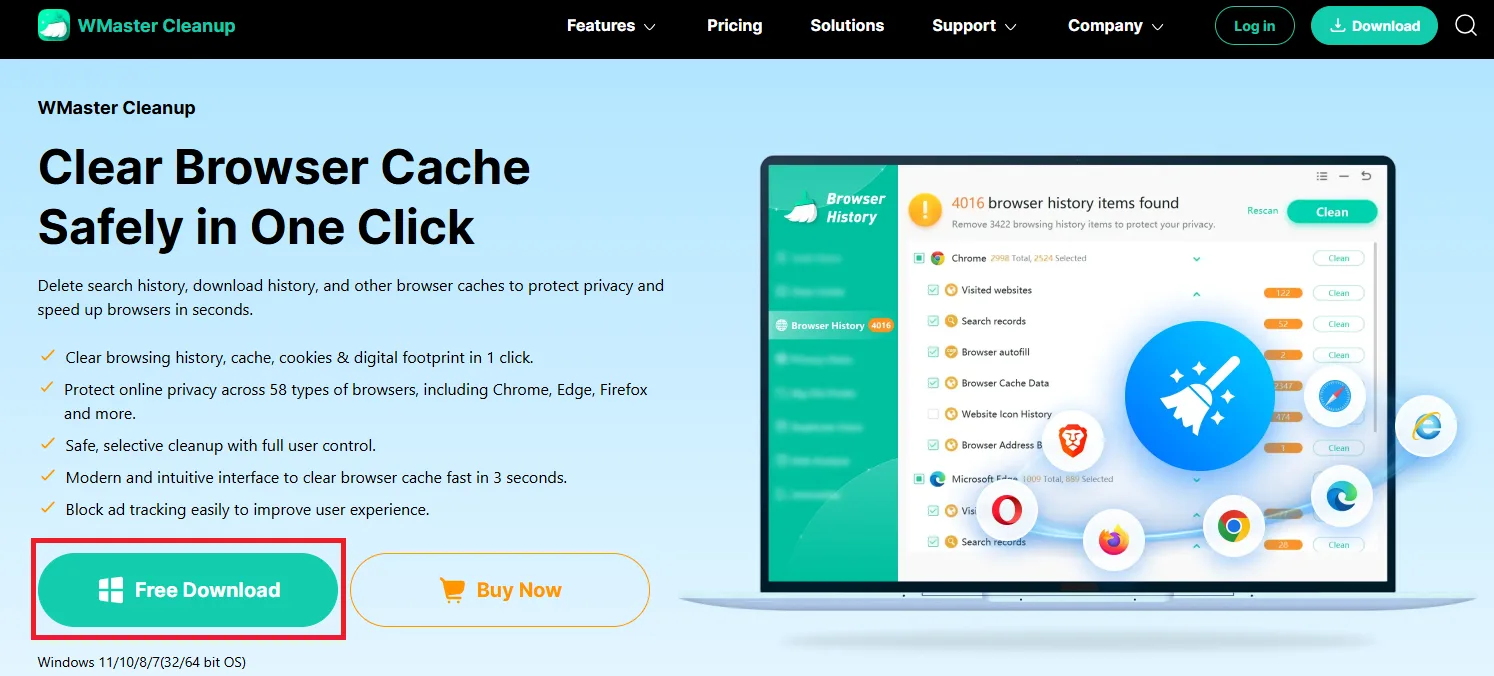
Step 1: Go to the official page of WMaster Cleanup, and from the features tab, select Clear Browser History. Click the Free Download option and follow the process to install the application in your Windows system.
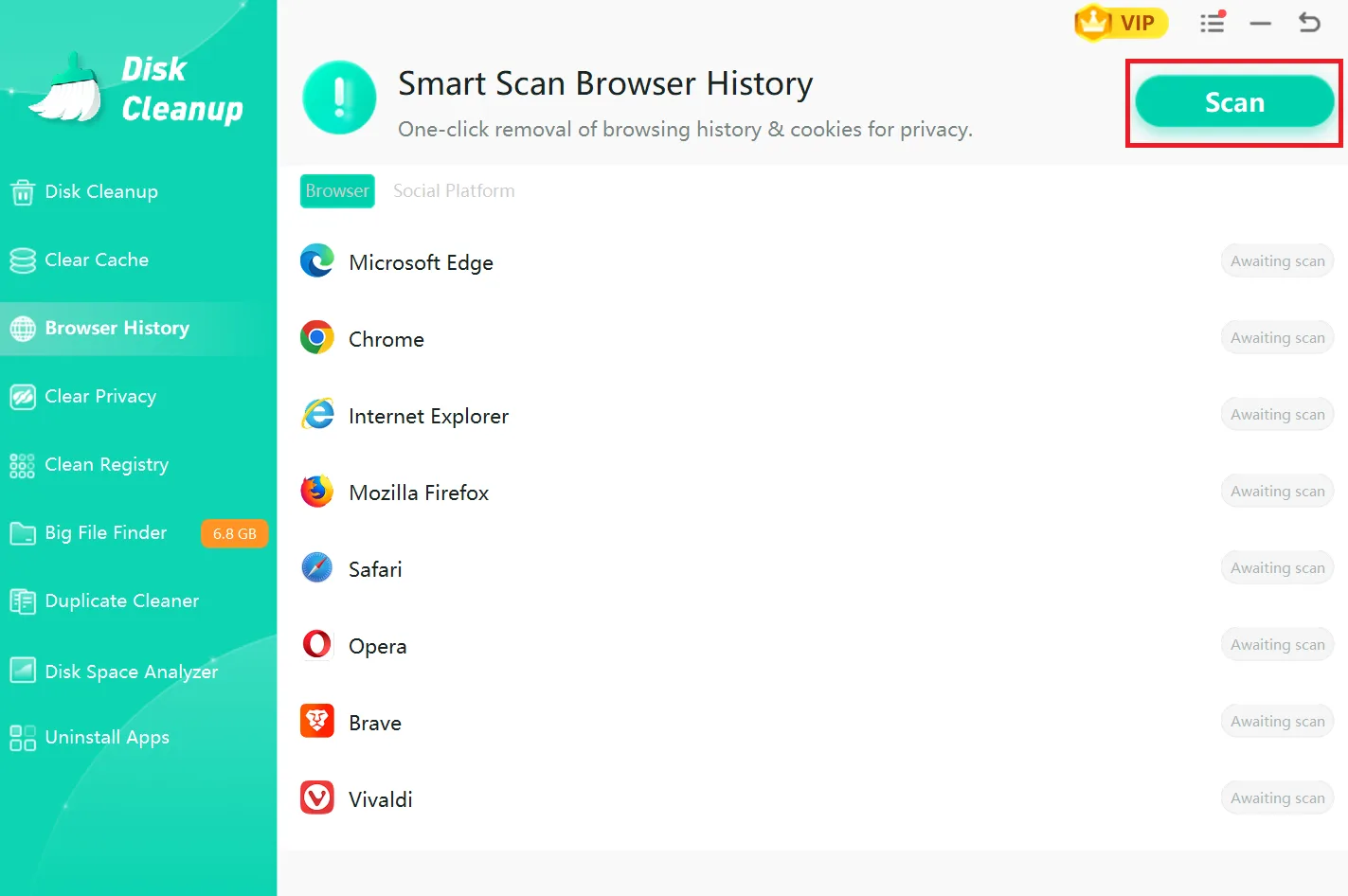
Step 2: Once the installation completes, launch the tool on your desktop to land on the main interface of the Browser History feature. Click Scan to initiate the process.
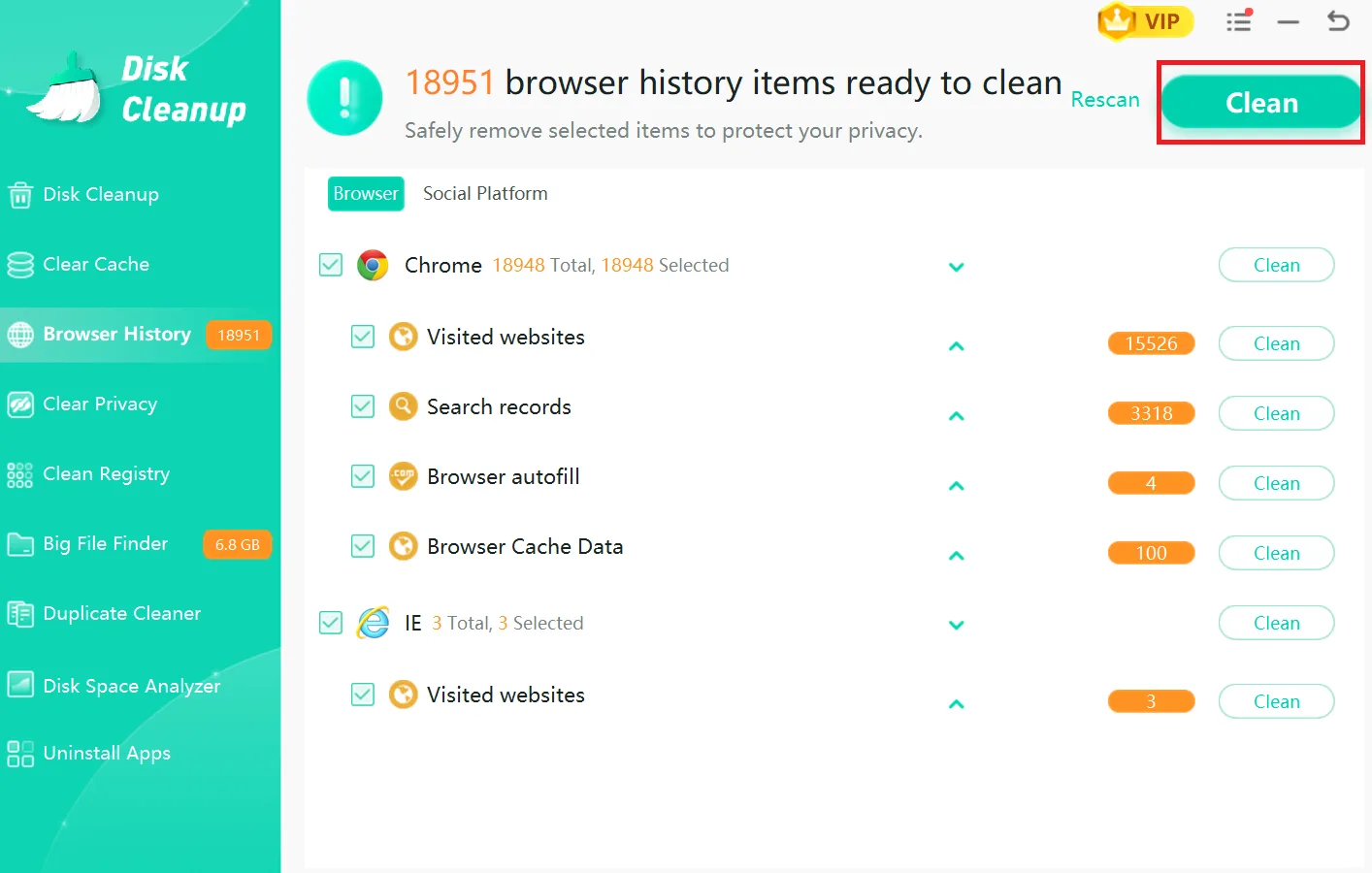
Step 3: Select the browser data you want to remove, such as search records, visited websites, cached data, and browser autofills. Then hit Clean.
💡Tips: If you want to clear a specific browser history and cookies, keep it checked and uncheck all the other browsers before hitting the Clean button.
To ensure your personal information is thoroughly scrubbed from the web, you also need to address your social media footprint and cookies. Follow the steps below:
Step 1: Tap on the Social Platform on the Browser History interface. Review and hit Clean to delete all social media platform items.
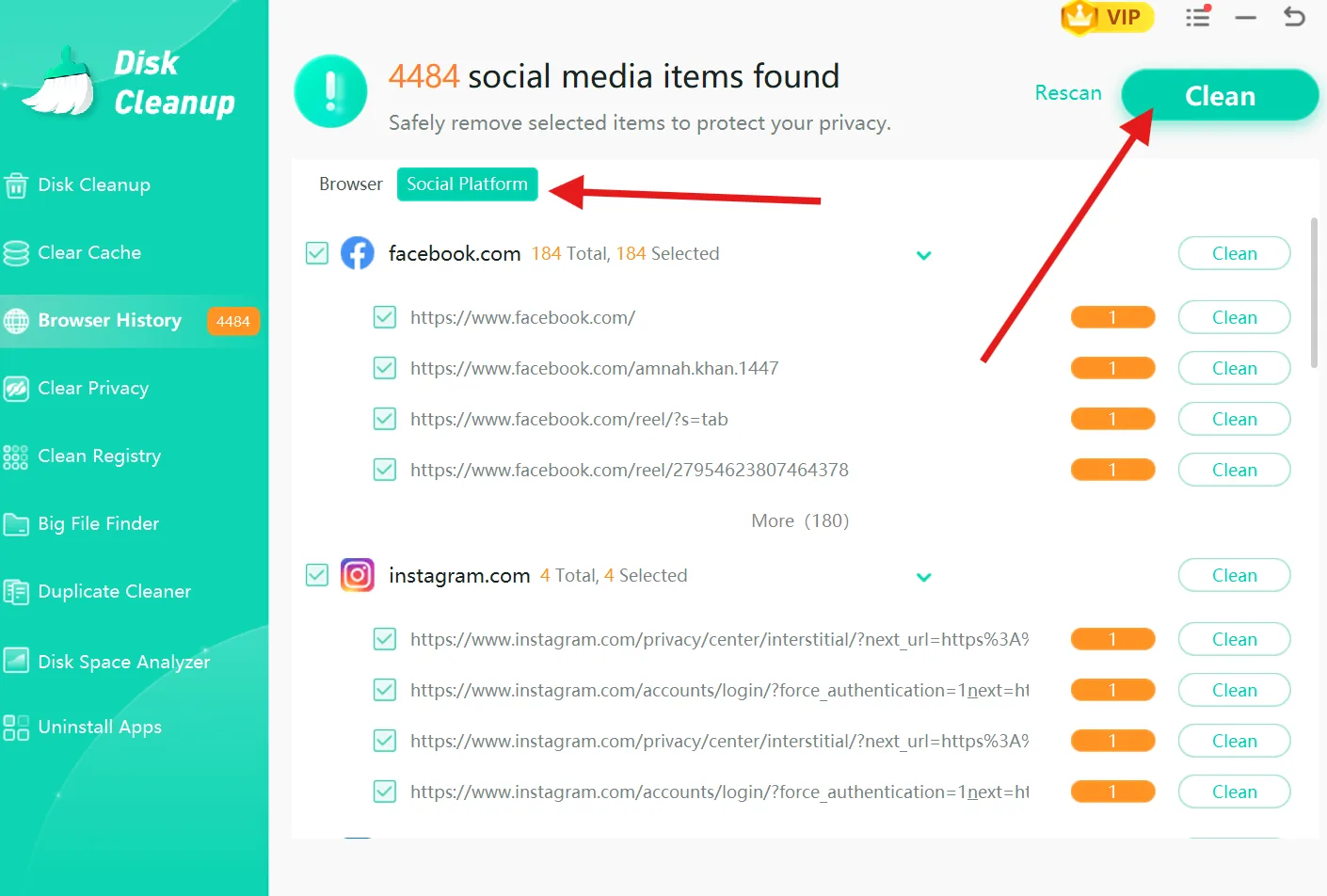
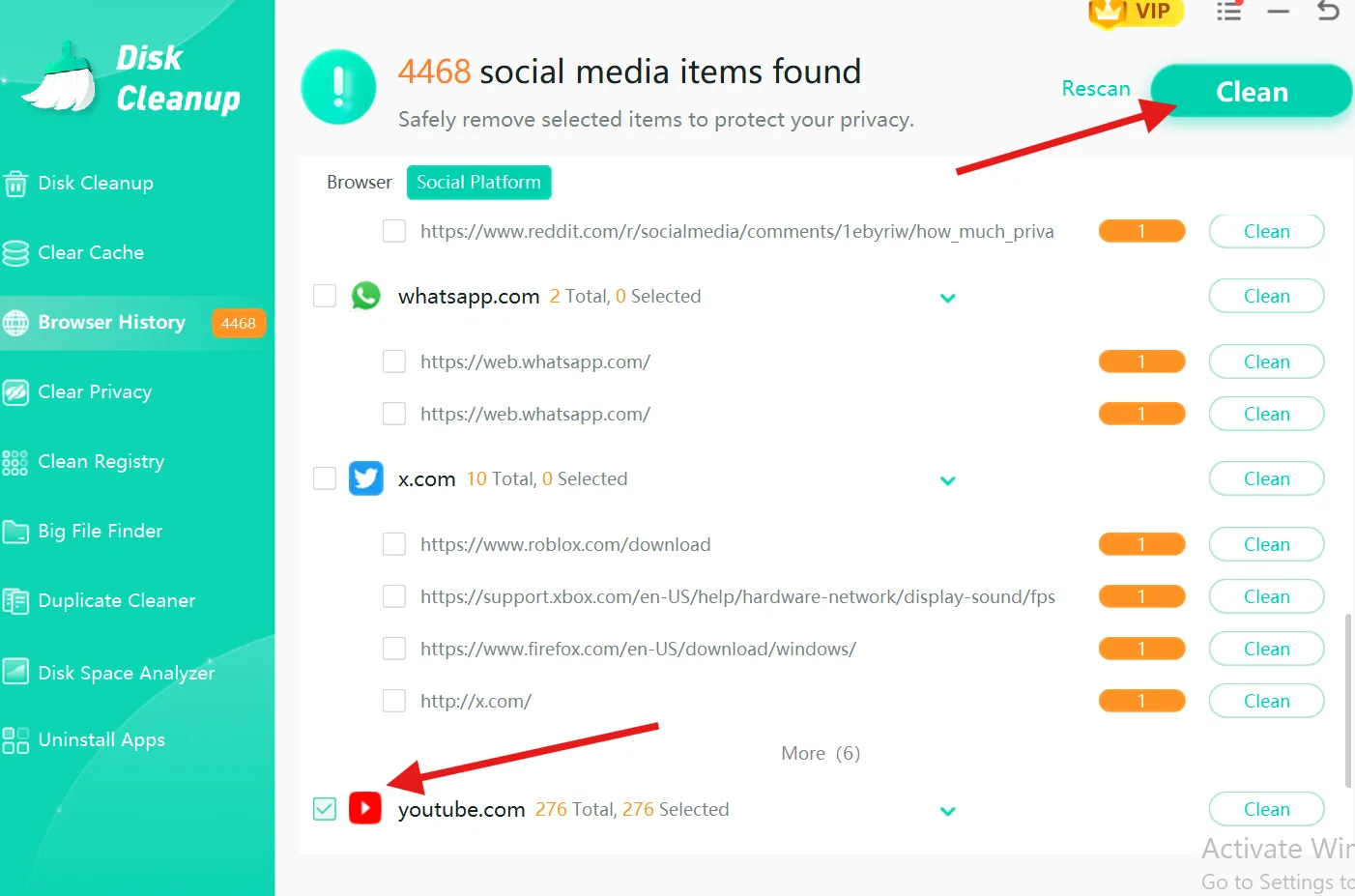
💡Tips: To delete specific social media history, keep the desired one checked and uncheck all the other social platforms' main boxes. Hit Clean to initiate the process.
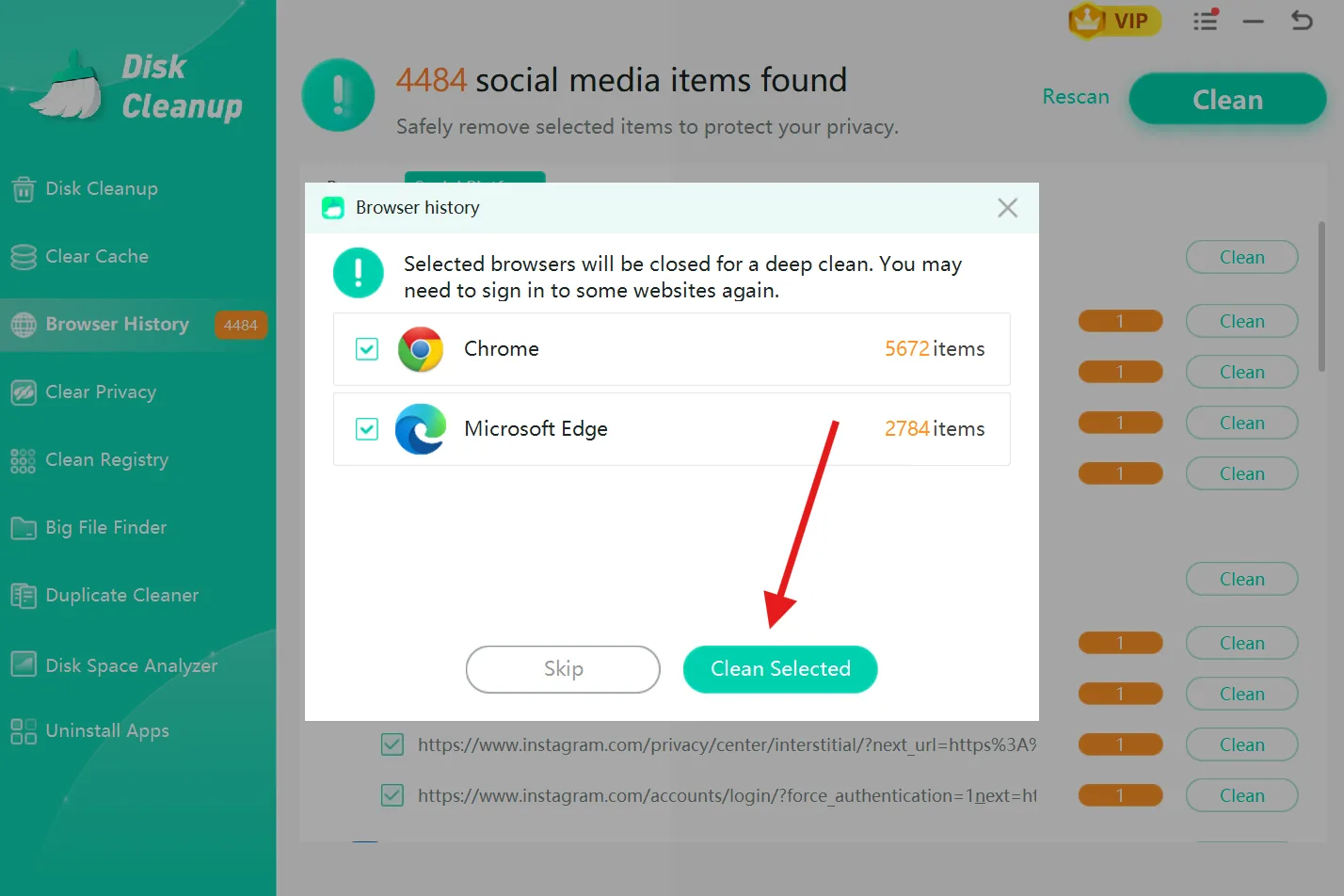
Step 2: Now select the desired browser and click Clean Selected. Done.
Have you ever searched for a controversial trend or something private on Google? Read our complete guide on how to remove Google search history, no matter what device you used.
Part 3. Remove Your Personal Information From Google
Google has made it easy to find your information, and you can request to remove it. Scroll down to find how you can remove your personal information from Google.
1. Use Google's Results About You
Google's Results About You feature can help you find personal information such as your home address, phone number, and email address appearing in search results. You can enter the information you want Google to monitor and receive notifications when matching results are found.
Step 1: Open Google's Results About You page, scroll down, and click Get started.
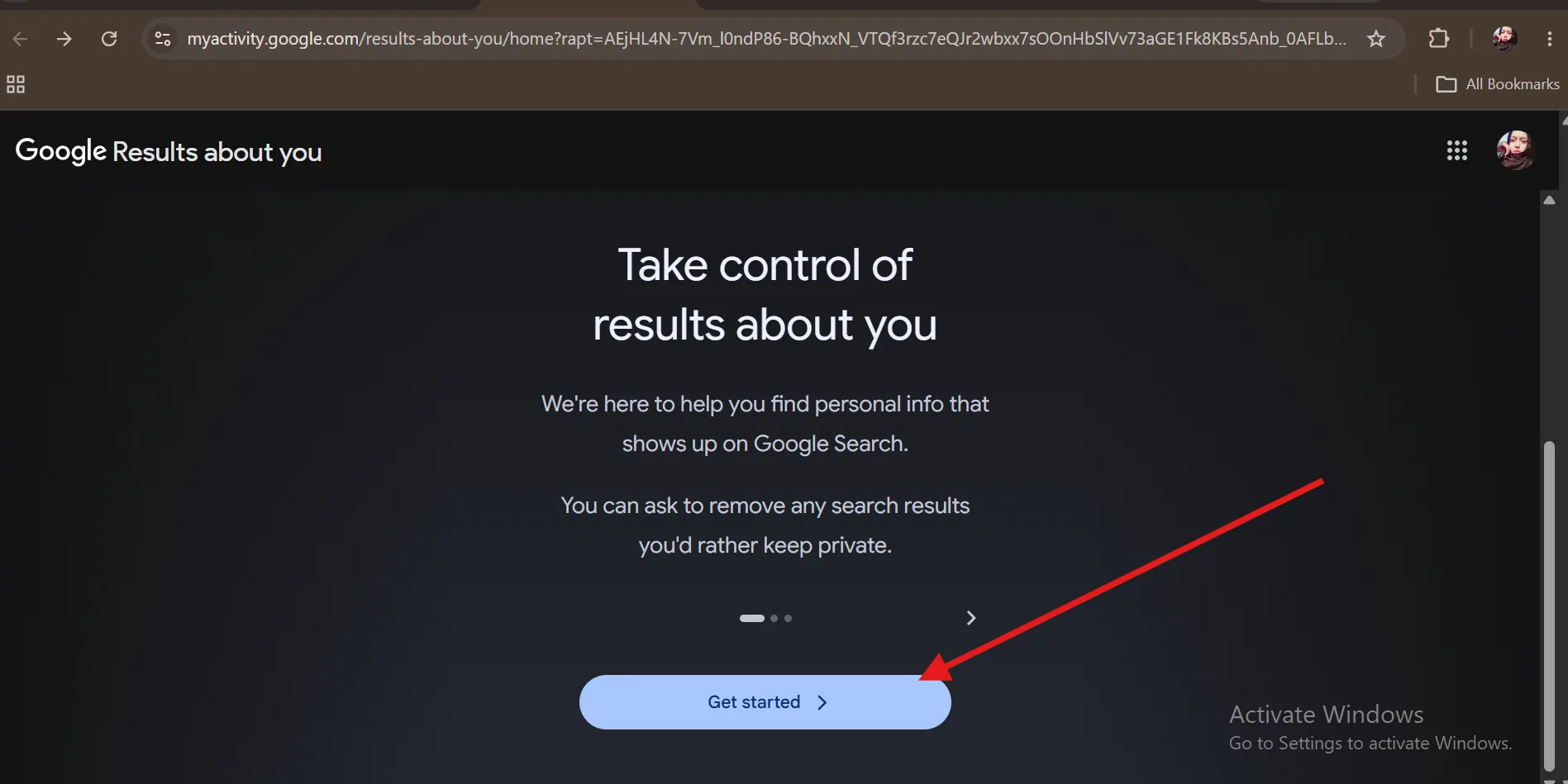
Step 2: Enter your name and personal contact information and click Continue.
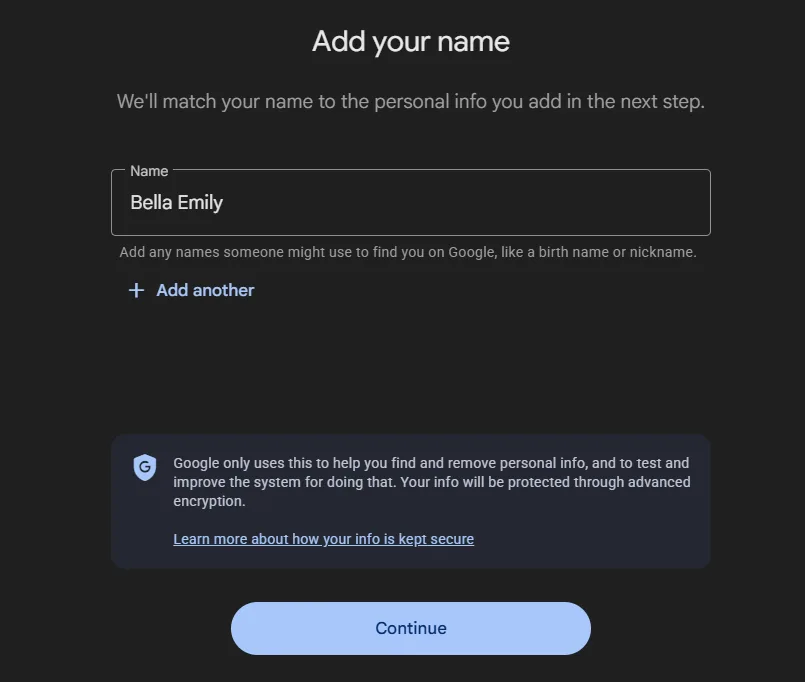
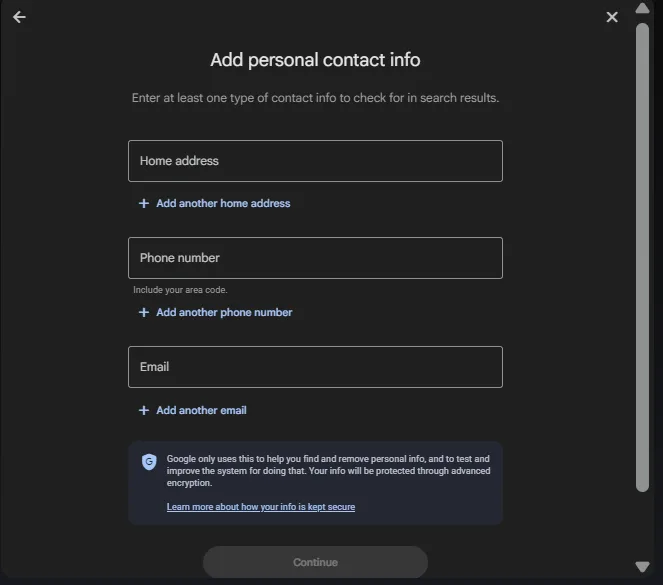
Step 3: Now check and confirm the information belongs to you.
💡Tips: You can also set up notifications to get notified if your information appears online.
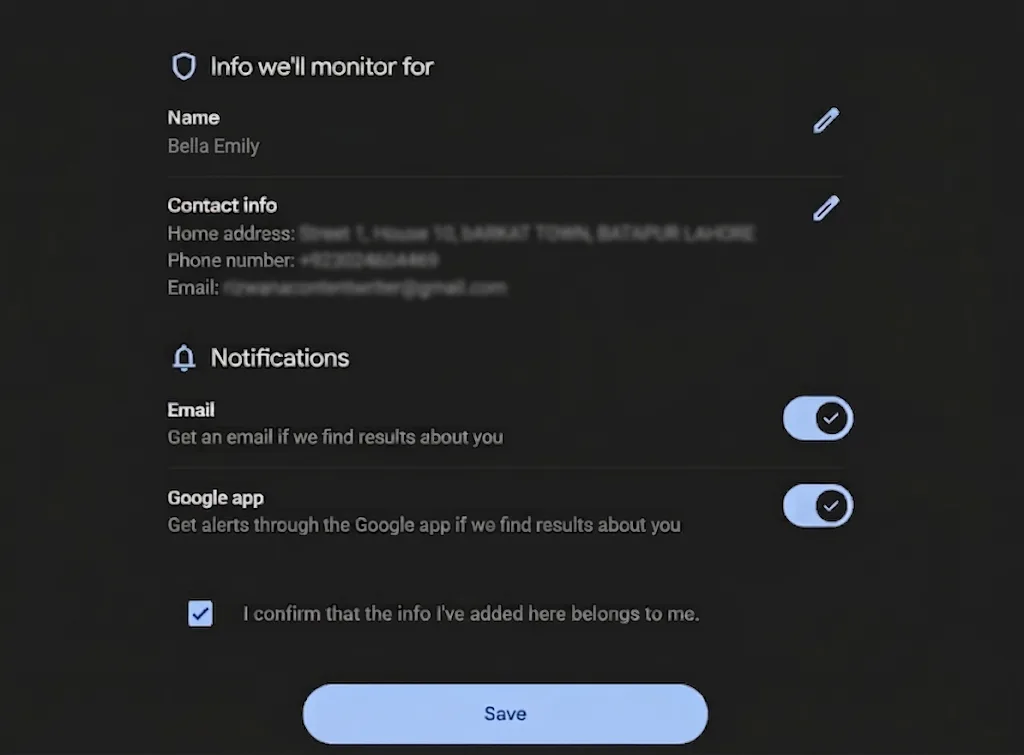
Step 4: Once you add your information, Google takes 6 hours to search and gather information on the internet.
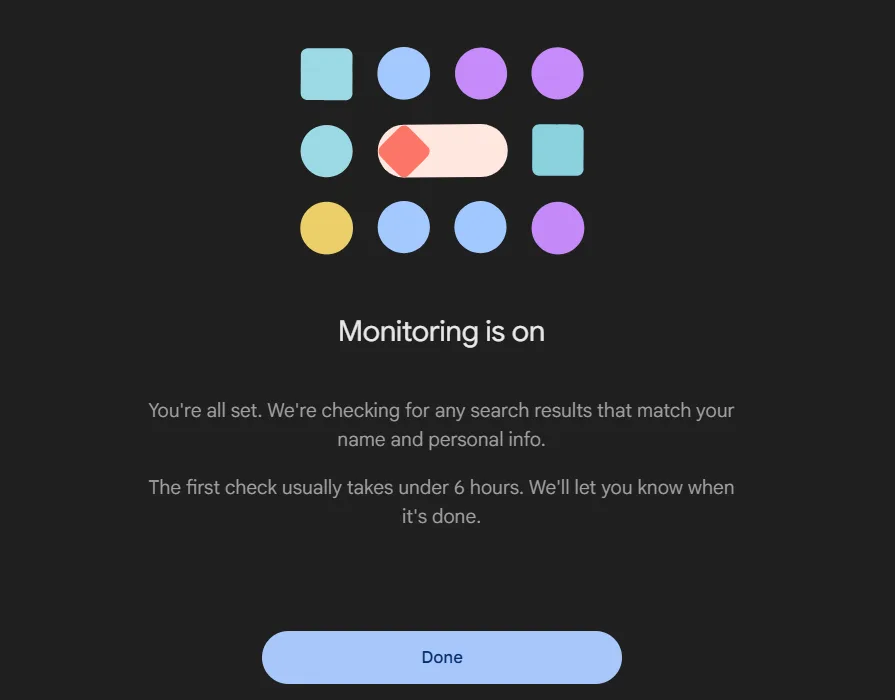
Step 5: Once the initial search finishes, it gives you a list of results. Review matching results and select a result you want removed. Choose Request to remove and follow Google's review process.
2. Request the Site Directly to Remove Your Information
If you found your personal information on a website, you can ask the website owner to remove it by following these steps:
Step 1: Find the exact page where your information appears and copy its URL. Now look for a Contact or Privacy page on the website. You may also find a privacy request or data removal form.
Step 2: Now, you have to mention the specific information you want to remove from the site.
Step 3: Revisit the site after a few days to check if they fulfilled your request.
3. Submit a Request for Sensitive Personal Information
If the website did not remove your information, you can ask Google to remove the page from its search results. All you have to do is copy the exact page URL and submit a removal request through Google's personal information removal tool.
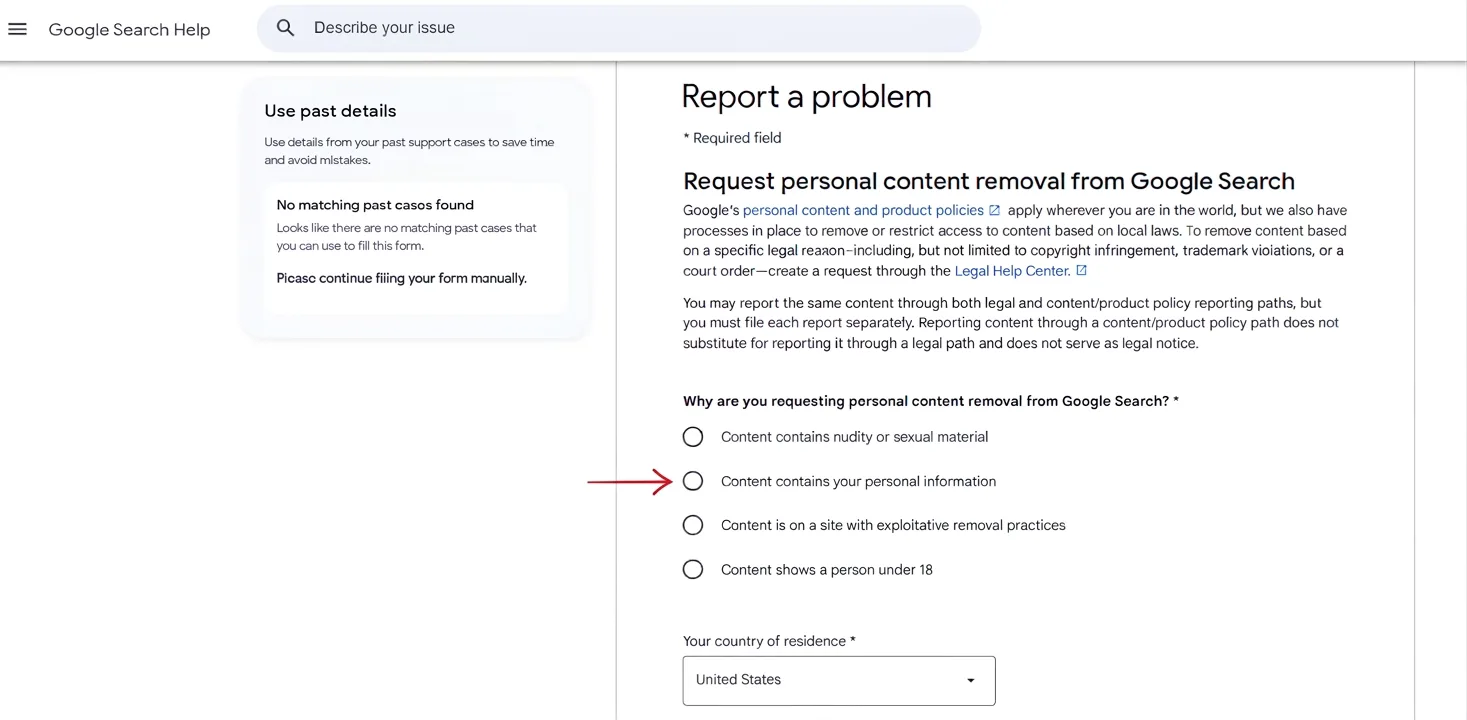
Google allows removal requests for certain sensitive personal information, including
- Your home address and phone number
- Email address and login credentials
- Bank accounts and card details
- And the same goes for private medical information
💡Important Note: Google may remove the result from Search, but this does not delete the information from the original website.
Part 4. Opt Out of Data Broker and People-Search Websites
Another way to remove your information from the Internet is to opt out of data brokers.
What Is a Data Broker?
A data broker is a company that collects people's information (name, age, number, relatives, or any other record) from websites and other online sources. It combines those details into a profile and often sells that data to
- Advertising and marketing companies
- Background-check services, or
- Unfortunately, anyone else willing to pay
How to Find Your Data Brokers?
To find data brokers, search your name and other details on Google one by one. If you find any information, note down the website or page details.
Submit the Opt-Out Request
Once you jot down all the pages that have your information available, the next step is to go through each page carefully. Look for an opt-out link or send them a privacy request.
Part 5. Delete or Lock Down Social Media Accounts
Limiting or deleting your personal info from your social media accounts is one of the easiest ways to remove your information from the internet. Follow these steps to delete or lock down your social media accounts.
Remove Personal Details From Active Profiles
Firstly, you need to review your active profiles and remove details you don't need to display publicly. Check your bio and contact sections for your home address, personal phone number, or email address. You can also hide or remove your current city or check-in details from your profile.
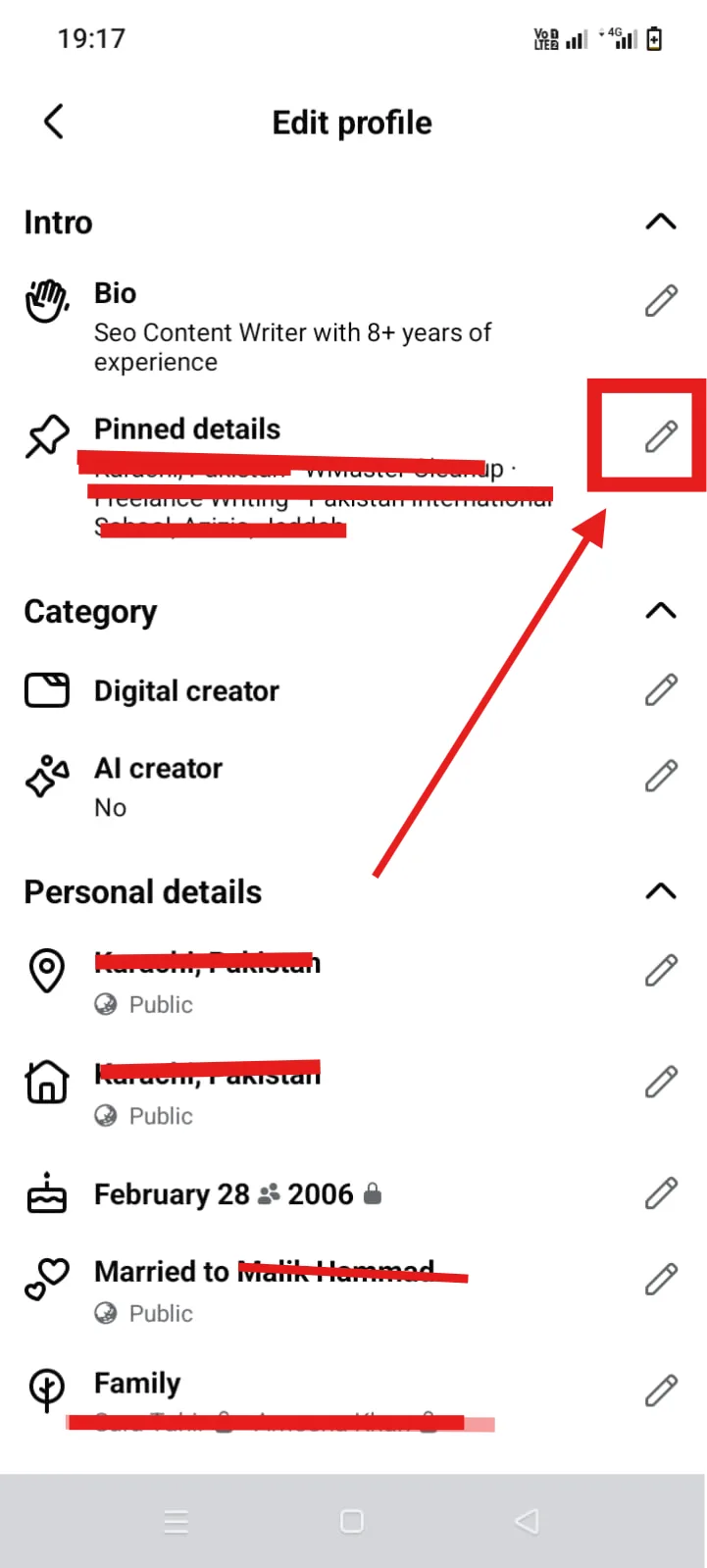
💡Tips: Make sure that the photos you're posting are not revealing details like house number, vehicle number, street sign/number, etc.
Delete Old Posts, Photos, Comments, and Messages
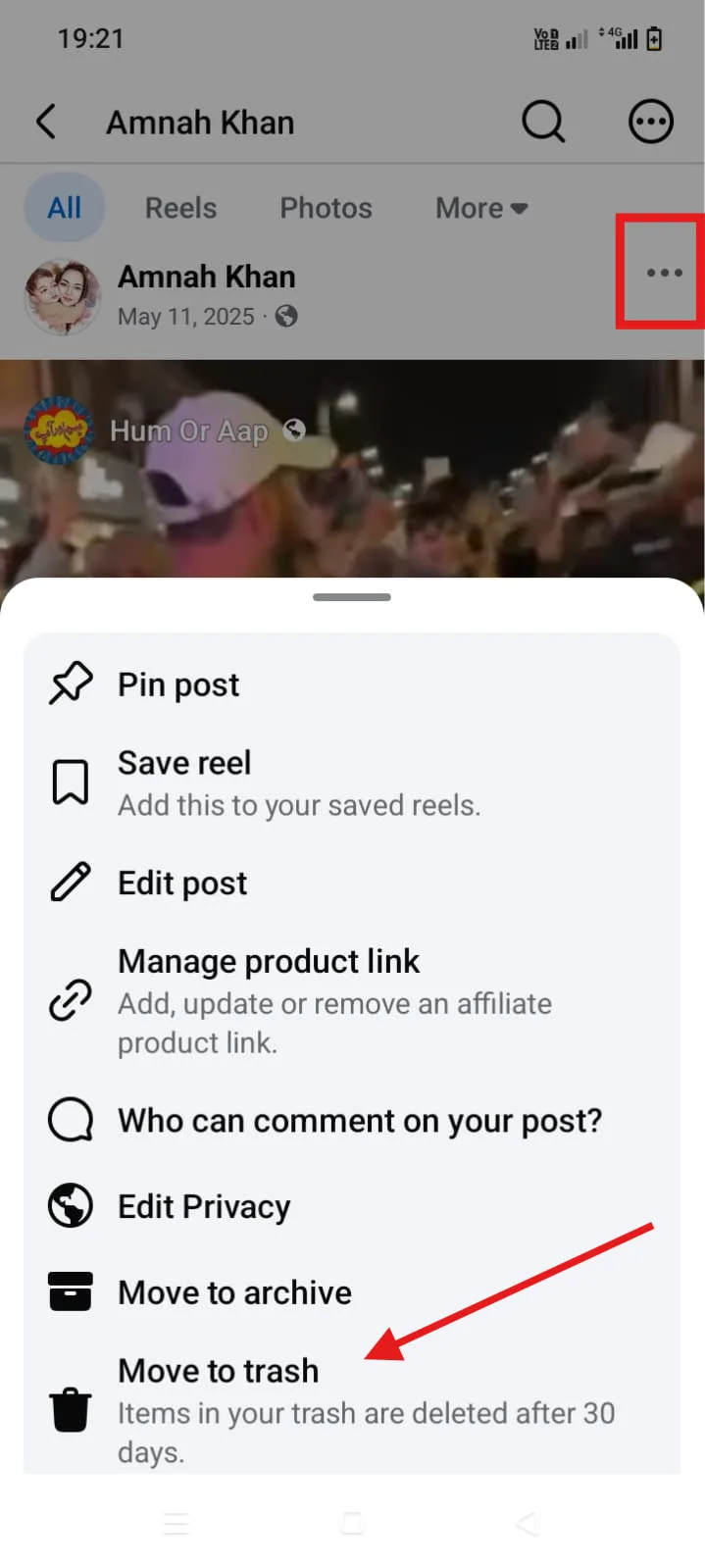
If you find any of your personal information, delete those posts. But bear in mind that deleting your own post does not remove screenshots, reposts, or copies made by other people.
Delete Unused Social Media Accounts
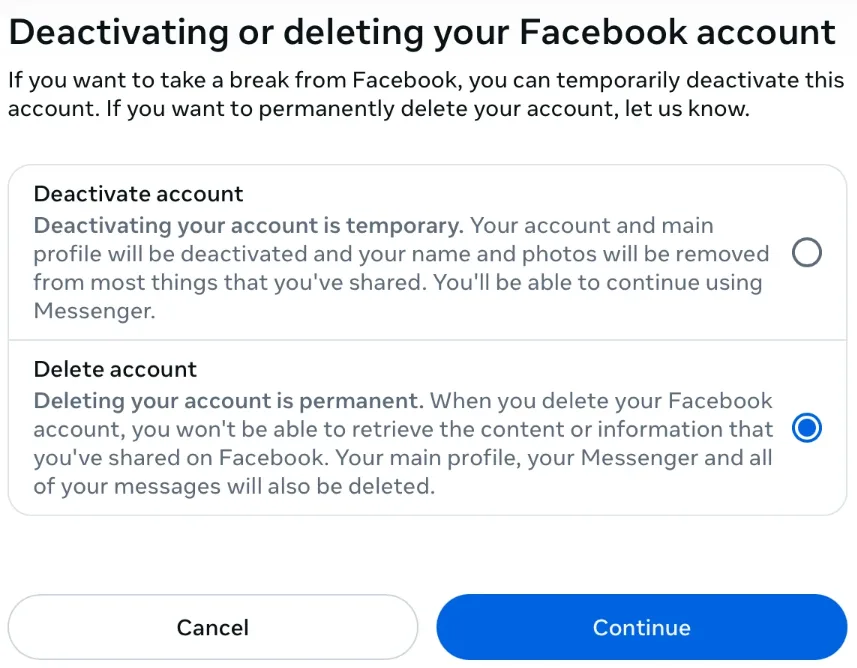
Another important thing to do is to delete social media accounts that you no longer use.
Each platform has its own account-deletion process. First, open your long-lost account and download anything you want to keep. Then, follow the platform's official deletion process.
Part 6. Delete Old Accounts and Unused Apps
Have you created accounts on every other app over the years? It is worth knowing how to remove your private information from the internet on the unused ones that still contain your personal data.
For Windows users, once you delete your accounts on different platforms, WMaster Cleanup can help you to uninstall apps that are unwanted. The tool scans your system thoroughly to find large apps, recently installed software, Microsoft apps, browser plugins, and other uninstallable programs. You can select individual programs or uninstall multiple apps at once with 1 click.
Here is how you can remove unwanted apps with WMaster Cleanup:
Step 1: Search for WMaster Cleanup on Google, open the Features tab, and click Uninstall Applications. On the feature page, click Download Now.
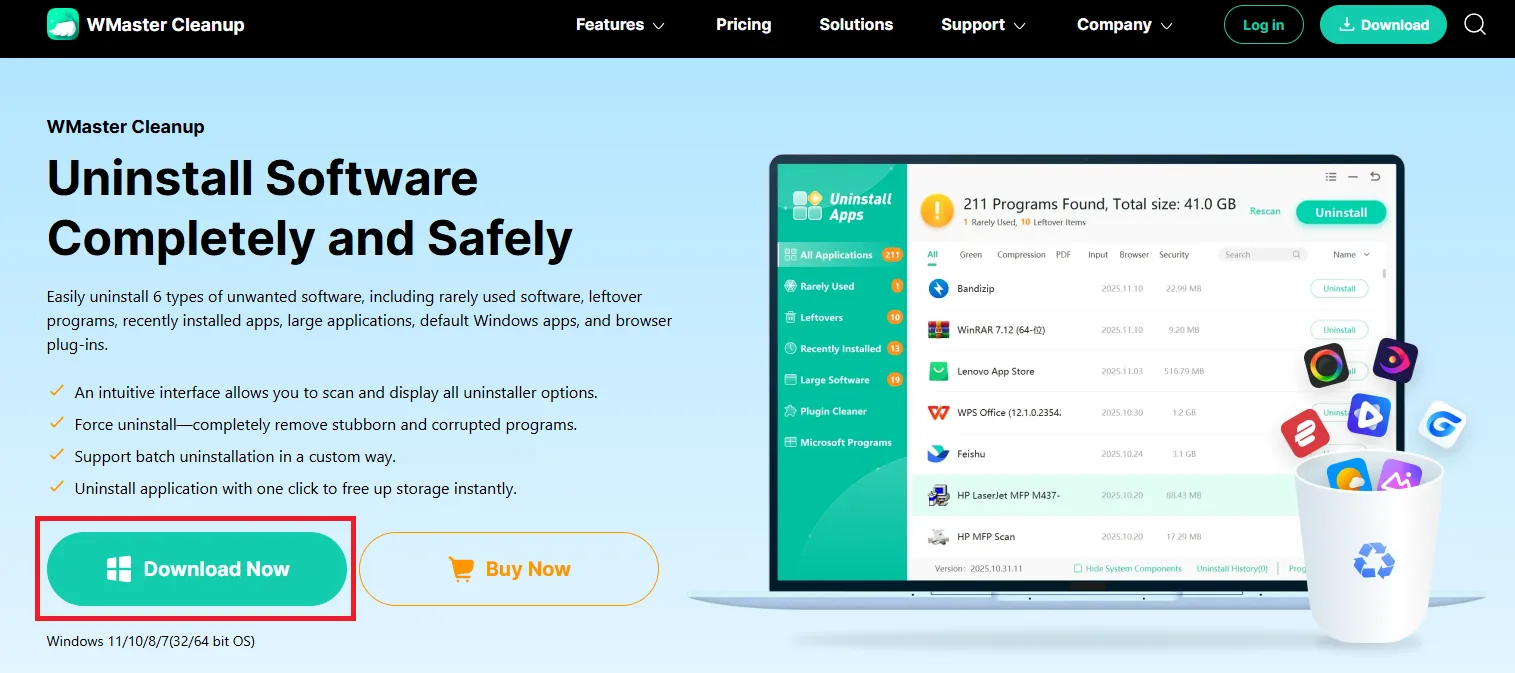
Step 2: Follow the installation prompts and launch the tool on your desktop. You'll land directly on the feature's interface, and the scan will initiate automatically.
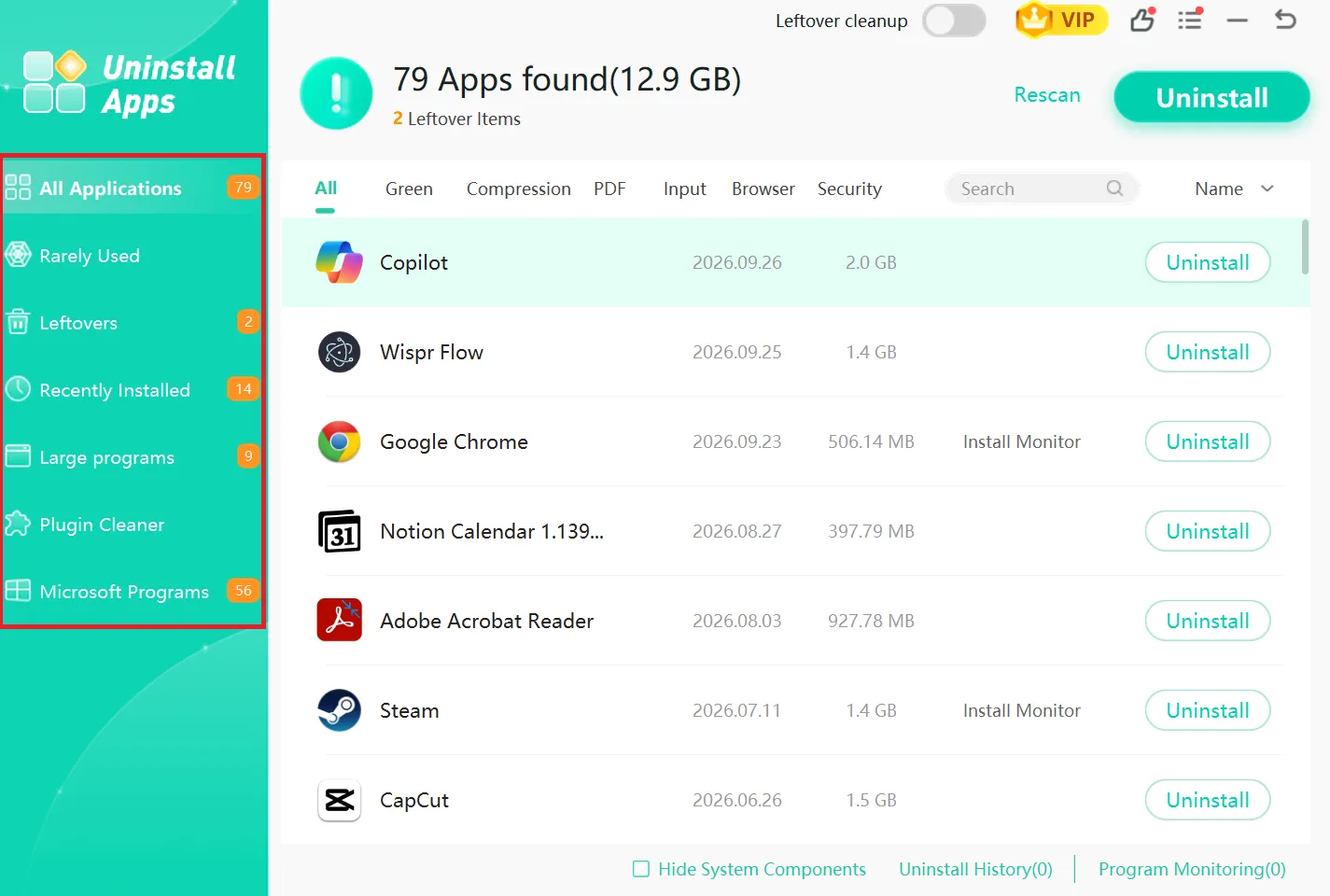
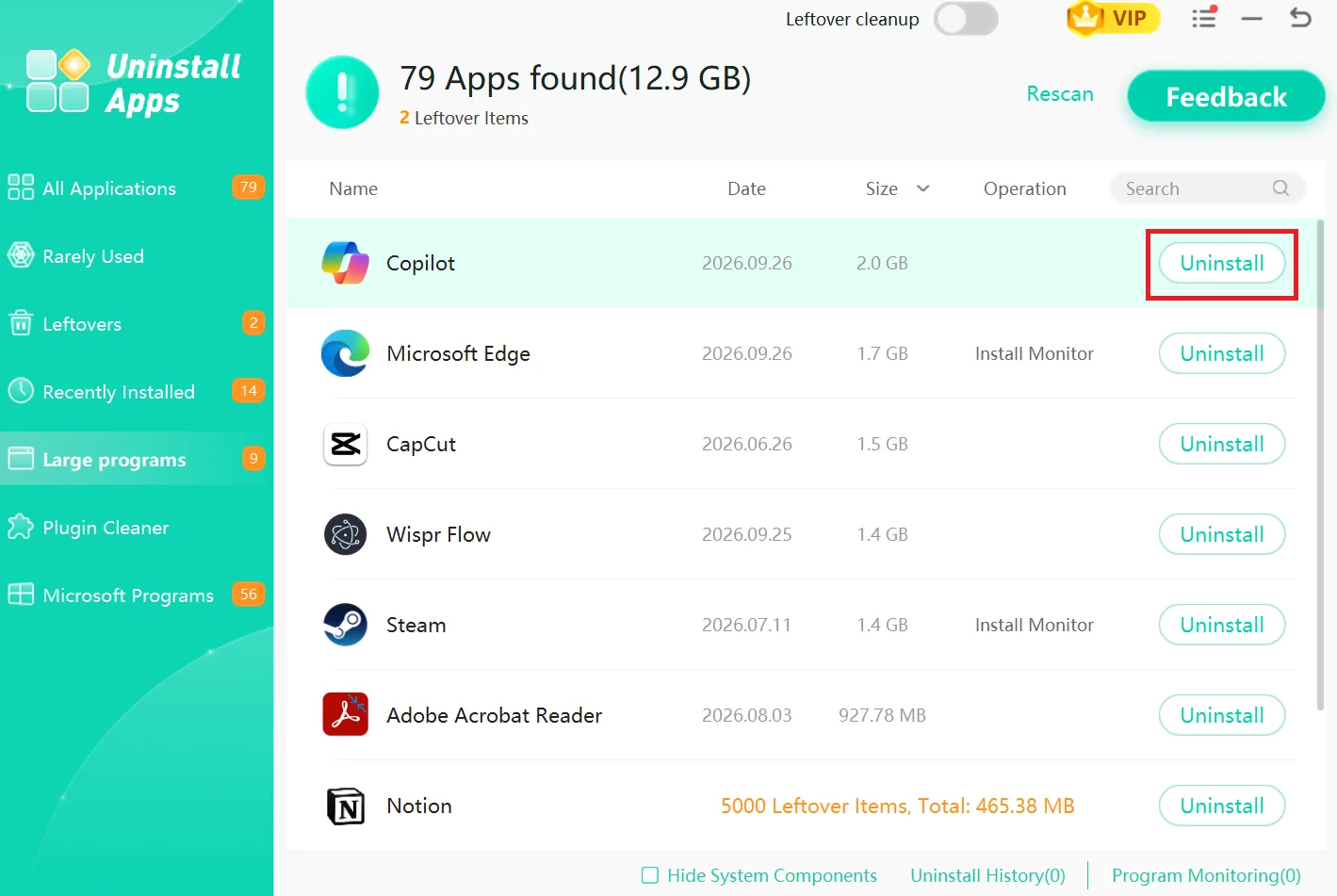
Step 3: Review and click the Uninstall button available on the right side of the desired apps to remove the application you no longer need.
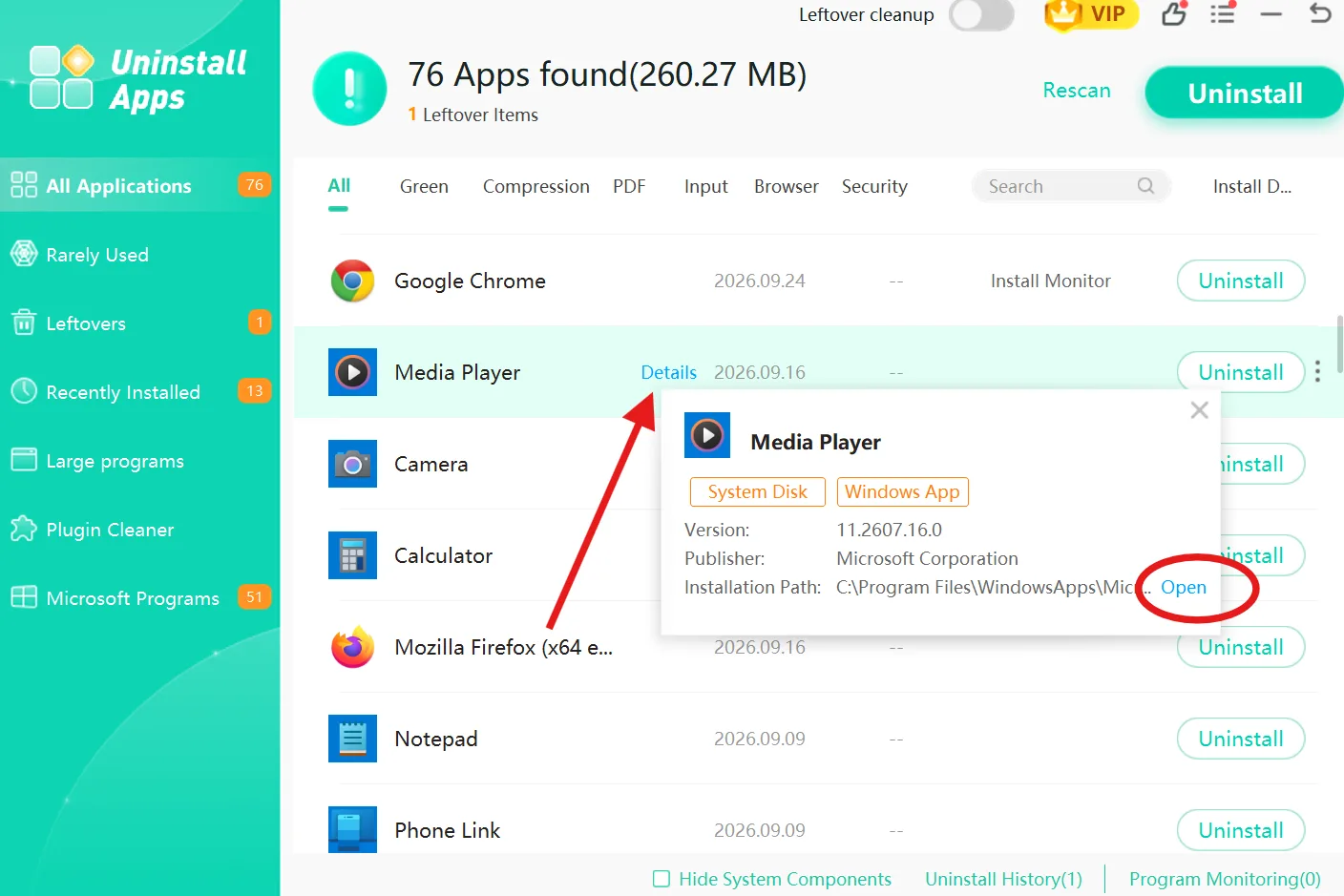
💡Tips: Find out the quick details about the desired program by hovering your cursor over Details next to that program. You can also go to the location path by clicking Open.
Want to make your Windows PC cleaner and faster like a new machine? Read my write-up on how to clean Windows 11 using 6 simple ways to free up space and boost system performance.
Part 7. Remove Private Information From Websites
Clearing Your Private Info From the Web
Removing your personal records from individual websites requires direct communication with site administrators. Follow these steps to clear your private information from the web:
Email Website Owners Directly:
If a site posts your private info, go to the Contact Us page and reach out to the site admin. Drop them an email with the exact link and explain that these details are sensitive and ask them to delete it.
Clean Up Old Forum Posts:
The year-old discussion forums also have your information that can still show up on search engines. The best way to remove your private information is to log into your old account and delete those posts.
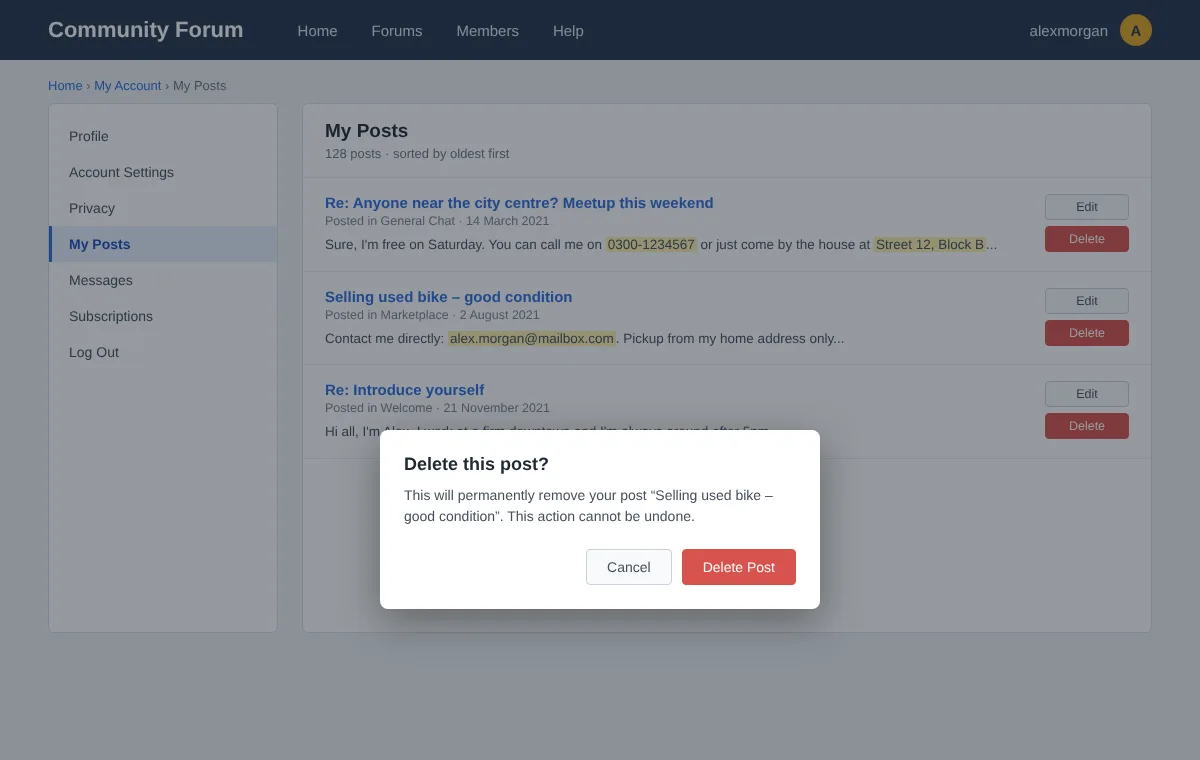
If you can't get in, send a direct message to a moderator with the exact link and ask for a hand.
Update Online Directories:
Business directory sites often display phone numbers, job titles, and home addresses. Check if you can log in and adjust your privacy settings directly. If not, look for their official removal process to opt out.
Remove Sensitive Photos:
Pictures reveal a ton of extra detail. Therefore, you need to delete all of those that contain your home address, your vehicle number, or some other personal information.
You can also submit a direct request to search engines to hide it from search results.
Part 8. Remove Public Information and Public Records
People-search sites constantly scrape federal, state, and local databases to create profiles of people. And they include almost all of your information. Removing data from these sites is a bit tricky. Here's how you can do that:
Step 1: First, you have to track down the specific government agency storing the original document.
Step 2: Now check if your local state laws offer a privacy or record-suppression option to hide sensitive details. If yes, you can send a removal request along with the local law.
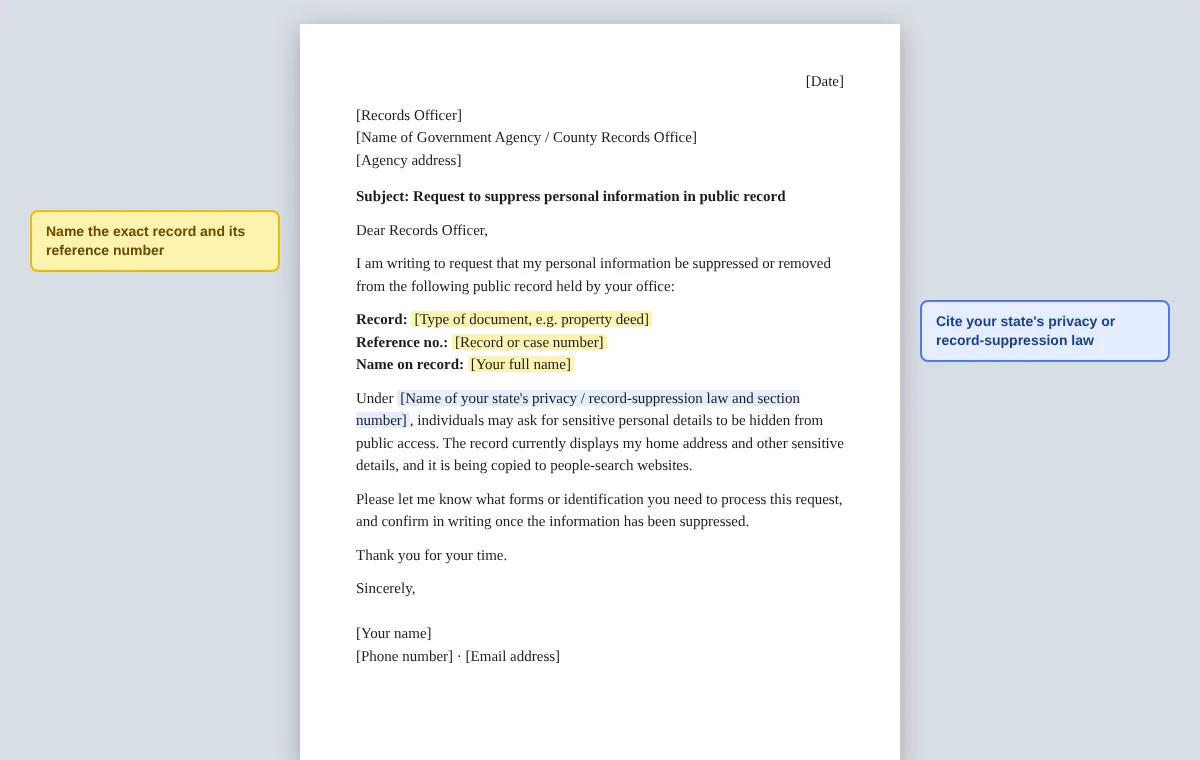
💡Tips: If the above step is not resolving your issue, you need to send removal requests directly to commercial directories and data brokers to clean up online search results.
Part 9. Secure Your Accounts to Prevent New Exposure
Now that you have removed your personal information, you need to be careful what you share online. For this, you need to take these measures:
Change Reused Passwords
If you use the same password across several accounts, this is your time to change it to protect your online privacy. Give important accounts unique passwords, especially for email, banking apps, cloud storage, and social media.
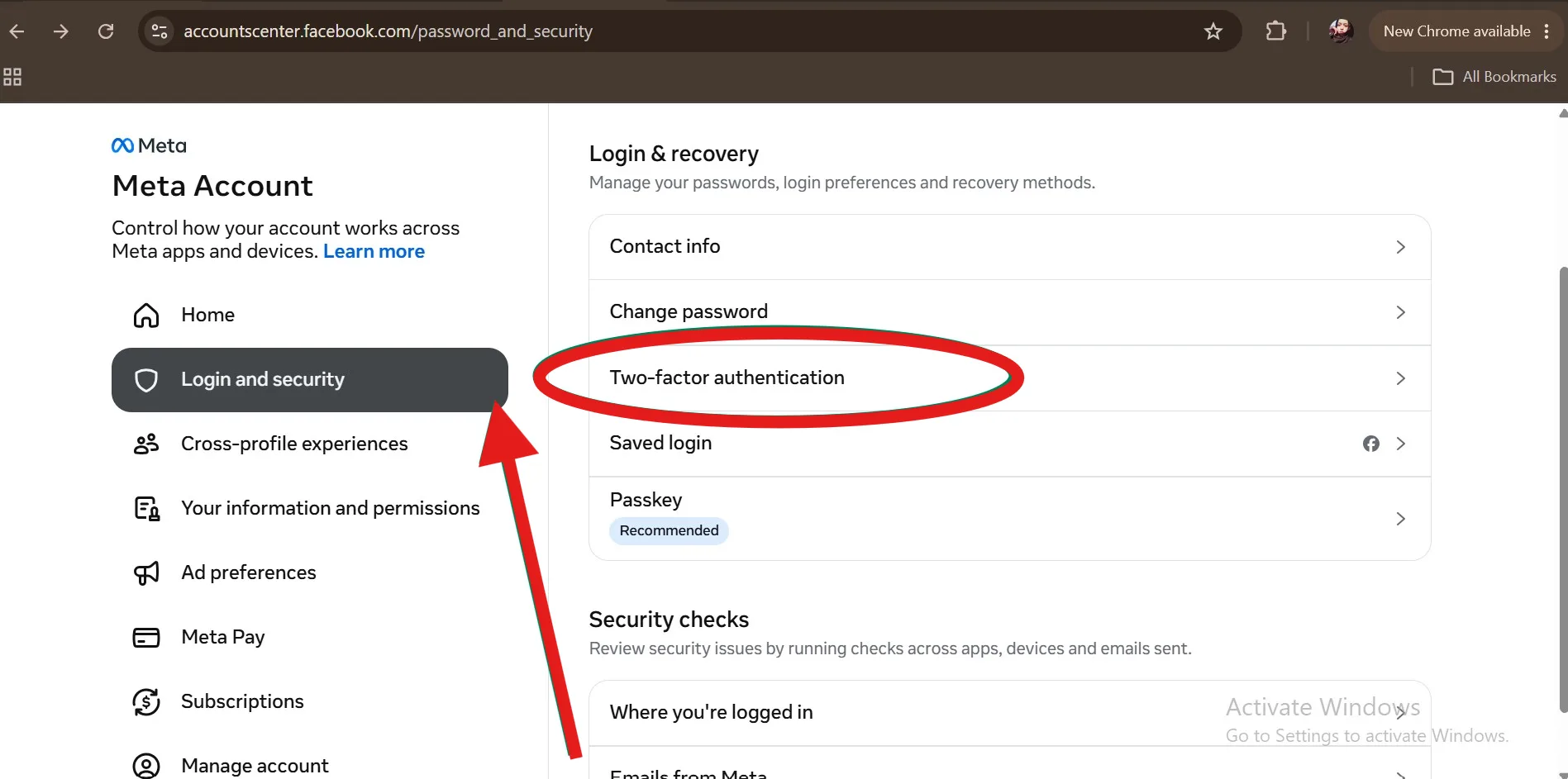
Enable Two-Factor Authentication
The next thing you must do to protect your accounts is to enable two-factor authentication. Even if someone discovers your password, an additional authentication step can provide another barrier against unauthorized access.
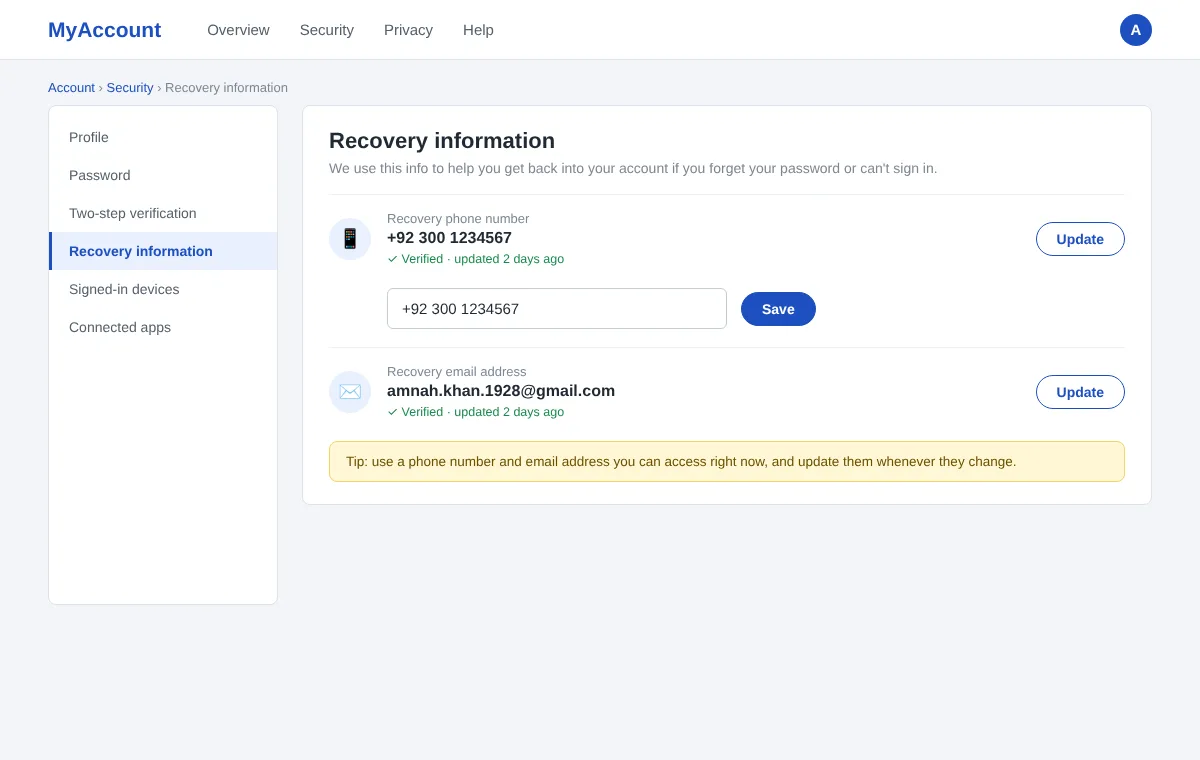
Review Account Recovery Information
You also need to check and update your account recovery information like email addresses and phone numbers. Add an accurate and recent phone number and email address to recover your accounts if you forget any password.
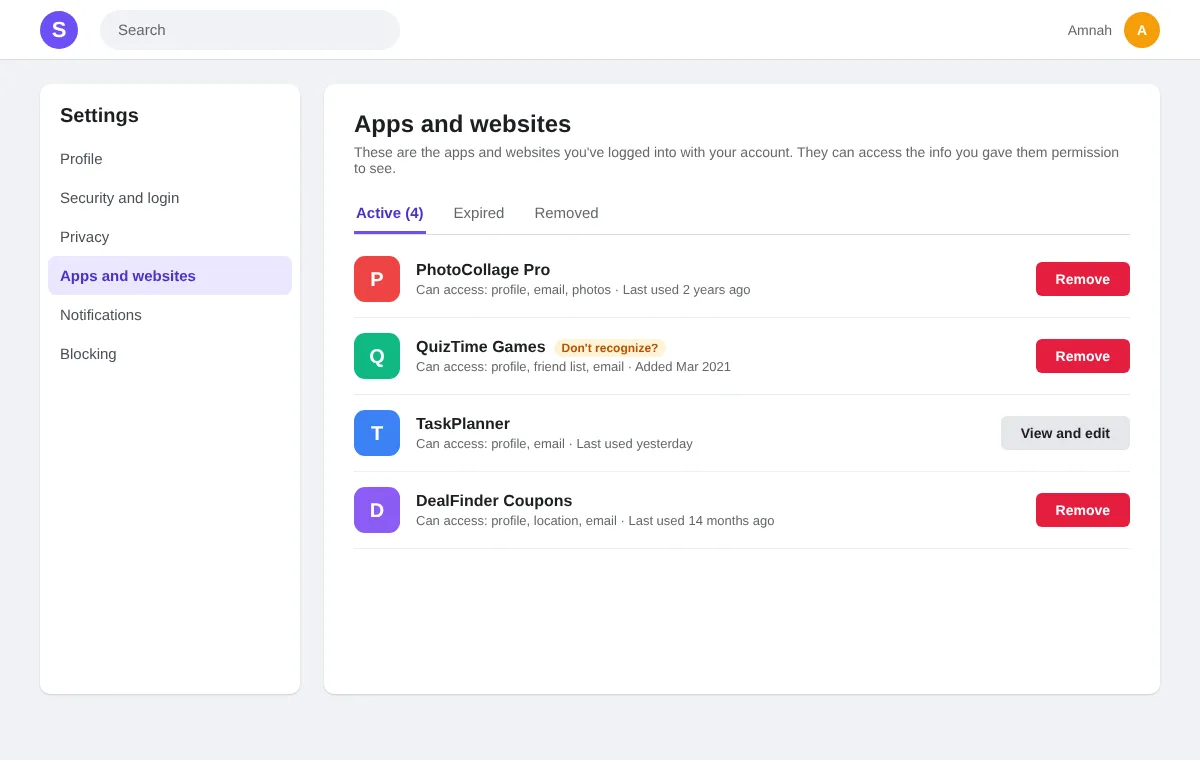
Review App Permissions
And lastly, to remove your information from the internet, you must thoroughly check which third-party applications have access to your accounts. Remove access for apps you no longer use or don't recognize.
Part 10. Monitor Your Information After Removal
Online privacy cleanup is not necessarily a one-time task. Data brokers can update their records, and someone else can publish your details again. So, you must create a simple monthly or quarterly privacy check:
- You can look for your full name, phone number, and email address on search engines.
- Monitor your friends and followers list regularly. Similarly, review and adjust privacy settings.
- Check Google's Results About You from time to time.
- Likewise, you should review people-search sites as well.
For Windows users, WMaster Cleanup can make the cleanup routine easier by clearing supported browser history and all your digital footprints from one interface.
Part 11. Use a Dedicated Data Removal Service
Lastly, if your information is publicly available on dozens of people-search websites, it will take an eternity to remove it. So, the best solution is to take help from a dedicated data removal service like DeleteMe, Optery, and Incogni.
They track down all the sites where your personal information is present and submit the removal requests on your behalf. Besides this, they check those websites every now and then to make sure the information stays off those sites.
If you are looking to clear local browsing history, temporary files, or online privacy traces directly from your PC, WMaster Cleanup is designed for that specific job instead.
Part 12. Frequently Asked Questions
1: How often do I have to remove my personal information?
You need to check every 2-3 months because your personal information can reappear through data brokers or public records. Review your privacy settings and submit removal requests whenever your information resurfaces.
2: Is it difficult to scrub all your history from the Internet?
Yes! It's difficult to remove every trace of your online history. But you can make a real difference by deleting old and unused accounts, requesting content removal, and managing your privacy settings.
3: Does deleting my social media account remove all my information?
Deleting your account can remove all the visual information stored within that account. But this doesn't delete the screenshots, reposts, and search results that are published somewhere else.
4: Can WMaster Cleanup remove my information from the internet?
Yes, it can help. WMaster Cleanup is an all-in-one cleanup tool that clears out your digital footprints on the internet.
Just open the tool interface, select Browser History, and click "Scan." Once done, you can see the information left behind by your browser & social media platforms. It includes browsing history, search history, downloads, cookies, cache, and other digital footprint records. Review the results, and hit "Clean," removing what you don't want to keep.
💡Tips: To remove the information that lived on Google or a website's own servers, you still have to delete it from the relevant platform's own privacy settings, like Google's My Activity page, or request a removal from the website or data broker directly.
5: How can I prevent my personal information from appearing online again?
The best way for how to remove your personal information from the internet is to:
- Reduce the amount of personal data you share
- Use unique passwords
- Enable two-factor authentication
- Review app permissions
- Delete unused accounts
- Periodically check data-broker listings and Google Search
Conclusion
Learning how to remove your information from the internet becomes non-negotiable if you want to protect your online privacy. It is unrealistic to erase yourself from the internet, but you can definitely reduce your exposure by deleting unwanted social media accounts and requesting personal info removal through Google.
WMaster Cleanup's Clear browser history feature clears out browser-side online traces, including social media traces, across all major browsers. Besides this, the Clear Privacy feature can help you clear out all your download history, medical records, financial records, shopping records, multimedia footprints, and other Windows privacy issues with 1 click.
What's more? Both of the above-mentioned features are available in the free version of the tool.