
Last month I was editing my client's video, and when I completed half of the work, my windows turned white. The title bar says "Not Responding," the cursor spins, and I was clicking like crazy... and damn! It happened just right before the deadline.
If this situation ever happened to you too, like you're halfway through a report, doing some official work, or even playing a game, and suddenly the app got frozen, here, knowing how to force quit on windows becomes negotiable.
In this writeup, I will let you know 7 proven ways that I actually use. I will also explain when force closing Windows is safe, and how I stopped my apps from freezing so often in the first place.
In this article
Part 1. Why Do Windows Apps Freeze?
It's not always the app's fault. Sometimes our app freezes when it is unable to answer Windows requests. According to Microsoft's analysis, the third-party driver code, like 70%, is the most common stop error cause. After that, 10% is taken by hardware issues and 5% by Microsoft's own code. Whereas, 15% of cases are unknown because of corrupted memory, making it impossible to analyze.
Thus, it is better to find out the right reason for what is going on in your system before killing anything.
Here are some of the most common suspects:
- Your apps start freezing when your system's RAM runs out, as there are too many tabs & programs opened.
- One heavy program is taking up most of your processor, leaving other apps waiting & frozen.
- Some apps, especially after an update, start glitching, causing them to stop responding.
- Your system's outdated drivers (for graphics mostly) are unable to correspond with Windows properly, causing freezes.
- Sometimes damaged files, like corrupted files & leftover registry entries, may confuse apps, causing them to crash.
- When your disk is cluttered or full, it might take more time to load & save, making it seem frozen.
- Likewise, when hidden background apps steal your PC's resources, it makes apps freeze or load slower.
- If your system is launching too many apps at boot, it will keep your Windows busy even before you use any app.
- The same goes for an overheated CPU, as it slows itself down so it can protect the hardware, leading apps to start lagging or freezing.
Part 2. Does Force Quitting Cause Data Loss?
Not always! Although Windows force quit does not give your app time to save the progress or tidy up anything, your data might be saved depending on what you were doing.
When Data Loss Can Happen
- Either your autosave is enabled or anything typed will be gone since the last save.
- When the app is writing to the file, forcing closing of Windows can corrupt it.
- Force quitting during file transfer or downloading can end up half copied, making it unusable.
- Forcing a quit during an installation or an updating process will leave the software broken or unusable.
- Syncing apps & database programs of the cloud will leave unfinished changes.
- For gamers: you will lose your game progress if you need to force quit on Windows.
When Force Quitting Is Appropriate
- Before hitting force quit on Windows, give your app 2 to 3 minutes, as it might be only loading because of slow system processing.
- If you have already tried for the normal close button, like clicking on the X button several times.
- If there is nothing important to be saved, you may go for Windows force quit.
- When you can clearly see which app is hogging your CPU or memory using Task Manager.
- The same goes for the full-screen app, like gaming apps. Hit force quit if the screen is not working.
- Similarly, when your system's programs keep reopening in a broken form, ending it fully will reset it.
Part 3. How to Force Quit on Windows 11/10: 7 Ways
Along with pointing out the differences, I will explain all 7 methods I use for force quitting on Windows 11 & 10, including the quickest one to the "Okay, this is getting serious" one.
Method 1. Try the shortest route
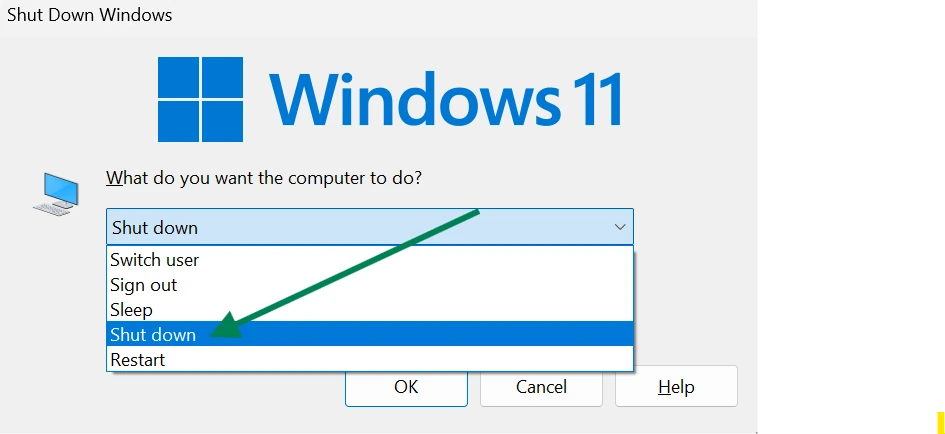
In this method, you just need to open the active window of the frozen app on your desktop. Press Alt + F4 on your keyboard, and you're done force closing an app on Windows.
💡Tip: Press Alt + F4 on your bare desktop to open up the below window where you can select which action your system should take when you press these shortcut keys.
Method 2. Use the classic way out with Task Manager
This method is already known by almost everyone, in which Task Manager shows every running app on your system, letting you force quit any app on Windows.
Steps for how to force quit on windows using Task Manager:
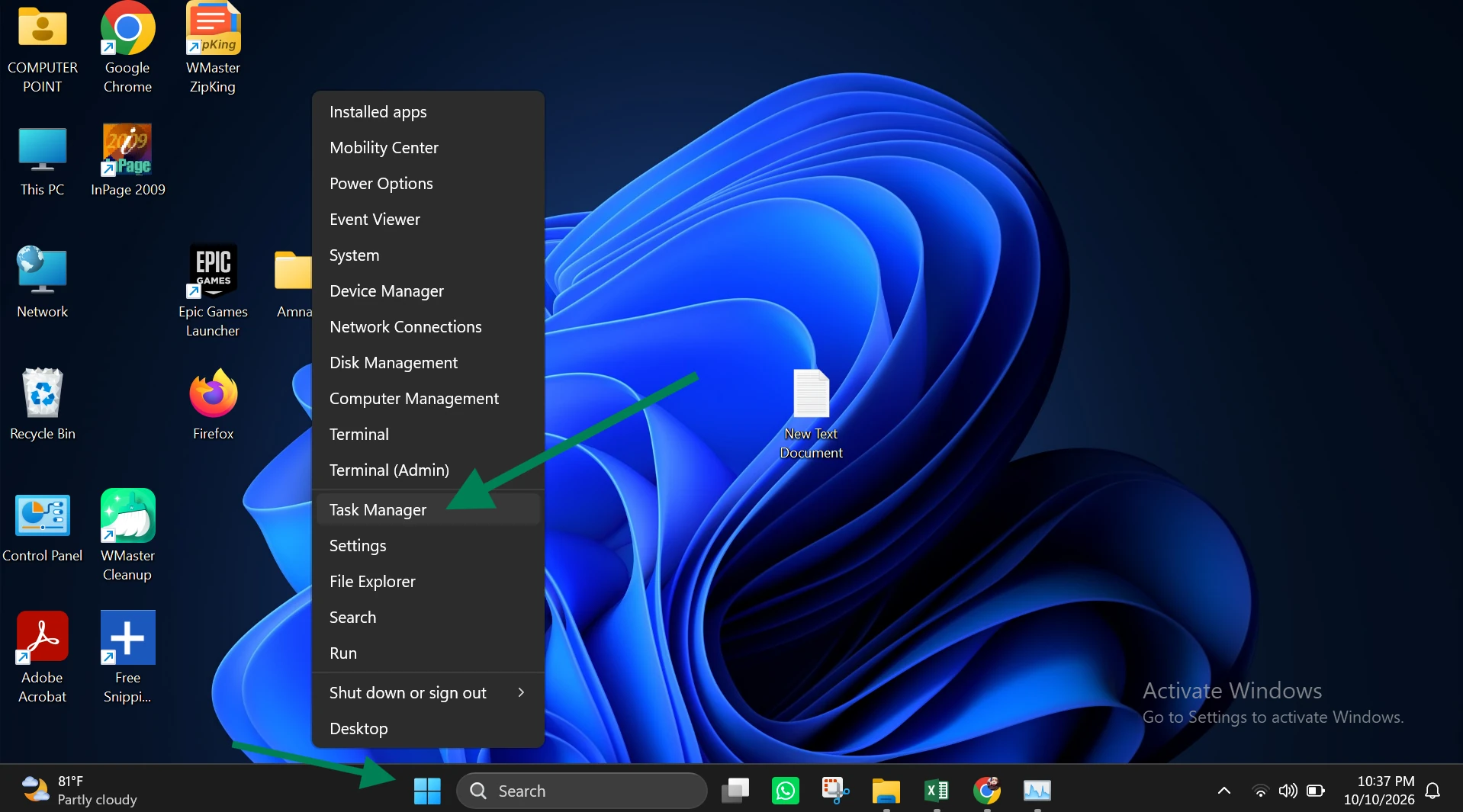
Step 1: Right-click the Start button and select Task Manager from the opened-up menu. You may also press Ctrl + Shift + Esc on your keyboard.
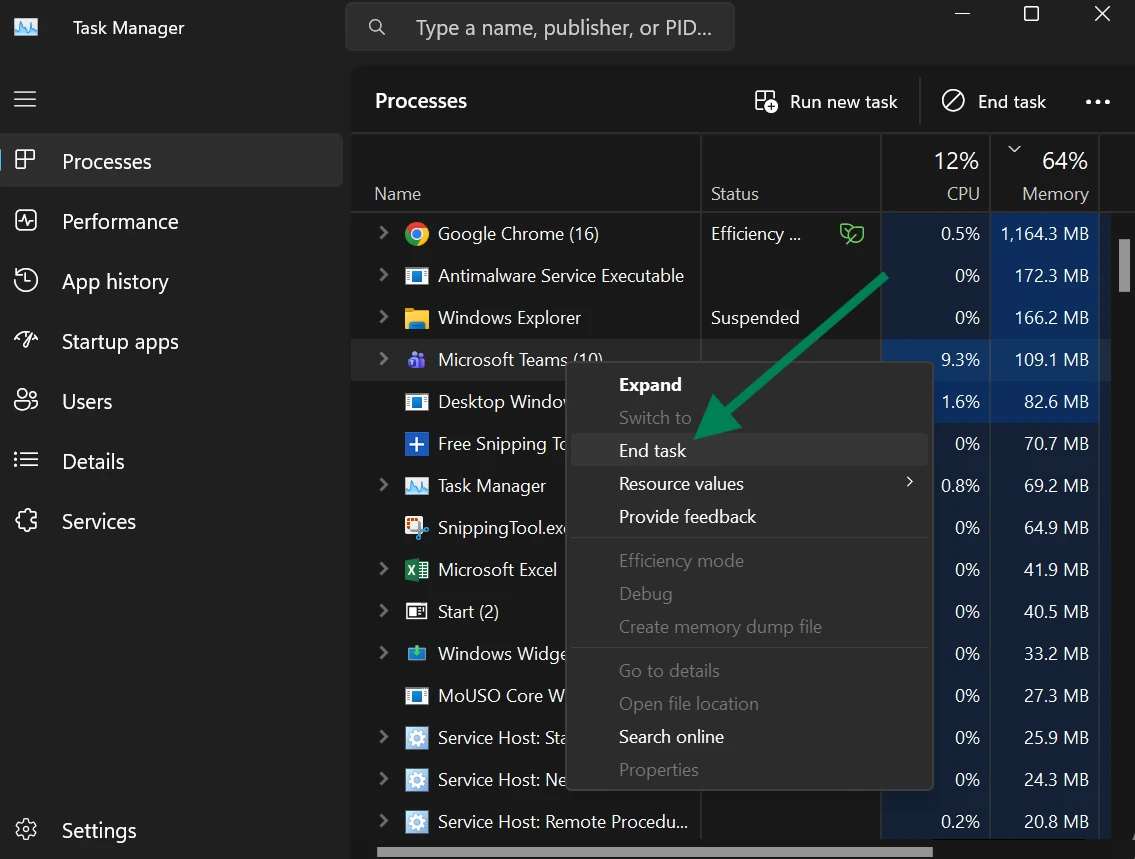
Step 2: Under the Processes tab, find out the frozen app that you want to force quit on Windows. Right-click and hit End Task.
Another shortcut to access Task Manager to force quit apps on Windows
Press Ctrl + Alt + Delete together on your keyboard, select Task Manager from the list, and force quit the desired app as usual.
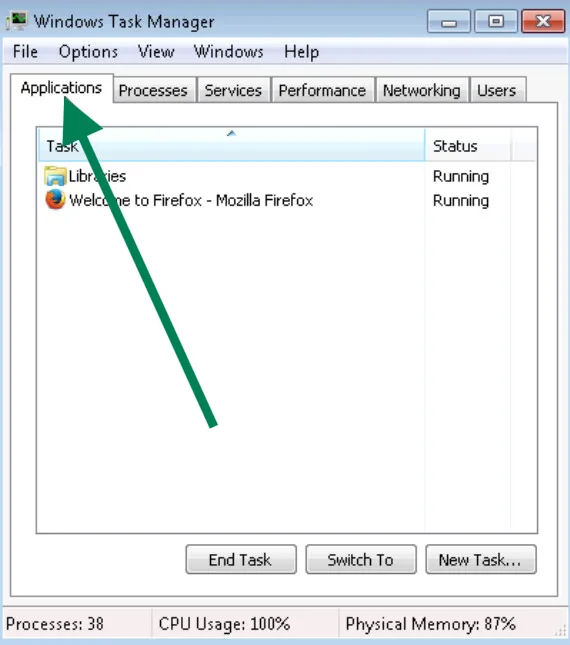
💡Tip: If you are using Windows 7, you need to click the Applications tab first, then select the app, and then hit End Task to force quit it.
Sometimes it's not your app's fault; it's your screen that freezes due to insufficient installed RAM. So, head to my detailed write up about how to fix high RAM usage on Windows 10 & 11 to improve PC performance.
Method 3. Try using Command Prompt on Taskkill
How to force close an application on Windows when your desktop is barely working? For stubborn apps, try this way out to get the job done.
How to force close on Windows using Taskkill:
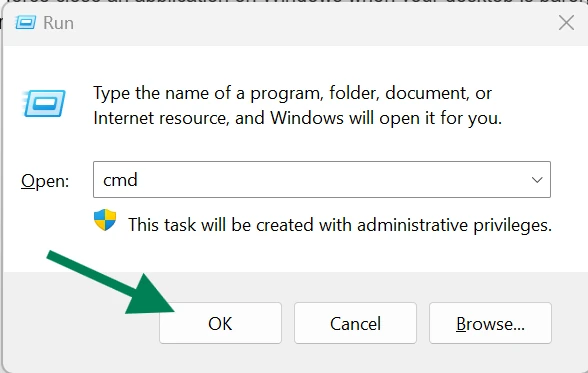
Step 1: Press Windows + R to open up Run dialog windows and type cmd. Hit Enter.
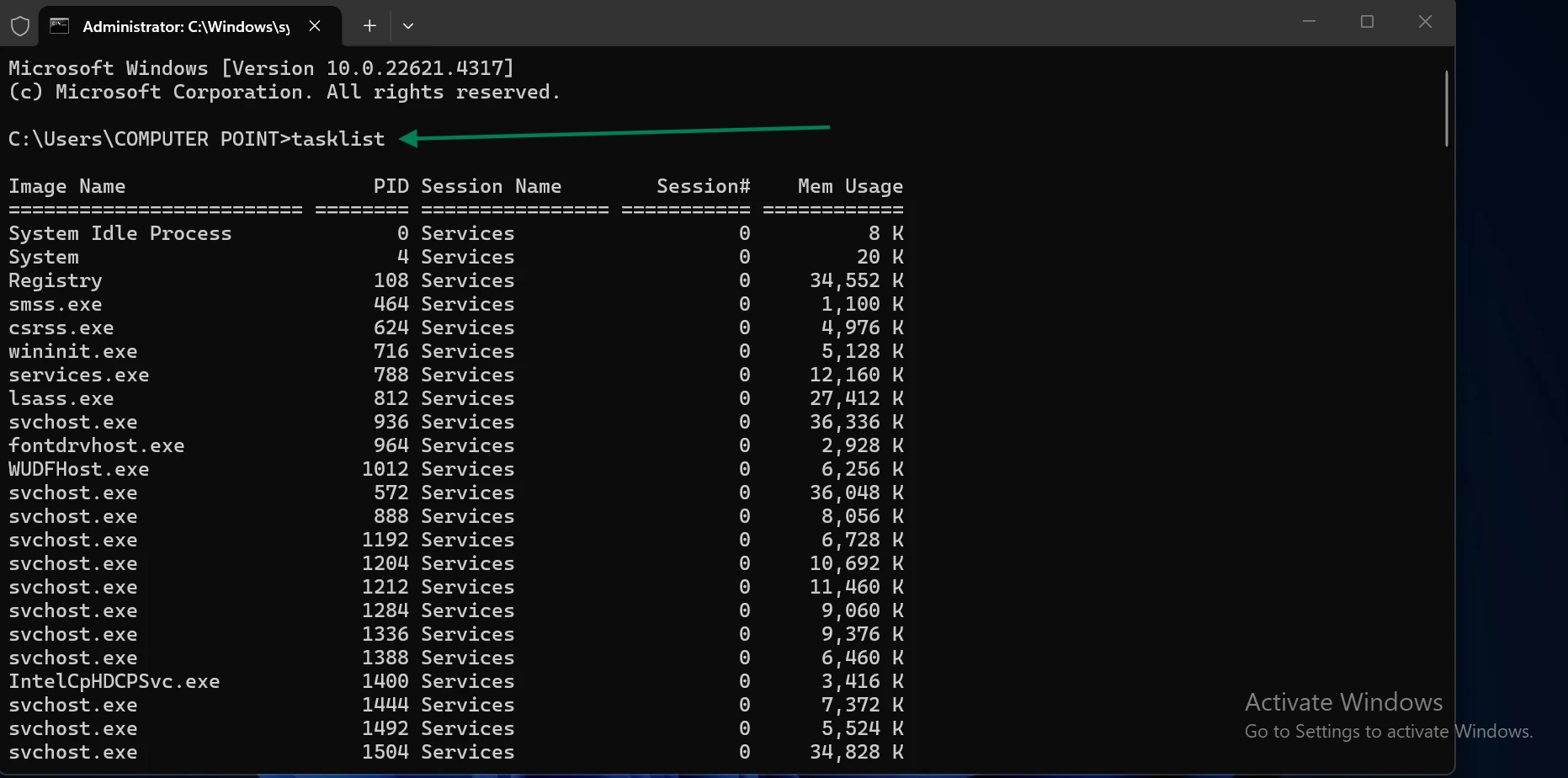
Step 2: Type "tasklist" and hit Enter. Now from the running programs, look for the frozen app that you want to force quit on Windows.
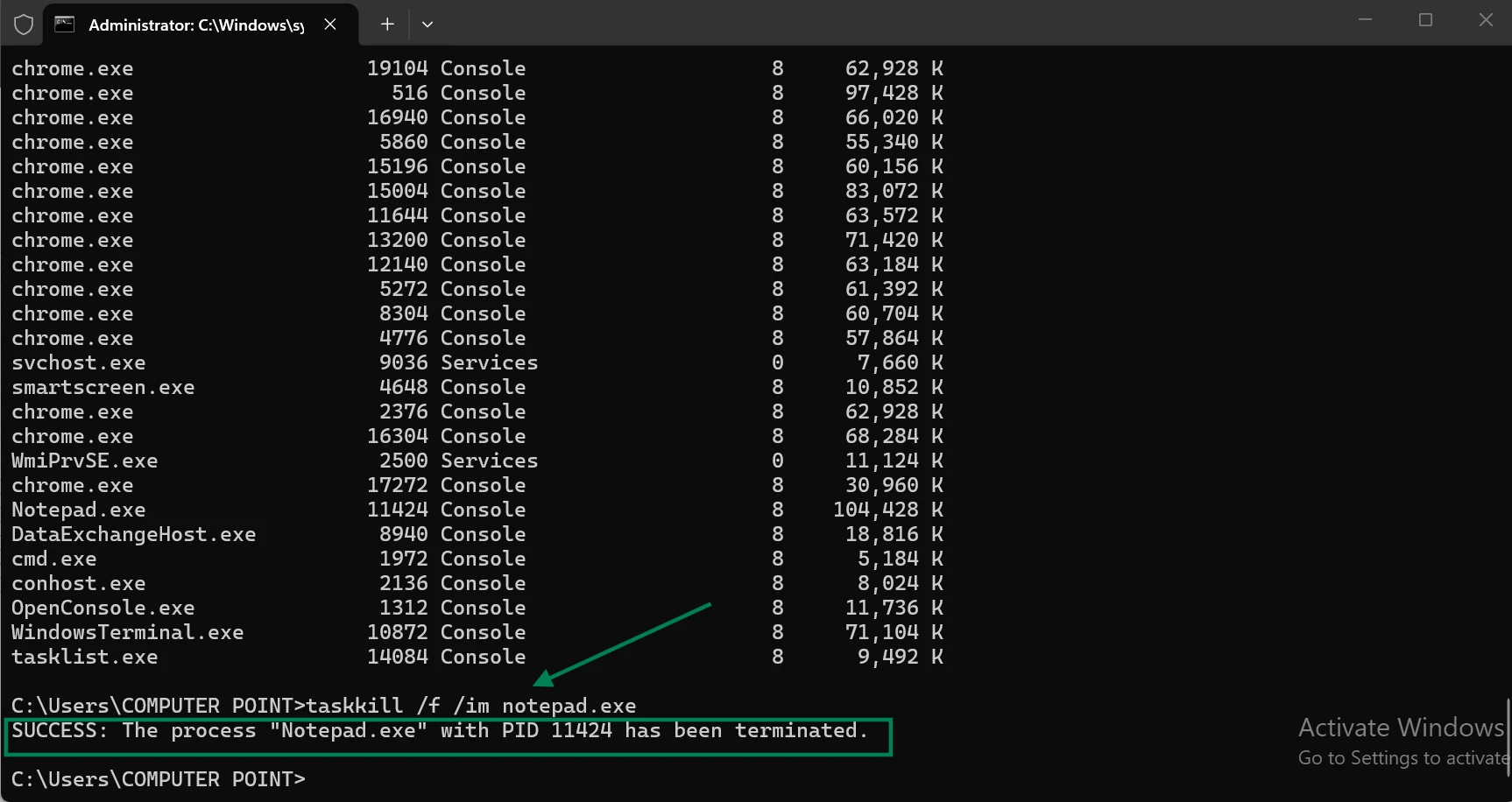
Step 3: Scroll to the end and type the command to force close the frozen app on Windows. Once you see the SUCCESS message, be sure that the app is gone for good.
Command: taskkill /f /im notepad.exe
Here I am showing the force closing of the notepad, but you can replace this name with your frozen app name.
💡Tip: Want to terminate everything that was launched by the frozen app? Just add /t to the command.
Read out our write-up to learn about 15 easy ways to clean up your system, Windows PC or Mac, with built-in tool, cloud storage options, and auto cleanup tool.
Method 4: Use Resource Monitor for smart review
In this simple method, you can smartly review what's using your CPU, memory, and disk, letting you know what the app froze.
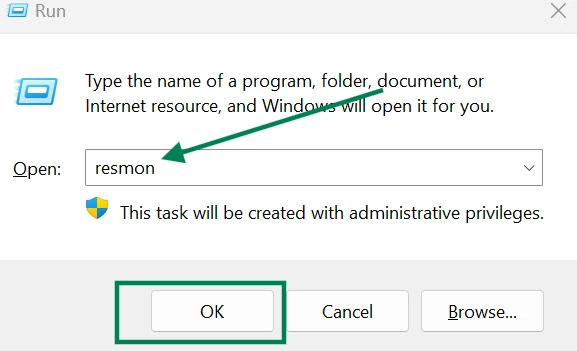
Step 1: Press Windows + R and type resmon in the opened-up window. Hit OK.
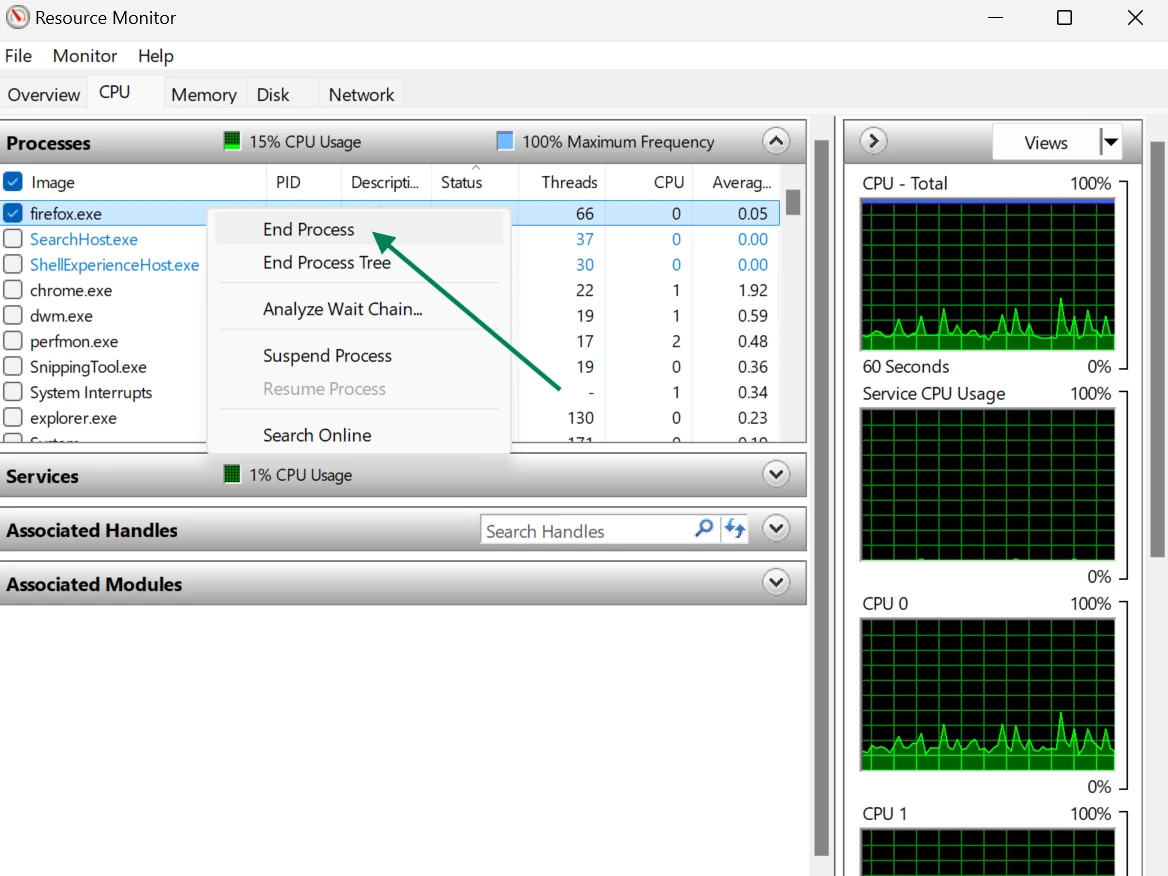
Step 2: On the Resource Menu window, tap on CPU, and right-click on the frozen app under Processes. Now select End Process to force quit the selected one.
💡Tip: You can select End Process Tree to force quit every single process related to the frozen app. It works best when the app comes back or is still showing up in the processing list.
Method 5. Enable Windows 11's "End Task" Option
If you are on Windows 11, you can kill any app right from your taskbar. This option needs to be switched on once, like I did on mine, and then you're always good to go.
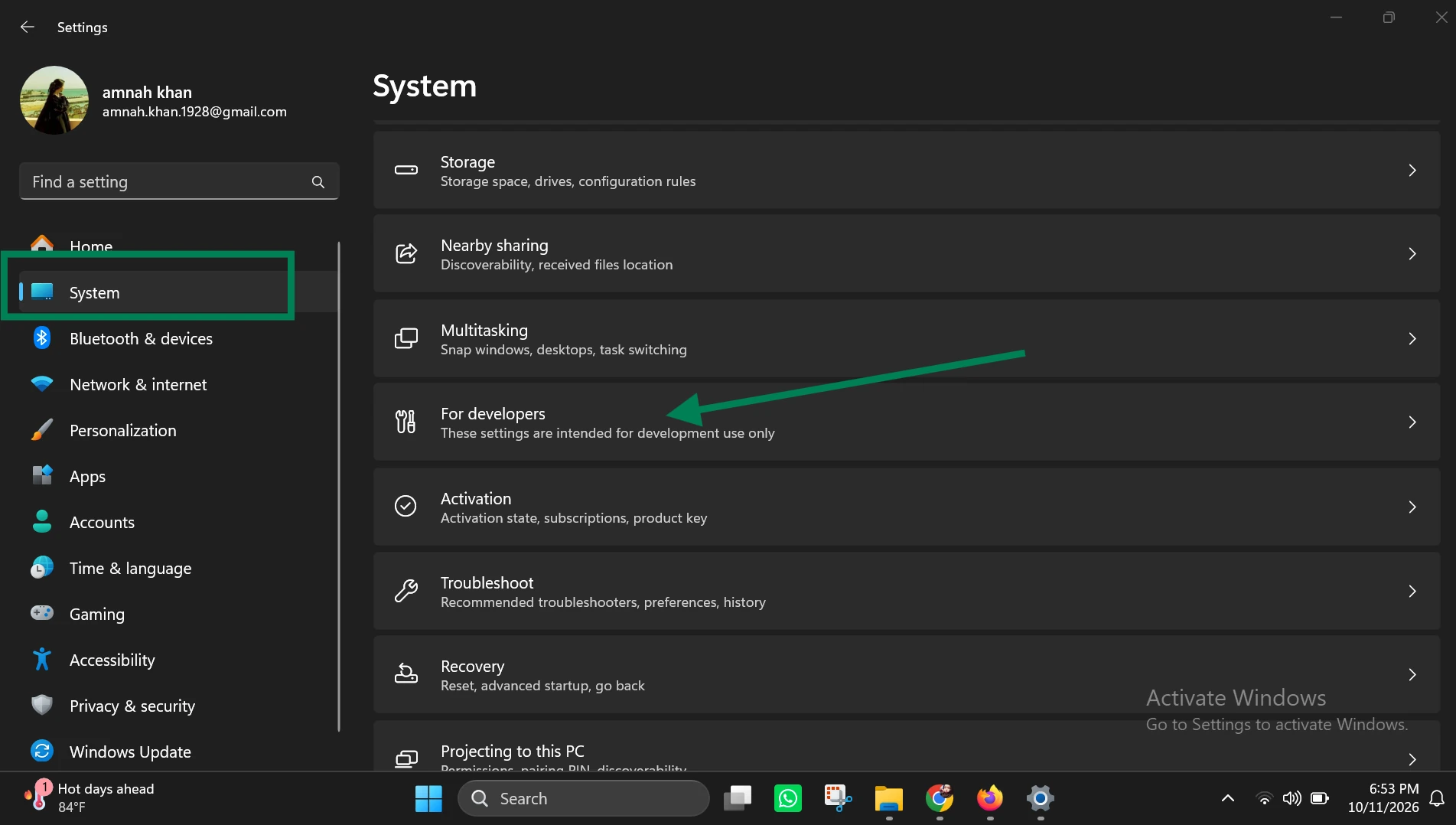
Step 1: Press Windows + I, tap on System, and then click on For developers.
Step 2: Turn on the End Task toggle to enable force closing windows.
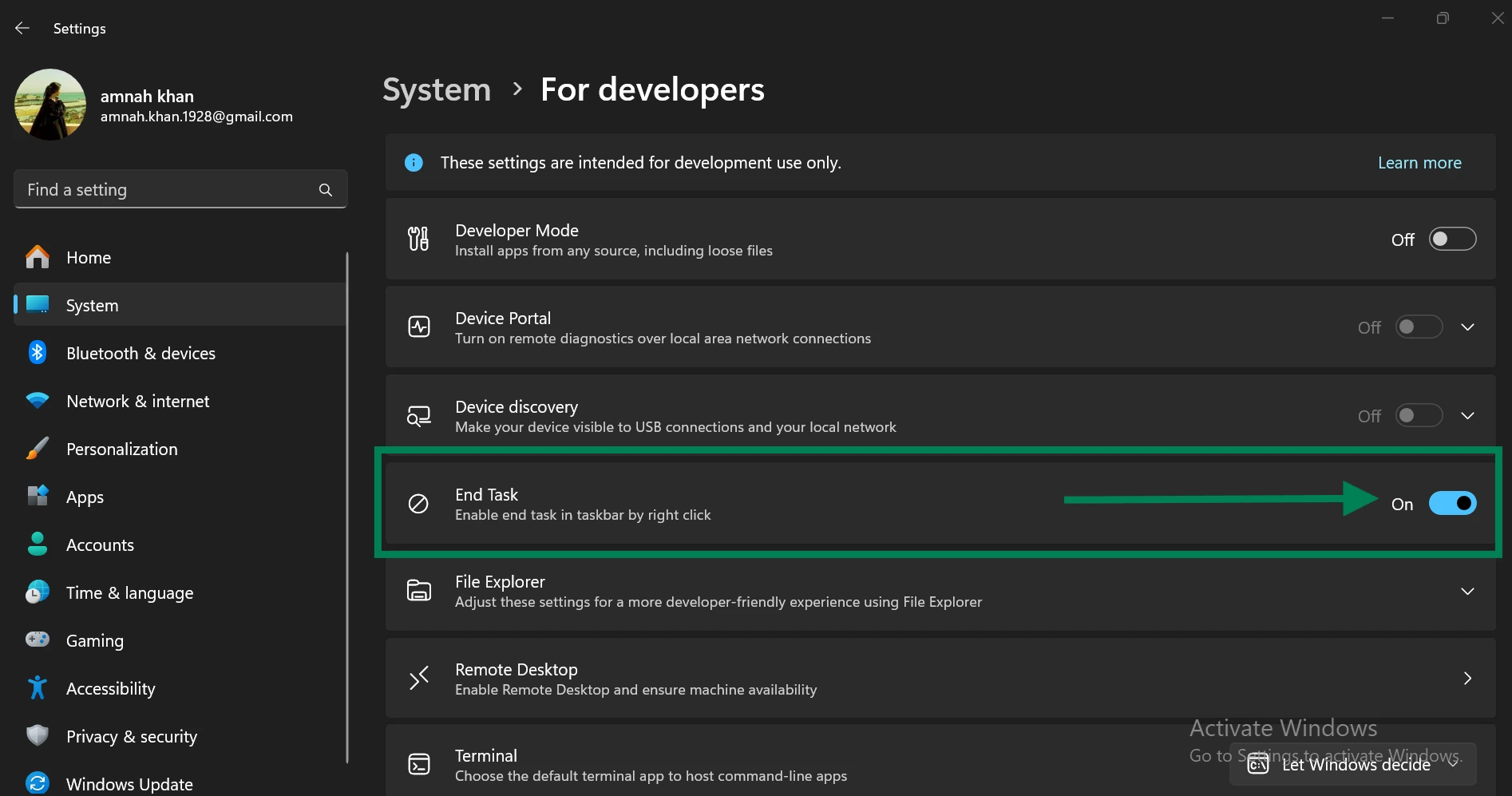
From now on, whenever you are looking for how to force close on Windows, right-click the frozen app icon on your taskbar, and hit End Task.
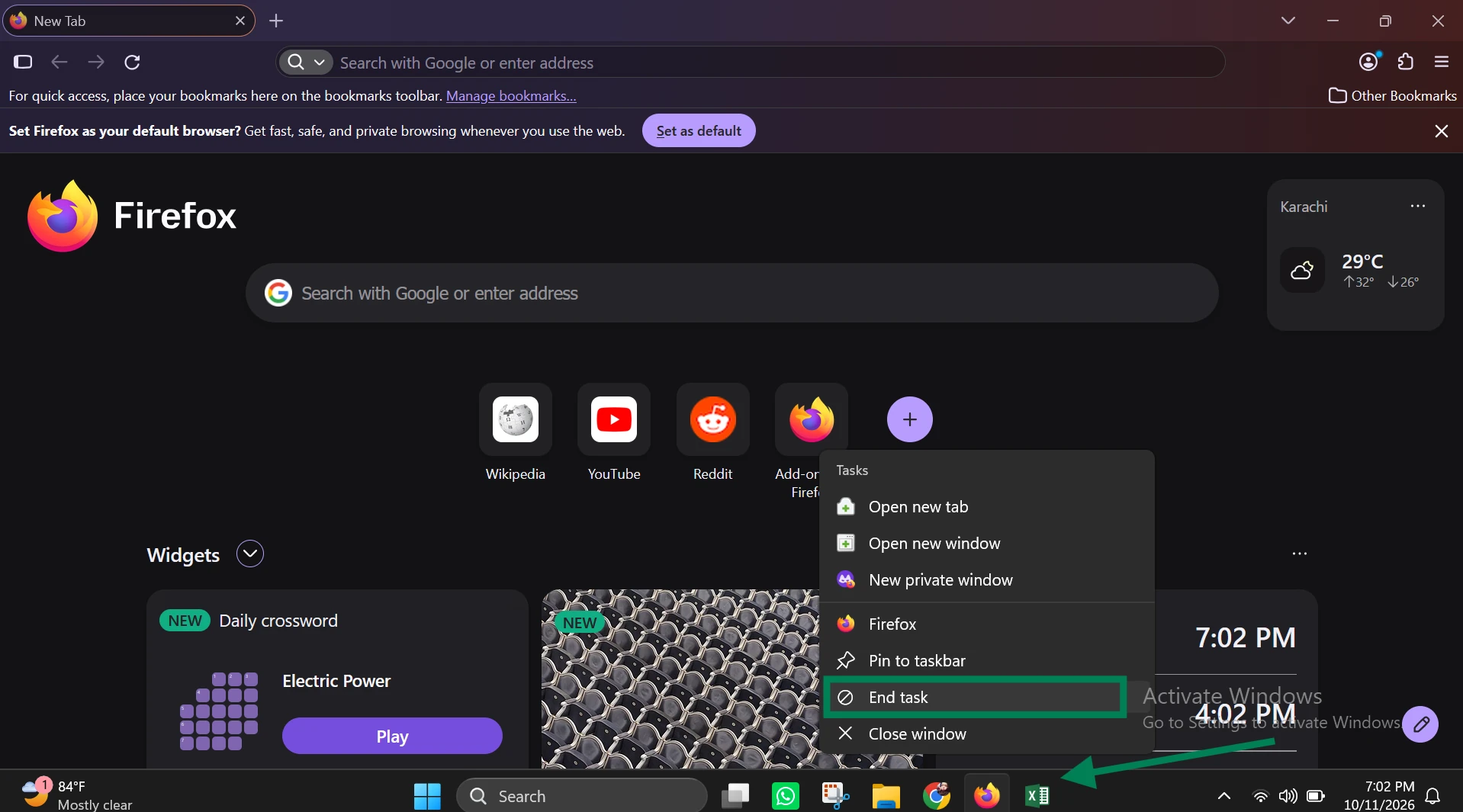
💡Tip: You can also use this method if you are looking for how to force quit an app on windows.
Method 6. Create a One-Click Force Quit Shortcut
Another amazing tip on how to force quit an application on Windows is to make a desktop shortcut, killing every frozen app at once when marked "Not Responding."
Step 1: On your desktop, right-click any empty spot, and click New. Now, select Shortcut.
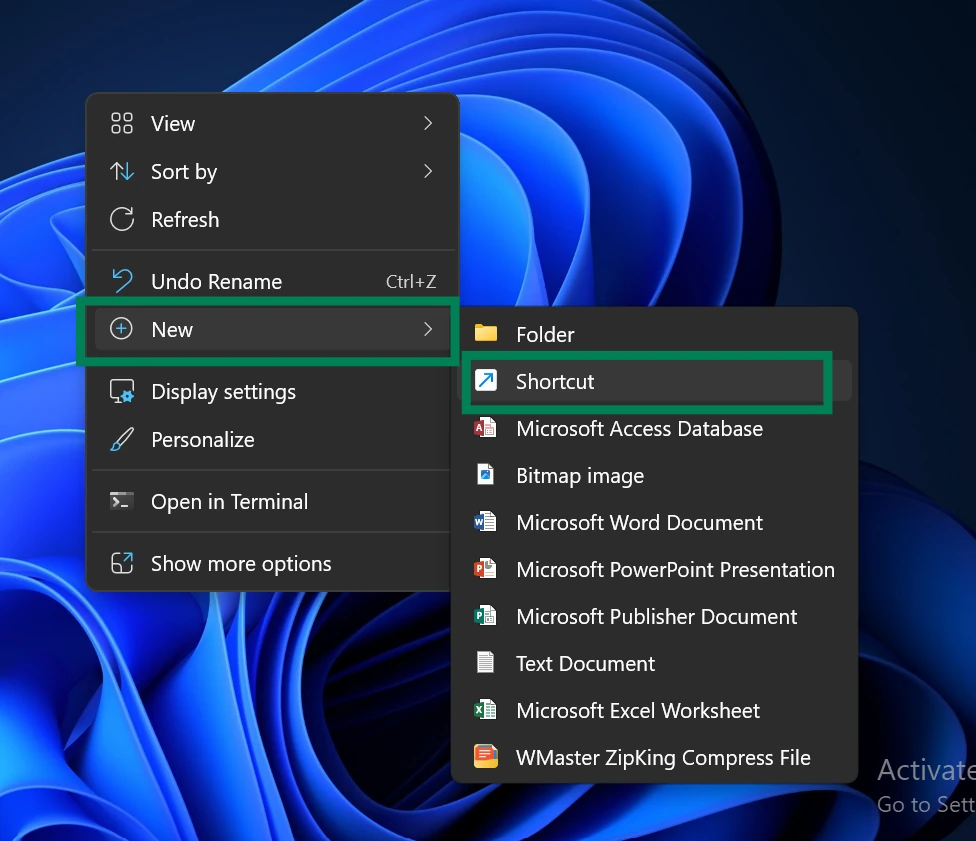
Step 2: Copy the below text and paste it into the location box, and then click Next.
Text: taskkill.exe /f /fi "status eq not responding"
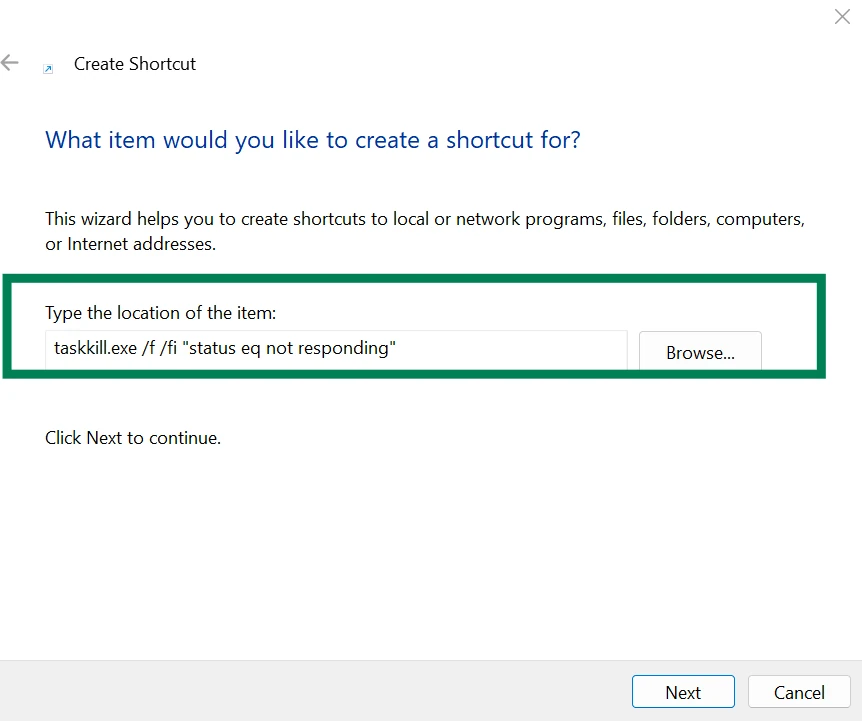
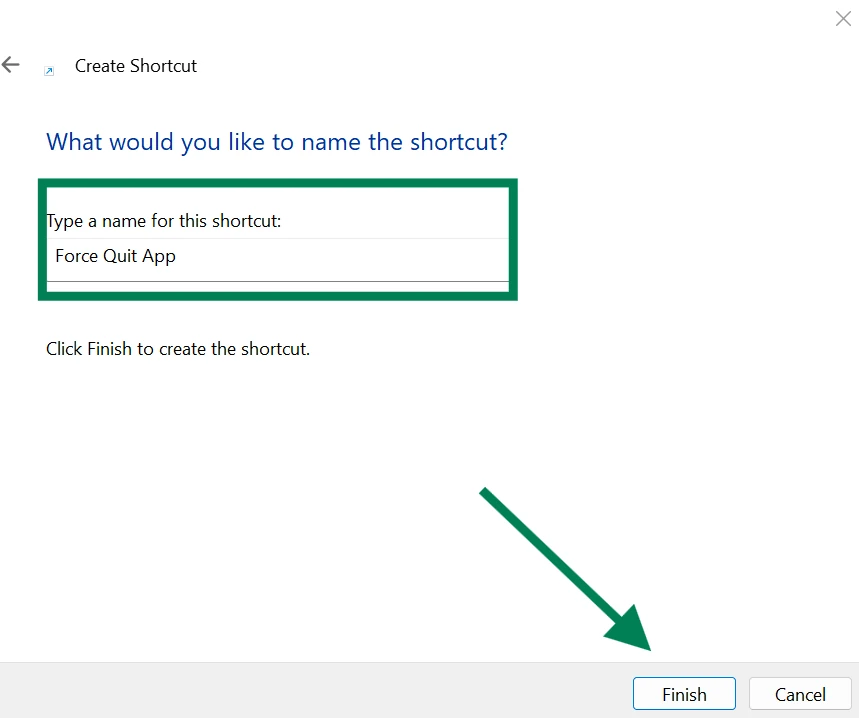
Step 3: Now give the desired name to this shortcut and click Finish.
Next time whenever you see an app showing a message, "Not Responding," just double-click this shortcut to force quit the frozen app. You can also pin this shortcut to your taskbar.
Method 7. Process Explorer (free Microsoft Sysinternals tool)
This free tool works on Windows 11, 10 & 7 and actually comes in handy when Task Manager can't force close stubborn apps. The steps for how to force close an application on Windows using a Microsoft tool are pretty straightforward:
Step 1: Download Process Explorer from Microsoft. Once the installation completes, run the software.
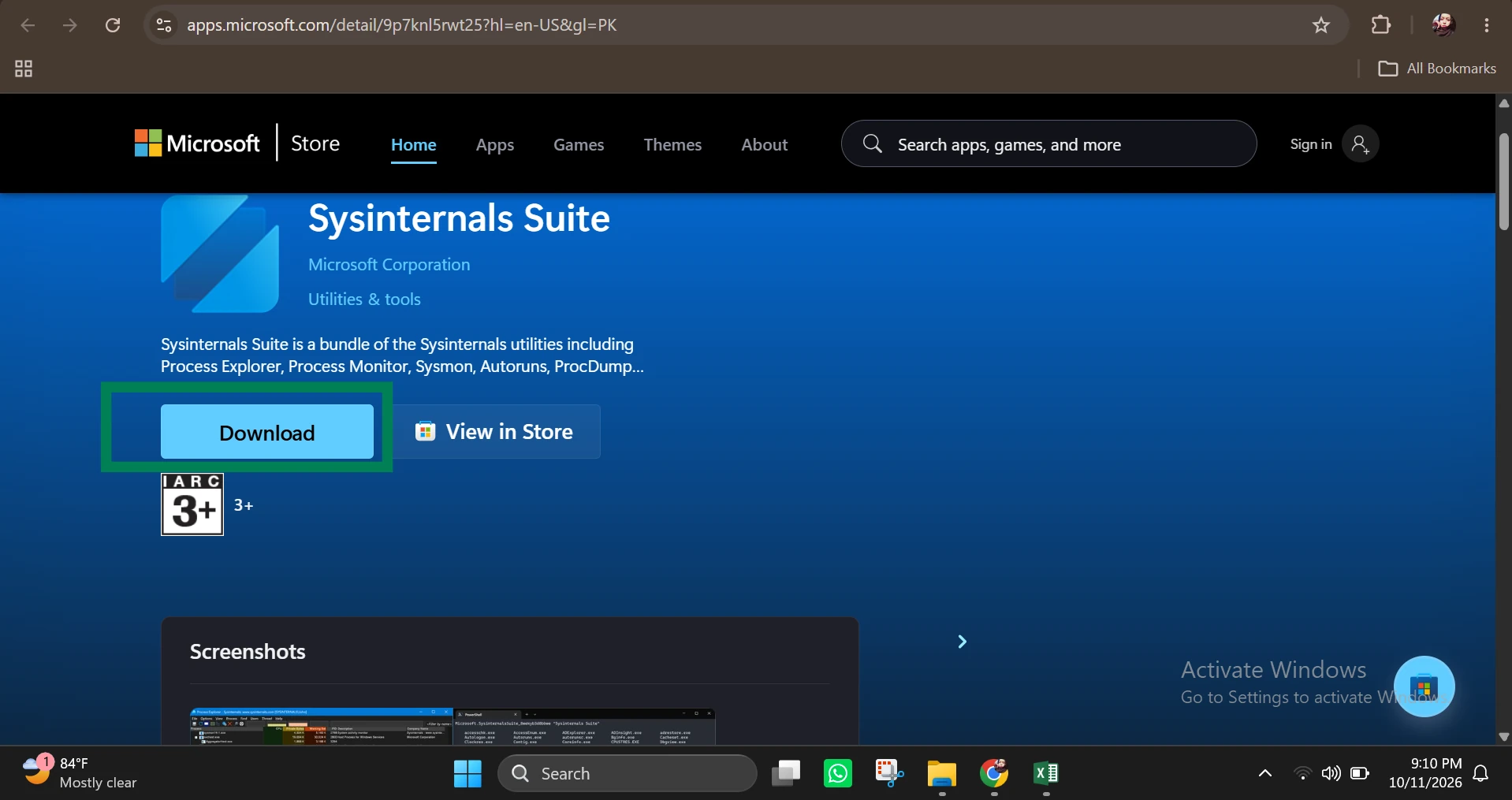
Step 2: Now look for your frozen app in the list, right-click on it, and hit Kill Process to force quit Windows app within seconds.
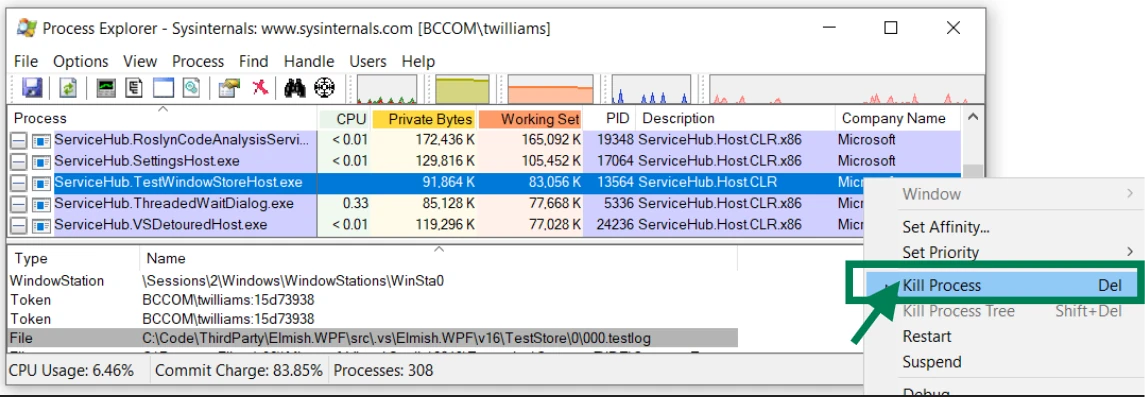
💡Tip: You can also press the Del button on your keyboard after selecting the desired programs from the list.
Part 4. How to Prevent Apps from Freezing on Windows 11/10: WMaster Cleanup
Force closing of the frozen app on Windows is a quick fix. But, in my experience, it wasn't a video editing app's fault alone. Actually, in my Windows 11, there was a huge wall of piled-up junk & leftover registry entries. Likewise, there were also lots of unnecessary startup programs fighting for memory, making the system slower.
So, if you're dealing with frequent freezing apps or a slow system, run WMaster Cleanup. It's a Windows all-in-one PC optimizer tool, helping you clean, speed up, and protect your system without needing manual efforts. What's more? Along with tidying up my PC with 1 click, it is making my apps open faster and switching faster, without even choking when I ask for a bit more.

WMaster Cleanup
Prevent Apps from Freezing on Windows 11/10
- ·Scans deeply to clear junk files, temp files, & system clutter to boost PC performance
- ·Delete unwanted apps with residual data, hidden files, and registry entries with 1 click
- ·Along with batch deletion, users can custom-select what to keep or what to remove
- ·It can safely delete 11 kinds of unnecessary system junk, keeping the PC fast & stable
- ·You can also stop startup apps to give more memory room to run your heavy apps

How to Use WMaster Cleanup to Do Daily PC Maintenance
To keep my Windows PC running smoothly & prevent apps from freezing, I always run WMaster Cleanup's PC Optimizer feature before doing anything on my laptop. Follow the below steps:
Step 1: Head to the WMaster Cleanup homepage and click Free Download. Follow the instructions to complete the installation process.
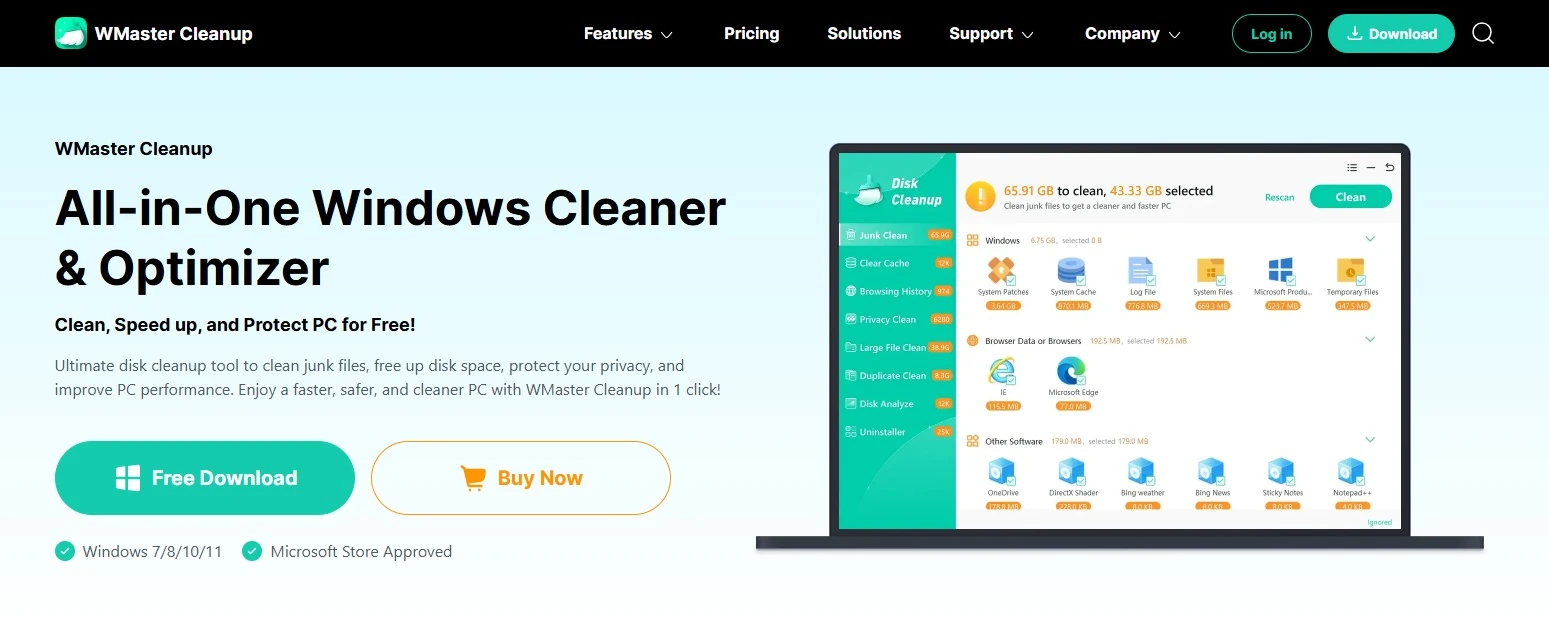
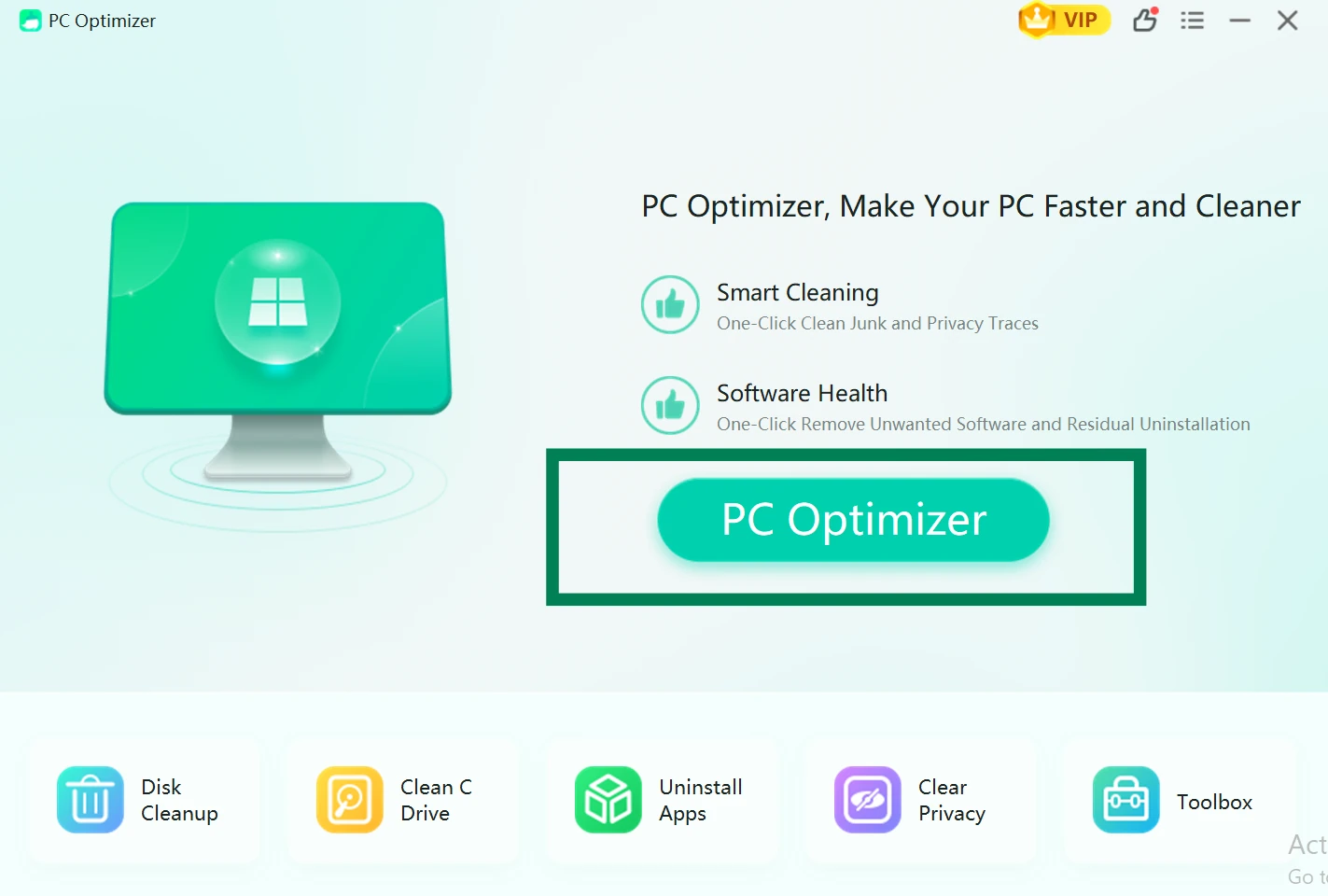
Step 2: Once the installation is completed, launch the tool on your desktop, and select PC Optimizer.
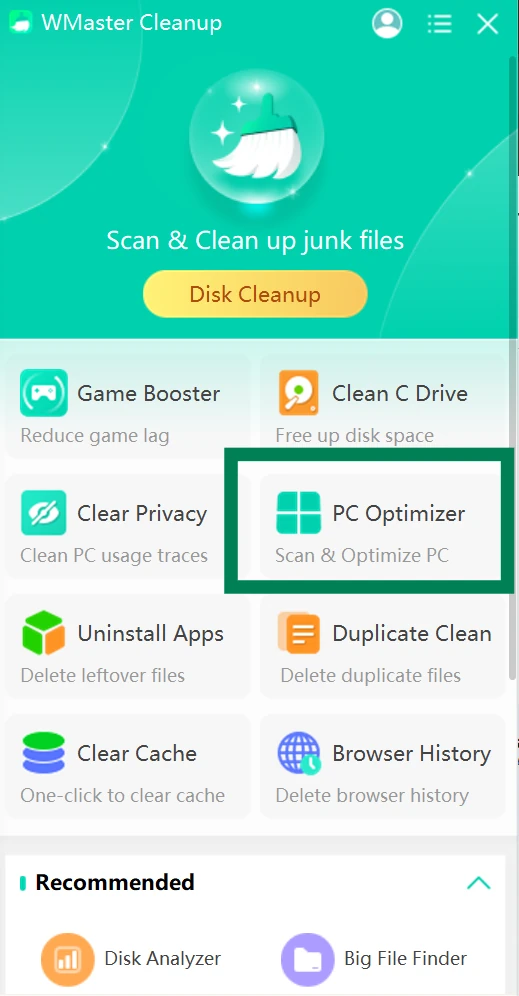
Step 3: Now tap PC Optimizer on the pop-up window. It will instantly initiate the scanning process.
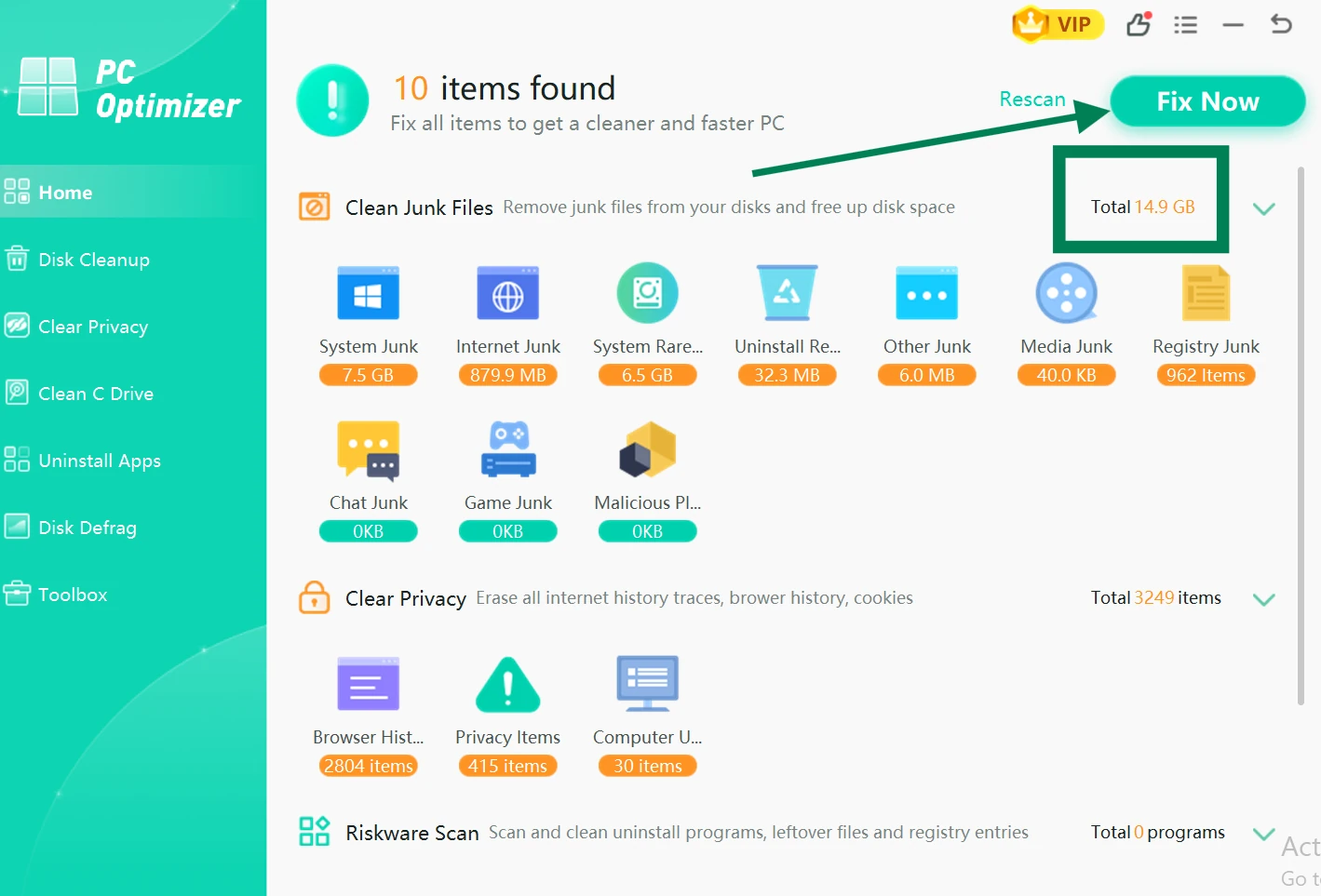
Step 4: Once the scanning is completed, tap Fix Now to get a cleaner, faster, and smoother Windows PC, preventing frequent app freezes.
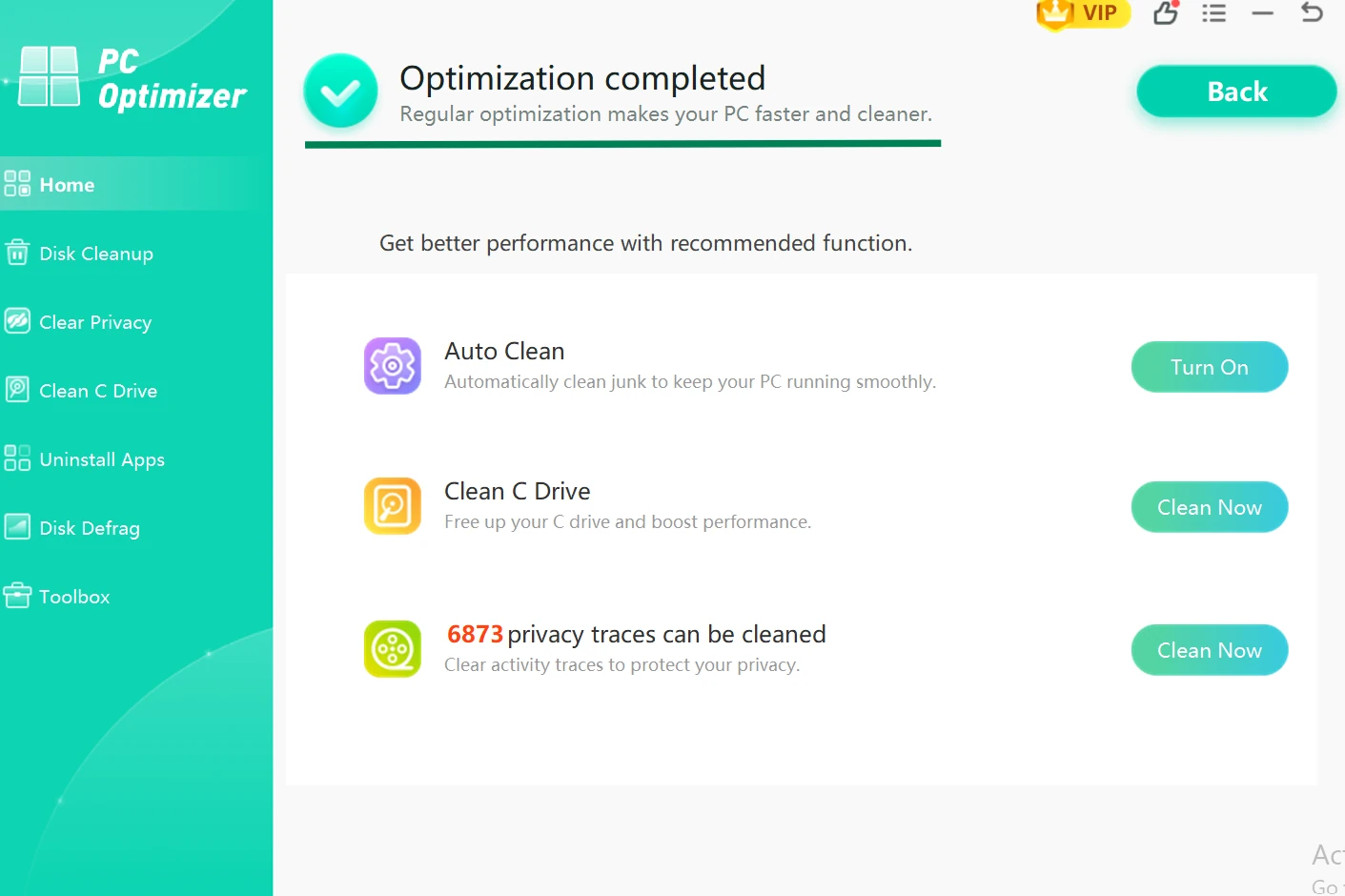
Do you know there are some other areas that are causing your apps to freeze frequently?
For fixing broken entries behind random crashes of Windows apps, try the Clean Registry feature by WMaster Cleanup. Similarly, to free up space on your system, go for the Disk Cleanup feature so that the apps you're trying to run can breathe.
Part 5. FAQs Related to Force Close Windows App
1. Is there a way to close an unresponsive program without Task Manager?
Yes! You can press Alt + F4. Other than that, to close the unresponsive app, you can also use the Taskkill command in Command Prompt, enable the End Task option on Windows, or create a desktop shortcut (Method 6), skipping Task Manager completely.
2. What if Task Manager won't open?
There are 2 ways to open Task Manager. One is to press Ctrl + Shift + Esc, and the other is to press Ctrl + Alt + Delete. Try both shortcuts one by one, and if neither works, open Command Prompt by pressing Windows + R and run taskkill. If nothing works, hold the power button and restart your system, but you may lose your unsaved work in every open app.
💡Tip: Once you are done closing the stubborn app on Windows, run WMaster Cleanup for a cleaner and faster Windows PC.
3. Can force quitting damage Windows?
No! If you are force exit Windows' single app, it won't affect your Windows system or hardware. The only risk is that you will lose any unsaved work or data that is inside the specific frozen app.
4. What's the difference between closing an app and ending a task?
Closing an app means you finish your work and shut down the app politely so it can save & clean up. Whereas ending a task means you just cut it off immediately, without saving anything or any warning.
💡Tip: Always go for the first one, until or unless you are stuck and do not have any other option other than ending a task.
5. Can't close game. How to force quit?
If you're playing on full screen, it's better to switch out of the game by pressing Alt + Tab. Other than that, you can also press Windows + D to land directly on your desktop. Now, open Task Manager and end the process (game) as usual.
Final Words
Force quitting is handy when you know the options. But before that, just give your frozen app 2 to 3 minutes & try to save what you can. If the issue persists, start with the shortcut or Task Manager. For stubborn cases, learning how to force quit on windows using Taskkill & downloading Process Explorer is the top priority.
But if you are doing this every day, treat the app freezes from the backend. Give WMaster Cleanup a try, clean your Windows daily for 1 week, and feel the difference. This all-in-one cleanup tool will make your PC lighter, faster, and smoother within a few minutes, preventing the "Not Responding" window at first place.
What's the crowning touch for this cleanup tool? All the basic cleanup & optimization features are available in the free version of the tool.