

Is your Windows 11 PC feeling sluggish, and do storage warnings keep popping up? But you have no idea where all the space went. Large files are often stored in the background, including old installers and system backups.
Initially, I used to struggle and wonder, How to find large files on windows 11? But once you know, you can quickly free up space, speed up your system, and avoid those storage headaches. I have done it myself, and it actually makes a huge difference.
In this guide, we'll walk you through 7 easy, proven methods to track down space-hogging files. I'll also share a powerful tool that can locate the large files within seconds and clean up with a single click.
In this article
Part 1: How to Find Large Files on Windows 11 [Automatically] - The Easiest Way
Large files often take up a lot of space on our PCs, and sometimes, we don't even know where they are exactly located. And even if you locate them, opening each of them manually and deleting them is a tedious task.
WMaster Cleanup, with its intuitive interface, is an all-in-one cleanup tool. It features Big File Finder, which is designed to reclaim your disk space in no time. It can quickly identify large, hidden files that are cluttering your storage. This feature allows you to find and delete unnecessary data from your Windows 11 by removing heavy files, leading you to boost the PC's performance.

WMaster Cleanup
Find Large Files and Delete Them in One Click
- · The user can scan the specific drives to extract large files.
- · Provide details of detected large files, like file type, size, location, and date modified.
- · The tool categorizes the large files based on their file types.
- · You can delete multiple large files at once with its batch processing feature.
- · An intuitive interface makes it a beginner-friendly tool.

How to Find Large Files on Windows 11 by WMaster Cleanup
Follow along to know how I find large files on windows 11 using WMaster cleanup, and you can too.
Step 1: Open the WMaster Cleanup website, click "Download Now," follow the on-screen steps to install the app on your system.
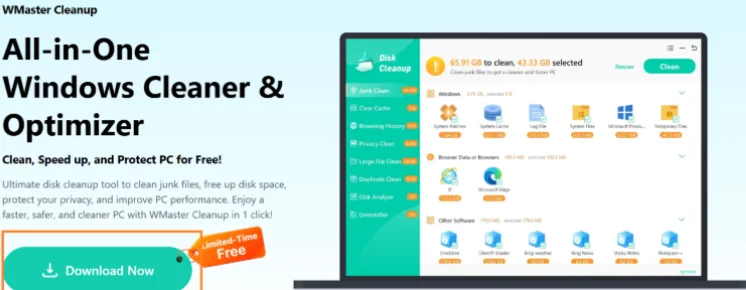
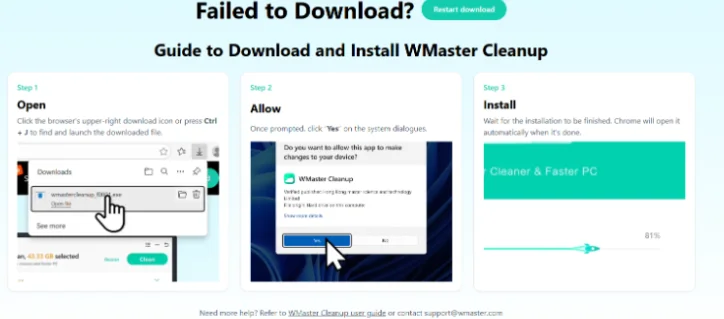
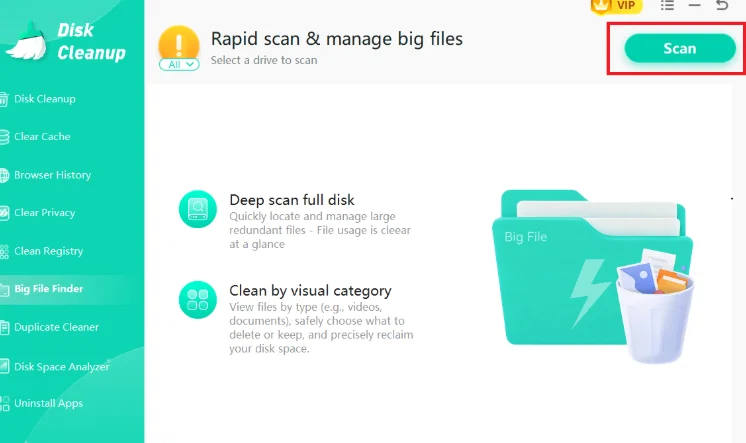
Step 2: Once the installation completes, launch main interface on your desktop. Select Big File Finder to find large files.
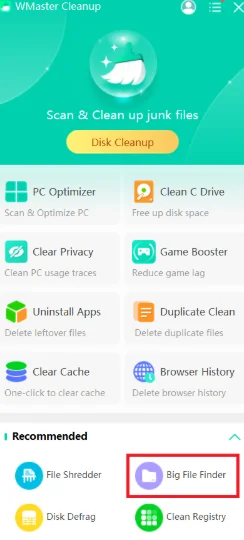
Step 3: Click "Scan" to initiate deep scanning of your system to find large files within seconds.
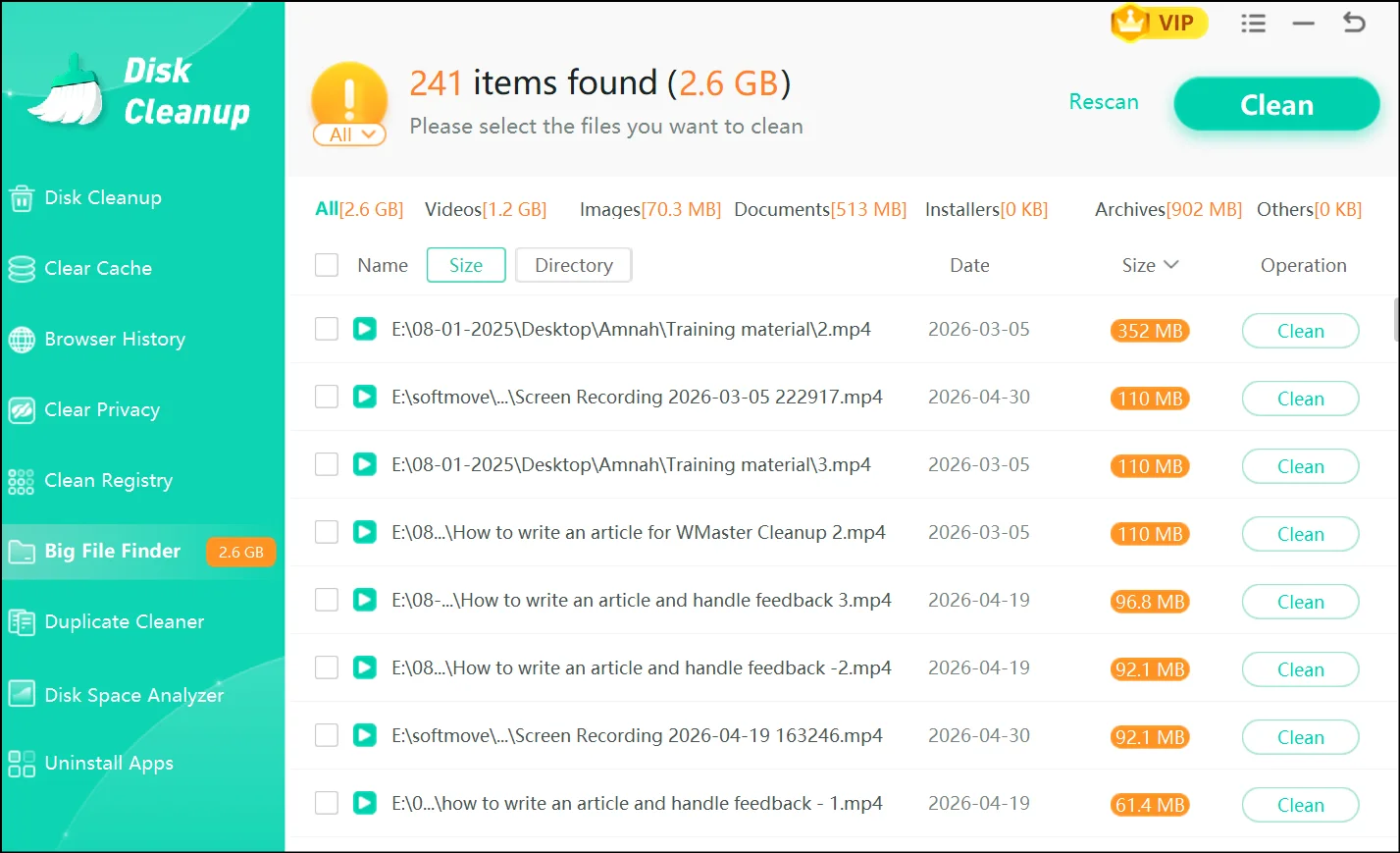
Step 4: Once the scan completes, find all the large files along with the exact space they are consuming. Select the files you want to delete and click on the "Clean" button in the top right corner, and it's done.
💡Tips:Free up space without deleting your large files.
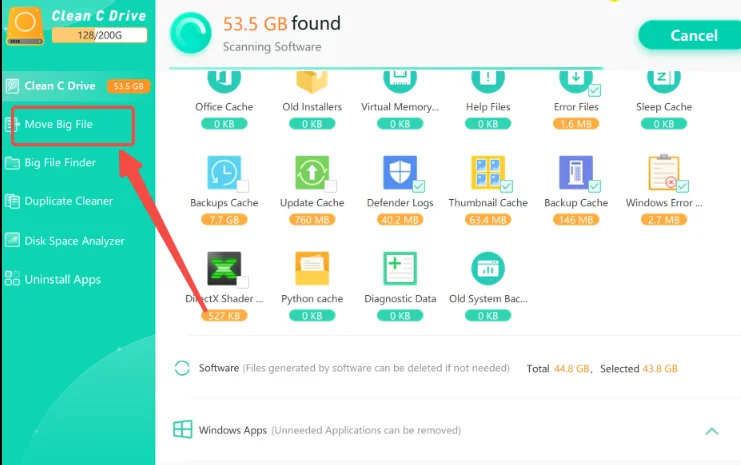
If you don't want to delete your important large files forever, use the Move Big File feature by WMaster Cleanup. This feature will allow you to move your massive files from your system to D drive to save storage space.
Part 2: 6 Helpful Ways to Find Large Files on Windows 11
While I swear by our all-in-one tool, WMaster Cleanup, to handle the heavy lifting of high-res videos or bulky software, I know sometimes the user wants to take full control over managing files. Don't worry! If you are not yet ready for full-auto cleanup, Windows has some built-in features that can help you play the detective role.
Here, I will tell you manual shortcuts to find large files to clear your path for your next big project.
- Large files using the file explorer
File Explorer has some hidden search filters that allow you to find the largest file on your system and categorize it. Here is how you can spot large files:
Step 1: Navigate and open the File Explorer on your PC by using the Windows+E command. Once done, you'll land on your PC drive.
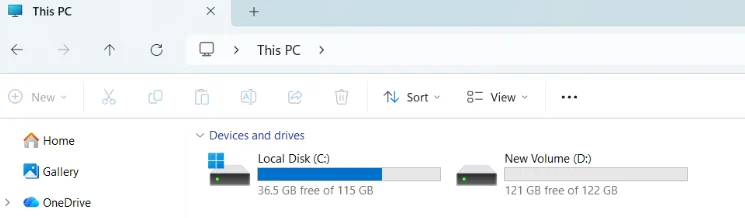
Step 2: Now, select the drive you want to search, such as C: or D: drive.
Step 3: Once you have selected the drive, type the size:Large (128MB-1GB), size:Huge (1GB-4GB), or size:Gigantic (above 4GB).
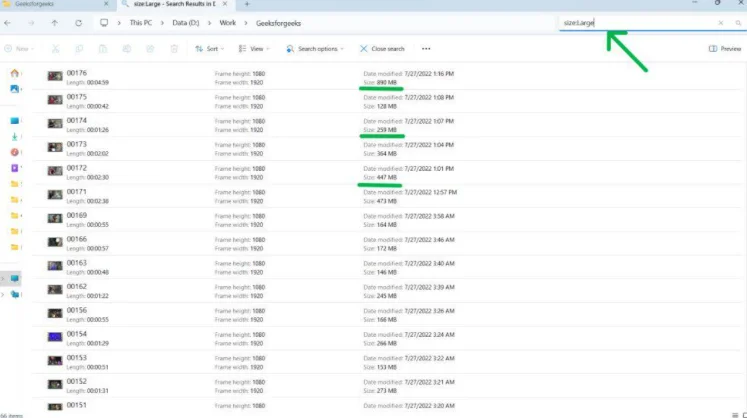
You can also sort the files from largest to smallest to see which ones are real offenders.
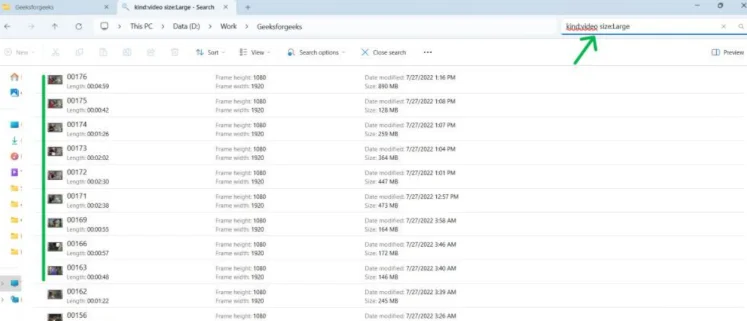
Step 4: If you want to find the large files on Windows 11 by file type, type kind:video size:Large. This will show you all the video files that are larger than 128 MB.
If you want to clean the C drive thoroughly with a few simple steps, check out our easy-to-follow guide.
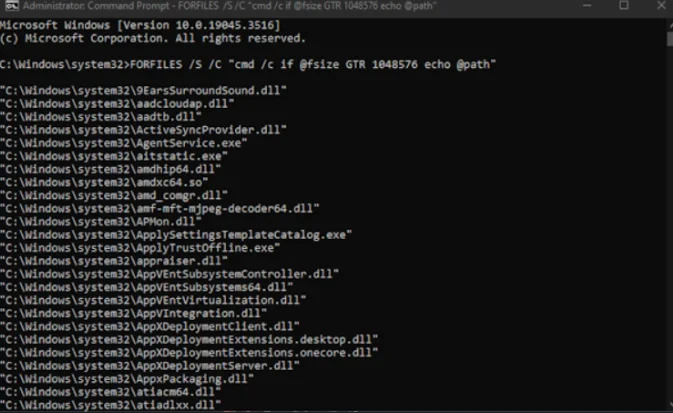
2. Command prompt
It's a text-based command that helps you bypass the standard File Explorer interface and find hidden storage hogs. With the command prompt, Windows is forced to scan every directory and subfolder and give you files that exceed the size limit.
Here's how you can do that:
Step 1: To begin with, press Windows + S on your keyboard and Command Prompt will open up instantly.
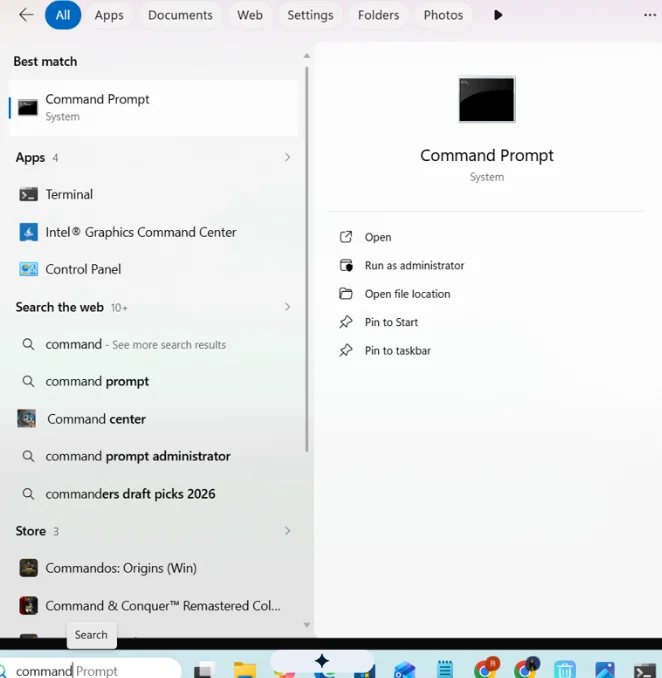
Step 2: Now, you have to type this command on the screen that opens up on your desktop:
forfiles /S /M * /C "cmd /c if @fsize GEQ 1073741824 echo @path > LgFiles.txt
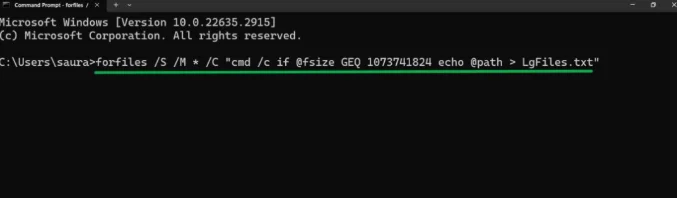
💡Pro Tips:You can replace the size(bytes) with any number, but it should be in bytes (for example, 1073741824 for 1GB).
Step 3: Now, you have to check the "LgFiles.txt" file to identify large files on your PC.
3. Powershell
Another built-in method I have come up with to find the large files on your Windows 11 PC is by using PowerShell. It offers a deep search so you can scan specific drives and find massive files that often get overlooked.
Step 1: Press Windows + S, and here you must search for Windows PowerShell. Once you click on it, a pop-up will appear.
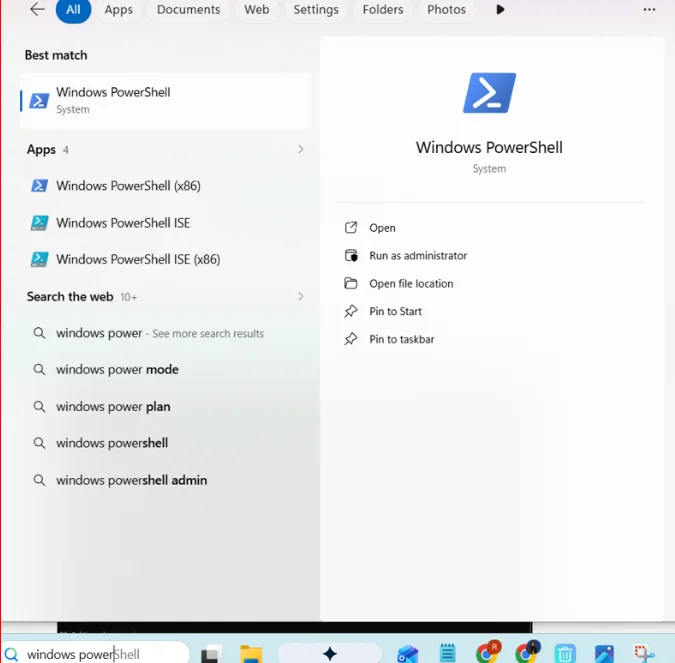
Step 2: Here's the Sort Command you should paste there to find large files on your Windows 11 system:
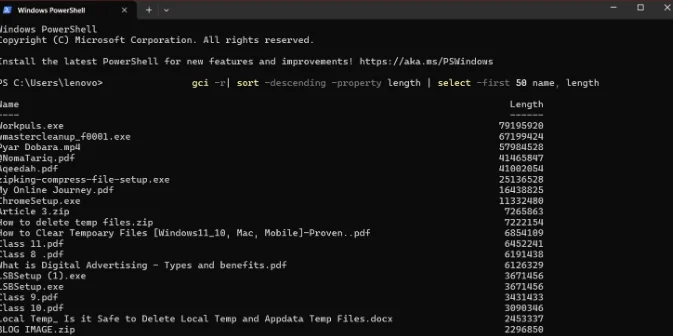
gci -r| sort -descending -property length | select -first 20 name, length
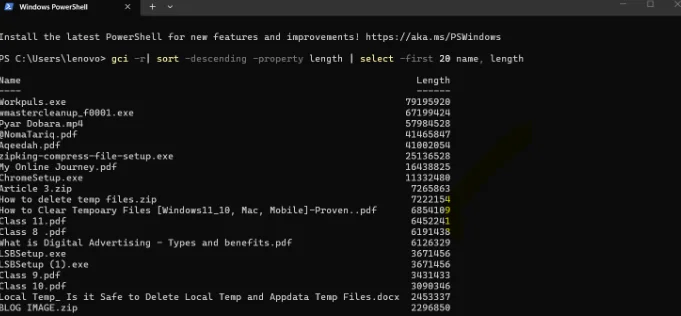
💡Pro Tips:You can change the 20 in the command with the number of files you want to see, i.e., 50, 100, or more.
4. Disk cleanup
Apart from manual searching, Windows 11 has a built-in Disk Cleanup tool that can help you spot the large files and ultimately delete them to free up space.
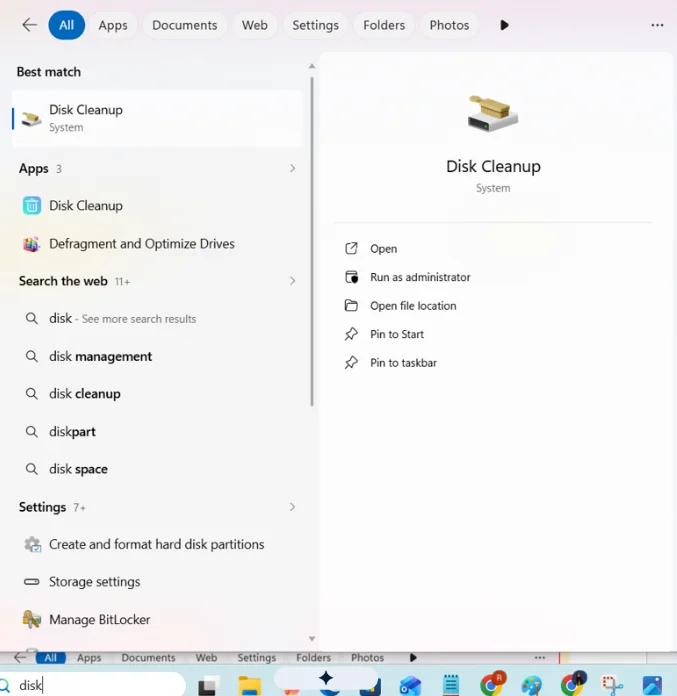
Step 1: To begin with, search Disk Cleanup in the Start menu and open the app.
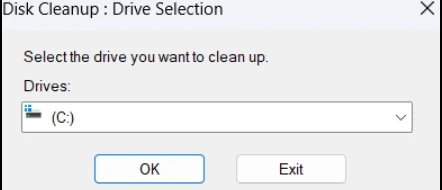
Step 2: On the pop-up windows, select the desired drive to scan it and find the files along with the space they consume.
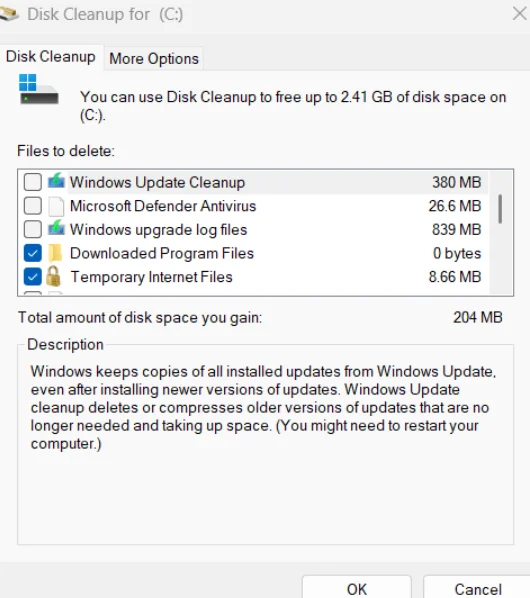
Step 3: Now, select the files that you want to delete and click ok. All the large files on your PC will be removed within a few seconds.
5. Storage sense
Another amazing feature our Windows 11 has is Storage Sense! It automatically frees up space on your hard drive. Instead of manually digging into different folders, this tool triggers cleanup when your disk space runs low. You can also check the large files here by following these steps:
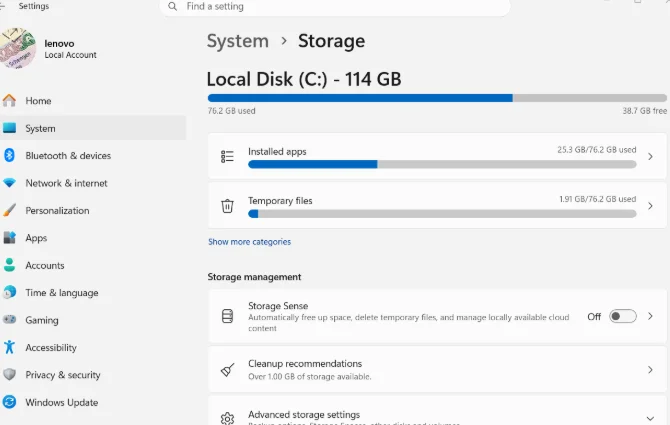
Step 1: First of all, go to your system's settings from the Start Menu and then click on System and Storage.
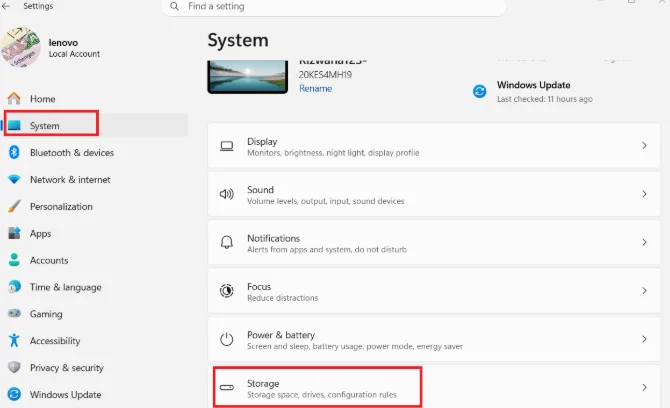
Step 2: From here, you can see different kinds of files, like installed apps, temp files, and much more that are taking up storage and slowing down your PC.
6. Temporary Files
Temp files also take up a lot of space, and that slows down your system. These files store temporary information. But once the job is done, these files are of no use. Therefore, it's best to find and delete them.
But, wait! Before finding and deleting your temp files, learn about is it safe to delete local temp or appdata temp files ?
Here's how you can find storage hogs:
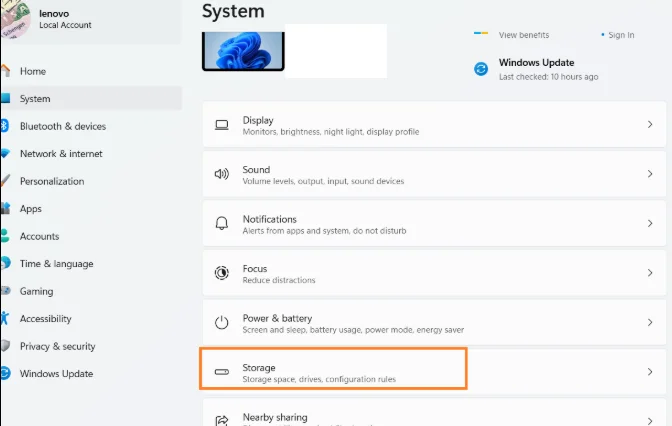
Step 1: To find the large temp files, go to Settings and then click on System. Now select "Storage" to get a detailed overview of files taking up space on your Windows 11.
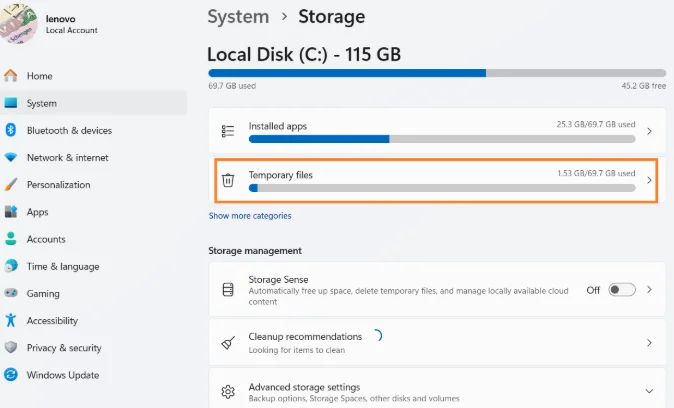
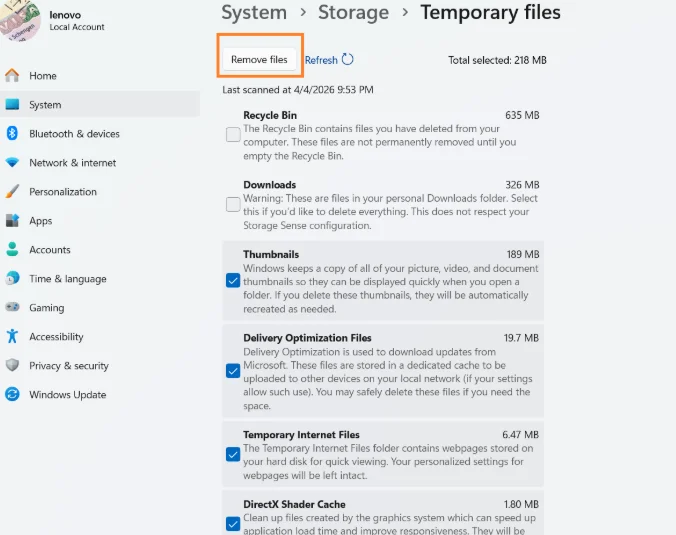
Step 2: Here, you'll find the option of temporary files, showing the total space they are taking on your PC. Click on it to check all the files that are taking up space on your PC.
💡Pro Tips:You can quickly free up storage space if you hit "Remove" to delete unnecessary temp files from your Windows 11.
For more information, check out our latest guide to know what temp files are and how to open them on your Windows 10/11.
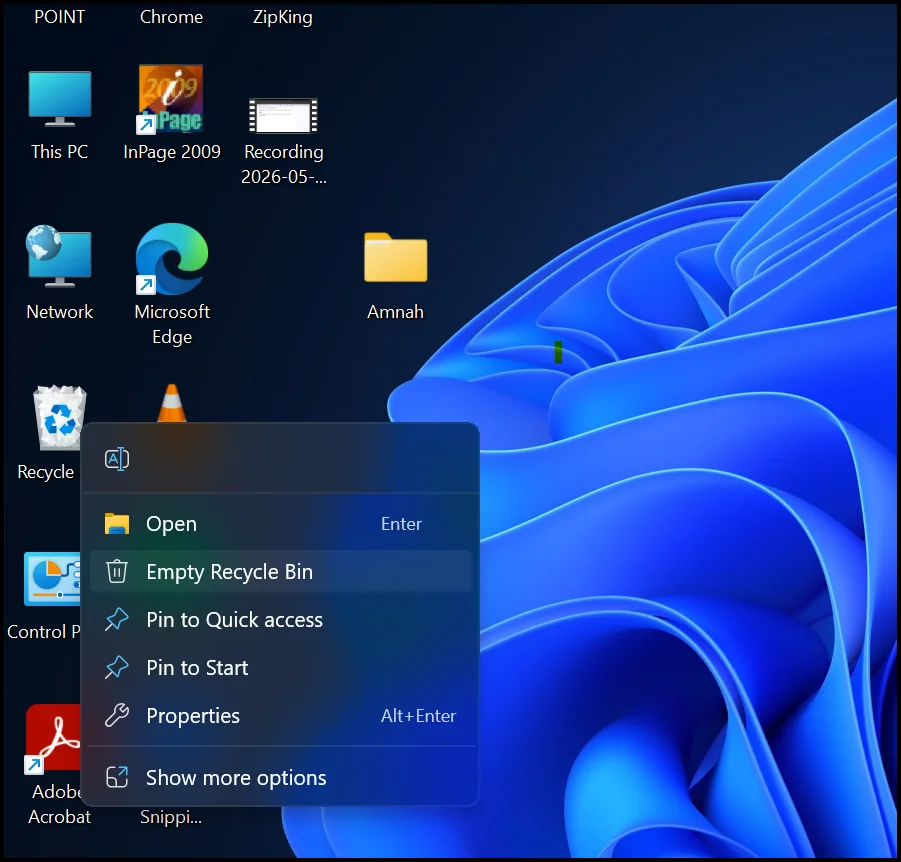
💡Pro Tip:The deleted files on Windows 11 are often compiled in the recycle bin. This folder is the silent storage killer and reason you're getting too many annoying storage warnings. Get in there to permanently kick out unwanted files from this folders. Just right-click on the Recycle Bin folder, and select Empty Recycle Bin from the dropdown menu.
Part 3: [Tips] How to Delete Large Files on Windows 11 Safely
The real challenge is how to delete large files from your system is utmost safety. Therefore, make sure that you verify the files before deleting them. Besides this, keep a copy and do not empty your recycle bin without verifying it is safe. Other than that, also keep these tips in mind while deleting large files on Windows 11 safely:
- Firstly, make a backup copy of large files on an external device or cloud storage before deleting, as you might need them later.
- Before deleting, double check that it isn't a system file or anything crucial.
- Never delete files inside folders like Windows, Program Files, or System32 unless you're sure what you're doing.
- Deleting the files that are currently running in the background might crash your PC. So, open Task Manager (ctrl + alt + delete) and end running processes first.
- If you remove too many files at once, this might slow down your PC. So, to improve stability, delete them one by one.
- Don't permanently delete files in one go. It is because you might delete critical files accidentally or need them in the future.
- Some files may look unimportant but are required by apps. Always verify the file type before deleting.
Part 4: Hot FAQs Related to Find large Files on Windows 11
Can I free up my Windows 11 local disk space if I move large files to the cloud?
In Windows 11, simply dragging your large files to the cloud does not mean they are leaving your hard drive. After syncing your large file to the cloud, you can right-click the file or folder and choose "Free up space." This action will delete the local version and keep the file safely in the cloud.
💡Pro Tip:After syncing, look for a green checkmark that indicates the file is taking up space on your hard drive. Once you do the right-click step, the green color will change into a blue cloud icon, which means the file is now available online only.
How do I see what files are taking up space in Windows 11?
The easiest method to find large files is through Storage Settings. From Settings, go to System and then Storage. Here, Windows will show you a breakdown of what's using your space, such as apps, temporary files, documents, and more.
Besides this option, to avoid the manual hassle, you can use the WMaster Cleanup tool to quickly scan all the large files on your system. This all-in-one cleanup tool lets you view file details and delete them with one click.
How to find and delete large files on my Windows PC?
You can find them through File Explorer by using the size and category filter. You can also use the command prompt to list down large files in your system. But if you want a simple yet effective way to find and delete large files on Windows PC, try our dedicated tool, WMaster Cleanup. It can find your hidden large files and remove them with a single click, leading you to improve your PC performance.
Can I recover my file if I have used a third-party app to delete large files?
It depends! Most apps use a "standard" delete that sends your files to the Recycle Bin or makes them hidden until it's overwritten by something new. Some recovery tips are given below:
- Check the Bin:Some apps may move your deleted files to the Recycle Bin.
- Check the cloud: If your files were in a synced folder, like Google Drive, OneDrive, or Dropbox, check your online bin on a relevant website.
- Go for recovery software:You can also try using Disk Drill or Recuva to deeply scan your drive quickly.
💡Tip:Use WMaster Cleanup, which offers a preview feature once the files are detected to prevent accidental deletion.
How can I delete a large file permanently on my Windows PC?
You won't get rid of a file if you just hit the delete button; you just move it to the Recycle Bin so that your file can live rent-free in your hard drive. To truly delete files and save space, just kick those files out by emptying your bin.
You may also use the Ninja way, which is to select the file and press "Shift + Delete." This shortcut not only bypasses the Recycle Bin but also vaporizes the file instantly.
Wrap Up
Understanding how to find large files on windows 11 is necessary to maintain your PC's performance; otherwise, large files can slow it down, causing a 5-minute task to take one hour. You can find these large files manually by using the disk storage or the command prompt. But this is often a time-consuming task and takes a lot of effort, too.
For Windows users, I highly recommend trying WMaster Cleanup once; it can help you locate and remove the large files from Windows 11 within seconds. And the rest of your data will be untouched. Along with other features, like an intuitive interface and batch deletion, it can clean your PC with a few clicks. So, download it now.


