


If slow system performance and dwindling storage space are overwhelming your Windows 11 PC, temporary files might be the baddie! But do you know what are temporary files and how you can manage them?
Windows and system apps create temporary files to store data temporarily while you work on a task. As time passes, these temp files can rack up, taking mighty storage and decelerating your Windows PC.
In this guide, l will explain what temporary files are, show you how to open temporary files, and also unveil the best ways to delete them, letting you free up space and boost your system's performance. Plus, whether you prefer manual cleanup or a hassle-free solution, I have got you covered.
In this article
Part 1: What Are Temporary Files?
Temporary files are also known as "work-in-progress" files that are created by your system or app while you are working. These files are short-lived and created to help with different tasks, like caching data, saving drafts, or backing up during updates. For smooth system operations, these files are crucial, but if you don't clean them regularly, they can get out of hand.
Here is a quick overview of temporary files:
- Created automatically while updating and installing software, or during regular use.
- Can be stored temporarily in specific folders, such as the "Windows temp directory" or "temp folder".
- Once their job is done, they are designed to delete themselves, but sometimes they stay in the system's memory.
- Although these files speed up the process, if you ignore them, it will become clutter
Whether you are troubleshooting, recovering your data, or freeing up your device space, it is super useful if you know what are temporary files and where is temp folder location. Thus, if you are curious, next I will show you some of the easiest methods about how to access temp files and how to manage them.
Part 2: How to View Temps Before Opening
Seeing what your temporary files contain helps you to avoid deleting important files and also gives you detailed insight into what is taking your disk space. Luckily, Windows 11 makes it easy through its "Settings" menu to get a quick view of what temporary files are stored. Moreover, it is one of the smartest ways to clear up your device storage without diving into your numerous folders.
Looking for "Where can i find temp files?"Here are the steps:
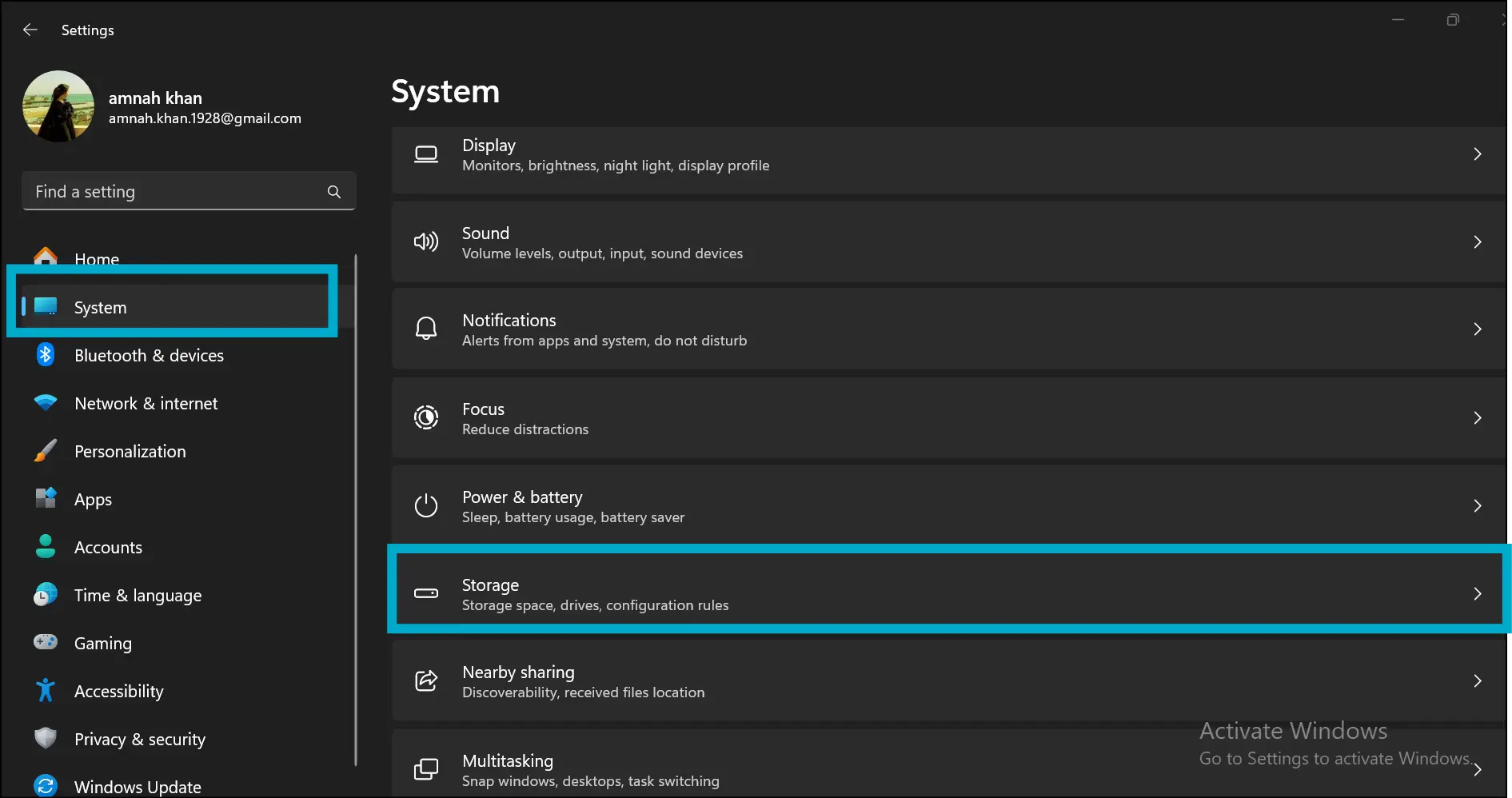
Step 1: Search and navigate through the taskbar or press "Win + I" to open the "Settings" app. On the left pane, click "System" and then select "Storage".
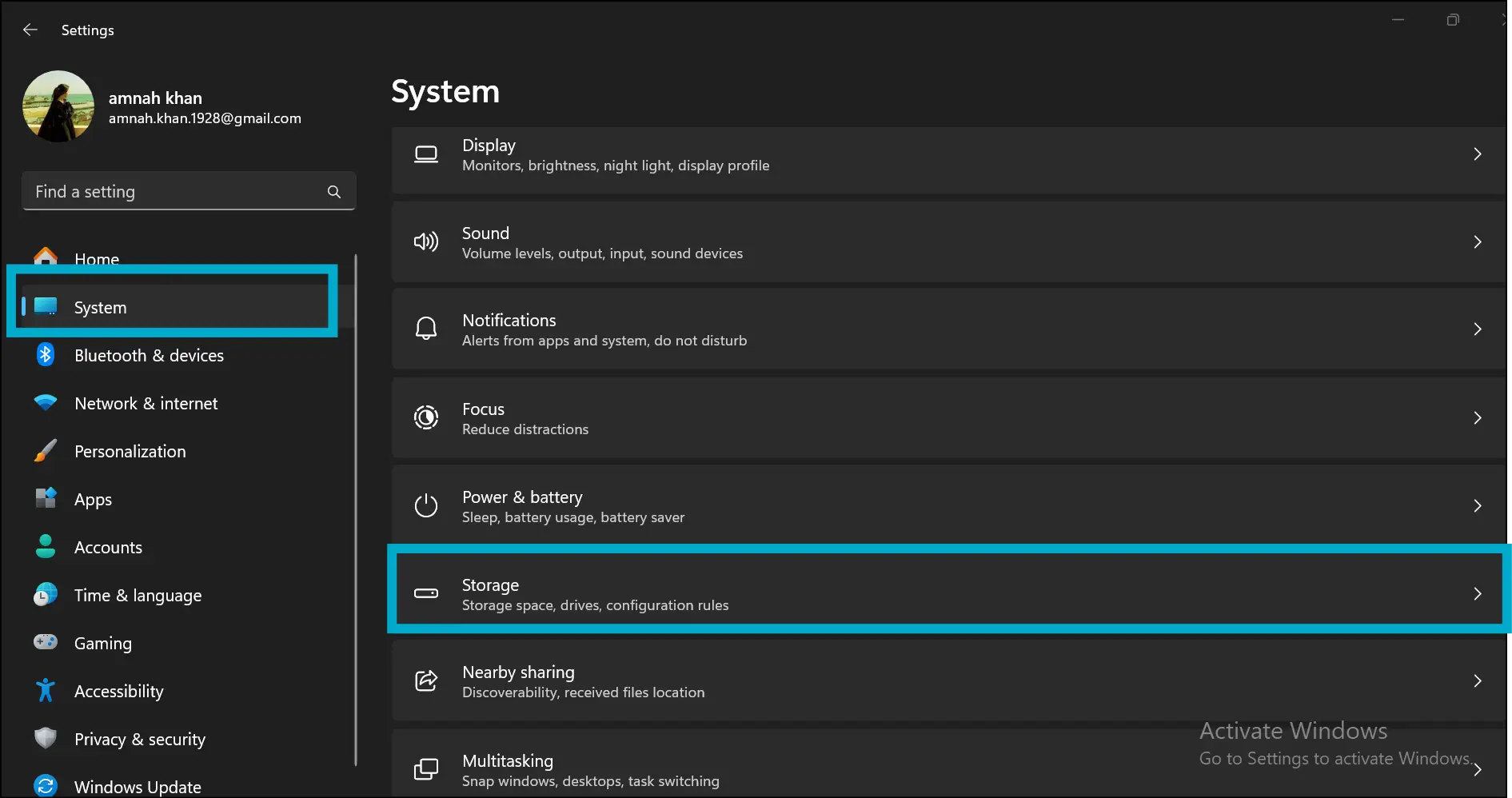
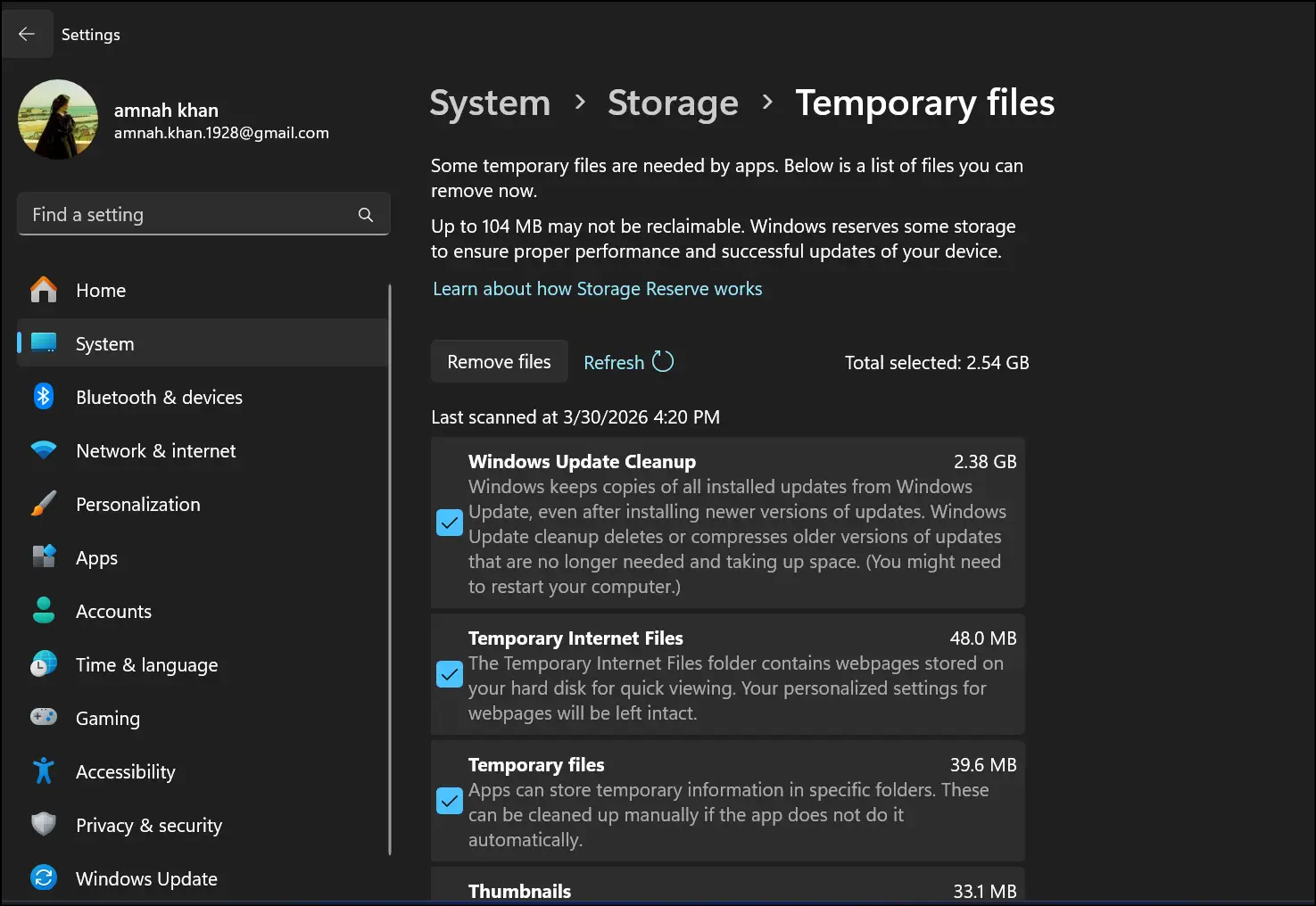
Step 2:Now hit the "Temporary Files" and see different categories of files it has stored, like Windows Update Cleanup, temporary Internet files, thumbnails, delivery optimization files, and more.
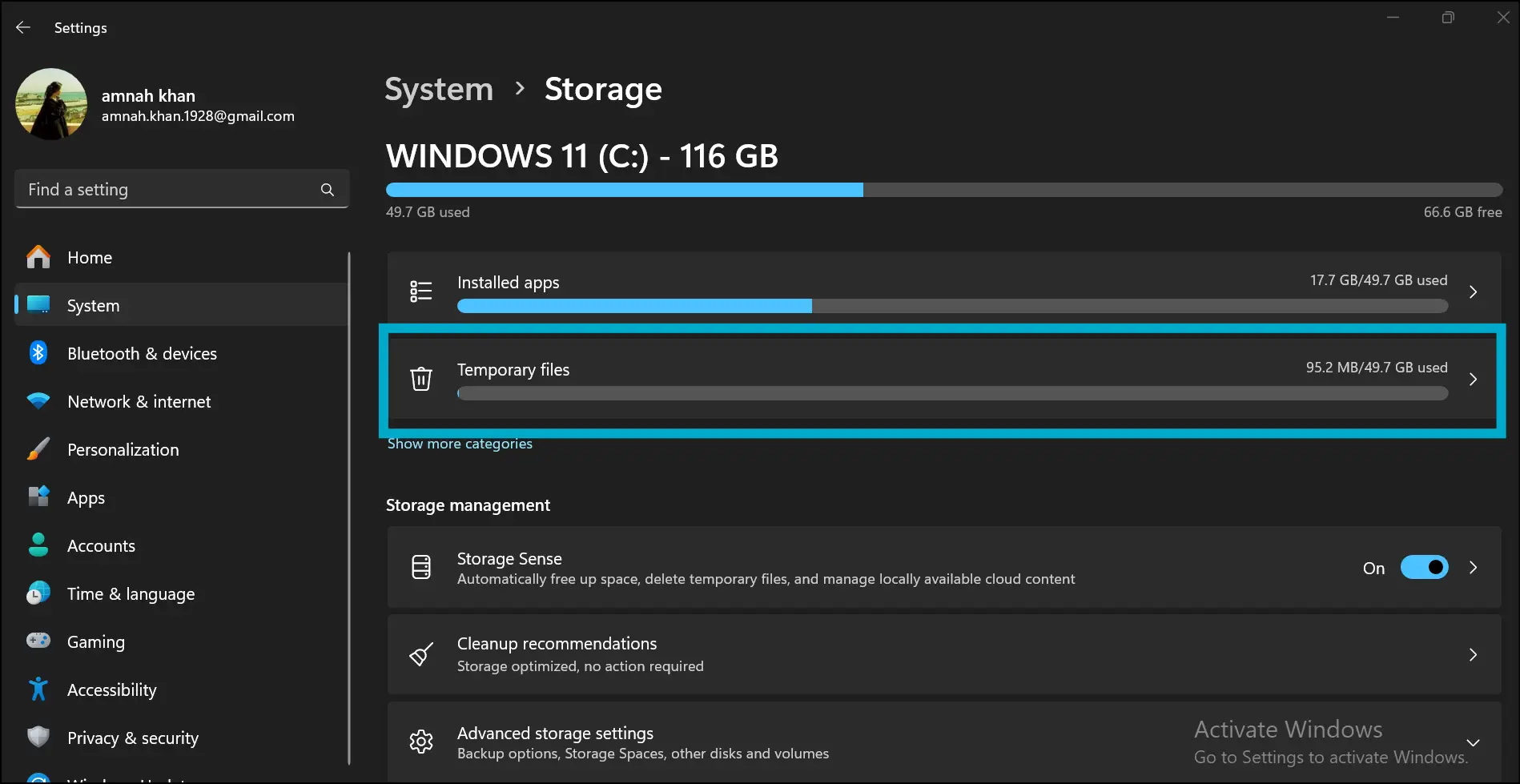
Step 3: You can now review every category one by one and decide which files are safe to delete and which files you want to keep.
💡Tips:If you have not cleaned temporary files in a while, clear them up now to get several gigabytes of device storage space, leading you to keep your Windows 11 running smoothly.
Part 3: How to Open Temporary Files in Windows 11
Do you know what is actually lurking around in these temporary files? Maybe they are lost documents, cached videos, copies of installed updates, or just junk files taking up device space. To clear out clutter from your Windows 11, there are two easy methods: one is utilizing the "%Temp%" command, and the other is navigating to the "File Explorer". In this section, I will break down both methods.
Method 1: Open Temporary Files by %Temp% Command
The %Temp% command method is like a secret shortcut and does not require you to dig through your folders to clear up some system's clutter. Here are the steps to access temp location and manage temp files in Windows 11:
Step 1: Press "Win + R" on your keyboard, type "%temp%" in the "Run" dialog box, and hit "Enter". It will instantly open the folder that contains all your current temporary files.
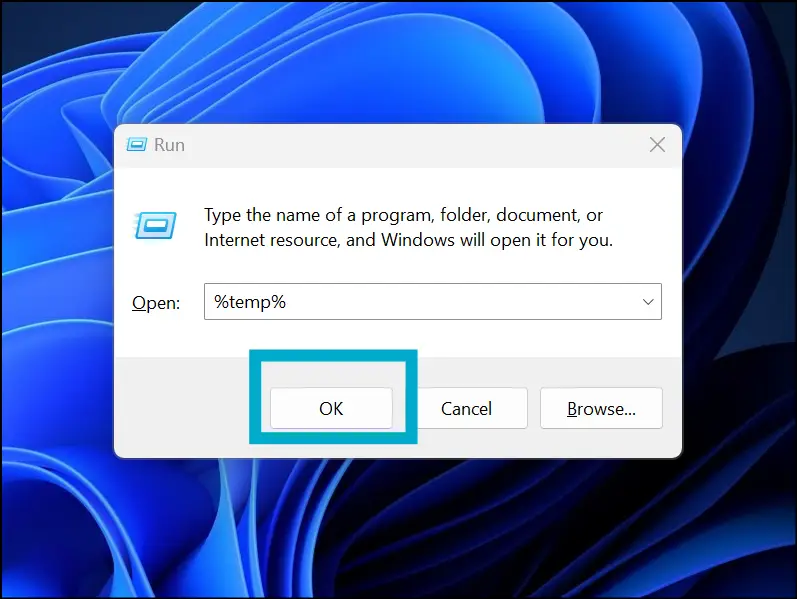
Step 2: Review the files carefully and decide which ones you can delete safely to clean your PC. This method is perfect for troubleshooting or when you want to recover files that were saved temporarily but not stored properly.
💡Tips:Usually these temporary files are safe to delete, but remember not to delete files that are already open or in use.
Method 2: Open Temporary Files Via File Explorer (Full Path)
If you don't prefer shortcuts and would like to click through or see the full path, you can try the manual way. In this method, you dive straight into the temporary file folder via File Explorer. Here is how you do it:
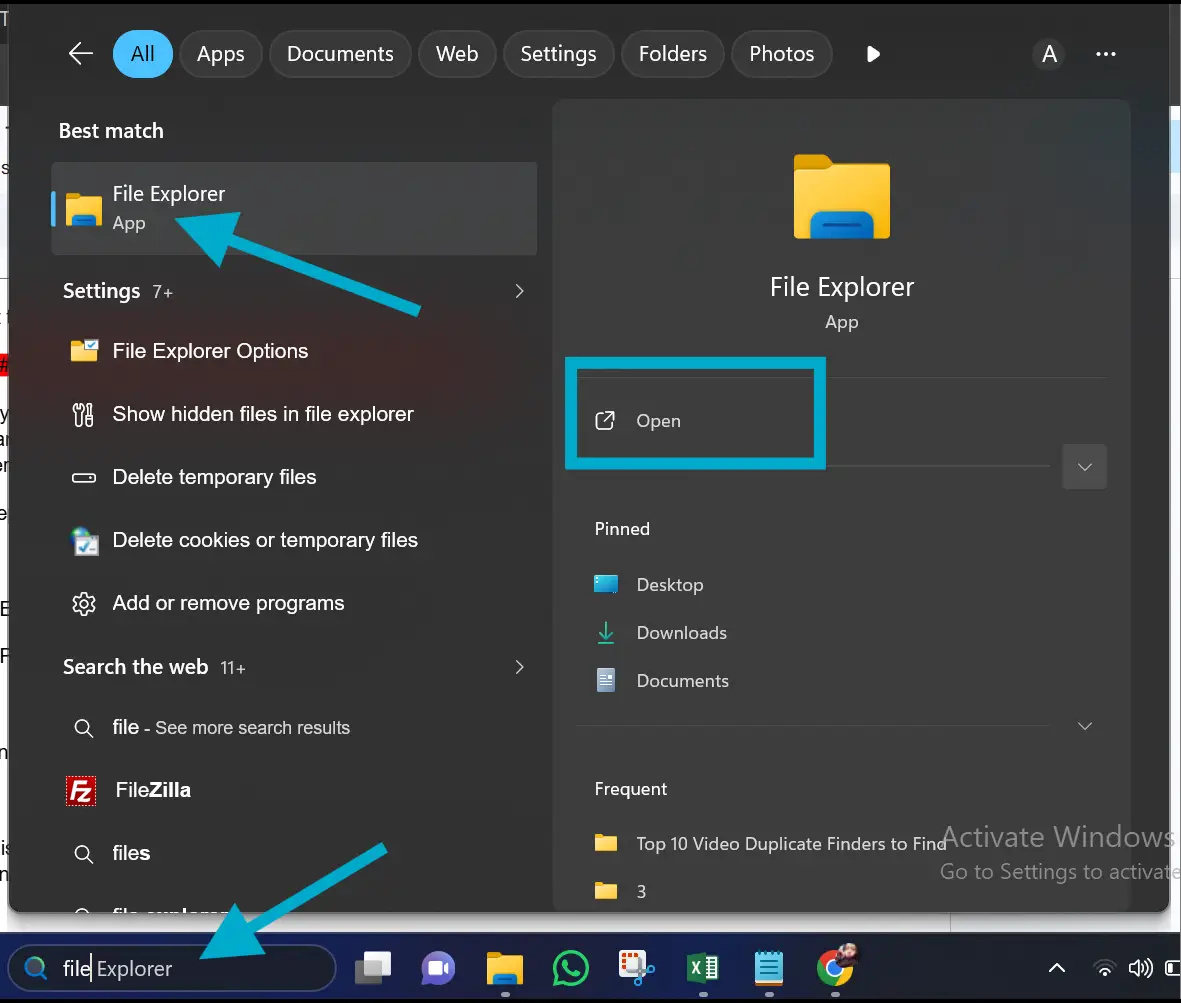
Step 1:Navigate to the taskbar, search for "File Explorer," and click to open it.
Step 2: Either enter the full path "C:\Users\YourUsername\AppData\Local\Temp" in the search bar or click Windows 11 (C:) - Users- COMPUTER POINT-AppData- Local- Temp.
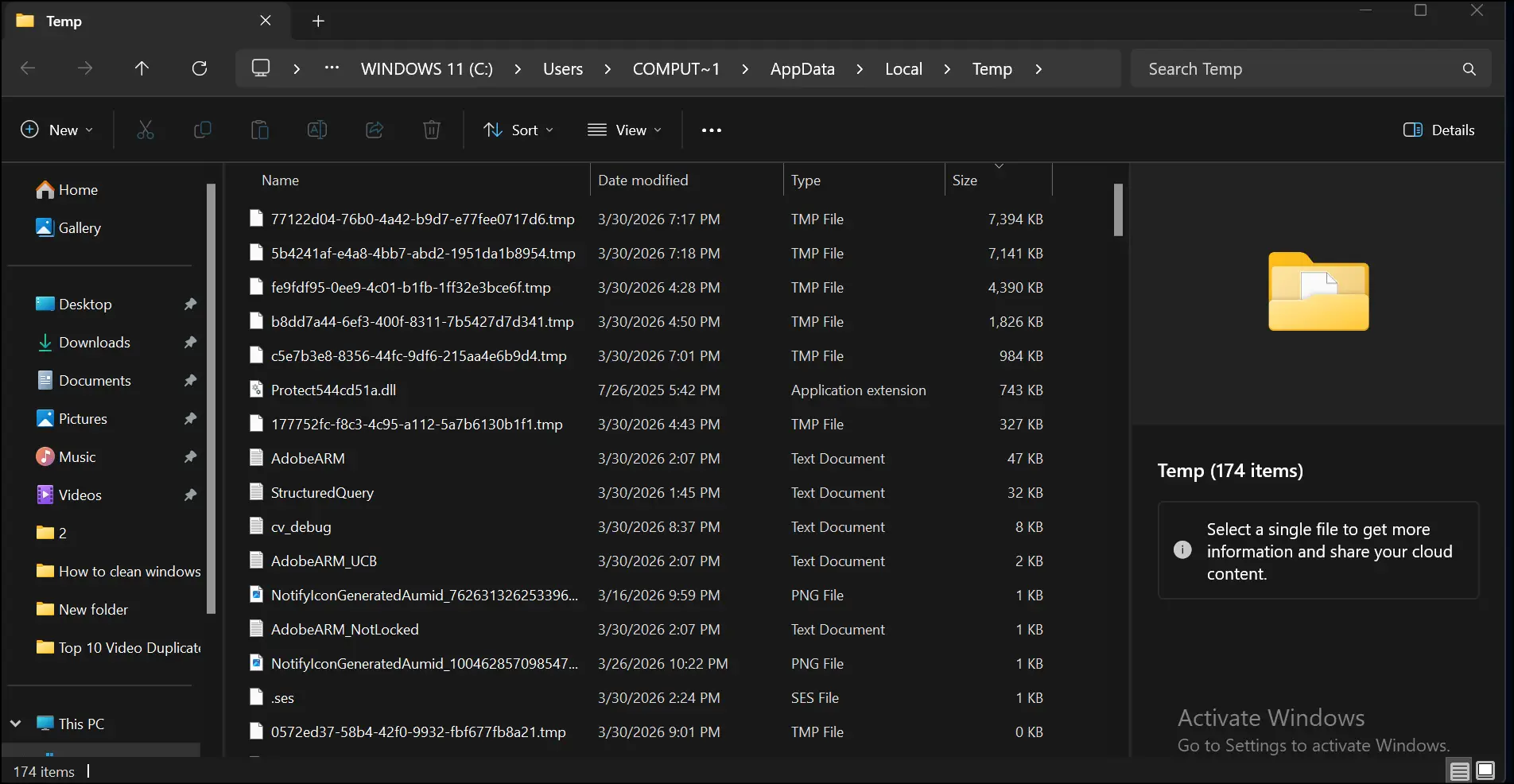
💡Tips:The step will open a folder containing all system-wide temp files created by Windows and other programs. Before removal, open and review these files to free up space or identify specific data.
Part 4: How to Open Specific Temporary Files
Have you ever felt sinking when you lost a file in the void of temporary folders? It may be a crucial document or an image that you were editing, and it vanished mid-save. Not to worry! In this part, I will tell you how to hunt down that specific file in the Windows temp directory:
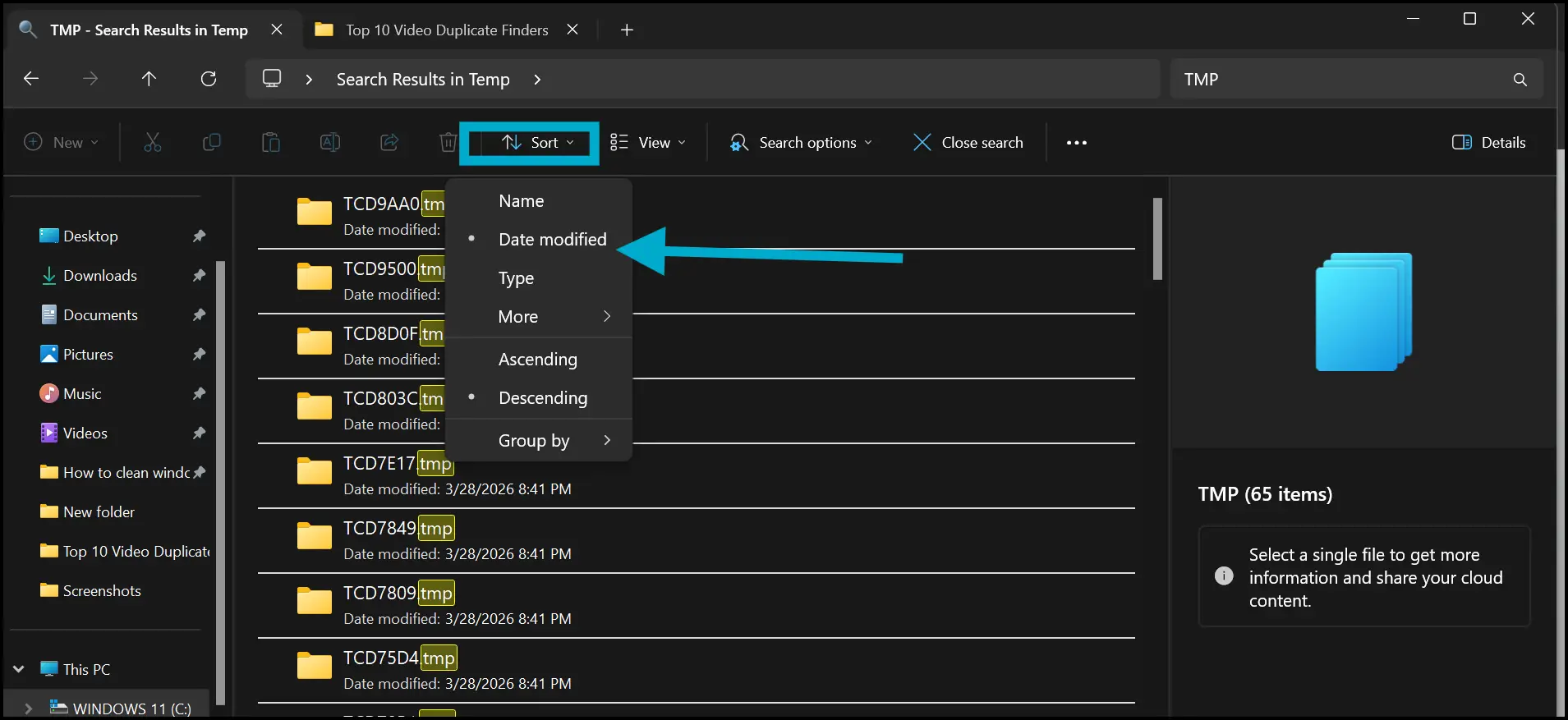
Step 1. Use one of the above methods and head over to the temporary files folder. Now navigate to the search bar and type partial names, like "photo","docs", or "TMP" if you know the file type.
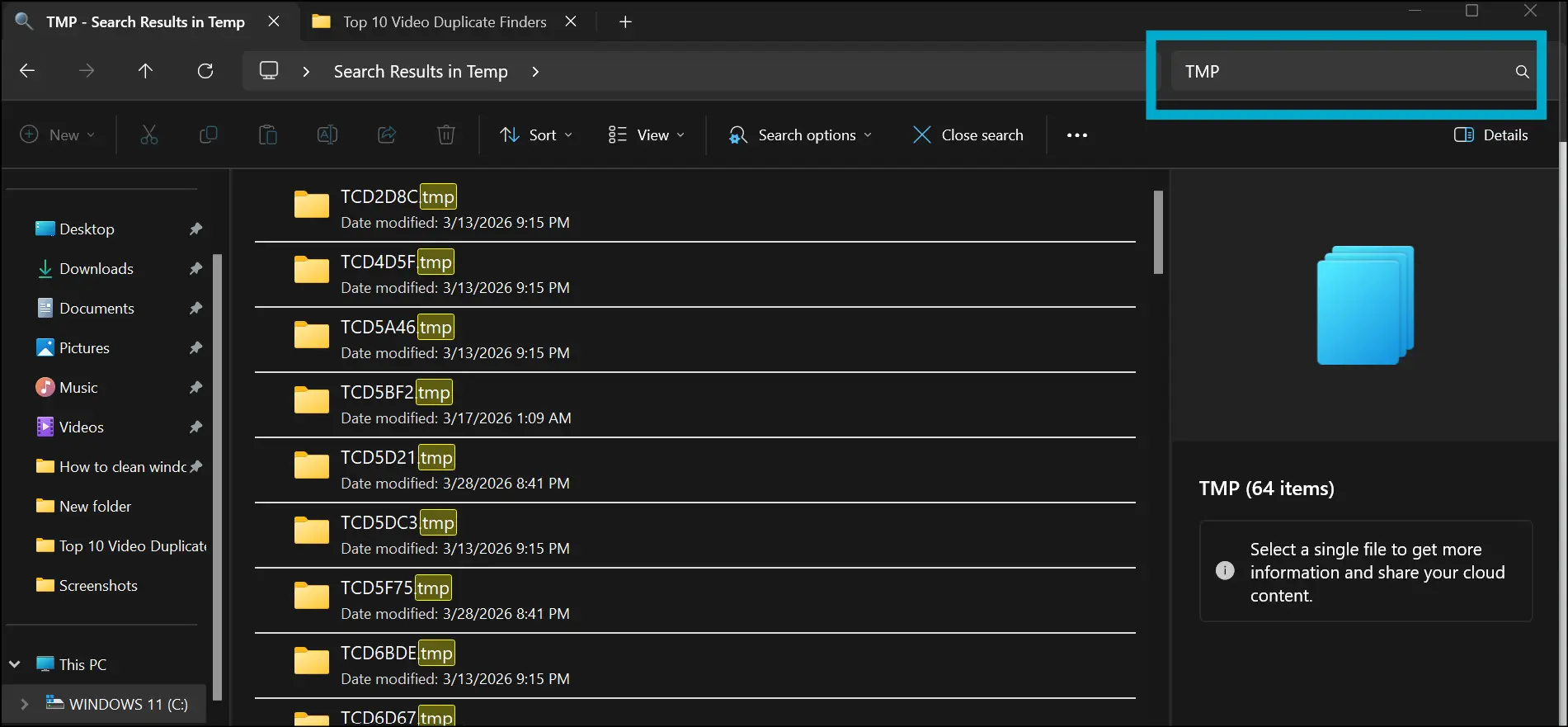
Step 2: To locate the most recent ones, sort your temporary files by "Date Modified". If you follow this method, you can recover your unsaved work often or find a temporary version of your file that was not saved properly.
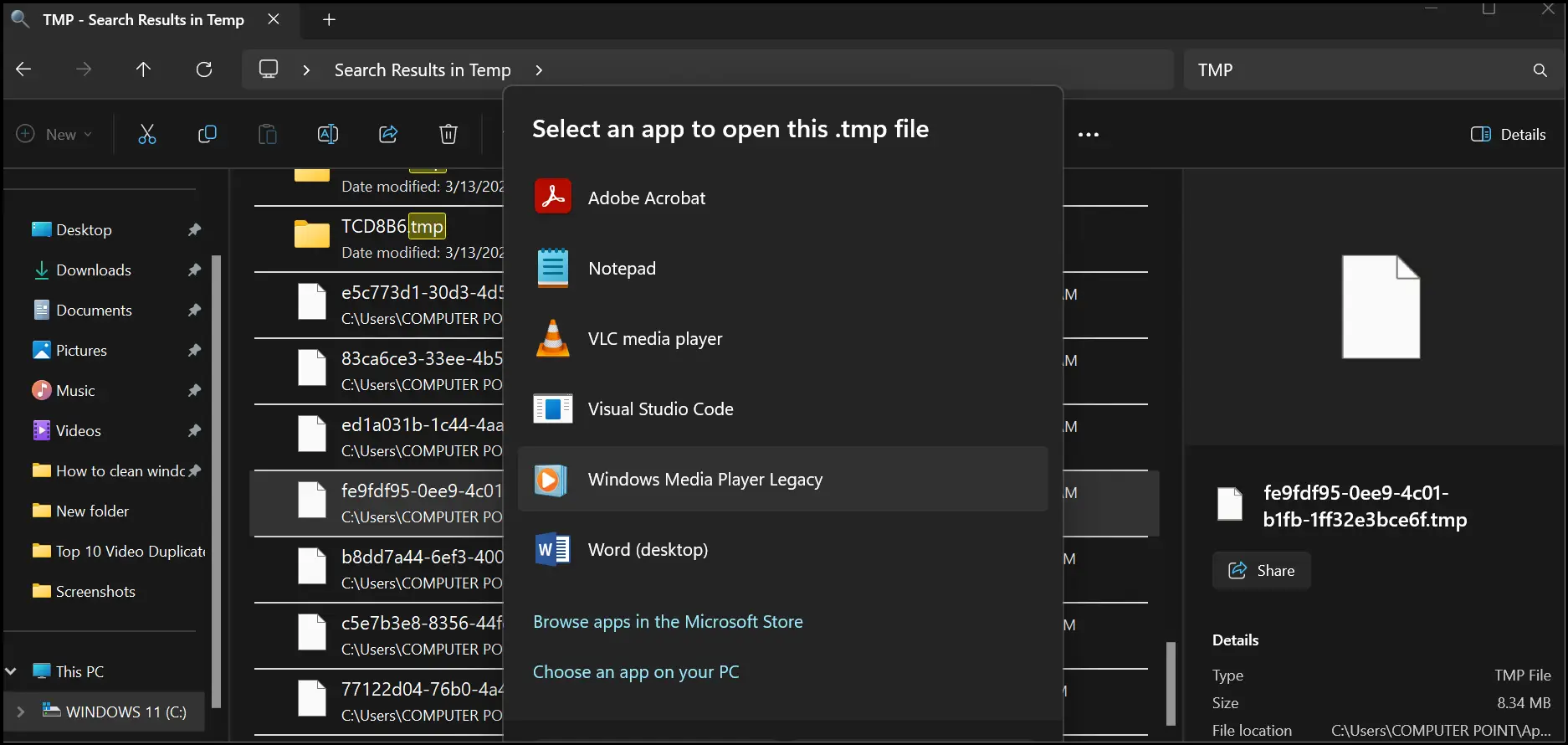
Step 3: Once you identify the file you were searching for, right-click on it and select "Open with". Select the app on which you want to open your file; for example, select NotePad for Text or Image viewer for pictures
Part 5: [Bonus] Open and Clear Temporary Files Automatically With WMaster Cleanup
Manual digging through Windows temp folders and managing them is such a pain. Let's be real, who remembers to clean up their system afterward? As a result, your system's drive gets clogged up, and your PC slows down.
So, here I suggest you try a wonderful Windows cleanup tool, WMaster Cleanup an all-in-one tool that scans all your temp files and removes unnecessary files with just one click. Additionally, this powerful tool is currently FREE for a limited time with all its features available to its users.
Using WMaster Cleanup to access Temp Location and Clean Temporary Files
WMaster Cleanup
Remove Temp Files Automatically in One Click
- · Safely clean your temporary files in seconds to boost your PC performance.
- · Support auto-clean feature to regularly detects and deletes temp files and any digital clutter.
- · Deeply deletes temp caches, containing your personal records, to give you high security.
- · Delete multiple temp files and junk in a one go.
- · The user interface is simple and beginner-friendly and works best for all skill-level users.

Guide to Open and Clean Temporary Files by WMaster Cleanup
If you use a dedicated tool, like WMaster Cleanup, it will work as a game-changer for you if you are already tired of managing temp files manually. Plus, this Windows cleanup tool is lightweight, effective, and safe.
For detailed review of WMaster Cleanup's Disk Cleanup feature, head over to the feature page.
How to Access TMP Tiles and Manage Them Effortlessly:
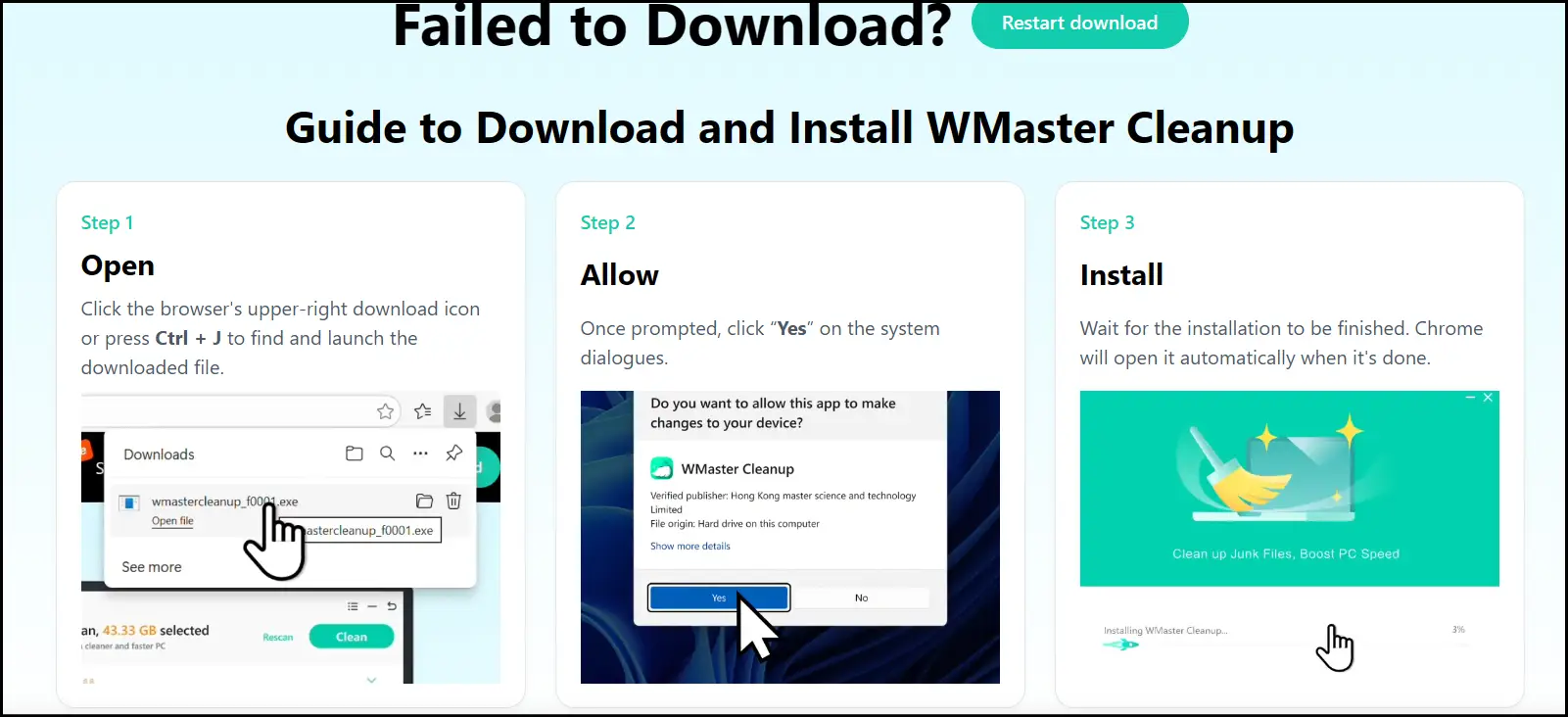
Step 1: Download and install our all-in-one Windows cleanup tool, WMaster Cleanup, from the official website.
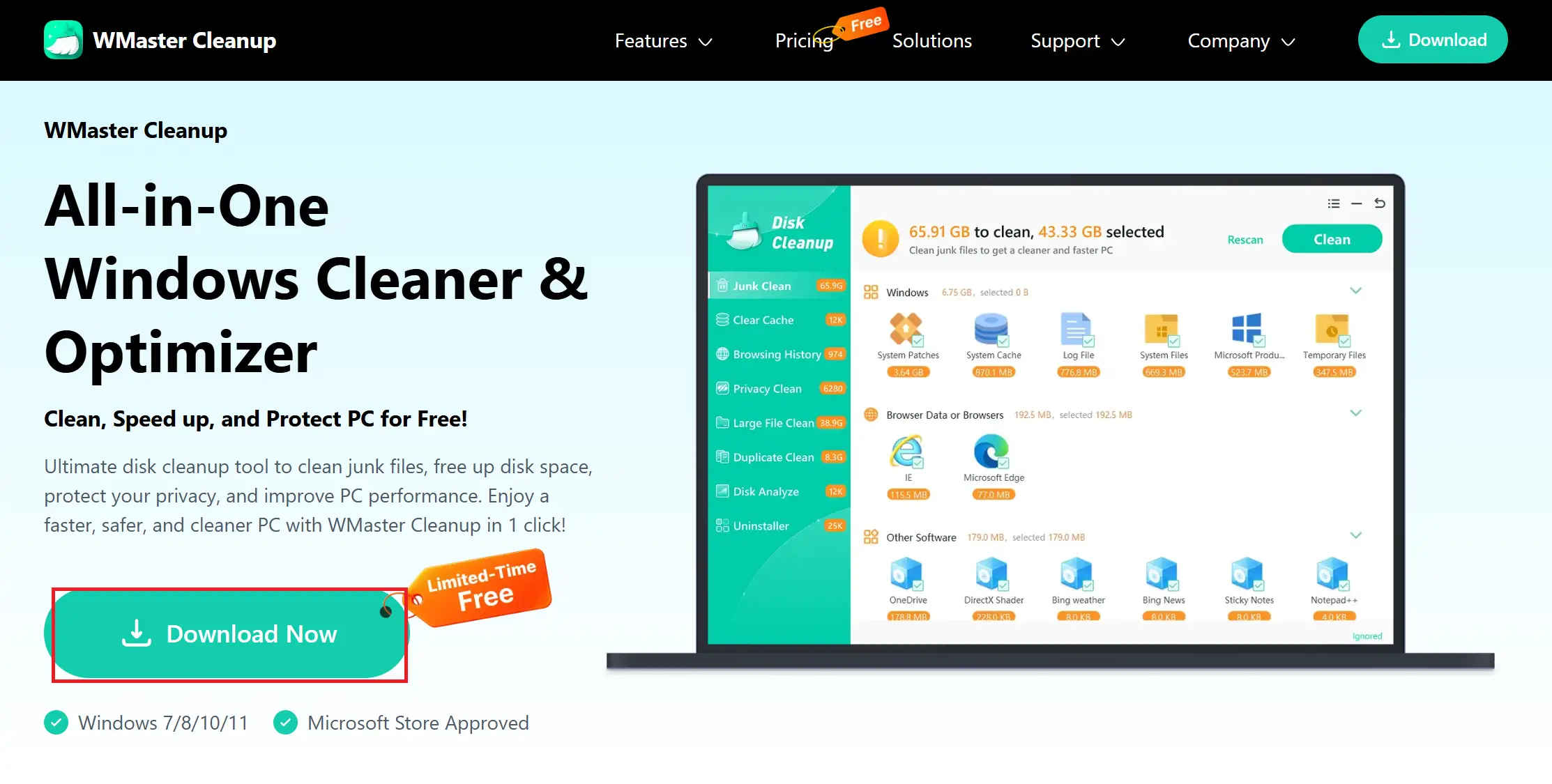
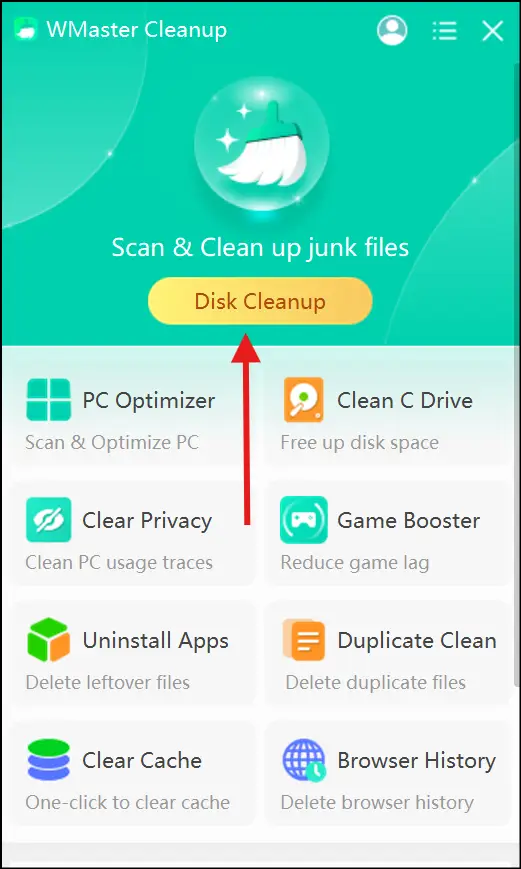
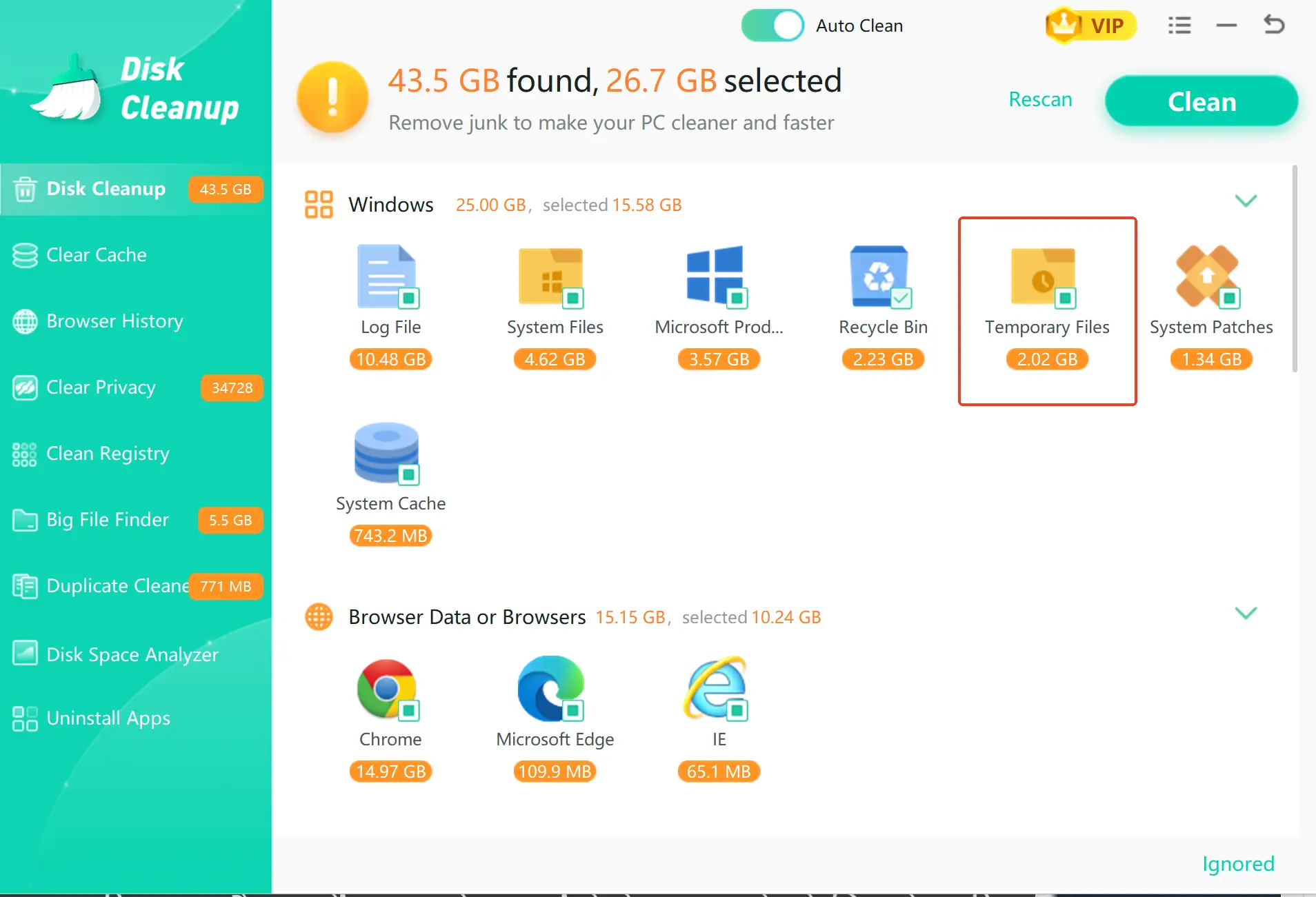
Step 2: Launch the app on your Windows desktop and click the "Disk Cleanup"feature to find the temp folder and delete its junk.
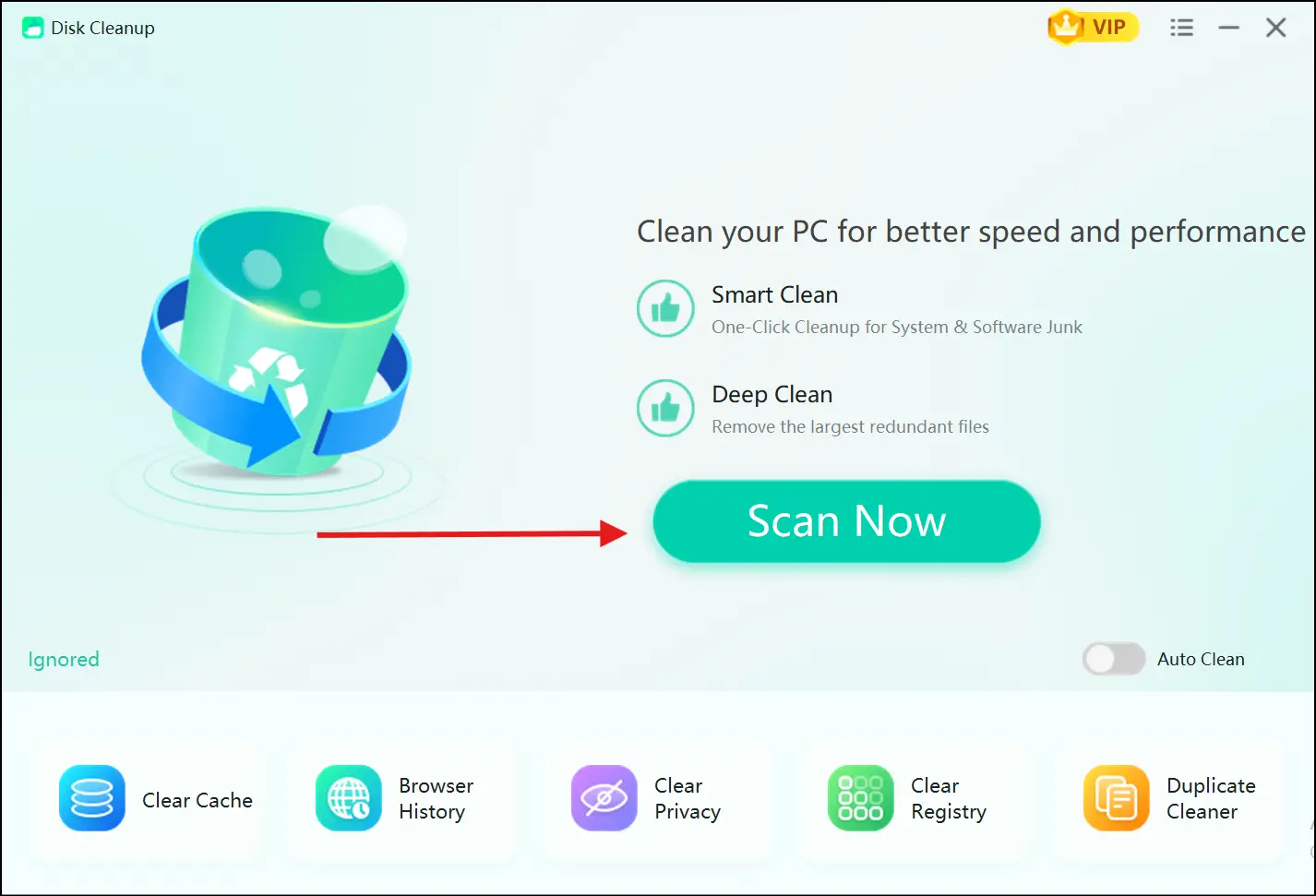
Step 3: Now hit the "Scan Now" button, and this amazing tool will automatically detect the temporary file folder, cache, junk, and all the digital clutter.
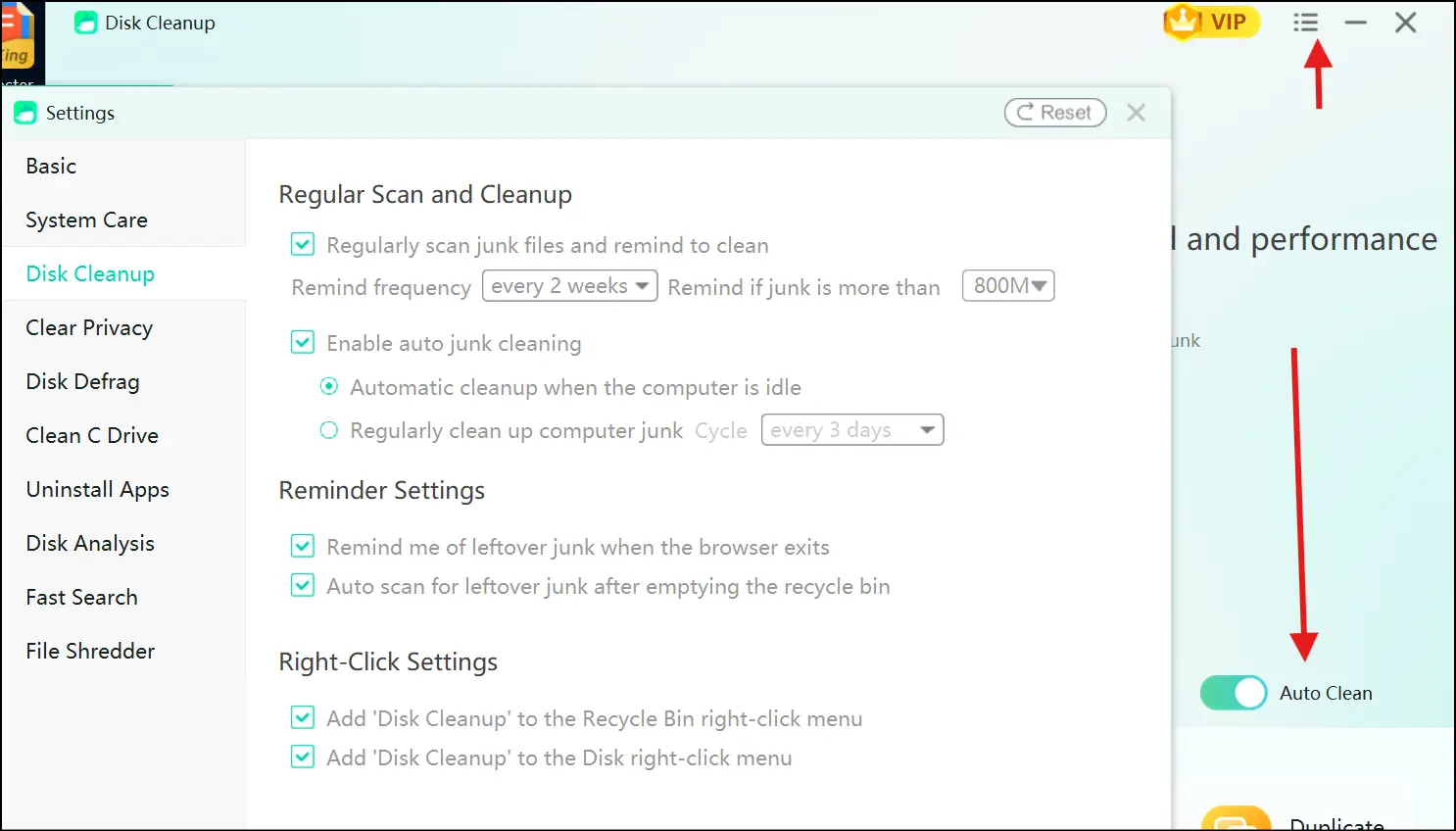
💡 Pro Tip:Before initiating the scanning process, turn on the "Auto-clean" mode to clean your Windows 11 PC regularly. How to do it? Just navigate to the upper right corner, click the "Menu" icon, and select "Settings" to set your preferences for schedule cleanup.
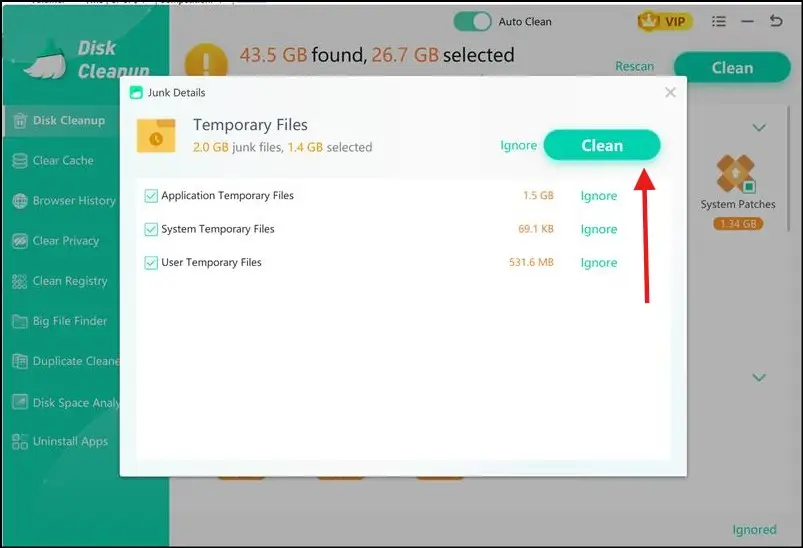
Step 4: Identify and tap on the "Temp Files" folder to review its junk details. Either unselect or click "Ignore" the specific junk if you want to remove it from the cleanup list. Now hit "Clean" to clear it up instantly.
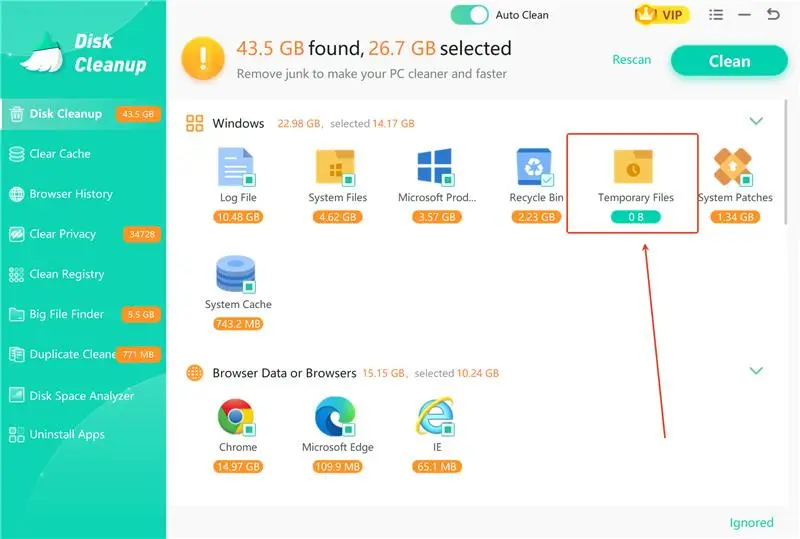
💡 Pro Tip:Once the cleaning process is completed, you can see the number of junk files left under the "Temporary File" folder.
💡 Pro Tip:Not only do temporary files accumulate and take up your device storage over time, but duplicate files are also a major culprit. So, if your Windows storage is getting full and you are searching for a solution, you must read our latest comparison article about which is the best duplicate cleaner software in 2026 for your Windows 11 PC.
Part 6: Tips When Opening Temporary Files
Managing and knowing how to access tmp files becomes a lot easier if you keep a few things in mind, like using a search filter, sorting for quick identification, and regular cleaning. Below are the 7 tips to keep your PC speedy and know how to access temp files anytime:
- When you are deleting temp files, be sure the file is not already open or in use.
- To quickly find your desired temp file, use a search filterand type file extension, like ".temp," or partial names, like "image123."
- To locate the most recent temporary files, you can sort the folderby Date Modified.
- Run a cleanup toolthat is dedicated, like WMaster Cleanup, to keep your Windows 11 PC clutter-free.
- You have to be cautiousif you are opening a temp file, because it might be corrupted or incomplete.
- Before removal of temporary files, you should back up your important files.
- Turn on auto-delete mode and schedule your systemto delete temp files after a certain time to keep your PC running smoothly.
Part 7: FAQs Related to Open Temporary Files
Q1: Where can I find temporary files in my Windows 11?
A: Below are three ways to access and manage your temporary files to free up device storage space and boost your PC performance.
- Temporary Files Folder: Press "Win + R," type " %temp%," and press Enter. This is a quick way to open the Temp folder directly, where most temporary files are stored.
- System Temporary Files: Head over to the "File Explorer" and navigate to C:\Windows\Temp. In this method, you might need administrator permissions to access and remove temp files.
- Storage Settings: Press "Win + I" to open "Settings". Now click on "System "-" Storage"- "Temporary Files," and Windows will scan and show you a list of categories containing temporary files, which you can select and delete.
Other than that, if you don't want to go through a manual hassle, you can use a dedicated Windows tool, like WMaster Cleanup, to locate, review, and delete temp files.
Q2: Is it safe to delete the files that are in my temporary folder?
A: Usually, that's the case! You just need to avoid deleting those files that are already open or in use. If you use a dedicated Windows cleanup tool, like WMaster Cleanup, it will do the job quickly and safely.
Q3: Why is my temp folder so full?
A: Your temp folder might be full because of accumulated temporary files, stuck processes, or malware. If you clean it regularly or use a disk cleanup tool, you can resolve this issue and reclaim device storage and boost the system's performance.
Q4: How can I get back my unsaved document from the temp files folder?
A: Open your temp folder and search for the files with the extension " .tmp," then sort the folder with "Date Modified" to see the most recent temp files. Now, when you identify your file, right-click on it, tap on "Open with", and select "Notepad" or "Word."
Q5: Does clearing temp files make my Windows 11 computer faster?
A: If your temp file folder is packed with many files that are taking up gigabytes of your device space, then getting rid of those unnecessary temp files and clearing out the clutter can certainly help your Windows 11 computer run faster. But if there are other problems and more clutter lurking around in your system, it might not make a huge difference in your system's overall performance.
Final Thoughts
Now you realize that knowing what are temporary files and how to open them is a useful skill whether you are troubleshooting your Windows 11 system, recovering your lost files, or just cleaning up your device storage space.
In the above writeup, I have shown you some simple yet effective methods to handle these temp files in Windows 11 without even needing you to be a tech whiz. However, if manual system cleaning sounds time-consuming and tiresome, I will highly recommend you try WMaster Cleanup an all-in-one Windows cleanup tool.
This powerful tool is a complete package to quickly clean your entire PC by removing junk files, temporary files, and all other digital clutter. Luckily, if you want to boost your PC performance, you can download it for FREE (limited-time offer) and give your Windows 11 system the care it needs.


