

.jpg)
Over time, your PC gets slow, and one of the reasons could be piles of files in local temp. The local temp folder saves everything, but none of it is worth keeping. Yet, most users wonder, Is it safe to delete local temp files or not?
Well, it's completely safe to delete the local temp file because Windows itself gives an option to clean the junk.
In this blog, I will guide you on how to delete local temp files from your computer. Besides this, I will share a completely free tool that can delete local temp files without the risk of crashing your PC.
In this article
- What is the Local Temp (AppData\Local\Temp) Folder in Windows?
- Is It Safe to Delete Temp Files From Local Temp?
- Can I Delete App Data Local Temp Specifically?
- How to Safely Clear Local Temp and App Data Local Temp (Step‑by‑Step)
- How to Automatically Clear Local Temp Files in Windows? [Bonus]
- Tips: When You Should Not Delete Certain Temp Files
- Hot FAQs About localappdata Temp
Part 1: What is the Local Temp (AppData\Local\Temp) Folder in Windows?
The Windows PC has a folder where programs store their files while running. This includes:
- Installation files
- Program caches
- Update packages
- Crash logs
That folder is the Local temp folder, and its full path looks like this:
C:\Users\YourUsername\AppData\Local\Temp
All of these files are system-generated, and there are chances you'll never open them. And here are a few reasons why apps do not clean them automatically:
- Some apps are poorly coded.
- Others crash mid-process, leaving orphaned files behind.
- Windows itself sometimes skips cleanup during rushed shutdowns.
These files sit in your Local temp folder, using up space and ultimately slowing down your PC. But Windows doesn't auto-delete these files, and most users also don't know if this folder even exists.
Part 2: Is it Safe to Delete Temp Files From Local Temp?
Yes, it's safe to delete the temp files from the local temp folder. These files are not useful enough to stay on your system permanently. Because once the program that generated it has finished its job, it no longer serves any purpose.
However, that does not make it safe in all cases. There are three different situations you need to understand if it is safe to delete temp files from the local temp directory:
Files sitting in the Local temp folder are just dead weight. So, you can delete them to free up space, and that will not impact your;
- Installed apps
- Personal files
- System performance
Windows itself offers Disk Cleanup specifically for this purpose proof that deleting temp files is completely intentional and risk-free. The only exception is active apps. If a program is currently using a temp file and you delete it, your PC might crash or freeze. Restart your PC first, then clear your Local Temp folder either manually or with a tool like WMaster Cleanup.
Part 3: Can I Delete App Data Local Temp Specifically?
Yes, you can delete the contents of AppData\Local\Temp. However, you can't delete the folder, as Windows requires the folder to exist. And if it is not present, some programs might not open. With that said, keep in mind that some apps rebuild their temp files every time they launch. This does not mean you did the clearing of the AppData\Local\Temp wrong.
If you are looking for, Can I delete appdata local temp? Here are a few downsides of clearing local temps:
- Some installers store rollback data in the Local temp Deleting the temp folder will not affect the installed app, but you might not recover the data.
- Cached data gets re-downloaded. Some apps cache files here to avoid re-downloading them.
- If a program is currently installed, its setup files are located inside Local temp. Deleting mid-install will corrupt the installation immediately.
Part 4: How to Safely Clear Local temp and App Data Local temp (Step‑by‑Step)?
There are two methods of clearing up the Local temp and app data:
Method 1: Manually via File Explorer and %LocalAppData%\Temp
This method takes you directly into the Local temp folder and lets you delete everything inside it yourself. It's the most straightforward approach.
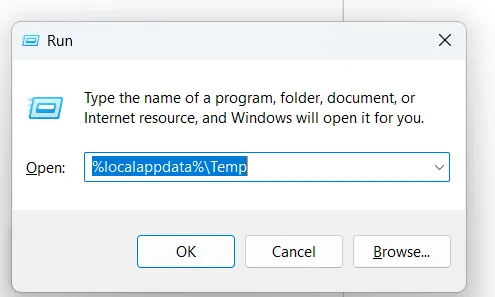
Step 1: Press Windows + R to open the Run dialog box. Type %localappdata%\Temp and press Enter and you'll directly land inside the Local temp folder.
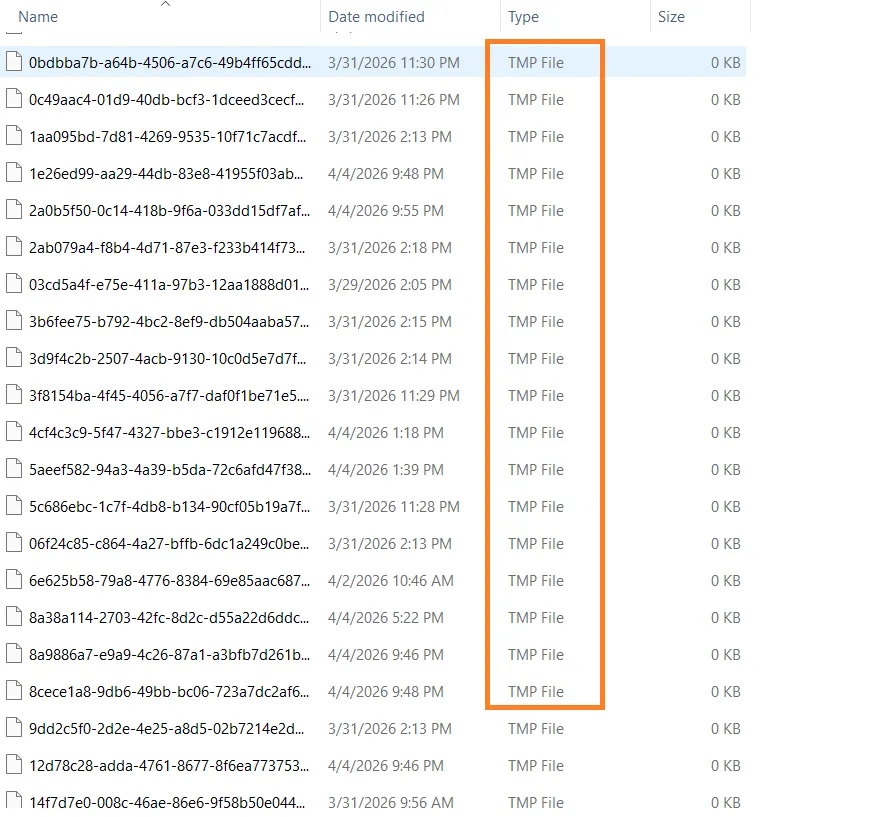
Step 2: File Explorer will open directly inside the Local temp folder. Press Ctrl + A to select all files and folders inside and press Delete to remove all the files.
Method 2: Using %TEMP% and built-in tools like Disk Cleanup/Storage Sense
Windows also offers clearing the AppData Local temp in four different ways. Scroll down to find how you can clear the AppData\Local\Temp.
Using the Temporary File Menu in Windows Settings:
Step 1: Open the Start menu and click Settings.
💡Tips:Skip any files that show a "currently in use" warning because those are in active processing. Delete everything else.
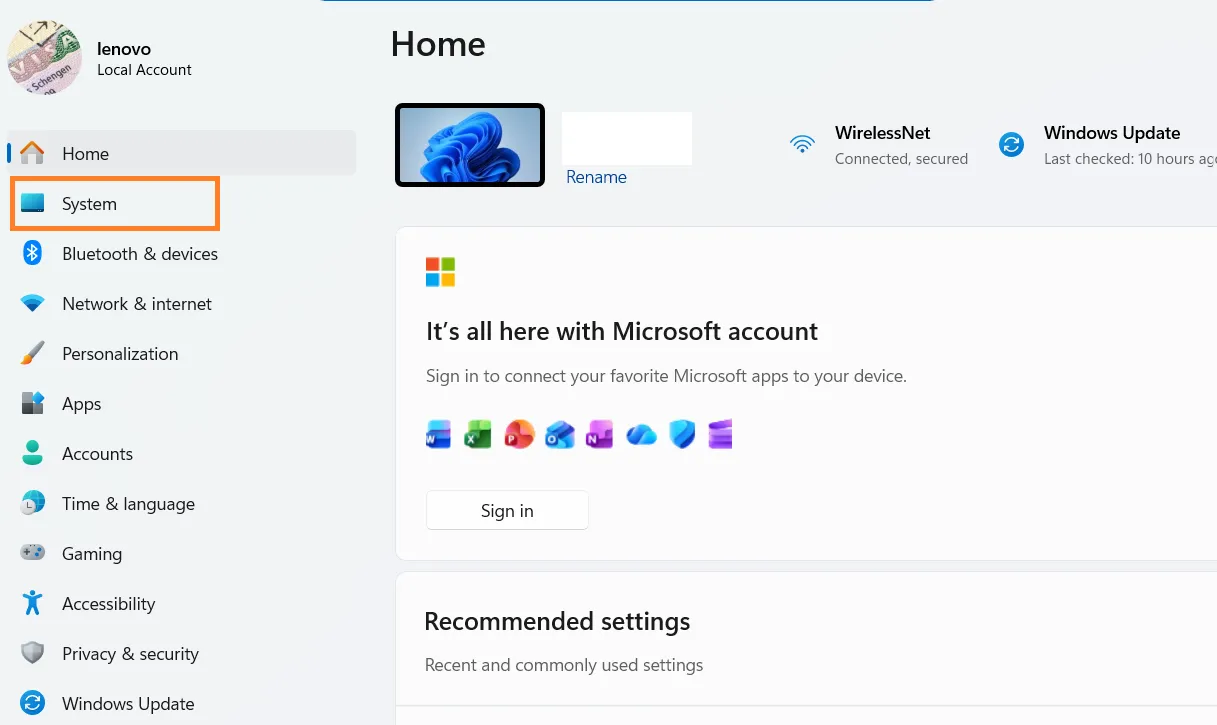
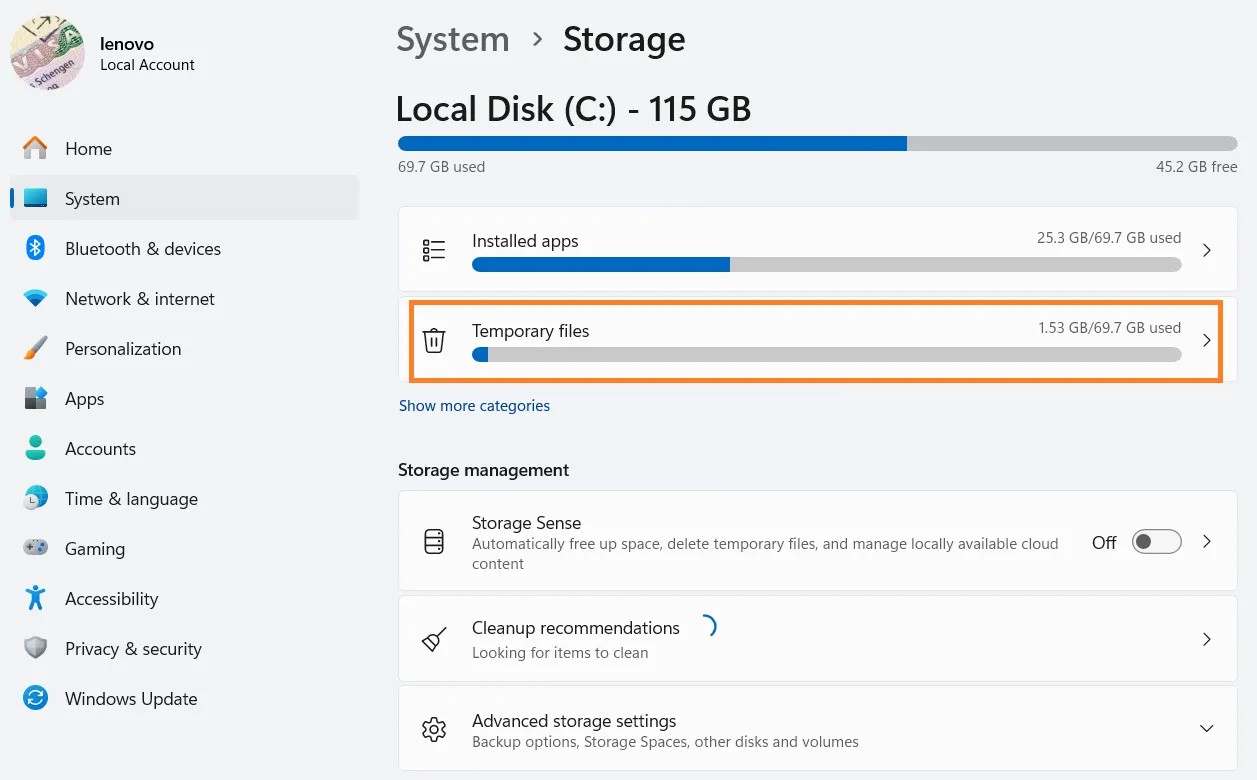
Step 2: Select System, then click Storage.
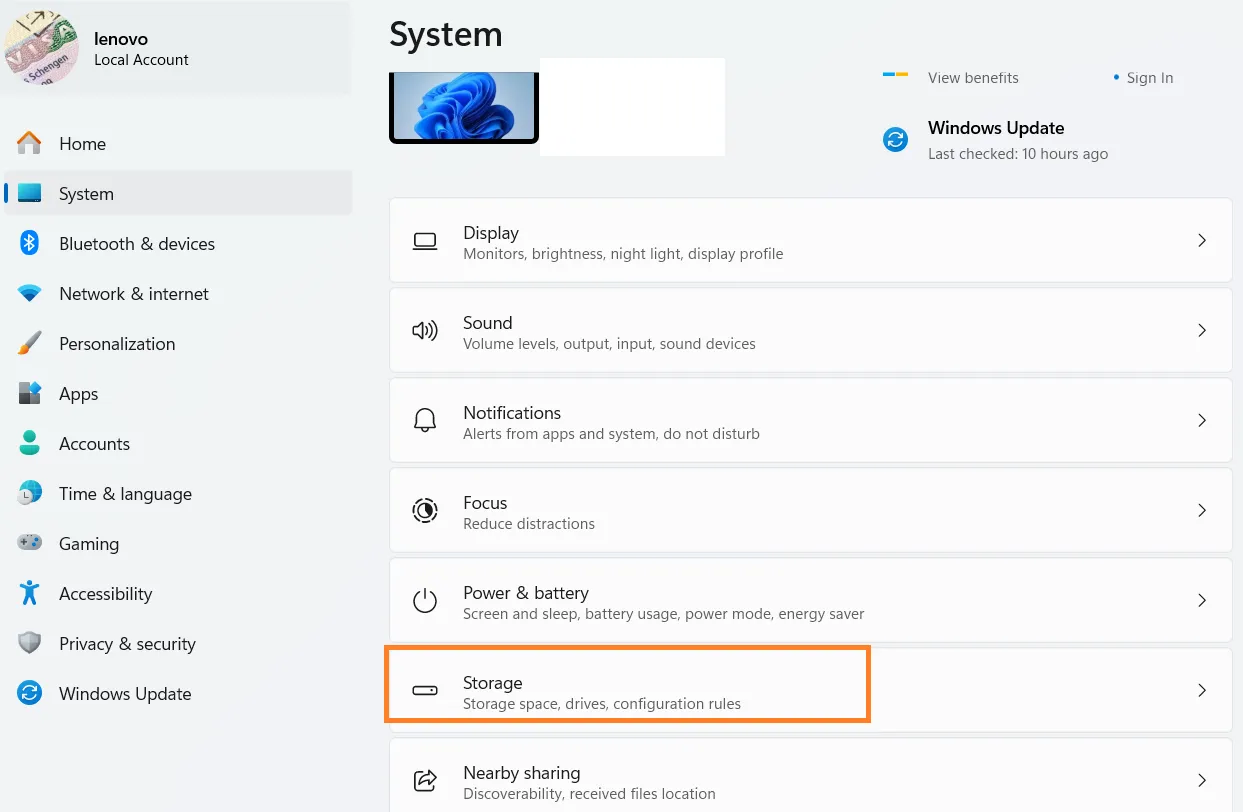
Step 3: Wait a moment for Windows to scan your drive, then click Temporary Files.
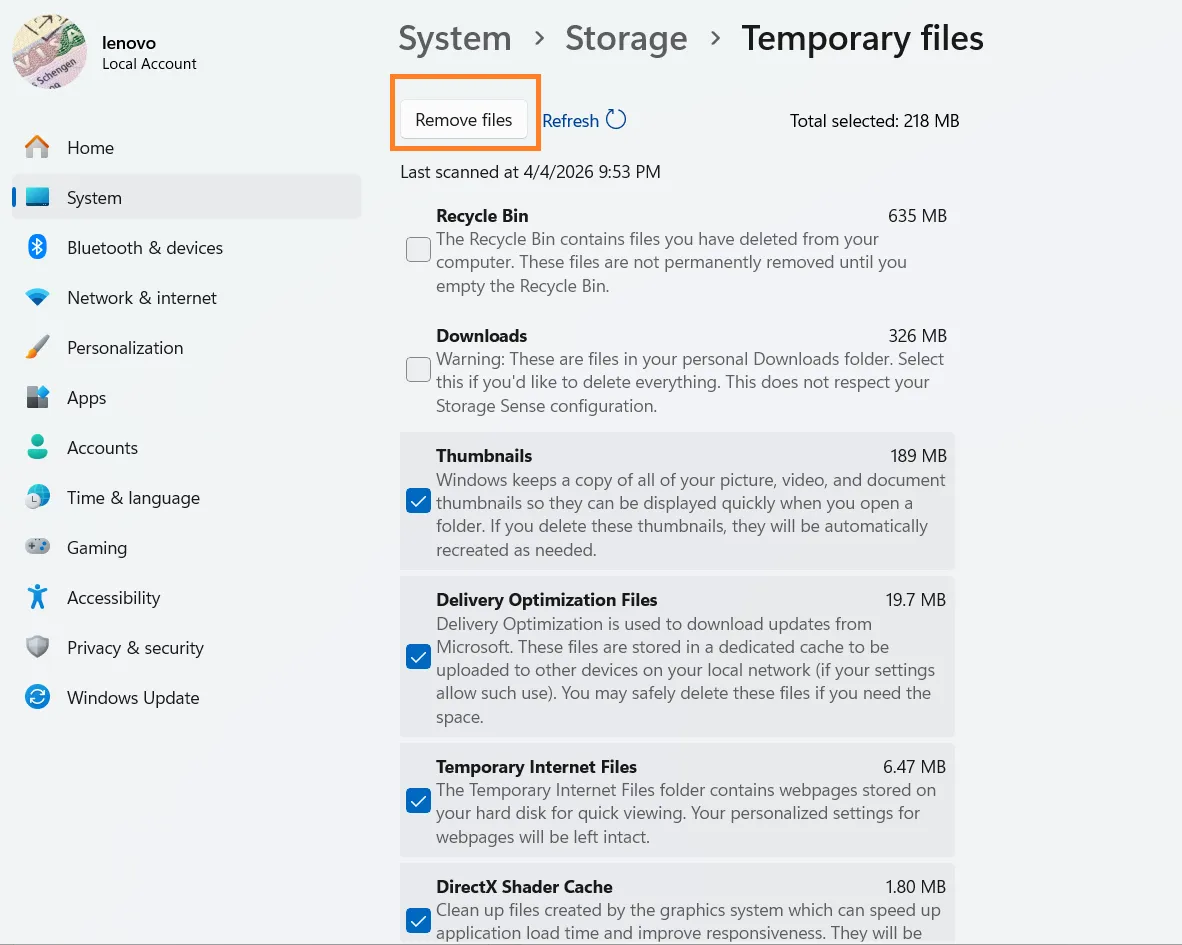
Step 4: Check the file types you want to remove and click Remove Files.
Clear Temp Files Using Storage Sense
Windows has a built-in feature called Storage Sense that cleans temp files automatically on a schedule, so you don't have to do it manually every time.
Here's how to turn it on:
Step 1: Press Windows + I to open Settings. Go to System and click Storage Sense.
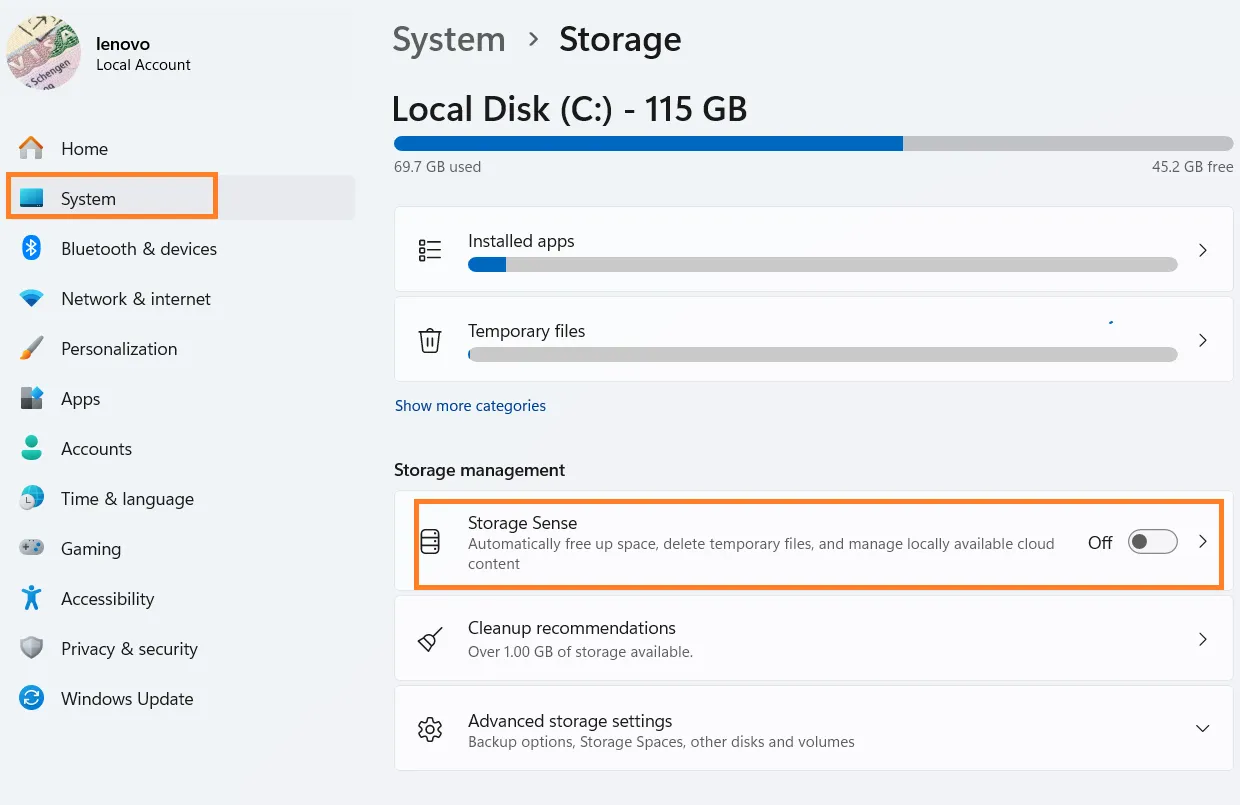
Step 2: Turn it "on" and click the Storage Sense tile to open its settings.
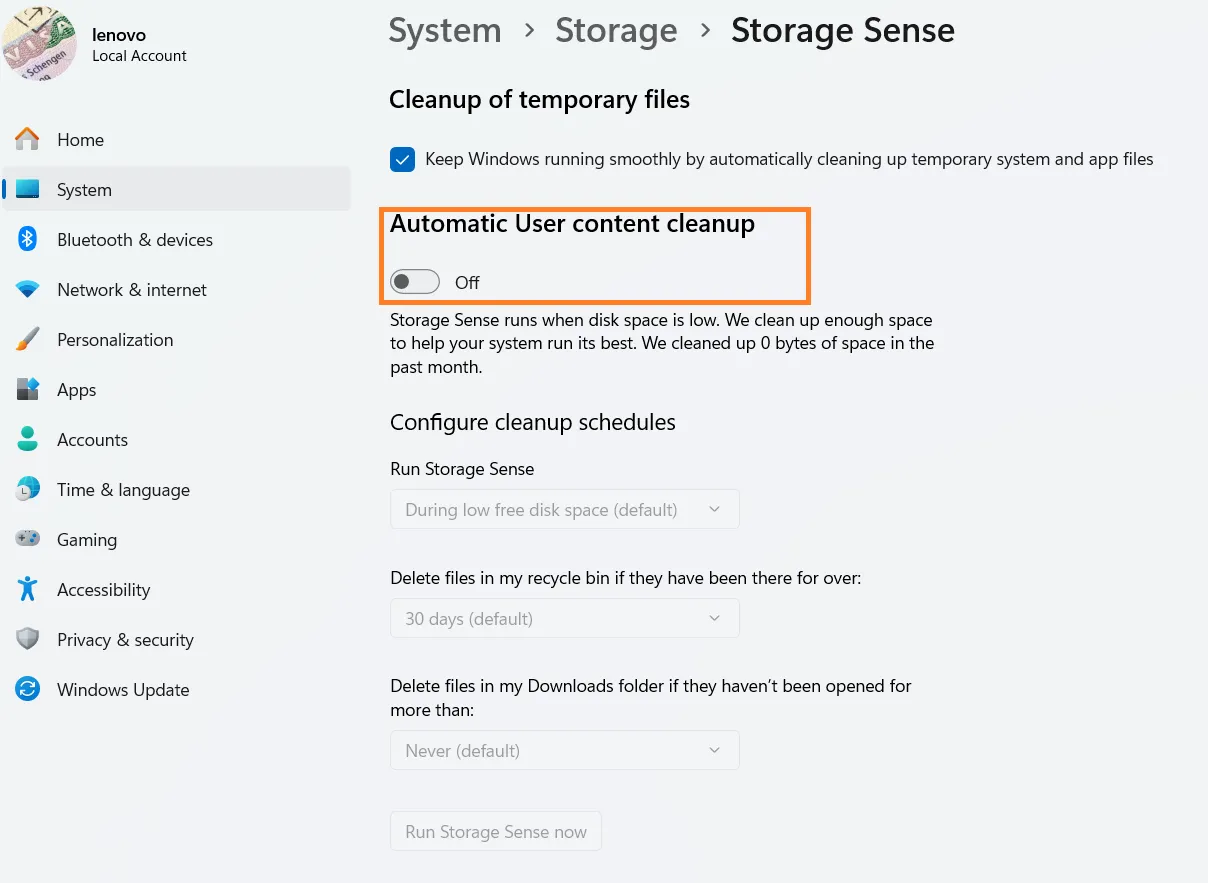
💡Tips:Set your preferred cleanup schedule - daily, weekly, monthly, or only when your disk space is running low.
Part 5: How to Automatically Clear Local Temp Files in Windows? [Bonus]
Cleaning up local temp files manually is a time-consuming task. And it's prone to crash down your PC if you mistakenly remove the file that is actively running. Here are some drawbacks of manual cleanup:
- It's time-consuming because you have to navigate folders, select files, and delete them yourself every single time.
- There are multiple steps involved, and they are easy to forget.
- There is a risk involved that you might delete the wrong files that your system still needs.
- Manual cleanup only clears what you can see. Hidden junk, system residues, and deep cache files get left behind.
- Active or in-use files throw errors during manual deletion, leading to incomplete cleanup of temp files.
- It requires technical awareness of what to delete and what to keep, which most everyday users don't have.
WMaster Cleanup is a free all-in-one Windows cleaner and optimizer. It not only offers what Windows built-in tools provide but also performs deep scans of your entire PC to hunt down junk files, temp files, system clutter, and hidden space hogs and wipes them clean in a single click.
WMaster Cleanup
Clear Temp Files by WMaster Cleanup Automatically
- ·Automatically scans and removes temp files, junk files, and system clutter with one click.
- ·Delete your files with utmost care and without touching critical system files.
- ·Automate the deletion of temp files with WMaster Cleanup for regular system cleaning.
- ·Simple interface that makes it perfect for beginners as well as pro users.
- ·View Temp files before deletion to avoid lossing important info.

Steps to Delete Local Temp and Appdata Temp Files
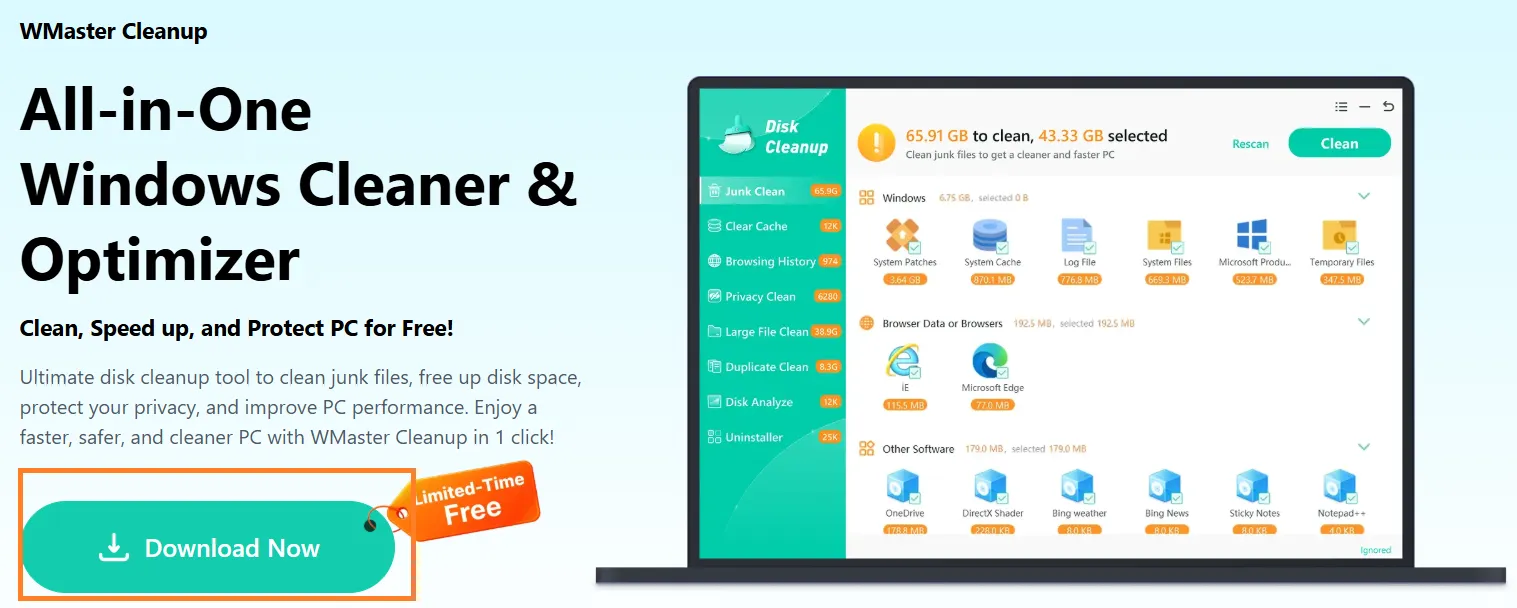
Step 1: Open the WMaster Cleanup website and click on the "Download" option.
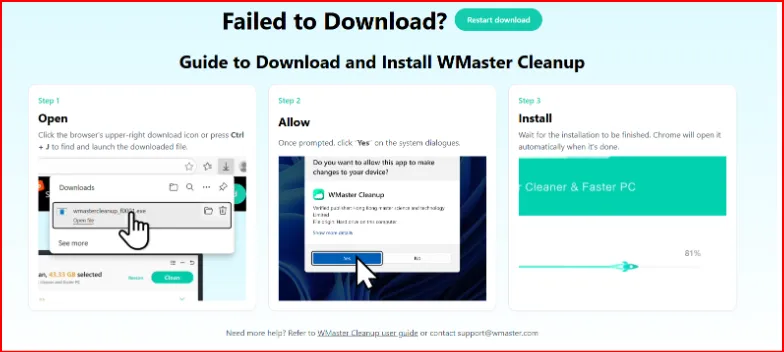
If you're facing an error in windows 11, check out how to fix the Windows 11 download error.
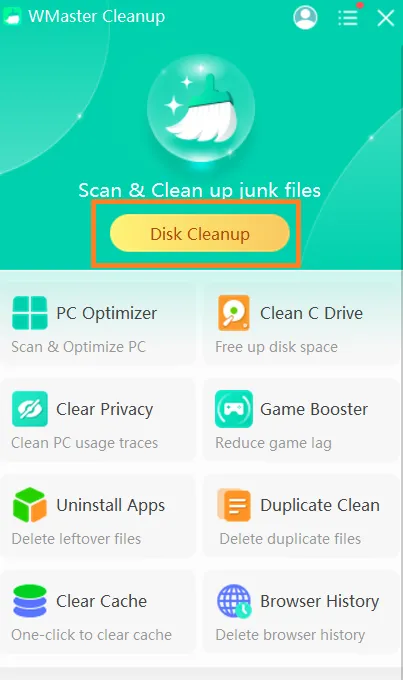
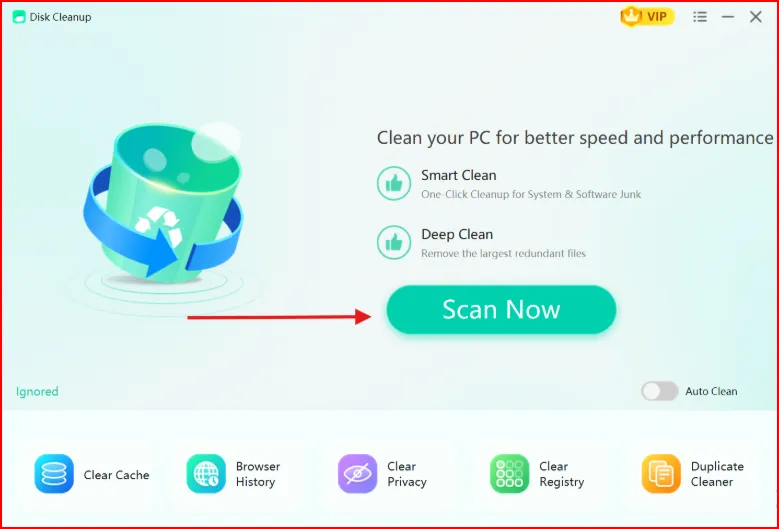
Step 2: Once installation completes, open the main interface of the tool on your desktop and select the "Disk Cleanup" feature.
Step 3: Click "Scan now" to initiate the process of clearing up temp files.
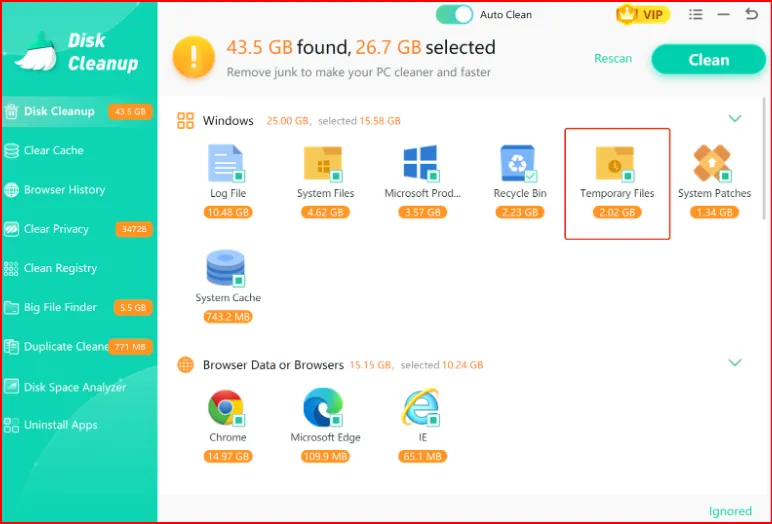
Step 4: Once the scan completes, tap on your desired program, Temporary Files, to open its junk details.
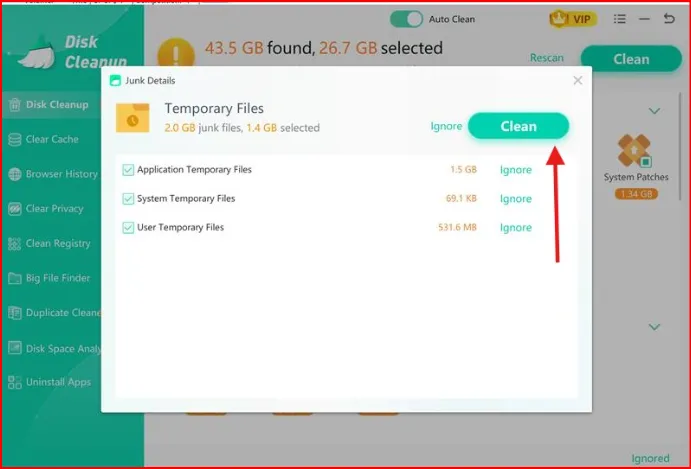
Step 5: Unselect or tap on "ignore" the specific junk that you do not wish to clean, then click "Clean" to remove the remaining junk files.
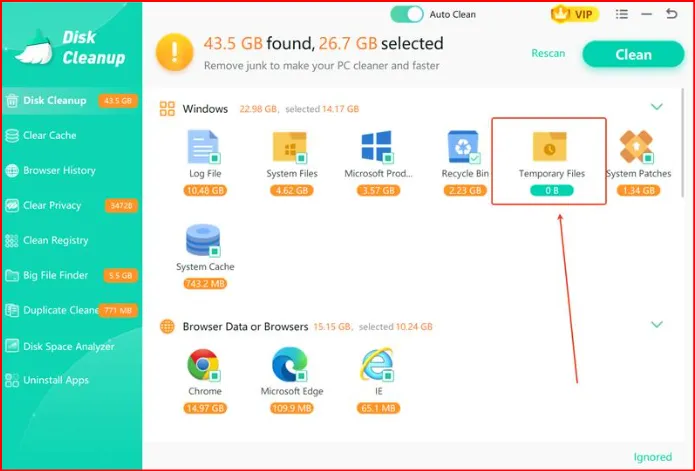
💡 Pro Tip:Once the cleaning process is complete, you can see the remaining junk left under the Temporary Files folder.
Part 6: Tips: When You Should Not Delete Certain Temp Files
Do not delete temp files during the mid-process of installing/updating or when the files are already open or in use. Thus, not every temp file is safe to delete. Do not delete the local temp in these situations:
- Setup files live in a local tempwhile the software is installed. So, deleting them mid-process will corrupt the installation immediately.
- Open applications often hold temp files in active use. Deleting them can cause crashes, errors, or lost progress.
- Updated files are temporarily stored in temp files. Interrupting that process can cause the update to fail or destabilize your system.
- Some apps save crash recovery data in local temp. If you just lost unsaved work, check here before deleting anything.
- If a temp file was modified within the last hour, do not delete it.
Part 7: Hot FAQs About localappdata Temp
1: Why should I delete temporary files?
You should delete the temporary files from your PC, as they take up a lot of space. This, in turn, slows down the speed and performance. So, to avoid software errors, you should clean up the Windows 11 right away.
2: Is it safe to delete temp files?
These files are temporarily stored to protect the files that are currently in use. Deleting temp files to clean up your disk is absolutely safe. However, if a program is actively using a file, don't delete it, as it will crash your PC or freeze it.
3: How do I remove temporary files that won't be deleted?
Some temp files won't delete, so you need to remove them manually. For this, you need to follow these steps:
- Press Windows+R, and type %temp% in the dialog box.
- Select all the files and press Shift+Delete to delete all the files.
- If a file is currently in use, don't delete it.
In order to get effective performance, restart your PC to release file locks. To get rid of temporary files from the Local temp folder in just one click, I would recommend using WMaster Cleanup.
4: Where are temporary files sorted?
In Windows, temporary files are sorted in respective system folders instead of being placed by files.
On Windows, they are primarily located in C:\Users\[Username]\AppData\Local\Temp for user-specific files and C:\Windows\Temp for system-wide files.
On macOS, they are usually found in ~/Library/Caches or /tmp.
5: Can I clean C:\Windows temp?
Yes, you can delete the files and folders in C:\Windows temp to free up the storage space. However, you might need permission to remove certain files. With a free designated tool for Windows cleanup like WMaster Cleanup, you can do this task within seconds.
Final Words
No more wondering for is it okay to delete temp files because Clearing your Local temp and AppData Temp files are safe, simple, and worth doing regularly. It frees up storage, reduces clutter, and keeps your PC running the way it should. Make sure you delete the contents, never the folder, and never mid-installation.
If you want to skip the manual steps entirely, WMaster Cleanup handles it all in one click: temp files, junk, cache, and more. So, don't miss out on it and download this all-in-one Windows cleanup tool today to clean your temp file folder in one go.


