

Duplicates slowing you down? Images, videos, and docs piling up? Don't stress; you are not alone who is looking for "Is there any way to delete all duplicate files quickly and safely?" The answer is YES! Imagine having a super-clean operating system, only with files you truly need.
Users struggle to sort through numerous files and folders to remove duplicate files, feeling overwhelmed before big projects or when devices get cluttered! Whether you are a Windows wizard, Mac master, or phone guru, this guide will help you delete duplicate files simply and effectively.
In this article
- Why Need to Delete duplicate files?
- How do i delete duplicate files in Windows Manually?
- What is the Easiest Way to Find Duplicate Files on Windows 10/11?
- How to Remove Duplicate Files on Mac?
- How to Delete Duplicate Files Online?
- How do I Delete Duplicate Files on Android?
- How do I Delete Duplicate Files on My iPhone?
- Hot FAQs Related to Delete Duplicate Files
Part 1: Why Need to Delete duplicate files?
If you are thinking that having duplicate files in your system is no big deal, trust me, they can cause serious issues as time passes! This unnecessary clutter takes up device storage space, makes it hard to find needed files, and just feels messy. I mean, who needs multiple copies of the same document or similar-looking photos? So, here is why you should erase duplicate files and clean up your device:
- Clean up storage space: These needless duplicates are taking up precious device space that could be used for actual important files!
- Improve your device performance: If your device has less clutter, it means your system will perform faster and work smoother.
- Keep things well-organized: Deleting duplicates makes folders tidy and lighter, so no more searching for the "right" file or the "perfect" image among five similar ones!
- Avoid file confusion: You don't have to worry about the important file versions; you can just keep the latest one and remove duplicate files!
- Save your effort and time: If you delete duplicate files, you can work faster and more efficiently-just find what you need!
Part 2: How do I Delete Duplicate Files in Windows Manually?
It is like a treasure hunt to find and delete duplicates on Windows manually; the process is mind-numbing but rewarding. Here's how I do it:
- Navigate to File Explorer and then search files by file name or specific date.
- To find duplicate or similar images, I use "Details" or "Thumbnail View".
- To detect duplicate audio files, I sort the folder by "Artist," "Title," or "Name."
- Once I spot duplicates, I select the files, right-click on them, and hit "Delete" from dropdown menu.
Although this method is straightforward, it is only good for a handful of files. Honestly, here I have learned that using a dedicated duplicate cleaner, like WMaster Cleanup, can make your life much easier-making your process faster and more accurate.
Part 3: What is the Easiest Way to Find Duplicate Files on Windows 10/11?
WMaster Cleanup is designed to be the easiest solution to find and delete duplicate files on Windows 10/11. So, if you are a Windows user who is hunting down duplicate files manually, I have good news for you! With its intuitive interface and advanced algorithms, WMaster Cleanup can help you clear up unnecessary dupes, reclaim your device storage, and improve system performance-all with just a few clicks.
Key Features of WMaster Cleanup to Remove Duplicate Files
WMaster Cleanup
Find and Remove Duplicate Files in Seconds
- ·Smart scanning engine: MD5 Message-Digest Algorithm to scan duplicate files, images, videos, documents, and archives.
- ·Preview detected duplicates: Preview detected files' details to prevent accidental deletion.
- ·Delete duplicates in Batches: Delete multiple detected duplicates at once with just one click.
- ·Support file types:Supports over 40 file types to identify duplicate images, videos, documents, and archives.
- ·Easy user interface: The layout is intuitive-making cleanup simple for every skill-level user.

Guide to Delete Duplicate Files With WMaster Cleanup on Windows 10/11
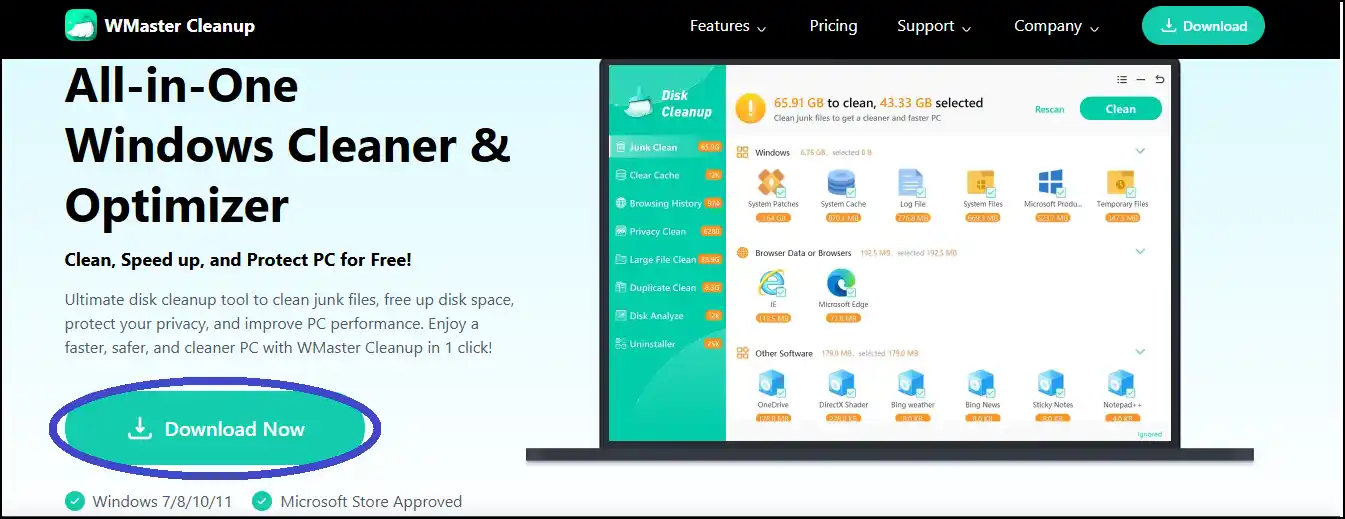
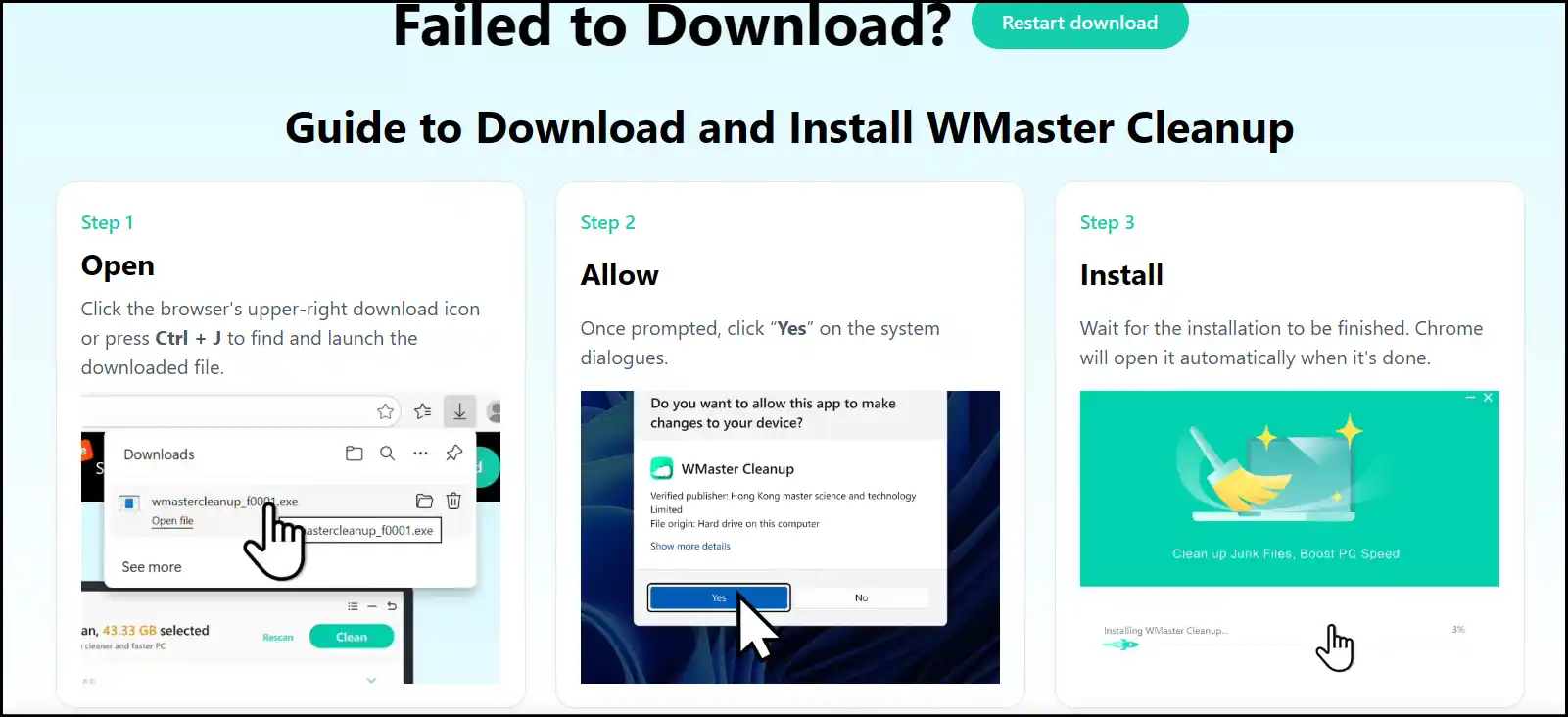
Step 1: Download and Install the Software: At WMaster Cleanup's official website, press "Download Now" to open up a new window guiding you about the software installation. Follow the steps to install the software on your Windows.
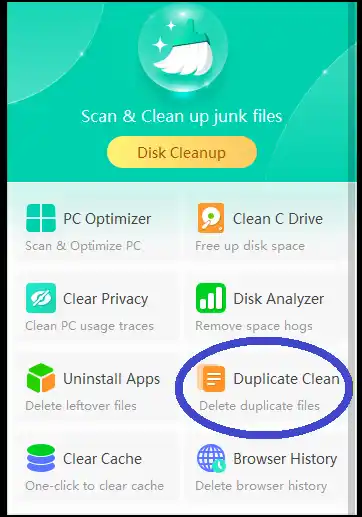
Step 2: Launch the Software: Once the installation completes, click "Start Now" to directly launch the software on your desktop. Now locate and tap on "Duplicate Clean".
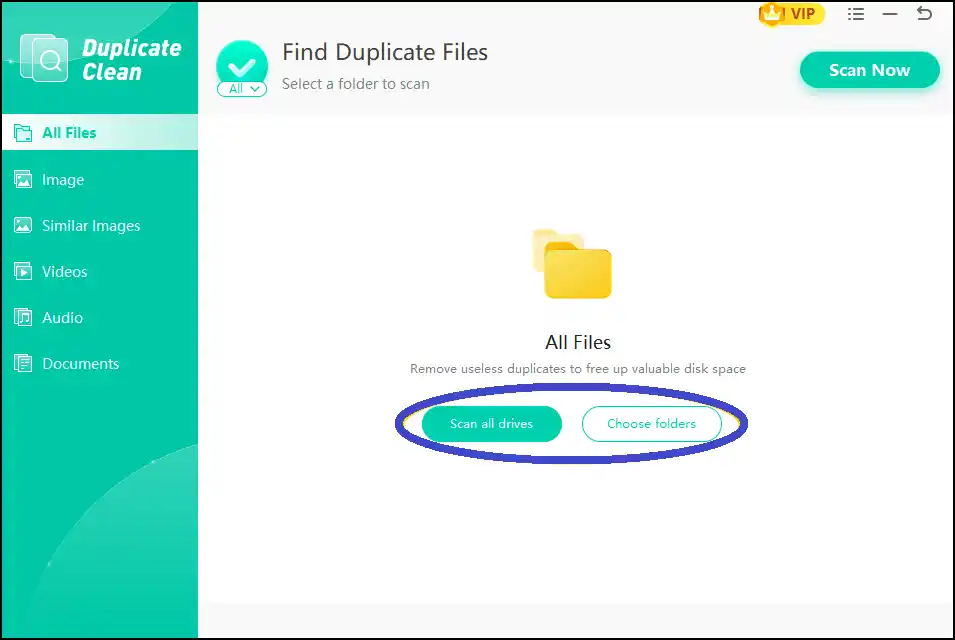
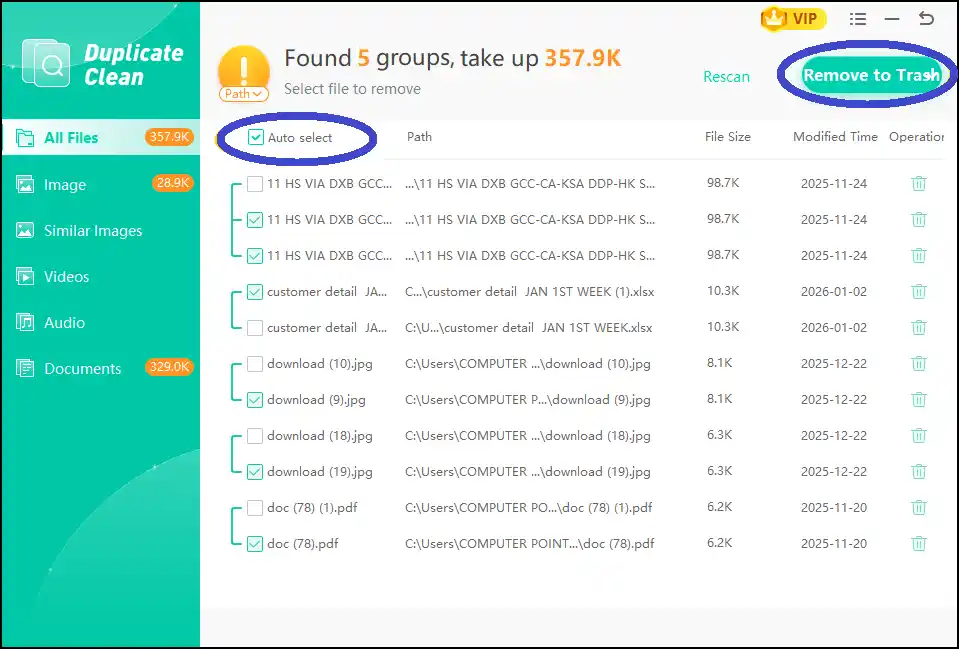
Step 3: Find and Delete Duplicates: Tap on "Scan all drives" or "Choose folders" to deep scan for duplicate files. Once complete, tap on "Auto Select" to select all the duplicates or select them one by one manually. Once done, delete desired duplicates by tapping "Remove to trash".
💡Tips:To prevent accidental deletion, don't forget to preview details of detected duplicate files.
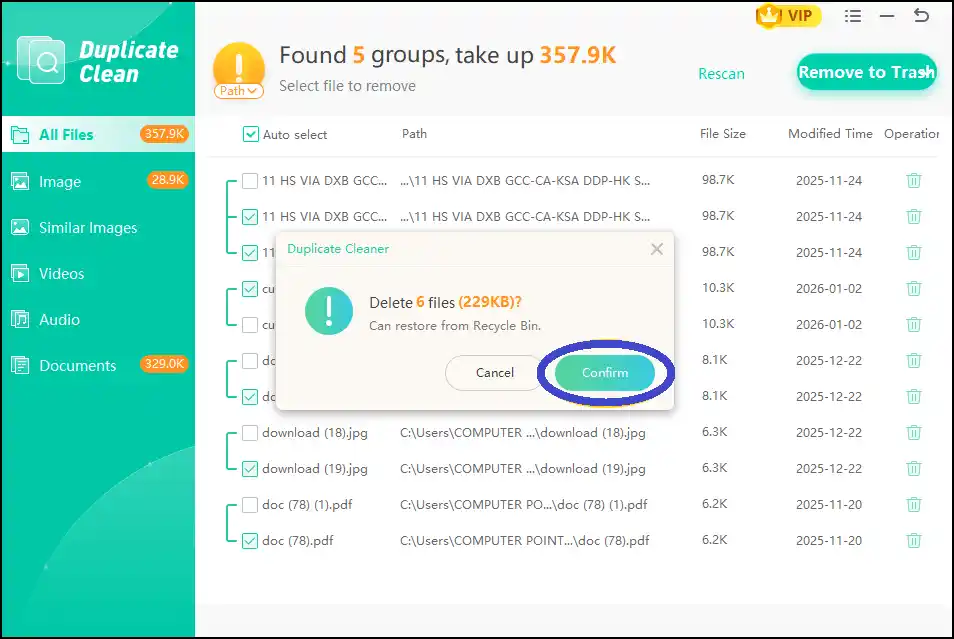
Step 4: Confirm to delete duplicates: Now hit the "Confirm" button and watch those duplicates disappear within a few seconds. Once the deletion process is complete, your PC will become lighter, faster, and way more efficient. Less clutter, more speed-win-win!
💡Tips:You can restore your deleted files from the Recycle Bin if you make any accidental deletions.
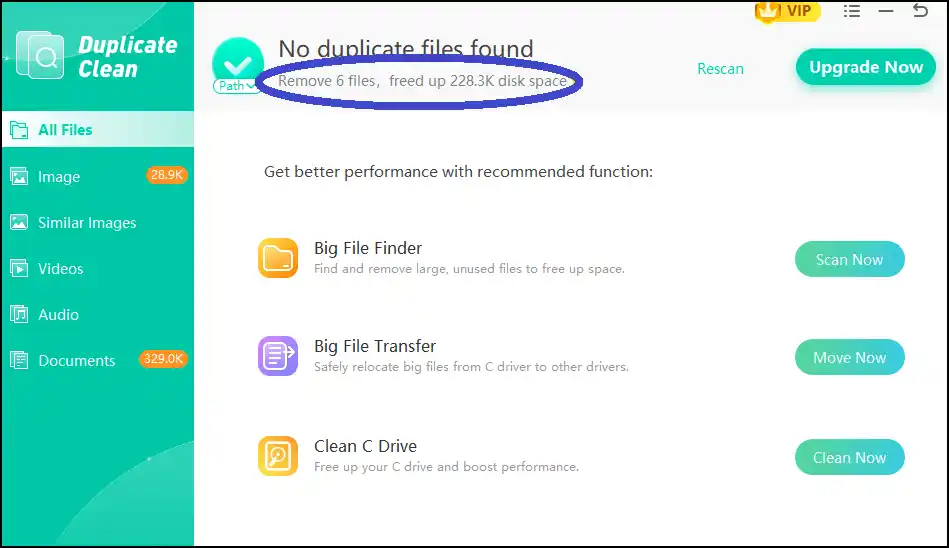
💡Tips:Once you complete the deletion process, you can review and verify how many files you have removed and how much disk space you have gotten.
Part 4: How to Remove Duplicate Files on Mac
Switch to Gemini 2 if you are tired of manual deletion and get overwhelmed! Recently, I have found that my office system, iMac 2024, has accumulated a large number of duplicate files that are killing my device storage. At first, I tried to use "Finder" to find and delete duplicates manually. But soon I realized it would take hours of pain. So, I decided to use a dedicated duplicate cleaner and found Gemini 2-a fantastic solution to quickly detect and remove duplicates.
Guide to Remove Duplicate Files on Mac
Step 1. Download and Launch the Software: Download and install Gemini 2 from the App Store for Mac and launch the app on your desktop.
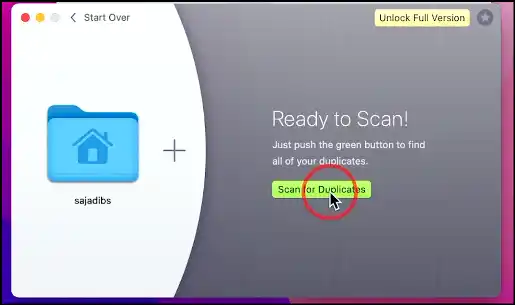
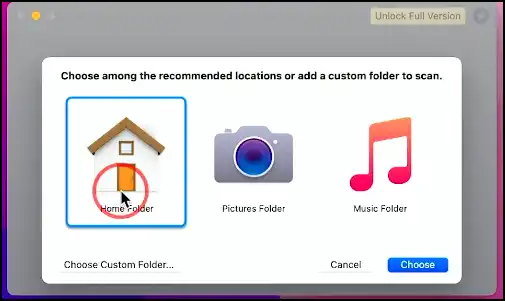
Step 2. Select Folder to Scan Duplicates: Now select or drag folders to the interface to scan duplicate files. You can select the whole device to scan by selecting "Home Folders" or choose custom folders, like "Photos Folder" or "Music Folder".
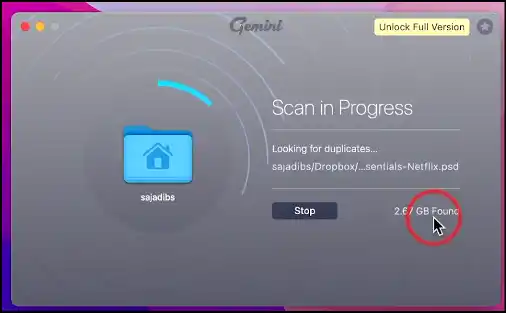
Step 3. Start Duplicate Scan: Initiate the scan and wait patiently for the results to appear. After the scan, you can see how many duplicate files there are and how much space they take.
Step 4. Review and Remove: Tap on "Smart Cleanup" to instantly start the deletion process for a faster and cleaner PC. To prevent any accidental deletion, don't forget to review the details of detected duplicate files before starting the deletion process.
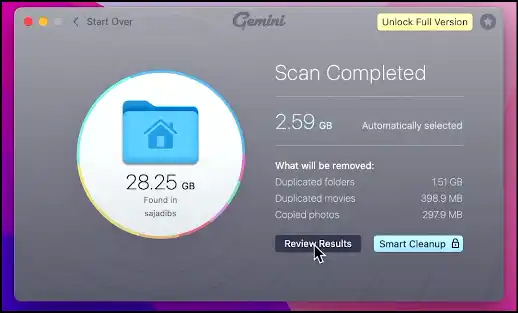
Tips to Find and Remove duplicate files on Mac
- Mac users can utilize preview features to accurately find unwanted duplicates.
- Spotlight Search can also help you find duplicates with specific file names and file types.
- Automatically gather files based on certain criteria, like file type, name, or date, by creating a Smart Folder.
- Mac users can also use Terminal commands to detect duplicate files.
- Use third-party software, like Duplicate Cleaner or Gemini, to find and erase duplicate files.
- Clean up your "Downloads" folder and other folders where duplicate files tend to accumulate.
Part 5: How to Delete Duplicate Files Online
Cloud Duplicate Finder is a modern and accessible way to erase duplicate files from your cloud storage, no software needed. For device storage, I use a dedicated duplicate cleaner whereas for cloud storage, browser-based duplicate cleaners are a way to go! I personally use them to keep my office drives clean across various devices
The cloud cleaners are quick and help me to find and remove duplicate files, docs, photos, vids, auds and archives. Below are the steps how I clean cloud storage with an online duplicate cleaner:
Guide on How to Erase Duplicate Files Online
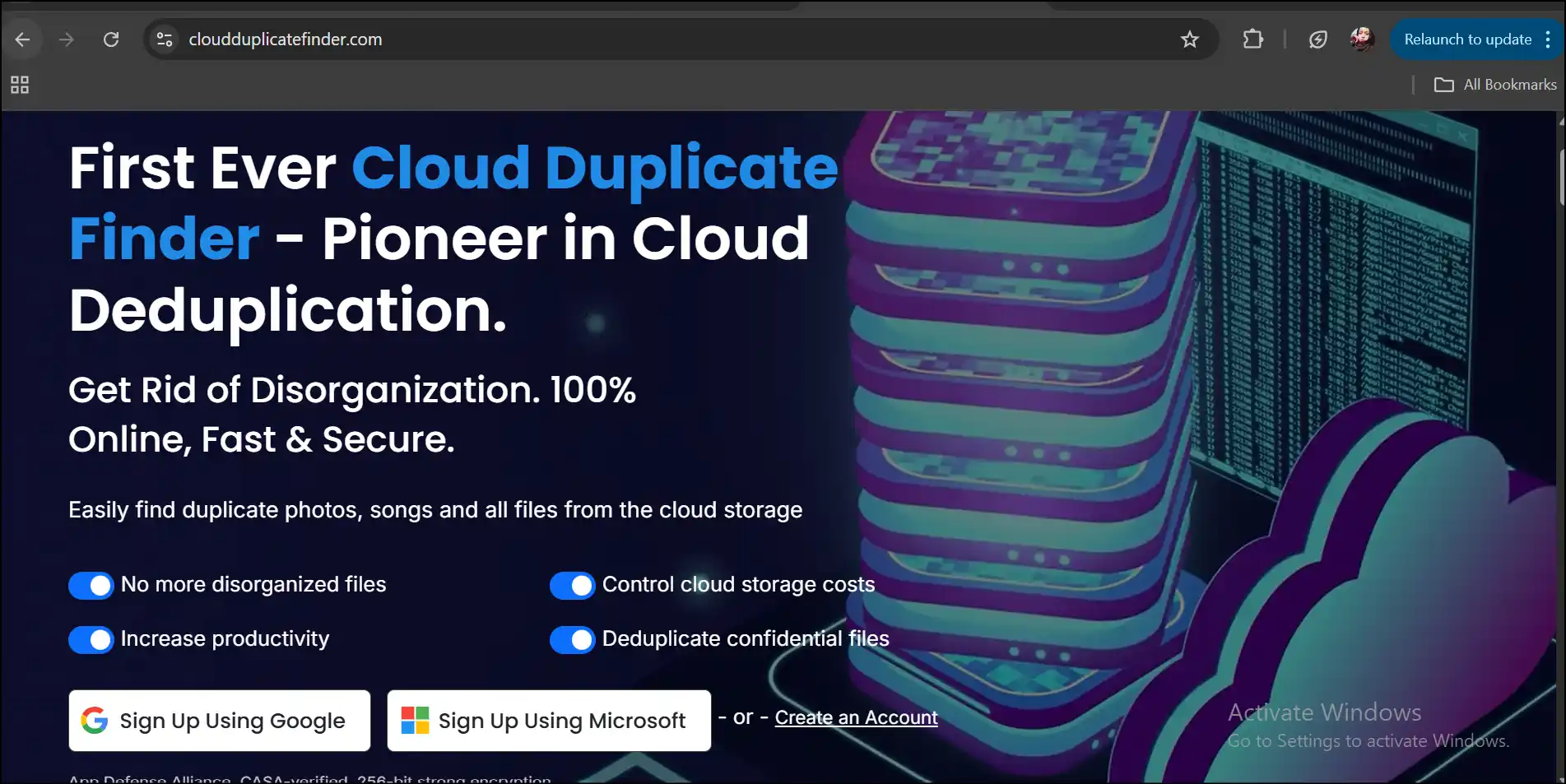
Step 1. Visit the website and sign up: Visit the official website of Cloud Duplicate Finder and sign up for your account using either Google or Microsoft.
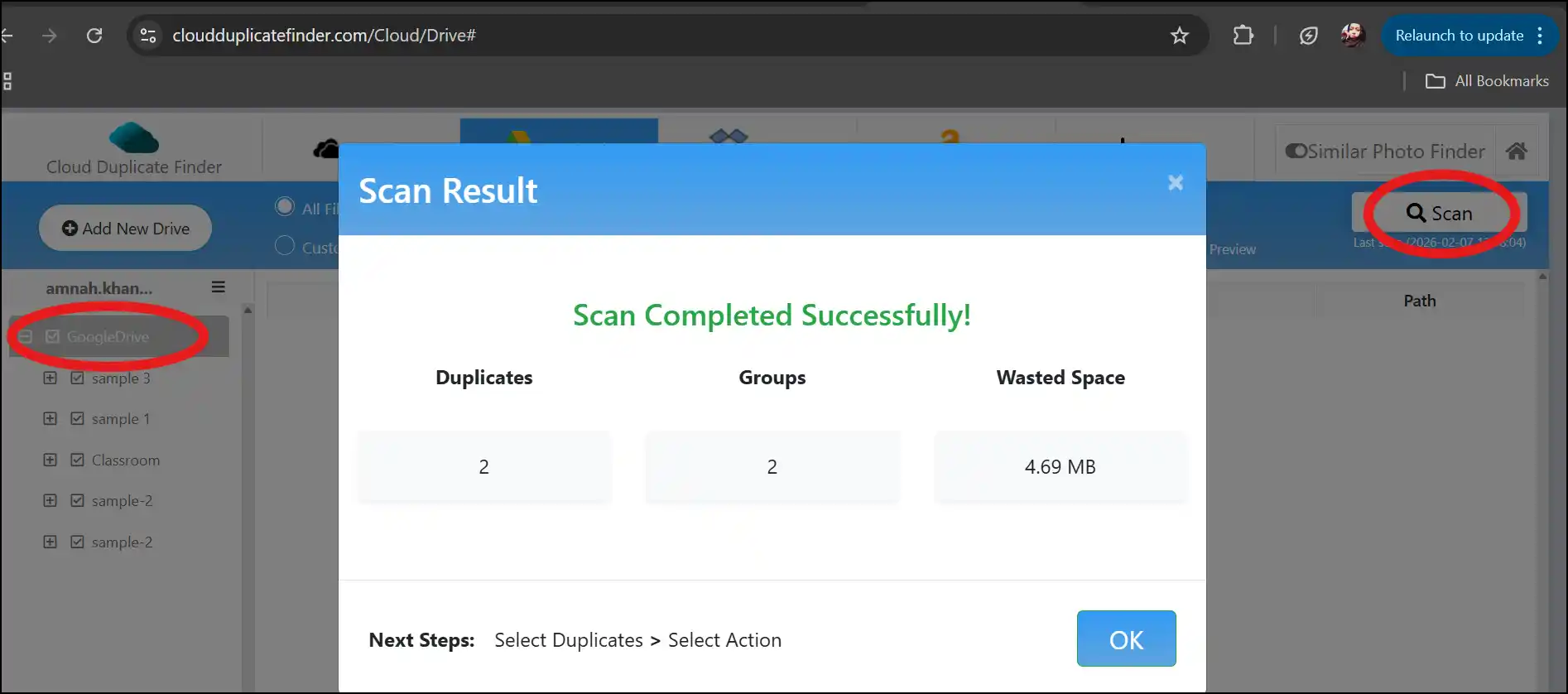
Step 2. Select Drive and Scan: Now click on any desired cloud drive, select all or specific folders, and then hit "Scan" to start scanning duplicates. View the scan result and press "Ok" to proceed.
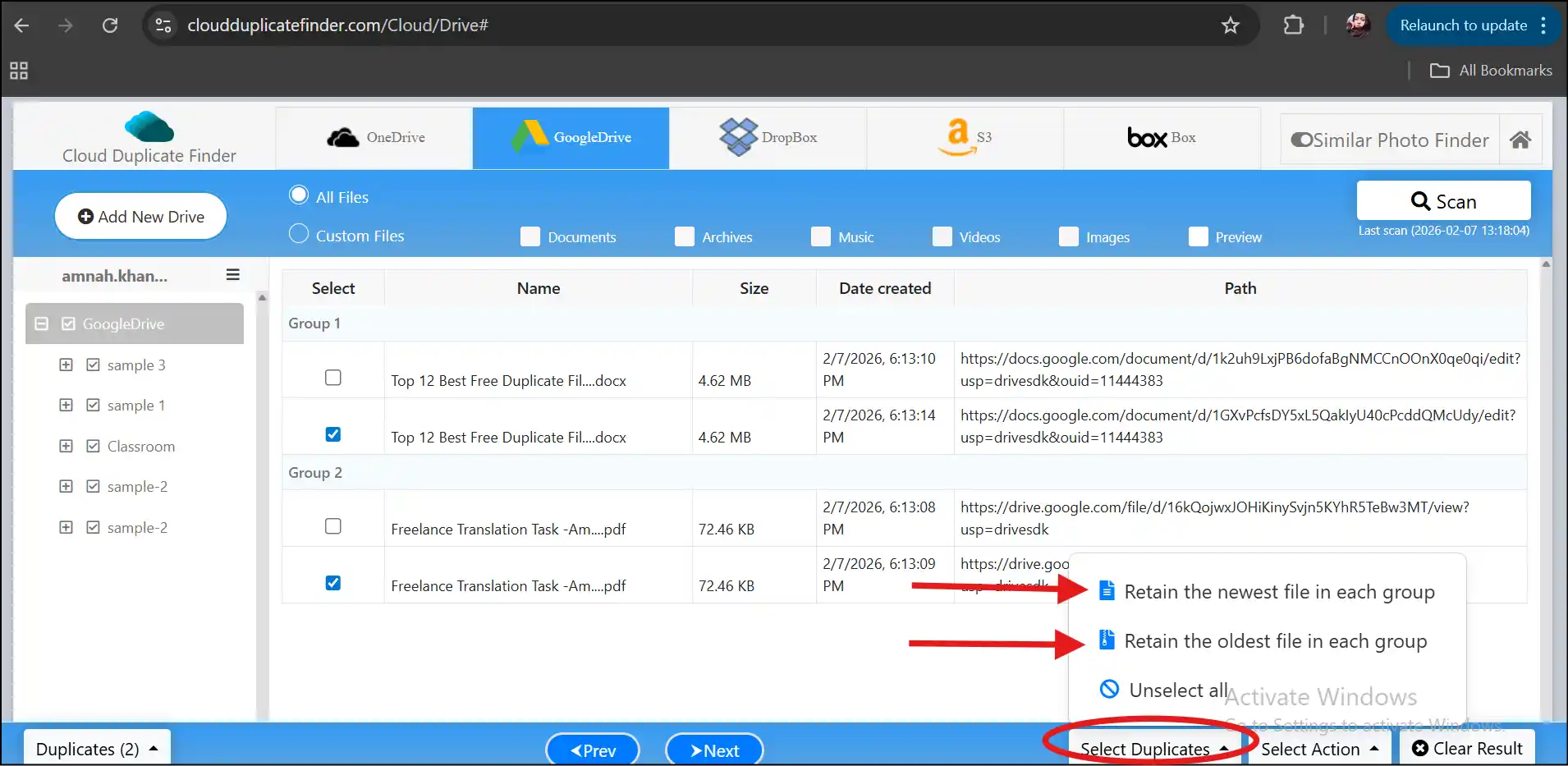
Step 3. Select Duplicates to Remove: Now tap on "Select Duplicates" to auto-select all the duplicate files depending on your needs, whether you want to keep the oldest or the newest.
💡Tips:You may also select duplicate files one by one manually and delete them as you want.
Step 4. Delete duplicate files: Once you select all the unnecessary duplicate files, click "Select Action" and then tap "Permanent Delete" to remove them from your cloud storage.
Part 6: How do I Delete Duplicate Files on Android
I use the in-built "Files" management app to find duplicate files and clean up my Android device within a few seconds. This method is super easy and keeps my gallery and downloads organized, saving me tons of time and effort. In this section, I will tell you some simple steps to find and delete duplicates from your Android and free up storage space without even downloading any app.
How to delete duplicate files on Android
Step 1. Head over to the Files app: Open your phone and locate the in-built "Files" app to delete duplicate files, like documents, images, videos, and audios. 2. Open the app and grant necessary permissions.
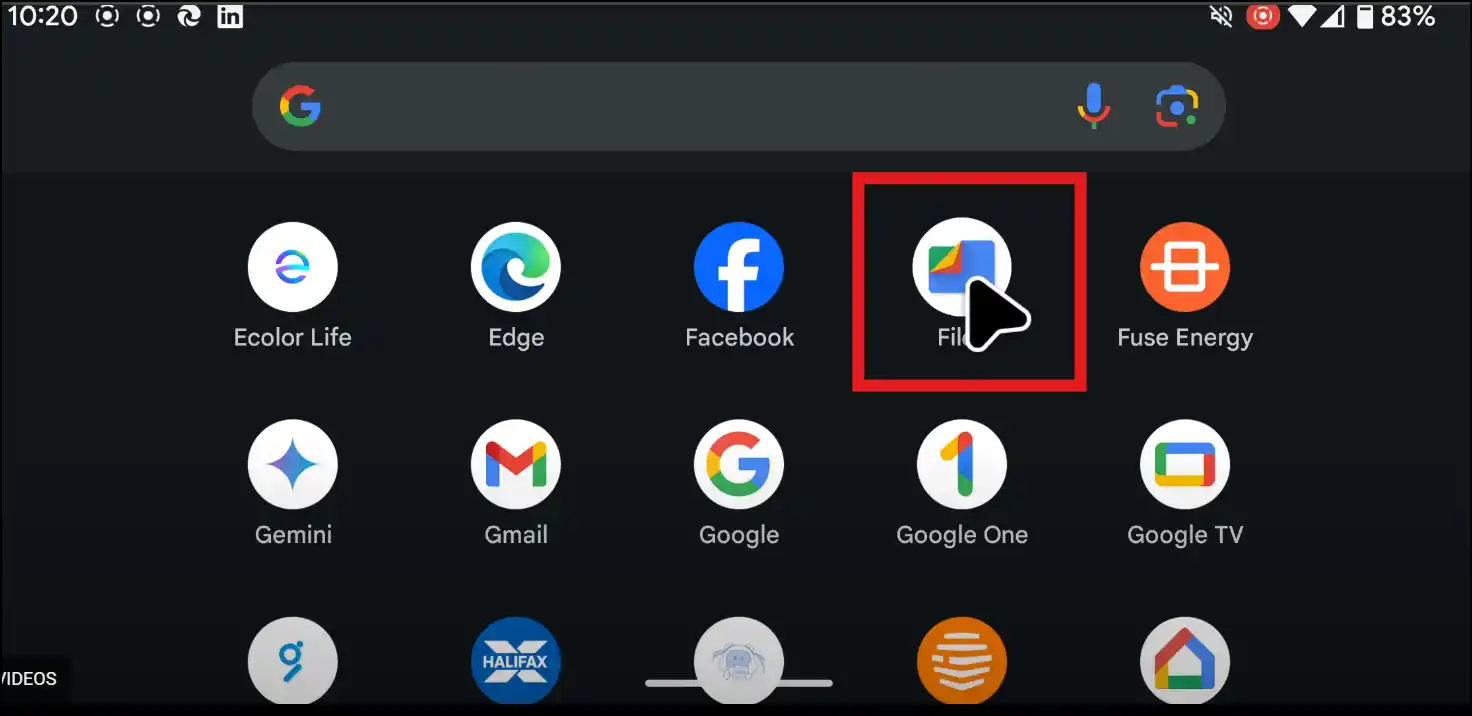
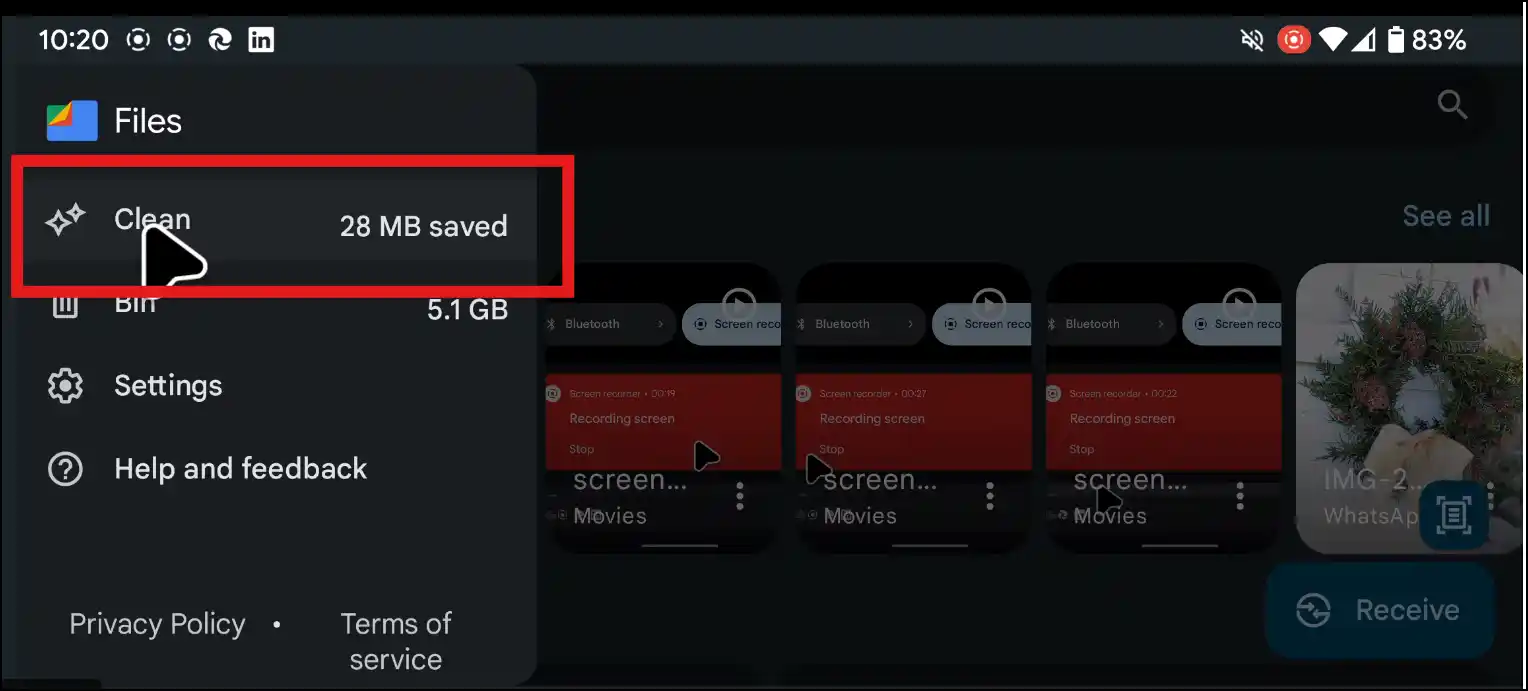
Step 2. Open the menu and select Clean: Now go to the upper right corner and tap on the three lines to open up a menu bar, and click on "Clean". This step automatically creates different groups, like Duplicate Files, Large Files, and Junk Files.
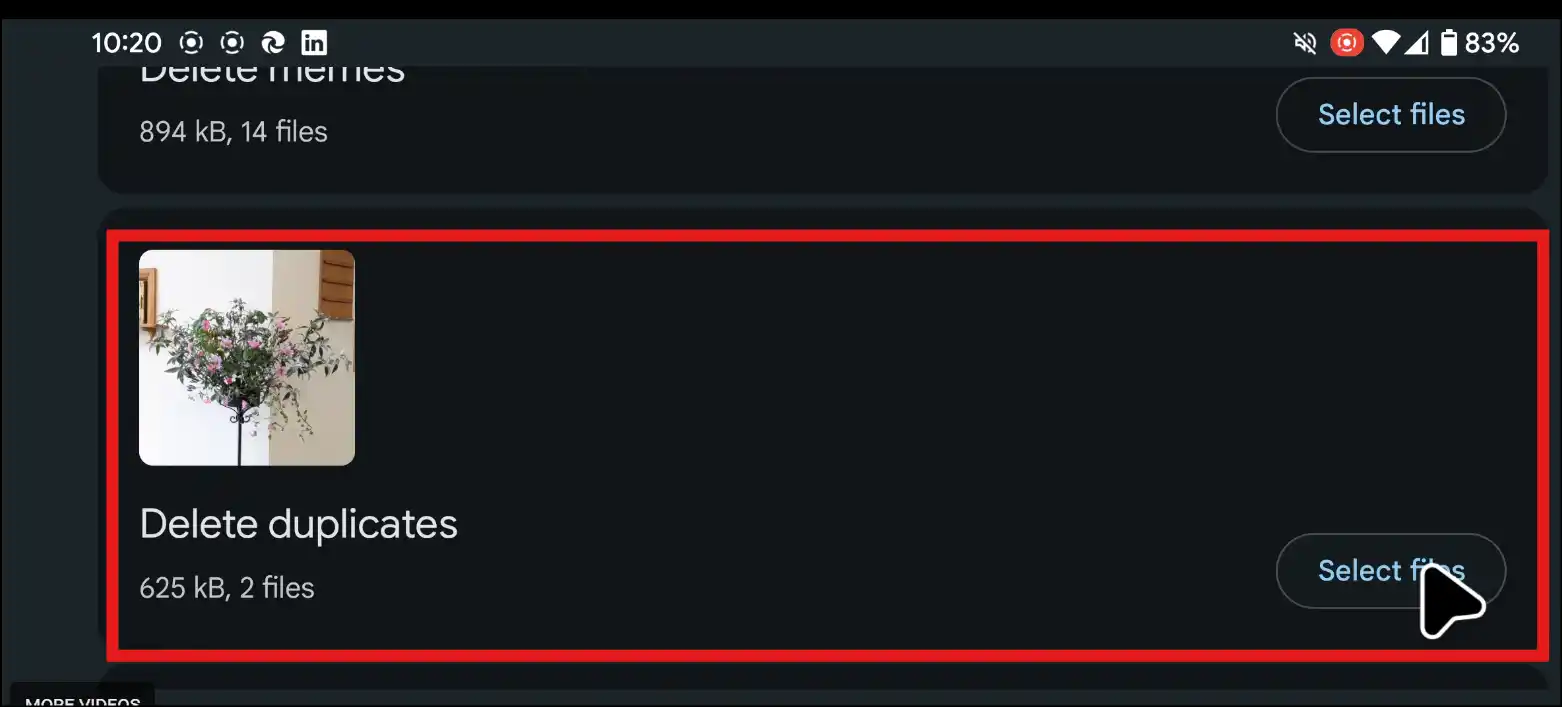
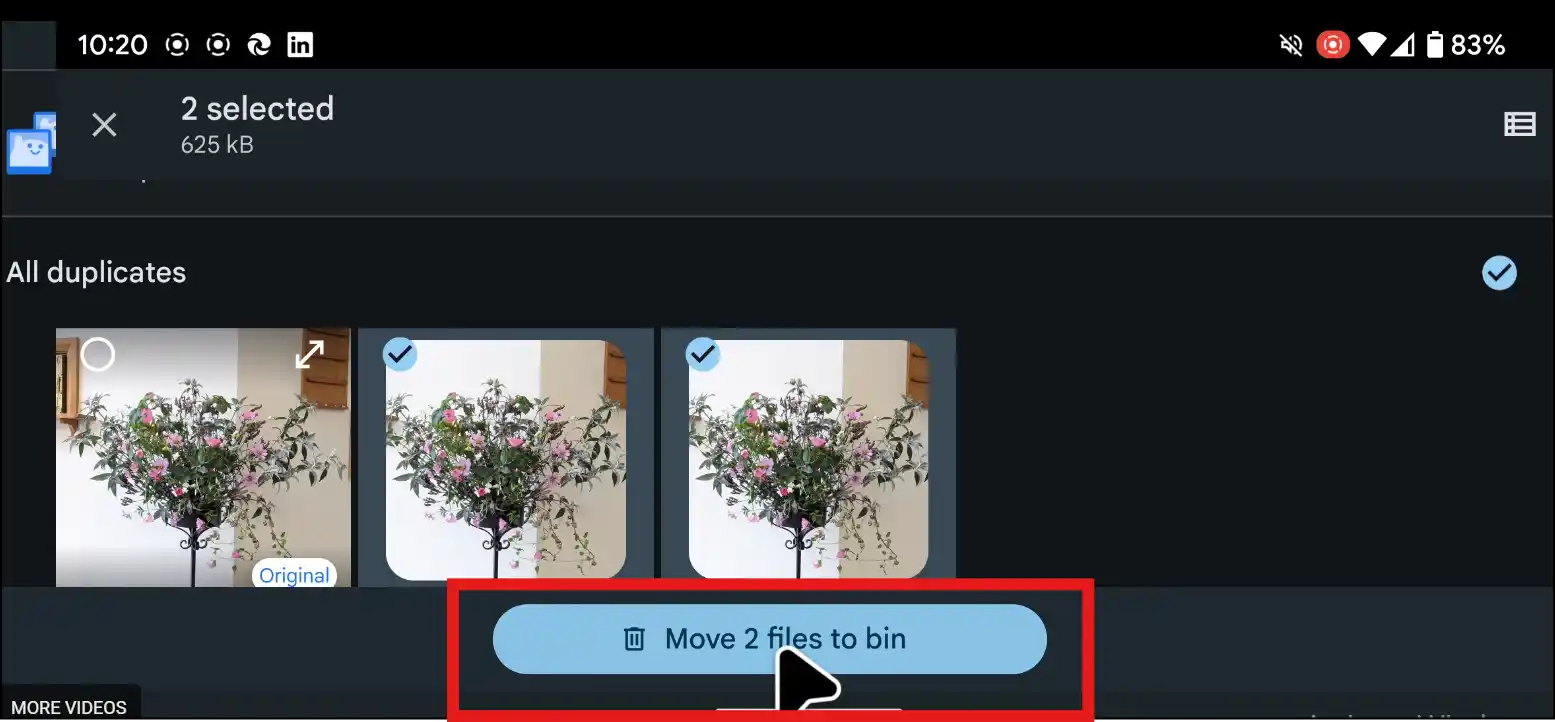
Step 3: Choose duplicate files: To do this, scroll down to the "Duplicate Files" group and click "Select Files." Now tap on "All duplicates" to select all duplicate files automatically or select desired duplicate files manually.
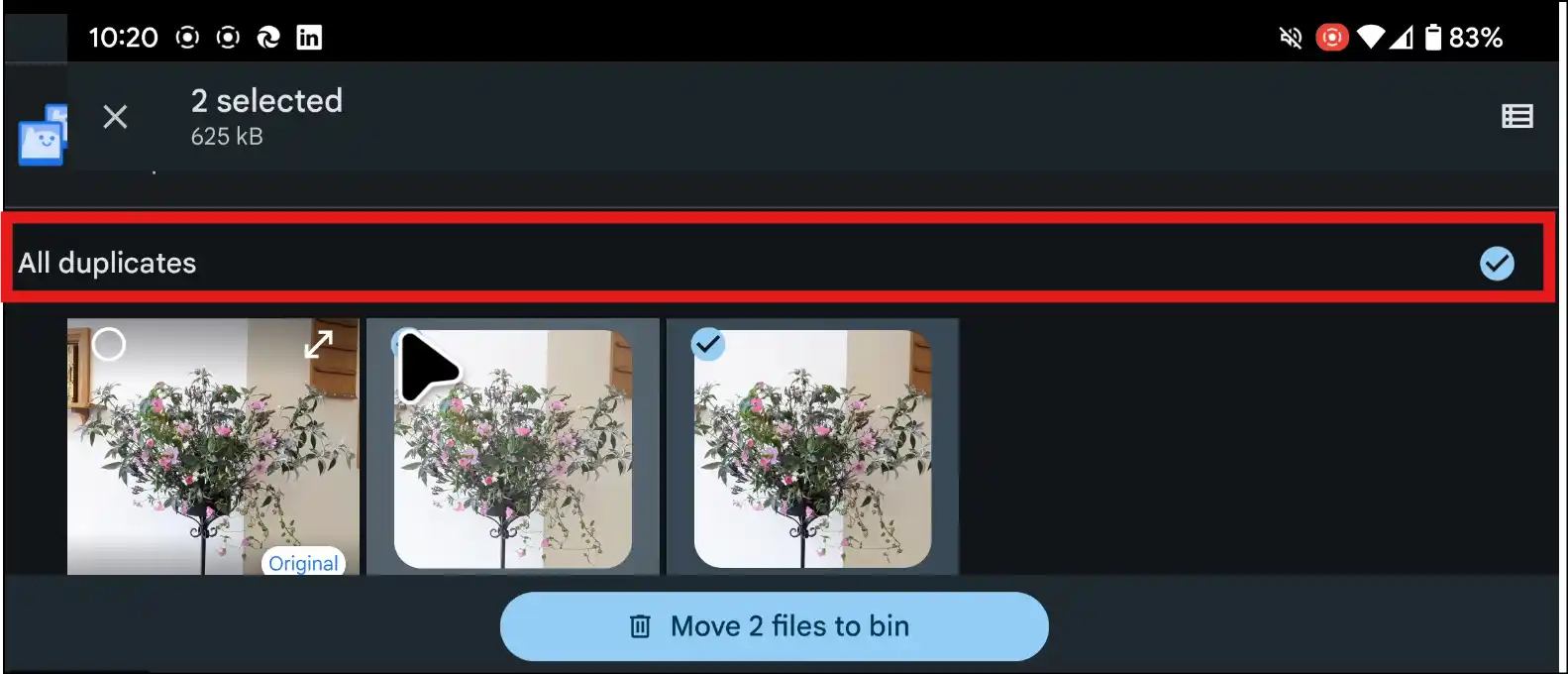
Step 4. Remove duplicate files: Once you select all the duplicates, hit "Move files to bin" to remove the selected duplicates from your Android device.
Part 7: How do I Delete Duplicate Files on My iPhone
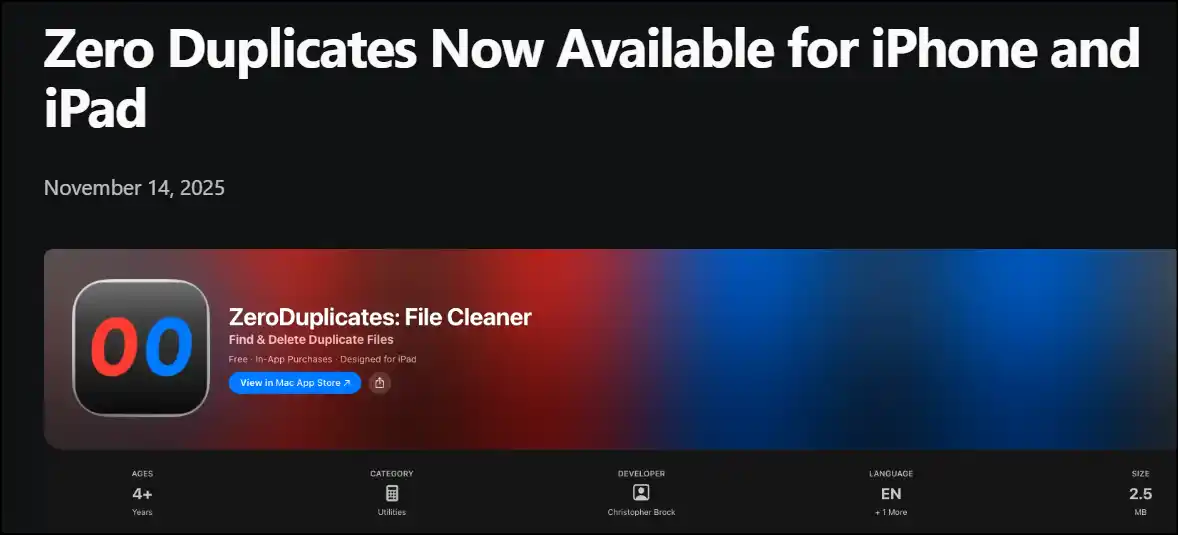
Zero Duplicate Mobileis a go-to solution for iOS users to delete duplicate files, photos, videos, and downloads. The storage of my office device, iOS 16 Pro, was messing up due to unlimited downloads, backups, and me creating like a million file versions! Following are the steps for how I delete duplicates from my iOS and improve its performance:
Guide to Delete duplicate files on iPhone
Step 1. Download and launch the app: Go to the App Store, search, download the app "Zero Duplicates Mobile", and launch it on your device.
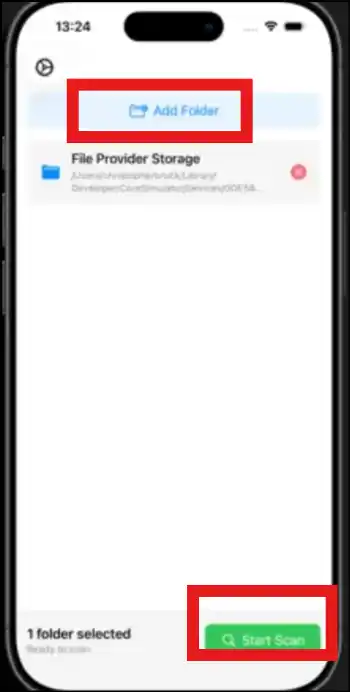
Step 2. Select folders to scan: Tap on "Add Folders" to select the folders you want to scan for duplicates, and then hit "Start Scan" to start the scanning process.
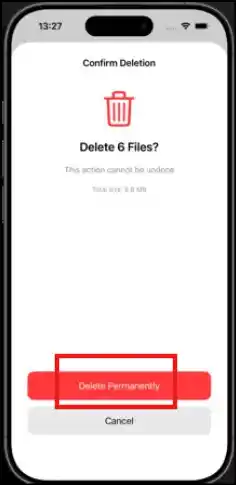
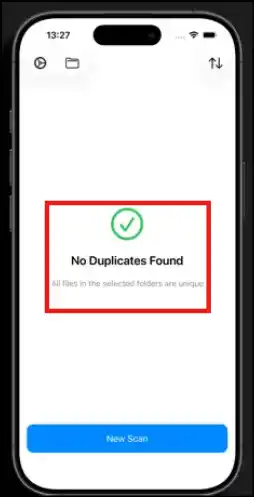
Step 3. Select duplicate files to delete: Once the scanning process completes, you can auto-select all the duplicates or manually select desired duplicate files. Once done, click "Delete Selected", and it will ask for your confirmation; press "Delete Permanently" to initiate the deletion process instantly.
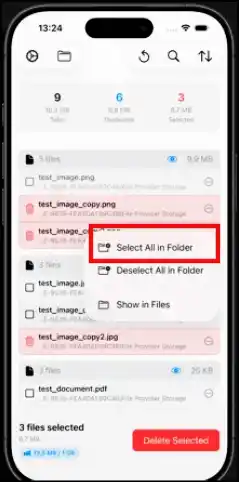
Step 4 Confirm deletion: The above step will ask for your confirmation; press "Delete Permanently" to initiate the deletion process instantly. As soon as the duplicate deletion completes, your iOS will feel lighter, faster, and more efficient.
Part 8: Hot FAQs Related to Delete Duplicate Files
What causes duplicate files?
There are various factors that cause duplicates, like multiple downloads of the same file, creating copies or backups of important files, and software bugs or glitches. Other than that, syncing issues with cloud services and transferring data or files between folders or devices can also accumulate duplicates.
Is it safe to delete duplicates automatically?
Yes, just always use a reputable duplicate cleaner, like WMaster Cleanup, to delete duplicates automatically. Also, don't forget to review the details of detected duplicate files first to avoid deleting important data by mistake. Moreover, you should also look for a tool that offers backup and restore features.
Are all duplicate file finders safe?
Not all the accessible tools are reliable-just stick to reputable tools that have clear privacy policies and have favorable reviews by real users.
Can duplicate cleaners delete system files?
Generally, no! Usually, all the reputable duplicate cleaners are designed to play safe and avoid touching system files. These reliable cleaners often exclude critical system files and folders or ask you for confirmation before starting the deletion process. Still, it is better to double-check the detected files that are marked for deletion.
How often should I clean up duplicate files?
It depends on how you use your device! If you are a heavy files user who is always downloading and transferring files, cleaning up once a month works well. Similarly, if you are a lighter user, every 2-3 months is fine to clean your device. Other than that, you can also schedule cleanup, like before big updates or backups or whenever you notice your device is running slow.
Final Thoughts
If you are dealing with duplicates, worry no more! This article explains 6 simple ways to clean up your digital space efficiently, no matter whether you are on Windows, Mac, Android, or iPhone. Moreover, regular cleanup for dupes = more storage, organized files, and smoother devices.
Windows users, ditch and delete duplicate files with minimal hassle. WMaster Cleanup is your ideal choice-safe, easy, and powerful. What's best? This amazing cleanup tool is FREE for a limited time with all its features available. So, take control of your storage with WMaster Cleanup—forget your messy folders and enjoy a well-kept device!


