
.jpg)
Is your device slowing down, is clutter piling up, or is storage space vanishing due to duplicate files? No matter what device you use, there is a bespoke, reliable duplicate file remover for you.
Today, the battle against these duplicates has evolved, and gone are the days of painstaking manual searches and unsafe deletions. In 2026, smart duplicate cleaners not only offer precision, safety, and speed, but they also make it easier than ever to clean up your device.
In this write-up, I will let you know about what a duplicate file remover is, key features to look for, how to use these duplicate cleaners over various platforms, and my top recommendation for 2026.
Let's enter the world of duplicate file cleanup.
In this article
Part 1: What is a Duplicate File Remover?
As time passes, every device mounts up duplicate files! These pointless duplicate files come from photo backups, multiple downloads, syncing files over different devices, or even when you make slight edits to your files. Sooner or later, these duplicates clutter your system, slow down its running, and make it difficult to find what you actually need.
A dedicated duplicate files remover works as a safeguard. These duplicate file removers:
- Scans your storage to identify and delete duplicate files from your device.
- Locate and removes near-identical files, like photo, videos, and documents.
- Save time and effort compared to manual searching and deletion.
- Protect your important files while removing unwanted copies of the same file.
- Includes preview and backup options to prevent accidental loss.
Key Features to Look For in a Duplicate file remover
If you know what to prioritize, choosing the right duplicate file cleaner will be stress-free.
- First, prioritize if it can deal with multiple file types, like photos, videos, music, documents, and compressed files.
- Consider whether it scans for similar files. Actually, sometimes duplicates are not perfect copies, so your chosen tool should also be able to recognize nearly identical files.
- Look at which safety measures your tool is providing. Can you back up your files before making a deletion? Can you preview detected duplicate files before removal?
- Look for other features, like a user-friendly interface, batch processing, and customizable scanning options, which is tailored to your needs.
Part 2: How to Use a Duplicate File Remover on Windows/Mac/Mobile/Online
How to Use Duplicate File Remover on Windows 10/11
For Windows users who are managing vast libraries of files, let me tell you I have tested WMaster Cleanup extensively on my Windows 11 Pro, and it is now my go-to duplicate file deleter to clean up my PC within a few clicks. This all-in-one cleanup tool is currently FREE (for a limited time) and offers an easy-to-use interface, a quick scanning process, and accurate results, enabling you to reclaim PC storage and boost its performance.
WMaster Cleanup
Best Duplicat File Remover for Windows 11/10
- · Supports over 40 duplicate file types, including photos, videos, music, docs, and archives
- · Smart scan can find exact and similar files even if format, size, and filename differ
- · Let you preview detected duplicates before deletion to prevent accidental loss
- · With batch processing, you can delete multiple duplicate files at once
- · Let you select all drives or a specific folder for a targeted cleanup

How to Use WMaster Cleanup- A Free Dupicate Cleaner for PC
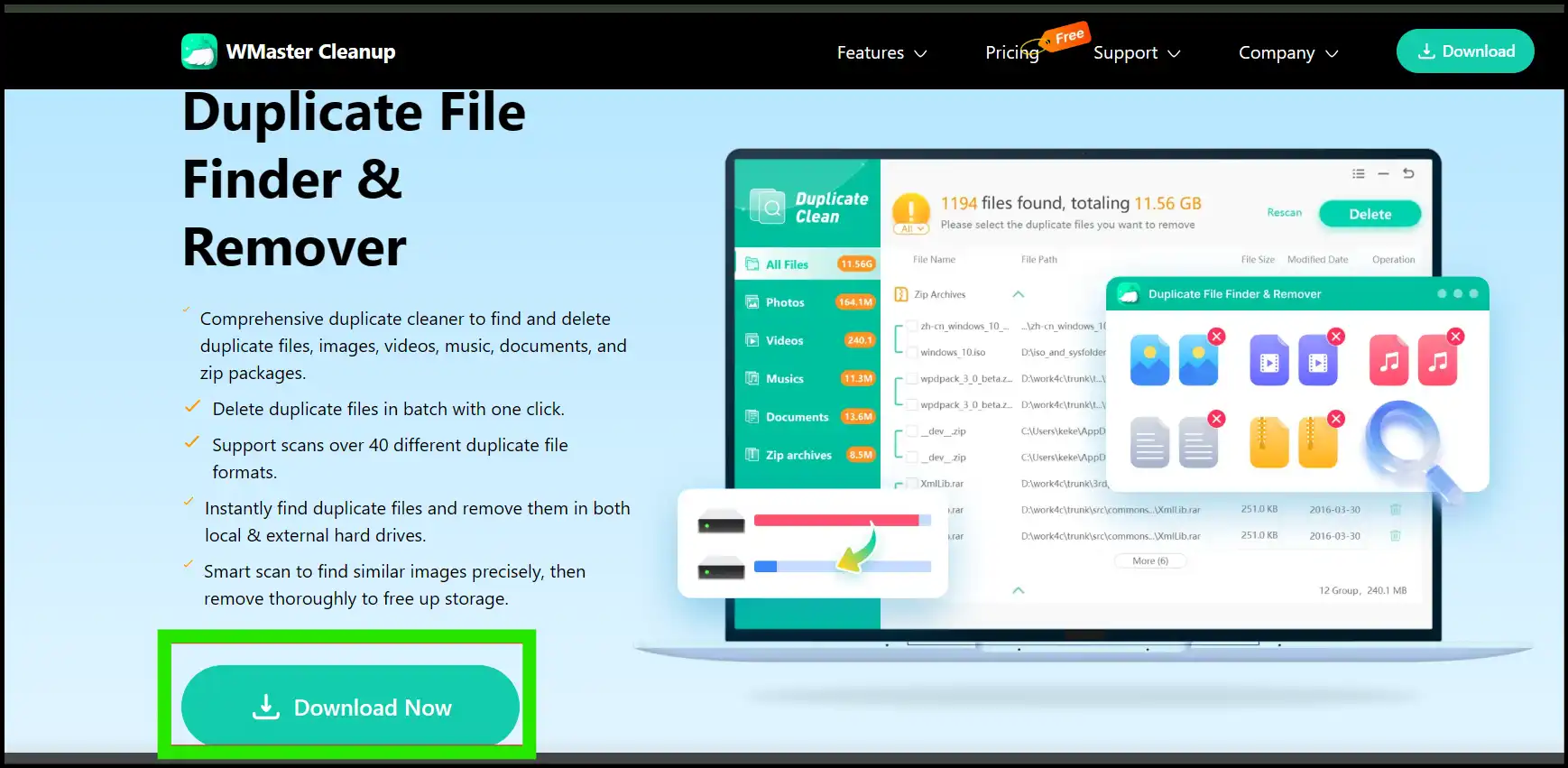
Step 1: Head over to the home page of WMaster Cleanup and click "Download Now" to start downloading the software. Once downloaded, follow the prompts to set up the installation process.
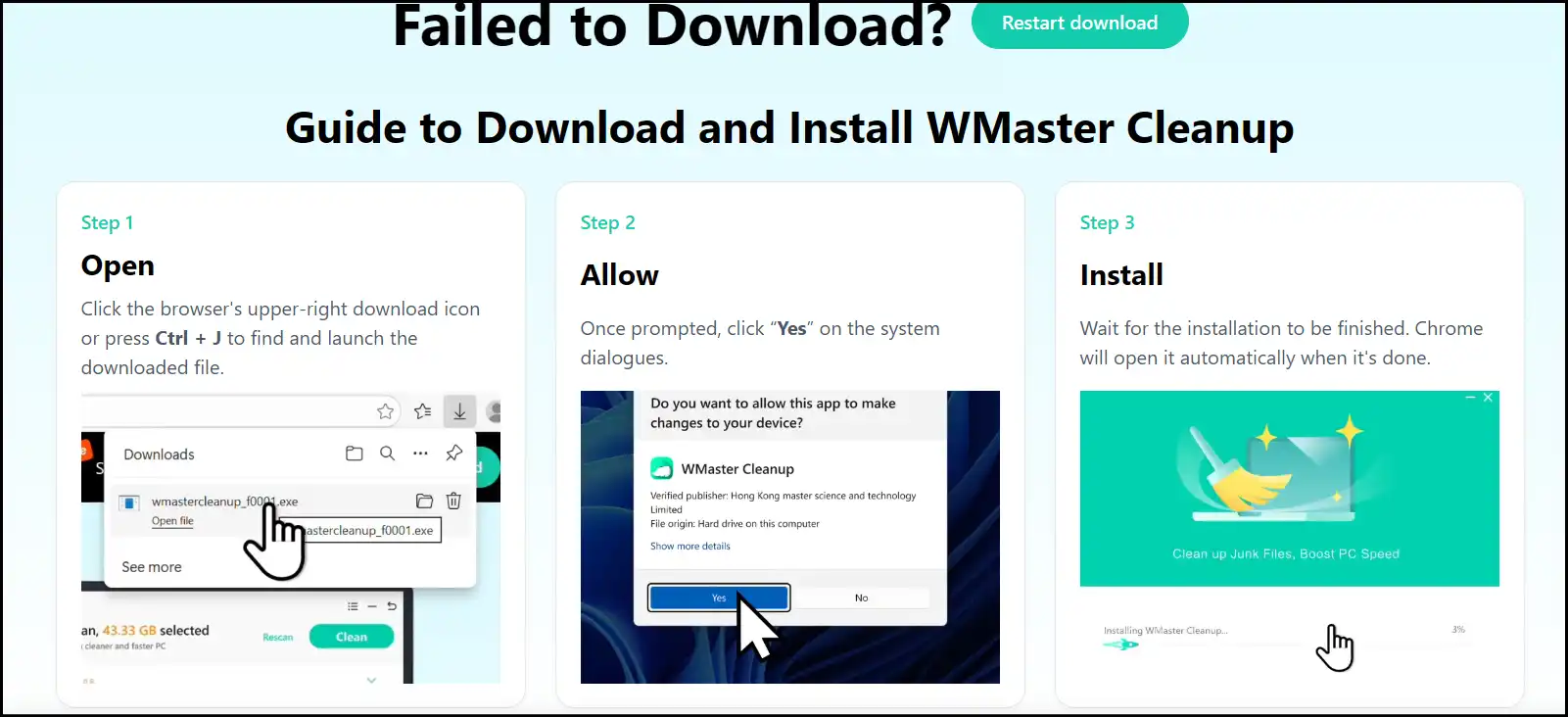
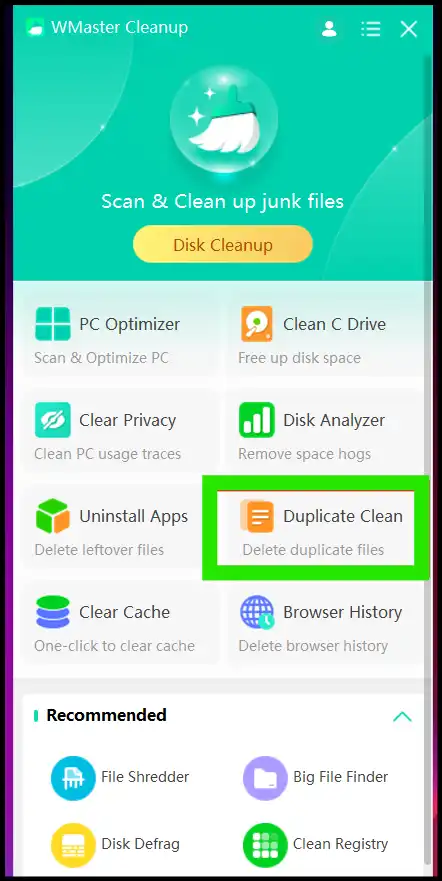
Step 2: Once the installation process is finished, you may hit "Start Now" to directly launch the app on your desktop. Now, from the software's main interface, select "Duplicate Clean" among all the options.

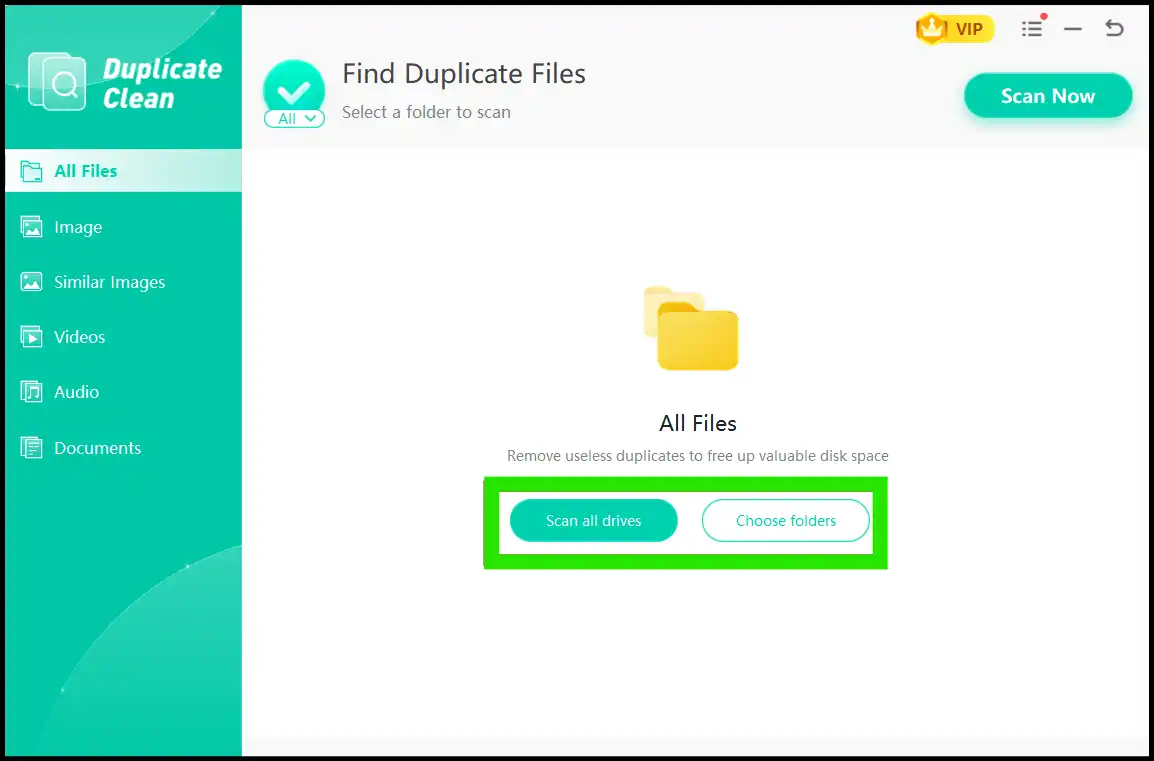
Step 3: Custom select either "Scan all drives" or "Choose folders" to scan for duplicate files. Once the scan is complete, you can see a digital report of all the duplicate files organized in groups for easy deletion. Select desired duplicates manually or "Auto Select" all the duplicate files and then press "Remove to trash".
💡Tips:Before initiating the final deletion, don't forget to review the detected duplicates to prevent accidental loss.
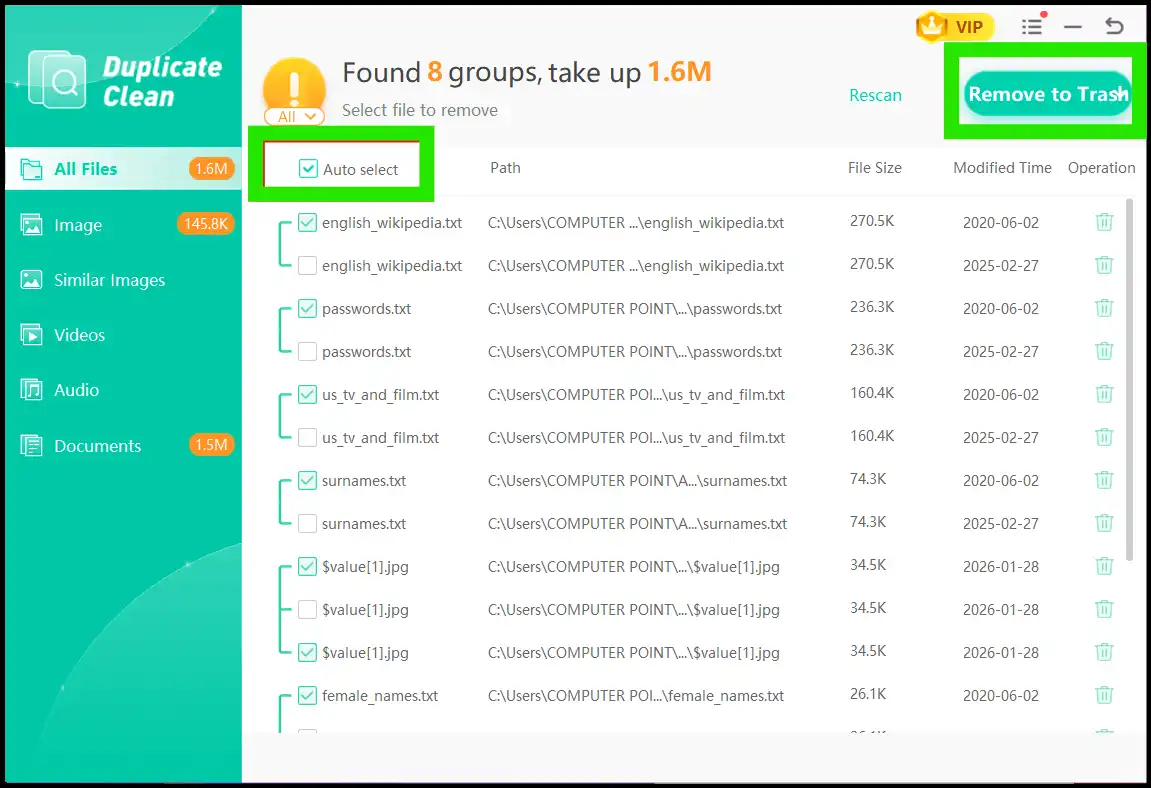
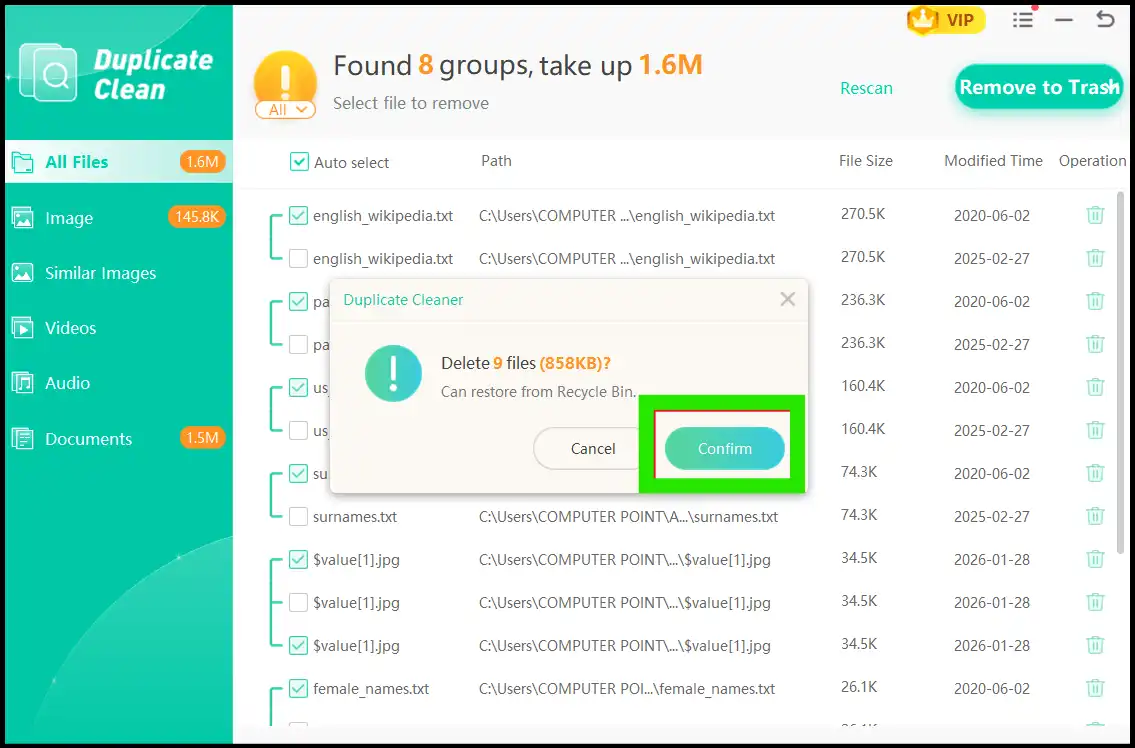
Step 4: A window will pop up to take your final consent; hit "Confirm" to start the deletion process of duplicate files instantly.
💡Tips:If you accidentally delete any important file, you may restore it from the Recycle Bin.
How to Use Duplicate File Remover on Mac
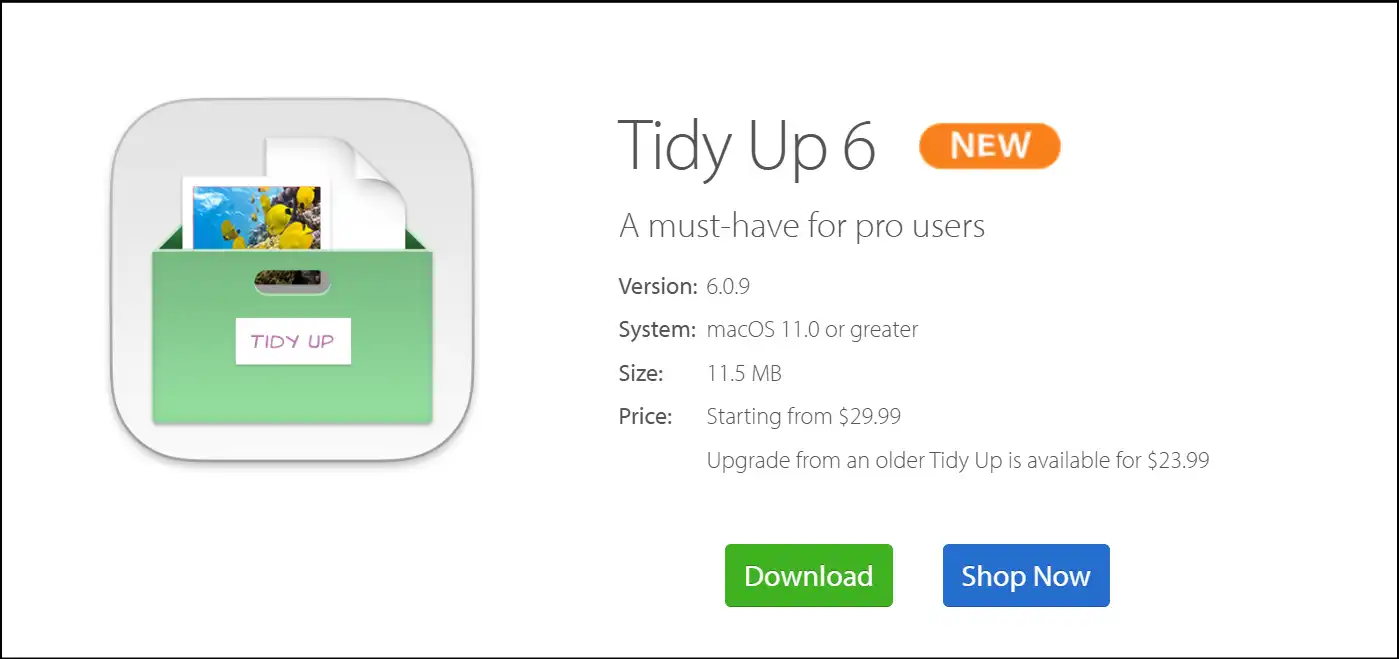
Have you ever dealt with duplicate file chaos on your Mac system? My iMac (2024) was driving me crazy as duplicate files were piling up, probably due to unlimited downloads, edits, and syncs across devices. I thought it was time to use a reliable tool that would clear out the clutter and make my system cleaner and faster. Then I found Tidy Up 6, and honestly, it is a lifesaver. Yeah, it is a paid tool, but trust me, it is worth the cash!
Steps to Clean Duplicates with Tidy Up 6
Step 1: Download the Tidy Up 6 app from the official website or from the App Store for Mac and then launch it on your iPhone's screen.
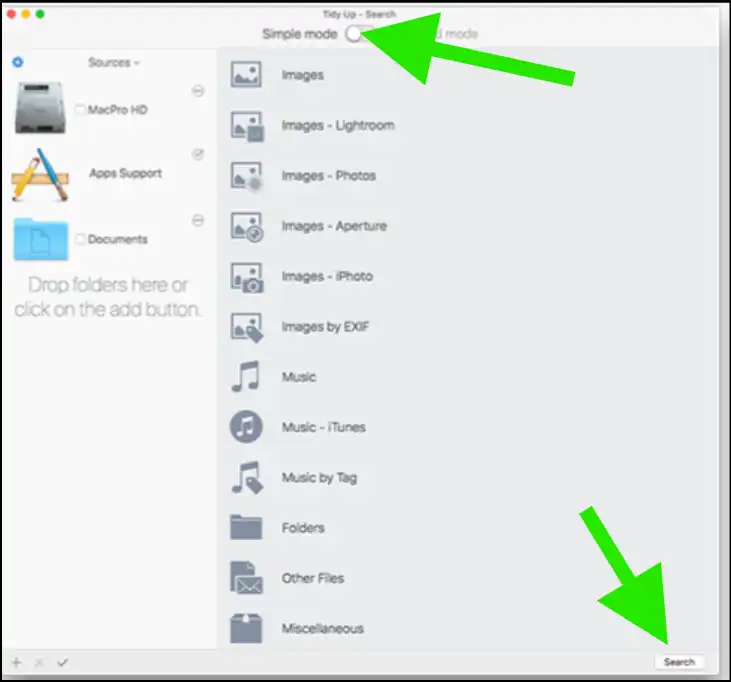
Step 2: Now select simple or advanced mode for searching, then either drop your desired folder to the left side of the interface or click "+" to add a folder to scan duplicate files.
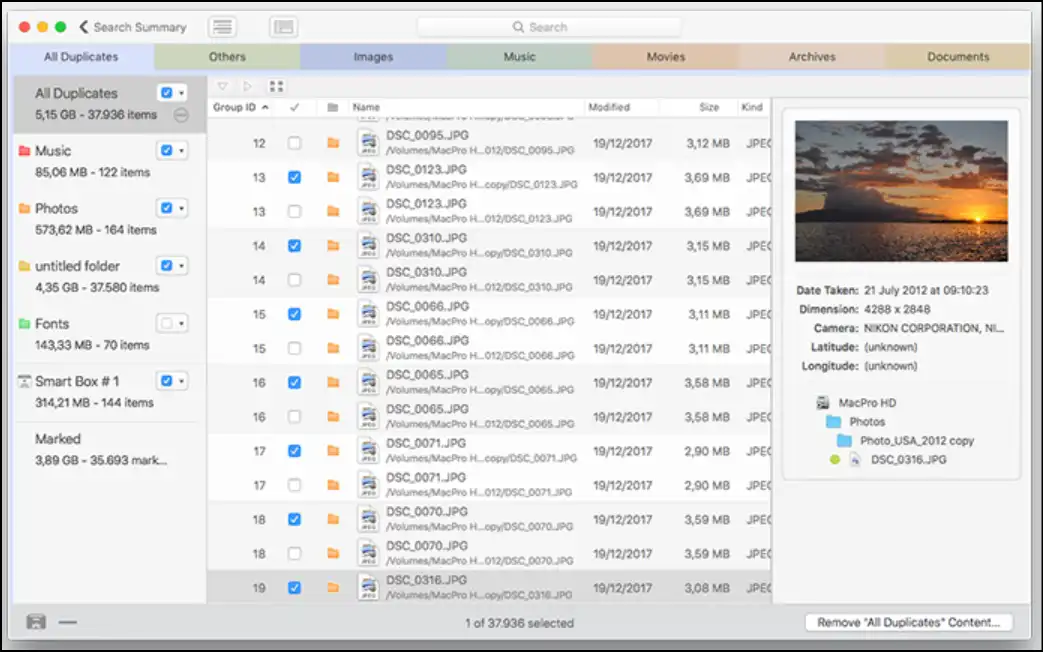
Step 3: Once the duplicate files are detected, you can auto-select or manually select the copies of the same file. Once done selecting, navigate to the lower right corner and click "Remove All Duplicate Content."
💡Tips:To prevent critical data loss, do not forget to utilize the preview option.
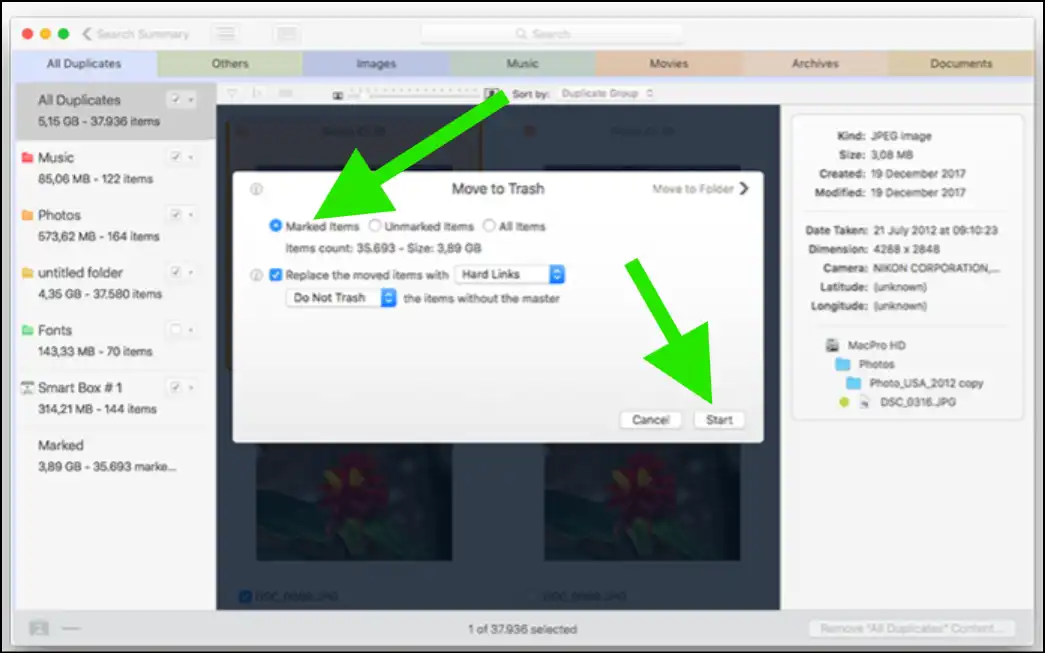
Step 4: Now from the pop-up window, select "Marked Items", and then hit "Start" to initiate the deletion process of duplicate files from Mac.
How to Use Duplicate File Remover on Mobile
For Android
If you are one of those Android users who is always downloading stuff, editing files, and taking many pictures, you must have a large number of duplicates on your device. So, to clean up your device regularly, you need a reliable tool that could quickly find and delete duplicates, like images, videos, docs, zip packages! I recommend you try Duplicate File Remover, an amazing app that helps you reclaim storage space and make your Android device way smoother.
Steps to Remove Duplicate Files on Android
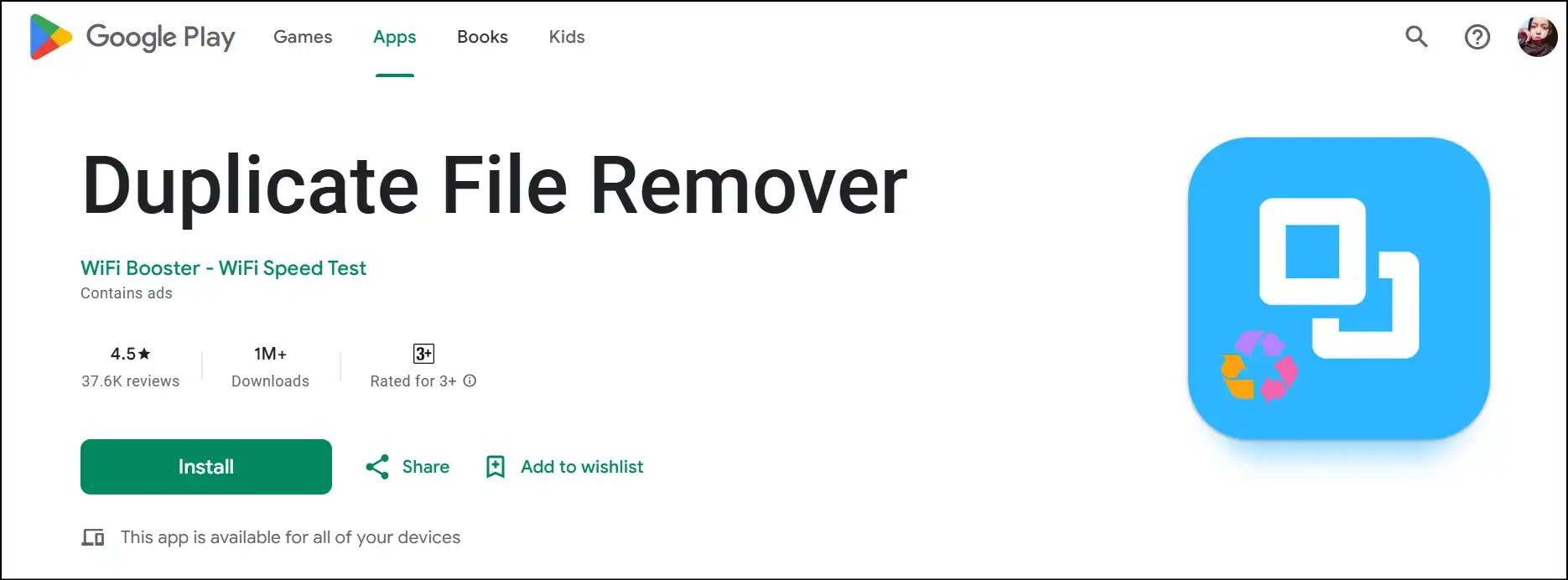
Step 1: Go to the Google Play Store, search, and install "Duplicate File Remover" to delete duplicate files from your Android.
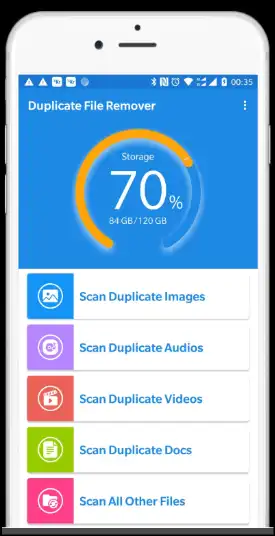
Step 2: Once the installation completes, open the app's interface on your device, and select your desired file type to scan for duplicates instantly.
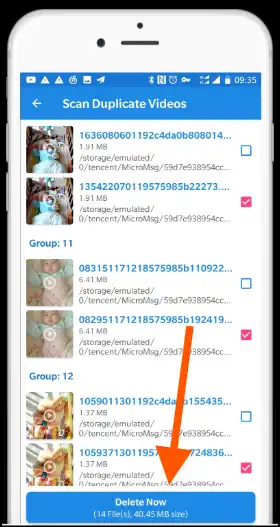
Step 3: The app will pre-select copies of the same files, which you can manually control. Once you are sure, you can hit the "Delete Now" button to start the deletion process.
For iPhone
My device was on the verge of crying; I mean, the storage was that low! I began using the free version of Zero Duplicates Mobile for my official device, an iPhone 6 Pro, and wow, it worked flawlessly. So, I bought the super affordable premium version, which offers unlimited deletion for a year. Here are the steps I follow to keep my iPhone device clutter-free and happy.
Steps to delete duplicate files on iPhone
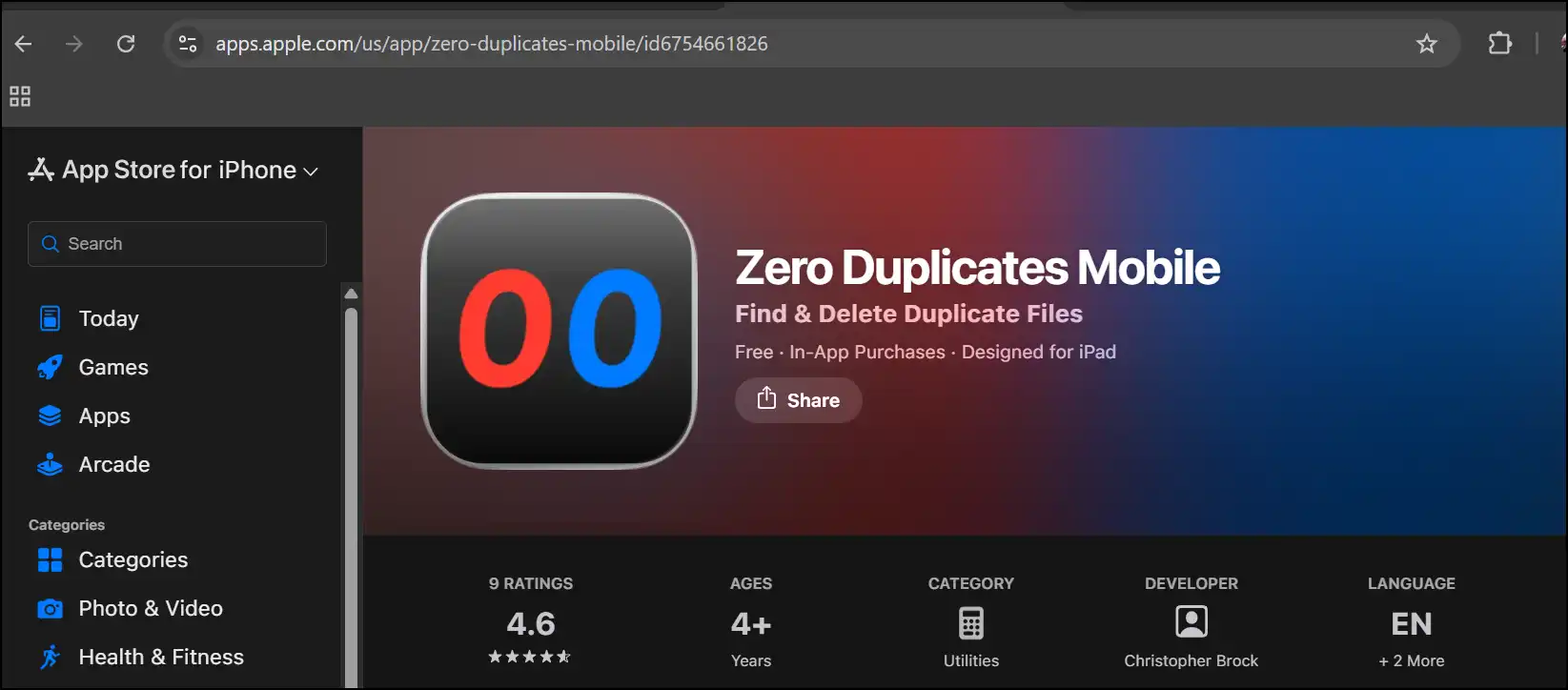
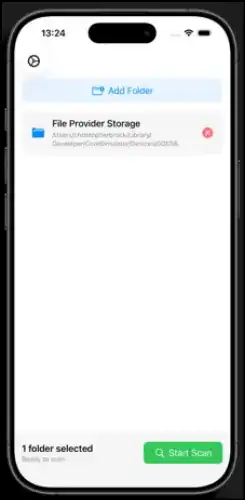
Step 1: Download Zero Duplicates Mobile from the App Store for iPhone. After installation, launch the app and open its interface on your iPhone device. Now add your desired folders, and press "Start Scan" to initiate the scanning.
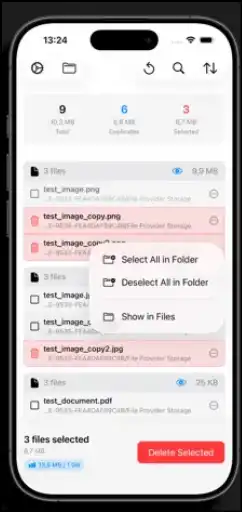
Step 2: Select duplicate files manually or auto-select all the copies of the same file for easy deletion, and then press "Delete Selected".
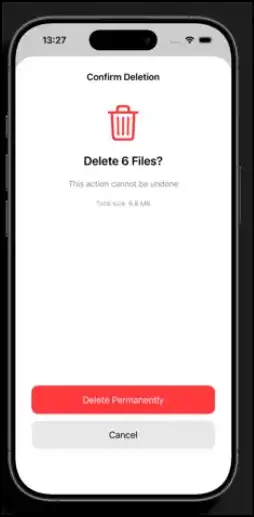
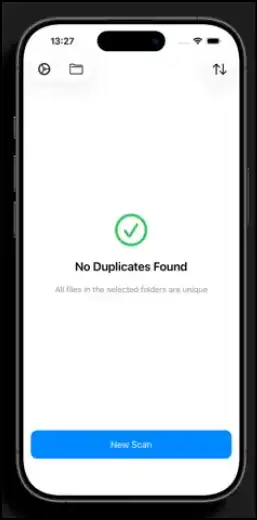
Step 3: Now press "Delete permanently" to confirm the deletion of duplicate files. Once completed, you can hit "New Scan" to select another specific file type for duplicate removal.
How to Use Duplicate File Remover Online
Cloud chaos is a reality for office workers like me. lots of downloading, editing, syncing- you name it! To clean up and organize my cloud storage, I needed a magic wand that scans my cloud in seconds, finds duplicate files, and deletes them in a few clicks. So, after an extensive search, I found Cloud Duplicate Finder, which makes my storage lighter and workflow smoother. Here is how I clean and organize my cloud storage online with duplicate cleaner free.
Steps to Delete Duplicate Files Online
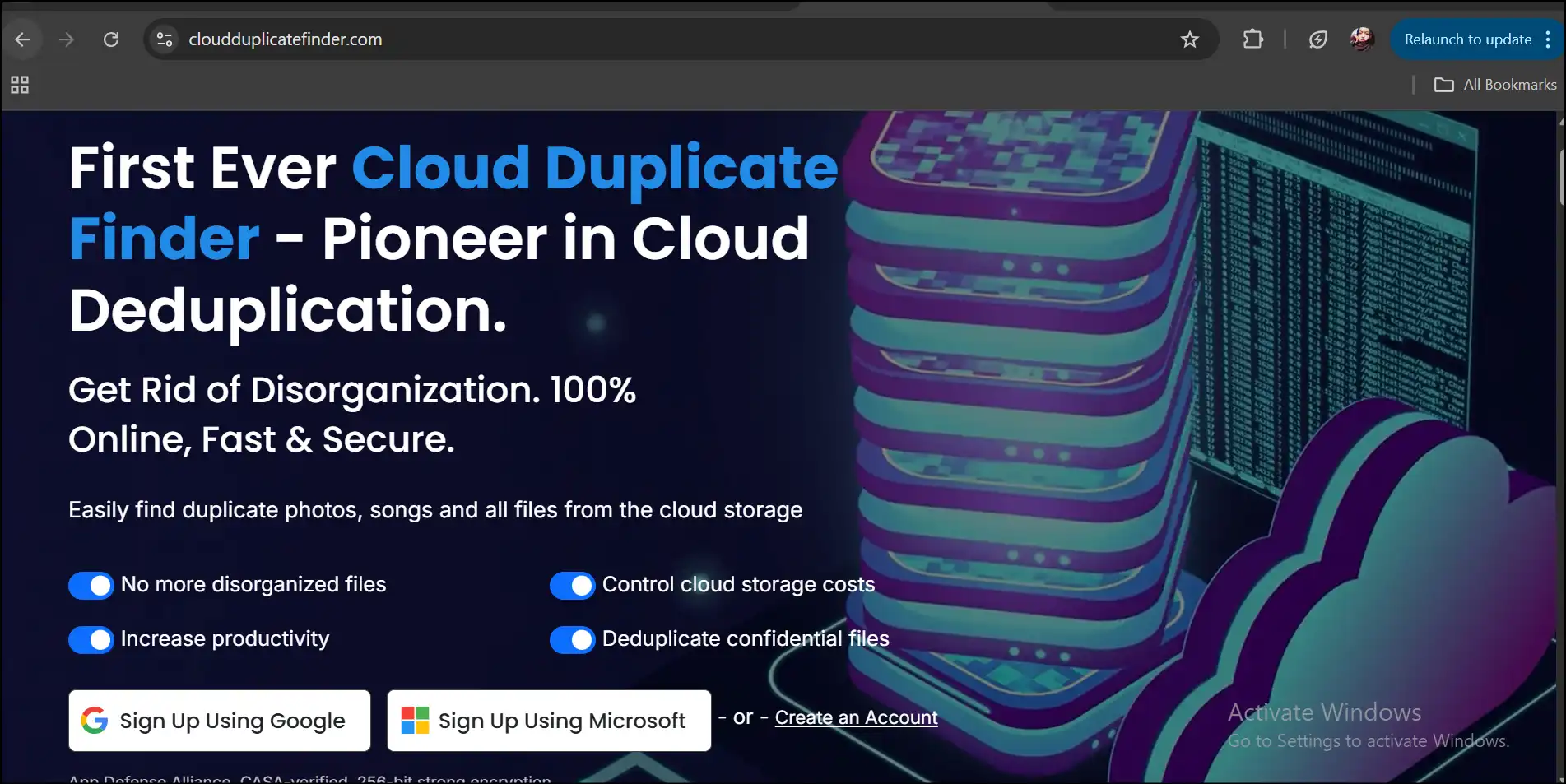
Step 1. Head over to the website of Cloud Duplicate Finder and sign up using either Google or Microsoft to delete duplicate files from cloud storage.
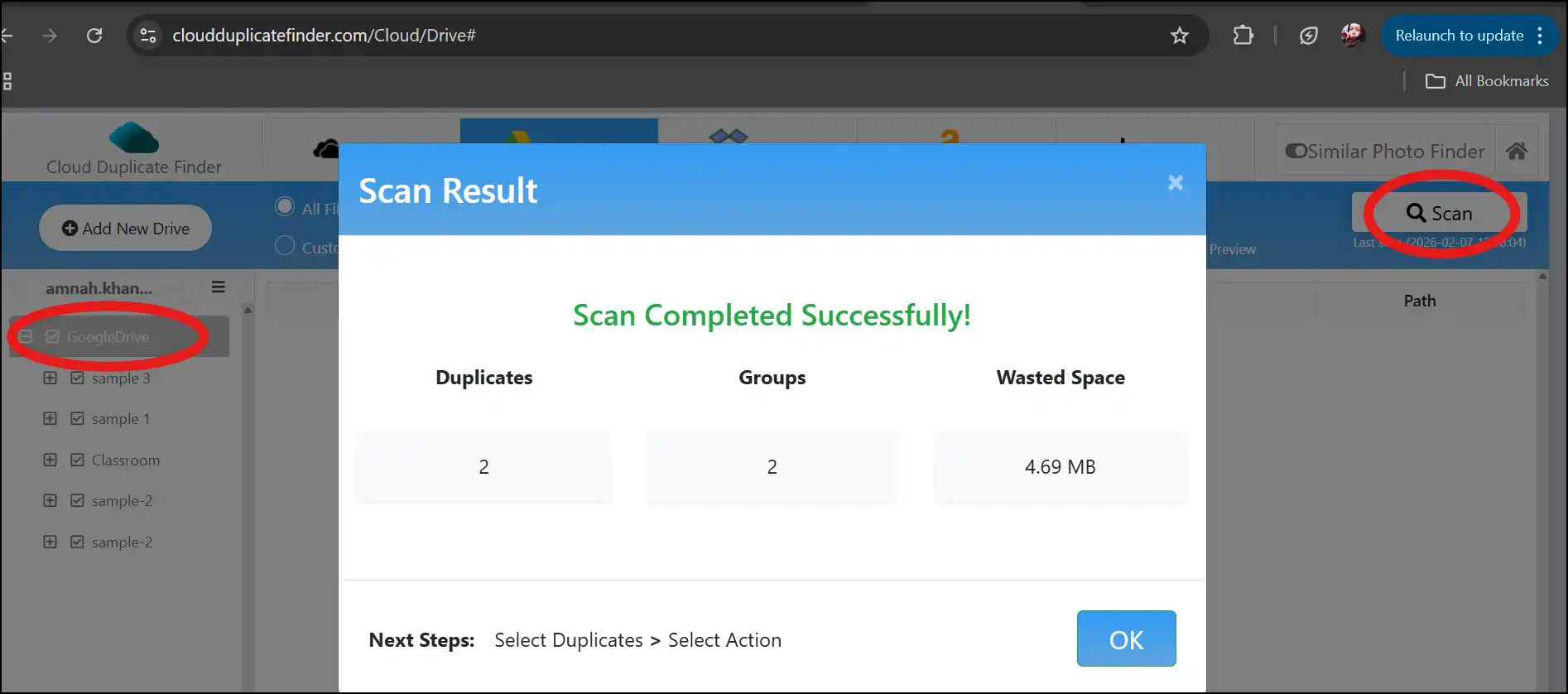
Step 2. Select any desired cloud drive that you want to clean, and select all or a specific folder. Now tap on "Scan" to initiate the scanning process to find duplicates. Once completed, view the details of the scan result and click "Ok" to proceed.
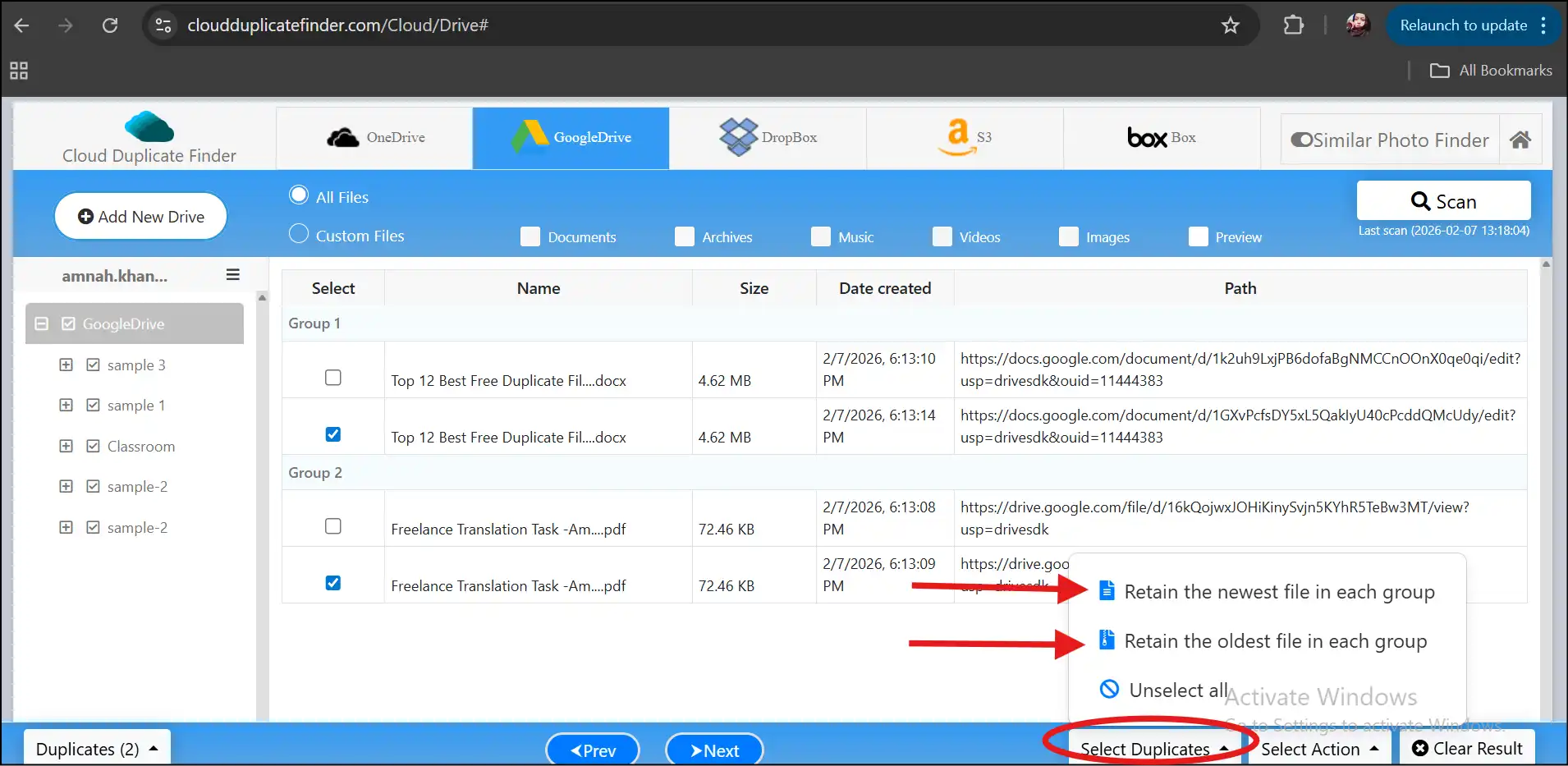
Step 3. Click on "Select Duplicates" to auto-select all the duplicate files. Here you can choose if you want to remove the oldest files or the newest files.
💡Tips:You can select or unselect duplicate files manually to take full control over deletion to prevent accidental loss.
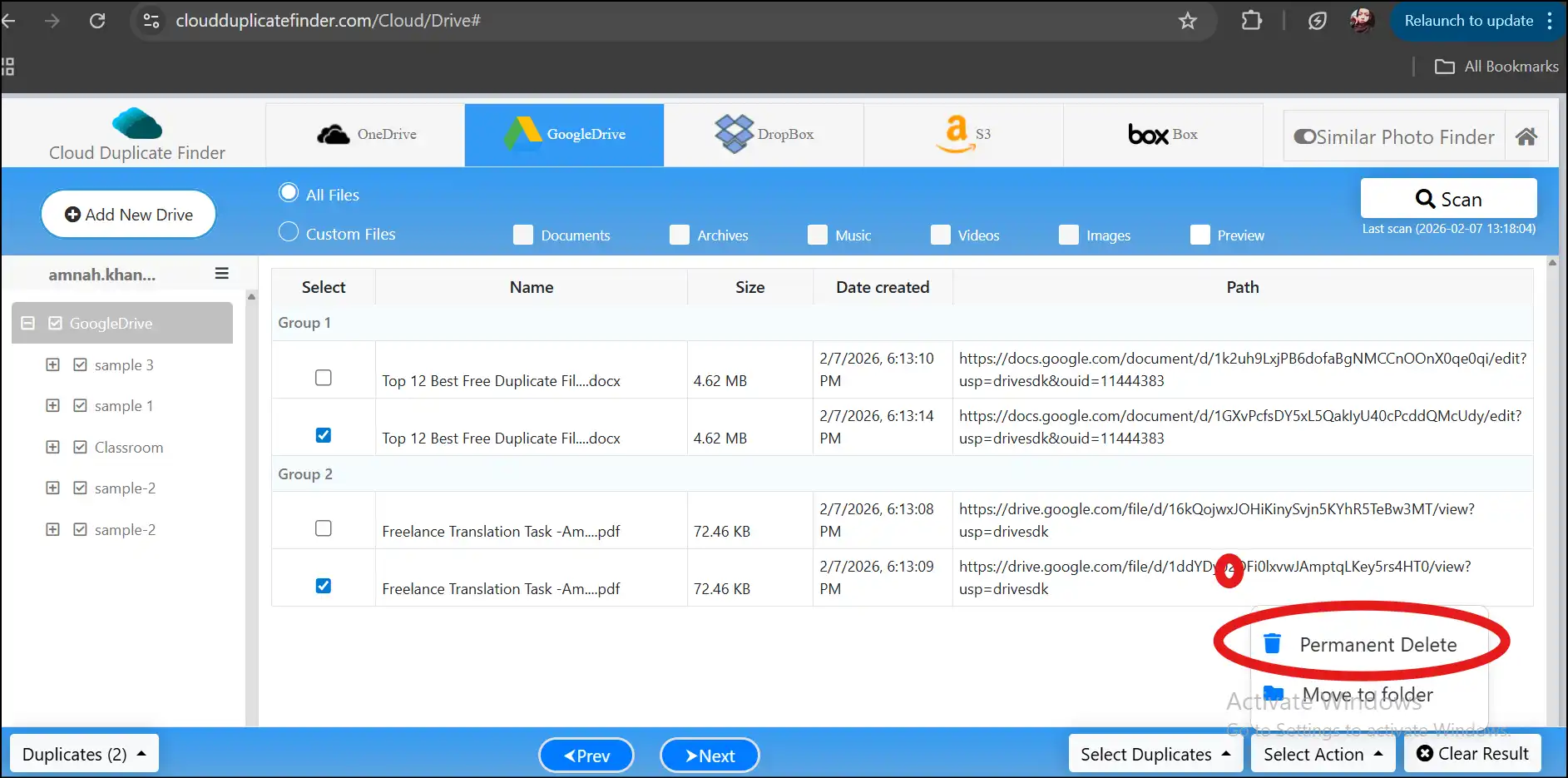
Step 4. Once you are done with the selection, tap on "Select Action", and hit "Permanent Delete" to remove duplicate files from your cloud storage, initiating the deletion process.
Part 3: Top 8 Duplicate File Remover Tools in 2026
1. WMaster Cleanup (Windows)
OS: Windows 7, 8, 10, 11
Price: Free for a limited time
URL: https://www.wmastercleanup.com/
WMaster Cleanup, specifically designed for Windows users, is a super-efficient and user-friendly duplicate files remover. Its content-based advanced algorithms not only scan exact duplicates but also similar files, whether their filename, file size, and metadata are different. This all-in-one and easy-to-process cleanup tool is currently free (for a limited time) with all the features available, like Disk Cleanup , Clear Cache, Clear Browsing History, and more.
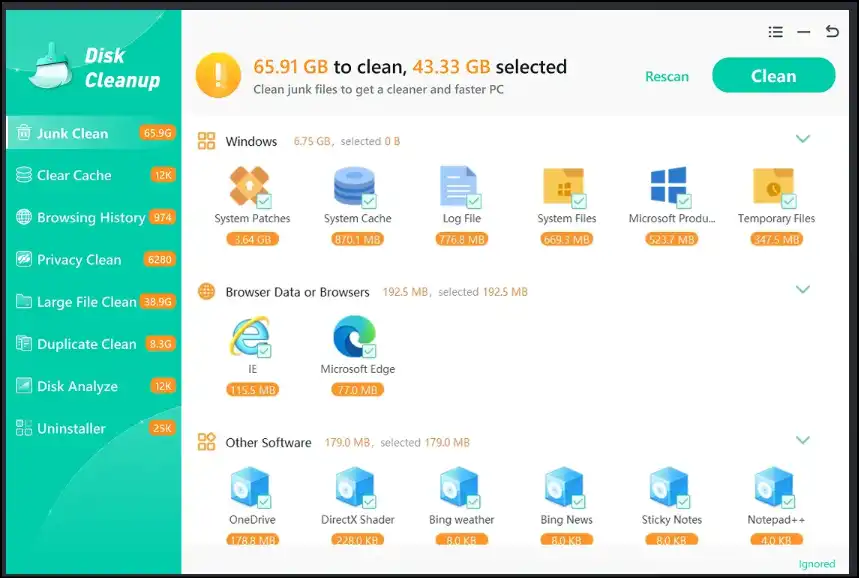
Features:
- The user interface is intuitive, suitable for first-time users
- It offers safe deletion for duplicates with restoring features
- It also offers other cleanup features to optimize your PC
2. Ashampoo Duplicate File Finder (Windows)
OS: Windows 10, 11
Price: Currently Free
Ashampoo Duplicate File Finder is another reliable tool for Windows to locate and remove duplicate files. Its smart processing system auto-keeps the best version of the file and selects the rest of the copies for easy deletion.
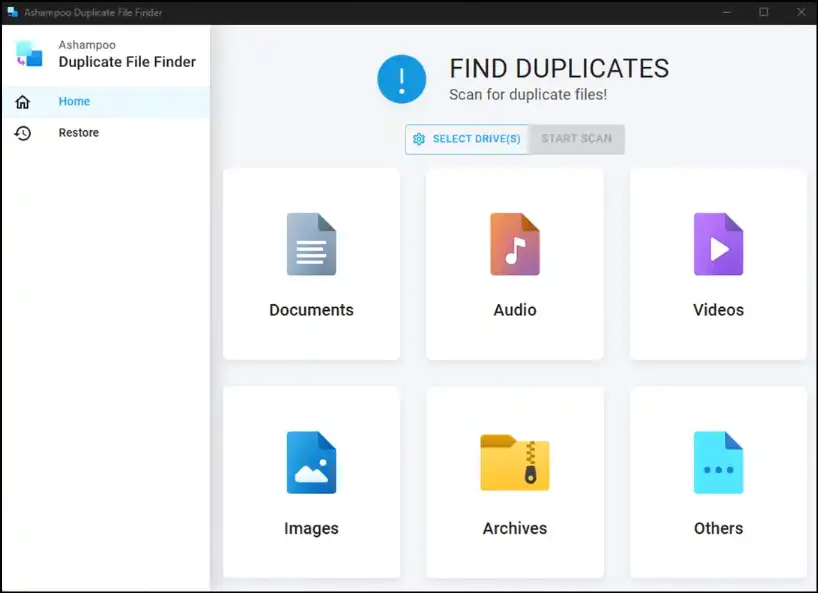
Features:
- The user can preview detected duplicates before deletion
- It provides high-performance scan to identify duplicates
- Exclude master files for easy removal of duplicates
3. CleanMyMac (Mac)
OS:macOS
Price: Paid (with 7-day free trial)
CleanMyMac is a sleek, modern, and comprehensive tool to clean and optimize Mac systems, which includes a powerful duplicate finder and remover. It can scan your entire Mac system for duplicate photos, music, and files to clear out clutter from storage, making it a favorite among Mac enthusiasts.
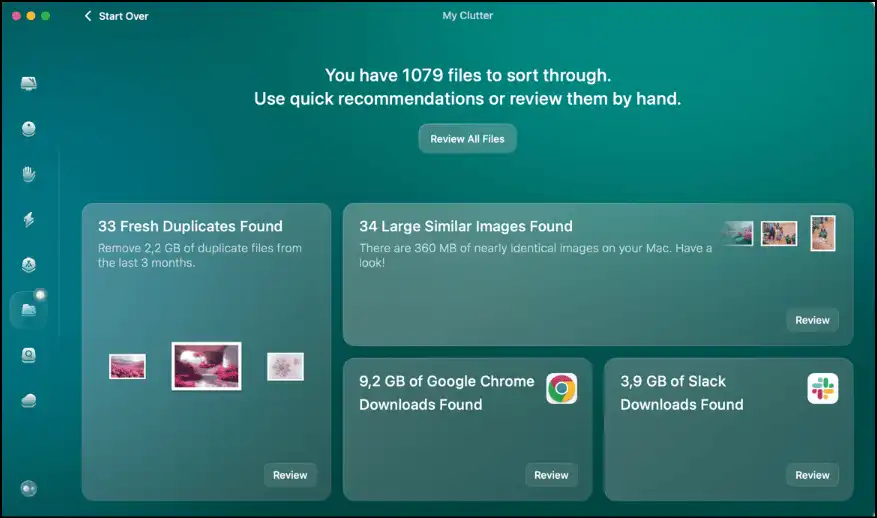
Features:
- It is like a complete clean up package to clean Mac devices
- It also detect and remove similar files, taking device space
- The software is free to use for 7 days to test its performance
4. CleverFiles Duplicate Finder
OS: macOS
Price: Paid
URL: https://apps.apple.com/us/app/cleverfiles-duplicates-finder/id1152611077?mt=12
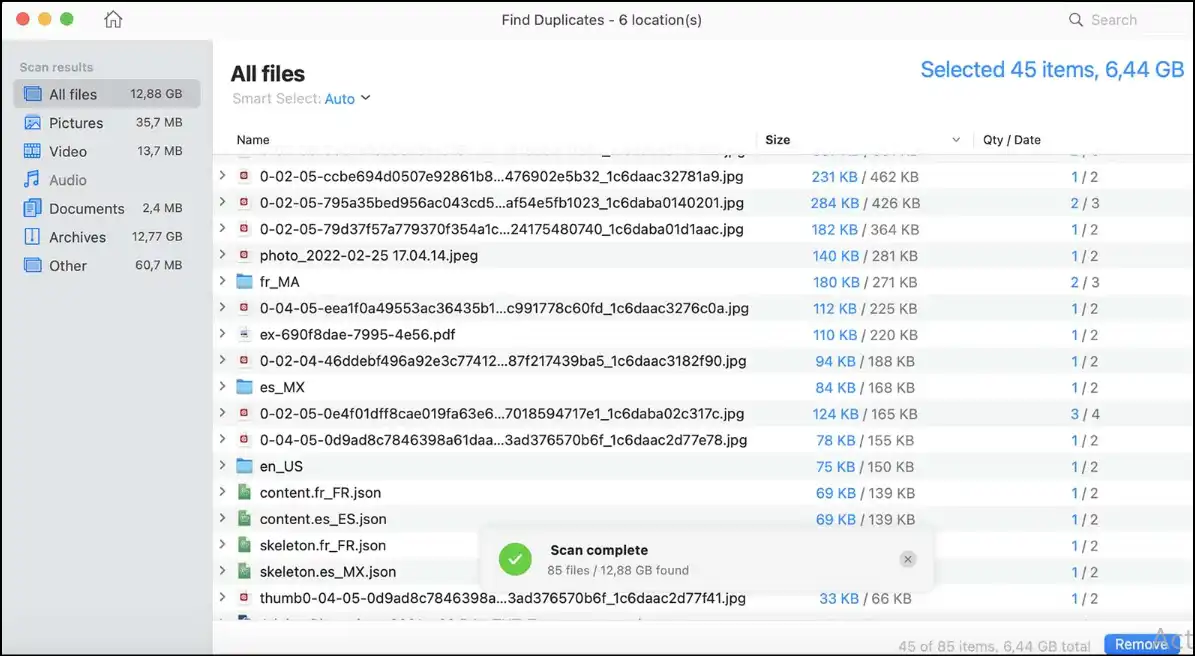
CleverFiles Duplicate Finder is one of the most affordable dedicated Mac applications that is designed to locate and remove all kinds of duplicate files quickly and accurately. This feature-rich duplicate cleaner not only cleans system drives but also cloud services, like Google Drive and Dropbox.
Features:
- It offers batch deletion to remove multiple duplicate files at once
- The user can preview duplicate files before removal
- Custom select single folder or entire system to scan duplicates
5. Find & Remove Duplicate Files (Android)
OS:Android
Price:Free with in-app purchases
URL: https://play.google.com/store/apps/details?id=rs.binary.sweeper
Find & Remove Duplicate Files is a simple and straightforward Android app to help its users to quickly identify and delete duplicate files, like photos, videos, and other files. With its latest UI update, the app runs faster and smoother, making the user experience more refined.
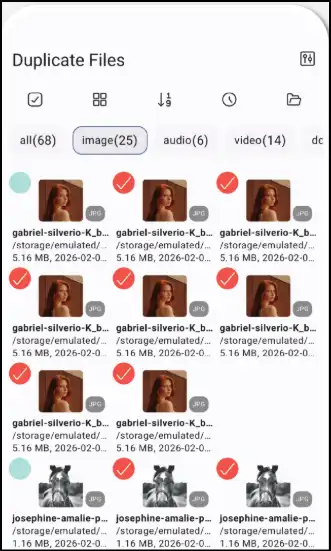
Features:
- Detects duplicates by custom select file formats
- It offers batch processing for easy deletion
- Provides digital report about deleted files and freed up space
6. Duplicate Cleaner (Android)
OS:Android
Price:Free
URL: https://play.google.com/store/apps/details?id=com.frameware.duplicatecleaner&hl=en
Duplicate Cleaner is an efficient Android tool for scanning duplicate files, including photos, documents, music, and videos, and removing them efficiently. This paid tool is intuitive and offers detailed scan results with an easy-to-review detected file, ensuring safe deletion.
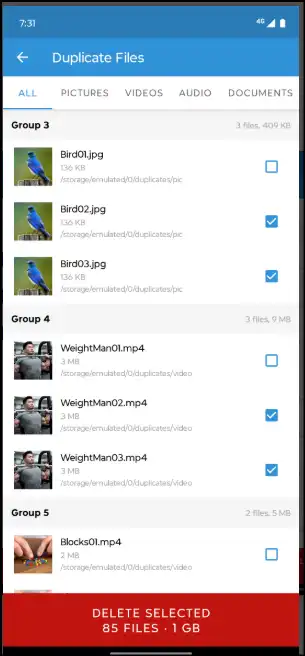
Features:
- It can deeply scan Android devices for exact duplicates
- It supports all major file types for images, videos, audios, and documents
- The interface is beginner-friendly, suitable for both pro and casual users
7. Cleaner Kit- Clean Up Storage (iPhone)
OS:iOS
Price: Free with in-app purchases
URL: https://apps.apple.com/in/app/cleaner-kit-clean-up-storage/id1194582243
Cleaner Kit is a versatile app for iPhone users, which helps in managing device storage by finding and removing duplicate photos, videos, and files. It smartly detects duplicates and similar files and lets you delete them in bulk with one tap. Other than that, it also offers users the ability to declutter their email and contacts.
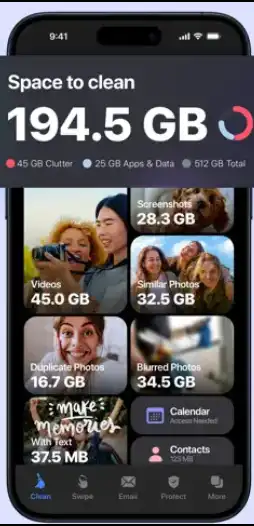
Features:
- It offer data privacy and security by working offline
- Delete duplicate files in one go with batch processing feature
- Statistics shows how much space you claimed and how many files you deleted
8. Cleaner Neat: Clean Up Storage (iPhone)
OS: iOS
Price: Free with in-app purchases
URL: https://apps.apple.com/us/app/cleaner-neat-clean-up-storage/id1463756032
Cleaner Neat is a straightforward tool for iPhone users, which can easily find, remove, and organize duplicate files and contacts. With its smart analysis and clear previews, the users can control the duplicate deletion process while freeing up storage and keeping the device organized.
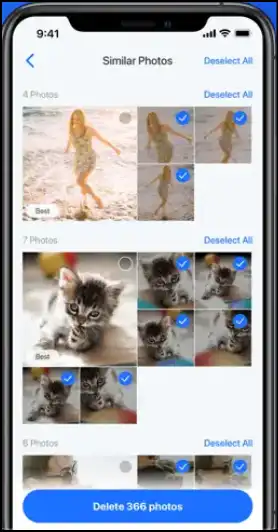
Features:
- It detects and remove exact and similar files, like images, videos, and contacts
- It offers preview option for safe deletion to prevent accidental loss
- The user interface is straightforward to navigate, suitable for all skill levels
4.2 My Personal Recommendation
For my home system, Windows 11 Pro, I use WMaster Cleanup, as it combines speed, safety, and features you won't find elsewhere. The best part? It is currently free to use for a limited time. Similarly, if I talk about my personal Android phone, I would go with the "Duplicate file remover" app. It is a feature-rich free Android app that helps me clear out duplicates and near-identical files.
For my office system, iMac 2024, I would recommend "CleverFiles Duplicate Finder", and for my office phone, iPhone 16 Pro, I use "Zero Duplicates." Both of these free duplicate cleaner software-offer sleek, powerful features to clean up my Apple devices with high accuracy.
Part 4: How to Delete Duplicate Files Safely
When you are deleting duplicate files from your devices, safety comes first! Remember to preview the details of detected duplicates, regularly back up your data, and use tools that offer restoring options. Follow these steps to prevent critical data loss:
1. Choose a reliable duplicate finder and remover, check ratings and comments
2. Choose specific folder or deep scan for comprehensive results
3. Carefully preview found duplicate files to avoid deleting important files
4. Before hitting the delete button, back up your data
5. Verify your deletion by checking out your storage space
Part 5: Tips to Prevent Duplicate Files in the Future
It is way easier to prevent duplicate files than to clean them up later. By following cleaning habits, like regular cleaning, avoiding repeated downloads, giving proper names to files, and using a dedicated duplicate file cleaner, you can save yourself a lot of hassle down the line:
1. Delete duplicate files as soon as you find them to organize your files regularly
2. To avoid multiple local copies of the same file, use cloud service with auto syncing
3. Avoid downloading the same file multiple times
4. Set default locations to save downloads and documents
5. Use a dedicated duplicate file cleaner to keep clutter in check
6. Be mindful when you transfer data; double-check before copying or syncing
Part 6: FAQs about Duplicate File Remover
1. Can duplicate file remover delete system files by accident?
No, all reputable duplicate file remover tools are designed to avoid touching critical system files and include safeguards. Moreover, you can use the preview option before hitting the delete button to prevent the removal of system-critical files.
2. What is the difference between a duplicate finder and a duplicate remover?
Duplicate finders work as detectives who hunt down duplicates based on things like filenames, formats, size, or content hashes. Whereas duplicate removers work as a cleanup crew that helps you get rid of them. Mostly, all reputable tools offer both functionalities, helping you find and delete duplicate files in one go!
3. Do I need different tools for photos, music, and videos?
Not necessarily! Many reputable duplicate file cleaners, like WMaster Cleanup (Windows), support multiple file types in one scan.
4. Can duplicate removers recover accidentally deleted files?
Many duplicate removers offer backup features, but recovery depends on whether you have backed up your data before deletion. Likewise, some tools send all the data to the Recycle Bin after deletion so that you can restore accidentally deleted files.
5. Are online duplicate cleaners safe to use?
Yes, these online duplicate cleaners, or extensions, are safe if you use trusted platforms that guarantee data privacy and security.
In Summary
In today's digital world, unlike manual deletion, managing duplicate files has never been easier or safer with the advent of smart duplicate file removers in 2026. Whatever device you use-Windows, Mac, Android, iPhone, or even online platforms-there is a reliable solution to eliminate duplicate files.
I have shared my personal experiences throughout this write-up with top tools like WMaster Cleanup (Window), Tidy Up 6 (Mac), and others by highlighting their key features and how you can use them efficiently. Moreover, if you keep the habit of regular cleanup with the right tool, it makes your device clutter-free, well-organized, and running smoother.


