

.jpg)
A Mac photo library can quickly get out of hand! You would simply shoot a burst, make some edits, import from your iPhone, sync iCloud, and just like that, your storage is choking on copies of the same photos. Are you looking for how to delete duplicate photos on mac? I have dealt with this issue so many times myself, just like countless Mac users who complain of the same thing.
But here is the good news: after some research, I have come up with 4 ways to delete duplicate photos on Mac, which I am going to share with you. Let's go through these solutions together, and if you back up your Mac's data to a Windows PC too, I have a bonus tip to manage duplicate files there as well.
In this article
- Why Are There So Many Duplicate Photos on Mac?
- How to Delete Duplicate Photos in Mac Finder
- Find and Delete Duplicate Photos on Mac with the Built-in Duplicate Finder
- Delete Duplicate Photos on Mac Manually by Photos App
- Delete Duplicate Photos on Mac by CleanMyMac
- Bonus Tips: Don't Forget the Windows PC or External Backup Drive
- Helpful Tips to Keep Your Mac Photo Library Clean
- FAQs Related to Delete Duplicates Mac Photos
Part 1: Why Are There So Many Duplicate Photos on Mac?
So many duplicate photos on Mac do not appear out of thin air. Things like taking burst shots, saving edits as new files, multiple iPhone camera imports, etc., all result in tons of duplicate photos that eat your storage. Here are the 5 major culprits who are taking up all the space on your Mac's photo library:
- Burst Shots: In every burst shot, 10 to 20, and even 30, near-identical frames are created, and most people keep them without even knowing.
- Edits Saved As New Files: When you edit a photo and, instead of overcopying, you save a new copy, you end up with both the original and edited versions in your storage.
- Multiple iPhone Camera Imports: If you import the identical photos repeatedly and don't double-check first, it will lead you to generate immediate duplicates.
- iCloud Sync Conflicts: If you sign in or switch to other devices, iCloud may frequently redownload photos already on your device.
- External Drives and Old Libraries: If you import photos from an external drive or merge an old library, it will bring up the same photos you have already got.
Part 2: How to Delete Duplicate Photos in Mac Finder
There is no built-in feature like a duplicate finder in Mac Finder. So you have to manually sort and spot duplicates by date or file name.
Step on How to Delete Duplicate Photos From Mac Finder:
Step 1: Open "Finder" and go to the folder where all your photos are sorted, usually the "Pictures" folder.
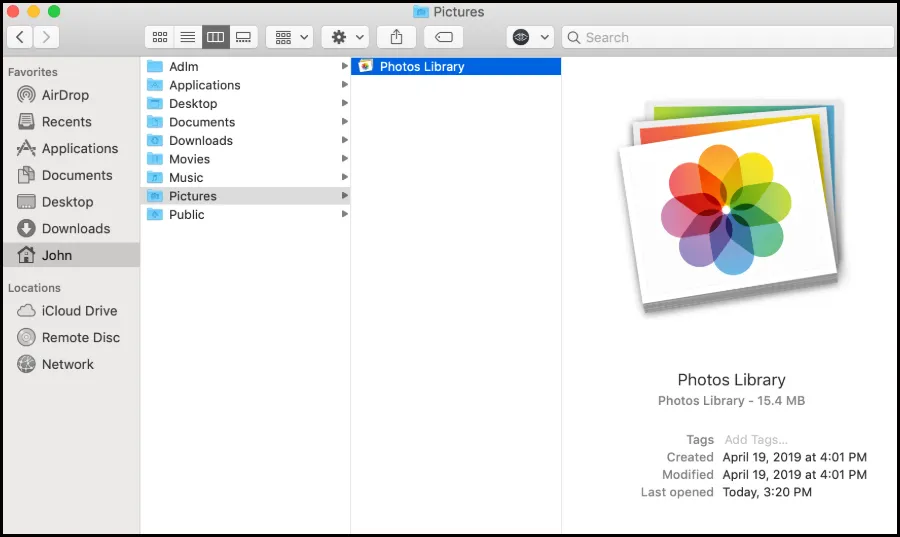
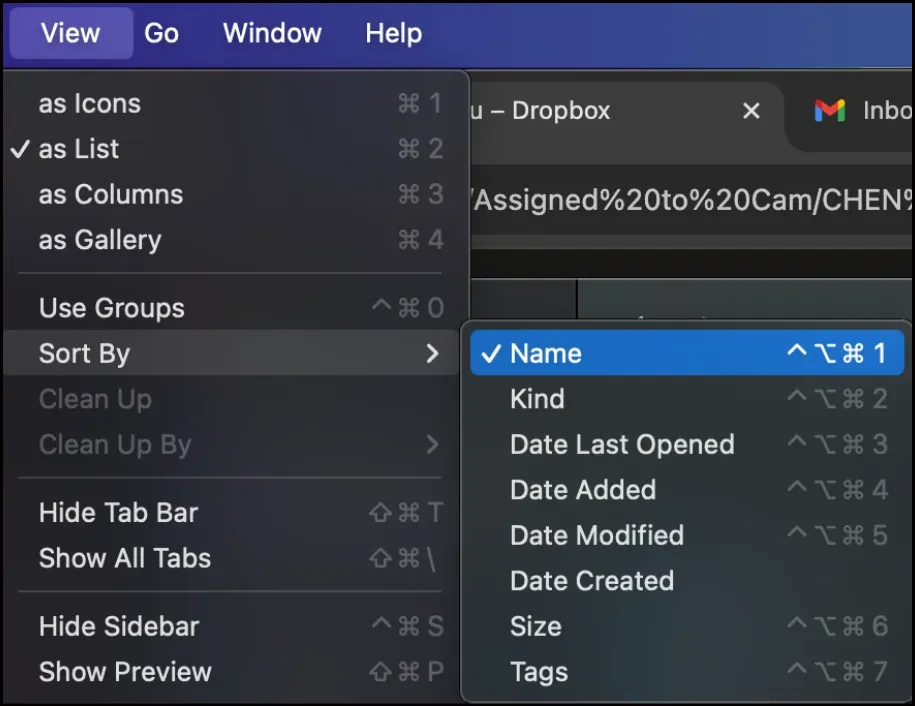
Step 2: Click on the "View" menu and select "As List," choose to sort all the files in alphabetical order, and click "Name."Duplicate files usually have identical or near-identical names.
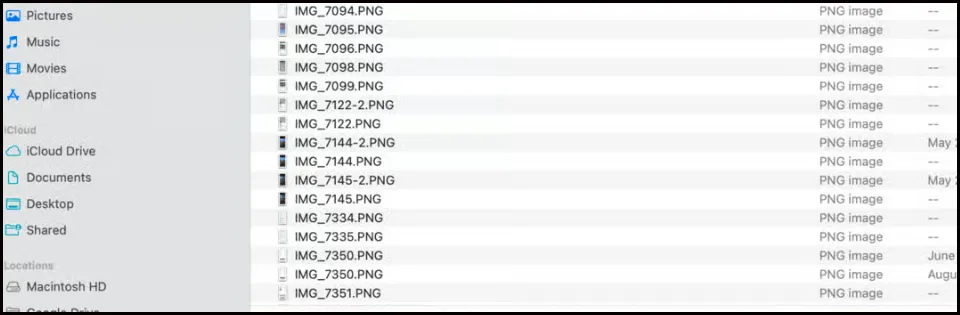
Step 3: You can find out the identical names in the list of files. There might be slight variations too, like "IMG_001" or 'IMG_0012,' etc.; to select the duplicates, hold "Command"and click each one.
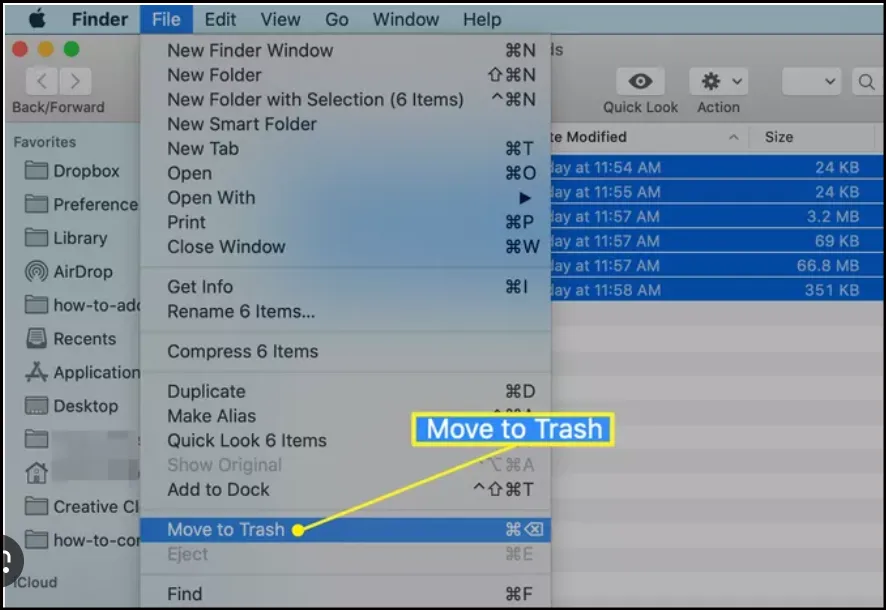
Step 4: Right-click the selected files and select Move to Trash" to delete the duplicate photos.
💡Tips:Thereafter, go to the Trash folder and right-click the Trash icon and select "Empty Trash" to permanently delete duplicates and free up your space.
Part 3: Find and Delete Duplicate Photos on Mac with the Built-in Duplicate Finder
Using the "Photos" app is one of the easiest ways to delete duplicate photos in your macOS Ventura and later versions, which have a built-in duplicate finder. So if you have that, you can delete photos on a Mac without using any third-party app.
Steps to Delete Duplicates in Mac Photos
Step 1: On your Mac, open the Photos app on your desktop.
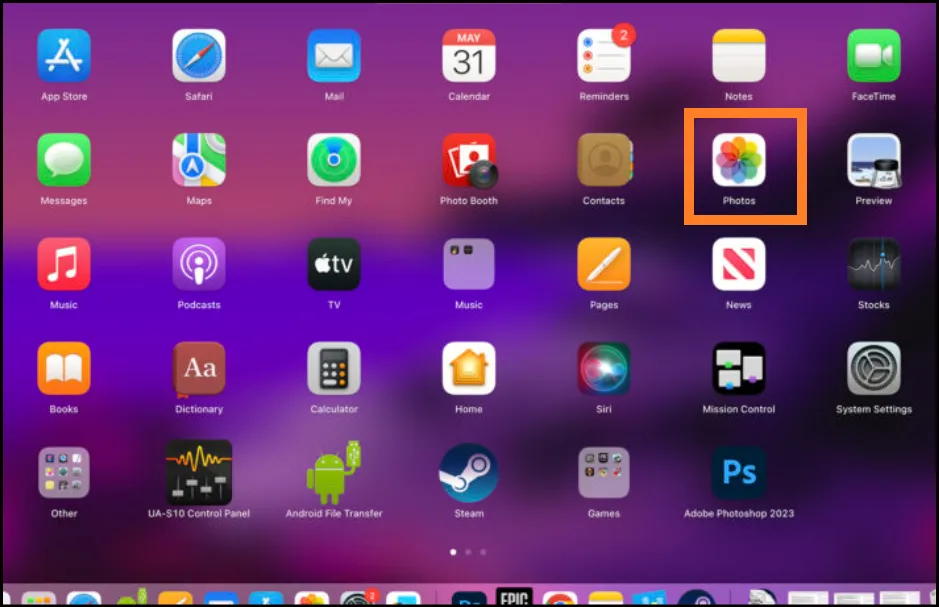
Step 2: Scroll down in the left sidebar. Under the Library section, there you will see the option "Duplicates"; click on it.
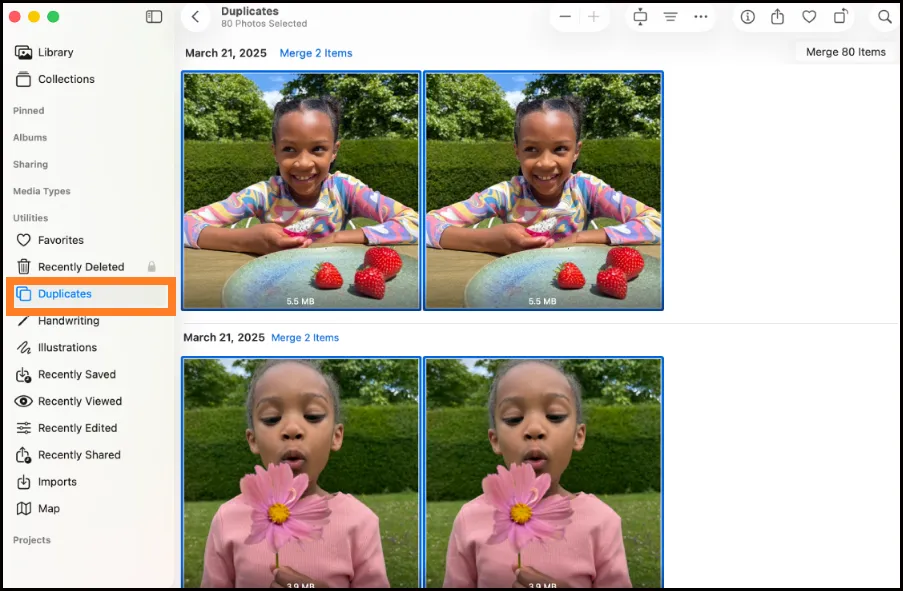
Step 3: You will observe that all the duplicate photos have been grouped in sets or pairs. Carefully review them; the Photos app will even point out which one of the copies has higher quality.
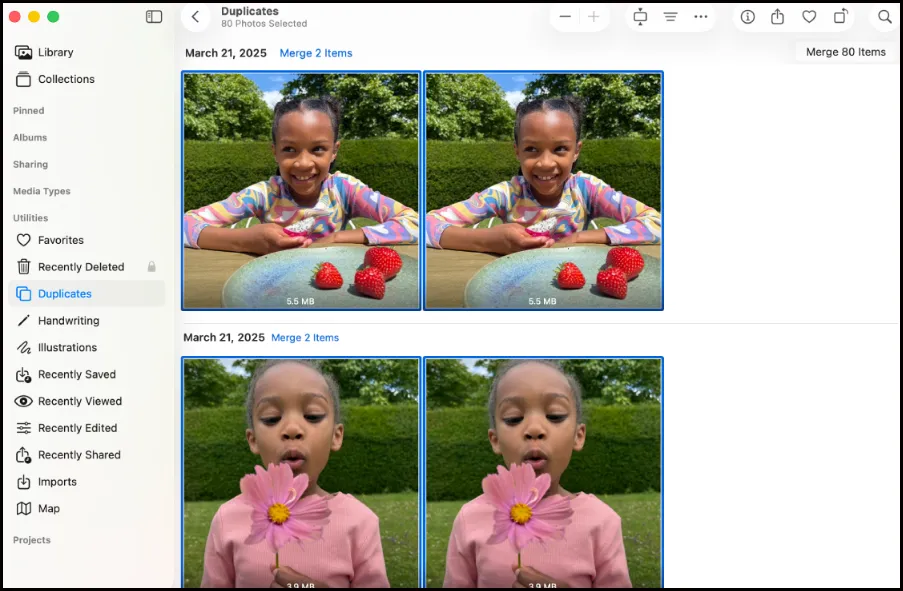
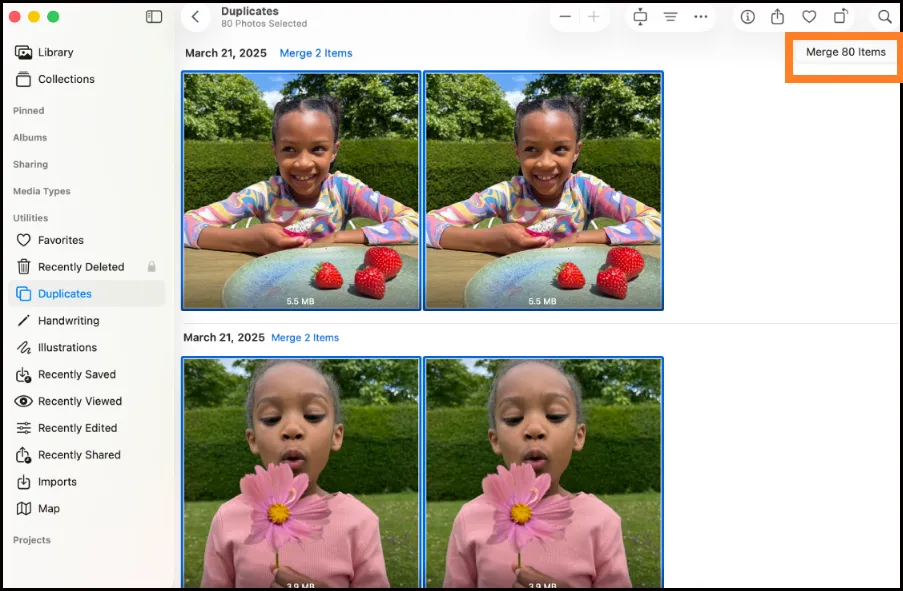
Step 4: Click Merge; the app will only keep the best quality version and automatically remove the rest.
💡Tips:You can also press Command + A to select all the duplicates and clear everything at once. Then click Merge X Items.
Part 4: Delete Duplicate Photos on Mac Manually by Photos App
If you have an older version of macOS and there is no built-in duplicate cleaning feature, don't worry, we have got you. You can still find and delete duplicate files on Mac inside the Photos app manually.
Steps on How to Delete Duplicate Photos on Mac Photos App:
Step 1: Go to the "Photos app" and also make sure the All Photos option is selected to see your full library.
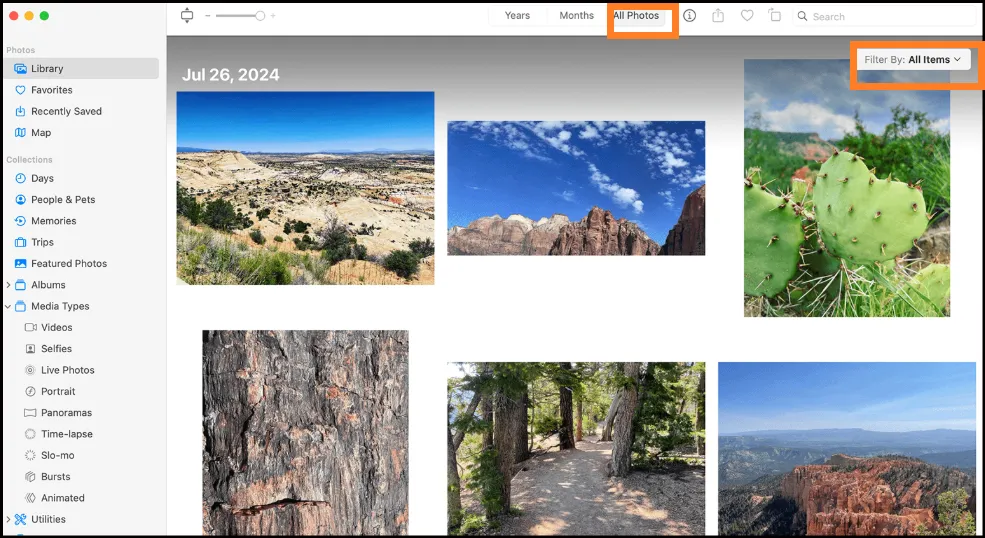
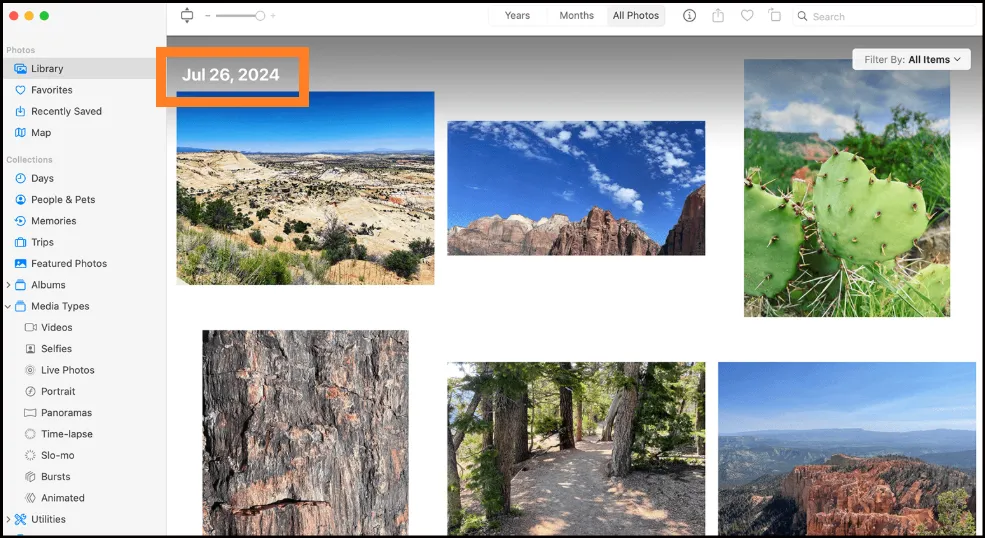
Step 2: On the menu bar, click "View", then select Sort > Keep Sorted By > Oldest First, or by Date.
💡Tips:Sort your images by date because it will put all similar photos taken at the same time into one group, making it super easy to identify duplicates.
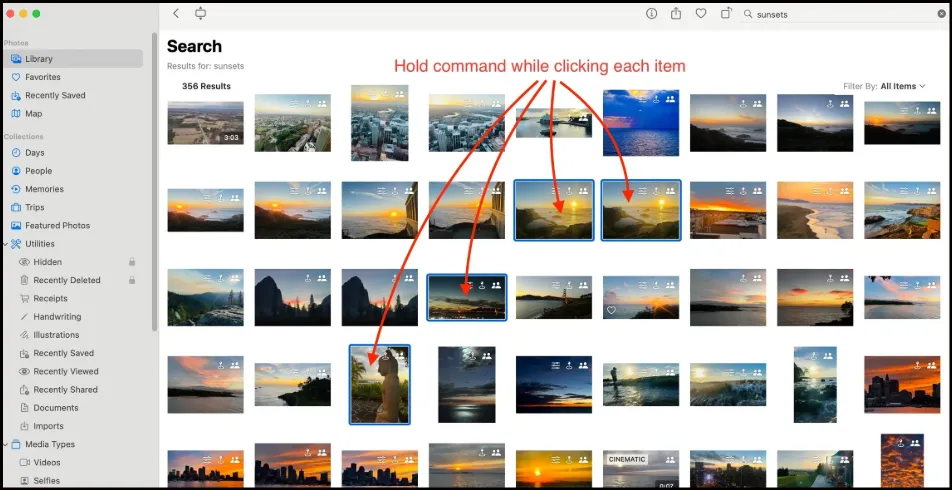
Step 3: After pinpointing a duplicate photo, click on it to select it. Now, hold down the Command key and continue selecting other duplicate photos within that group to multi-select for easy deletion.
Step 4: When you are done selecting all the duplicate photos, right-click on the selection and choose "Delete X Photos."
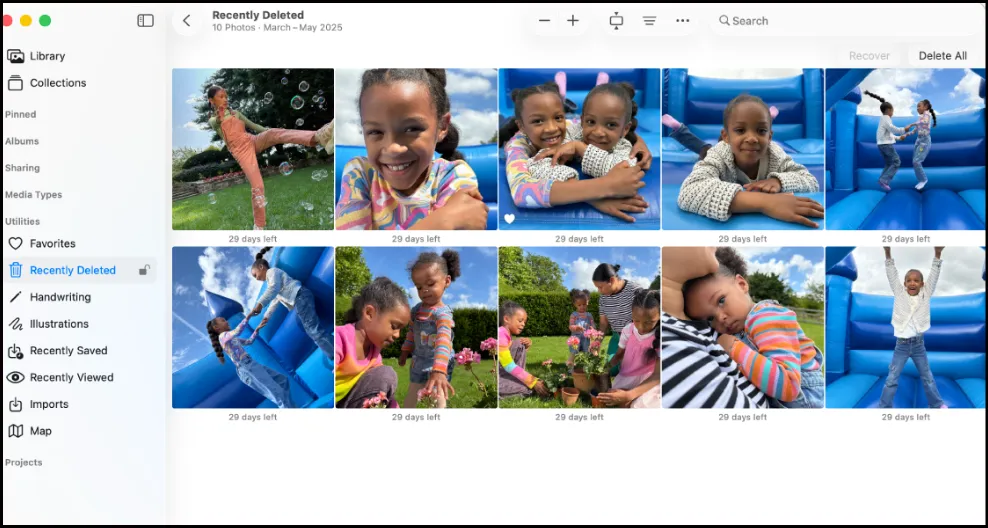
Tip: Head over to the "Recently Deleted" section in the sidebar and hit "Delete All" to remove duplicate Mac photos and free up space.
If you are a fan of Apple devices, like the iPhone, refer to our latest article of 2026 to delete duplicate files on different platforms .
Part 5: Delete Duplicate Photos on Mac by CleanMyMac
If you feel like manual methods are too time-consuming, I hear you. There is a popular third-party option for Mac users that we can use called CleanMyMac. CleanMyMac scans your entire system, which of course includes your photo library, and it automatically finds duplicate or similar photos.
- URL:https://cleanmymac.com
- Price:A free scan is available. Paid plans start at $34.95 per year.
Check out our hands-on reviews on other Mac apps to delete duplicate files and images for a faster and cleaner system.

Steps for how to delete duplicate photos on mac:
Step 1: Go to the official website, download, and install CleanMyMac. After the installation, open the app on your Mac's desktop.

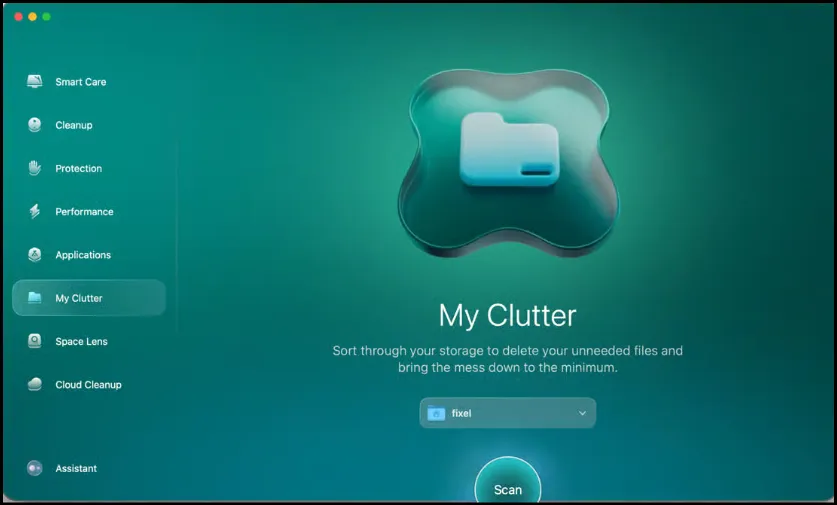
Step 2: In the left sidebar, you will see either the My Clutter or the Duplicate Finder option; click it and then hit Scan to initiate the process.
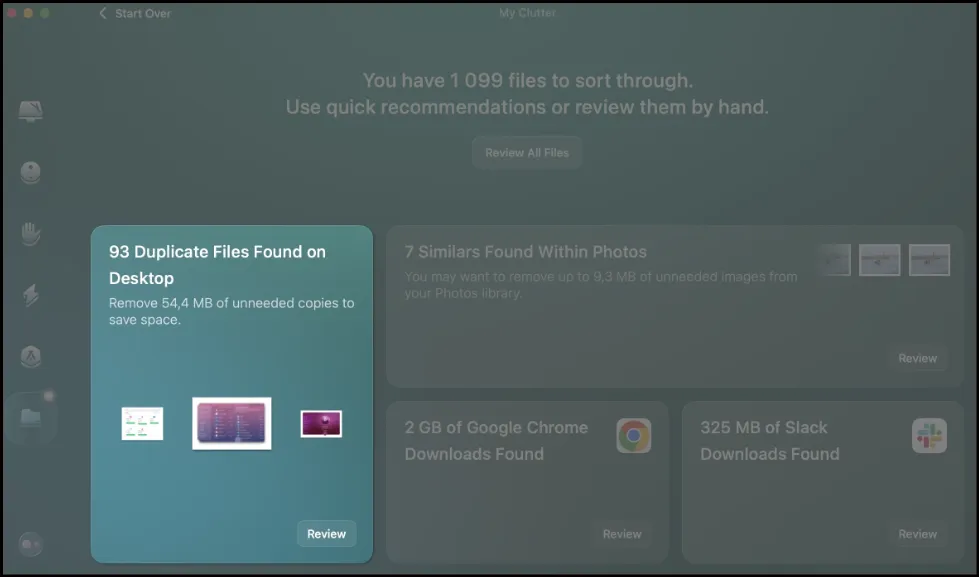
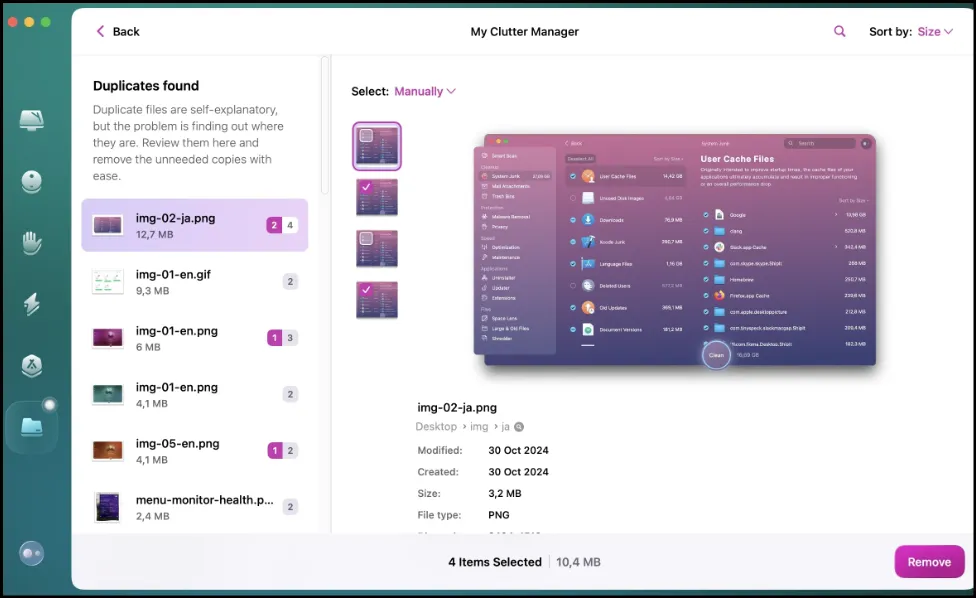
Step 3: CleanMyMac will group up all duplicate photos it finds. Before deleting anything, please take a moment to review the results. You can see all the details there, like file names, location, sizes, etc.
Step 4: Select the duplicates that you want to remove. Click Remove to permanently delete them from your Mac system.
Part 6: Bonus Tips: Don't Forget the Windows PC or External Backup Drive
The Problem with Windows Backups
For extra backup, a lot of Mac users copy their photo library or export it to an external drive or Windows PC. As time goes by, these backup folders quietly collect together the same duplicate photos, junk, and oversized files. This process eats up storage on your Windows just as badly as on your Mac.
Clean Up Windows Backups with WMaster Cleanup
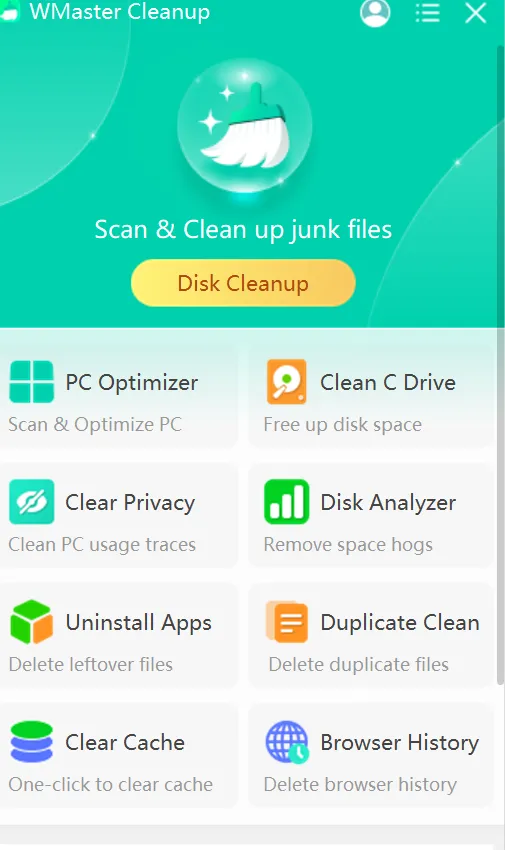
This is where I would like to introduce this amazing Windows tool to you: WMaster Cleanup. An all-in-one Windows cleaner that I guarantee is the best solution to keep your Windows backup folders clean, and the best part is that it's free for a limited time. With a beginner-friendly user interface, it will handle everything from leftover junk files and bloated cache to duplicate photos copied over to your Windows in just one click.
To learn more about WMaster Cleanup’s Duplicate File Removerfeature, refer to the feature page and know how can you find and delete duplicate files on Windows.
5 Key Features of WMaster Cleanup:

WMaster Cleanup
Clean up Windows Backups With WMaster Cleanup in One Click
- ·Visible interface allows you to see the name, path, size, and modifications of duplicate files for safe deletion.
- ·Finds all duplicate files in bulk with just one click and allows you to delete them in bulk or manually.
- ·Content-based analysis detects similar photos even when the size, metadata, and file name are different.
- ·MD5 algorithm deep scans and finds duplicate images across local SSD and HDD, external hard drives, and USB flash drives.
- ·Offers a simple user interface that can be easily used even by beginners and casual users.

How to Delete Duplicate Files on Windows with WMaster Cleanup
Step 1:Head over to the home page of the official website of WMaster Cleanup and click "Download Now".After the download is completed, install the software on your PC to delete duplicate photos from your Windows system.

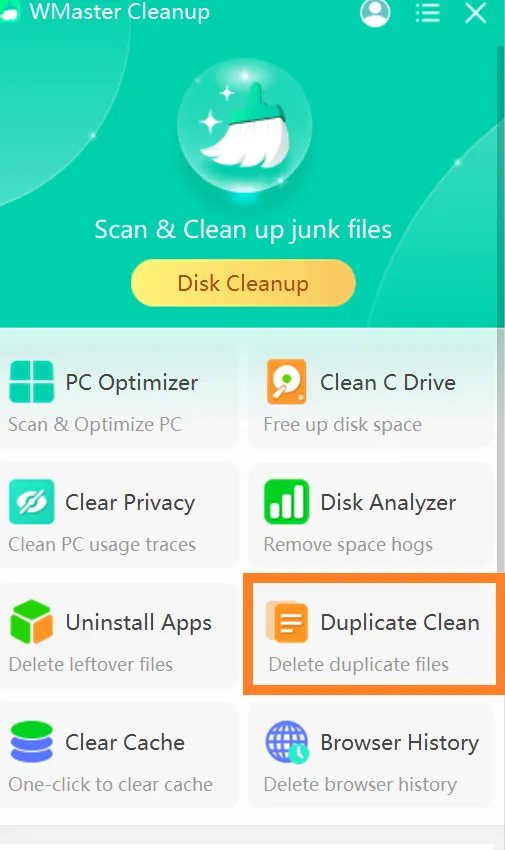
Step 2:Open WMaster Cleanup, and you will see a main dashboard where you need to click Duplicate Cleanto delete duplicate photos.
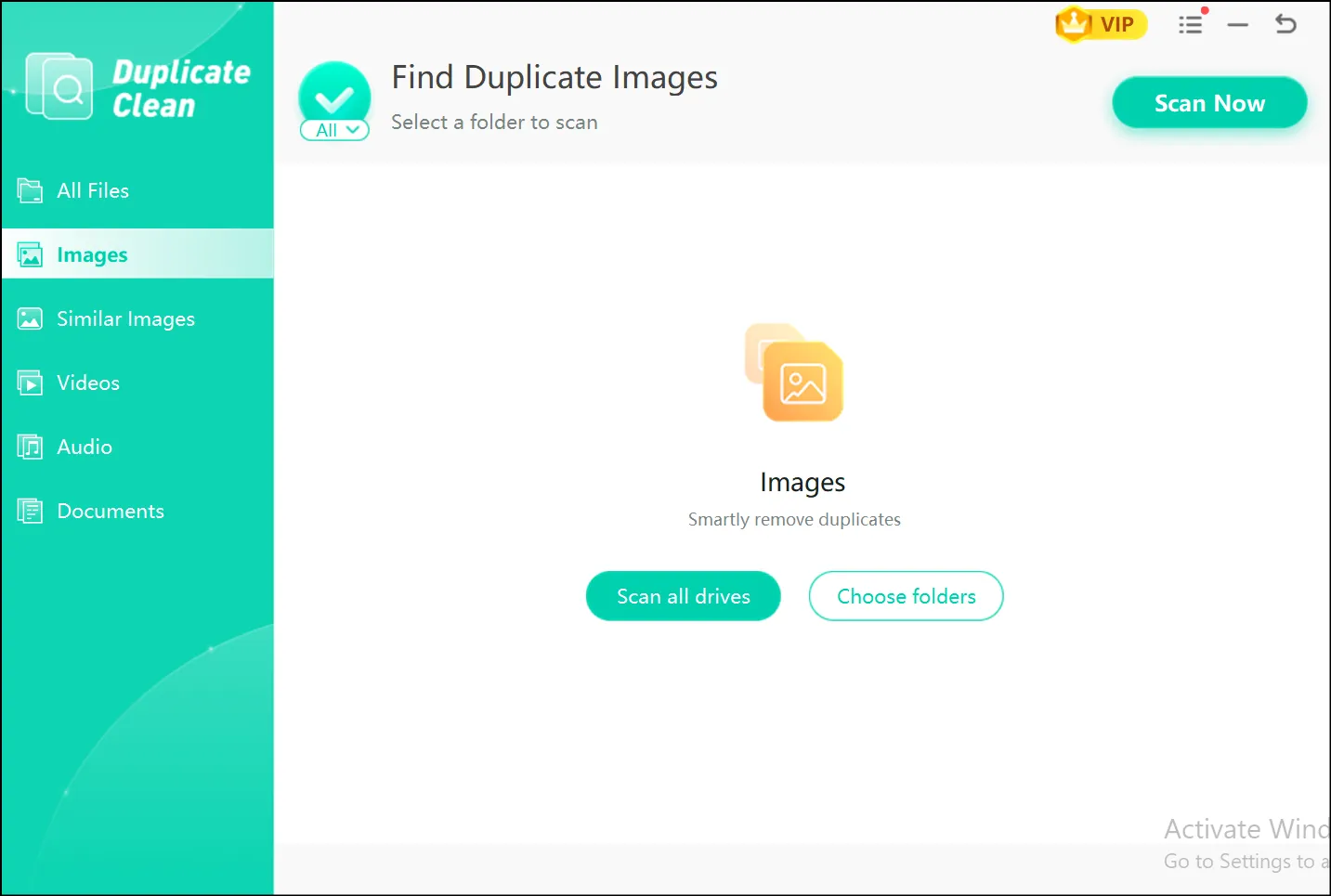
Step 3: Click Scan Now," and the tool will instantly start to scan selected drives and folders on your pc for all duplicate photos.
💡Tips:Select "Similar Images" option to scan near-identical images from your drives or folders.
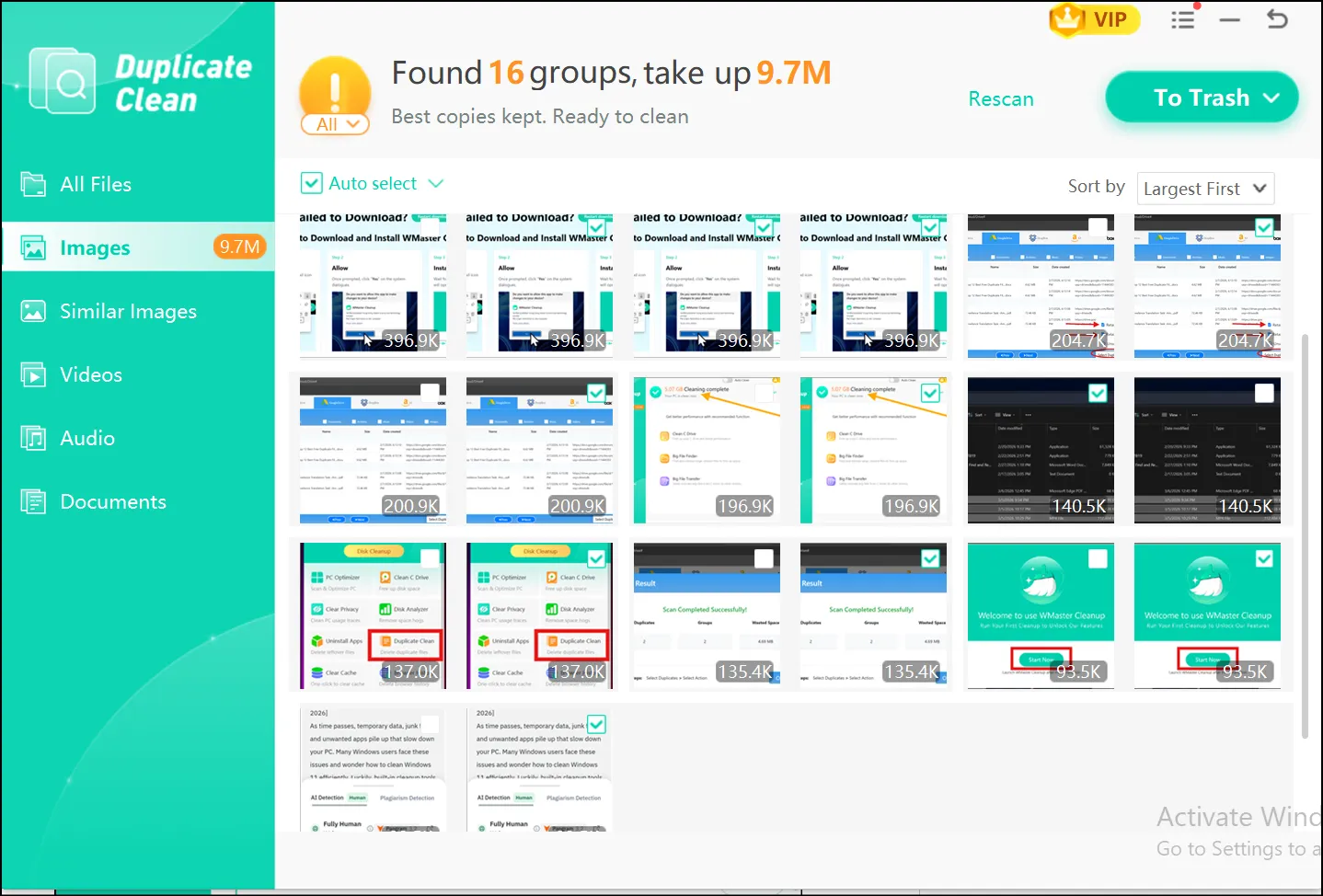
Step 4: When you receive the scan results, all the duplicate photos will be grouped; click "To Trash", and it will remove all duplicate or similar photos and instantly free up your backup space
💡Tips:Before moving on to the deletion process, review what you want to remove and what you want to keep.
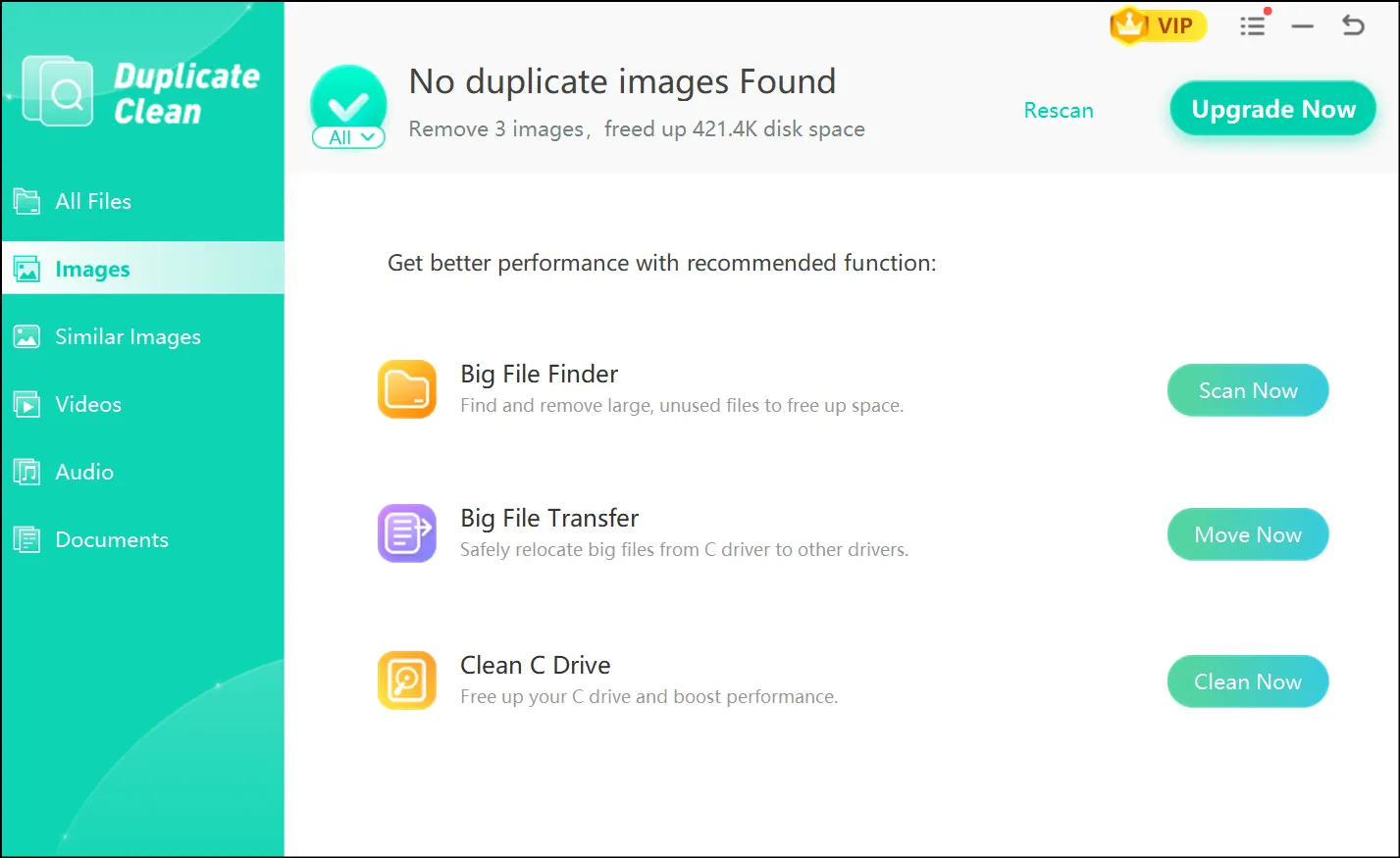
Step 5: Now hit "Confirm" to initiate the deletion process. Once the process is done, you can see how much space you cleared up and how many files you have deleted.
💡Tips:You can recover your deleted photos from the Recycle Bin if you make an accidental deletion.
Part 7: Helpful Tips to Keep Your Mac Photo Library Clean
Some of the easiest ways to clean your Mac's Photo Library include immediately deleting burst shots, importing carefully, using iCloud the right way, and regularly running the built-in Duplicate Finder. It takes some effort, but you can actually make it a habit to achieve your goal.
- Delete Burst Shots Immediately:
Right after you shoot, go to burst photos, only keep the best frame, and delete the rest.
- Import Carefully Every Time:
Check beforehand what is already in your library when importing from your iPhone or camera.
- Use iCloud Wisely:
If you use iCloud Photos, then avoid importing manually from the same drive.
- Keep One Library Instead Of Many:
Do not maintain multiple photo libraries and merge old libraries, unless it is necessary.
Part 8: FAQs Related to Delete Duplicates Mac Photos
Q1. How can I tell if my Mac's Photos app has a duplicate finder included?
The built-in duplicates feature is currently only available on macOS Ventura (13) and later. If you don't see a Duplicates option, it means your macOS version does not support it. You can either update your macOS or use a third-party tool to remove duplicates.
Q2. If I remove duplicates from the Photos app, will they also vanish from iCloud?
Yes, they will. When you use iCloud Photos, any photo you delete on a Mac will be deleted across devices synced to the same Apple ID, and this includes duplicate photos, too. Before permanently deleting everything, always check the recently deleted first.
Q3. How to delete duplicate photos on Macbook air if I don't have much space?
Deleting duplicates works the same way on all Macs, even the MacBook Air. If you're running macOS Ventura or a newer version, we suggest beginning with the Photos app's built-in duplicate finder.
Q4.Is CleanMyMac safe to use for deleting duplicates?
Absolutely! CleanMyMac is a well-established tool that is completely safe to use. With this tool, you will always be in control because it shows you exactly what it plans to delete before removing anything. Remember to review the detected duplicates before hitting the confirmation button for removal.
Q5. Why do duplicates keep coming back even when I have already deleted them?
This can happen when the source of duplicates has not been fixed. Meaning the duplicates will keep returning if iCloud keeps resyncing or if you keep importing from the same external drive.
Final Thoughts
One of the sneakiest storage killers on Mac is duplicate photos. Now you have 4 clear ways to delete duplicate photos on Mac and take back your storage. You can use Finder, the built-in Photos duplicate finder, the manual photos method, and a third-party app, like CleanMyMac, to delete duplicates in Mac photos.
In case your Mac backups live on a Windows PC or external drive, we have a solution to avoid letting them pile up as well. WMaster cleanup is the easiest and fastest way to identify and clean up exact and similar-looking shots with just one click. This all-in-one cleanup tool is currently FREE, so grab it fast while it is hot!


