

.jpg)
Are you frustrated to see clutter on your Photos app instead of memories? Do you see multiple identical images taking up all the storage space? This might make you wonder, How to delete duplicate photos on iPhone?" Don't fret; you are not alone.
IPhone has limited storage, and duplicate photos are the fastest way to fill it up. Bursts and screenshots can take up space, and before you realize it, your iPhone will start to slow down.
In this guide, we will walk you through 3 simple methods for how to delete duplicate photos in iPhone. All the methods explained here have been personally tested so that you won't run into any problems.
In this article
- How to Define Duplicate Photos on iPhone?
- How Duplicate Photos Fill Up Storage Fast?
- Before Deleting duplicate photos on iphone—Check Your iOS Version First
- How to Delete Duplicate Photos on iPhone with its Built-In Duplicates Album (iOS 16+)?
- How Do I Remove Duplicate Photos on iPhone Using an App?
- How to Manually Find and Delete Duplicate Photos on iPhone?
- Bonus Tips: Don't Forget Your Windows PC Backups
- Practical Tips to Prevent Duplicate Photos on iPhone
- FAQs - Delete Duplicate Photos iPhone (iOs 16 and later)
Part 1: How to Define Duplicate Photos on iPhone?
Not all duplicate photos are the same, and knowing the difference helps you decide which ones to keep, especially when wondering how to delete duplicate photos from iphone. Duplicate photos are generally categorized into
1.Exact Duplicates
These are the photos that are byte-for-byte identical. It means that these are the same photos that you might have downloaded twice. They can also be restored twice during a backup. The best part? Your iPhone can easily identify these photos. Eventually, you will have your answer to how to delete all duplicate photos on iphone.
2.Similar Photos
Similar photos, however, are not entirely identical. Here is all that constitutes similar photos on your iPhone:
- Burst Shots: 10 to 20 photos taken in succession when you keep the shutter button pressed.
- Edited Photos: These are the same photos but with a slightly adjusted brightness, more cropping, different intensity, etc.
- Live Photos: A static and a moving shot of the same photo are sometimes saved separately on the phone.
- Screenshots: These include random screenshots that have accumulated in your Photos library.
Unlike exact duplicate photos, these photos are hard to find and delete because they differ in size, name, and other details, even though they look the same.
Part 2: How Duplicate Photos Fill Up Storage Fast?
Duplicate photos build up faster than most people realize. Burst shots, Live Photos, and automatic backups are the main culprits and they quietly eat through gigabytes without you noticing.
- Burst mode captures up to 30 photos in a single burst. Three bursts in a day = 90 photos, more than half of which you probably don't need yet they all stay on your device.
- Live Photo take up 3-4 MB. If your phone defaults to Live Photo mode, you can lose several GBs every few months without ever realizing it.
- iCloud backups and WhatsApp restores quietly resave photos you may already have, adding redundant copies that stack up over time.
The combined impact of all three can push 5-10 GB of storage occupied solely by duplicates.
Part 3: Before Deleting duplicate photos on iphone.Check Your iOS Version First
It's important to check your iPhone's version before moving on to find and delete duplicate photos. This is because, in iOS 16 and later, Apple has added a built-in album in the Photos app that collects all duplicate photos.
This makes it much easier to locate and delete duplicate files. However, if you are on iOS version 15 or earlier, you might have to download and use a third-party app to delete duplicate photos.
How to Check Your iOS Version?
If you're unfamiliar with checking your iOS version, here are a few simple steps you need to follow for this:
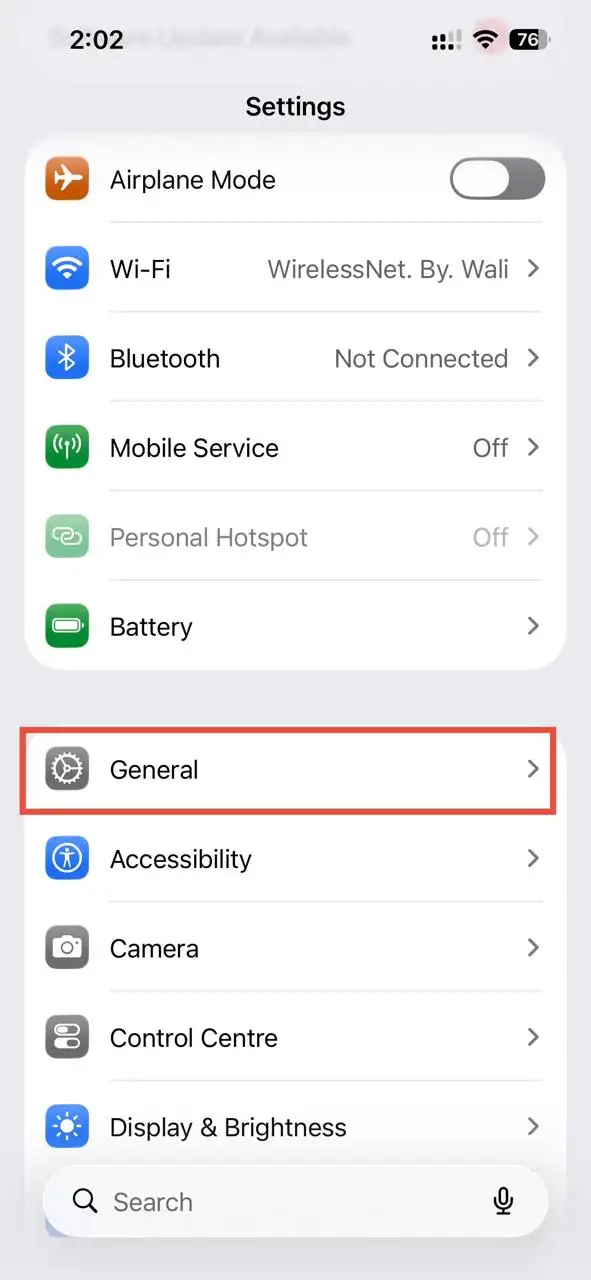
Step 1: Open the Settings app on your iPhone and tap General to access the general settings.
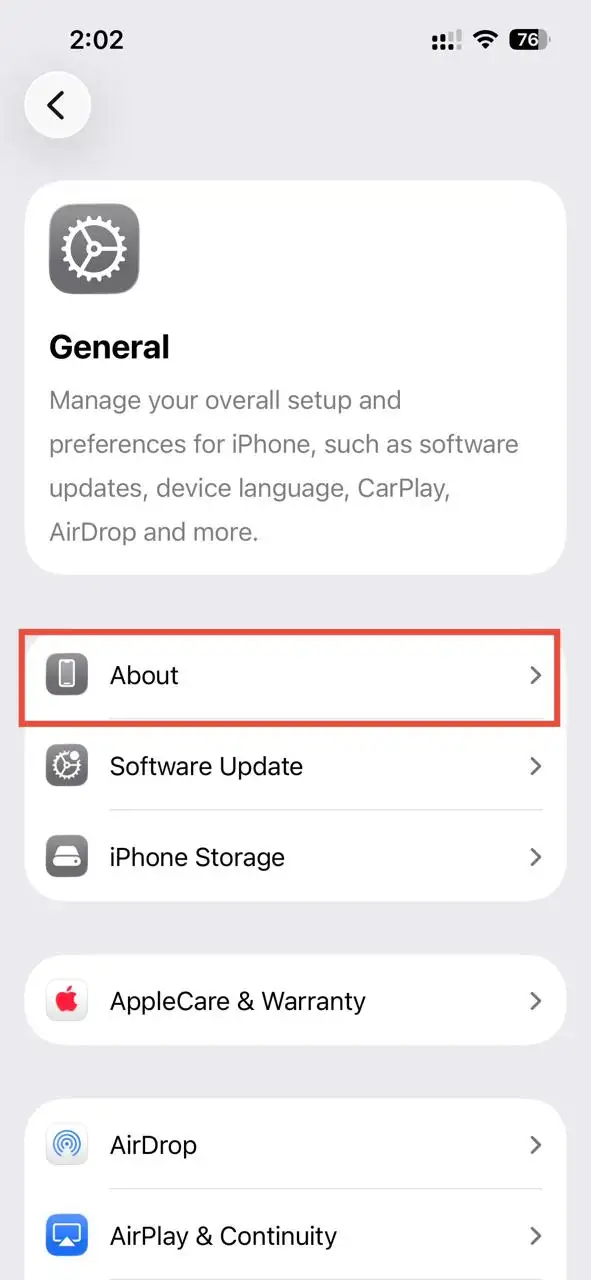
Step 2: On the next page, select About at the top. The About tab has all the information related to your device.
Step 3: Look for your iOS version here. If it shows iOS version 16 or higher, you can use the built-in method to delete duplicate photos.
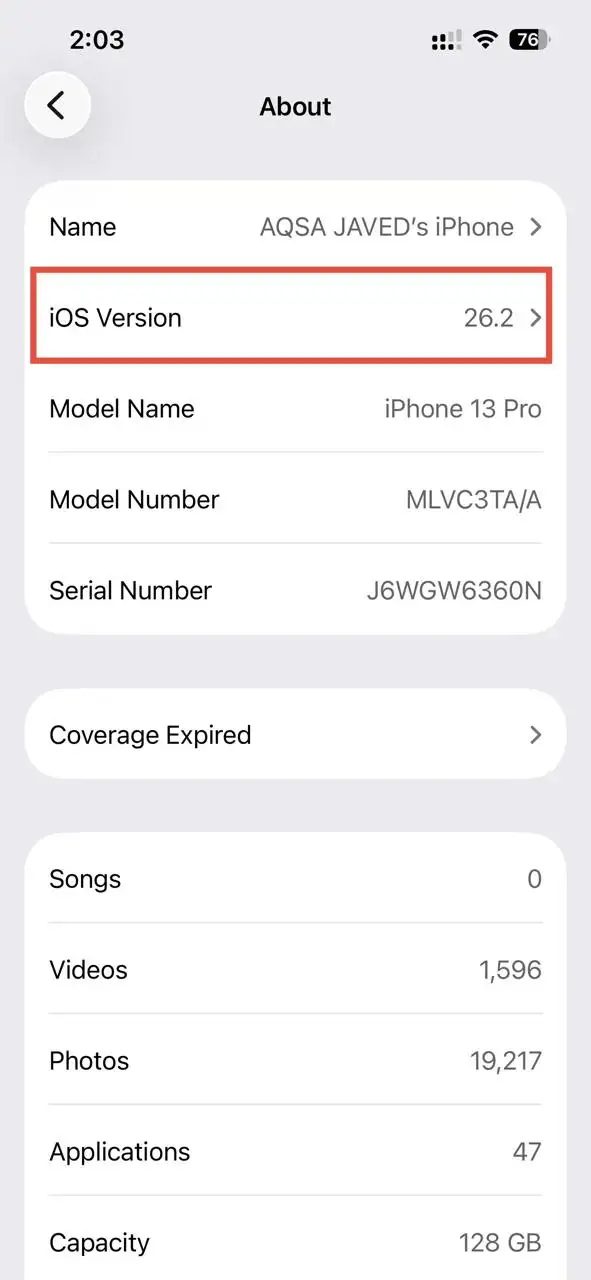
💡Tips:Check your iPhone's iOS version in the About section. If it's 16 or newer, you're in luck: you can use the built-in method to get rid of duplicate photos. No more worrying about how to delete duplicate photos on iPhone automatically with ease.
Part 4: How to Delete Duplicate Photos on iPhone with its Built-In Duplicates Album (iOS 16+)?
If you're running iOS 16 or later, Apple's built-in Duplicates album is your friend. It lets you find and delete duplicate photos without needing to download anything extra. The "Duplicates" album is simple and user-friendly, which makes the whole deletion process pretty easy.
Moreover, if you are a fan of Apple devices and use a Mac to sync your iPhone storage, don't miss this writeup to learn the best ways to delete duplicate files from your Mac.
Steps on how to delete duplicate photos on iPhone:
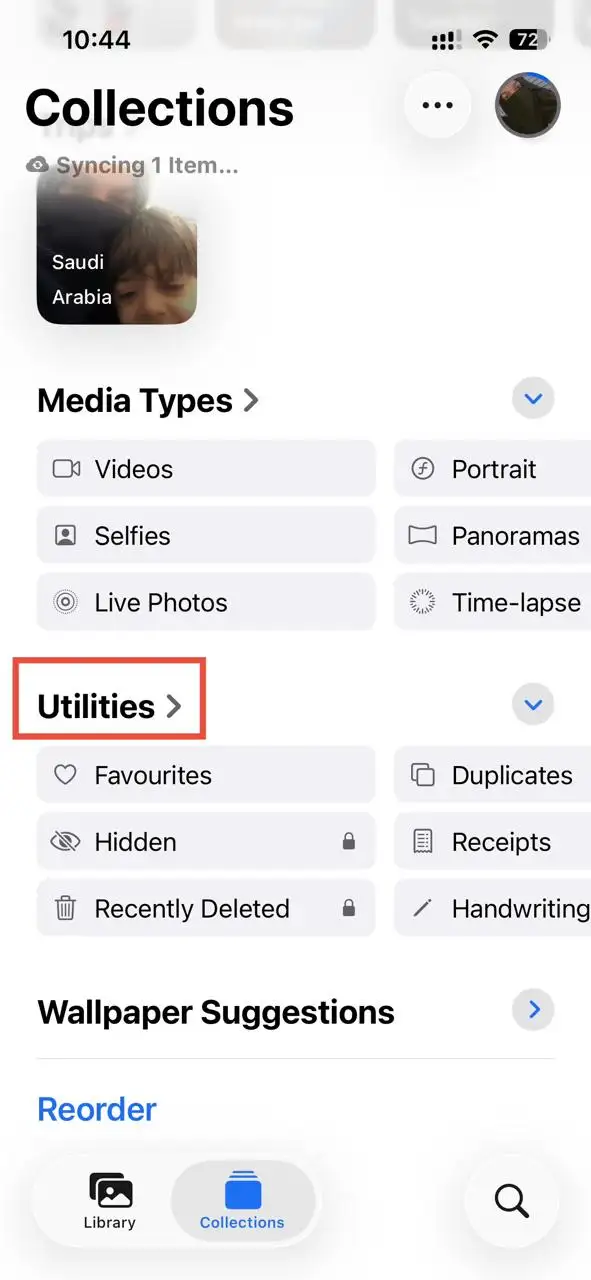
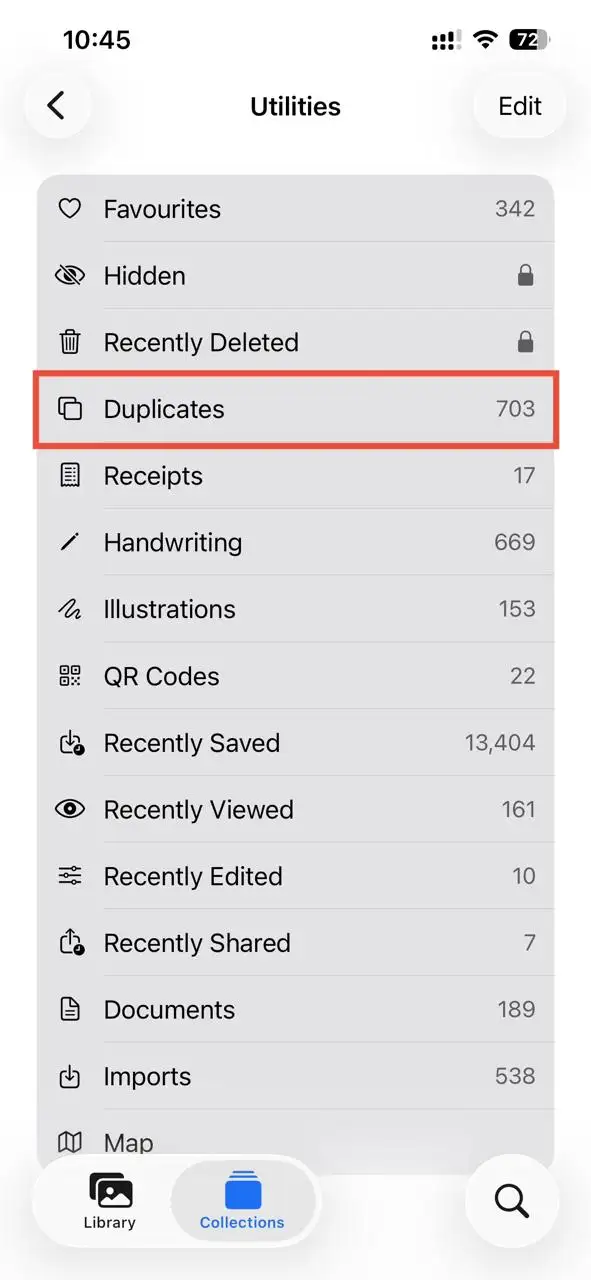
Step 1: Open Photos and Go to Utilities:Tap the Photos app on your iPhone, select the Collections tab at the bottom, scroll down, and tap Utilities.
Step 2: Select the Duplicates Album: In the Utilities tab, choose the Duplicates album, and iOS will now show you all the duplicate photos side by side.
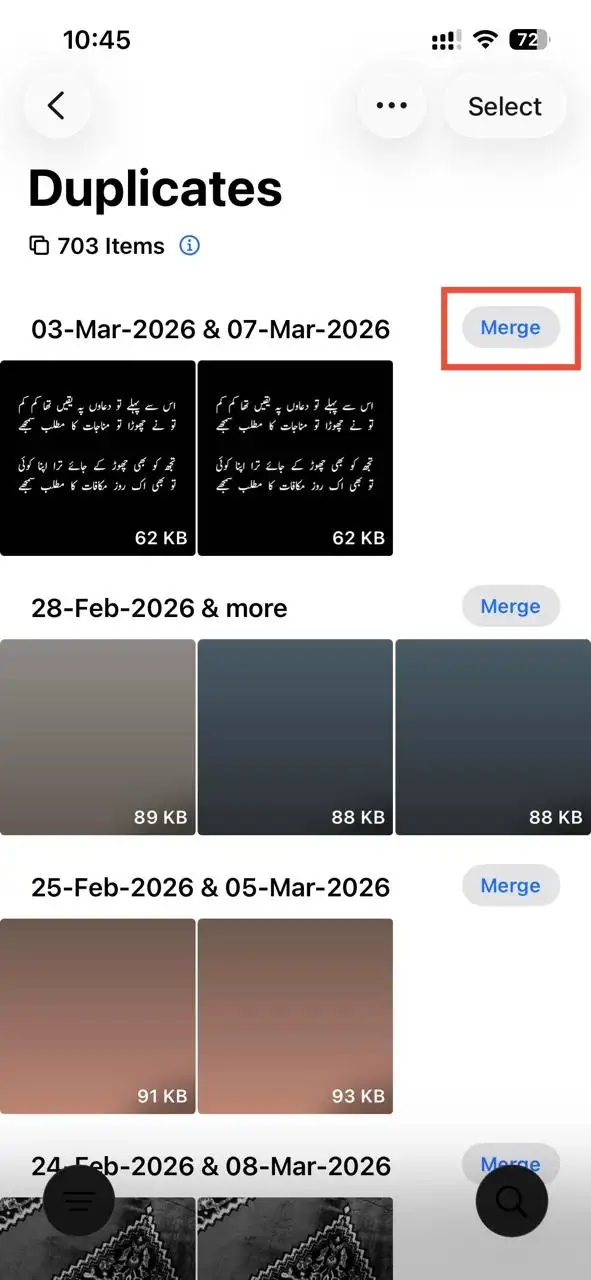
Step 3: Merge or Delete the Duplicates: Tap Merge next to each duplicate pair to keep the highest quality image.
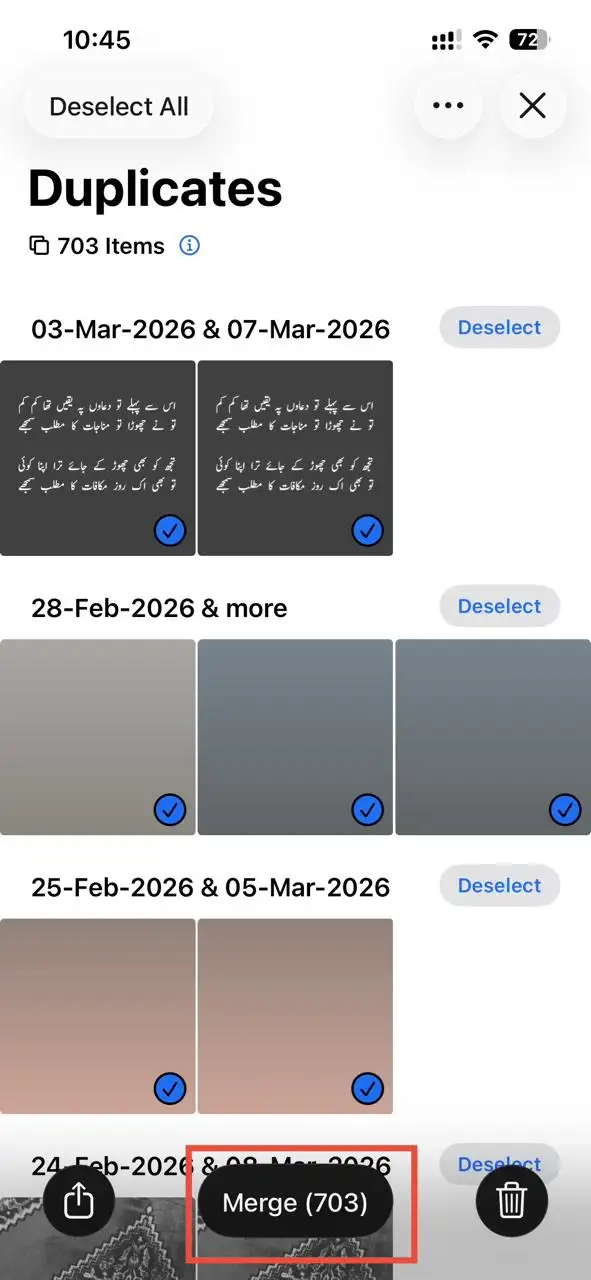
💡Tips:You can merge all the duplicate photos at once. To do so, tap Select at the top, choose Select All, then tapMergeat the bottom.
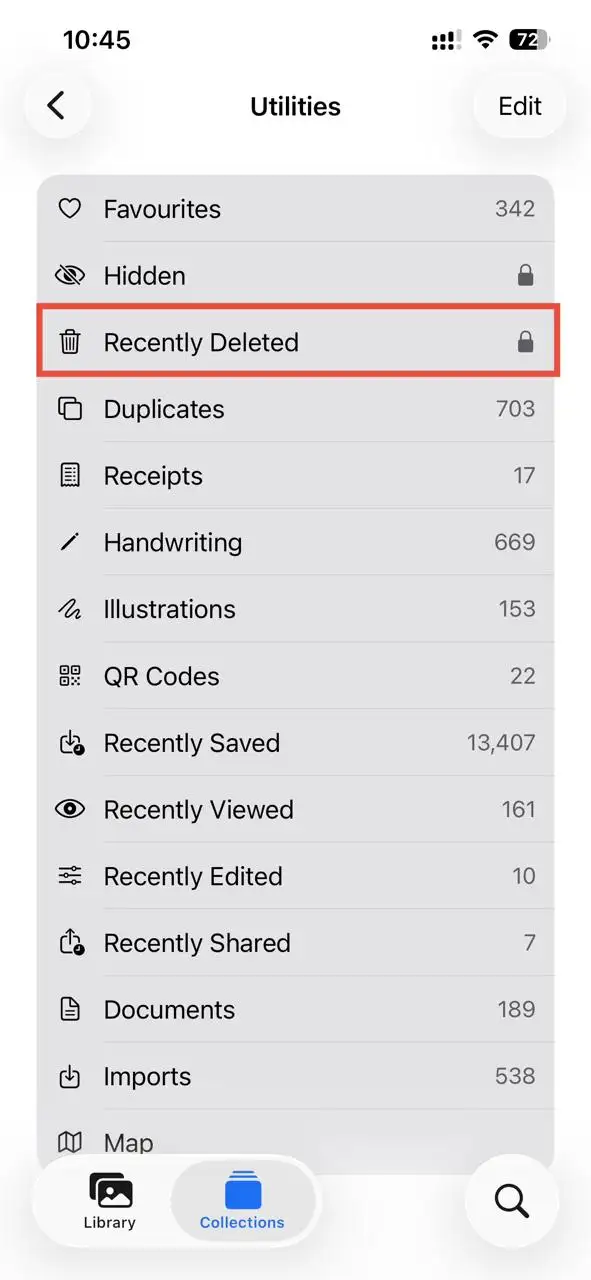
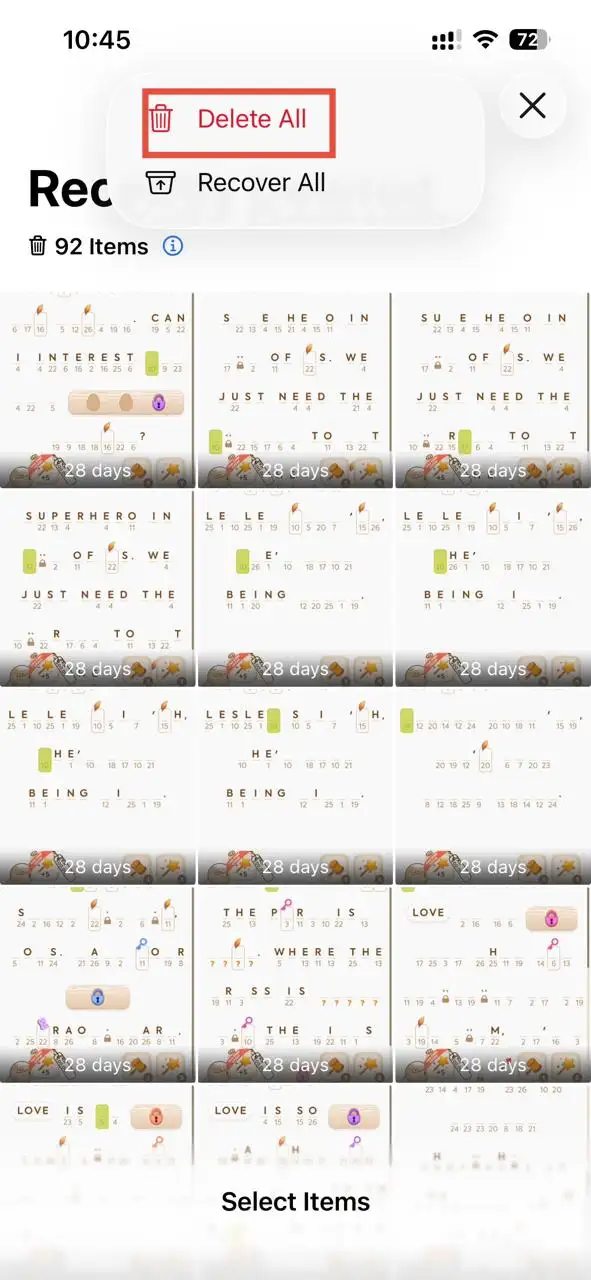
Step 4: Permanently Delete Duplicate Photos: Now to permanently delete duplicate images, go back to the Utilities tab and select the Recently Deleted tab. Tap Select at the top and choose Delete All to delete all the duplicate files permanently.
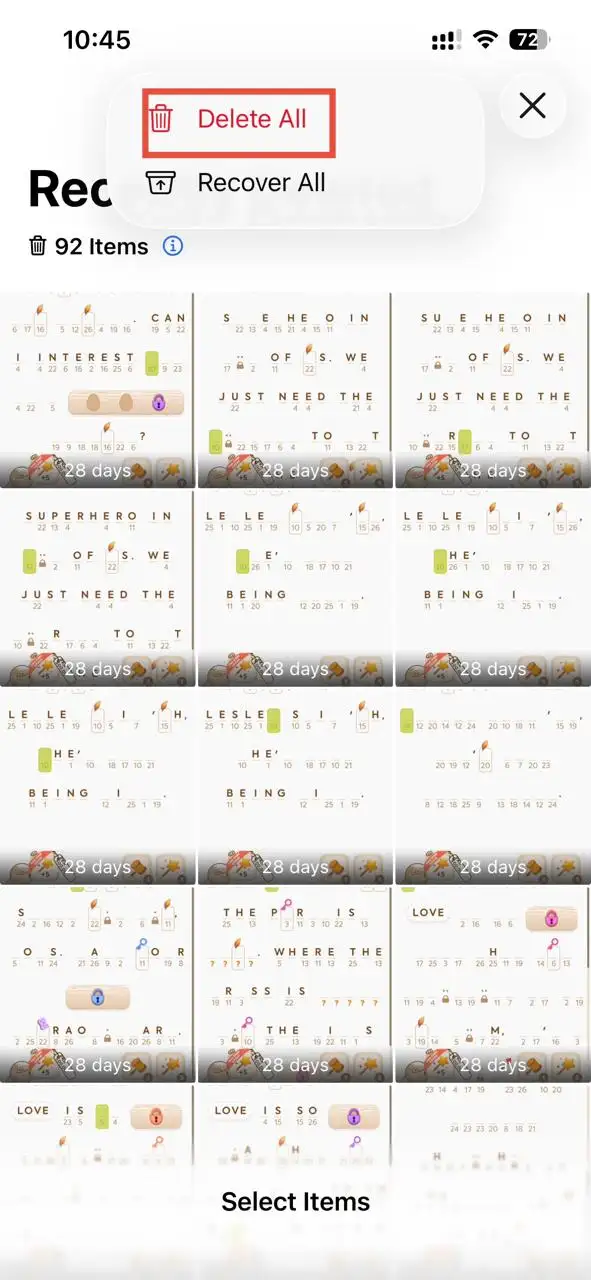
💡Tips:Keep in mind, though, this method is best for exact duplicates; it won't catch burst photos or images that have been tweaked a bit.
Part 5: How Do I Remove Duplicate Photos on iPhone Using an App?
For many iPhone'users, especially those still on iOS 15 or earlier, Smart AI Photo Cleaner is a solid choice. It helps you find and delete identical images, burst shots, screenshots, and other duplicate files that are hogging your phone's storage space.
Follow these steps if you are looking for, How do i delete duplicate photos on my iPhone?
Guide to Delete duplicate photos on iPhone Using an App
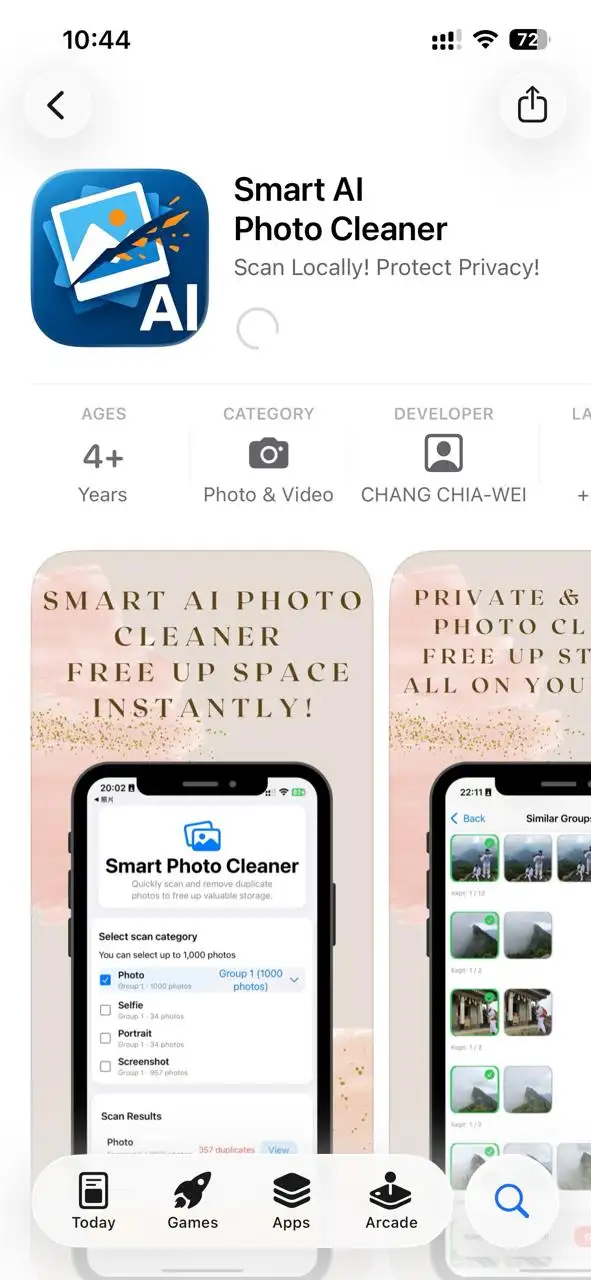
Step 1: Download and Launch Smart Cleaner App: Go to the App Store, search for, and download the Smart AI Photo Cleaner app. Once downloaded, launch it on your device.
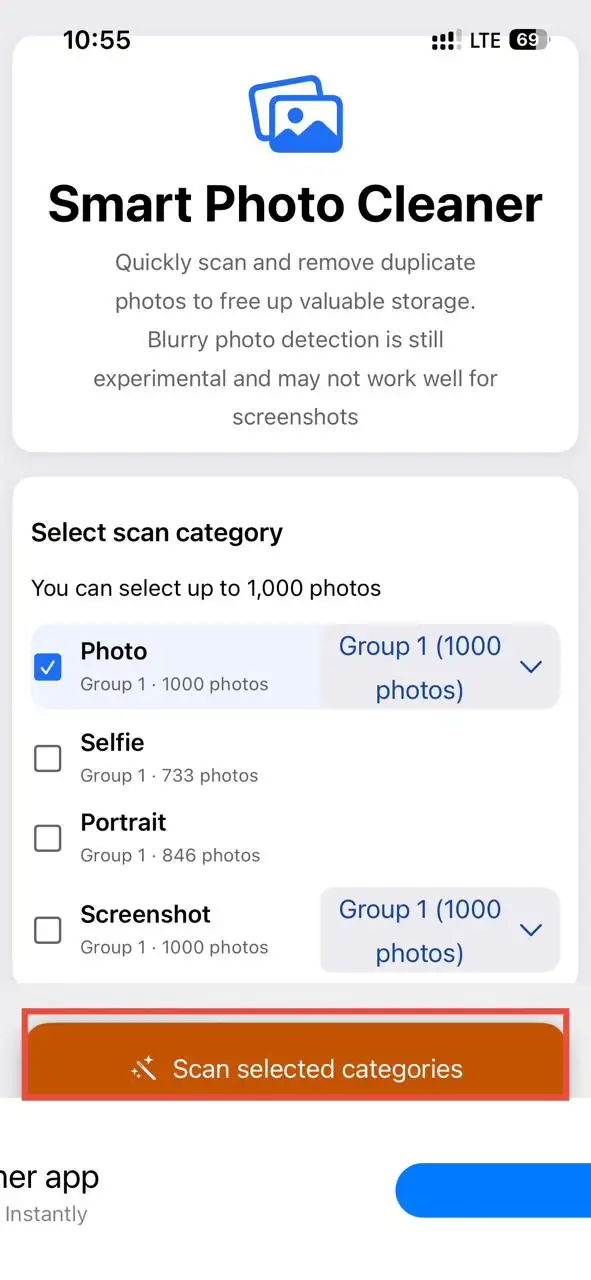
Step 2: Choose What to Scan: On the app, select which category to scan. Select the Scan selected category at the bottom and find the number of duplicate photos in the Scan Results section.
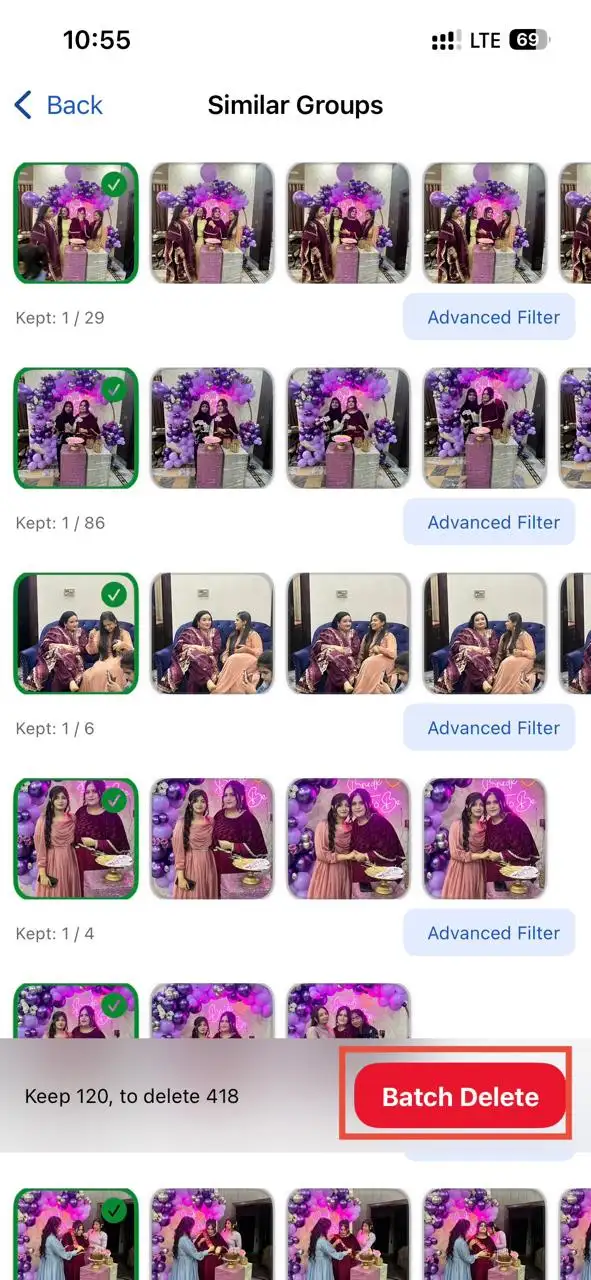
Step 3: Batch Delete Your Duplicate Photos: Once the scan completes, the app will filter the duplicate photos for you. It will automatically mark the best-quality duplicate. You can either select which duplicate photos to delete or choose "Batch Delete"at the bottom.
Step 4: Confirm Deletion and Empty Recently Deleted: To delete duplicate photos on iPhone, head to Photos-Collections - Utilities and open Recently Deleted. Tap Select - Delete All, and confirm.
Part 6: How to Manually Find and Delete Duplicate Photos on iPhone?
Are you looking for how to delete duplicate photos from iphone manually? Whether you have an older version than iOS 16, take your privacy and security too seriously, or don't want to rely on third-party apps, you can remove them manually. Though this method takes a little more effort and time than others, it works with any iOS version.
Steps for How to Find Duplicate Photos on iPhone Manually to Free up Device Space:
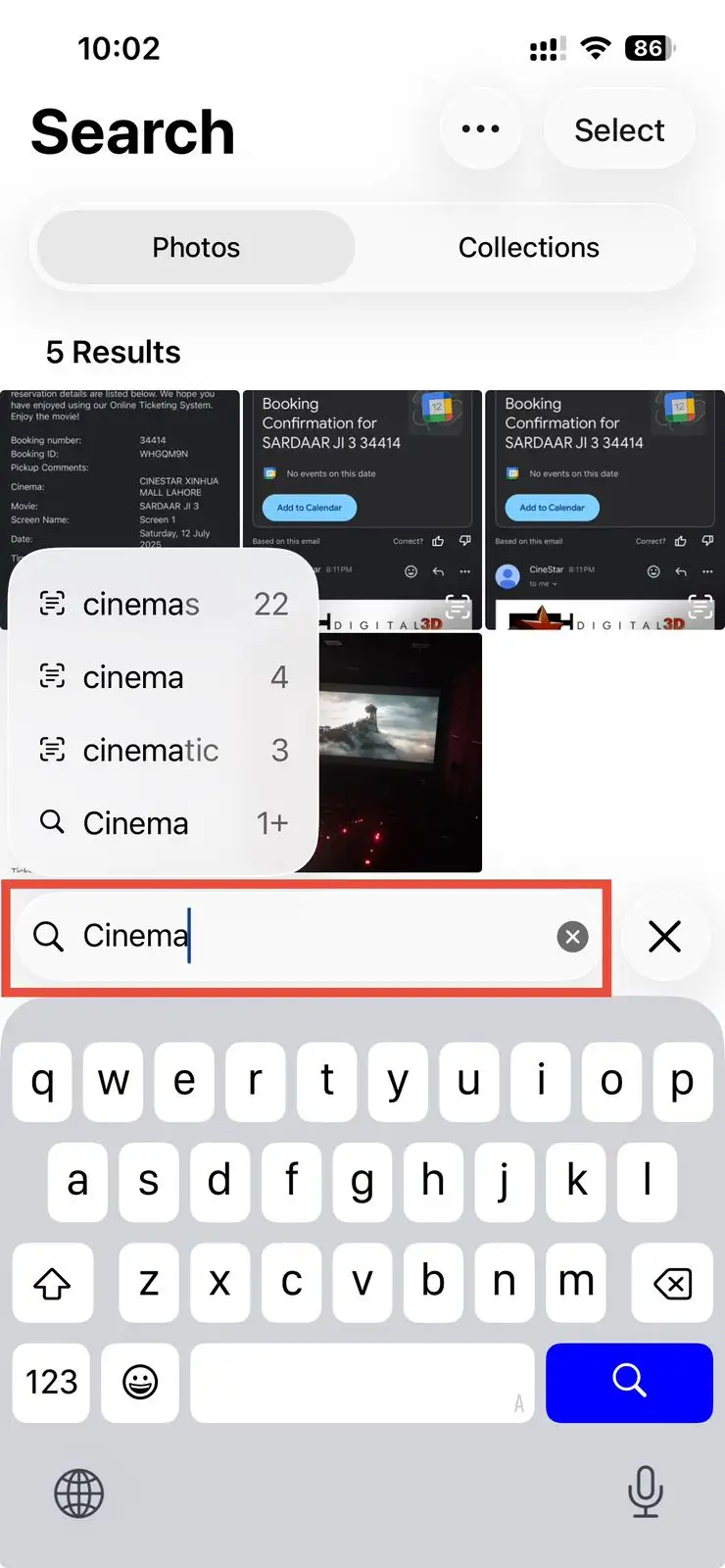
Step 1: Use the Search Bar to Find Duplicate Photos: Open Photos on iPhone and tap the search bar at the bottom. You may type the date or name of the place in the search bar, like London,Cafe,etc. In this example, all images of places are appearing in a single view; scroll and pick which one to remove.
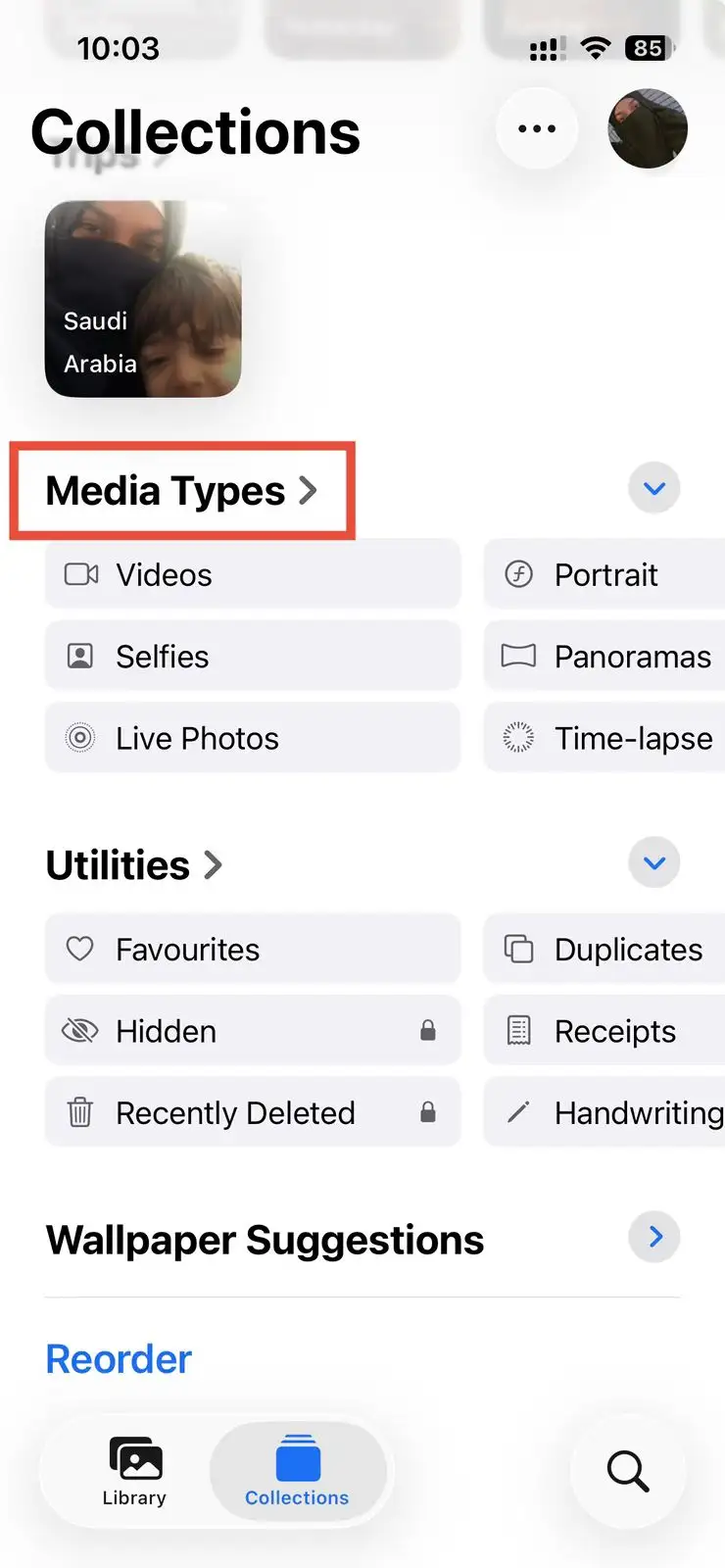
Step 2: Go to Media Types to Remove Duplicate Photos: Head to the Collections tab in your Photosapp and scroll down to locateMedia Types. You can now open each category one after the other, scan through different images, and delete duplicate photos.
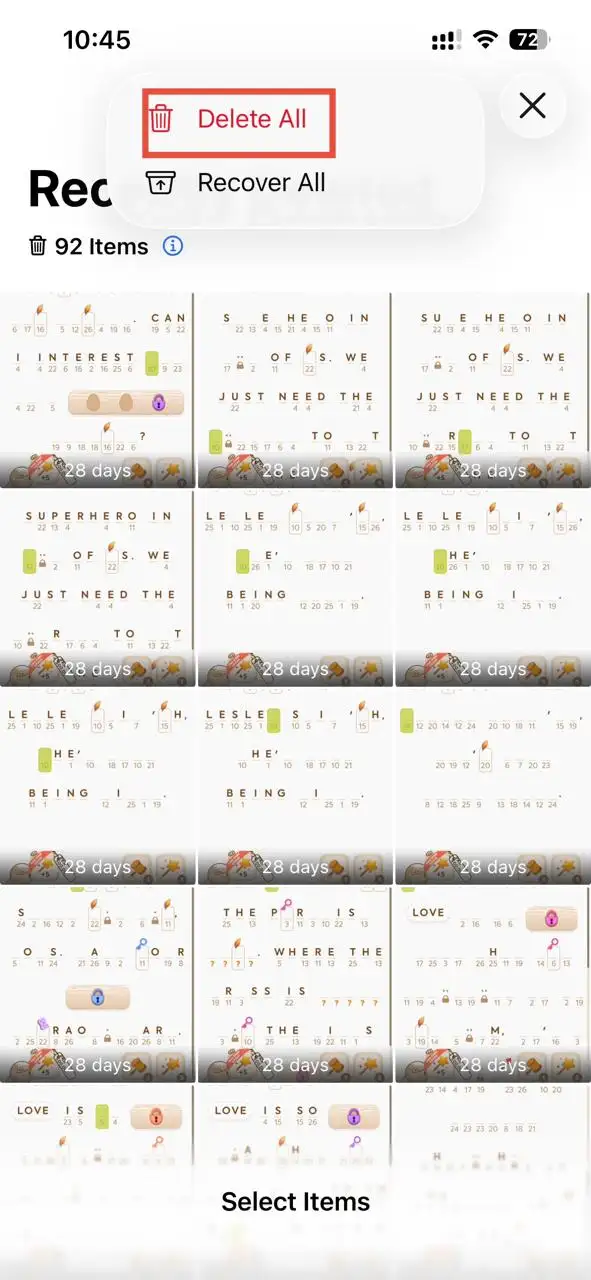
Step 3: Empty Recently Deleted: Once you have spotted and removed duplicate photos, go to the Recently Deletedtab and permanently delete all the duplicate photos.
💡Tips:If you have a Mac with Photos synced via iCloud, you can use it to view images on a larger screen and easily remove duplicate photos.
Part 7: Bonus Tips: Don't Forget Your Windows PC Backups
If you are one of those who sync their iPhone data to their Windows PC, like I used to do it, be informed that it can also be full of duplicate photos. To ensure that duplicate photos don't fill up all the storage space on your Windows PC, you need to clean them up. Fortunately, I have a simple and quick method for you to do that.
Use WMaster Cleanup to Remove Duplicate Photos in PC Backups
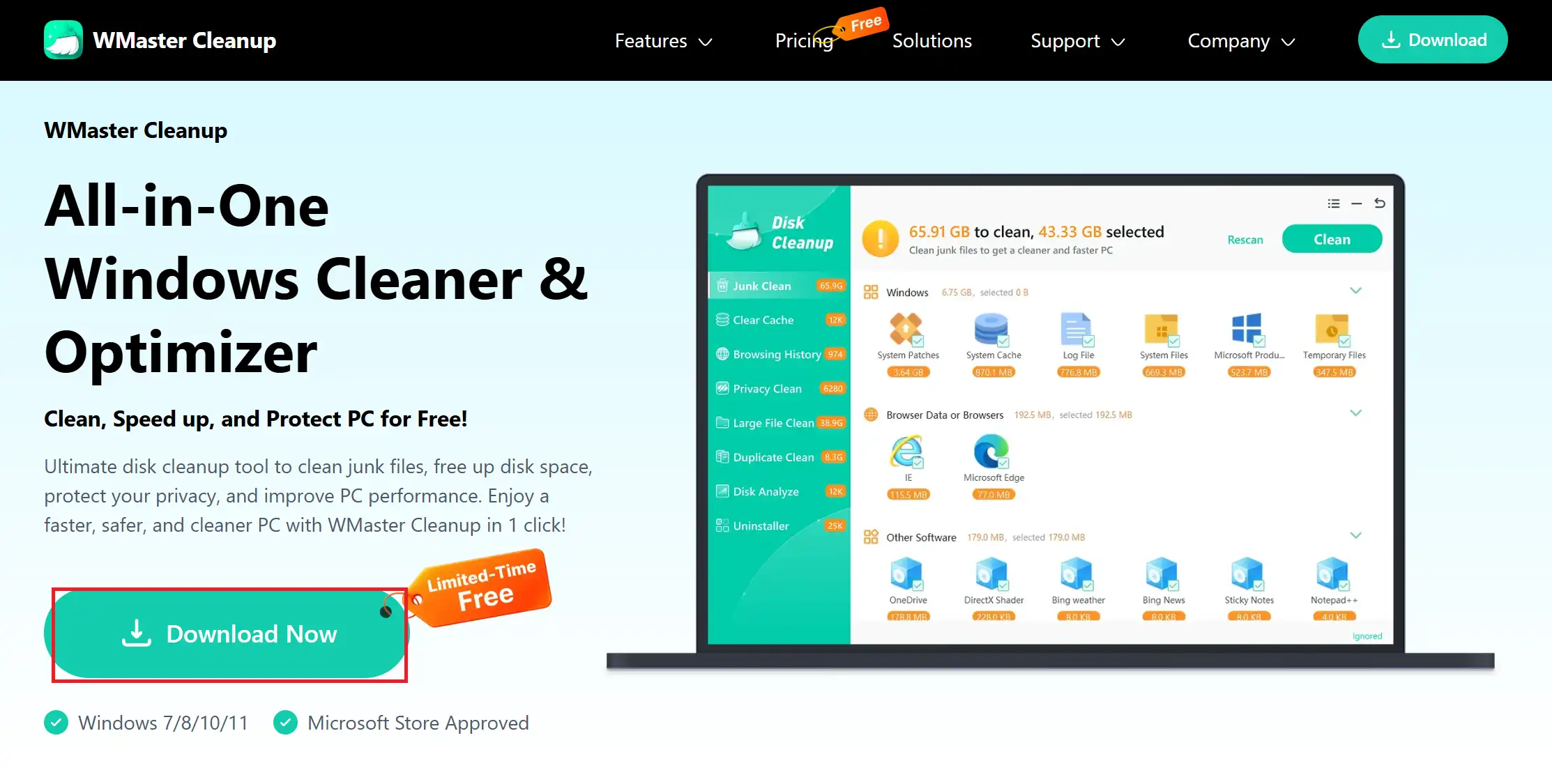
WMaster Cleanup is an all-in-one Windows cleanup tool that is designed specifically for your Windows PC. Its Duplicate Clean feature scans your computer for duplicate and similar images, whether their metadata differs or they have been slightly edited. This cleaner works especially well for iPhone users who sync their images to the Windows PC, as it recognizes different file formats and supports various sizes.
Read our comparison article about Duplicate Cleaner Pro and new duplicate cleaner WMaster Cleanup to pick best cleanup tool for Windows
5 Key Features of WMaster Cleanup to Remove Duplicate Photos on Windows

WMaster Cleanup
Clean Duplicate Photos on Windows11/10 in 1 Click
- ·Smart Photo Detection:With the MD5 smart algorithm, it scans exact and near-identical images.
- ·File Format Support:It supports numerous file formats, including JPEG, HEIC, MOV, etc.
- ·Batch Deletion:Find and delete multiple duplicate or similar photos from your PC in one go.
- ·Scan Specific Folder:Select all your drives or choose a specific folder to scan duplicate images.
- ·Preview Duplicate Images: You can preview detected duplicate images before final deletion.

Guide to Find and Delete Duplicate Files by WMaster Cleanup for Windows Backups
Step 1: Install and Open WMaster Cleanup: Head to the official WMaster website. SelectDownload Nowto download the tool. Once downloaded, launch it on your Windows PC.
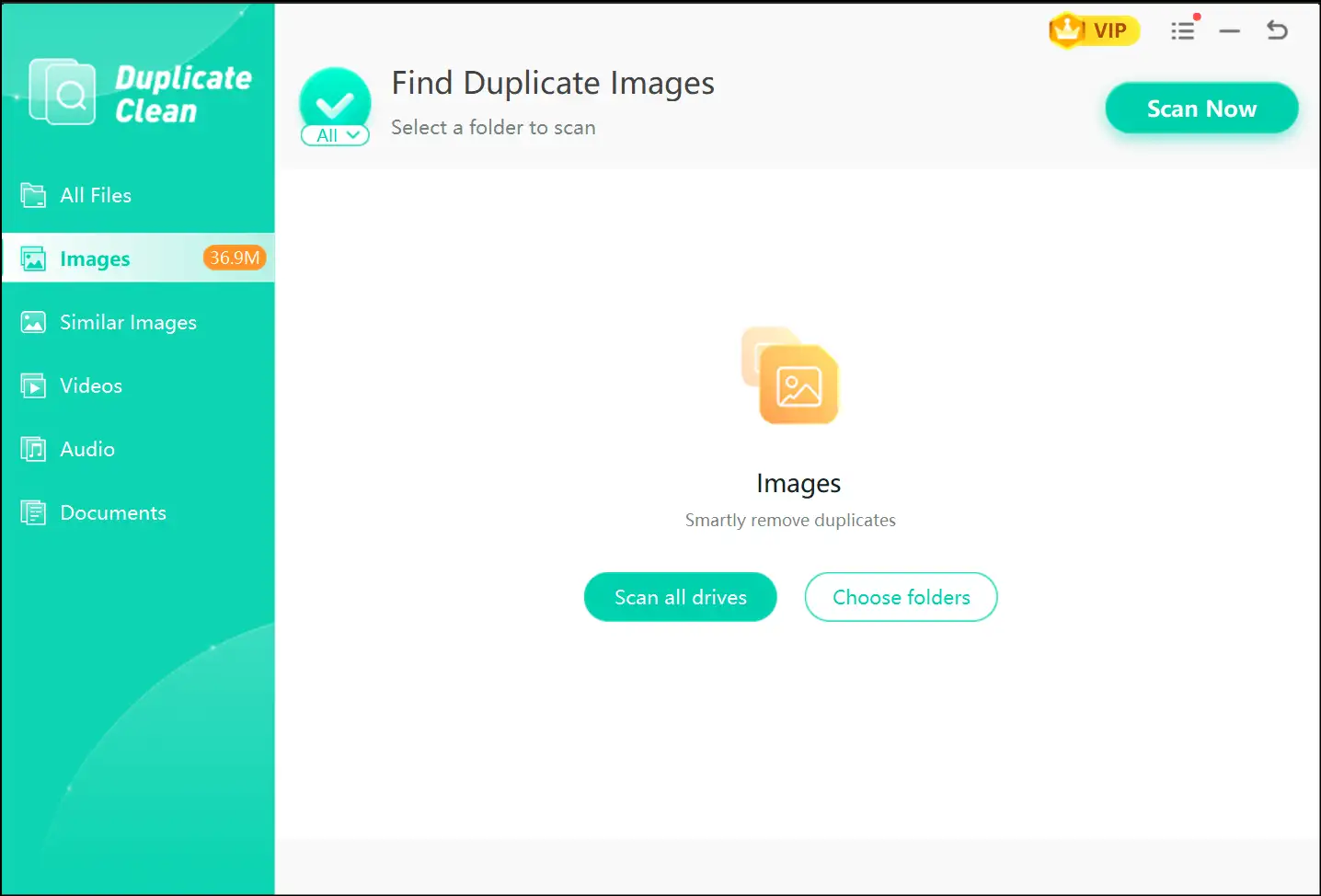
Step 2: Run a Scan to Detect Duplicate Images:To detect exact duplicate images, tap on "Images" on the left pane and then select Scan all DrivesorChoose foldersto scan all your duplicate photos.
💡Tips:Select Similar Images to detect near-identical images. The tool will identify all the similar images, whether their file name, size, or metadata differs.
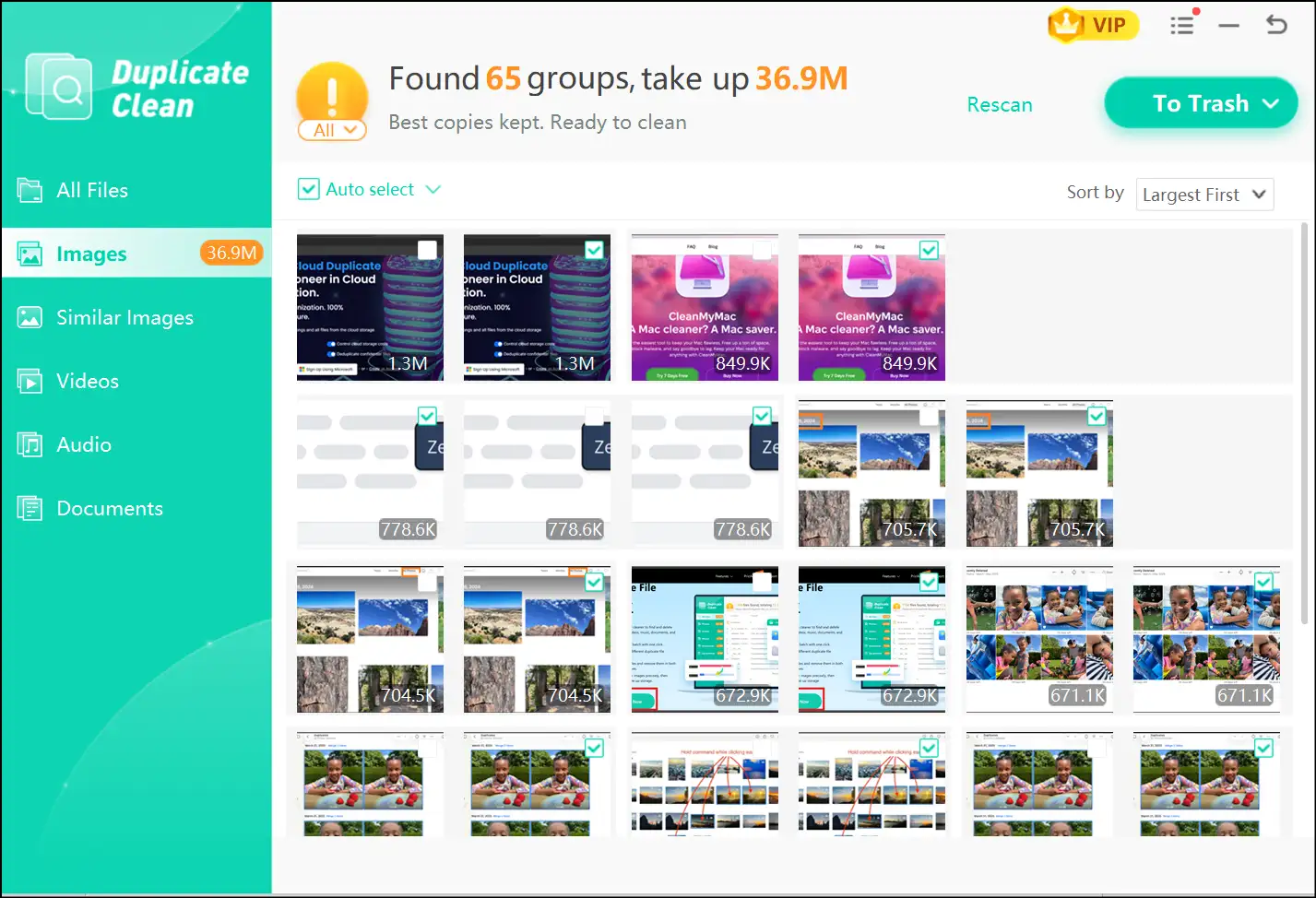
Step 3: Review Duplicates and Confirm Deletion: WMaster Cleanup shows you everything it found. Go through the results and deselect anything you want to keep. Once you are sure which images to get rid of, select To Trash and hit Confirm to delete duplicate photos from your Windows PC.
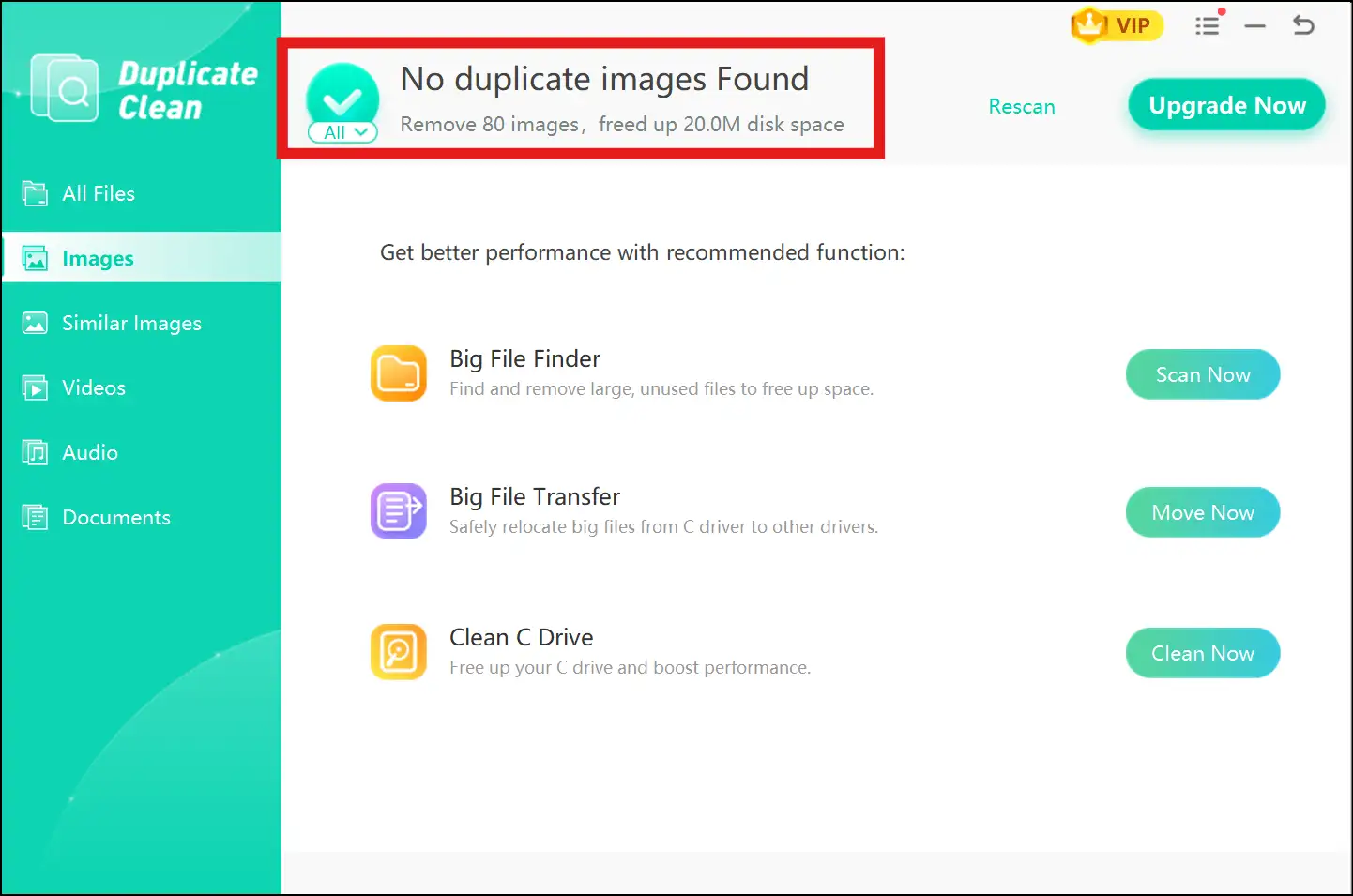
💡Tips:Once you have deleted duplicate photos from your Windows PC, you can review how many files you have removed and the disk space you have finally gained.
Part 8: Practical Tips to Prevent Duplicate Photos on iPhone
- Go to Instagram, WhatsApp, and iMessage settings on your iPhone and disable auto-save so shared photos don't go to the Library automatically.
- Pick and keep the best burst shot right after taking it to stop photos from piling up.
- Before backing up your iPhone, review your Photos library so photos don't get saved twice on your device.
- Once you use your screenshots, delete them immediately.
- Utilize ten minutes every month to clear out unwanted duplicate and similar images, burst shots and extra versions of edited images.
- Don't forget to empty your Recently Deleted album regularly for cleaner and faster iPhone .
Part 9: FAQs -Delete Duplicate Photos iPhone(iOs 16 and later)
Q1. Why don't I have the duplicate photos option on my iPhone?
The Duplicates album on iPhone exists only on iOS 16 and later versions. If you can't find the Duplicates folder on your device, you might be running an earlier version of iOS than iOS 16. So, firstly, check your iOS version, and if it's below iOS 16, use a third-party tool to remove duplicate photos.
Q2. How do I free up storage on iPhone Photos?
To free up storage on your iPhone Photos, first go to the Duplicates album to get rid of duplicate photos. Thereafter, you can select different image categories like burst shots, selfies, screenshots, etc. to manually remove the ones you don't need. Remember, to permanently delete these photos, empty the Recently Deleted album.
Q3. Why is my storage still full, even though I've deleted duplicate photos?
Deleted photos linger in the Recently Deleted album for a month, and they still eat up space. To reclaim storage on your iPhone, navigate to Collections > Recently Deleted, then tap Select "Delete All" , and confirm your choice.
Q4. Does the iPhone have the ability to identify duplicate photos by itself?
Yes, but only if you're using iOS 16 or a newer version. The Duplicates album, which is built right in, automatically finds exact duplicates. It won't, however, pick up on similar photos, like burst shots or those that have been lightly edited.
Q5. How do I stop my iPhone from saving duplicate photos?
To stop your iPhone from saving duplicate photos, turn off auto-save in WhatsApp, Instagram, and iMessage. Moreover, disable burst mode for casual shooting and be mindful when restoring from backups.
Wrap Up!
Duplicate photos on an iPhone are sneaky, be they extras from burst shots, WhatsApp auto-saves, or slightly edited pictures. But the good news is that you now have 3 simple and quick methods if you are wondering, How do you delete duplicate photos on iPhone? especially if you have iOS 16 or a later version.
If you usually sync your iPhone backup to your Windows PC, I have you covered, too. You can use WMaster Cleanup to scan your iPhone backup folders on your Windows PC, helping you find and delete duplicate photos in one click.
The best part? This tool is currently free for a limited time. So, give it a shot now before the offer is gone and see how much free storage you can enjoy without spending a single penny. Sign up for WMaster Cleanup now before it's too late!


