
As the number of installed software programs increases, problems such as slower boot times and background programs consuming excessive resources may occur. Moreover, some software packages contain harmful programs or advertising plugins when they are being installed, which can risk the security of your system.
And Windows' built-in uninstallation tool often fails to delete every trace of an application. This leaves behind a cache of files and registry entries that take up disk space and may slow down your system.
WMaster Cleanup's Uninstall Apps feature provides a complete solution to remove applications. This all-in-one tool not only uninstalls unwanted software in bulk but also removes leftover files and registry entries thoroughly. This guarantees that users can keep their systems clean and efficient.
Part 1. Key Features of WMaster Cleanup's Uninstall Apps Functions
- In-depth scans and list all installed applications in the system, making it easier to find software that is not found in the Control Panel.
- Completely deletes stubborn software along with all leftover files and registry entries, allowing you to uninstall multiple applications at once.
- Easily cleans up Microsoft programs in the Windows system. Detects and deletes files and registry entries left behind by previously uninstalled software.
- Cleans up browser plugins, File Explorer add-ons, and ActiveX controls.
Part 2. How to Use the Uninstall Apps Panel
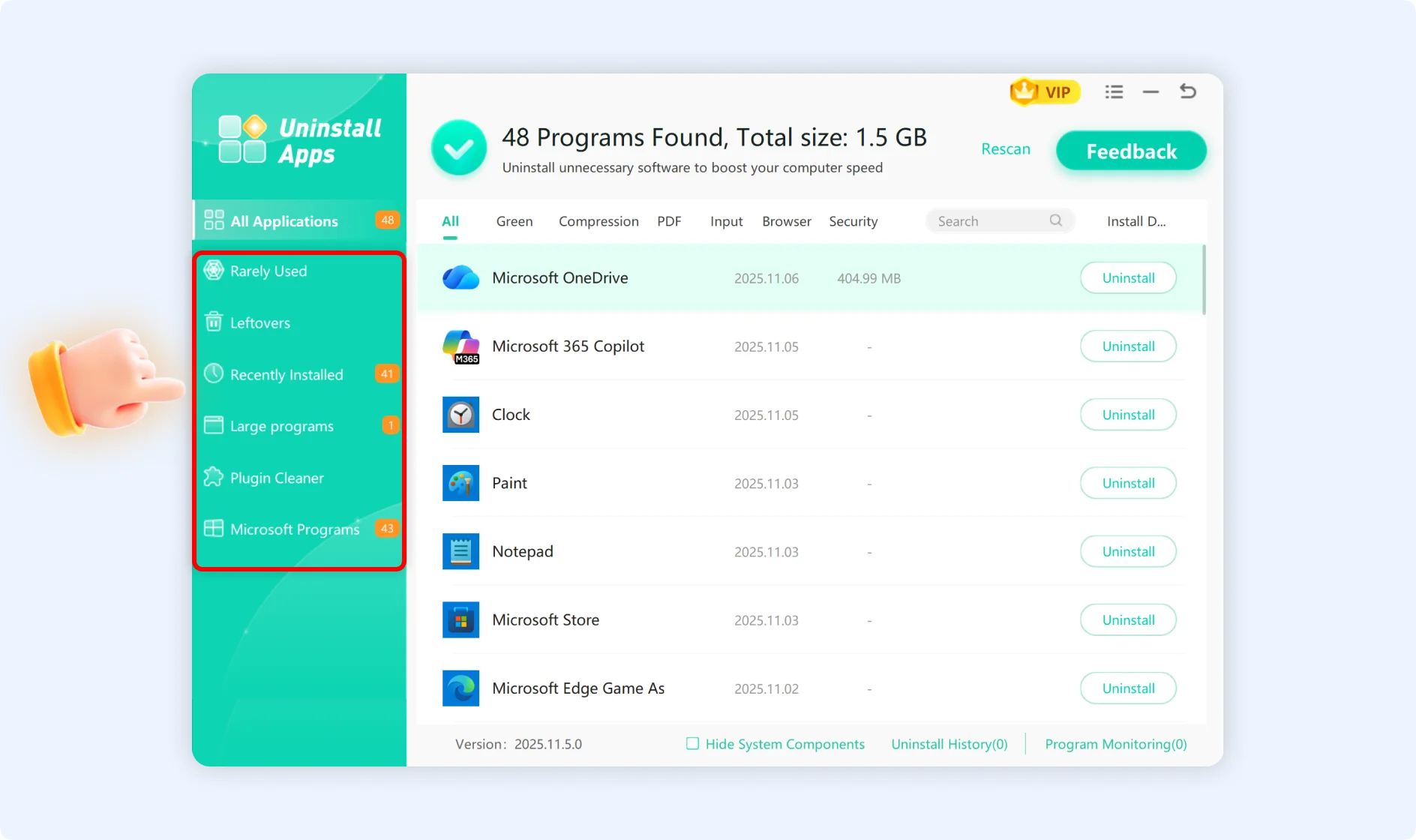
There are six smart categorization parts on the left side of the interface that make it easy to find and handle different types of apps:
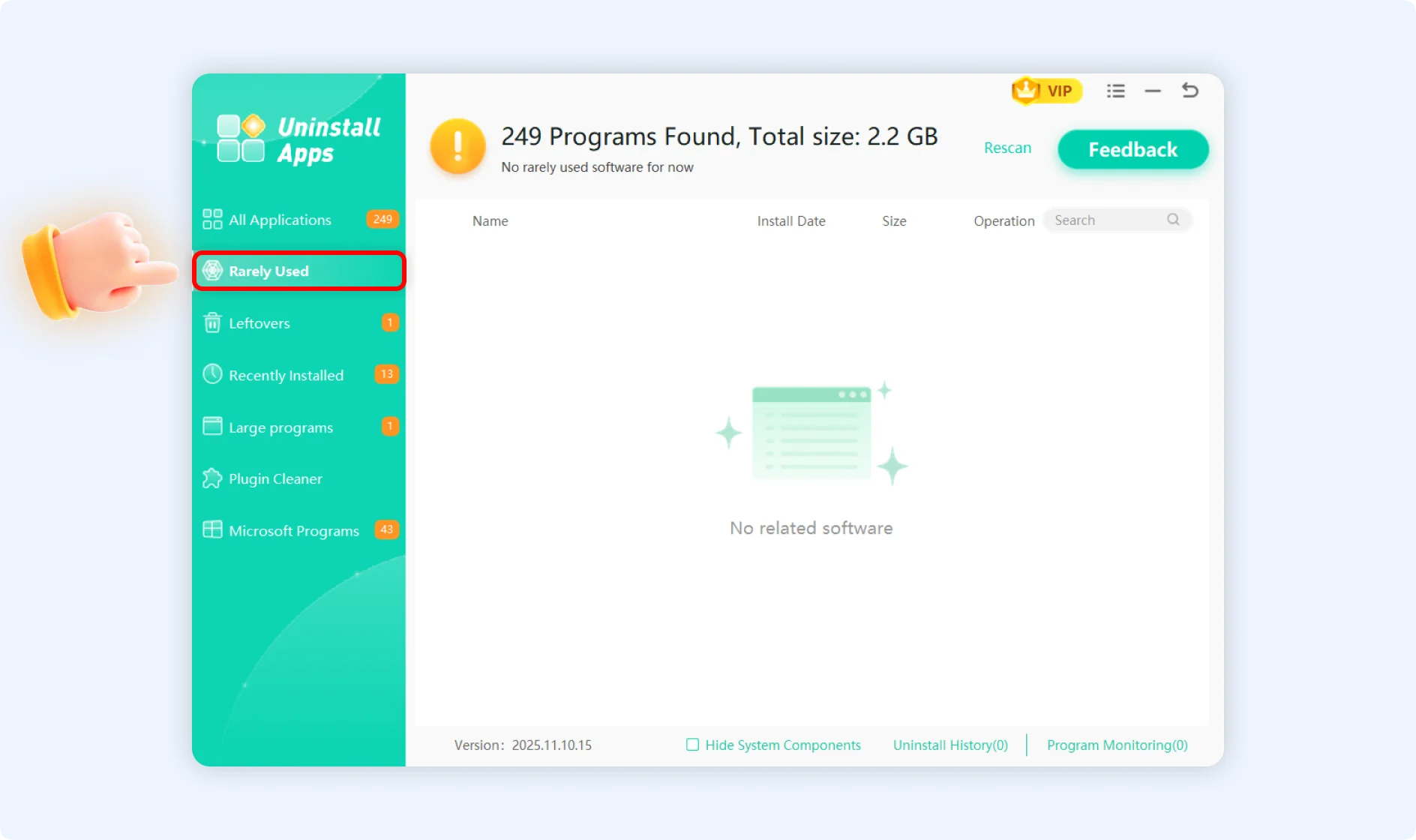
Rarely Used
Intelligently finds applications that haven't been used in a long time by analyzing how often they are launched and when they were last used. This feature is ideal for regularly cleaning up outdated software in large quantities, thereby freeing up space on your hard drive.
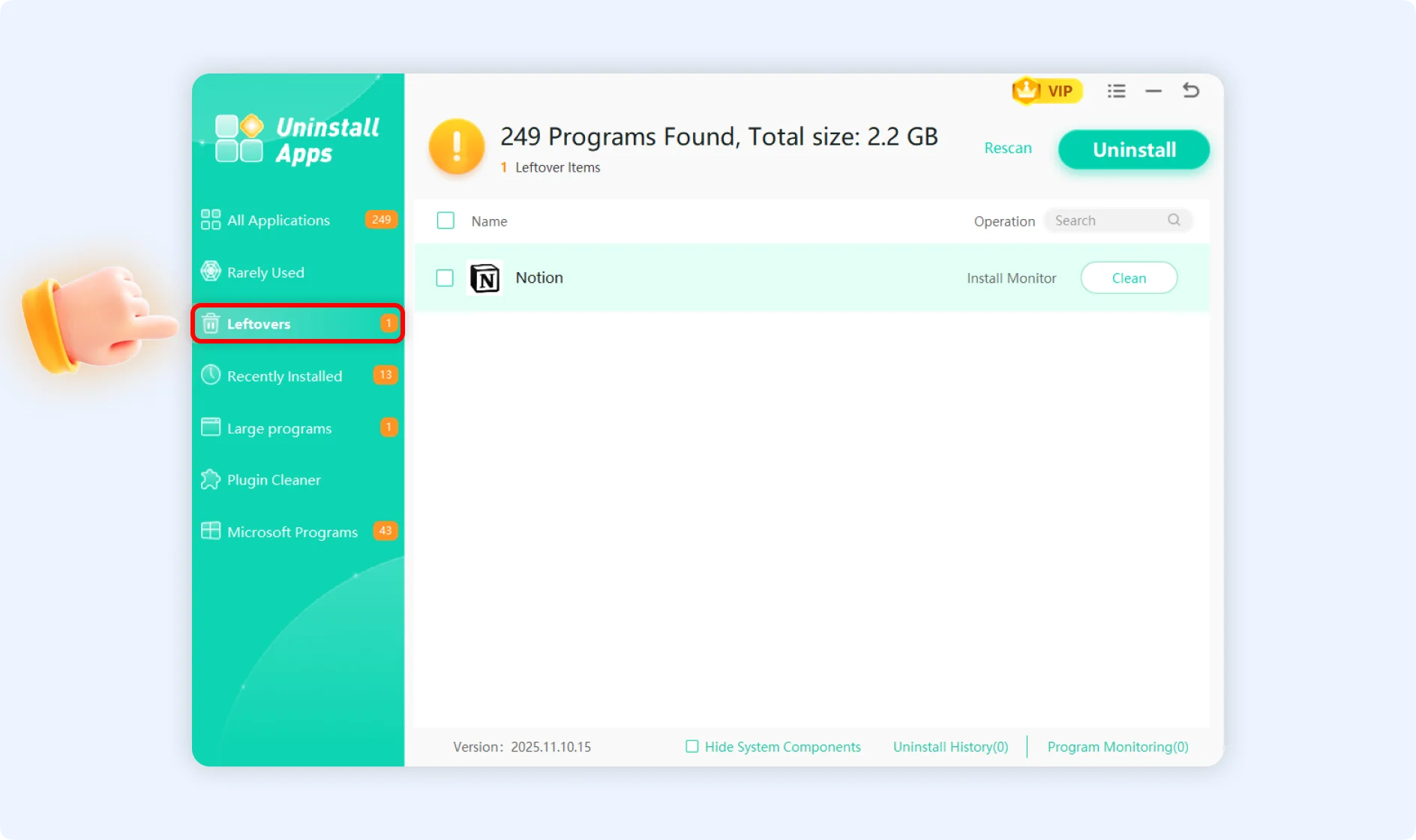
Leftovers
Scans for files and items in the registry that were leftover after removing software in the past. Click the "Clean" button to remove all of these leftovers to keep your system clean.
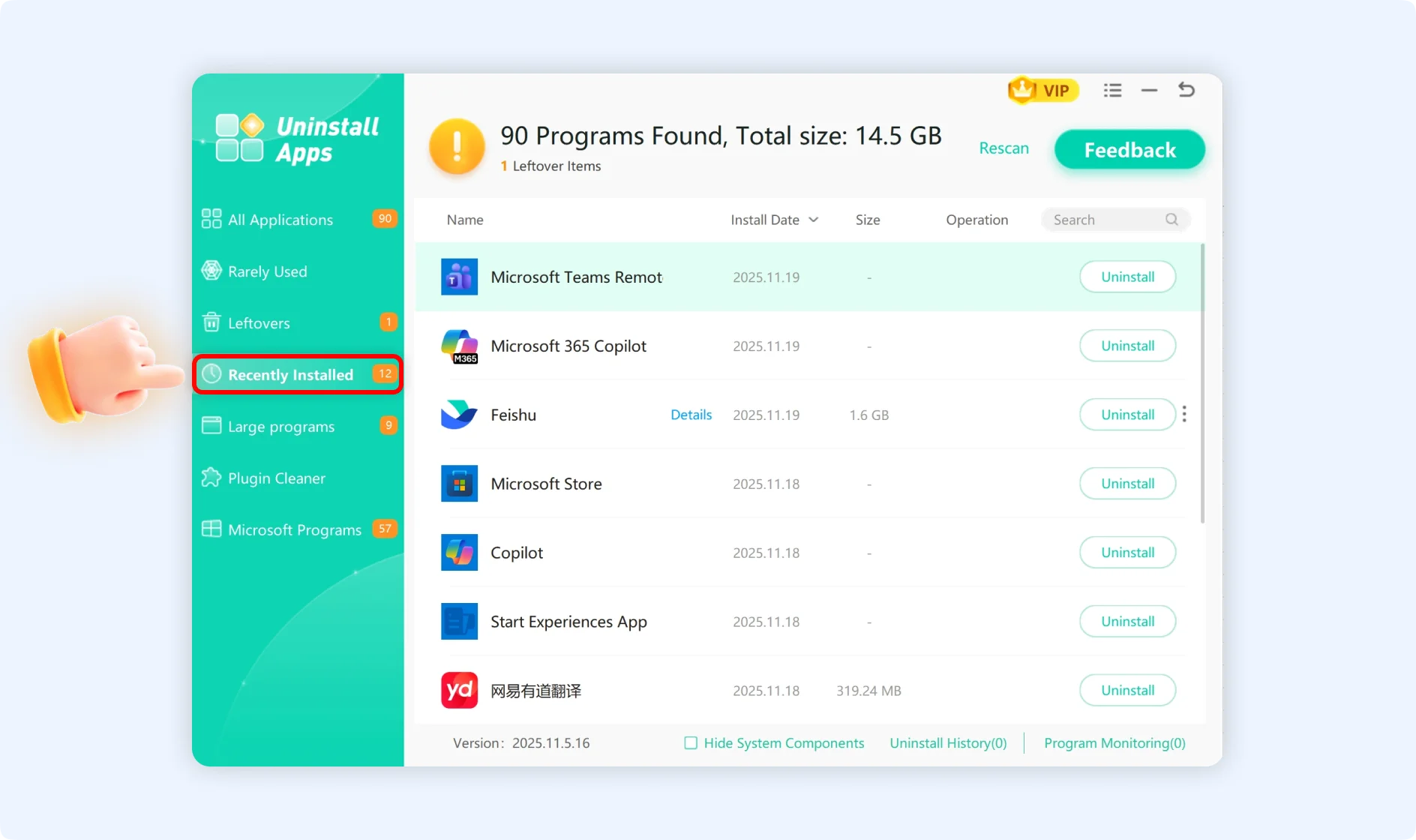
Recently Installed
It displays the most recently installed apps in reverse chronological order of when they were installed. It will allow you to quickly identify newly installed software and confirm programs that were installed without permission.
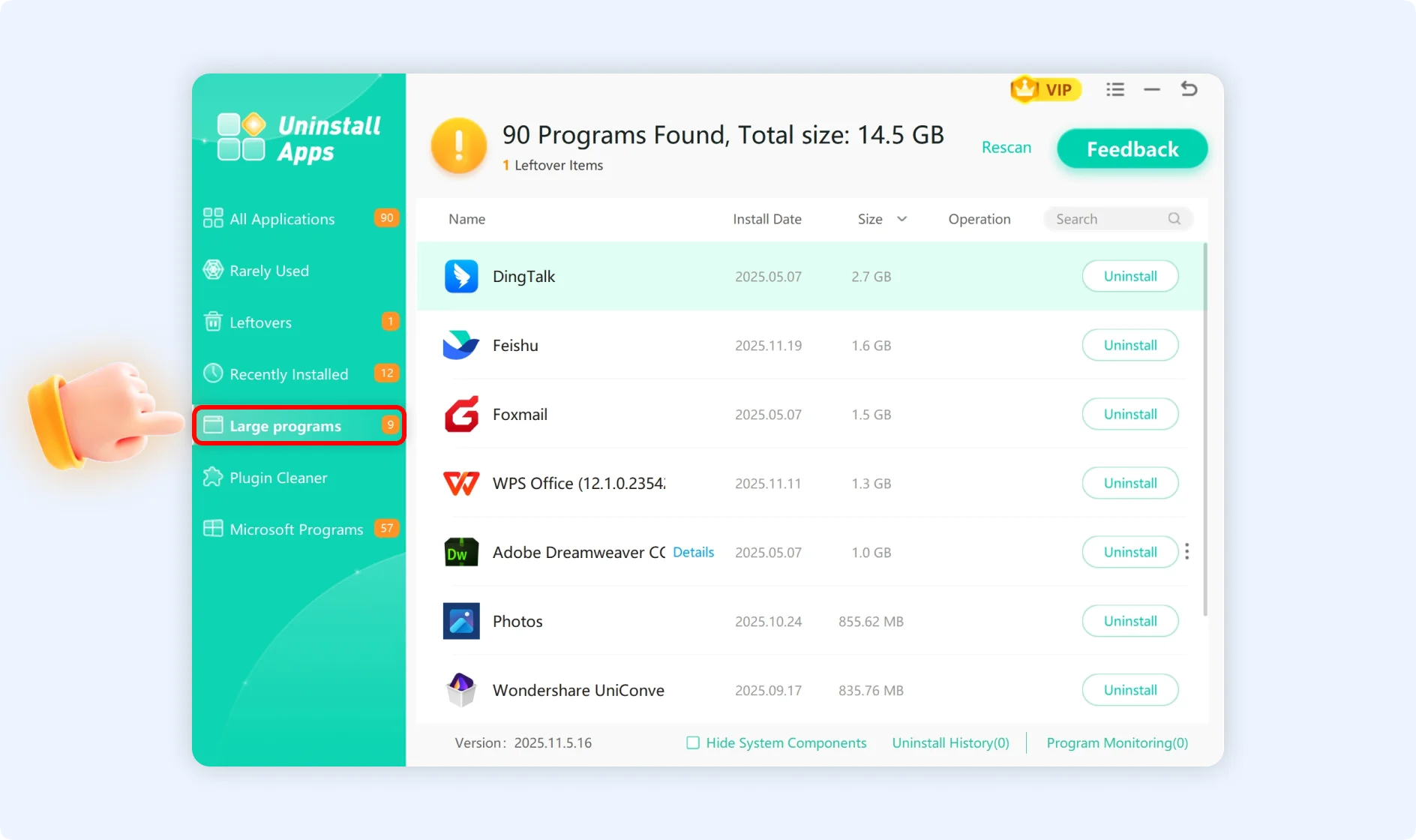
Large programs
Sorts apps by how much disk space they use so you can quickly find the ones that are using the most space. Please consider prioritizing this feature when file space is limited to determine if large programs are truly necessary.
Plugin Cleaner
Plugin Cleaner removes the installation of many system plugins, such as
- File Explorer: Add-ons for File Explorer, like cloud storage apps.
- Browser: Add-ons for browsers (works with Chrome, Edge, IE, Firefox, and more).
- ActiveX Control: COM and ActiveX controls.
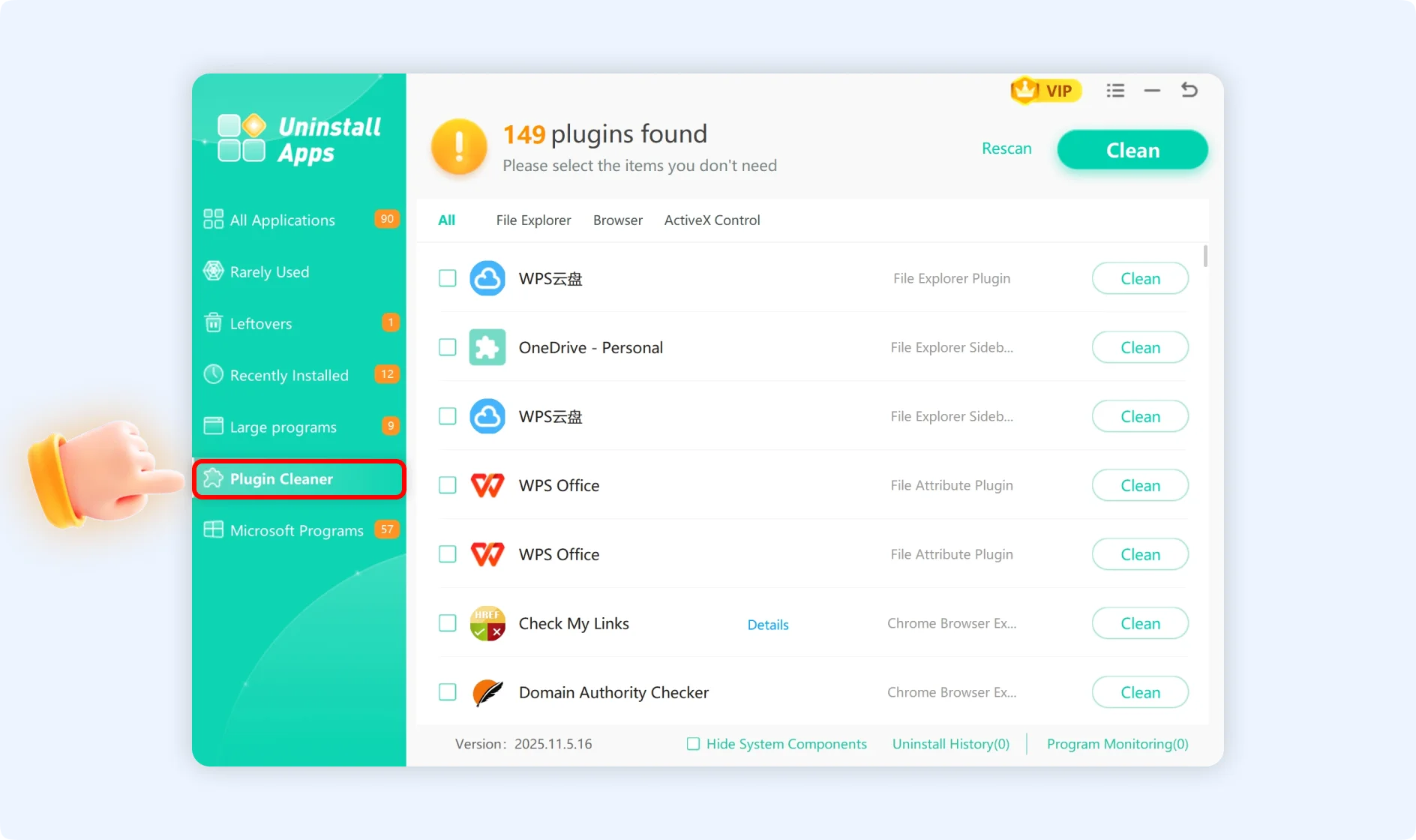
Clearing up unnecessary plugins on a regular basis makes the system and browser run faster.
Microsoft Programs
This process helps remove Microsoft products that do not appear in the system's "Control Panel," such as
- The Microsoft 365 suite and Office components.
- Many system apps, like the Microsoft Store and Xbox.
- Comes with apps like Clock and OneDrive.
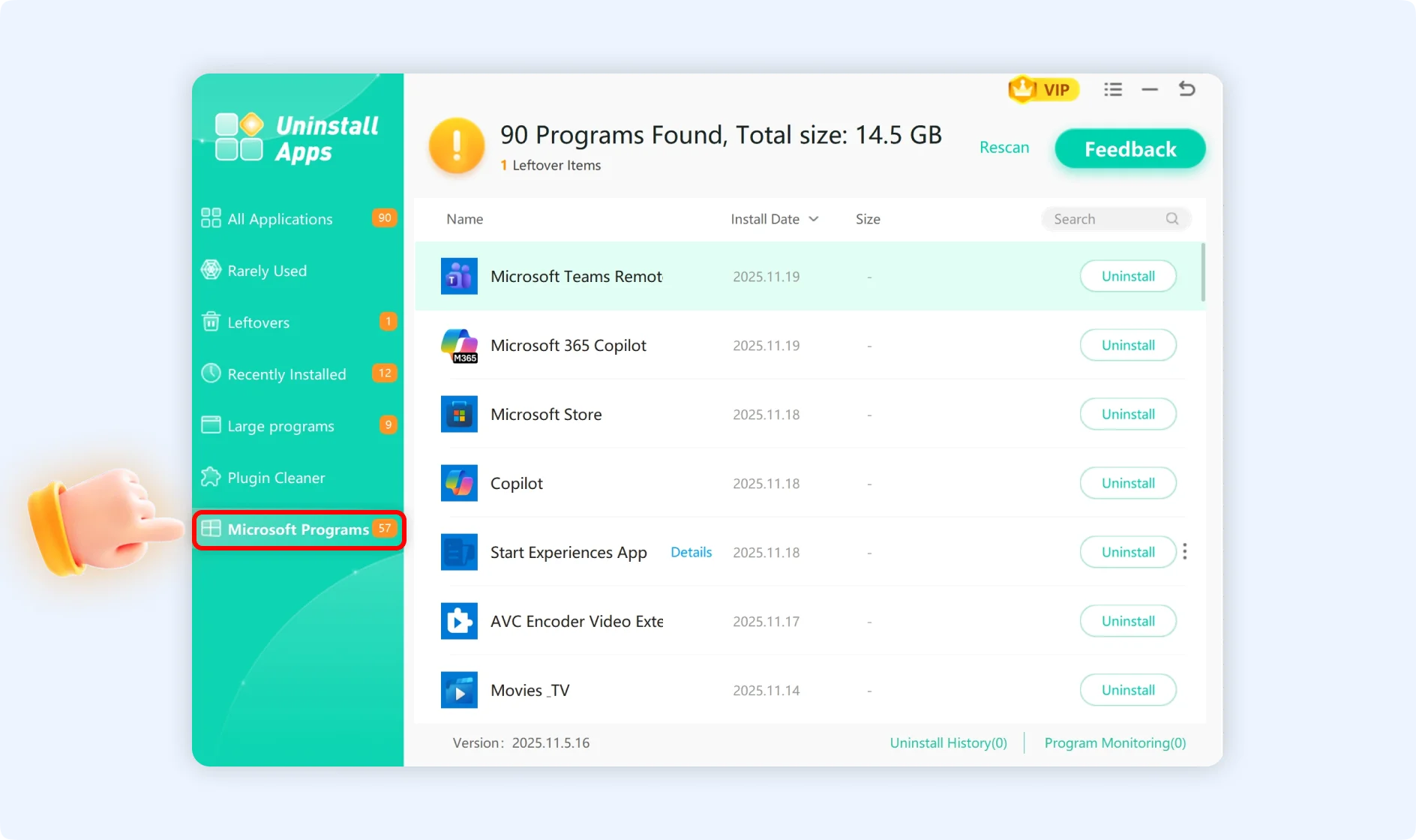
💡Tips: Some Microsoft programsare needed for the system to work properly. Please ensure the system's functionality is preserved before removing these programs.

Part 3. How to use WMaster Cleanup to Uninstall Applications
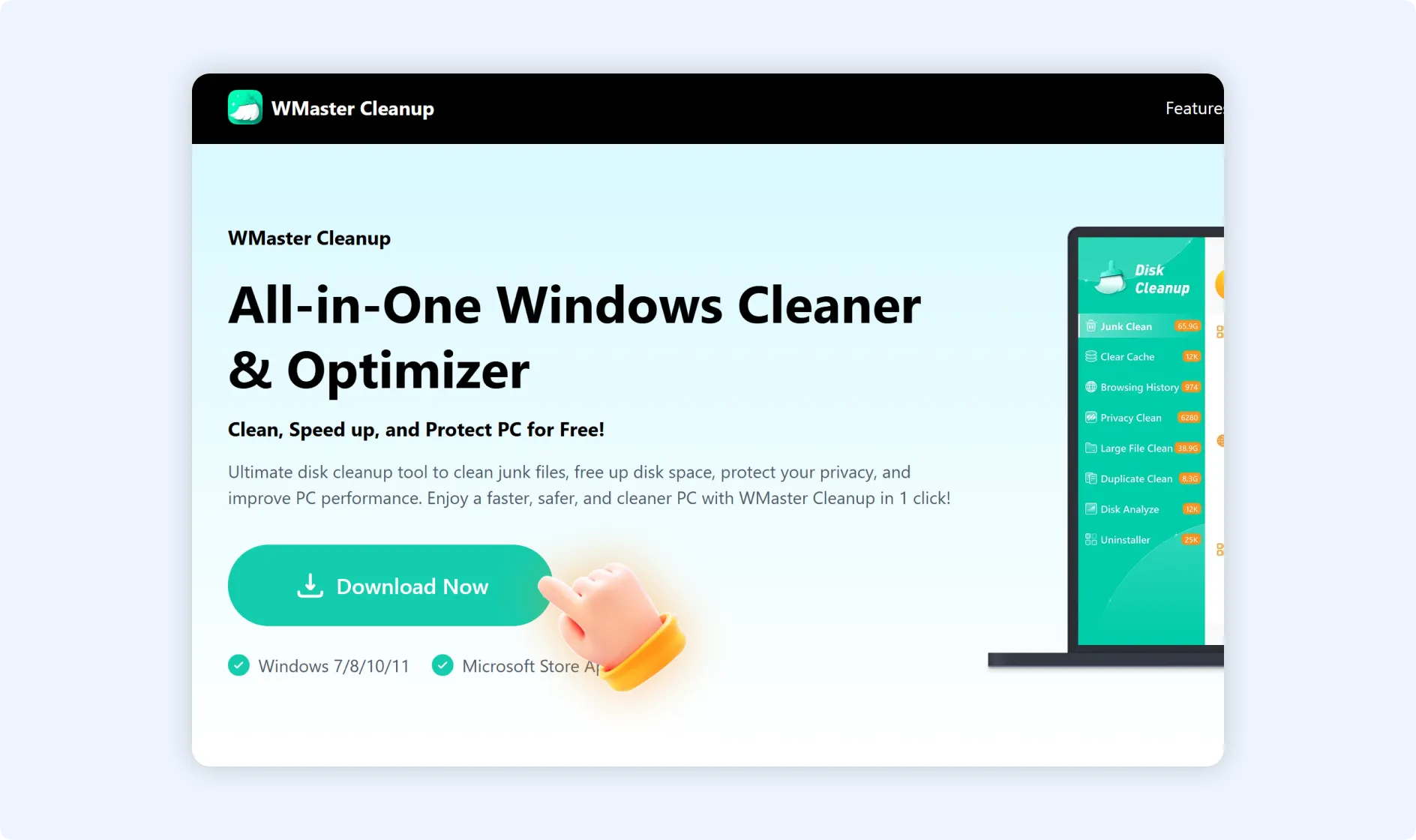
Make sure WMaster Cleanup is already installed on your PC before using its "Uninstall Apps" feature.
💡Tips:Uninstalling apps means getting rid of every trace of them—all the files and registry entries are permanently clean. So, before proceeding, please confirm whether you need to remove the software.
Step 1: Double-click the WMaster Cleanup icon to launch the application on your desktop. Identify the "Uninstall Apps" feature on the main interface and click to open it.
Step 2: In the "Uninstall Apps" scan window, hit the "Scan Now" button.
Once the scan is done, you will see the total number of software apps installed on your system. Right above the "All Applications" section, the function page will also display the amount of disk space they consume in total. Select the applications that you no longer need.
Step 3: Decide which software you want to completely remove, press the "Uninstall" button, and WMaster Cleanup will initiate the software's uninstallation process.
Once the uninstallation is complete, you will be prompted to “Clean” any leftover files.
Part 4.How to Use the Force Uninstall Feature of WMaster Cleanup
Applicable Scenarios:
- The built-in software's uninstaller is corrupted or fails to run properly..
- The software uninstaller cannot be found in the Control Panel.
- Several leftover files remain in your system even after uninstallation.
Guide to Force Uninstall Applications by WMaster Cleanup
Step 1:In the Uninstall Apps function interface, move your cursor over the "Uninstall" option, then click the three dots, represented as "⋮."
Step 2: Tap "Force Uninstall." WMaster Cleanup will scan through every file linked to the application, including registry entries.
Step 3: Once the scan is done, click "Clean" to get rid of the software permanently along with its files and registry items. You will also be prompted for confirmation before the final decision. Once you confirm and the process is completed, you will be asked to restart your PC.