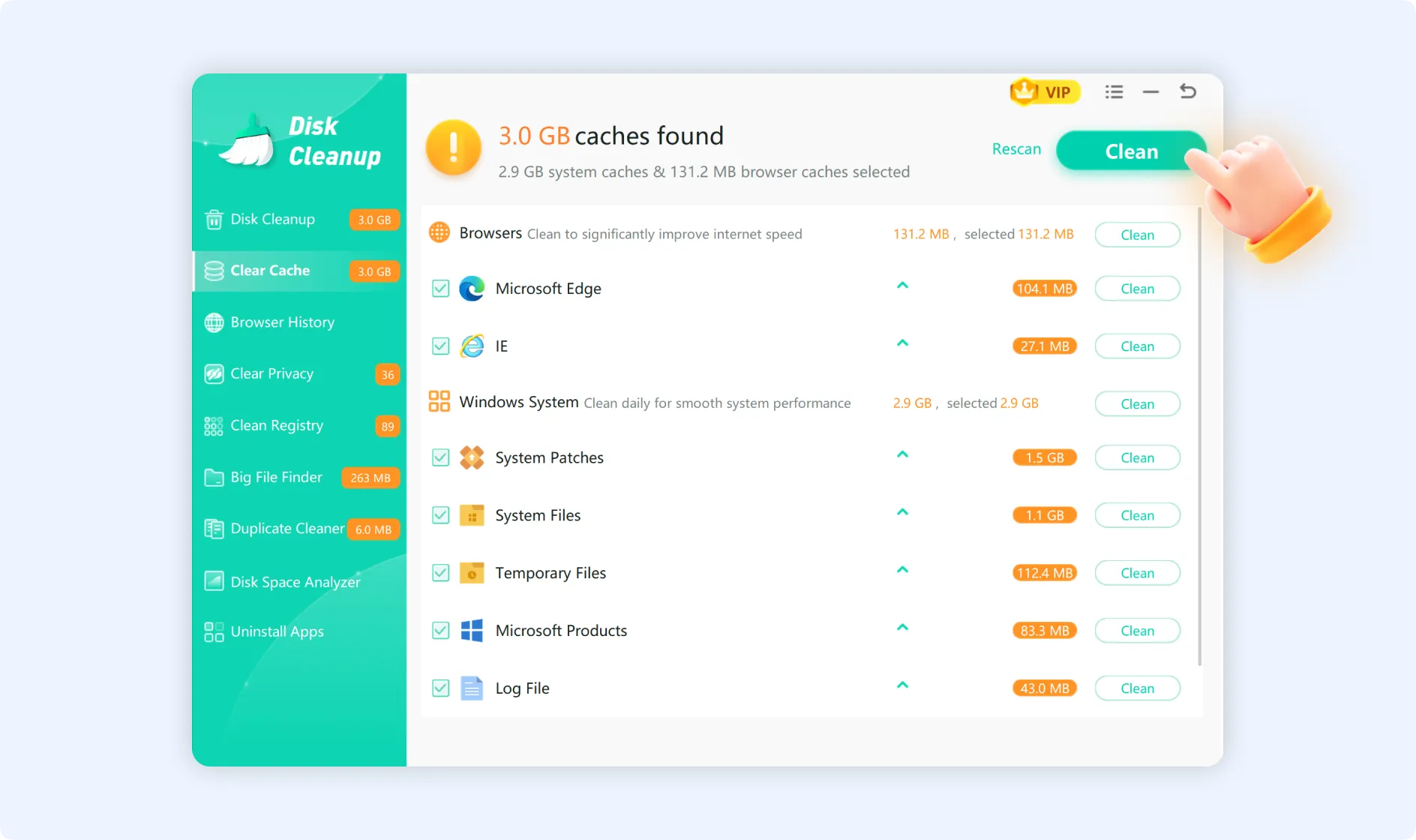
When Windows runs slowly, one of the main reasons is that many cache files and log data get stored on the disk. Temporary files, log files, update patches, and browser and system caches all take up storage space on your computer as you use software. This slows down the system's performance.
The Clear Cache feature in WMaster Cleanup enables you to remove all of your system and browser cache data at once. This helps you quickly free up disk space and make your computer run more efficiently.

Part 1. Key Features of WMaster Cleanup's Clear Cache Function
- Detects unnecessary caches, including system cache, browser cache (works with Chrome, Microsoft Edge, Internet Explorer, Firefox, and more), log files, and update patches.
- Clearly displays the size and location of numerous cache files, which helps you figure out how much storage space you are using.
- Offers a safe cleanup method to get rid of only removable, unnecessary cache data with no impact on system performance.
- Supports batch cleanup and also enables custom clean cache files.
How to Clear Cache by WMaster Cleanup
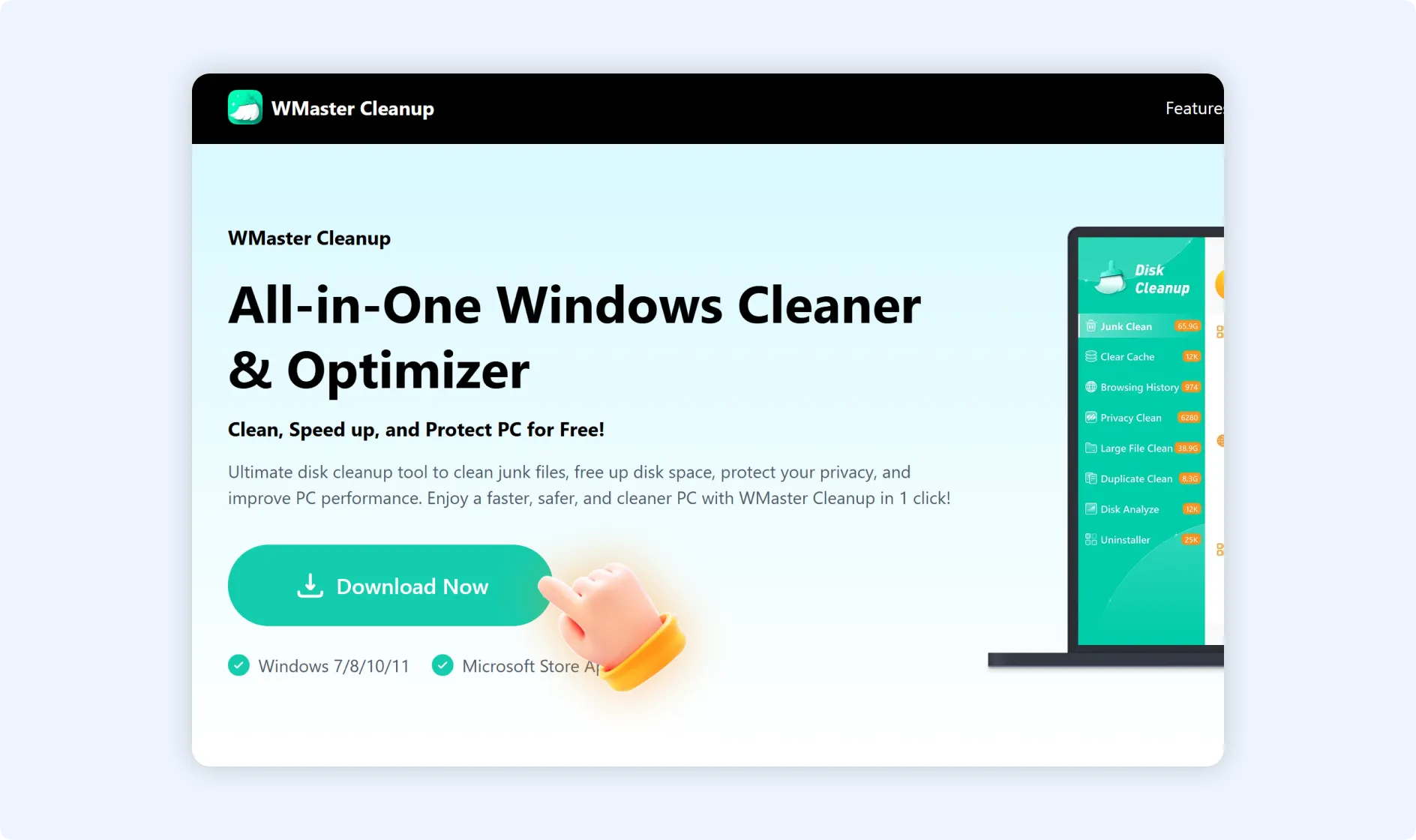
Step 1: To use WMaster Cleanup's Clear Cache feature, please visit the official WMaster Cleanup website to download and install the application.
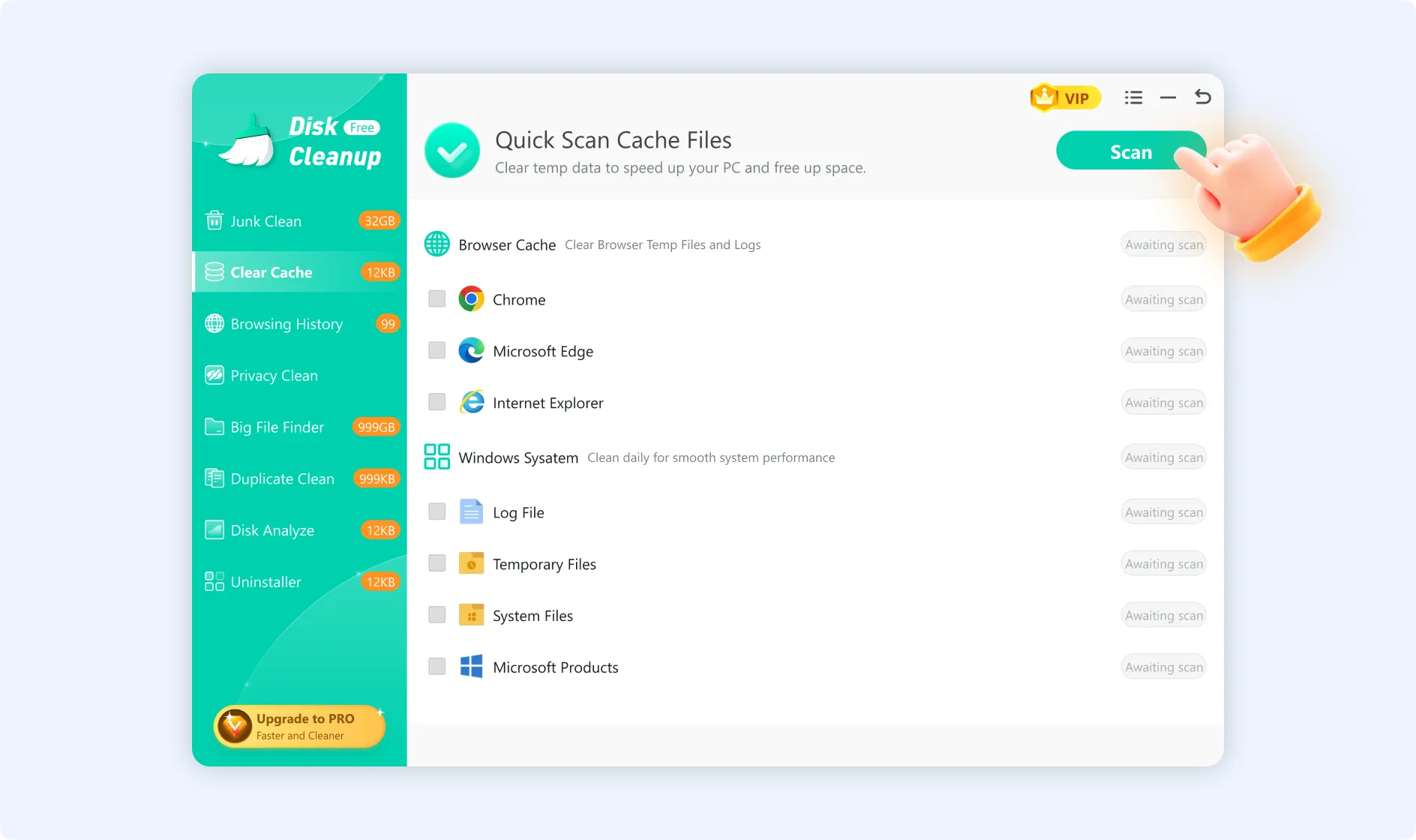
Step 2: After installation, double-click the WMaster Cleanup icon to launch it on your desktop. On the main interface, select "Clear Cache" and then hit the "Scan Now" button to initiate scanning all cache files in your system.

Upon scan completion, the "Clear Cache" interface will display the types of cached data that were found, including system cache, browser cache, log files, and system patches. Each item shows its storage space usage. To see more details about an item, click the triangle button next to it.
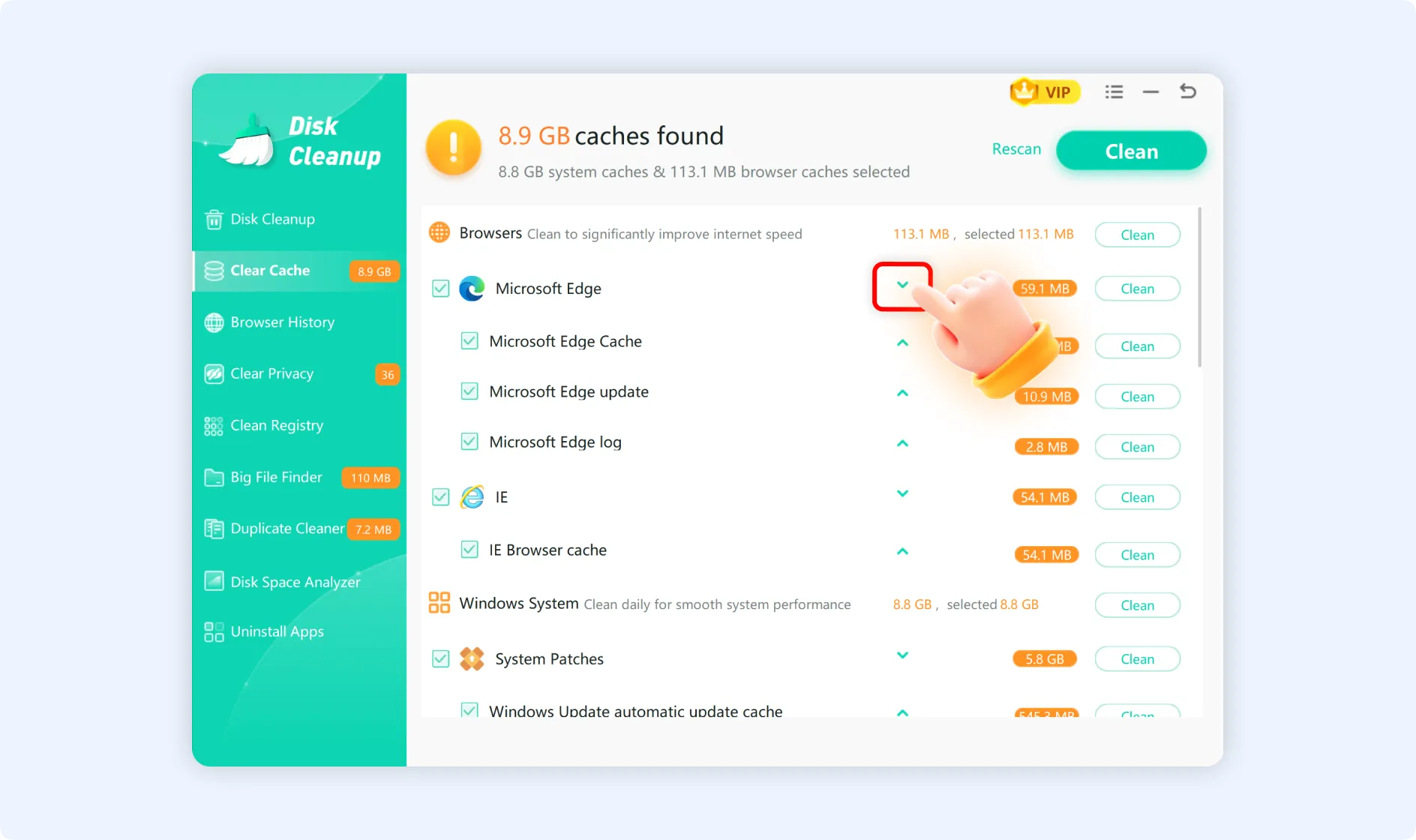
💡Tips:To clear the cache from a specific browser, like "Microsoft Edge," find "Microsoft Edge" under "Browser" and click the "Clean" button on the far right. This will clear all the cache, logs, and update patches for "Microsoft Edge."
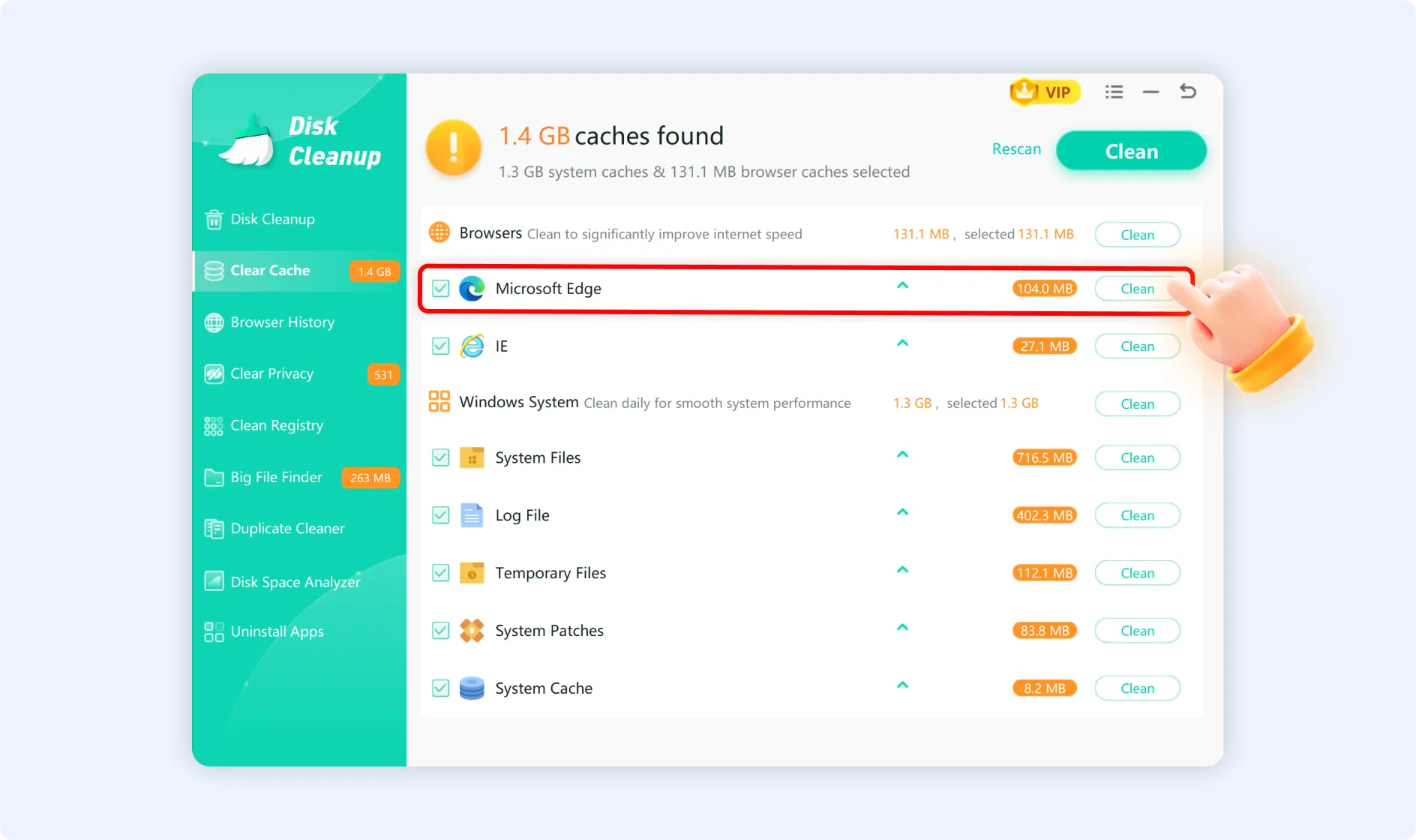
Step 3: Select the items you want to remove, then click the "Clean" button in the upper-right corner. WMaster Cleanup will safely and efficiently batch-clean various cache files generated by your PC and browsers.