The C: drive is the main disk space on your computer. If it runs out of space, it can slow down your computer and make it less efficient. You can try using our WMaster Cleanup to clean up various unnecessary files and quickly free up space on your C drive.

How to Find the WMaster Cleanup Clean C Drive Features
There are two methods to find the WMaster Cleanup Clean C Drive feature:
Method 1: Click “Clean C Drive” in the WMaster Cleanup Main Interface
Visit the official WMaster Cleanup website to download the software and install it on your PC. Once the installation is complete, double-click the WMaster Cleanup icon to start it. Now select the "Clean C Drive" feature from the main interface.
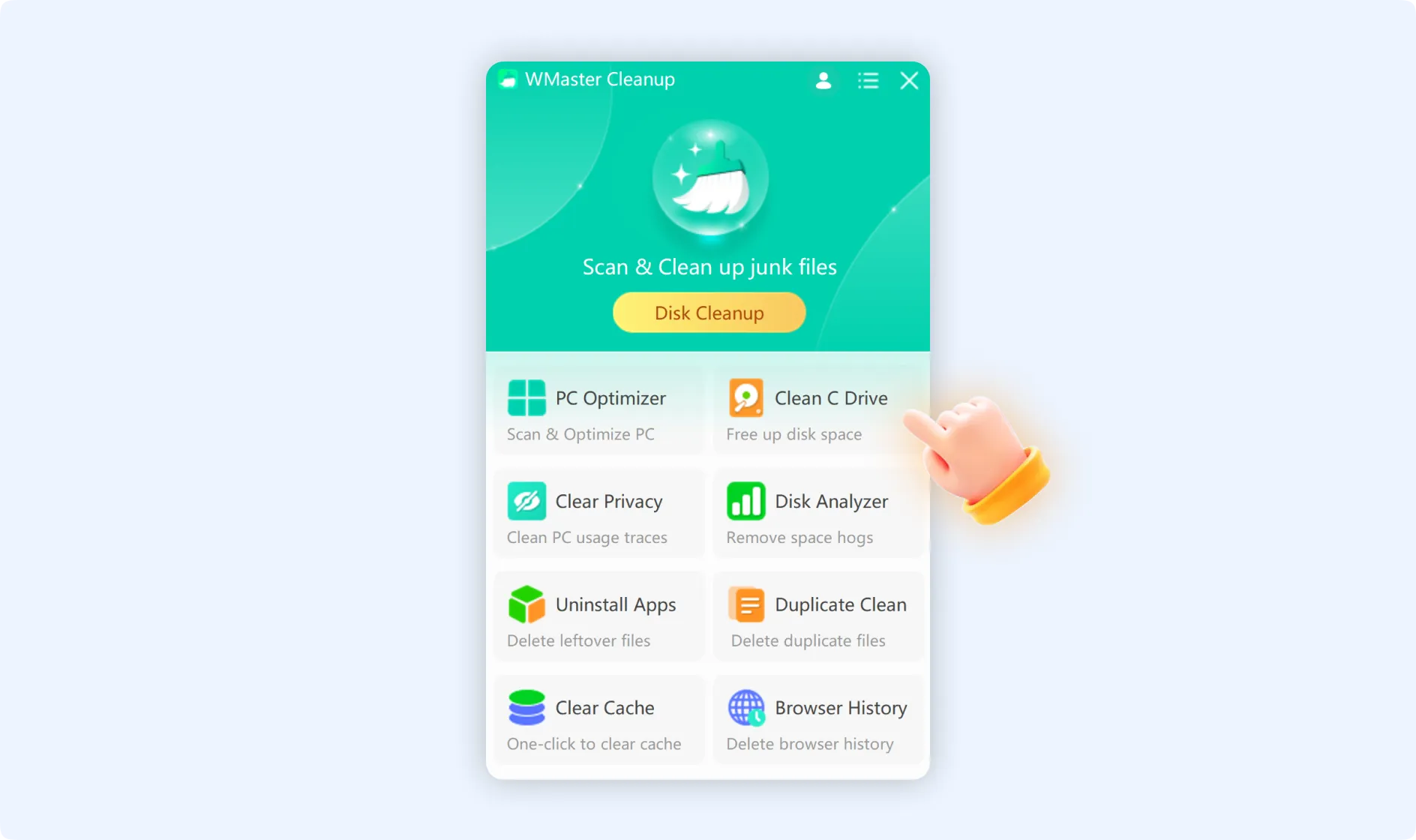
Method 2: Right-click Menu to Clean the C Drive
On your desktop, double-click "This PC," find your C drive, right-click it to open the dropdown menu, and then tap on "Clean C Drive." Make sure WMaster Cleanup has been downloaded on your PC before you use the right-click menu option.

Guide to Clean C Drive by WMaster Cleanup
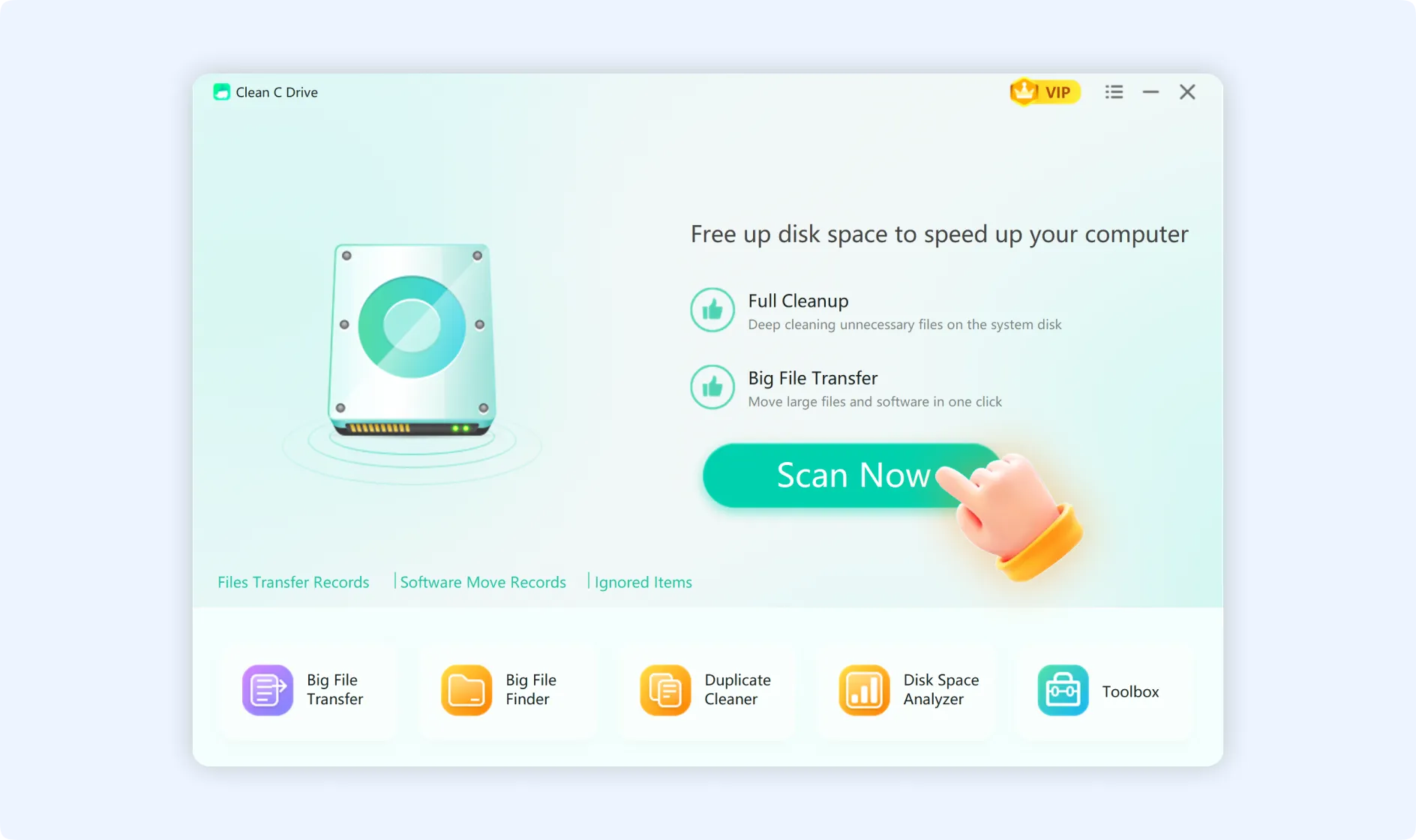
Step 1: After clicking on the "Clean C Drive" feature using one of the methods above, click "Scan Now" to start scanning your hard disk.
💡Tips:Once the scan is complete, it will display the available space on your C drive at the top-left corner of the Clean C Drive function interface.
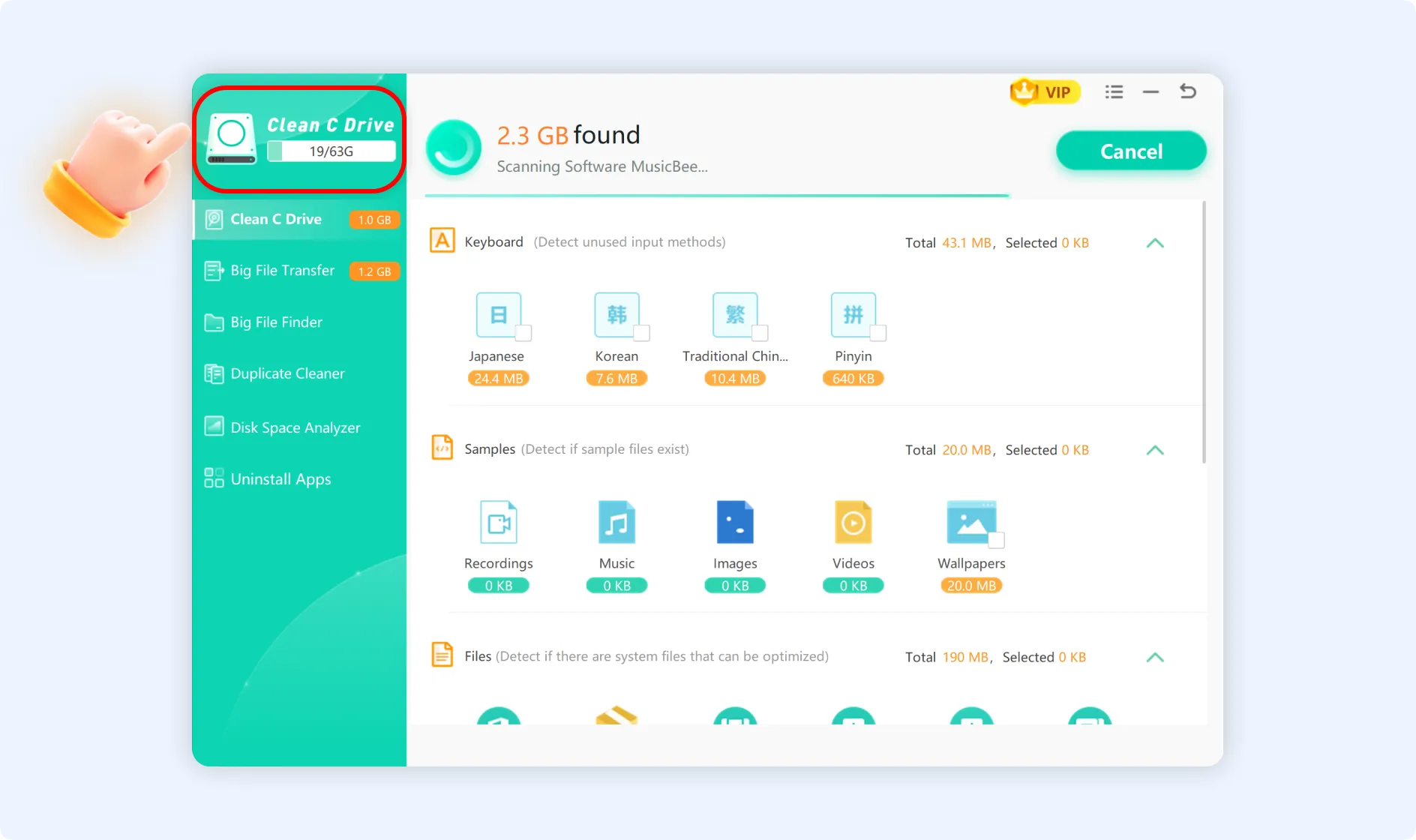
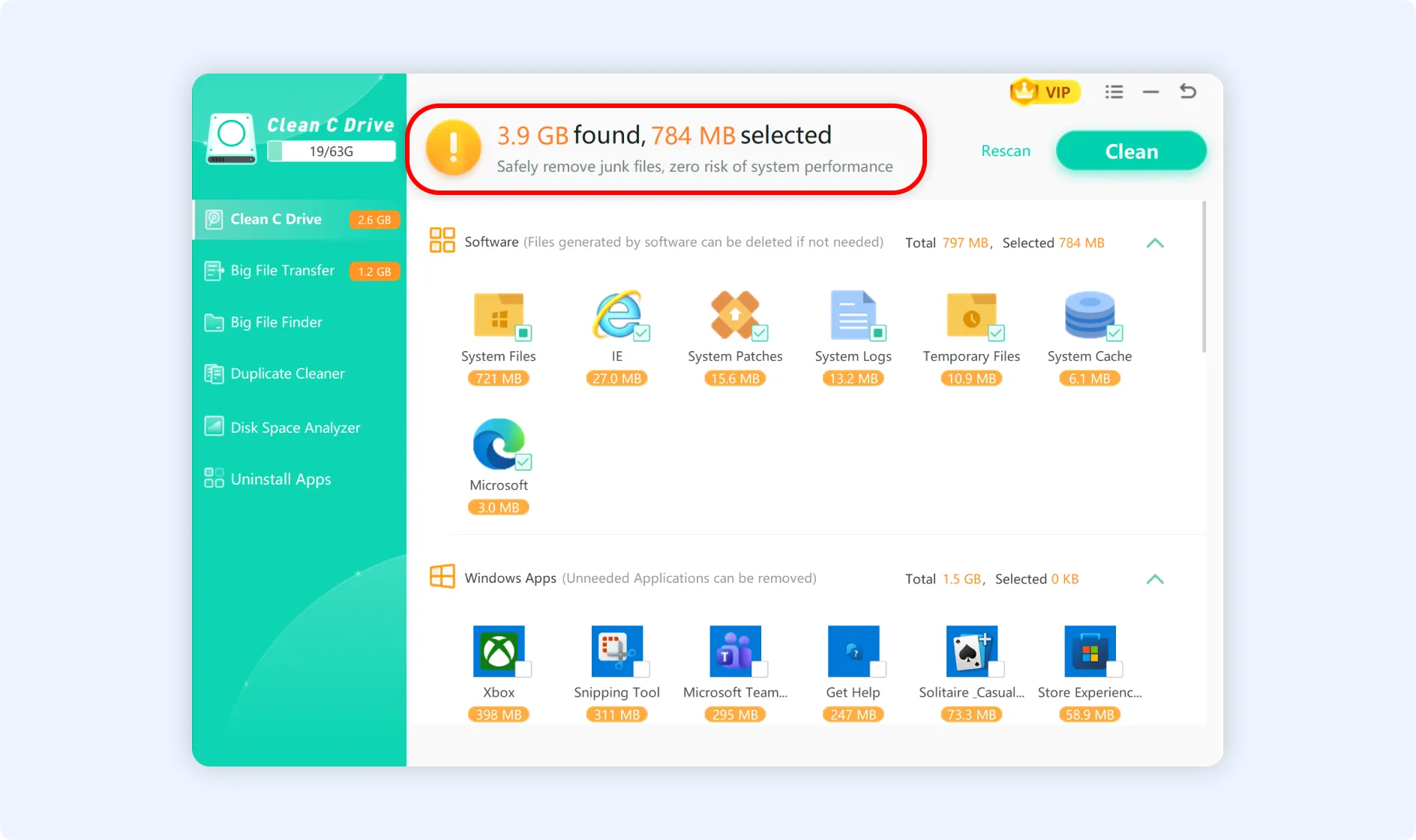
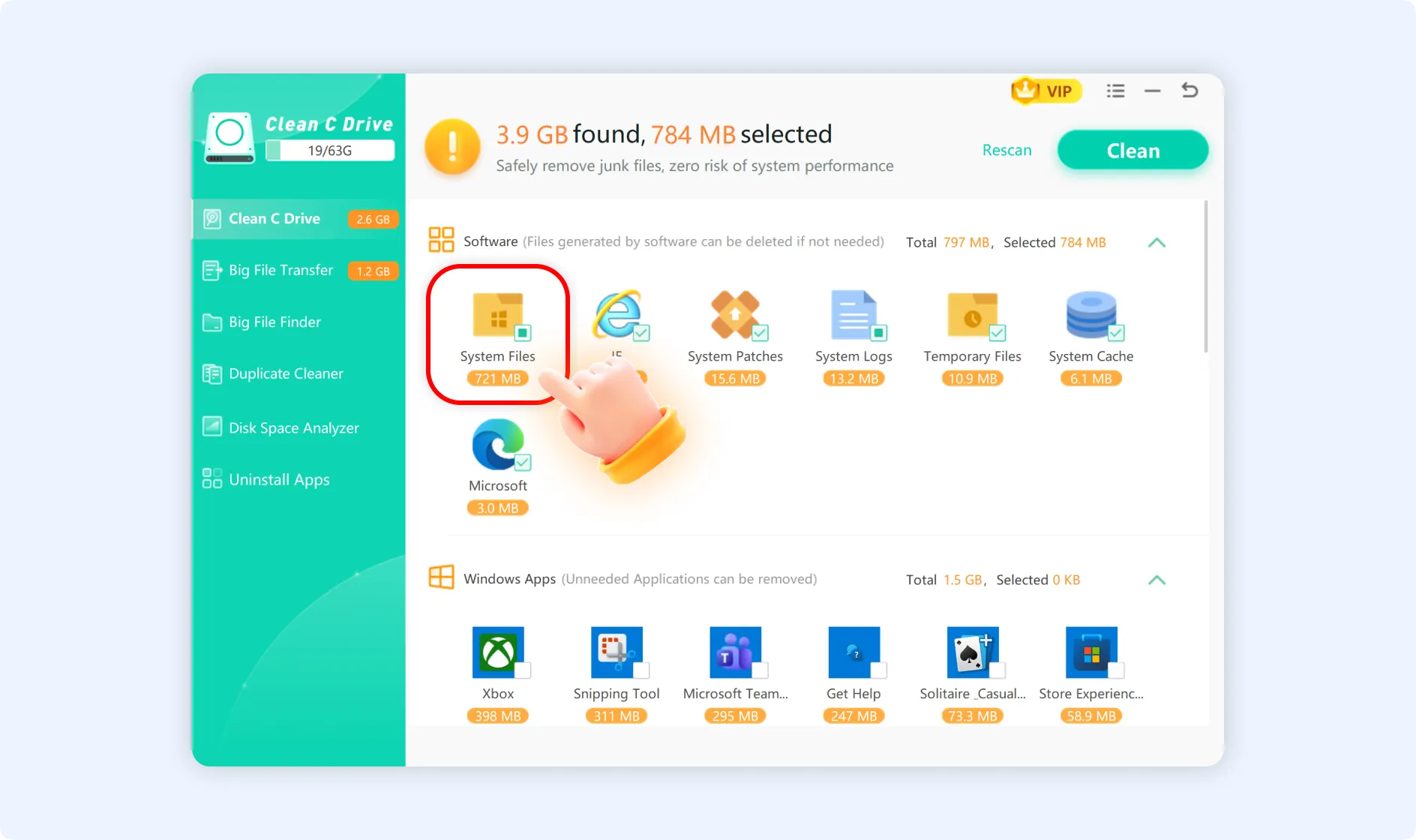
Step 2: If you want to view detailed information about a cleanup item, simply click on it.
Step 2.1: Once you enter the desired cleanup item’s details interface, you can either ignore the entire item’s cleanup or ignore individual cleanups. If you want to clean the entire cleanup item, click “Clean” directly.
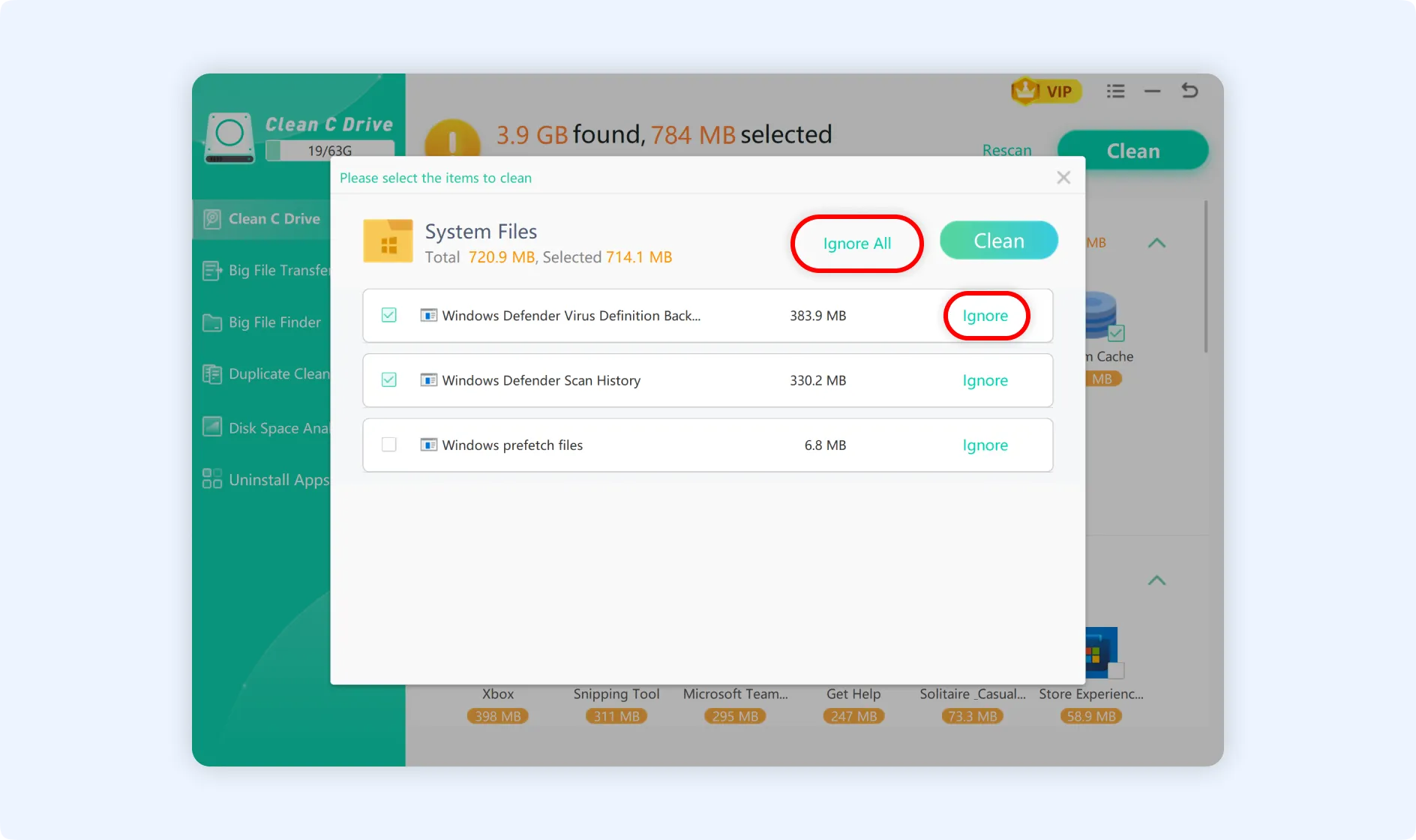
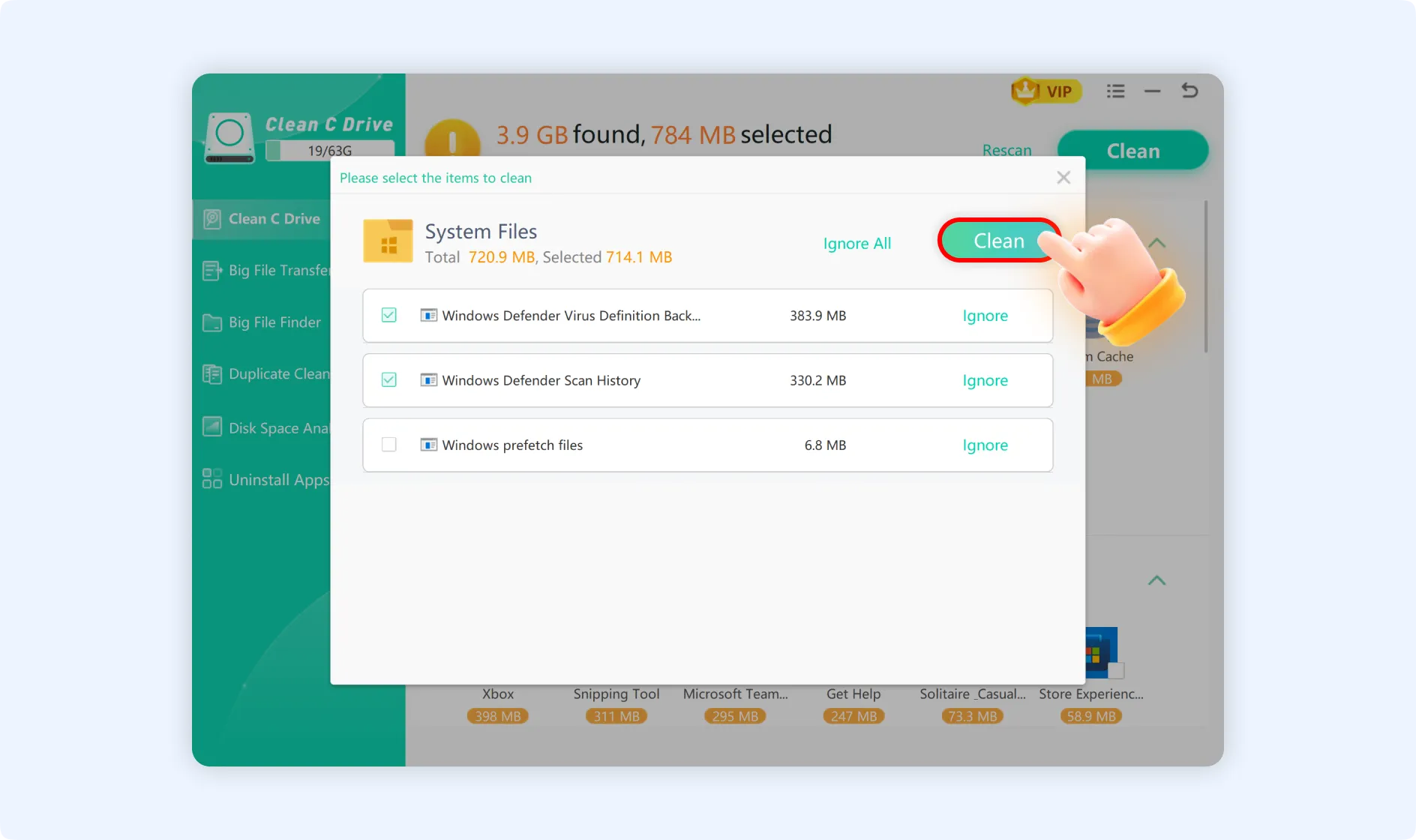
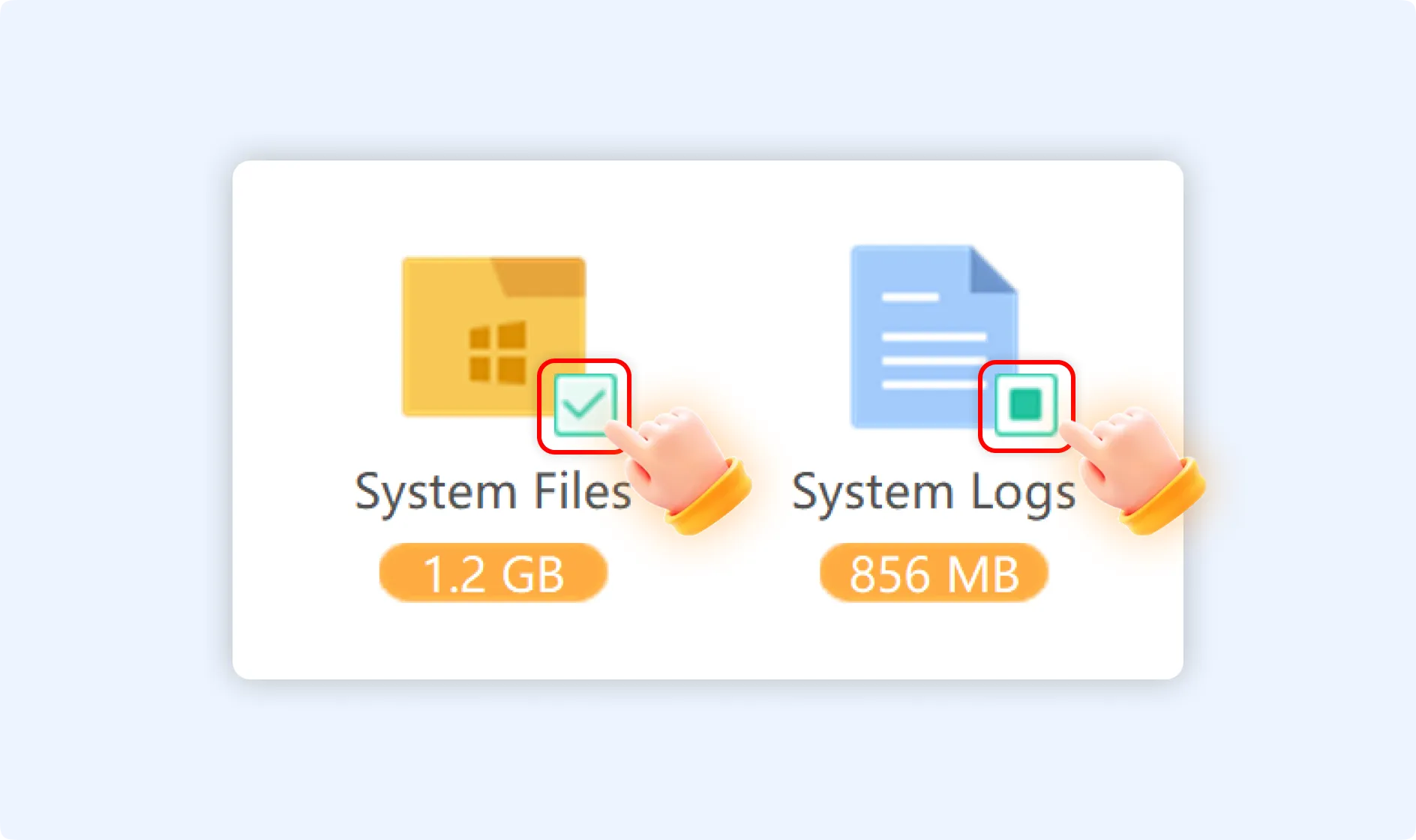
💡Tips:When you select a cleanup item, the "✅" status means that all the files under that item will be completely cleaned. The "🟩" status means that only some of the selected files will be cleaned.
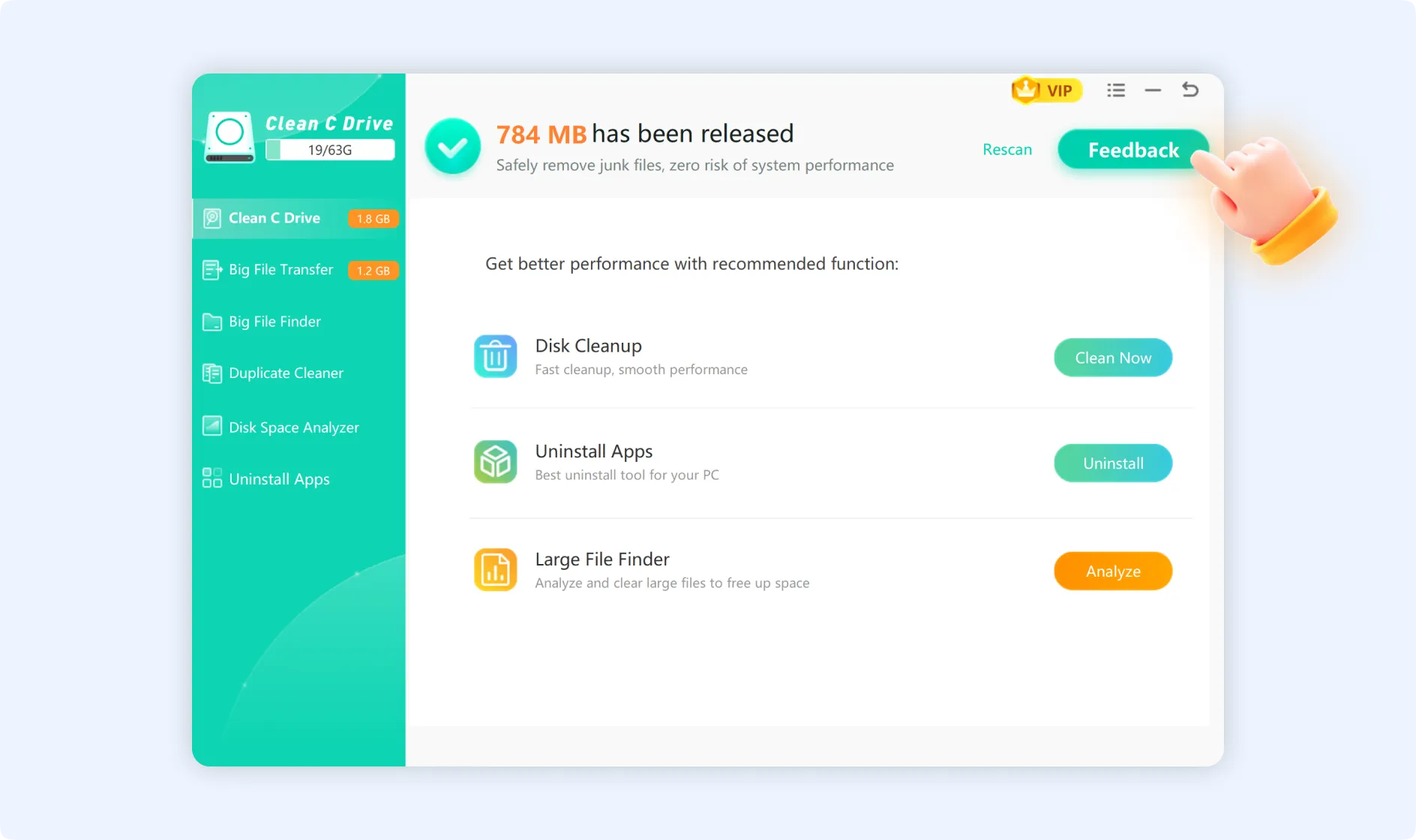
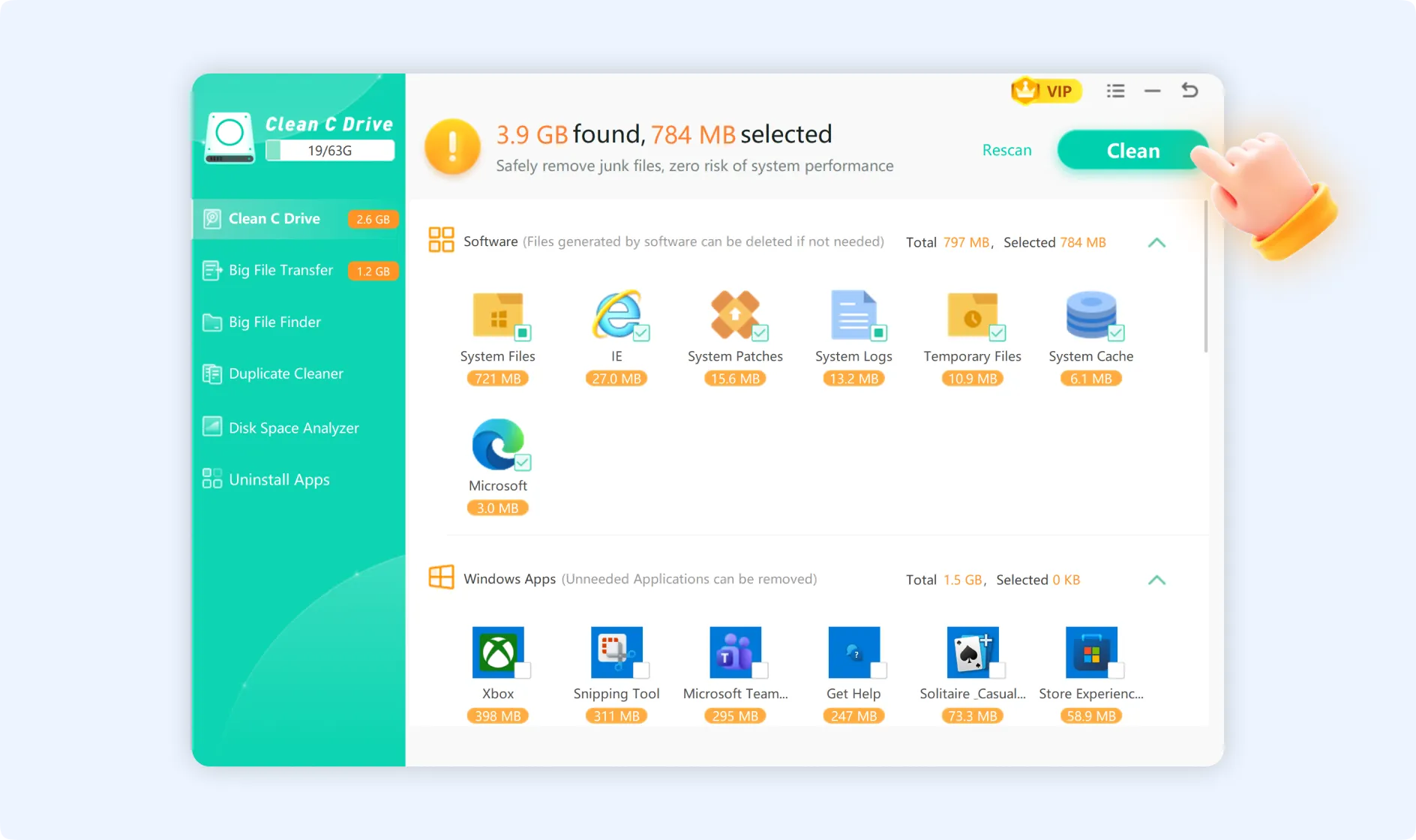
Step 3: After checking the items to be cleaned, tap on the “Clean” button available at the upper right corner of the “Clean C Drive” function’s main interface. This method will safely, quickly, and in batches free up space on your C drive.
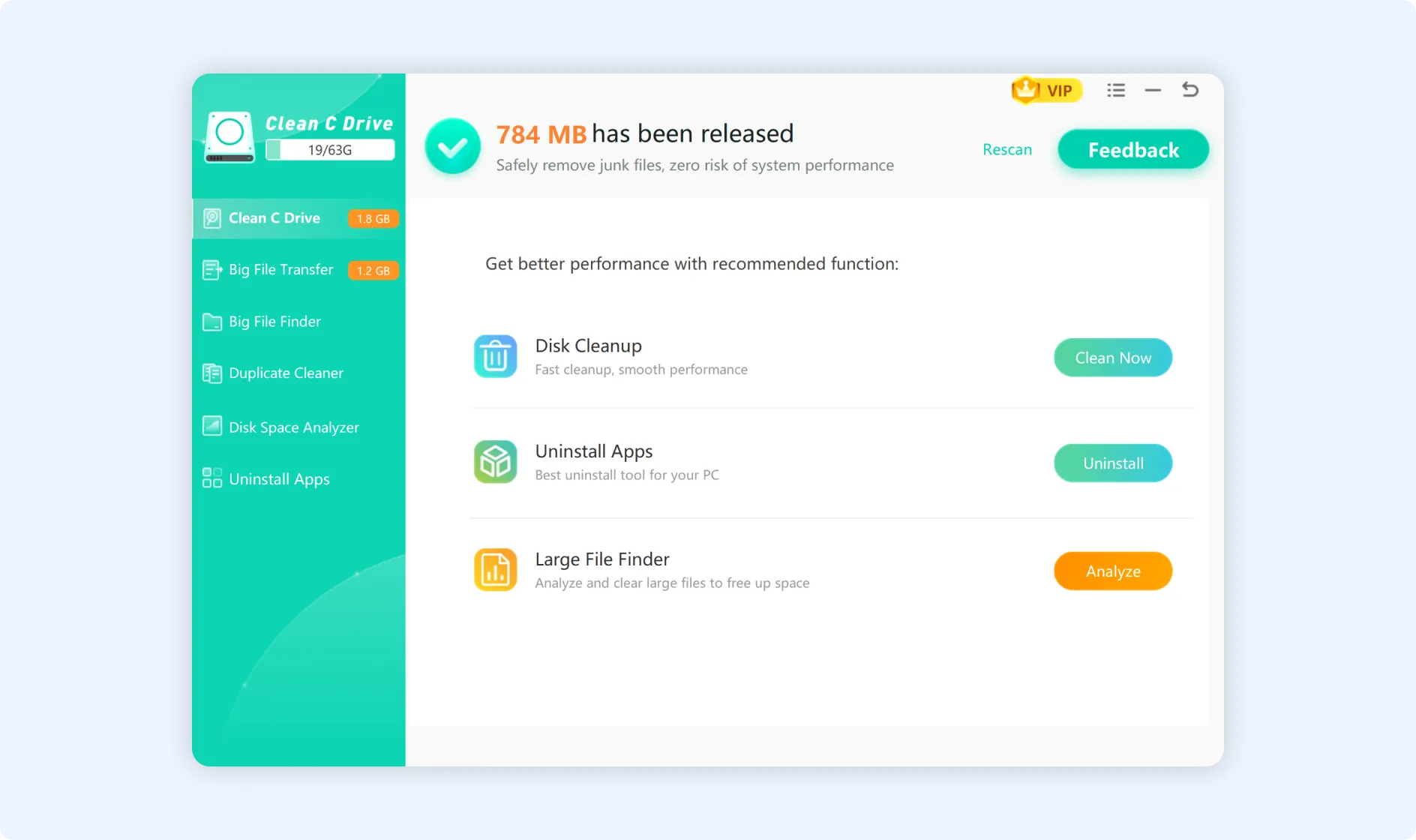
💡Tips: If you have any problems after cleaning up, click Feedback and we will help you fix them.