Browsers keep a lot of private information, like the websites you visit, your search history, and your browser's address bar history, because they are the main tool for accessing the internet every day.
The Browser History feature in WMaster Cleanup offers a professional way to delete browsing data. It can deeply clear your browsing history, cache, and private data in several popular browsers, such as Chrome, Microsoft Edge, Internet Explorer, and Firefox, giving you full privacy protection.

Part 1. Advantages of the Browser History Feature
- It deletes all major web browsers' history, such as Chrome, Edge, Firefox, and Internet Explorer. Deeply scans sensitive data such as visited websites, search records, and the history of your browser's address bar.
- It intuitively groups data by browser, which makes it possible to batch or individually clean up. Likewise, it also offers browser-specific or data-type-based cleanup.
- It deletes data that can be safely removed without affecting the functionality of the browser.
Part 2. How to Clear Browser History by WMaster Cleanup
To use the “Browser History” feature, make sure you have already downloaded and set up WMaster Cleanup on your computer.
Important Notes:(Please read carefully)
- You need to close all browsers to clear browser history completely.
- You cannot recover browsing history and login statuses that have been cleared. Take care as you go.
- Before cleaning up, it is recommended to export any important browser bookmarks and saved passwords.
Steps to Clear Browser Cache by WMaster Cleanup
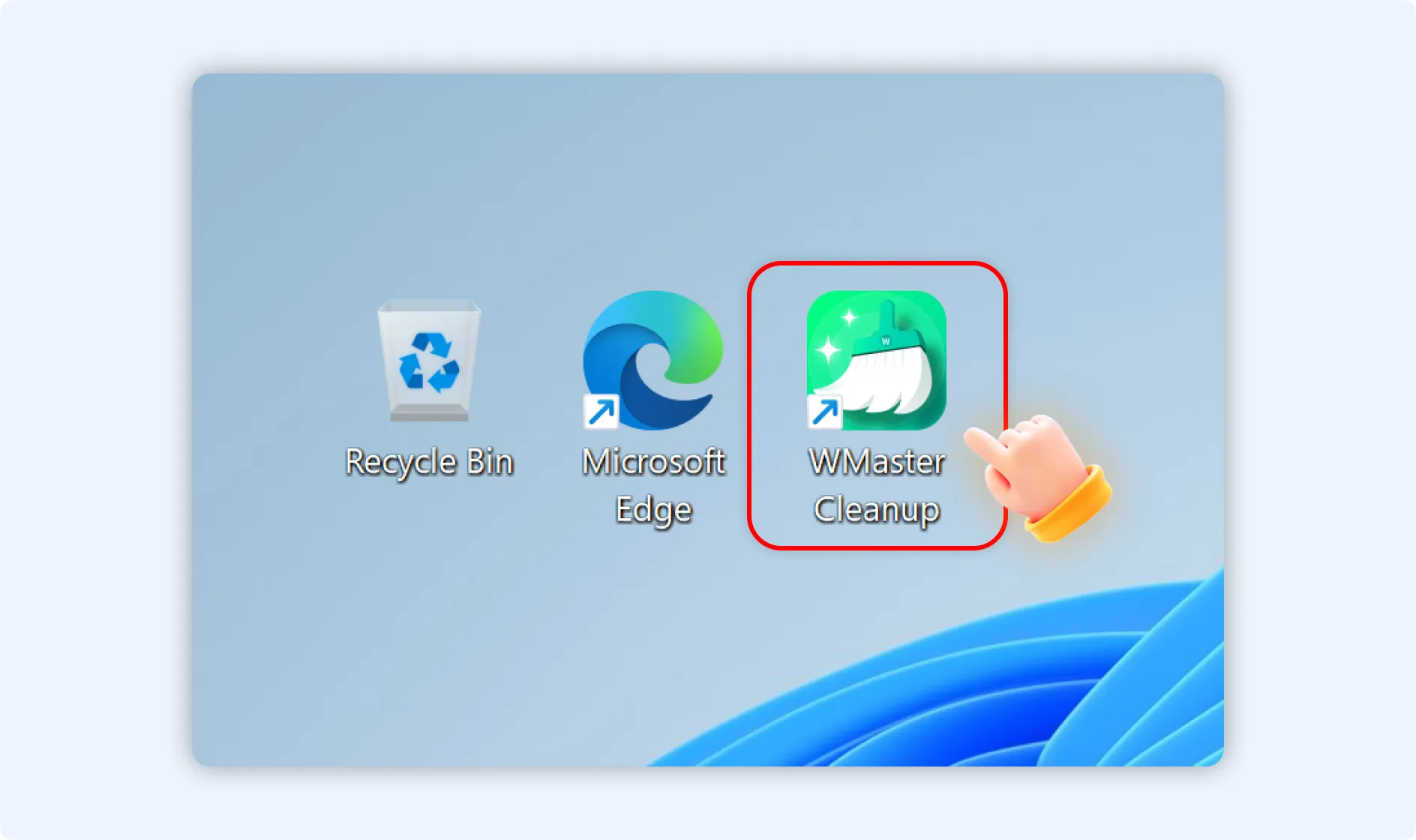
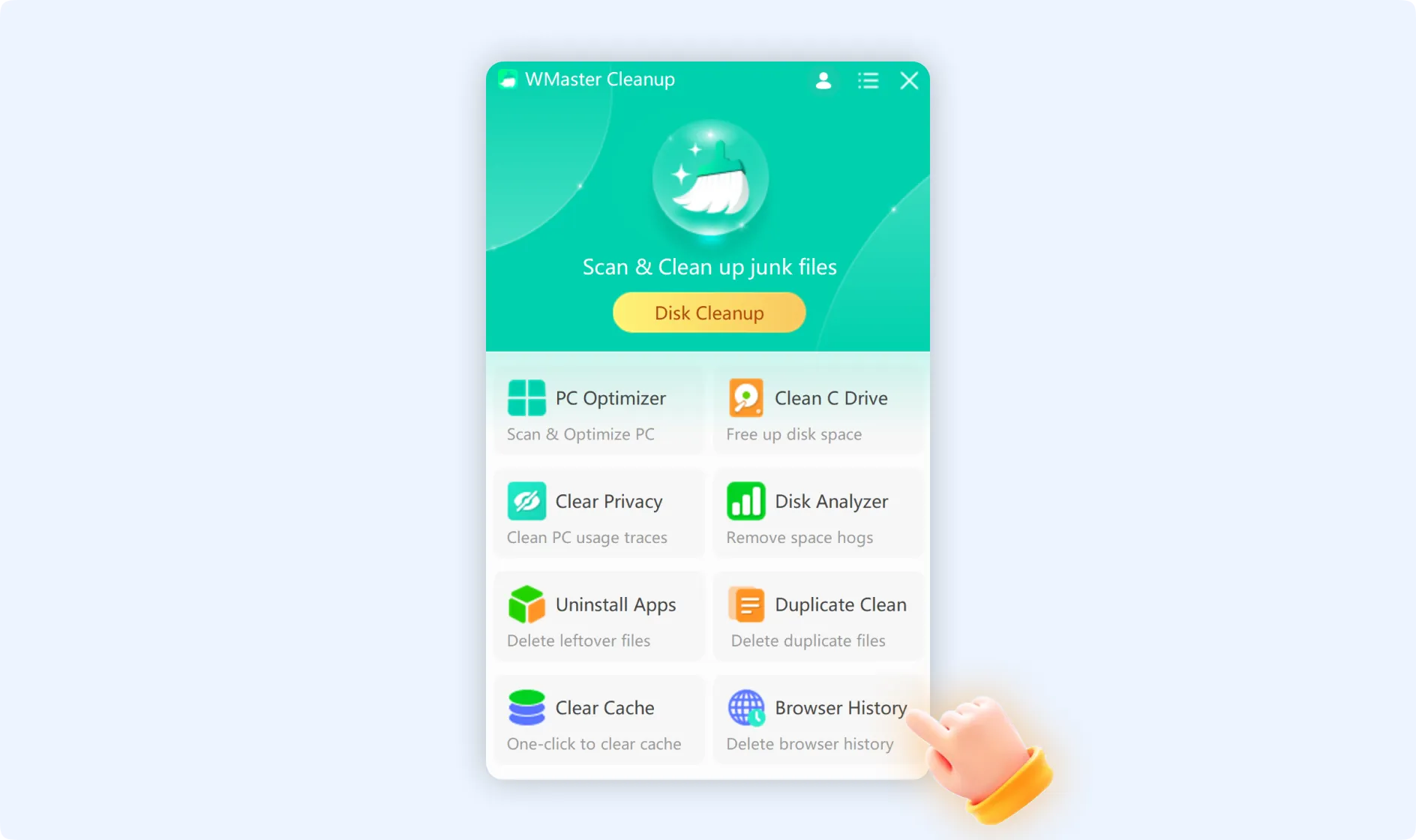
Step 1: Double-click the WMaster Cleanup icon to launch the application, and then select "Browser History" from the main interface.
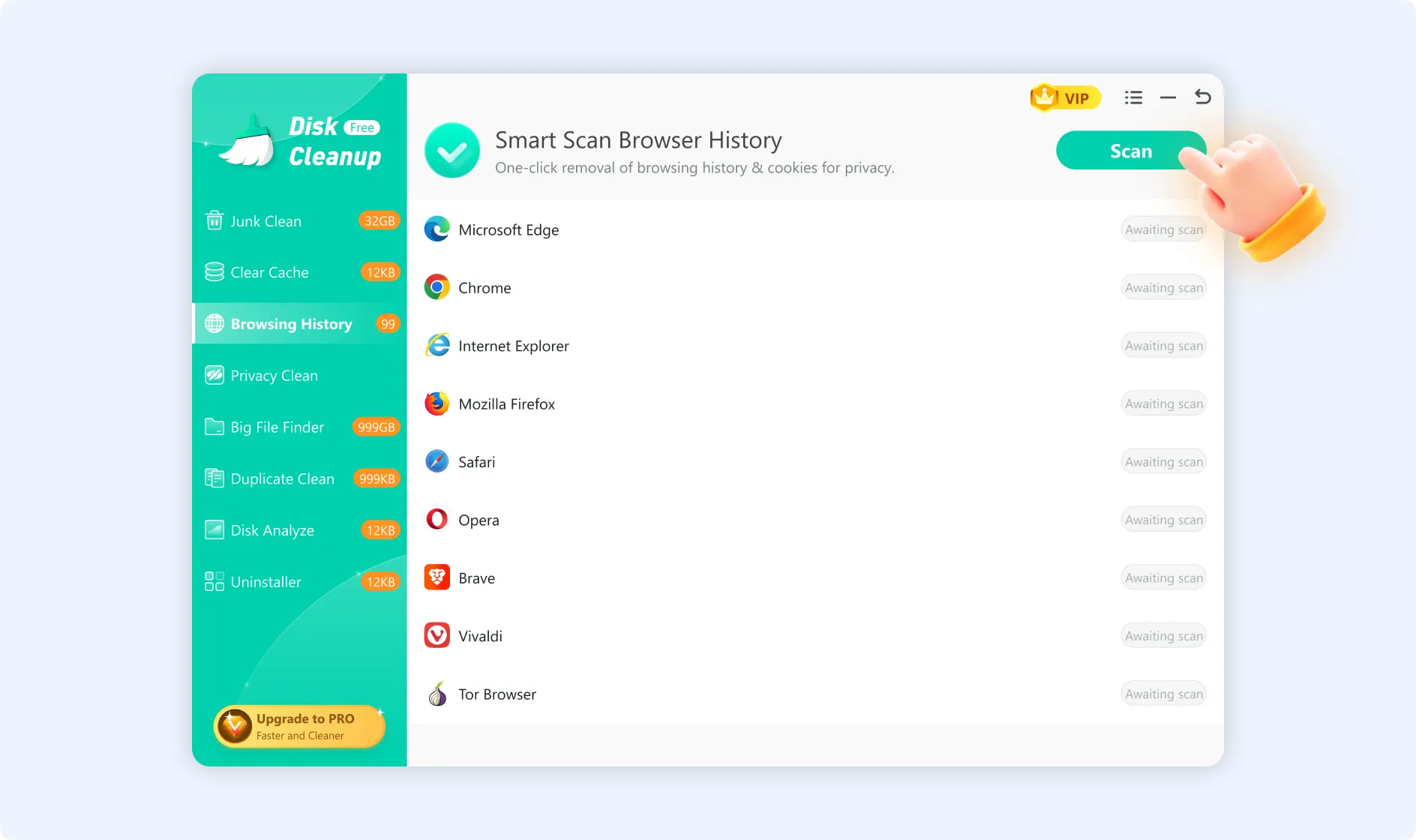
Step 2: Click the "Scan" button after you enter the "Browser History" function window. This feature will identify the installed browsers on your system and scan their generated histories.
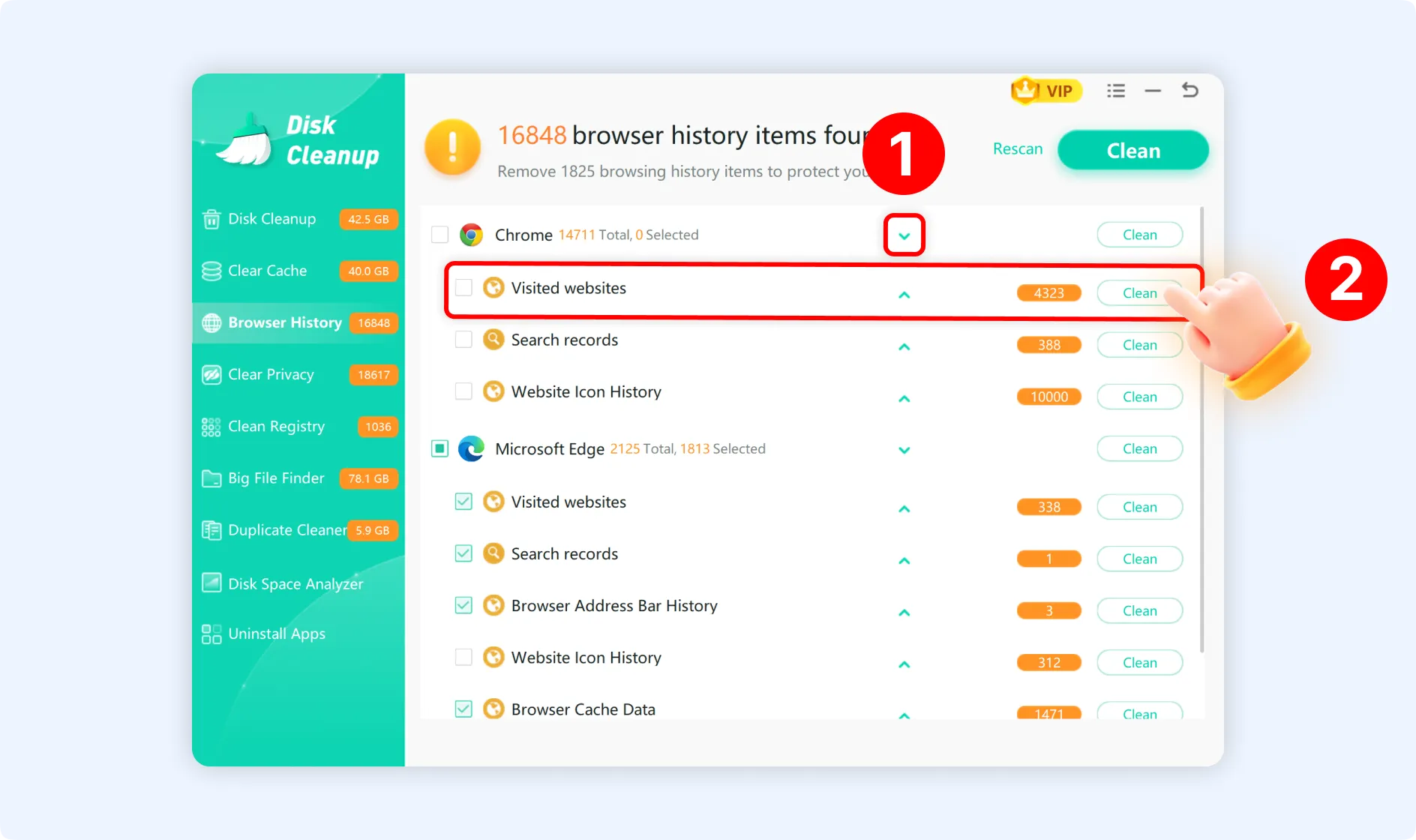
Once the scan is done, all of the detected web browser data will be categorized by browser. Each browser section lists its storage usage and cached content types.
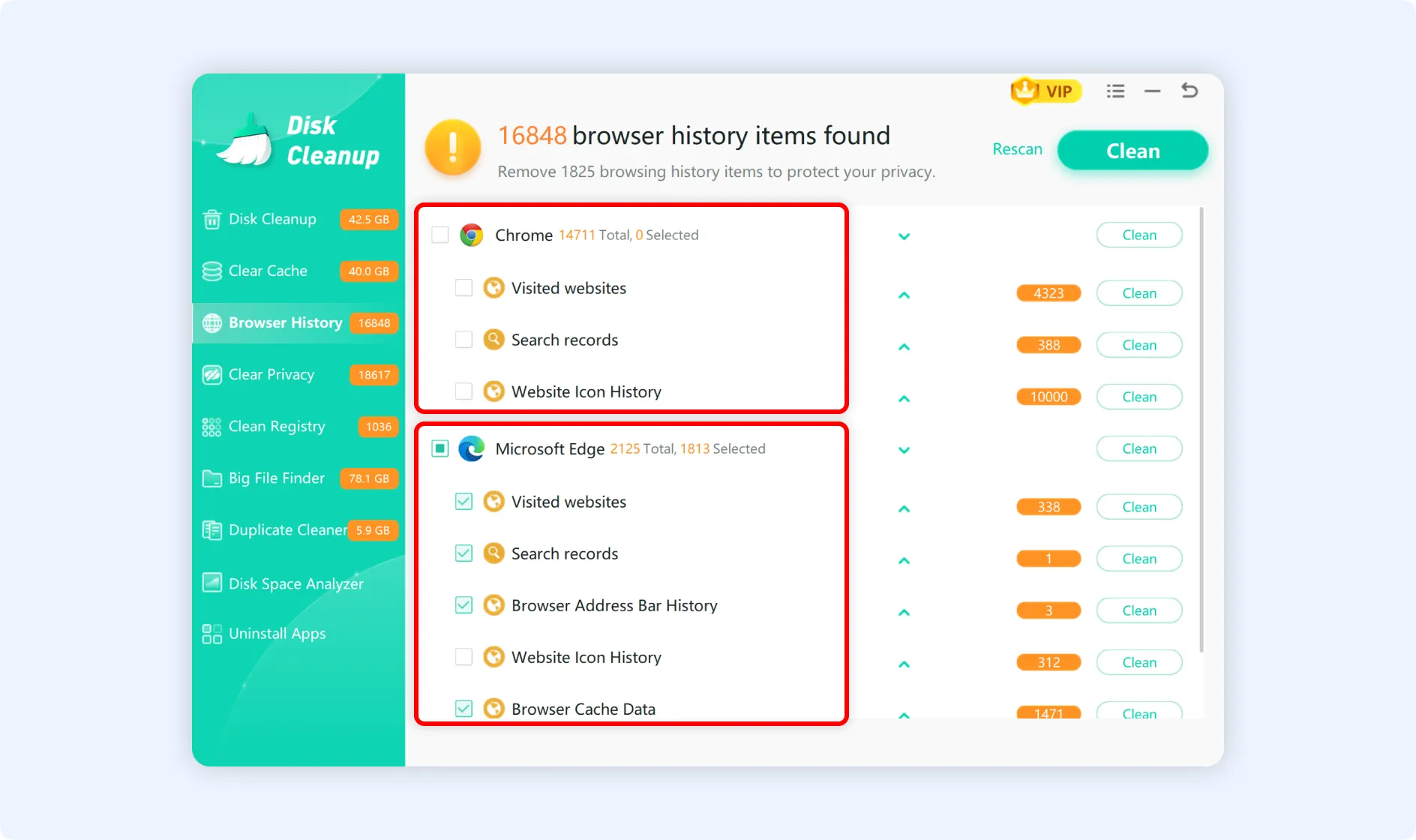
Step 3: For batch cleanup, select browser history items, and then hit the "Clean" button at the upper right corner.
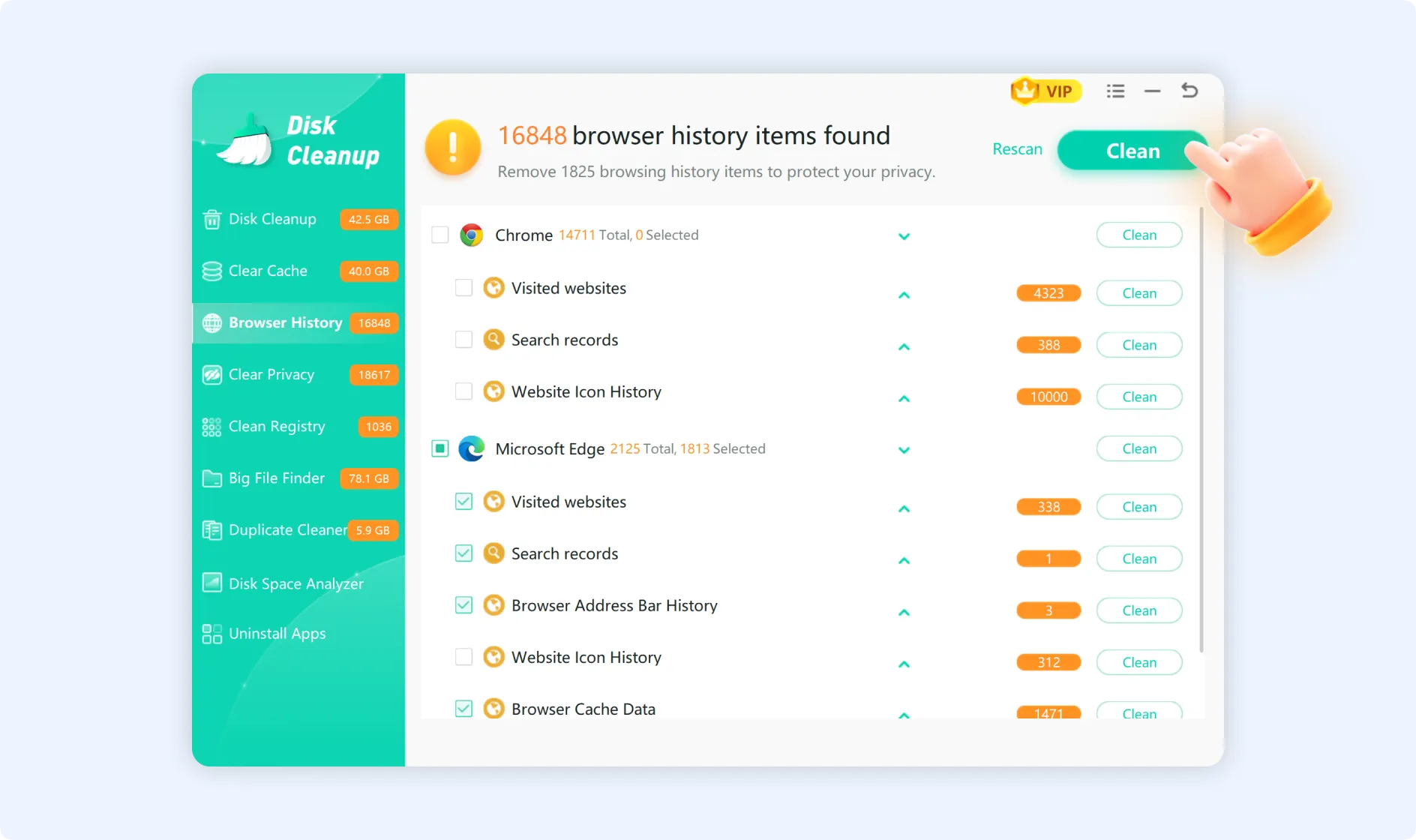
💡Tips:For specific browsers, for example, Chrome, click the "Clean" button for that browser to delete its Visited websites, Search records, and Website Icon History.
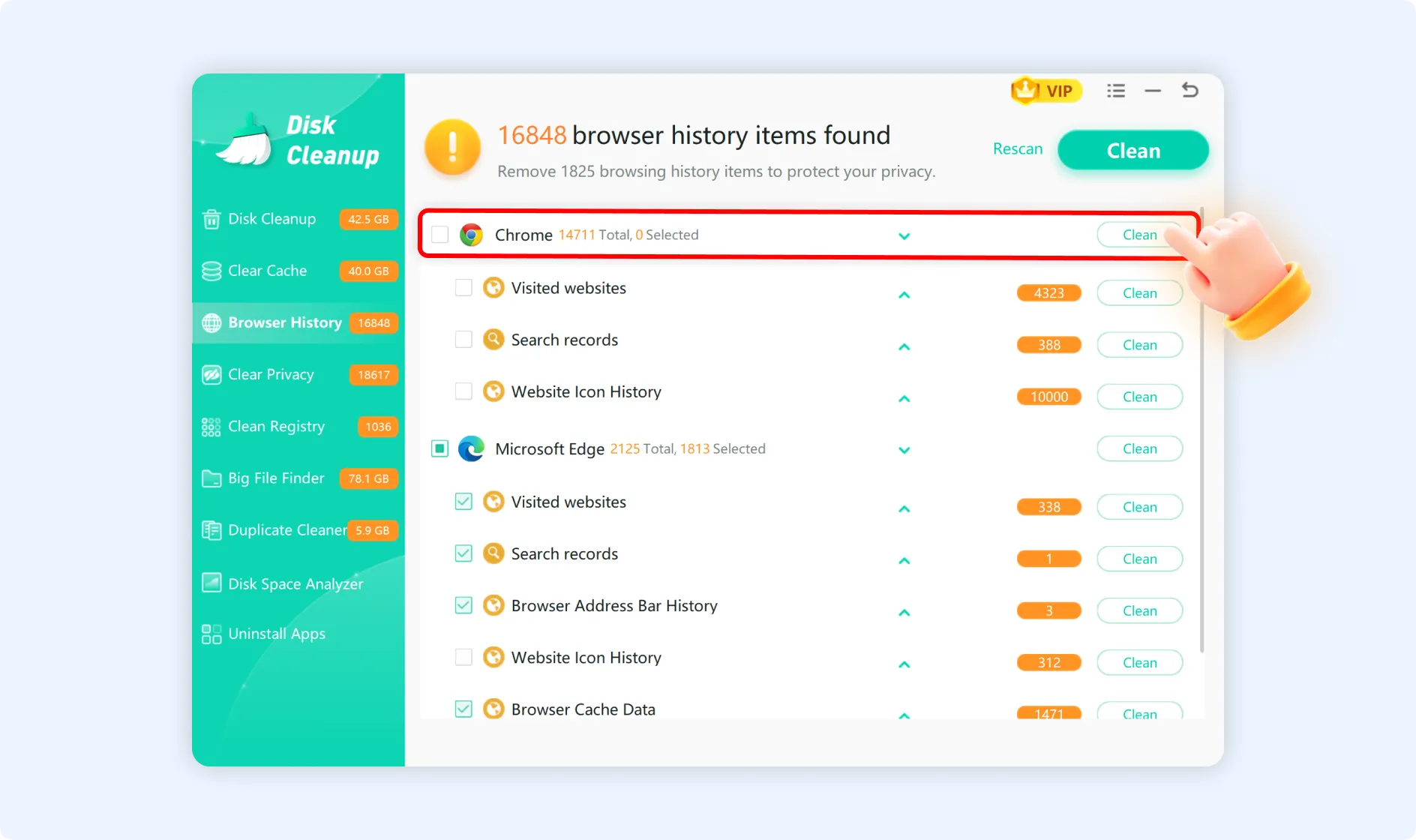
💡Tips 1:To view and clean up specific categories of data, like only cleaning up visited websites, click the triangle icon "▼" next to your browser name.