Have you ever encountered this situation: despite deleting a large number of files, your hard drive storage space remains insufficient? As your PC gets older, duplicate files gradually take significant storage space. For example, due to repeated backups, duplicate photos and videos exist in multiple copies, or duplicated documents are dispersed across different folders. This redundant data wastes disk space and reduces the efficiency of file management.
The Duplicate Clean feature by WMaster Cleanp uses MD5 Message-Digest Algorithm file comparison technology to quickly and accurately identify duplicate files in your system. It offers a secure and convenient cleanup solution to free up storage space efficiently.
Part 1. What are the advantages of WMaster Cleanup's Duplicate Clean?
- It uses the MD5 Message-Digest Algorithm to thoroughly check your hard drives and find duplicate files accurately.
- It groups files of the same format together and also puts them into categories like Videos, Images, Files, Music, and Zip Archives for display.
- It supports single or batch deletion and allows you to choose which version of the duplicated file you want to keep.
How to Use WMaster Cleanup's Duplicate Clean Feature
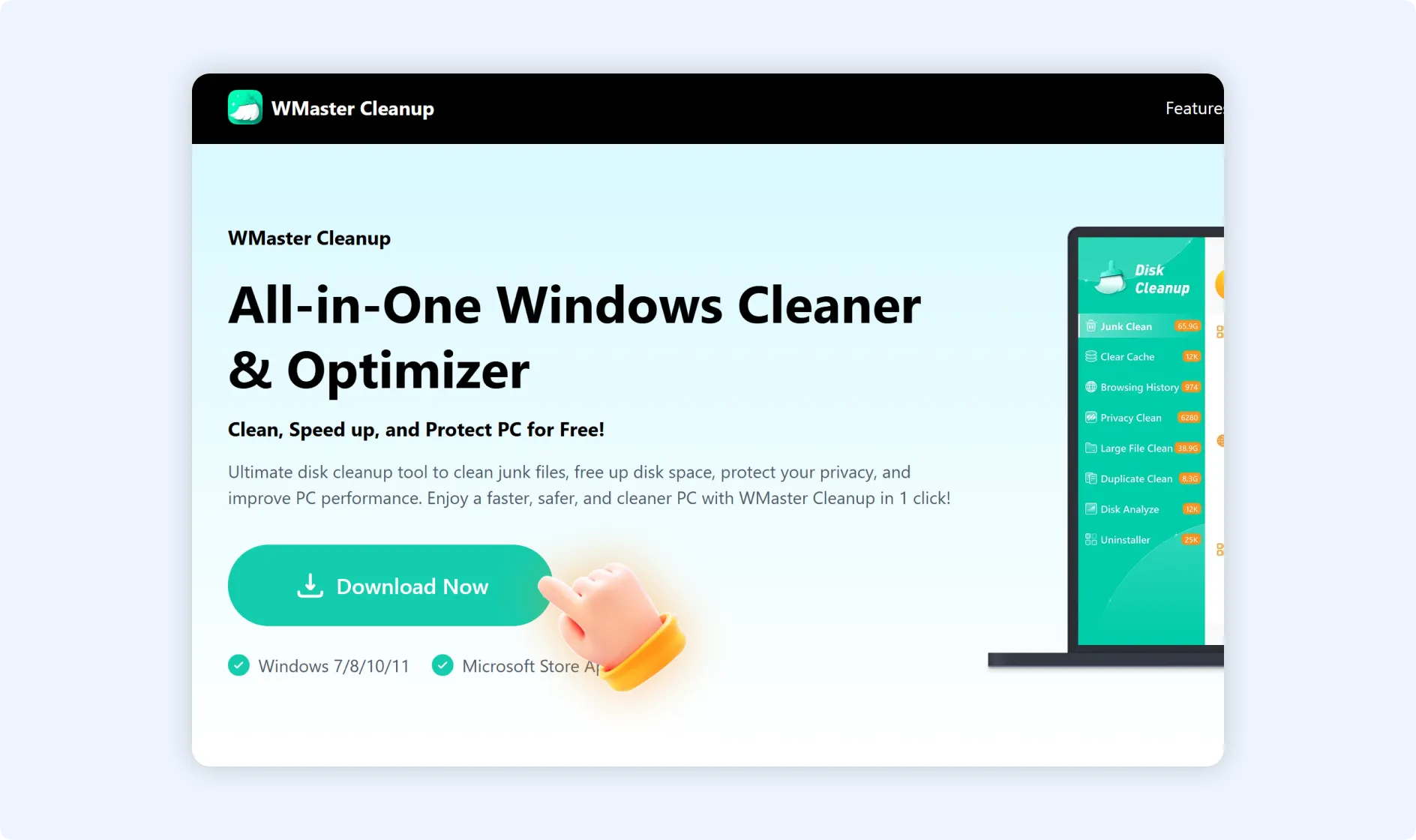
To use the Duplicate Clean feature, first visit the official WMaster Cleanup website in your web browser, download WMaster Cleanup, and install it on your PC.

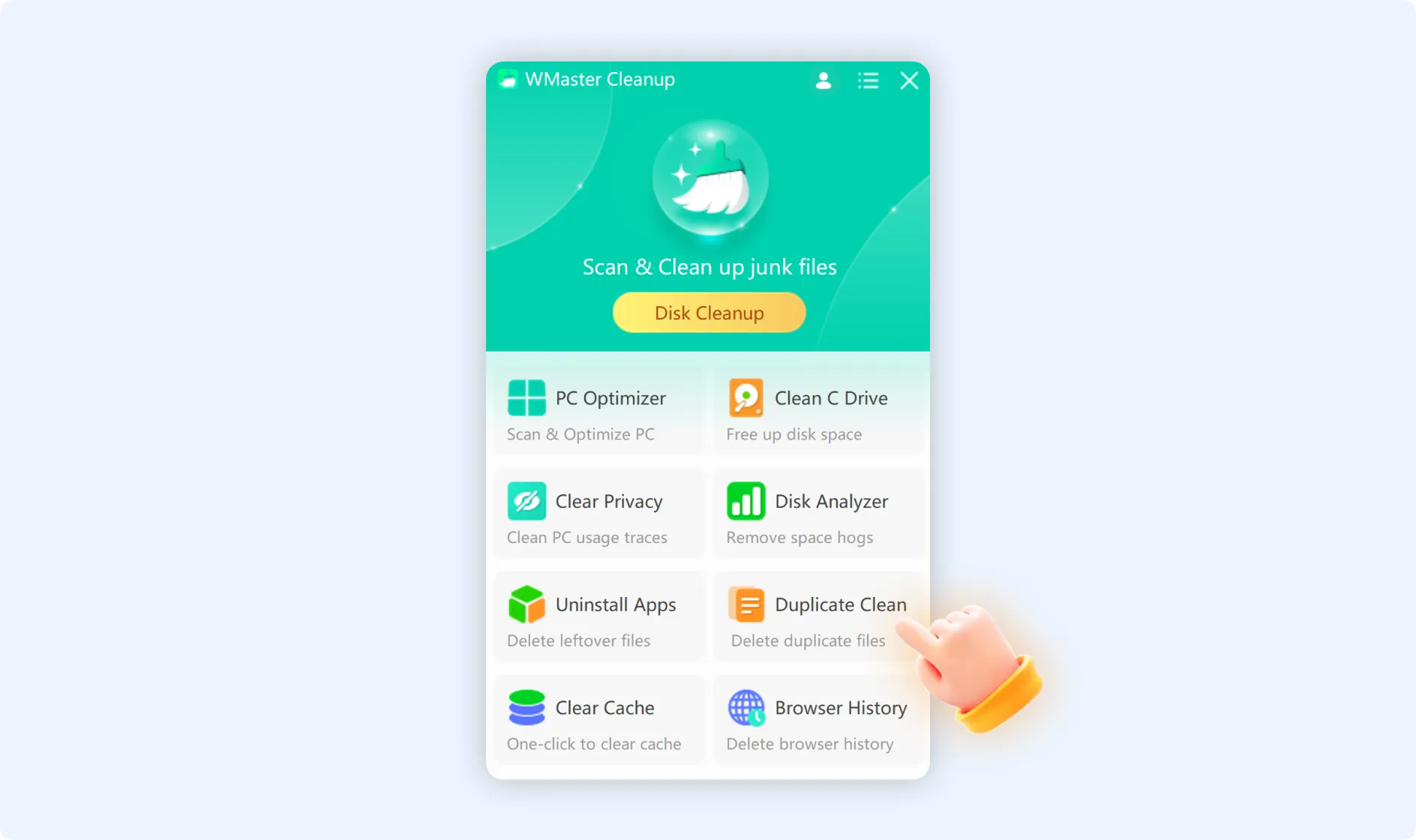
Step 1: Once the application is installed, double-click the WMaster Cleanup icon to launch it on your desktop. Select the "Duplicate Clean" feature from the main interface of the application.
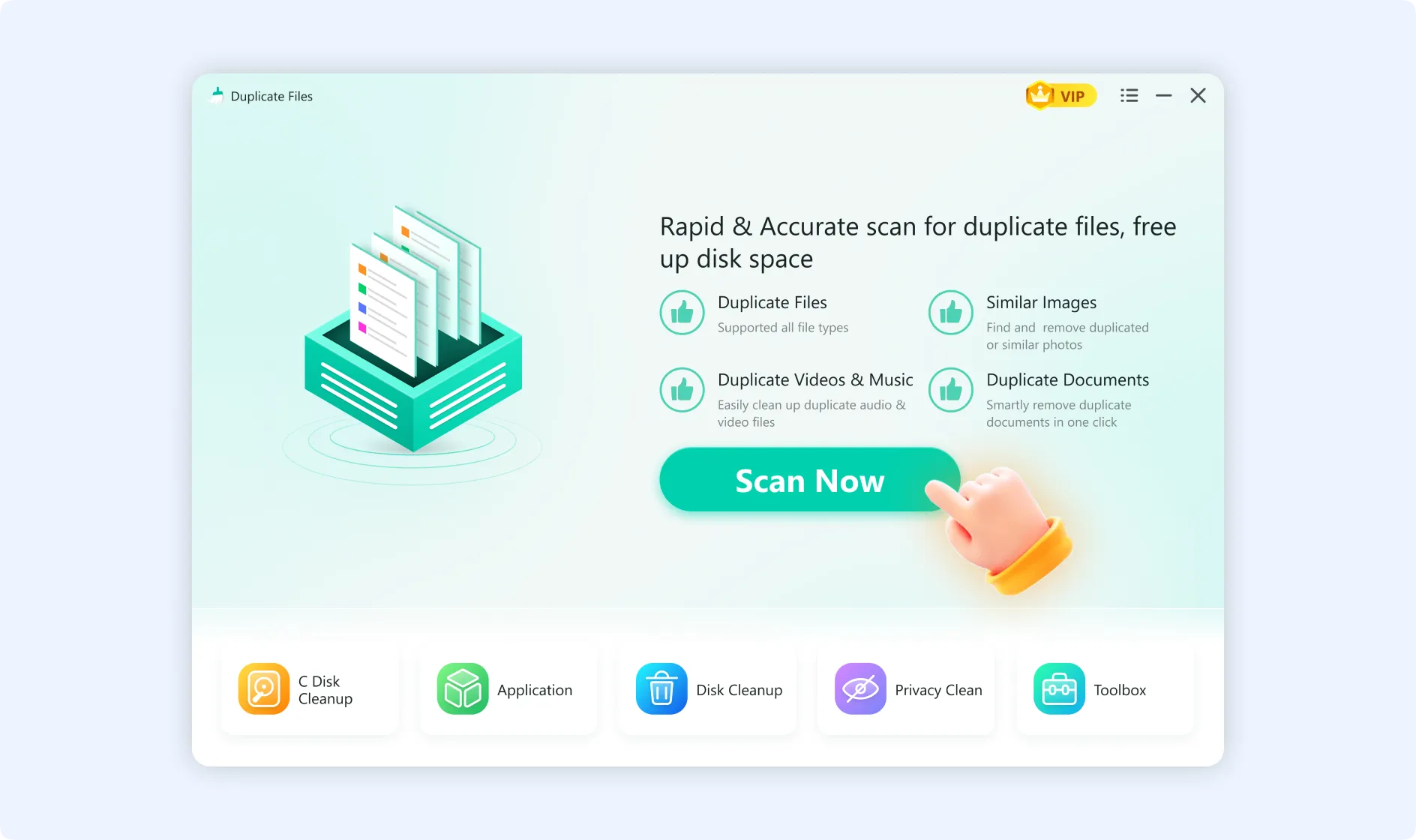
Step 2: Hit the "Scan Now" button to begin analyzing the files on your hard drive and identifying duplicate files and folders.
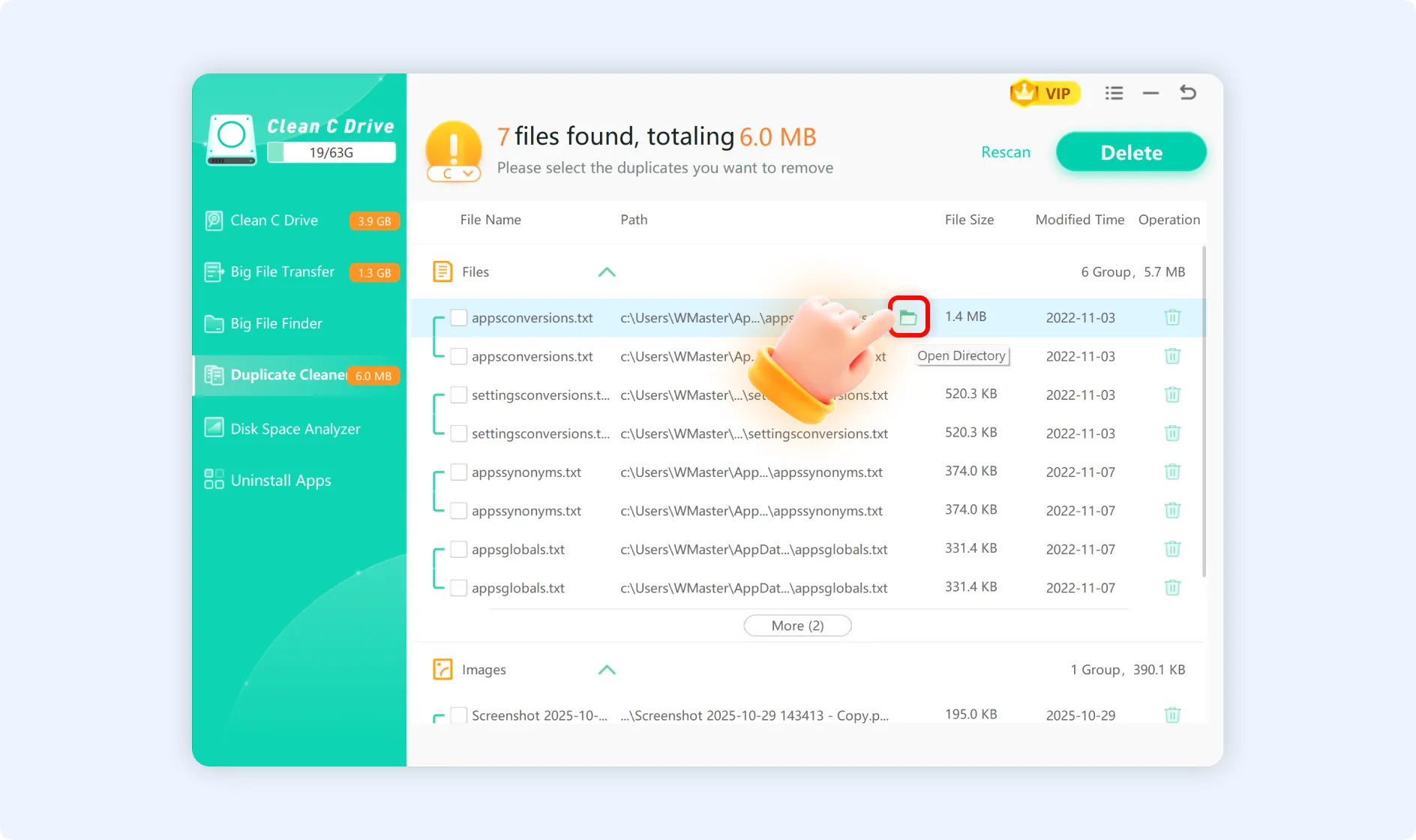
After the scan is complete, the "Duplicate Clean" function window will show you the total number of found duplicate files, broken down by type of file (videos, photos, music, etc.). For your ease, each group of duplicate files will be displayed together.
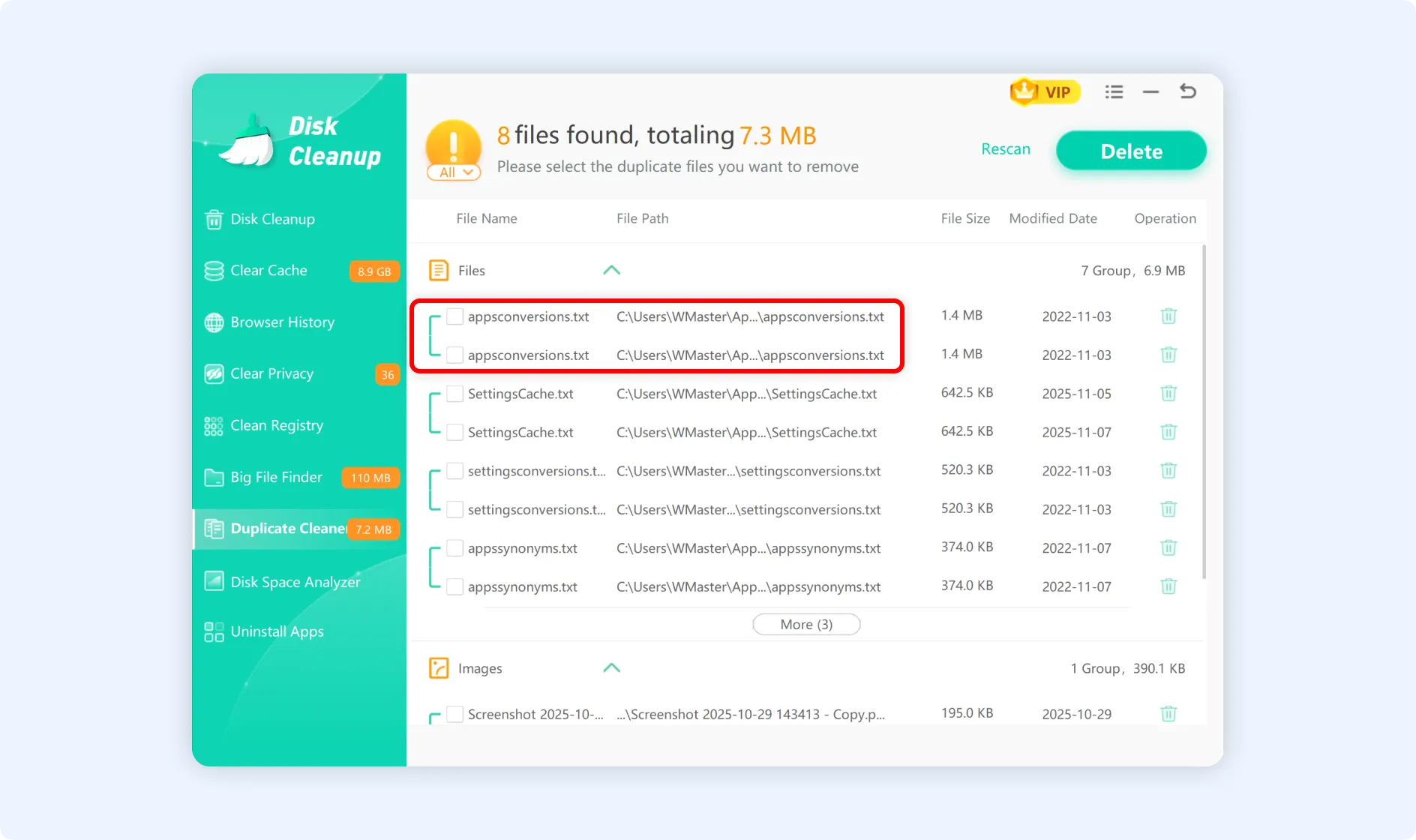
Step 3: Please select one of the following deletion methods:
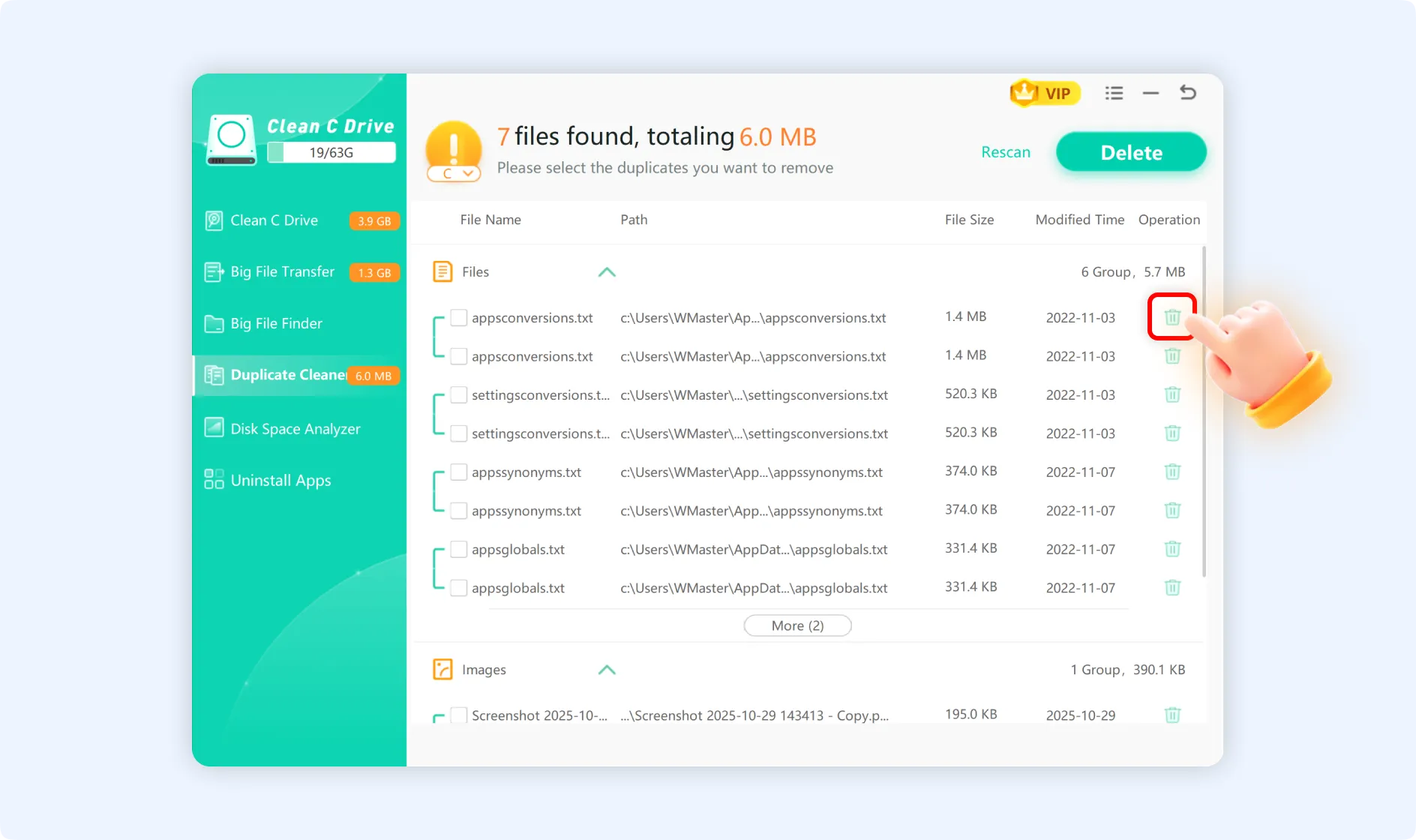
Single Deletion: Select a specific file and click the bin icon next to it.
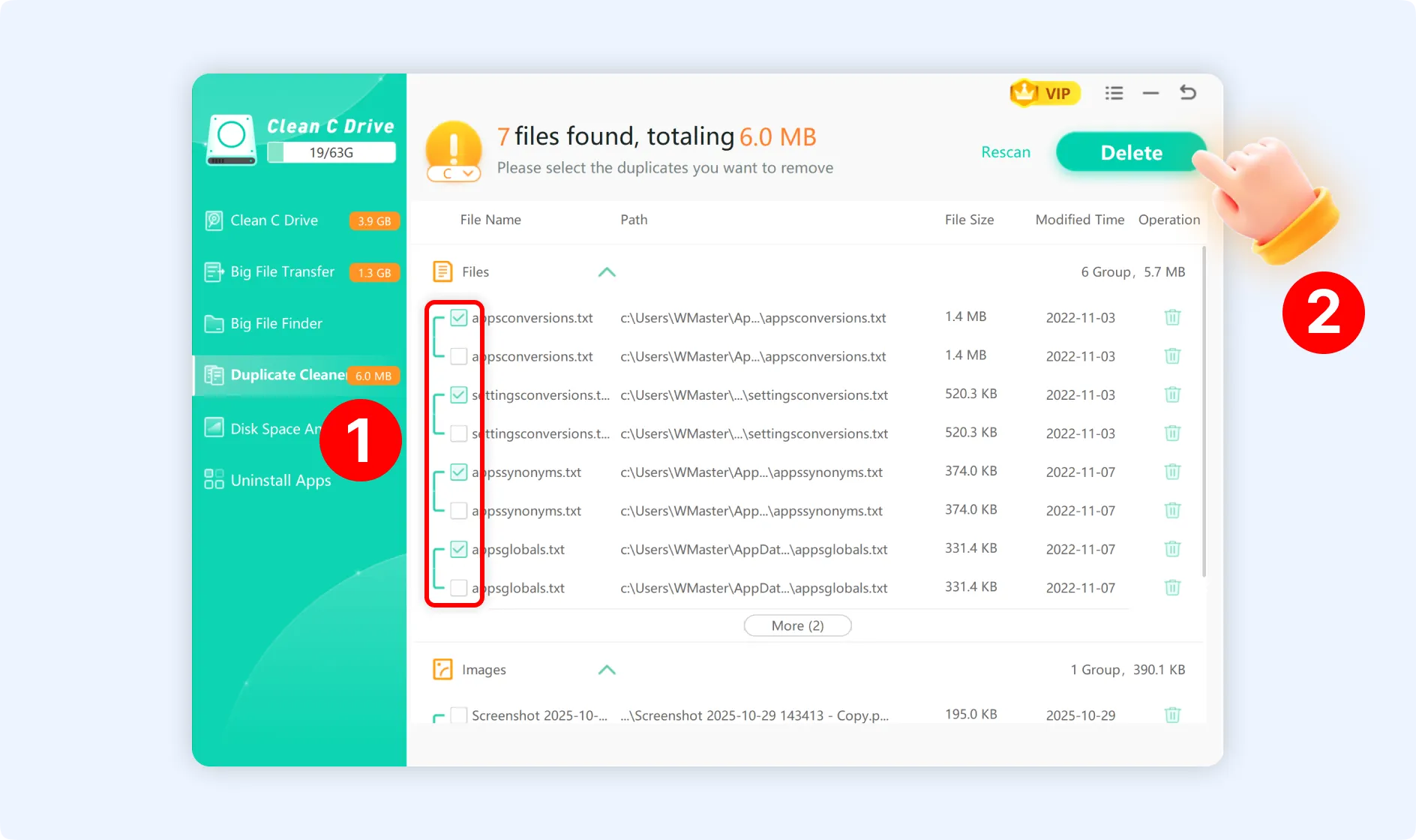
Batch Deletion: To clean multiple files at once, select the desired files and click the "Delete" button.
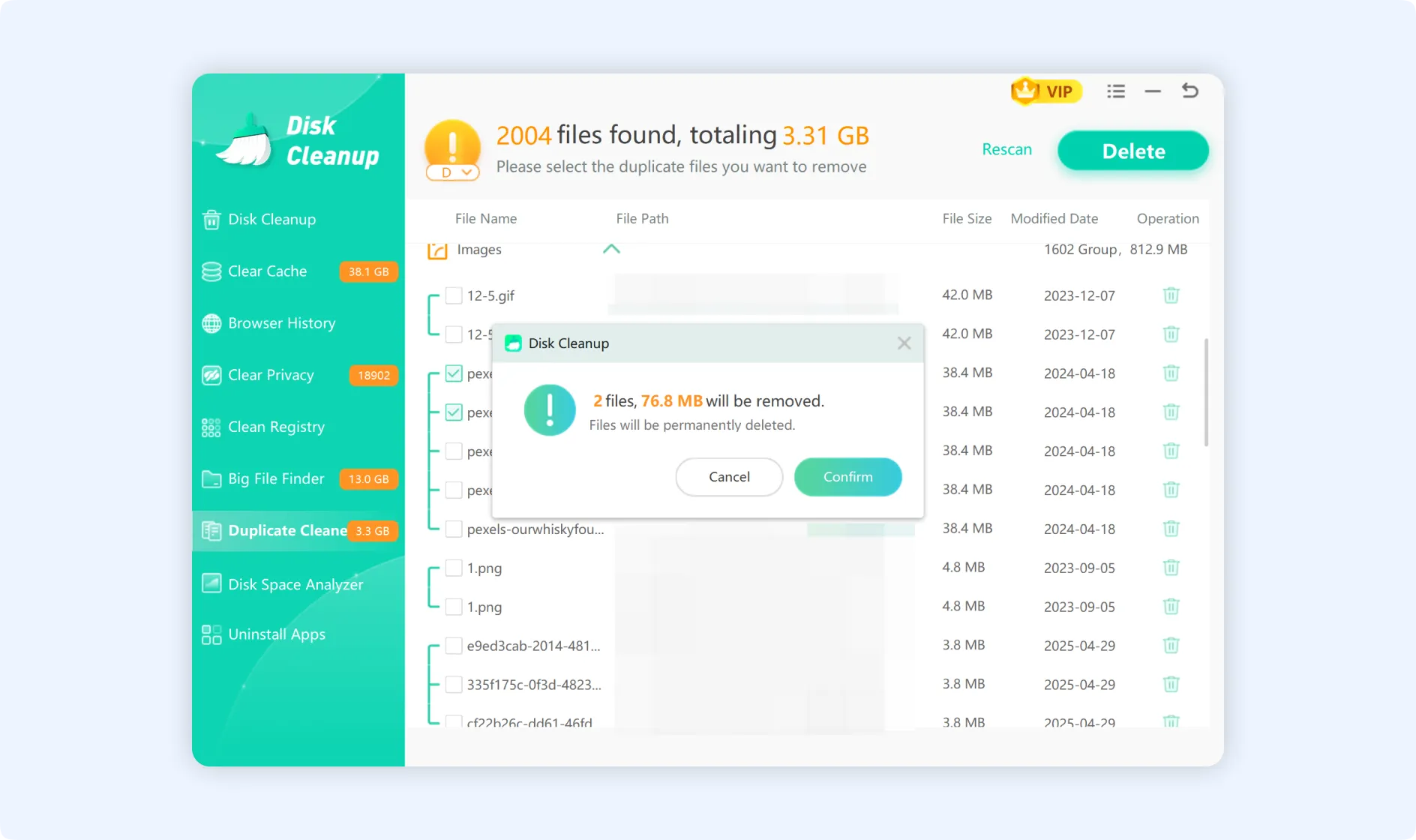
After selecting the duplicate files and clicking the "Delete" button, a prompt window will pop up, displaying the total number of selected duplicates along with their total size. Hit the "Confirm" command to start the deletion process. Deletion cannot be undone, so please proceed with caution.
💡Tips: Move your mouse cursor after any file name; a "folder icon" will appear. Click this icon to go to the file’s location.