
Thank you for choosing WMaster Cleanup, a professional all-in-one tool that cleans and speeds up Windows systems.
With just one click, WMaster Cleanup can get rid of junk files, free up disk space, protect your privacy, and speed up your computer. With the MD5 Message-Digest Algorithm, it accurately scans over 22 types of junk files, system temporary files—keeping your computer clean, fast, and safe.

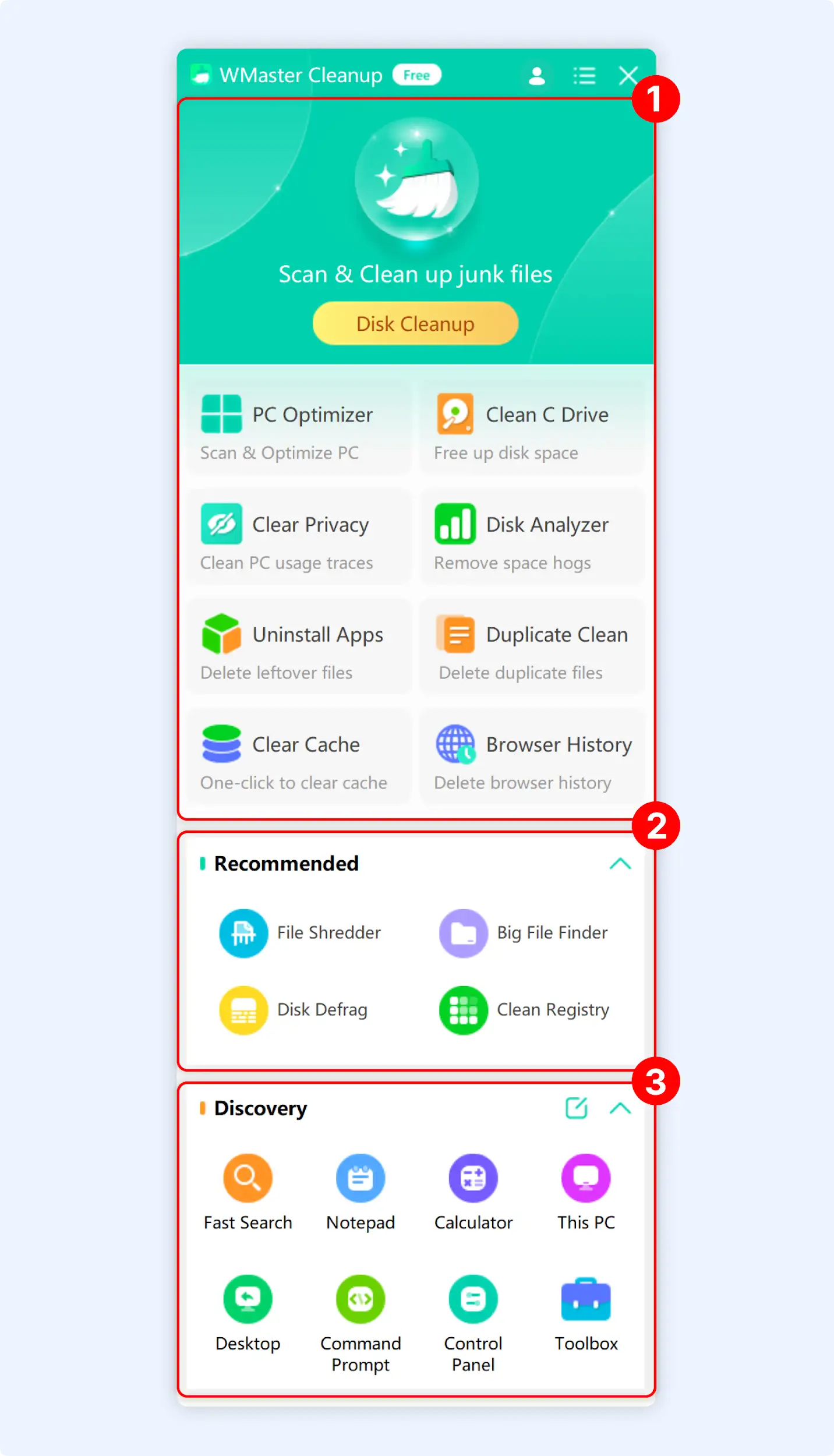
There are three parts to the WMaster Cleanup interface: Core Features, Recommended Features, and Discover.
Part 1. WMaster Cleanup Core Function Modules
The WMaster Cleanup main interface offers 9 core functions:
- Disk Cleanup
- PC Optimizer
- Clean C Drive
- Clear Privacy
- Disk Analyzer
- Uninstall Apps
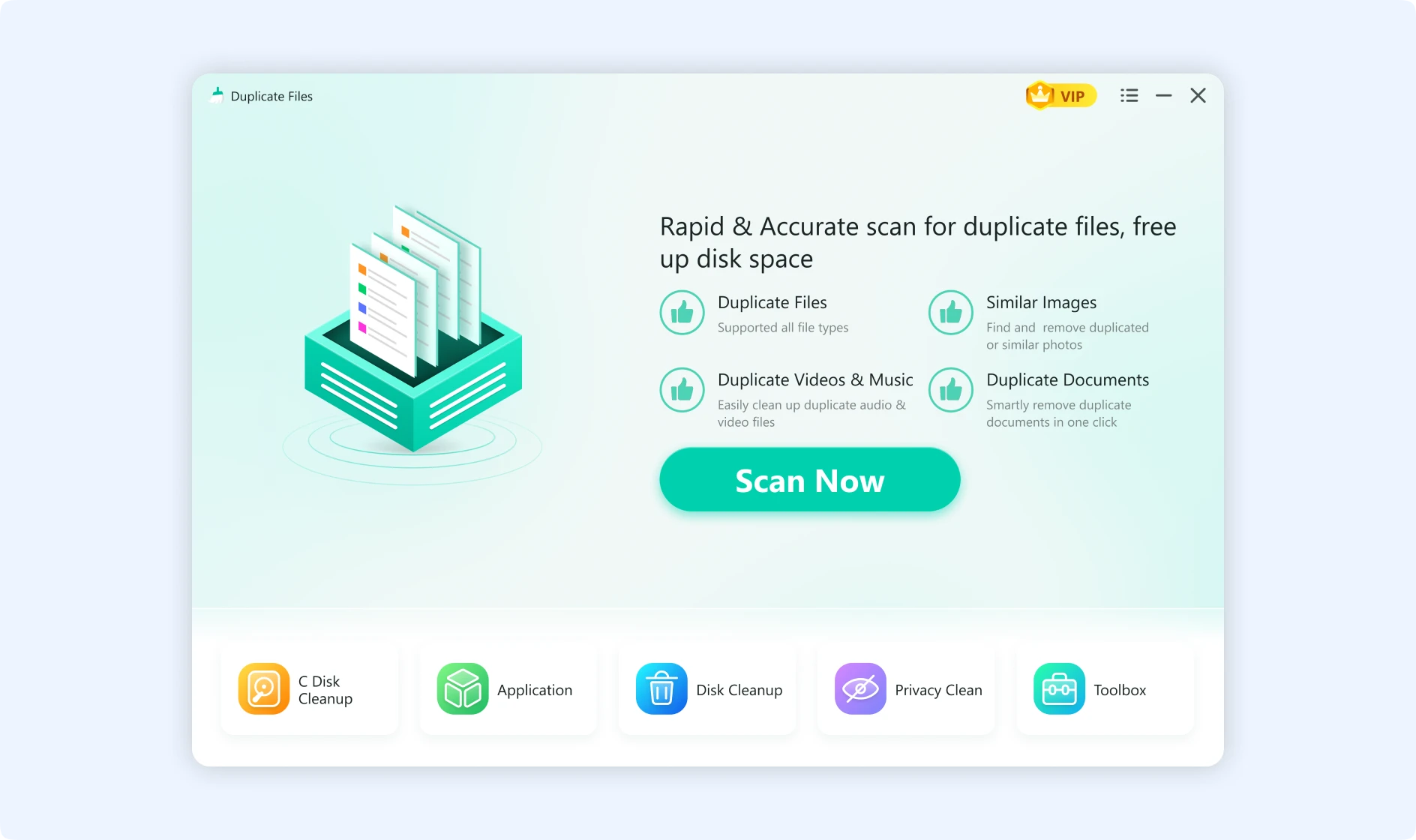
- Duplicate Clean
- Clear Cache
- Browser History
1. Disk Cleanup
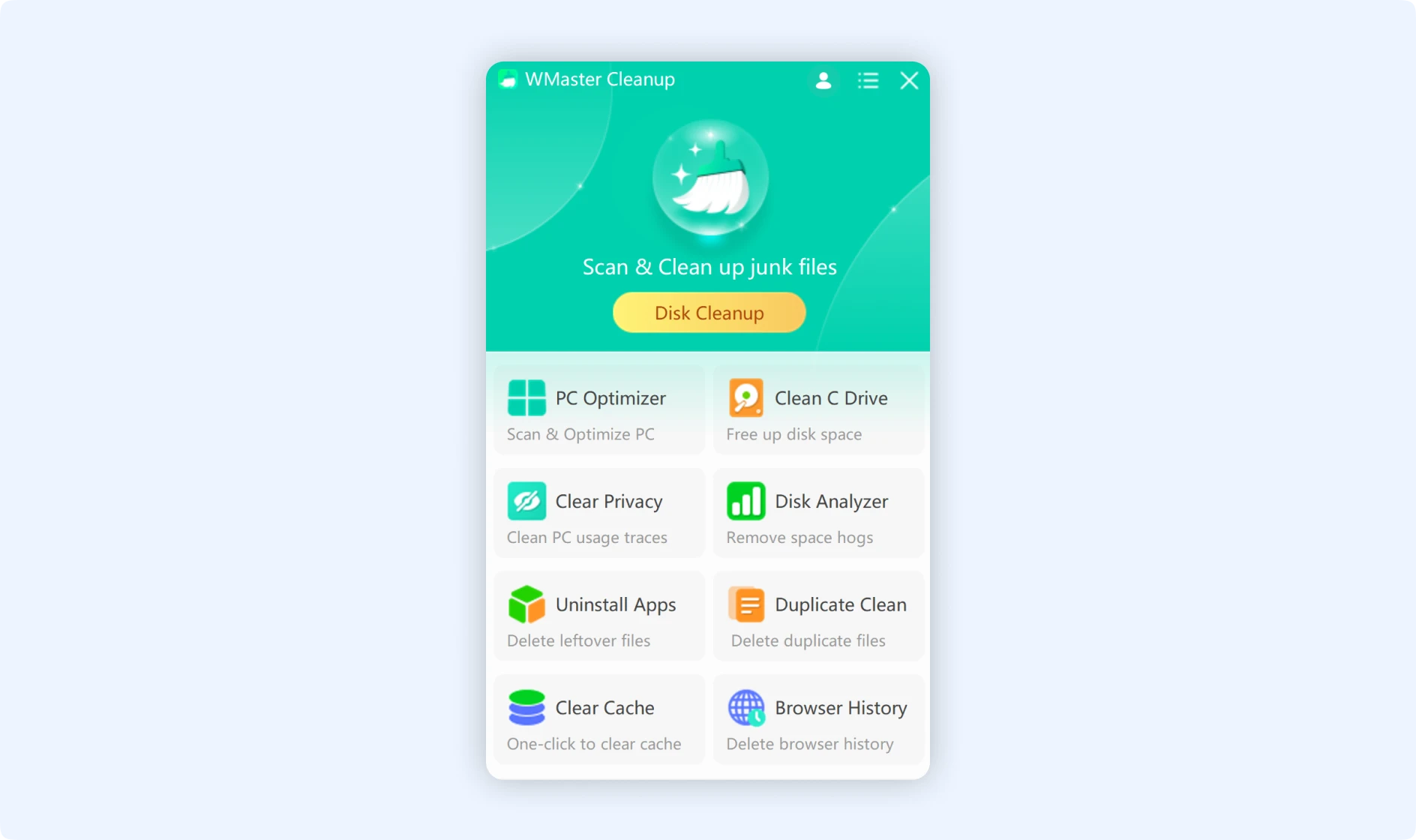
The core feature of WMaster Cleanup is Disk Cleanup. It accurately locates and removes 22 different types of junk files using advanced recognition algorithms. These include system patches, updated caches, log files, Microsoft product caches, temporary files, downloaded files, and uninstallation residues, as well as installation packages and cache files generated by various third-party software (browsers, social apps, media players, games, etc.).
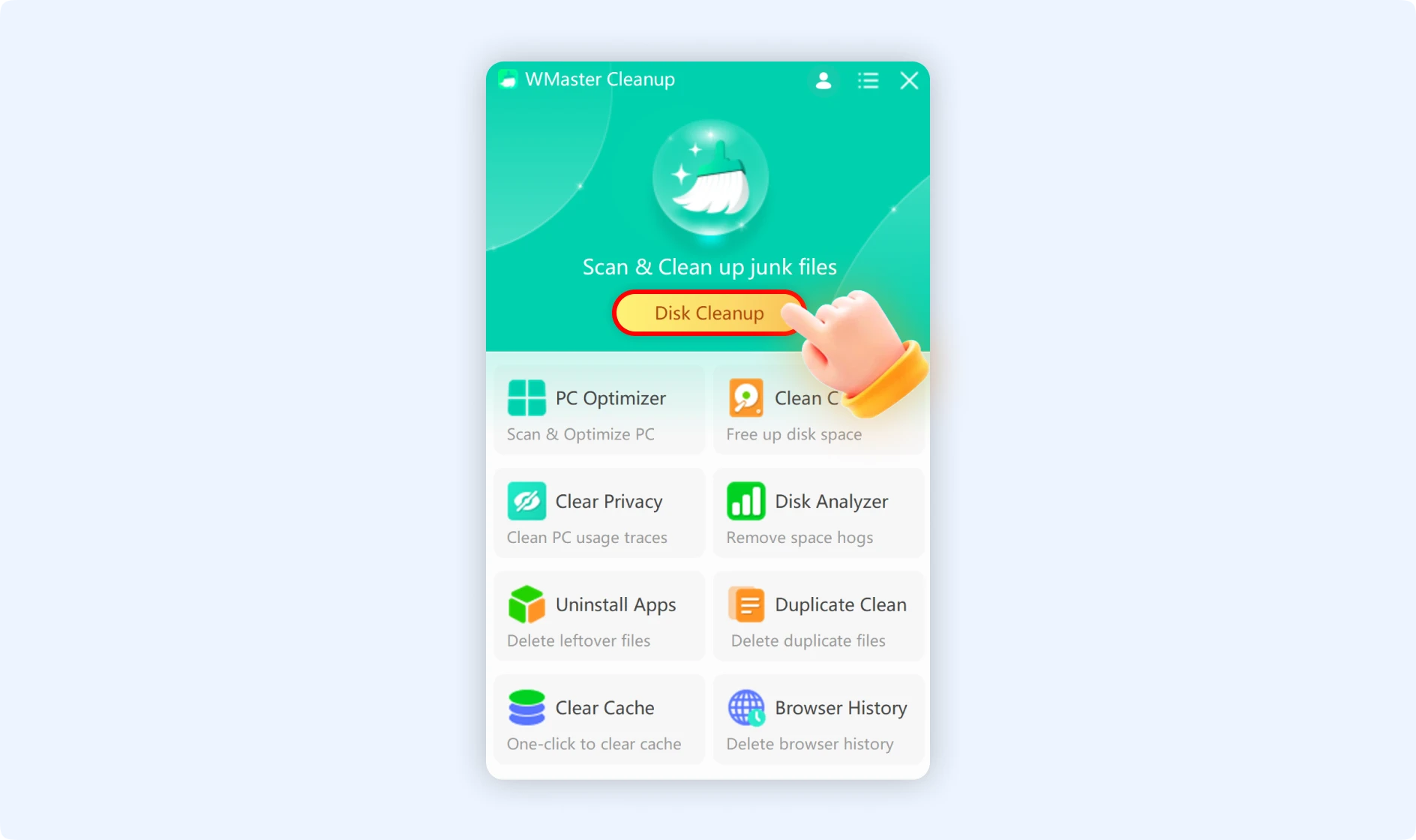
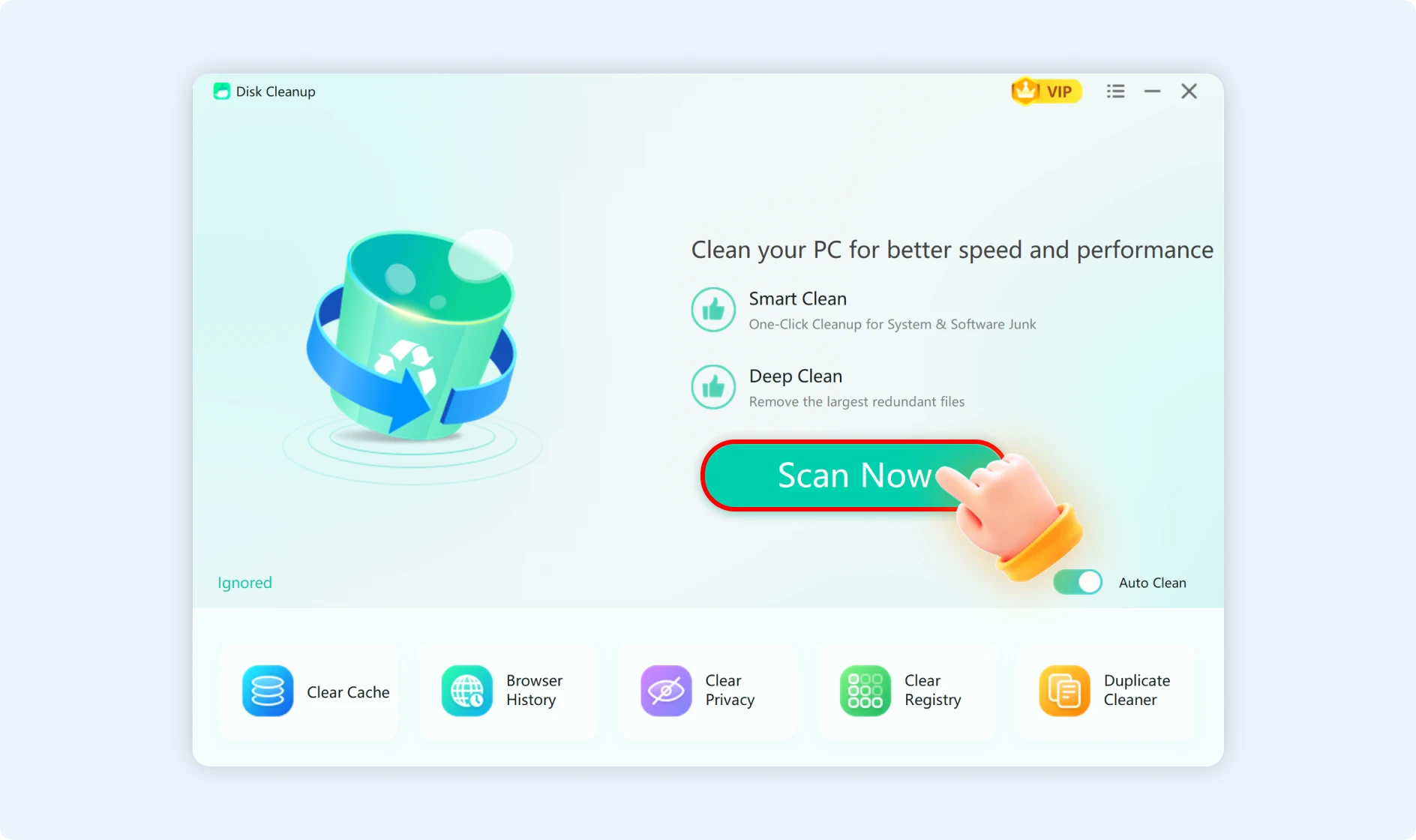
Click “Disk Cleanup”; a window will pop up, and now click “Scan Now” to initiate scanning. The software will detect and eliminate 22 types of junk files that the system and third-party software generate, such as log files, temporary files, patches, caches, and installation packages—eliminating the need for manual searching and cleanup.
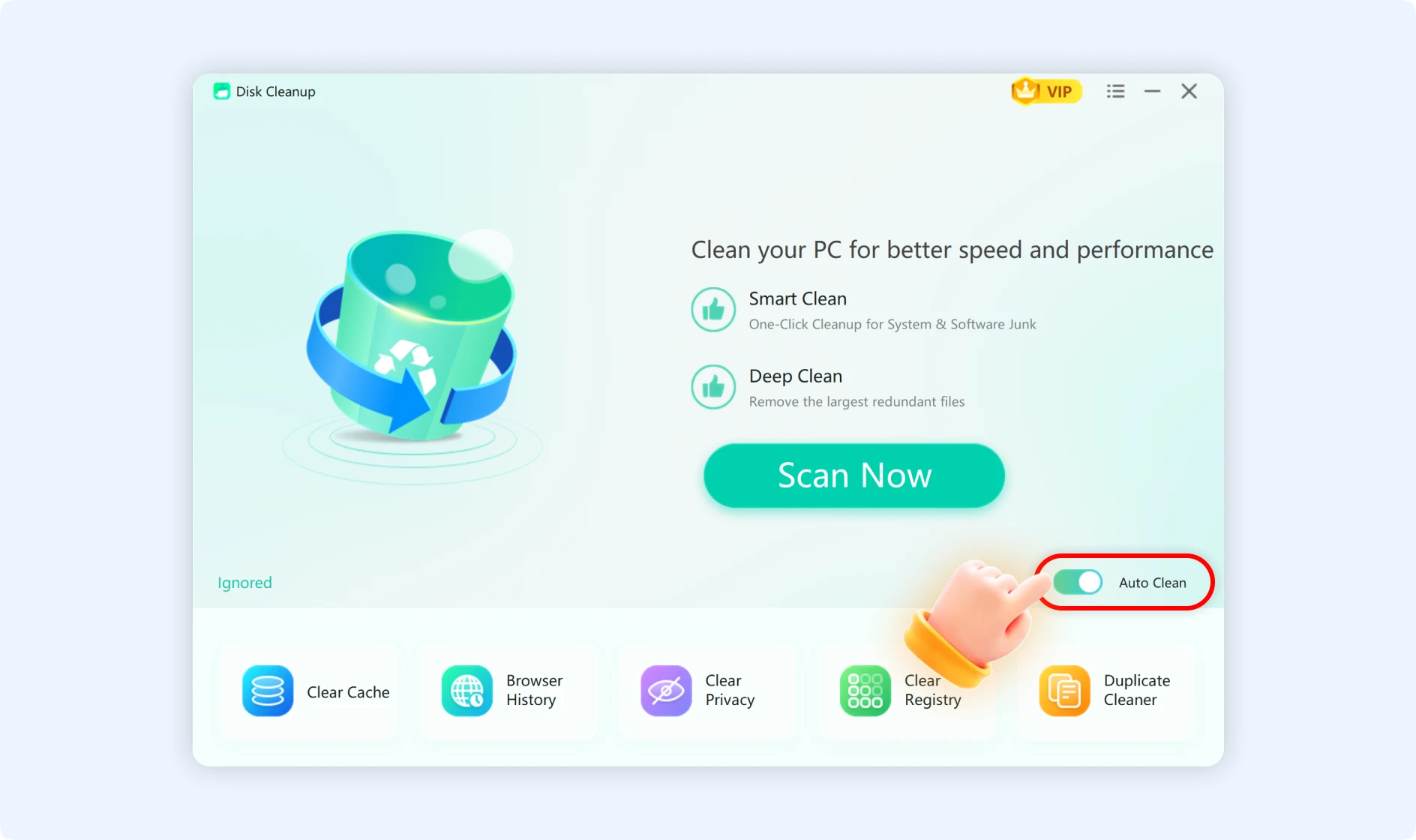
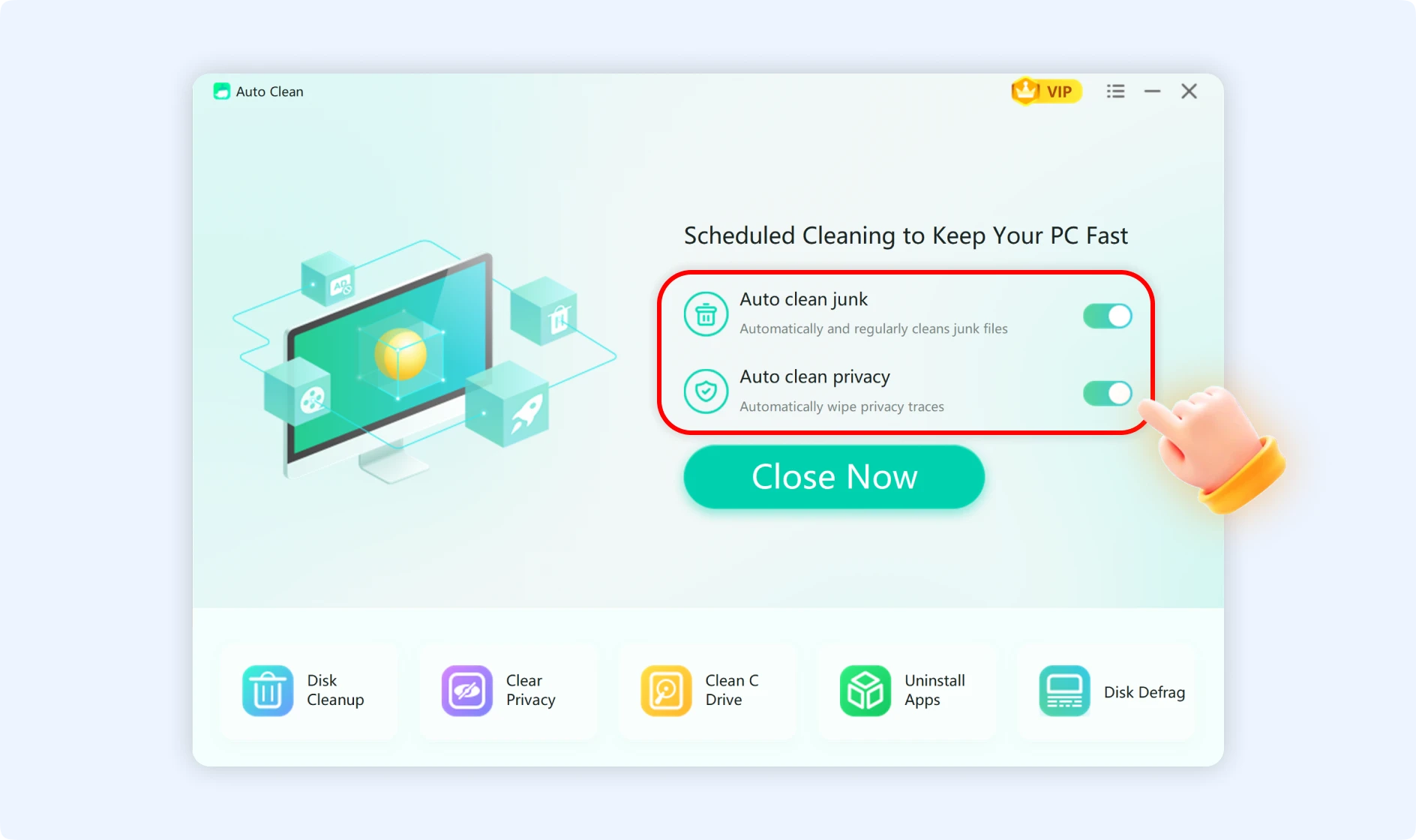
💡Tips:The “Auto-Clean” feature below the interface can set up regular cleaning of junk files and privacy traces on your system. So, if you turn on this feature, the app will automatically run and clean your PC when the system is idle. You can also set how often your computer cleans itself. You can choose automatic cleaning every 1, 2, or 3 days, or every 1 or 2 weeks—keeping your computer clean at all times.
2. PC Optimizer
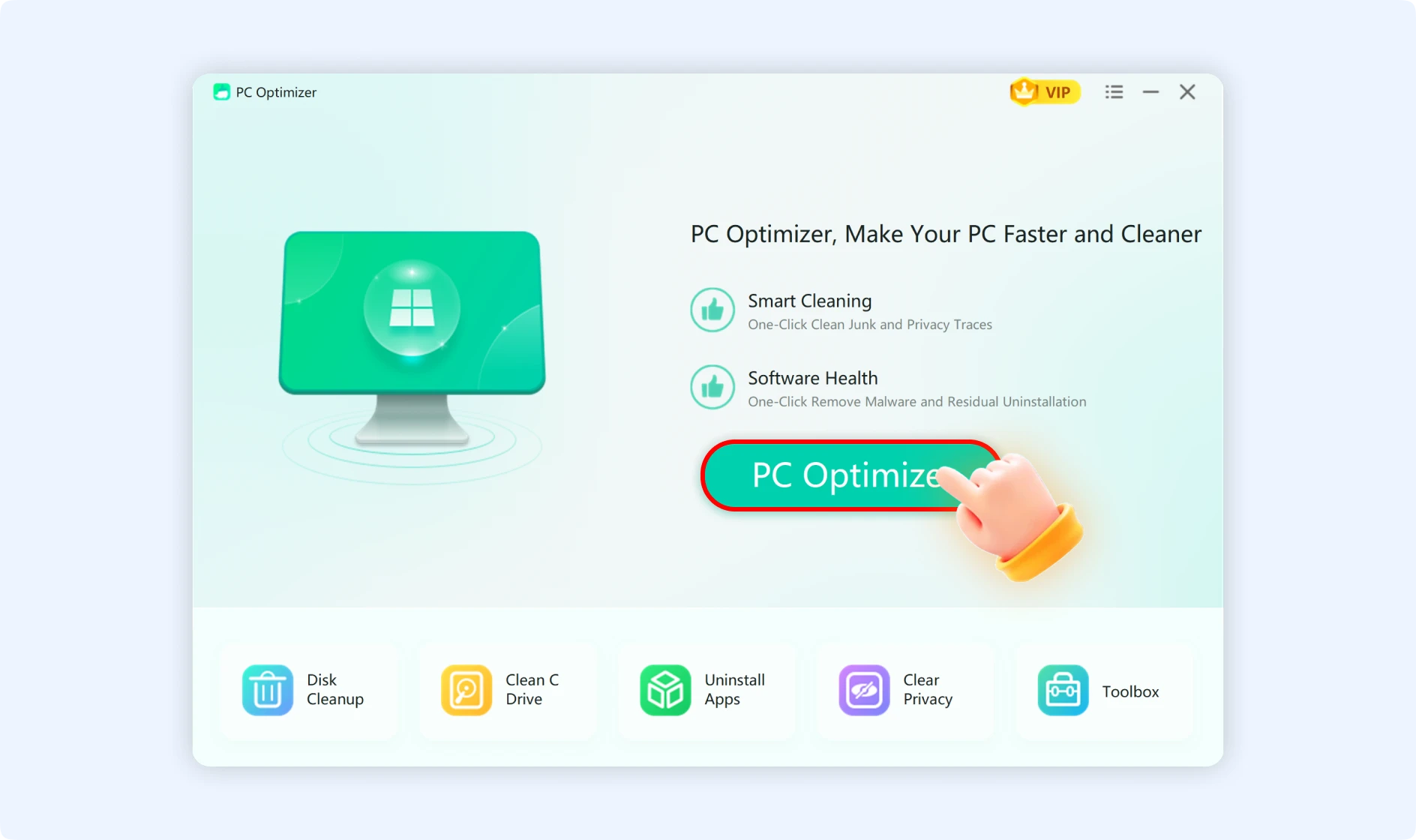
PC Optimizer is a comprehensive system optimization tool that can fully analyze various issues affecting performance and security in Windows systems. This includes junk files, privacy risks, leftover files from uninstallation, and more. This feature will give you an entire overview of your system's configuration and any potential risks. With just one click, PC Optimizer shows all the items that can be optimized at once—making your system faster.
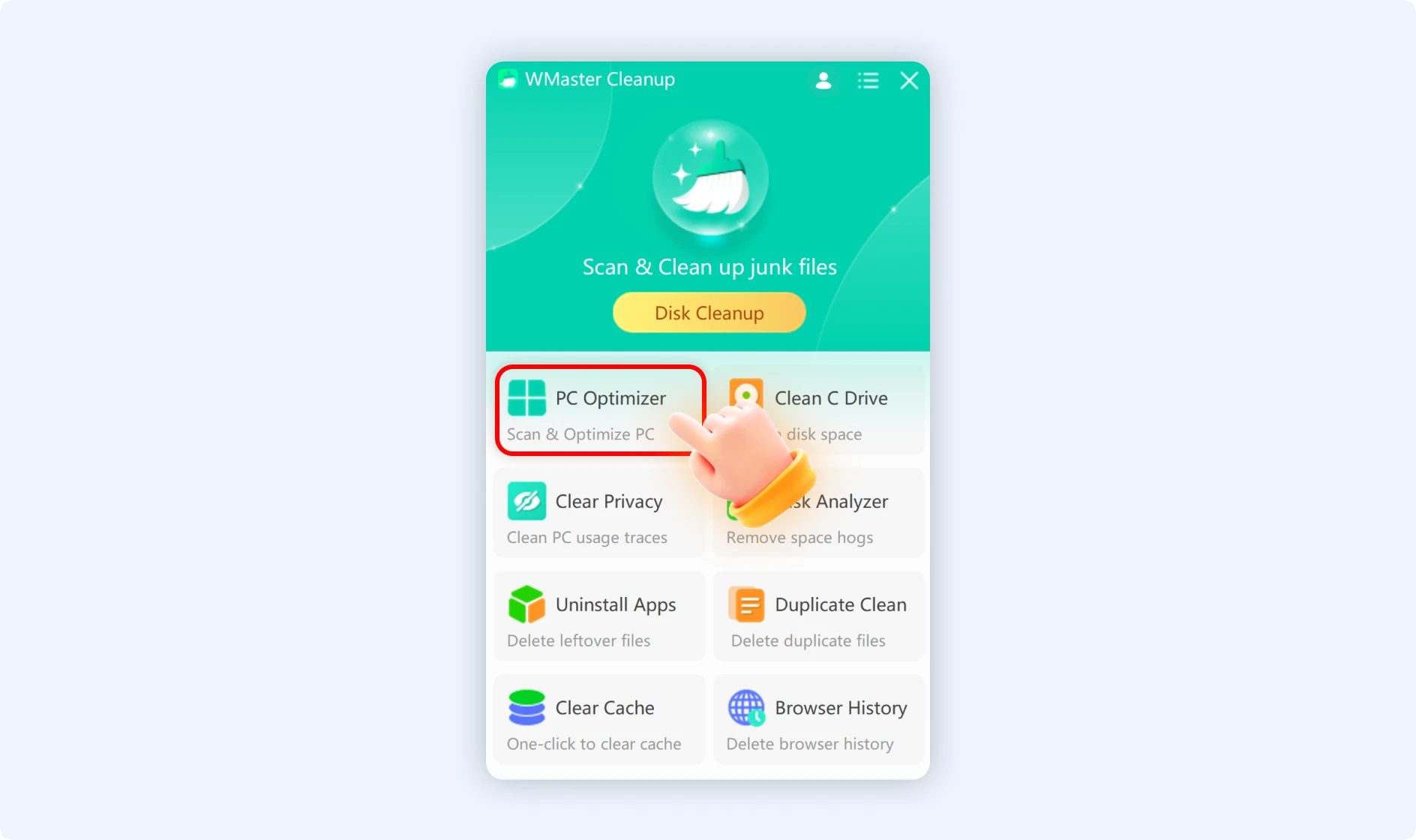
When you click on "PC Optimizer," the system will automatically start a full scan for junk files, privacy data, potentially harmful software, problems with the way the system is set up, and more. A quick optimization with one click can speed up your computer and keep it running at its best.
3. Clean C Drive
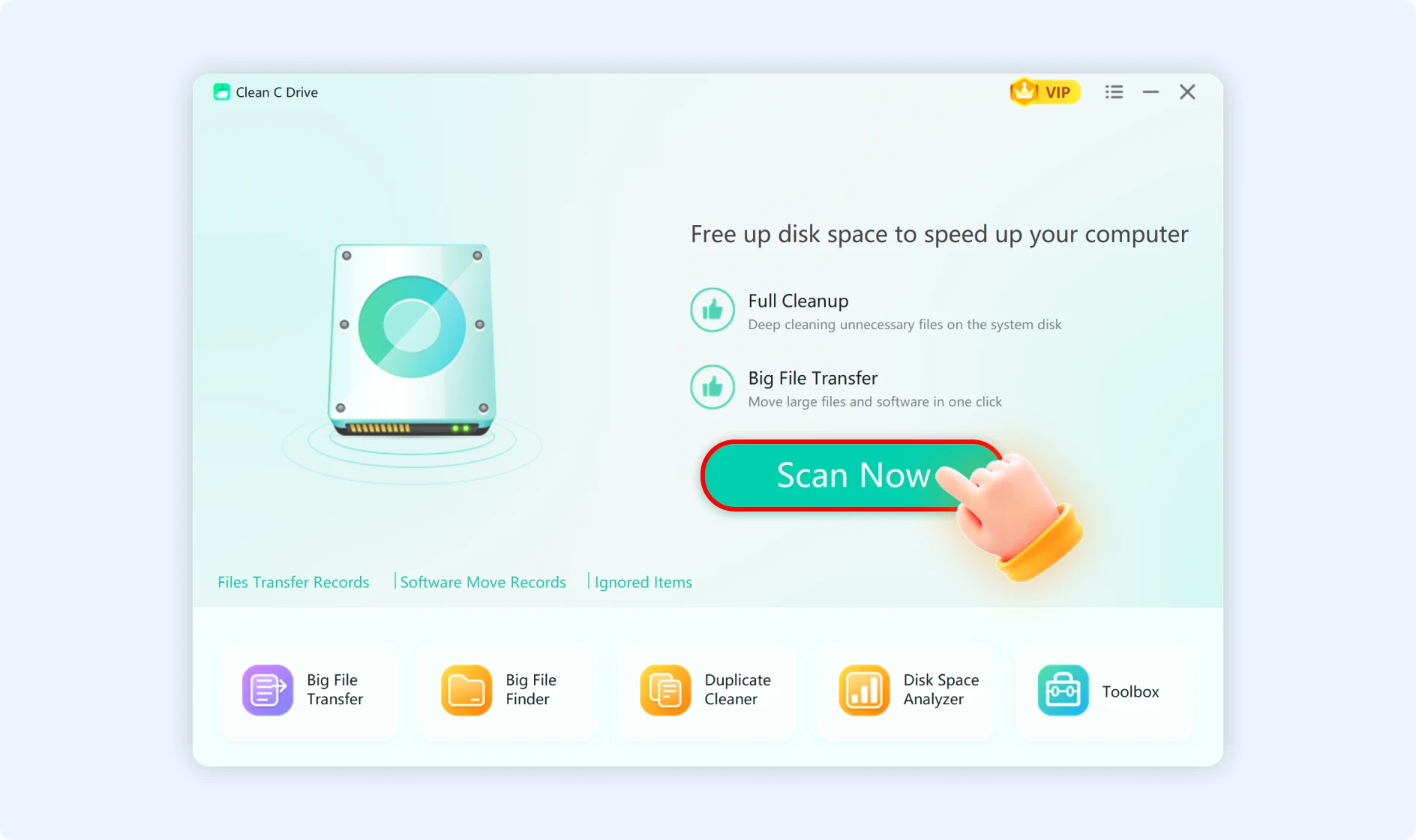
This is a feature for deep cleaning the C drive, which is the system drive. WMaster Cleanup does a more thorough scan than Windows' built-in Disk Cleanup tool to find more hidden items on the C drive that take up space. It gets rid of old patches and caches from system updates, uncleaned event logs that have been stored for a long time, large hibernation files, expired temporary files, different internal system caches, forgotten downloads, and temporary extracted files—freeing up the most space on your C drive.
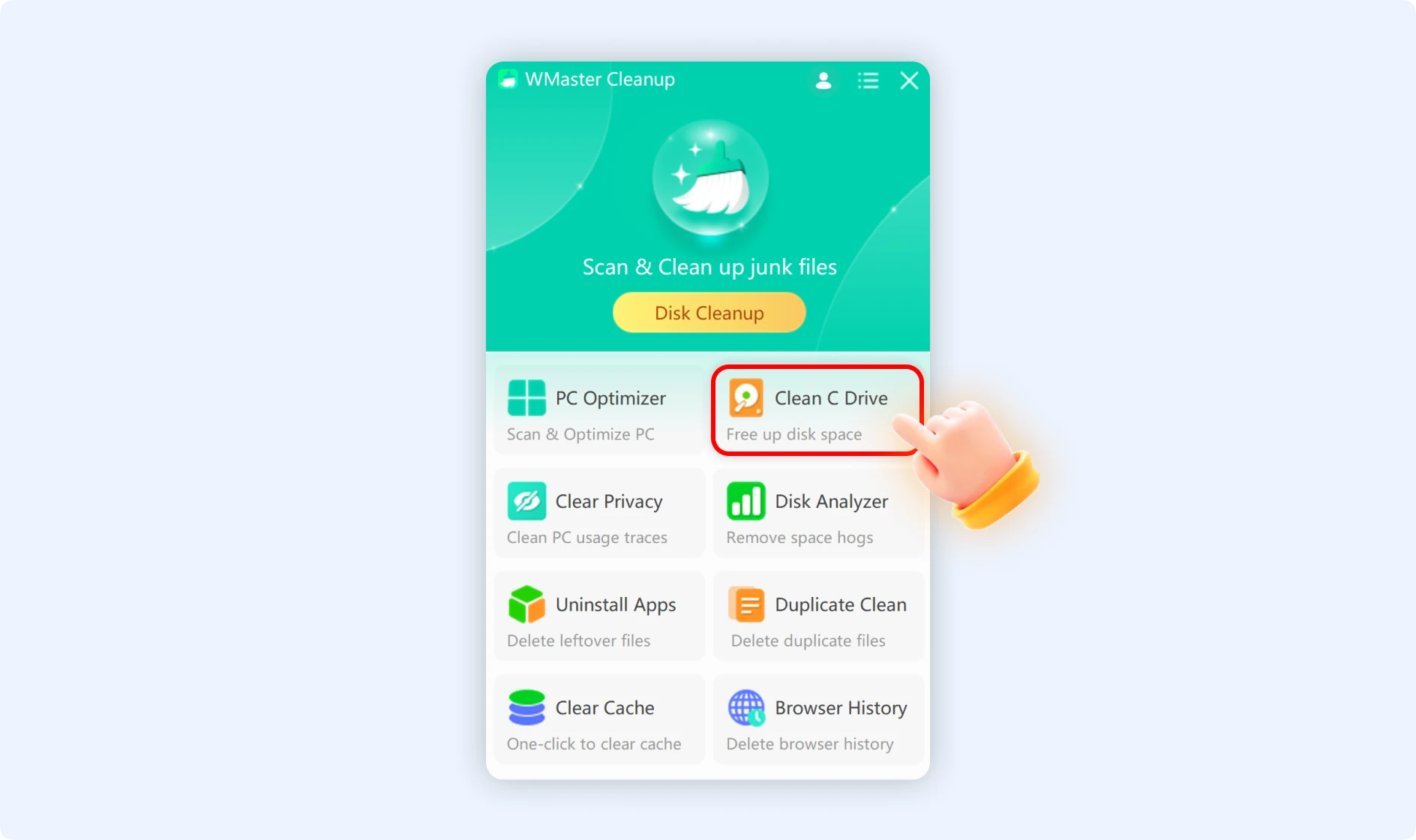
Click "Clean C Drive" and then click "Scan Now" to start scanning your C drive.
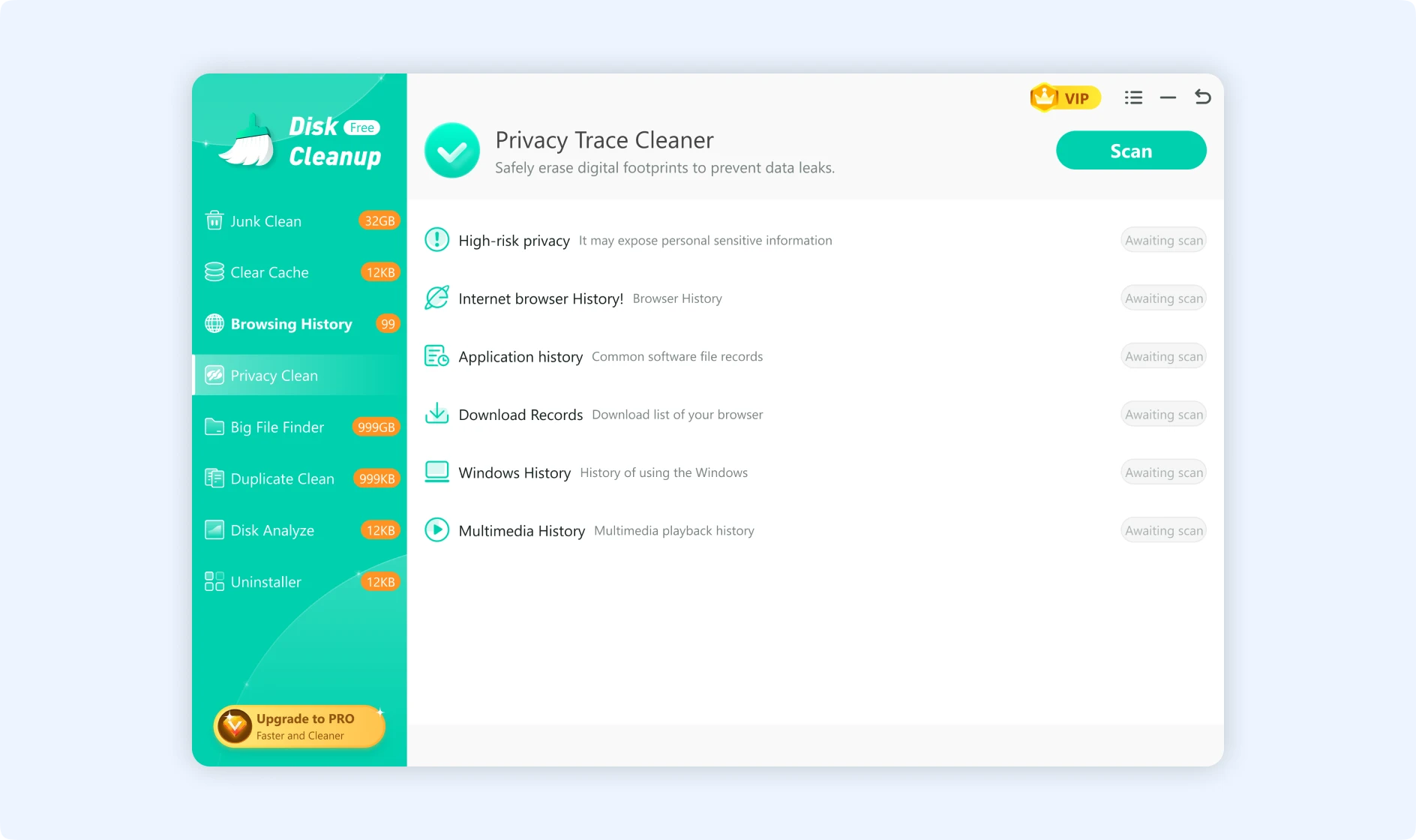
4. Clear Privacy
Protect your digital traces comprehensively. The Privacy Cleanup tool detects more than 15 types of private data, such as file open/save logs, account records, shopping history, payment details, recently used software, Defender logs, file search history, USB usage logs, and media player playback records—preventing the leaking of sensitive data and personal usage habits.
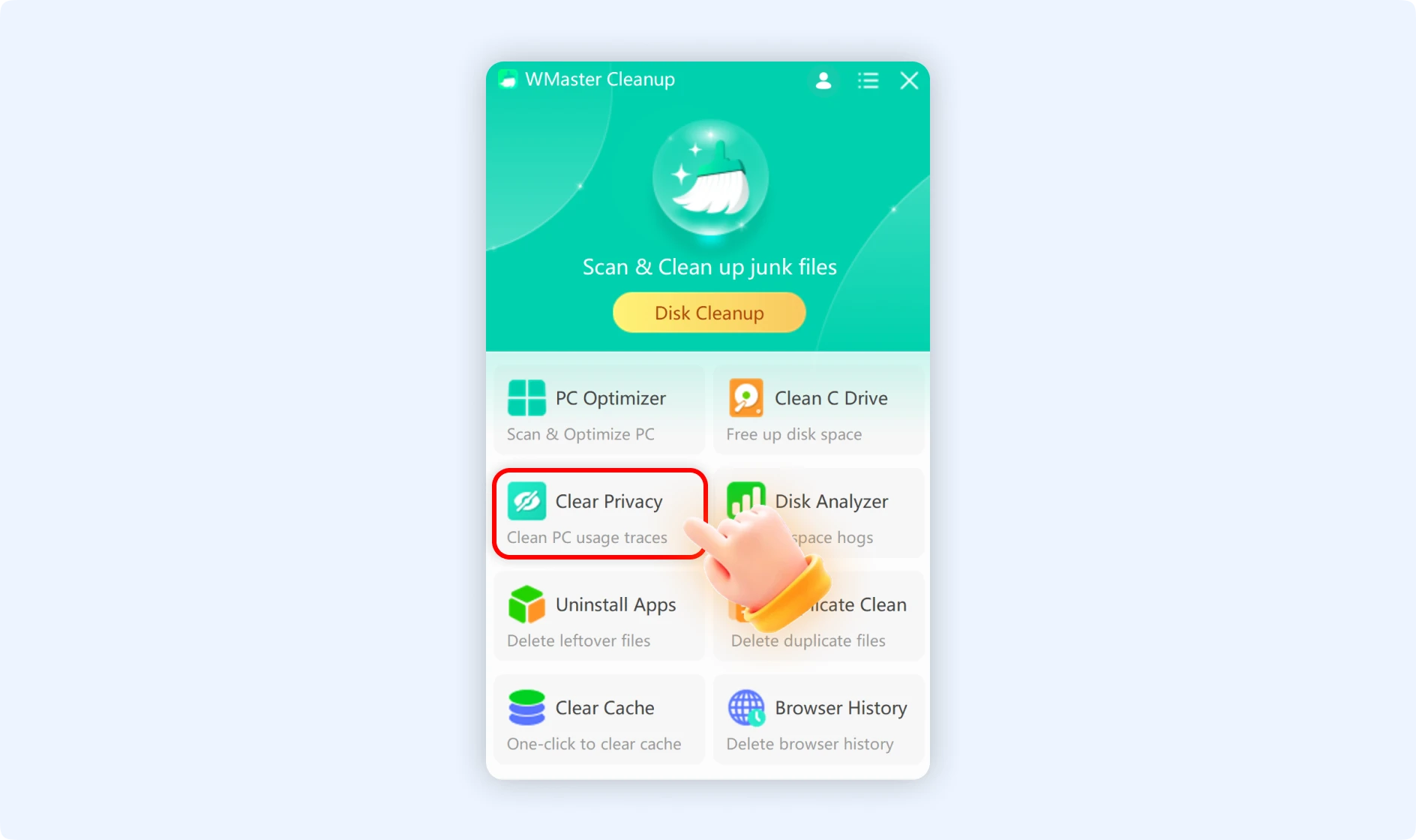
Click "Privacy Cleanup," and then tap "Scan Now" to start the scan. The system will find privacy traces in the Windows registry and some system files. These include the open/save/search history, recent documents, software run logs, browsing paths, Quick Access history, system settings logs, playback history, and browser history.
5. Disk Analyzer
The built-in File Explorer makes you open the properties of each file to see how big it is. WMaster Cleanup's Disk Analyzer, on the other hand, gives you an easy-to-understand analysis of how much disk space is being used. It shows you how much space each file takes up, which makes it easy to find large files and folders that are taking up a lot of space for better disk management.
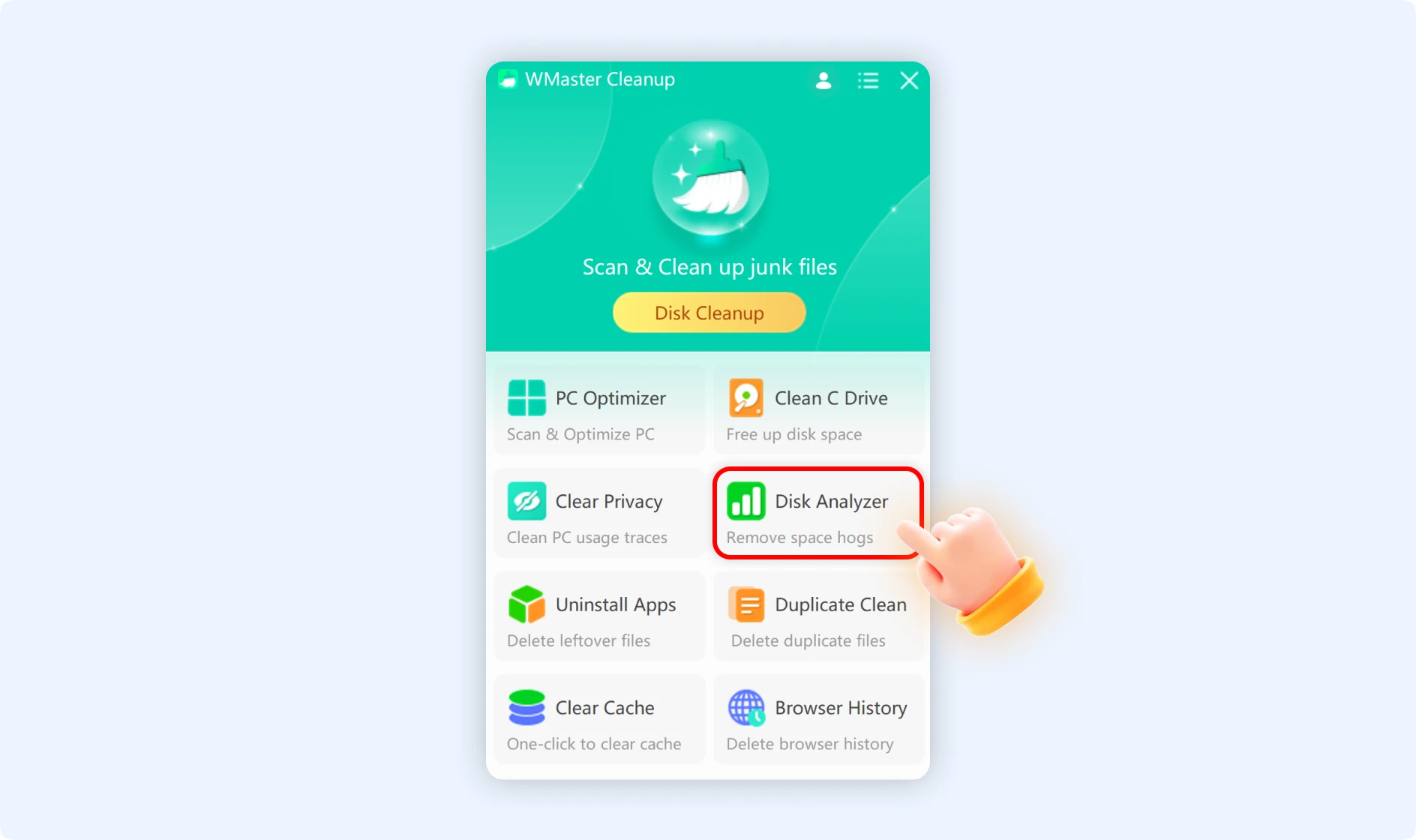
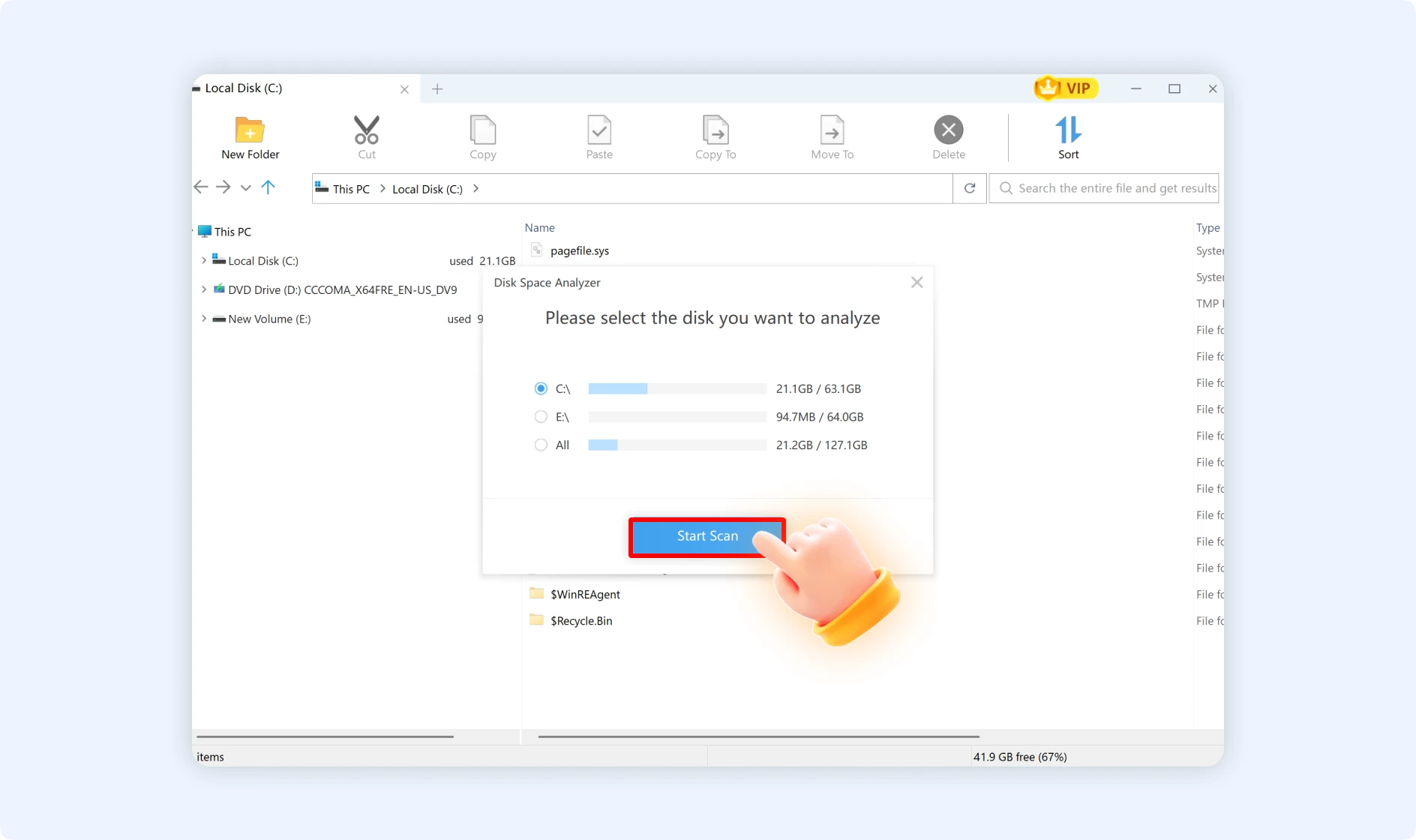
Click on the "Disk Analyzer" function on the main interface, choose any disk on your computer, and then click "Start Scan" to check how files are being used. When it's done, the system shows all the files and folders with their sizes in a bar chart in a sequence. After that, you can choose which large files to delete.
💡Tips:Don't delete any important system files, though. Contact our tech support if you are not sure which files you can safely delete.
6. Uninstall App
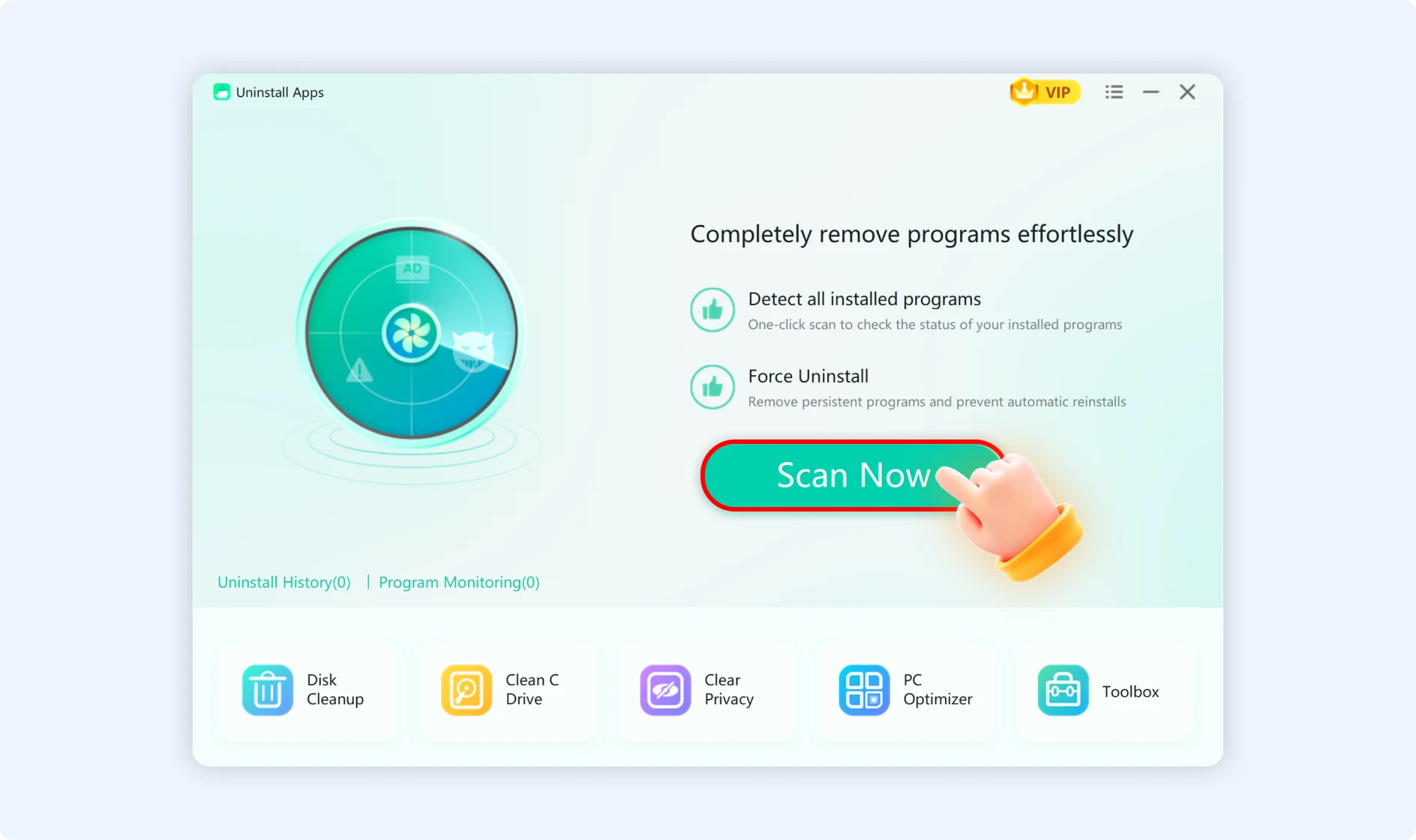
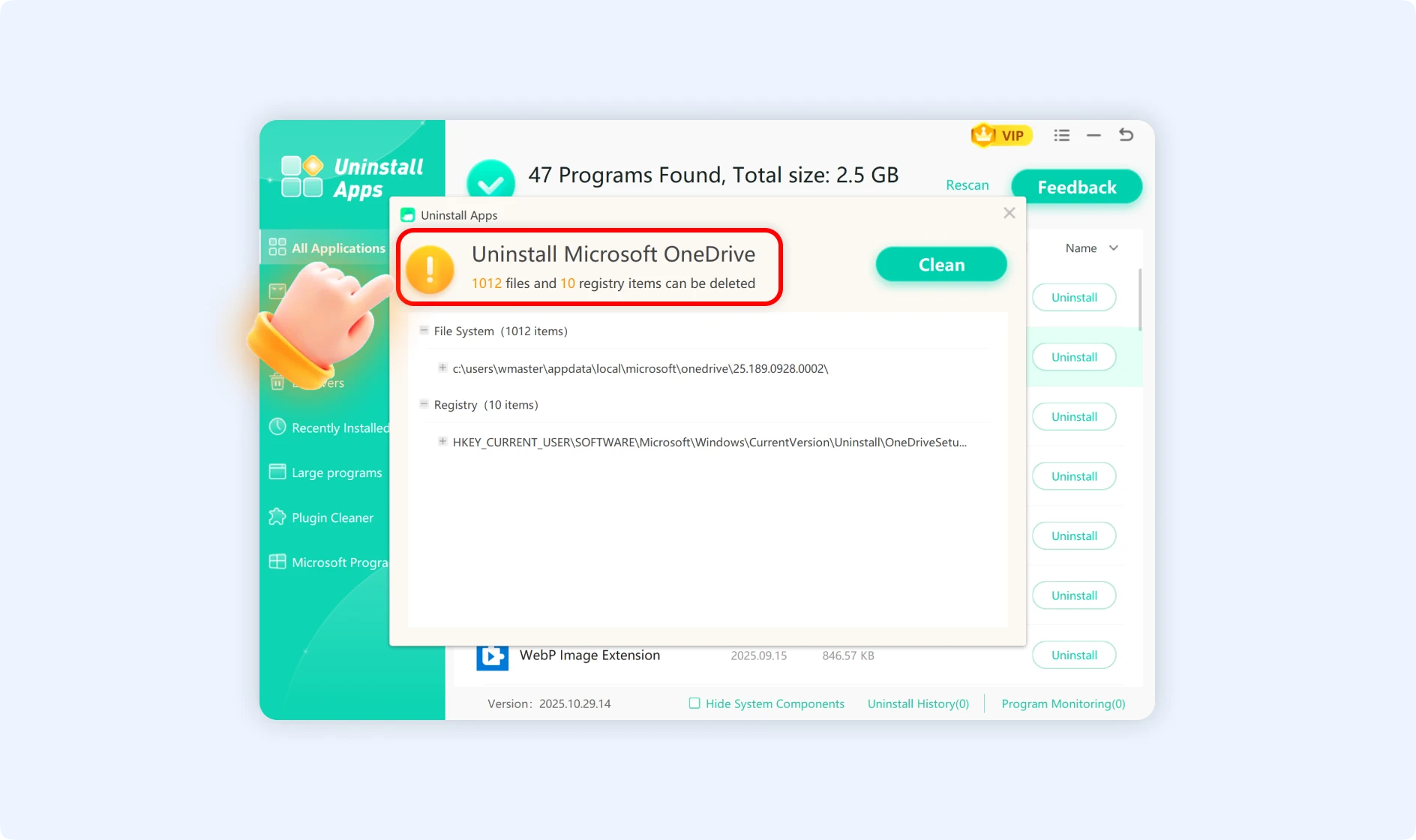
The uninstall feature of the WMaster Cleanup lets you completely remove the software. By doing in-depth scans of the registry, program file directories, and other locations, it generates a complete list of installed software—including software without dedicated uninstallers and those not accessible via the Control Panel. With just one click, WMaster Cleanup, a one-click solution, checks associated areas for residual files, registry entries, shortcuts, startup items, and more when you uninstall software.
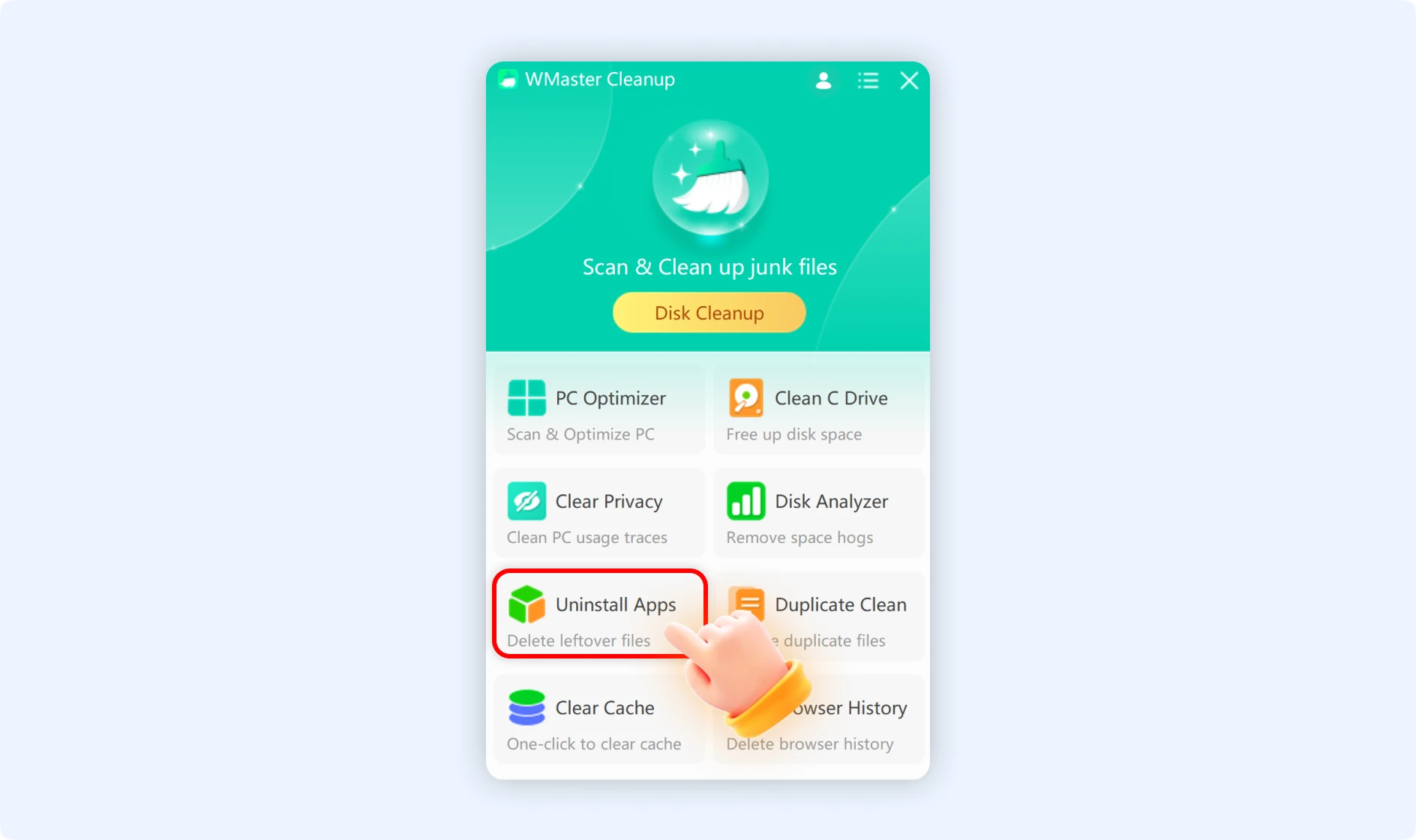
Click "Uninstall Apps," and then tap on "Scan Now" to start the scanning process of all the apps that are already installed on your PC. Click the “Uninstall” button after choosing the software you don't need anymore. When the uninstallation is done, WMaster Cleanup will automatically look for leftover files, registry entries, shortcuts, browser plugins, startup items, and other components that are still on your computer.
7. Duplicate Clean
The duplicate file cleanup feature uses the MD5 Message-Digest Algorithm to check the integrity of data and compare files, which makes it easy to find duplicate files in the system. It can recognize a variety of file types, such as photos, videos, audio, documents, compressed archives, and more. The scan results are shown in groups by file type, which frees up a lot of disk space that was taken up by duplicate data.
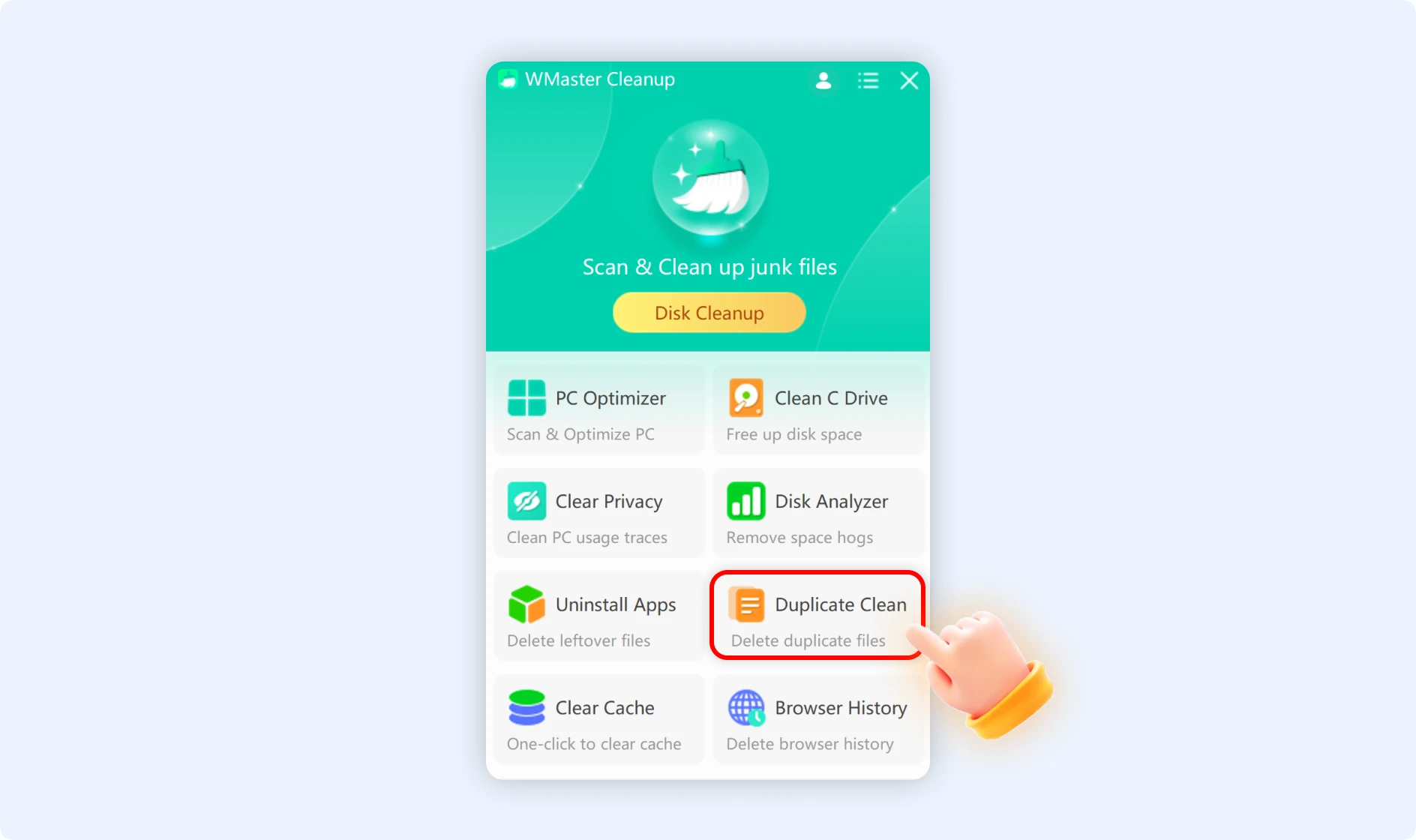
Click "Scan Now" after opening the "Duplicate Clean" feature to start the search. The system will look for duplicate pictures, videos, audio files, documents, compressed archives, and more. When it's done, the results are sorted by file type. This feature, with just one click, now allows you to choose which version of the file to keep and which copy to delete—letting you free up space on your hard drive.
8.Clear Cache
The cache cleanup feature is meant to get rid of temporary cache data that the system and apps generate. Cache make systems and software run faster, but over time, the data in the cache builds up and takes up a lot of disk space. WMaster Cleanup finds and clears many types of caches, such as browser caches (Chrome, Edge, Firefox, IE, etc.), system caches, files left over after Windows updates, temporary caches for different programs, log files, and more. This method is safe and effective for freeing up space because it doesn't change how applications work or lose any data.
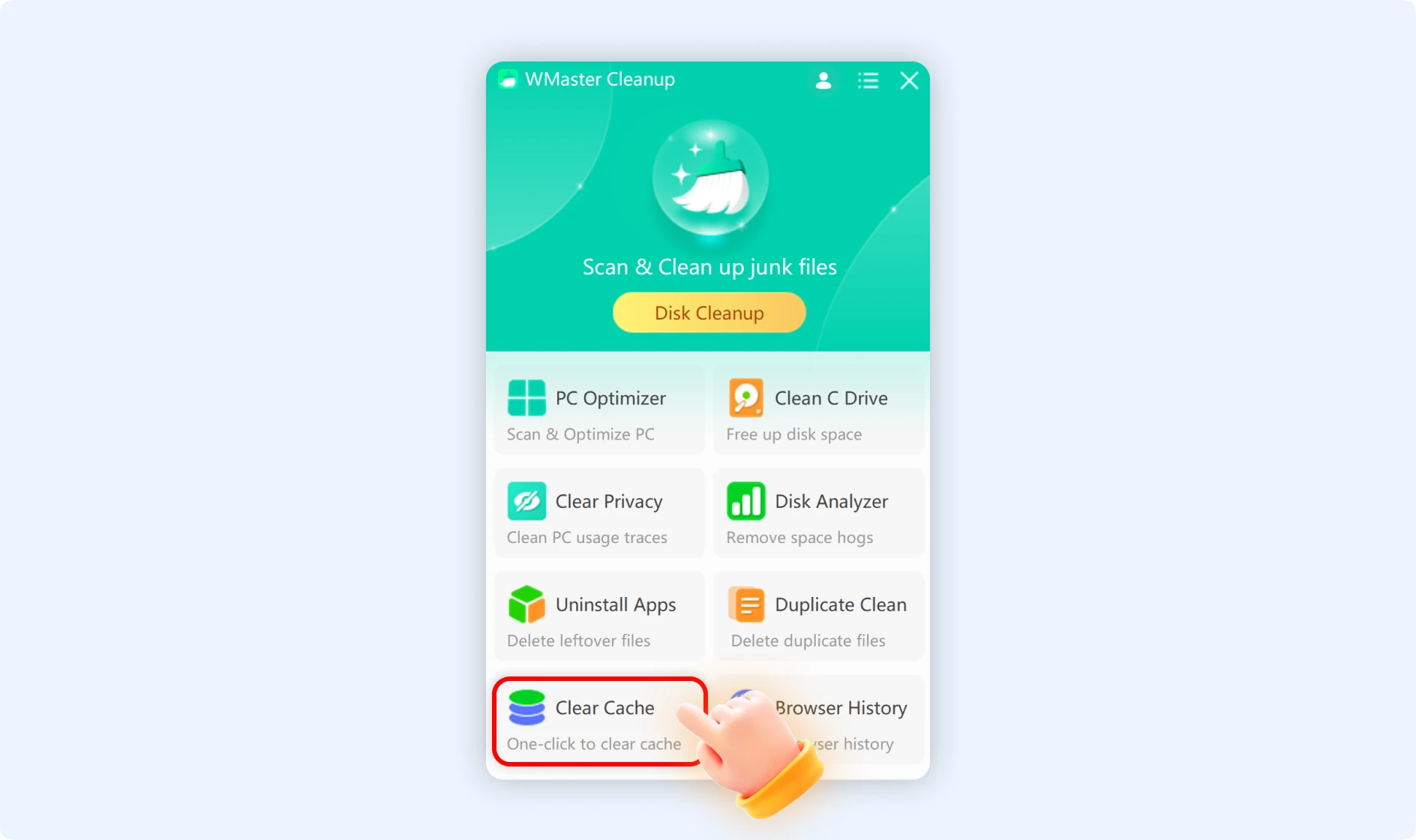
To clear the cache in one click, just open the "Clear Cache" feature and click "Scan Now." It will find temporary data like browser caches, system caches, software caches, and Windows update caches. Clearing caches on a regular basis frees up space on your hard drive, which improves the speed of your system and the responsiveness of your apps.
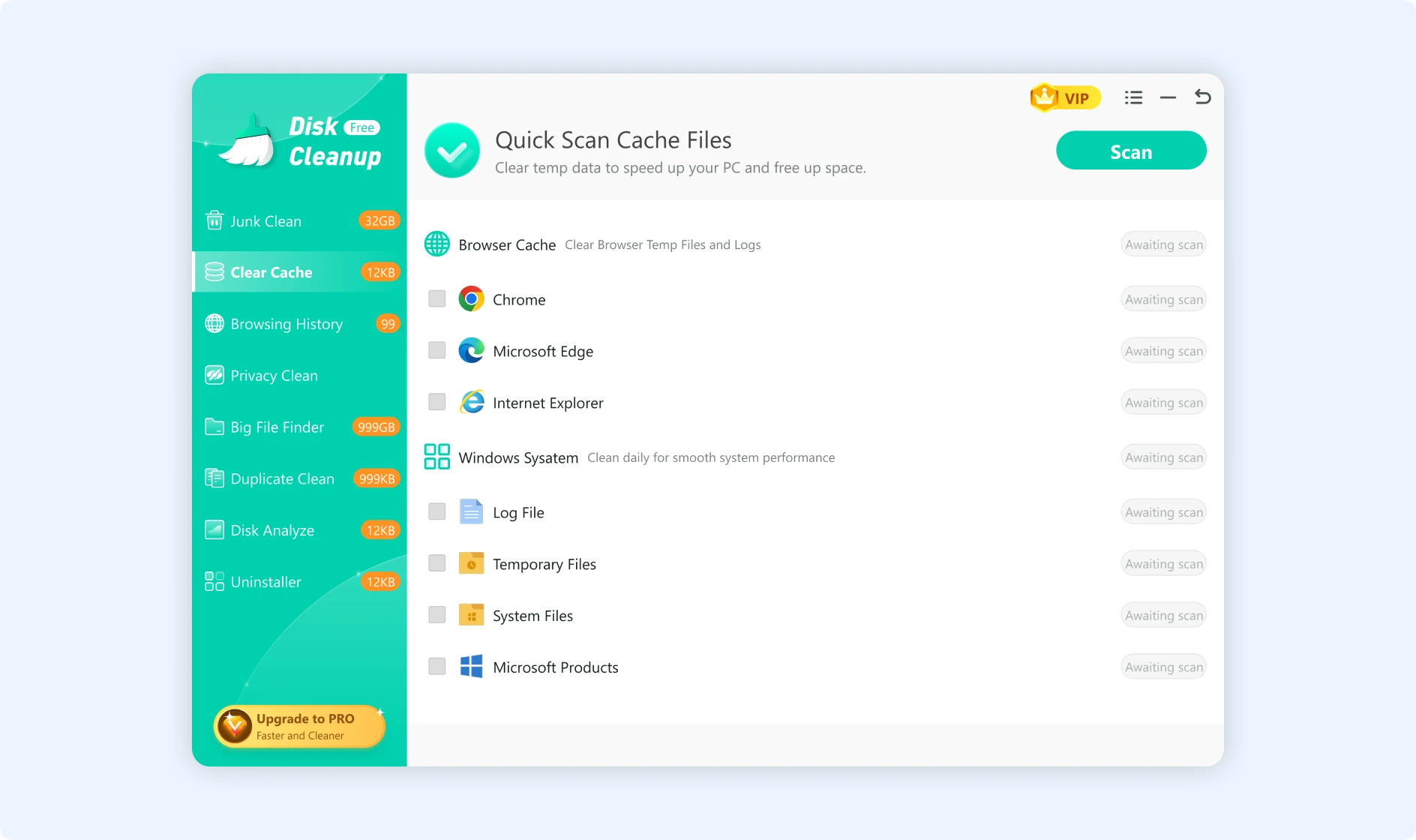
💡Tips: After clearing your browser's cache, you may need to log in to your necessary accounts again.
9. Browser History
The browser history feature helps you comprehensively clear various privacy data from mainstream web browsers, supporting scans of Chrome, Edge, Firefox, IE, and other popular browsers. It can clear data, including visited URLs, search history, address bar history, website icon records, browser data cache, and more. We also support customWe also support custom privacy cleanup, —for example, clearing only search history while retaining browsing history, or applying different cleanup strategies for different browsers—effectively protecting your online activity privacy.
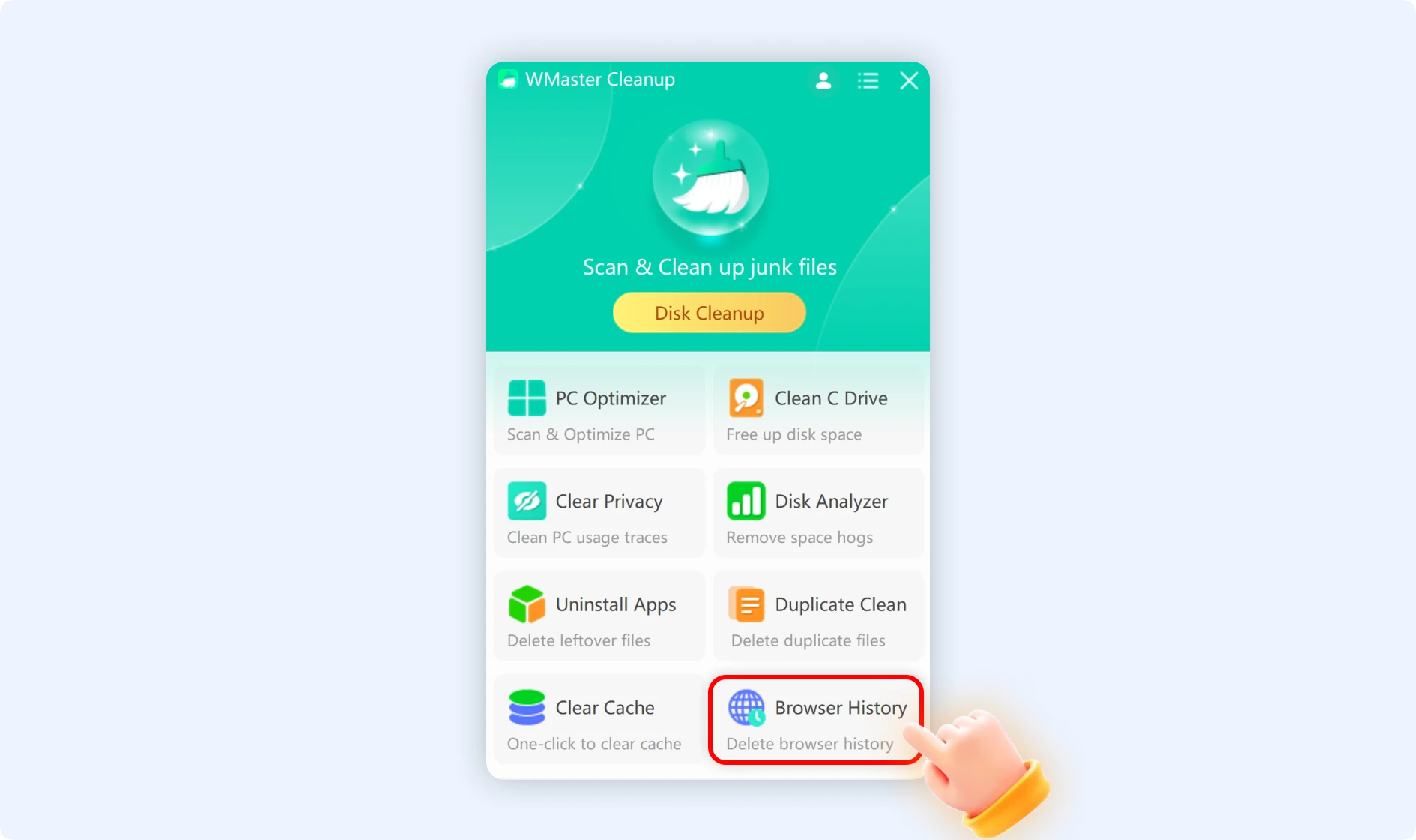
After clicking the “Browser History” feature, click “Scan Now” to initiate detection. The system will identify privacy data, including browser history, search records, address bar history, and data caches. You can customize which data types to clear by clicking the desired web browser. Search results will be categorized by browser and privacy data type.
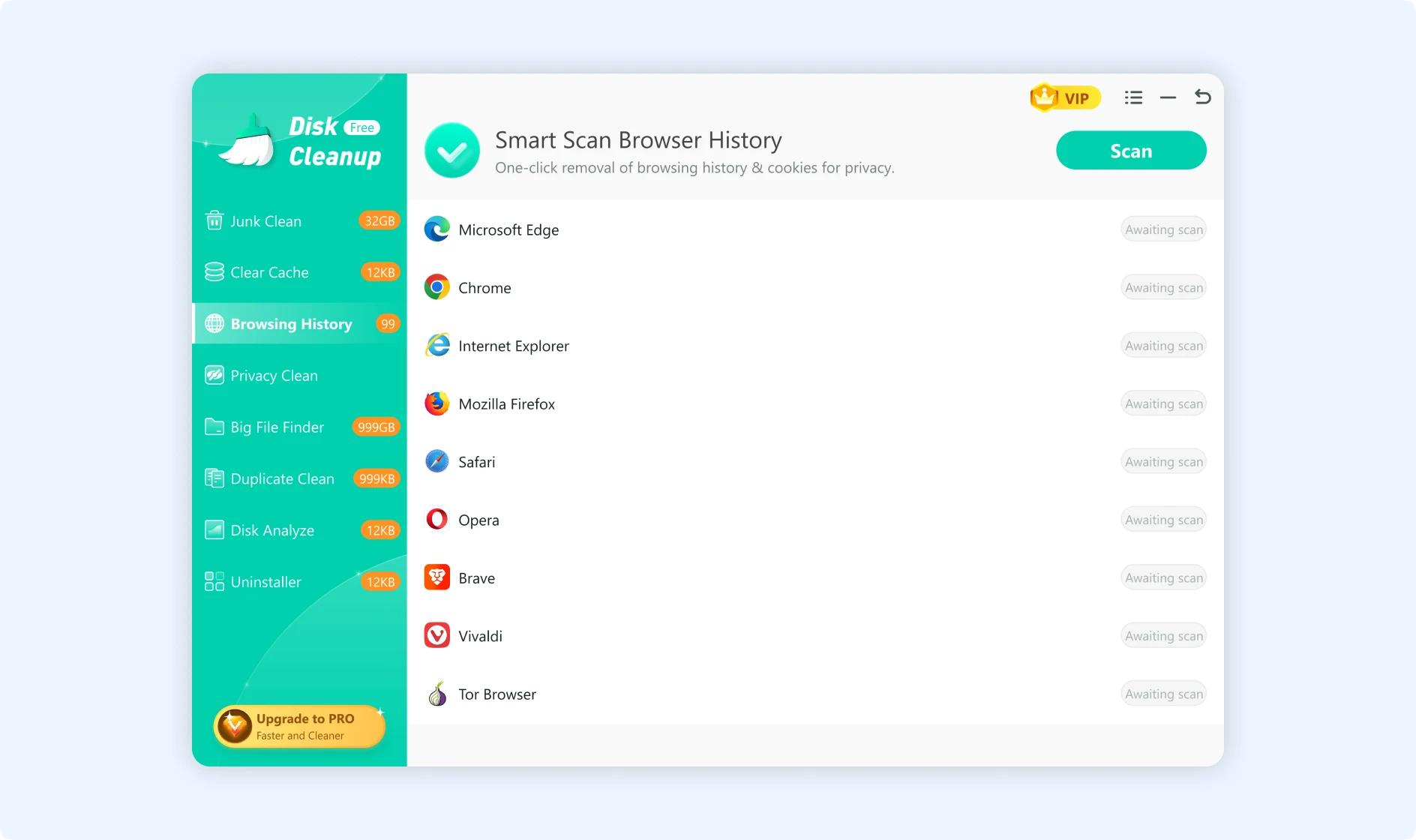
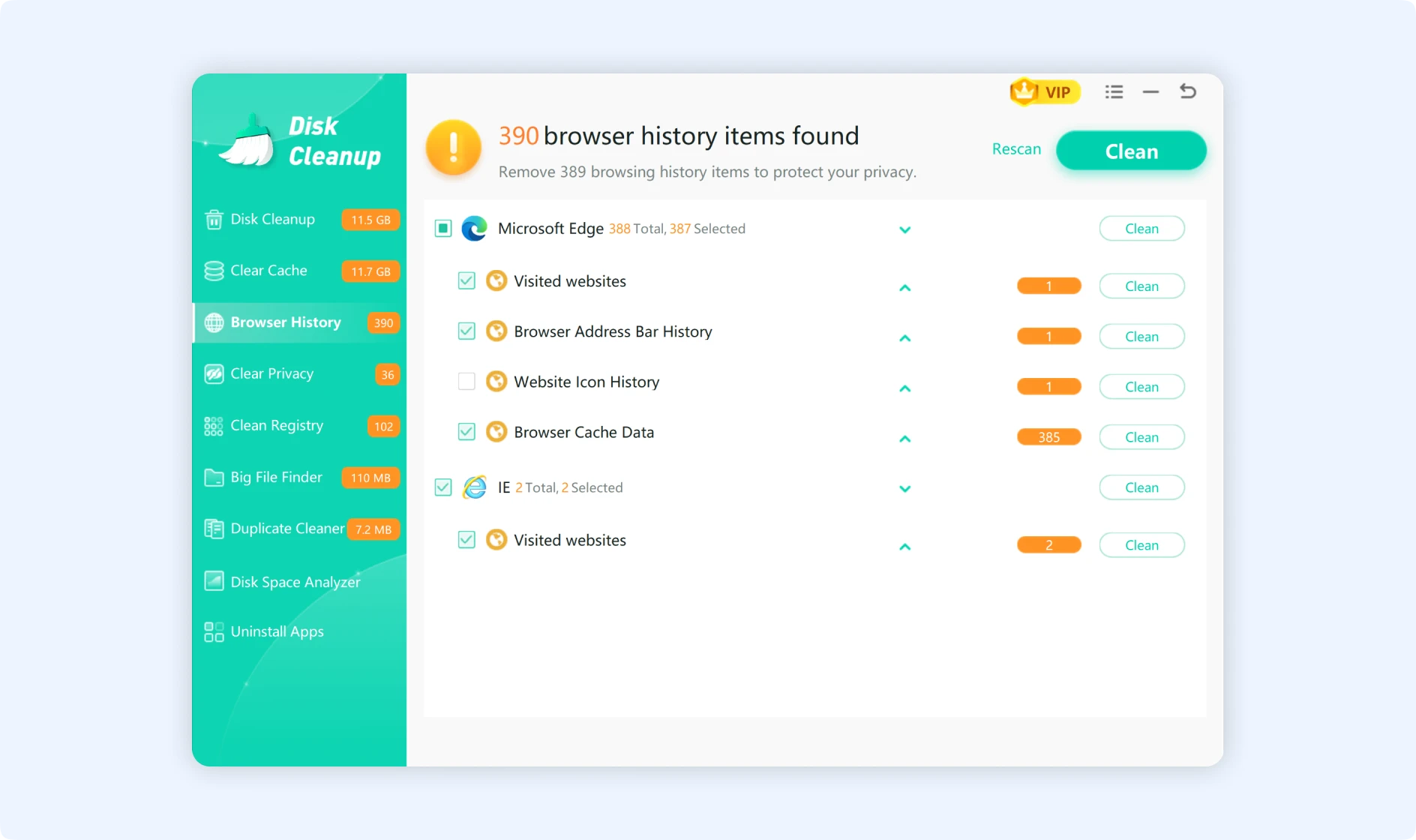
💡Tips:After clearing your browser cache, you may need to log in again to the required website accounts.
Part 2. WMaster Cleanup Recommend Function Module
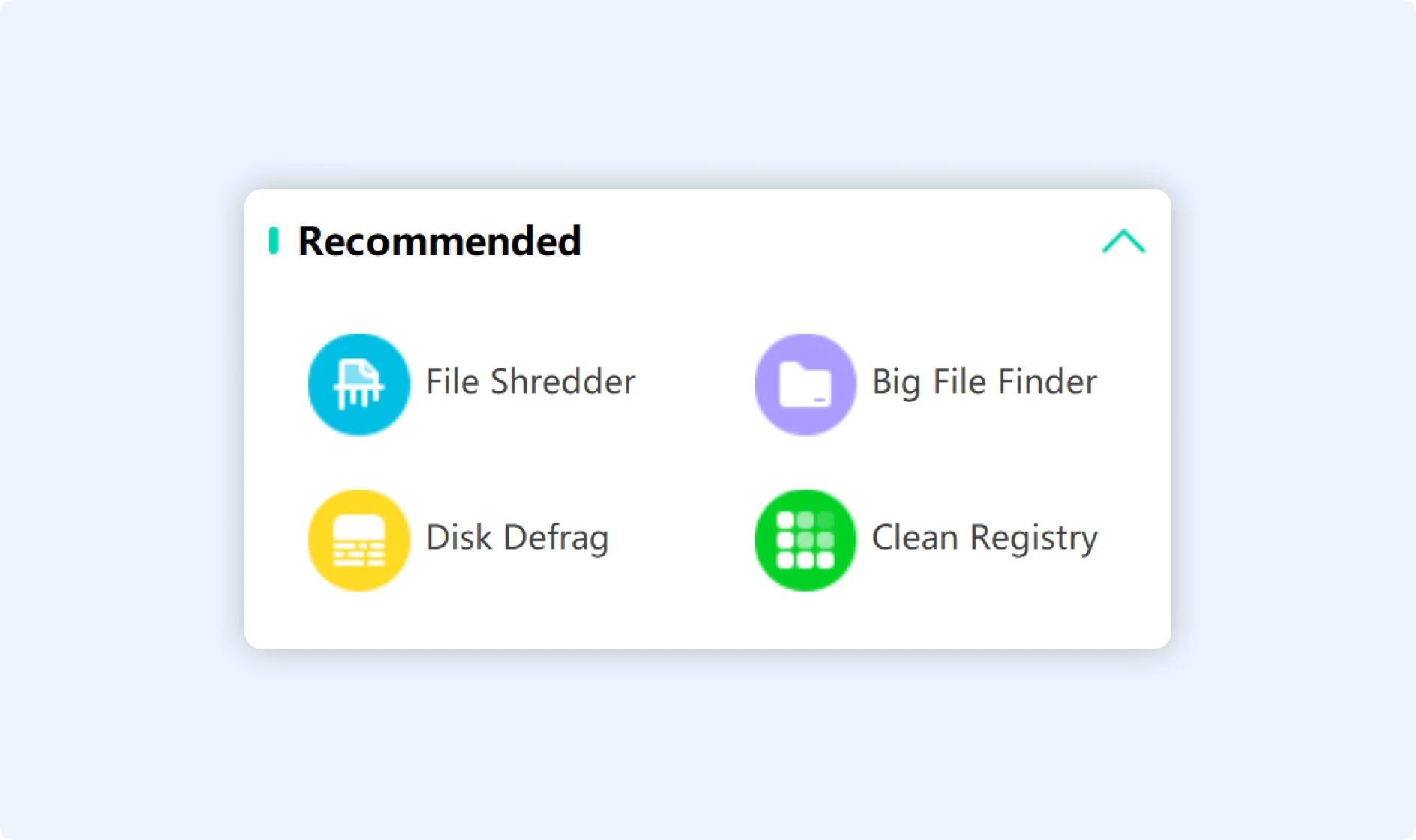
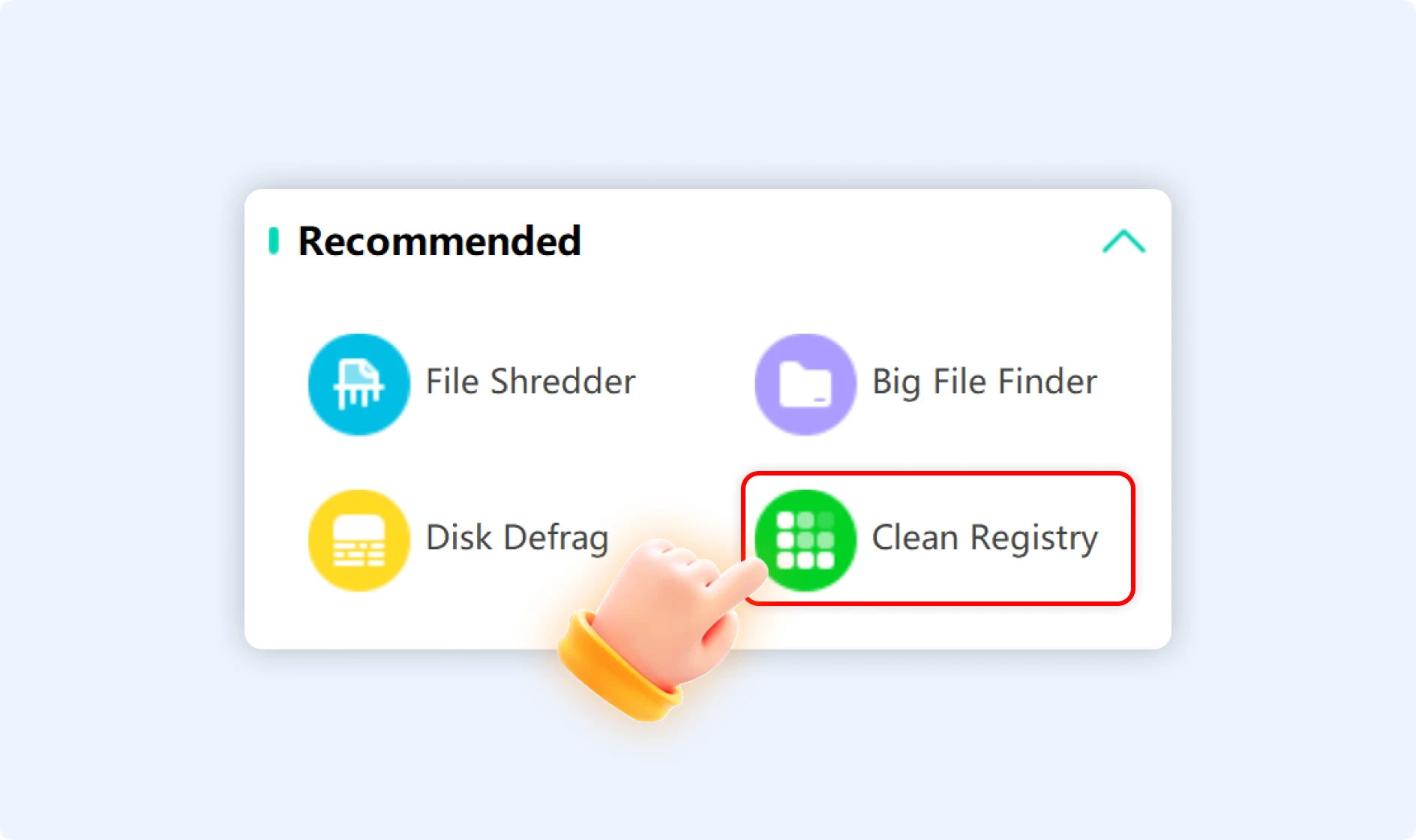
The "Recommended" section integrates four powerful cleaning tools, providing deeper cleaning capabilities.
- File Shredder
- Big File Finder
- Disk Defrag
- Clean Registry
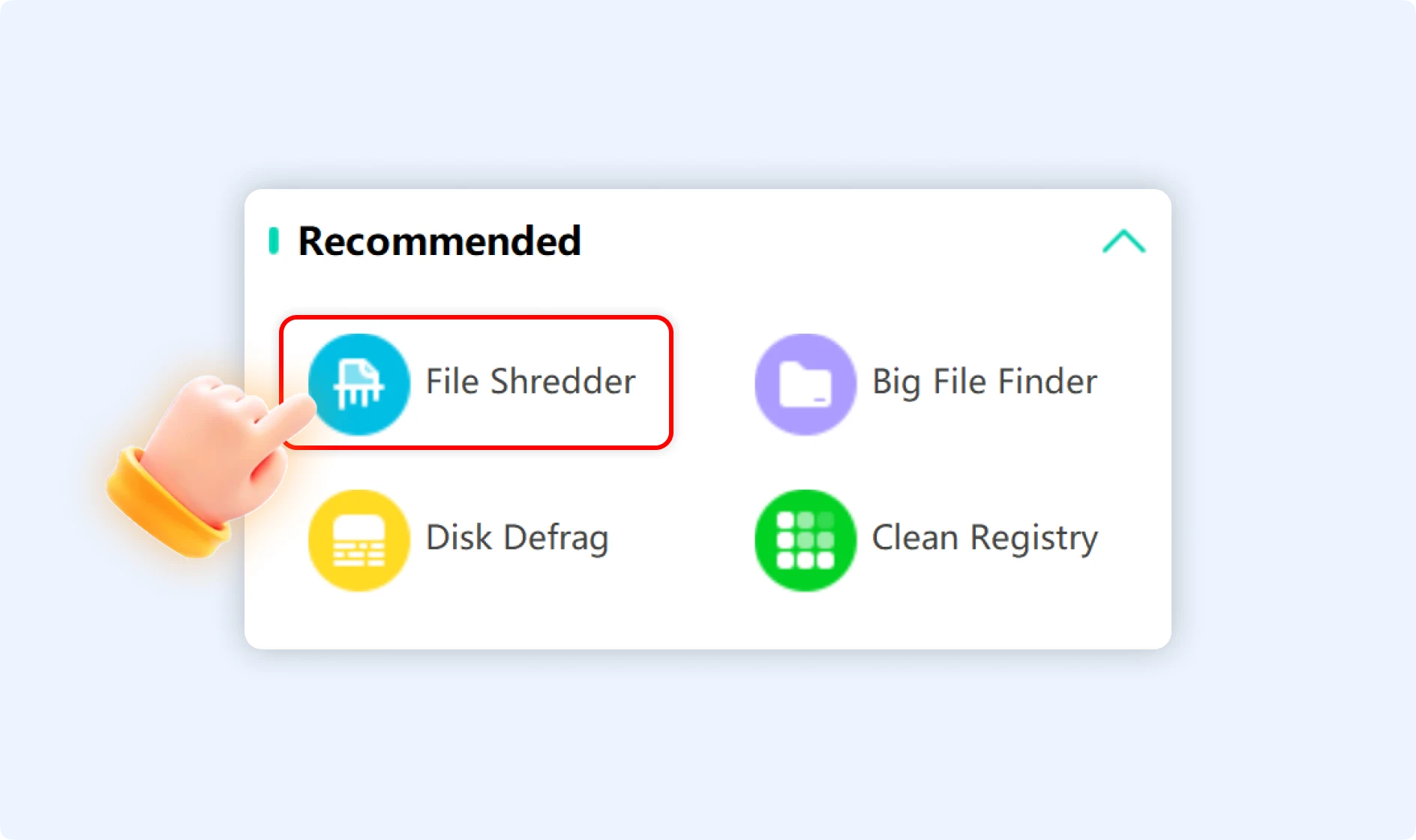
1. File Shredder
File Shredder is a fast and easy way to get rid of files permanently. It shreds files over and over again using data overwriting technology, which completely destroys their data. It's effective for files that need to be permanently deleted or when the file is "in use" or "running" and can't be deleted.
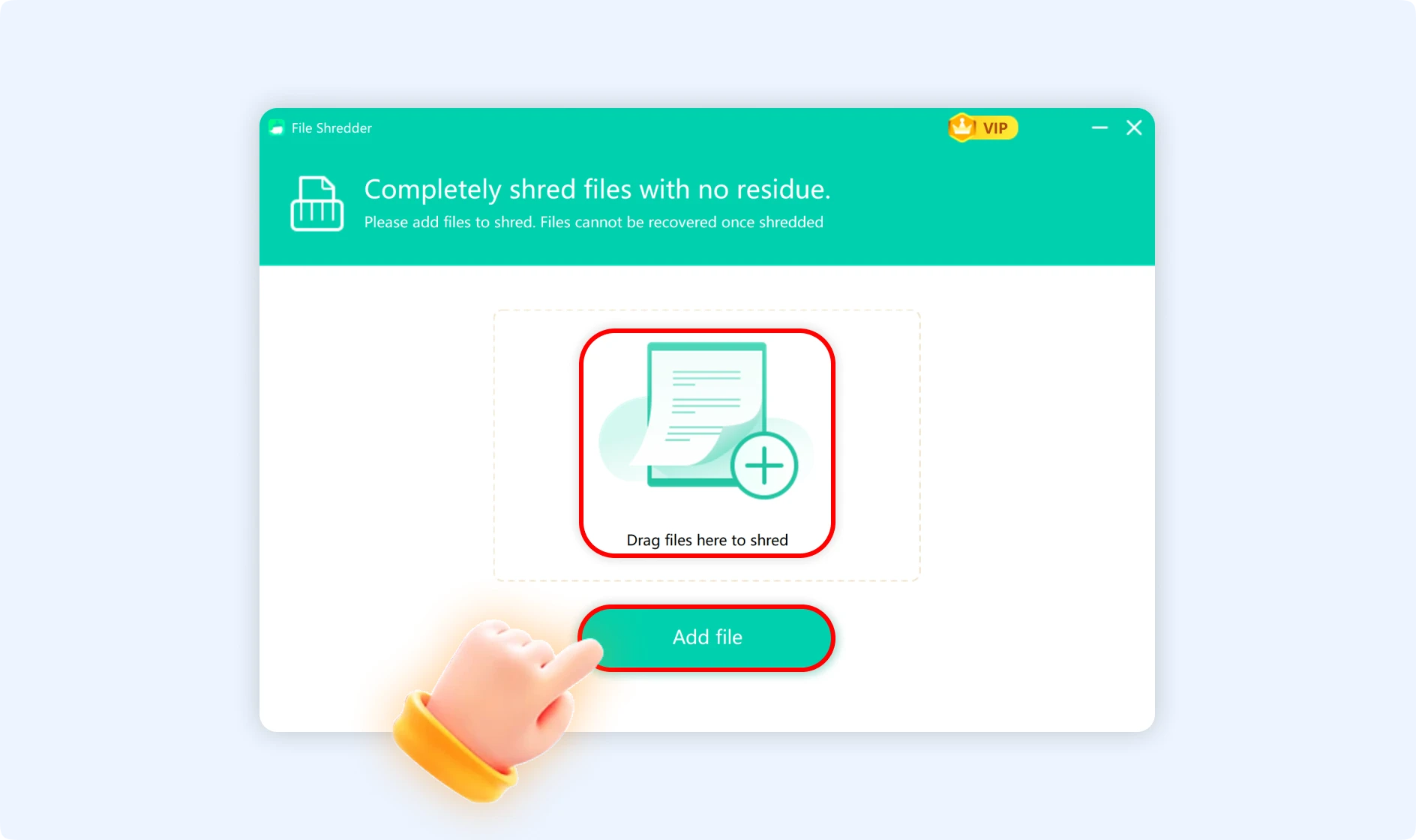
To permanently delete a file, either drag it into the File Shredder window or click "Add file" to add the file you want to delete. This will completely destroy the file, making it impossible to get back.
2. Big File Finder
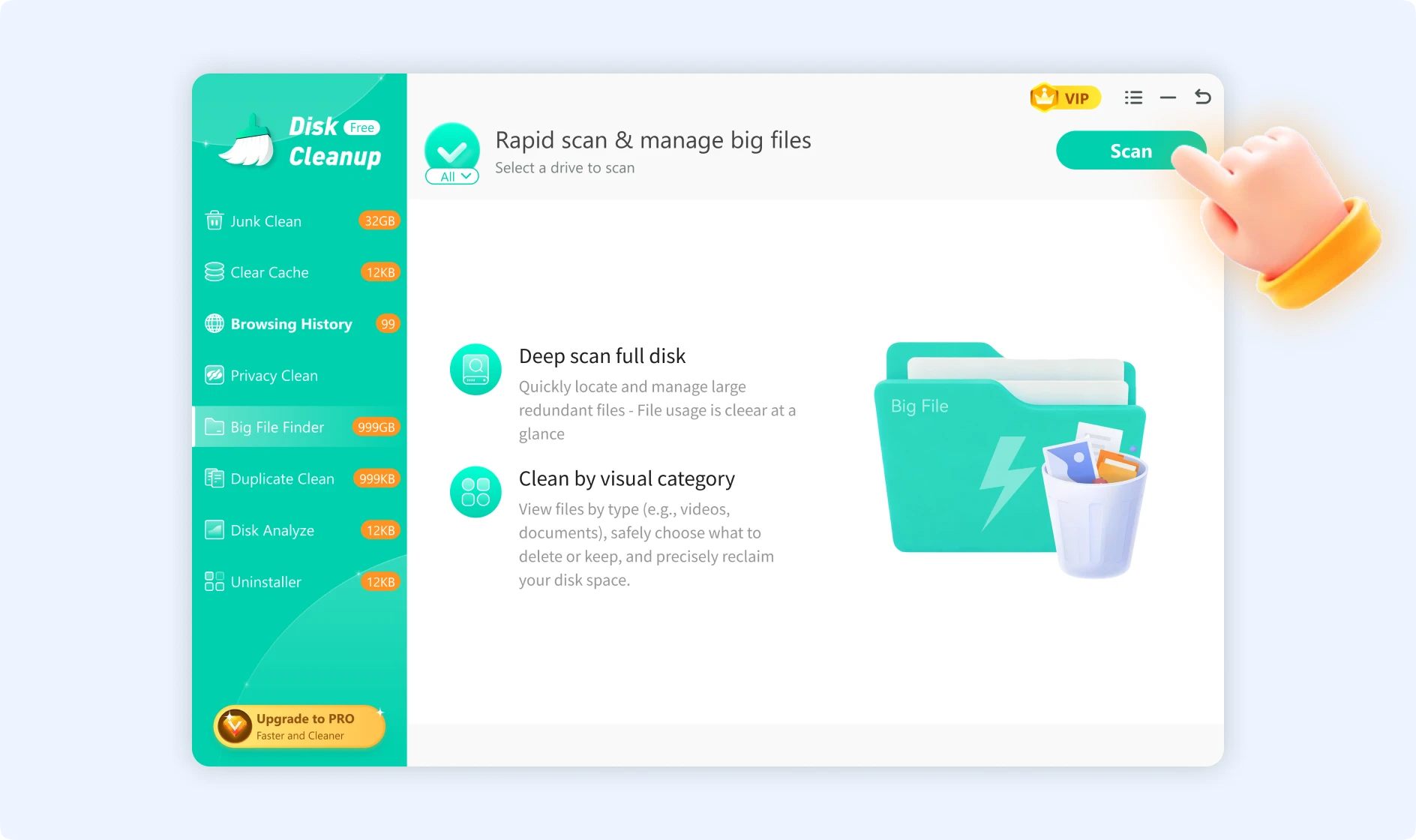
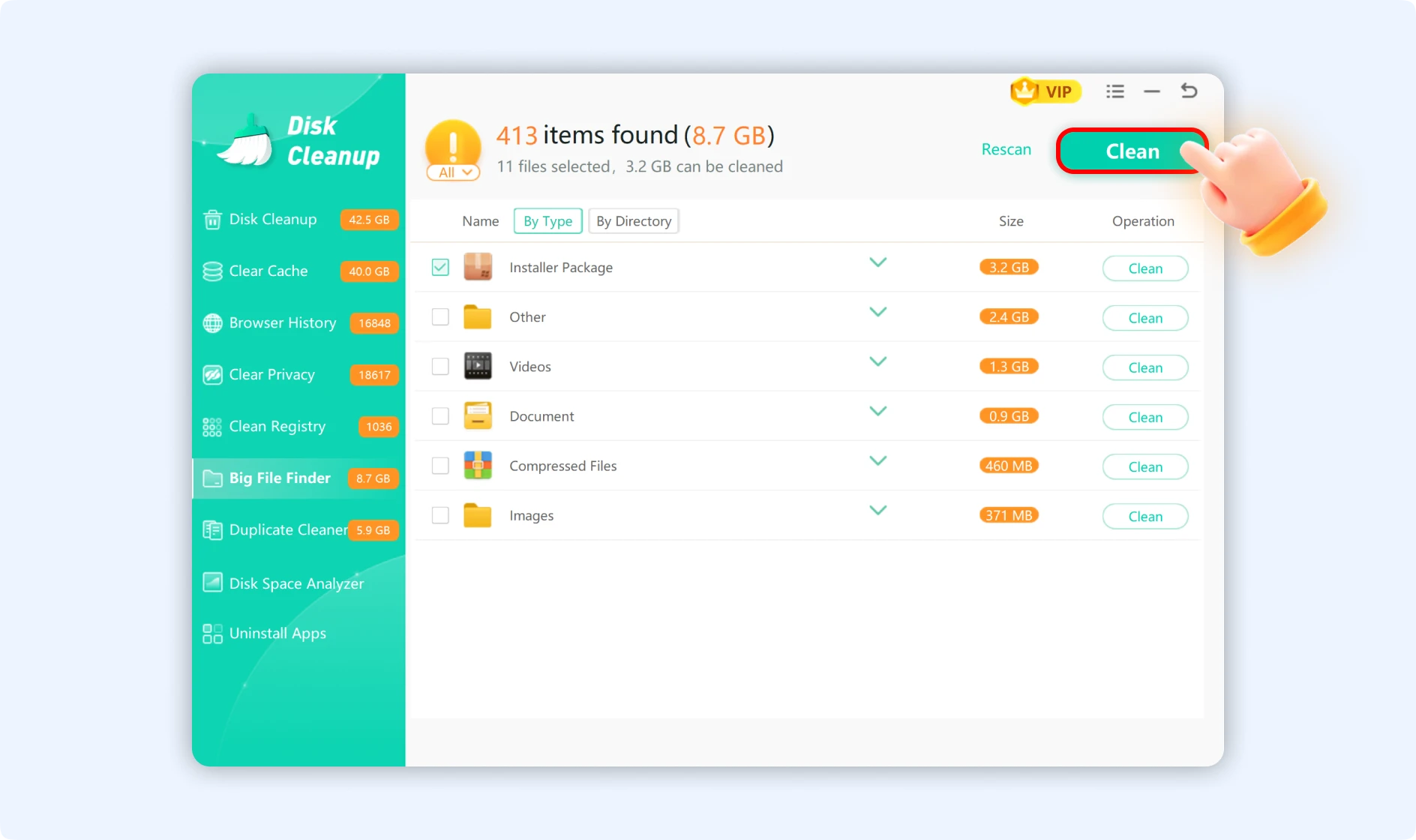
Big File Finder quickly finds files that take up a lot of disk space, making it easy to search for and delete large files that you don't need anymore, like old installation packages, image files, video files, documents, and more. This helps you make the most of the space on your disk.
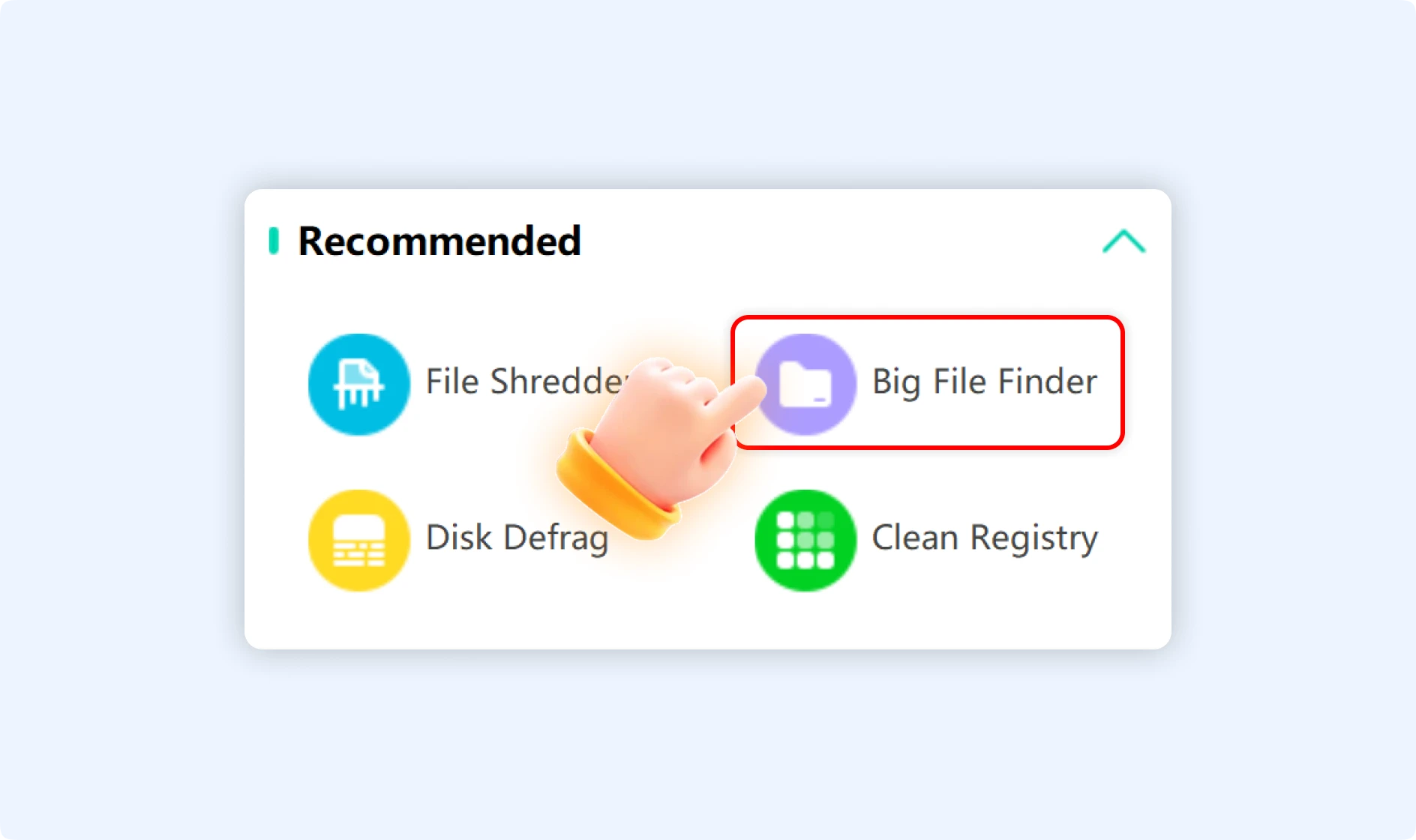
Press "Scan Now" to start a system-wide search for large files, such as installation packages, backup files, video files, compressed archives, and more, within the "Big File Finder" feature. Once scanning is finished, you can view the results sorted by directory or file type; now you can click "Clean" to delete the desired files.
3. Disk Defrag
Over time, hard drives (HDDs) break, causing files to disperse in various locations. This makes the disk read and write speeds slower. By rearranging these fragments, disk defragmentation optimizes data access, reduces head movement time during file read/write operations, and greatly enhances system performance.
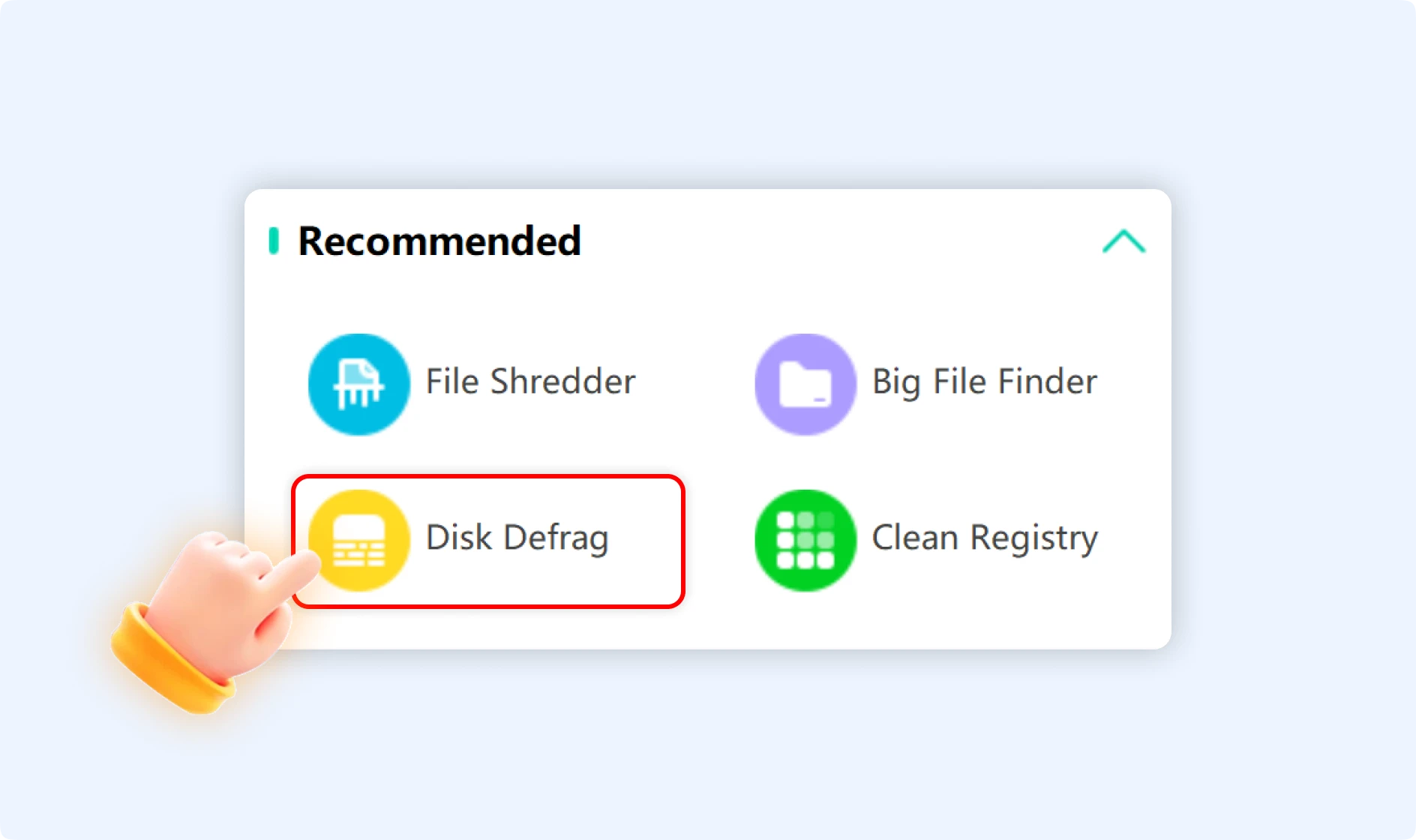
To analyze and reconcile disk fragmentation, first select the "Disk Defrag" option on the main WMaster Cleanup interface, and then just click "Clean Now." When it's done, your system will respond more quickly, you will be able to view files more swiftly, and programs will start up faster.
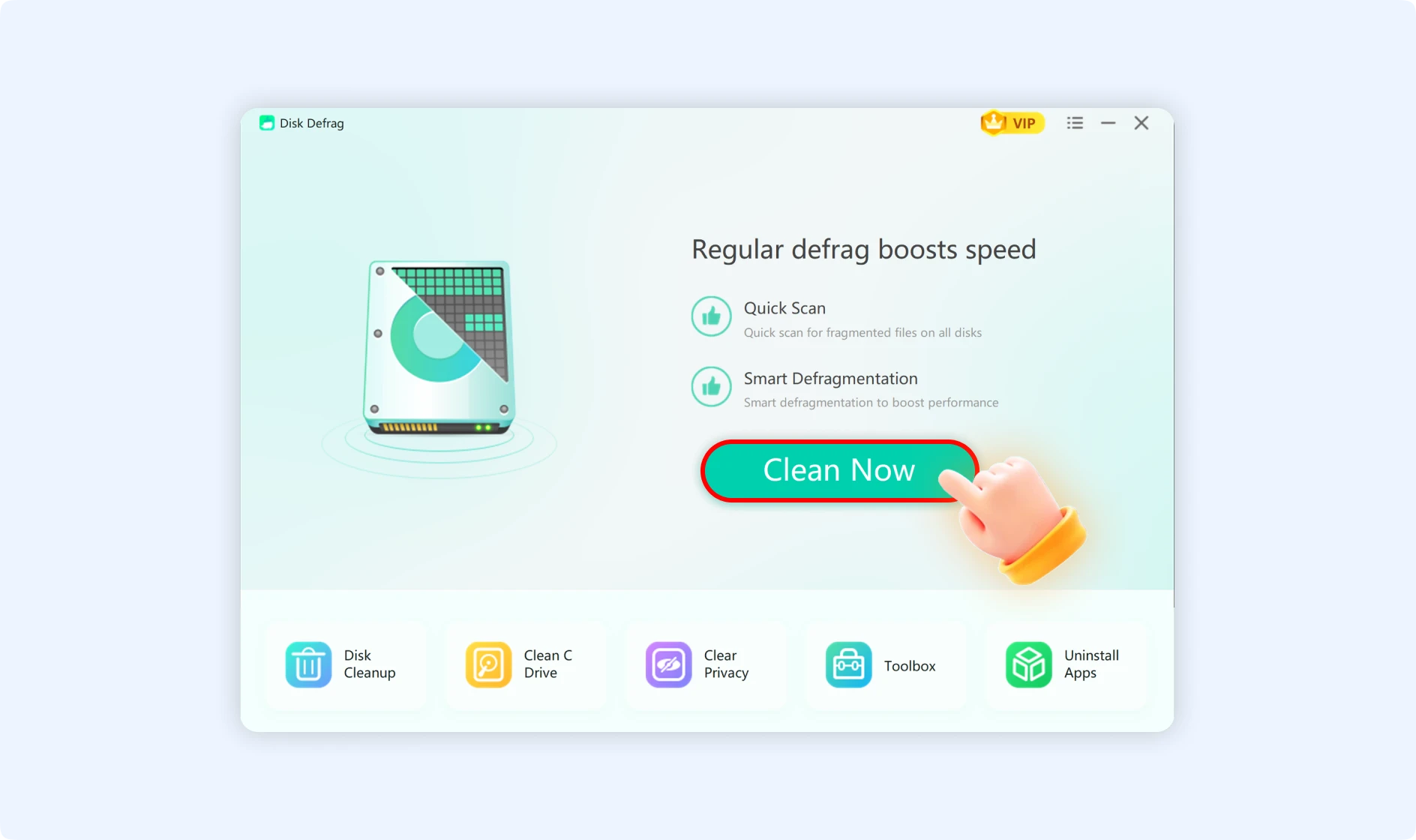
💡Tips: Remember to defragment your disk on a regular basis to improve system responsiveness, speed up program startup, and increase file access speeds.
4. Clean Registry
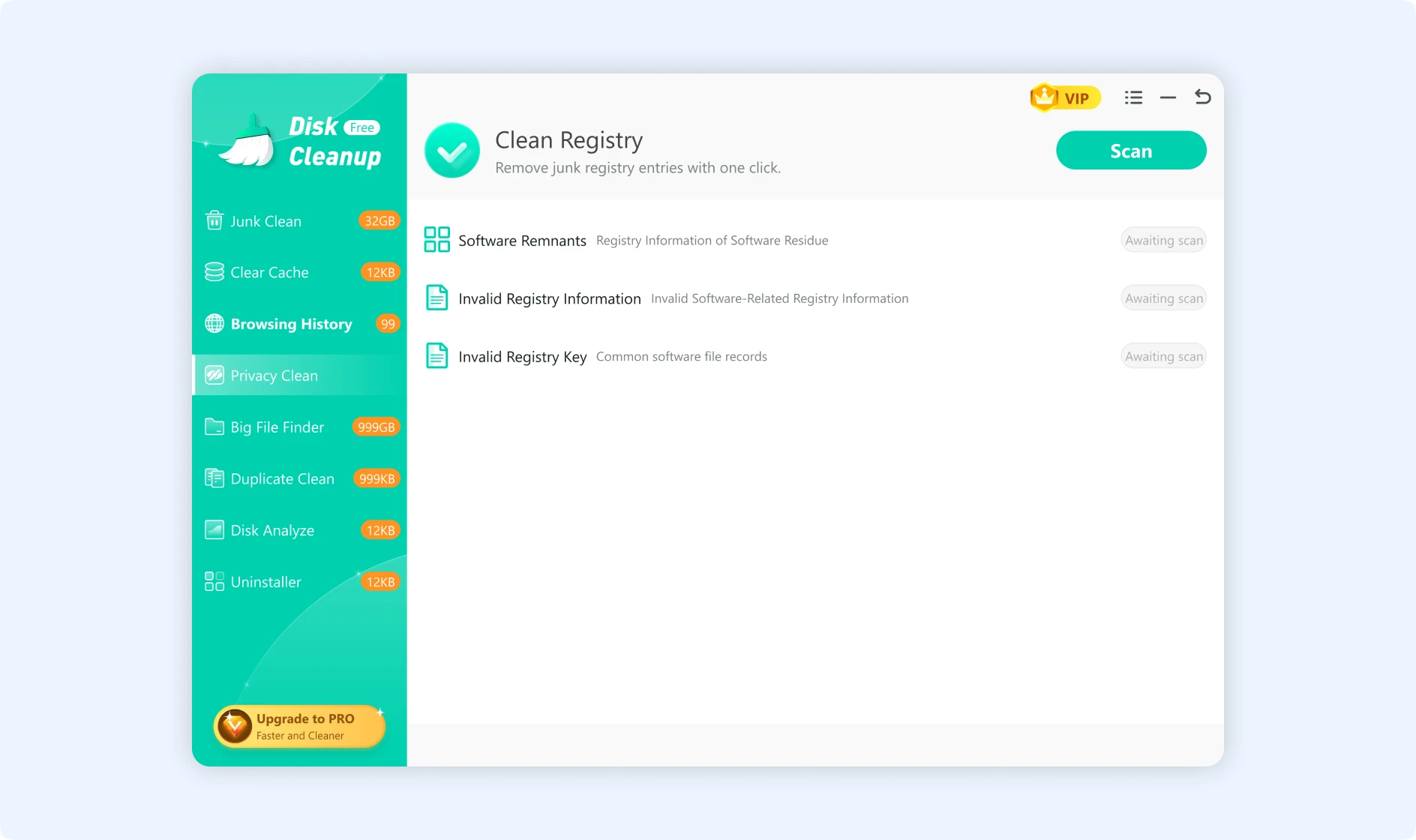
Excessive accumulation of system and software configuration data in the Windows Registry may harm system performance. To maximize system performance, the registry cleaning feature finds and securely eliminates corrupted file associations, invalid installations, leftover startup items from right-click menu entries, and other issues.
Once you access the Clean Registry feature, click "scan" to start detecting issues like invalid registry entries, broken file associations, leftover startup items, and invalid software paths. Regular registry cleaning can help minimize system errors, speed up startup times, and keep your system running smoothly.
Part 3. WMaster Cleanup Discovery Function Module
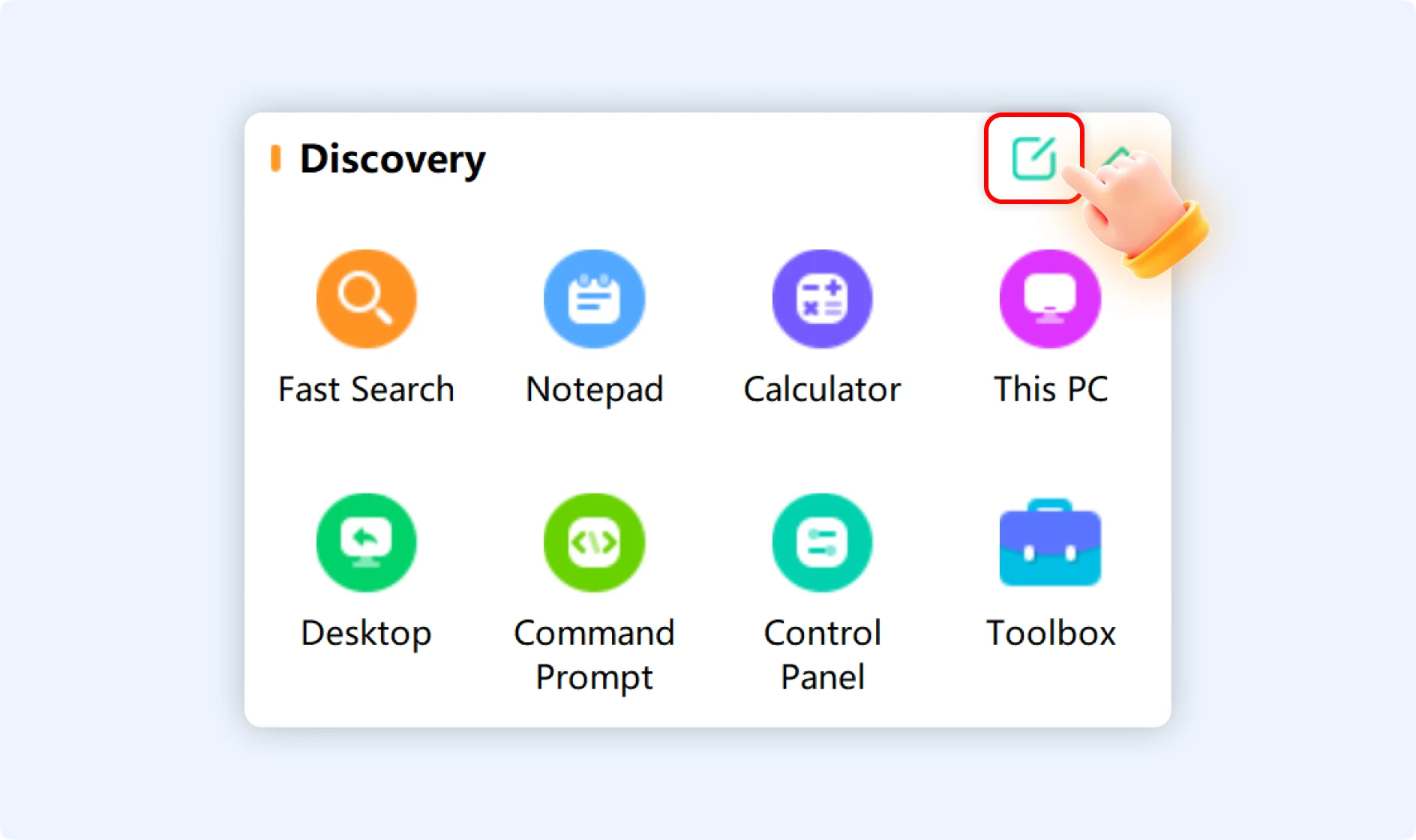
The Discovery section improves daily operational efficiency by offering quick access to frequently used Windows system tools and WMaster Cleanup features.
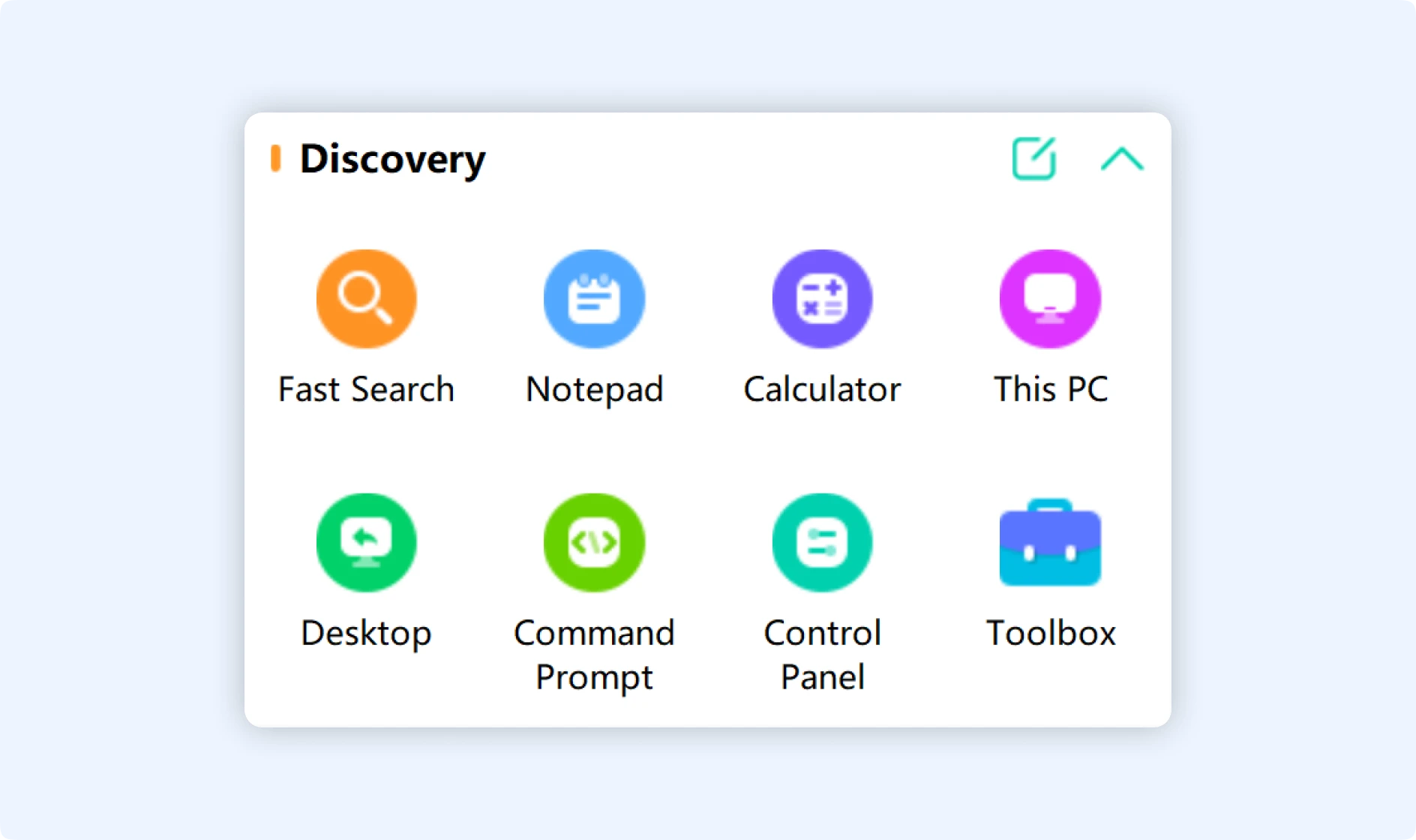
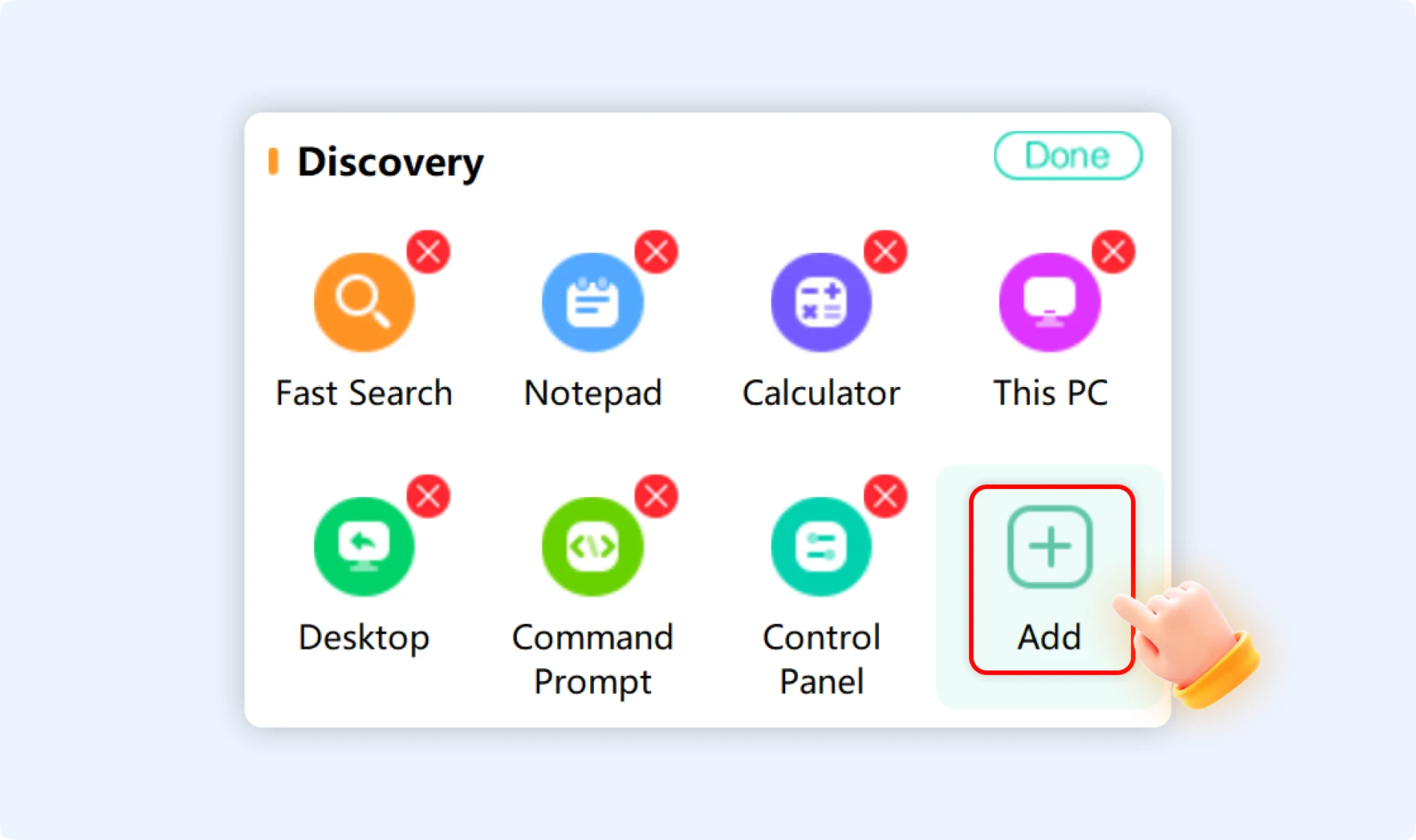
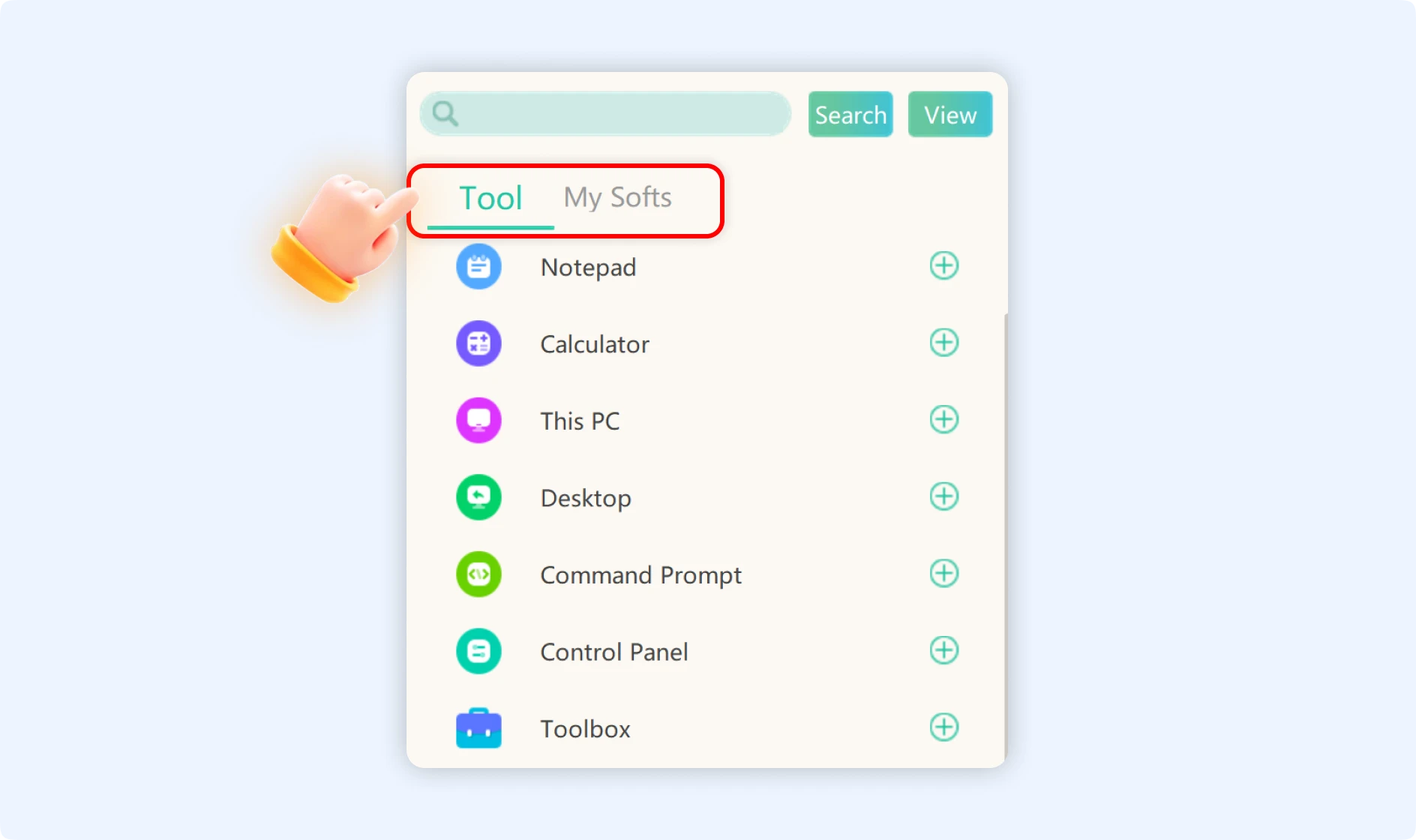
You can customize your shortcut entries in the Discovery section. To add your frequently used programs or features, just click the edit button.
💡Tips:The Discovery section provides fast access for everyday tasks, while the “Recommended” section's features are better suited for routine maintenance. Using both together can significantly enhance your Windows experience.