Your computer may sometimes slow down or lag, which means you have to uninstall unnecessary software, clean up garbage files, clear your usage history, and restart the system often. In this case, you can use WMaster Cleanup's PC Optimizer feature to efficiently and quickly do these optimization steps for a faster and cleaner PC.

Guide to Optimize PC by WMaster Cleanup
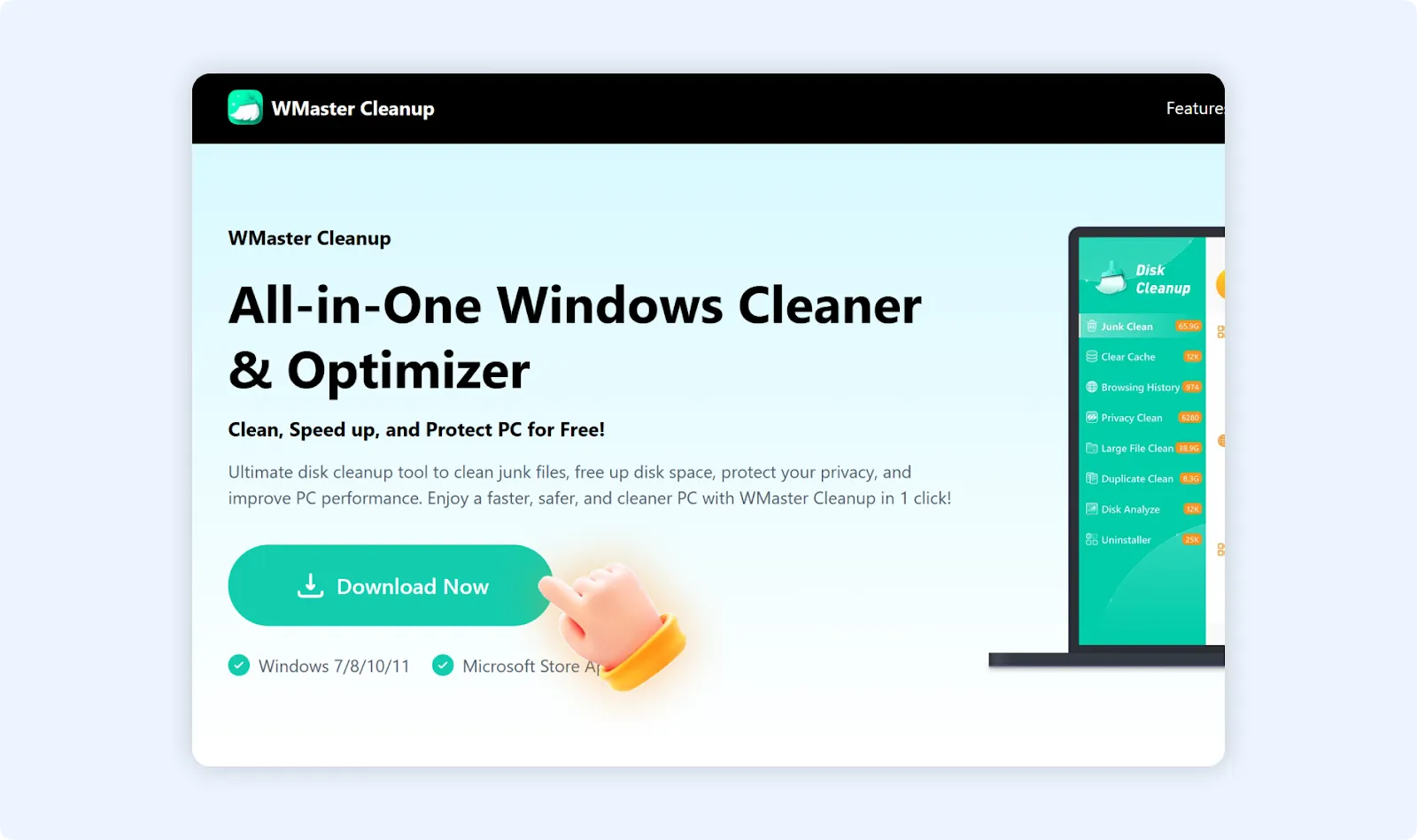
Step 1:Go to the official WMaster Cleanup website to download the application and run it.
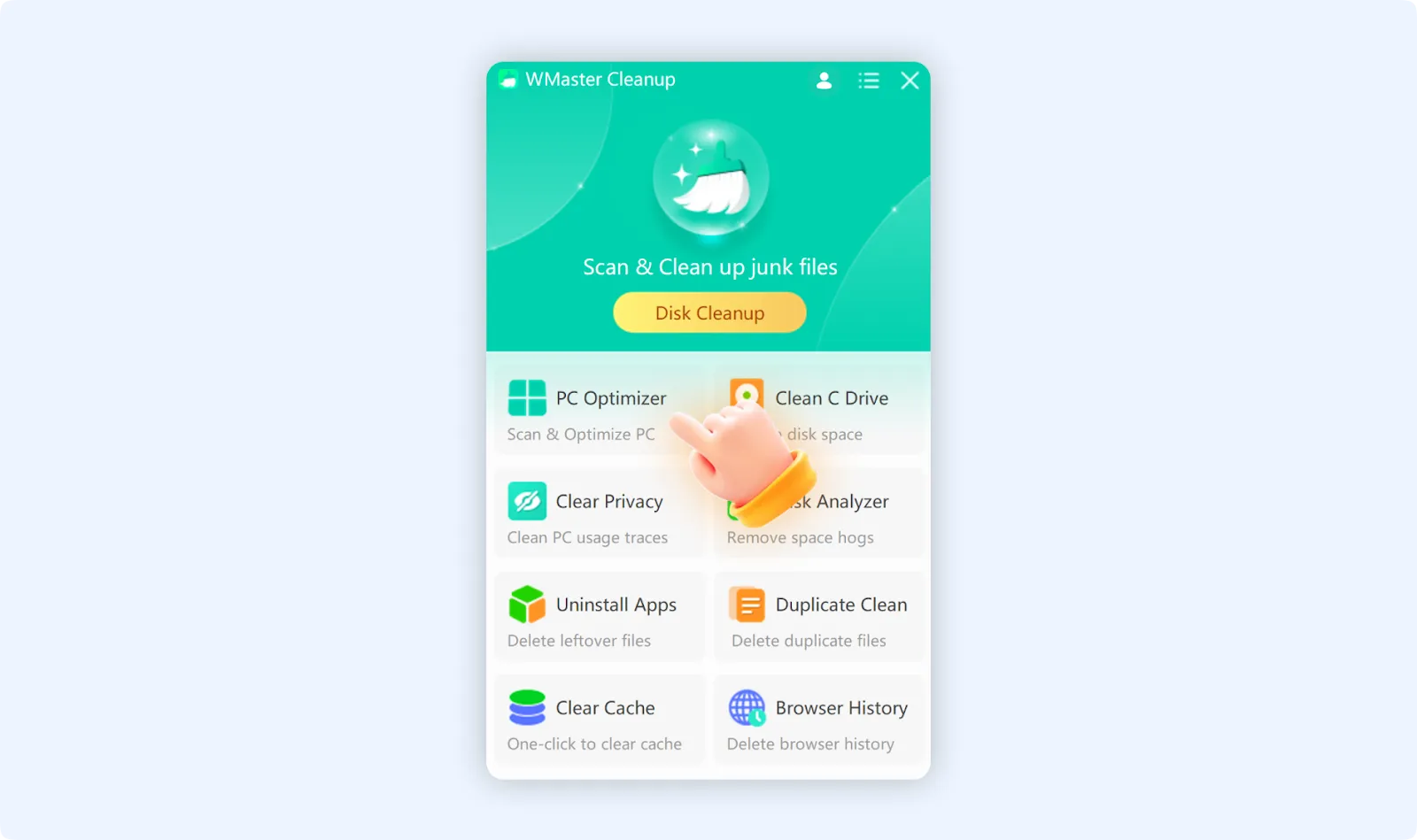
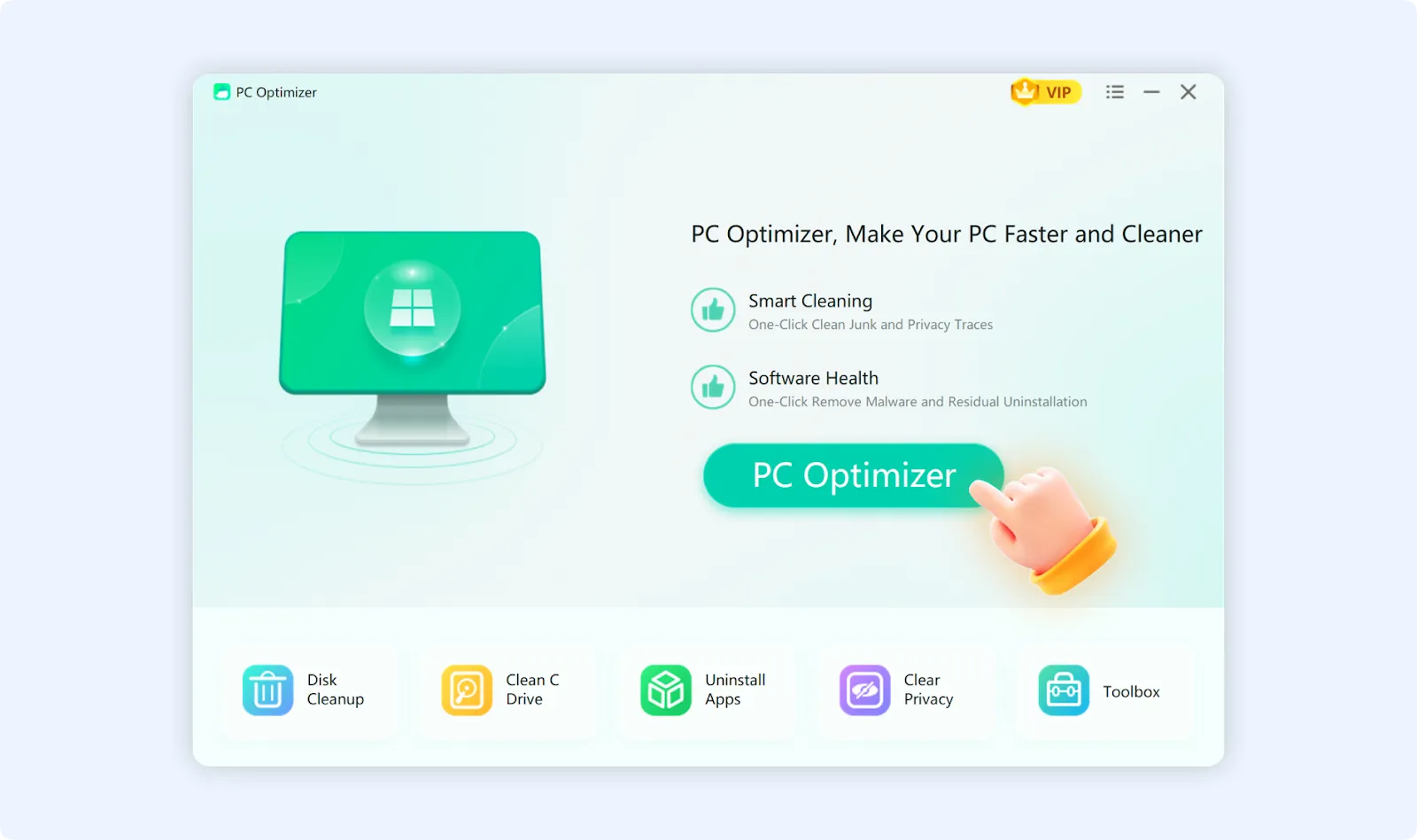
Step 2: Once the download completes, open the WMaster Cleanup application and click "PC Optimizer" on the main interface. Now tap on "PC Optimizer" to initiate the scanning process.
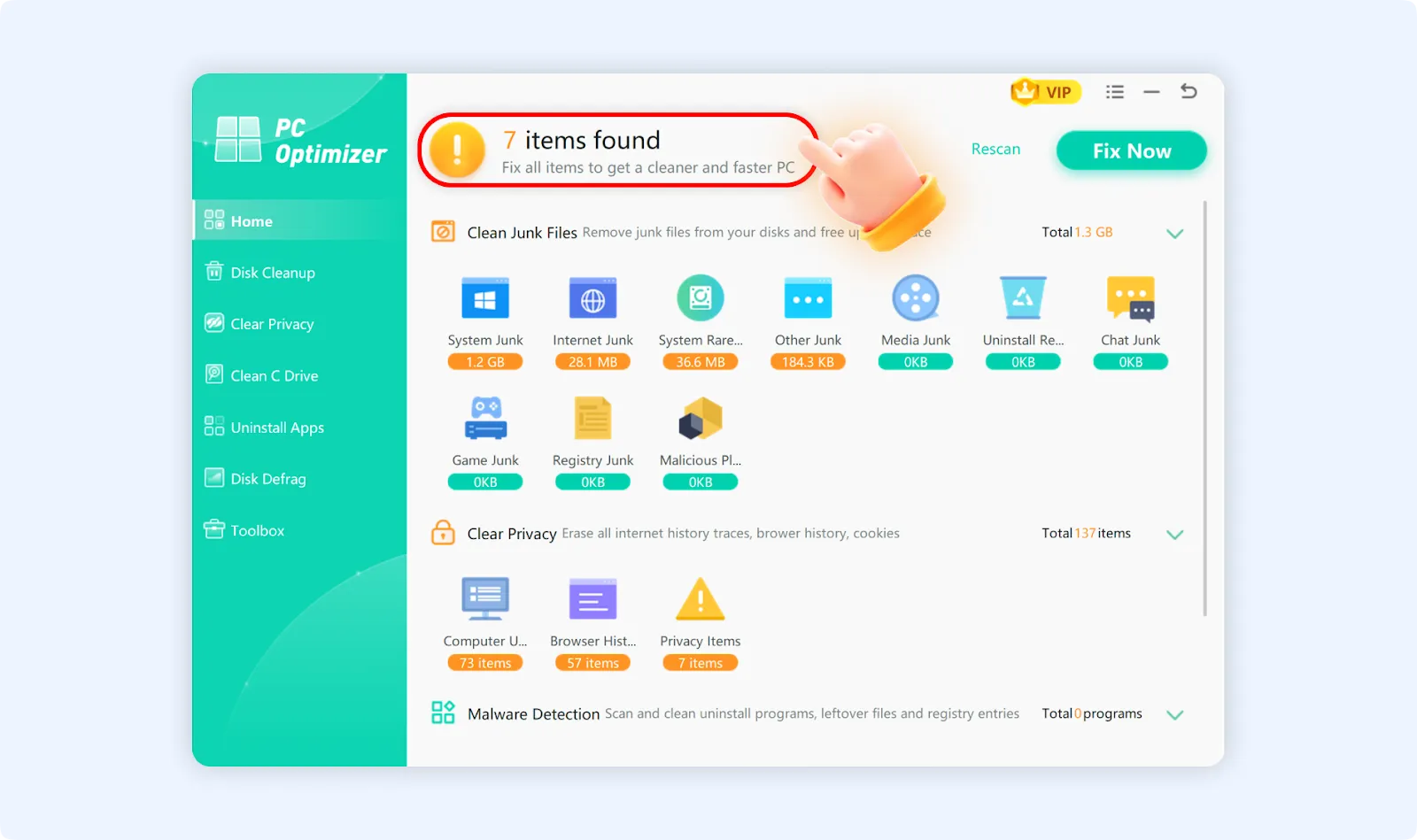
Step 3:Wait for the scan to complete. Determine the total number of optimizable items on your computer, along with a clear catogarized list of each item and their respective quantities.
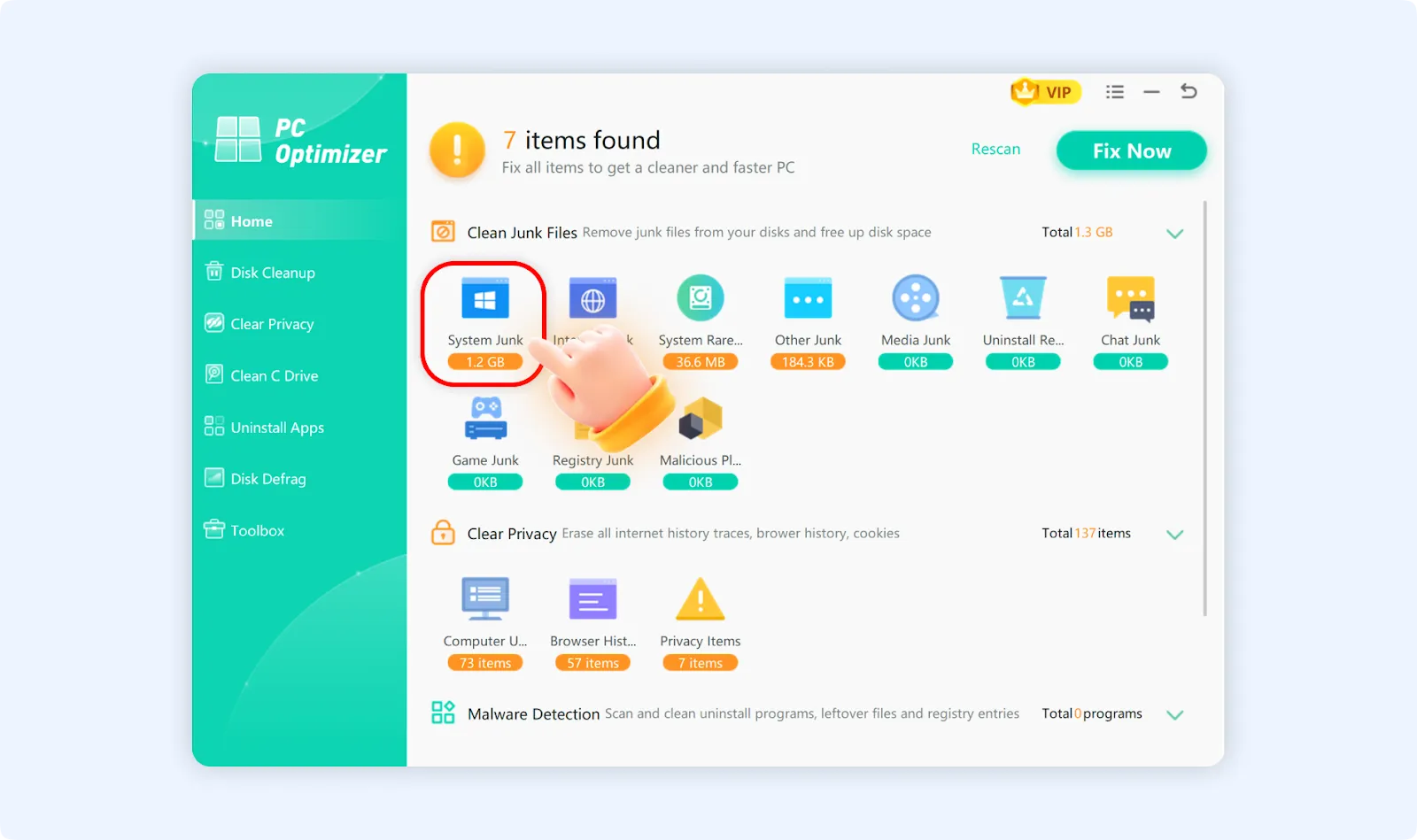
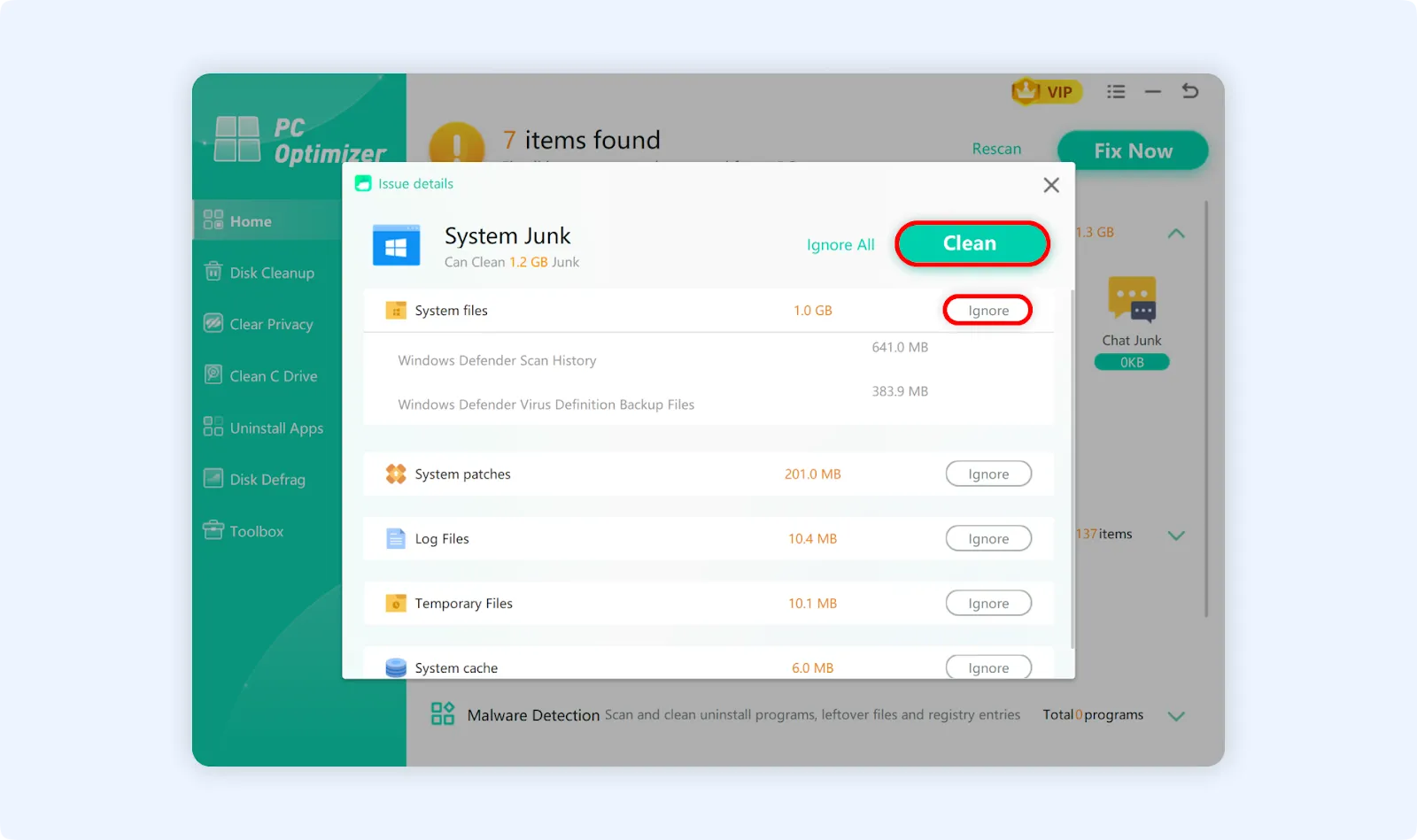
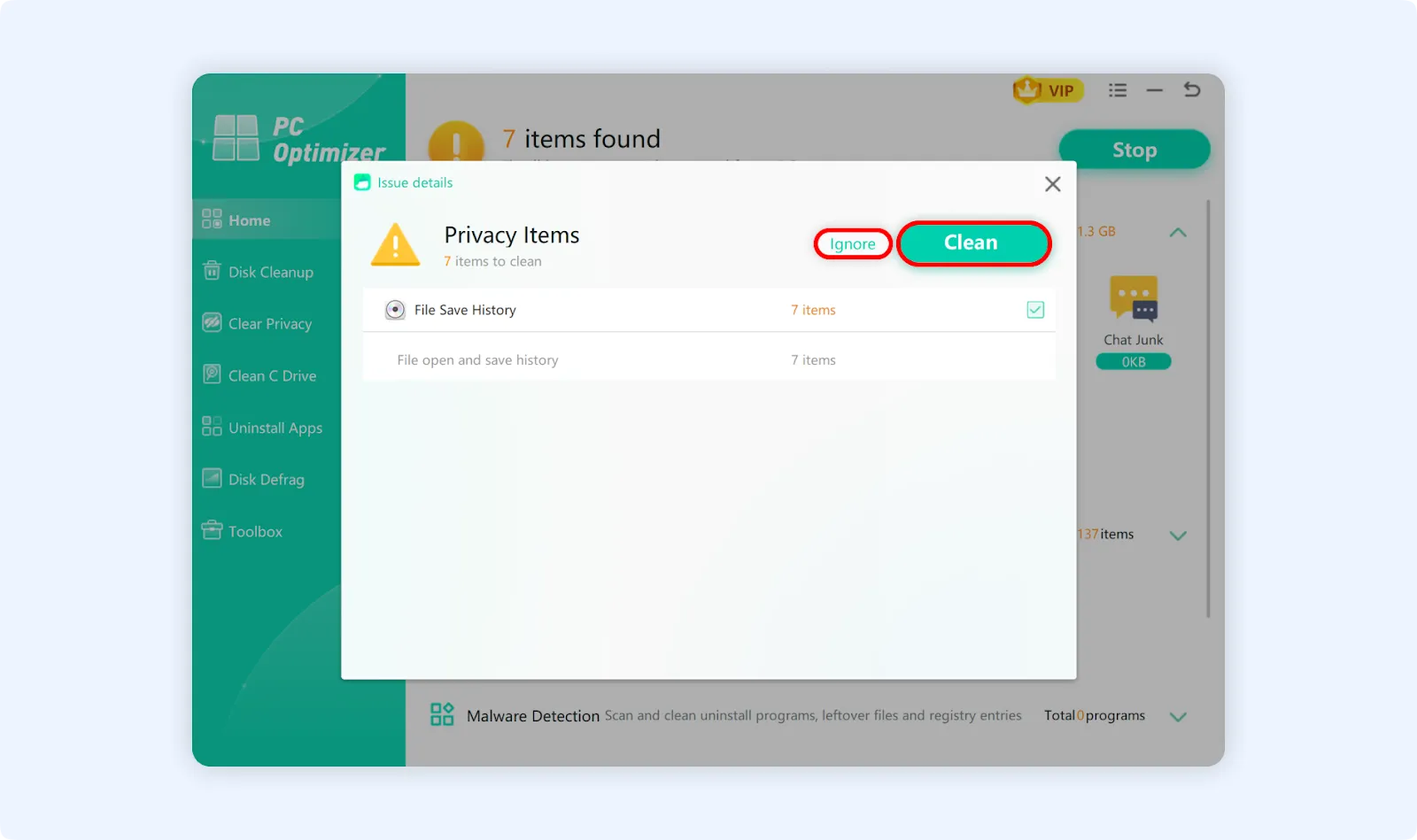
💡Tips:You can click on any optimizable item to see a list of specific tasks for that item, choose to ignore it, or clean it individually.
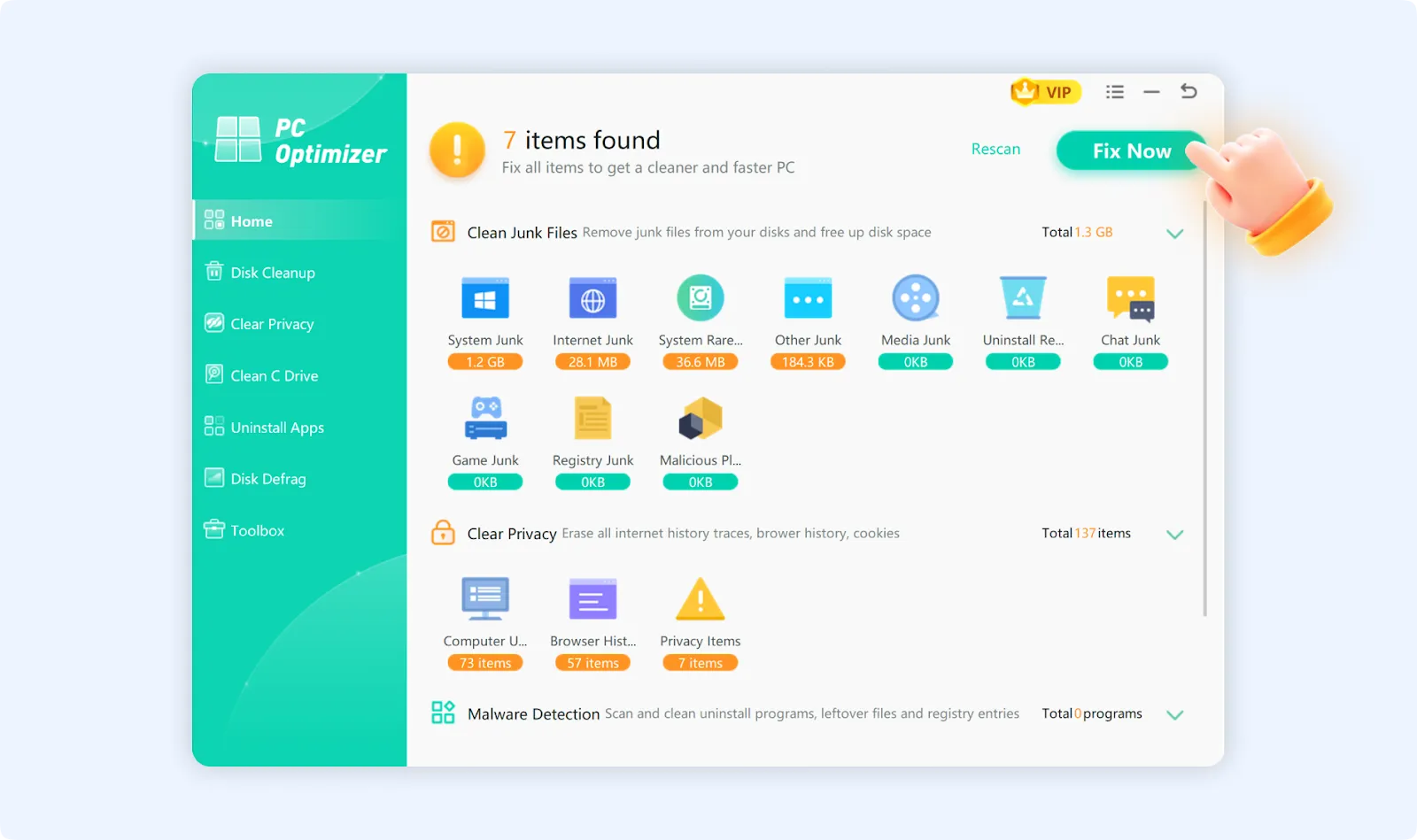
Step 4: Click "Fix Now" after checking all the optimizable items. Within a few minutes, WMaster Cleanup will efficiently carry out all of the optimization processes accurately.
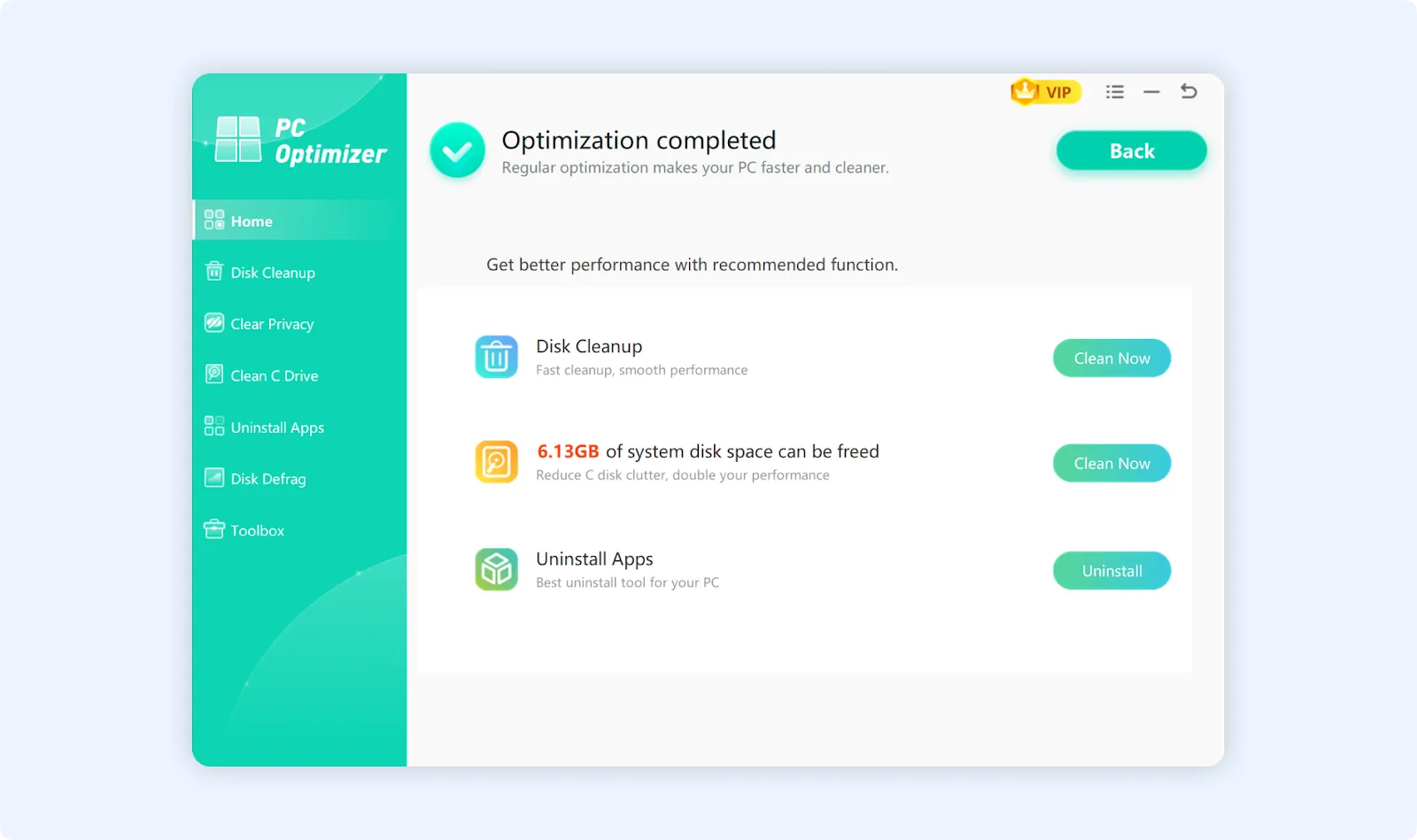
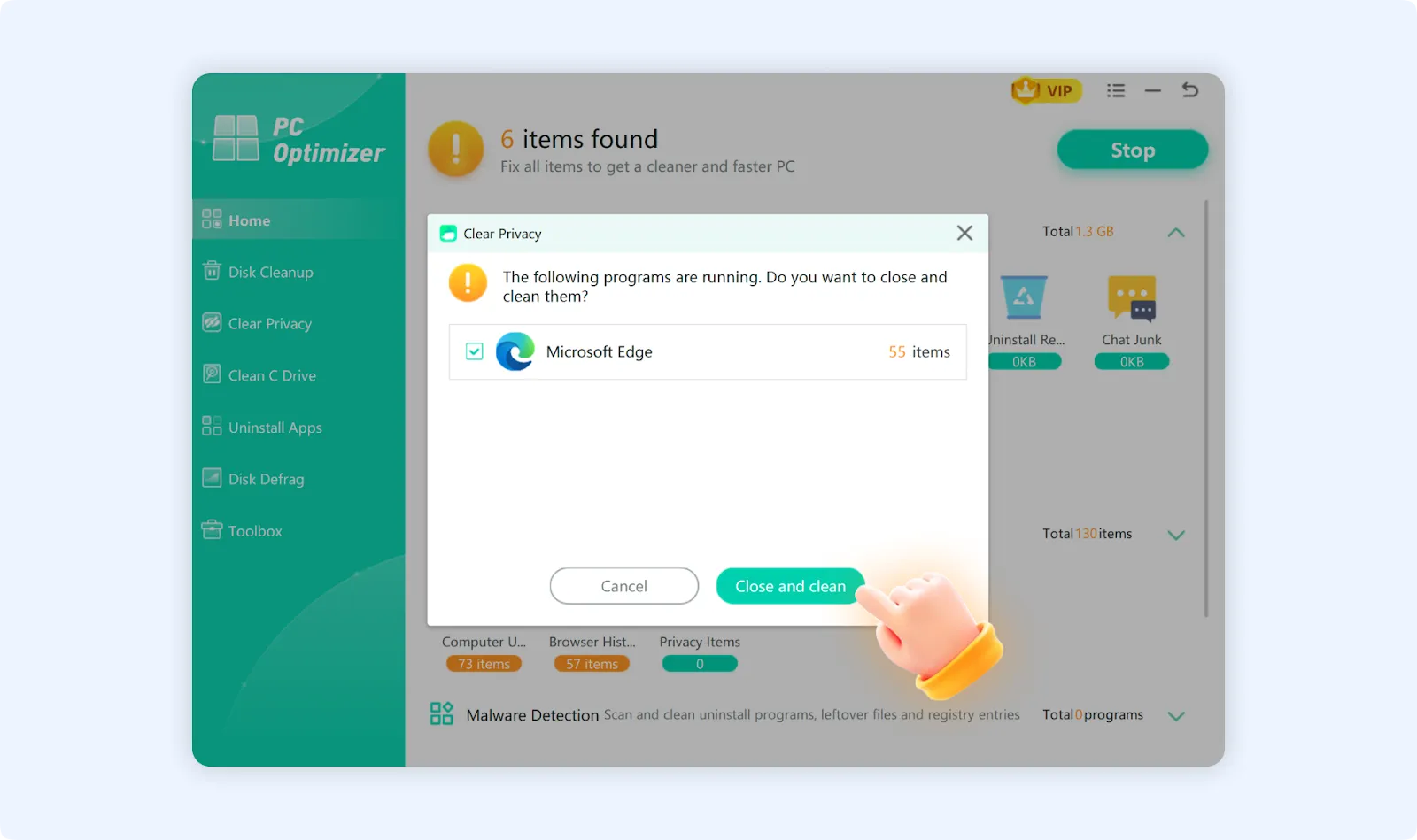
💡Tips:Before you click "Fix Now" to clean up your browser, you will need to confirm the operation. If you do not wish to clean up this item, you can click "Ignore."
💡Tips 1: If your web browser is running when clearing browser cache or other data with the PC Optimizer feature, you need to close the web browser to continue. Please make sure to save your files or work progress before proceeding.